How to Burn 4K Blu-ray Discs in 2026: Best Discs, Burners & Reliable Playback

Summary: Burning 4K Blu-rays takes more than just burning a video file; it requires proper authoring and compatible hardware. After testing several workflows, I found that software like DVDFab UHD Creator and 4K Blu-ray burners such as Pioneer BDR-XS07UHD work best together to preserve HDR and playback quality. This guide walks you through how to author, burn, and play 4K movies on your home theater setup.
Table of Contents
Many home theater enthusiasts want to preserve high-quality videos on 4K Ultra HD Blu-ray discs, but the process is full of hardware and software traps. Wasting money on BD-100 discs that standalone players refuse to read, dealing with encoding glitches, and hunting down scarce UHD-compatible optical drives can quickly become frustrating.
After testing several workflows and gathering troubleshooting notes from home theater communities, I found that creating your own 4K Blu-ray is achievable if you know which pitfalls to avoid. This guide breaks down the authoring software, hardware burners, and blank media you need to successfully burn 4K movies on Windows and Mac.
Preparation for Burning 4K Blu-ray
Before you author and burn a 4K Blu-ray, your video, audio, and hardware must meet UHD standards. Here is how to prepare each part of the workflow.
File Preparation
- 4K video files: Make sure the video resolution is native 3840 × 2160 (4K).
- Audio tracks: Use high-definition lossless formats such as DTS-HD MA or Dolby Atmos.
- Subtitles: Prepare SRT or PGS files. Avoid embedding multiple subtitles within the same track.
Hardware Specifications
- 4K-compatible Blu-ray burner: Choose a drive that supports BD-XL media (triple-layer 100 GB or quad-layer 128 GB). More importantly, it must be UHD-friendly, which depends on firmware certification rather than just the physical laser.
- External drive compatibility: Make sure the external burner is compatible with your operating system and connects via USB 3.0 or later for stable data transfer.
- Blank discs with large capacity: For high-quality 4K authoring, use BD-50 or BD-100 discs. See the blank-disc section below for a capacity and compatibility breakdown.
Settings and Optimization
The encoding settings you choose during authoring determine whether the final disc keeps its HDR detail and plays cleanly on consumer players.
- Bitrate management: Aim for 40–60 Mbps when compressing HEVC video to balance quality and disc capacity.
- Codec choice: Use HEVC (H.265) for 4K UHD Blu-ray authoring. It delivers the compression efficiency required for high-resolution content.
- HDR preservation: When authoring HDR10 or Dolby Vision content, confirm that your software passes HDR metadata correctly to avoid tone-mapping loss.
- Burn speed: Set the writing speed to 4×–6× for maximum stability and compatibility with consumer UHD Blu-ray players.
How to Burn 4K Blu-ray Discs with DVDFab UHD Creator
DVDFab UHD Creator is a Windows and macOS authoring tool that converts more than 200 video formats, including MP4, MKV, MOV, and AVI, into 4K Ultra HD Blu-ray discs, ISO files, or folders. It can preserve HDR10, Dolby Vision, and high-resolution audio formats, while also providing customizable static or animated menus, chapter settings, trimming, cropping, subtitle import, and basic image adjustments. GPU acceleration helps shorten processing time, and Windows users can optionally use AI enhancement for compatible SDR sources. Its main strength is combining UHD authoring, menu creation, and simple editing in one workflow.
Supported OS:
Free Download Windows 11/10/8.1/8/7
Free Download macOS 10.13 - 15.x
Key Features:
- Burn 4K Blu-rays from 200+ video formats, including MP4, MKV, and AVI.
- Retain HDR10 and Dolby Vision effects for 4K videos.
- GPU acceleration for faster encoding and burning.
- Create a user-friendly .nfo file for your media server.
- Burn 4K videos to blank BD-100, BD-66, BD-50, or save as ISO/folder.
- Output 2160p Ultra HD video with DTS-HD, DTS:X, TrueHD, and TrueHD Atmos audio.
Before you start, install the 64-bit version of DVDFab 13 on your Windows or macOS system. Ensure your burner supports BD-XL discs and that you are using USB 3.0 or higher for stable data transfer.
Step 1. Open DVDFab and Load Your 4K Source
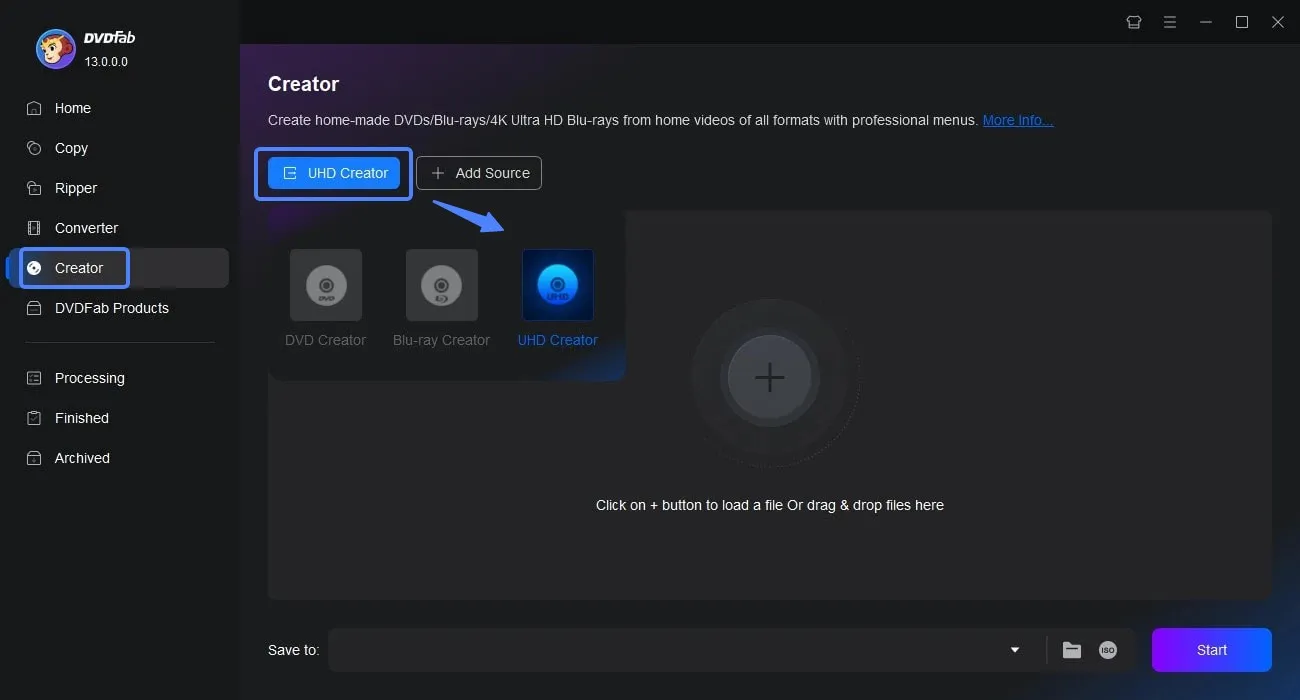
Open DVDFab and select UHD Creator from the main interface.
Drag and drop your 4K video file into the window, or click the plus icon to import it manually. DVDFab supports a wide range of input formats with HEVC 10-bit encoding.
Step 2. Customize the Output Settings
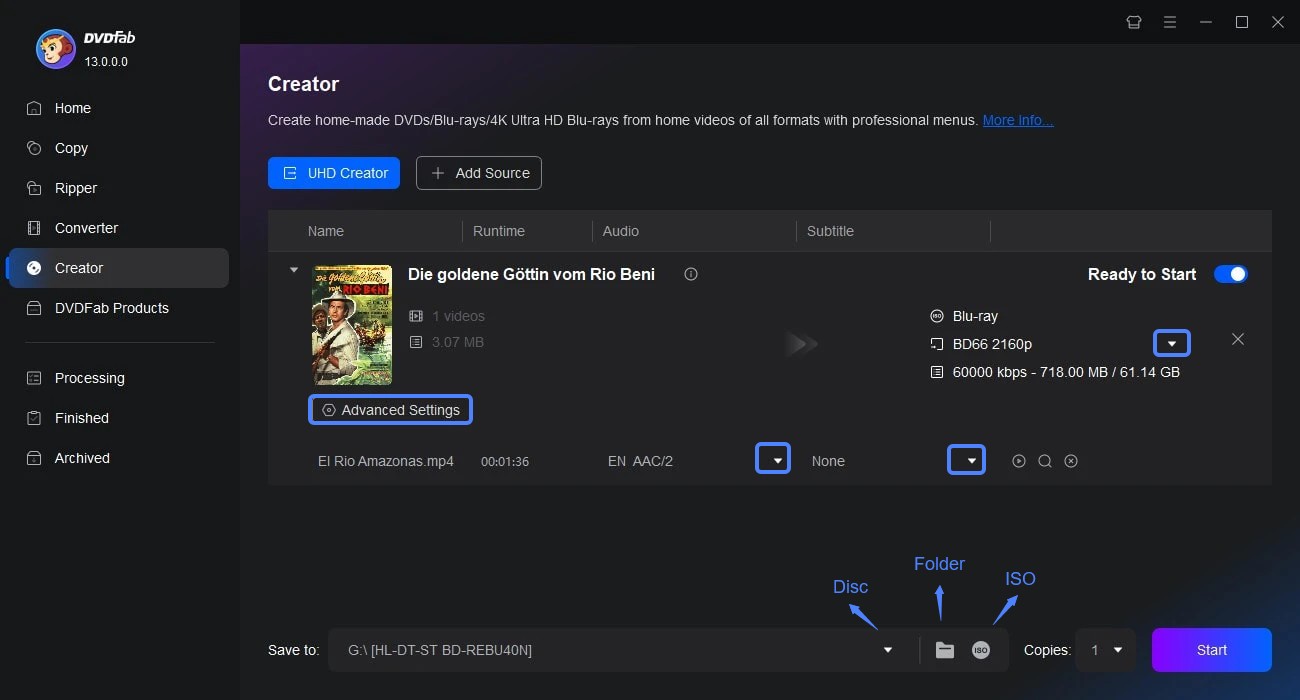
Before burning, personalize your 4K Blu-ray content. Use the Subtitles and Audio drop-downs to select your preferred tracks, or import external SRT/ASS subtitles if needed.
For further control, click Advanced Settings:
- Video quality: Choose from Fast Speed, Standard, or High Quality. HEVC H.265 is recommended for efficiency.
- Output type: For a 2-hour 4K HDR movie, BD-100 preserves quality without extra re-encoding, but only choose it if your target player is confirmed to read burned 100GB discs. Otherwise, BD-50 is the safer default for playback.
Step 3. Design the UHD Menu and Edit the Video
Click the Menu Settings icon to design your 4K Blu-ray interface. Choose from built-in templates, replace the background image, and adjust fonts or playback buttons.
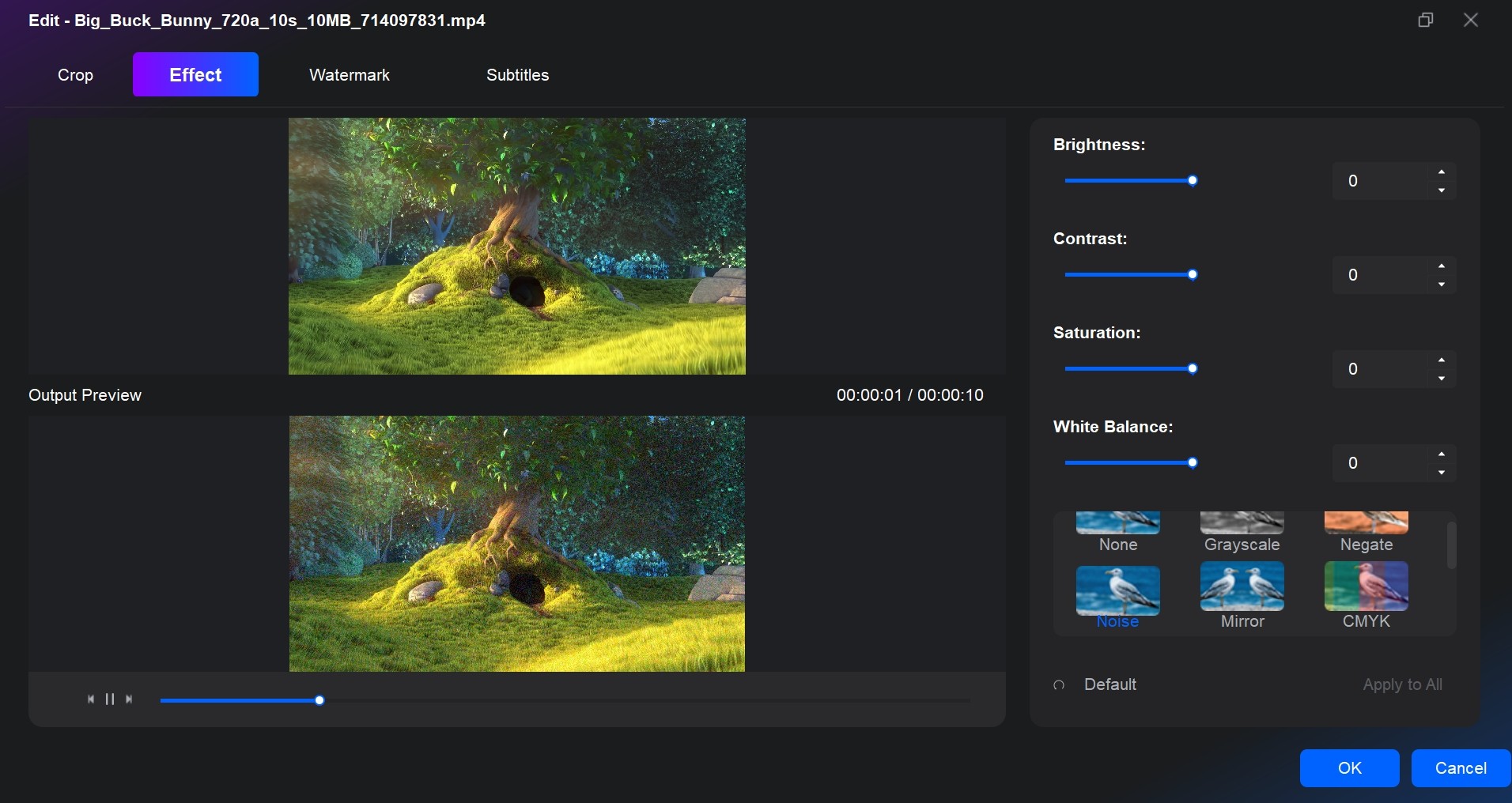
For further customization, open the Video Editor to crop, trim, or enhance visuals, adjust brightness or contrast, and import external subtitles. This ensures the final disc not only looks polished but also plays seamlessly on UHD Blu-ray players.
Step 4. Choose Output Type and Start Burning
The last step is to decide whether to save the 4K movie locally as an ISO image or movie folder, or to burn it straight to a blank disc.
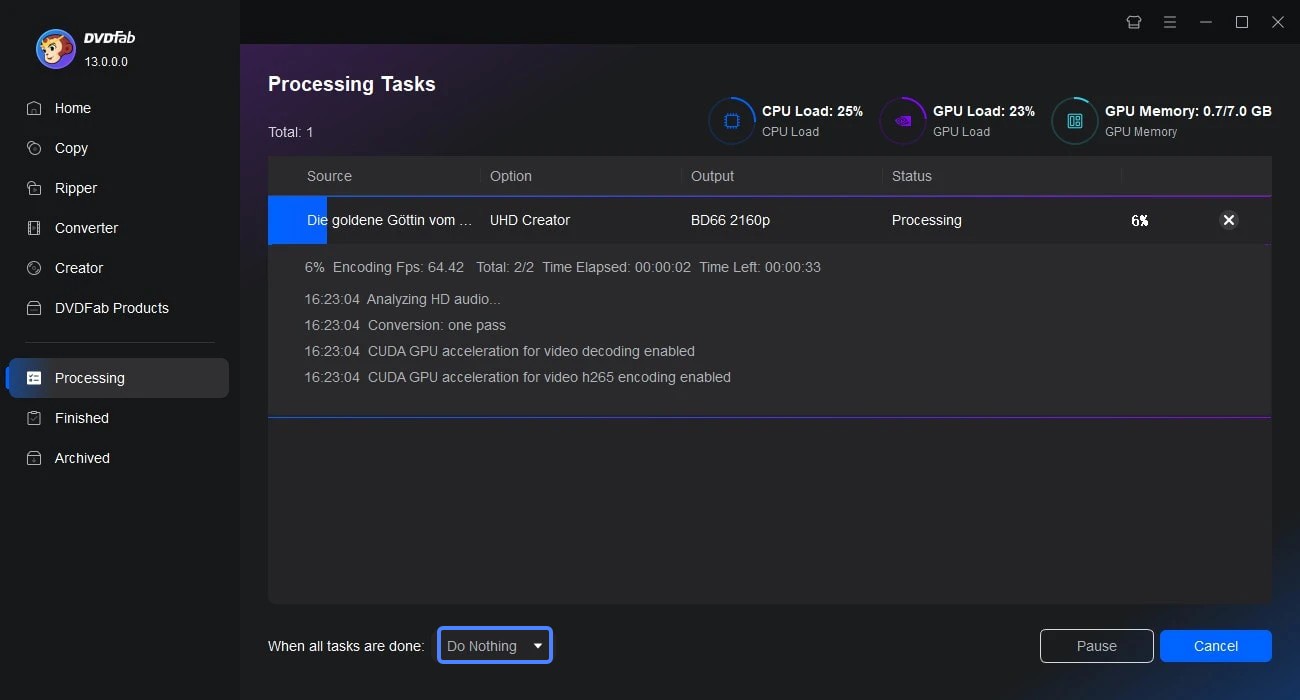
For BD-100 (2160p) profiles, output can only be saved as ISO or folder first. Once all settings are confirmed, click Start. The progress bar will display real-time speed, elapsed time, and GPU load.

Best Blank Discs for Reliable 4K Blu-ray Playback
Choosing the right blank media is just as important as choosing the right burner. The wrong disc can produce a coaster that your player refuses to read, while the right disc keeps your 4K HDR content intact.
BD-50 vs BD-66 vs BD-100: Capacity, Runtime and Media Brands
4K UHD authoring uses BD-XL media. The most common choices are BD-50 (dual-layer), BD-66 (triple-layer), and BD-100 (triple-layer with higher capacity).
| Disc Type | Capacity | Suggested Film Length (HEVC @ 50 Mbps) | Relative Cost |
| BD-50 | 50 GB | About 90 minutes | Lower |
| BD-66 | 66 GB | About 120 minutes | Moderate |
| BD-100 | 100 GB | About 180 minutes | Higher |
For most projects, BD-50 is the practical default. It is affordable, widely available, and the most reliable size for burned UHD playback. BD-100 discs are expensive, and their effective usable capacity is often closer to 66GB once overhead is accounted for, so many enthusiasts compress a project to BD-50 rather than risk incompatibility. BD-RE 50GB rewritable discs are useful for test burns while you dial in settings.
Proven media brands for UHD burning include Verbatim and Panasonic. In my experience, cheaper no-name BD-R media is more likely to produce read errors on picky players, so the modest premium for a known brand is worth it for archive work.
Will Your Burned Disc Play? Player Compatibility
This is the most common pain point for newcomers. A burned 4K Blu-ray that plays on one device may be rejected by another, and the disc layer count is usually the deciding factor.
| Player Family | Burned BD-50 | Burned BD-100 |
| Sony UHD players | Usually plays | Often rejected |
| Panasonic UB9000 | Usually plays | Reads burned 100GB in many cases |
| Microsoft Xbox Series X | Usually plays | Often rejected |
| Sony PlayStation 5 | Usually plays | Often rejected |
| Generic PC UHD drives | Usually plays | Depends on drive firmware |
The practical upshot is simple: if you want the widest playback compatibility, author and burn to BD-50. Reserve BD-100 only for players you have specifically confirmed can read burned triple-layer media. This matches what I have seen across multiple player tests and community reports.
Recommended 4K Blu-ray Burners for UHD Disc Creation
While DVDFab UHD Creator handles the authoring and encoding, you still need a UHD-compatible Blu-ray burner to write the data onto physical media. Top-tier manufacturers have scaled back production, so known-good drives are becoming harder to find and increasingly expensive on secondary markets.
What Makes a Drive "UHD-Friendly"
A standard Blu-ray burner cannot write UHD Blu-ray discs. UHD writing depends on a drive with UHD-friendly firmware or certification. These drives use a 405 nm laser to write BD-R, BD-RE, or BD-XL media, and their firmware controls how the laser encodes data layers, manages write speeds, and ensures the resulting disc conforms to UHD playback standards. Always check current firmware and availability before buying.
| Drive | Interface | Max Write Speed (BD-XL) | BD-XL Layers | Internal / External | 2026 Availability |
| Pioneer BDR-S13 | SATA | Up to 6× | BD-50 / BD-66 / BD-100 | Internal | Current generation |
| Pioneer BDR-X13U | USB 3.0 | Up to 6× | BD-50 / BD-66 / BD-100 | External | Current generation |
| LG BU40N | SATA (slim) | Up to 6× | BD-50 / BD-66 / BD-100 | Internal slim | Still shipping |
| LG WH16NS60 | SATA | Up to 6× | BD-50 / BD-66 / BD-100 | Internal | Officially discontinued |
| ASUS BW-16D1X-U | USB 3.0 | Up to 6× | BD-50 / BD-66 / BD-100 | External | Verify current listings |
Pioneer BDR-XS07UHD / BDR-S13 / BDR-X13U (Current-Gen Picks)
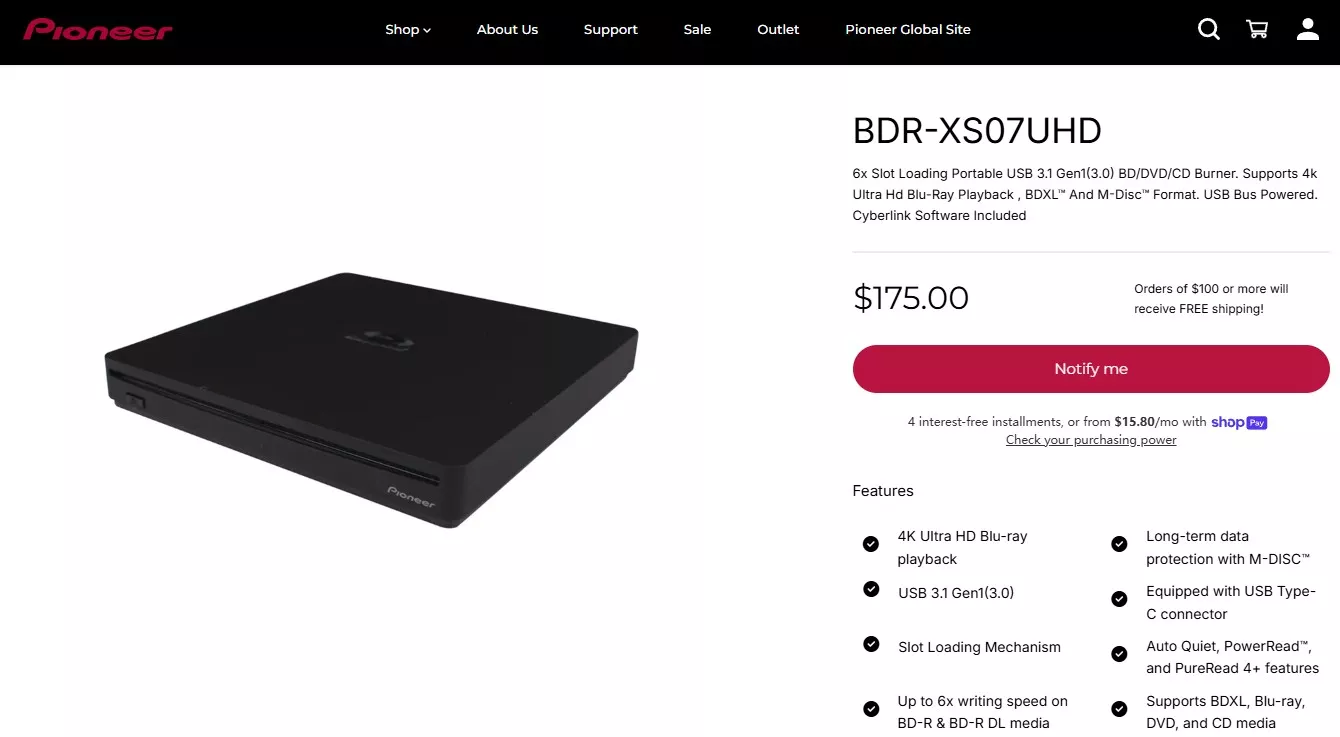
The older Pioneer BDR-XS07UHD was a compact, quiet external drive that handled BD-XL media reliably. For a new purchase in 2026, however, the current-generation successors are the Pioneer BDR-S13 (internal) and BDR-X13U (external). These drives maintain the steady write quality Pioneer is known for and support BD-100 media. UHD-capable drives remain scarce and priced at a premium, so if you find one in stock from a reputable seller it is worth considering.
LG WH16NS60 and LG BU40N (Internal / External)
The LG WH16NS60 has been a popular internal drive among home-theater PC enthusiasts because it consistently wrote BD-XL discs at up to 6× with no readback issues on large 4K HDR files. However, LG has officially discontinued the WH16NS60, so it is now available only through used or old-stock listings. Treat it as a legacy option rather than a current recommendation.
If you need a still-shipping LG drive, the LG BU40N is a slim internal option that supports UHD writing and remains easier to find. For a new build, I would look at the Pioneer BDR-S13 or a verified ASUS unit instead.
Best for: buyers who already own a WH16NS60 and want to keep using it. Not ideal for: a new purchase, because factory support and stock are limited.
ASUS BW-16D1HT / BW-16D1H-U (Budget Option)
The ASUS BW-16D1HT surprised me with how capable it was for its price. After a firmware update, it successfully burned triple-layer BD-XL discs that played back cleanly on standard UHD players. The external BW-16D1H-U variant serves the same budget role. It is a bit noisier and slower during verification, but for casual users or anyone creating discs occasionally, it offers good value. Verify current listings before ordering, because availability fluctuates.
Best for: occasional burners who want an affordable external UHD writer. Not ideal for: users who need the quietest drive or burn large projects daily.
How 4K Blu-ray Creator and Hardware Burners Work Together
When creating a 4K Ultra HD Blu-ray, authoring software and hardware burners function as two halves of a single process. One builds the digital structure; the other brings it to life on a physical disc.
The Authoring Stage: Building the Logical Disc Structure
Authoring software such as DVDFab UHD Creator performs the logical part of the process. It converts 4K video files into a Blu-ray-compliant structure, complete with menu navigation, subtitles, and HDR metadata. During authoring, the software encodes the video in HEVC (H.265) format, organizes files into the BDMV and CERTIFICATE folders, and outputs either a Blu-ray folder or an ISO image. These outputs are ready to burn but are still digital data.
The Burning Stage: Writing Data onto Physical Media
The next layer is handled by a UHD-compatible Blu-ray burner. This hardware writes the authored files to BD-R, BD-RE, or BD-XL media using a 405 nm laser. The burner's firmware controls how the laser encodes data layers, manages write speeds, and ensures that the resulting disc conforms to UHD playback standards.
FAQs About Burning 4K Blu-ray
Why won't my 4K Blu-ray Play on a UHD Player?
Most playback issues come from compatibility or authoring errors rather than the burning process itself.
- Check Disc Type: Ensure your player supports BD-R, BD-RE, or BD-XL media. Some older 4K players can't read triple-layer BD100 discs.
- Verify Authoring: If you burned from a raw MP4 instead of a UHD Blu-ray folder or ISO, the structure won't be recognized. Always author the disc first.
- Update Firmware: Outdated burner or player firmware often causes read errors.
- Inspect the Disc: Dust, fingerprints, or poor-quality media can make 4K playback unstable.
I've noticed that most failed discs play perfectly after re-burning from a properly authored ISO using a BD-XL certified burner.
What type of disc should I use for burning 4K UHD movies?
For 4K content, BD-XL media (BD-50, BD-66, BD-100) is supported by the format. A 90-minute 4K HDR movie at 50 Mbps usually needs about 60–70 GB, which exceeds standard BD-25 capacity. However, testing from Reddit r/4kbluray shows many standalone players (including the PS5) cannot read burned triple-layer BD-100 discs. For maximum playback compatibility, compressing your project to fit on a BD-50 disc is universally recognized as the most reliable route. Always choose high-quality media such as Verbatim or Panasonic.
Why does my 4K Blu-ray burning fail or stop midway?
This usually happens when the project exceeds disc capacity or your drive doesn't support the required BD-XL layers.
- Save your project as an ISO file first to ensure correct formatting.
- Confirm your burner supports triple-layer BD100 and use 4× speed for best stability.
- Use verified BD-XL media from brands like Verbatim or Panasonic.
Why does my burned 4K video have green bars, or distorted colors?
If your final burned video suffers from visual glitches like green bars at the top or bottom, or if the colors look heavily distorted, it is likely a conflict with your PC's GPU hardware acceleration. According to user troubleshooting on r/4kbluray, simply disabling the GPU codecs in your authoring software's settings resolves this visual glitch.
Conclusion
Burning 4K movies onto Blu-ray discs is manageable once you understand how authoring software, blank media, and hardware burners work together. With the right preparation, it's possible to produce 4K Blu-rays that play smoothly on home theater systems and UHD players, preserving both HDR detail and immersive sound.
My practical recommendation is to choose a UHD-friendly burner, author with a tool like DVDFab UHD Creator, and burn to BD-50 for the widest playback. Reserve BD-100 only for players you have confirmed can read burned triple-layer discs.