Cinavia Message Code 3: Meaning and How to Fix Audio Muted Errors

Summary: Cinavia Message Code 3 appears when a Blu-ray or DVD player detects a Cinavia watermark, usually muting the audio during playback. Here we outline what triggers this error, which devices are affected, and the available Cinavia removal tools.
Table of Contents
Cinavia Message Code 3 means a player has detected a Cinavia watermark in the audio and muted the sound while video may continue. On a purchased DVD or Blu-ray, the warning does not by itself prove wrongdoing; first check the disc, player, and playback path.
The "audio outputs temporarily muted" message can be especially confusing when the disc came from a store, library, or resale seller. This article explains what the code means, which checks come first, and where temporary device experiments or a desktop local-file option may fit.
What Cinavia Message Code 3 Means
When playing certain DVDs or Blu-ray discs on a Blu-ray player or PlayStation console, you may suddenly lose audio and see a warning like this:
"Audio outputs temporarily muted. Do not adjust the playback volume. The content being played is protected by Cinavia™ and is not authorized for playback on this device. For more information, see http://www.cinavia.com Message Code 3."
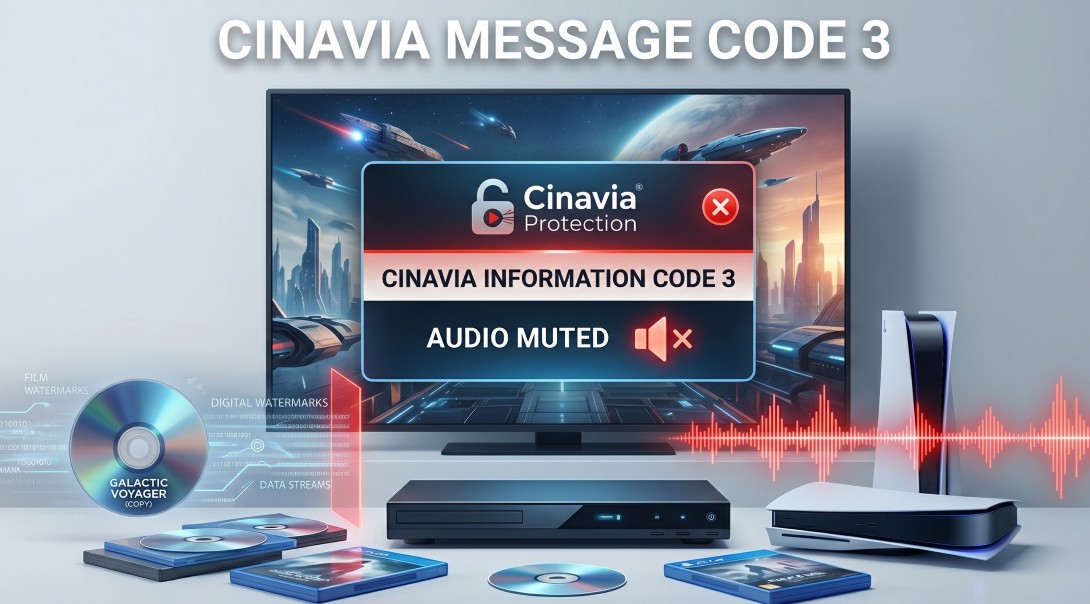
This is Cinavia Message Code 3, often shortened to Cinavia Code 3. It means the audio track contains a Cinavia watermark and the playback device has detected it on the current playback path. The warning does not damage the player. Cinavia is an audio-based content protection system designed to enforce playback rules.
Message Code 1 vs. Message Code 3
Message Code 3 mutes audio during playback, while Cinavia Message Code 1 stops playback of the affected content. I treat the exact message code as the first troubleshooting clue because it tells you whether to investigate an audio-detection event or a playback stop.
Devices and Playback Paths That Trigger It
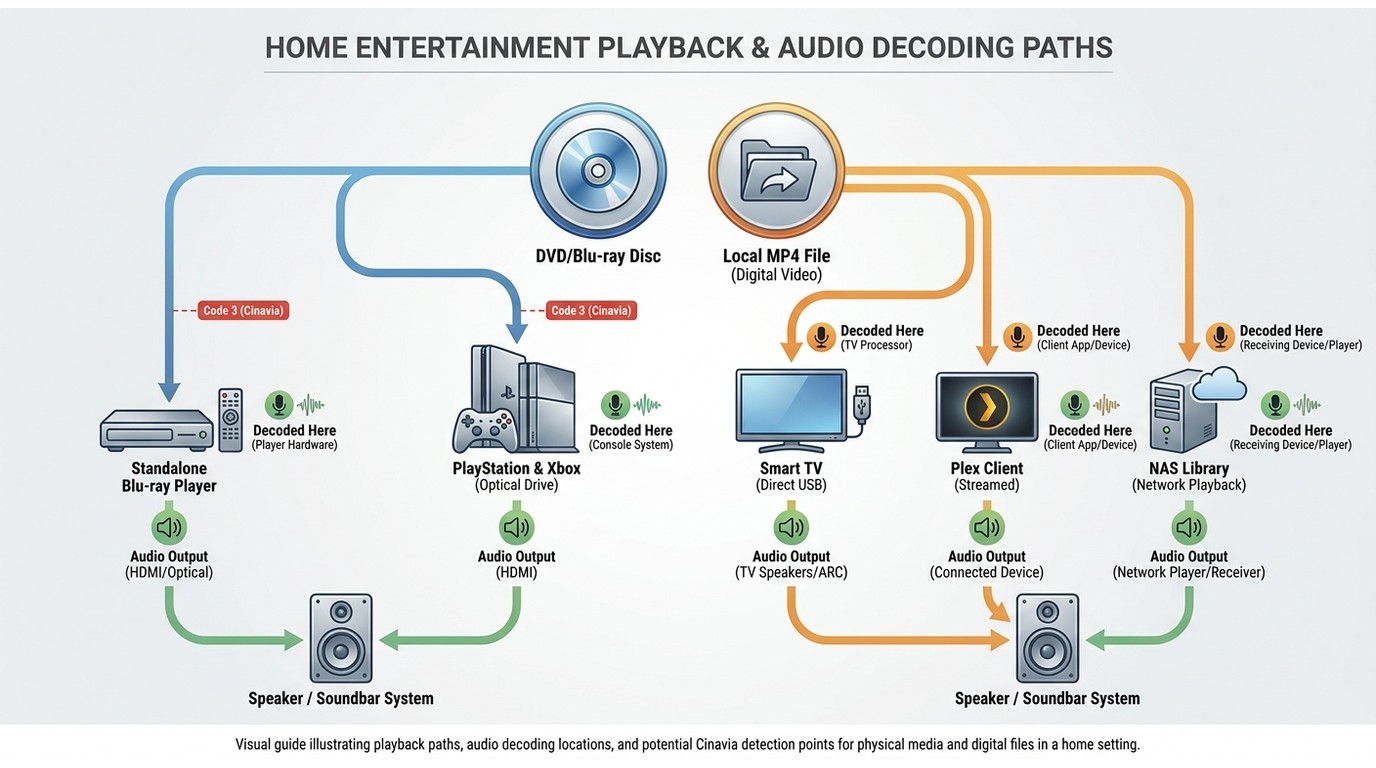
Cinavia playback detection depends on the device or app and on where the audio is decoded. The same disc or local file can behave differently when played through a standalone Blu-ray player, a console, a smart-TV app, Plex, USB storage, or a NAS media library.
- Standalone Blu-ray and 4K UHD players: Detection can occur while the player decodes the disc’s audio.
- PlayStation and Xbox consoles: A disc, USB file, or media-server stream may produce different results depending on the console app and audio-output path.
- Smart-TV apps and media servers: Plex, NAS, and USB playback can also involve a device or app that detects the watermarked audio.
Changing the playback path can change detection even when the file itself has not changed, so it is worth comparing another compatible player or app before assuming the disc is defective.
Message Code 3 on a Purchased Disc
A Cinavia Message Code 3 warning on a retail, used, rental, or library disc does not by itself mean you knowingly used an unauthorized copy. A purchased DVD Cinavia error can stem from the disc, its source, or the player and audio path, so begin with checks that do not alter the media.
Verify the Disc and Playback Source
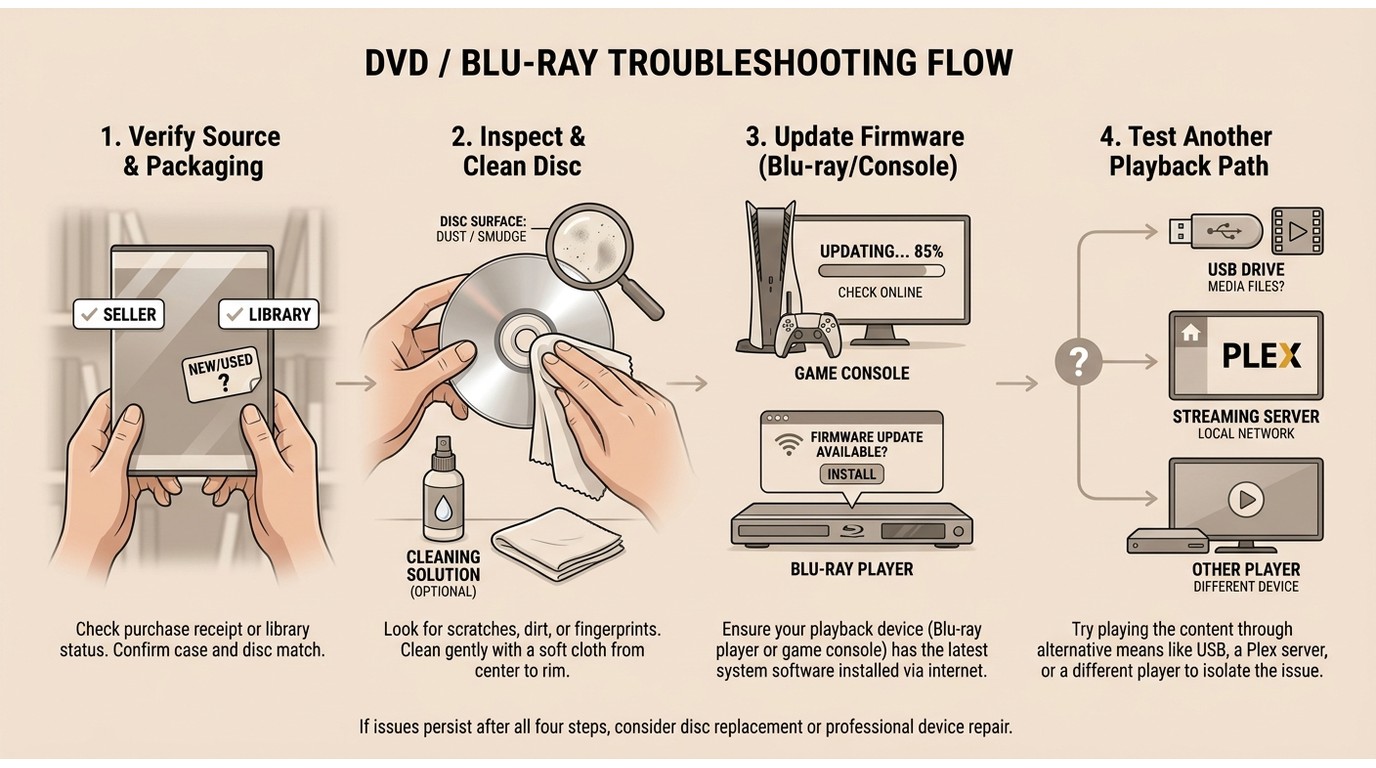
- Confirm the source and packaging: Compare the disc label, case, and seller or library record with the title you expected to receive. A used or store-bought disc can warrant a return or a source check without assigning a cause.
- Inspect and clean the disc: Look for visible residue, scratches, or label damage, then clean the playback side carefully with a soft, lint-free cloth.
- Update the player: Install the available firmware update for the Blu-ray player, console, or playback app before drawing conclusions from one warning.
- Try another compatible playback path: Test another player, console app, USB setup, or media-server client when available. A different audio-decoding path can produce a different result with the same disc or file.
Choose the Next Safe Step
If the warning persists after those checks, contact the seller, library, studio, distributor, or device maker about a replacement or support request. Damage, an incorrectly authored disc, duplication, or a counterfeit copy can produce similar symptoms, and the warning alone does not identify which explanation applies.
For a purchased disc, I would put these non-destructive checks and a replacement request before device experiments or local-file software. They preserve the original purchase path and can resolve the issue without changing the media.
Ways to Resolve Message Code 3
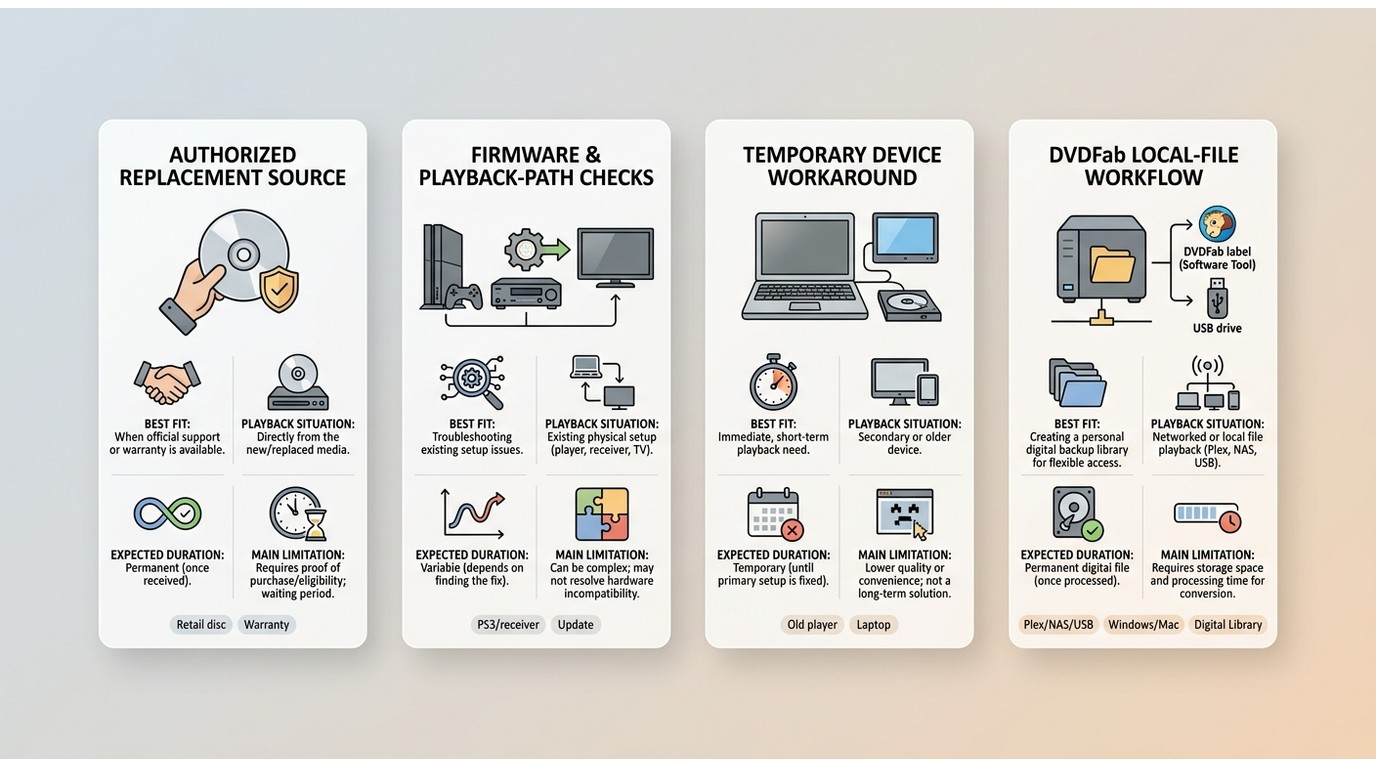
There is no universal switch that disables Cinavia detection on a player. The appropriate next step depends on whether you have a purchased disc that may need replacement, a playback-path issue, or an authorized local-backup use case.
| Option | Best fit | Supported playback situation | Expected duration | Main limitation | Authorization boundary |
| Authorized original or replacement source | A retail, used, rental, or library disc that unexpectedly triggers the warning | The disc itself or another authorized copy | Long-term if the replacement is correctly authored | Requires seller, library, studio, or distributor support | Use content obtained through an authorized source |
| Firmware and playback-path checks | A disc that works inconsistently across players or apps | Compatible player, console, smart-TV app, USB, Plex, or NAS playback | Immediate diagnostic check | May not change a detected audio signal | Use supported devices and authorized media |
| Device-dependent workaround | An older device where a brief experiment is acceptable | Specific consoles, receivers, or player settings | Brief or uncertain | May fail, may interrupt viewing, and is not ideal for regular playback | Do not use it to access content you are not authorized to use |
| DVDFab DVD Cinavia Removal | Windows or Mac users making an authorized local backup | A compatible local-file player | Requires desktop setup and processing | Not ideal when a replacement disc, firmware check, or mobile-only playback is enough | Use only for content you are authorized to access, where permitted by platform terms and applicable law |
Official and Low-Risk Checks
For a purchased disc, start with the diagnostic checklist above. If the source and disc check out but the warning persists, seller, library, studio, or device-maker support can clarify whether a replacement or a player-specific update is appropriate.
Temporary Device Workarounds
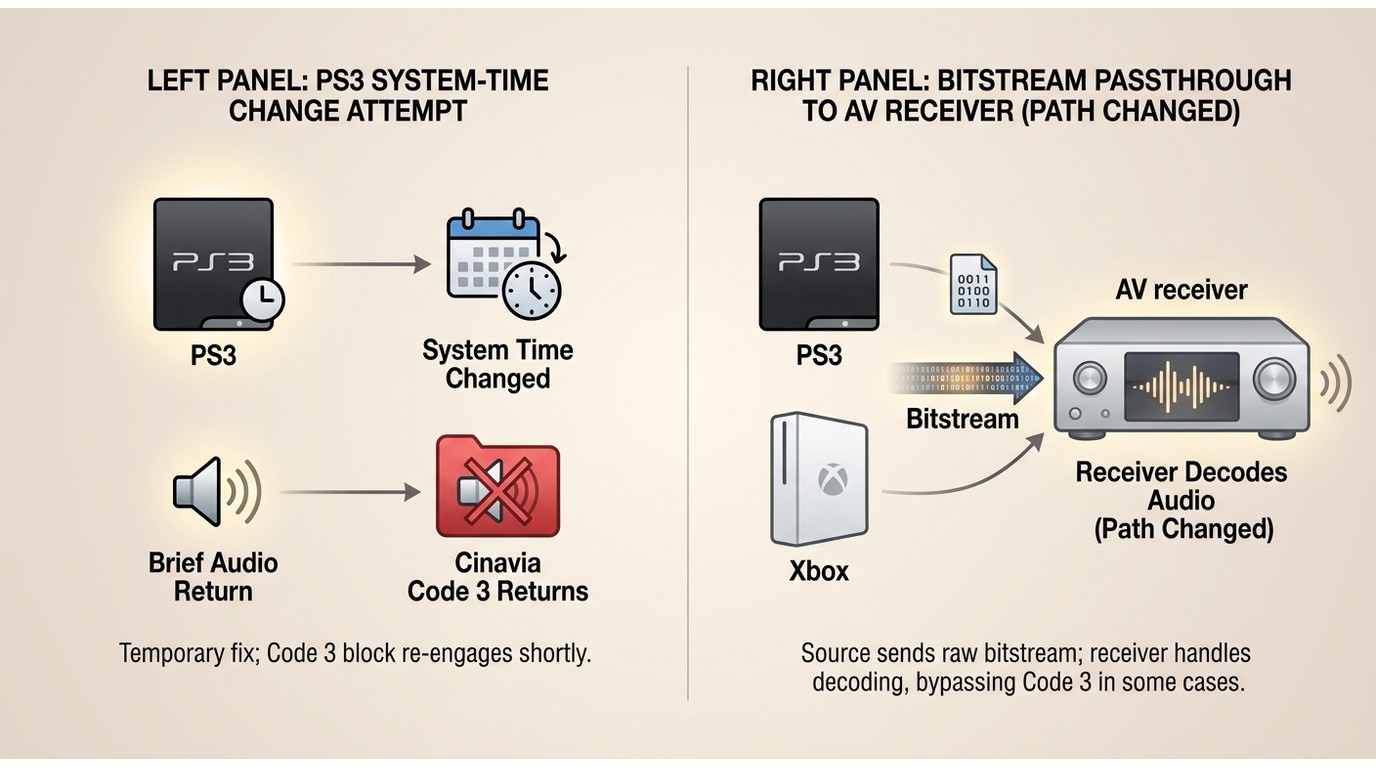
Date changes, track switching, and audio passthrough are device-dependent experiments. They may fail, restore audio only briefly, or behave differently after a player, receiver, console, or app changes.
- System-time change: This is sometimes attempted on older consoles such as a PS3. Success would mean audio returns briefly after resuming playback. It is not ideal for a full movie because the warning can return and repeated setting changes disrupt viewing.
- Audio passthrough or bitstream output: Sending audio to an AV receiver may change where detection occurs. Success would mean the affected setup continues playing with audio, but the result depends on the console, receiver, format, and app, so it is not a dependable fix for PS5, Xbox, or Blu-ray playback.
Repeated time changes are too disruptive for most viewers, so treat these as limited diagnostics rather than a regular viewing solution.
DVDFab Cinavia Removal Solution
If you are building a home NAS library and want your MKV or ISO files to play natively on Roku, or strict smart TVs without applying manual workarounds, you must physically remove the watermark from the audio stream. Because the Cinavia watermark survives compression and standard ripping, conventional transcoders fail to address it.
Dedicated utilities, such as the DVDFab Cinavia Removal module, resolve this at the audio-engineering level. This type of software identifies the watermarked track and substitutes it with a synchronized, clean, lossless AC3 or DTS-HD audio track from an untainted source database.
| Module | Input and workflow | Audio output | System support | Prerequisites |
| DVD Cinavia Removal | DVD Full Disc or Main Movie | Near-lossless AC3 | Windows 11 or 10 and Mac | Optical drive and live Internet connection |
| Blu-ray Cinavia Removal | Blu-ray disc or ISO; Full Disc, Main Movie, Ripper, Converter, or Blu-ray-to-DVD | DTS-HD and supported local audio outputs | Desktop use with the applicable DVDFab module | Optical drive and live Internet connection |
The DVD module is the narrower choice for DVD Full Disc or Main Movie backups, while the Blu-ray module covers disc and ISO inputs plus Blu-ray-specific conversion and ripping tasks.
Supported OS:
Free Download Windows 11/10/8.1/8/7
Free Download macOS 10.13 - 15.x
How to remove Cinavia message code 3 with DVDFab Cinavia Removal
The DVDFab Cinavia Removal Tool works with DVDFab copy, ripper, and conversion modules. For Blu-ray input, select the appropriate Full Disc, Main Movie, Ripper, Converter, or Blu-ray-to-DVD task, then review the selected title and audio output before processing.
Launch DVDFab 13 and navigate to the copy module
Open DVDFab and choose copy module. Then, Insert the DVD or Blu-ray disc affected by Cinavia into your drive.
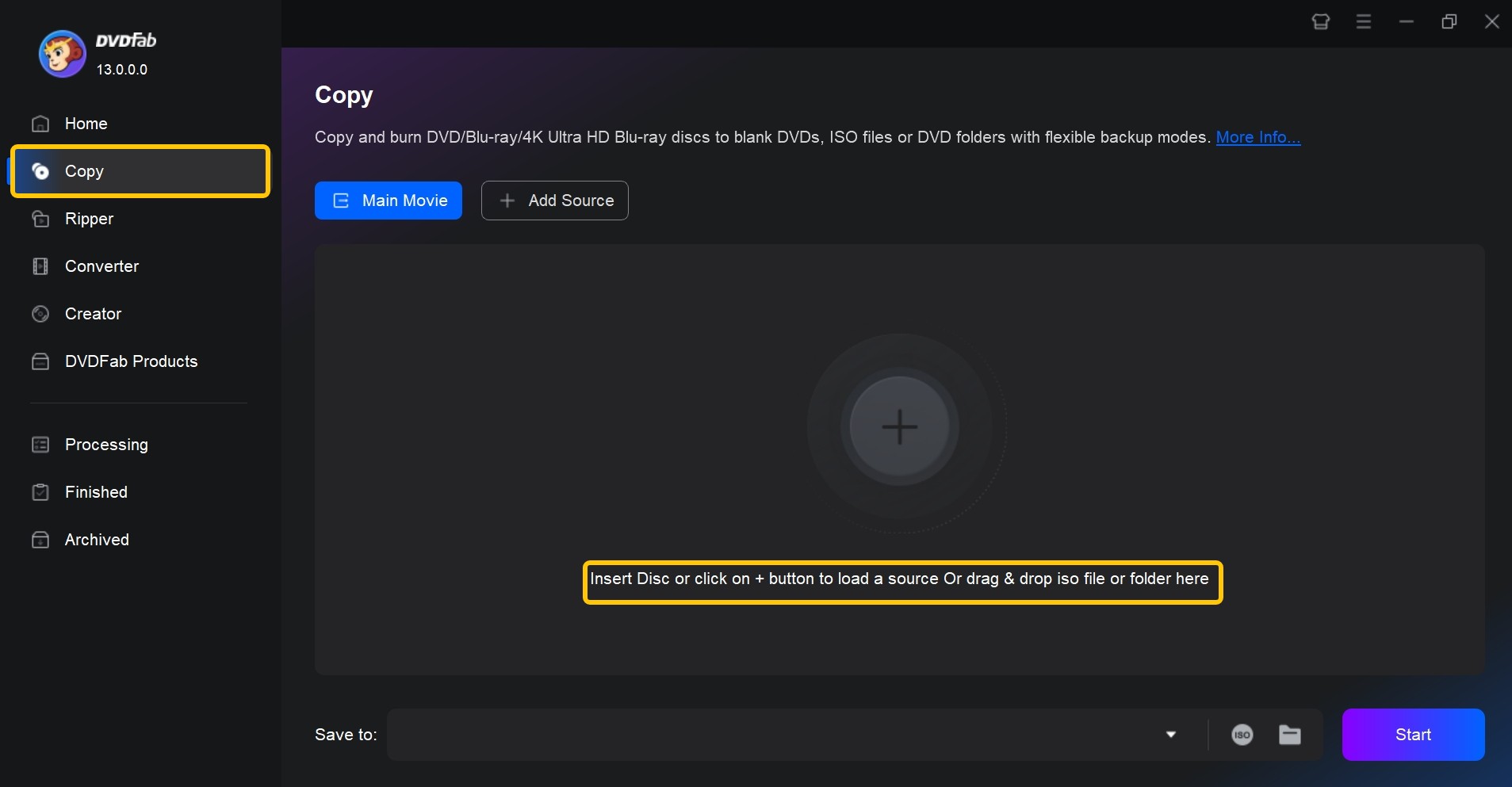
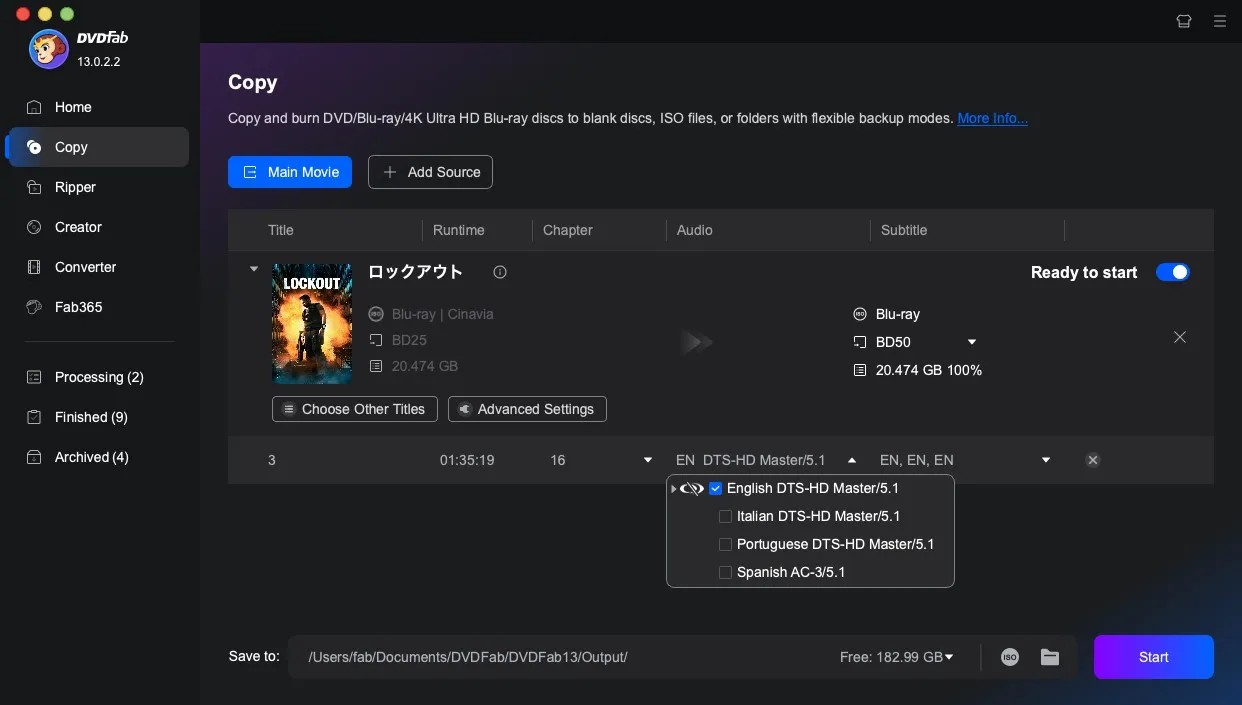
Select the Cinavia-affected audio track
In the Audio section, locate the track marked with the Cinavia logo. Click the logo so that a slash appears across it—this confirms that Cinavia removal will be applied to this audio track during processing.
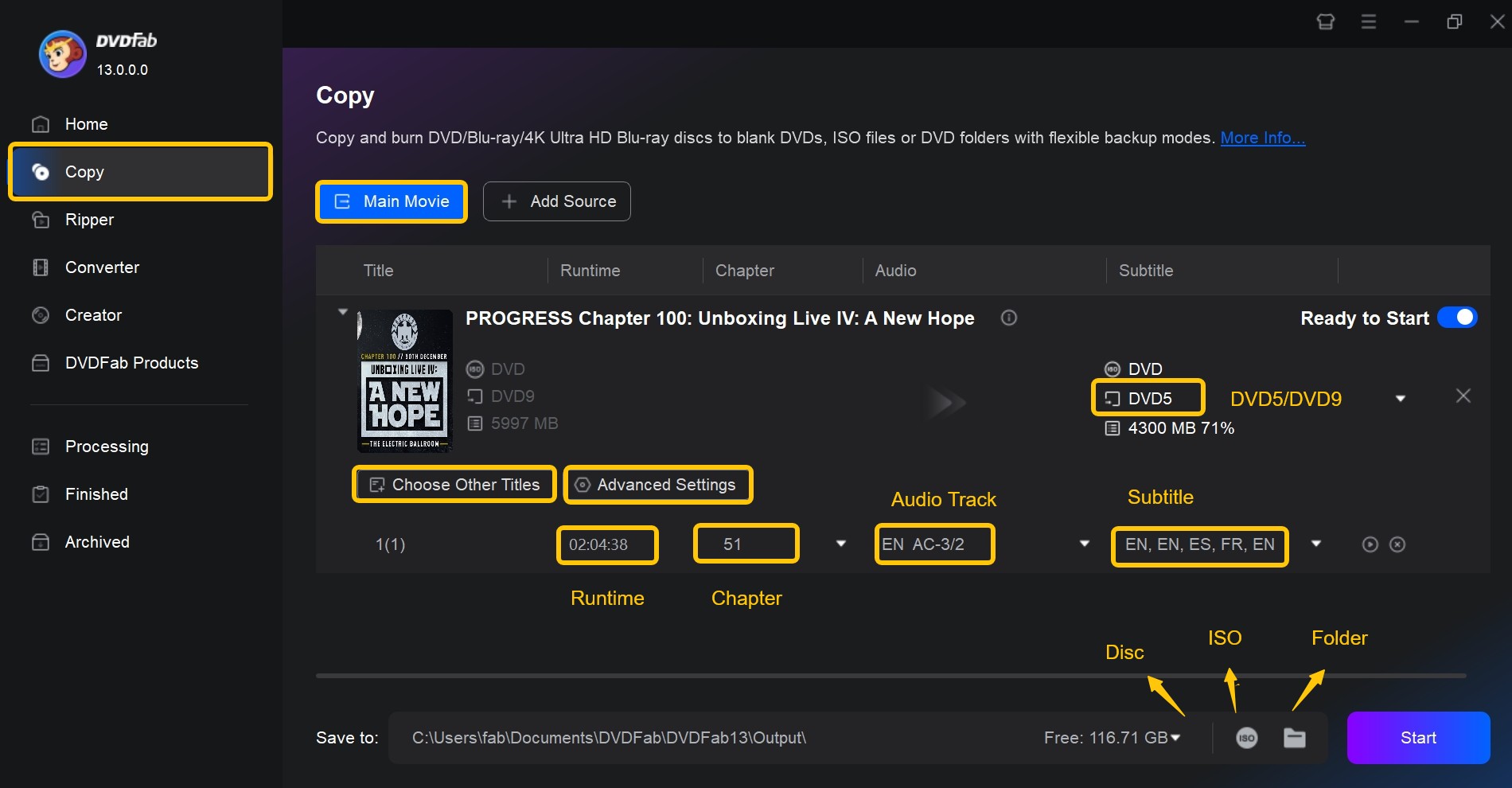
Start the removal process
Choose your preferred copy mode (e.g., Full Disc or Main Movie), set the output location, and click Start. DVDFab will process the disc and create a copy with the selected audio track free from Cinavia restrictions.
Frequently Asked Questions
What legal limits should I consider before making a backup?
Legal rules and media terms vary by jurisdiction and use case. This article addresses content you are authorized to access and does not offer a blanket legal conclusion about copying or processing protected media. Consider the terms attached to the disc or service and the laws that apply where you live.
Can Message Code 3 return after a workaround?
Yes. A temporary device trick can stop working or the warning can return because the embedded signal remains and another playback path may detect it. If a purchased disc continues to trigger the message, replacement and support checks are more dependable next steps than repeating a device-specific experiment.
Why does the video keep playing when audio is muted?
Cinavia Message Code 3 targets the detected audio path, so video may continue while the player mutes sound. This symptom points to audio-watermark detection, not necessarily a fault in the disc or player hardware.
Does MakeMKV or HandBrake change the Cinavia watermark?
No. Ordinary remuxing or transcoding with MakeMKV or HandBrake does not inherently change an embedded Cinavia watermark. Whether the resulting file triggers muted audio depends on whether the destination device or app detects it. Changing containers is not the same as changing the detected audio path.
Conclusion
For a purchased disc, start by verifying the source, inspecting the disc, and pursuing replacement or support when appropriate. Device experiments can be useful for diagnosis, but their results are uncertain. Most purchased-disc readers should exhaust replacement and support options first, then consider a desktop local-file workflow such as DVDFab when you want a personal backup for playback on your local device.