
How to Remove Mosaic from Disc Video with AI: DVD & Blu-ray Detail Refiner

Summary: Removing mosaic from disc video is possible when the affected scene still has enough visual context. DVDFab Detail Restore AI is a tool that performs AI correction and reconstructs video details through cloud processing during DVD, Blu-ray, and UHD ripping. Simply load the disc source, enable Detail Refiner AI, choose a quality mode, and start the cloud task. DVDFab will process the affected area, enhance local details, and export a cleaner video for review.
Last weekend, I put a Blu-ray movie into my player, expecting a clean big-screen night, but one close-up scene was covered by heavy square masking, so I searched how to remove mosaic without changing the whole movie's look. Since the issue was already visible in the disc movie itself, I moved the clip to my PC to test whether AI detail refinement could help.
I tested DVDFab Detail Refiner AI on a Windows 10 PC with short DVD, Blu-ray, and UHD disc movie clips. Below, I'll show how to remove mosaic with the right disc import workflow, quality mode, preview check, and export settings, while keeping the surrounding picture natural instead of over-softened.
Can You Remove Mosaic from Disc Video with AI?
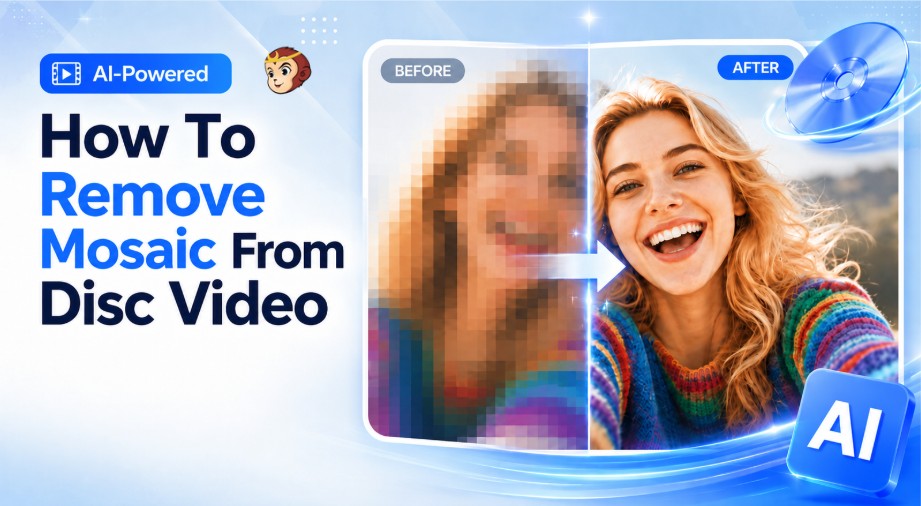
Yes, AI can help remove mosaic from disc video, but the result depends on how much visual information remains behind the masked or pixelated area. In DVD, Blu-ray, and UHD movies, mosaic may appear as square blocks, heavy pixelation, local blur, or obscured details in a specific scene. AI detail refinement can analyze the surrounding image context and rebuild a cleaner, more natural-looking area, especially when the mosaic is not too large or too dense.
However, AI should not be treated as a perfect recovery tool. If the original pixels are fully hidden, it cannot guarantee an exact restoration of the real face, object, text, or background behind the mosaic. A more accurate expectation is reducing mosaic so the affected scene looks less distracting while the rest of the movie keeps its original disc style.
How to Safely Reduce Mosaic from Disc Video: DVDFab Detail Refiner AI
DVDFab Detail Refiner AI is a cloud-based AI tool that can remove mosaic from disc movies. It targets square masking, pixelated zones, and blurred local details. Instead of treating the whole frame as a normal upscale job, DVDFab analyzes each frame, identifies damaged-looking areas, and uses cloud-based AI to rebuild texture, edge structure, and visual continuity. It works inside DVDFab DVD Ripper, Blu-ray Ripper, and UHD Ripper modules, so you can load a DVD, Blu-ray, or UHD disc, convert the title, refine the mosaic area, and save the ripped video in one workflow.
I recommend it because it gives us a clear balance between speed and quality. Standard mode gives a faster first pass, while High Quality mode is better for close-ups where the masked area needs more texture. In my Windows 10 test, it felt practical because processing stayed cloud-based and the preview workflow helped avoid over-softening.
Supported OS:
Key Features:
- Frame-by-frame AI analysis for masked areas
- Rebuild texture, edges, and structure
- Cloud processing without high-end local GPU
- Standard and High Quality modes
- Integrated with DVD/Blu-ray/UHD Ripper modules
- Estimated time and credit usage before start
How to Remove Mosaic from DVD, Blu-ray or UHD Disc Video with DVDFab Detail Refiner AI:
Step 1. Open DVDFab and load the disc source
Open DVDFab and enter the Ripper module. Load your DVD, Blu-ray, or UHD disc, ISO file, or folder. Then choose the main movie title or the clip that contains the mosaic area.
Step 2. Enable Detail Refiner AI
Open the output profile settings and enable Detail Refiner AI. This option adds AI mosaic reduction and detail reconstruction to the ripping workflow, so you can process the disc movie and refine the affected area in the same task.
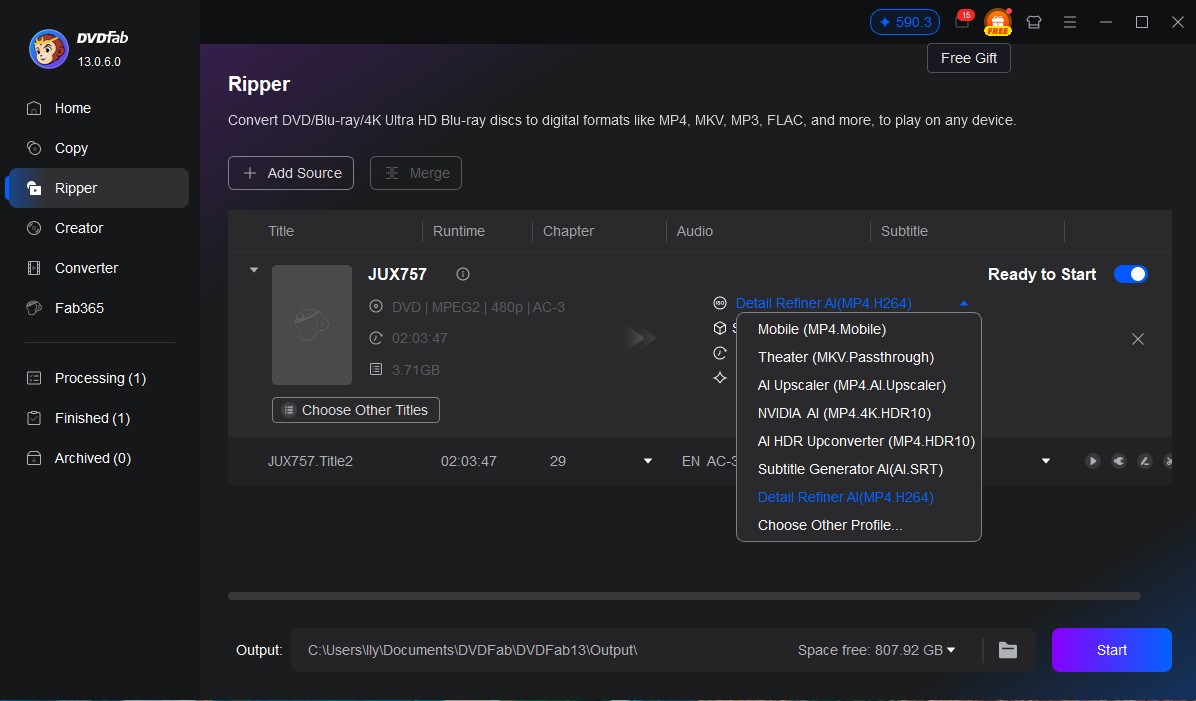
Step 3. Choose the quality mode
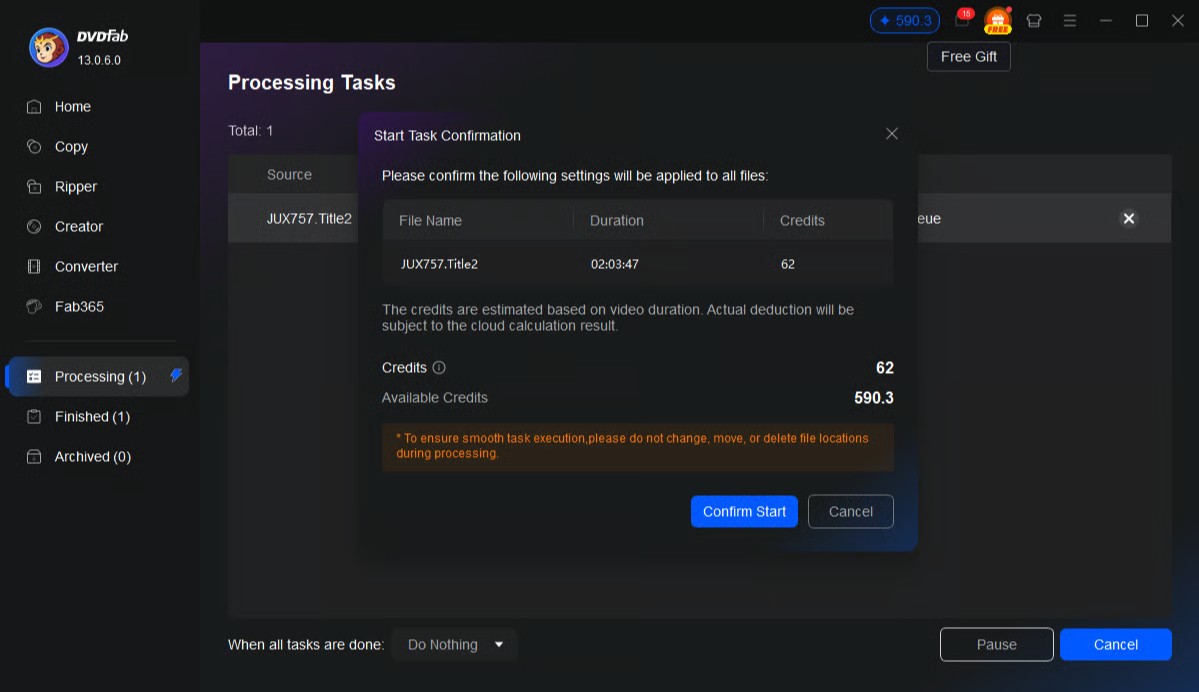
Choose Standard mode if you want a faster result. Choose High Quality mode if the mosaic area appears in a close-up scene or needs more texture. DVDFab will estimate the processing time and the required cloud credits before you start.
Step 4. Start cloud processing
After you confirm the settings, click Start. DVDFab will upload the task to its cloud server and process the selected video with AI. A stable internet connection is required because the main AI work runs in the cloud.
Why DVD, Blu-ray and UHD Disc Videos May Look Mosaiced
A disc movie may look mosaiced for several reasons. Some movies contain square masking in the source footage. Some discs show pixel blocks because the video uses compression. DVD sources can show this more clearly because they use lower resolution than modern screens. When a DVD plays on a large 4K TV, the player or TV must enlarge the image, so blocks, soft edges, and local blur can become easier to see.
Blu-ray and UHD discs usually keep more detail, but they can still show mosaic-like areas in difficult scenes. Dark shots, smoke, fast motion, water, and dense textures can stress the video image. If one area has been masked, blurred, or compressed more strongly than the rest of the frame, it may stand out even on a high-quality disc. This is why a detail refiner should focus on the affected area, not just sharpen the whole movie.
| What you see | What it may mean | What to do |
| Square masking | A local hidden or blocked area | Use DVDFab AI detail refinement |
| Pixelated patches | Low detail or strong pixel blocks | Test Standard mode first |
| Soft close-ups | Local blur or missing texture | Try High Quality mode |
| Blocks in dark scenes | Compression stress | Preview the worst scene |
| Broken edges | Lost local structure | Check the refined output carefully |
FAQs
Is it legal to remove mosaic from disc videos?
Only process videos that you own or have permission to use. You should also follow local copyright, privacy, and disc protection rules. Use the tool for personal, authorized, or legally permitted content, not for exposing private or restricted information.
Can I remove mosaic from a DVD video?
Yes, you can reduce blocky artifacts, pixelation, and mosaic-like defects in a DVD video. DVDFab Detail Refiner AI can analyze the affected area and rebuild cleaner local detail. Still, it cannot guarantee exact recovery of original pixels if the image was intentionally hidden or heavily masked.
What is the difference between removing mosaic and reducing mosaic?
"Remove mosaic" is the common search phrase, but "reducing mosaic" is often more accurate. AI usually reduces the blocky look and generates more natural details. It does not always restore the exact original image behind every masked pixel.
Can AI recover text, subtitles, or license plates hidden by mosaic?
Not reliably. Text, subtitles, numbers, and license plates need exact pixel structure. If strong mosaic has already destroyed that structure, AI may create a clearer-looking pattern, but it should not be trusted as the real original content.
Why does my DVD look mosaiced on a 4K TV?
DVD video has limited resolution and usually uses MPEG-2 compression. When you play it on a 4K TV, the screen must enlarge the image. This can make compression blocks, pixelation, soft edges, and local blur look more obvious.
Should I upscale first or remove mosaic first?
If the video has clear blocky artifacts or masked areas, reduce the mosaic first with DVDFab Detail Refiner AI. Then test upscaling if you still need a larger output resolution. If the video only looks low-resolution but not blocky, you can test upscaling first.
Conclusion
Removing mosaic from disc video is not a direct edit to the physical disc, but an AI-based restoration process applied during ripping. When the scene still has enough visual context, DVDFab Detail Refiner AI can reduce distracting mosaic areas and rebuild cleaner local detail through cloud processing. If you own the video rights or have permission to process the footage, it can be a practical option for improving DVD video storage, playback, and archiving quality.