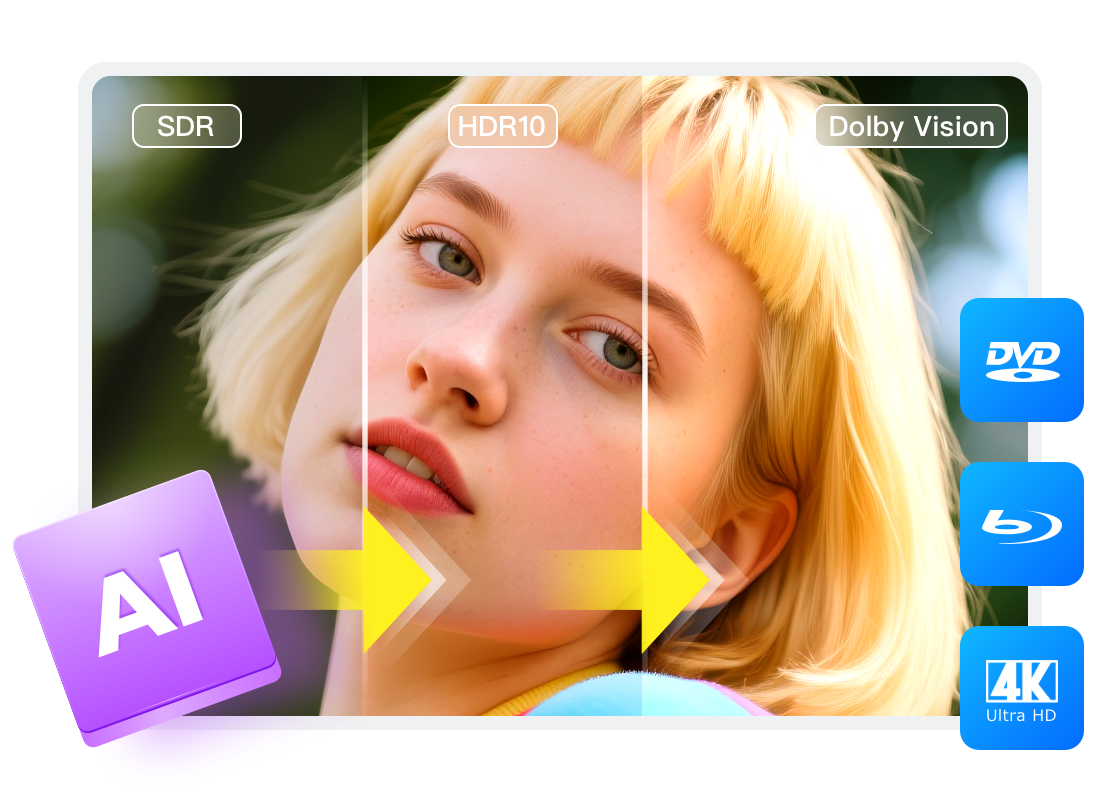
Convert SDR to HDR Video: 5 Steps and Quality Checks

Summary: An HDR label is not proof of a good conversion. This guide explains where SDR-to-HDR mapping helps, then walks through a five-step workflow for choosing a tool, setting HDR10 or HLG, exporting 10-bit video, and validating HDR and SDR playback. It also defines the limited role of DVDFab DVD Copy in preparing legally owned DVD sources.
Table of Contents
An HDR badge does not make an SDR source look better. A useful SDR to HDR conversion expands the delivery range without wrecking highlights, skin tones, or playback compatibility, then proves the result on both HDR and SDR displays.
That distinction matters as capable screens become more common. The OLED monitor market outlook helps explain why weak SDR playback is more visible, but a new display cannot supply scene information the camera never captured. This guide covers the limits, workflow choice, five conversion steps, export settings, and quality control needed to convert SDR video responsibly.
Can SDR Become Usable HDR?
Yes, SDR can become a usable HDR deliverable, but the conversion is a remapping or informed reconstruction, not proof of the original scene. SDR to HDR quality depends on source condition, restrained processing, correct signaling, and playback validation.
What Conversion Can and Cannot Recover
Inverse tone mapping expands luminance and color from a constrained SDR signal into an HDR delivery space. AI HDR conversion can infer plausible highlight shape, color separation, or texture, yet inference is not recovery of known ground truth.
The worthwhile result is the one that improves separation without making faces synthetic, clipping lamps and reflections, or causing brightness to pulse between shots. If a clip needs aggressive invention to look impressive, leaving it in SDR is often the stronger editorial choice.
4K SDR vs 4K HDR
4K describes spatial resolution; HDR describes how brightness and color are encoded and displayed. A 4K SDR master can be sharp but constrained in dynamic range, while a 4K HDR file can carry broader tonal intent if its signal and playback chain are correct.
Resolution work and dynamic-range work should therefore be judged separately. More pixels cannot repair clipped highlights, and a wider HDR color space cannot create texture that is absent from the source.
- • SDR to HDR mapping can widen the delivery range, but it cannot prove missing scene data.
- • 4K resolution and HDR dynamic range solve different image problems.
- • Highlight control matters more than peak brightness.• Stable motion is part of HDR quality.• Validate both HDR and SDR playback paths.
Choose the Right Conversion Workflow
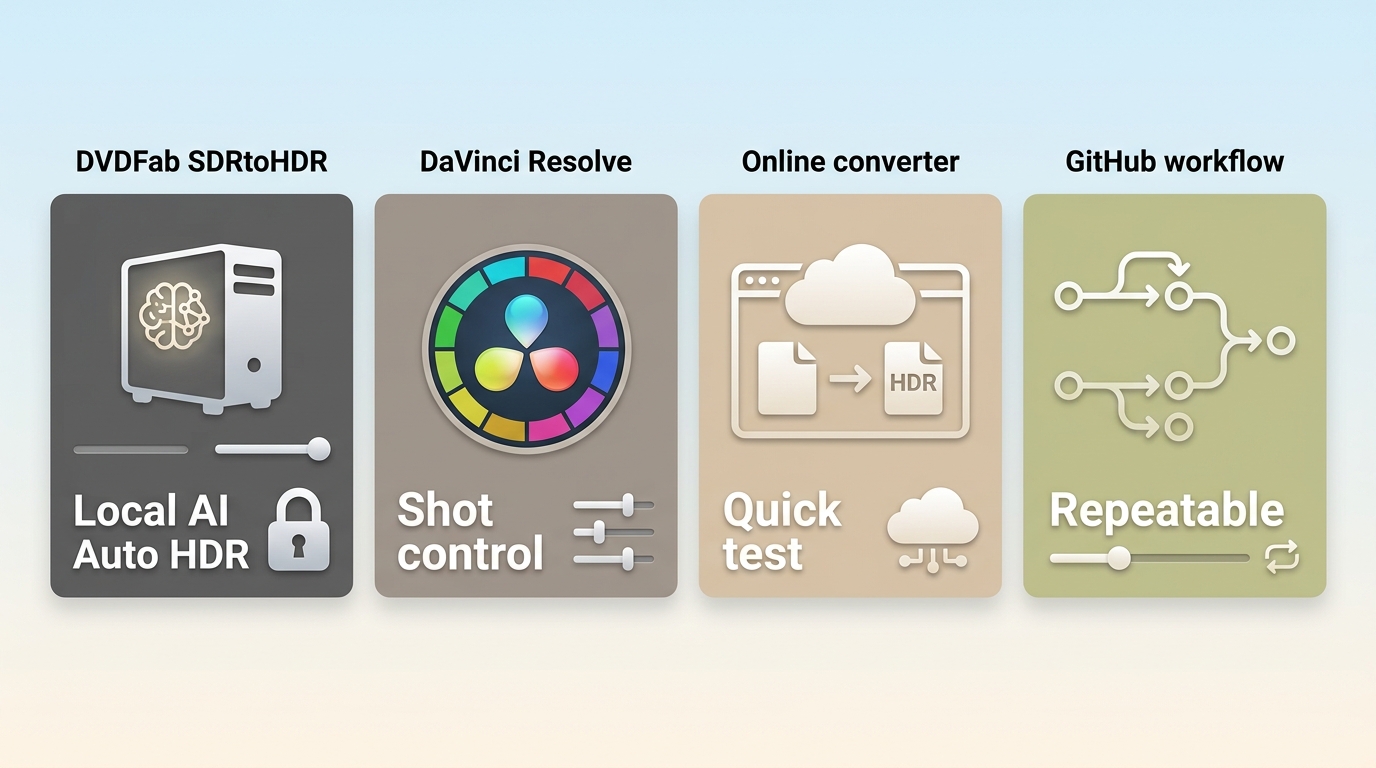
The right SDR to HDR converter is the one that matches the required control, privacy, repeatability, and review effort. A quick preview and a deliverable master are different jobs, so tool choice should follow the intended output.
Desktop AI Upconverters
Desktop AI upconverters suit editors who want guided AI HDR conversion without building a color pipeline from scratch. They can accelerate scene mapping, but presets still need inspection for clipped highlights, unstable exposure, color shifts, and output tags.
This route fits repeatable personal projects. It is less suitable when a client requires shot-level grading decisions, documented mastering targets, or interchange with a professional finishing pipeline.
Color-Managed Editors
Color-managed editors offer the clearest control over timeline color management, transfer functions, scopes, selective corrections, and delivery tags. They take longer to learn, but they make it easier to explain why a result looks the way it does.
For work similar to an SDR to HDR DaVinci Resolve workflow, the main advantage is not a preset name. It is the ability to inspect each stage, compare shots, and revise the mapping instead of accepting a single automatic pass.
Online and Open-Source Options
Online converters favor convenience, while an SDR to HDR GitHub pipeline favors transparency and customization. A free SDR to HDR workflow can be useful for short tests, but upload privacy, duration limits, compression, setup effort, and metadata control may restrict serious delivery work.
Use an online service for a disposable sample, not an irreplaceable source. Use an open-source pipeline when repeatability and inspectable settings matter more than a polished interface.
| Workflow | Best fit | Setup | Output control | Main limitation |
|---|---|---|---|---|
| Desktop AI upconverter | Guided repeatable conversion | Moderate | Preset plus adjustments | Needs visual review |
| Color-managed editor | Shot-level finishing | High | Detailed | Learning time |
| Online converter | Short disposable tests | Low | Limited | Privacy and compression |
| Open-source pipeline | Repeatable custom processing | High | Configurable | Manual setup |
The practical verdict is simple: choose the least complex workflow that still exposes the controls needed to validate the final file. Convenience is useful, but it is not a substitute for inspectable output.
- • Desktop AI tools favor guided processing; color-managed editors favor shot-level control.
- • Online converters suit short tests, while open-source pipelines reward technical setup.
- • Choose by output control and validation needs, not by the most dramatic demo frame.
Convert SDR Video to HDR in 5 Steps
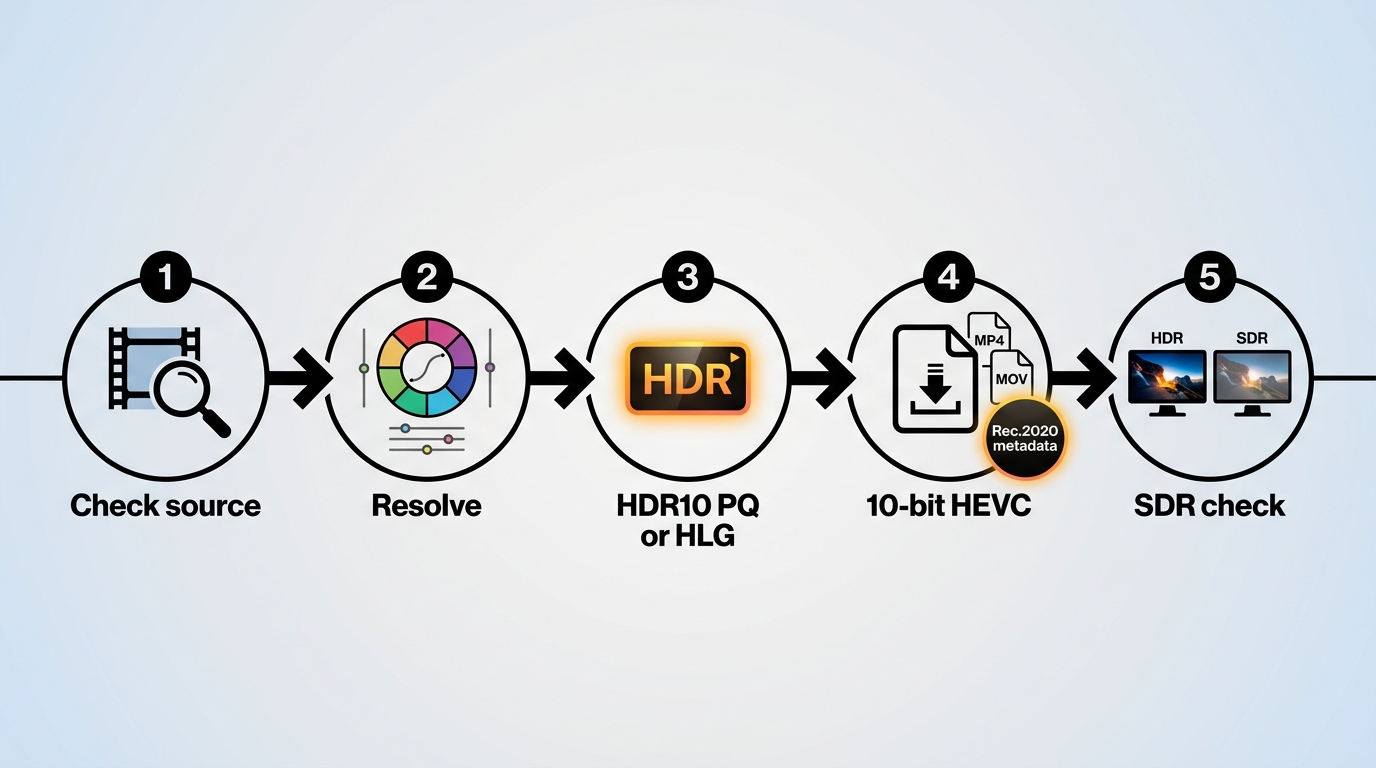
A reliable conversion follows five decisions in order: inspect, choose, target, export, and validate. Skipping source review or final playback checks can produce a file labeled HDR that still looks worse than the SDR original.
- Inspect the source and playback conditions. Check resolution, interlacing, compression damage, clipped highlights, display capability, and player behavior.
- Choose the processing route. Select a desktop AI tool, color-managed editor, online service, or open-source pipeline according to control and privacy needs.
- Select the delivery target. Use HDR10 with PQ for common mastered playback or HLG for workflows that need broader broadcast compatibility.
- Export a properly signaled file. Use a suitable 10-bit codec, set the intended transfer and color tags, and include the HDR metadata required by the target.
- Validate both playback paths. Review the HDR output on an HDR-capable display, then inspect an SDR downconversion for clipped, dim, or shifted images.
Assess the Source and Playback Chain
Source suitability starts with the recorded image and ends with the playback chain. Already-clipped highlights, heavy compression, baked-in noise, unstable exposure, or misconfigured Windows HDR can limit or disguise what mapping and reconstruction produce.
Resolution enhancement such as AI upscaling for optical discs addresses pixel detail, not dynamic range. For material from discs, process only content you personally and legally own and are authorized to access, where permitted by applicable law and relevant terms.
Choose HDR10 or HLG
An HDR10 video export is the more common choice for mastered files intended for compatible TVs, monitors, and media players. An HLG video export can fit broadcast-oriented or mixed delivery systems that are designed to interpret HLG correctly.
Choose the target before grading. Changing the transfer function at the end can alter midtones, highlights, and the way downstream devices interpret the image.
Set a 10-Bit Codec and Metadata
Use a 10-bit HEVC profile or another target-approved 10-bit codec, then set the intended transfer function, primaries, matrix, and HDR metadata. Bit depth alone does not make a file HDR; the signal must describe itself correctly to the player and display.
For an SDR to HDR MP4 deliverable, confirm that the chosen container carries the required tags. MOV may be preferable when the editing or review chain expects it, but compatibility should be tested on the actual target devices.
Export and Validate Both Versions
Review the exported file, not just the timeline preview. Check representative bright, dark, skin-tone, gradient, and motion shots on an HDR display, then create or monitor an SDR downconversion to expose signaling and tone-mapping problems.
This five-step route is best for editors who can control export and playback. It is not ideal for a one-click conversion that cannot expose tags, transfer settings, or a reliable comparison path.
HDR Output Formats That Actually Play
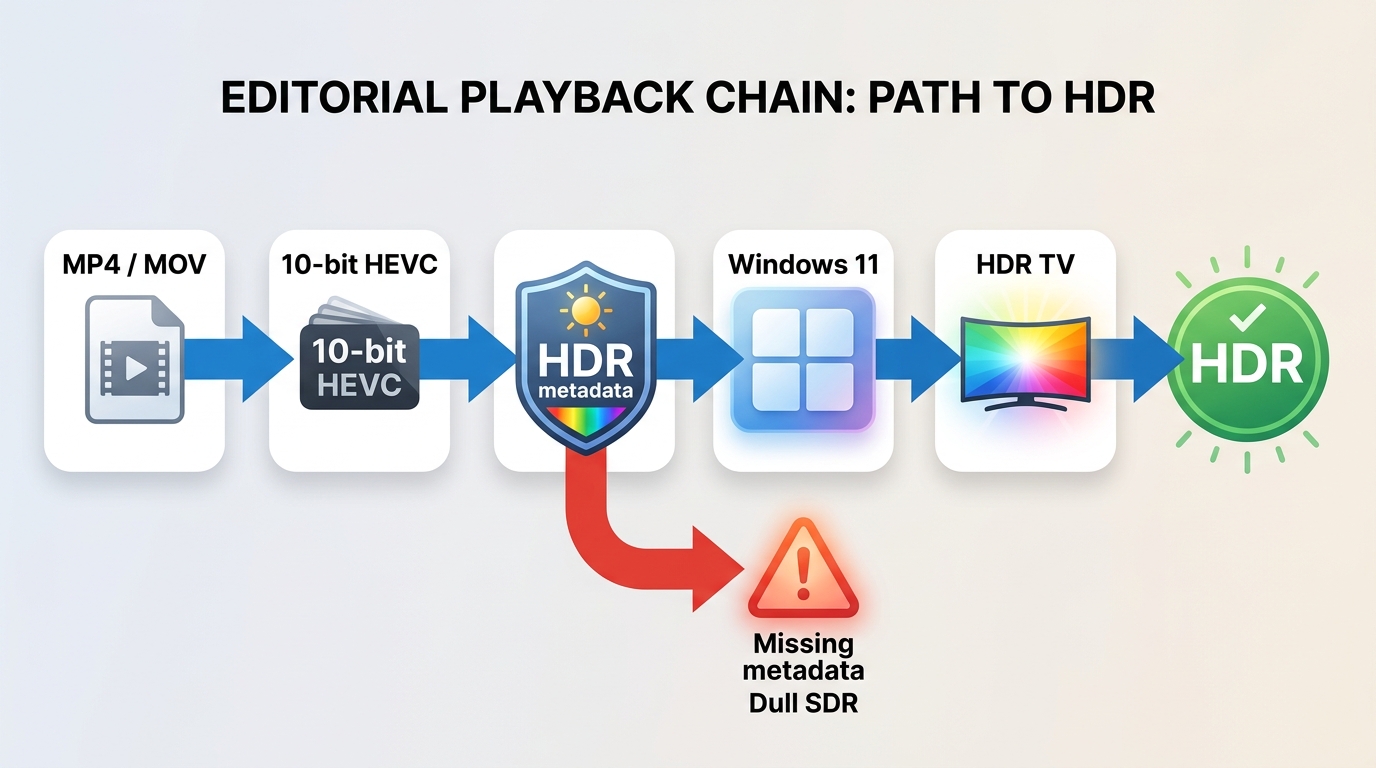
A playable HDR file needs a compatible container, codec, bit depth, transfer function, color tags, metadata, player, and display. If one link in that chain fails, correct pixels can still be presented with the wrong gamma or color.
MP4 and MOV Delivery
MP4 is often practical for consumer distribution, while MOV is common in editing and review workflows. Container choice should follow the target player and codec support, not the assumption that the file extension itself guarantees HDR playback.
HDR10, HLG, and Color Space
HDR10 commonly pairs PQ transfer behavior with Rec.2020 signaling and static HDR metadata. HLG uses a different transfer approach designed for compatible broadcast and display chains. In either case, the declared HDR color space must match the encoded signal.
A mismatch can create dull, oversaturated, or oddly contrasted playback even when the grading decisions were reasonable. Keep the transfer and color settings consistent from timeline through export.
Codec, Bit Depth, and Metadata
Codec efficiency, bitrate, frame-rate mode, audio, and encoder settings all affect file size and playback load. A smaller file is not automatically worse, and a larger file is not proof of better SDR to HDR quality.
The key checks are whether gradients survive compression, motion remains stable, the player recognizes HDR metadata, and the target display switches into the intended mode.
What AI Changes, and What It Cannot
AI can make SDR-to-HDR mapping more scene-aware, but model vocabulary does not establish image quality. Source suitability, controlled luminance, stable color, temporal consistency, and documented validation determine whether the output is useful.
Inverse Tone Mapping vs Brightness Stretching
Brightness stretching lifts broad parts of the frame and can make midtones, noise, and faces look harsh. Inverse tone mapping aims to redistribute luminance with more structure, protecting the relationship between shadows, diffuse surfaces, and specular highlights.
Reconstruction, Inference, and Missing Detail
AI reconstruction can infer plausible contours or textures from patterns learned elsewhere, but those additions are estimates. It cannot confirm the exact brightness, color, or surface detail that existed beyond the recorded SDR signal.
That does not make reconstruction useless. It means the result should be judged as a new interpretation whose value depends on visual restraint and delivery fitness.
Temporal Consistency Across Scenes
Video must remain coherent across frames and cuts. A conversion that looks impressive as a still can fail when highlights bloom, exposure pumps, colors drift, or fine texture flickers during motion.
Temporal stability matters more to viewers than the name of the model. Watch transitions and difficult moving detail at normal speed before inspecting individual frames.
Quality Checks Before You Trust the Result
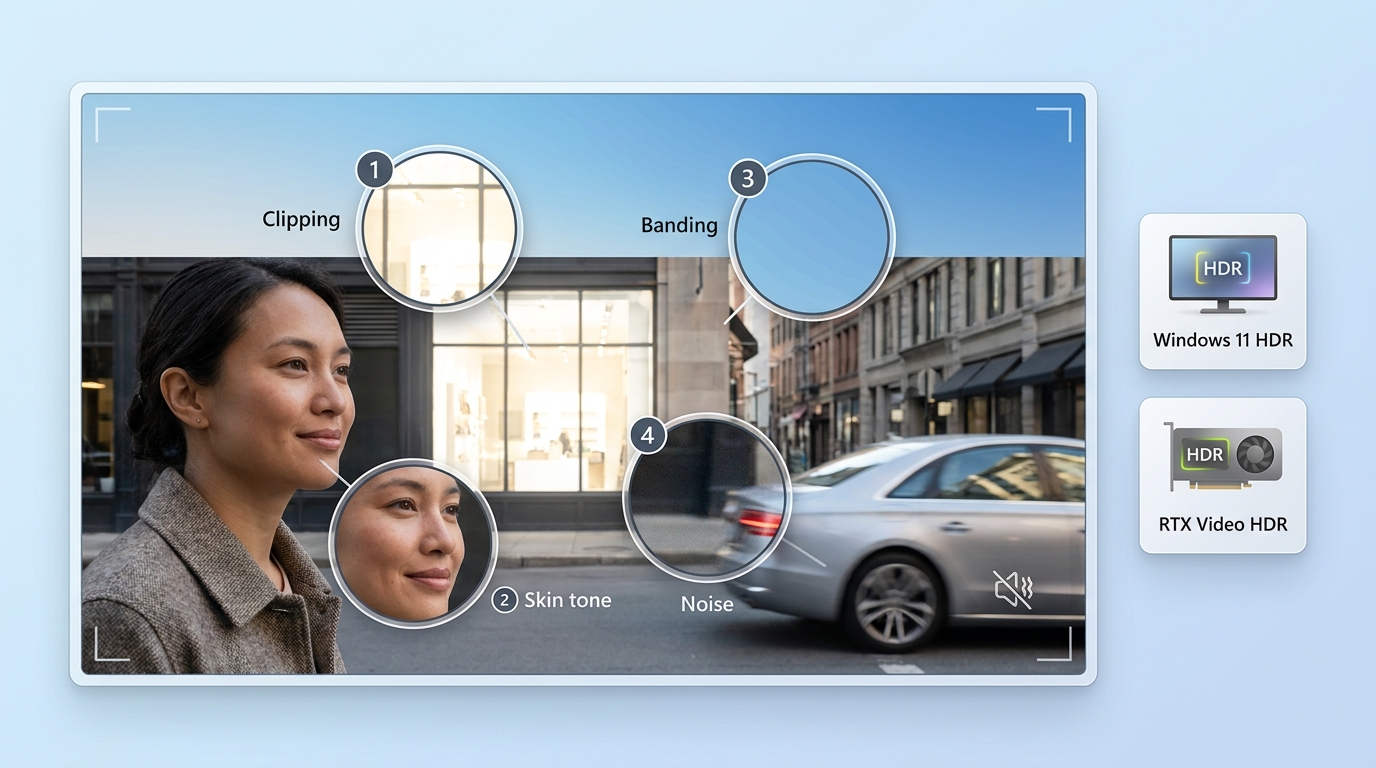
Quality control should try to disprove the conversion, not admire its brightest frame. Reject the result when clipping, color shifts, banding, noise, flicker, or playback inconsistency outweigh the wider-range presentation.
Highlights and Skin Tones
Compare lamps, Windows, reflections, clouds, and pale surfaces for highlight clipping or halos. Then inspect a range of faces under different lighting for skin tone shifts, waxy texture, excess saturation, or unnatural separation from the background.
Banding, Noise, and Compression
Inspect skies, walls, smoke, shadows, and gradients for color banding. Check whether compressed SDR blocks, ringing, grain, or sensor noise became more visible after expansion, and compare at the intended viewing distance as well as close up.
Windows Gamma and Display Modes
For SDR to HDR Windows 11 troubleshooting, confirm Windows HDR and calibration behavior, the active ICC profile, player output, metadata recognition, GPU output, and the TV or monitor mode before blaming the conversion.
Real-time playback enhancement such as RTX Video HDR serves a different intent from creating and validating an exported HDR file. If Windows is the sole failure point, diagnose the playback chain before rebuilding the export.
SDR Downconversion and File Size
Review an SDR downconversion for dim faces, clipped whites, crushed shadows, hue shifts, and unreadable graphics. Also compare duration, frame rate, audio, and encoder settings before treating HDR file size as a quality verdict.
- Check interlacing and cadence before conversion.
- Flag highlights already clipped in the SDR source.
- Inspect muddy shadows and amplified compression damage.
- Compare skin tones, gradients, noise, halos, and fine texture.
- Watch cuts and motion for temporal blooming or flicker.
- Review mixed SDR and HDR timelines for inconsistent mapping.
- Validate on an HDR display and through SDR downconversion.
The most common reason to reject a conversion is not modest peak brightness. It is instability or visible damage that distracts from the content.
- • Reject output with distracting clipping, skin-tone shifts, banding, noise, or flicker.
• Diagnose the OS, player, metadata, cable path, and display mode before reprocessing.
• Compare both HDR playback and SDR downconversion before accepting the file.
DVDFab Workflow Boundaries
A DVDFab SDRtoHDR workflow needs a clear boundary: DVDFab DVD Copy can prepare an authorized DVD source as a disc copy, ISO, or DVD folder, while HDR mapping, grading, and export occur in a separate suitable tool.
Source Suitability and Disc Workflows
Within the broader DVDFab 13 environment, DVD Copy offers Full Disc, Main Movie, Clone, Merge, Split, and Customize modes for DVD workflows on supported Windows and macOS systems. It can output DVD-5, DVD-9, ISO, folder structures, or a compatible blank disc.
For this article, its relevant role is source preparation. A 1:1 clone retains the original audio and video data, while DVD-9 to DVD-5 compression re-encodes to fit the target capacity. Neither operation should be described as direct HDR conversion.
Model Choice, Speed, and Hardware
DVD Copy supports queued copy tasks and hardware acceleration across supported GPU environments, but processing speed depends on the CPU, GPU, memory, optical drive, and selected copy mode. Its GPU processing specifications do not establish HDR model choices, color controls, or mastering support.
The disciplined approach is to create a clean, authorized source first, then evaluate model choice and HDR settings in the separate conversion application that exposes those controls.
Best For and Not Ideal For
The workflow fit is narrow and useful precisely because the product limits are clear.
Best for: preparing personal, legally owned DVD content as a disc, ISO, or folder source before a separately managed HDR workflow.
Not ideal for: direct SDR-to-HDR mapping, shot-level color grading, HDR metadata authoring, or professional scene-linear finishing. Those tasks require a conversion or editing environment built for them.
Consumer Exports and Professional Reconstruction
Consumer HDR delivery and professional reconstruction solve different problems. HDR10 or HLG exports target practical playback, while scene-linear reconstruction is designed for controlled interchange, compositing, grading, and archival decisions.
HDR10 Delivery vs EXR and ACES
Consumer delivery usually focuses on a correctly tagged HDR10 or HLG video that plays on the intended devices. Professional work may use regional controls, temporal processing, 16-bit EXR image sequences, and ACES color management to preserve scene-linear headroom between departments.
That complexity is justified for visual-effects exchange, restoration, or supervised mastering. It is excessive for a personal viewing file that only needs consistent playback on known devices.
When Conversion Is the Wrong Fix
Conversion is the wrong fix when source limits include severe clipping, heavy compression, instability, or a deliberate SDR look that the new mapping weakens. HDR disadvantages also include larger processing demands and more opportunities for playback mismatch.
A restrained SDR master is preferable to an HDR file that advertises range but cannot survive normal motion, face rendering, or SDR playback.
FAQs
Q
Can an SDR video become genuine HDR?
It can become a valid HDR deliverable through mapping or plausible reconstruction, but it cannot prove the exact scene information that was never recorded. Judge the file by signaling, visual restraint, temporal stability, and playback behavior.
A
Q
Why does converted HDR look washed out on Windows?
The cause may be Windows HDR calibration, an ICC profile, player output, unrecognized metadata, GPU settings, or the display mode. Isolate those variables before changing the conversion itself.
A
Q
Does a smaller HDR export mean lower quality?
Not by itself. Codec efficiency, bitrate, frame rate, audio, and encoder settings affect size. Compare visible gradients, motion, texture, and playback reliability instead of using megabytes as the verdict.
A
Q
Can I convert SDR to HDR online for free?
Yes, for short tests when upload privacy and limited control are acceptable. For valuable footage, long files, repeatable settings, or precise metadata, a desktop tool or color-managed editor is usually a better fit.
A
Conclusion
Good SDR to HDR quality is not the brightest file. It passes source review, carries correct HDR signaling, protects highlights and skin tones, stays stable through motion, and remains acceptable after SDR downconversion.
The decision rule is straightforward: keep the HDR version only when its benefits survive the full playback chain without introducing more visible damage than the SDR source. DVDFab DVD Copy can prepare an authorized DVD source, but the HDR result must be created and judged in the separate conversion workflow.
- • Confirm correct transfer, color, and HDR metadata signaling.
• Protect highlights, skin tones, shadows, and gradients from visible damage.
• Watch motion and scene changes for temporal instability.
• Accept the file only after HDR playback and SDR downconversion checks.
Usage note: DVDFab DVD Copy is intended for processing or backing up discs you personally and legally own, where allowed by applicable law. Online services and other workflow tools should be used only with content you are authorized to access and under relevant terms.