How to Convert 2D Blu-ray to 3D Video with DVDFab Blu-ray Ripper

Summary: Picking the right 3D output format is not a simple matter, since anaglyph, SBS, and top-and-bottom playback each suit different screens and headsets. This guide walks through the DVDFab Blu-ray Ripper workflow. SBS is the safest starting format for most setups, since it covers both 3D TVs and VR apps like Bigscreen.
Table of Contents
Most 3D Blu-ray releases stopped years ago, and Sony dropped native 3D disc playback when the PS5 replaced the PS4. If you still own a stack of 3D-ready Blu-rays, or you just want to turn a favorite 2D Blu-ray movie into a 3D file you can actually watch on a VR headset, a 3D TV, or a pair of red/cyan glasses, DVDFab Blu-ray Ripper's built-in 2D to 3D Converter is one of the few tools that still handles this directly from a real Blu-ray source. In this guide, I'll walk through how to convert a 2D Blu-ray to 3D video with DVDFab, covering the anaglyph, side-by-side (SBS), and top-and-bottom output formats. One thing worth flagging upfront: this feature works from a Blu-ray disc, ISO file, or ripped folder, not from a regular MP4 or other video file.
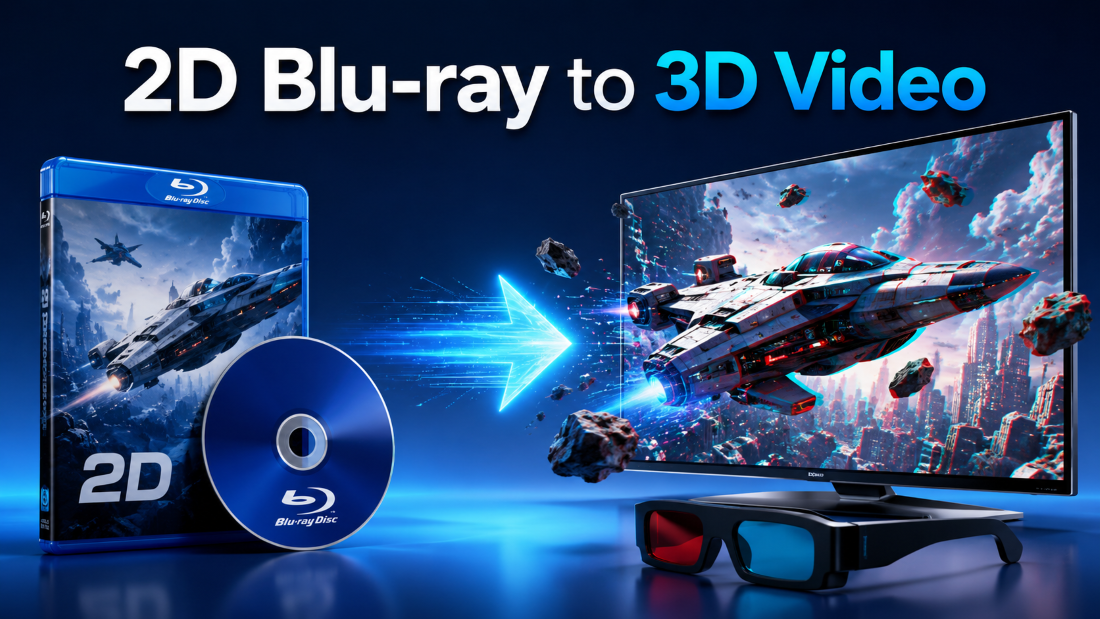
Understand the 3D Output Formats Before You Pick a Profile
DVDFab 2D to 3D Converter supports three output formats, and picking the right one depends on what device you'll actually use to watch the result.
Anaglyph 3D (Red/Cyan Glasses)
Anaglyph 3D encodes the left-eye and right-eye images into a single frame using color filtering, so any screen can display it and you only need a pair of inexpensive red/cyan glasses to see the depth effect. This is the most widely compatible option, but the color filtering process reduces color accuracy compared to true stereoscopic playback.
SBS 3D (Side-by-Side)
SBS 3D places the left-eye and right-eye frames next to each other in a single video frame. This is the format most VR headset apps expect, including Bigscreen on Meta Quest, which has become one of the more practical ways to watch 3D content now that Sony removed native 3D Blu-ray disc playback from the PS5 (PS3 and PS4 supported it). SBS comes in two variants: full-resolution, where each eye keeps its native resolution but the file size doubles, and half-resolution, where each eye is compressed to fit the original frame size at the cost of some sharpness.
Top-and-Bottom 3D (Broadcast Style)
Top-and-bottom 3D stacks the left-eye and right-eye frames vertically instead of side by side. It follows the same full or half-resolution trade-off as SBS, and it's the format most commonly used by broadcast 3D content and some older 3D-capable TVs.
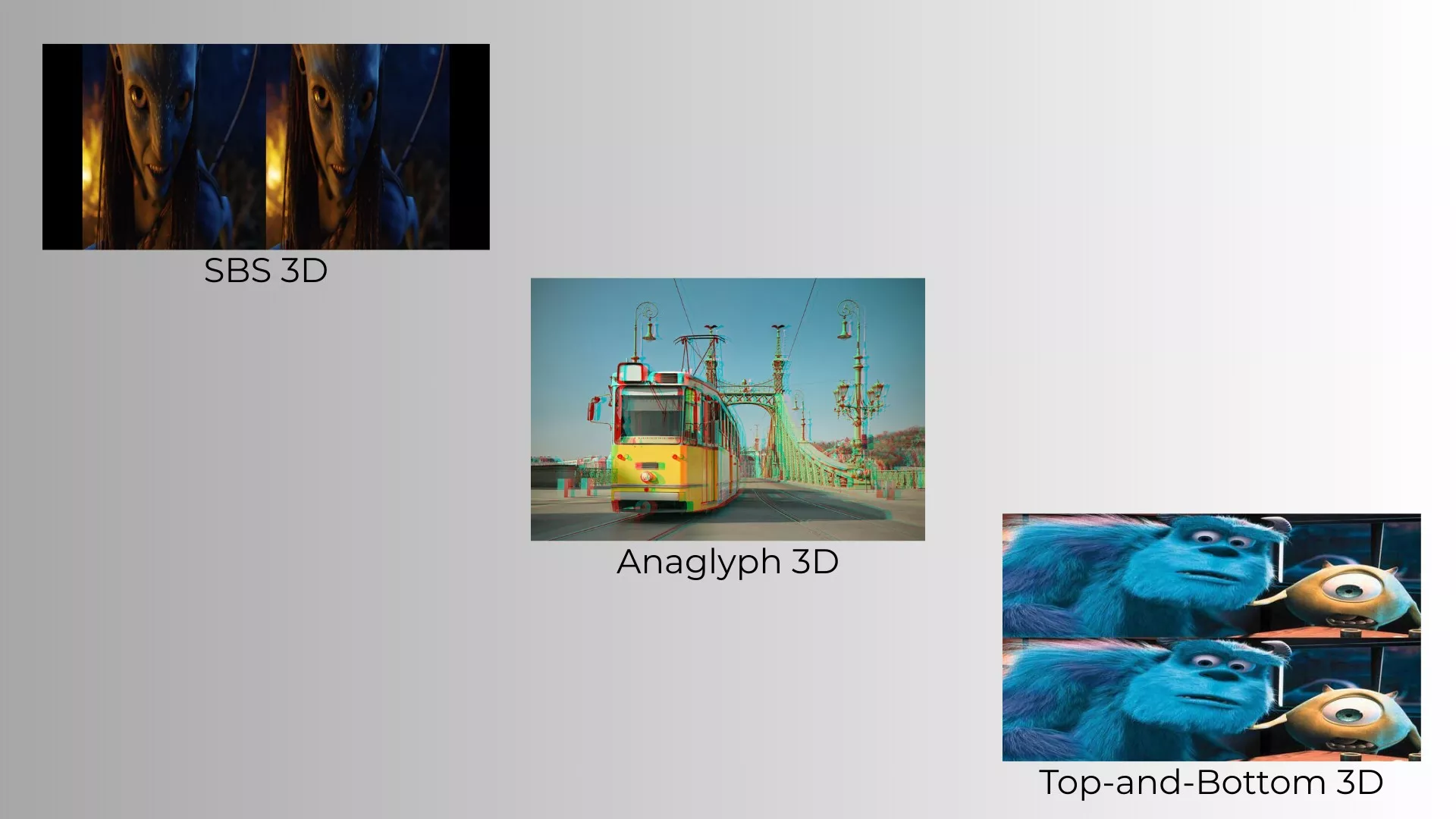
If you're not sure which to pick, start with SBS: it covers both VR headsets and most 3D TVs, and you can always re-export in another format later if the first result doesn't fit your setup.
With that context out of the way, here's how to convert 2D Blu-ray to 3D video with DVDFab Blu-ray Ripper, step by step.
Step 1: Start up DVDFab and Choose the Ripper Module
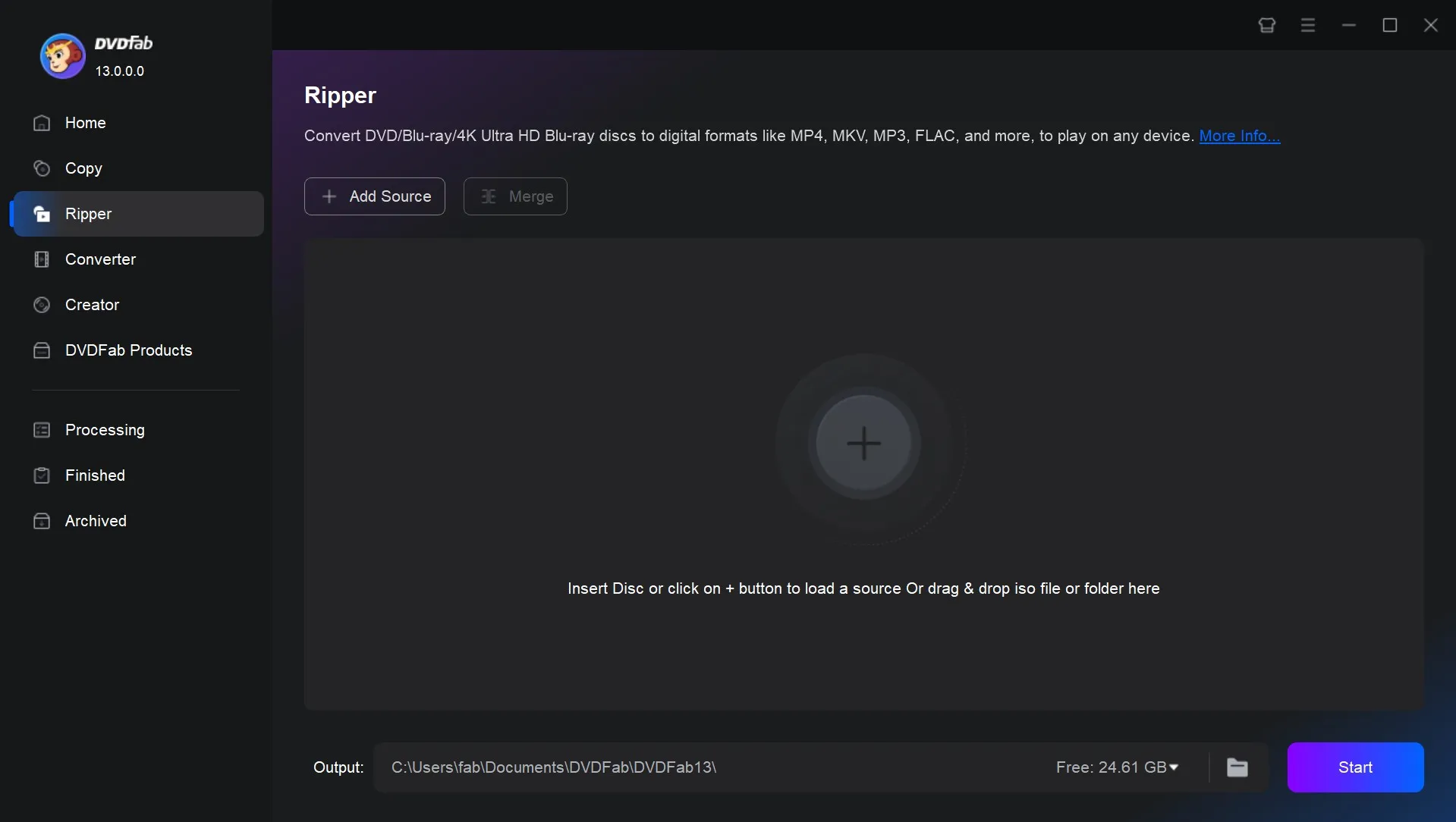
Start DVDFab 13 and select the Ripper module from the home screen. On the main interface, click "Add Source" or drag and drop your 2D Blu-ray disc, ISO file, or ripped folder. DVDFab automatically selects the longest title on the disc, which is usually the main movie, and you can switch the audio track or subtitle from there if you need to.
Free Download Windows 11/10/8.1/8/7
Free Download macOS 10.13 - 15.x
Step 2: Choose a 3D Video Profile
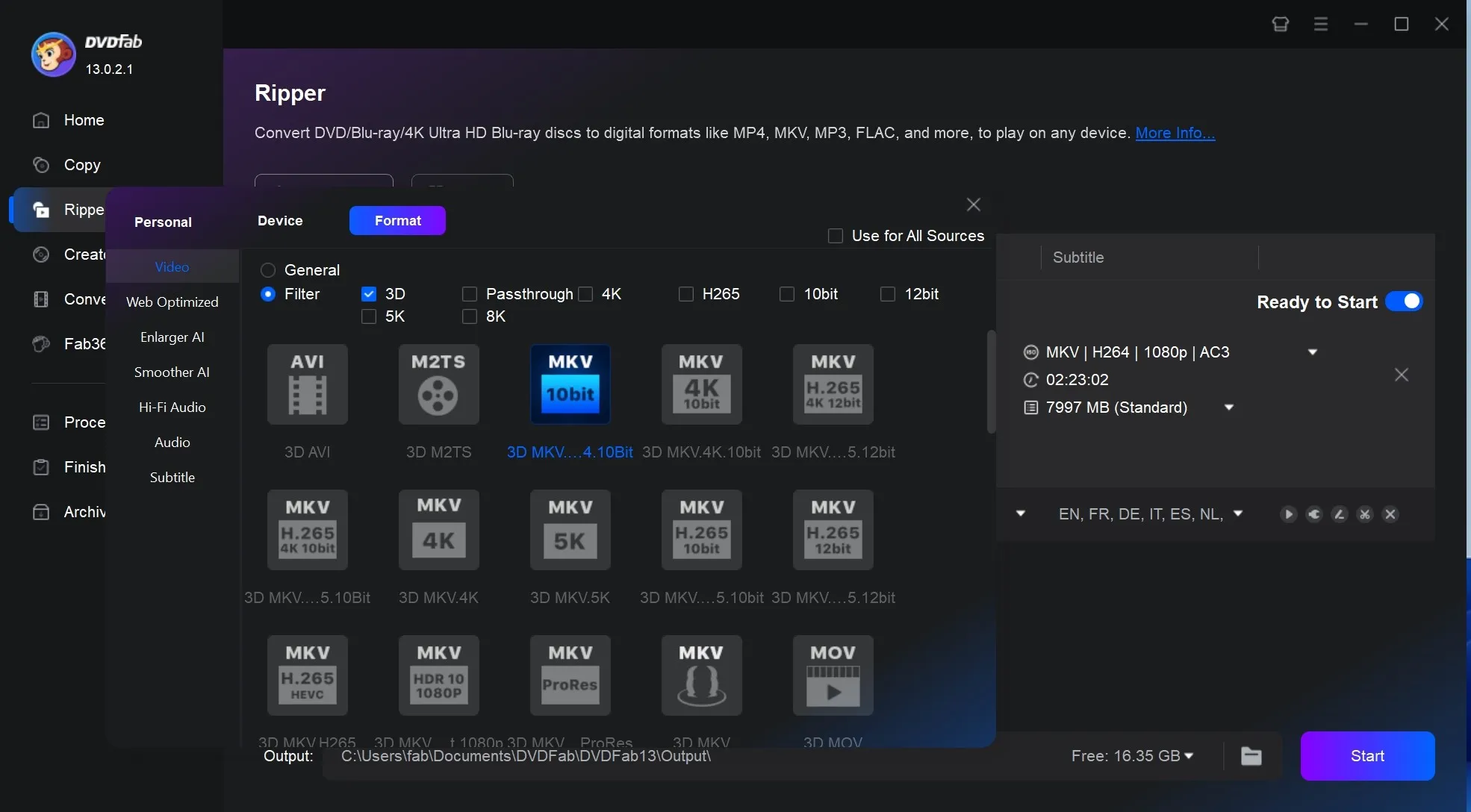
Now click the down-triangle button next to the format bar and select "Choose Other Profile." Go to "Format" > "Video" > "3D" to see the formats covered above, then pick the one that matches your target device, for example "3D AVI" for general playback or an SBS profile if you're heading to a VR headset app.
Step 3: Set the 3D Format and Effect
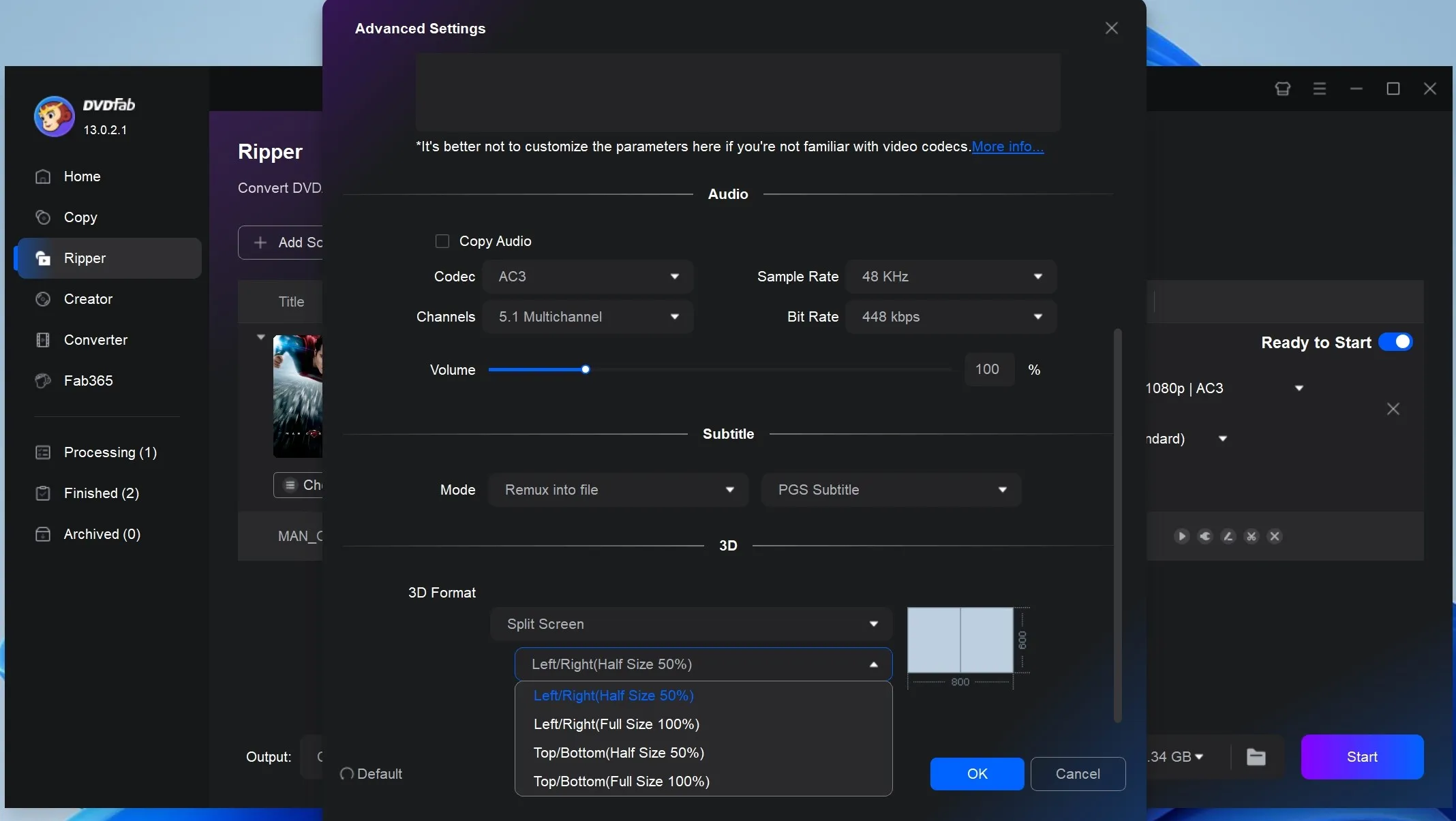
Next, click "Advanced Settings" to configure the video and audio parameters as well as the 3D format and effect. Here you can pick anaglyph 3D, SBS 3D (left/right), or top/bottom 3D, adjust the gain value and visual depth, and choose whether to save the two eye views as separate files or merge them into one.
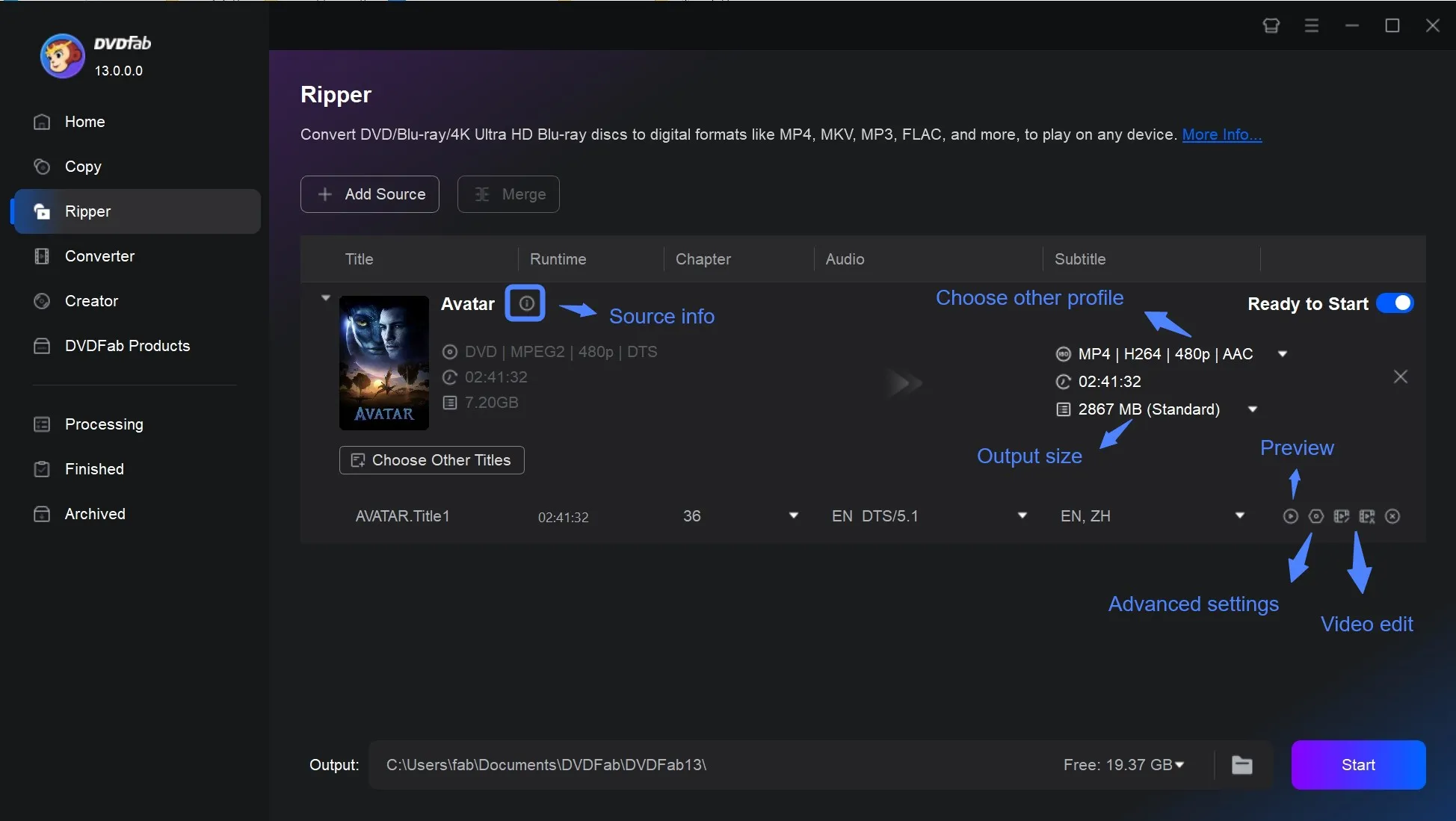
Back on the main interface, click "Video Edit" to resize the source aspect ratio and frame resolution, or crop the image so it displays correctly on your 3D device.
Step 4: Start the Conversion
Before you commit, preview the title in real time to check that the 3D effect looks right. Then click "Start," and DVDFab shows detailed progress information as the conversion runs.
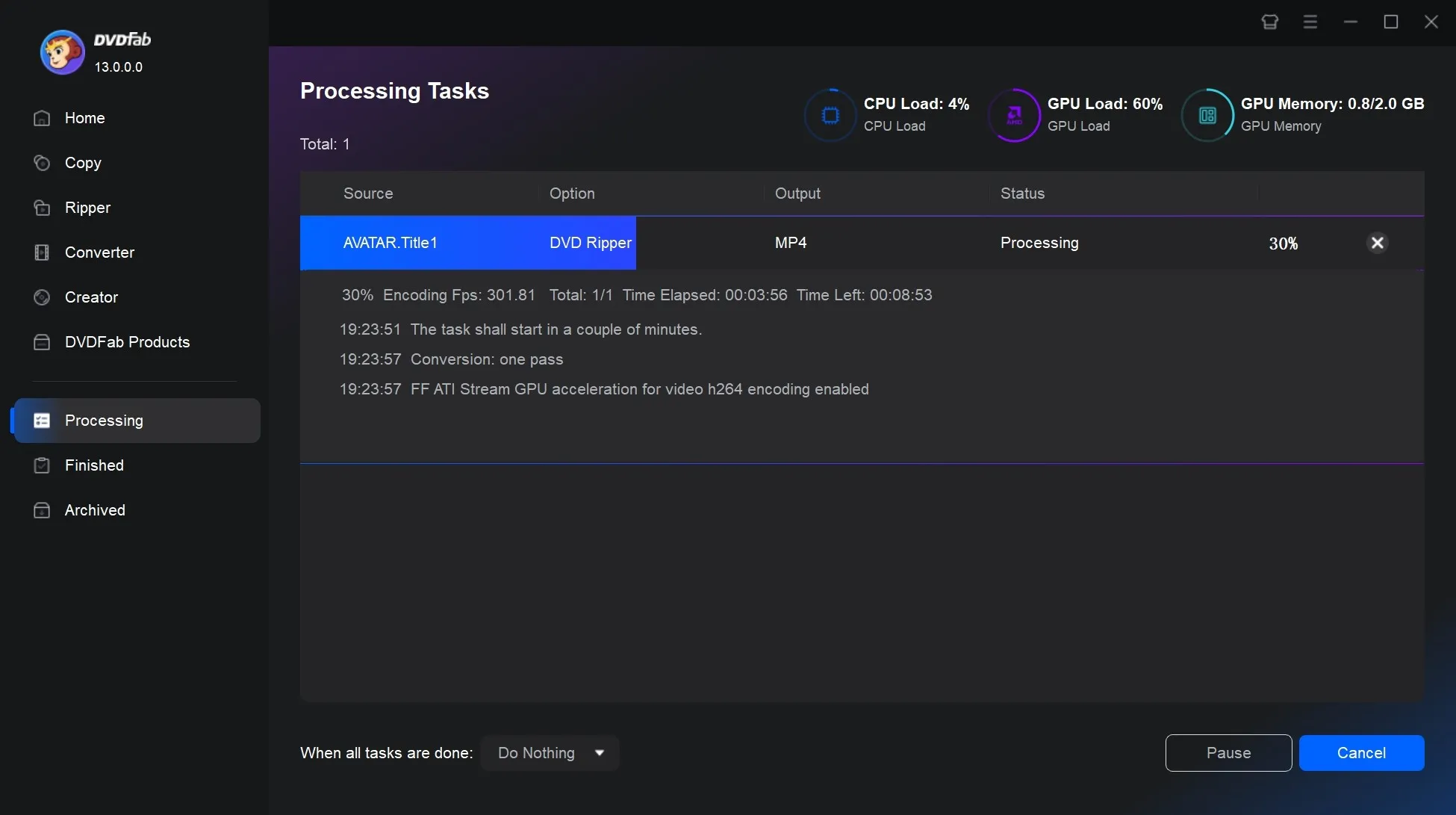
That's the step-by-step for how to rip Blu-ray and convert your movies to 3D video. It's straightforward: from installation to finishing the conversion took me about 20 minutes, though the actual time will depend on your movie's length.
Frequently Asked Questions
Can I convert a MP4 or other video file to 3D with DVDFab?
No. The 2D to 3D Converter is built into DVDFab Blu-ray Ripper, and it only accepts a Blu-ray disc, an ISO image, or a ripped Blu-ray folder as the source. If you want to add a 3D effect to an arbitrary video file such as an MP4 or a home movie, you need a different category of tool, typically an AI-based 2D-to-3D video converter built to work on any footage rather than a disc-based ripper.
Will the 3D video play on a VR headset like the Meta Quest?
Yes, as long as you export in SBS 3D format. Apps such as Bigscreen can open an SBS 3D file and play it back with proper depth on a Quest or similar headset. This has become one of the more practical ways to watch 3D content since Sony removed native 3D Blu-ray playback from the PS5, and most streaming apps still don't offer a 3D library.
Will the converted 3D video look like a movie filmed in native 3D?
Not exactly. A 2D-to-3D conversion recreates a sense of depth from a flat source, which is a different process from a movie shot with dual cameras from the start. The effect works well enough for general depth and background separation, but expect a softer result than a title that was natively filmed or mastered in 3D.
Conclusion
Converting a 2D Blu-ray to 3D makes the most sense if you already own the disc and have a way to watch the result, whether that's a 3D TV, a pair of red/cyan glasses, or a VR headset running an app like Bigscreen. Pick anaglyph for the widest playback compatibility, SBS if a headset or 3D-capable device is your target, or top-and-bottom for a broadcast-style 3D setup. Keep in mind that pseudo-3D from a flat source looks softer than content shot natively in 3D, so treat it as a way to revisit an old favorite rather than a replacement for stereo-shot 3D releases. While the Ripper module is open, it's also worth ripping the rest of your Blu-ray collection into a format your media server can handle, including setups like rip Blu-ray for Plex, so you're not stuck reaching for the disc every time.

 How to Rip Blu-ray for Plex: 3 Best Ways with Guide & ComparisonBy Wenny Yan - Jul 6, 2026
![Top 5 Free Blu-ray Decrypters for Legal Use [2026 Test]](https://r1.dvdfab.cn/upload/resource/how-to-decrypt-blu-ray-Row0.jpeg) Top 5 Free Blu-ray Decrypters for Legal Use [2026 Test]By Wenny Yan - Jun 26, 2026
Top 5 Free Blu-ray Decrypters for Legal Use [2026 Test]By Wenny Yan - Jun 26, 2026 Best Free Blu-ray Rippers in 2026: Tested Tools and Guide to Rip Blu-raysBy Wenny Yan - Jun 12, 2026
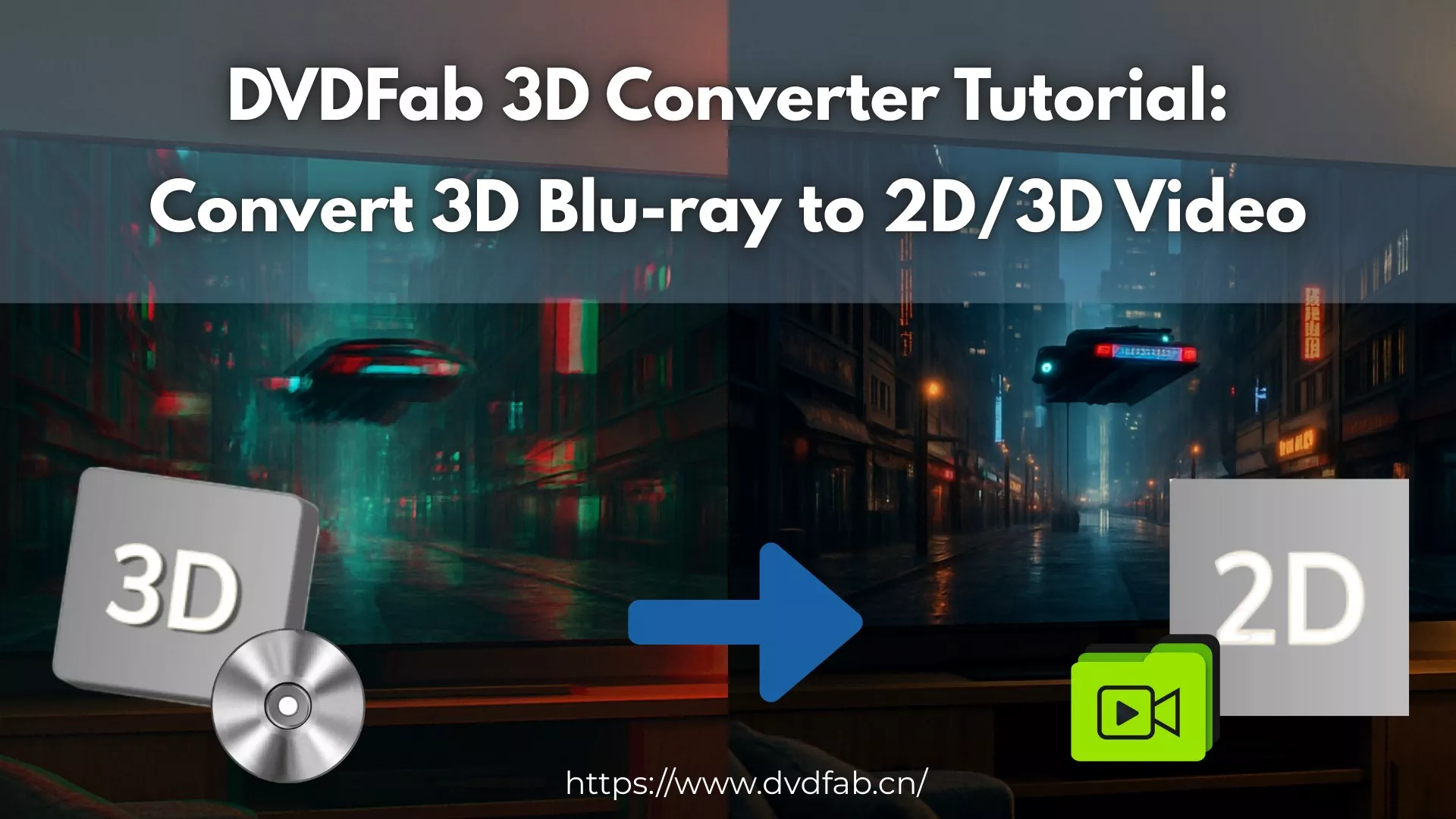 How to Convert 3D Blu-ray to 2D Video: DVDFab 3D Converter GuideBy Diana Smith - Jun 10, 2026