How to Rip Blu-ray for Plex: 3 Workflows for Your Library

Summary: This guide compares three ways to rip Blu-ray for Plex: DVDFab Blu-ray Ripper, MakeMKV, and HandBrake, with real speed and quality test data. It also covers which formats trigger Direct Play, why Plex Pass affects hardware transcoding, and how to fix common playback and subtitle issues on Plex Media Server.
Table of Contents

Plex can turn a shelf of Blu-ray cases into a media library you can reach from any screen in the house. As a disc collector with a large personal library, I moved my entire Blu-ray collection into Plex Media Server for two reasons: it lets me watch anything on any device, and it works as a backup if a disc gets scratched or lost.
If you want to rip Blu-ray to Plex without losing image or audio quality, the format you choose matters more than the tool you pick. I tested three ways to rip Blu-ray discs for Plex, compared their output side by side, and mapped out where each one still falls short so you can rip Blu-ray for Plex once and get it right.
Best Format for Ripping Blu-ray for Plex
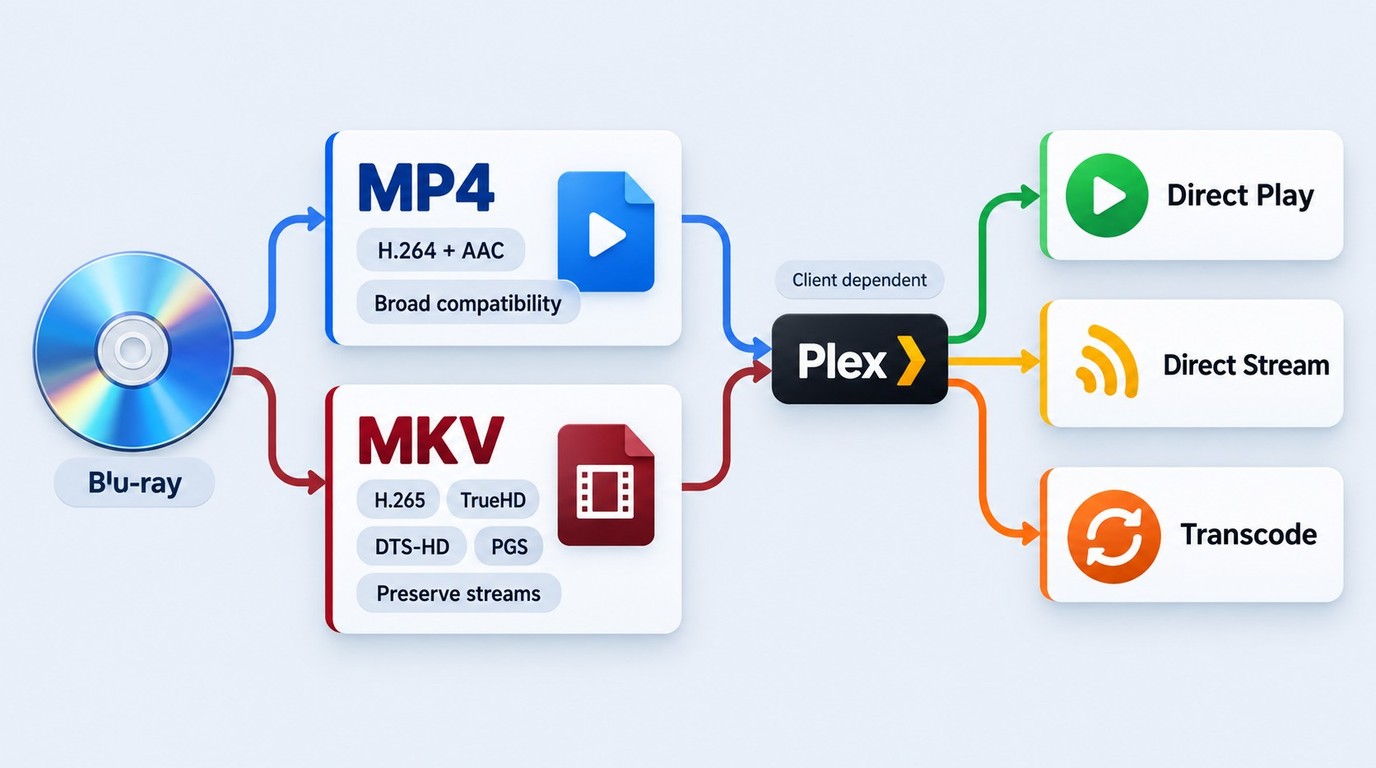
To rip Blu-ray to Plex, decide whether you want an MKV passthrough that retains selected source streams or a smaller encoded file such as MP4 with H.264 and AAC. Plex does not support ISO or BDMV structures as ordinary movie-library items, so those sources must be converted to a compatible media file before you add them to the library.
Formats and Codecs Plex Can Direct Play
Here are the media formats (containers) Plex recognizes.
- Video Formats: MP4, MKV, DIVX, AVI, MOV
- Audio Formats: MP3, FLAC, M4A, WMA
- Image Formats: PNG, JPG, TBN, RAW
Being on Plex's supported list does not mean a file will play at full quality. Plex checks the container, the video and audio codecs, and your playback device's capabilities, then picks one of three modes: Direct Play, Direct Stream, or Transcode. Direct Play sends a supported file as-is, while Direct Stream places compatible streams in a different container without re-encoding them. Plex can also transcode an incompatible audio stream while leaving the video unchanged.
| Container | Video Codec | Audio Codec | Client Requirement |
| MP4 | H.264 | AAC | Supports MP4, H.264, and AAC |
| MKV | H.265 | TrueHD/DTS-HD | Supports HEVC and the selected HD audio codec |
| MP4/MKV | H.264 | AC3/DTS | Supports the container and selected audio codec |
H.264 video paired with AAC audio in an MP4 wrapper is widely supported across Plex clients, from smart TVs to phones, but the final playback mode still depends on the specific device. A TrueHD or DTS-HD track may trigger audio transcoding on clients that can play the video but cannot decode the selected audio format.
Why Your Rip Might Still Transcode
Container and codec are not the only variables. PGS subtitles are image-based, and a Plex client that cannot render them may require the server to burn them into the video, which triggers video transcoding. MKV can carry PGS tracks, but changing the container alone does not guarantee Direct Play, so test a forced-subtitle scene on the device you plan to use.
Software transcoding does not require Plex Pass. Hardware-accelerated transcoding does require Plex Pass; without it, Plex uses the CPU, which may struggle with demanding sources on modest server hardware. Before changing or encoding the file again, open Plex Dashboard during playback and inspect the video, audio, and subtitle decisions. Temporarily turn subtitles off, select Original quality, and check the client's codec support and available network throughput to identify which stream or setting is causing the transcode.
Rip Blu-ray for Plex Easily: 3 Methods Included
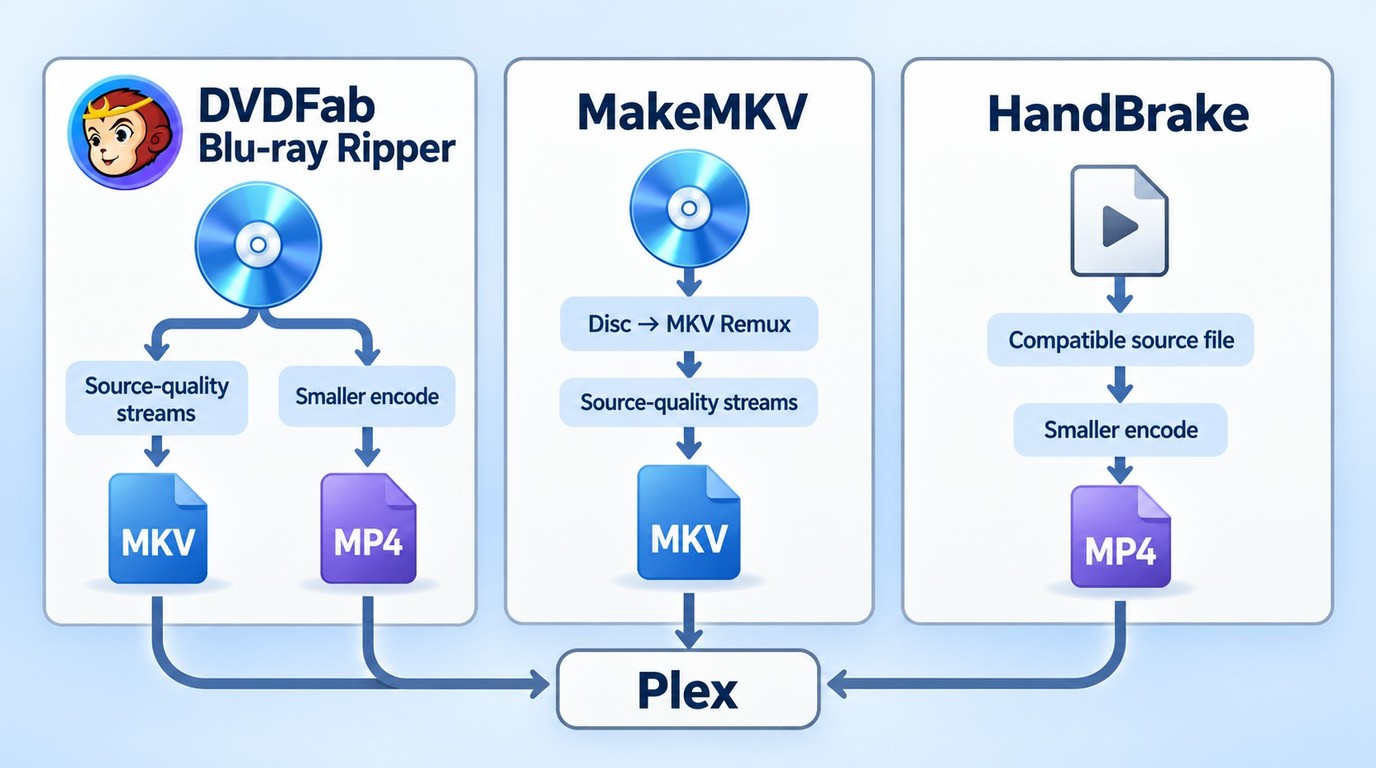
With the format requirements out of the way, here are three ways to rip Blu-ray for Plex, each with step-by-step instructions so you can pick the tool and method that fits your setup. You will need a computer, a compatible standard Blu-ray drive, an authorized Blu-ray source, enough output storage, and a Plex server and client for playback checks.
How to Rip Blu-ray for Plex Using DVDFab Blu-ray Ripper
DVDFab Blu-ray Ripper is built to rip Blu-ray to Plex-ready formats without extra conversion steps afterward. It outputs MP4, MKV, AVI, MP3, and FLAC directly, and its MP4, MKV, and M2TS Passthrough profiles can retain selected source video, audio, and subtitle streams without ordinary video re-encoding. Every output setting, from resolution to bitrate, is adjustable before you start ripping.
Supported OS: Windows, Mac
Free Download macOS 12 or newer
Key features:
- Remove the popular Blu-ray copy protection from discs
- Passthrough profiles retain selected source video, multichannel audio, and subtitles without ordinary video re-encoding
- Adjust resolution, bitrate, and encode settings for optimized streaming across different Plex clients
- Queue multiple tasks and choose encoded profiles when you need smaller files
- Edit content with cropping, trimming, merging, etc., before ripping with the built-in editor
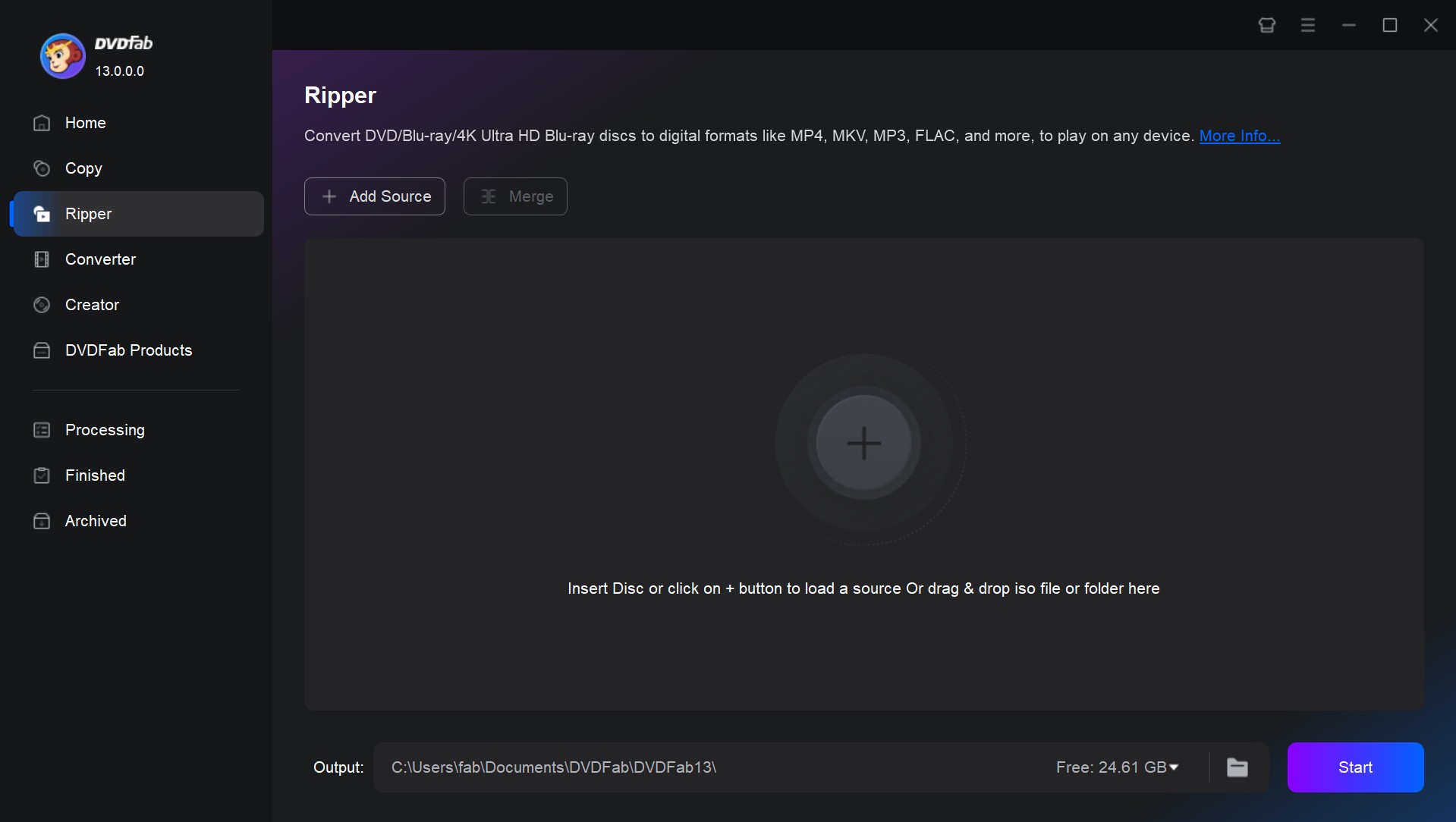
Step 1: Open DVDFab 13, select Ripper from the left panel, then insert your Blu-ray disc into an internal or external drive. Click Add to load the disc. DVDFab Blu-ray Ripper also accepts Blu-ray sources saved as ISO files or BDMV folders.
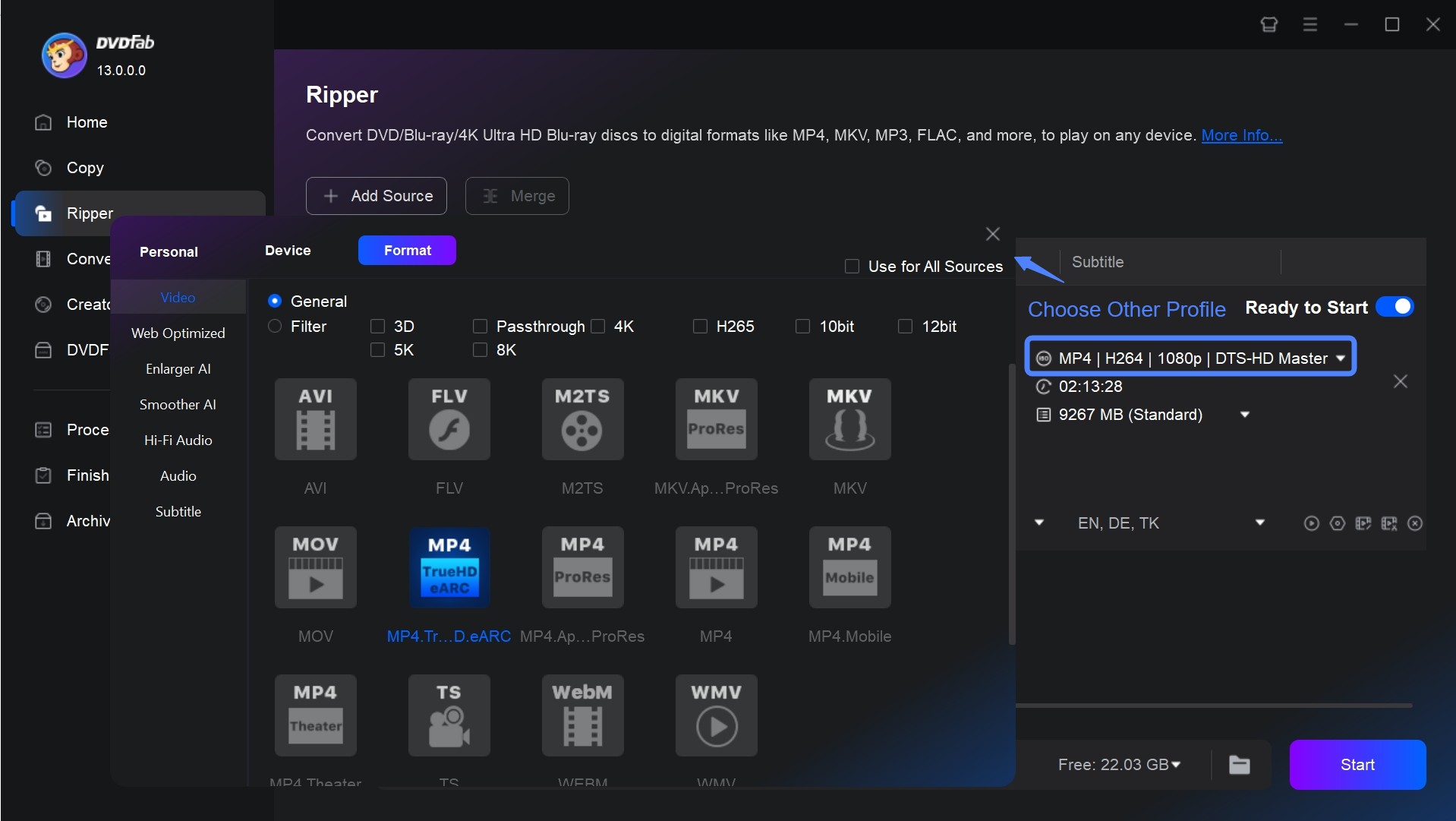
Step 2: Click Choose Other Profile to open the profile library, then go to Format > Video and pick a container that suits your playback devices. Choose an MKV Passthrough profile when you want to retain selected source streams without ordinary video re-encoding. Choose an H.264 (AVC) and AAC MP4 encode when you want a smaller file with broad client compatibility, and match the output frame rate to the source.
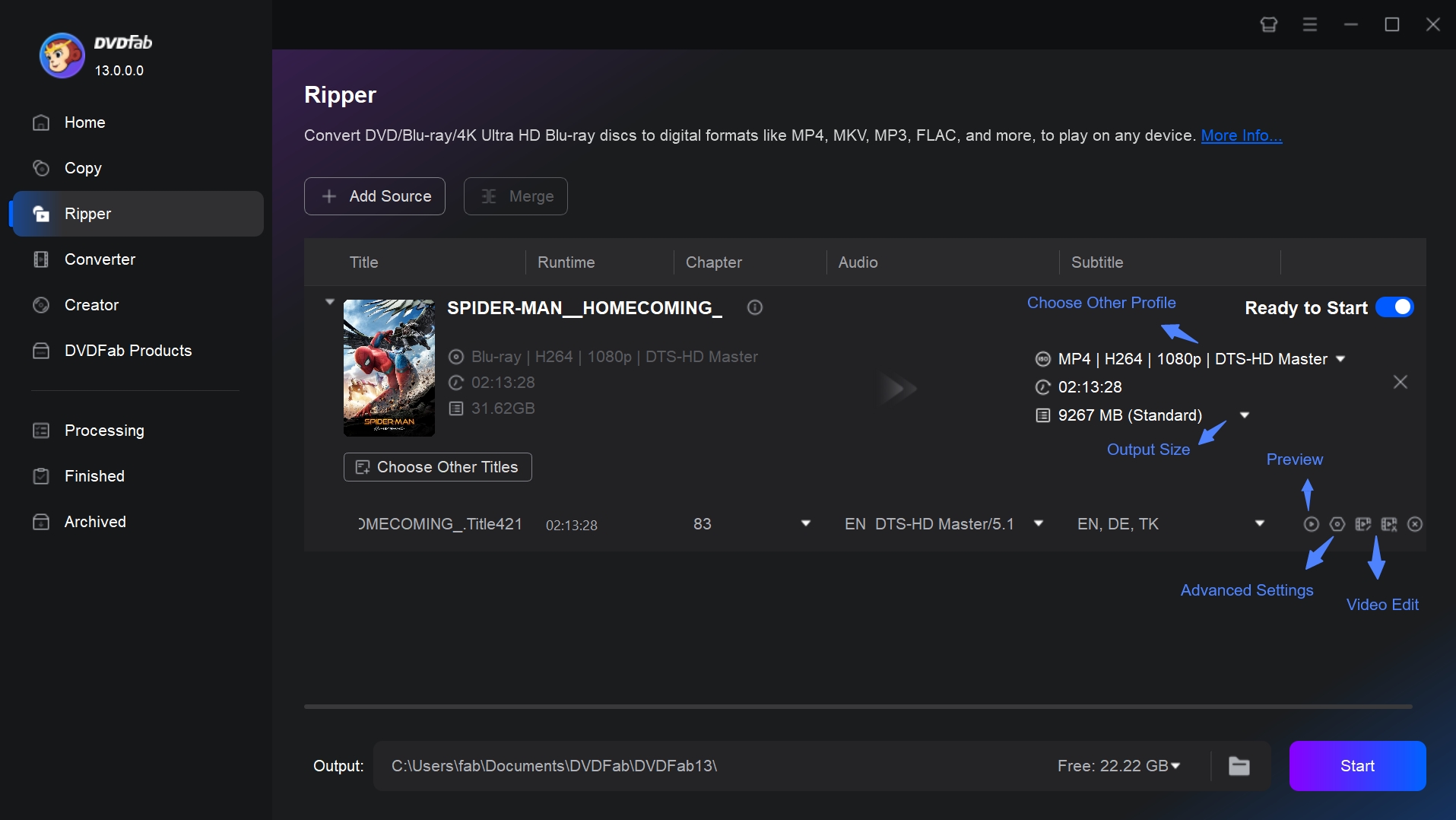
Step 3: On the main interface, use the Audio Track and Subtitle Track drop-down menus to keep the main title, required language tracks, audio-description track, and forced subtitles you need. PGS support depends on the Plex client, even when the subtitles are stored in MKV. On Windows, the OCR option can convert image-based subtitles to SRT; after processing, play a forced-subtitle scene on the intended client to confirm that it appears correctly. You can also select the title and set a custom chapter range.
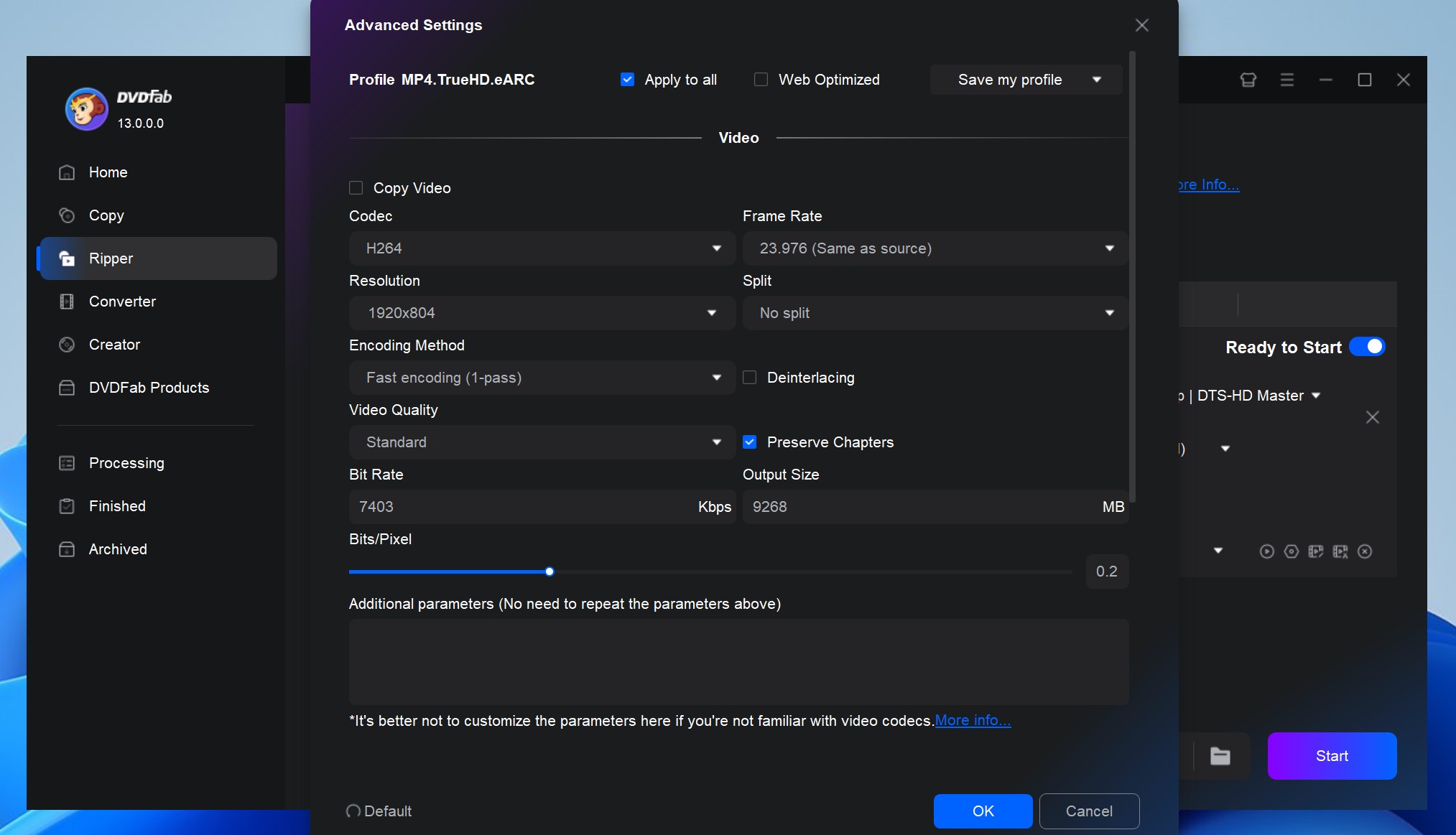
Click Advanced Settings to adjust the video codec, resolution, frame rate, and audio options. For smoother Plex playback, keep the original resolution (often 1080p for Blu-ray), set H.264 (AVC) as the video codec, match the frame rate to the source, and use AAC for audio to reduce the chance of transcoding. If you want surround sound, keep a compatible surround track when possible, but be aware that DTS/DTS-HD commonly triggers audio transcoding on many Plex clients.
DVDFab also supports editing and trimming in the Ripper workflow. Click Video Edit for cropping, trimming, and similar adjustments, but keep edits minimal if your goal is pure Plex playback and maximum compatibility.
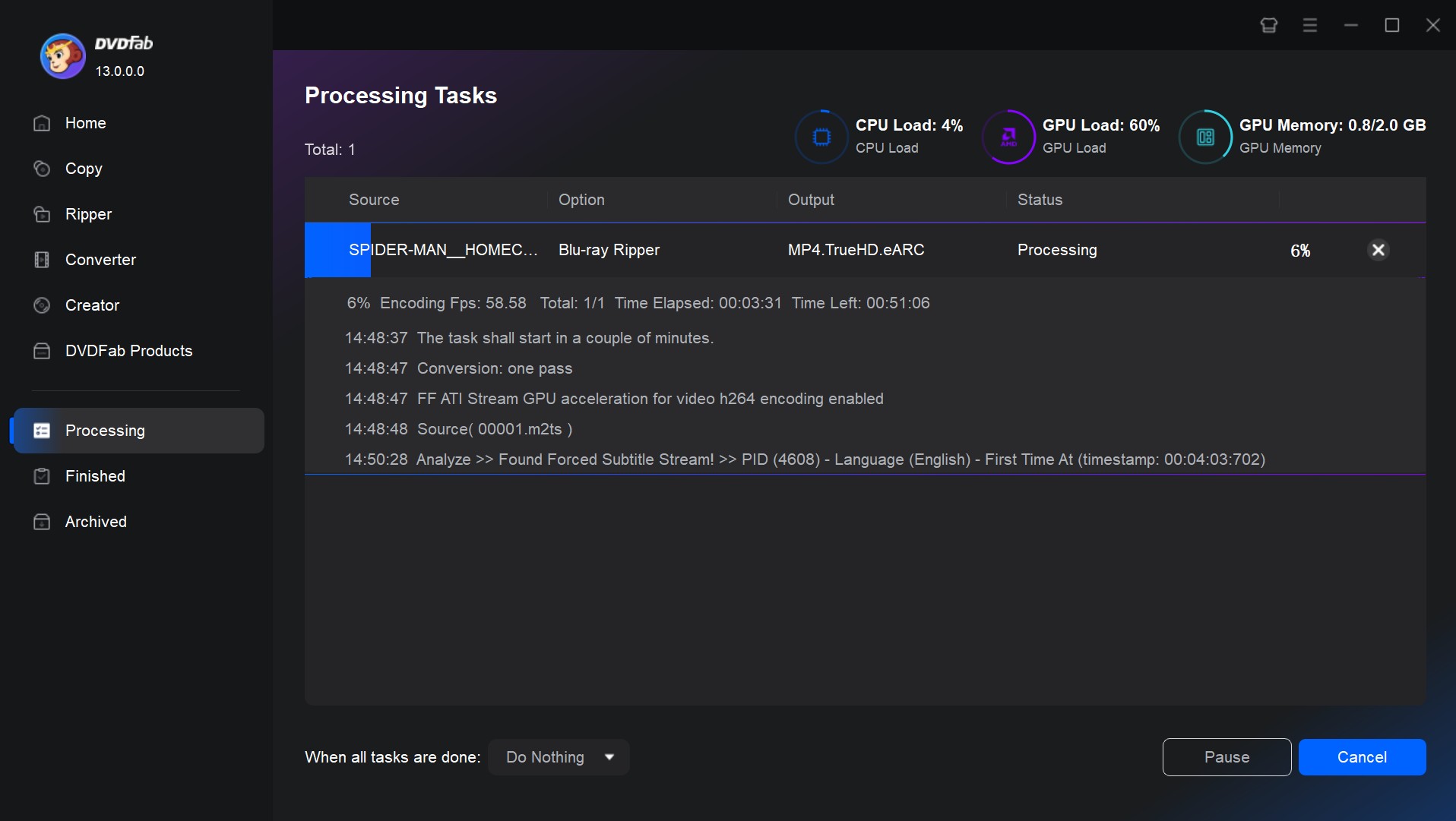
Step 4: Choose your output folder, click Start, and wait for the rip to finish. DVDFab shows progress details throughout the process, and additional jobs can be placed in the task queue for sequential processing.
After that, add the resulting MP4/MKV file to your Plex library folder and let Plex scan it. Plex then decides whether to Direct Play, Direct Stream, or Transcode based on the file and the device.
How to Rip a Blu-ray to Plex Using MakeMKV
MakeMKV is a trial/shareware option for ripping Blu-ray to Plex, with free beta-key access available and purchases temporarily unavailable as of October 2026. It converts DVDs and Blu-rays to MKV format without altering the selected video or audio streams, though it only outputs to that one container.
Supported OS: Windows, Mac, Linux
Strengths:
- Preserves selected source streams in an MKV file without video re-encoding
- Can retain selected audio tracks, subtitles, and chapters in the MKV file
- Lists the available titles and tracks from supported Blu-ray and DVD sources
Limitations:
- It supports only one MKV format as the output
- The output can be large because selected source streams are retained without video re-encoding
- It will not let you customize or edit your content
- Blu-ray use requires the current beta key while paid purchases remain unavailable
Step 1: Download and install MakeMKV, then insert your Blu-ray disc and open the program. It should detect the disc automatically.
Step 2: Click the disc icon to load the title list. Here, keep the elements you need for Plex and uncheck anything you do not need. Make sure the "Title" containing the main movie stays checked, since MakeMKV sometimes selects a menu or extra clip by default.
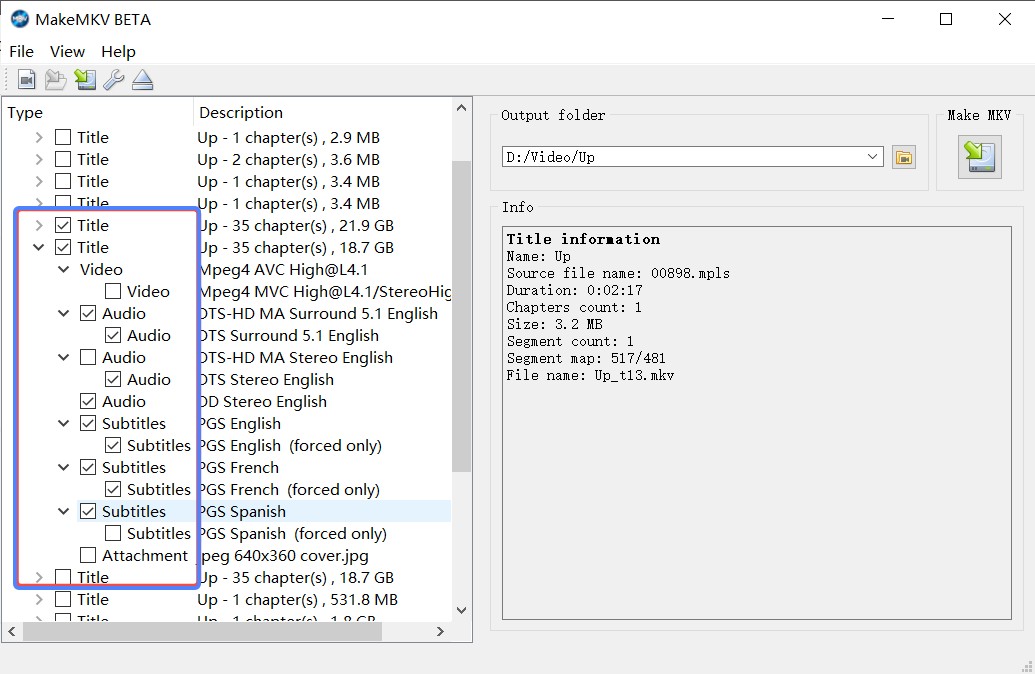
Step 3: Choose your output folder and click the Make MKV button to start ripping. The process can take a while depending on the disc's length and your drive speed.
Step 4: Once ripping finishes, move the MKV file into your Plex library folder for Plex to scan and add.
How to Rip Blu-rays for Plex with HandBrake
HandBrake is a free, open-source video transcoder that converts an authorized, compatible Blu-ray source into Plex-friendly formats, with extensive encoding controls and video filters. It re-encodes video and cannot read a copy-protected Blu-ray disc on its own, so the source must already be accessible as a compatible file or folder.
Supported OS: Windows, Mac, Linux
What it does well:
- Free and open-source, with frequent updates from an active developer community
- Wide range of presets for different devices and use cases
- Detailed control over video filters, cropping, and encoding settings when you convert Blu-ray to digital formats
Where it falls short:
- HandBrake requires an authorized, compatible file or folder because it cannot read a copy-protected Blu-ray disc directly
- Only a handful of output video formats are supported, compared to DVDFab's broader format list
Step 1: Open HandBrake and load an authorized Blu-ray file or folder that the program can read.
Step 2: Choose a preset that matches your target device, or manually set the container to MP4 and the video codec to H.264 as a widely supported starting point for Plex clients.
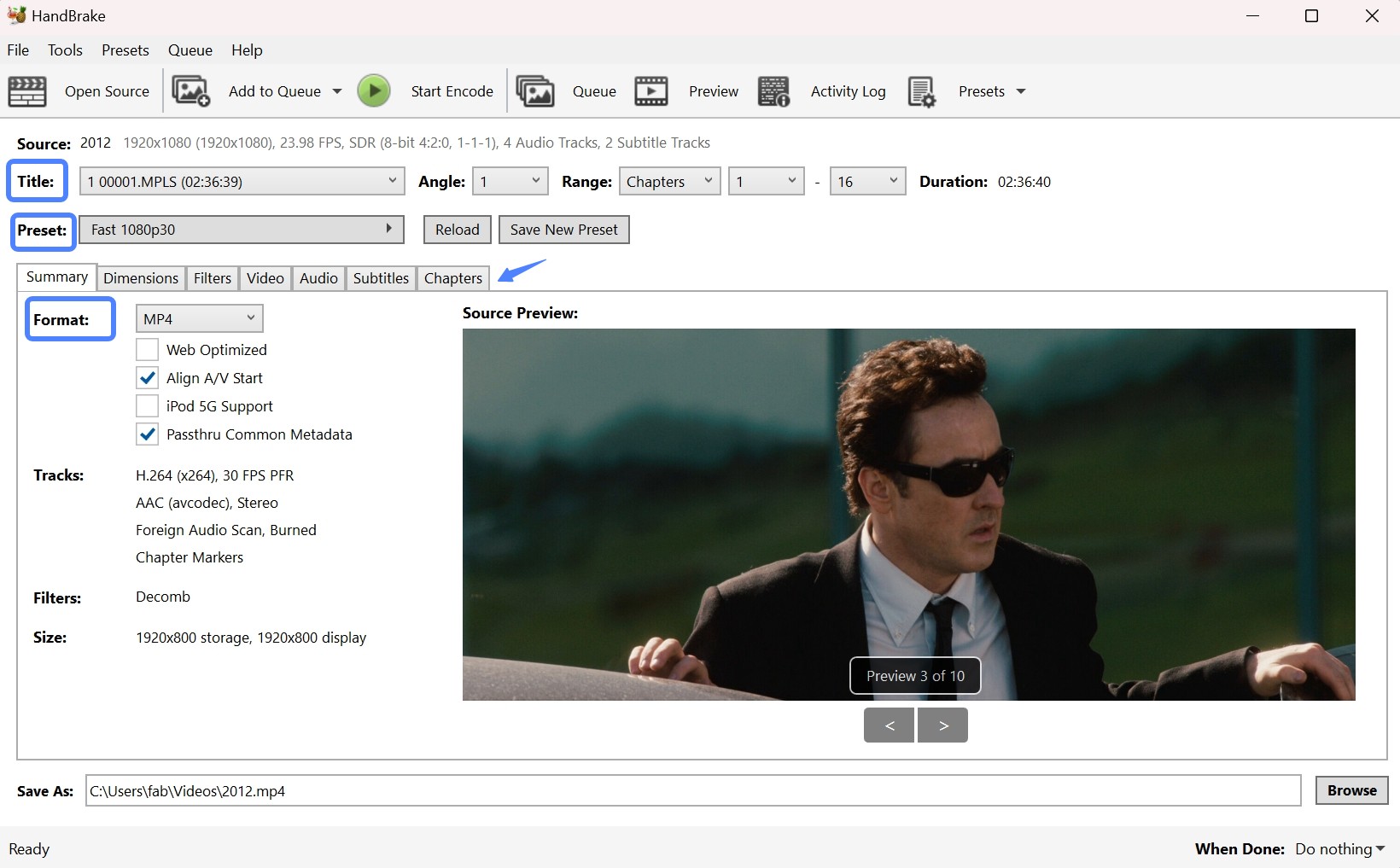
Step 3: Set your output folder and click Start Encode. Once the encode finishes, move the file into your Plex library folder.
Comparison of Three Ways to Rip Blu-rays to Plex
To choose a tool that fits your workflow, compare how DVDFab Blu-ray Ripper, MakeMKV, and HandBrake stack up across platform support, decryption, output formats, and price.
| Feature | DVDFab Blu-ray Ripper | MakeMKV | HandBrake |
| Platform | Windows, Mac | Windows, Mac, Linux | Windows, Mac, Linux |
| Built-in decryption | Yes | Yes | No |
| Output formats | MP4, MKV, AVI, MP3, FLAC, and more | MKV only | MP4, MKV, WebM |
| Editing tools | Crop, trim, merge | None | Filters and basic trimming |
| Price | Paid, free trial available | Free (beta key required) | Free |
DVDFab is the only one of the three that combines built-in decryption with format flexibility and video editing, while MakeMKV trades that flexibility for a completely free, single-format workflow, and HandBrake sits in between with strong customization but no way to remove disc protection on its own.
Beyond the feature comparison, I also ran a real test on a Windows 10 x64 system equipped with 16GB RAM, an NVIDIA GeForce RTX 4060 Ti 8GB GPU, and an Intel i7-6700 CPU clocked at 3.40GHz. The movie used for the test was 2012, which has a runtime of 2 hours and 36 minutes, and the source file size was 33.43GB.
Compression Mode Comparison
| Tool | Time Spent | Output Resolution | Output Audio |
| DVDFab Blu-ray Ripper | 7 min 45 sec | 1920x1080 | 5.1 AAC |
| HandBrake | 5 hr 34 min | 1920x800 | 2.0 AAC |
In this compression-mode test, DVDFab Blu-ray Ripper finished the same movie in 7 minutes and 45 seconds, compared to 5 hours and 34 minutes for HandBrake. DVDFab also kept the output at full 1920x1080 resolution with 5.1 AAC audio, while HandBrake's preset output dropped to 1920x800 resolution with 2.0 audio.
Lossless Mode Comparison
HandBrake does not appear in the table below because it does not offer a 1:1 lossless output mode; it re-encodes video by design, so it was only included in the compression-mode comparison above.
| Tool | Time Spent | Output File Size | Output Resolution/Audio |
| DVDFab Blu-ray Ripper | 7 min 4 sec | 31.4GB | 1920x1080, DTS-HD MA 5.1 |
| MakeMKV | 7 min 33 sec | 34.7GB | 1920x1080, DTS-HD MA 5.1 |
For a 1:1 lossless MKV rip of the same movie, DVDFab Blu-ray Ripper finished in 7 minutes and 4 seconds versus MakeMKV's 7 minutes and 33 seconds, and produced a 31.4GB file compared to MakeMKV's 34.7GB. Both preserved the original 1920x1080 resolution and DTS-HD MA 5.1 audio track.
How to Stream Your Blu-ray Files on Plex Media Server
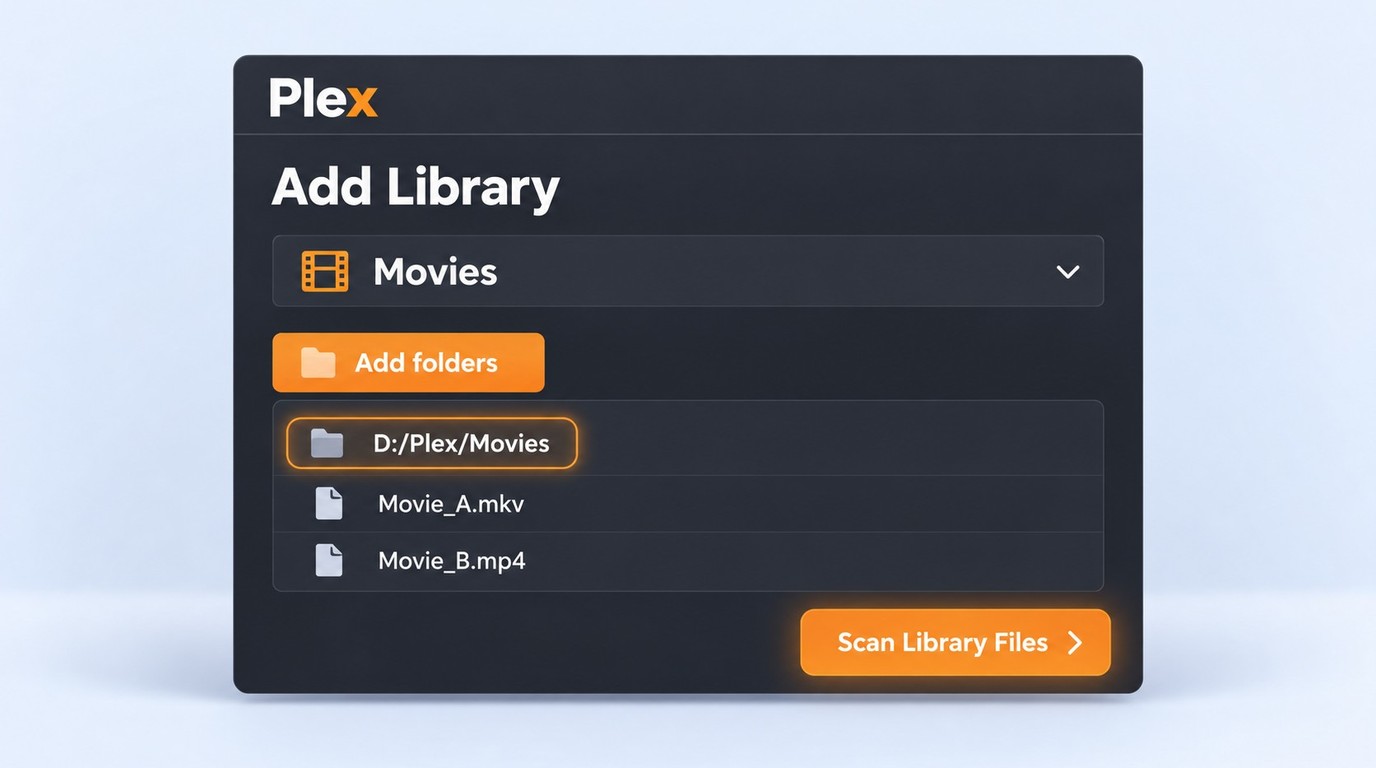
Now that you know how to rip Blu-ray for Plex, the next step is getting that content into your Plex server. Start by creating a folder that holds all the ripped Blu-ray files you want to stream, then follow these steps:
Step 1: Launch the Plex web app, click the toolbar icon, open Settings, and select your Plex Media Server.
Step 2: Under Settings, go to Manage > Libraries, then click Add Library and choose Movies. Keep TV episodes in a separate TV Shows library so Plex can match each type correctly.
Step 3: Name the library and select your preferred language. Plex uses that language to pull matching metadata from the internet. Organize each movie in a folder such as Movies/Example Movie (2024)/Example Movie (2024).MKV.
Step 4: Click Next, then Browse for media folder, select the folder containing your ripped Blu-ray files, click Add, and finish with Add Library. Scan the library and confirm that Plex matched the correct movie title and year.
Play a sample on the intended Plex client and check the selected language, any audio-description track, and a scene containing forced subtitles before processing the rest of a collection.
FAQs
How Much Storage is Required to Keep a Ripped Blu-ray File?
Storage use depends on the movie's duration, the video bitrate, and the audio and subtitle tracks you retain. A remux keeps selected source streams and is usually larger, while an encode reduces bitrate and creates new video data. Leave enough free space for both the source and output when encoding.
Can I Rip and Add Subtitles to the Plex Media Server?
Yes. Keep the required language tracks, forced subtitles, and any audio-description track during extraction. Plex uses its own playback controls rather than the original Blu-ray menu, and PGS subtitles may require video burn-in on clients that cannot render them. DVDFab Blu-ray Ripper for Windows can convert supported image-based subtitles to SRT with OCR; test a forced-subtitle scene on the intended client.
Do I Need a Plex Pass to Play My Ripped Blu-ray Files?
Local playback of personal videos does not require Plex Pass. In affected apps, remote personal-video playback requires the server administrator or viewer to have Plex Pass, or the viewer to have Remote Watch Pass, even when the file Direct Plays. Hardware-accelerated transcoding requires Plex Pass; Remote Watch Pass does not include that feature.
Why Is My Ripped Blu-ray Transcoding Instead of Direct Playing?
Open the Plex Dashboard during playback and check the video, audio, and subtitle decisions separately. Try turning subtitles off, selecting Original quality, and checking client codec support and available network throughput before changing the file; audio-only transcoding can leave the video stream unchanged.
What Do I Need for 4K Blu-rays on Plex?
UHD discs require a compatible 4K UHD Blu-ray drive with supported firmware and a separate UHD-specific process, so see the guide for the drive and output steps to rip 4K Blu-ray for Plex. NOTE: UHD playback also depends on whether the Plex client supports the selected video, HDR, audio, and subtitle streams.
What Permissions Do I Need Before Ripping Blu-rays for Plex?
Use content you are authorized to access and copy, keep the resulting files for authorized personal use, and do not redistribute them. Follow applicable law and platform terms; permission depends on the specific content and intended use, not disc ownership alone.
Conclusion
When deciding how to rip Blu-ray for Plex, separate two goals: use passthrough to retain selected source streams without ordinary video re-encoding, or encode the video when you want a smaller file with settings tailored to your Plex clients. For standard Blu-ray sources you are authorized to copy, DVDFab Blu-ray Ripper combines passthrough, encoding, and track selection in one workflow for saving a local personal copy. MakeMKV preserves selected streams in an MKV file under its trial/shareware model, while HandBrake is a free, open-source transcoder that re-encodes video from an authorized, compatible source.
Choose passthrough when retaining selected source streams matters most, or an H.264/AAC MP4 encode when smaller files and broader client support matter more. Before processing a collection, use the DVDFab Blu-ray Ripper free trial to create one file and check its selected audio, forced subtitles, and playback mode on the intended Plex client.

![5 Tested Tools to Convert Blu-ray to MP4 on Windows & Mac [2026]](https://images.dvdfab.cn/artifact/2026/10/08/VlnEzAK16xQgSfU_MVii_l11G2zYv56o/feature_cover.jpg) 5 Tested Tools to Convert Blu-ray to MP4 on Windows & Mac [2026]By Wenny Yan - Oct 10, 2026
5 Tested Tools to Convert Blu-ray to MP4 on Windows & Mac [2026]By Wenny Yan - Oct 10, 2026 How to Convert Blu-ray to Digital on Windows, Mac & MobileBy Wenny Yan - Oct 10, 2026
 How to Rip Blu-ray to MKV on Windows & Mac: 4 Tested ConvertersBy Diana Smith - Sep 28, 2026
 How to Convert 3D Blu-ray to 2D Video: DVDFab 3D Converter GuideBy Diana Smith - Sep 16, 2026