
KFX to EPUB or PDF: 3 Current Workflows and Fixes

Summary: The guide covers three practical ways and two programs to convert DRM-protected KFX to EPUB or PDF formats, so you can back up your Kindle eBooks and read them freely on other devices.
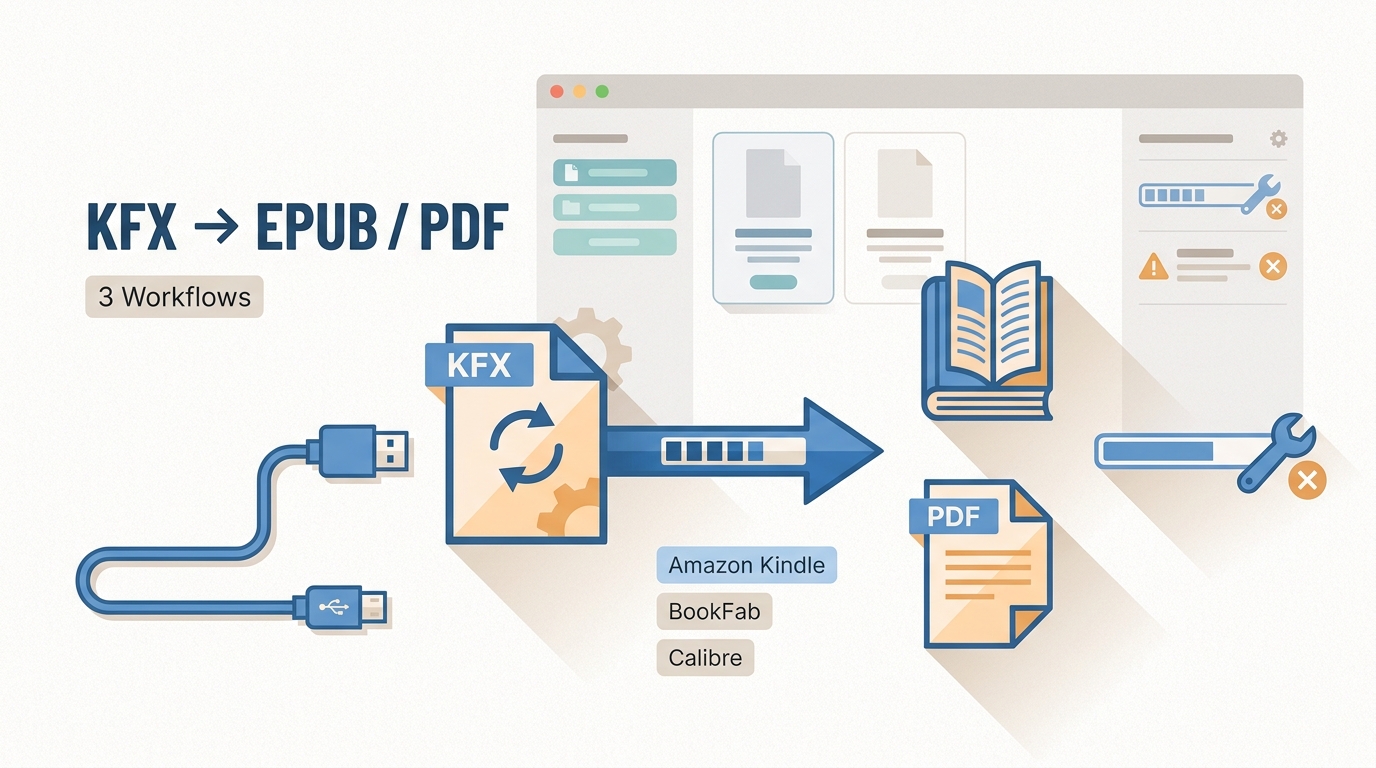
Table of Contents
KFX, Amazon’s Kindle-specific eBook format, can be converted to EPUB or PDF when the book source and your access allow it. The right route depends on an official direct file, your operating system, and how the title was acquired; this guide covers three workflows and KFX-ZIP and Calibre compatibility fixes.
The first time I opened a Kindle purchase in Calibre and saw a stubborn KFX-ZIP tag instead of a readable file, I realized the old KFX guides I had bookmarked were not going to help. As of January 2026, verified purchasers can directly download publisher-designated DRM-free Kindle titles as EPUB or PDF when the publisher enables that option, which changes the calculus for a lot of readers before any converter enters the picture. This guide walks through the workflows worth trusting for KFX to EPUB and KFX to PDF, plus the errors that show up in between.
Check for a Direct EPUB or PDF First
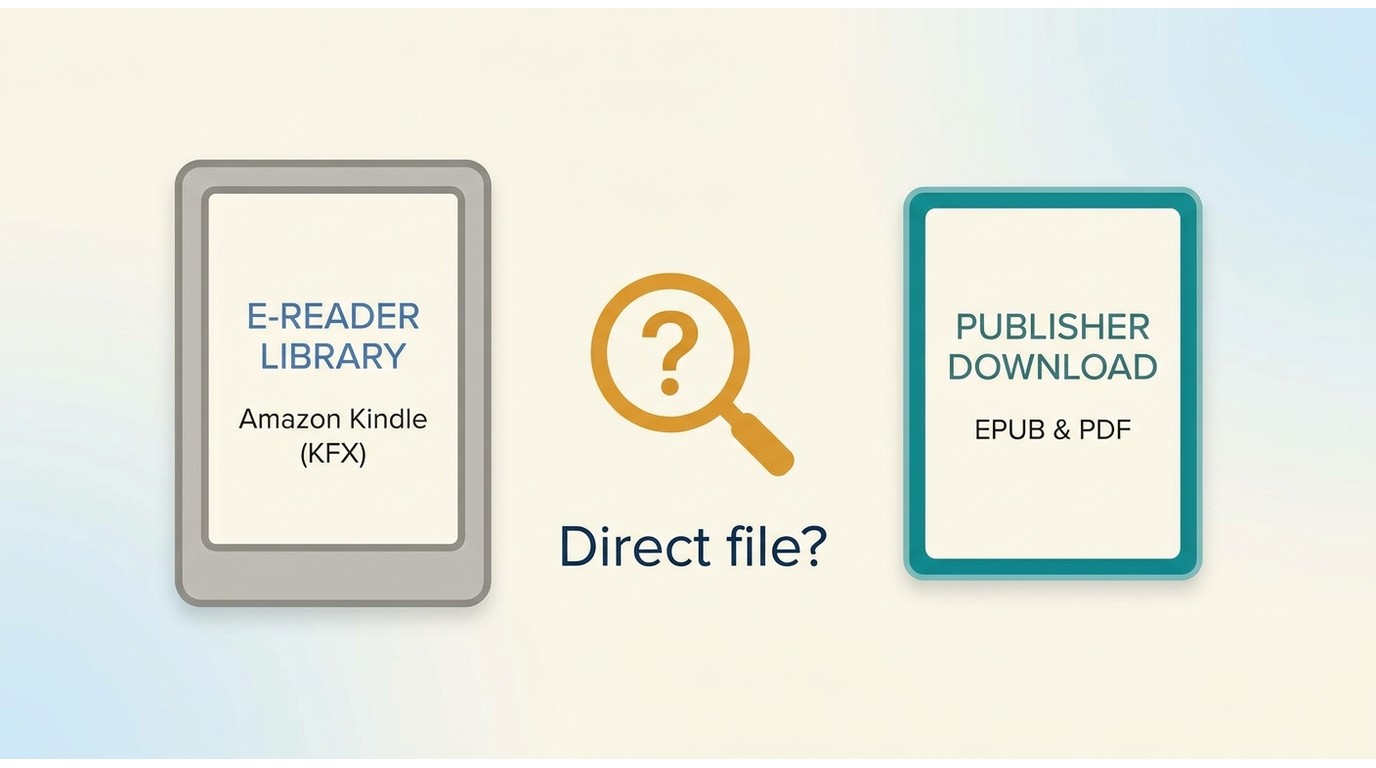
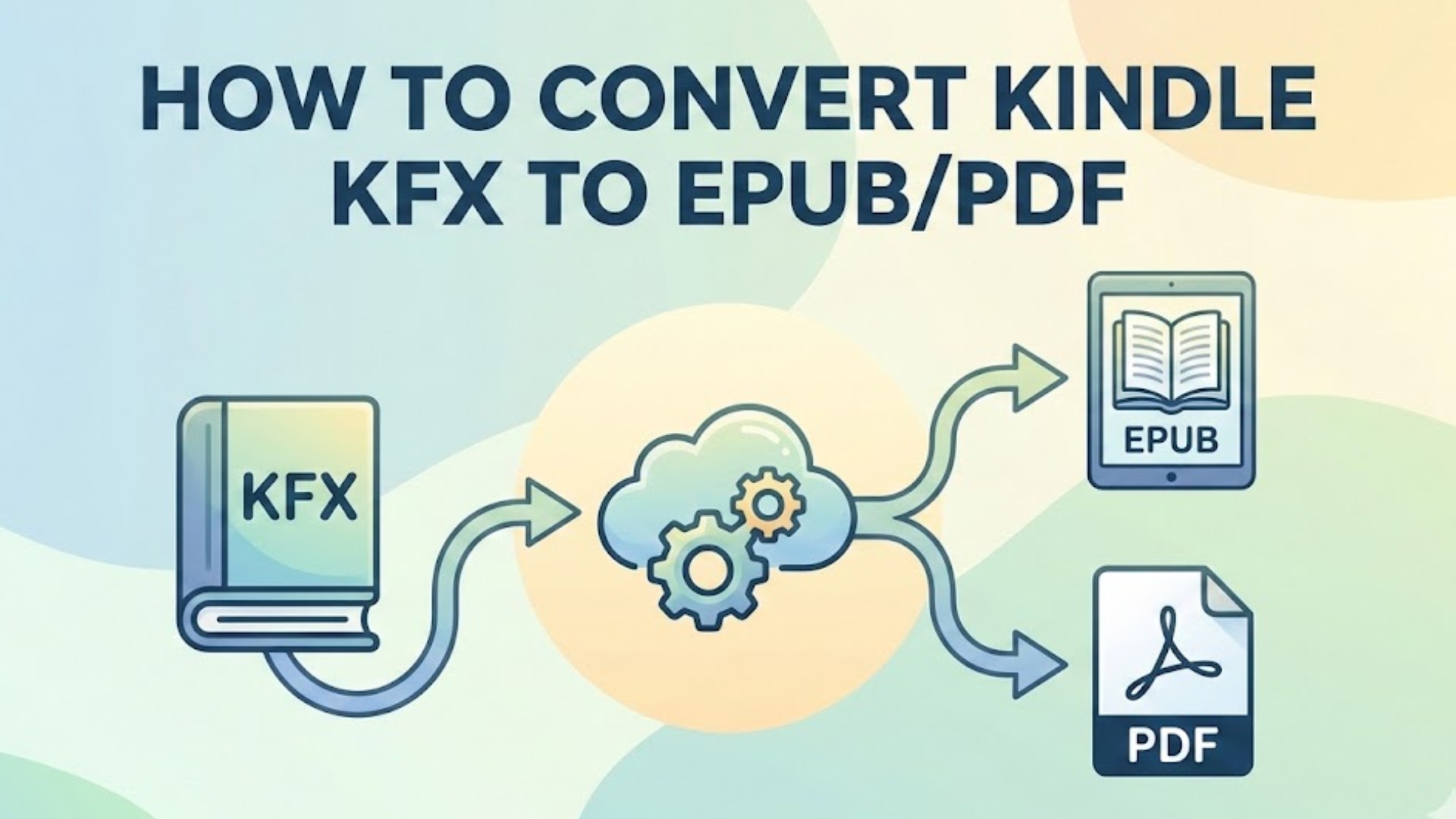
Before installing anything, open your Amazon account and look at the book's download options. Since January 2026, some publishers have opted their catalogues into a direct EPUB or PDF download for verified purchasers, and when that button is present the file you get is already in the format you want, with the cover and table of contents intact. Running a converter over a title that qualifies for a direct download just adds steps.
The direct route does not cover every title. Older purchases and books whose publishers have not opted in may still arrive as KFX. Library loans and Kindle Unlimited borrows are not conversion candidates because access is temporary. If you cannot see an EPUB or PDF option next to an eligible purchased book in your library, treat that title as a conversion candidate.
Choose the Right Workflow
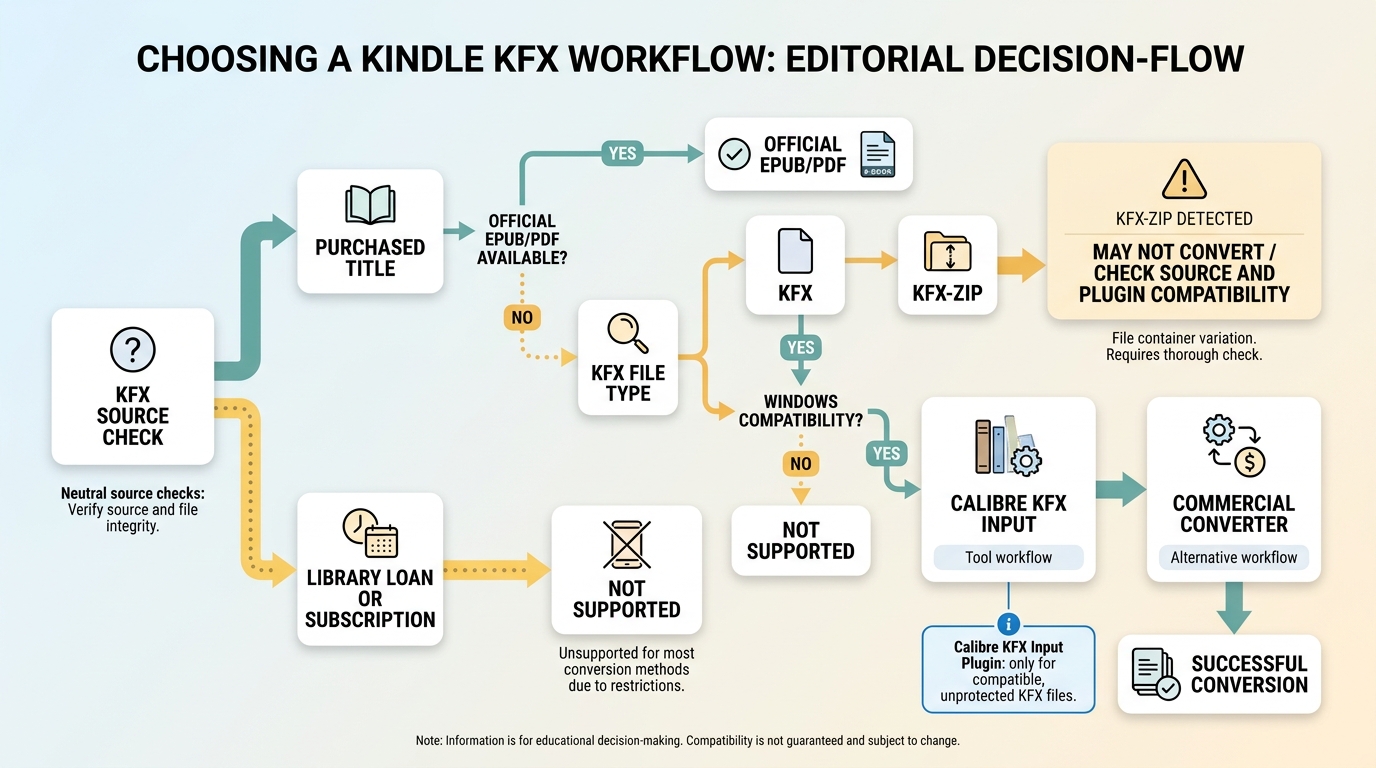
Two things narrow the field before you pick a tool: your platform and where the KFX file actually comes from. The Windows Kindle desktop app is still the usual source, and current app versions changed how KFX is stored, which is why guides that pin you to Kindle for PC 2.4.0 no longer age well. BookFab Kindle Converter runs on Windows and requires the Windows Kindle app as the local content source.
The source format matters as much as the OS. A KFX file downloaded through a supported desktop app is the most predictable input. A KFX-ZIP wrapper or a title acquired outside the app usually will not convert, no matter which tool you point at it. Library loans and subscription borrows are not part of the workflows covered here. When I plan a conversion session I check the source first, then the OS, then the tool — in that order.
If your download is a different Kindle format, the broader convert Kindle books to EPUB workflow may fit better than the KFX-specific steps here.
Convert KFX with BookFab Kindle Converter
BookFab Kindle Converter is a Windows desktop app that reads Kindle books you are authorized to access and exports them to EPUB or PDF, where permitted by platform terms and applicable law. It keeps cover art, author, and chapter metadata attached to the output file, which matters when you are rebuilding a personal library. Best fit: readers who want a low-setup batch workflow on Windows. Not ideal: eligible purchases that already have an official EPUB or PDF download waiting in your Amazon account.
Step 1. Install BookFab Kindle Converter
Step 2. Download KFX Books
On Windows, open the Kindle desktop app, right-click the title you want to work with, and choose Download. By default, the downloaded files land in the My Kindle Content folder. If you need to download Kindle books in bulk before the conversion session, do that step first so BookFab can scan everything in one pass. Amazon retired Download & Transfer via USB in February 2025, so the older route of pulling files from a physical Kindle no longer applies.
Step 3. Launch BookFab and Scan for Kindle Books
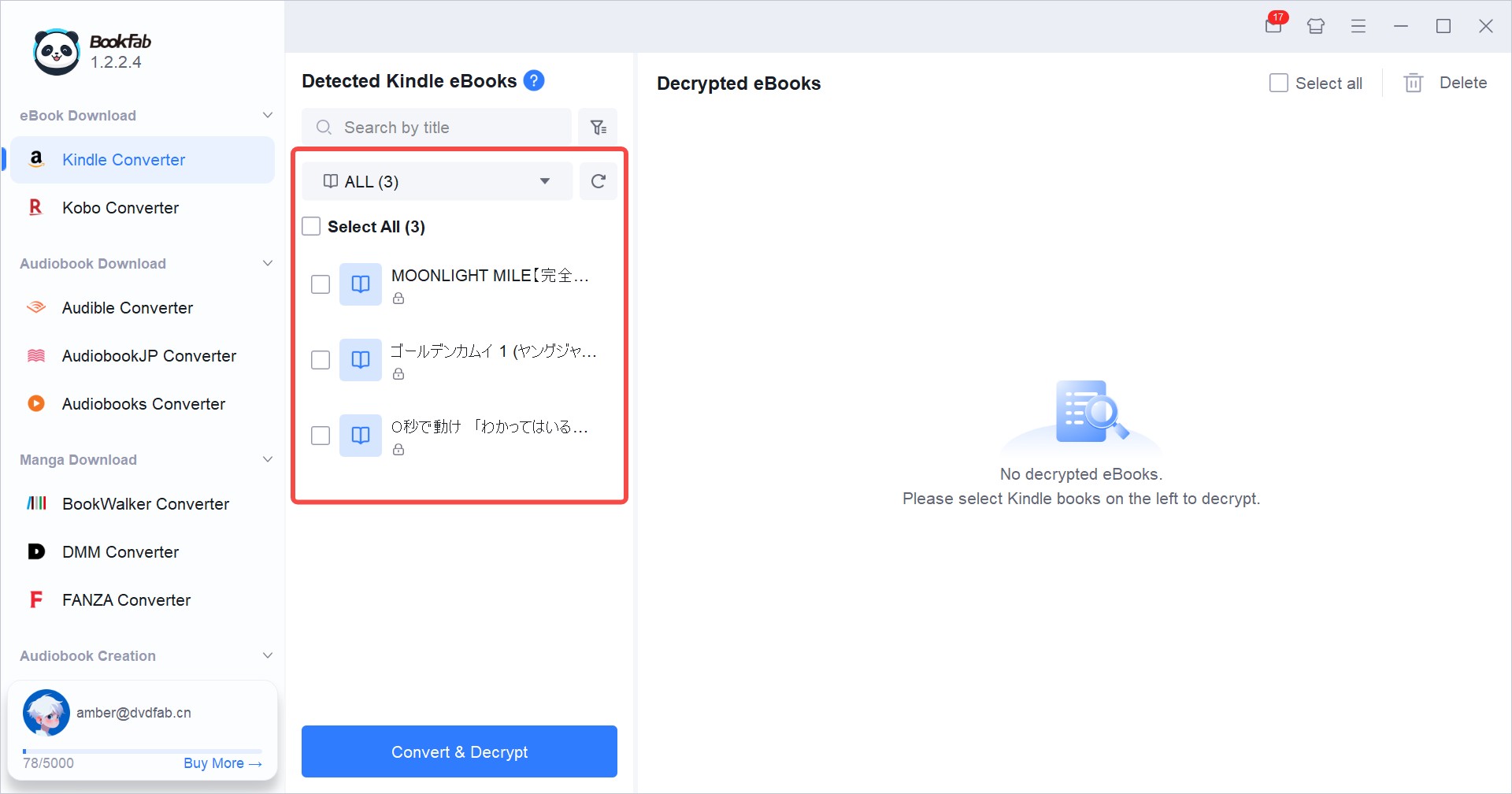
Open BookFab, then click Kindle Converter in the sidebar to enter the Kindle conversion page.
Click the refresh icon to load the eBooks downloaded from "Kindle for PC". The software will scan your local storage and display your downloaded books.
Step 4. Start Converting KFX files to PDF/EPUB
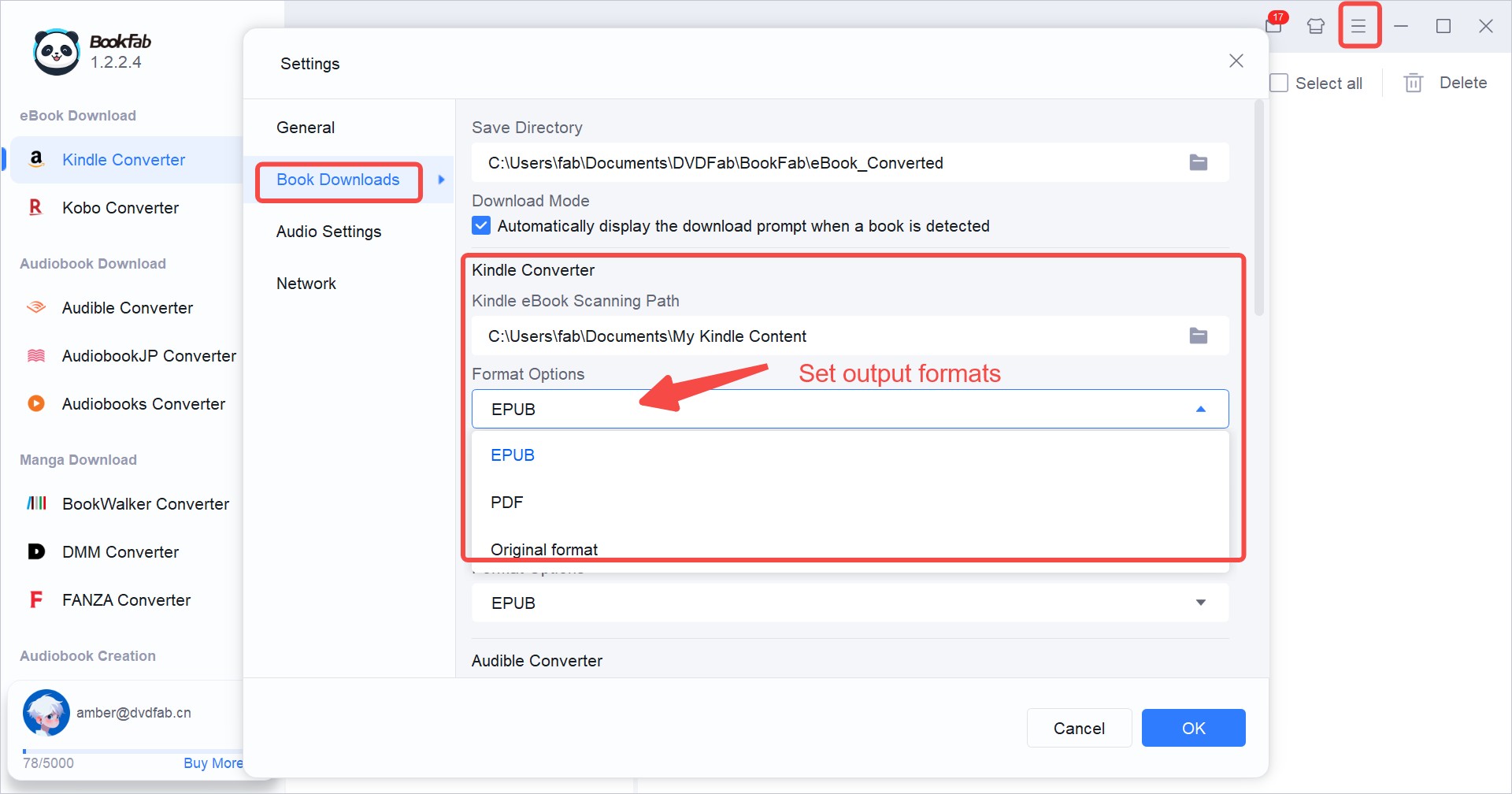
In Settings, select the output format and click OK.
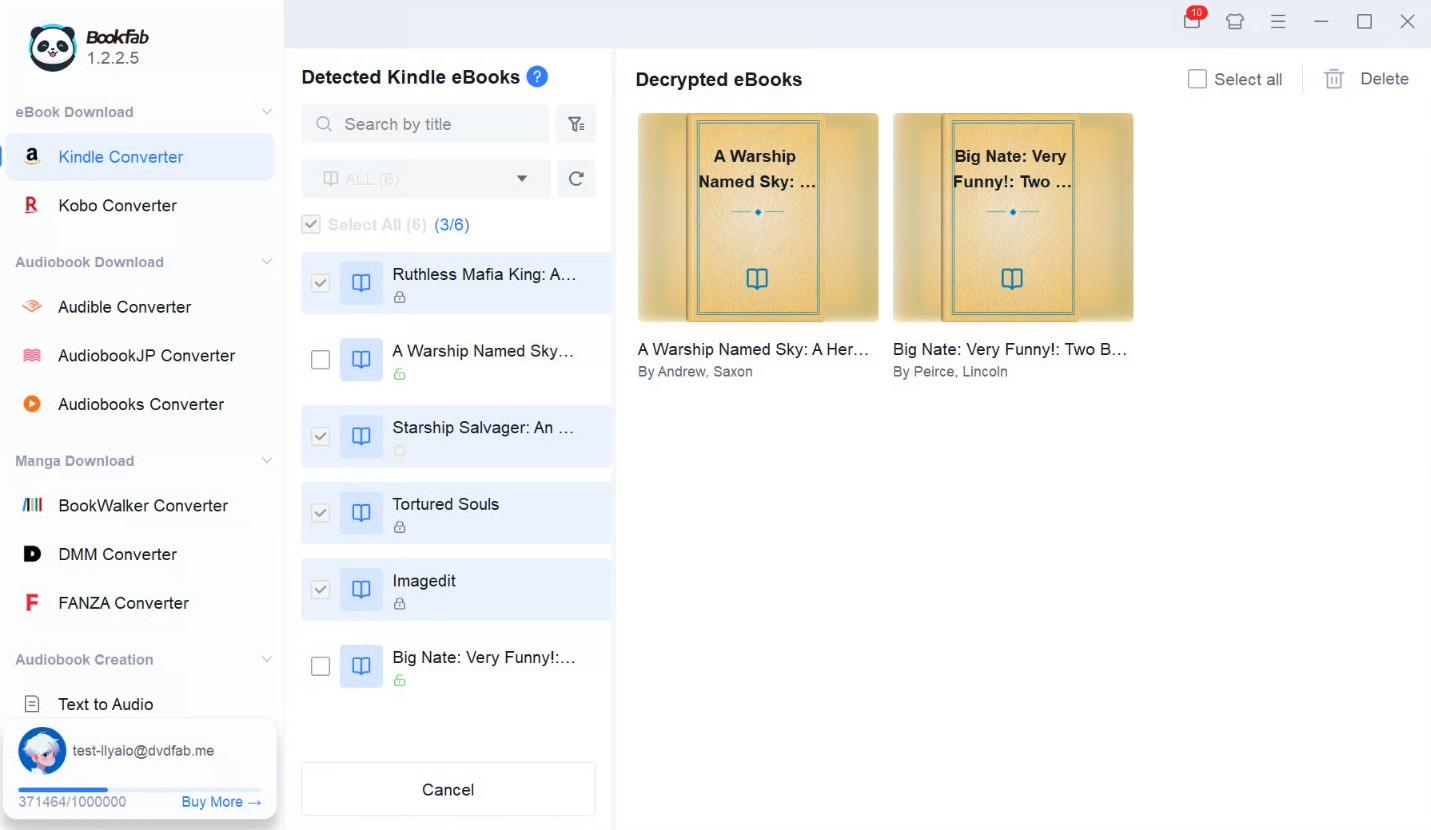
Then, select the books you want to convert and click Convert to start the process. BookFab exports each title to the format you picked, with cover art and chapter structure preserved. When it finishes, the results appear under Converted eBooks, ready to copy to another reader or add to Calibre for library organization.
Convert KFX with Calibre
Calibre is a free, open-source eBook manager that remains actively maintained. The main app converts between EPUB, MOBI, PDF and other common formats without any extra setup. KFX is a different story: Calibre on its own does not read KFX, and the third-party plugins that bridge that gap are version-sensitive — their compatibility with the current Kindle app changes more often than Calibre itself does. Best fit: readers who already keep their library in Calibre and want granular control over layout, fonts, and metadata. Not ideal: readers who want a one-click workflow with no plugin maintenance.
Two Calibre routes are worth knowing:
1. Use Calibre's KFX Input plugin to convert already-unprotected KFX files to PDF or EPUB.
2. Use the BookFab Calibre Plugin (included with BookFab Kindle Converter) to convert supported Kindle content you are authorized to access.
Option 1: Use the KFX Input Plugin with Calibre
The KFX Input plugin lets Calibre read KFX containers so it can convert already-unprotected KFX files to EPUB or PDF. Its behavior depends on the plugin version, the Kindle app version, and whether the source file is a format Calibre can process on its own. Import compatibility shifts each time Amazon updates the Kindle app, so this route works best for readers whose KFX titles are already in a Calibre-readable state.
Step 1. Install Calibre
Install the current Calibre release, then add the KFX Input plugin for already-unprotected KFX files.
Step 2. Install the KFX Input plugin
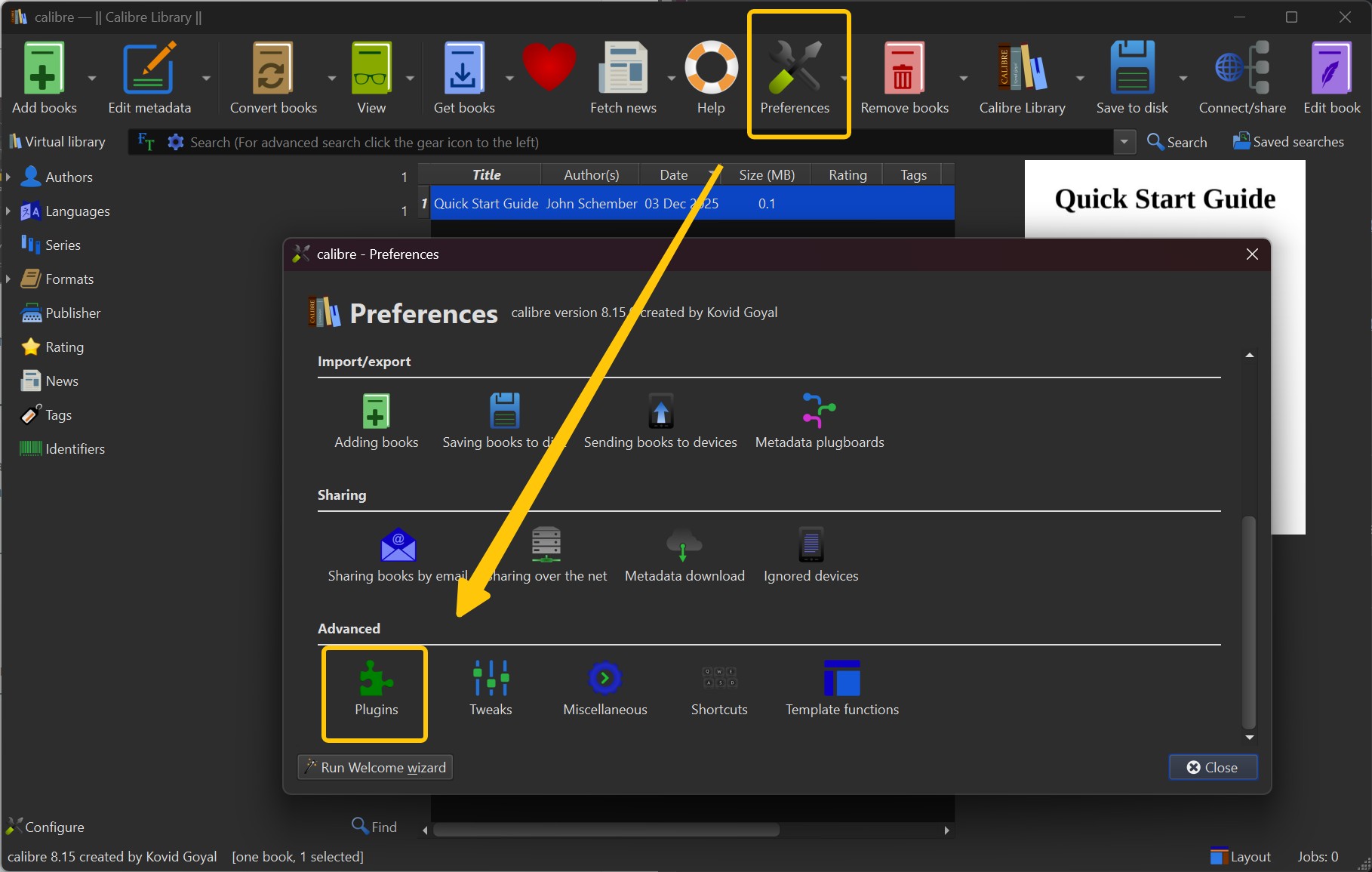
Download the KFX Input plugin from its project page, then install it in Calibre through Preferences > Plugins > Load plugin from file. Select the ZIP and follow the prompts.
Restart Calibre so the plugin loads.
Step 3. Import an already-unprotected KFX file into Calibre
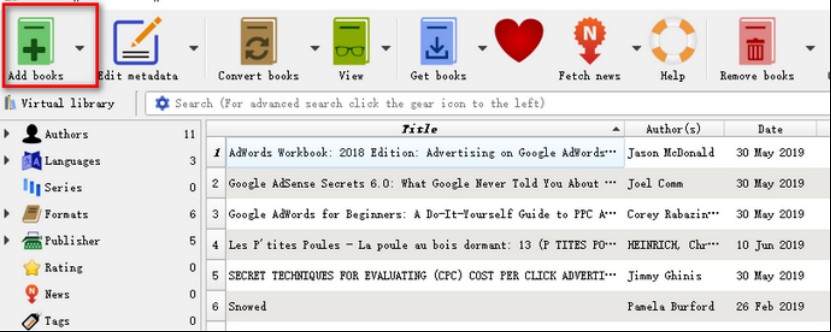
In Calibre, click Add books, then browse to the local folder containing the already-unprotected KFX file, or drag it into the Calibre main window.
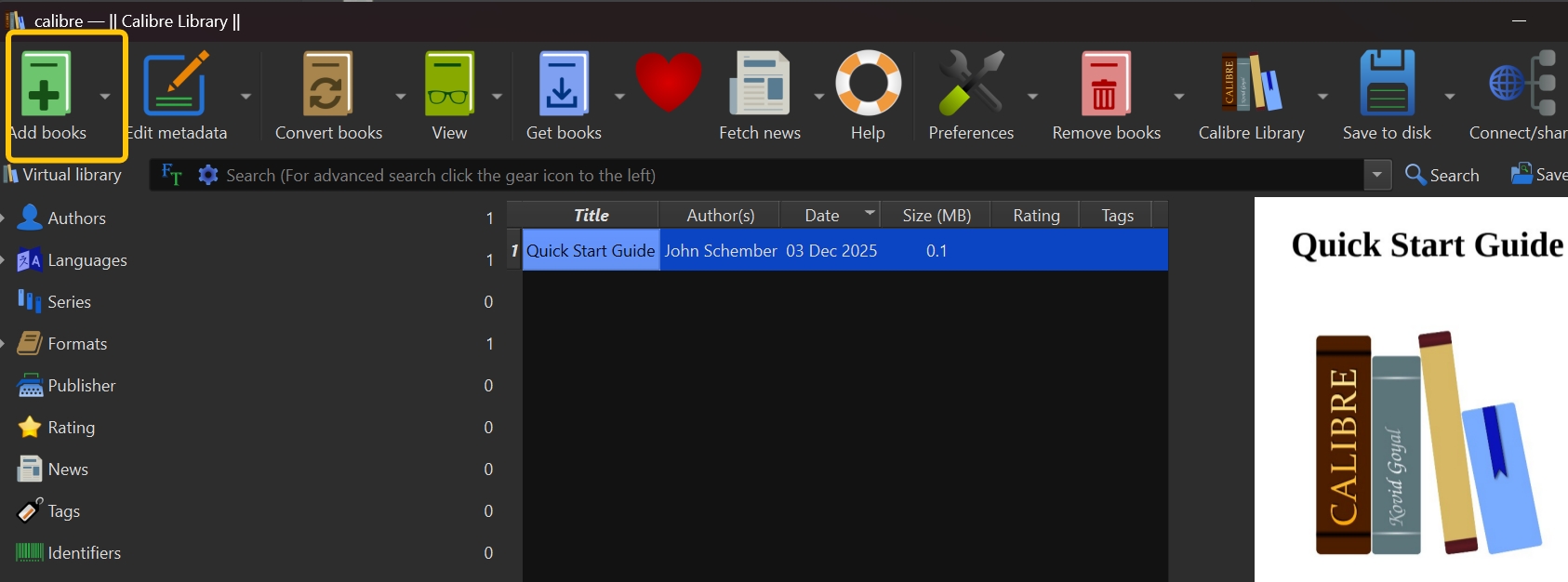
Step 4. Convert KFX to PDF or EPUB in Calibre
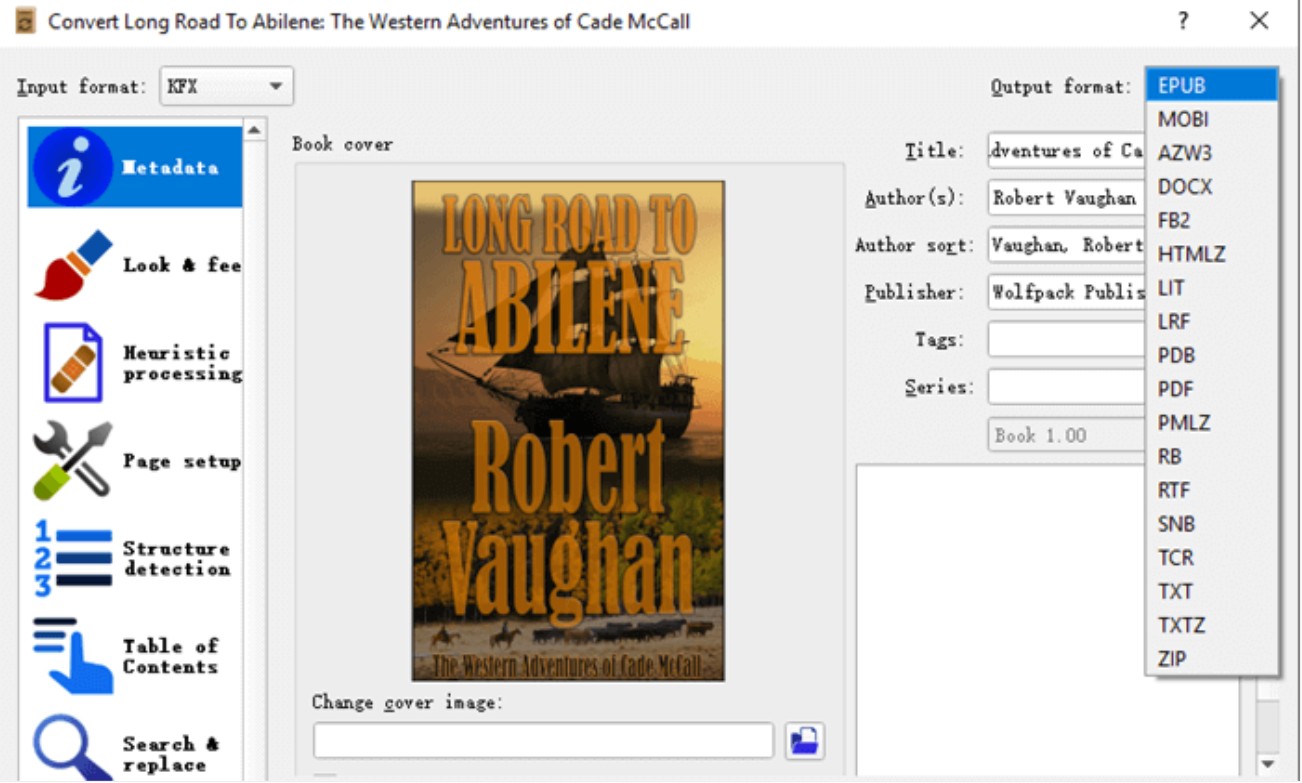
In the Calibre library, select and right-click an imported KFX title. Click Convert books, then choose EPUB, PDF, or another target format in the top-right corner. On the left side, you can tweak metadata, cover, font embedding, layout settings, and so on.
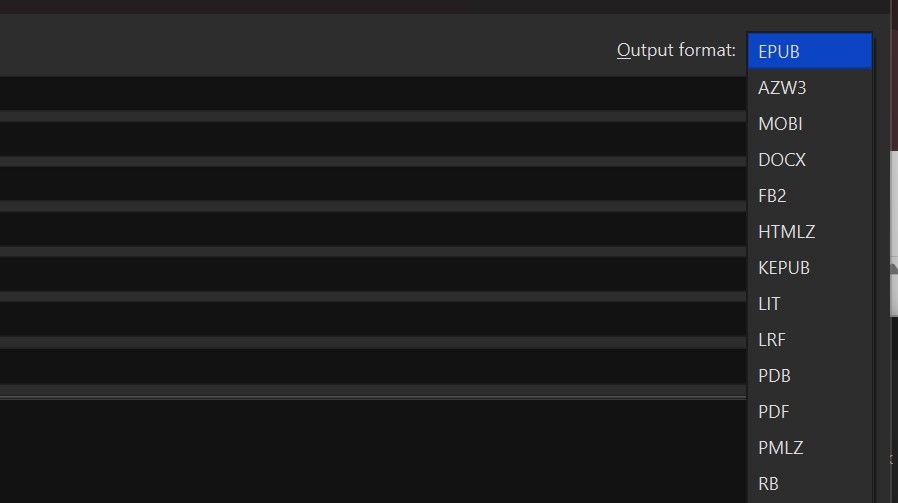
After the conversion finishes, you'll see new PDF or EPUB formats under the same book entry. You can right-click the book and choose Save to disk to export the files, then copy them to other devices for reading.
Option 2: Convert KFX to EPUB or PDF with BookFab Calibre Plugin
The BookFab Calibre Plugin is included with BookFab Kindle Converter and available to users with an active BookFab license. It installs inside Calibre, but the conversion work is handled by the BookFab desktop app running in the background, which keeps it aligned with the current Windows Kindle app instead of chasing plugin releases. Once BookFab processes a supported Kindle title, Calibre picks it up as a standard file you can convert to EPUB or PDF using Calibre's own conversion controls, so library management and output tuning stay in one place.
Step 1. Install Calibre and BookFab
Download and install Calibre and BookFab on your computer. The BookFab Calibre Plugin calls this desktop engine to process the Kindle titles you are authorized to convert, so BookFab must be installed, activated with a valid license, and working properly first.
Step 2. Install the BookFab Calibre Plugin
Download the BookFab Calibre Plugin (included with your BookFab Kindle Converter license): BookFab_Calibre_Plugin_v1.0.0_40db112e.zip.
Open Calibre, then go to Preferences > Plugins > Load plugin from file. Select the BookFab Calibre Plugin zip file you just downloaded and allow Calibre to install it (you may see a security prompt, which you should accept if you trust the source).
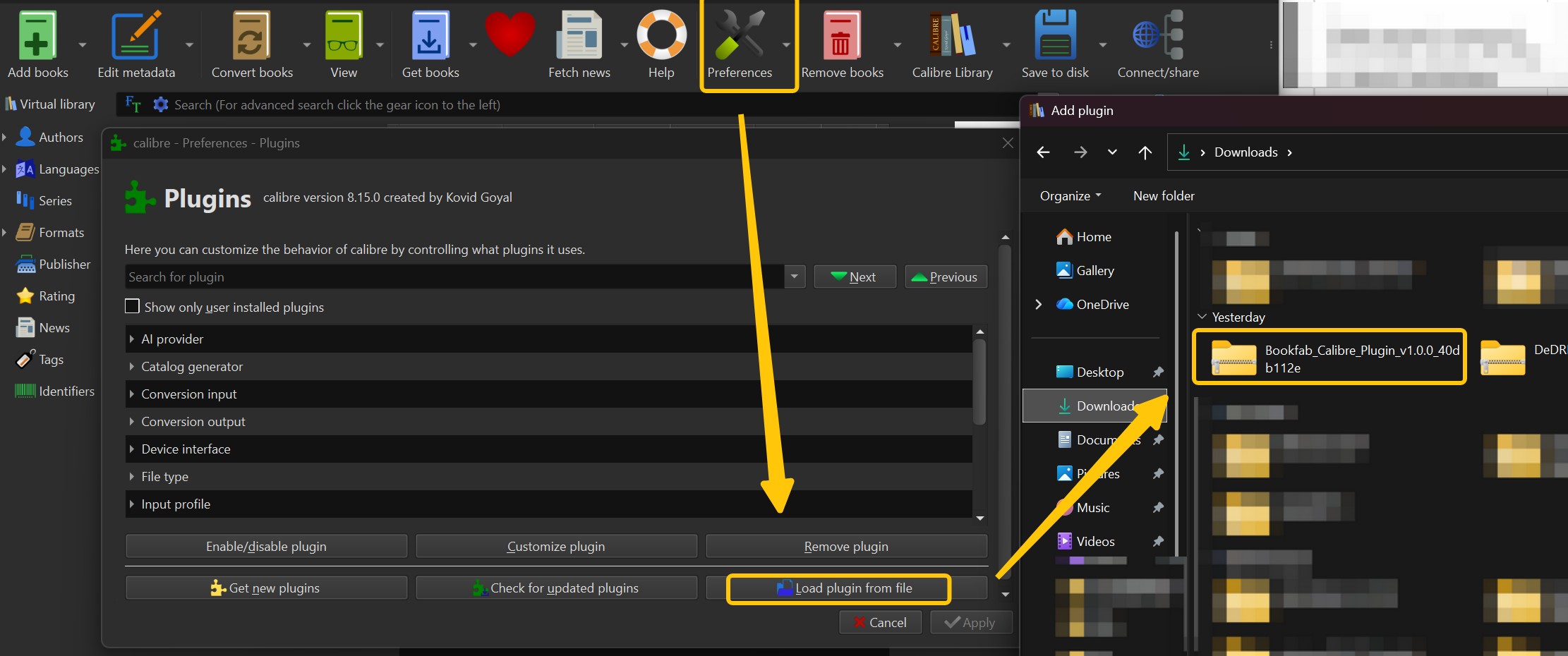
Restart Calibre to activate the plugin. After restarting, a new BookFab action appears in the toolbar and right-click menu, which confirms the plugin is loaded.
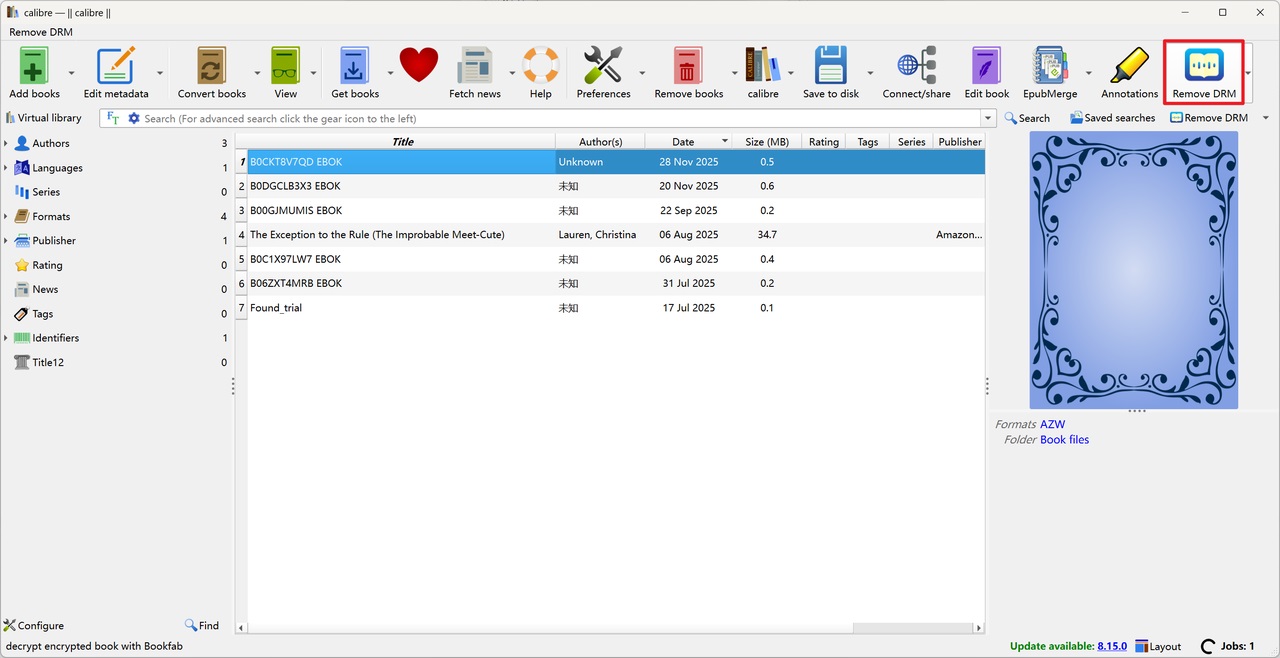
Step 3. Download and Import the KFX Books
Install Kindle for PC, sign in with your Amazon account, and download the Kindle KFX books you want to convert. By default, they are stored in the "My Kindle Content" folder.
In Calibre, click Add books, browse to the My Kindle Content folder, and select the KFX titles you just downloaded, or drag and drop them directly into the Calibre main window.
Step 4. Process the KFX Books via the BookFab Plugin
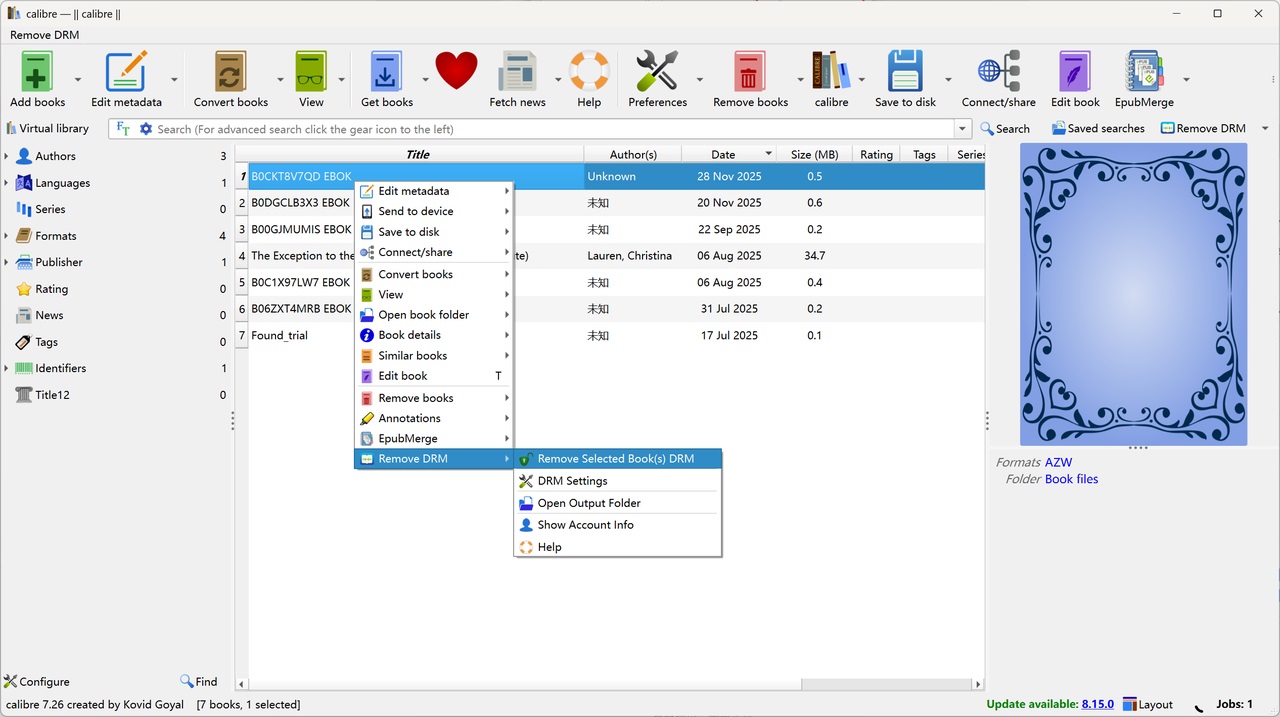
In Calibre, select the Kindle book you want to work with. Click the BookFab action in the toolbar, or right-click the book and choose the same option from the context menu.
The plugin hands the file off to the BookFab engine in the background, and the processed copy is attached back to the same Calibre entry when it finishes.
Step 5. Convert KFX to EPUB/PDF in Calibre
Select the processed Kindle book in your Calibre library. Right-click it and choose Convert books.
In the conversion window, set the output format in the top-right corner to EPUB or PDF (you can also choose MOBI, AZW3, etc., if needed). On the left panel, you can fine-tune metadata, cover, fonts, and layout options if you want.
Click OK to start the KFX to PDF/EPUB conversion.
Fix KFX Conversion Errors
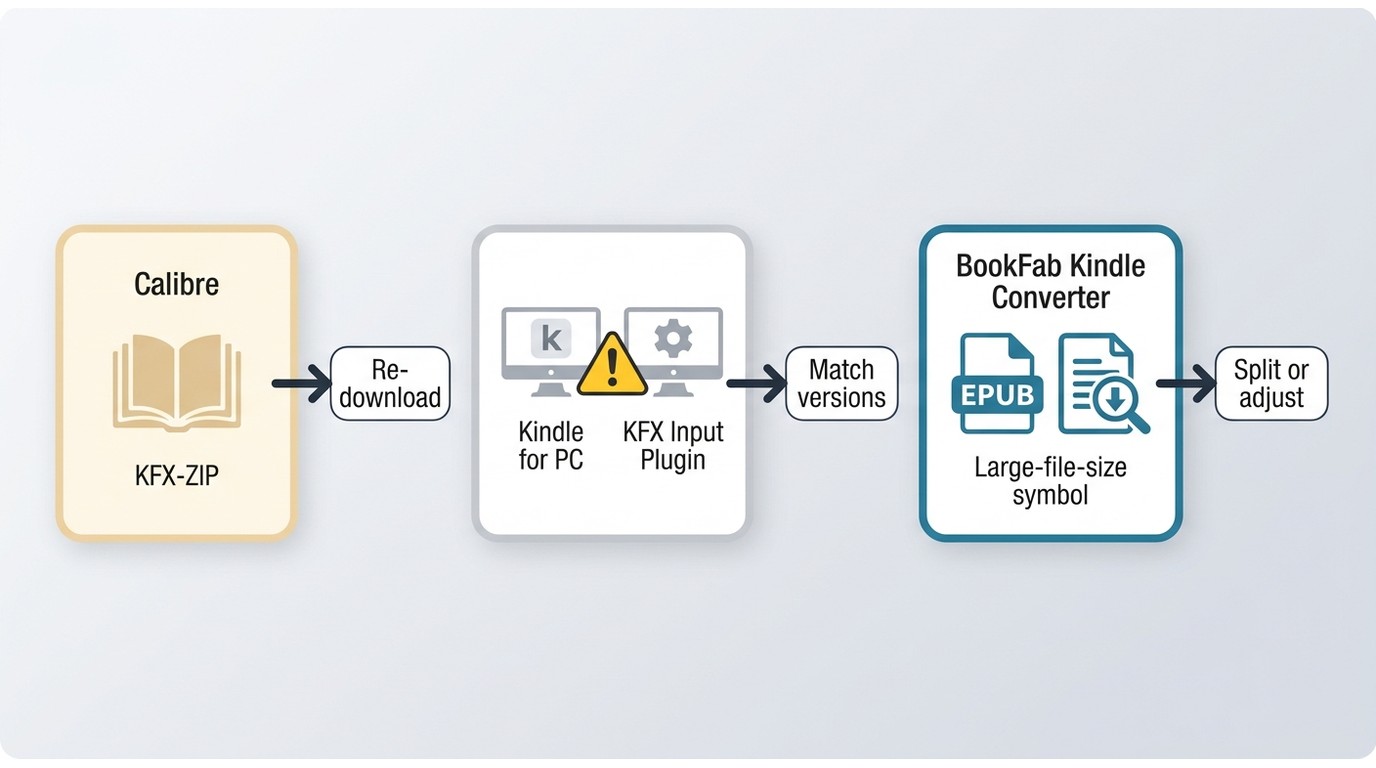
Most KFX failures come down to two checks, and I would run them in this order: is the source file really a plain KFX (not a KFX-ZIP wrapper, not a library loan), and are the plugin versions in step with the current Kindle app. Nearly everything else is a variation on those two.
KFX-ZIP Still Appears After Import
A KFX-ZIP entry in the Formats column is a diagnostic signal, not a verdict. It usually means the source was not fully processed on import — the file might be from a title the current plugin chain does not handle, the Kindle app version might be ahead of the plugin, or the book might still carry protection the plugin cannot open. Try re-downloading the title from a supported Kindle app version, confirm the plugin is loaded, and re-import.
Plugin or Version Mismatch
Symptoms include silent import failures, error dialogs that mention missing keys, or a conversion that runs but produces an empty file. The likely cause is a gap between the Kindle app version, the plugin version, and the source. Check each project's release notes for the compatible ranges, and match them to the app you are using. If the mismatch cannot be resolved, the BookFab route sidesteps the plugin chain entirely.
EPUB File Size Jumps After Conversion
A KFX source that weighs a few megabytes can produce an EPUB substantially larger, especially for illustrated books. Images that were compressed inside the Kindle container get re-embedded at full resolution, embedded fonts inflate the package, and layout adjustments add markup. In Calibre's conversion dialog, lowering the image quality and skipping font embedding usually brings the size back into a reasonable range without hurting readability on eReaders.
Compare Outputs and Tradeoffs
| Workflow | Setup effort | Kindle app compatibility | Output formats | Best fit |
| BookFab Kindle Converter | Low | Windows Kindle app | EPUB, PDF | Low-setup batch work with cover and metadata preserved |
| Calibre with the BookFab plugin | Medium | Current Windows Kindle app via BookFab engine | EPUB, PDF, MOBI, AZW3 through Calibre | Readers who keep their library in Calibre and want its conversion controls |
| Calibre with the KFX Input plugin | High | Limited to Kindle app versions the plugin currently supports | EPUB, PDF, MOBI, AZW3 through Calibre | Technical users comfortable matching plugin and app versions |
Frequently Asked Questions
Q
Can I open a KFX file without converting it?
Official Kindle apps and Kindle devices are the normal way to read a KFX title, and they will show cover, table of contents, and layout the way the publisher intended. Third-party readers generally cannot open KFX directly — that is why the conversion workflows in this guide export to EPUB or PDF before you take the book to another app.
A
Q
Is EPUB better than KFX for reading on other devices?
In the KFX versus EPUB comparison, neither format is universally better. KFX is designed around the Kindle ecosystem and supports typography features the Kindle app renders well, while EPUB is the format most non-Kindle readers, tablets, and desktop apps expect. If your goal is to read a book on a Kobo, an iPad reading app, or a desktop EPUB reader, exporting to EPUB gives you broader compatibility. If you are staying inside the Kindle ecosystem, the original KFX is already the right file.
A
Q
Does sending an EPUB to Kindle convert it automatically?
Yes. Send to Kindle accepts EPUB uploads, and Amazon processes the file into a Kindle-readable version before it appears in your library. That flow is going the opposite direction from this guide — you are pushing an EPUB into Kindle, not exporting a Kindle KFX purchase out to EPUB, so the same tools do not apply.
A
Q
Can Calibre convert KFX to AZW3 instead of EPUB?
Yes, once the source has been imported successfully. In Calibre's Convert books dialog, AZW3 is a selectable output format alongside EPUB and PDF. The same source and plugin prerequisites still apply — if the KFX file did not import cleanly, changing the output format will not fix that upstream step.
A
Use Converted Books Responsibly
These workflows are meant for Kindle purchases you are authorized to access, not library loans or subscription borrows, and only where permitted by platform terms and applicable law. Sharing resulting files or using them commercially sits outside personal backup. For broader Kindle book protection and format questions across account and library scenarios, consult the related guide.
Conclusion
The right KFX workflow in 2026 is a decision, not a default. If your title qualifies for a direct EPUB or PDF download in your Amazon account, use that file — the format is already what you wanted. If it does not, the desktop BookFab workflow keeps setup to a minimum on Windows and handles batches with cover and metadata attached, though it requires an active license and the Windows Kindle app installed. If you already live in Calibre and want granular control over layout, fonts, and output format, the BookFab plugin route gives you that within a single library manager. Whichever you pick, open the converted file in your target reader before you commit — the last five minutes of that check saves an afternoon of rework.

 How to Download Kindle Books in 2026: 5 Current OptionsBy Amber Collins - Aug 26, 2026
![How to Convert Kindle Books to EPUB Easily [2026 Verified]](https://r5.dvdfab.cn/upload/bookfab/en/convert-kindle-to-epub-RDlf.jpg) How to Convert Kindle Books to EPUB Easily [2026 Verified]By Amber Collins - Aug 26, 2026
How to Convert Kindle Books to EPUB Easily [2026 Verified]By Amber Collins - Aug 26, 2026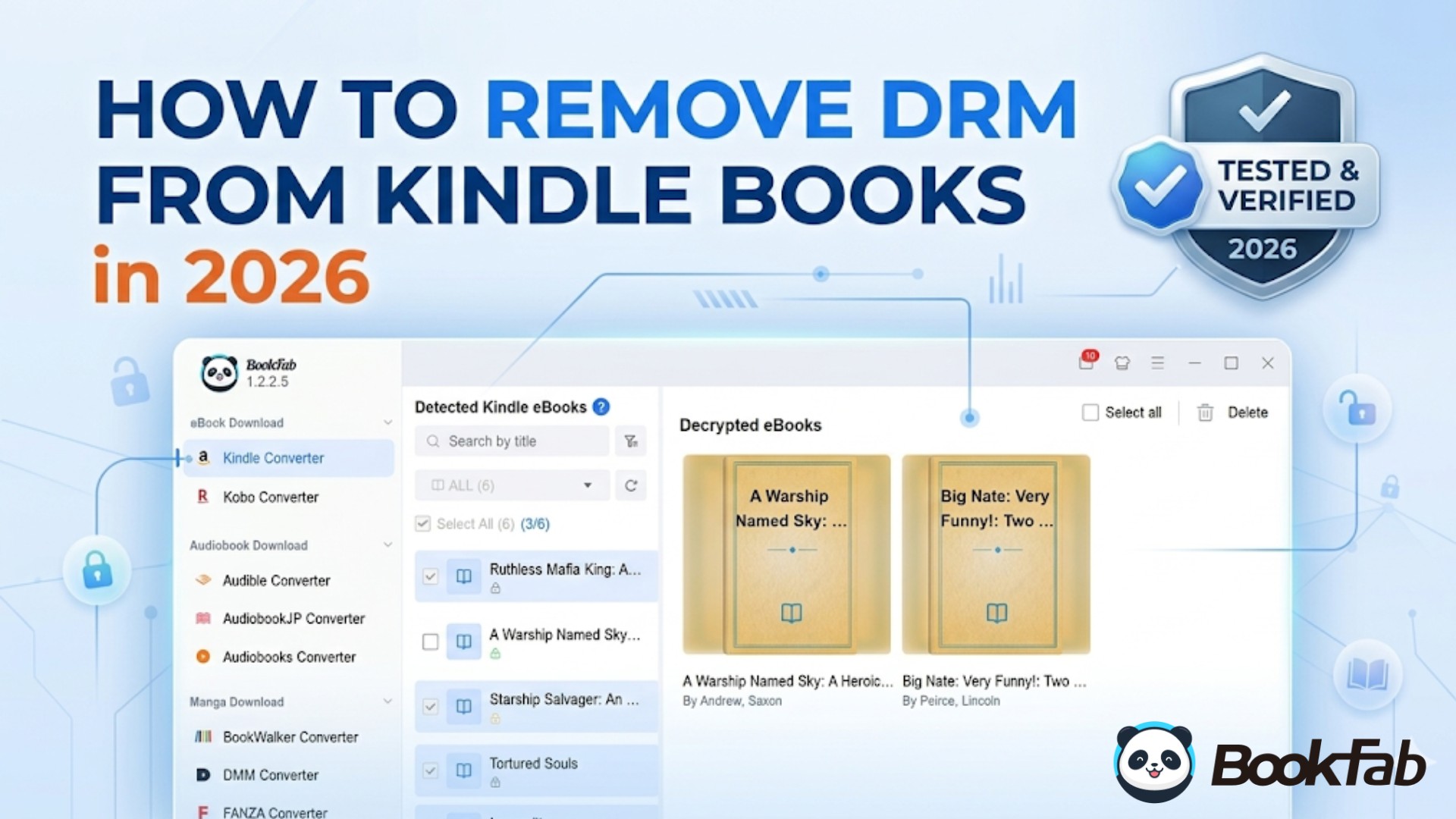 Kindle DRM Compatibility in 2026: What Still WorksBy Amber Collins - Aug 25, 2026
![[Quick Solution] How to Remove Kindle DRM on Mac](https://images.dvdfab.cn/media/未命名的设计__87__crpyru.png/public) [Quick Solution] How to Remove Kindle DRM on MacBy Amber Collins - Aug 24, 2026
[Quick Solution] How to Remove Kindle DRM on MacBy Amber Collins - Aug 24, 2026