How to Download Kindle Books in 2026: 5 Current Options

Summary: This guide separates five current Kindle download goals: offline app reading, e-reader copies, eligible Amazon EPUB/PDF downloads, an authorized BookFab local-file workflow, and legal free reading. It also explains the Windows 11 transition, older-device limits, file detection, annotations, and borrowing boundaries.

The current way to download Kindle books depends on the result you need: Kindle app offline access, a supported e-reader copy, an eligible EPUB/PDF download, an authorized BookFab local-file workflow, or legal free reading through Amazon, a library, or public-domain catalogs.
Amazon's legacy Kindle for PC app and browser-based Download & Transfer via USB instructions have both changed, so older guides mix retired steps with current ones. Decide whether the book should remain inside Kindle or become one of your portable Kindle files, then follow the matching path below.
Table of Contents
Choose Your Kindle Download Goal
Kindle download options split into two outcomes: account-linked offline reading in a Kindle app, or a local file for a compatible reading app. The destination matters more than which button looks easiest.
| Option | Best for | Requirements | Output | Main limit |
| Official Kindle apps | Offline reading | Supported app and account | Access inside Kindle | No portable ebook file |
| Kindle e-reader | Kindle owners | Supported device and data cable | Kindle-format local copy | Not ready-to-open EPUB/PDF |
| Amazon EPUB/PDF download | Eligible purchased titles | Publisher-enabled DRM-free download | EPUB or PDF | Available for select titles |
| BookFab local-file workflow | Compatible local files | Windows and authorized Kindle files | EPUB or PDF | Unneeded for app reading |
I would choose by where the book will be opened after download. A Kindle app is enough for routine reading, while EPUB or PDF matters when the destination is another compatible reader or an organized local library.
Offline Reading Inside Kindle Apps
Kindle app offline reading keeps the title tied to the Amazon account and supported Kindle software. It is the direct option when the goal is simply to read without an active connection on the same device.
Progress, notes, and highlights can sync through the Kindle account when the device reconnects. The downloaded app data is not the same as an EPUB or PDF that can be opened independently in another reader.
Portable Files for Other Readers
Portable Kindle files require a title and method that permit EPUB or PDF output. A copied KFX or AZW3 file may be local, but copying it alone does not make it compatible with Apple Books, Kobo software, or a PDF reader.
For a local AZW3 title that you are authorized to use, AZW3 to EPUB conversion makes it easier to open in compatible reading apps.
Before adding software, check whether Amazon already offers an eligible download. That preserves the simplest path for a DRM-free Kindle book and avoids turning a format decision into a longer desktop task.
Official Kindle Downloads by Device
Official routes still cover Kindle books on PC, Mac, mobile devices, Fire tablets, and Kindle e-readers, but the supported app and transfer behavior differ by device.
Windows 11 and the Microsoft Store App
The current Windows route uses the Kindle Microsoft Store app on Windows 11. The legacy Kindle for PC application stopped receiving support after June 30, 2026, so old installers should not anchor a new setup.
- Install the Kindle app from the Microsoft Store on a Windows 11 computer.
- Sign in with the Amazon account that contains the purchased title.
- Open the library, select the book, and choose the download command.
- Open the downloaded title once, then confirm it remains available when the app is offline.
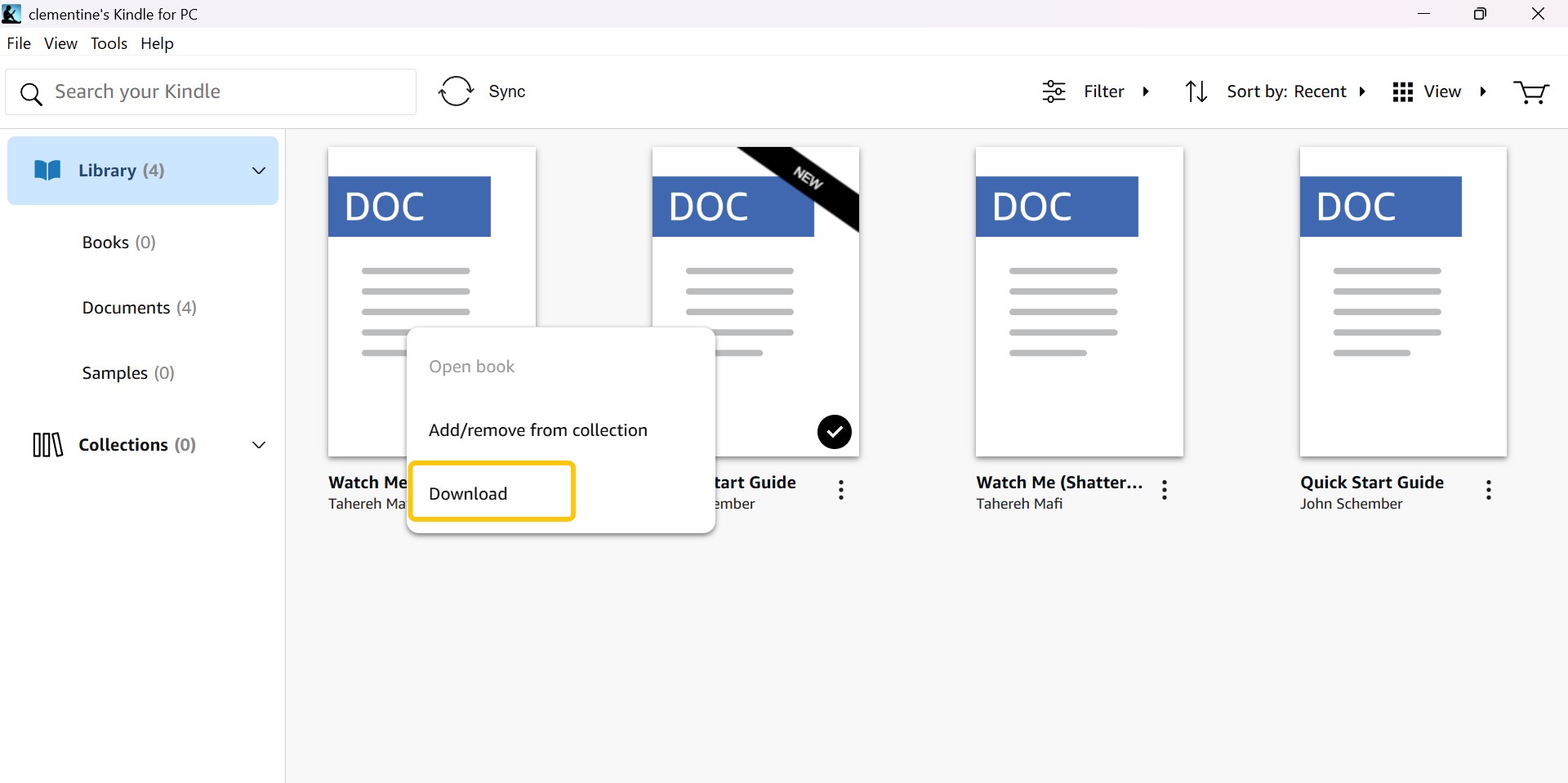
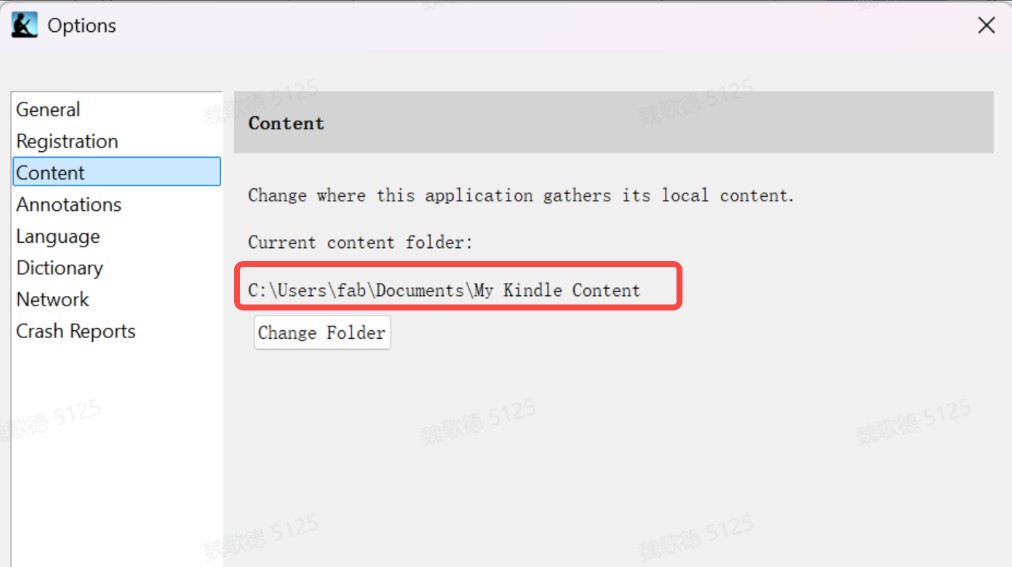
The app stores its working files locally. The path reference for where Kindle books are stored on PC helps identify that folder, but the stored data remains part of the Kindle reading environment.
Mac and Kindle E-Reader Paths
On Mac, use Amazon's supported Kindle reading app for account-linked offline access. For Kindle e-reader downloads, save the title to the device first, then copy its device file to a computer when a local backup is permitted.
- Connect the Kindle e-reader to Wi-Fi, open Library, and download the purchased title.
- Connect the e-reader to the computer with a data-capable USB cable.
- Open the Kindle storage in File Explorer or Finder and locate the downloaded book folder.
- Copy the relevant Kindle-format file to a clearly named local folder.
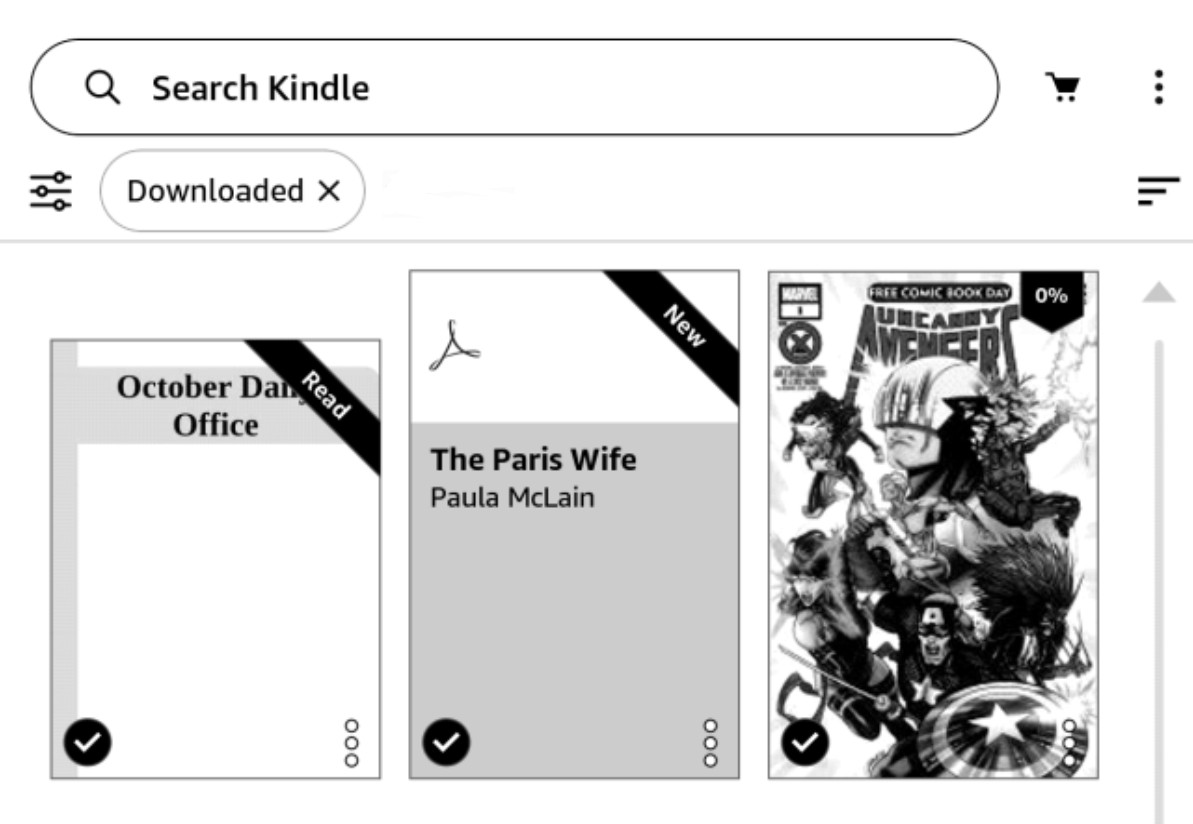
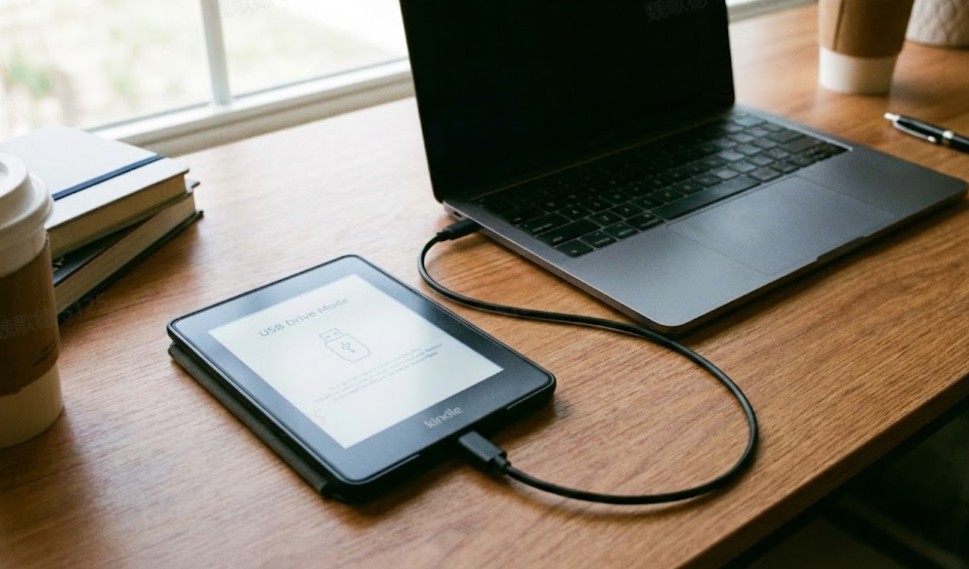
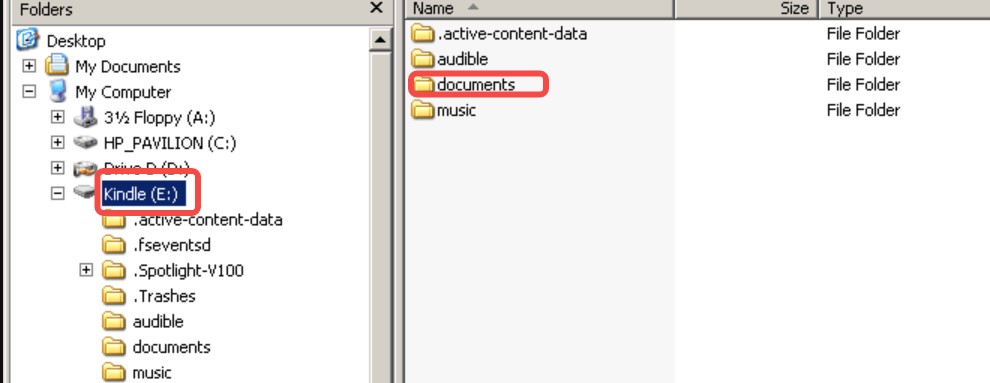
This Kindle USB transfer suits readers who already own supported hardware and want a device copy. It does not produce a ready-to-open EPUB or PDF, and newer models may present their storage differently from older USB-drive-style Kindles.
Android, iOS, and Fire tablets use their Kindle apps for account-linked downloads. To download Kindle books on iPhone or iPad, save the title inside the app; Send to Kindle works in the opposite direction by importing supported personal files rather than exporting purchased Kindle titles.
Save Eligible Books as EPUB or PDF

Amazon's Download EPUB/PDF option applies to eligible DRM-free Kindle books when the publisher has enabled the download. It should be treated as a title-by-title benefit, not a general export button for a Kindle library.
Check Whether a Title Is Eligible
Eligibility comes before browser steps. The title generally needs to be purchased, DRM-free, and enabled for download by its publisher; subscription loans and library loans stay within their authorized reading environment.
- The title is a purchased Kindle ebook in the signed-in account.
- The publisher has enabled an EPUB or PDF download for that title.
- Borrowed and subscription-access titles use their authorized reading apps instead.
If the download command does not appear, that absence is usually an eligibility boundary rather than a browser fault. I would check the title's status before installing another tool or repeating account resets.
Download from Amazon's Content Library
For an eligible title, the Content Library provides the shortest official route from an Amazon purchase to an EPUB or PDF stored in the browser's download folder.
- Sign in to Amazon with the account used to purchase the book.
- Open the Content Library and select Books.
- Find the eligible title and open its additional actions.
- Select Download EPUB/PDF and save the file to a named library folder.
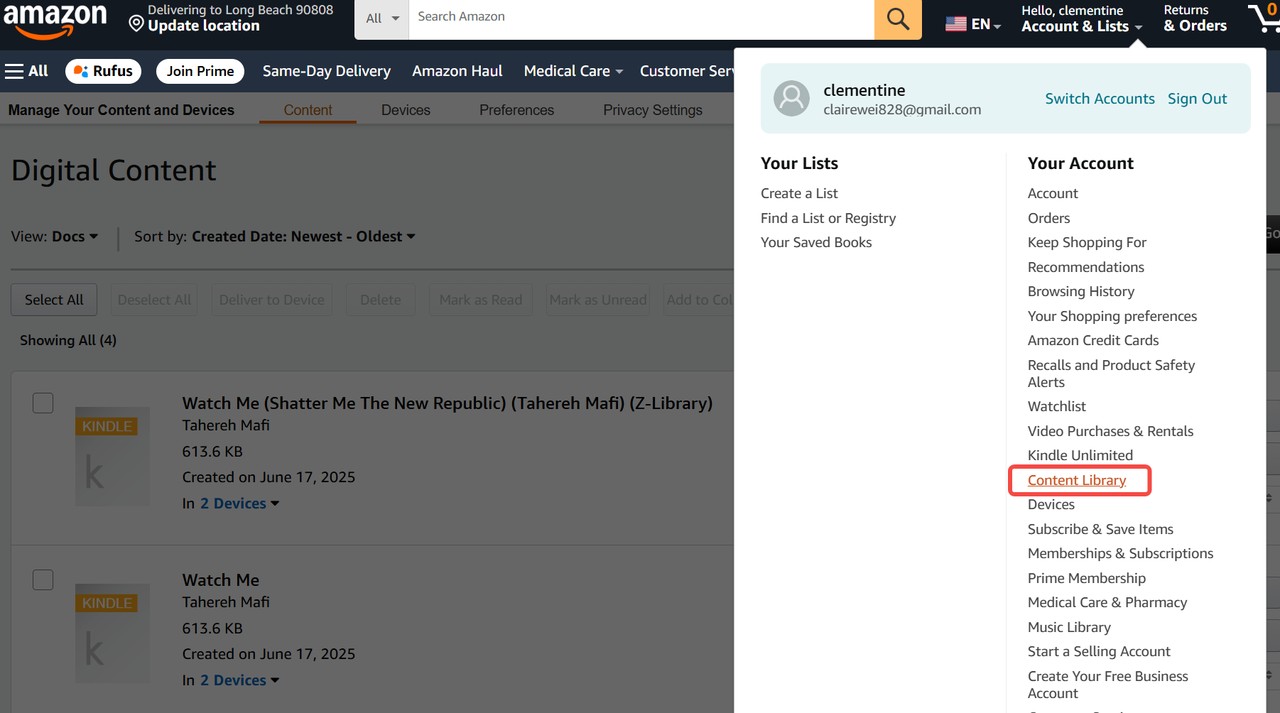

Use convert Kindle to EPUB instructions when adjustable text matters; a Kindle to PDF conversion is better for fixed page dimensions and printing.
BookFab for a Local-File Workflow
For personally purchased Kindle books you are authorized to access, where permitted by platform terms and applicable law, BookFab provides a Windows local-file workflow for EPUB or PDF output.
BookFab Kindle Converter is not an Amazon feature; it is a separate BookFab desktop product. On Windows, it detects supported local KFX, AZW3, and MOBI books, converts them to EPUB or PDF, and retains useful cover, title, author, and structural metadata where supported.
When a supported local KFX title needs to be read outside Kindle, KFX to EPUB conversion provides a reflowable copy for compatible apps.
This option serves readers who need compatible local files and batch task management. It adds unnecessary steps for anyone who only wants ordinary offline reading inside a Kindle app.
Prepare Authorized Local Kindle Files
BookFab detection depends on an accessible local copy, not a cloud-only library entry. Complete the Kindle app download before refreshing the converter's library.
- Confirm the purchased book has finished downloading in the supported Windows Kindle environment.
- Check that the expected local library folder exists and the Windows account can read it.
- Refresh the BookFab library after the Kindle app finishes writing the file.
- If the title remains absent, close both applications, reopen the Kindle app first, and repeat the local download.
Complete the official Windows download steps before refreshing BookFab. In practice, repeated converter refreshes do not help while the title is still represented only by a cloud entry.
Convert and Organize EPUB or PDF
After BookFab detects the local Kindle files, select EPUB or PDF, add the authorized titles, and review the resulting books before placing them in a main library.
- Windows support with local KFX, AZW3, and MOBI detectionAZW3 to PDFEPUB or PDF output for supported Amazon Kindle ebooks
- Batch task selection and progress management
- Cover, title, author, and other useful metadata retained where supported
- A limited free trial is available under the current product policy
- A Calibre plugin is included after purchase
Step 1. Set EPUB or PDF Output
Open the Kindle Converter module in BookFab and review the detected local library.
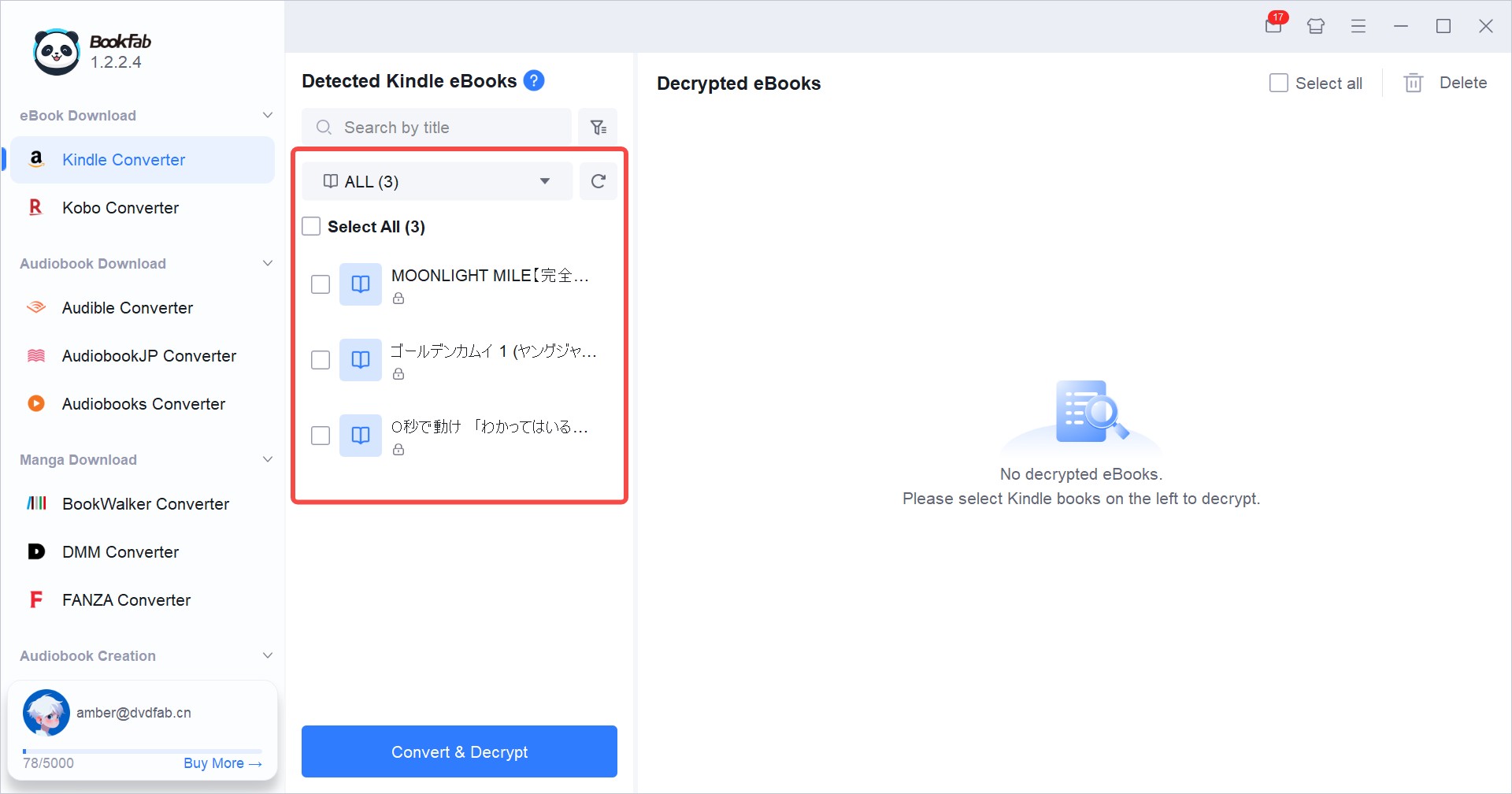
Open the format settings, then select EPUB for adjustable text or PDF for fixed pages.
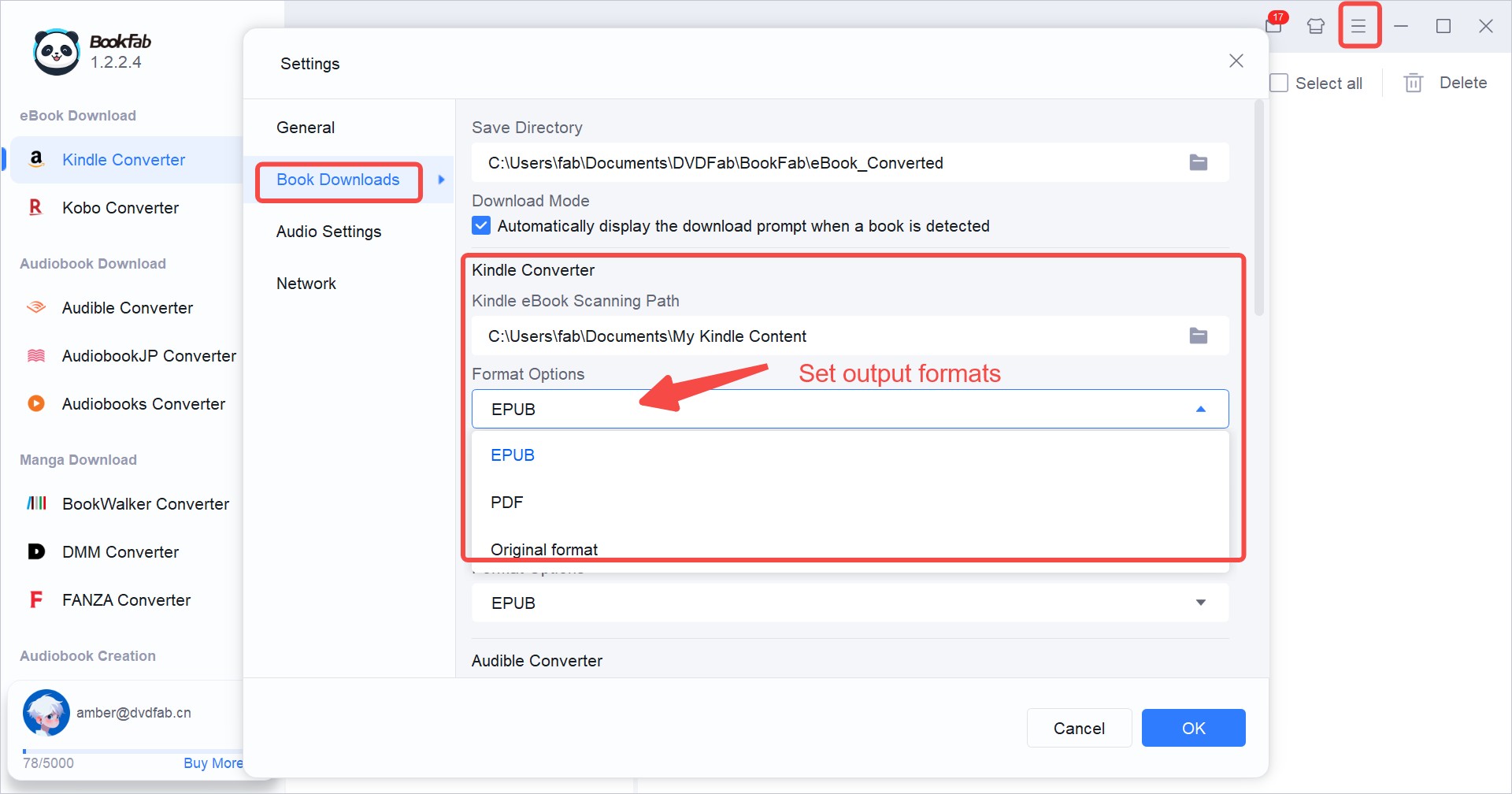
Step 2. Select the Local Kindle Books
Refresh the library, select the purchased books to convert, and start the task.
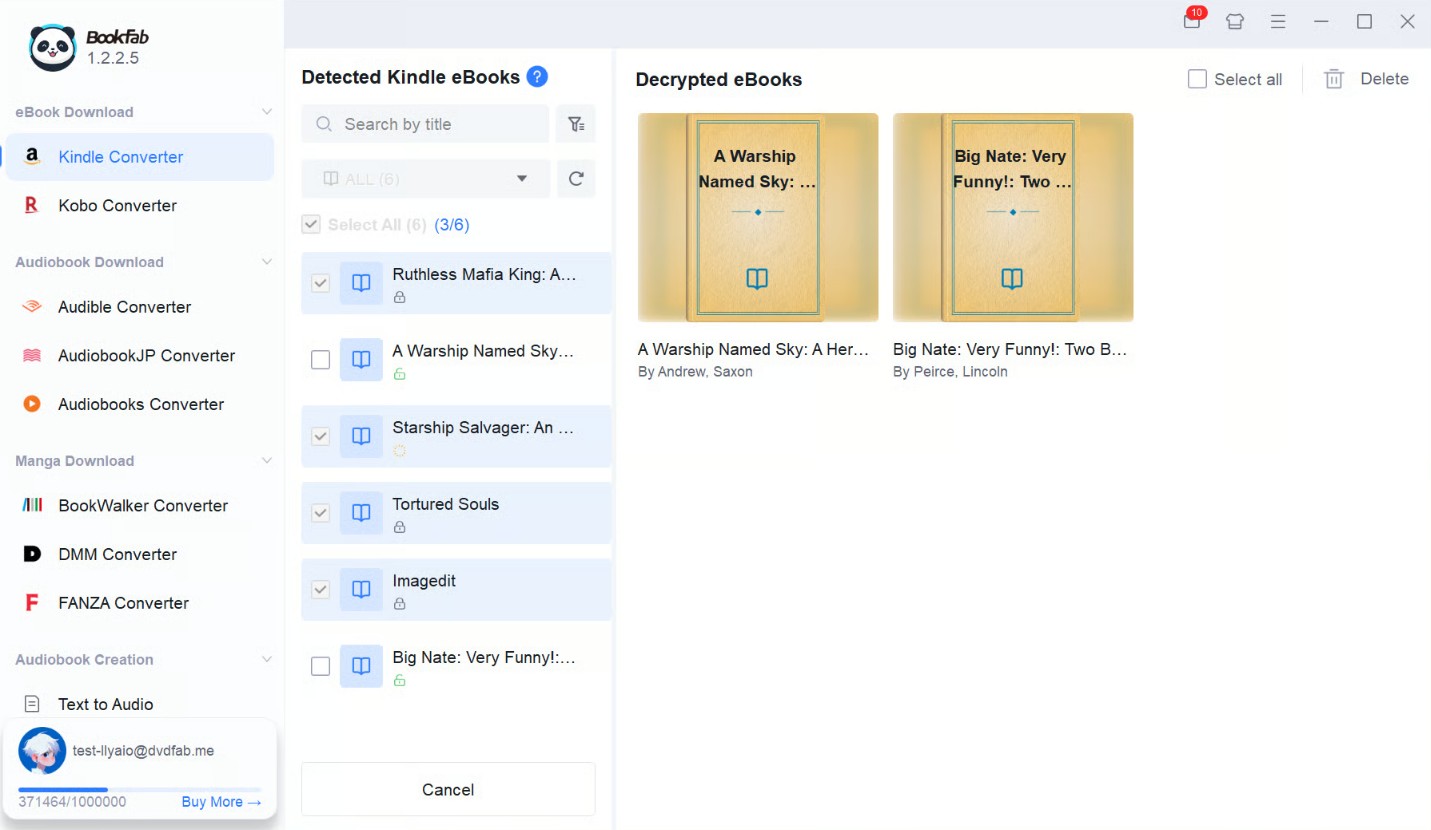
Step 3. Inspect the Completed Ebooks
Open each file in its intended reading app and inspect the cover, table of contents, spacing, and image-heavy pages.
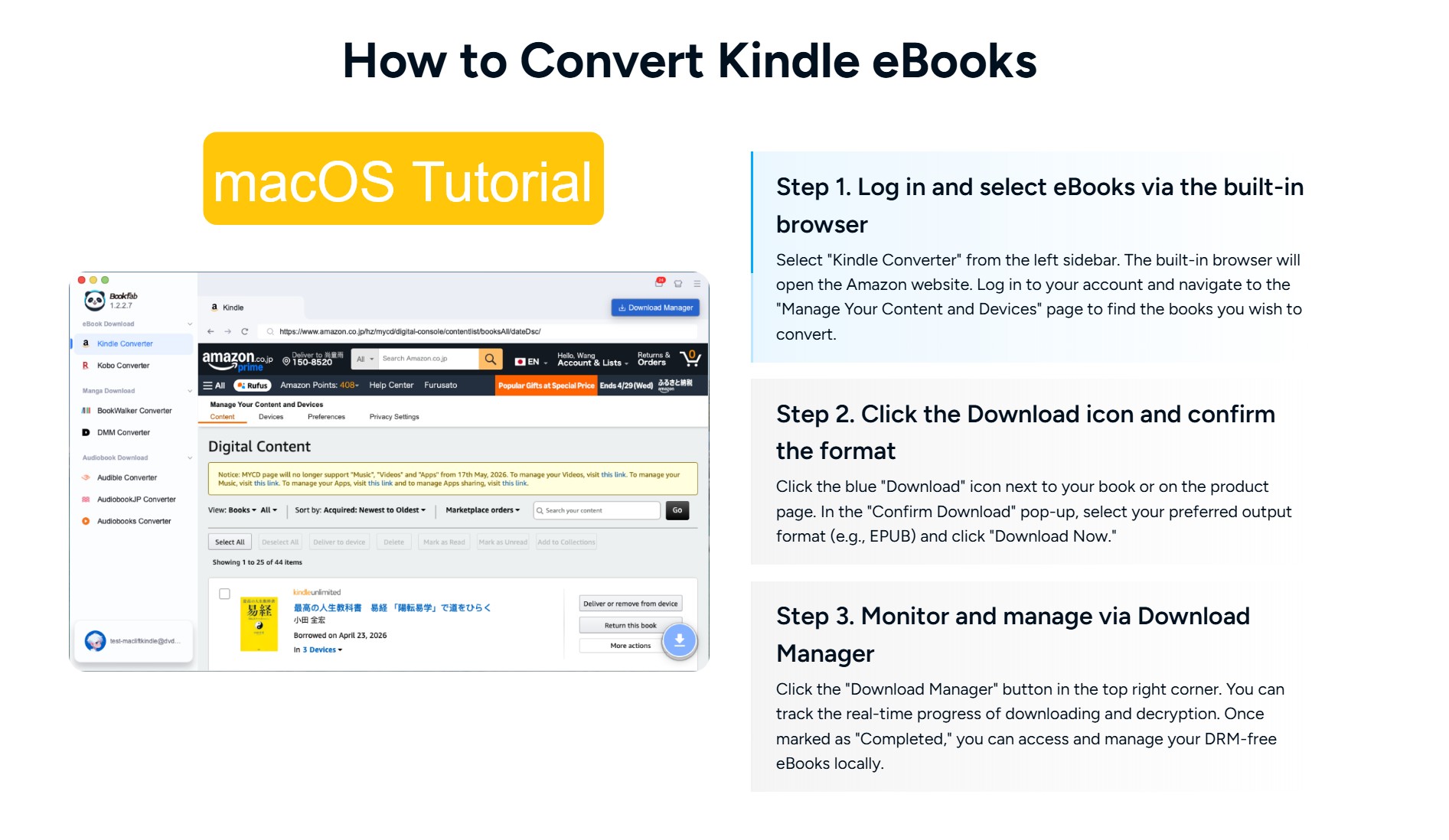
When I check a converted ebook, I do not stop at whether the file opens. The table of contents, paragraph spacing, cover image, and image-heavy pages determine whether the book is comfortable to read and easy to organize.
The BookFab Kindle Converter trial supports converting up to three ebooks. That allowance can cover a text-heavy title and an image-heavy title, giving both reflow and fixed-page output a meaningful check before purchase.
Fix Kindle Download and Detection Problems
Kindle download problems in 2026 often come from an unsupported app or device, an incomplete account delivery, or a cloud-only file that local software cannot detect.
Legacy App and Hardware Compatibility
As of August 2026, two support cutoffs deserve attention: the legacy Kindle for PC app passed its June 30 support date, and Amazon ended download support on May 20, 2026 for Kindle e-readers released in 2012 or earlier.
- Move an eligible Windows computer to the Kindle Microsoft Store app on Windows 11.
- Check the Kindle model and release period before treating a failed download as a Wi-Fi problem.
- Use a supported device or app when the old hardware falls outside Amazon's download policy.
Repeated resets will not reverse a support-policy cutoff. I would establish app and hardware eligibility first, then spend time on network or account diagnostics.
Account, Sync, and Local-File Checks
If the device and app are supported, verify delivery, synchronization, local storage, and permissions in that order. This separates an Amazon library issue from a BookFab detection issue.
- Confirm that the purchase is complete in the correct Amazon account.
- Deliver the title to the intended Kindle device or app and sync the library.
- Open the title once to verify that its download completed.
- For BookFab, confirm that a local file exists before refreshing its library.
Persistent cases need a broader Kindle not downloading books diagnostic sequence, especially when payment, device limits, or account registration may be involved.
Free and Legal Kindle Reading Options

Legal free Kindle books come from authorized borrowing, public-domain catalogs, and publisher promotions. Free access does not automatically create a portable file or ownership right.
Prime Reading and Library Loans
Prime Reading offers selected titles to eligible members, while public libraries may deliver borrowed ebooks through services such as Libby. These are time-limited access arrangements governed by the service and lending terms.
Use the designated Kindle app or device for these books. A borrowed title should not be treated as an eligible purchased ebook merely because it appears in the same account library.
Public-Domain and Promotional Ebooks
Public-domain repositories and limited publisher promotions can provide ebooks at no charge. Check the offered format and usage terms before adding a file to a personal library.
When EPUB is provided, inspect the table of contents, paragraph breaks, and cover metadata after import. A free file is still easier to manage when its title and author fields are complete.
Frequently Asked Questions
Can I download several Kindle books at once?
It depends on the selected method. BookFab supports batch task selection for compatible authorized local files, while official Kindle app behavior and Amazon download eligibility vary by title and device.
AWill my highlights and notes move with an exported ebook?
Usually not as part of the EPUB or PDF itself. Kindle annotations are associated with the Amazon account and its sync system, so inspect the exported file separately from the notes visible in a Kindle app.
ACan borrowed Kindle Unlimited or library books be exported?
Borrowed access is different from ownership or publisher-enabled export. Keep those titles inside the authorized Kindle or library reading environment and follow the lending terms.
ACan I send my own EPUB file to a Kindle?
Yes, Send to Kindle can import a supported personal EPUB into the Kindle reading environment. It is an inbound delivery service, not a method for exporting a purchased Kindle book.
APick the Path That Matches Your Goal
No single route fits every Kindle download goal. Use official apps for ordinary offline reading, a supported Kindle for device-based reading and USB copying, Amazon's download for eligible titles, or BookFab when authorized local EPUB/PDF files are the actual requirement.
BookFab is not the right choice when app-based offline access already solves the problem. If you do convert a purchased book, open the output in its destination reader and check navigation, spacing, cover art, and illustrated pages before adding it to your main library.

![How to Convert Kindle Books to EPUB Easily [2026 Verified]](https://r5.dvdfab.cn/upload/bookfab/en/convert-kindle-to-epub-RDlf.jpg) How to Convert Kindle Books to EPUB Easily [2026 Verified]By Amber Collins - Aug 26, 2026
How to Convert Kindle Books to EPUB Easily [2026 Verified]By Amber Collins - Aug 26, 2026 Kindle DRM Compatibility in 2026: What Still WorksBy Amber Collins - Aug 25, 2026
![[Quick Solution] How to Remove Kindle DRM on Mac](https://images.dvdfab.cn/media/未命名的设计__87__crpyru.png/public) [Quick Solution] How to Remove Kindle DRM on MacBy Amber Collins - Aug 24, 2026
[Quick Solution] How to Remove Kindle DRM on MacBy Amber Collins - Aug 24, 2026 AZW DRM Removal Guide: How to Remove DRM from AZW3 & AZWBy Amber Collins - Aug 24, 2026