
How to Download Kindle Books on iPhone or iPad for Offline Reading

Summary: Download Kindle books on an iPhone or iPad by purchasing or borrowing through Amazon, syncing the Kindle Library, and tapping the title in the Kindle app. This guide also explains how to verify Airplane Mode access, fix stalled downloads, and decide when an authorized EPUB or PDF file better suits Apple Books or an annotation app.
Table of Contents
Buying a Kindle book on an iPhone does not download it automatically. To download Kindle books on iPhone or read Kindle books offline, buy or borrow the title through Amazon, sync the Kindle Library, and tap its cover in the Kindle app. The offline copy stays inside Kindle.
That official route is enough for most reading. A separate authorized local-file route matters only when the destination is Apple Books, GoodNotes, or another app that needs a compatible EPUB or PDF.
The Three-Step iPhone Download Answer
The complete sequence is short: buy or borrow on Amazon, sync Kindle, then download the title inside the app. Finish these prerequisites while connected to the internet.
- Buy or borrow the book: Open Amazon in Safari, complete the purchase or loan, and confirm that the title belongs to the same Amazon account used in Kindle.
- Sync the Library: Return to the Kindle app and refresh the Library so the new title appears.
- Tap the cover: Select the book or its download icon and wait for the progress indicator to finish.
For readers who need app-based offline reading, this is the cleanest route because it preserves Kindle reading progress, highlights, and Library organization without an extra transfer step.
Buy or Borrow in Safari
You generally buy Kindle books in Safari or another browser rather than inside the Kindle iOS app. After checkout, return to Kindle with the same Amazon account.
Sync and Tap the Book
To sync Kindle Library content, refresh the Library and tap the title. A Kindle app download is complete when the progress indicator disappears and the book opens normally.
Confirm It Works Offline
Airplane Mode reading should be tested before a trip, not assumed from the book cover alone.
- Wait until the download indicator has finished.
- Open the book once while the device is online.
- Enable Airplane Mode.
- Reopen the title and turn through several pages.
I use the final page check as the deciding signal: a visible cover is useful, but pages opening without a connection confirms that the selected book is ready.
Kindle App Downloads Stay in the App
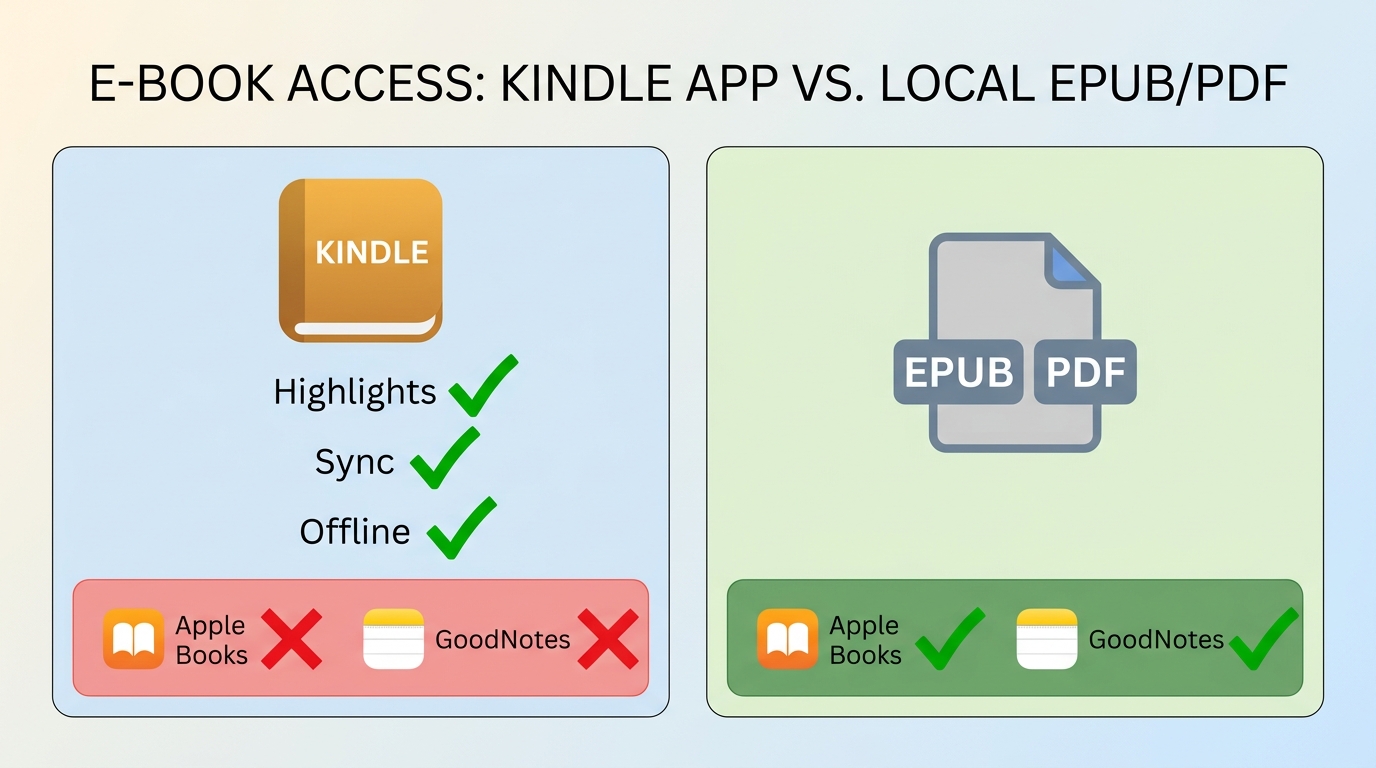
Kindle app local storage provides offline access within Kindle; it is not the same as receiving a transferable Kindle EPUB or PDF in the Files app.
Offline Access Versus a Local File
As of August 2026, Amazon's iPhone and iPad workflow stores downloaded reading data inside the Kindle app. You can open the title offline there, but you cannot import that app download directly into Apple Books or GoodNotes.
That distinction matters when organizing a digital library. An in-app title keeps Kindle features and sync, while a compatible local file can be opened by other supported reading or annotation apps.
What Changed After USB Downloads Ended
Amazon's former web option called Download & Transfer via USB ended in February 2025, according to widely reported user notices. Kindle app downloads remain available, so the change affects the old computer-transfer route rather than ordinary iPhone or iPad offline reading.
Download Books in the Kindle App
The steps below expand the quick answer for first-time users who want to read Kindle books on iPad or iPhone without a connection.
Install the App and Sign In
- Open the App Store and install the official Amazon Kindle app.
- Launch Kindle and sign in with the Amazon account used for the purchase or loan.
- Open the Library and refresh it if the title is not visible.


Open Library and Download
- Find the title in Library.
- Tap the cover or download icon.
- Wait until the circular progress indicator has completed.
- Open the book and check that the first pages render correctly.

When I check a digital book, I do not stop at whether it opens. I also look at the table of contents, chapter navigation, paragraph spacing, and image-heavy pages before relying on it away from Wi-Fi.
Test Downloads Before Travel
Repeat the Airplane Mode check for each title you plan to read. A partially downloaded book may open at the beginning yet fail when you reach pages that were not stored.
When a Local EPUB or PDF Helps
If you need to annotate in Apple Books or GoodNotes, a compatible local file may serve the reading task better than Kindle app local storage. Readers staying inside Kindle do not need this extra path.
Choose EPUB or PDF by Use Case
EPUB lets text reflow as the screen and font size change, which generally suits continuous reading on an iPhone. PDF keeps fixed page dimensions, which can be useful for page-specific notes on an iPad. I choose the destination app before the format because the final reading behavior matters more than the extension.
For books you're authorized to access, where permitted by platform terms and applicable law, BookFab offers a desktop workflow for creating a personal-use EPUB or PDF copy. The Windows software detects supported Kindle books downloaded through the Windows Kindle app, converts KFX, AZW3, or MOBI sources to EPUB or PDF, and aims to retain the cover, title, author, layout, and other key metadata.
BookFab Kindle Converter also supports batch task management and a limited free trial of up to three eBooks. It suits readers who need files for compatible reading or annotation apps; it adds unnecessary steps for anyone satisfied with the Kindle app.
Create an EPUB or PDF for compatible reading and annotation apps on iPhone or iPad.
Work with Kindle books you are authorized to access, subject to platform terms and applicable law.
Aim to retain the original layout and key metadata such as the cover, title, and author.
A Calibre plugin is included with purchase for readers who use Calibre to organize supported files.
Batch task management helps organize several eligible eBooks in one queue.
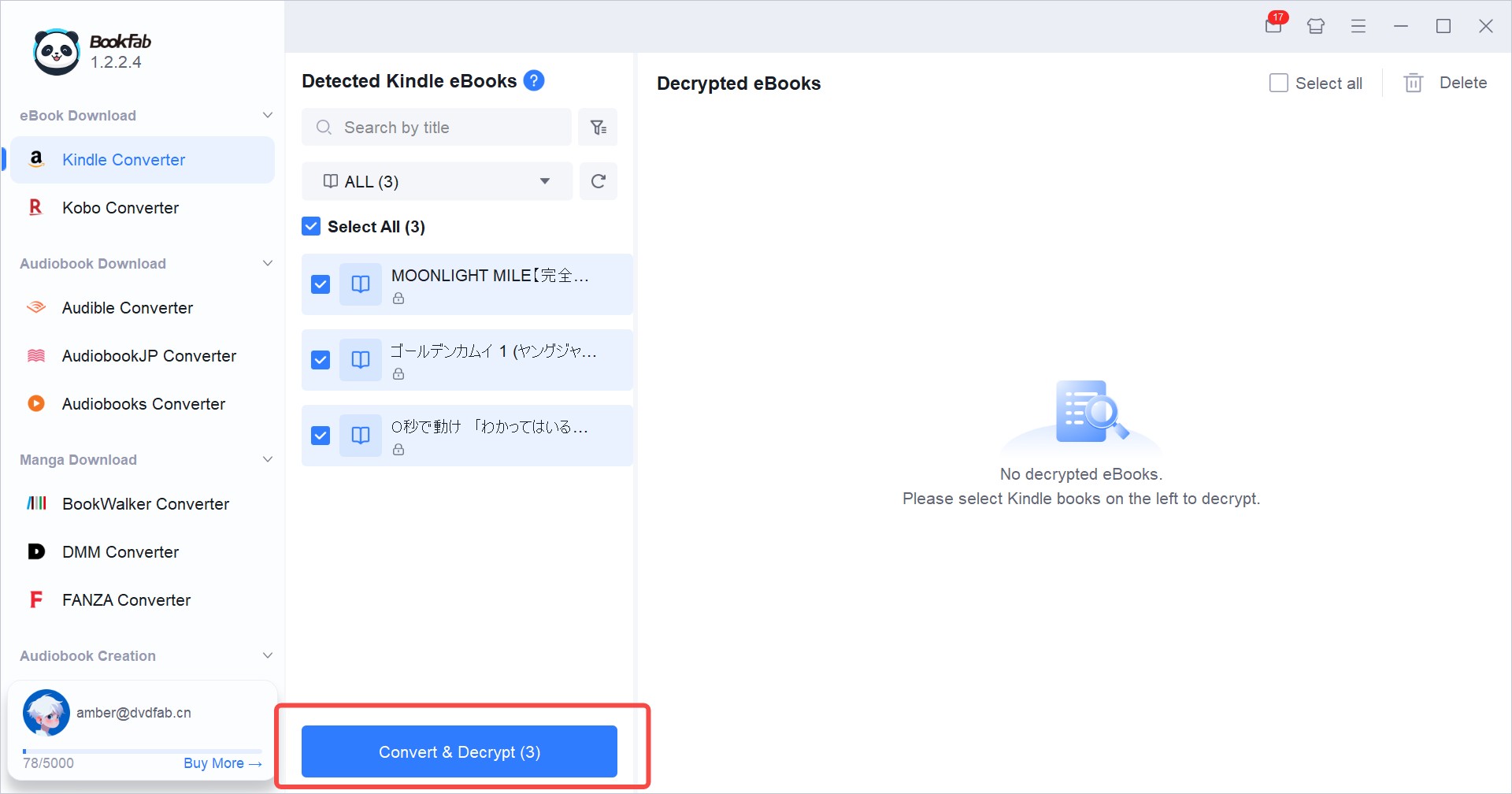
On a Windows computer, install BookFab Kindle Converter and the Windows Kindle app, download the eligible title there, refresh BookFab's Kindle module, select EPUB or PDF, and start conversion. Readers who need broader computer instructions can download Kindle books to a computer within that dedicated guide.
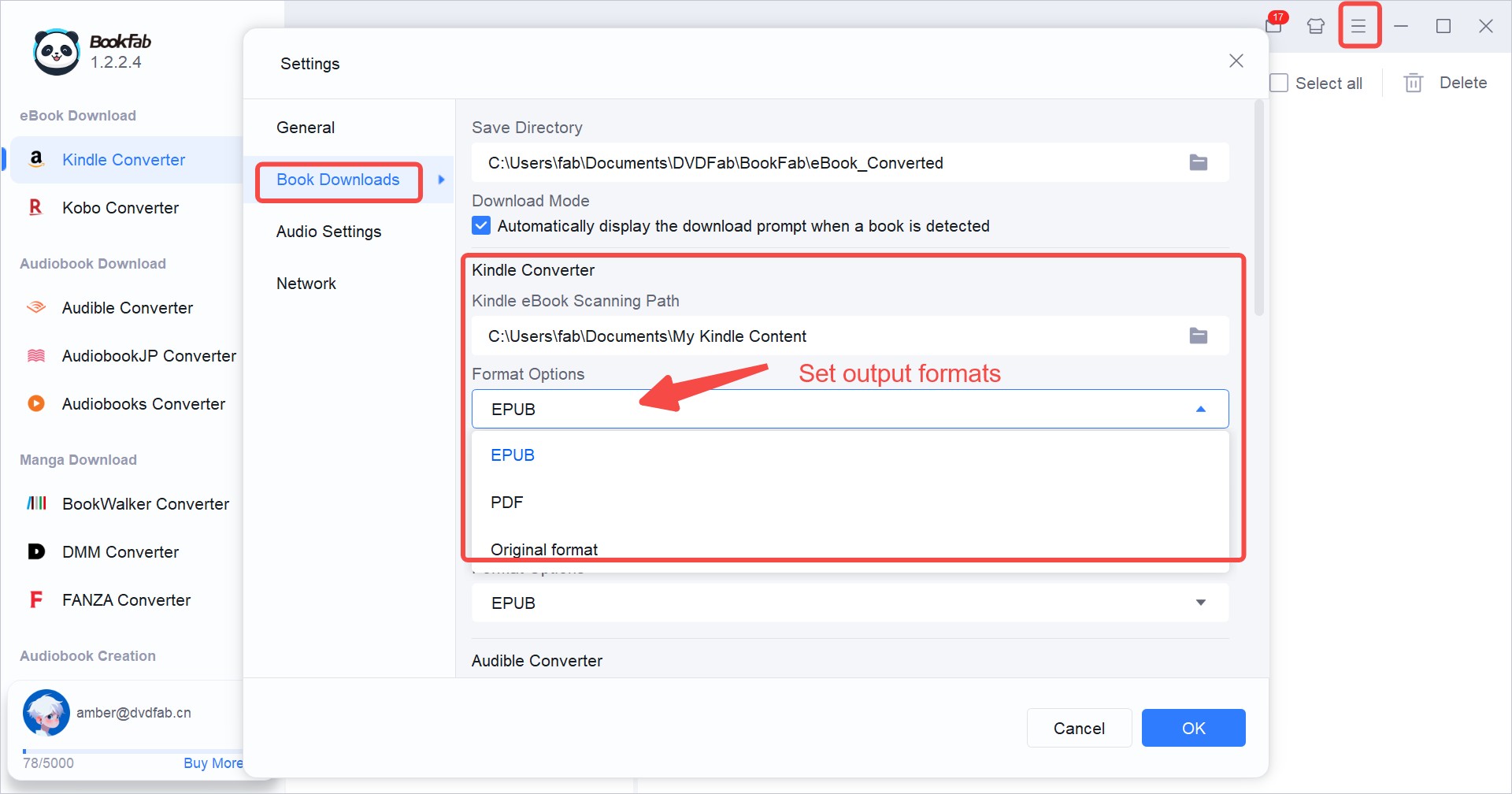
If fixed pages are important for notes, the same output setting can convert Kindle books to PDF before the file is moved through iCloud Drive, Google Drive, or another supported transfer method.
Fix a Kindle Download That Stalls
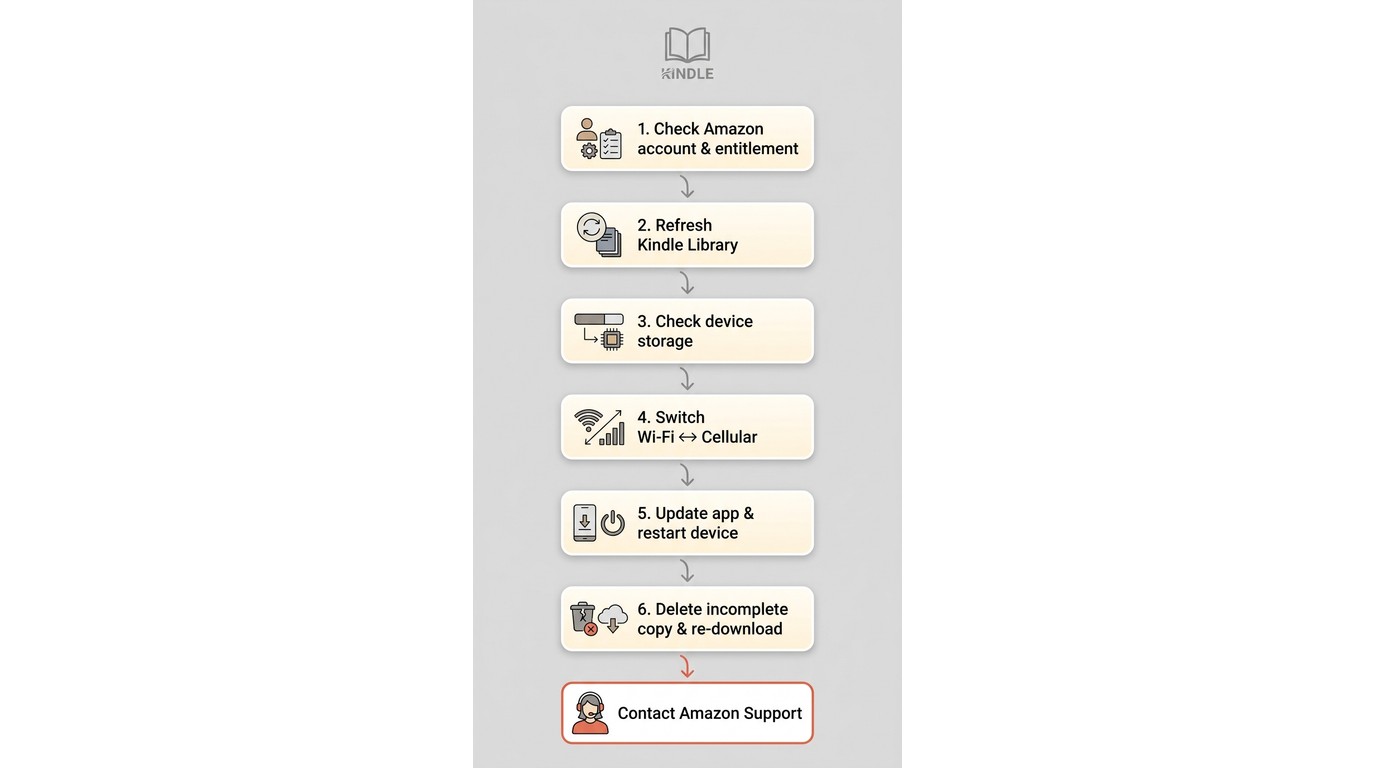
A Kindle download stuck on an iPhone is usually resolved fastest by checking account access and Library sync before changing network or app settings.
Check Account, Sync, and Storage
- Confirm that Kindle is signed into the Amazon account that owns or borrowed the title.
- Check that the purchase or loan completed successfully.
- Refresh the Library and wait for the title list to update.
- Check that the iPhone or iPad has available storage.
Retry the Network and App
- Switch between Wi-Fi and cellular data if both are available.
- Update the Kindle app, close it, and restart the device.
- Delete the incomplete device copy, then tap the title to download it again.
The order matters: changing networks cannot fix a book attached to a different account, and reinstalling the app too early can create more work without addressing the entitlement or sync issue.
Escalate Persistent Download Failures
If the title remains unavailable after those checks, record the account, title, device, and visible error before contacting Amazon support. A focused Kindle not downloading books checklist covers deeper cases without repeating them here.
Choose the Right Offline Workflow
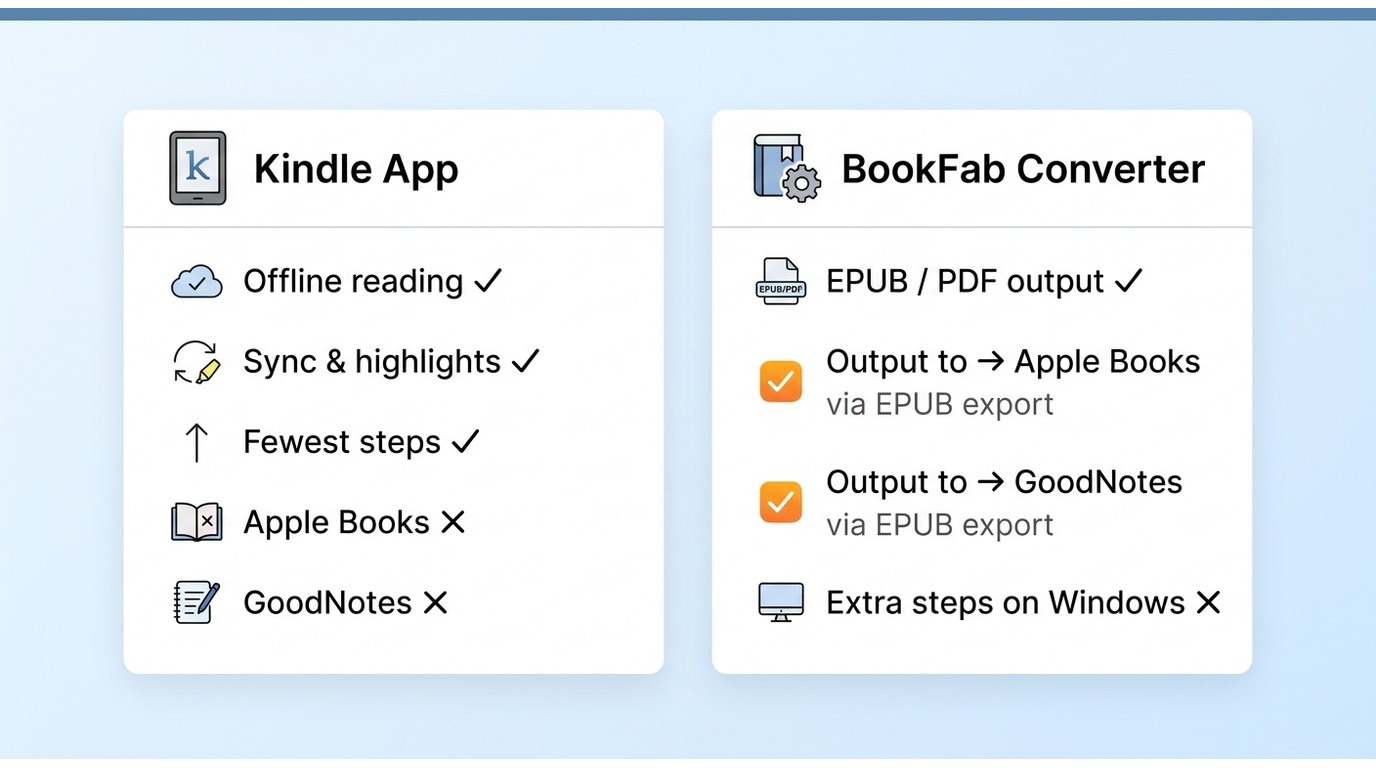
The Kindle app is the shorter path for offline reading and synced progress. An authorized EPUB or PDF workflow is for readers whose destination app requires a transferable file.
| Comparison point | Kindle app offline download | Authorized local EPUB/PDF workflow |
| Where the content is stored | Inside the Kindle app | As an EPUB or PDF in a folder you select |
| Works without internet | Yes, after the title finishes downloading and passes an Airplane Mode check | Yes, in a compatible reading app after transfer |
| Transferable file and compatible apps | No transferable file; reading stays in Kindle | EPUB or PDF for supported apps such as Apple Books or GoodNotes |
| Reading features | Kindle sync, highlights, and reading progress | Features depend on the destination app and file format |
| Who it serves | Readers who want the simplest offline reading and cross-device Kindle sync | Readers who need annotation in another app; unnecessary for Kindle-only reading |
Frequently Asked Questions
Q
Can I read a downloaded Kindle book after I turn off Wi-Fi?
Yes, after the title finishes downloading inside Kindle. Open it once, enable Airplane Mode, and reopen several pages before travel to confirm the offline copy is ready.
A
Q
Why does a Kindle book appear in my Library but refuse to download?
Check the Amazon account, purchase or loan status, Library sync, device storage, network, and app update in that order. Then delete the incomplete device copy and download the title again.
A
Q
Can I open a Kindle app download in Apple Books or GoodNotes?
No. The app download remains inside Kindle. Apple Books, GoodNotes, and similar apps need a compatible local EPUB or PDF obtained through an authorized workflow.
A
Q
Is sending an EPUB to Kindle the same as downloading a purchased Kindle book?
No. Sending a personal EPUB adds your own compatible document to Kindle, while downloading a purchased title stores that Amazon book inside the Kindle app for offline reading.
A
The Best Choice Depends on Access
Use the Kindle app when simple offline reading and sync are the goal. Consider the local-file row in the comparison above only when another app needs EPUB or PDF; BookFab is not for readers who want the fewest possible steps. Whichever route you use, open the finished book and check its navigation before adding it to your regular library.

 How to Download Kindle Books in 2026: 5 Current OptionsBy Amber Collins - Aug 26, 2026
![How to Convert Kindle Books to EPUB Easily [2026 Verified]](https://r5.dvdfab.cn/upload/bookfab/en/convert-kindle-to-epub-RDlf.jpg) How to Convert Kindle Books to EPUB Easily [2026 Verified]By Amber Collins - Aug 26, 2026
How to Convert Kindle Books to EPUB Easily [2026 Verified]By Amber Collins - Aug 26, 2026 Kindle DRM Compatibility in 2026: What Still WorksBy Amber Collins - Aug 25, 2026
![[Quick Solution] How to Remove Kindle DRM on Mac](https://images.dvdfab.cn/media/未命名的设计__87__crpyru.png/public) [Quick Solution] How to Remove Kindle DRM on MacBy Amber Collins - Aug 24, 2026
[Quick Solution] How to Remove Kindle DRM on MacBy Amber Collins - Aug 24, 2026