
4 Ways to Convert Kindle to PDF in 2026

Summary: Four Kindle-to-PDF routes are compared by source state, operating system, and output needs. The guide covers eligible Amazon downloads, DRM-free Calibre and online conversion, a verified Windows BookFab workflow, and limited selected-page capture.
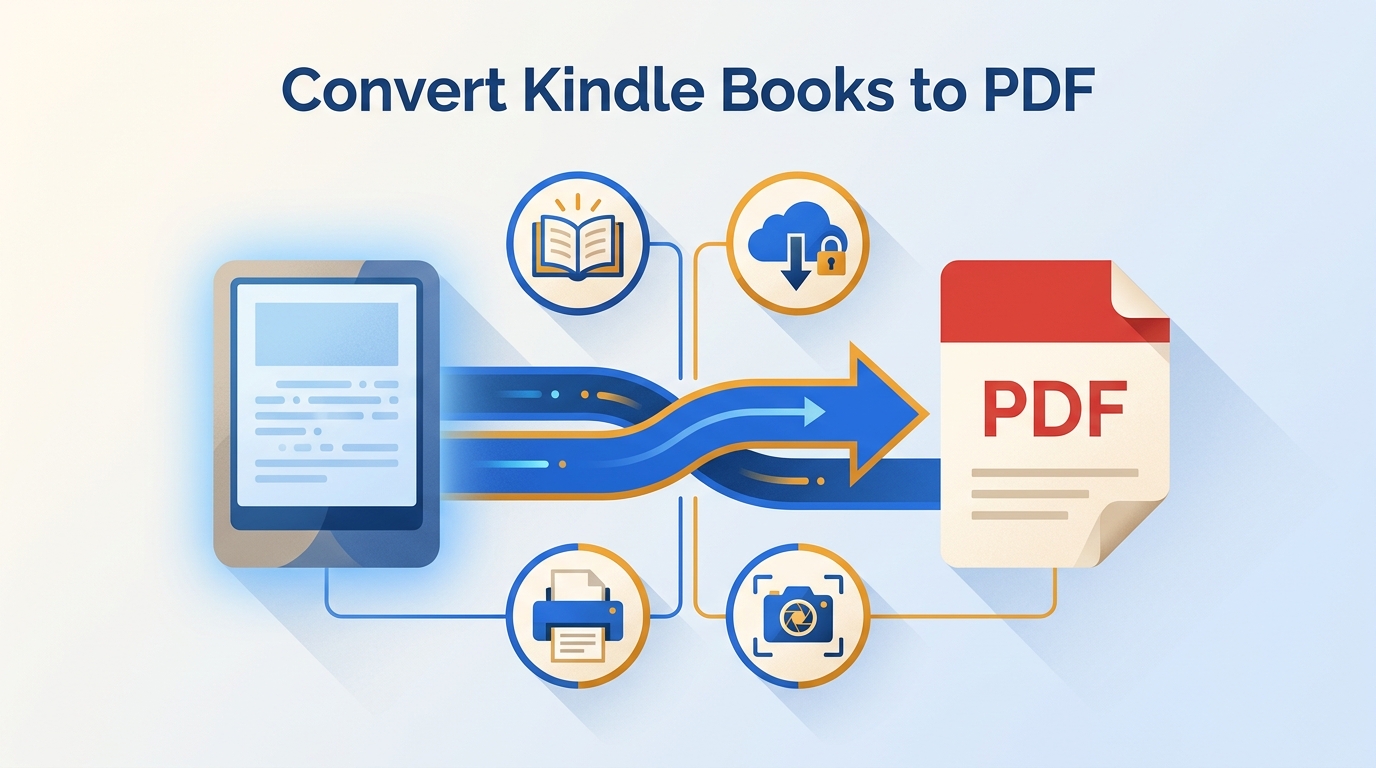
Table of Contents
PDF is a fixed-layout format that keeps text, images, fonts, and page structure consistent across devices. For Kindle users, converting Kindle to PDF can make books easier to read outside the Kindle app, annotate, print, and back up for personal use.
So, how can you convert Kindle to PDF? In this guide, I will walk through four simple but practical methods: Calibre with a DeDRM plugin, BookFab Kindle Converter, online Kindle-to-PDF converters, and screenshot or print workarounds. Each Kindle to PDF converter fits a different situation, giving you more control over how you manage, read, and back up your Kindle library.
Best Kindle-to-PDF Method at a Glance
Here's the short answer: the right route depends on whether your book is an eligible publisher-enabled DRM-free purchase, a DRM-free AZW/AZW3 file, a KFX title downloaded through the Kindle app, or just a few pages you want to keep. When I check a Kindle library for conversion, I sort books by that source state first — it's a more reliable filter than choosing a tool by price alone.
| Method | Source file / access route | OS & batch | Best for |
| BookFab Kindle Converter | Books downloaded through the Kindle app (KFX, AZW3, MOBI) | Windows and Mac, batch supported | A guided desktop batch workflow for personal offline reading; not ideal for mobile-only users |
| Calibre + DeDRM plugin | DRM-free AZW/AZW3/MOBI, or KFX with a compatible plugin chain | Windows, Mac, Linux; batch supported | Readers comfortable maintaining a toolchain; not ideal for beginners who cannot diagnose format or key failures |
| Online converter (Zamzar) | DRM-free AZW/AZW3/MOBI files under the free-tier size limit | Browser-based, single-file focus | An occasional small DRM-free file; not ideal for private, sensitive, large, or batch uploads |
| Selected-page capture | Any page you can display on screen (image-based output) | Windows and Mac, one page at a time | Saving a small number of authorized pages for reference; not ideal for full books, accessibility, or searchable text |
1. Convert Kindle to PDF with Calibre
Calibre is an open-source eBook manager for Windows, Mac, and Linux that can convert AZW, AZW3, MOBI, and — with a compatible plugin chain — KFX titles into PDF or other reflowable formats. Calibre alone does not process technically protected Kindle books; when the source is a book downloaded through the Kindle app, readers usually pair Calibre with a matching DeDRM plugin and the KFX Input plugin. This suits readers comfortable maintaining a toolchain — it is not a linear one-click setup, and it is not ideal for beginners who cannot diagnose format or key failures.
- Requirements: Calibre, DeDRM_plugin.zip, Kindle for PC (2.8.0 is recommended)
Step 1: Install Kindle for PC and Download Kindle Books
Install Kindle for PC and sign in with the Amazon account that owns the book. Open your Kindle library inside the app, then double-click the book cover to download it to your computer.
Step 2: Install Calibre and Plugins
Download and install Calibre on your computer.
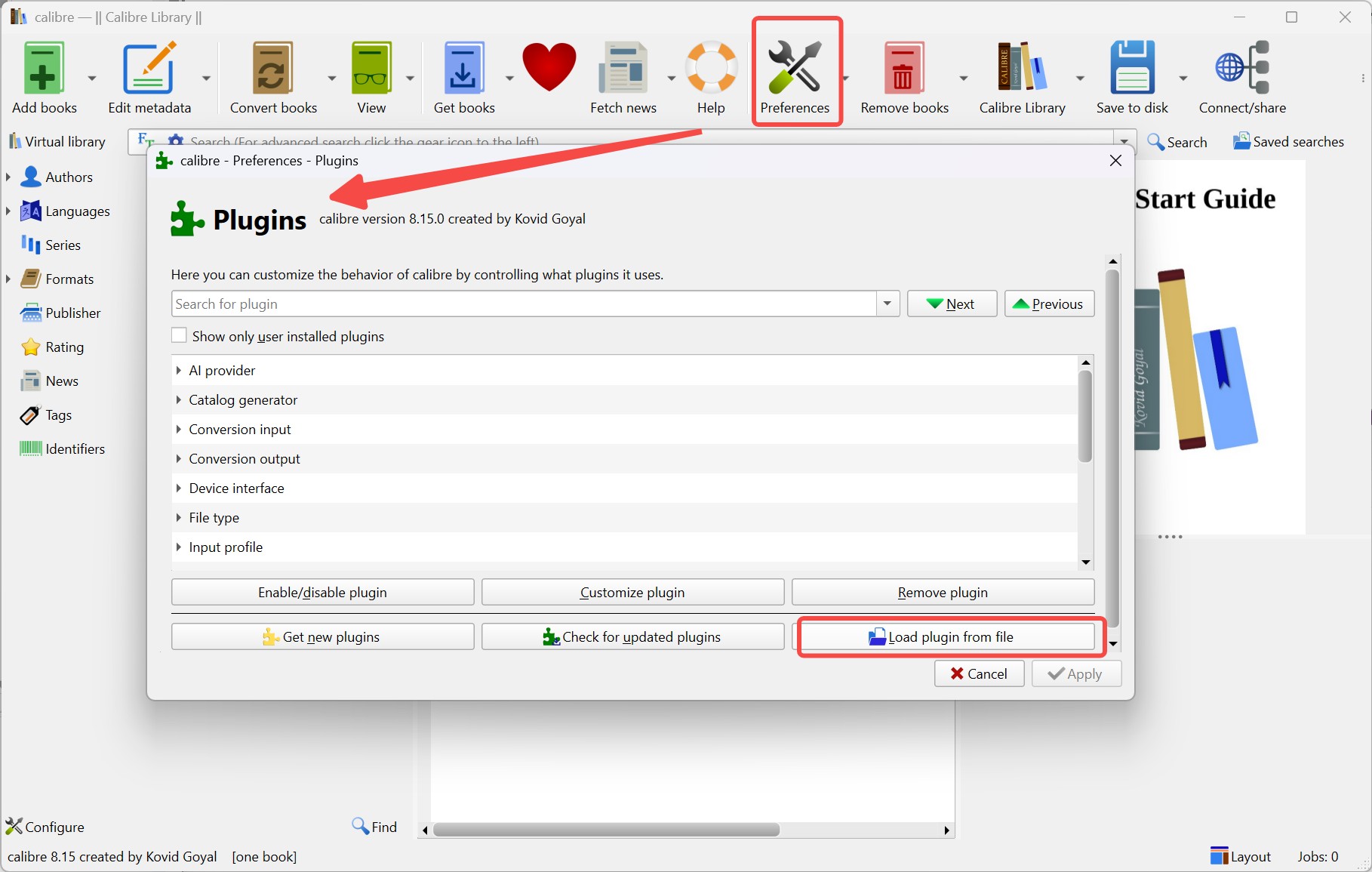
Then, install the DeDRM plugin. Download the latest stable DeDRM_tools package from the Satsuoni's GitHub release page. After downloading DeDRM_tools_xxx.zip, extract it first. Open the extracted DeDRM_tools_xx folder, then find the Calibre plugin file named DeDRM_plugin.zip. In Calibre, go to Preferences > Plugins > Load plugin from file, select DeDRM_plugin.zip, confirm the warning, and restart Calibre when prompted.
Some Kindle books downloaded through newer Kindle apps may use the KFX format. To help Calibre read this format, install the KFX Input plugin as well. In Calibre, go to P references > Plugins > Get new plugins. Search for KFX Input, select it, and install it. After installation, restart Calibre again.
Step 3: Convert the Kindle Book to PDF
In Calibre, click Add books and import the Kindle book downloaded through Kindle for PC.
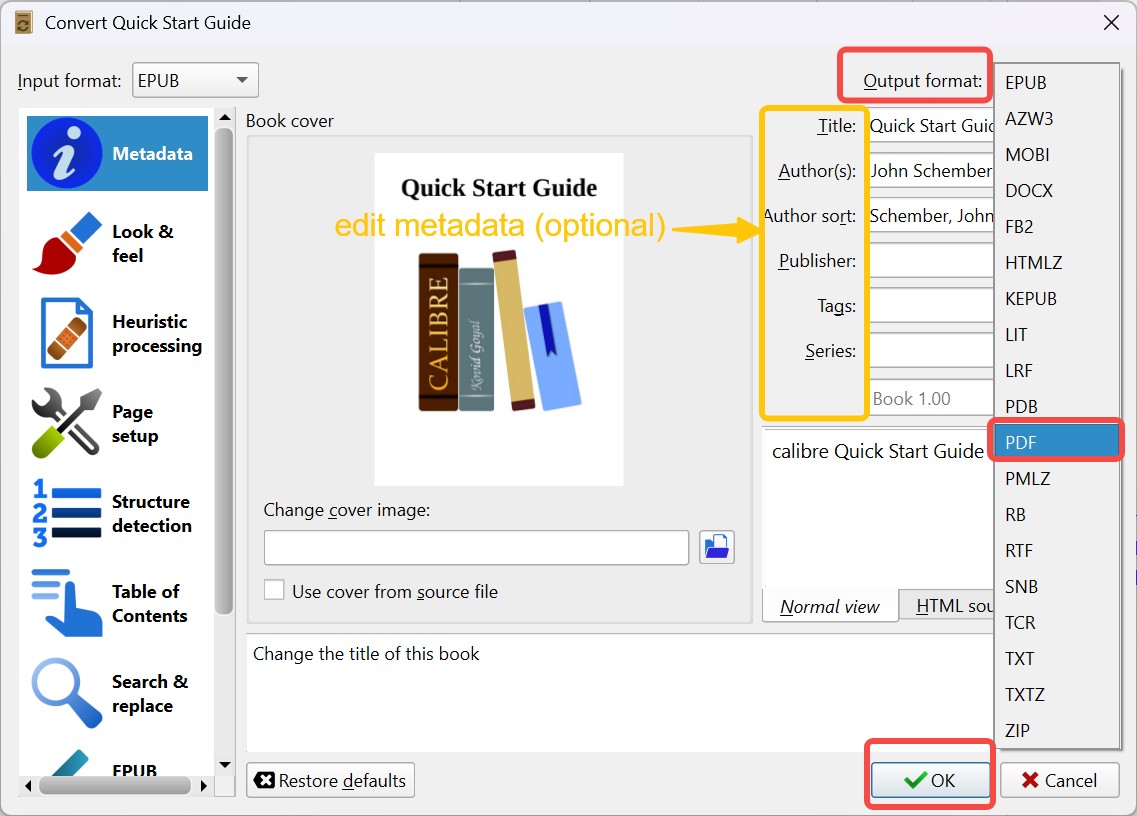
Select the book in your Calibre library and click Convert books. In the upper-right corner of the conversion window, choose PDF as the output format. Click OK.
Fix KFX-ZIP and Plugin Failures
A completed import does not always mean a converted book. When I hit a stuck job, I check the failure points in this order: is the file showing up as KFX-ZIP (a signal the KFX or key-extraction step has not resolved yet), does the KFX Input plugin version match the current DeDRM release, is the Kindle app version compatible with the plugin chain, and — for older AZW workflows — did the key extraction find a physical Kindle serial when one is required. If the book was purchased as an AZW3 file for PDF conversion, that path is usually more forgiving than a KFX-ZIP.
Check PDF Layout and Searchability
Click Jobs in the bottom-right corner to watch tasks finish, then open the PDF and check the cover, page order, images, tables, footnotes, and whether the text is selectable. If the margins look wrong or images clip, revisit page size, margins, and font settings in Calibre's conversion window. When a book relies on reflowable layout — long novels, reference text you plan to resize — EPUB often produces a more comfortable read than a fixed PDF, so I switch output format instead of fighting the page geometry.
For reflowable titles, readers who want adjustable text and more flexible page flow can convert Kindle books to EPUB instead of forcing a fixed PDF layout.

2. Convert Kindle to PDF with BookFab
For content you're authorized to access, where permitted by platform terms and applicable law, BookFab Kindle Converter provides a guided desktop workflow for saving a local copy of a Kindle book as PDF or EPUB for personal offline reading. It detects books already downloaded through the Kindle app and processes them in batches, keeping cover, title, author, and chapter information where the source file supports it. I reach for it when a Kindle library is large enough that a batch task queue matters more than fine-grained conversion settings. It suits readers who want a guided desktop batch flow; it is not ideal for mobile-only users or anyone who needs a no-install browser tool.
- Requirements: BookFab, Kindle for PC (required on Windows but not on Mac)
Video Tutorial for BookFab Kindle Converter
For a more visual, step-by-step walkthrough, you can watch the tutorial video we created.
Step 1: Download Books in the Kindle App
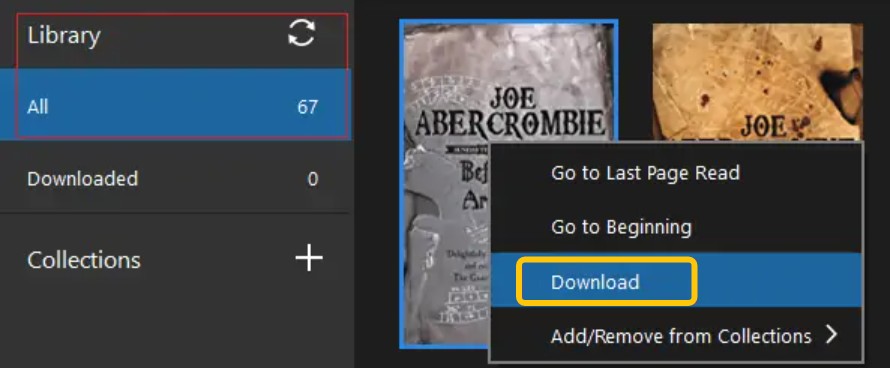
Launch the Kindle desktop app and sign in. In your Library, right-click the title you're authorized to read and choose Download. Wait for the download to finish. By default, Amazon saves these files to the "My Kindle Content" folder inside your Documents directory. This is the Kindle app delivery path, which is separate from the discontinued web-based Download & Transfer via USB workflow and from Wi-Fi delivery to a physical Kindle.
Step 2: Open BookFab Kindle Converter
Download and install the BookFab program on your computer. Once installed, launch the application and select Kindle Converter from the left-hand sidebar.
Step 3: Choose PDF and Select Books
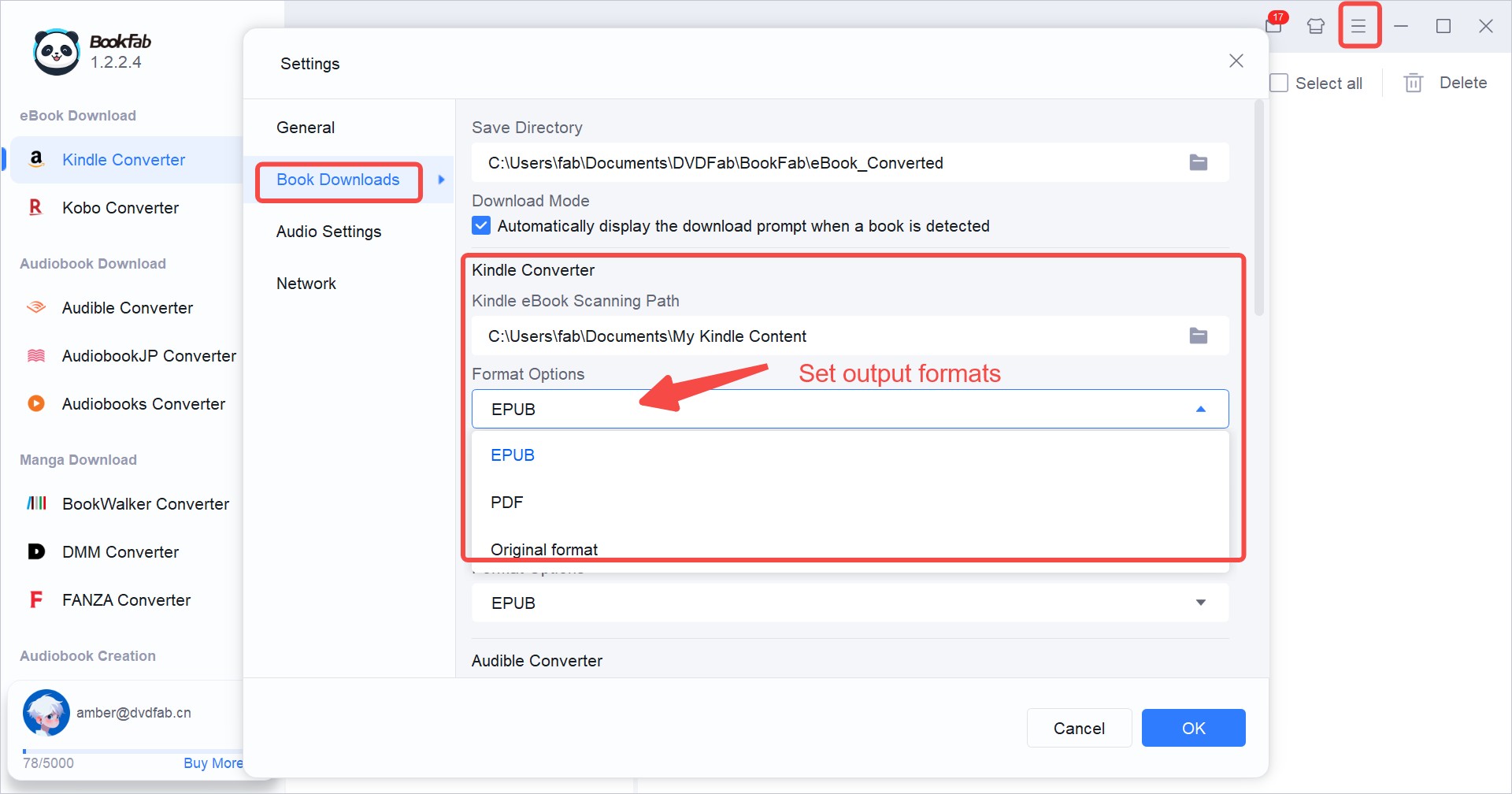
Click the three-line menu icon in the upper-right corner and choose Settings. In the dialog box, go to Book Downloads > Kindle Converter > Format Options, pick PDF from the drop-down list, then click OK to save your changes.
Click the Refresh button in BookFab. The program will automatically scan your computer for Kindle books downloaded via Kindle for PC and display them in the interface. 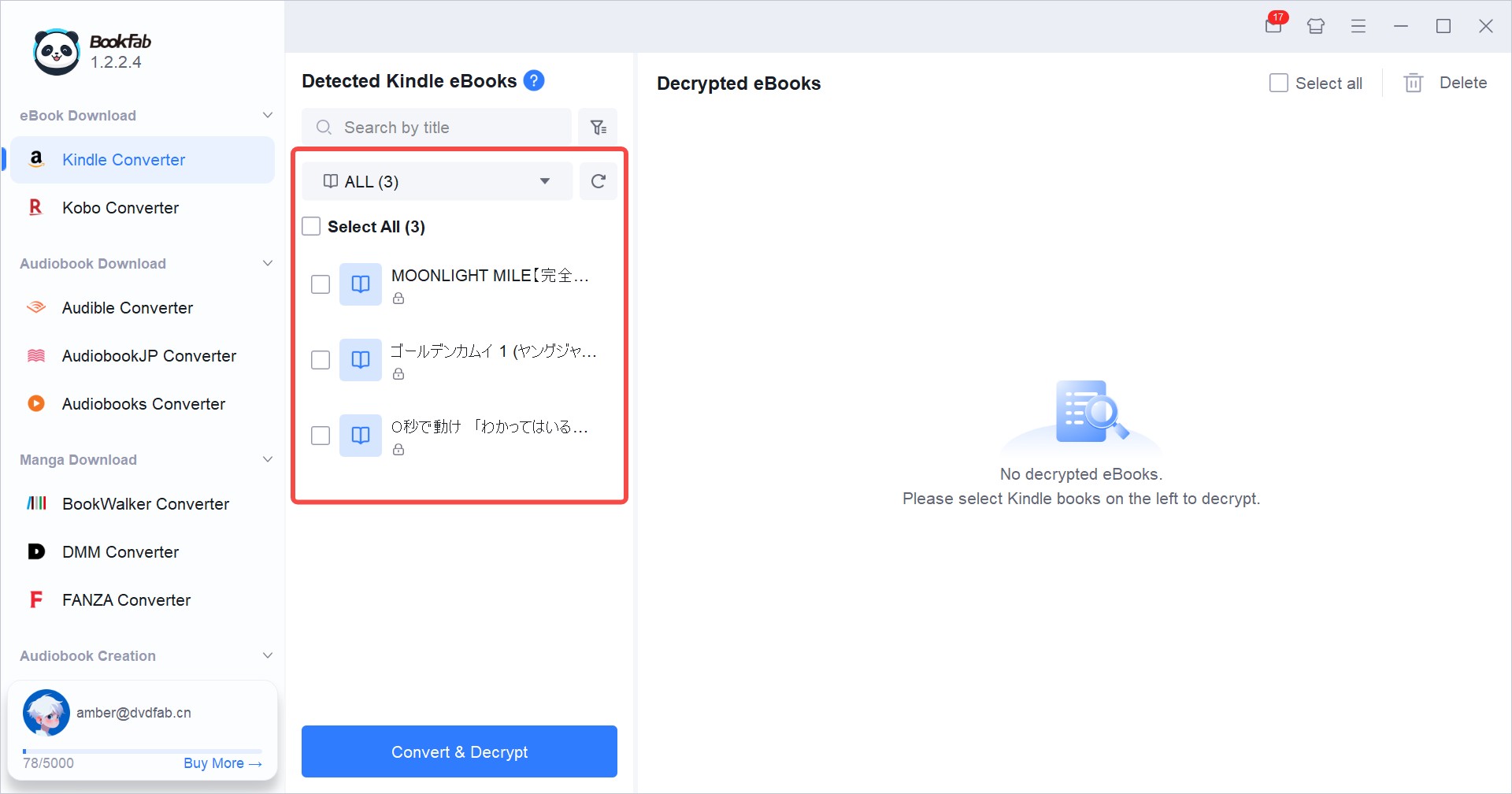
Step 4: Create the PDF Files
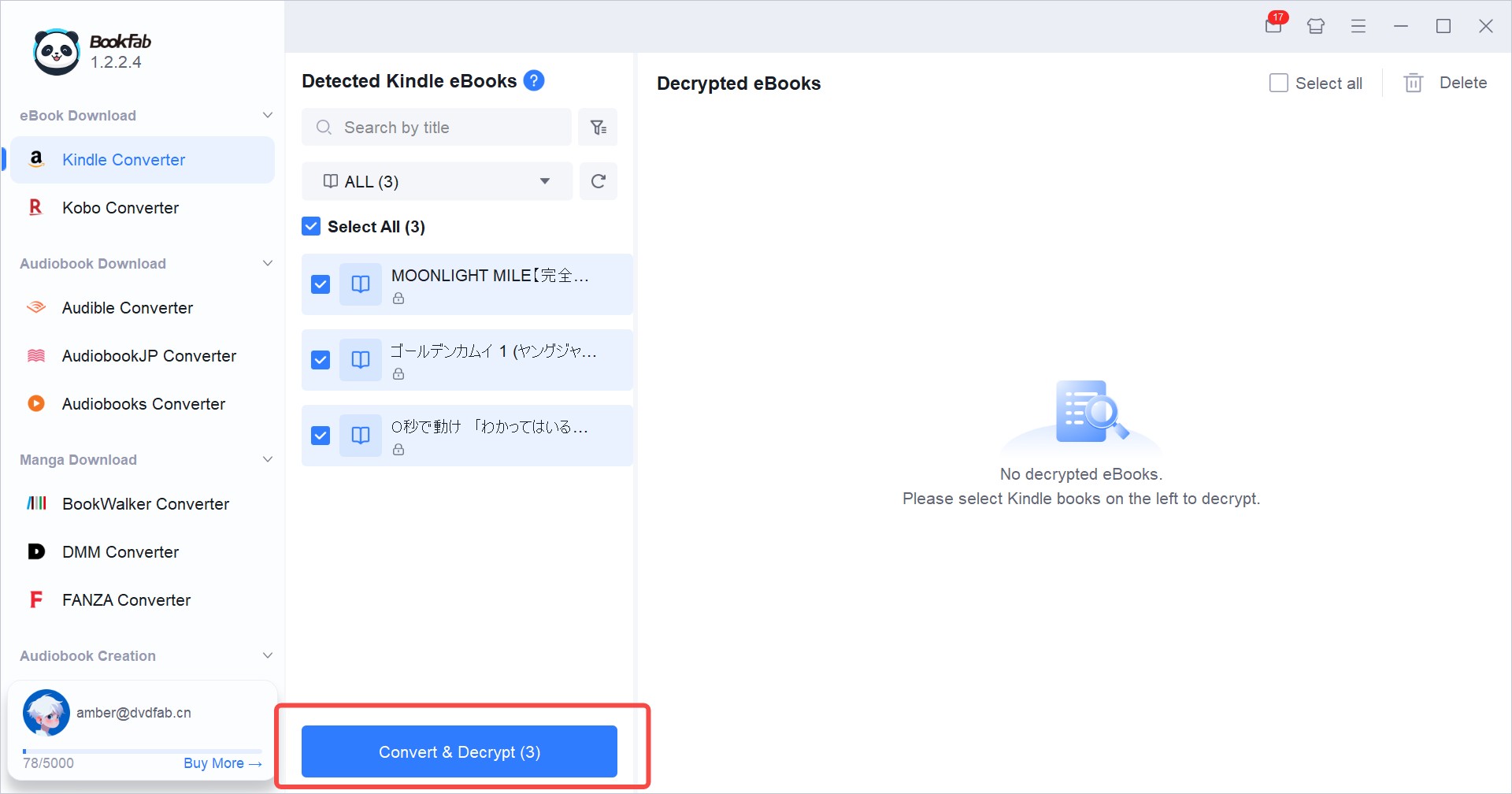
Click the Convert button to begin. BookFab will process the selected books and save each one as a local PDF file for personal offline reading.
After the task finishes, hover over the converted book and click the folder icon to open the output folder, where each PDF is ready to open in your preferred reading app.
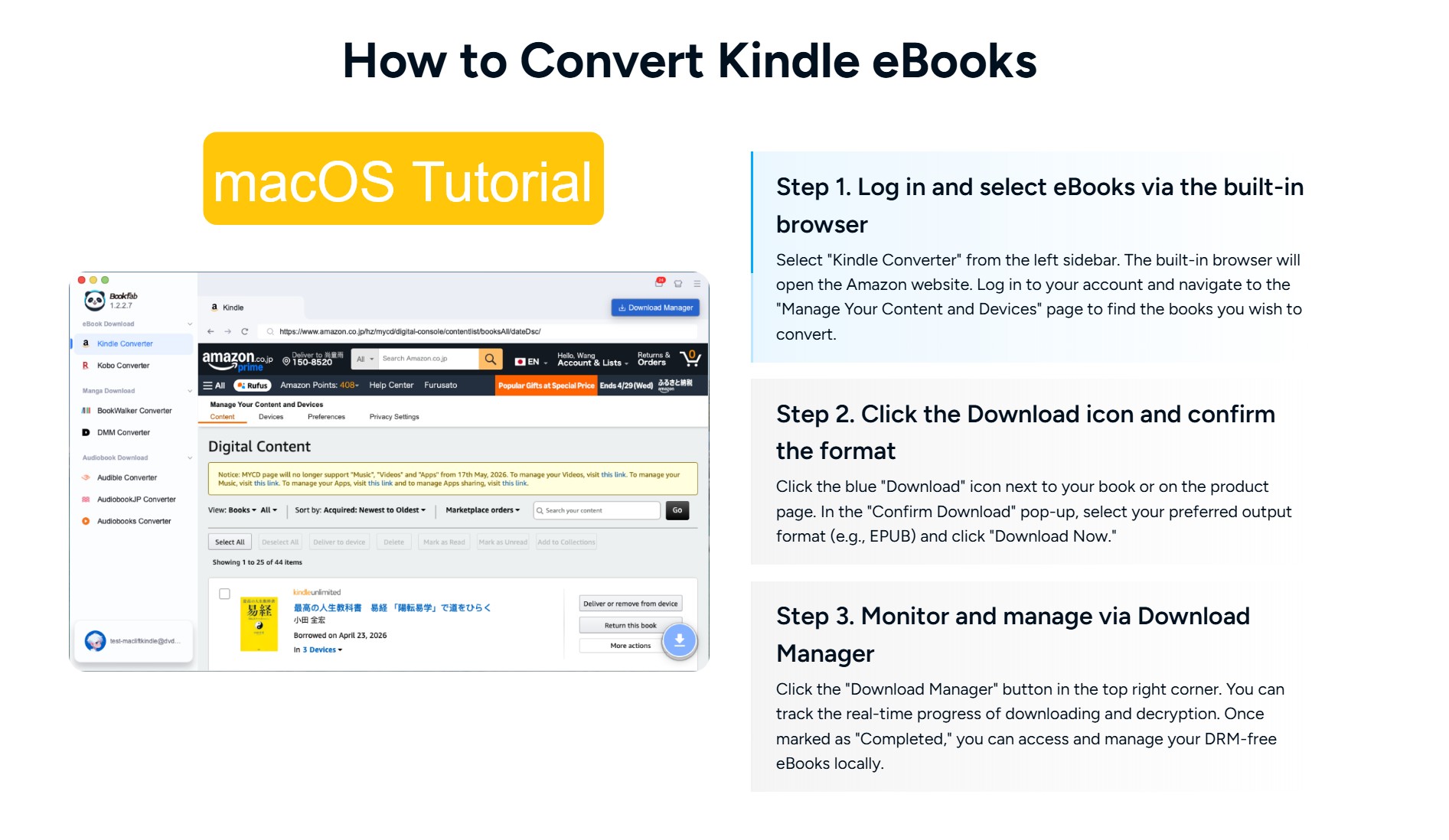
Note: On Mac, BookFab Kindle Converter is even simpler and removes the need for Kindle for PC. Using the built-in browser, just log in to your account, select a book, and click the blue download button to save it directly as a PDF.
3. Convert DRM-Free Kindle Files Online
If the source is already a DRM-free AZW, AZW3, or MOBI file and you just need one PDF, an online tool like Zamzar keeps the workflow in the browser. Current upload size limits, account requirements, retention Windows, and pricing tiers on Zamzar and comparable services change often, so confirm those on the tool's own page before starting a large file. This route is useful for an occasional small DRM-free file; it is not ideal for private or sensitive documents, large books, or a batch of titles.
Step 1: Upload Kindle Books to Zamzar
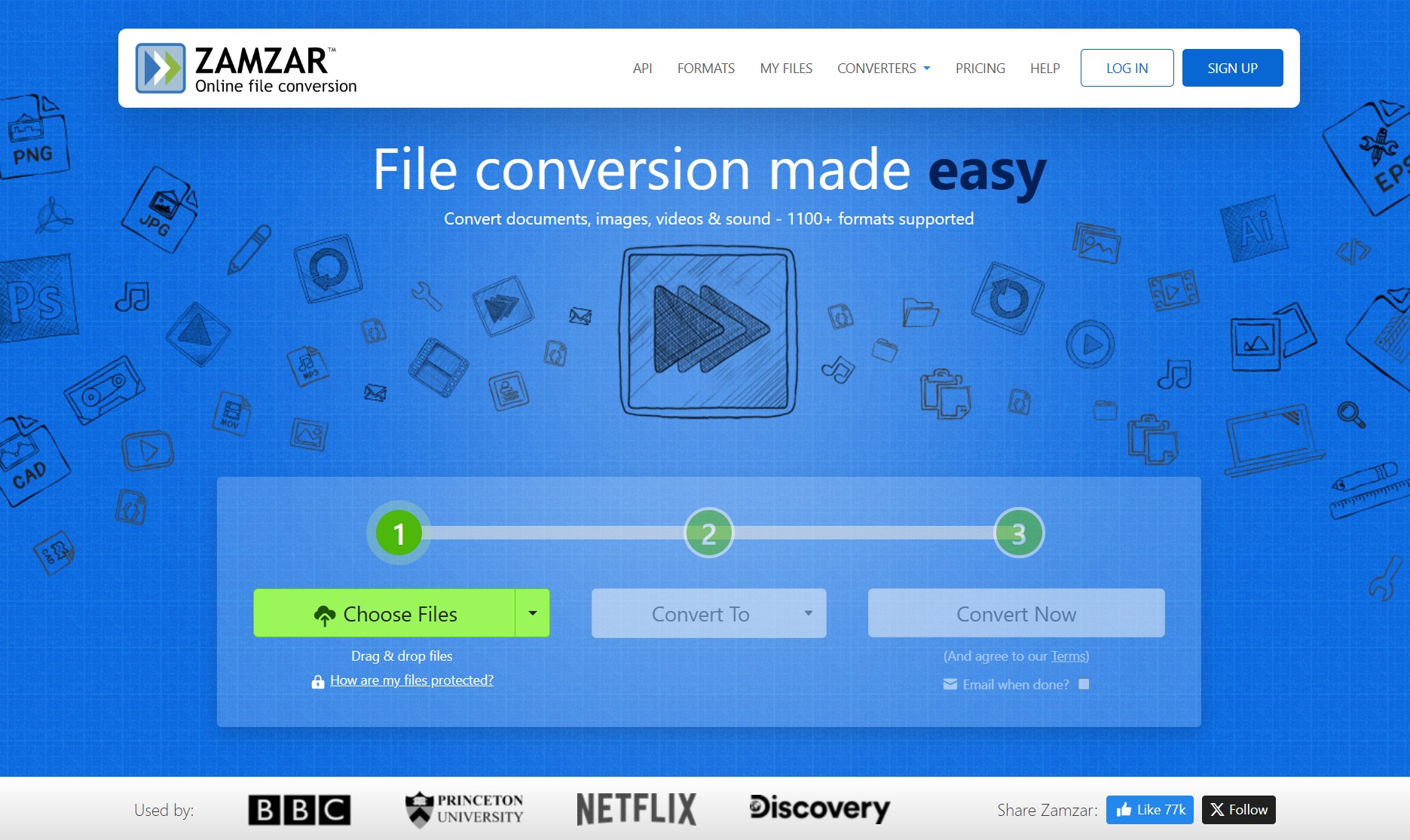
Open the Zamzar AZW-to-PDF converter in your browser. Click Choose Files and select your Kindle file from your computer, or drag and drop it into the upload area. You can also import files from cloud services such as Google Drive, Dropbox, or OneDrive if needed.
Keep in mind that free accounts have a size limit, so very large Kindle files may require you to sign up for a plan.
Step 2: Convert Kindle to PDF Online
In the "Convert To" drop-down list, select PDF as the target format. Then click Convert Now to start converting your Kindle file to PDF. For small, DRM-free files, the process usually finishes in a short time.
Step 3: Download Converted PDF Files
Once the conversion is complete, this Kindle to PDF converter will display a Download button next to your file. Click it to save the PDF to your computer or device. Converted files are stored on the servers only for a limited time, so it's best to back up your PDF promptly. Note that, like other online converters, Zamzar works with DRM-free Kindle files.
4. Save Selected Kindle Pages as PDF
For a handful of pages you're authorized to use — a chart, a diagram, a short reference passage — screen capture is the quickest path. It does not convert the full book: the output is image-based, the text is usually not searchable, and the layout only reflects what fits on your screen. For one or two pages, it is straightforward and needs no plugins.
Step 1: Open the Kindle Book on Your Computer
Open Kindle for PC or Kindle for Mac and sign in with the Amazon account that owns the book. Open the title you want to capture, then go to the page you want to save.
For better results, adjust the reading window before taking screenshots. I usually make the Kindle window large enough, choose a clean background, and use a comfortable font size so the captured page stays readable later.
Step 2: Capture the Kindle Page
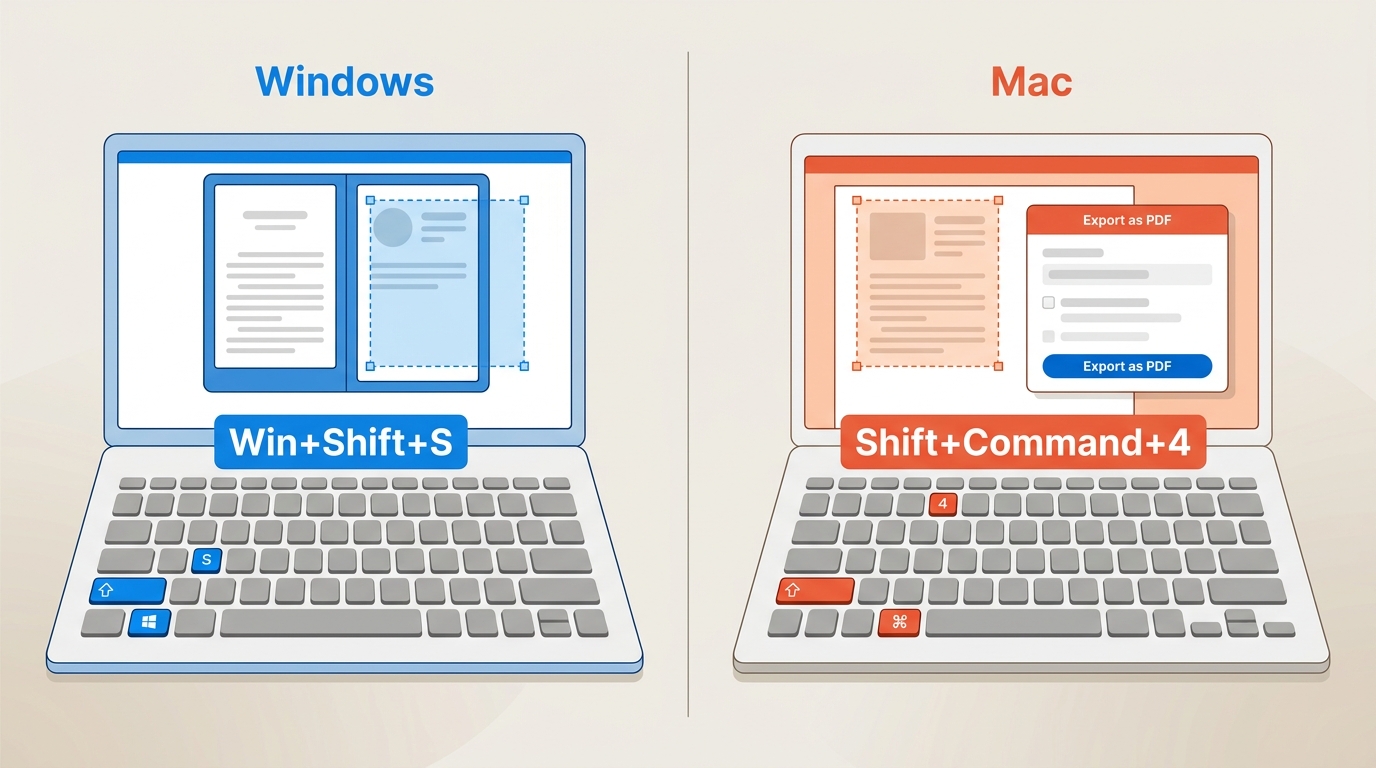
On Windows, press Win + Shift + S to open the screen snipping tool, then drag to select the Kindle page area you want to capture. You can also use the Snipping Tool app if you prefer a visible interface.
On Mac, press Shift + Command + 4, then drag to select the Kindle page area. Release the mouse or trackpad to save the screenshot.
Then, repeat for the pages you need.
Step 4: Combine the Screenshots into a PDF
After capturing the pages, combine the images into one PDF.
On Windows, you can select the screenshots, right-click, choose Print, and use Microsoft Print to PDF. You can also insert the images into Word or a PDF editor and export them as a PDF.
On Mac, open the screenshots in Preview, arrange them in the correct order, then export or print them as a PDF.
Eligible Kindle Books Can Download as PDF
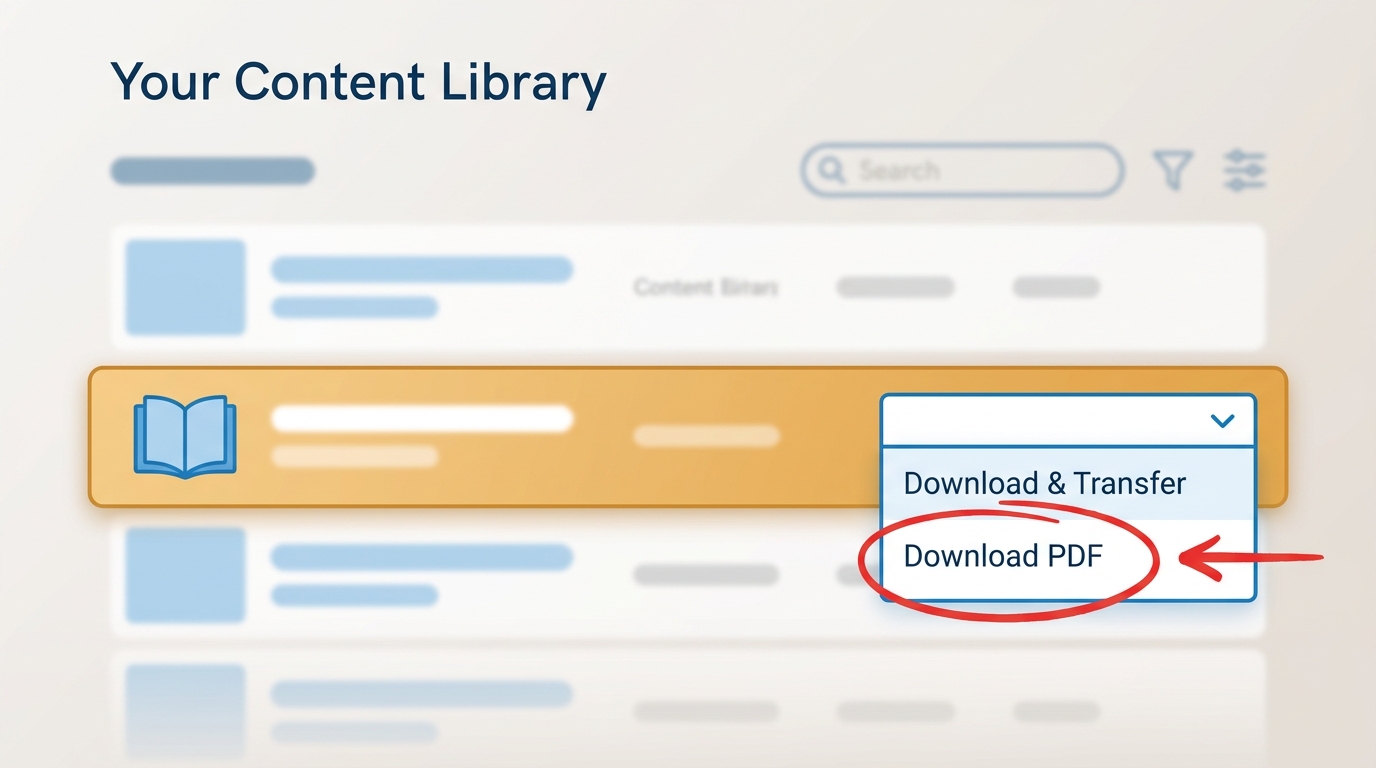
As of August 2026, verified purchasers can download eligible DRM-free Kindle titles as EPUB or PDF from Amazon, but only when the publisher has enabled that option in the Publisher Center; many older DRM-free titles require the publisher to opt in before the download button appears. To check a specific book, sign in to Amazon on the web and open your Content Library. A separate policy change matters here too: Amazon discontinued the web-based Download & Transfer via USB option on February 26, 2025 — that removed one route for sending files to a physical Kindle, but Kindle app delivery, Wi-Fi delivery, and USB sideloading of personal files are distinct workflows and remain available. If the direct-download button is not there, the reliable next step is a desktop conversion route above, starting from a book downloaded through the Kindle app.

Kindle-to-PDF Questions Answered
Why does Calibre import my Kindle book as KFX-ZIP?
KFX-ZIP usually signals that the KFX or key-extraction step has not fully resolved. Before converting again, check that the KFX Input plugin and DeDRM plugin versions match a supported Kindle app version, and — for older AZW workflows — that any required device serial has been recognized. If the plugin chain does not stabilize, an alternative desktop workflow like BookFab Kindle Converter is often a shorter path than debugging the toolchain.
Can I convert a Kindle book to PDF on Android or iPad?
The dependable full-book routes in this article are desktop-based. On Android or iPad, treat the tablet as a reading or annotation destination for a PDF you converted on a computer. Selected-page screen capture is possible on mobile, but it produces image-only pages and is not a substitute for full conversion.
Why does my converted PDF have large margins or missing images?
Open the PDF and check page size, margins, fonts, images, tables, and whether the text is selectable. In Calibre, revisit the page-setup and heuristics options and convert again. For a long novel or a reference book that reads better when text reflows to the screen, EPUB is usually a more comfortable output than a fixed PDF.
Does sending a PDF to Kindle convert it into a Kindle book?
Sending a PDF to your Kindle account is the reverse direction of this article. Amazon may process the uploaded document for reading on Kindle devices and apps, but it does not turn a purchased Kindle title into a PDF — that still requires one of the conversion routes covered above.
Choosing the Right Kindle-to-PDF Method
The right method depends on the book's download eligibility, source format, access state, desired PDF quality, and how much troubleshooting you're willing to do. Start with an eligible direct download from Amazon when the publisher has enabled it; move to Calibre when you're comfortable maintaining a plugin chain; consider BookFab when a guided desktop batch flow matters more than tweaking conversion settings; use Zamzar for the occasional small DRM-free file; and reserve screen capture for a few authorized pages. Choosing by source state and the reading experience you want will hold up better than choosing by a marketing headline.

 How to Download Kindle Books in 2026: 5 Current OptionsBy Amber Collins - Aug 26, 2026
![How to Convert Kindle Books to EPUB Easily [2026 Verified]](https://r5.dvdfab.cn/upload/bookfab/en/convert-kindle-to-epub-RDlf.jpg) How to Convert Kindle Books to EPUB Easily [2026 Verified]By Amber Collins - Aug 26, 2026
How to Convert Kindle Books to EPUB Easily [2026 Verified]By Amber Collins - Aug 26, 2026 Kindle DRM Compatibility in 2026: What Still WorksBy Amber Collins - Aug 25, 2026
![[Quick Solution] How to Remove Kindle DRM on Mac](https://images.dvdfab.cn/media/未命名的设计__87__crpyru.png/public) [Quick Solution] How to Remove Kindle DRM on MacBy Amber Collins - Aug 24, 2026
[Quick Solution] How to Remove Kindle DRM on MacBy Amber Collins - Aug 24, 2026