
3 Ways to Convert AZW3 to PDF Without Layout Surprises

Summary: This guide compares three ways to convert AZW3 to PDF: browser-based converters, Calibre, and BookFab Kindle Converter. It explains file-access limits, privacy, PDF layout controls, formatting checks, and common conversion errors so readers can choose a method that matches the book rather than relying on speed claims.
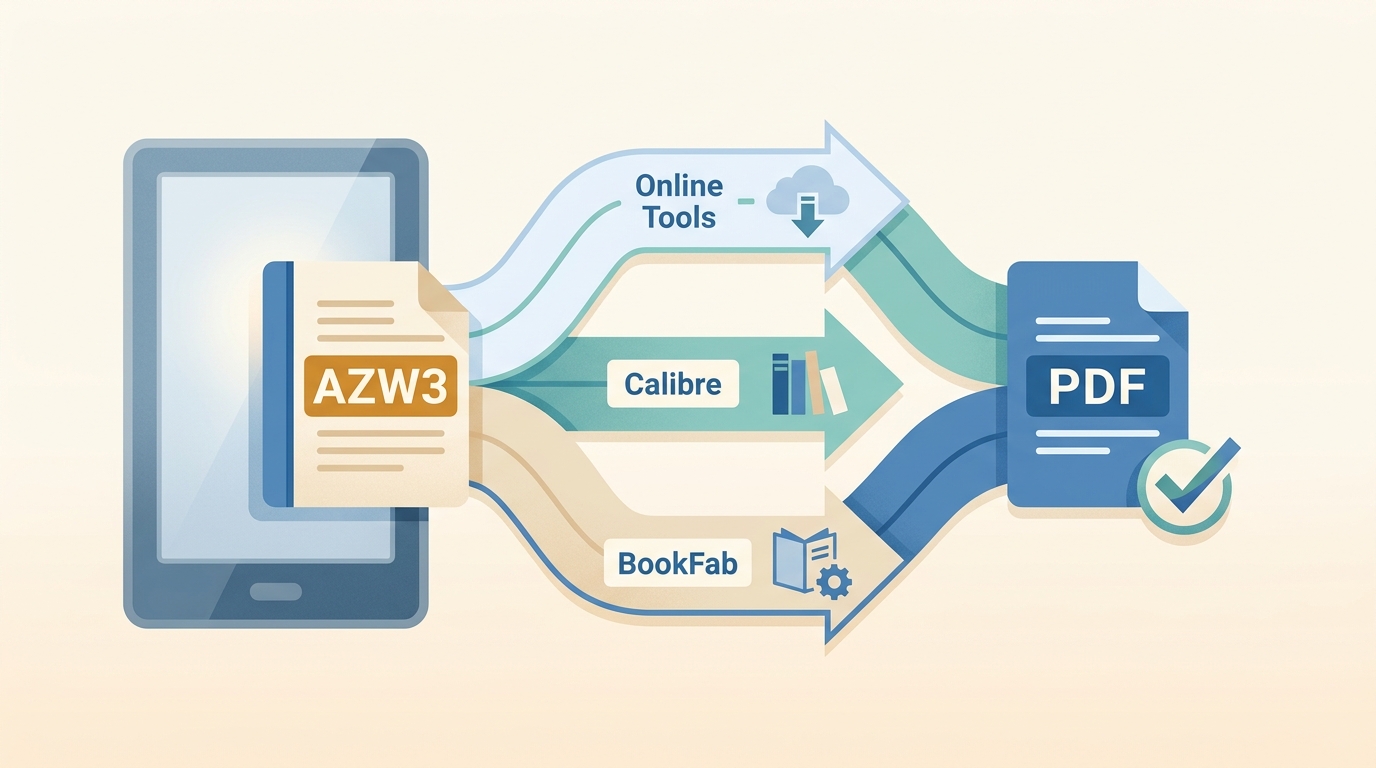
AZW3 to PDF conversion works best when the method matches both file access and page complexity. An online AZW3 converter suits a quick, accessible file; Calibre provides detailed PDF controls; BookFab offers a local Kindle-focused option for authorized books on Windows.
Readers who need adjustable text rather than fixed pages may prefer an AZW3 to EPUB conversion, which keeps the ebook in a reflowable format.
A conversion can finish and still leave awkward page breaks, misplaced images, or weak navigation. My rule is to choose by access, privacy, and layout risk before speed claims. Broader Kindle to PDF questions may involve other formats, while this guide stays focused on AZW3.
Table of Contents
Choose the Right AZW3 to PDF Method
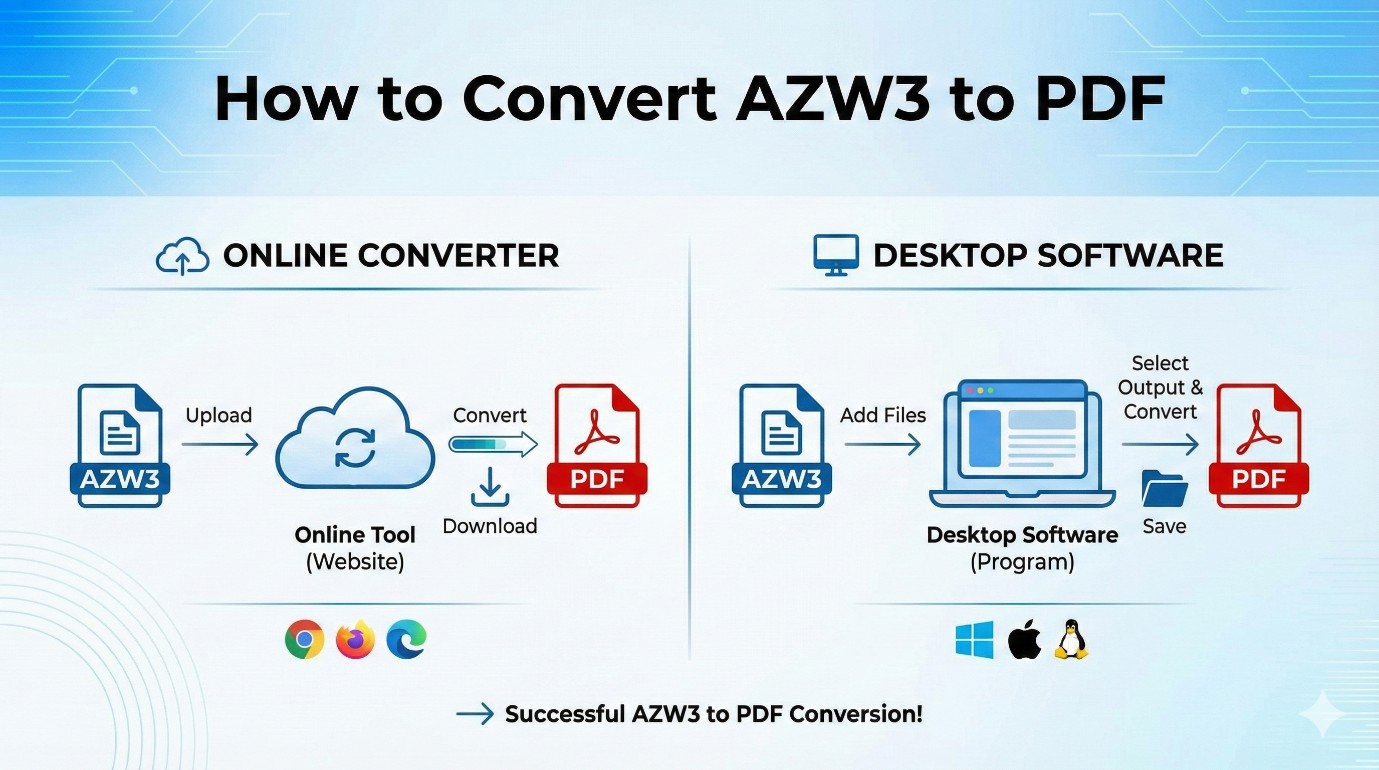
The right AZW3 PDF converter depends first on whether the file opens normally, then on how much control its layout needs. This comparison gives Calibre and online tools the same weight as the Kindle-focused desktop option.
| Method | Best use | Processing | Layout controls | Batch work | Operating systems | File-access limit | Main tradeoff |
|---|---|---|---|---|---|---|---|
| Online converters | One accessible file with a simple layout | Server upload | Basic to moderate | Varies by service | Systems with a supported browser | The service must be able to open the file | Convenient, with less privacy and layout control |
| Calibre | Granular page and font settings | Local | Detailed PDF Output settings | Multiple conversion jobs | Windows, macOS, Linux | Accessible files Calibre can read | More settings require more setup |
| BookFab Kindle Converter | Authorized Kindle titles in a guided desktop interface | Local | Kindle-focused PDF output | Batch tasks and task management | Windows | Supported Kindle content and the Windows Kindle app | More setup for one simple file |
For sensitive material or a book with many images and tables, local processing deserves more weight than convenience. A simple novel creates fewer layout decisions than a textbook, cookbook, or illustrated title.
Check File Access and Usage Rights First
Convert only books you are authorized to access, where permitted by platform terms and applicable law. This condition applies to online services, Calibre, and BookFab alike.
An accessible or unprotected AZW3 file opens normally in the selected converter. A file that cannot be read may be incomplete, damaged, tied to an unsupported delivery environment, or affected by a compatibility change. Changing PDF margins cannot solve an input-access problem.
Online services require uploading the book. Before sending personal or licensed material, read the service's privacy and retention terms. I keep sensitive files local because a browser upload adds a data-handling decision unrelated to the final PDF's quality.
Online Converters for Quick, Unprotected Files
An online AZW3 converter is useful for a quick, accessible book with straightforward text. It needs no installation, but it offers less control over AZW3 PDF formatting and sends the file to a remote service.
Convertio
Convertio provides a direct Convertio AZW3 to PDF path with uploads from a computer or connected cloud storage. It is convenient for a small number of ordinary files, while image-heavy books may need cleanup.
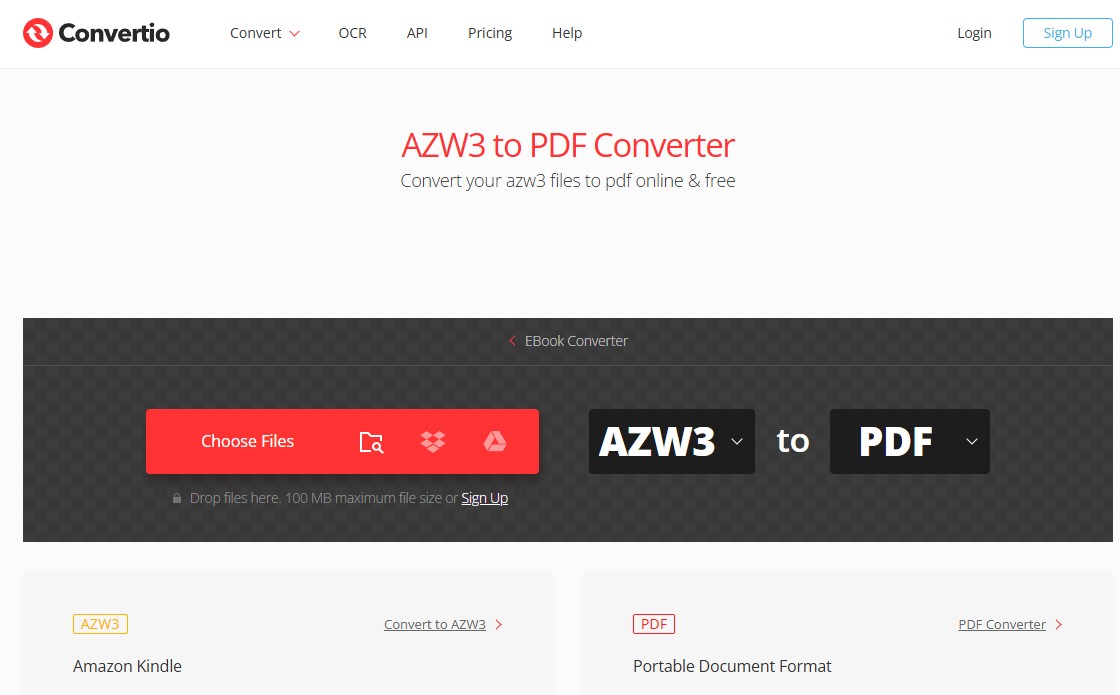
It suits a reader who wants browser-based conversion with minimal setup. It has fewer page-level adjustments than Calibre, so I would not start here when tables, footnotes, or illustrations must remain precisely positioned.
- Open the conversion page and add the accessible AZW3 file.
- Select PDF as the output format.
- Start the conversion, download the result, and inspect representative pages.
Online-Convert
Online-Convert AZW3 to PDF includes more document settings than a bare upload page. Font and target-device options may help with text-led books, but extra controls do not guarantee that complex images will fit a fixed PDF page.
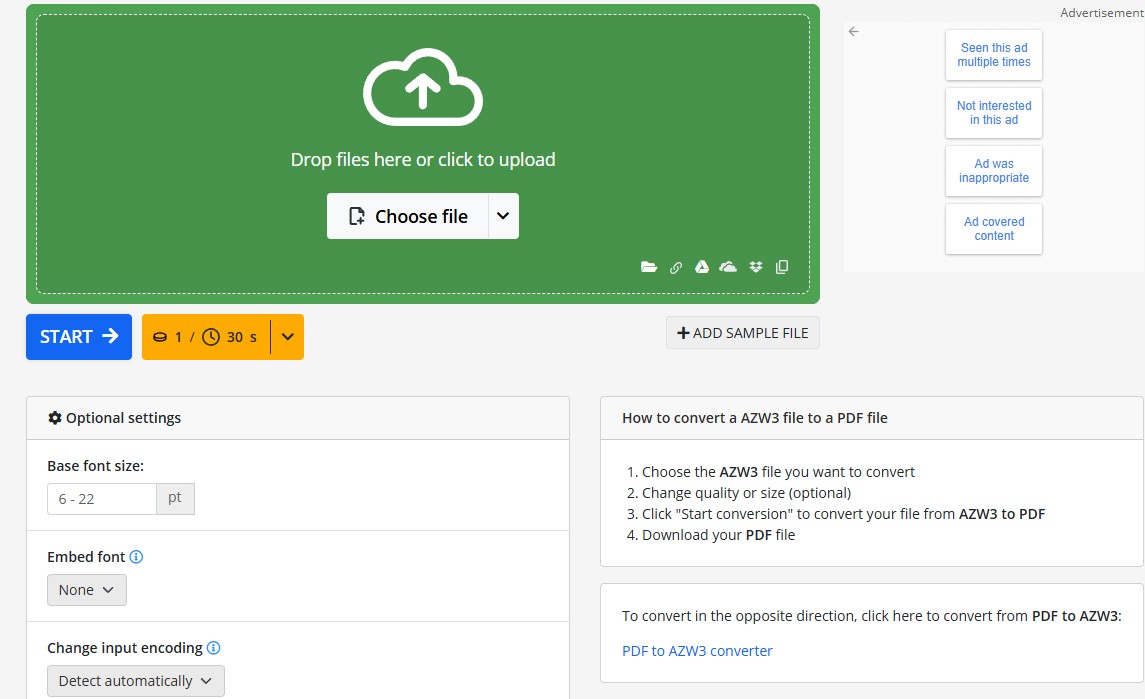
This service makes more sense when a browser tool is preferred but basic text settings matter. A local editor is easier to revisit when several rounds of margin or page-size adjustment are likely.
Other Current Online Options
CloudConvert AZW3 and Zamzar AZW3 conversion pages are also visible choices for accessible files. Their limits, privacy terms, and controls differ, so compare the actual upload policy and output options instead of treating all free AZW3 to PDF services as interchangeable.
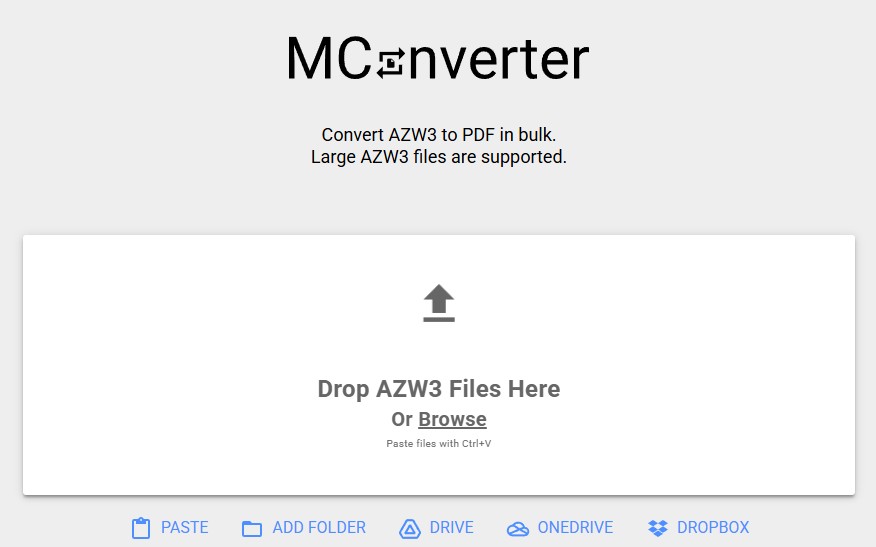
MConverter's folder-oriented interface may appeal to batch users, but it is not the lead option in the current shortlist. Its layout controls remain less relevant than the source book's complexity and the service's current terms.
Calibre Offers Detailed PDF Layout Controls
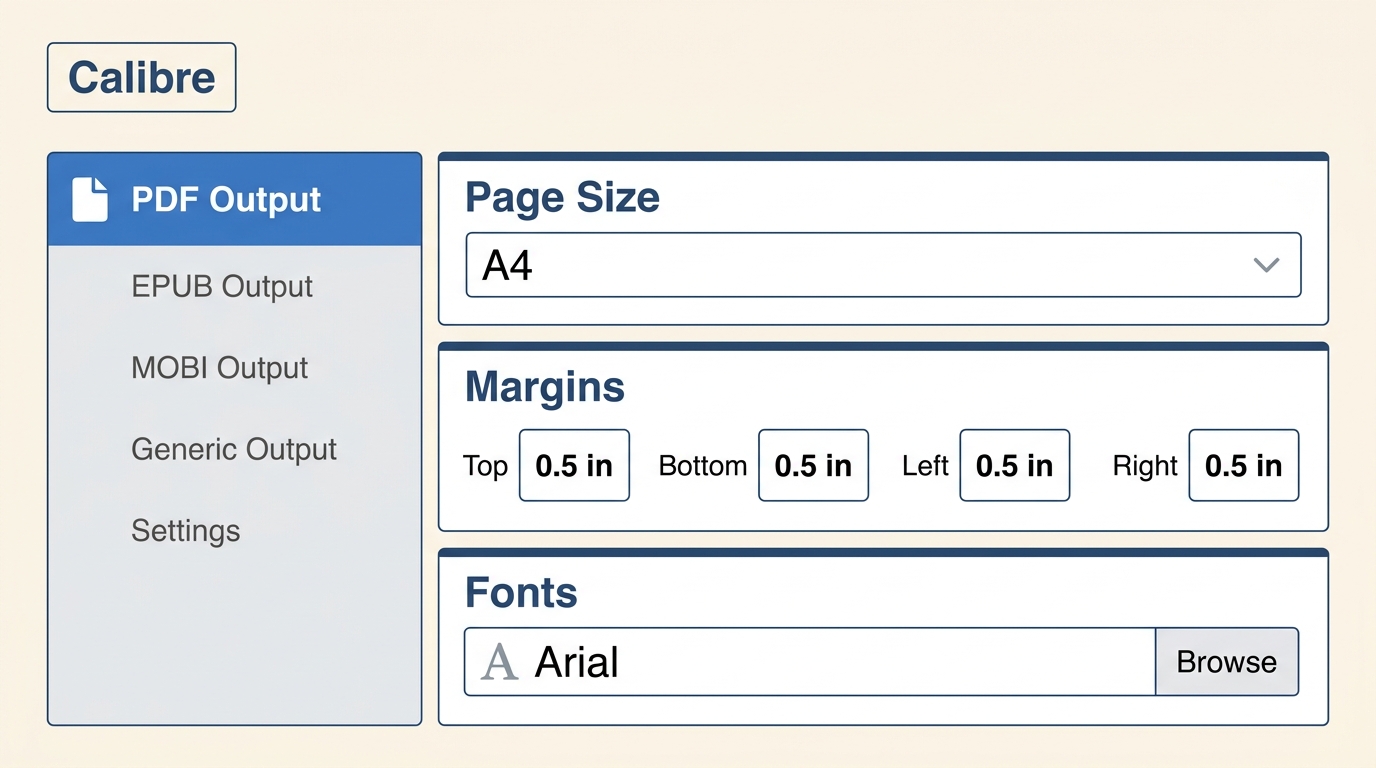
Calibre AZW3 to PDF conversion is a configurable local route when an accessible file needs deliberate page size, margins, and font layout. It also covers Linux, which the other desktop method here does not.
Add the AZW3 file to Calibre, choose Convert books, select PDF, and review the PDF Output panel. Calibre suits readers who want to tune a document, but it is less convenient for anyone expecting a guided Kindle-account setup.
Settings That Affect the Final PDF
Page size defines the fixed canvas, PDF margins control the printable border, and font layout affects line breaks and pagination. Headers, footers, paragraph spacing, and the source book's styles can also change where content lands.
- Page size: Match the intended screen or paper size before adjusting margins.
- Margins: Leave space for printing without forcing narrow text columns.
- Fonts: Check whether substitutions change line length, emphasis, or special characters.
- Layout: Inspect chapter starts, tables, footnotes, and image captions.
When I check a converted ebook, I do not stop at whether the PDF opens. I inspect the table of contents, paragraph spacing, cover image, and pages combining text with illustrations because those elements reveal conversion damage sooner than a plain chapter page.
BookFab Supports a Local Kindle Workflow
For content you are authorized to access, where permitted by platform terms and applicable law, BookFab provides local ebook conversion for supported Amazon Kindle books on Windows. It outputs EPUB or PDF and requires the Windows Kindle app.
Because local availability is a prerequisite, downloading Kindle books to a PC helps ensure that supported titles are stored locally before conversion begins.
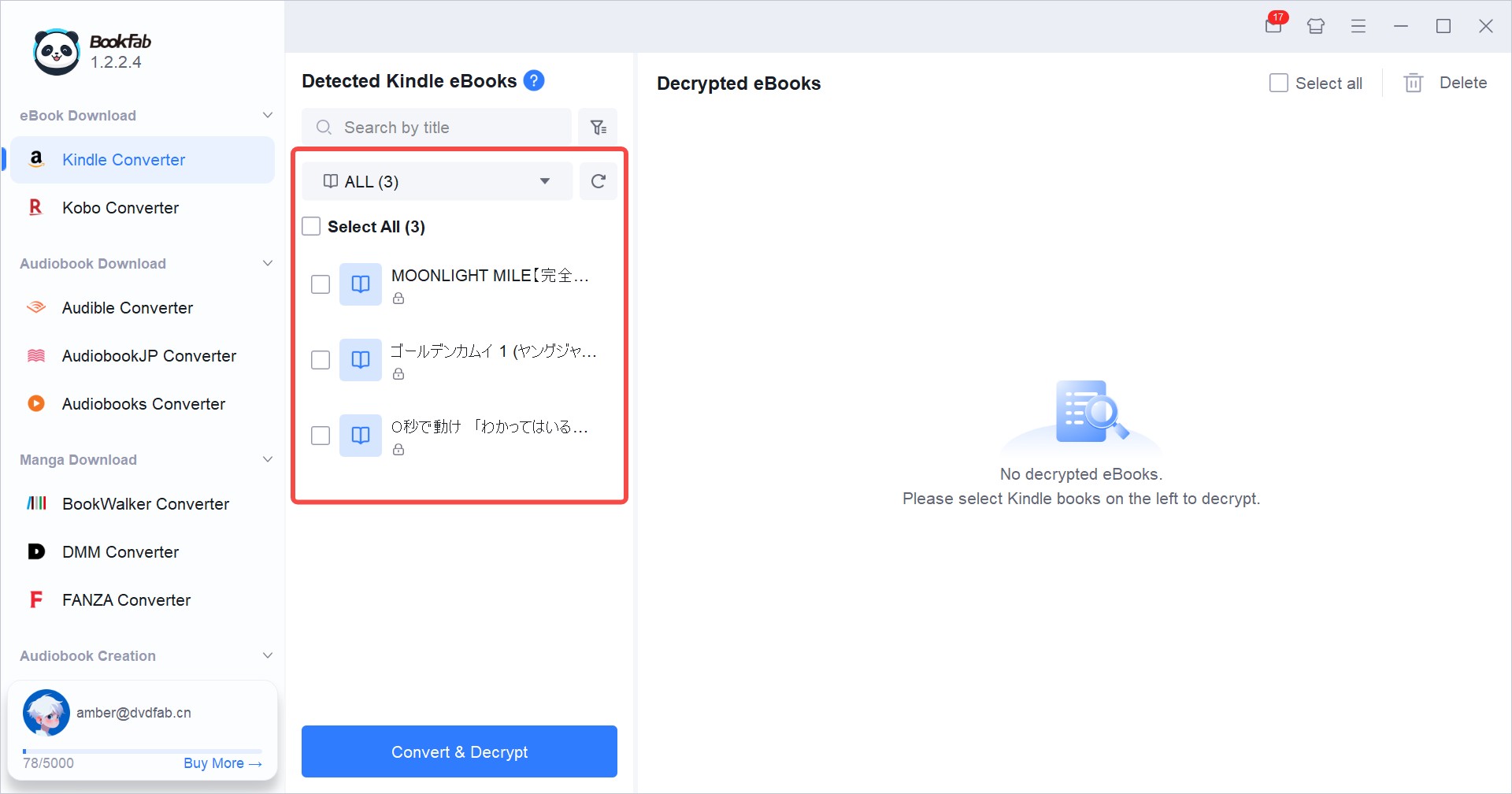
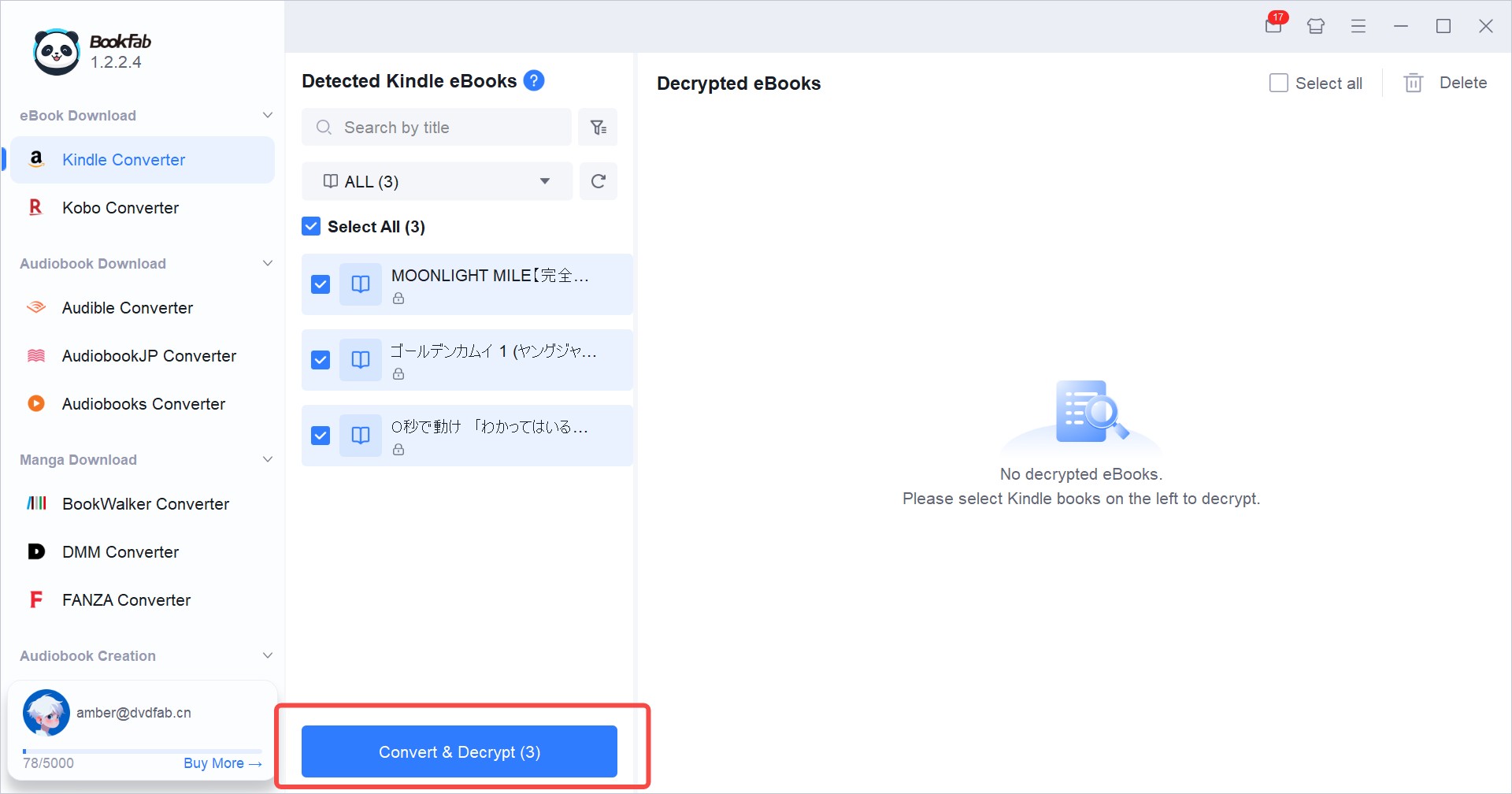
BookFab Kindle Converter automatically detects supported locally downloaded Kindle books, manages multiple tasks, and aims to retain available cover, title, author, and other book information. It supports KFX, AZW3, and MOBI source files.
BookFab makes the most sense for a Windows reader organizing several supported Kindle titles and checking metadata. For one accessible AZW3 file with a simple layout, an online tool or Calibre may involve less product-specific setup.
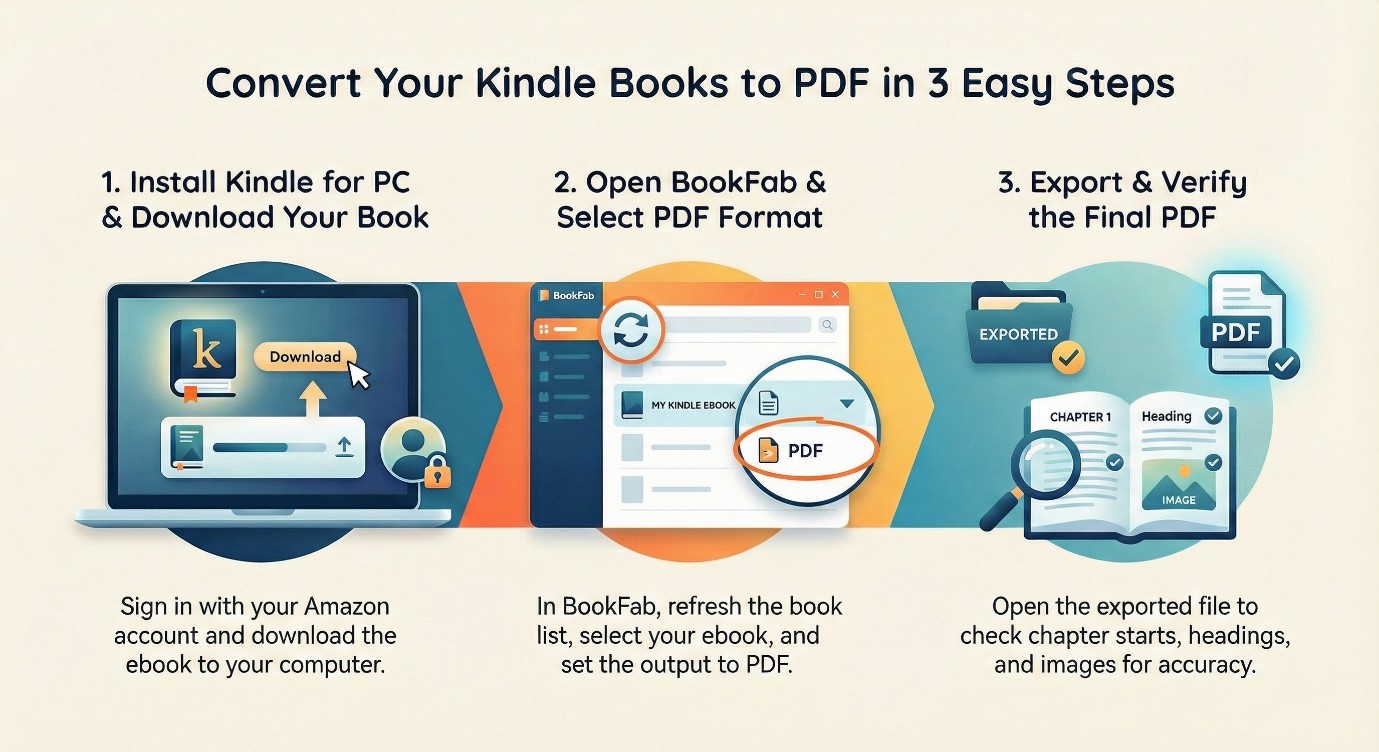
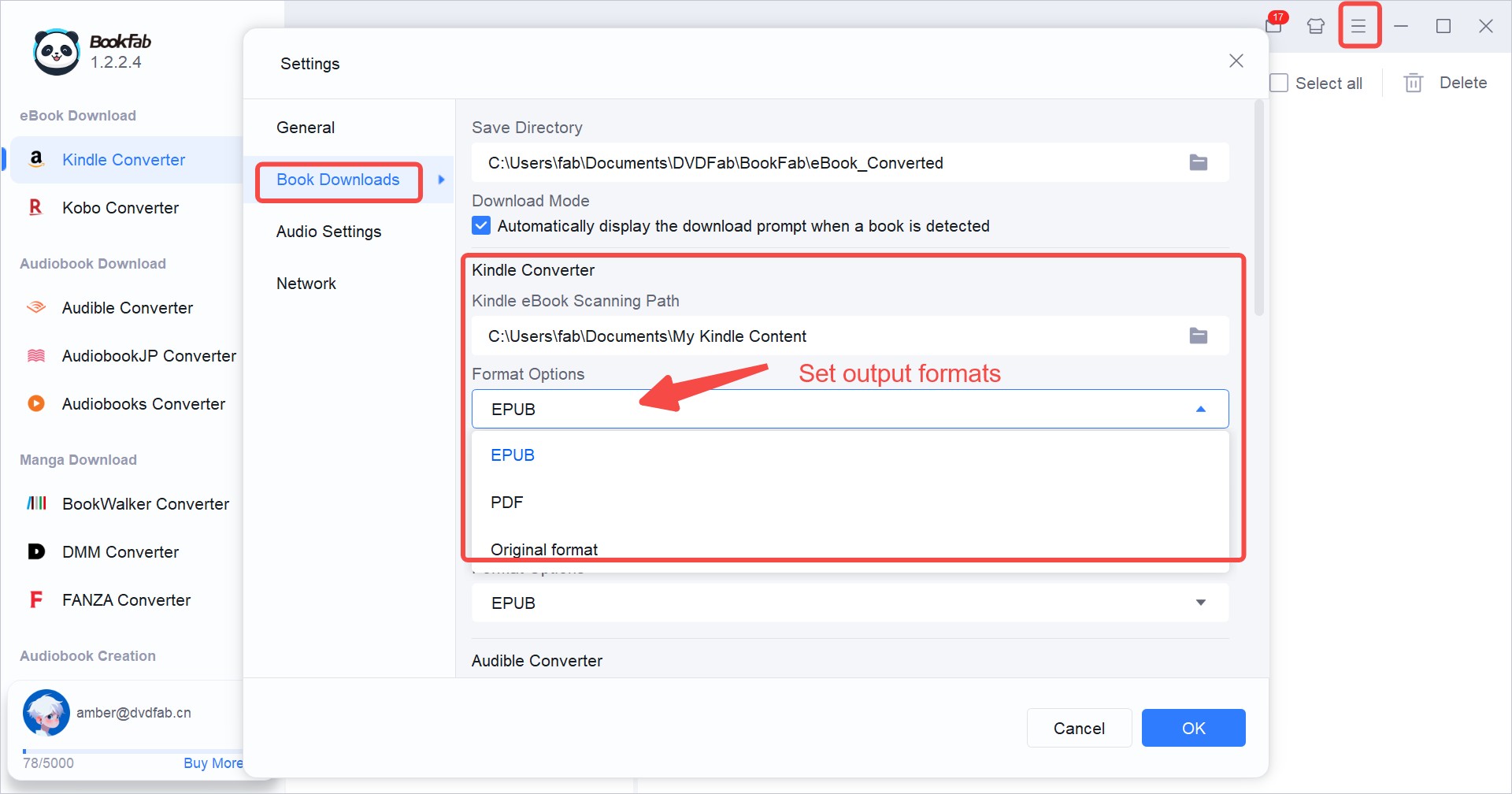
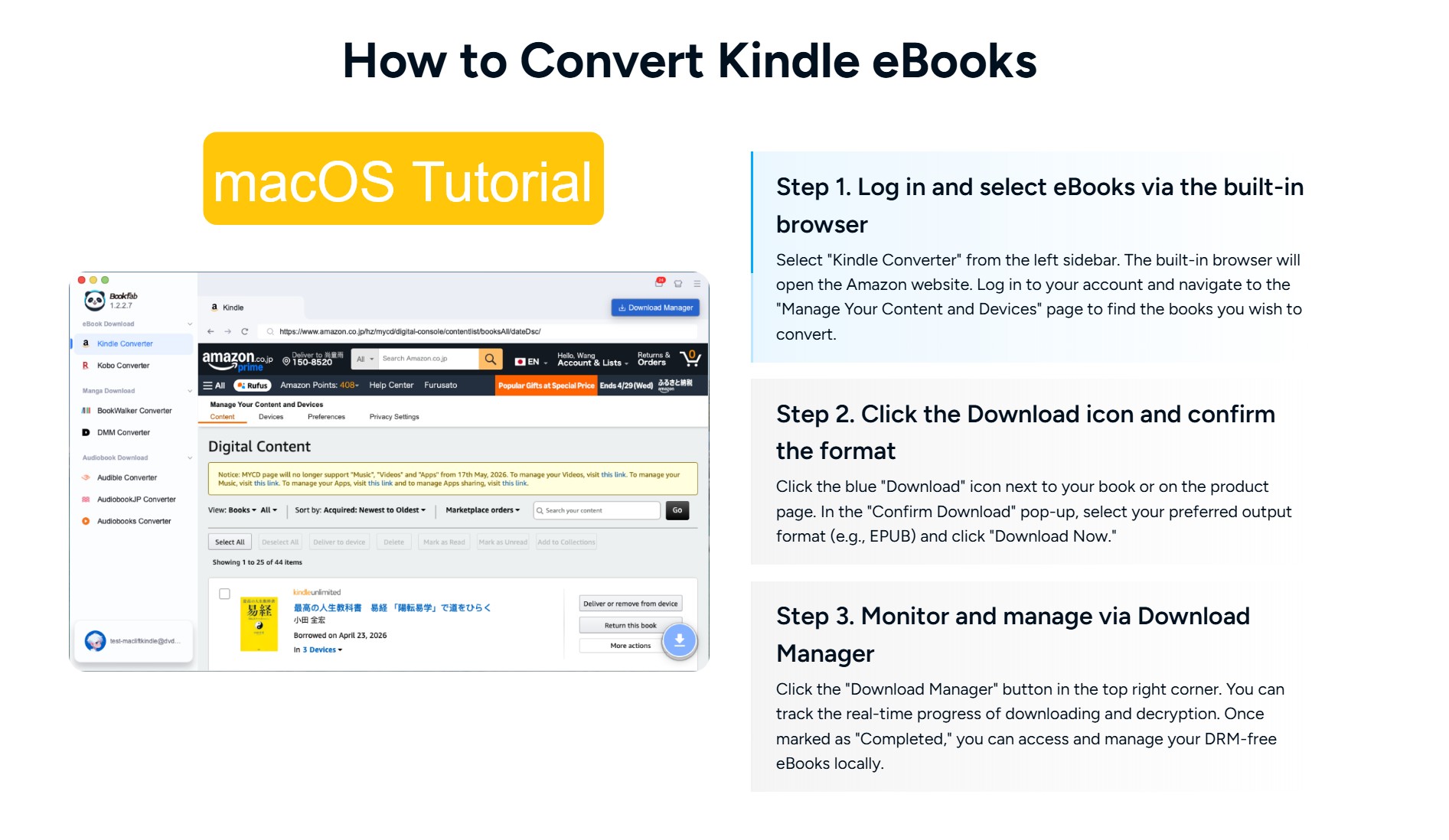
- Install the Windows Kindle app, sign in to the account authorized for the books, and download supported titles locally.
- Open BookFab Kindle Converter and refresh the detected local book list.
- Select PDF in the format options, choose the titles, and start the conversion.
- Open the output folder and inspect the cover, title, author information, chapter order, and representative pages.
Protect Formatting in the Output PDF
No AZW3-to-PDF method can promise identical pages for every book. AZW3 text can reflow as screen and font settings change, while PDF fixes words and images onto defined pages.
This reflowable-to-fixed-layout change affects margins, fonts, images, tables, page size, and pagination. A text-led novel often needs less correction than a book with sidebars, multi-column tables, footnotes, or illustrations beside text.
- Margins: Look for clipped text and unusually narrow columns.
- Fonts: Confirm emphasis, special characters, and line breaks remain readable.
- Images: Check scaling, captions, and overlaps.
- Page size: Open the PDF on its intended device or print setting.
- Pagination: Review chapter starts and blank pages created by forced breaks.
- Complex layouts: Inspect tables, footnotes, sidebars, and illustrated spreads.
Image-heavy books and complex tables carry the highest cleanup risk. For these titles, I prefer a method that lets me revise PDF output settings and regenerate the file rather than accepting the first result.
Fix Common AZW3 Conversion Problems
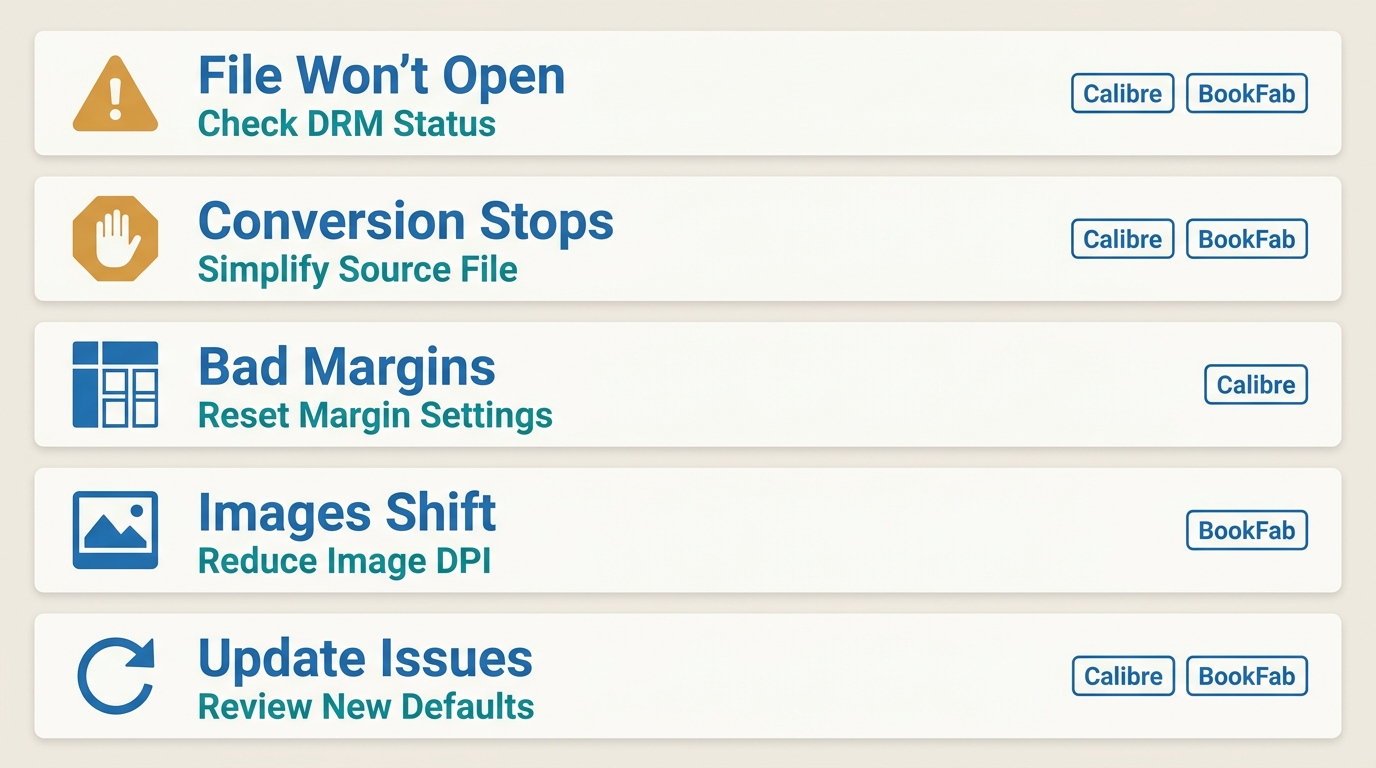
AZW3 conversion errors do not have one universal cause. Separate input access from file damage, unsupported book features, poor PDF settings, and device or firmware behavior before switching tools.
- The file cannot be opened: Confirm the download is complete and the application supports the source and delivery environment.
- The conversion stops: Try another complete copy of the authorized file and check whether an embedded feature causes the failure.
- The PDF has bad margins or page breaks: Revisit page size, margins, fonts, and source styling.
- Images or tables shift: Use local layout controls and inspect affected pages after each change.
- Behavior changes after an update: Check the device, app, delivery method, and firmware environment before blaming the converter.
My first diagnostic question is whether the source opens correctly outside the conversion job. If it does, output settings become the next place to look; if it does not, changing PDF settings is wasted effort.
Frequently Asked Questions
Q
Does Kindle still support AZW3 files?
AZW3 Kindle support can depend on the device or app, delivery method, and firmware. Confirm that the specific Kindle environment opens the file before conversion; one device report does not establish a rule for all Kindle hardware and apps.
A
Q
Can I convert AZW3 to PDF on Linux?
Yes. Calibre is the relevant local route for an accessible, authorized AZW3 file on Linux. Set PDF as the output, then review page size, margins, and font settings.
A
Q
Why does Calibre fail to convert some AZW3 books?
Calibre may fail when the input cannot be accessed, the download is incomplete or damaged, the book contains an unsupported feature, or output settings conflict with its structure. Confirm the source opens normally, then simplify the PDF settings.
A
Q
Should I upload a personal ebook to an online converter?
Use an online service after deciding its retention and privacy terms are acceptable for that file. For sensitive, personal, or licensed material, I favor local processing because it avoids sending the book to a conversion server.
A
Pick the Method That Fits Your File
Use online conversion for a quick, accessible file, Calibre for granular layout control and Linux, or BookFab for a guided local Kindle workflow on Windows. In each case, the content should be authorized for your use.
The best AZW3 PDF converter is the one matching the book's access and layout risk. I would start with Calibre for a complex accessible title, a reputable online converter for one simple nonsensitive file, and BookFab when several supported Kindle books need local task and metadata management.
Before adding the PDF to a library or sending it to a printer, open it in the intended app and check the cover, table of contents, chapter order, margins, and image-heavy pages.

 How to Download Kindle Books in 2026: 5 Current OptionsBy Amber Collins - Aug 26, 2026
![How to Convert Kindle Books to EPUB Easily [2026 Verified]](https://r5.dvdfab.cn/upload/bookfab/en/convert-kindle-to-epub-RDlf.jpg) How to Convert Kindle Books to EPUB Easily [2026 Verified]By Amber Collins - Aug 26, 2026
How to Convert Kindle Books to EPUB Easily [2026 Verified]By Amber Collins - Aug 26, 2026 Kindle DRM Compatibility in 2026: What Still WorksBy Amber Collins - Aug 25, 2026
![[Quick Solution] How to Remove Kindle DRM on Mac](https://images.dvdfab.cn/media/未命名的设计__87__crpyru.png/public) [Quick Solution] How to Remove Kindle DRM on MacBy Amber Collins - Aug 24, 2026
[Quick Solution] How to Remove Kindle DRM on MacBy Amber Collins - Aug 24, 2026