
How to Convert Kindle Books to EPUB Easily [2026 Verified]

Summary: To convert Kindle to EPUB, you can use BookFab Kindle Converter or Calibre with the DeDRM plugin to handle DRM-protected books. Based on our testing, we highly recommend BookFab Kindle Converter for its reliable ability to handle the latest Kindle encryption and format conversions.
![How to Convert Kindle Books to EPUB Easily [2026 Verified]](https://images.dvdfab.cn/artifact/2026/08/25/wgWDKY5VU64bT4tCdZNLsV8w7FKZ0rFk/feature_cover.jpg)
Whether you can convert Kindle to EPUB depends first on the source file, its protection status, and its format. Check direct eligibility before choosing a Kindle to EPUB converter, then use a compatible local-file path.
Table of Contents
EPUB can reflow text in many reading apps, while Kindle files may arrive as AZW, AZW3, KFX, or MOBI with different compatibility requirements. This guide puts the file check first, then shows a BookFab route and a Calibre route without treating purchase as a conversion guarantee.
Check Your Kindle File Before Converting
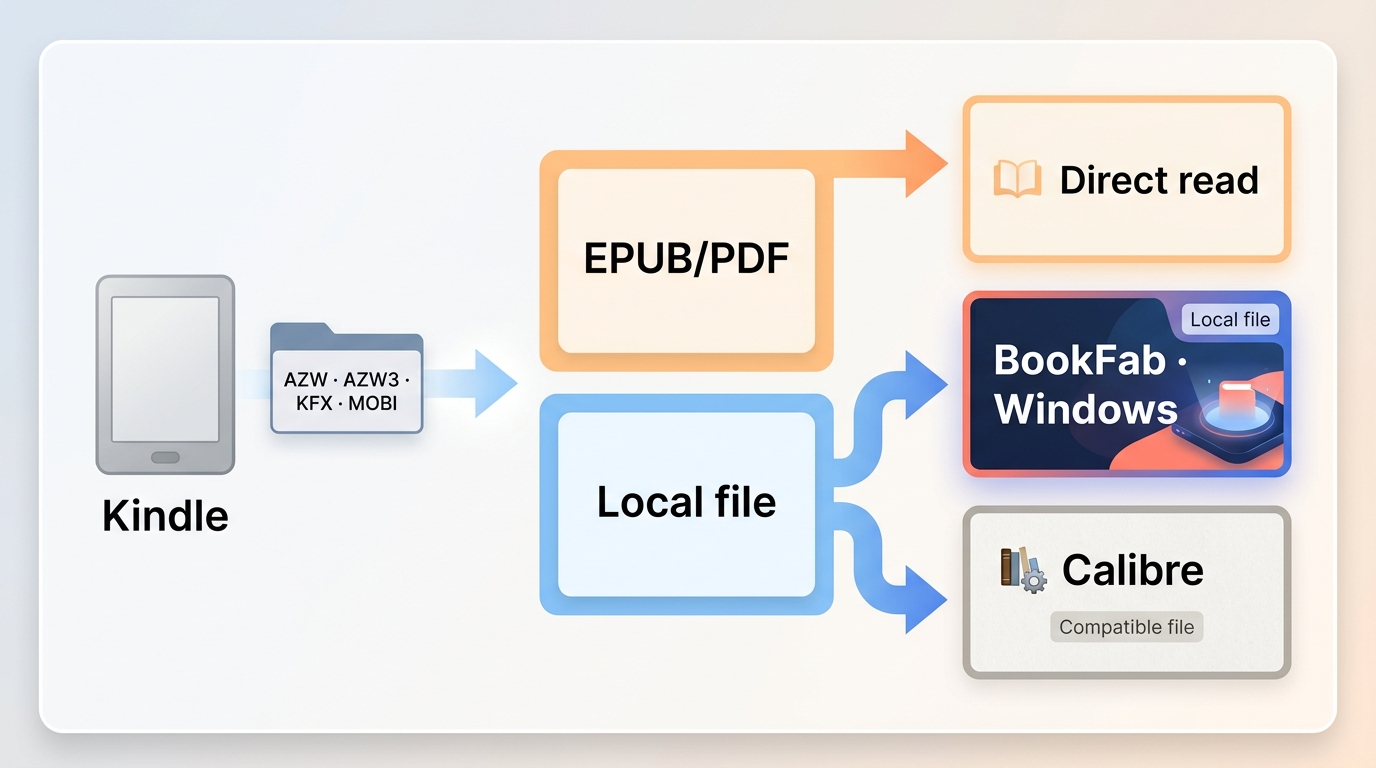
The Kindle EPUB download route is available only for eligible titles. If direct access is not offered, the Kindle file formats and the way the file is stored determine whether you can convert Kindle to EPUB cleanly.
Direct Download or Conversion?
A Kindle EPUB download may be offered for an eligible, unprotected title. As of August 2026, Amazon has removed Download & Transfer via USB, so a purchase alone does not guarantee a desktop file for conversion. A protected or excluded title needs another authorized local-file workflow that complies with the source terms.
- Check the title and account for an available EPUB or PDF download.
- Make sure the source is stored locally, not just shown as a cloud placeholder.
- Record the file type and operating system before selecting a converter.
Format and Method Compatibility
Kindle file formats include AZW, AZW3, KFX, and MOBI, but the extension alone does not determine the result. AZW to EPUB conversion is usually tied to a compatible local file, while KFX to EPUB can depend more heavily on the app, device, and version combination. A focused AZW3 to EPUB converter or KFX to EPUB guide should be treated as a format-specific path, not a universal promise.
Method 1: Use BookFab on Windows
For content you're authorized to access, where permitted by platform terms and applicable law, BookFab Kindle Converter provides a guided Windows route for supported Kindle content. It can output EPUB or PDF, detect local Kindle books, batch tasks, and retain key metadata such as the cover, title, and author where supported.
The verified BookFab setup in this guide uses the Windows Kindle app. Readers searching for Kindle conversion on Mac should use a compatible local-file method such as Calibre rather than assume the Windows product steps transfer unchanged. BookFab is not necessary when an eligible EPUB is already available.
Step 1. Open Kindle Converter
Install BookFab, open the Kindle module, and select the Kindle Converter workspace. The BookFab Kindle Converter page describes the supported desktop module and output choices.
Step 2. Make Books Available Locally
Use an eligible Kindle app or account path to make the books available on the computer, then refresh the library in BookFab. The Kindle download guide covers the source-file step, while the BookFab Kindle Converter setup page provides product-specific detection context. A cloud placeholder, an unsupported folder, or an older app state can prevent a title from appearing until the local copy and library location are corrected.
Step 3. Choose EPUB Output
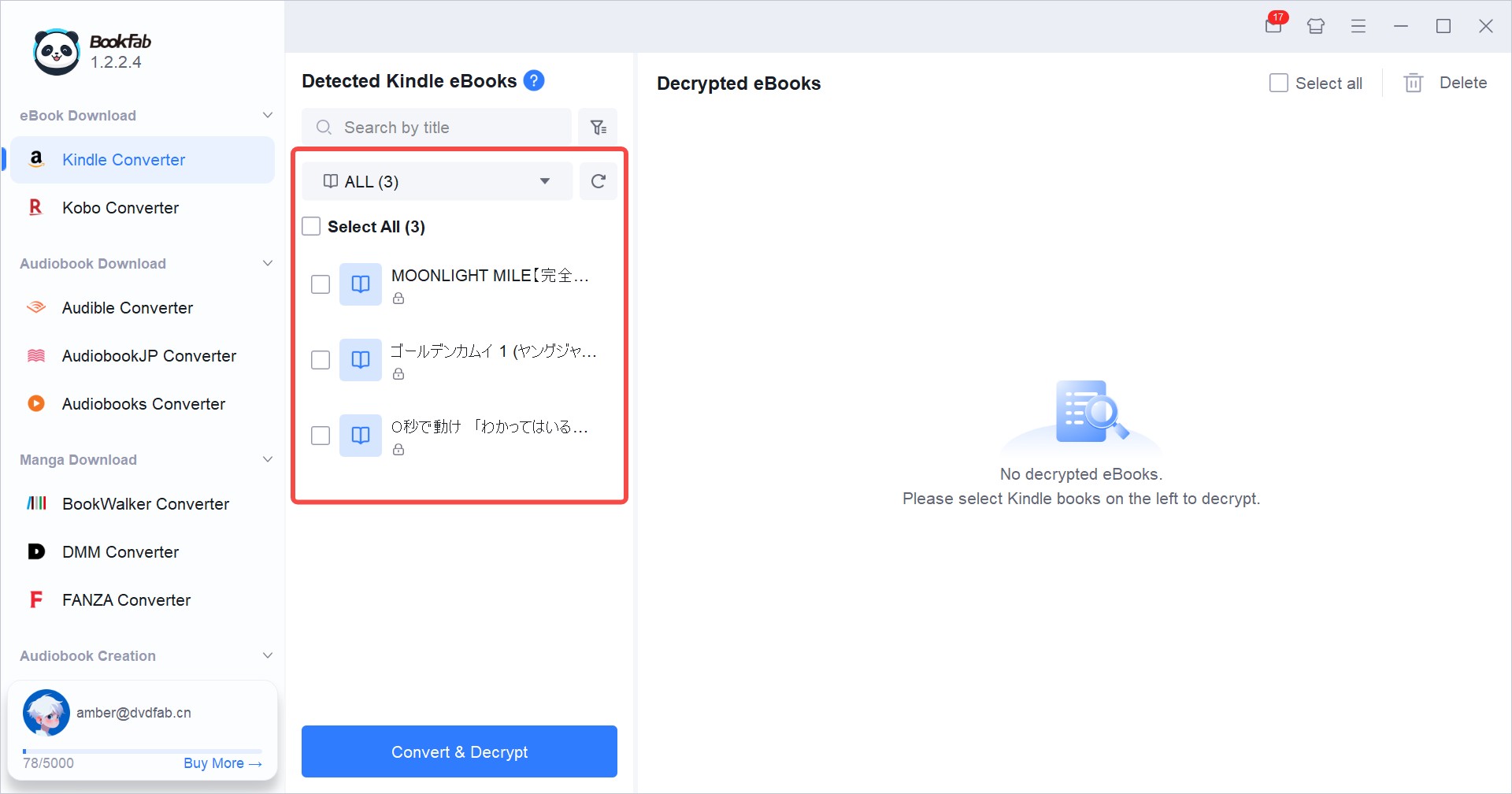
Open the Kindle Converter settings, choose EPUB as the output format, and save the selection. PDF is also listed for this product, but EPUB is the better starting point when the destination reader needs adjustable text.
If you need a fixed-layout result instead, a Kindle to PDF workflow is more suitable for page-preserving reading and printing.
Step 4. Convert and Review
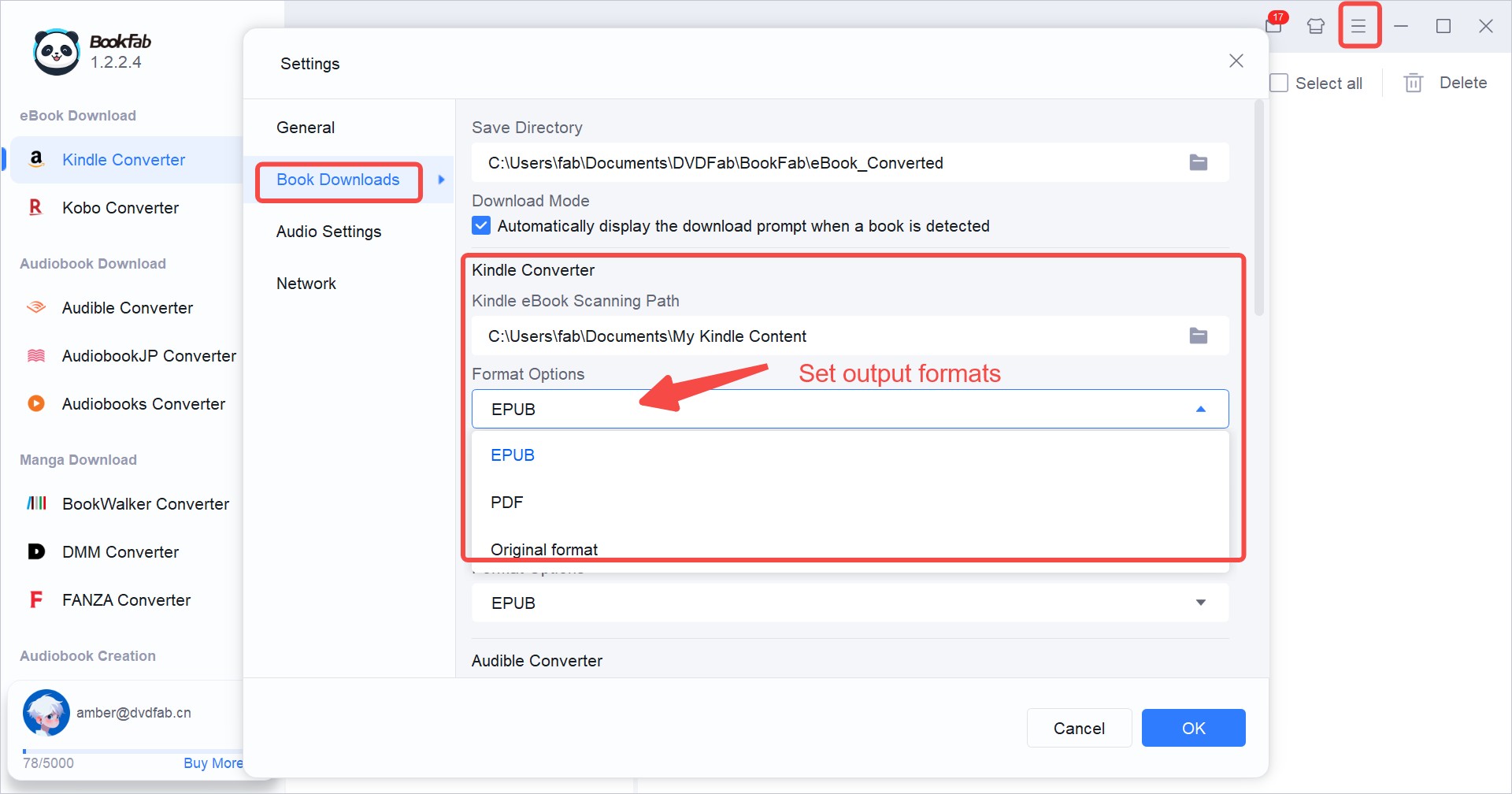
Select the locally available titles and start the conversion. When the task finishes, open the output folder from the book entry and inspect the EPUB in the reading app you plan to use. I check the cover, table of contents, chapter links, paragraph spacing, and image-heavy pages rather than stopping when the file merely opens.
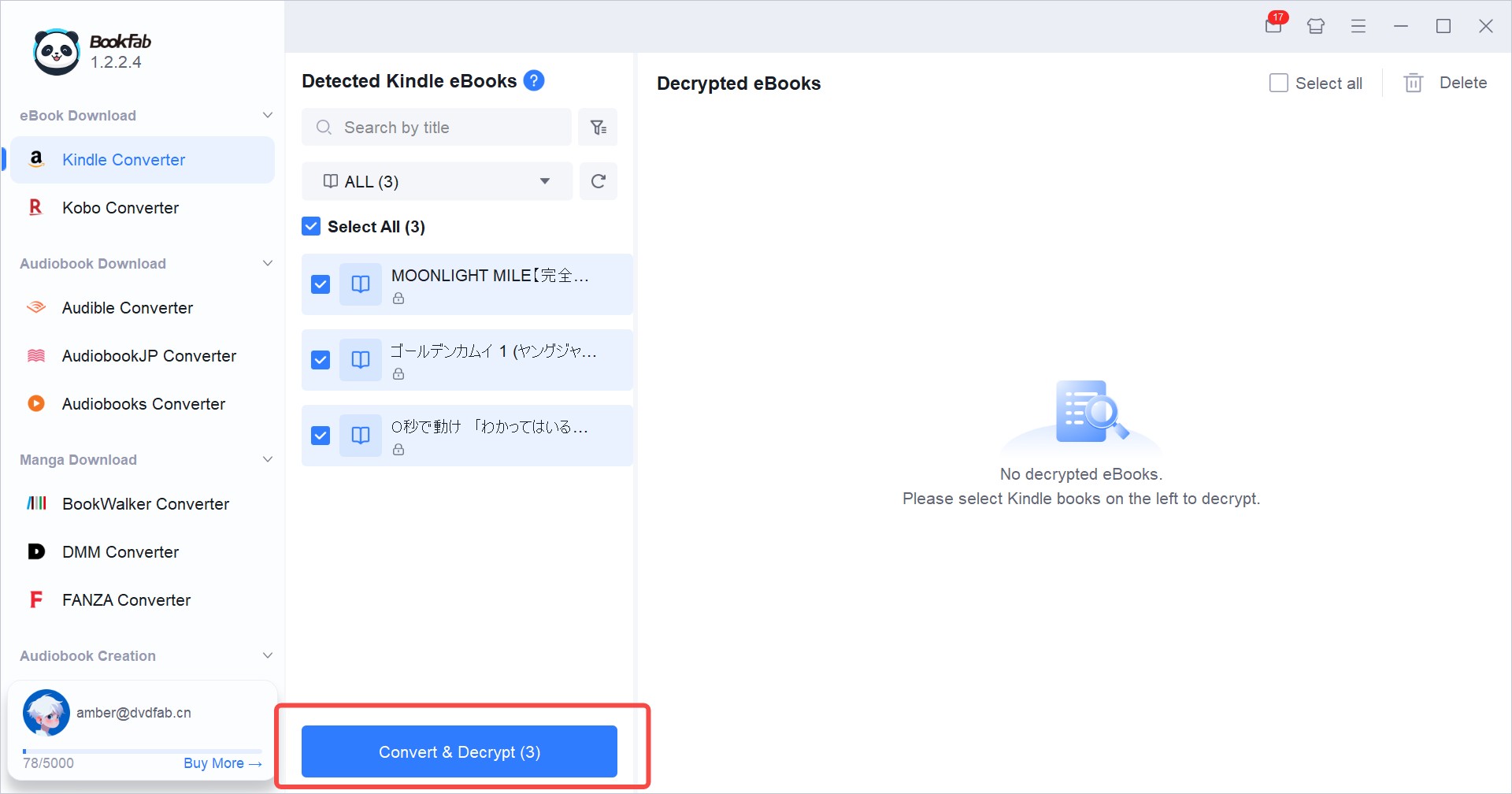
On Windows, the result is a local copy for personal reading where the source and platform terms permit it. A limited trial is available, with the allowance governed by the product's trial terms; testing one representative title is a sensible purchase check.
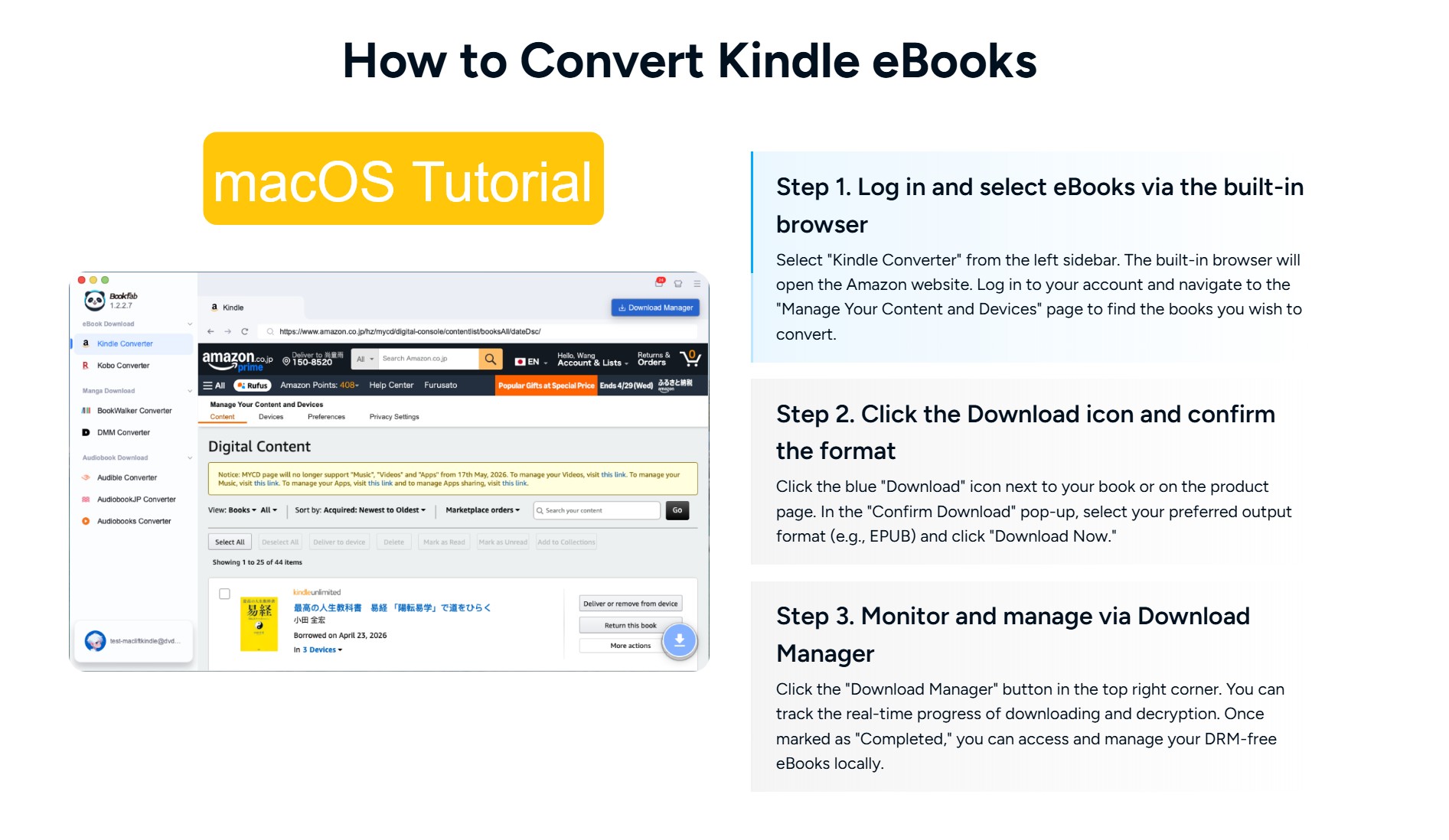
BookFab is a reasonable fit for readers who want a guided Windows process, local library detection, and batch task handling. It is not a necessary choice for someone who already has an eligible DRM-free EPUB download or who prefers a free library manager. Readers who already work in Calibre can review the separate BookFab Calibre plugin as a compatibility option, subject to its own requirements.
Method 2: Convert Compatible Files with Calibre
Calibre Kindle conversion is conditional: Calibre is a free, cross-platform library manager that converts compatible local Kindle files to EPUB, but a protected or newer KFX source can fail when the surrounding setup does not match. This Kindle to EPUB Calibre path suits readers who already have a usable local file and want detailed metadata control.
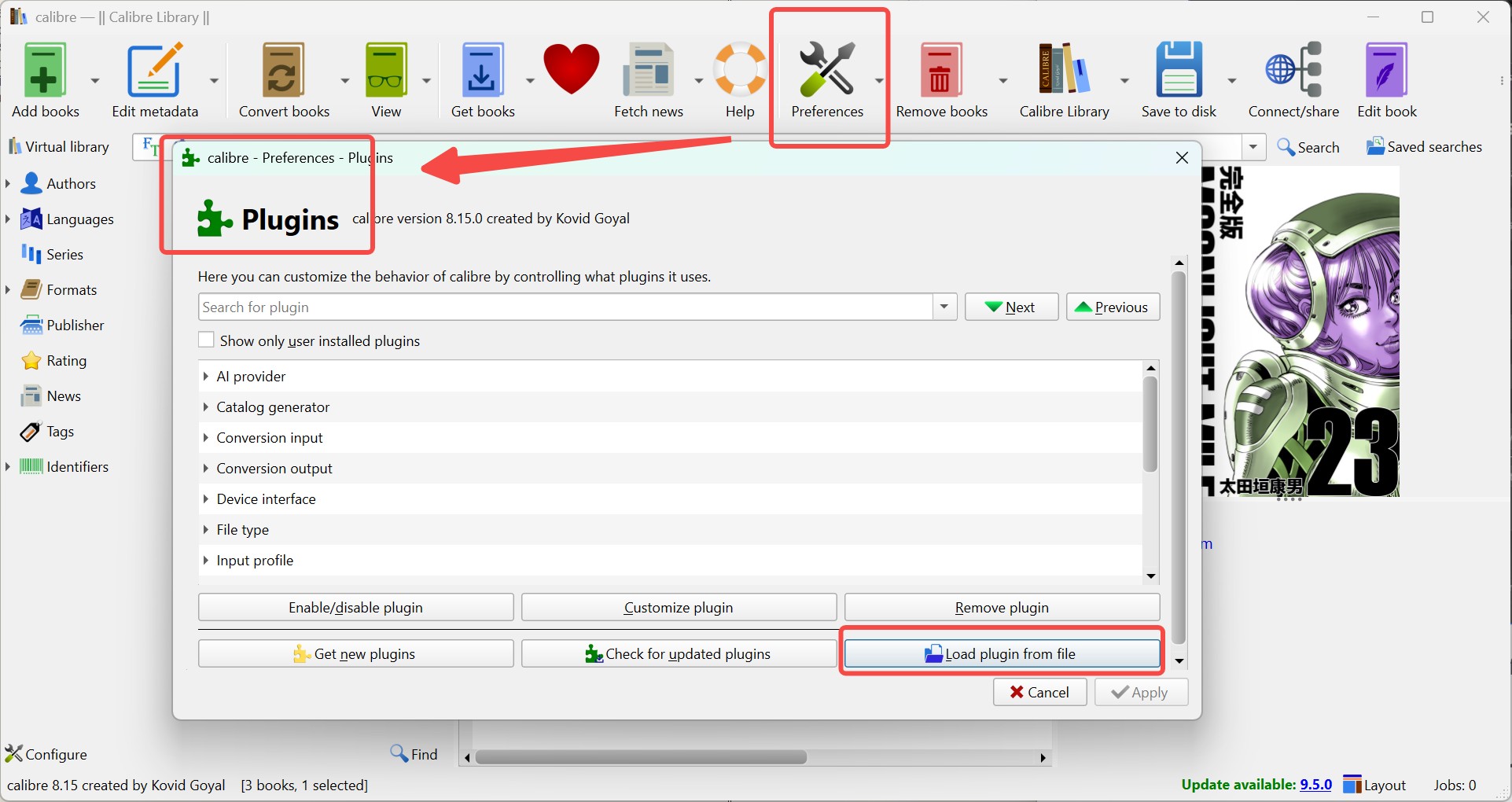
Step 1. Check Versions and Plugins
Before importing anything, identify the local file source, the Kindle app or device that created it, the Calibre version, and any current format support needed for that file. Calibre itself converts compatible, unprotected local files.
Step 2. Import a Local Kindle File
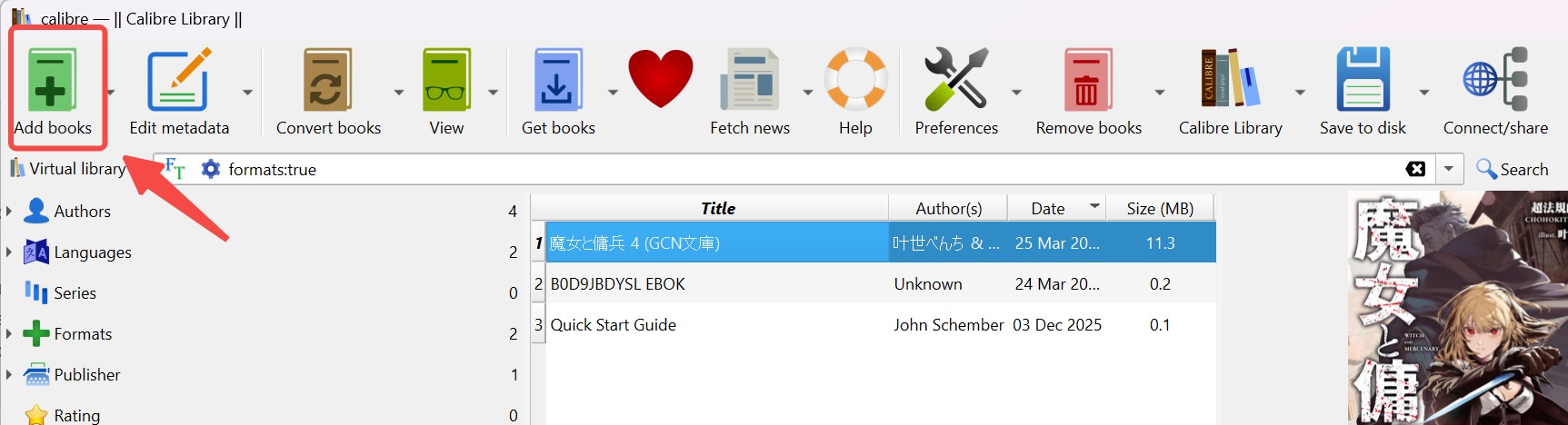
Use the current eligible source path to place a complete Kindle file in a local folder, then open Calibre and choose Add books. Do not treat a cloud placeholder as an importable file, and do not rely on the retired USB transfer route as a general acquisition method.
Step 3. Convert and Inspect the EPUB
Select the compatible local book, choose Convert books, set EPUB as the output, and open the result in the target reading app. Check the cover, table of contents, chapter links, fonts, and pages with illustrations before adding the file to the main library.
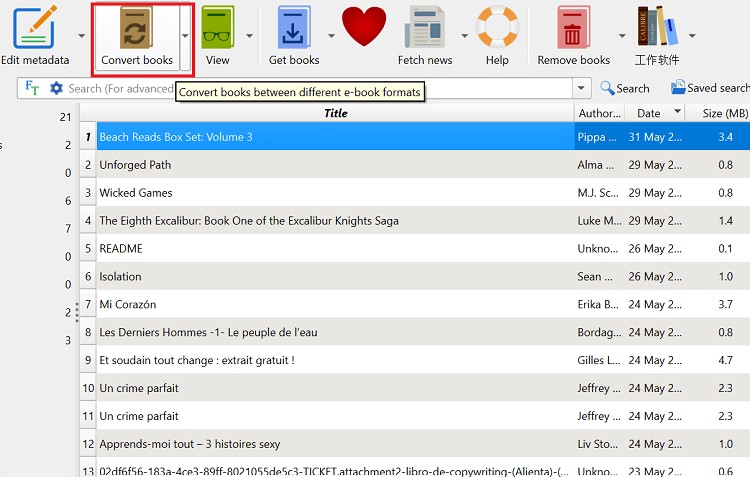

Calibre converts compatible local Kindle files to EPUB; protected or unsupported sources may not import successfully.
- Confirm that the source file is fully stored locally, not a cloud placeholder.
- Open Calibre and choose “Add books”.
- Select the local AZW, AZW3, MOBI, or other compatible file.
- Choose “Convert books” and set EPUB as the output.
- Review the cover, table of contents, chapter links, and image-heavy pages.
- Keep the converted file for personal reading where the source and platform terms permit; do not distribute it.
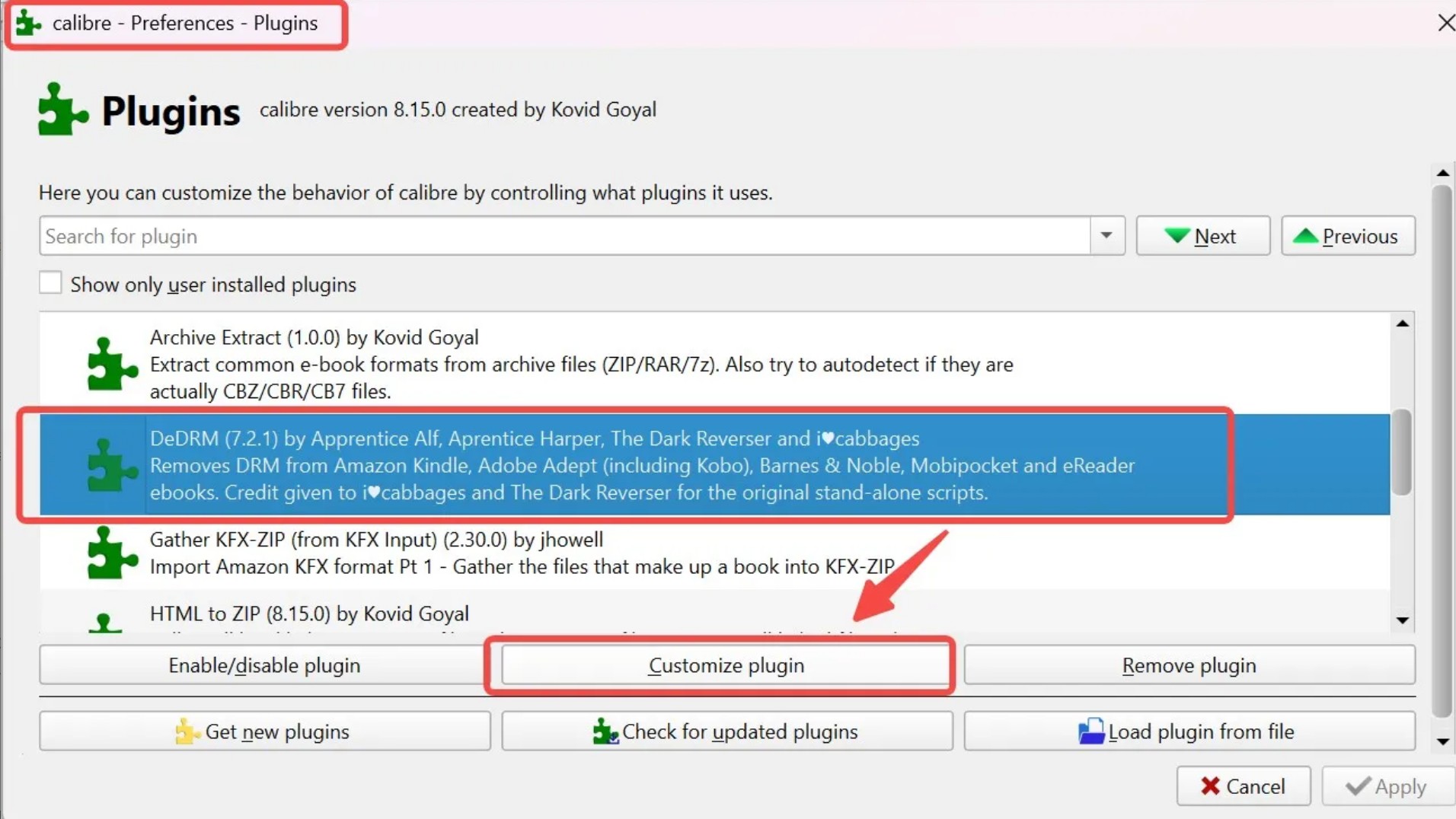
Calibre works across Windows, macOS, and Linux, but plugin and source-file compatibility varies. For Mac-specific compatibility context, see this Kindle protection compatibility note; the conversion steps here remain limited to compatible local files.
Calibre is a good fit when metadata editing and library control matter more than a guided setup. It is not a good fit when the source file is unavailable locally, the format is unsupported, or repeated configuration changes are being used to compensate for an ineligible source.
Fix Common Kindle Conversion Problems
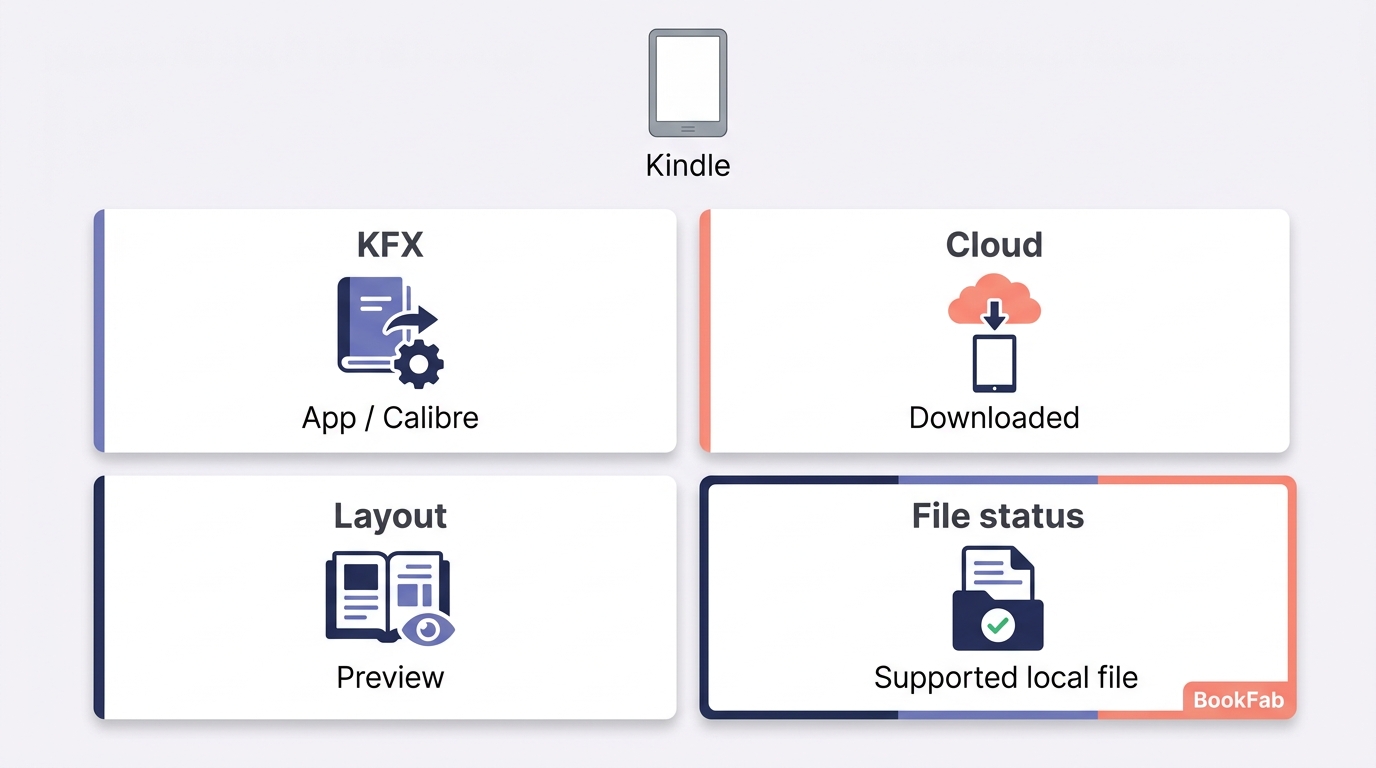
Most Kindle to EPUB failures trace back to the source path, protection state, format handling, or a mismatch between the app and converter. Check those conditions before changing output settings.
A protected-book error appears
Confirm that the title is eligible for the workflow and that the local file is one the converter supports. Calibre converts compatible local files; it is not a general answer for protected sources. BookFab can be considered for supported Kindle content when a guided desktop path is needed.
KFX or version details do not match
KFX handling can depend on the Kindle app or device, Calibre build, plugin state, and file origin. Match those pieces before retrying, and use the format-specific guidance for KFX to EPUB rather than assuming an AZW3 rule applies.
The book remains a cloud placeholder
A title that appears in an app library may not yet be a complete local file. Check the download location, confirm the file opens locally, and refresh the converter's library view. If the source is still a placeholder, changing the EPUB setting will not make it importable.
The EPUB opens but the layout needs cleanup
Reflowable text can change paragraph spacing, chapter links, tables, footnotes, or image placement. I treat the first open as a quality check: verify navigation and metadata, then correct the file in Calibre or choose a different supported route if the source structure is not retained well.
Repeatedly changing plugins is a poor fit when the file source itself is unsupported. Resolving the source and format condition first usually gives a clearer answer than adding more configuration.
Kindle to EPUB Questions
Can I download a Kindle book directly as an EPUB?
Only some titles and accounts expose a direct EPUB or PDF download. If that option is absent, you need an authorized local file before any conversion method can begin.
Does Calibre still convert Kindle books in 2026?
Yes, for compatible local files. A Kindle to EPUB Calibre workflow remains dependent on the source format, app or device setup, and current compatibility; newer KFX or protected files may not convert through Calibre alone.
Can I convert Kindle books to EPUB on a Mac?
The BookFab setup covered here is for Windows. Calibre runs on macOS and can convert compatible local files, but the result still depends on the source format and current app or device compatibility.
May I share an EPUB made from a Kindle purchase?
Keep the converted file for personal reading only where the source terms and applicable law permit it. Do not upload, sell, or distribute the file to other people.
Which Conversion Method Fits Your File?
The right Kindle to EPUB converter is determined by direct-download eligibility, the local file's protection state, Kindle file formats, and how much setup you want to manage. The matrix keeps those conditions in one place.
| Route | Source and protection | Formats | System and setup | Fit and limitation |
|---|---|---|---|---|
| Direct Amazon download | Eligible title; direct EPUB or PDF | EPUB, PDF | Account access; low setup | Best when the file is offered; not for excluded titles |
| BookFab Kindle Converter | Authorized supported Kindle content stored locally | EPUB, PDF | Windows Kindle app; guided | Best for guided desktop use; not needed for an existing EPUB |
| Calibre | Compatible local file; protected or newer KFX may fail | AZW, AZW3, MOBI to EPUB | Windows, macOS, Linux; more setup | Best for metadata control; not for an unsupported source |
My deciding check is the file, not the filename alone: confirm where it came from, whether it is fully local, and whether its format matches the selected route. Open the resulting EPUB in the target app and inspect the cover, table of contents, and image-heavy pages before filing it with the rest of your library.
Use direct download when Amazon offers an eligible EPUB or PDF. Use Calibre when a compatible local file and metadata control are the priority, including on macOS. Use BookFab when a guided Windows process better matches the source and the amount of setup you are willing to manage.

 How to Download Kindle Books in 2026: 5 Current OptionsBy Amber Collins - Aug 26, 2026
 Kindle DRM Compatibility in 2026: What Still WorksBy Amber Collins - Aug 25, 2026
![[Quick Solution] How to Remove Kindle DRM on Mac](https://images.dvdfab.cn/media/未命名的设计__87__crpyru.png/public) [Quick Solution] How to Remove Kindle DRM on MacBy Amber Collins - Aug 24, 2026
[Quick Solution] How to Remove Kindle DRM on MacBy Amber Collins - Aug 24, 2026 AZW DRM Removal Guide: How to Remove DRM from AZW3 & AZWBy Amber Collins - Aug 24, 2026