how to download book in kobo: Official vs Local Files

Summary: Kobo offers different paths for offline reading, account exports, and sideloaded EPUB or PDF files. This guide matches each book source to the right method, explains ACSM files, and shows what to inspect before adding a local file to your library.
If a Kobo title appears in your library but not as a readable file, start with its source. Download purchased or Kobo Plus titles inside Kobo for offline reading, export eligible purchases from your account, or sideload a non-protected EPUB or PDF.
A book can appear on a computer and still be stored in a format you cannot identify or open outside Kobo, which is the file-outcome mismatch behind many searches about how to download books on Kobo for free or after purchase. I treat the word download as unfinished until I know what landed: a managed offline copy, an ACSM delivery link, or an EPUB/PDF I can inspect. The filename matters less than whether the cover, contents, layout, and chapters work where you plan to read. The sections below match the book's source to the least complicated authorized path.
Table of Contents
Start Here: Match the Book Source to the Download Method
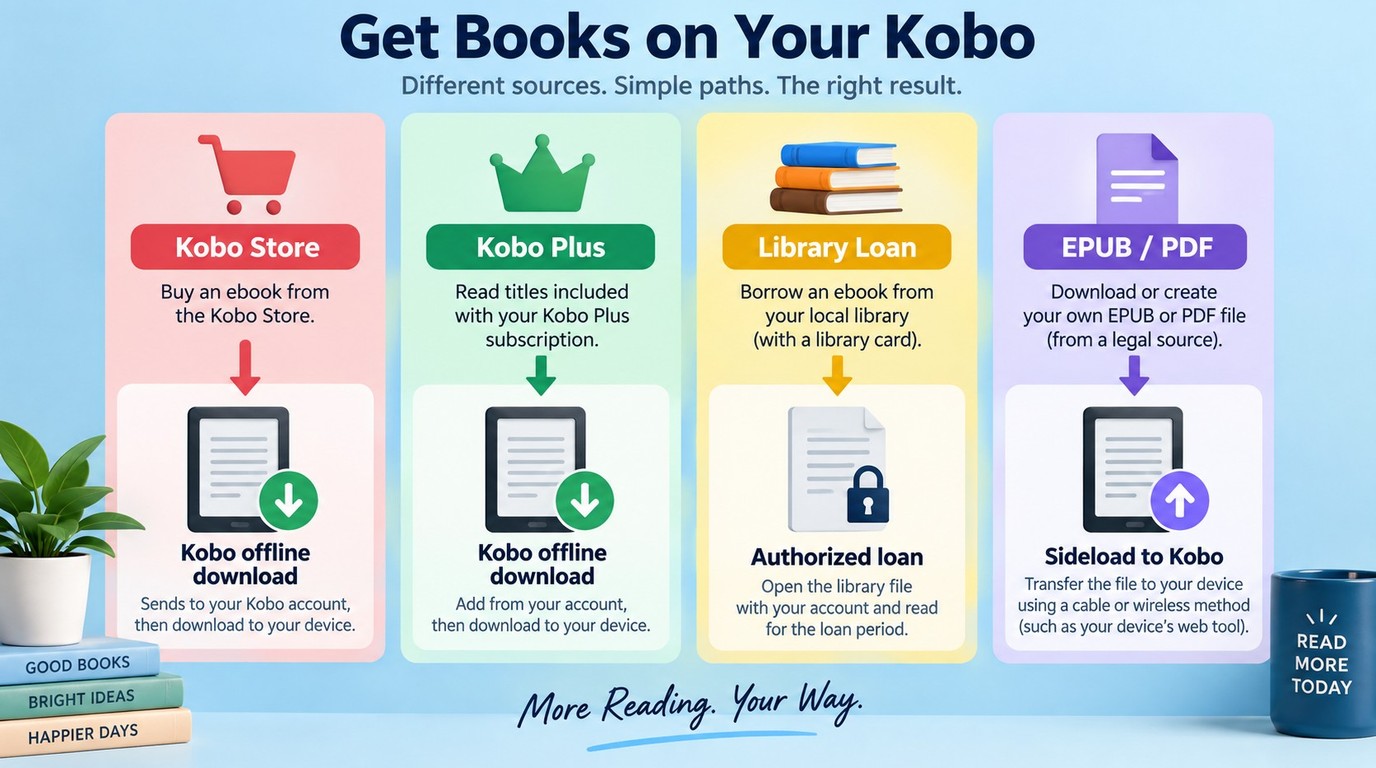
The book's source determines the download method. A Kobo Store purchase, Kobo Plus title, library loan, and independent EPUB or PDF can all appear in a Kobo library, but they do not carry the same access rules or produce the same kind of file.
Identify Where the Book Comes From
Start with the store or service that supplied the title. A purchased Kobo book belongs to your Kobo account. A Kobo Plus title remains tied to subscription eligibility. A library loan follows the library's lending and authorization rules. An EPUB or PDF from a publisher, author, public-domain archive, or your own files starts outside Kobo and must be imported.
This distinction prevents a common mistake: using sideloading instructions for a book that needs account authorization, or searching a desktop cache for a file that Kobo designed to remain inside its app.
Check the Destination and Prerequisites
Gather what the selected path needs before moving the book:
- The Kobo account that purchased, borrowed, or accessed the title
- Wi-Fi for account sync and official downloads
- Free storage on the eReader, phone, tablet, or computer
- A data-capable USB cable for a computer transfer
- Any library or Adobe authorization attached to a loan
The destination matters too. Reading on a Kobo eReader calls for a different result from filing an EPUB on a computer or opening a PDF in another app.
Decide Whether You Need Offline Access or a Local File
An offline Kobo download stays managed by Kobo. It is intended to open inside the Kobo eReader or app without an active connection after the book has fully downloaded.
A local file is different. It is a recognizable EPUB, PDF, or another supported format that you can inspect, name, organize, and import into a compatible reading app or device. My early choice is always based on that final reading need, not on which button happens to say Download.
How Kobo Downloads Differ from Exports and Sideloaded Files
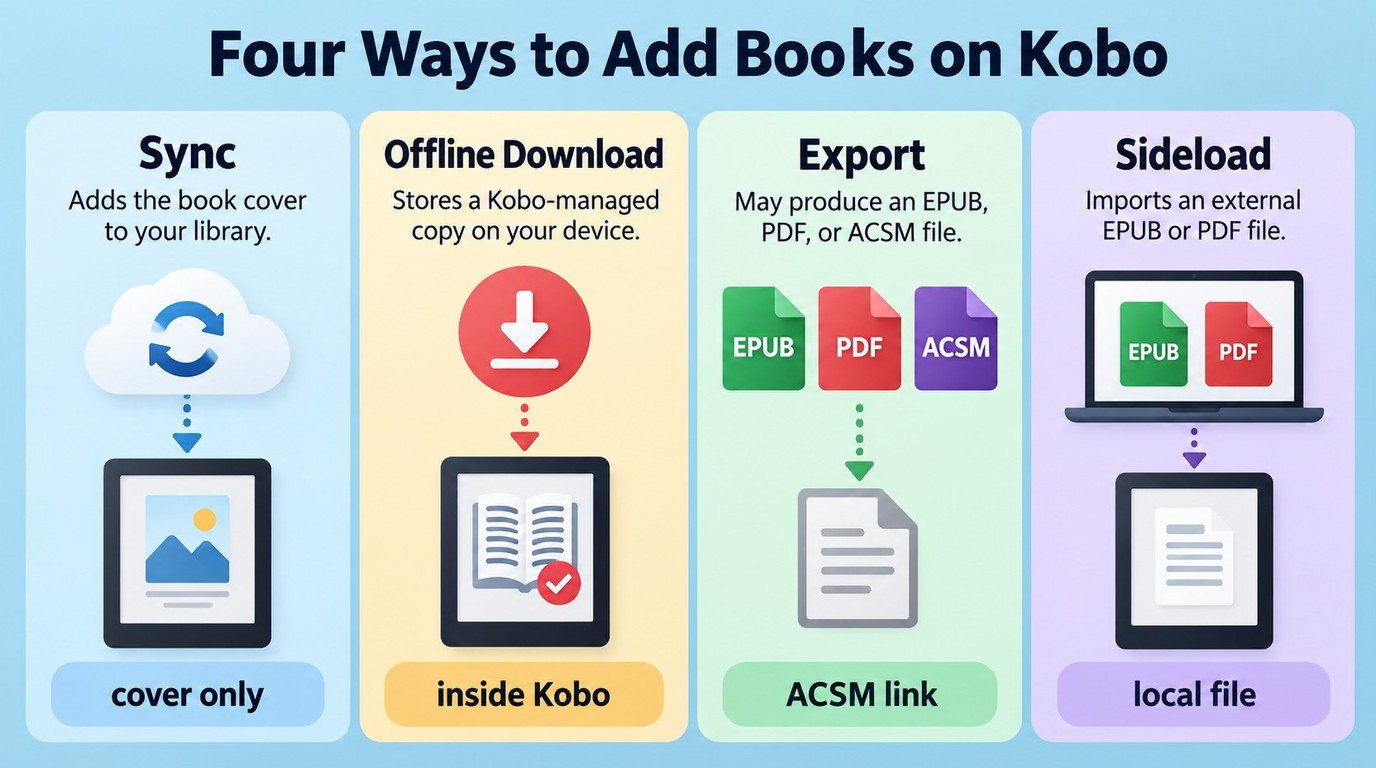
Syncing updates your account library, downloading stores a Kobo-managed offline copy, exporting can deliver an EPUB, PDF, or ACSM link, and sideloading imports a file you already have. These actions may show the same cover afterward, but the stored object is not the same.
Syncing Adds the Title to Your Kobo Library
Syncing tells the device or app which books belong in the signed-in account. A newly purchased title can appear as a cover and library entry before its full reading content is stored on that device.
Look for the download icon or a Download command beside the title. A cover without that completed download is a catalog entry, not proof that the book will open after Wi-Fi is turned off.
Offline Download Stores a Managed Kobo Copy
An official download retrieves the reading content for the Kobo app or eReader. The copy remains associated with Kobo's software, account state, and the access terms for that title. It does not automatically become a portable EPUB in your Downloads folder.
As one Reddit user in r/kobo put it, "Created a Kobo account, can view the comics on my PC, but I would like to download the files. While the Kobo Reader for PC does download the files to my computer, they are in an unreadable format." That observation captures the central distinction: stored on a computer does not necessarily mean readable as an ordinary ebook file.
Exporting and Sideloading Produce Different File Paths
Account export begins with an eligible Kobo purchase. Depending on the title, Kobo may provide an EPUB, PDF, or ACSM file that completes delivery through an authorized reading system.
Sideloading begins with a non-protected EPUB or PDF already on your computer or phone. You copy or send that file to the Kobo, let the device import it, and then check how it reads. Export moves outward from the Kobo account; sideloading moves an external file into the Kobo library.
How to Download a Book on a Kobo eReader or App
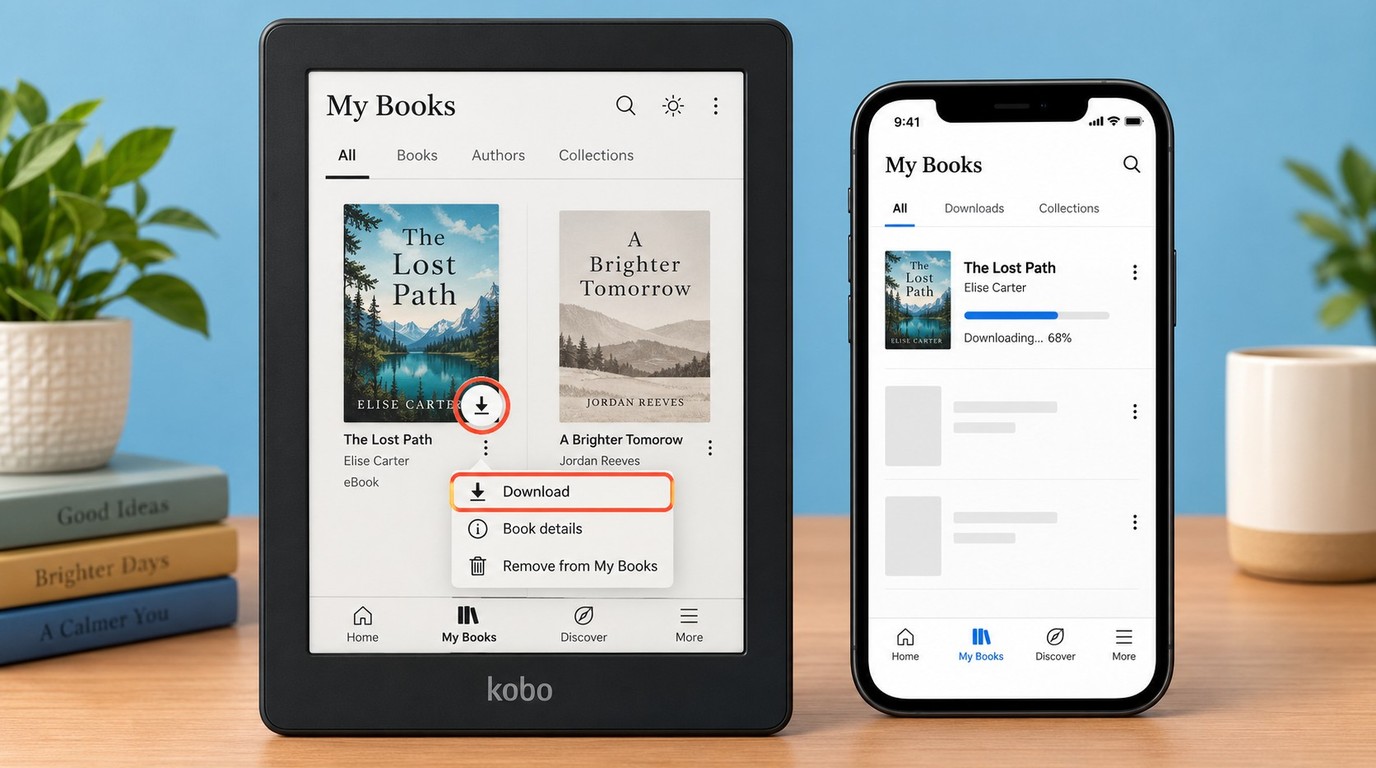
To download a purchased Kobo book or Kobo Plus title, sign in with the account that has access, sync My Books, select Download, and open the title once the transfer finishes. The result is an offline Kobo copy, not necessarily a portable EPUB or PDF.
Before You Start: Account, Connection, and Storage
Confirm four items before tapping the book:
- The eReader or app uses the correct Kobo account
- Wi-Fi or mobile data is working
- The device has enough free storage
- My Books has completed a recent sync
If the title is a Kobo Plus book, confirm that it still appears as available through the subscription. For a library loan, use the library account and authorization path rather than treating it as a store purchase.
Download from My Books on a Kobo eReader
Work through these steps in order:
The final open matters. Turn several pages and use the table of contents so you know the reading content arrived, not merely the cover and metadata.
Download in the Kobo Mobile or Desktop App
The app route follows the same account logic:
On a phone or tablet, the book is then available inside the Kobo app. Kobo Desktop likewise manages its own local content. Neither result should be mistaken for a normal EPUB that another reader can open directly.
Confirm the Book Is Available Offline
Disconnect from Wi-Fi only after the download indicator has cleared. Open the book, move beyond the first page, jump to a later chapter, and return to the library. A book that passes those checks is ready for offline reading in that Kobo environment.
I also look at the cover and chapter list because those two details reveal incomplete downloads quickly. A blank cover is inconvenient; a broken table of contents changes how the book can be read.
How to Add EPUB and PDF Books to a Kobo eReader
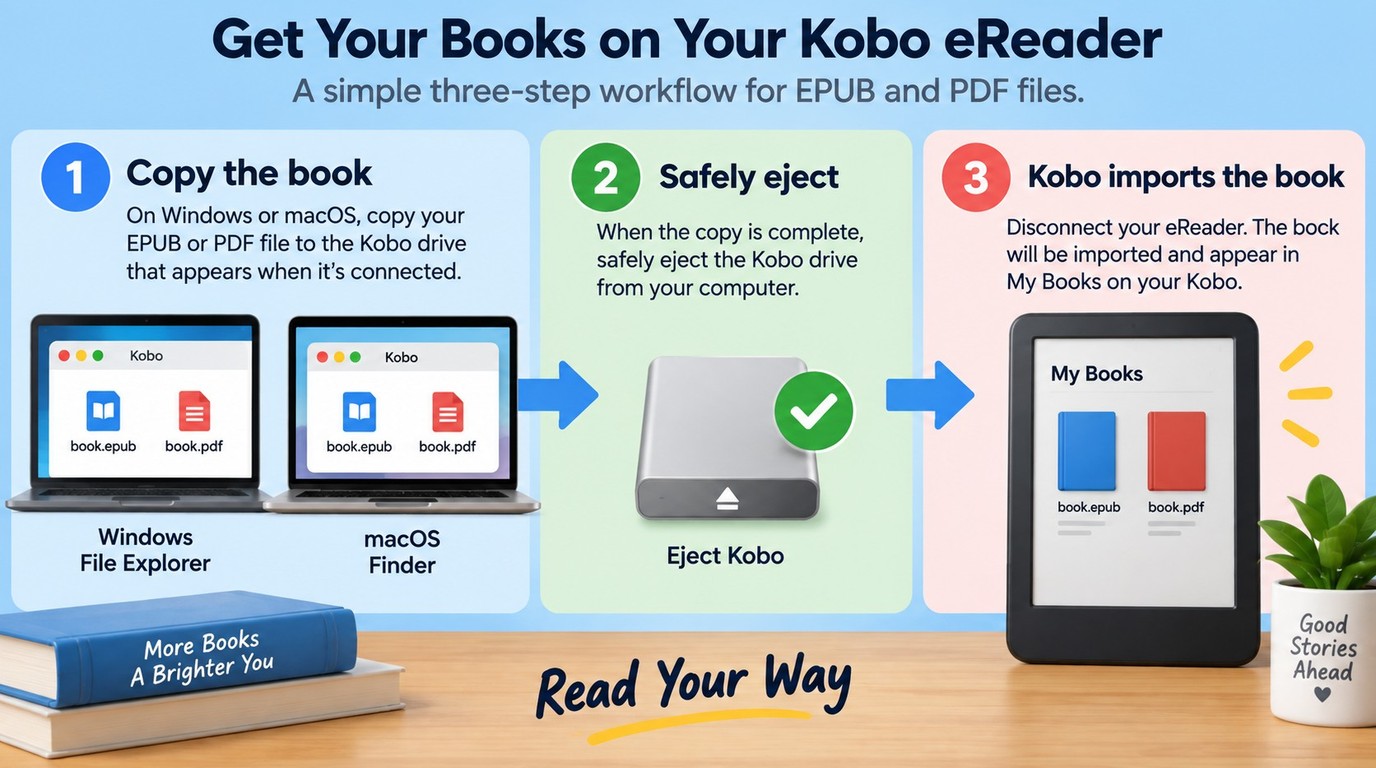
You can add a non-protected EPUB or PDF by copying it to a connected Kobo, safely ejecting the device, and allowing the library to import it. Transfer is complete only when the title appears in My Books, opens, and remains readable on the Kobo screen.
Transfer by USB on Windows or macOS
Use one shared procedure for both systems:
The same file check applies when you transfer Kindle books to Kobo: the file must be in a format the Kobo can import, and transfer does not change the rights attached to the source book.
Safely Eject the Kobo and Let It Import the Book
Eject the Kobo through Windows or macOS before unplugging it. The device then scans the copied file and adds it to My Books. Interrupting that stage can leave a complete file on the drive but no usable library entry.
Give the import screen time to finish before reconnecting the cable. If the title does not appear, test one known-good EPUB instead of copying the same folder again.
Use a Supported Wireless Transfer Option
Some Kobo models and software versions expose a supported browser or cloud transfer option. When that feature appears on your device, upload a compatible EPUB or PDF through the service shown there, then open My Books after the Kobo finishes importing it.
Device support is the named variable here. A wireless service shown on one Kobo model should not be assumed to exist on another, and a cloud upload still needs the same file-integrity and layout checks as USB.
Send a Book from a Phone Without Duplicating the USB Steps
A phone can supply the file when the Kobo offers a supported wireless handoff. Save the EPUB or PDF in the phone's Files app or supported cloud service, send it through the Kobo feature, and wait for the title to appear in My Books.
If the eReader has no compatible wireless import option, move the file from the phone to a computer first and use the USB steps above. The phone is then the source of the file, while the computer performs the transfer.
Check Layout, Cover, and Chapter Navigation
Opening the first page is not enough. I inspect a sideloaded book as a book, not as a successful copy operation. Check these four reading outcomes:
- Readability: Change the font size in EPUB; zoom a PDF page.
- Navigation: Open the contents and jump to two chapters.
- Library organization: Confirm the cover, title, and author display correctly.
- Page behavior: Inspect illustrations, tables, footnotes, and special characters.
EPUB usually gives text room to reflow on a smaller screen. PDF preserves page geometry, so designed pages stay recognizable but may require zooming and panning.
How to Download Free Books to Kobo Legally
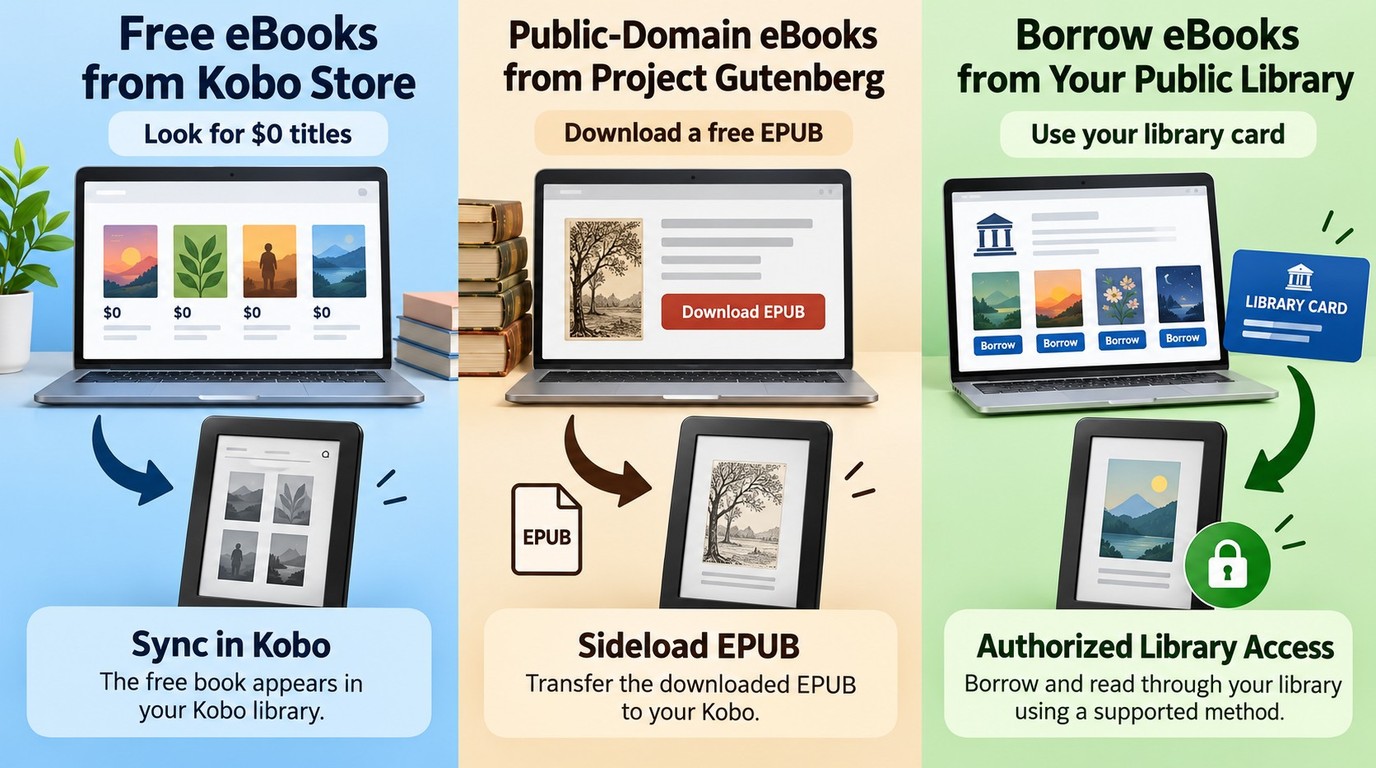
To download books on Kobo for free, use zero-price Kobo Store titles, reputable public-domain libraries, or a supported public-library loan. Confirm the source has the right to distribute the book, then use Kobo's official download or sideload a compatible EPUB/PDF.
Find Free Titles in the Kobo Store
A zero-price Kobo Store title is added to your account like another store book. Complete the account action, sync My Books, and download the title on the eReader or app. Check whether the listing is a free purchase, a Kobo Plus title, or a time-limited promotion, because those labels describe different access terms.
The useful result is not merely a $0 checkout. It is a title that remains identifiable in your account and opens through the expected Kobo reading path.
Use Reputable Public-Domain Ebook Sources
Public-domain libraries such as Project Gutenberg distribute books whose copyright has expired in the relevant jurisdiction. Download EPUB when adjustable text matters; choose PDF when the source is page-designed and the Kobo screen is large enough for it.
Inspect the download page, file extension, title, and author before transferring anything. A recognizable source and a recognizable file provide a much firmer library foundation than an anonymous PDF repost.
Borrow Through a Supported Public Library Service
Library books remain loans. Availability depends on the library, region, Kobo model, and the account or Adobe authorization used for delivery. When your Kobo offers direct library integration, borrow and sync through that account. When the library supplies an ACSM link, complete fulfillment through the authorized Adobe path before transferring the resulting book.
As one Reddit user in r/kobo asked, "I am new to these things, is there anyone who gets there books 100% free like not buying through the store, because that is what I am planning to do. If so, how do you all get free books and is there any difference when downloading them free and from the store?" The difference is the source and its rights: free store books, public-domain files, and library loans are not interchangeable.
Inspect Free Files Before Bulk Sideloading
Test one book before importing a folder. Check:
- The source is entitled to distribute the title.
- The extension is EPUB or PDF, not an installer or archive.
- The filename identifies the book and author.
- The Kobo imports it without creating a duplicate.
- The cover, contents, pages, and images render correctly.
Only then add more files in small groups. A single malformed book is easier to identify than one problem hidden inside a large transfer.
Why a Kobo Download May Be ACSM or Unreadable
An ACSM file is a small delivery instruction, not the finished ebook, while a Kobo app cache can contain protected data meant for Kobo's own software. Complete the required authorization or use an eligible local-file method instead of renaming an unreadable file to EPUB.
ACSM Is a Fulfillment Link, Not the Finished Ebook
ACSM stands for Adobe Content Server Message. It tells authorized software how to obtain the actual ebook and which account may open it. Its small size and unfamiliar extension make it easy to mistake for a failed download.
As one Reddit user in r/kobo wrote, "I downloaded a free Kobo ebook on my computer with the intention of adding it to Calibre. Rather than downloading as an EPub like all the other files I've ever download, it download as a Adobe Content Server Message and only compatable with Adobe Digital Reader." The wording is rough, but the file distinction is exact: the ACSM starts delivery; it is not the final EPUB.
Open the ACSM through the authorized Adobe Digital Editions setup attached to the purchase or loan. If authorization fails, fix the account and device authorization rather than changing the extension.
A Desktop App Cache Is Not a Portable Library
Kobo Desktop can store enough data to open a book inside the app while leaving files that other readers cannot identify. Those files form part of an application-managed library. Copying one out of the cache does not turn it into a complete EPUB with a cover, contents, and readable chapters.
My verdict is simple: a cache folder is the wrong place to judge whether you have a usable ebook. Judge the result in the destination reader, then inspect the book's navigation and layout.
Purchased Books, Kobo Plus Titles, and Library Loans Have Different Access Rules
A purchase, subscription title, and loan may use similar download controls, but download or conversion does not rewrite their terms. A purchased title follows the store license. Kobo Plus access follows the subscription. A library book follows its loan period and authorization.
Keep that distinction attached to the file in your own records. A descriptive folder name or library tag can prevent a temporary loan from being mistaken for a personally purchased book later.
How BookFab Kobo Converter Creates a Readable Local File
Please note: BookFab Kobo Converter is a third-party desktop tool, separate from Kobo, that can create EPUB, PDF, or original-format files from eligible titles in your Kobo account on Windows or macOS. Use it only for content you are authorized to access, for personal use, and subject to Kobo's terms, copyright law, and local rules.
Prerequisites, Account Safety, and Personal-Use Boundaries
Install BookFab from its official product page and use the Kobo account that holds the purchased book or eligible Kobo Plus title. The built-in Kobo browser keeps account sign-in and title selection inside the installed application rather than sending you to cache folders or a chain of plug-ins.
That concentrated setup is the reason to consider the tool. It is not a reason to treat every title as eligible. Subscription access, loans, shared books, and regional availability retain their original rules, and the application requires Windows or macOS rather than Chromebook or Linux.
Step 1: Sign In Through the Built-In Kobo Browser
Open the Kobo Converter module, enter Kobo through its built-in browser, and sign in. Select a title from the account library after confirming that it is the book you intended to process. For a series, checking the title and author before adding tasks prevents similarly named volumes from entering the wrong folder.
Use the official installer and current account-security controls. No desktop converter can support a blanket safety guarantee, so the meaningful trust checks are the vendor, installer source, sign-in page, and whether the app asks for information unrelated to the Kobo task.
Step 2: Choose EPUB, PDF, or the Original Format
Select EPUB when you want adjustable text on an eReader or phone. Select PDF when page dimensions, illustrated spreads, or a designed reference layout matter more than easy font resizing. Keep the original format when you already know the destination app accepts it and you want to avoid an unnecessary format change.
Format selection is where a usable book is won or lost. A six-inch screen exposes fixed-page compromises quickly, while a picture-heavy book exposes careless reflow.
Step 3: Convert and Track the Task Queue
Add eligible books to the task queue and start processing. BookFab supports batch tasks and task management, with a verified limit of up to 100 items per content source per day. That ceiling makes it useful for a multi-book library, but it is not unlimited processing.
Watch which items are queued, active, and completed. For a large collection, begin with a small set that includes a text-heavy book and an image-heavy book. Those two inputs reveal different output problems before you commit the rest of the collection.
Step 4: Inspect the Exported Book
Open each exported file in the app or device where you plan to read it. BookFab lists preservation of the cover, title, and author among its supported metadata, but those fields are only part of acceptance. Check the table of contents, paragraph spacing, chapter order, illustrations, footnotes, and special characters too.
A converter has not earned a place in your library because it produced an .epub extension. It earns that place when the book remains readable, navigable, and identifiable after export. BookFab is not the right route when Kobo's official offline copy already meets your need or when your computer does not run Windows or macOS.
Free Trial and Current Pricing
The free trial covers up to three eBooks, which is enough to inspect complete outputs across more than one layout type. Paid license terms depend on the regional offer.
Use one trial slot on the title most likely to expose a problem, such as a book with linked chapters, footnotes, images, or a fixed layout. A plain novel can confirm basic text flow, but it cannot tell you how a complex book will behave.
EPUB, PDF, or Original Format: Check the Book Before Filing It
Save as EPUB when text must resize, PDF when page design must stay fixed, or the original format when the destination already supports it. Make the decision by opening one representative book and checking reading behavior, not by treating the extension as a quality score.
| Path | Starts with | Result | Needs | Reading use |
|---|---|---|---|---|
| Kobo app download | Account title | Managed Kobo copy | Account, connection, storage | Reading inside Kobo |
| Kobo account export | Eligible purchase | EPUB, PDF, or ACSM | Account and authorization | Approved external-device path |
| USB/wireless sideload | Non-protected EPUB/PDF | Imported library file | Compatible file, connection | Personal or public-domain books |
| BookFab converter | Eligible account content | EPUB, PDF, or original | Windows/macOS, sign-in | Readable local file |
Source: Kobo Help Center and BookFab Kobo Converter's official product page, as of August 2026.
The table's useful dividing line is the result column. Two paths can begin with the same Kobo account and still end with very different reading objects.
EPUB for Adjustable Text and Small Screens
EPUB lets text reflow to the display. On a Kobo or phone, you can usually change type size, margins, and line spacing without zooming the whole page. After export, check paragraph breaks, chapter links, inline images, tables, and footnotes because reflow can expose weak structure.
PDF for Fixed Pages and Designed Layouts
PDF keeps each page's dimensions and placement. That helps with illustrated books, forms, manuals, and layouts where text and images must remain together. The tradeoff appears on a smaller Kobo: a full page may be reduced until the text is too small, forcing zoom and horizontal movement.
Original Format When Compatibility Is Already Known
Original format avoids a format change, but it is useful only when the target app or device accepts that file. Test the destination first. A source format that opens on a computer may still fail to import into a Kobo library or may display without adjustable text.
Four Checks Before Adding the File to Your Main Library
Inspect one complete book before filing a batch:
- Readability: Text size, spacing, images, tables, and special characters
- Navigation: Contents links, chapter order, footnotes, and return links
- Metadata: Cover, title, author, series, and filename
- Device behavior: Import, opening, font controls, and reading-position resume
These checks turn format choice into a reading decision. The file that passes them on your destination device is the file worth keeping.
Fix Kobo Download, Sync, and USB Problems
Troubleshoot from the least disruptive state outward: verify the account, title status, connection, storage, and cable before deleting downloads or resetting the eReader. This order protects library organization and separates an account problem from a file or hardware problem.
The Book Is Missing from My Books
Check the library state before buying or borrowing the title again:
- Confirm the Kobo account email.
- Sync the eReader or refresh the app.
- Clear filters that hide unread, finished, or downloaded books.
- Look for archived titles or an expired loan.
- Open the purchase or library record tied to the account.
If the title appears on the account website but not the device, the account is likely correct and the sync state needs attention. If it appears under another account, repeated syncing will not move it between libraries.
The Download Stalls or the Book Will Not Open
Use this order:
- Reconnect to a stable Wi-Fi network.
- Confirm available storage and automatic date/time settings.
- Sync the library again.
- Restart the Kobo without resetting it.
- Remove only the local download, then download that title again.
Removing a local copy is different from deleting the book from the account. Read the on-screen command carefully so a repair does not become a library cleanup.
The Computer Does Not Detect the Kobo
USB problems often begin with the cable, not the ebook:
- Unlock the Kobo screen and reconnect it.
- Tap Connect if the device displays a prompt.
- Try a cable known to carry data, not charge alone.
- Move to another USB port without an unpowered hub.
- Check File Explorer or Finder for the mounted drive.
- Restart both devices if the drive still does not appear.
Do not unplug while a file is being written. Once the drive mounts, test with one EPUB rather than transferring the full folder immediately.
The EPUB or PDF Was Copied but Does Not Appear
Safely eject the Kobo and wait for its import screen to finish. Then confirm the extension is .epub or .pdf, the file opens on the computer, and the filename does not duplicate an existing title.
If the book remains missing, remove that one file, reconnect, and copy a known-good EPUB. A successful control file points to a problem in the original book rather than the Kobo connection.
A Library Loan Shows an Authorization Error
Keep the repair inside the library and Adobe authorization path. Confirm that Adobe Digital Editions and the Kobo use the authorization associated with the loan, that the loan remains active, and that the ACSM was opened through the intended account.
If authorization has become inconsistent, remove and reauthorize the affected device through the official software before fulfilling the ACSM again. Resetting the Kobo should come after account and authorization checks, not before them.
Kobo Download FAQ
Can I Read a Downloaded Kobo Book on a Plane Without Wi-Fi?
Answer: Yes, if the book finished downloading inside the Kobo eReader or app before you went offline. Open it once, turn several pages, and test a chapter jump before the trip. A cover that is merely synced to My Books may still need a connection.
ACan I Download Kobo Books on Chromebook or Linux?
Answer: Kobo's browser and supported reading options can still provide account access, but BookFab Kobo Converter is verified for Windows and macOS, not Chromebook or Linux. For an independent EPUB or PDF, use a supported wireless feature on the Kobo or transfer through a computer that can mount the eReader as a drive.
AIs It Safe to Sign In to Kobo Inside a Desktop Converter?
Answer: Sign-in safety depends on the vendor, installer source, and the page that receives your credentials. Use a current installer from the established vendor, confirm that the built-in browser is on Kobo's sign-in flow, and keep Kobo account-security controls enabled. Avoid an unknown tool that asks for unrelated account data or manual credential delivery.
AIs It Legal to Convert a Kobo Book I Purchased?
Answer: A purchase does not create one universal right to convert or redistribute the file. Using an unauthorized client may conflict with Kobo's terms, while sharing or selling copied books raises separate copyright issues. Personal use sits within rules that vary by jurisdiction, so keep the title in your own authorized library and follow Kobo's terms and local law.
AWhere Do I Check the Access Terms for a Downloaded Kobo Plus Title?
Answer: Use Kobo's Kobo Plus subscription terms and the title's account status. A local file does not change whether a book was purchased, borrowed, or supplied through a subscription, and it does not expand the uses allowed by the original access agreement.
ACan Kobo Sync Loans from More Than One Library Card?
Answer: Direct syncing depends on the library integration, region, Kobo model, and which library account is linked. When a second card cannot sync directly, use the lending service's supported fulfillment path, including Adobe authorization when supplied, rather than combining accounts or copying another reader's loan file.
ABottom Line: Choose the Path by the File You Need
Use Kobo's official download when you want offline reading inside Kobo. Sideload a non-protected EPUB or PDF when you already have a lawful file, and use account export or an authorized desktop converter when you specifically need a readable local file. The caveat that matters most is access: downloading, exporting, or converting does not change whether the book was purchased, subscribed to, or borrowed. Before the file joins your main library, open it on the destination device and check its cover, contents, layout, and chapters.

 EPUB DRM Explained: Authorized Access, Calibre Limits, and Kindle OptionsBy Amber Collins - Aug 17, 2026
 Convert iBooks to PDF in 2026: 4 Methods by File TypeBy Amber Collins - Aug 11, 2026
 How to Remove Kobo DRM from KEPUB and ACSM Kobo BooksBy Amber Collins - May 14, 2026