EPUB DRM Explained: Authorized Access, Calibre Limits, and Kindle Options

Summary: EPUB is a file format, while access controls depend on the store, library, and account used to obtain the book. This guide explains ACSM files, authorized Adobe access, Calibre's limits, BookFab Kindle Converter requirements, format quality checks, and responsible personal use.
Table of Contents
An EPUB can fail to open even when the filename looks correct. The source matters more than the extension: an Adobe Digital Editions EPUB, a Kobo EPUB, and a Kindle book use different authorization systems, so one set of instructions cannot safely or reliably cover them all.
The useful first step is to identify the store, account, and actual file type. This article explains authorized access, EPUB format conversion, Calibre limits, and the Windows requirements for BookFab Kindle Converter without treating access-control removal as a tutorial outcome.
Choose the Right EPUB Method First
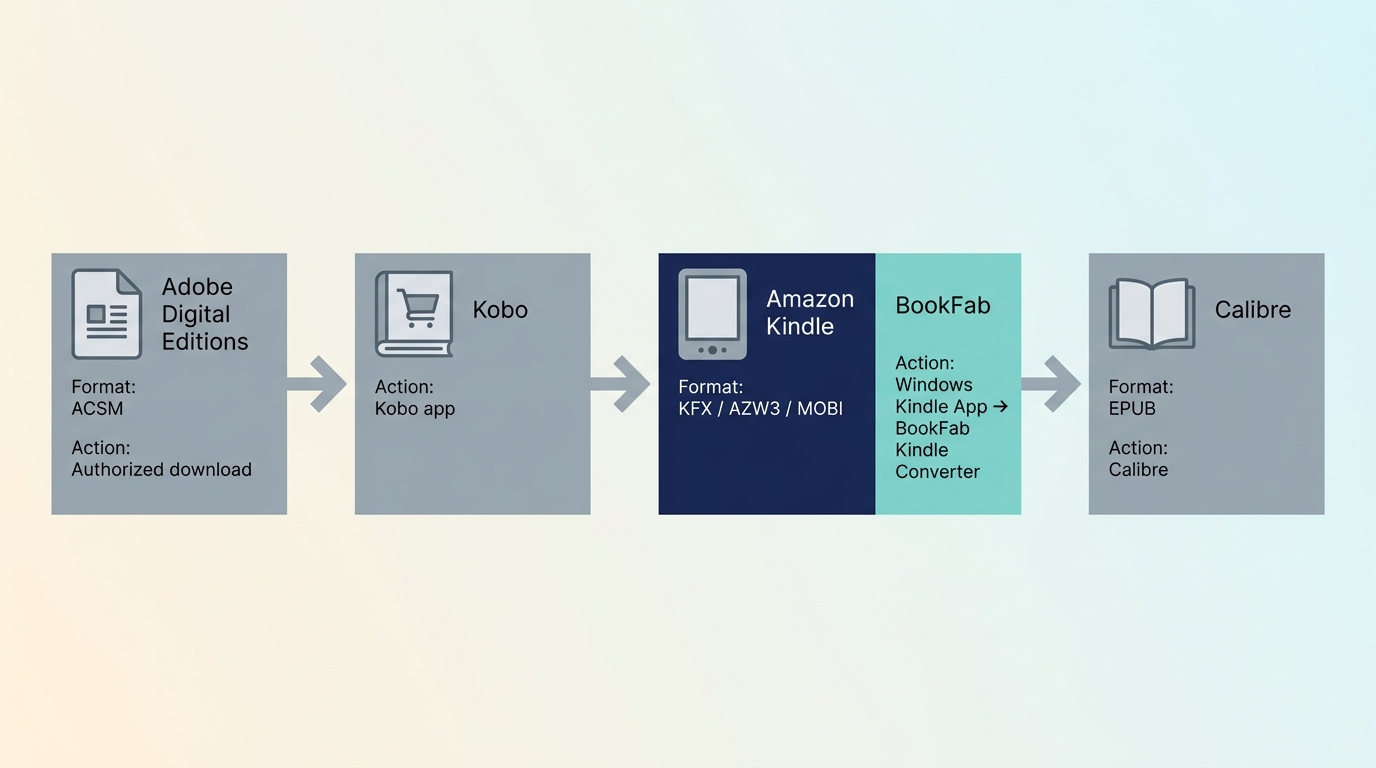
Start with the book's source and authorization status. I check the source and file extension before installing anything. That simple check separates an ordinary EPUB from an ACSM download ticket and prevents most avoidable setup errors.
Adobe, Kobo, Kindle, and Other eBook Sources
An Adobe Digital Editions EPUB should first open under the Adobe ID authorized for the purchase or loan. Kobo titles belong in Kobo's official reading environment, while Kindle titles depend on an Amazon account and a supported Kindle application. Google Play and library books may use Adobe authorization.
| Source | What the downloaded item may be | Authorized first step | Suitable management option |
|---|---|---|---|
| Adobe or a participating library | ACSM ticket or EPUB | Open the ACSM file in the authorized Adobe Digital Editions account | Use Calibre for compatible, unrestricted files and library organization |
| Kobo | Kobo-managed book or EPUB | Open it through the Kobo account and supported Kobo app | Use Kobo's reading tools; the retained Kobo resources below cover platform-specific details |
| Kindle | KFX, AZW3, or MOBI in a supported local environment | Download the purchased title through the Windows Kindle App | BookFab Kindle Converter can output eligible titles as EPUB or PDF |
| Other EPUB stores | Unrestricted EPUB or store-managed file | Follow the store's official download and authorization instructions | Use a compatible reading app or library manager |
As of August 2026, app and store support can change with account region, client version, and the book itself. If the source is unclear, return to the retailer library before trying another desktop application.
ACSM Files Are Not EPUB Files
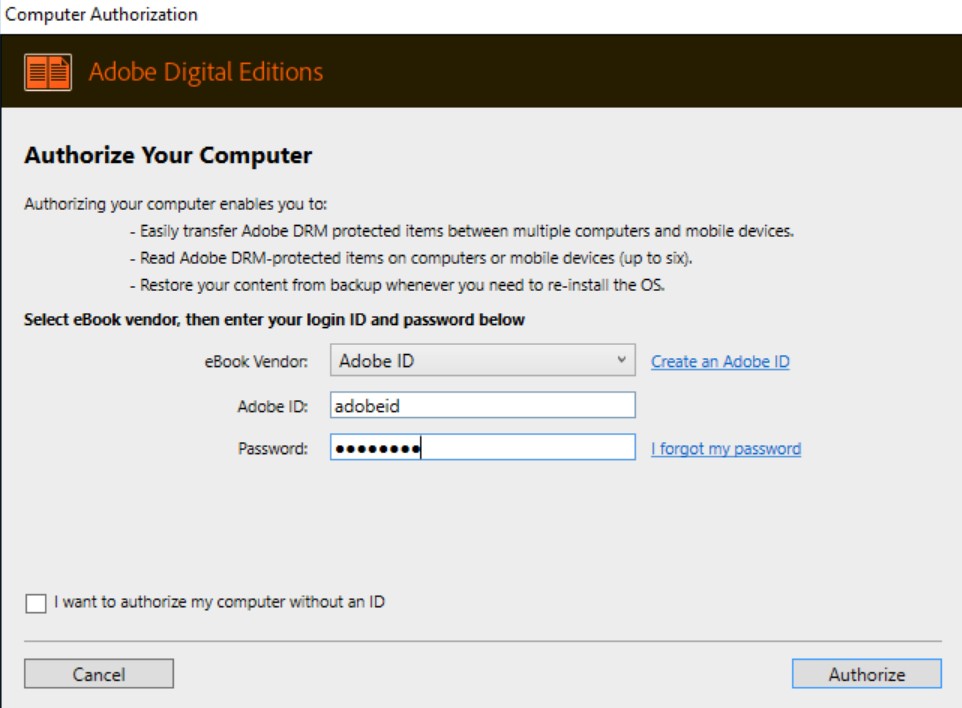
An ACSM file is an authorization and download ticket, not the book. Open it in Adobe Digital Editions while signed in with the Adobe ID connected to the purchase or loan; ADE then downloads the readable EPUB or PDF permitted by that account.
- Confirm that the file ends in .acsm.
- Authorize Adobe Digital Editions with the correct Adobe ID.
- Open the ACSM ticket in ADE and wait for the book to appear in its library.
- Use ADE's file-location command to identify the downloaded book.
Use Calibre for Compatible, Unrestricted EPUB Files
Calibre is a free, open-source library manager for Windows, macOS, and Linux. It can read, organize, edit metadata, and convert many unrestricted formats, but Calibre itself does not provide access-control processing.
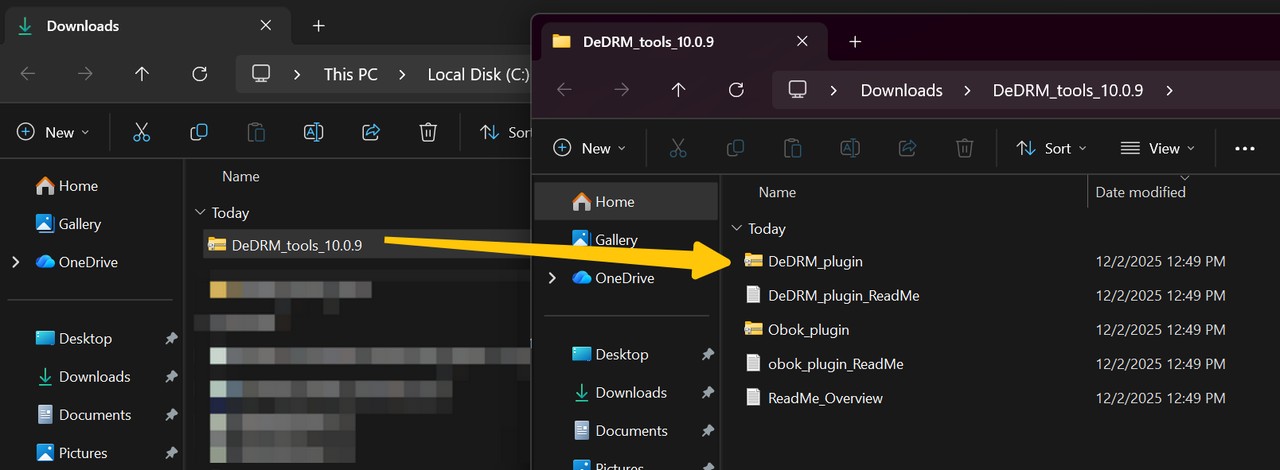
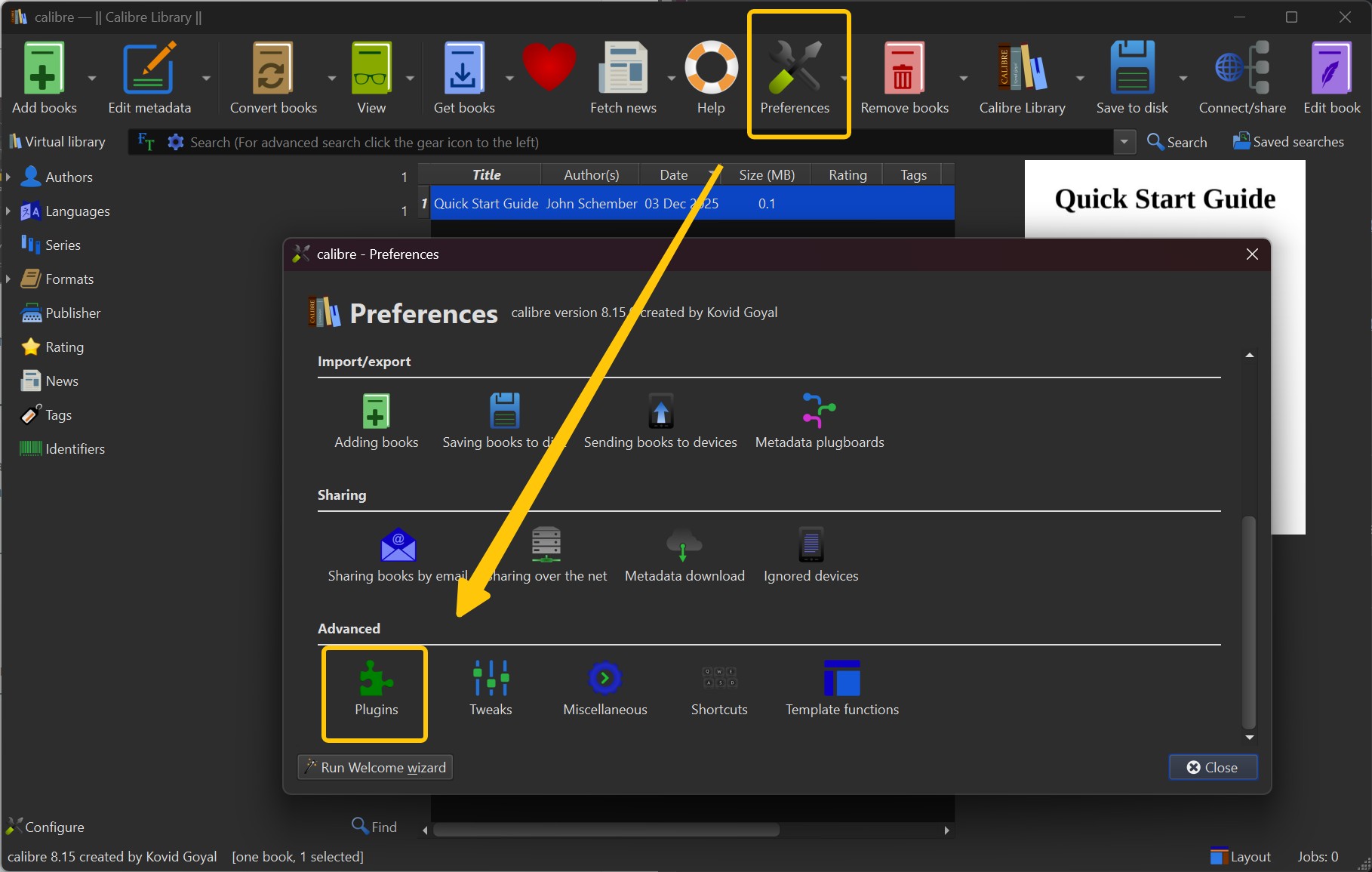
The detailed Calibre guide is most useful for learning its library and conversion features. A downloaded plugin archive such as DeDRM_tools.zip is community software, not an official Calibre feature; version-specific access-control instructions are intentionally not reproduced here.
- Manages compatible, unrestricted eBook files in one desktop library
- Free and open-source, with no subscription required
- Reads and converts many formats, including EPUB, MOBI, AZW3, PDF, and KFX when the source file is supported
- Includes eBook editing, metadata editing, cover management, and library organization
- Sorts a library by title, author, series, tags, and other metadata
- Available on Windows, macOS, and Linux
- Does not provide access-control processing as a built-in Calibre feature
- Desktop plugins and source-app versions can create compatibility problems
- Importing a file does not guarantee that the book will open or convert correctly
Prepare the Authorized File and Calibre
Before importing anything, confirm that the book already opens in its official reading application. If it does not, fix the store login, Adobe authorization, expired library loan, or incomplete download there first.
- Install Calibre from its official website.
- Open the authorized book in the store or library application.
- Confirm that the item is an EPUB rather than an ACSM ticket or partial download.
- Add only a file you are permitted to manage and that the application can already read.
Import and Verify the EPUB
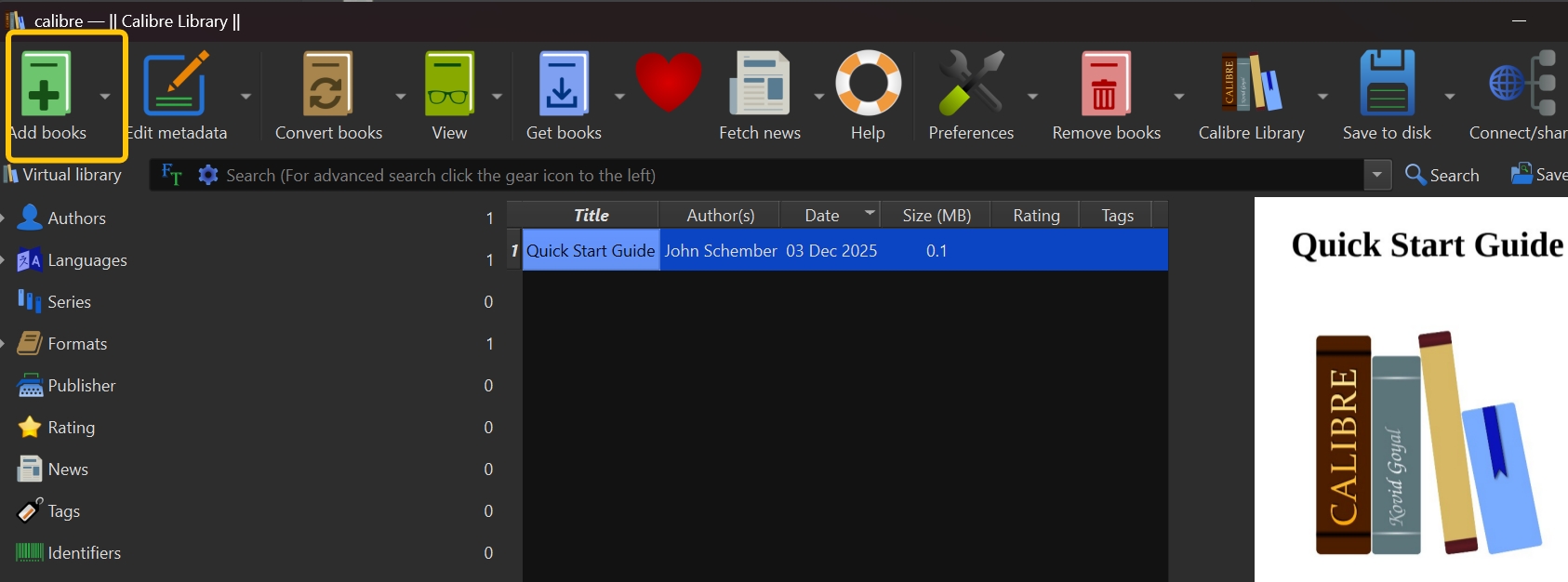
Importing is a library check, not proof that the content is compatible. Open the book in Calibre, inspect its metadata, and test navigation before converting or moving it to another reading app.
- Add the authorized EPUB to the Calibre library.
- Open it in Calibre's viewer.
- Check the cover, title, author, table of contents, images, and paragraph spacing.
- Stop if the book remains unreadable; repeated imports will not repair missing authorization or an unsupported source.
When I check an ebook file, I do not stop at whether it opens. A usable result also needs working chapter links, readable spacing, visible images, and metadata that keeps the book identifiable in a larger library.
BookFab Kindle Converter for Eligible Kindle Books
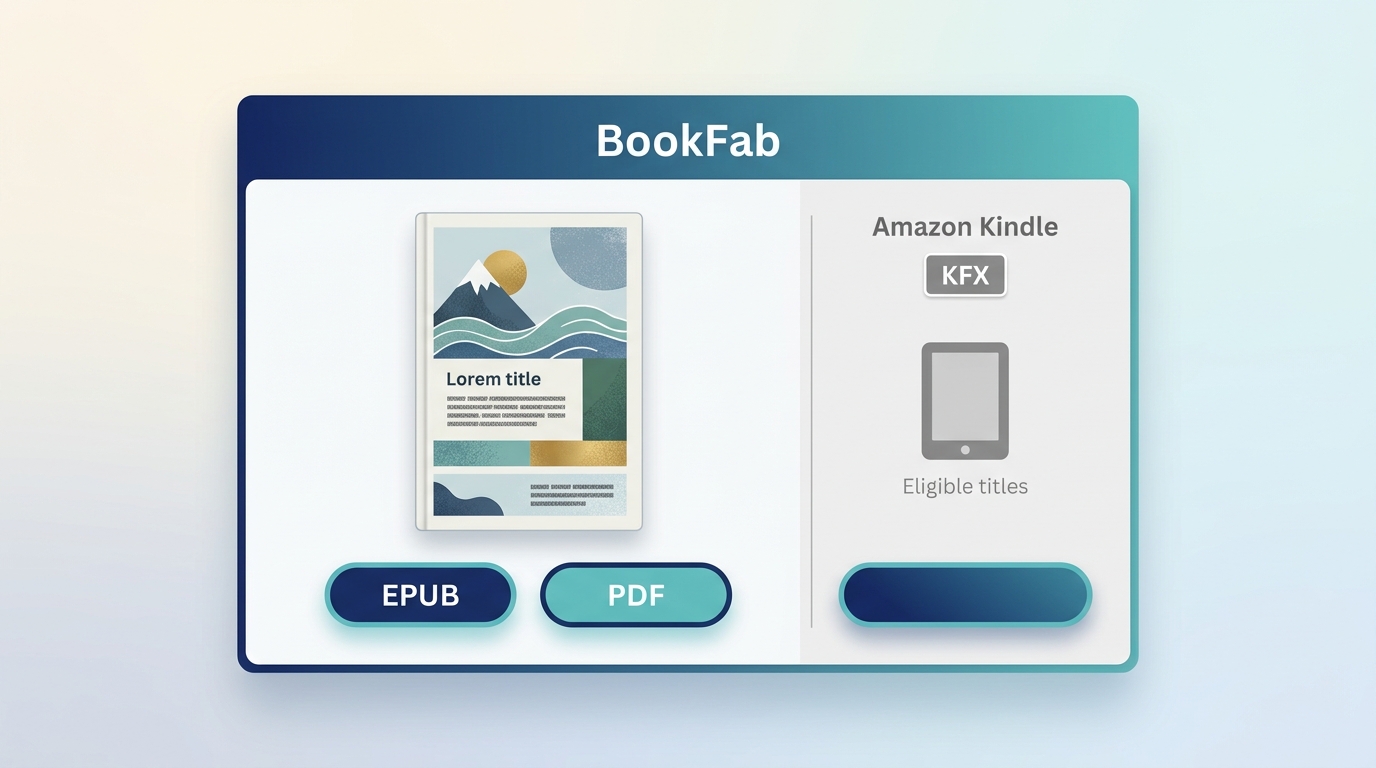
BookFab Kindle Converter is a Windows application for Amazon Kindle eBooks downloaded through the Windows Kindle App. For content you are authorized to access, it can detect supported local KFX, AZW3, and MOBI books and output eligible titles as EPUB or PDF.
This is a Kindle-specific option, not a method for Adobe/ADE or Kobo files. It supports batch task management and aims to retain major metadata such as the cover, title, and author. The free trial can convert up to three eBooks, and each content source has a daily limit of up to 100 items.
Because Kindle DRM handling varies by file type and app version, tested Kindle DRM removal tools are best compared against the specific source environment before conversion.
- Uses Amazon Kindle eBooks downloaded through the Windows Kindle App
- Supports local KFX, AZW3, and MOBI sources and outputs eligible books as EPUB or PDF
- Aims to retain major metadata, including the cover, title, and author
- Provides batch tasks and local book detection for supported titlesKindle to EPUBThe free trial converts up to three eBooks
- Requires Windows and the Windows Kindle App; it is not intended for Adobe/ADE or Kobo books
Confirm the Kindle Prerequisites
The source book must be available through the authorized Amazon account and downloaded in the supported Windows Kindle environment. If it is absent from the local library, unavailable in the account region, or unsupported by the current app, stop before conversion.
- Install the Windows Kindle App and sign in to the Amazon account that has access to the book.
- Download the title inside the Kindle App.
- Open BookFab Kindle Converter and confirm that the local book is detected.
- Select EPUB for adjustable text or PDF when fixed pages matter more.
- After export, inspect the cover, title, author, chapter order, images, and table of contents.
EPUB usually reads better on small screens because text can reflow. PDF is more appropriate when the original page dimensions, diagrams, or designed layout need to remain fixed.
Legacy Kobo Resources Retained for Source-Specific Context
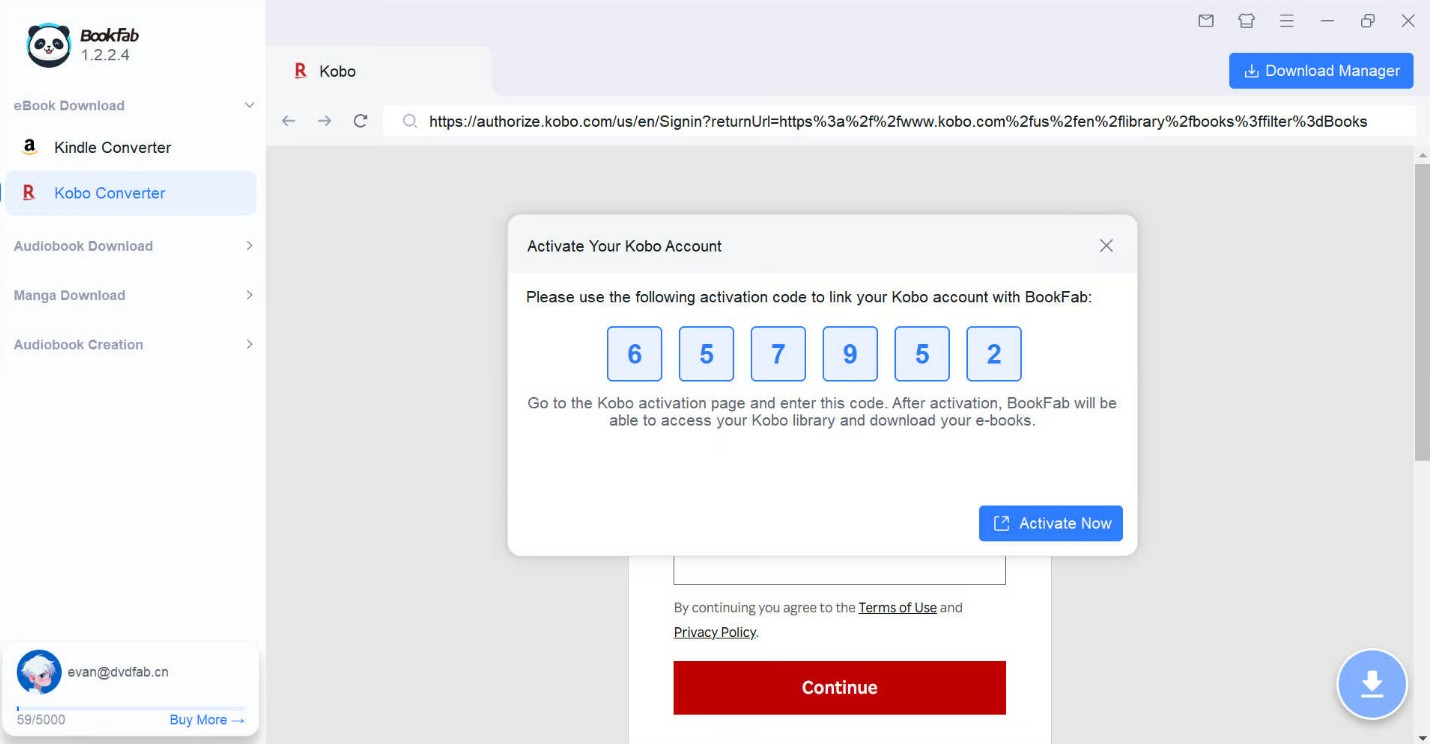
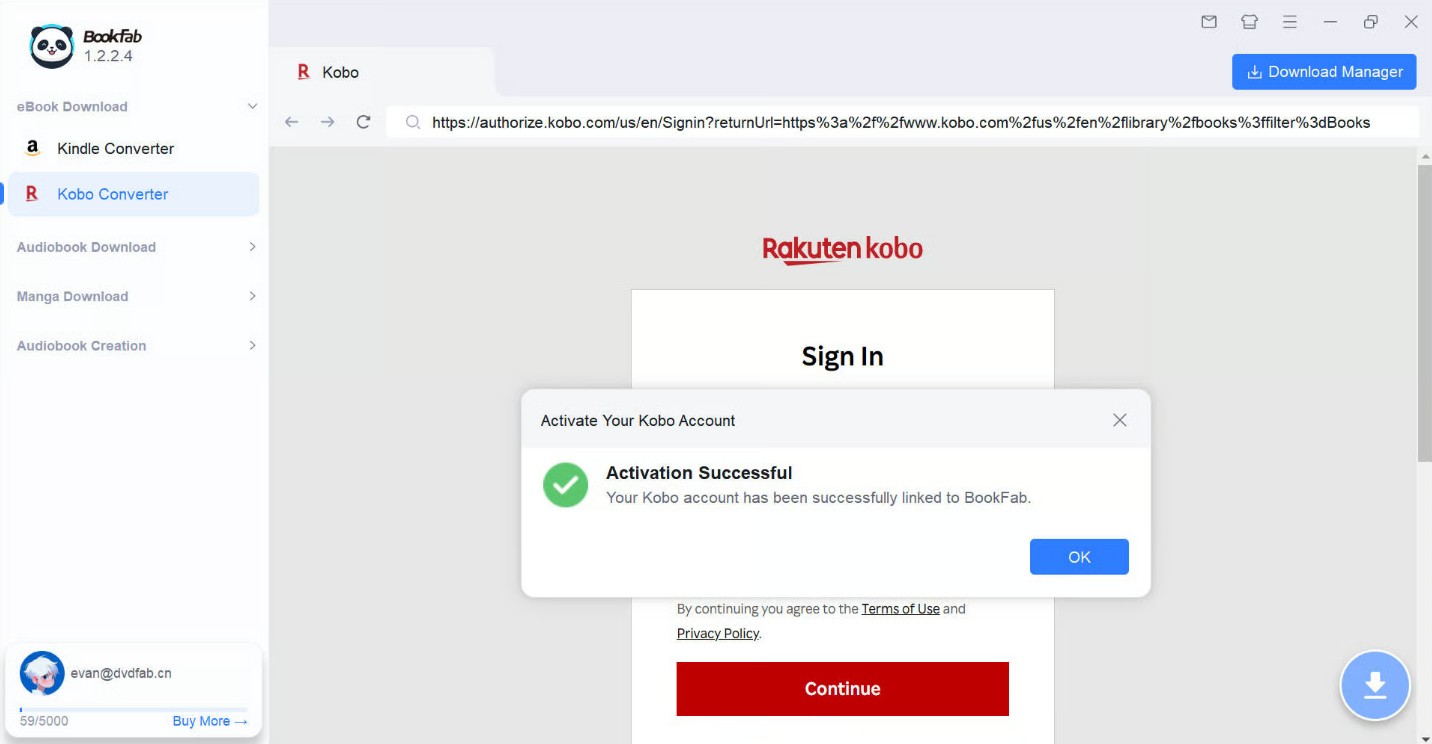
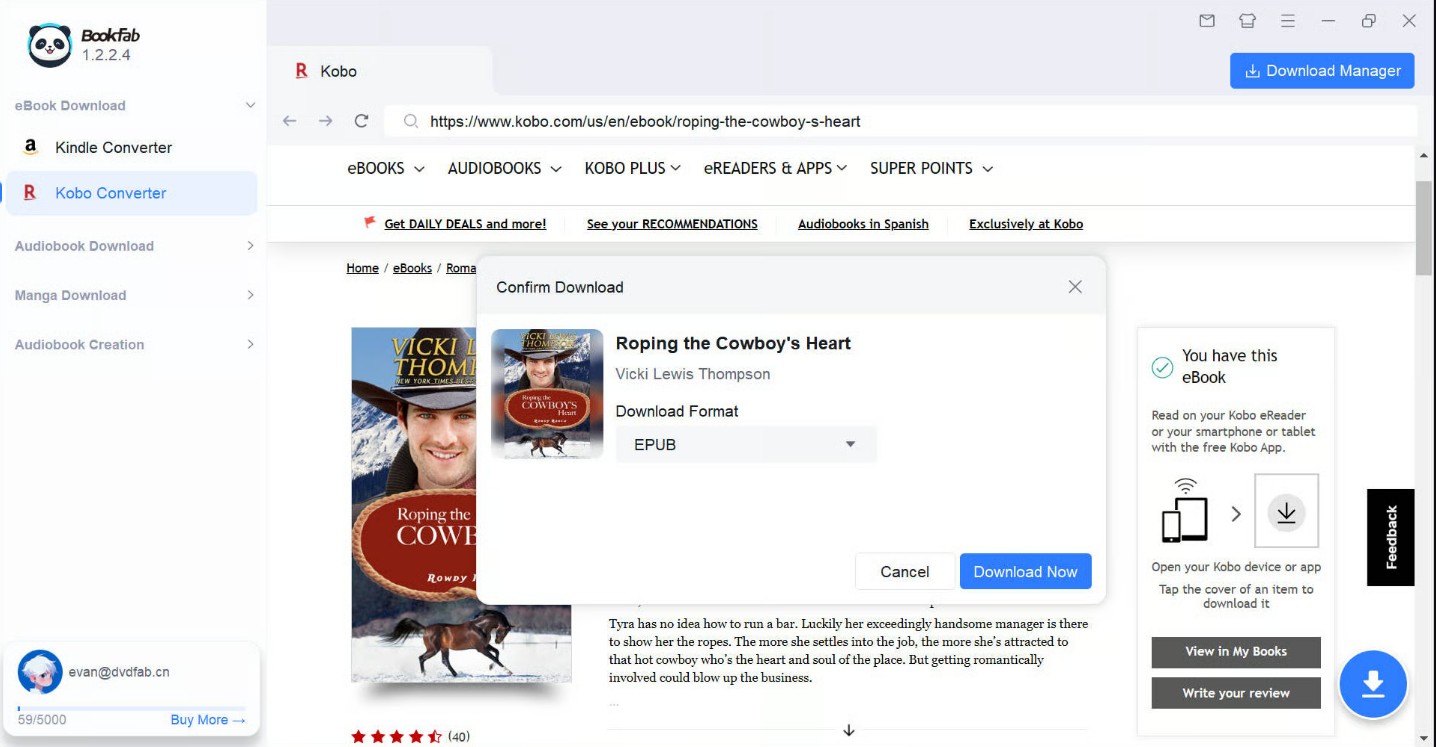
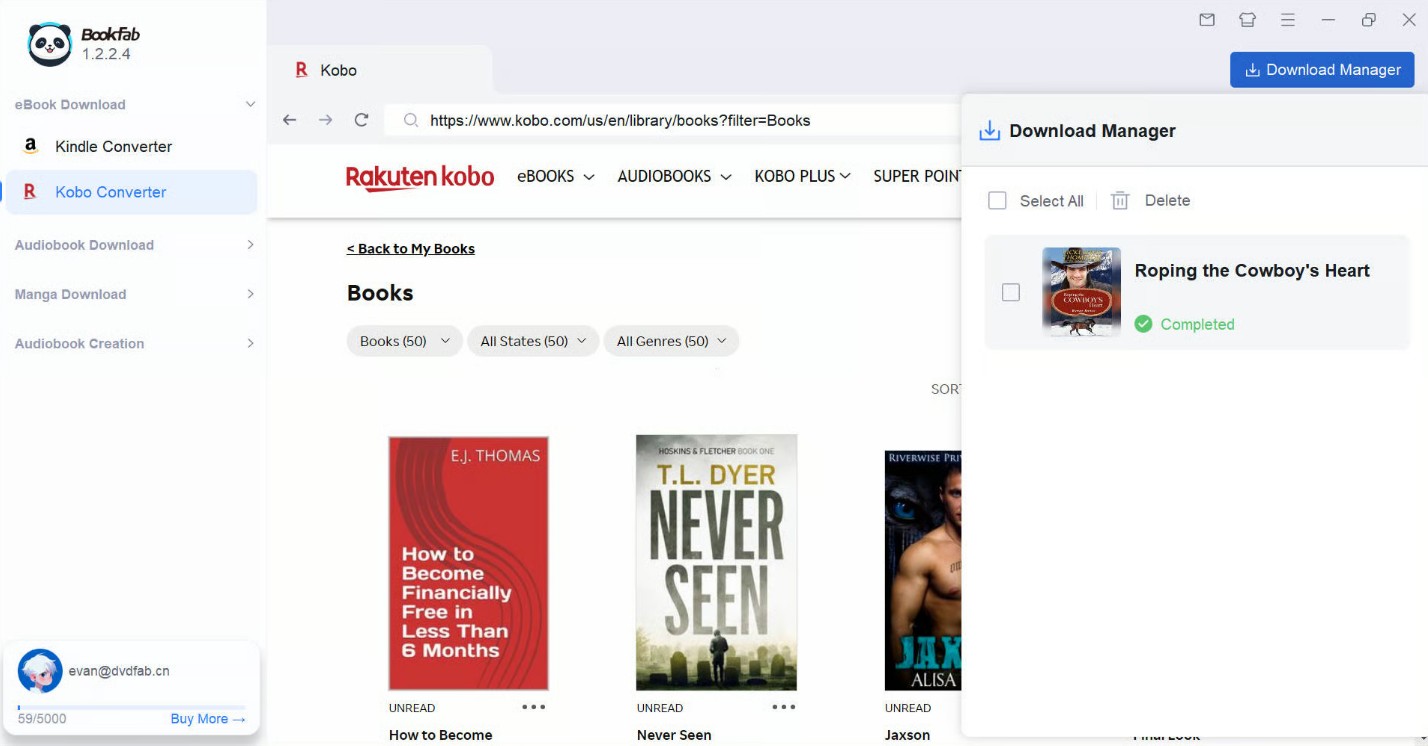
Kobo and Kindle require different products. Readers working with Kobo should use the dedicated BookFab Kobo Converter page and the platform-specific explanation of how to manage authorized Kobo books; the Kindle specifications above do not apply to Kobo.
Why EPUB Imports Fail
Most failures come from the wrong file, missing authorization, or a version mismatch. Reinstalling the same tools rarely helps until the source and opening behavior have been checked.
Wrong File or Missing Authorization
- ACSM imported as a book: open the ticket in Adobe Digital Editions first.
- Book missing from the official app: confirm the store account, region, purchase or loan status, and completed download.
- EPUB opens in one app but not another: the second app may not support the source's authorization model.
Plugin and App Version Conflicts
A Calibre plugin, retailer application, or operating-system update can change compatibility. A static version number is not a universal recommendation, and an older procedure should not be assumed to work after the store changes its delivery system.
When to Stop and Recheck
Stop after the file type, official-app access, and account authorization have been checked once. If the book still cannot be read, return to the retailer or library support channel instead of cycling through unverified plugins or uploading the book to an unknown website.
EPUB Format Conversion and Reading Quality
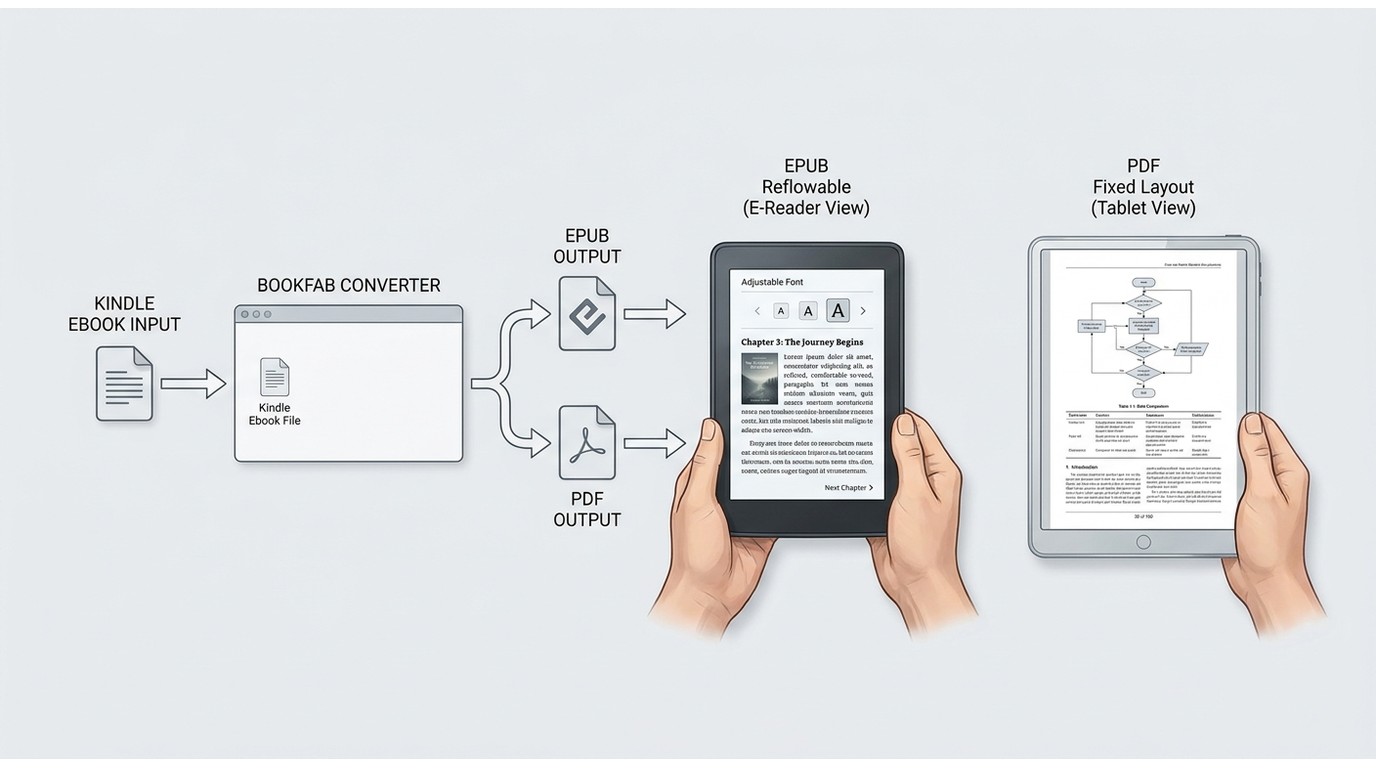
Access authorization and EPUB format conversion are separate issues. A converted file can open and still have broken navigation, missing cover art, shifted images, or irregular paragraph spacing.
Metadata, Layout, and Output Files
Check the result as a book, not merely as a generated file. For reflowable EPUB, resize the reading window and confirm that text, footnotes, and images remain readable. For PDF, inspect image-heavy pages and tables because fixed dimensions can become small on an eReader.
- Readability: font size, line spacing, images, and special characters.
- Navigation: table of contents, chapter order, and internal links.
- Library organization: cover, title, author, series, and filename.
- Device behavior: successful import and readable display in the target app.
EPUB Delivery to Kindle
Kindle source files and EPUB delivery are different tasks. A Kindle book may begin as KFX, AZW3, or MOBI, while EPUB is commonly used for adjustable text in other reading environments. Send-to-Kindle support and device behavior depend on Amazon's current service and the book's layout.
Legal and Responsible Use
Copyright permission and access-control law are separate questions in the United States. Personal or noncommercial intent is not a blanket legal exemption, and limited statutory exemptions do not authorize sharing, redistribution, resale, or public posting.
Use official access whenever it meets the reading need. Work only with books you purchased, borrowed, or otherwise have permission to access, follow the relevant store or library terms, and keep converted files within the permitted personal use.
Frequently Asked Questions
Q
Does every EPUB file have access controls?
No. EPUB is a file format. Some stores and libraries add account-based controls, while other publishers sell unrestricted EPUB files. The source and the app required to open the book are the clearest clues.
A
Q
Is it safe to upload a purchased EPUB to an online converter?
An unknown site may retain the book, account details, or upload logs. Do not upload purchased books or credentials to an unverified service; use the retailer.s official app or a trusted local library tool for compatible files.
A
Q
Can I complete this process only on Android?
The documented Adobe, Calibre, and BookFab Kindle options depend on desktop authorization, local files, or Windows software. This article does not claim a verified Android-only method.
A
Q
Why did Calibre import my EPUB without opening it?
Check whether the item is an ACSM ticket, whether Adobe Digital Editions or the retailer app is authorized, and whether the file opens there. Calibre import alone does not establish compatibility.
A
Pick the Workflow That Fits
Use Adobe Digital Editions for authorized Adobe books, Calibre for compatible unrestricted files and library management, and BookFab Kindle Converter for eligible Kindle titles downloaded through the Windows Kindle App. Each option has a defined source and stopping point.
Before adding a converted book to the main library, open it in the intended reading app and check the cover, table of contents, chapter order, paragraph spacing, and image-heavy pages.

 how to download book in kobo: Official vs Local FilesBy Amber Collins - Sep 30, 2026
 Convert iBooks to PDF in 2026: 4 Methods by File TypeBy Amber Collins - Aug 11, 2026
 How to Remove Kobo DRM from KEPUB and ACSM Kobo BooksBy Amber Collins - May 14, 2026