How to Download Kindle Books to PC & Devices (2025 Guide)

Summary:In this guide, I explain how to download Kindle books on different devices and outline practical ways to resolve download problems. As Amazon has phased out USB transfer and adjusted several purchase and file options, I also introduce reliable approaches for converting Kindle books to EPUB with tools like BookFab and Convertio, offering more flexibility for readers who need alternative formats.
Table of Contents
For many years, it was possible to download Kindle books from the Amazon website to a computer and move them to compatible devices. As of February 26, 2025, the "Download & Transfer via USB" and related Deliver to Computer options have been removed from the "Manage Your Content and Devices" page in desktop browsers, so you can no longer use the website to download .azw or .kfx files directly to a PC or Mac.
This does not mean that downloading Kindle books is no longer possible. You can still use the Kindle for PC or Kindle for Mac app to download your books for offline reading, with files tied to your Amazon account and protected by DRM. At the same time, Amazon continues to support wireless delivery.
Given these changes, many readers are looking for up-to-date methods to download Kindle books across devices, including clear ways to download Kindle books to PC while staying within Amazon's rules. In this article, I walk through the options that still work in 2025 and introduce safe ways to convert Kindle books to more flexible formats.
How to Download Kindle Books from Amazon and Sync to Local Devices
Downloading Kindle books from Amazon only takes a few simple steps. This section explains how to buy a Kindle book and sync it to your Kindle devices and apps.
Step 1. Purchase Kindle books
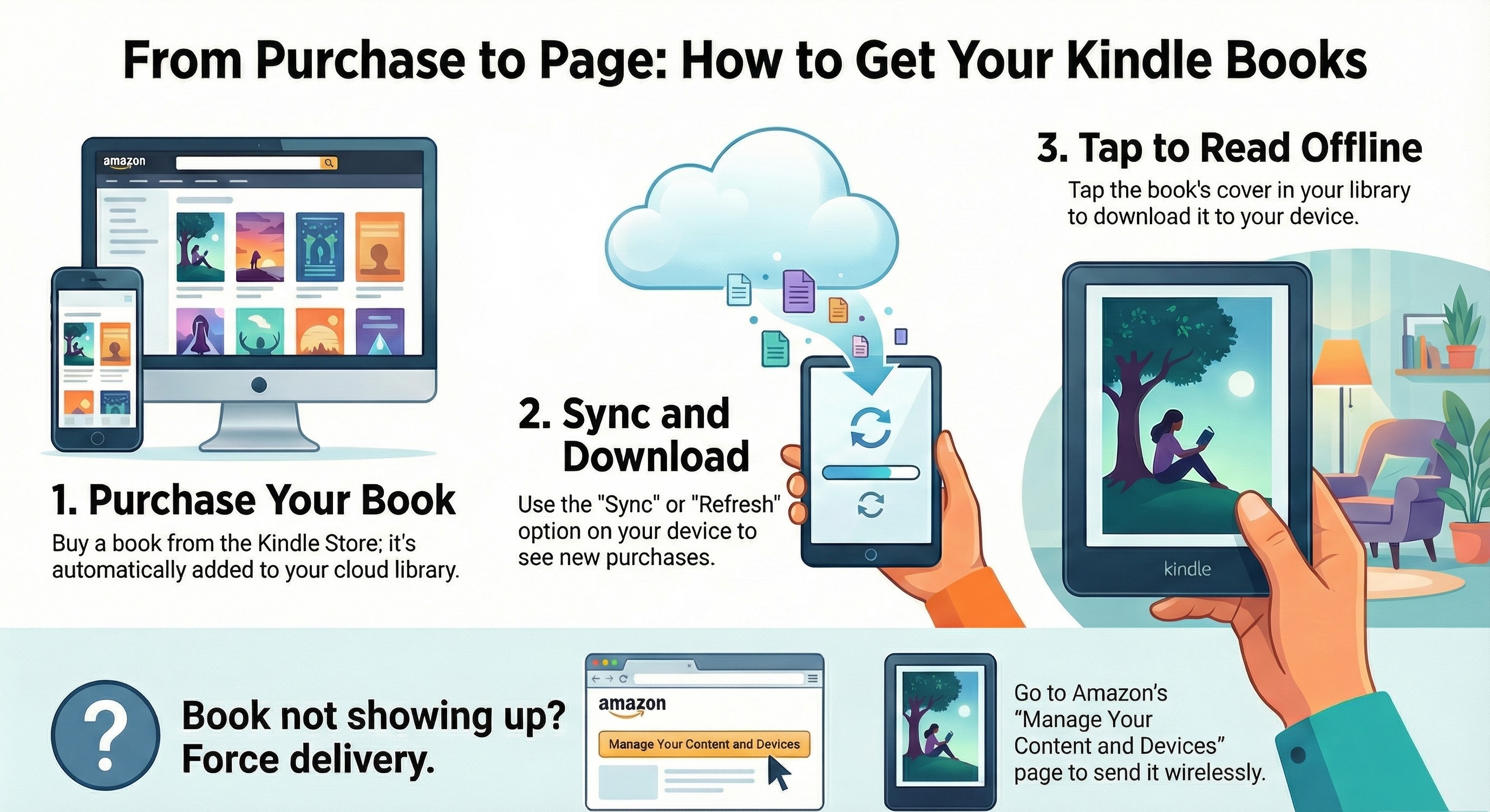
Once your Kindle device or app is ready, sign in to your Amazon account and open the Kindle Store. Search for the title you want, and complete the purchase. After the order is placed, the book is added to your Kindle library in the cloud and is linked to your account.
Step 2. Synchronize and download the Kindle books
To download the book from the cloud to local storage, you need to sync your Kindle library. On Kindle e-readers and Fire tablets, open the main menu, go to Settings or All Settings, and choose the option to sync your Kindle. On the Kindle apps for mobile or desktop, use the sync or refresh command in the library view.
When the sync is complete, your new purchases should appear in the library on your device or app. To download a Kindle book for offline reading, simply tap its cover; the device will fetch the file from your account and store it on local storage.
Step 3. Deliver the book from Amazon
If the book still does not show up after syncing, you can use the Amazon website to push it to a specific device. Open the Manage Your Content and Devices page, switch to the Content tab, and find the title you want to read. Select the book, choose the Deliver or Deliver to Device option, and pick a registered Kindle device from the list.
Amazon then sends the book wirelessly to the chosen device over Wi-Fi. This process does not download a standalone file to your computer, but it is one of the most reliable ways to make sure a Kindle book is delivered to the correct device or app. Once a shared book is added to your library, syncing your device or using the Deliver option will allow you to download that Kindle book and read it locally.
How to Download Kindle Books to PC: Official & Alternative Methods
Downloading Kindle books to a PC works differently now, but it is still possible. In this section, you will see three practical ways.
Way 1: Download Kindle Books to PC with Official Method
Using the official Kindle for PC/Mac is a stable way to download ebooks to a computer. The downloads stay linked to your account, your reading progress and notes sync across devices, and you do not have to rely on unofficial tools or browser extensions. The downside is that the books saved on your PC are stored in Kindle-specific formats and protected by DRM, so they cannot be opened freely in other reading apps.
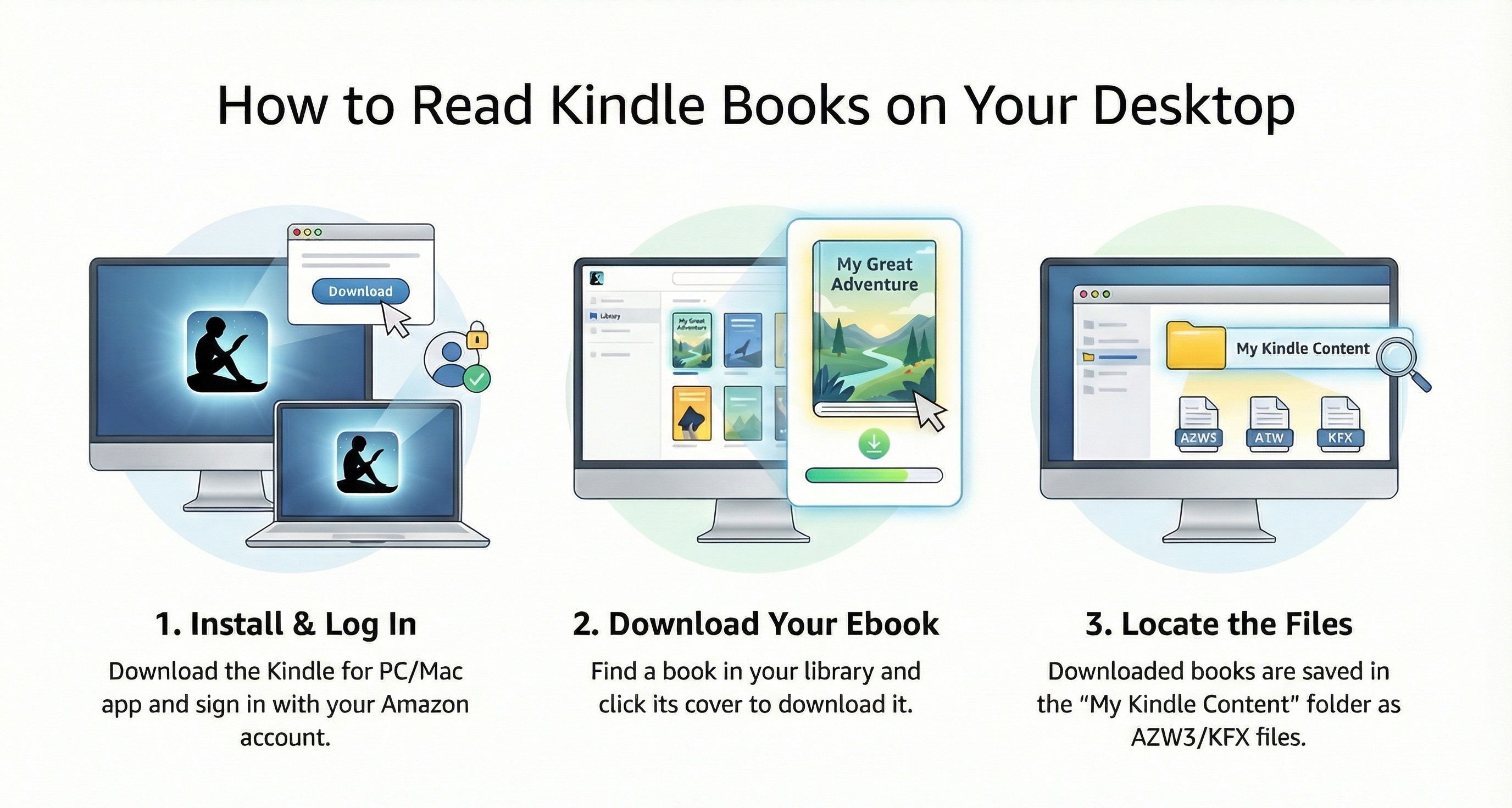
Step 1. Install Kindle for PC or Kindle for Mac
Download and run the version of Kindle for PC or Kindle for Mac that matches your system.
Enter the same Amazon account details you use to buy Kindle books. After you log in, the app connects to the Kindle cloud and loads your library.
Step 2. Download Kindle books to your computer
Once the library is visible, use the search box or scroll through the list to find the book you want to read on your PC. Click the cover of any title that has not been downloaded yet. When the download finishes, the book opens in the reader window and can be read offline on that computer.
Step 3. Check where Kindle for PC/Mac stores downloaded files
Kindle for PC/Mac keeps your downloaded books in a dedicated application folder, often named My Kindle Content. Inside that folder, the ebooks are stored as encrypted AZW3 or KFX files.
| Format | Description | Still Used in 2025 | Notes |
| AZW | Amazon's early DRM-protected format (based on MOBI) | ❌ Mostly deprecated | Used on older Kindles |
| AZW3 (KF8) | Kindle Format 8 with support for HTML5/CSS3 | ✅ Yes | Common on newer Kindles and apps |
| KFX | Kindle Format 10 with enhanced typography & features | ✅ Yes (default) | Main format for downloads from Amazon |
| MOBI | Legacy format, originally open | ❌ Deprecated | No longer accepted by Amazon (as of late 2022) |
| PRC | Legacy Palm format | ❌ Rare | Only works if DRM-free |
| TXT | Plain text | ✅ Yes | Basic reading; no formatting |
| Portable Document Format | ✅ Limited support | Fixed-layout; not ideal for small eInk screens | |
| EPUB | Standard ebook format (non-Amazon) | ✅ Accepted for conversion | Amazon now converts EPUB via "Send to Kindle" |
For readers who want more flexibility, especially on non-Kindle devices and apps, it often makes sense to end up with an EPUB copy on the PC. EPUB is one of the most widely supported open ebook formats and works on almost every major reading platform outside Amazon. Because Kindle books are not delivered in EPUB, you always have to follow two stages: first download the book to your computer through official methods such as Kindle for PC/Mac, and then convert the local file to EPUB with suitable software. The following sections introduce tools like BookFab Kindle Converter and Convertio and explain how they handle that conversion while taking format limits and DRM into account.
Way 2: Download Kindle Books to PC with BookFab Kindle Converter
BookFab Kindle Converter is a software designed to effortlessly remove DRM from Kindle books and convert Kindle e-books to EPUB format so you can manage and read them in tools like Calibre, Apple Books, and many other reading apps.
- It decrypts books stored in private formats such as AZW3, KFX, and older MOBI files, then converts them into the widely supported EPUB format.
- The converter automatically analyzes and removes DRM from supported Kindle eBooks, including many recent releases.
- It is tightly integrated with BookFab AudioBook Creator. You can send your Kindle eBooks to the audiobook tool and turn text into spoken audio.
- The software is optimized for speed, so most Kindle to EPUB conversions finish in seconds without breaking layout or structure.
- BookFab now includes a free Calibre plugin that lets you run its decryption directly inside Calibre after Kindle for PC has downloaded your books.
How to Convert Kindle Books using BookFab Kindle Converter
Before you start, make sure that Kindle for PC is installed on your computer, and that the Kindle eBooks you want to work with have been downloaded.
Step 1. Launch BookFab and load your Kindle for PC eBooks
Open BookFab and go to the Kindle Converter section in the left sidebar. Click the refresh icon so that the program can scan the folders used by Kindle for PC and load the eBooks that have been downloaded there.
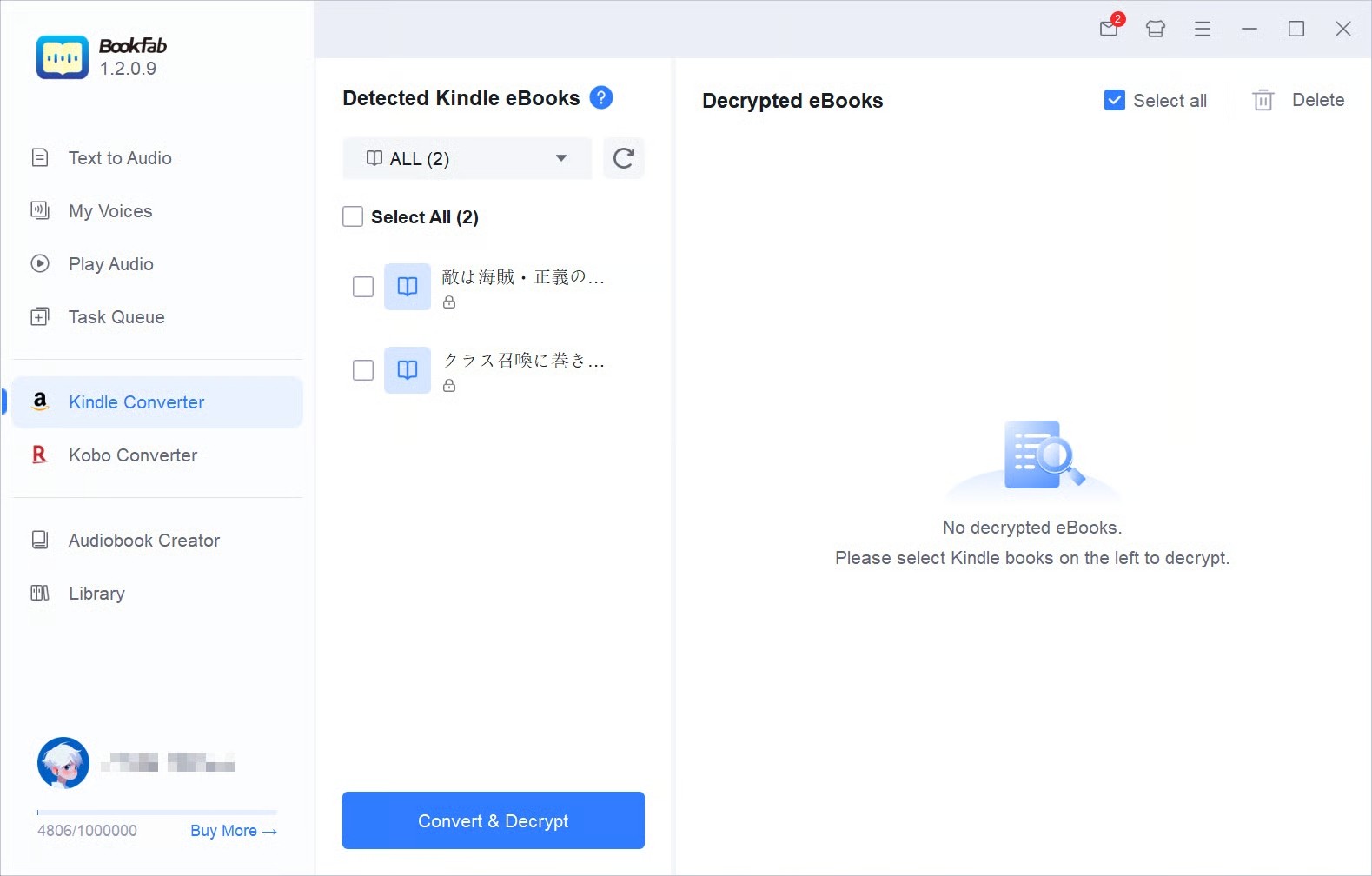
Step 2. Select the eBooks to decrypt and convert
Once your Kindle for PC books are visible in the list, choose the titles you want to process and click the decrypt button. BookFab Kindle Converter automatically analyzes the selected files and removes DRM where supported. As each book is processed, its status in the list is updated.
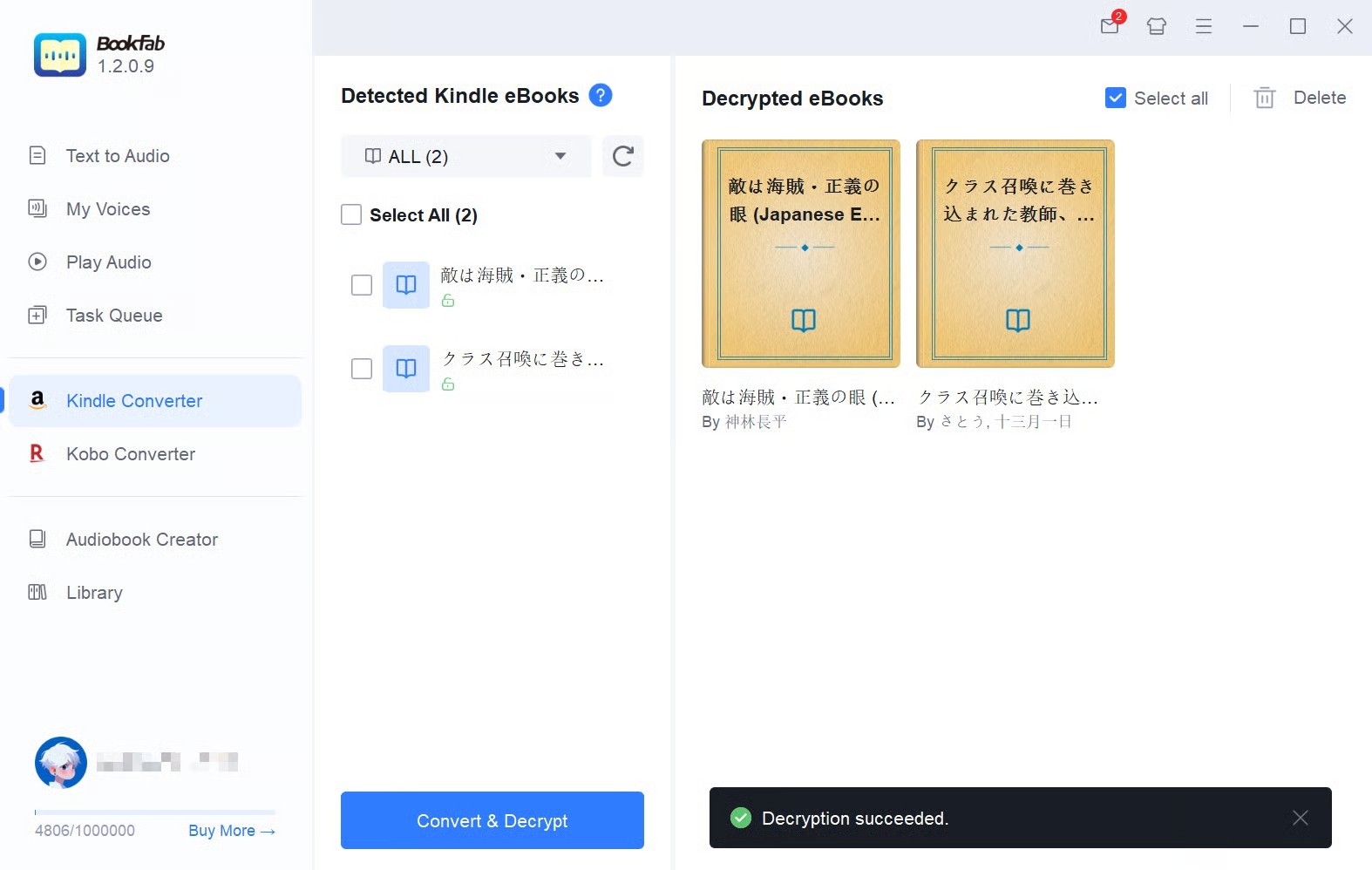
Step 3. View and manage the converted EPUB files
After decryption, the processed eBooks are shown with their cover and title information. From here, you can open the local folder that contains the new EPUB files, add them to Calibre or another library manager, or send them to BookFab AudioBook Creator if you want to create an audiobook version.
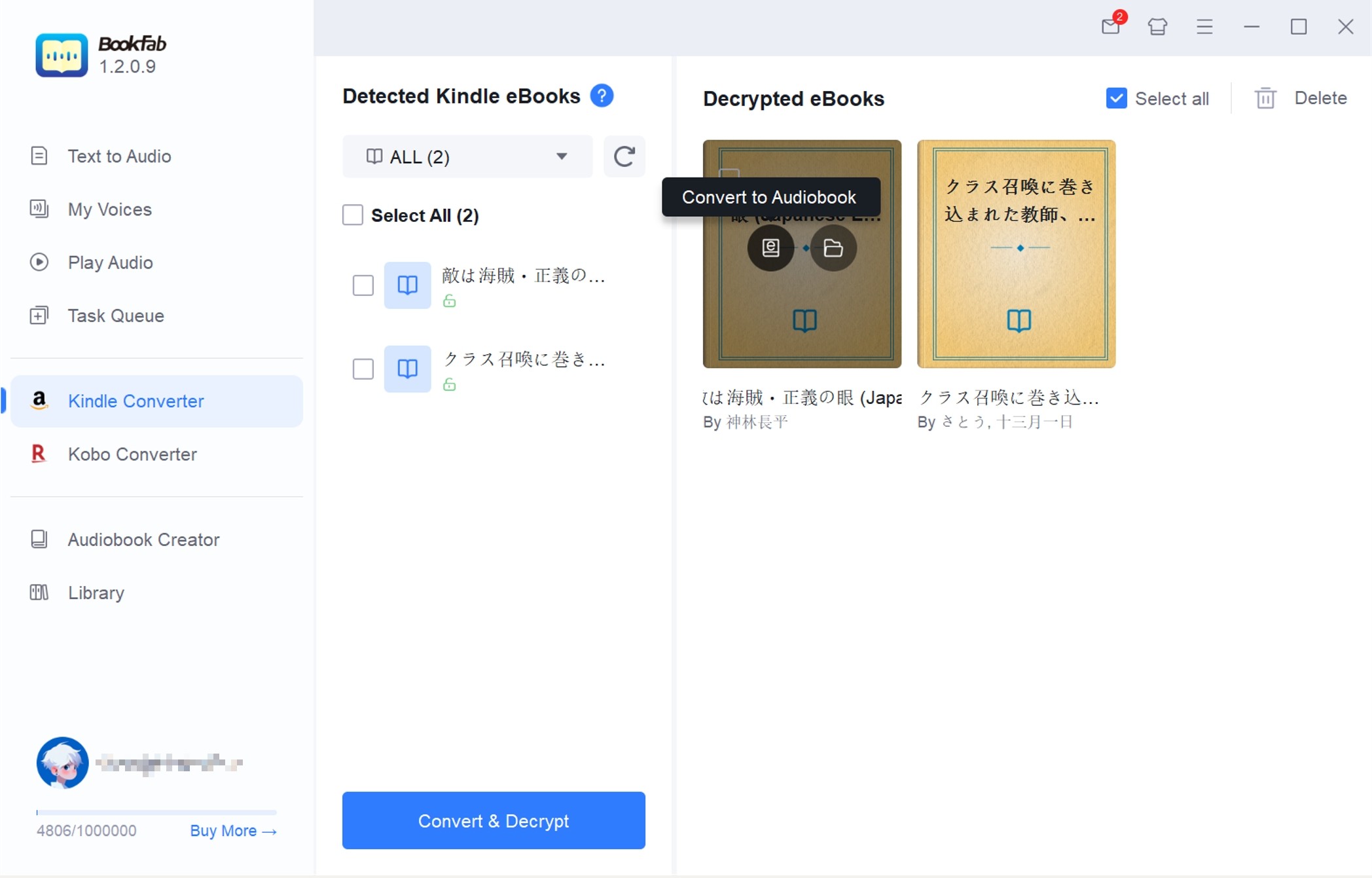
Way 3: Download Kindle Books to PC with Convertio
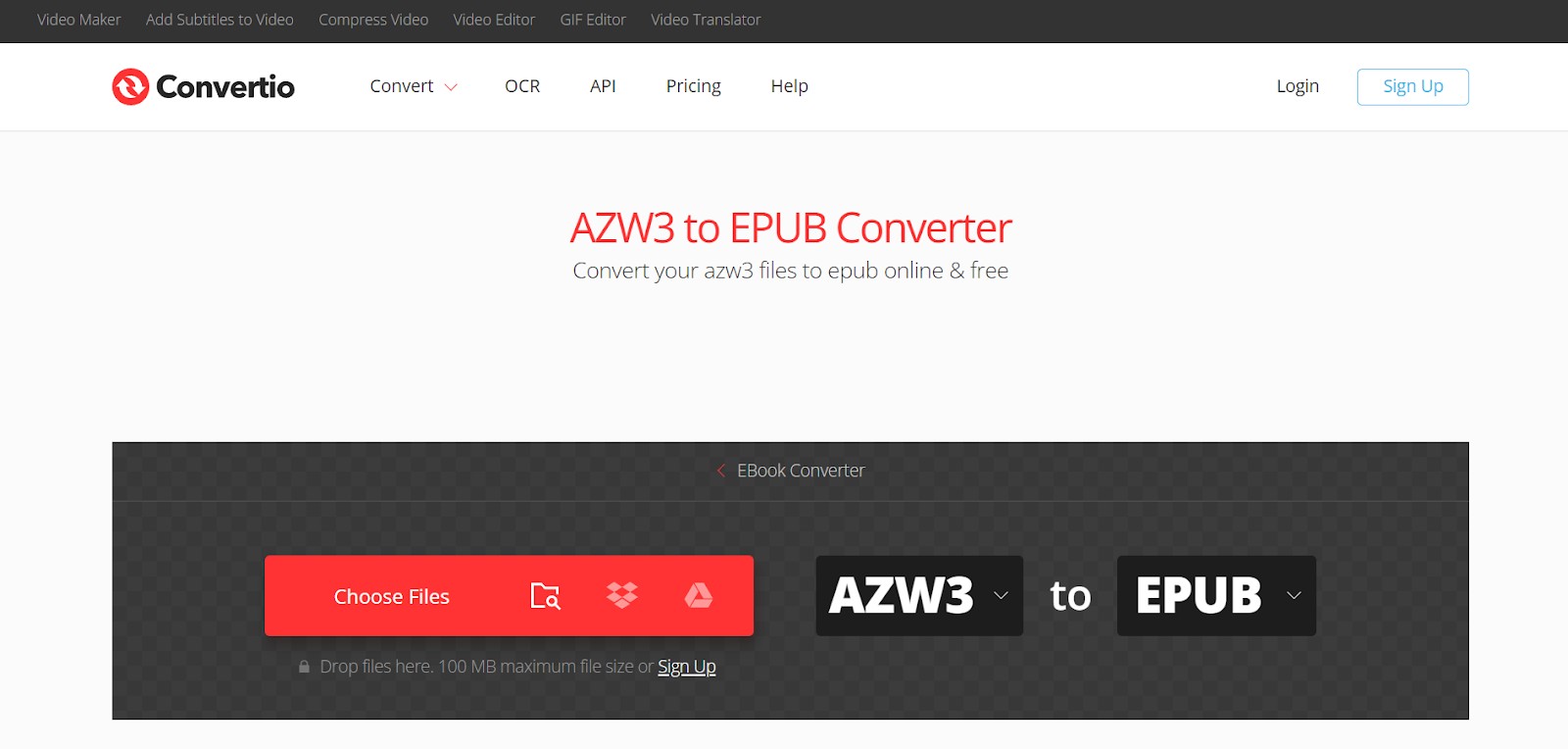
Another alternative is an online tool known as Convertio. This option is appropriate for individuals looking to convert Kindle books to EPUB format without installing any app and download them for enhanced compatibility across devices.
- Cloud-based Platform: The conversion process occurs completely in the cloud, guaranteeing it won't use up resources or hinder your device's performance.
- Delete Media Files in 24 Hours: Your Kindle media files will be deleted from their servers after 24 hours, and this process is encrypted with an SSL certificate.
- Convert Kindle Books to High Quality: Convertio offers an exceptional conversion quality and security.
How to Convert Kindle Books using Convertio
Step 1. Choose a Kindle ebook file
- Open the Convertio website on your device.
- Drag and drop the media files onto the page.
- You can also choose files from your computer, Dropbox, Google Drive, or a URL.
Step 2. Choose an EPUB format
- Select EPUB or another format you require as an output.
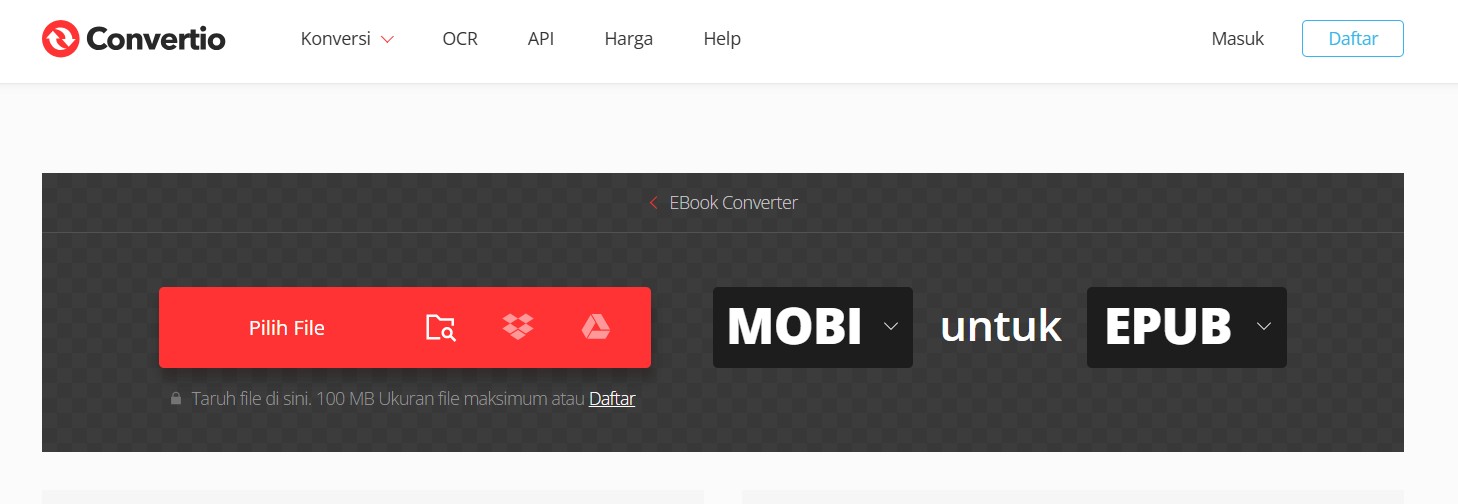
Step 3. Download the EPUB file
- Allow the file to convert, and you can download your EPUB file immediately afterward.
How to Locate and View Downloaded Kindle Books
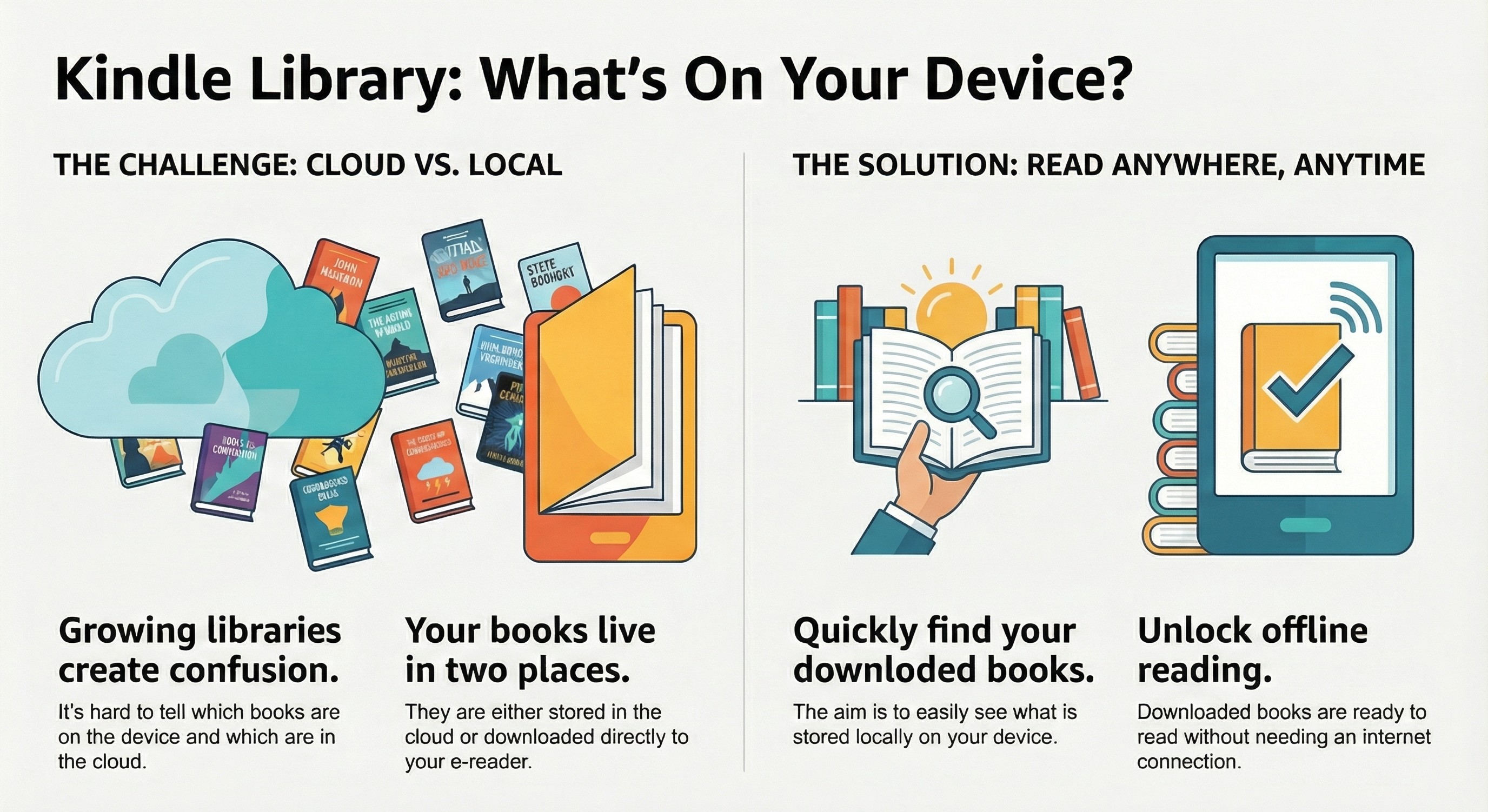
When your library grows, it is not always clear which titles are already stored locally and which ones are still in the cloud. This section explains how to find downloaded Kindle books on e-readers, so you can quickly see what is ready to read without an internet connection.
View downloaded Kindle books on Kindle devices and mobile apps
On Kindle e-readers, Fire tablets, and the Kindle app for iOS and Android, all books live in the Library, but only some of them are actually downloaded. To focus on downloaded titles, you can use the built-in filters in the Library view.
On Kindle e-readers and Fire tablets:
- Open Library from the Home screen.
- Use the on-screen filters or menu to make sure all content linked to your account is visible.
- Change the view so it shows only items stored on the device, often labeled as Downloaded or a similar option.
On the Kindle app for iOS and Android:
- Open the app and tap the Library tab.
- At the top of the screen, switch the content type to Books if other categories are shown.
- Use the available filter or drop-down to select Downloaded, so the Library hides titles that are still only in the cloud.
Find downloaded Kindle books in the desktop app
In Kindle for PC and Kindle for Mac, downloaded Kindle books are also managed through the Library, but the interface is arranged. After you sign in, the app pulls your full Kindle library from the cloud. Some titles are already stored on the computer, while others still need to be downloaded the first time you open them.
To see only downloaded Kindle books on the desktop app:
- Open the Library view and allow the app to sync your account.
- Look for the filters or view controls that change how your books are listed.
- Switch the Library to show only titles that are downloaded to the computer.
What to Do If Your Kindle Books Won't Download
Downloading Kindle books is usually quick, but network issues, account problems, or device limits can still cause downloads to fail.
Check your connection, restart, and sync again
Many download errors are caused by a weak connection or a temporary glitch in the app or device.
- Make sure the device is online.
- Restart your Kindle device or app.
- Sync your Kindle library again.
Fix account, payment, and license issues
If the connection is stable and basic sync does not help, the problem may be related to your Amazon account, payment details, or the number of devices that are allowed to hold the book.
- Confirm that the order is complete and the payment method is valid. In your Amazon account, open Your Orders or Digital Orders and check that the Kindle book shows as completed.
- Go to Manage Your Content and Devices on Amazon's website, find the title, and verify that it is set to deliver to the device or app you are using.
- Some Kindle books can only be used on a limited number of devices at the same time. If you see a License Limit Reached or similar message, deregister older Kindle hardware from Manage Your Content and Devices.
Understand special limits and irreversible actions
A few situations are not true errors but built-in limits that affect how or where you can download Kindle books.
- Kindle Cloud Reader no longer supports offline downloads.
- Deleting a book from your Kindle cloud library is permanent.
- Re-registering should be a last step, not the first.
FAQs
Is it legal to download and convert Kindle Books?
Using Kindle the way Amazon designed it is clearly legal. Converting your own Kindle books for personal reading is a practical reality for many users, but may sit in a legal grey zone, especially if DRM is involved. Sharing or distributing converted books is where you very clearly cross the line.
Can you download a Kindle Book with "Download & transfer via USB" option?
No. Amazon removed the Download & transfer via USB feature for Kindle books on February 26, 2025, so you can no longer use this method to download new titles.
In the past, you could:
- Go to the Amazon website, sign in, and choose Accounts & Lists > Content Library > Books.
- To download a book, locate it, select More actions, and then pick Download & transfer via USB.
Since this feature has been discontinued, you now need to use other official methods, such as Kindle for PC/Mac, Kindle mobile apps, or approved Kindle converters for your own legally purchased books and personal use only.
Will I lose access to my Kindle books if I cancel Kindle Unlimited subscription?
You do not lose access to Kindle books you have purchased, even if you cancel Kindle Unlimited. Any titles you bought outright remain in your Amazon account and can still be downloaded to your Kindle devices after your subscription ends.
The books you read through Kindle Unlimited are borrowed, not owned. When your subscription expires or you return a Kindle Unlimited title, you can no longer open it on your devices.
How to download Kindle Books for free legally?
There are several ways to get Kindle books for free without breaking copyright or Amazon's rules.
On Amazon, you can browse the Free Kindle Books section of the Kindle Store and look for titles that are listed at $0, as well as limited-time promotions.
For classic works that are in the public domain, sites such as Project Gutenberg and other reputable archives offer free ebook editions in formats like EPUB or MOBI.
Many readers also use public libraries to read Kindle books at no cost. In supported regions, services like OverDrive and its Libby app let you borrow ebooks with a library card and send selected titles to your Kindle account, just like borrowing a physical book.
How does Amazon DRM affect downloading Kindle books?
Amazon's DRM controls where and how you can download and use Kindle books:
- Downloads are tied to your Amazon account and approved devices/apps.
- Downloaded files are encrypted. Even if you find the AZW/KFX file on your computer, it's locked to your account and can't be freely opened in other e-readers.
- You can't legally share DRM-protected Kindle books with other people, and converting them to formats like EPUB or PDF is restricted.
- Kindle Unlimited titles are no longer readable once your subscription or access to that title ends.
Conclusion
I have walked through how to download Kindle books on different devices, how to find the titles that are already stored on your Kindle library for offline reading, and how to fix the most common download issues. For readers who also want to download Kindle books to PC and use them outside the Kindle app, tools like BookFab Kindle Converter offer a way to turn eligible titles into EPUB files.
