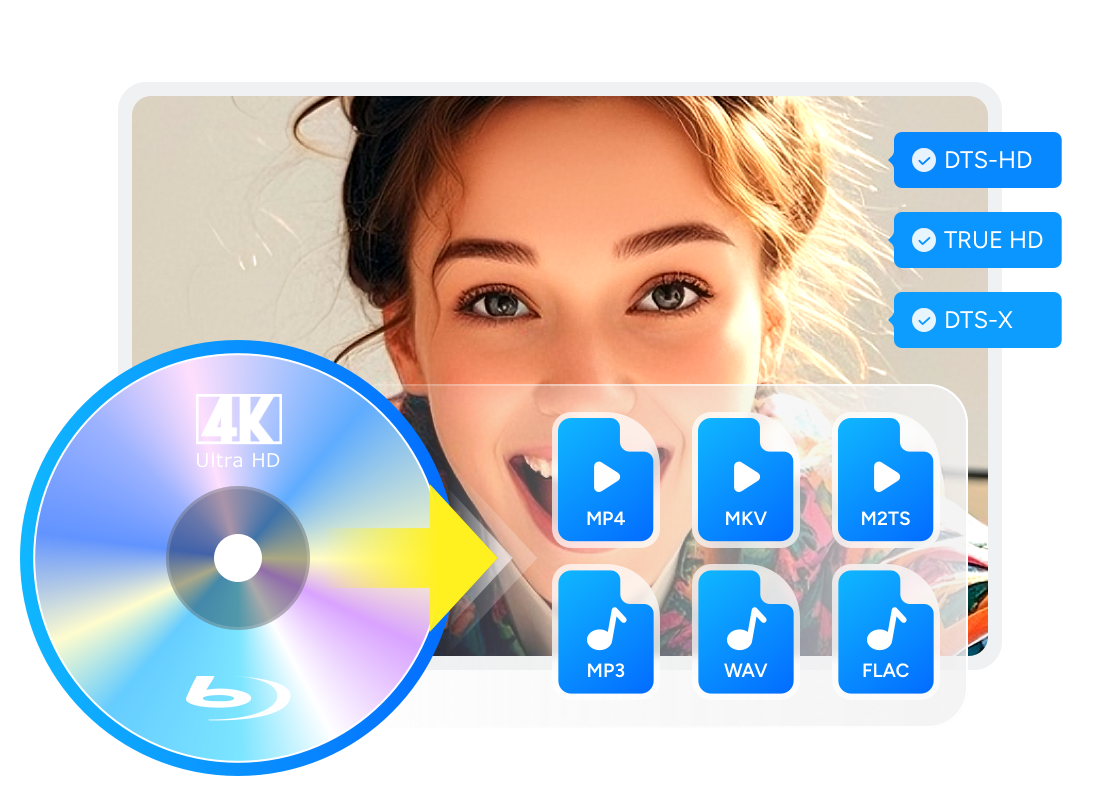
How to Rip 4K Blu-ray Disc: 2 Tested Tools [2026]

Summary: To rip 4K Blu-ray discs losslessly for playback on Plex or 4K TVs, you will need a UHD-friendly drive, 50GB+ of storage, and robust decryption software. While this guide covers both free and professional tools for Windows and Mac, my tests show that DVDFab UHD Ripper is the most efficient choice. It handles strict AACS 2.0 protections, preserves HDR10/Dolby Vision and Atmos metadata, and leverages GPU acceleration to complete a 54GB lossless rip in under 12 minutes with a significantly optimized file size.
![How to Rip 4K Blu-ray Disc: 2 Tested Tools [2026]](https://images.dvdfab.cn/artifact/2026/08/10/GAj4RY0OE9Ef8LdfmMA8y8O3TI4lJg1U/feature_cover.jpg)
Table of Contents
Ripping a 4K Blu-ray to a PC starts with a UHD-compatible drive and a clear output goal. Choose a source-stream remux when you want to preserve selected streams, or compressed output when storage use and device compatibility matter more.
Two common options are DVDFab UHD Ripper and MakeMKV. MakeMKV creates an MKV remux without video re-encoding, while DVDFab UHD Ripper can use passthrough or create a smaller compressed file. Your player, storage capacity, and selected tracks determine which output makes more sense.
What You Need for a 4K Blu-ray Rip
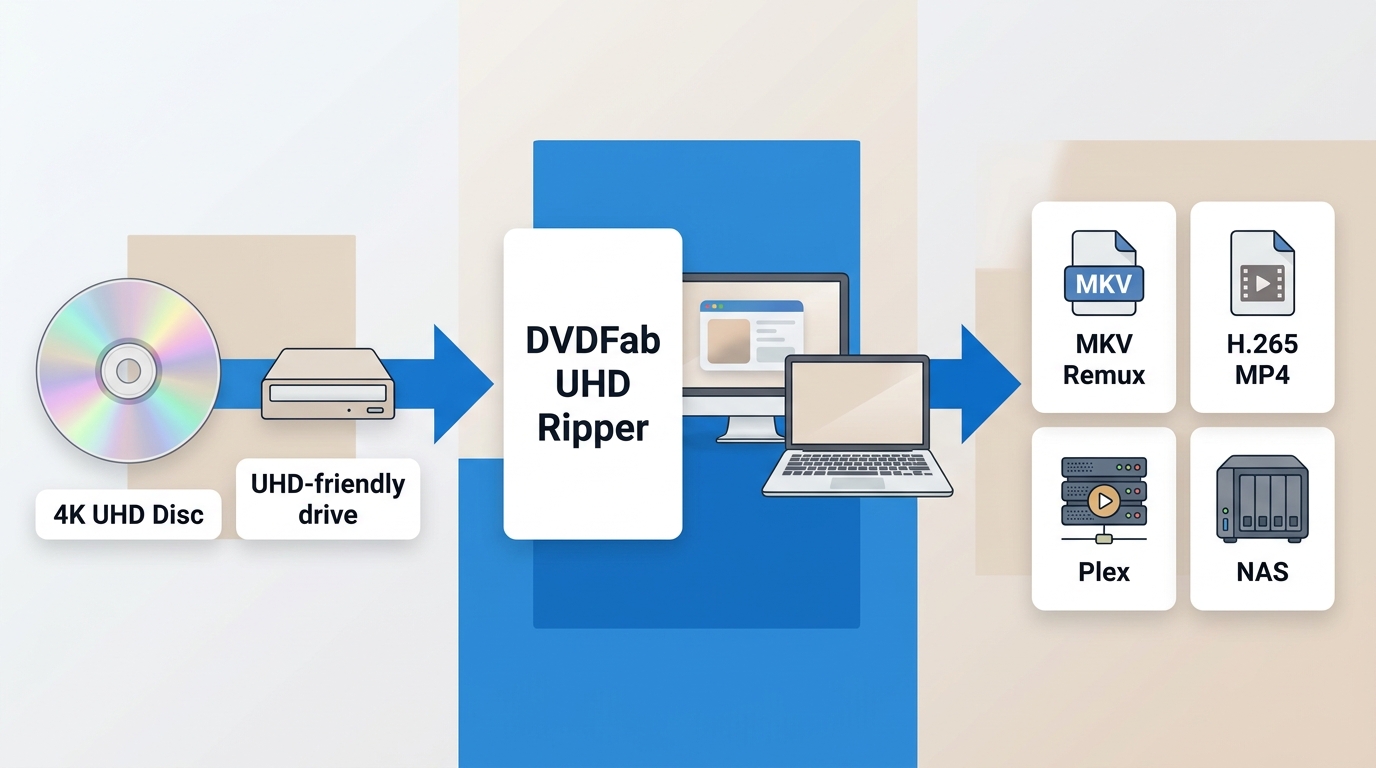
A 4K UHD disc requires a compatible drive before software settings matter. First confirm that the drive can read the disc, then decide whether you need source-stream preservation or a smaller file for your target player.
- 4K Blu-ray Ripping Software : For personal backups of discs you own where permitted by law, use software that supports protected UHD disc content.
- High-capacity Storage : A full-quality 4K rip needs substantial storage. Plan for an external drive or NAS, plus a separate backup.
- 4K Blu-ray Drive : Check the exact drive model, manufacturing date when relevant, firmware version, LibreDrive status, and whether it reads the UHD disc at all.
- 💡 Drive compatibility: do not buy a UHD drive by model name alone. Compatibility can vary by production batch and firmware, so check the exact model and current firmware. Firmware changes are model-specific and can disable a drive if applied incorrectly.
For Plex or a NAS, plan around the player that will open the file. Plex direct play means the client can play the selected container, video, audio, and subtitle streams without server conversion; RAID improves availability but is not a separate backup. The DVDFab Plex library workflow explains how disc files can be prepared for a library.
How to Rip 4K Blu-ray with DVDFab UHD Ripper [Professional]

- Cloud updates add support for newly released UHD disc content.
- Rip UHD movies to lossless video (MP4/MKV/M2TS Passthrough) and high-fidelity audio (DTS-HD, TrueHD and DTS:X)
- Provide a leading cloud decryption service to quickly remove any protection
- Compress UHD video while preserving high-quality visual and audio effects
- Customizable ripping settings: adjust codecs, frame rates, trim and merge video, etc
- Manage subtitles in a variety of ways, including converting them to SRT files
- Rip large 4K Blu-ray discs at ultra-high speeds with advanced hardware acceleration
💡Video tutorial
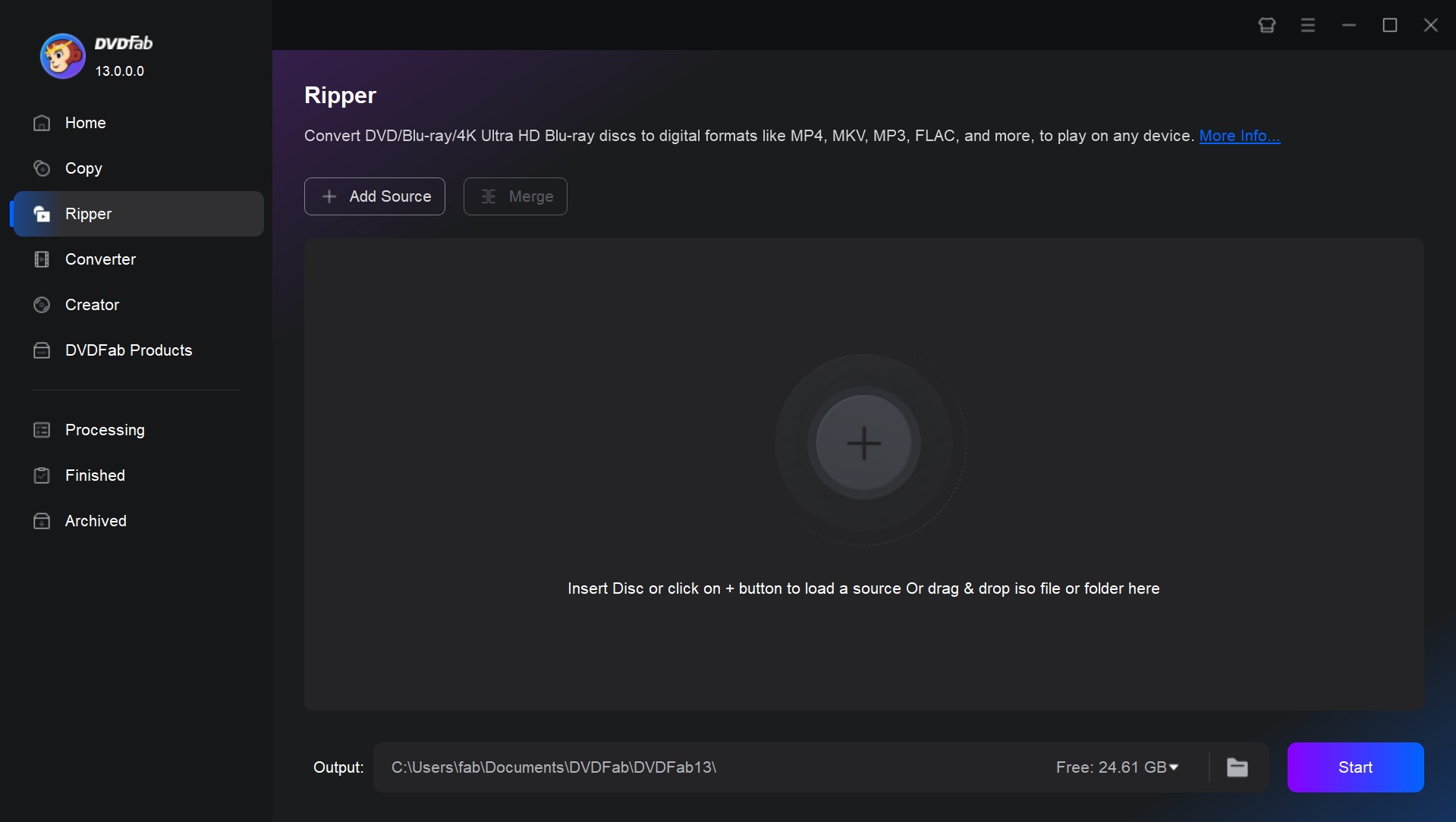
Step 1. Load Your 4K UHD Blu-ray Disc or ISO
Free download and open DVDFab 13 software. Select the Ripper module from the side menu. Insert a 4K Blu-ray disc and the software should automatically load it. Alternatively, you can click the + icon to load the UHD Blu-ray folder or ISO file.
Free Download Windows 11/10/8.1/8/7
Free Download macOS 10.13 - 15.x
Step 2. Choose a 4K Profile: Passthrough or Compression
Start with the playback destination. Choose a passthrough profile when your player can direct-play the original streams and you want a lossless 4K Blu-ray rip. Choose compressed H.265 output when smaller files matter more than keeping every source stream. Open Choose Other Profile to select the container and profile that match your player.
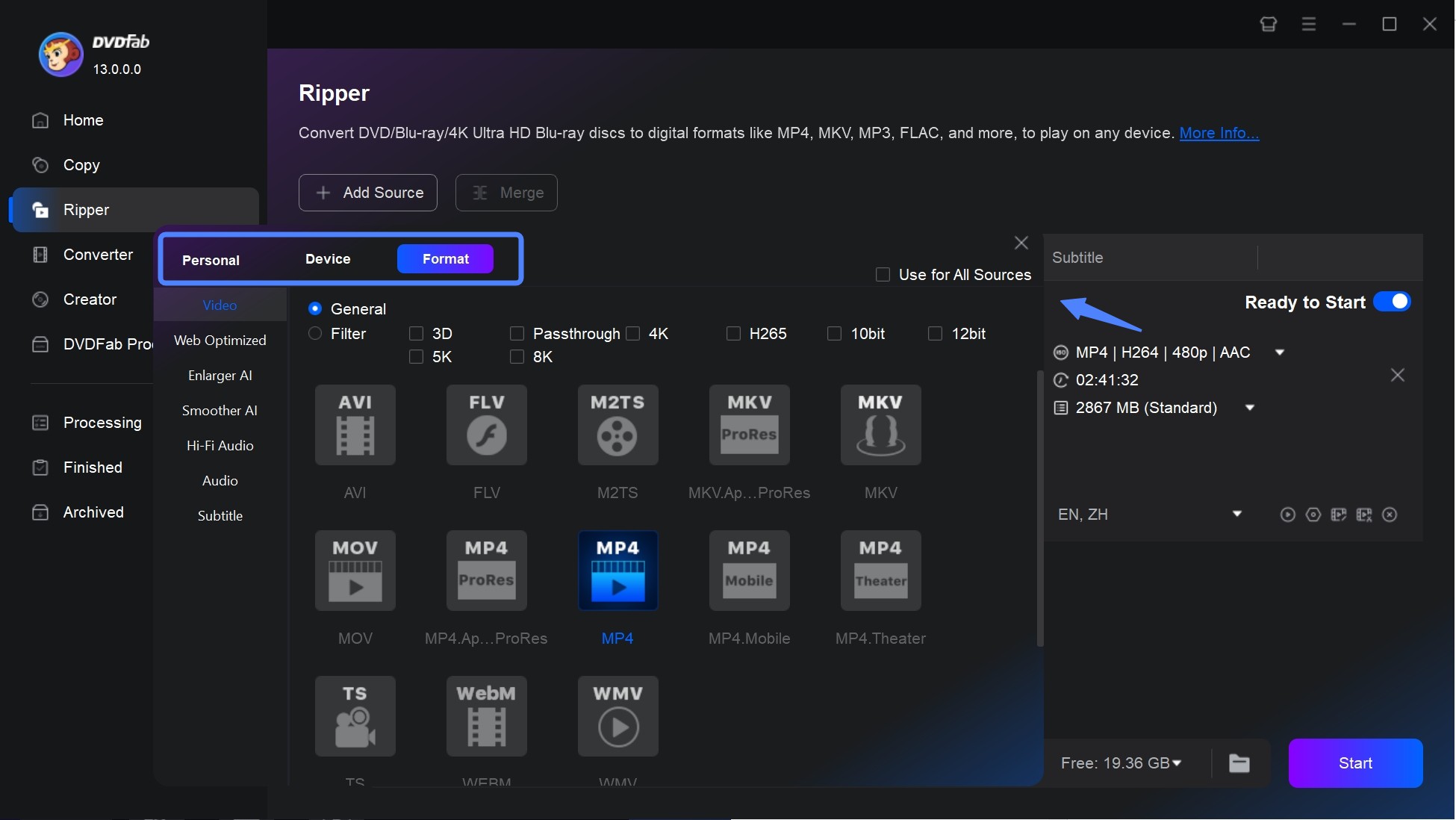
Step 3. Customize Audio Tracks, Subtitles, and HDR Settings
Before ripping, select the title, audio tracks, and subtitles you want to keep. Passthrough preserves selected source streams without video re-encoding, while compression can change file size and playback compatibility. HDR10, Dolby Vision, lossless audio, and image-based subtitles depend on the selected profile and target player. Choose the profile that preserves the streams you need and that the player can direct-play.
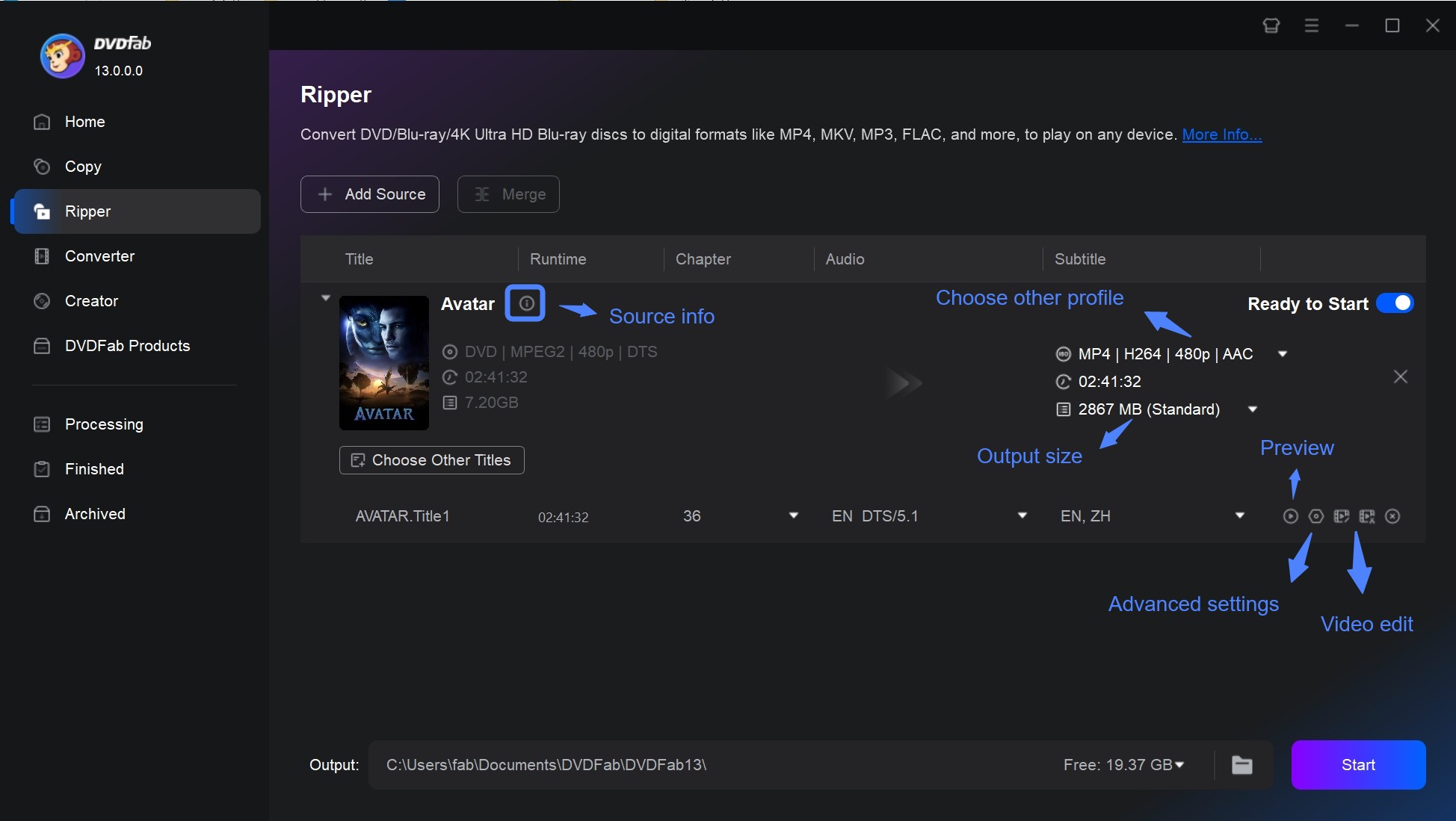
Step 4. Start the 4K Blu-ray Ripping Process
If necessary, change the default destination by clicking on the folder at the bottom of the menu. After finishing all the configurations, click the "Start" button at the bottom left corner. Once the movie is converted to 4K digital video, you can watch it on Kodi or VLC media player.
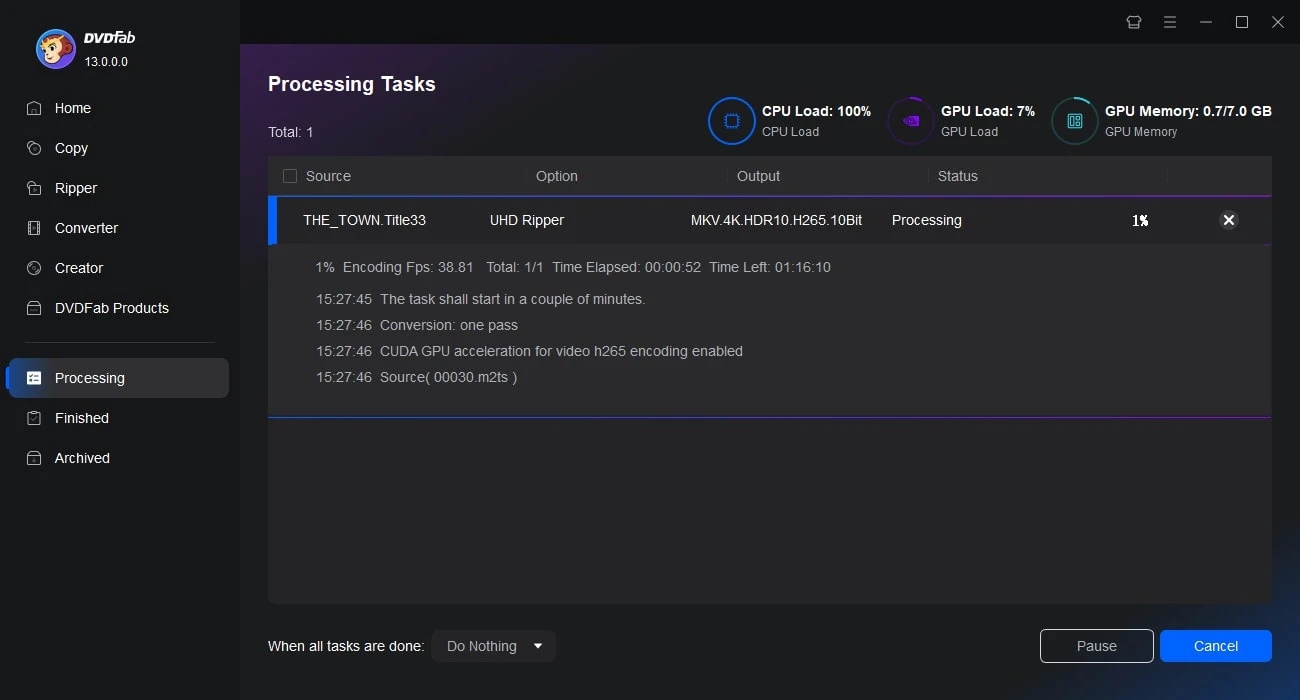

How to Rip 4K Blu-ray with MakeMKV [Free But Limited]
MakeMKV creates an MKV remux from a 4K UHD disc by placing selected video, audio, and subtitle streams in a new MKV container without video re-encoding. If you need a smaller file or another container, add a separate transcoding step.
MakeMKV is distributed as beta software, and its licensing status can change. If you need smaller files, plan for a separate transcoding step after the MKV remux.
- Creates a straightforward MKV remux; beta availability and terms can change
- Shows LibreDrive status for compatible drive and firmware combinations
- Preserves original quality with video, audio and subtitles intact
- Lets you select the titles, audio tracks, and subtitle streams to include
- MakeMKV beta needs to be updated regularly
- Only outputs MKV format, lacks mainstream options
- Lack advanced features like editing or menu customization
- Blu-ray menu and live preview are not supported
Step 1. Install MakeMKV and Check LibreDrive Compatibility
Download MakeMKV from its official website and install the version for your operating system. The official download page still labels MakeMKV as beta software, but beta licensing changes over time. Check the official forum for the current registration status before relying on temporary beta access.
Step 2. Scan the 4K Blu-ray and Select Target Titles
Insert your 4K Blu-ray disc into your computer's Blu-ray drive. The software automatically detects the inserted disc and scans its contents.
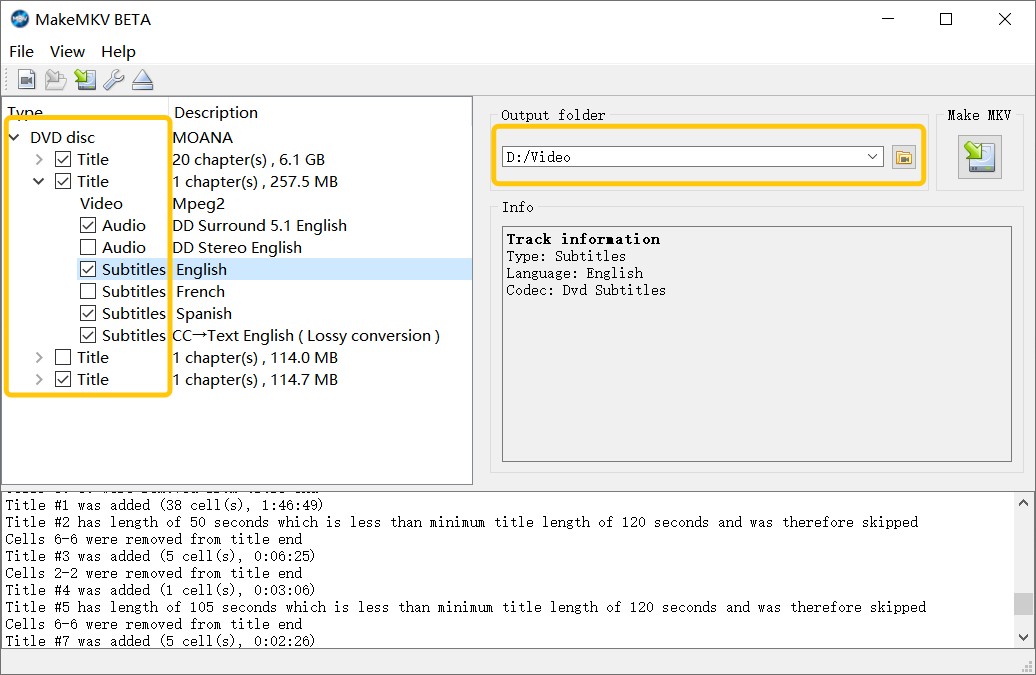
After the scan finishes, MakeMKV will list available titles, audio tracks, and subtitle streams. You can uncheck anything you don't want to include in the rip. For movie backups, the main feature is usually the longest title with the largest size.
If you want source-stream preservation, select the main video track and the audio and subtitle streams you intend to play. Keep in mind that Dolby TrueHD, DTS-HD MA, image-based subtitles, and HDR playback depend on the target player.
Step 3. Export to a Raw Lossless MKV File
Choose a destination folder with plenty of free space by clicking the output folder icon. When your selections are set, click the "Make MKV" button to start ripping.
The result is an MKV remux of the streams you selected, without video re-encoding. Full-quality 4K files are often tens of gigabytes, and the final size changes with the title and selected tracks. If you later need a smaller file or a different container, use a separate transcoder.
Comparison of the Best 4K Blu-ray Rippers
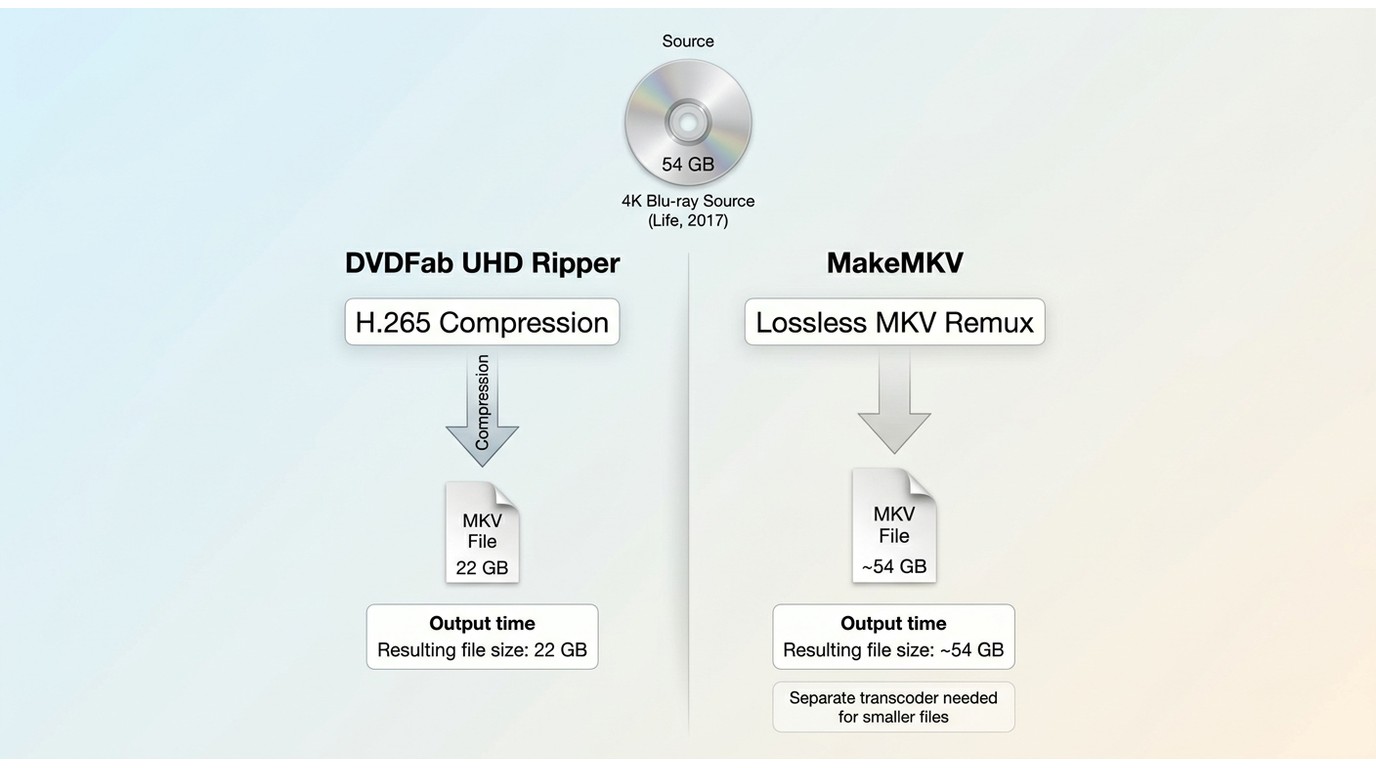
DVDFab and MakeMKV at a Glance
| Method | Re-encoding | HDR and audio handling | File size | Best for |
| DVDFab UHD Ripper passthrough | No | Selected source streams | Large | Direct-play capable devices |
| DVDFab UHD Ripper compressed output | Yes | Depends on profile and player | Smaller | Storage-conscious libraries |
| MakeMKV remux | No | Selected source streams | Large | Simple MKV output |
| MakeMKV plus HandBrake | Yes, second step | Depends on HandBrake settings | Smaller | Two-step remux and transcode |
For source-stream preservation, both a Blu-ray-to-MKV remux and passthrough output avoid video re-encoding. If storage or device compatibility is the priority, a Blu-ray-to-MP4 conversion can reduce file size, but HDR, audio, subtitles, and direct-play results depend on the selected profile and player.
Performance Test
Beyond the feature comparison, I also ran a test to see how each tool performs in 4K Ultra HD Blu-ray ripping scenarios. I tested both software converting the 4K Blu-ray movie Life (2017), running 1:43:58 with an disc size of 54 GB. The test system was a Windows 10 PC with an Intel i7-6700 CPU, 16 GB RAM, and an NVIDIA RTX 4060 Ti GPU.
| Software | Output Format | Ripping Time | Output File Size | Quality |
| DVDFab UHD Ripper | MKV Passthrough | 11m 41s | 42.1 GB | 3840*2160 Dolby ATMOS 7.1 |
| MakeMKV | MKV Passthrough | 13m 33s | 50.6 GB | 3840*2160 Dolby ATMOS 7.1 |
DVDFab Stands Out in the Test:
- DVDFab UHD Ripper completed the ripping process about 14% faster than MakeMKV, benefiting from GPU acceleration.
- Although both tools produced lossless 1:1 MKV outputs, DVDFab delivered a smaller file size. This is due to more efficient data handling rather than re-encoding.
- Both tools retained the original video and audio tracks, ensuring playback quality was identical to the source disc.
FAQs
Is it illegal to rip 4K Blu-ray Discs?
The legality of ripping 4K Blu-ray discs depends on where you live. In some countries, making a personal backup of discs you own may be tolerated or fall under "private copy" or similar exceptions, but circumventing copy protection (such as AACS 2.0) can still be restricted by law. Sharing, uploading, or selling copied files is almost always illegal.
Can you rip 4K Blu-ray with a regular Blu-ray drive?
No. Most standard Blu-ray drives cannot read 4K Ultra HD Blu-ray discs in a way that ripping tools can use. UHD discs use stricter AACS 2.0+ protection, and only certain UHD-friendly drives can provide accessible data for backup.
To check your setup:
- Use a tool such as DVDFab UHD Drive Tool to see whether your drive and firmware are recognized as UHD-friendly.
- Look up your drive model and firmware version in your operating system and compare it against known UHD-friendly drive lists from reliable forums or vendors.
Some users modify their drives by downgrading or cross-flashing the firmware to make them UHD-friendly. This is an advanced procedure and carries a real risk of damaging the drive, so always back up the original firmware first.
How much space does a ripped 4K Blu-ray take up?
A ripped 4K Blu-ray movie can take up anywhere from 50GB to 100GB of storage space, depending on the size of the original disc, how the content is encoded, and whether it's compressed or not. For example, the main video file and lossless audio track of Star Trek (BD-66GB disc) take up about 50-65GB.
To put the long-term storage cost into perspective, a Reddit user shared actual data: maintaining a library of roughly 700 1:1 lossless rips (a mix of 4K and standard Blu-rays) consumes about 25TB of NAS storage. If you are building a large media server for Plex or Jellyfin, plan your hard drive capacity accordingly.
When ripping a 4K Blu-ray, should I choose Remux or Transcode?
Once your 4K Blu-ray is loaded into the ripping software, you'll need to decide whether to create a Remux or a Transcode. A Remux takes the original video and audio tracks and places them into a new container. The quality remains the same as the disc and the process is faster. A Transcode re-encodes the video using a codec such as H.265 to reduce the file size. This process is slower, requires more CPU or GPU power, and may slightly reduce quality. For most users who want a lossless backup, MKV Remux is the best option. Choose Transcode only if you need smaller files or better compatibility with certain players or mobile devices.
What is the best drive for 4K Blu-ray Ripping?
Based on the feedback provided by users and combined with our tests, the following is the analysis and recommendation for 4K Blu-ray drives. Please note that compatibility depends heavily on firmware version, and some models may require a downgrade to become UHD-friendly.
| Model | No Firmware Flashing | UHD Support | Speed & Stability | Noise Control |
| Pioneer BDR-XS07UHD | √ | √ | High-speed writing, strong compatibility | Moderate |
| Archgon MD-8107S-U3 | √ | √ | Stable ripping, low noise | Excellent |
| Pioneer BDR-S06XLB | × | √ (after mod) | Cost-effective, mature tech | Moderate |
| ASUS BW-16D1H-U Pro | × | √ (after mod) | 16X DVD writing, high durability | Excellent |
Conclusion
Choose the output after checking three things: whether the drive can read UHD discs, how much storage you want to use, and where the file will play. Use passthrough or a remux to preserve selected source streams; use compressed output when smaller files or broader device compatibility matter more.
DVDFab UHD Ripper combines passthrough and compressed output in one application and can use supported GPU acceleration. If you only need an MKV remux, MakeMKV can do that directly; smaller files or other containers generally require a separate transcoder. Use these tools only for discs you own or are authorized to copy, where permitted by applicable law.

 DVDFab UHD Ripper Review: Key Features Tested & How toBy Diana Smith - Jul 1, 2026