UHD Blu-ray Drive Guide 2026: Firmware Downgrade, Crossflash & Compatibility
I'm Alex, Product Manager at DVDFab. DVDFab UHD Drive Tool received several important updates in 2026. Windows support expanded in May to selected Pioneer 211, 212, S12, XD07, and XS07 drives, including compatible-firmware matching for selected models. Mac support followed in June, and the August update added MT1959 detection and tighter downgrade checks.
Those changes reflect how our team develops and tests UHD Drive Tool. We follow a simple rule when checking UHD drive compatibility: the model name on the box is not enough to identify the right firmware action. Firmware revision, platform, SVC or hardware identity, form factor, and even the mechanism inside an external enclosure can change the result. Below, I'll share how we check those configurations, what we have confirmed so far, and what each result means for your drive.
If your exact configuration is not listed, or your drive behaves differently from the result shown here, you can leave the model, firmware, operating system, connection type, and relevant error details in the comments. Our product and engineering teams review these reports to investigate edge cases and prioritize additional compatibility testing.
Why the Same UHD Drive Can Behave Differently with Different Firmware
Two units sold under the same model name can behave differently with UHD discs because firmware is part of the drive configuration. It controls how the mechanism responds to disc-access commands, while the hardware platform determines which firmware family belongs on that mechanism. A higher firmware number is not automatically better or worse; the important question is whether that exact configuration already reads UHD, needs a defined firmware change, or does not yet have a supported DVDFab action.
Firmware work should therefore begin with identification rather than flashing. A drive that already works in its current state normally has no reason to change firmware, while another revision of the same model may need a specific target.
LibreDrive, AACS 2.0, and What They Change for UHD Access
Commercial UHD Blu-ray uses the AACS 2.x protection branch, which places different access requirements on the optical drive and the software communicating with it. MakeMKV's LibreDrive mode changes how compatible drive firmware exposes disc data to software. When MakeMKV recognizes a supported firmware version, it can load a small extension into volatile drive memory; the installed firmware itself is not permanently replaced. In other words, LibreDrive being enabled does not necessarily mean the drive's installed firmware has been flashed or permanently changed.
LibreDrive status should not be used as a substitute for an actual UHD-disc result. DVDFab UHD Drive Tool treats BU40N FR07 as a direct-use Native configuration, so this exact state does not require another firmware change for DVDFab UHD access. An actual UHD-disc test is still the final confirmation of disc reading.
Native, Friendly, Flashable, or Uncovered: Know the Current State
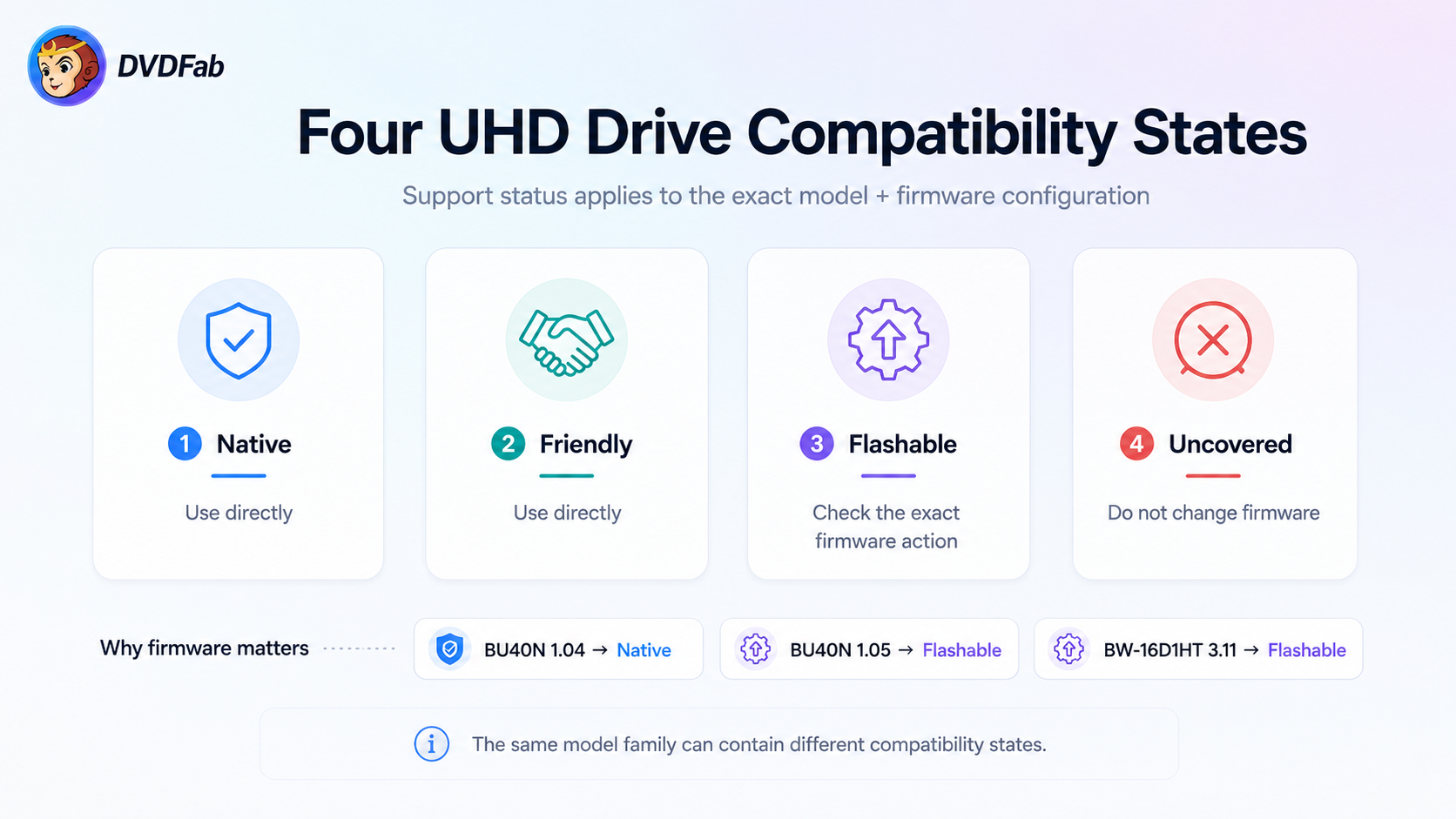
| State | What it means | User action |
|---|---|---|
| Native | The exact configuration is recognized for direct UHD access as a native UHD configuration. | Keep the current firmware if it already performs the required task. |
| Friendly | The exact configuration is recognized for UHD access, although the drive family is not classified as native UHD hardware. | Use the current firmware unless a specific supported change is required. |
| Flashable | The current configuration has firmware handling associated with it but is not the direct-use state. | Check the exact source and target before writing firmware. |
| Uncovered | The exact model, firmware, platform, build, or required hardware identity does not currently have a DVDFab match. | Leave the firmware unchanged until an exact action is available. |
BU40N shows why these states need to remain firmware-specific. BU40N 1.00 through 1.04 are direct-use configurations, while 1.05 requires firmware treatment. ASUS BW-16D1HT has the same kind of split: 3.10 is direct-use, while 3.11 has a defined downgrade to 3.10. Neither model can be described accurately with a single “supported” or “needs downgrade” label.
An Uncovered result does not mean that the optical mechanism can never read UHD. It means UHD Drive Tool does not currently provide a firmware action for that exact configuration.
How We Test and Verify UHD Drive Compatibility
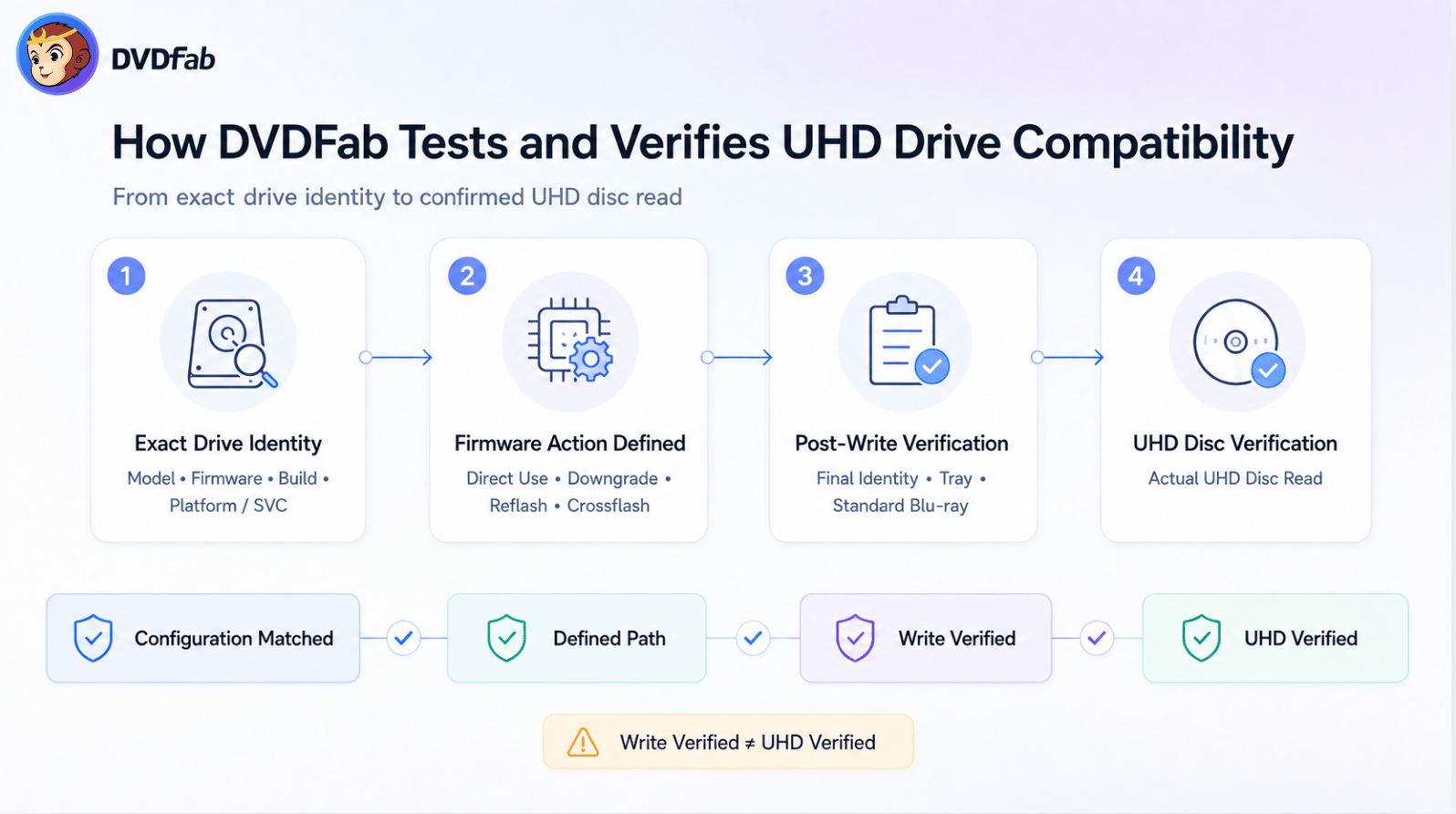
1. Exact Drive Identity. Check the vendor, full model, firmware revision, build, platform, and HW/SVC where required. These fields determine whether the drive matches a supported configuration.
2. Firmware Action Defined. Determine whether the configuration can be used directly or requires a specific downgrade, reflash, update, or crossflash. A firmware change should have an exact source and target.
3. Post-Write Verification. After flashing, fully power-cycle the drive and check the final model, revision, build, platform, tray operation, and standard Blu-ray reading.
4. UHD Disc Verification. Test an owned or authorized UHD disc with the final configuration. Only this step confirms the post-flash UHD-reading result.
Our Pioneer testing illustrates the distinction. Specific BDR-S09XLB, BDR-S12JX, and BDR-212DBK configurations completed firmware writes successfully. Those cases are classified as Write Verified because the firmware operation succeeded; they are not labeled as separate UHD Verified cases without a corresponding post-write UHD-disc result.
| Drive detail | Why it matters |
|---|---|
| Vendor and full model identity | Separates the actual mechanism from a retail enclosure or similarly named model. |
| Firmware revision | Determines the current compatibility state and available action. |
| Raw build | Separates configurations that share the same visible revision but report different internal builds. |
| Platform | Keeps firmware intended for different controller families apart. |
| HW / SVC | Distinguishes hardware variants within related LG-family models. |
| Desktop or slim form factor | Prevents firmware assumptions across different mechanism families. |
| SATA or USB connection | A USB bridge can affect firmware-command communication. |
| Current reported identity | A used or previously flashed drive may no longer match the original label. |
If one of the required identity fields is unknown, do not infer it from a similar model.
UHD Drives Supported by DVDFab UHD Drive Tool: Models, Firmware, and Required Action
The table below shows the exact UHD drive and firmware configurations currently supported by DVDFab UHD Drive Tool. Native and Friendly configurations can be used in their listed firmware state, while Flashable configurations require the firmware action defined for that exact source.
The current support range covers 91 LG / ASUS / OEM configurations and 32 Pioneer configurations.
Full UHD Drive Compatibility List
| Brand | Model | Firmware | Interface / Form | Current State |
|---|---|---|---|---|
| ASUS | BC-12B1ST | 3.00 | Flashable | |
| ASUS | BC-12D2HT | 3.00 | Friendly | |
| ASUS | BC-12D2HT | 3.11 | Friendly | |
| ASUS | BW-16D1H-U | A201 | USB / External | Friendly |
| ASUS | BW-16D1HT | 3.00 | SATA / Desktop | Friendly |
| ASUS | BW-16D1HT | 3.01 | SATA / Desktop | Friendly |
| ASUS | BW-16D1HT | 3.03 | SATA / Desktop | Flashable |
| ASUS | BW-16D1HT | 3.10 | SATA / Desktop | Friendly |
| ASUS | BW-16D1HT | 3.11 | SATA / Desktop | Flashable |
| Buffalo | Optical Drive | 1.00 | USB / External | Friendly |
| Buffalo | Optical Drive | BU10 | USB / External | Friendly |
| HL-DT-ST | BE16NU50 | 1.01 | USB / External | Friendly |
| HL-DT-ST | BE16NU50 | 1.02 | USB / External | Friendly |
| HL-DT-ST | BE16NU50 | 1.04 | USB / External | Friendly |
| HL-DT-ST | BE16NU60 | 0023 | USB / External | Friendly |
| HL-DT-ST | BE16NU60 | 0145 | USB / External | Friendly |
| HL-DT-ST | BH14NS58 | 1.00 | SATA / Desktop | Flashable |
| HL-DT-ST | BH14NS58 | 1.02 | SATA / Desktop | Flashable |
| HL-DT-ST | BH14NS58 | 1.03 | SATA / Desktop | Flashable |
| HL-DT-ST | BH16NS40 | 1.01 | SATA / Desktop | Friendly |
| HL-DT-ST | BH16NS40 | 1.02 | SATA / Desktop | Friendly |
| HL-DT-ST | BH16NS40 | 1.03 | SATA / Desktop | Flashable |
| HL-DT-ST | BH16NS40 | 1.04 | SATA / Desktop | Flashable |
| HL-DT-ST | BH16NS40 | 1.05 | SATA / Desktop | Friendly |
| HL-DT-ST | BH16NS50 | 1.01 | SATA / Desktop | Friendly |
| HL-DT-ST | BH16NS55 | 1.00 | SATA / Desktop | Friendly |
| HL-DT-ST | BH16NS55 | 1.01 | SATA / Desktop | Friendly |
| HL-DT-ST | BH16NS55 | 1.02 | SATA / Desktop | Friendly |
| HL-DT-ST | BH16NS55 | 1.03 | SATA / Desktop | Flashable |
| HL-DT-ST | BH16NS55 | 1.04 | SATA / Desktop | Flashable |
| HL-DT-ST | BH16NS55 | 1.05-01N | SATA / Desktop | Flashable |
| HL-DT-ST | BH16NS58 | 1.00 | SATA / Desktop | Flashable |
| HL-DT-ST | BH16NS58 | 1.02 | SATA / Desktop | Flashable |
| HL-DT-ST | BH16NS58 | 1.03 | SATA / Desktop | Flashable |
| HL-DT-ST | BH16NS60 | 0006 | SATA / Desktop | Friendly |
| HL-DT-ST | BH50N | GD00-01V | Flashable | |
| HL-DT-ST | BP55EB40 | 1.00 | USB / Slim | Flashable — verify hardware identity before writing |
| HL-DT-ST | BP60N | GH01 | USB / Slim | Friendly |
| HL-DT-ST | BP60NB10 | 1.00 | USB / Slim | Flashable |
| HL-DT-ST | BP60NB10 | 1.01 | USB / Slim | Friendly |
| HL-DT-ST | BP60NB10 | 1.02 | USB / Slim | Friendly |
| HL-DT-ST | BU30N | 0217 | Slim | Friendly |
| HL-DT-ST | BU30N | 0245 | Slim | Friendly |
| HL-DT-ST | BU40N | 0752 | Slim | Native |
| HL-DT-ST | BU40N | 0754 | Slim | Native |
| HL-DT-ST | BU40N | 0792 | Slim | Native |
| HL-DT-ST | BU40N | 1.00 | Slim | Native |
| HL-DT-ST | BU40N | 1.01 | Slim | Native |
| HL-DT-ST | BU40N | 1.02 | Slim | Native |
| HL-DT-ST | BU40N | 1.03 | Slim | Native |
| HL-DT-ST | BU40N | 1.04 | Slim | Native |
| HL-DT-ST | BU40N | 1.05 | Slim | Flashable |
| HL-DT-ST | BU40N | A100 | Slim | Native |
| HL-DT-ST | BU40N | A101 | Slim | Native |
| HL-DT-ST | BU40N | BN11 | Slim | Flashable |
| HL-DT-ST | BU40N | BU10 | Slim | Native |
| HL-DT-ST | BU40N | CAT7 | Slim | Native |
| HL-DT-ST | BU40N | CAT9 | Slim | Flashable |
| HL-DT-ST | BU40N | FR07 | Slim | Native |
| HL-DT-ST | BU40N | TES0 | Slim | Native |
| HL-DT-ST | BU40N | TST0 | Slim | Native |
| HL-DT-ST | BU40N | TST1 | Slim | Native |
| HL-DT-ST | BU50N | 0420 | Slim | Native |
| HL-DT-ST | BU50N | 1.00 | Slim | Native |
| HL-DT-ST | BU50N | CC01 | Slim | Native |
| HL-DT-ST | BU50N | CCT2 | Slim | Native |
| HL-DT-ST | BU50N | CCT4 | Slim | Native |
| HL-DT-ST | BU50N | GE02 | Slim | Native |
| HL-DT-ST | UH12NS30 | 1.03 | SATA / Desktop | Friendly |
| HL-DT-ST | UH12NS40 | 1.00 | SATA / Desktop | Flashable |
| HL-DT-ST | WH14NS40 | 1.00 | SATA / Desktop | Friendly |
| HL-DT-ST | WH14NS40 | 1.01 | SATA / Desktop | Friendly |
| HL-DT-ST | WH14NS40 | 1.02 | SATA / Desktop | Friendly |
| HL-DT-ST | WH14NS40 | 1.03 | SATA / Desktop | Friendly |
| HL-DT-ST | WH14NS40 | 1.04 | SATA / Desktop | Flashable |
| HL-DT-ST | WH14NS40 | 1.05 | SATA / Desktop | Friendly |
| HL-DT-ST | WH16NS40 | 1.02 | SATA / Desktop | Flashable |
| HL-DT-ST | WH16NS40 | 1.03 | SATA / Desktop | Flashable |
| HL-DT-ST | WH16NS40 | 1.05 | SATA / Desktop | Friendly |
| HL-DT-ST | WH16NS58 | 1.00 | SATA / Desktop | Friendly |
| HL-DT-ST | WH16NS58 | 1.V5 | SATA / Desktop | Flashable — verify the exact action before writing |
| HL-DT-ST | WH16NS58 | 1.V5-00N | SATA / Desktop | Friendly |
| HL-DT-ST | WH16NS58 | 1.V9-00N | SATA / Desktop | Flashable |
| HL-DT-ST | WH16NS58 | TST5 | SATA / Desktop | Friendly |
| HL-DT-ST | WH16NS60 | 1.00 | SATA / Desktop | Native |
| HL-DT-ST | WH16NS60 | 1.01 | SATA / Desktop | Native |
| HL-DT-ST | WH16NS60 | 1.02 | SATA / Desktop | Native |
| HL-DT-ST | WH16NS60 | 1.03 | SATA / Desktop | Native |
| HP HLDS | BU40N | BW41 | Slim | Native |
| HP HLDS | BU50N | BW50 | Slim | Native |
| HP HLDS | BU50N | CC01 | Slim | Native |
Some visible firmware revisions need one more identity check. BP60NB10 1.02 can report different runtime builds, and WH16NS60 1.03 also appears with more than one build value. For those configurations, match the build as well as the visible revision. BP55EB40 1.00 also requires additional hardware verification because its hardware identity and associated firmware identity do not point cleanly to the same family.
Pioneer Configurations
| Model | Firmware | Interface | Platform | State |
|---|---|---|---|---|
| BDR-211M | 1.51 | SATA | RS8F00 | Friendly |
| BDR-211M | 1.53 | SATA | RS8F00 | Friendly |
| BDR-212M | 1.01 | SATA | RS8F00 | Friendly |
| BDR-212M | 1.02 | SATA | RS8F00 | Friendly |
| BDR-212UBK | 1.01 | SATA | RS8F00 | Native |
| BDR-212UBK | 1.02 | SATA | RS8F00 | Native |
| BDR-S12JX | 1.00 | SATA | RS8F00 | Friendly |
| BDR-S12JX | 1.01 | SATA | RS8F00* | Friendly |
| BDR-S12UHT | 1.00 | SATA | RS8F00 | Native |
| BDR-S12UHT | 1.01 | SATA | RS8F00 | Native |
| BDR-S12XLT | 1.00 | SATA | RS8F00 | Friendly |
| BDR-S12XLT | 1.01 | SATA | RS8F00 | Friendly |
| BDR-UD04 | 1.11 | SATA | RS8A10 | Native |
| BDR-UD04 | 1.14 | SATA | RS8A10 | Native |
| BDR-XD07TS | 1.01 | USB | RS8D30 | Friendly |
| BDR-XD07TS | 1.02 | USB | RS8D30 | Friendly |
| BDR-XD07TS | 1.03 | USB | RS8D30 | Friendly |
| BDR-XD07UHD | 1.00 | USB | RS8D30 | Native |
| BDR-XD07UHD | 1.01 | USB | RS8D30 | Native |
| BDR-XD07UHD | 1.03 | USB | RS8D30 | Native |
| BDR-XS07B-UHD | 1.00 | USB | RS8E21 | Native |
| BDR-XS07B-UHD | 1.01 | USB | RS8E21 | Native |
| BDR-XS07UHD | 1.01 | USB | RS8E21 | Native |
| BDR-XS07UHD | 1.02 | USB | RS8E21 | Native |
| BDR-S11 | 1.02 | SATA | — | Friendly |
| BDR-S11 | 1.51 | SATA | — | Friendly |
| BDR-S11 | 1.52 | SATA | — | Friendly |
| BDR-S11 | 1.53 | SATA | — | Friendly |
| BDR-S11JX | 1.02 | SATA | — | Friendly |
| BDR-S11JX | 1.51 | SATA | — | Friendly |
| BDR-S11JX | 1.52 | SATA | — | Friendly |
| BDR-S11JX | 1.53 | SATA | — | Friendly |
BDR-S12JX 1.01 needs additional verification before a firmware change because its direct-use configuration and separate firmware-write case report different Pioneer platform values.
DVDFab 13.0.6.0 added support for 12 Pioneer models across the XD07, XS07, S12, 212, and 211 series, along with automatic compatible-firmware matching for selected Pioneer drives. See the DVDFab Windows release notes .
Pioneer: Read the Full Model Suffix and Firmware
Pioneer suffixes matter. BDR-XD07UHD is not interchangeable with every XD07 variant, and BDR-XS07UHD should not be shortened to BDR-XS07U when checking firmware. Newer numbering also does not inherit an older result: an XD08 or S13-series drive needs its own exact configuration even when an XD07 or S12 appears in the matrix.
Direct-use support and firmware-changing support also remain separate. A Pioneer entry can be recognized for UHD access without having a corresponding user firmware-change procedure.
LG / HL-DT-ST: Firmware Can Reverse the Expected Result
LG contains several configurations where version-number assumptions fail. BU40N 1.00–1.04 are direct-use while 1.05 needs firmware treatment. WH16NS40 1.02 and 1.03 need firmware handling, yet 1.05 is direct-use. BH16NS55 is direct-use on 1.00–1.02, while 1.03, 1.04, and 1.05-01N belong to firmware-change cases.
OEM firmware also needs to be treated as its own state. BU40N FR07, CAT7, CAT9, BU10, and HP/Buffalo variants cannot be reduced to the standard 1.xx sequence.
ASUS: Check the Revision Before Choosing an Action
ASUS BW-16D1HT 3.00, 3.01, and 3.10 are direct-use configurations. Firmware 3.03 and 3.11 need firmware handling, with 3.11 having a defined same-model downgrade to 3.10. BC-12D2HT 3.11 also illustrates why a short revision number may not be the entire identity; where a runtime build is available, use the value reported by the drive.
HP, Buffalo, and Other OEM Drives: Check the Internal Mechanism
External and OEM products can identify themselves differently from the retail name printed on the enclosure. Current direct-use entries include HP HLDS BU40N BW41, HP HLDS BU50N BW50/CC01, and Buffalo Optical Drive 1.00/BU10, but support applies to those reported mechanisms and firmware versions rather than every product sold under the same brand.
On Mac, UHD Drive Tool became available in DVDFab 13.0.6.3 for listed LG, ASUS, HP, Buffalo, and Archgon drives. Version 13.0.6.6 later added MT1959 detection and stricter downgrade checks. See the DVDFab Mac release notes .
Not Listed? What an Uncovered Configuration Means
- Pioneer BDR-S13 / BDR-213 series
- Pioneer BDR-XD08 / AD08 series
- Pioneer BDR-X13 / XS08 series
- LG WP50NB40
- LG BP71N
- ASUS SBW-06D2X-U
- ASUS SBW-06D5H-U
- ASUS BW-16D1X-U
- LG WH16NS46
- Any otherwise supported model running an unlisted revision, build, platform, or SVC
If your exact configuration is not listed, keep the installed firmware unchanged. UHD Drive Tool does not currently provide a firmware action for that model–firmware combination. Our product and engineering teams continue testing new drive and firmware combinations and expanding support as additional configurations are verified.
Should You Change the Firmware on Your UHD Drive?
Firmware should change only when the current configuration needs a known target. Native and Friendly configurations that already perform the required UHD task normally stay on their existing firmware.
When a Downgrade Is Actually Needed: Three Confirmed Paths
| Drive | Source Firmware | Target Firmware | Source State |
|---|---|---|---|
| LG BU40N | 1.04 | 1.03 | Native; 1.03 is an available target but is not required for a working 1.04 drive |
| LG BU40N | 1.05 | 1.03 | Flashable |
| ASUS BW-16D1HT | 3.11 | 3.10 | Flashable |
The two BU40N cases lead to different decisions. BU40N 1.04 is already direct-use, so a working 1.04 unit has no automatic reason to move to 1.03. BU40N 1.05 is a Flashable source with 1.03 as the defined lower target. BW-16D1HT 3.11 similarly maps to the direct-use 3.10 state.
Downgrade, Update, Reflash, or Crossflash?
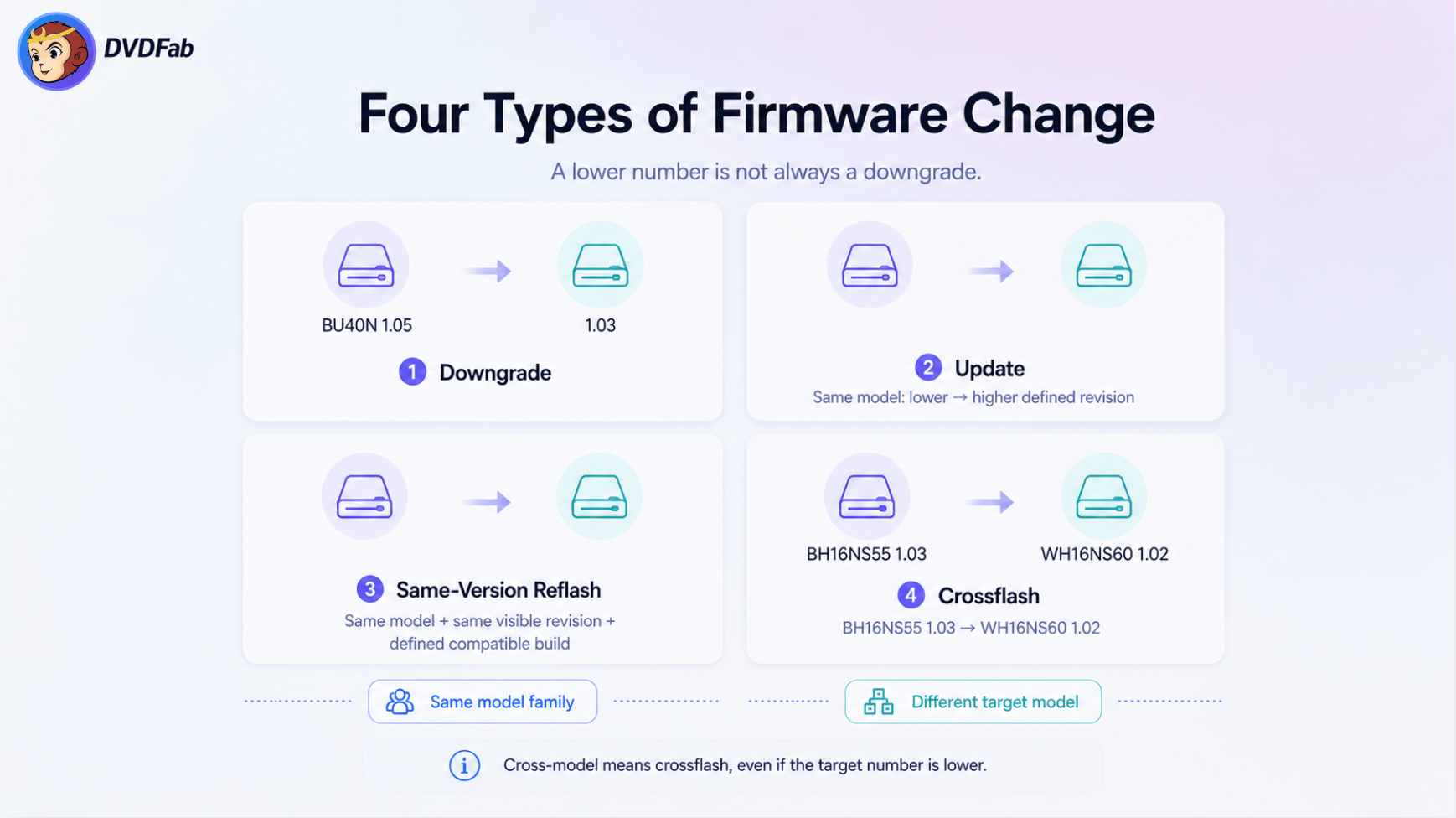
Downgrade: same model, higher source revision to a lower defined revision. Example: BU40N 1.05 → 1.03.
Update: same model, lower source revision to a higher revision, only when an exact supported path is defined.
Same-version reflash: same model and visible revision, with a different compatible build, only when an exact supported path is defined.
Crossflash: the target model or firmware family changes. Example: BH16NS55 1.03 → WH16NS60 1.02.
BH16NS55 1.03 → WH16NS60 1.02 is a crossflash, not a downgrade. The target number is lower, but the target model has changed.
Why Pioneer Uses Different Firmware Rules
The current Pioneer cases do not contain a general same-model downgrade path. Conditions such as Revision < 1.54 or Revision < 1.04 define whether a particular source drive can enter a specific firmware-change case; they do not establish a way to take firmware 1.54 or 1.04 and downgrade it. Pioneer firmware decisions therefore need the source model, revision, platform, and firmware ID defined for that case.
Using DVDFab UHD Drive Tool with a Matched Configuration
When UHD Drive Tool recognizes an exact source and matches the corresponding firmware, use that matched action instead of selecting a firmware file from a similar drive.
1. Open UHD Drive Tool. Open DVDFab, go to Home > Utilities , and select UHD Drive Tool .
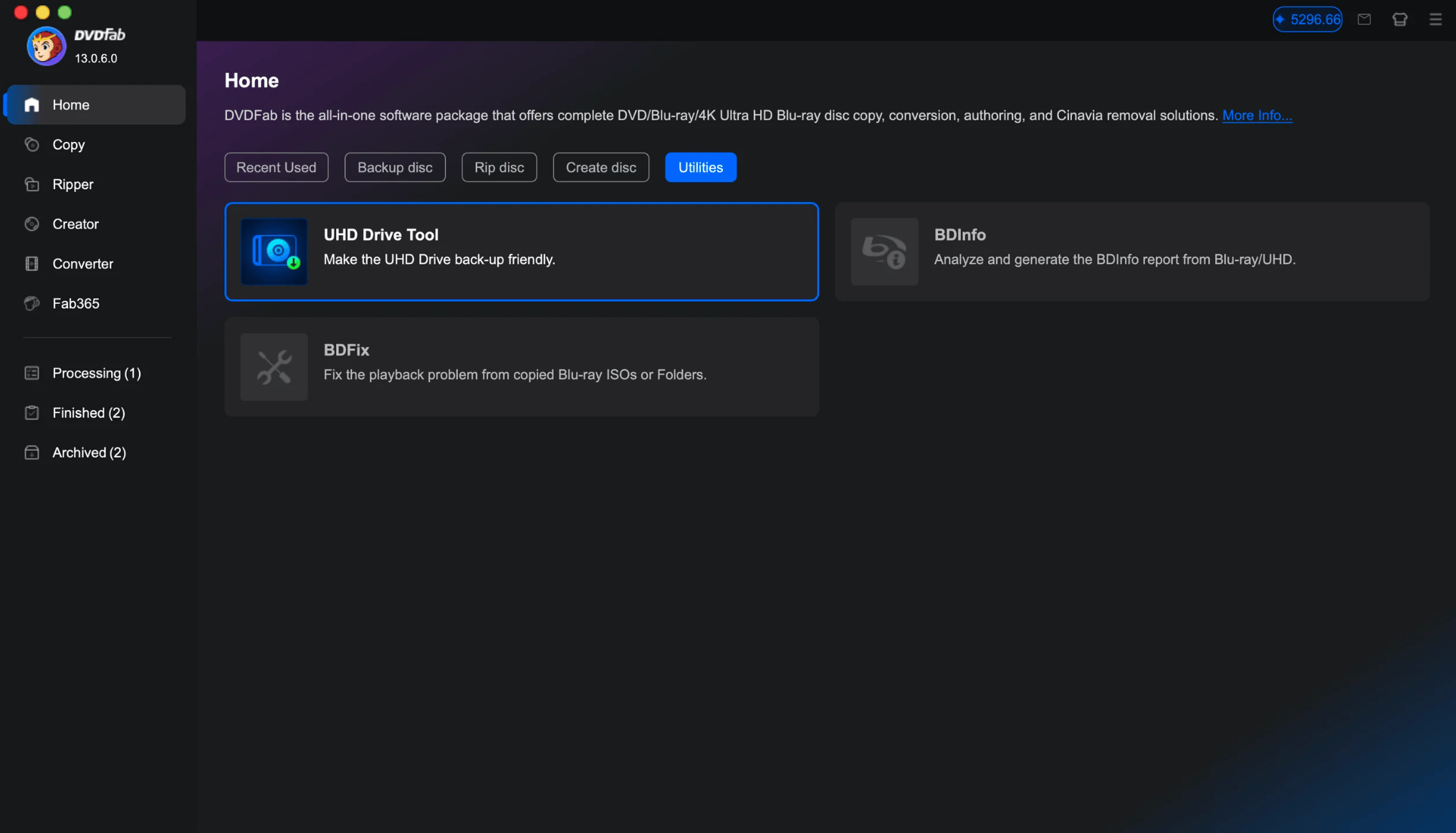
2. Check the detected configuration. Confirm the selected drive, interface, current firmware, UHD compatibility state, and the firmware matched by the tool. These values should agree with the exact configuration you expect.
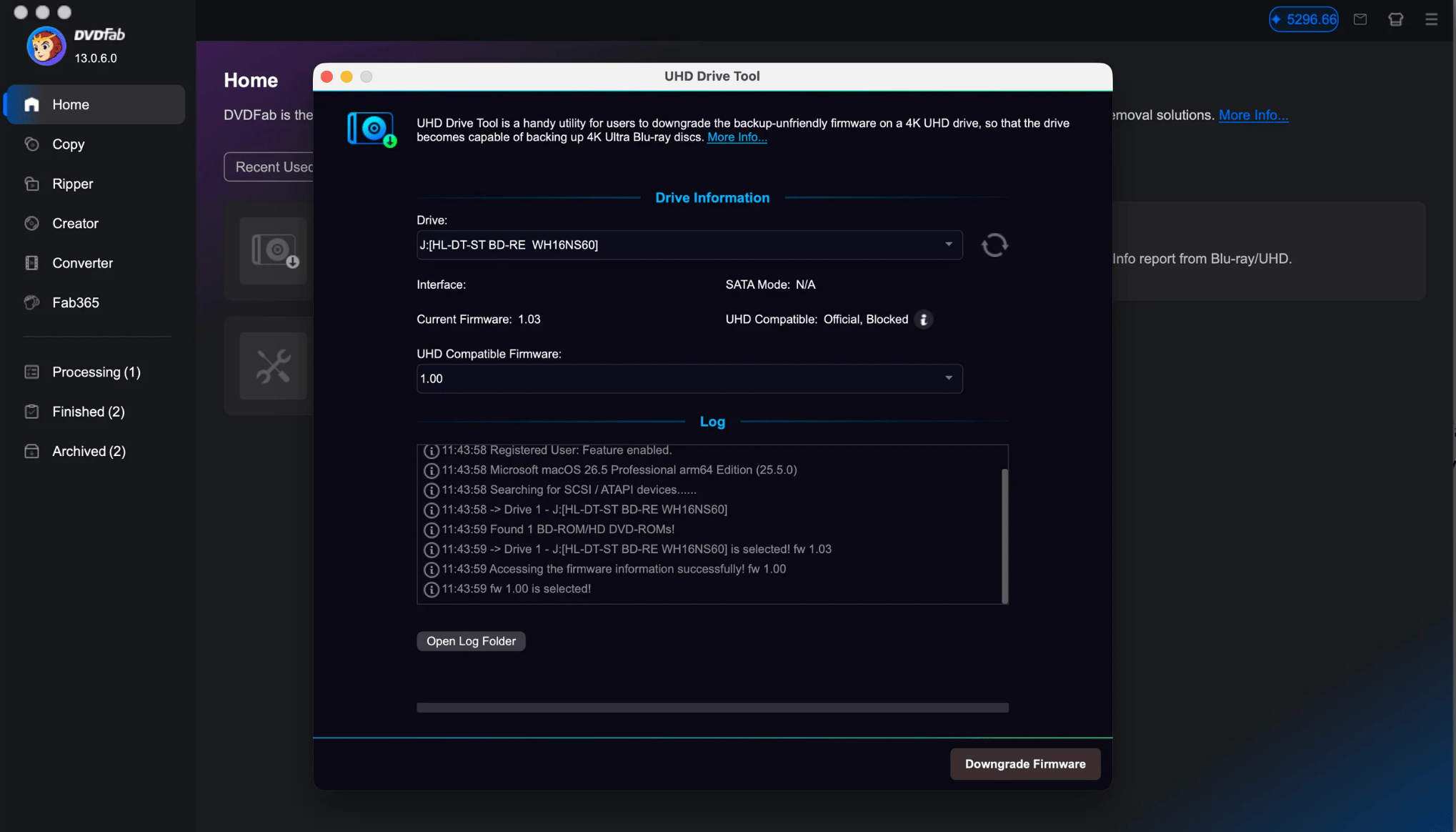
3. Start the matched firmware action. If the displayed source and matched firmware are correct, use the firmware action offered by the tool. The interface shown here uses Downgrade Firmware ; the tool downloads the assigned firmware and begins writing it to the drive.
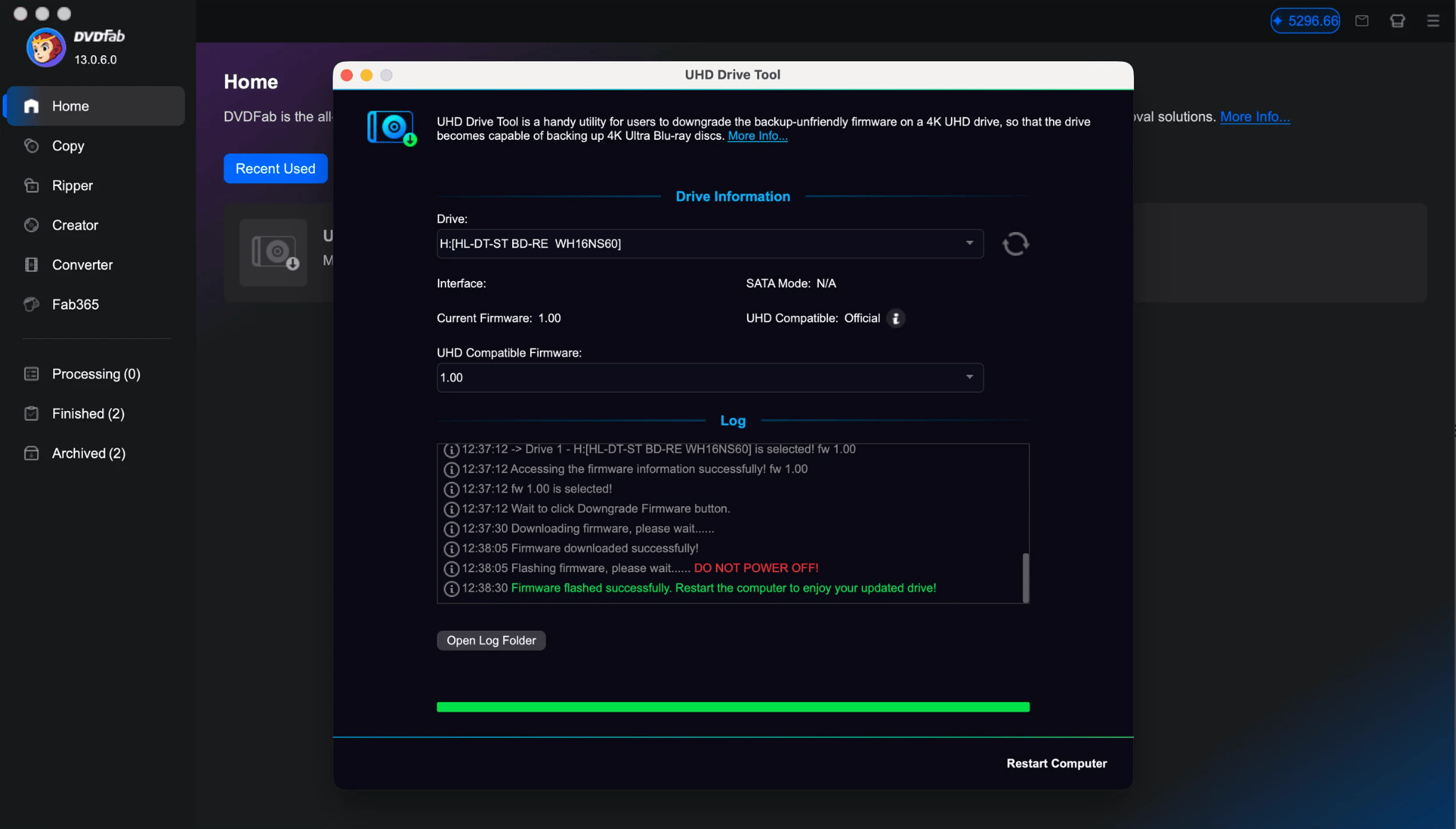
Keep the system and drive powered while the firmware is being written.
4. Power-cycle and verify. After the write finishes, power-cycle the drive, read the drive identity again, check normal Blu-ray access, and test an owned or authorized UHD disc when the result is being verified at UHD level.
For a USB enclosure, normal disc reading does not establish that the bridge can pass the firmware-writing commands required for the same mechanism. If firmware modification is necessary through USB, the enclosure must also support that operation.
Use firmware-changing functions only with hardware and discs you own or are authorized to use, and follow the laws and warranty terms that apply where you live.
When Crossflash Is the Right Firmware Change—and When to Stop
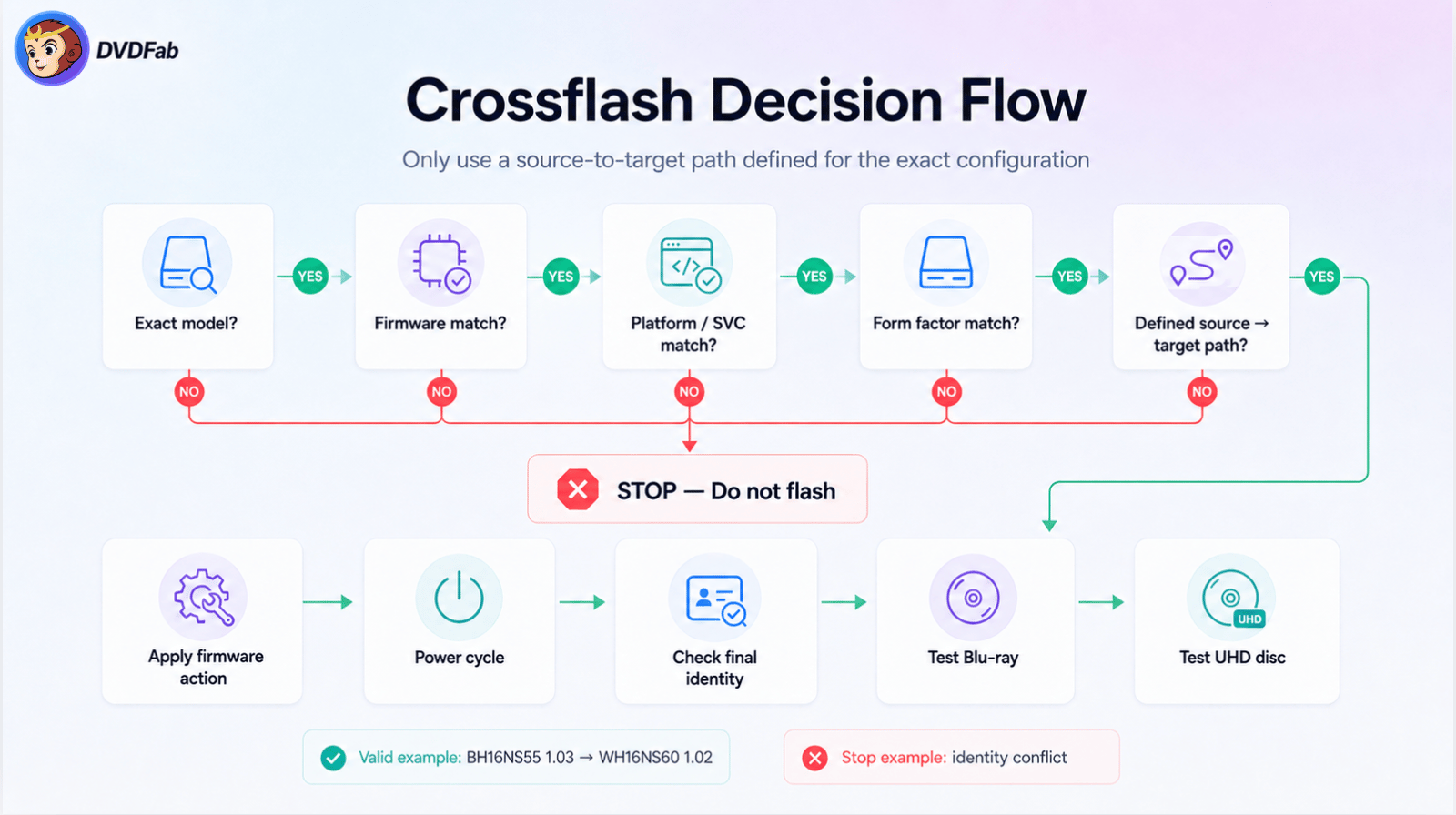
Crossflash changes the target model or firmware family. The target firmware is valid only for source configurations that have an explicit relationship to it.
Which Changes Count as Crossflash—and Which LG Paths Are Defined
BU40N 1.05 → BU40N 1.03 stays within the BU40N family and is a downgrade. BH16NS55 1.03 → WH16NS60 1.02 changes the target model and is therefore a crossflash.
| Source Model | Source Firmware | Target |
|---|---|---|
| BH16NS55 | 1.03 | WH16NS60 1.02 |
| BH16NS55 | 1.04 | WH16NS60 1.02 |
| BH16NS58 | 1.02 | WH16NS60 1.02 |
| BH16NS58 | 1.03 | WH16NS60 1.02 |
| BH14NS58 | 1.02 | WH16NS60 1.02 |
| BH14NS58 | 1.03 | WH16NS60 1.02 |
| WH16NS58 | 1.V9-00N | WH16NS60 1.02 |
| BH16NS55 | 1.05-01N | WH16NS60 1.02 |
| BH50N | GD00-01V | WH16NS60 1.02 |
These rows define the source and target relationship. A BH16NS55 revision that is not listed does not automatically inherit the same target, and the target should not be applied to another related LG mechanism simply because it uses MT1959. Crossflash also requires the source model, revision, platform, HW/SVC, form factor, and any relevant build or encryption state to match. Desktop and slim mechanisms must never be crossflashed with each other, even when the controller platform appears related.
Pioneer Firmware-Change Cases
| Source Drive | Exact Source State | Target Family | Verification |
|---|---|---|---|
| BDR-S09XLB | BDR-S09 1.33 / SAT8600 / ID43 | BDR-211M 1.53 family | Write Verified |
| BDR-209DBK | BDR-209D 1.32 / SAT8600 / ID61 | BDR-S11 1.53 family | Pending verification |
| BDR-S11JBK | BDR-S11 1.00 / SAT8800 / ID43 | BDR-S11 1.53 family | Pending verification |
| BDR-S12XLB | BDR-S12 1.00 / SAT8F00 / ID45 | BDR-S11 1.53 family | Pending verification |
| BDR-S12JX | 1.01 / SAT8F01 / ID72 | BDR-S11 1.53 family | Write Verified |
| BDR-212DBK | BDR-212D 1.02 / SAT8F00 / ID61 | BDR-S11 1.53 family | Write Verified |
The three Write Verified rows confirm the firmware-writing result on those exact configurations. The other three should remain pending until their firmware operation and resulting drive state are verified to the same level. BDR-S12JX 1.01 also deserves extra attention because its direct-use configuration reports RS8F00 while the firmware-write case reports SAT8F01.
Which DVDFab Firmware Function Applies?
When UHD Drive Tool recognizes an exact source and provides the corresponding action, use that product-matched action. The source-to-target relationship is already tied to the detected configuration, which reduces the chance of applying firmware intended for another drive family.
A separate built-in firmware-writing control is appropriate only when the exact source and target are already known for that unit or when DVDFab support provides a configuration-specific instruction. It should not be used to bypass an Uncovered result or unresolved hardware identity.
Verify the Drive After Crossflashing
After the drive is power-cycled, confirm the target product identity, firmware revision, required build and platform, tray/eject behavior, and normal Blu-ray reading before testing UHD media. If the target identity is wrong, the drive disappears, the tray or spindle stops operating, or normal Blu-ray reading is lost, stop further firmware writes and preserve the original source information, intended target, post-write identity, and error details.
DVDFab UHD Drive Tool vs MakeMKV: Which Should You Use for Your Drive?
DVDFab UHD Drive Tool and MakeMKV overlap around UHD drive access, but they place different amounts of firmware interpretation on the user. The most useful comparison is what happens after the drive has been identified.
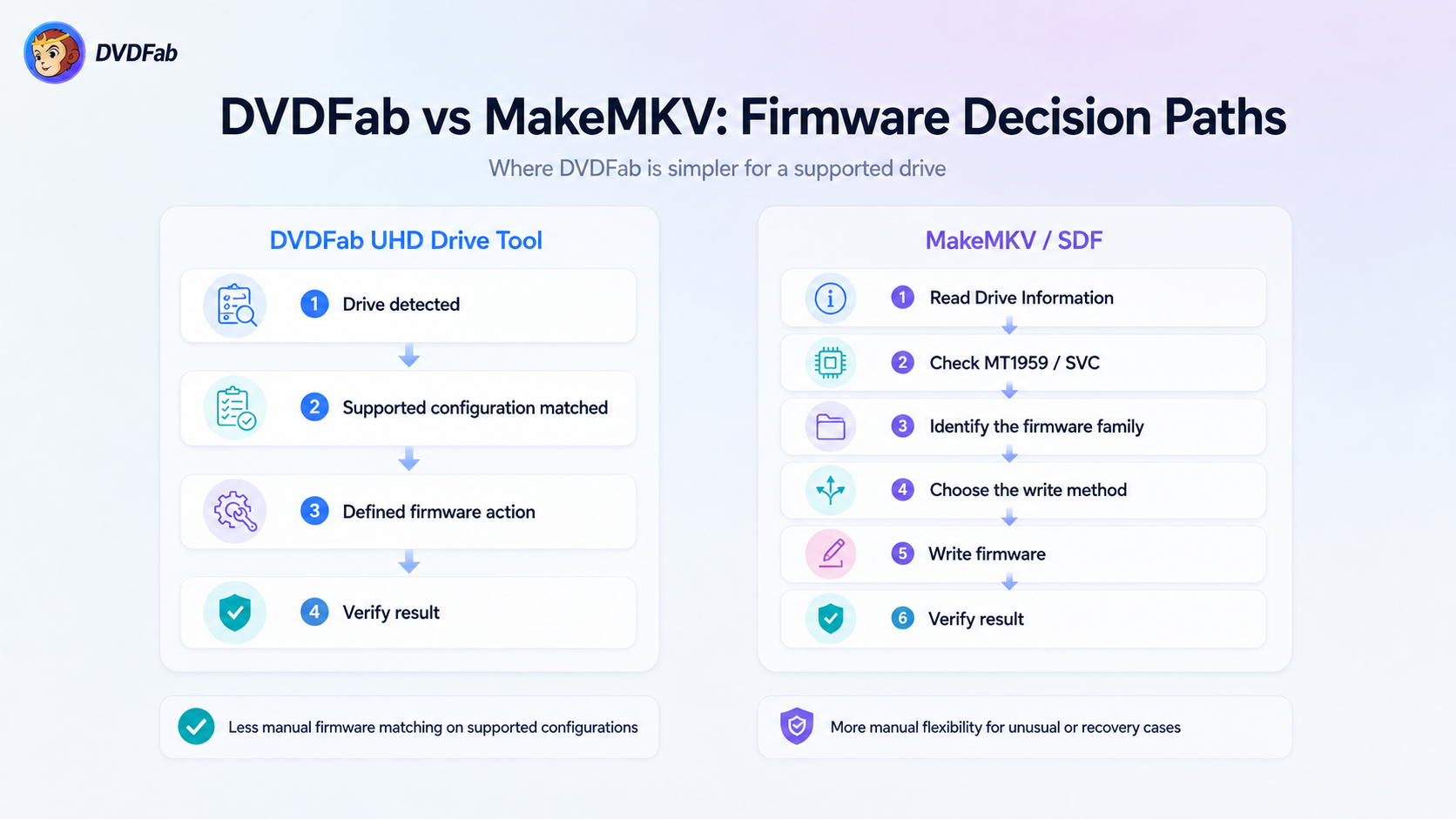
What DVDFab UHD Drive Tool and MakeMKV Actually Do
DVDFab UHD Drive Tool focuses on supported drive identification and firmware treatment. For selected Pioneer configurations, DVDFab 13.0.6.0 added automatic compatible-firmware matching and flashing together with the Pioneer UHD support expansion.
MakeMKV is primarily a disc-access and backup application. LibreDrive and SDF let MakeMKV interact with supported drive firmware, but LibreDrive can be enabled without permanently writing the installed firmware, and SDF recognition alone does not establish UHD readability. MakeMKV/SDF gives experienced users more direct control over firmware inspection and writing. With a DVDFab configuration that already has a defined firmware action, the source and target can be matched inside the product. MakeMKV/SDF gives users more manual control, but the user may need to determine the correct firmware family and operation from Drive Information and the relevant flashing instructions.
Support Coverage Compared: Common Drives, OEM Variants, and Firmware Targets
| Situation | DVDFab UHD Drive Tool | MakeMKV / SDF | What It Means |
|---|---|---|---|
| Common LG / ASUS configuration | Exact supported states are classified as direct-use or firmware-change required | Broad LibreDrive and firmware support | Both can cover common hardware; the firmware revision still matters |
| Defined source → target action | Supported source can be tied to its product action | User may need to select the firmware and write method | DVDFab reduces manual firmware selection for covered configurations |
| Long-tail OEM or unusual firmware | If the exact configuration is unsupported, UHD Drive Tool does not offer a firmware action | SDF and community resources cover more unusual firmware and OEM variants, but SDF recognition alone does not establish UHD readability | MakeMKV can be useful for inspecting Drive Information and investigating a configuration UHD Drive Tool does not yet support |
| Hardware identity checks | Matching uses the hardware fields required for the supported configuration | MakeMKV's guide asks users to check MT1959, SVC, manufacturing conditions, and exact model | Both depend on exact identity, but MakeMKV leaves more interpretation to the user |
| Selected Pioneer configurations | Automatic compatible-firmware matching for selected supported Pioneer drives | Pioneer UHD hardware is supported, while DIY firmware conversion is more restricted than LG/ASUS | On supported Pioneer drives, UHD Drive Tool can reduce manual firmware selection |
| Recovery and unusual firmware states | Limited to defined DVDFab configurations | More manual tools and community recovery experience | MakeMKV/SDF provides more options for experienced users outside a normal supported case |
MakeMKV's current UHD flashing guide explicitly requires users to check MT1959, LG SVC conditions, manufacturing details, and the exact drive model before flashing. It also warns that two drives with the same model number do not necessarily accept the same firmware procedure.
Why DVDFab Requires Less Manual Firmware Matching on a Supported Drive
The clearest DVDFab advantage appears after an exact configuration has been recognized. BU40N 1.04 and 1.05 can lead to different actions inside the same model family, while BW-16D1HT 3.10 and 3.11 also need different treatment. Several BH14/BH16/WH16 source configurations map to one specific WH16NS60 target.
In MakeMKV's flashing environment, Drive Information provides the fields needed to make those decisions, but the flashing guide still expects the user to verify the model, MT1959 platform, SVC, firmware state, and suitable operation before selecting firmware. DVDFab can remove part of that manual source-to-target selection when the exact configuration is already in the product.
Pioneer: Automatic Firmware Matching on Supported Configurations
Both DVDFab and MakeMKV support Pioneer UHD drives. MakeMKV's current guide recommends Pioneer UHD hardware but notes that current Pioneer firmware conversion is more restricted than the familiar LG/ASUS flashing paths.
DVDFab's May 2026 update added official support for 12 Pioneer models in the XD07, XS07, S12, 212, and 211 series and automatic compatible-firmware matching for selected models. On supported configurations, UHD Drive Tool uses the detected model, revision, firmware ID, and platform to match the corresponding firmware action. If the exact Pioneer configuration is not supported, keep the installed firmware unchanged and collect the drive information for review.
Diagnose UHD Drive Problems Before You Flash Again
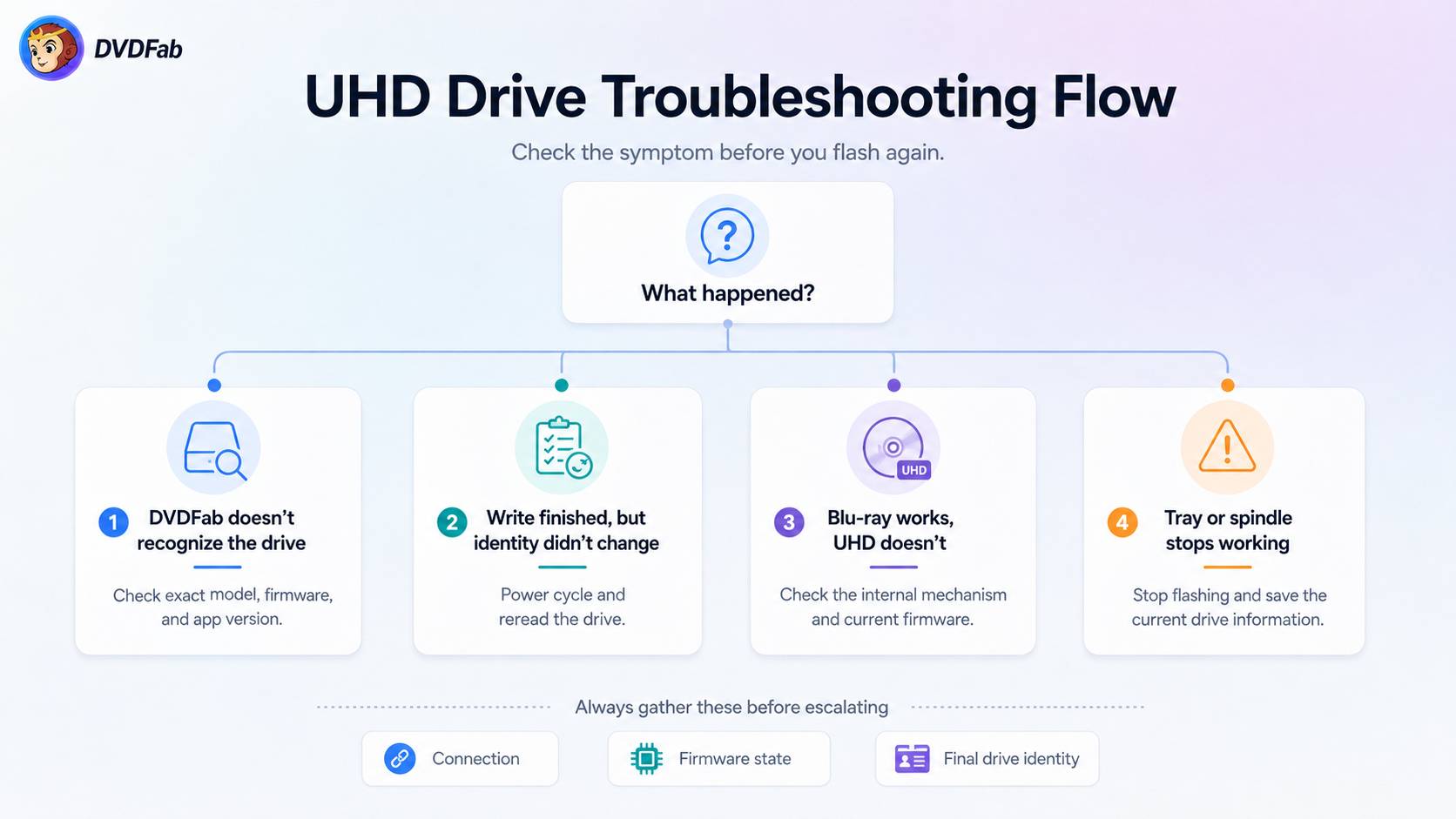
A failed UHD read can come from device access, firmware identity, the USB/SATA connection, or the optical mechanism itself. Diagnose the visible symptom before deciding that another firmware write is necessary.
“Your Drive Doesn't Support DVDFab”: Check the Configuration First
Record the complete model, firmware, platform/SVC where relevant, operating system, connection type, and DVDFab version. If the configuration is Native or Friendly, check the application version, drive access, connection, and software conflicts before touching the firmware. If it is Flashable, use the action defined for that source. If it is Uncovered or reports conflicting identity fields, collect the drive information for support instead of selecting a similar firmware.
This is especially important with similarly named models. ASUS BW-16D1X-U is not BW-16D1HT, and an external enclosure does not become BU40N simply because another unit sold under the same retail brand contained that mechanism.
BU40N on Mac: Check the Software Version and Firmware
DVDFab UHD Drive Tool arrived on Mac in 13.0.6.3 on June 24, 2026. Version 13.0.6.6 on August 28 updated the tool to 2.1.2.1, added MT1959 detection and downgrade restrictions, prevented repeated downgrade prompts on selected LG, ASUS, and HP configurations using compatible MK firmware, and improved selected LG support including WH16NS60 1.01–1.03.
For a BU40N that is not recognized correctly on Mac, check the exact firmware rather than the BU40N name alone. Standard 1.xx revisions, FR07, CAT7/CAT9, BU10, and OEM variants have different compatibility states. Also record the USB enclosure or adapter, because normal macOS disc recognition does not prove that the same bridge supports firmware-related communication.
LibreDrive Is Disabled—or Enabled but UHD Still Does Not Read
If LibreDrive is disabled, read the full drive information before choosing a firmware. The status does not identify which firmware belongs on the mechanism. If LibreDrive is enabled but UHD still does not read, check the actual firmware and disc result. DVDFab already classifies FR07 as a direct-use Native configuration, so another firmware change is not required for that exact state merely because the user is uncertain about LibreDrive or UHD status.
“Failure Accessing the UHD Drive”: Check Device Access First
Confirm that the operating system still detects the drive, the tray responds, power is stable, and the USB/SATA connection is intact. Close other disc-access, playback, or burning software, or another DVDFab task that may have the optical drive open. If the error remains, save the exact message, DVDFab version, operating system, drive identity, connection type, and application log. A firmware write should only follow if the resulting drive information points to a defined firmware problem.
What to Check After a DVDFab Firmware Change
After the firmware operation completes, power-cycle the drive and read its identity again. Confirm that the expected model, firmware revision, build, and platform are active before repeating any firmware action.
If the identity did not change as expected, recheck the original source configuration, selected target, and SATA/USB connection. Do not repeat the write simply because the previous operation completed without an error.
If the drive disappears, the tray or spindle stops operating, or normal Blu-ray reading is lost, stop further firmware changes. Preserve the pre-flash identity, selected target, post-write Drive Information, DVDFab version, connection details, and any error or log information for recovery or support.
Errors That Should Stop the Firmware Change
A message such as “SATA not in IDE mode” should not lead to a generic BIOS/UEFI change. Storage-controller mode can affect other disks in the computer, including the system drive. Record the computer or motherboard model, current controller mode, optical-drive connection, operating system, firmware, DVDFab version, and complete error before using any hardware-specific procedure.
| Symptom | Check First | Next Action |
|---|---|---|
| DVDFab does not recognize the drive | Exact model, firmware, platform/SVC, application version | Use firmware only if that exact configuration has a defined action |
| LibreDrive Disabled | Full drive information, including LibreDrive status | Identify the firmware state before changing it |
| LibreDrive Enabled but UHD unread | Firmware and actual UHD-disc result | Diagnose the disc/firmware state rather than changing firmware from the status alone |
| Failure accessing the drive | Device detection, power, USB/SATA, open applications | Restore normal access before firmware work |
| Write finishes but identity stays unchanged | Power-cycle and reread model/firmware | Recheck source, target, and connection |
| Normal BD works but UHD fails | Internal mechanism and current firmware | Verify the target before another write |
| Tray, spindle, or normal BD stops working | Current drive information | Stop firmware writing |
| Platform/SVC/build conflict | Full source identity | Stop until the source is resolved |
How to Choose a UHD Blu-ray Drive in 2026
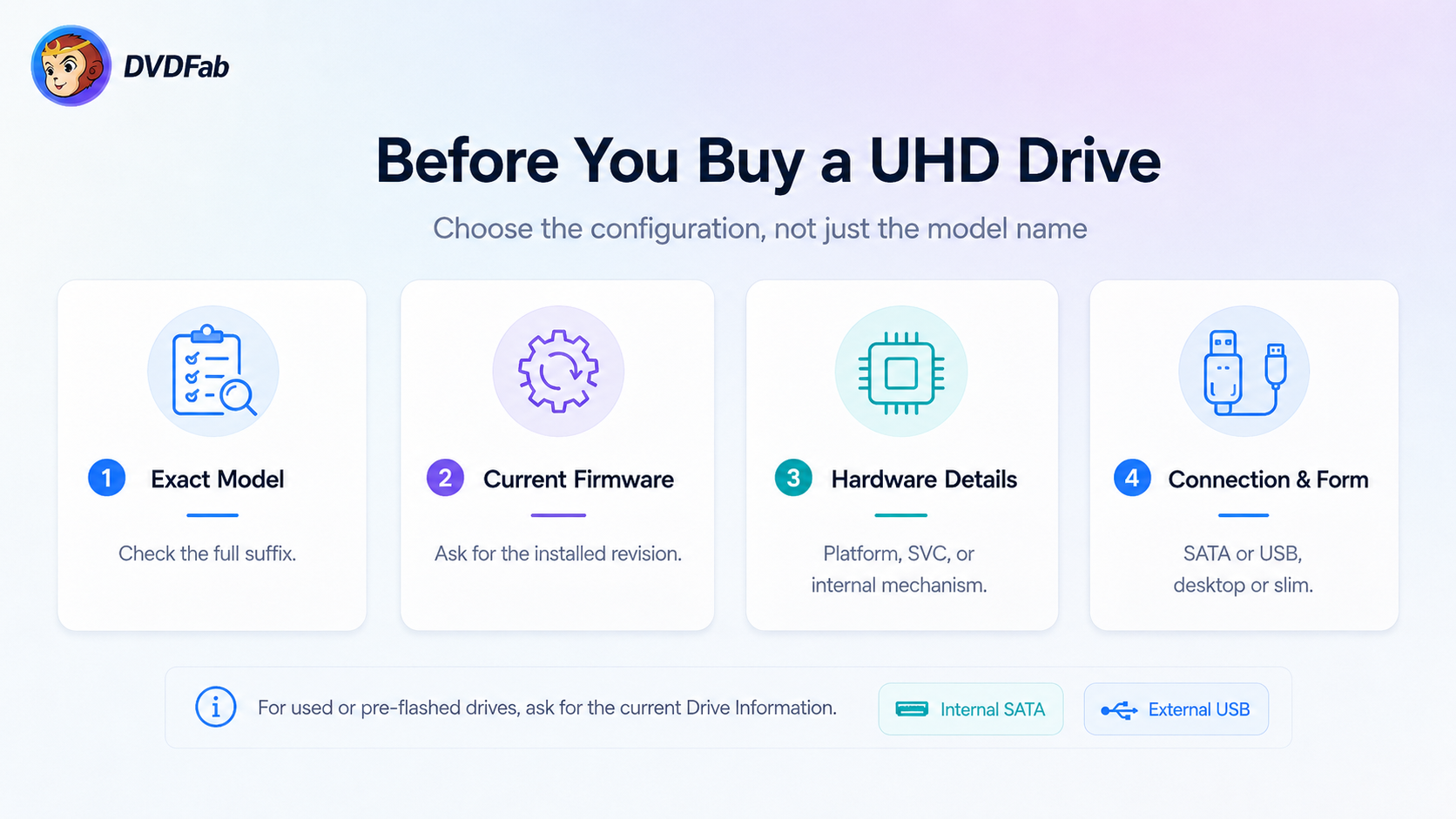
The easiest purchase is a drive whose exact configuration is already known to work without firmware modification. If the current firmware is unknown, the model name alone cannot establish what you will need to do after the drive arrives.
Start With a Direct-Use UHD Drive Configuration
| Drive | Direct-Use Firmware | Connection / Form |
|---|---|---|
| Pioneer BDR-S12UHT | 1.00, 1.01 | Internal SATA |
| Pioneer BDR-212UBK | 1.01, 1.02 | Internal SATA |
| Pioneer BDR-XD07UHD | 1.00, 1.01, 1.03 | External USB |
| Pioneer BDR-XS07UHD | 1.01, 1.02 | External USB |
| Pioneer BDR-XS07B-UHD | 1.00, 1.01 | External USB |
| LG WH16NS60 | 1.00–1.03 | Desktop family |
| LG BU40N | 1.00–1.04 plus listed OEM firmware | Slim / OEM family |
| ASUS BW-16D1HT | 3.00, 3.01, 3.10 | Desktop family |
| ASUS BW-16D1H-U | A201 | External family |
Pioneer is straightforward when the exact UHD model suffix and firmware match a listed configuration. The main risk is buying a nearby or newer Pioneer family and assuming it inherits the same status. LG / HL-DT-ST provides more direct-use and firmware-change combinations, which makes firmware, SVC, platform, and OEM identity more important when buying. ASUS has fewer current model families, but BW-16D1HT alone shows why the seller should provide the firmware revision rather than only the model.
Choose by exact configuration rather than by brand reputation.
Internal SATA or External USB? Desktop or Slim?
Internal SATA removes the USB bridge from communication with the optical mechanism, which is useful when a firmware change is required. External USB is more convenient for laptops and Macs, but the enclosure then becomes another part of the configuration because the bridge must also pass the commands used by the firmware tool.
Desktop and slim mechanisms must remain separate firmware families. Do not crossflash firmware between desktop and slim mechanisms. Choose the form factor that fits the computer first, then check the supported firmware for that mechanism.
New, Used, or Pre-Flashed?
A new drive can arrive with a newer firmware revision than an older support discussion describes. Check the actual revision before assuming that a firmware recommendation written for an earlier unit still applies.
A used drive may retain a useful firmware state, but its previous flash history can be unknown. A pre-flashed unit needs to be judged by what the mechanism identifies as now, not by the original model printed on the enclosure.
For a used or pre-flashed drive, request the current Drive Information rather than relying on the label or seller's model description.
Ask for These Details Before You Buy
Ask for the complete reported model, current firmware revision, platform/SVC where relevant, internal mechanism for an OEM enclosure, connection type, form factor, and previous firmware changes. A current Drive Information screenshot is more useful than a photograph of the retail box because it shows the identity the computer actually sees.
If the seller claims UHD capability, ask whether the current configuration has actually read a UHD disc. For a sealed drive where firmware information is unavailable, treat the revision as unknown until the drive can be identified.
UHD Drive Compatibility and Firmware: Common Questions
Can a Pioneer BDR-209M Read UHD Blu-ray?
BDR-209M is not currently listed as a direct-use Pioneer configuration in UHD Drive Tool. Check the complete model, revision, and platform before any firmware decision; a nearby 209/211/212 model does not establish the correct action for BDR-209M.
LibreDrive Is Enabled, but DVDFab Does Not Recognize the Drive—Why?
LibreDrive compatibility and DVDFab configuration matching are separate results. Check the exact model, firmware, platform/SVC, DVDFab version, and connection; if that combination is not in the DVDFab matrix, do not borrow a firmware target from a similar model.
Why Does BU40N on Mac Show “Your Drive Doesn't Support DVDFab”?
Use the current DVDFab Mac version and check the exact BU40N firmware and enclosure. Mac UHD Drive Tool support changed in June and August 2026, while BU40N 1.xx, FR07, CAT7/CAT9, BU10, and OEM firmware remain separate compatibility states.
What Does “Failure Accessing the UHD Drive” Mean?
It indicates that DVDFab cannot access the drive normally at that moment. Check device detection, tray response, power, SATA/USB connection, and other software using the drive before treating it as a firmware issue.
What Should I Do If a Downgrade Shows “SATA Not in IDE Mode”?
Do not change BIOS/UEFI storage mode from a generic instruction. Record the computer, controller mode, optical-drive connection, firmware, DVDFab version, and full error, then use only a procedure verified for that hardware.
Can Slim and Desktop UHD Drives Use the Same Firmware?
No. Desktop and slim UHD drives must not be crossflashed with each other. Use firmware only within the correct form-factor family and the exact supported configuration.
Can ASUS and LG UHD Drives Be Crossflashed?
Some related LG-family and ASUS/LG configurations can use defined cross-model firmware relationships, but brand compatibility by itself is not enough. Use only a source-to-target combination that matches the exact drive.
The Product Page Lists My Drive, but DVDFab Does Not Recognize It. What Should I Check?
Use the model and firmware reported by the current application and compare the full configuration, including build or platform/SVC where required. If the exact configuration still does not match, save the log and Drive Information for support rather than trying firmware from a nearby model.
UHD Drive Support Updates
What Changed in Recent DVDFab Releases
| DVDFab Release | Date | UHD Drive Change |
|---|---|---|
| Windows 13.0.6.0 | May 12, 2026 | Added support for 12 Pioneer models across XD07/XS07/S12/212/211 and automatic compatible-firmware matching for selected Pioneer drives |
| Mac 13.0.6.3 | June 24, 2026 | Added UHD Drive Tool for listed LG, ASUS, HP, Buffalo, and Archgon drives |
| Mac 13.0.6.6 | August 28, 2026 | Updated UHD Drive Tool to 2.1.2.1 with MT1959 detection and downgrade restrictions; fixed repeated downgrade prompts on selected LG/ASUS/HP MK-firmware configurations and improved selected LG support |
For current version details, see the DVDFab Windows release notes and DVDFab Mac release notes .
Conclusion
Identify the exact model, firmware, and required hardware fields before choosing a firmware action. If the current configuration already reads UHD as Native or Friendly, keep it. If a defined firmware change is required, use the target assigned to that source and identify the drive again after the write.
If the model, build, platform, or SVC does not match the expected source, stop there. The correct firmware decision comes from the drive you actually have, not the nearest model name in a firmware list.
If you still have a drive-specific question, a firmware result that does not match the table, or a model you would like UHD Drive Tool to support, leave a comment below. Our product and engineering teams review these discussions and continue expanding support as new configurations are verified.