How to Download Libby on Kindle: Books, Not the App

Summary: Kindle e-readers receive eligible Libby ebooks through Amazon; compatible Fire tablets can install Libby directly. Follow the borrowing and delivery steps, identify missing-book problems, and distinguish library loans from purchased ebook conversion.
Trying to download Libby on Kindle? A Kindle e-reader, including Paperwhite, receives eligible U.S. library ebooks through Libby's Read With Kindle option and Amazon, rather than installing Libby. On a compatible Fire tablet, you can install the Libby app from the Amazon Appstore.
A borrowed book on your phone and an empty Kindle library can look like a missing-app problem. I would follow the book itself: where it was borrowed, which Amazon account received it, and whether it opens on the intended device. A delivery confirmation is too early to call the job finished. The steps below carry one loan through to reading, with separate checks for Paperwhite, Fire tablets, and child profiles.
Table of Contents
Can You Download Libby on Kindle? E-Reader vs. Fire Tablet
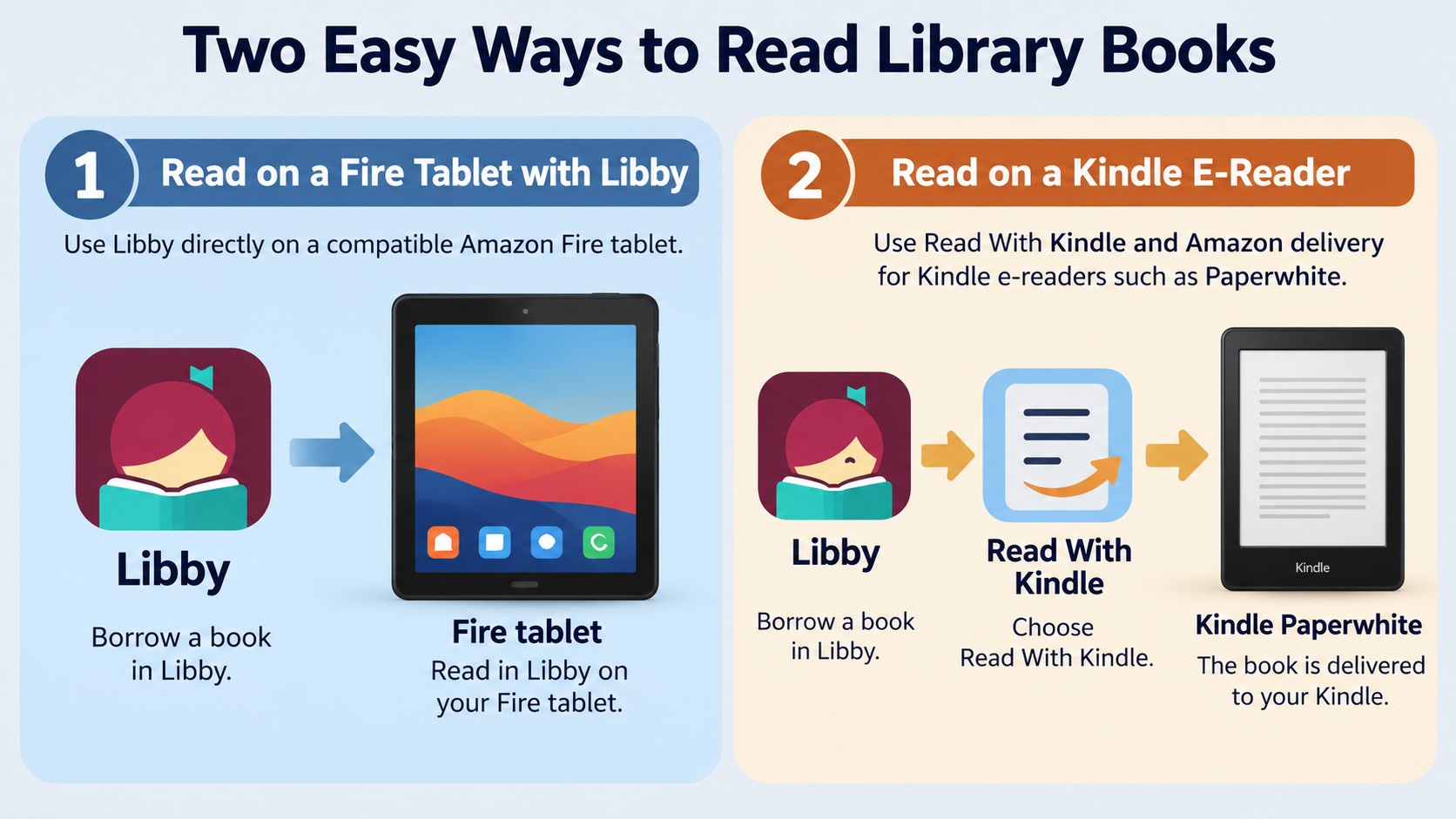
You cannot install the Libby app on a standard Kindle e-reader, but you can read eligible Libby ebooks there through Amazon delivery. Fire tablets support app installation, so compatible models offer a different way to borrow and read. Identify the device before looking for a download button.
Standard Kindle e-readers receive eligible loans through Amazon
A Kindle e-reader receives the book, not the borrowing app. You browse your library and borrow in Libby on a phone, tablet, or computer. For an eligible ebook, Read With Kindle opens Amazon, where you claim the library loan for your account.
Your Kindle then downloads that loan from its library. There is no Libby icon to find on the home screen, and installing something through the Kindle browser is not part of this process. The useful distinction is where you borrow versus where you read.
There is no need to replace a Kindle that already suits your reading just to find a Libby app. A missing app is expected on an e-reader; a missing Kindle reading option on a particular book is a separate question.
Fire tablets can install the Libby app
An Amazon Fire tablet runs apps, including Libby on supported models. You can borrow and read inside Libby without moving the ebook into the Kindle reading app. A U.S. library's eligible ebook also offers the Amazon handoff if you prefer reading in Kindle.
For borrowing and reading on the same Fire tablet, Libby keeps both tasks in one app. The Kindle handoff makes sense when you specifically want that loan in your Amazon reading library, such as for use on a separate Kindle e-reader.
A device-and-delivery comparison at a glance
| Device | Install Libby? | Reading method | Requirement |
|---|---|---|---|
| Kindle e-reader, including Paperwhite | No | Read With Kindle, Amazon, then sync | Eligible U.S. library ebook; matching Amazon account |
| Compatible Fire tablet | Yes, through Amazon Appstore | Libby app or Kindle reading app | Library access; Kindle eligibility for Amazon delivery |
| Other compatible e-reader | Usually no | EPUB/PDF transfer through Adobe Digital Editions | Supported title format and device |
Source: Libby Help and OverDrive's official Kindle resource, as of September 2026.
The table separates device capabilities from book eligibility. An e-reader that accepts EPUB files does not necessarily receive library books in the same way as a Kindle.
Before You Start: Four Requirements for Libby-to-Kindle Delivery
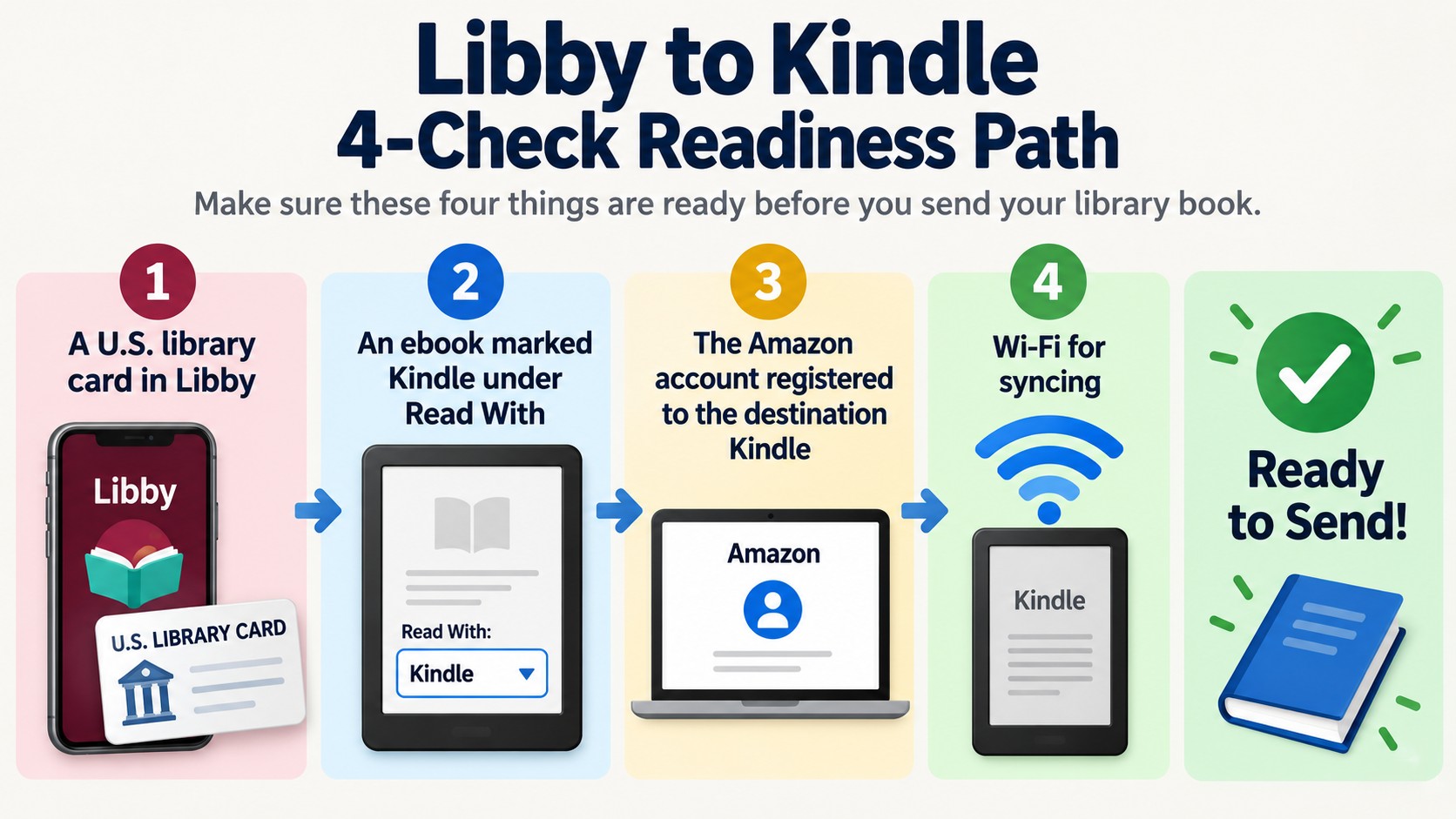
You need access to a U.S. library in Libby, an ebook with a Kindle option, the Amazon account registered to your Kindle, and a connection for downloading. Check the book's reading options before changing account or device settings. A sync cannot add a format the library loan does not offer.
1. A library card connected to a U.S. library in Libby
Your library card gives you access to the library's Libby collection. Open Libby on a phone or tablet, or use libbyapp.com on a computer, and add your participating library and card. Complete any library sign-in prompts before trying to borrow.
The Kindle delivery feature is available for U.S. libraries. Libby itself serves libraries beyond the United States, but access to Libby does not automatically include Amazon delivery. The relevant question is whether your library and the particular ebook support that reading option.
If the library no longer offers Libby, resolve access with the library before troubleshooting the Kindle. An Amazon account cannot replace the library's lending service. Likewise, a listing in the catalog is not yet a loan: the book needs to be available to borrow, or you need to wait for your hold.
2. An ebook that offers the Kindle reading option
Open the book's details by selecting its jacket, then find the Read With section and look for Kindle. Check the actual edition you want to borrow. A title being present in Libby does not mean each available format works on your e-reader.
An audiobook is also a different item from an ebook. These instructions send readable text to Kindle; they do not turn a Libby audiobook into a Kindle ebook. Start with the ebook listing, even if the cover artwork resembles the audio edition.
I would make this the first book-level check. It takes you directly to the answer that repeated syncing cannot supply, and helps you avoid selecting an EPUB download before choosing Kindle.
3. The Amazon account linked to the destination Kindle
Use the Amazon account registered to the Kindle where you want to read. Your library-card credentials and Amazon credentials serve different purposes: one authorizes borrowing, while the other determines where Amazon places the loan.
A shared phone or browser deserves particular attention. It might already be signed into another household member's Amazon account. Before claiming the book, compare that account with the registration information on the destination Kindle. Do not assume the browser and e-reader belong to the same account just because both are yours to use.
4. Wi-Fi and a Kindle ready to sync
Connect the Kindle to Wi-Fi for the final download. Borrowing on a connected phone does not download the book onto an offline e-reader. Those are separate devices, even when the account is correct.
Keep the Kindle available while completing the handoff so you can open the loan immediately afterward. My stopping point is readable text on that screen, not a cover visible in a phone app. Before travel, that distinction is worth checking while you still have a connection.
How to Download a Libby Book to Kindle in Six Steps
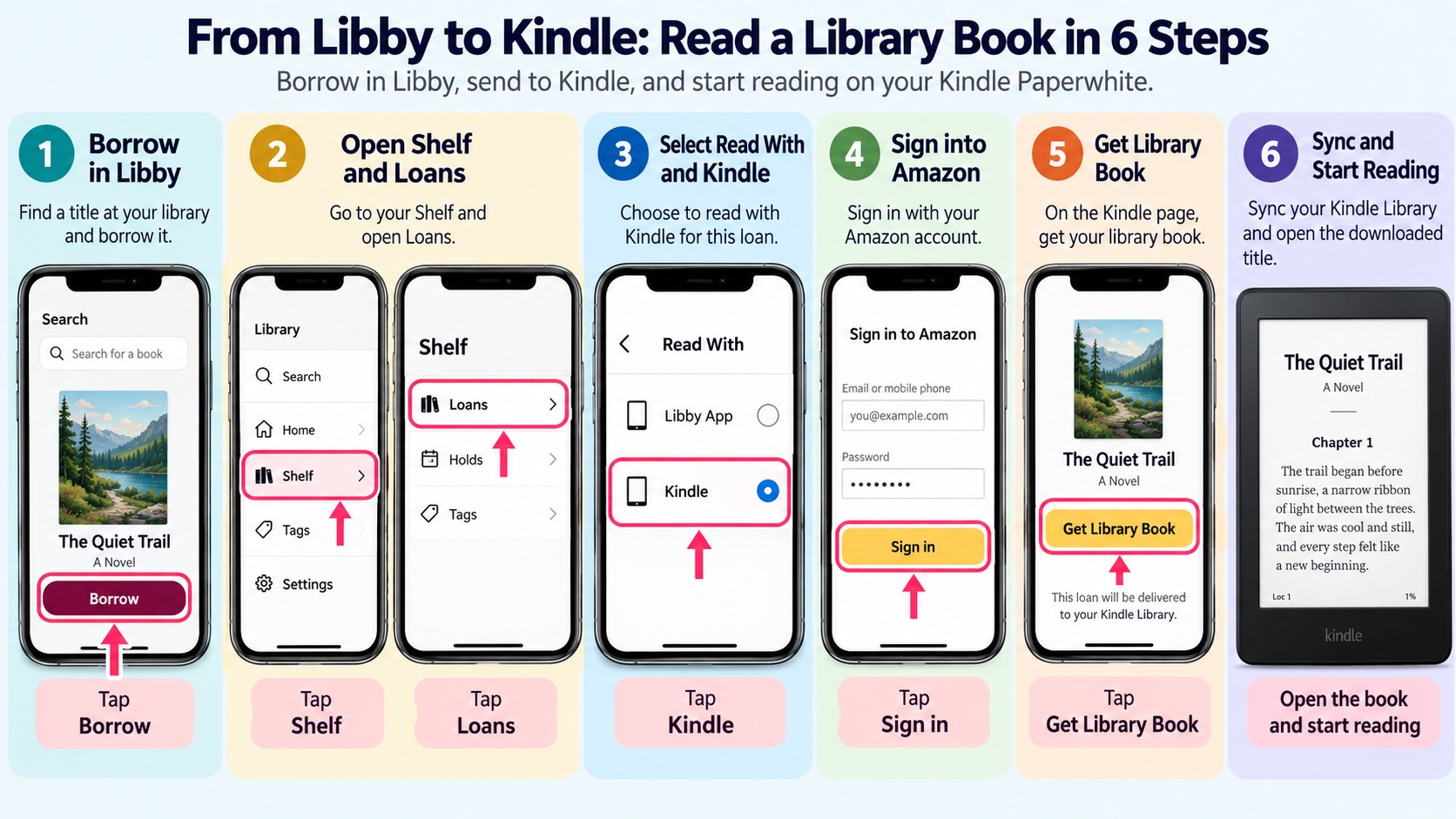
The final step matters as much as the Amazon handoff. I would finish it while the loan is still open on the phone or computer, so the title and account are easy to compare.
Step 1: Borrow the ebook in Libby
Find the ebook in your library's Libby collection and borrow it. Then open Shelf, followed by Loans. The loan should be listed there before you begin sending it to Amazon.
Work from the borrowed item, not a search result or a hold notification. A hold reserves your place for a book; the delivery steps apply once the loan is available and borrowed. Check the author and edition if the collection lists several versions of the same title.
For a picture book or illustrated edition, keep that edition in view throughout delivery. Matching a title alone is less helpful when different editions contain different page designs or illustrations.
Step 2: Select Read With Kindle
Beside the borrowed ebook, select Read With…, then Kindle. This is the choice commonly described as “Read With Kindle.” It takes you to Amazon's website rather than downloading an installer or asking you to copy a file.
If the loan opens directly in Libby, look under Manage Loan for Read With… and review your reading preference. If Kindle still is not offered, use the missing-option checks in the next section before selecting a different download format.
The reading choice belongs to this loan. It is not a general command to move everything on your Libby shelf into Amazon at once.
Step 3: Continue to Amazon and sign in
On Amazon, sign in when prompted. Use the account registered to the Kindle you want to receive the book. If you are already signed in, check the account instead of treating the absence of a login prompt as confirmation.
Keep your library-card login separate from this step. Amazon is receiving the eligible loan for its reading service; it is not asking you to enter your library password into a Kindle setting. Return to the Libby loan if you lose track of which title started the handoff.
Step 4: Choose Get Library Book
Select Get Library Book on the Amazon page for the borrowed title. This claims the library loan for your Amazon account. Follow any delivery choices shown for the compatible devices associated with that account.
Read the page before continuing. You are claiming a library book, not buying another copy from the Kindle store. If you have landed on an ordinary shopping page rather than the library-loan page, return to the borrowed item in Libby and open Kindle from there.
Amazon's confirmation completes its part of the handoff. It does not mean the physical Kindle has already downloaded the text, especially if the device is asleep or disconnected.
Step 5: Sync the Kindle library
Wake the Kindle, connect to Wi-Fi, and use its sync control. Open Library and look for the title. If available, the Library Loans filter helps separate borrowed books from purchased titles.
A restrictive view can hide a newly delivered book. Switch away from a downloaded-only view when looking for a loan that has reached the account but has not yet been saved on the device. Search by title if the library contains many books.
Once the correct cover appears, select it to download. Give that download time to finish before disconnecting; a visible cover and a readable book are different checkpoints.
Step 6: Open the book and check the download
Open the downloaded title and turn a page. Check the chapter menu and confirm that a chapter opens where expected. For an illustrated book, also open a page containing images rather than checking the cover alone.
I would do this on the Kindle you plan to carry. Opening the title successfully on a phone confirms that phone's access, not the e-reader's download. If you need to read without Wi-Fi, make a brief offline opening check while you can still reconnect to solve a problem.
That is how to download books from Libby to Kindle through the official handoff. If a checkpoint fails, the location of the failure tells you what to investigate next.
Why Read With Kindle Is Missing or the Book Will Not Sync
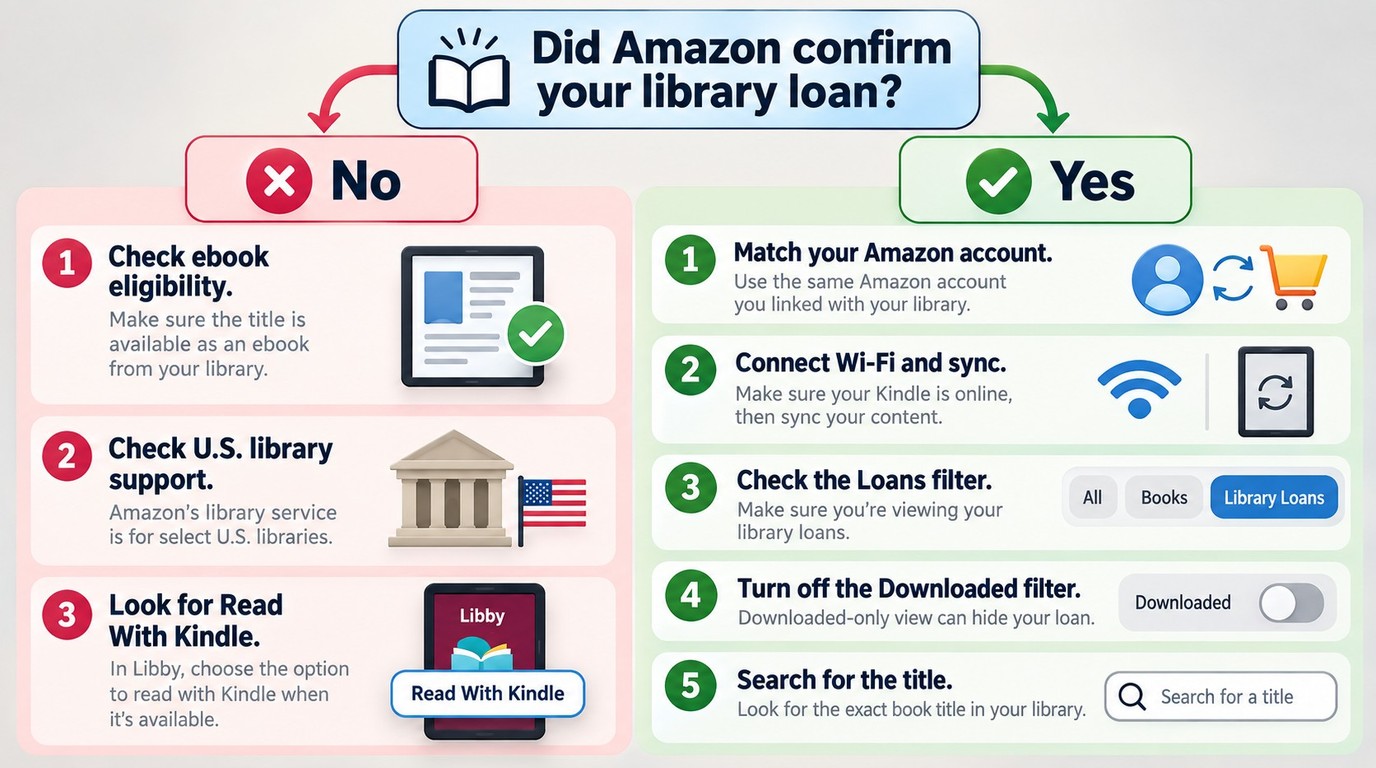
A missing Kindle option points to the loan's eligibility or reading settings; a book missing after Amazon confirmation points to account delivery or device display. Start where the process stopped. A cover hidden by a filter is no reason to return and reborrow an otherwise valid loan.
Read With Kindle is missing before the Amazon handoff
Stay with the ebook you borrowed and open its jacket details. For a U.S. library loan, Kindle needs to appear under Read With; if the book instead opens directly in Libby, review your reading preference under Manage Loan. A missing format and an app preference look similar on screen, but only the latter is a setting you can change.
An earlier EPUB download creates a different problem. Downloading another format can prevent sending that loan to Kindle from Libby unless you borrow it again. Before returning a loan for that reason, check whether another copy is available; reborrowing is not a reason to discard your place in a busy collection casually.
A reader in r/LibbyApp described the immediate symptom: “I just borrowed Midnight Train and Send to Kindle is not an option.” That tells you what was missing, not why. The title's Read With options are a better guide than guessing from its publication date.
Amazon shows the wrong account or an incompatible device
If Amazon shows another household member's account, sign out and reopen Kindle from the same Libby loan using the account registered to your e-reader. I would correct that handoff before touching the device: a book claimed for another account will not appear just because you refresh your own library.
For an incompatible-device message, compare the specific title and the listed destination. Do not treat an Amazon Appstore install warning as a library-loan delivery warning: an app listing is intended for supported tablets, not a Paperwhite. If the message concerns the ebook itself, keep its exact wording for Amazon support instead of repeatedly claiming the same loan.
Get Library Book succeeded, but the title is absent
Look for that title in Amazon's content management area. If the claimed loan is absent, return to the account handoff above; if it is present, delivery has reached the account and the remaining work is on the Kindle.
Connect the e-reader to Wi-Fi and sync, then search Library with restrictive filters cleared. A downloaded-only view can hide a loan that is waiting to download. Once its cover appears, open it and check a chapter; that is the point at which you can return to reading instead of repeating the borrowing steps.
The Kindle library looks empty or contains duplicates
An empty library view does not, by itself, establish that your books were deleted. One r/kindle reader wrote, “I had a few from Libby, and a few purchased straight from Amazon, and the screen shows 'your library is currently empty.'”
When borrowed and purchased books disappear together, I would stay with the account and library-view checks above rather than return a single loan. With duplicate covers, compare the title and loan status before removing an entry. Keep following the active loan: an old cover can remain after a return, as the FAQ below explains.
Libby on Kindle Paperwhite, Fire Tablets, and Kids Profiles
Paperwhite follows the Amazon delivery steps above; a compatible Fire tablet can read directly in Libby. A Kindle child profile adds a parent-controlled content-selection step after account delivery. Keep the same borrowed title in view as you move from Libby to Amazon and then to its cover on the device; the remaining checks concern where you will open it.
Kindle Paperwhite: use the Amazon handoff, not an app install
You can download eligible Libby books on Kindle Paperwhite, but not the Libby app itself. The phone or computer is where you borrow and select Kindle; the Paperwhite is where you download the delivered loan and read.
If you reached this point through the Paperwhite browser, finish the Amazon handoff from Libby on your phone or computer. There is no installer needed on the e-reader.
Once the same title you claimed on Amazon opens on the Paperwhite, delivery is complete. Check text size and chapter navigation before settling in to read. For image-heavy books, inspect a page that combines text and artwork, because the cover does not show how the inside pages will read.
The same distinction helps with Libby and Kindle Unlimited. Your library loan begins with your library card and the library's collection; it is not dependent on finding that title in the Kindle Unlimited catalog. Use the Libby borrowing entry to begin delivery.
Amazon Fire tablet: install Libby or send the loan to Kindle
For reading within Libby on a compatible Fire tablet:
- Open the Amazon Appstore on the tablet.
- Find Libby, the library app, and install it.
- Open Libby and add your library card or sync your existing Libby setup.
- Borrow an ebook and open it in Libby.
This keeps borrowing and reading in the same app. Libby's Fire support includes tablets from 2020 onward and selected earlier models; if the Appstore does not offer installation, compare your exact model with the compatible-device list in Libby Help. An older tablet's model matters more than the informal name “Kindle Fire.”
You can also send an eligible U.S. library ebook to the Kindle reading app on the Fire tablet. Use Read With Kindle and the Amazon handoff, then open the Kindle app under the matching account. Installing Libby does not automatically place its loans in that app.
If that same borrowed book already opens in Libby, you can continue reading there without sending it to another app. For reading Libby books and audiobooks offline, complete the download in the app you intend to use before leaving Wi-Fi.
Kindle Kids: assign the delivered loan to the child profile
A loan visible in the parent's Amazon library is not necessarily visible in a child's reading library. After delivery, open the parent controls for that child's profile and look for the content-sharing or content-management area. If the borrowed title is offered for sharing, enable it for that child and sync the Kindle.
Treat the available controls as device-specific. The location and wording differ across household setups, so avoid searching indefinitely for one exact button name. If the loan appears in the adult library but not among shareable titles, ask Amazon support about that title and profile rather than repeating the borrowing steps.
Open that same borrowed title inside the child's profile before handing over the device. That confirms the part the parent library cannot show: whether the child can actually open the loan. There is no need to change library cards merely because a delivered book has not yet been assigned to that profile.
Libby EPUB to Kindle vs. BookFab for Purchased Ebooks
Personal-use note: BookFab is separate from Libby's official lending service; use it for supported purchased titles you are authorized to access, subject to Amazon's terms and local law. Do not redistribute converted books or use conversion to extend a library loan.
A borrowed book and a purchased book can sit beside each other in your Kindle library, but they need different treatment. The Libby loan uses Amazon delivery; BookFab Kindle Converter converts supported purchased Kindle ebooks for personal reading in compatible apps.
Why a Libby EPUB is not the standard Kindle loan path
Libby's EPUB/PDF transfer option uses Adobe Digital Editions to authorize and transfer loans to other compatible e-readers. It is not an intermediate step for Kindle. I would keep the borrowed book in its lending service: BookFab does not install Libby, deliver or convert its loans, or extend their due dates.
The separate task BookFab covers for supported Amazon Kindle ebooks
BookFab Kindle Converter on Windows and Mac exports supported purchased Kindle ebooks as EPUB or PDF. Windows uses a supported Kindle app; Mac uses the built-in Amazon browser. EPUB adjusts text to the screen, while PDF keeps fixed page dimensions.
What to check in the converted ebook
BookFab retains key metadata, including the cover, title, and author. As with the delivered loan, open the purchased book in the app you intend to read in and check chapter links, paragraph spacing, and illustrated pages. A recognizable cover is only the start.
Trial limits and current product scope
The free trial allows up to three ebook conversions for checking an eligible purchased title. Windows Kindle-app compatibility is version-dependent; BookFab's update guidance provides the supported setup. Your Libby loan stays on its original borrowing schedule.
FAQ About Libby and Kindle
Does the same Libby handoff work on an 11th-generation Kindle and Kindle Colorsoft?
Answer: Yes, eligible library ebooks use the same Read With Kindle handoff described for Paperwhite above. An 11th-generation Kindle or Kindle Colorsoft does not need a Libby app. A different generation or color screen does not add a Kindle format to a loan that lacks one.
AWhat happens to a Libby book on Kindle when the loan expires?
Answer: The loan reaches the end of its borrowing period; downloading it does not turn it into a purchased book. Use the due date shown for your loan when planning your reading. To continue, use the library's renewal or borrowing options, subject to availability. The borrowing term belongs to the library loan, not to the date on which you finally opened it on Kindle.
ADoes airplane mode change a Libby loan's due date?
Answer: No. Airplane mode disconnects the device; it does not renew the loan or change the library's borrowing terms. Download and open the book before travel for offline reading during the loan period. If you will need more time, look at renewal or reborrowing while connected rather than treating a disconnected device as an extension.
AWhy does a returned Libby loan still appear in the Kindle library?
Answer: A remaining cover is not proof of active access. A reader in r/kindle described this symptom: “If you return from the Libby app, the cover will stay on your Kindle and the item will remain on the 'Library Loans' filter tab, even if you can no longer access/open it.” Reconnect and sync, then compare the loan status in Libby and Amazon. If the return still appears incomplete, ask support about that specific loan before borrowing another copy.
AThe Short Version
On a Kindle e-reader, borrow an eligible U.S. library ebook in Libby, select Read With Kindle, claim it on Amazon, and sync; on a compatible Fire tablet, you can read directly in the Libby app. Finish with that same book open on the intended device, with a working chapter link and a readable illustrated page where relevant; if it will not open, return to the last successful checkpoint. Keep BookFab's purchased-ebook conversion separate from library borrowing: it does not replace delivery or extend a Libby loan.

 how to download book in kobo: Official vs Local FilesBy Amber Collins - Sep 30, 2026
 6 calibre Alternatives: What Each Tool Can ReplaceBy Amber Collins - Sep 30, 2026
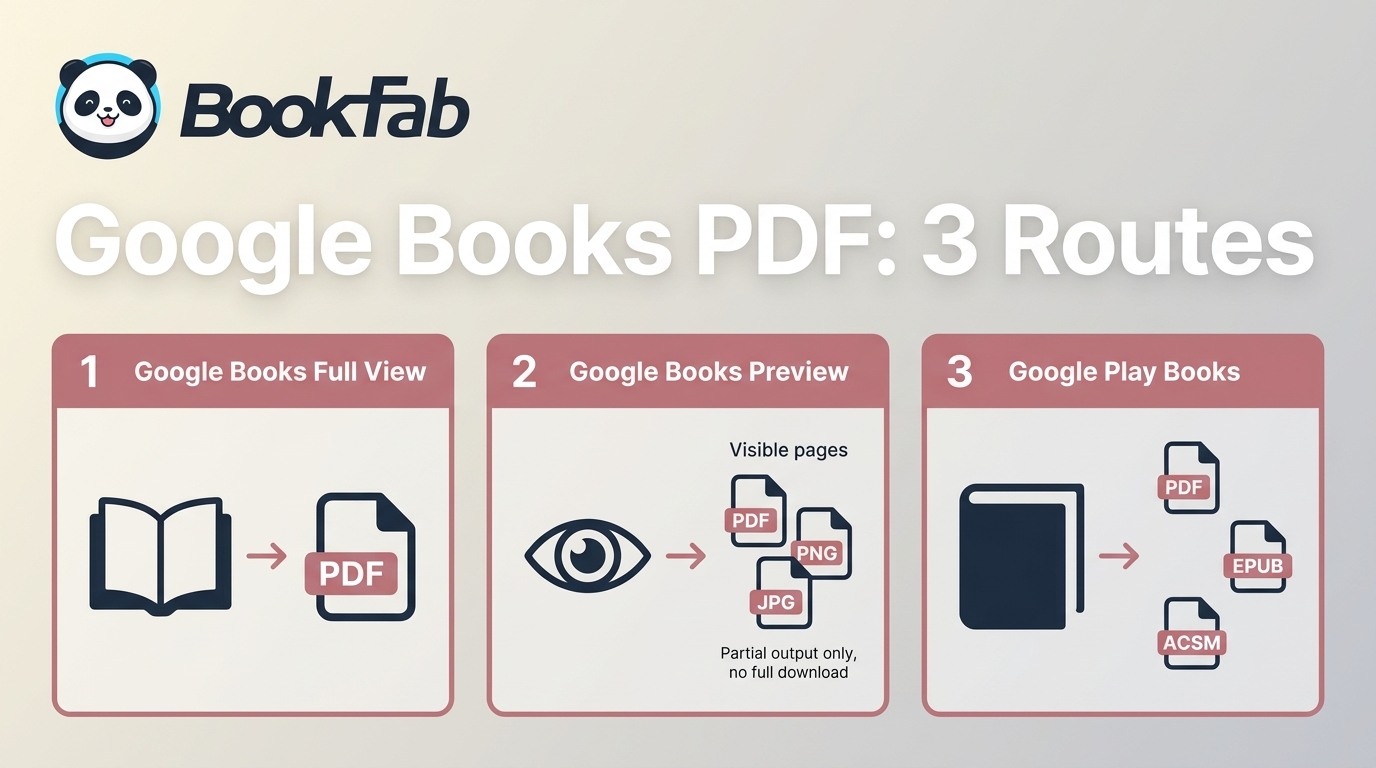 Google Books Downloader: 3 PDF Routes and Their Limits (2026)By Amber Collins - Sep 17, 2026
 Remove DRM from Apple Books: What Still Works in 2026By Amber Collins - Sep 1, 2026