Magazine PDF Downloads: Files vs. Offline App Reading

Summary: Publisher downloads and library apps deliver different kinds of magazine access. Learn how to find a specific issue, save an offered PDF or an app edition, and check its pages before reading offline.
To save a magazine PDF you can open in another reader, use a publisher’s offered file or an enabled FlipHTML5 download. If you simply want a free magazine download for offline reading, a participating library’s Libby or PressReader access provides an app edition instead.
A magazine cover on your screen does not tell you whether the issue will travel to your preferred reading app. I would treat the download as unfinished until the right issue opens where you intend to read it. That distinction matters when you want adjustable text, a readable spread, or a file you can organize by month. Start with the access each source provides, then follow the matching steps and check the pages before filing the issue away.
Table of Contents
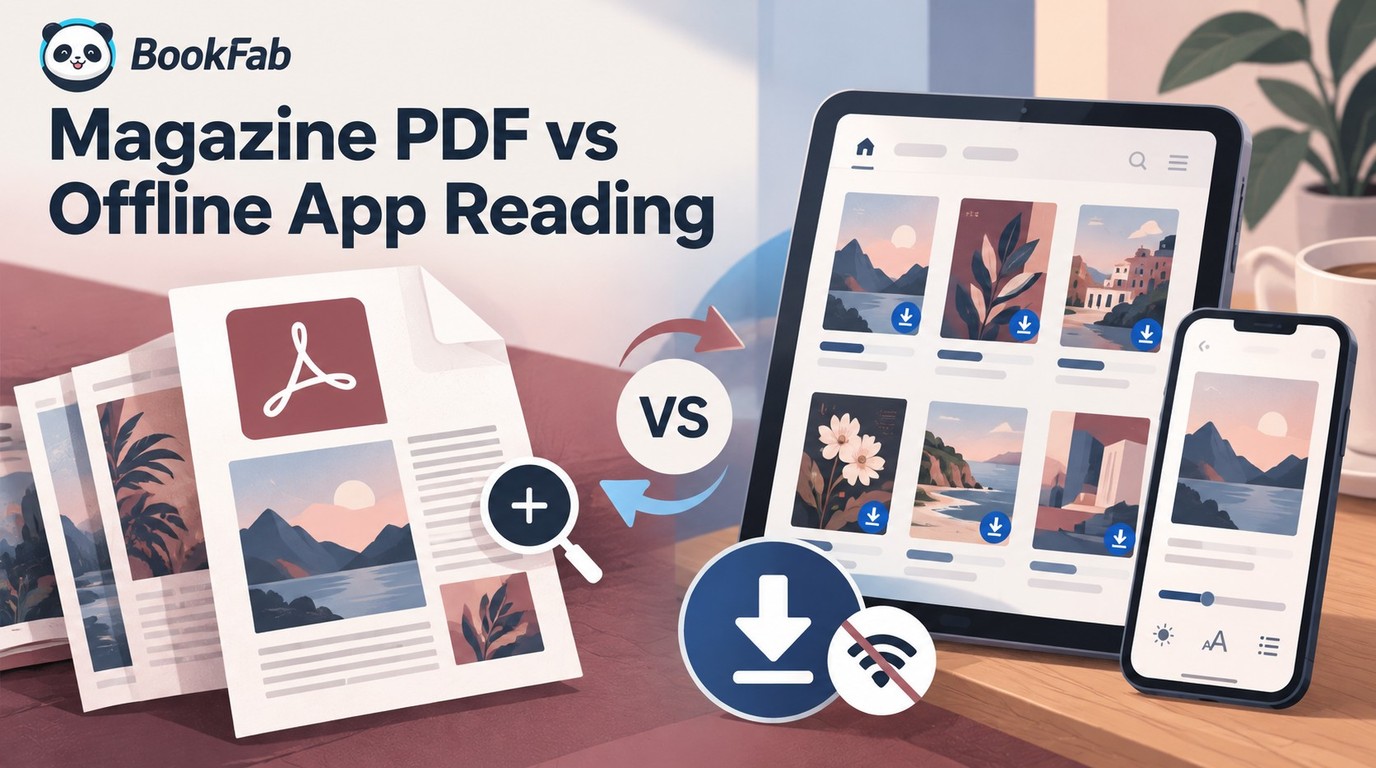
Where to Find Magazine PDFs and Offline Editions
A publisher can offer a standalone PDF, while library and subscription services can provide reading inside their apps. Free access describes what you pay; it does not tell you which file, if any, you receive.
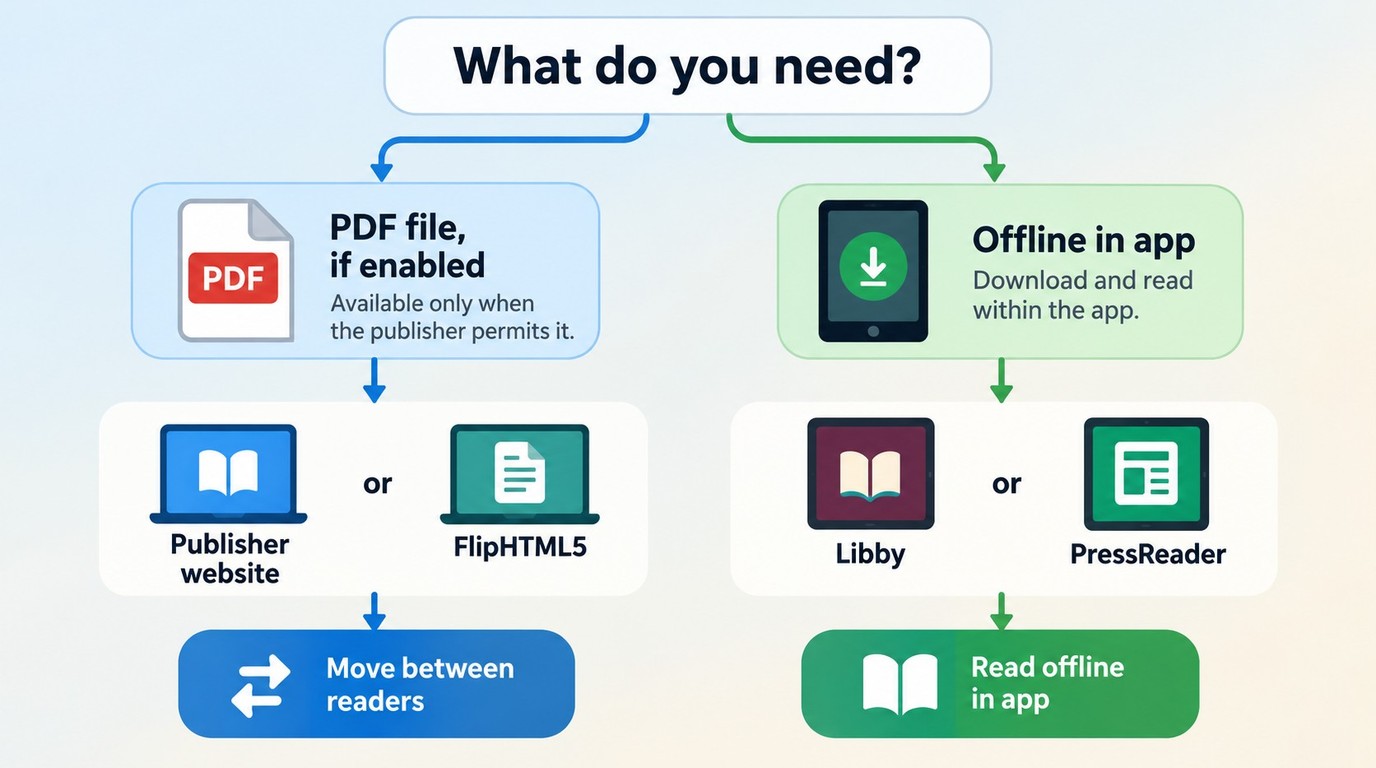
Match the Source to the Format You Need
For a PDF magazine you intend to store in a folder, look for an explicit file download. For reading without Wi-Fi, an app edition might already meet your needs.
| Source | Access needed | PDF file | Offline reading | Main limit |
|---|---|---|---|---|
| Publisher website | Publisher-defined | If explicitly offered | From saved file | Issue-specific permission |
| FlipHTML5 reader | Publisher enables downloads | If offered | From saved file | Downloads can be disabled |
| Libby mobile app | Participating library card | App edition instead | Manual issue download | Removed with Rack issue |
| PressReader app | Subscription or sponsored access | App edition instead | Within eligible access | Plan and sponsor conditions |
Based on FlipHTML5, Libby, and PressReader’s official help pages, as of October 2026.
I would start with the publisher if moving the issue between readers is essential. Libby suits a library reading session; PressReader makes sense when your subscription or institution already covers the title. Neither app download should be treated as a promised PDF delivery.
A reader in r/LibbyApp asked, “Is there any way to read magazines without using the app? Like, downloading as an epub to put on an eReader?” That question captures a separate need from offline reading: moving the issue elsewhere.
A directory, channel, or year folder is only a lead. Before using it, identify the publisher and what the individual issue page actually offers.
Download a Magazine PDF from FlipHTML5
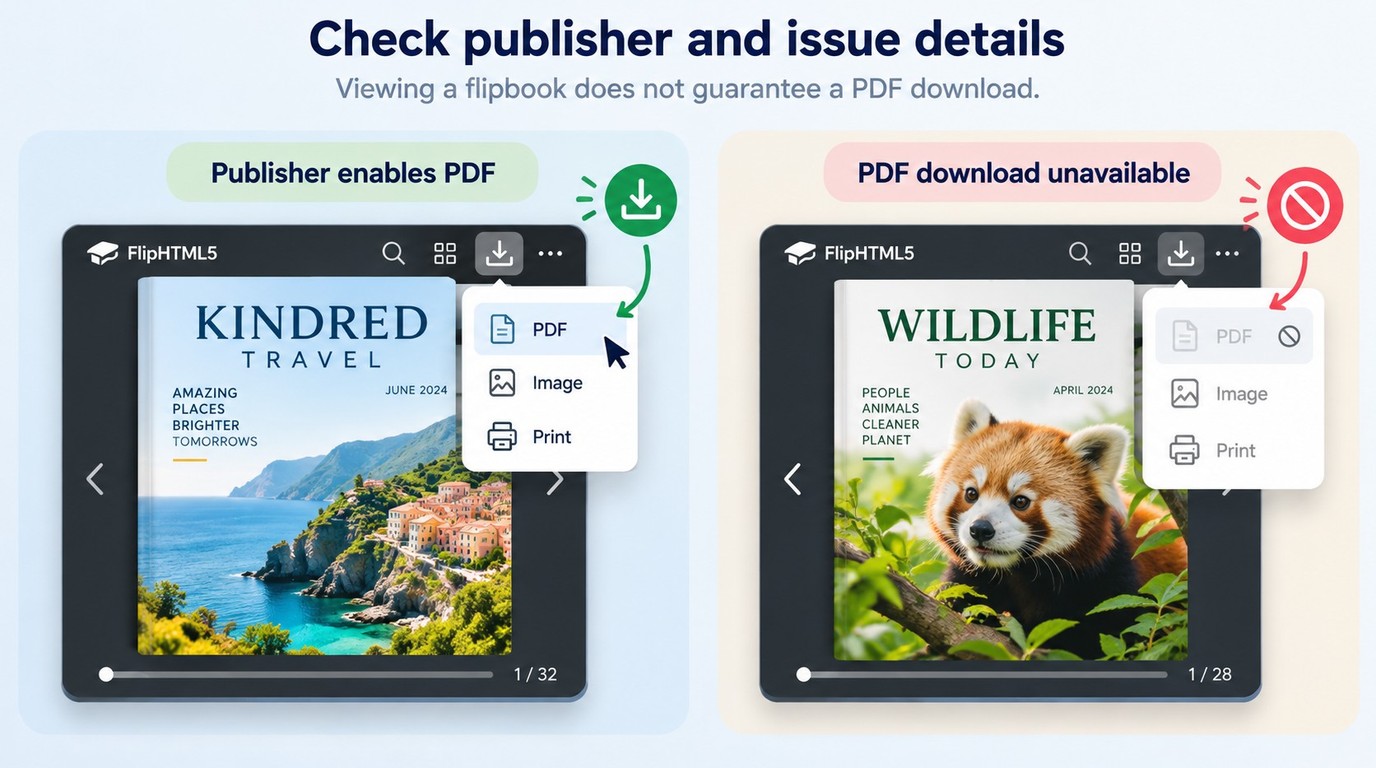
You can download a magazine through the FlipHTML5 reader when its author has enabled downloading and offers the file you need. A reader subscription does not override a disabled download setting, so a viewable flipbook is not automatically a downloadable PDF.
Check the Publisher and the Download Permission
Begin with the issue’s publishing account, not an isolated download button. You need the magazine’s reading page, an identifiable publisher, and an available download option before this method will produce a file.
- Open the magazine in the FlipHTML5 reader. If you arrived through an embedded edition, follow its publication link so you can inspect the issue and the account behind it.
- Match the publication details. Compare the cover title, issue date, and edition with the magazine you wanted. Check that the publishing account is the publisher or an identified distributor.
- Look for the reader’s download option. Use the option offered for that publication. If downloading is disabled, stop this download attempt and look for a file offered through the publisher’s own site.
The permission belongs to the publication. Paying for a reader account does not turn a closed download setting into an open one. I would settle that point before considering any account upgrade, because the issue’s download permission is what matters here.
Keep the publisher’s controls separate from yours. FlipHTML5 also provides export tools for people publishing flipbooks, but those settings are not a menu every reader gets. Seeing instructions for a publisher’s PDF export does not establish that the magazine in front of you offers the same choices.
An online sample is another possible stopping point. If the cover or publication description identifies an excerpt, do not treat its accessible pages as the whole issue. Return to the publisher’s listing to find the full edition rather than assuming that another button will reveal the missing pages.
Save the Offered PDF and Check the First and Last Pages
Save the format the reader actually offers. A PDF magazine download should leave you with a PDF file you can locate and reopen, rather than just a bookmark to the flipbook.
- Activate the enabled download control. If the publication offers a format choice, select PDF. If PDF is not offered, return to the publisher’s listing for its available editions.
- Save the file to a recognizable folder. Give it a name that includes the magazine title and issue date. Keep the
.pdfextension so its format remains clear. - Open the saved file in a PDF reader. Check the cover, move to the final page, and compare both with the issue description. Close it and reopen it from the saved folder to confirm you are using the local file.
That final check separates saving a link from saving the magazine. A browser tab can continue showing the online edition while a file elsewhere is incomplete, a sample, or a different issue. Opening from the folder makes the result easier to identify.
The cover and last page are an initial check, not a complete inspection. They help catch a wrong issue or an obvious truncation before you spend time examining contents links and image-heavy spreads. The fuller reading check comes later.
I would keep this method for publications that openly offer the desired file. When you only need to read the issue offline and already have a participating library card, Libby answers a different need without requiring a separate PDF.
Download Library Magazines in Libby
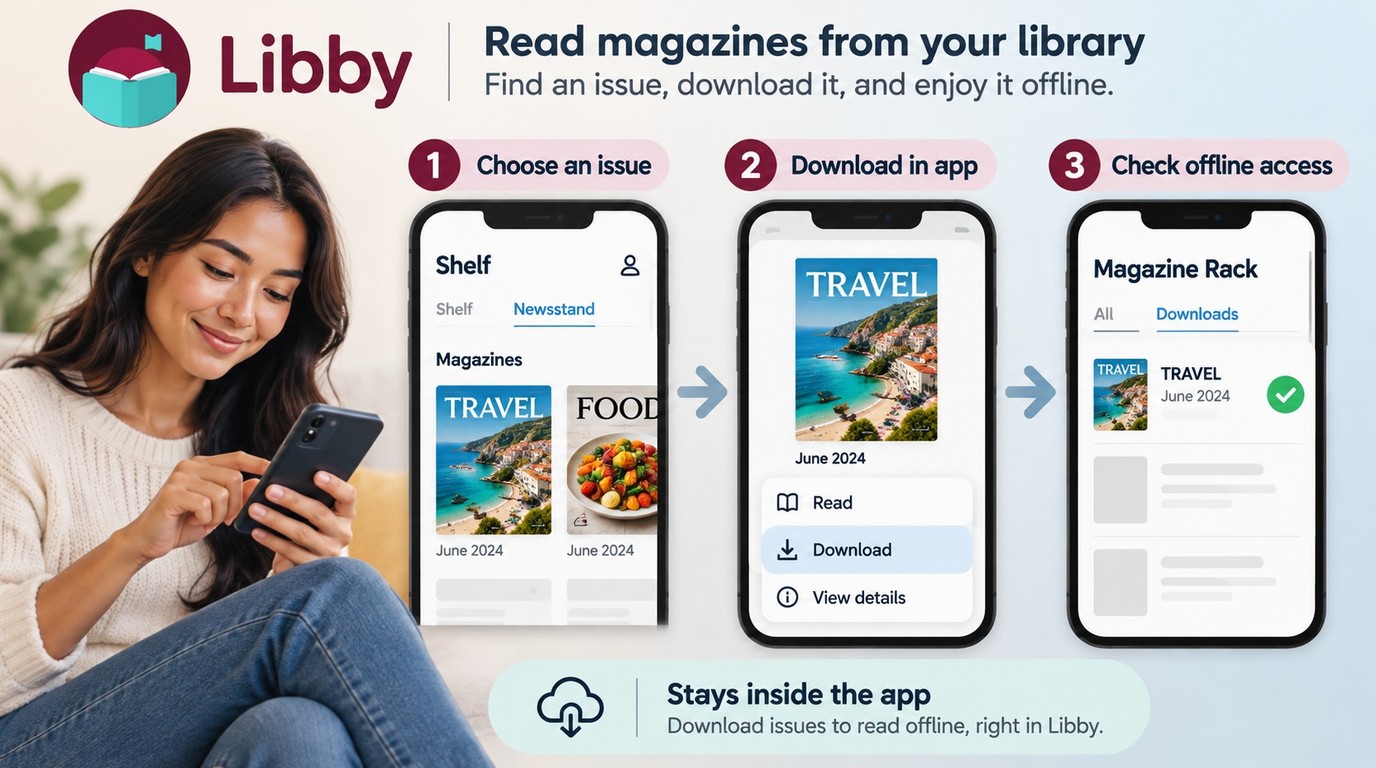
You can download a magazine for offline reading in the Libby mobile app if your library provides it. Keeping an issue on the Magazine Rack and downloading it are separate actions; use the download checkmark to confirm the second one is finished.
Find Your Library’s Magazine Collection and Keep an Issue
Start with a valid card from a library that offers magazines through Libby. Your card gives access to that library’s collection, so a title available through another library is not proof that yours includes it.
A reader in r/LibbyApp asked, “I'm having a hard time figuring out how to read/find magazines on Libby. Does that possibly mean my library doesn't participate, or can someone help dumb it down for me?” The first thing I would establish is whether that library offers the collection, before searching repeatedly for a missing issue.
Your Magazine Rack now gives you a place to return to the issue. It does not by itself confirm an offline copy. Before leaving the issue details, compare its cover date with the edition you intended to read, especially when several recent issues have similar covers.
A kept issue stays on the current device’s Magazine Rack for seven days. When it has less than seven days left, its menu offers Keep For Another 7 Days; you can repeat that extension. Libby keeps these issues on the device where you added them, so repeat the keeping steps on another device you intend to use.
Download the Issue and Confirm Its Status
Use Libby’s manual download control while connected. The issue must be on the Magazine Rack before you follow these download steps.
I would use the checkmark, rather than the cover’s presence, as the point at which to move on. A cover tells you which issue is on the Rack; the checkmark tells you the download is there.
The local download is deleted when the issue leaves the Magazine Rack, including when it expires or is replaced by a new issue of a subscription. This is app reading, not a PDF export to your documents folder. If the title you need is outside your library’s Libby collection, an existing PressReader subscription or library connection is the next access to examine.
Read Magazines Offline in PressReader
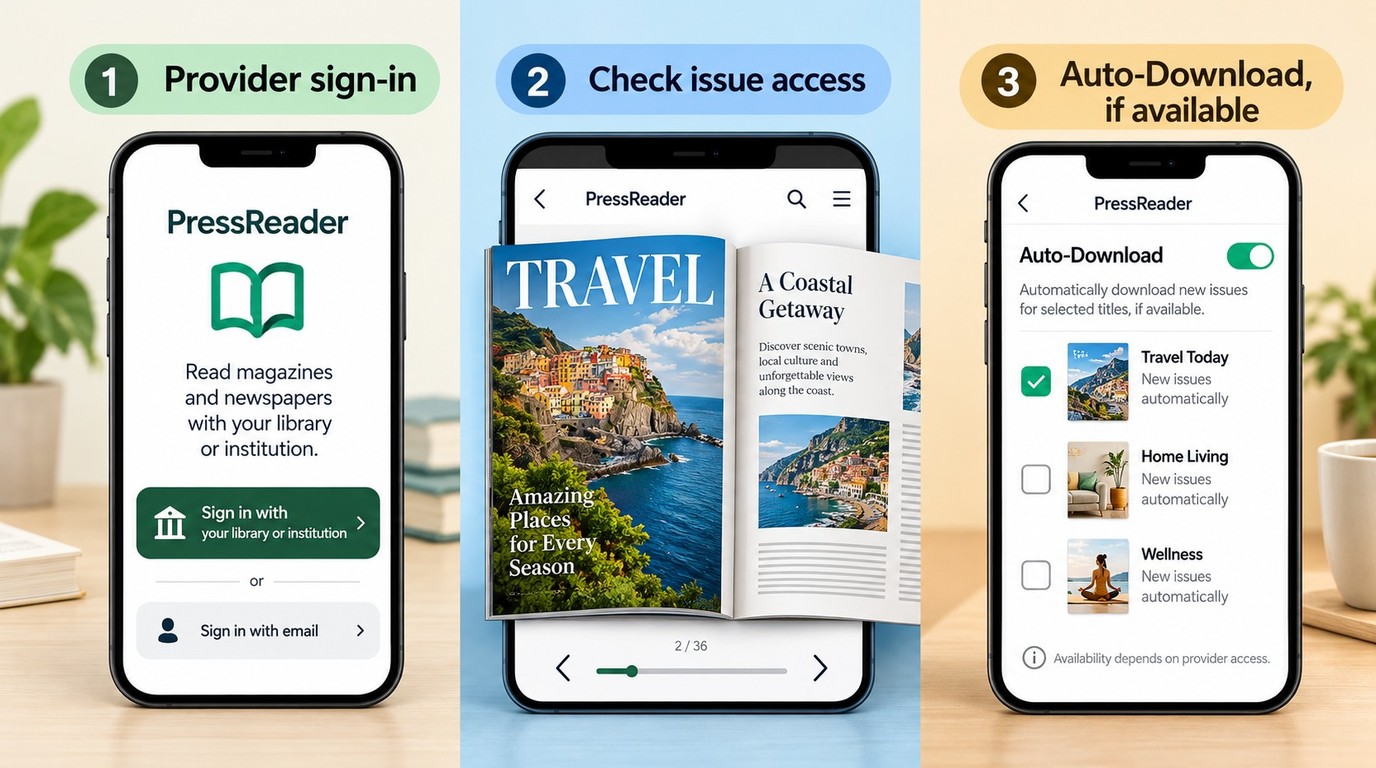
PressReader provides offline reading through its app within your subscription or sponsored access. Its personal-account Auto-Download feature has subscription-dependent title limits, and some sponsored HotSpots do not enable automatic downloads.
Sign In Through Your Library or Subscription
Establish access to the specific magazine before setting up future downloads. A library connection and a personal subscription are different ways to reach the catalog; they do not establish identical entitlements.
You need the PressReader app, a working connection for setup, and either a subscription covering the publication or a participating institution’s sign-in details. For library access, start from the service listing your library provides, rather than assuming that your Libby card automatically opens PressReader too.
- Open the PressReader app and select its sign-in option. For sponsored access, use the library or institution sign-in choice and select your provider.
- Complete that provider’s authentication. Enter the library or institutional details requested. If you use a personal subscription instead, sign in to the account carrying that subscription.
- Find and open the exact magazine issue. Check the title, date, and edition, then confirm you can read beyond the cover or preview under that access.
Opening the desired issue is the useful checkpoint here. A catalog match alone does not tell you whether your account includes it, and a working library sign-in does not promise the same publication selection as a personal subscription.
Library-sponsored access and reauthentication follow the library’s agreement. There is no single renewal interval to apply to every institution. If the app asks you to reconnect through your provider, complete that connection before expecting another issue to download.
I would confirm the magazine itself before changing download settings. Otherwise, it is easy to set up an account and still discover that the edition you wanted is outside its access.
Set Up App Downloads Within Your Access
Auto-Download is useful for keeping up with a publication you regularly read. It is not a substitute for checking that the issue has reached the device you will carry.
- Sign in to your personal PressReader account in the app. Keep the subscription or sponsored connection used to read the publication active.
- Enable Auto-Download for the desired publication where the app offers it. Stay within the title allowance attached to your subscription. Some sponsored HotSpots do not offer this feature, so its absence is not evidence that the app is broken.
- Inspect the downloaded issue in the app. Confirm the date and completed download state, then open the issue on that device before relying on it away from a connection.
These steps prepare app reading. They do not deliver a whole-magazine PDF to another reader. If you need a particular older issue, verify that dated issue itself rather than assuming that a setting for future editions includes the back catalog.
PressReader’s print-replica and mobile reading views also answer different reading preferences. The replica preserves the designed page; a mobile view is worth considering when small columns are difficult to follow. I would inspect a spread and a text-heavy article before settling into the issue, because a readable cover tells you little about the inside pages.
Once access and downloading are clear, the remaining problem is often finding the right edition in the first place. That calls for a more precise title search.
Find a Specific Magazine Issue with Google Search
Search for the full magazine title together with its publisher, then add the issue date or edition. Google can help locate the record, but only the destination page tells you whether it offers a PDF, a preview, a purchase, or library reading.
Look Up a Named Title Through Its Publisher or Library
Use Reader’s Digest as a search example, not a promise that a particular PDF exists. Begin with the title and work toward the issue rather than starting with a generic download directory.
- Search Google for
"Reader's Digest" publisher digital edition. Open the publisher’s result or a library catalog result connected to an institution you can use. - Identify the digital reading format. Look for language describing a downloadable PDF, an app edition, an online archive, or a print subscription. These are different offerings.
- Add the issue details to the search. Include the cover month, year, and country edition you need. Follow the matching issue page rather than a generic title landing page.
I would keep the edition name alongside the date. An issue with the right month can still be the wrong regional publication, and a digital article collection can differ from the paginated magazine you intended to read.
The same search logic applies to a National Geographic magazine PDF or a Tabletalk issue: identify its publisher and dated edition before deciding what is available. For Penthouse, limit the search to publisher-authorized editions rather than treating a matching filename as permission.
For another subscription service, Readly magazine downloads in PDF or EPUB involve their own access and format questions; a title appearing there does not establish its availability through Libby or PressReader.
Match the Issue Date, Edition, and Publisher
Dates make searches narrower, but they must describe the magazine itself. The date Google displays beside a result might belong to a page update rather than the issue’s cover.
- Read the cover and issue details together. Match the month, year, volume, number, and regional edition where those details are supplied. For a back-issue search such as FourFourTwo December 2011, retain the month and year while adding the publisher or archive name.
- Refine an ambiguous match. Put the full title in quotation marks, add a distinctive article title if you know it, or restrict the search to the verified publisher’s domain with
site:. Do not guess a publisher’s domain from its name.
A combined issue needs its full date range. Searching for Market magazine’s January–February 2022 issue is more precise than searching for January alone; it still does not establish that a downloadable copy exists.
Promotional magazines require a location check too. Dis-Chem Benefits for December 2022 and Clicks ClubCard for October 2023 are South African publication queries, not evidence of US offers. For Reach or Clipper coupon editions, match the local edition and offer expiration as well as the cover date. An old issue can be useful as a record without making its offers redeemable today.
Follow Archive Records Without Assuming a File Exists
- Follow the issue into its publisher or library archive record. Read the access description and use the stated reading, borrowing, or download option. If the record is only a catalog entry, use its collection and holding details to ask the library about access.
A historical date is a locating clue, not a file guarantee. A search for Great Western Railway Magazine from January 1919, for example, should lead you to a matching archive record before you decide whether there is a digitized issue to read.
The stopping point should be explicit: the exact issue, a named provider, and an offered way to read it. I would save the archive record alongside any offered file so a later reading session begins with the correct publication, rather than another search for a vaguely remembered cover.
Check Your Magazine File Before Adding It to Your Library
Check the cover, page sequence, ending, text, and navigation before keeping a PDF in your main library. Then open it on the screen you intend to use: a complete file can still make a dense magazine uncomfortable to read.
Check Completeness, Text, and Contents Links
A PDF opening successfully is the beginning of the inspection. I would give the inside pages the same attention as the cover, especially when the magazine mixes columns, captions, and full-page images.
- Match the cover. Confirm the magazine title, cover date, edition, and any volume or issue number.
- Inspect the page sequence. Look for repeated scans, missing transitions, and articles that stop before their continuation.
- Check the ending. Compare the final pages with the publisher’s description where available; do not assume the last article is the last page.
- Try selecting and searching text. A scanned page can contain only an image, so unselectable text alone does not establish corruption.
- Try the contents links. If links are present, confirm that they reach the expected articles rather than an unrelated page.
- Inspect an illustrated spread. Enlarge captions and follow images across the center to catch cropping or an awkward split.
These checks answer different questions. A magazine can have the right cover but an incomplete article; it can also be complete while offering no text search. Printed page numbers do not necessarily equal the PDF reader’s page count, because covers and unnumbered pages count as file pages too.
Check the Layout on the Screen You Will Read On
A PDF magazine viewer should let you examine the page at a readable scale. A fixed page preserves the placement of columns and images; enlarging it is different from increasing the font size in an eBook whose text rearranges to fit the screen.
One reader in r/ereader described that tradeoff: “Currently I can only open newstand on my phone in the Libby app (not ideal for reading) or on my iPad (great size screen for magazine reading but I find myself less likely to carry it around/pick up to read).” That is a reading preference, not a compatibility test.
On your intended screen, follow a full article and inspect a spread. A phone calls for closer attention to column zoom; a tablet or computer provides more room, while a small eReader needs a check of text size and page movement. I would judge the file by a page you want to finish reading, not by how attractive its cover looks.
For a standalone PDF, use a filename containing the title, issue date, and edition, and keep its publisher or archive link in your library notes. A local-file reader and a library borrowing app serve different purposes; adding a PDF to one does not add it to the other.
Frequently Asked Questions About Magazine PDFs
Can I Read a Magazine PDF on a Kindle or Chromebook?
A: A standalone PDF needs a PDF-capable reader on the target device. On a Chromebook, open the saved file in a reader that supports it; for Kindle, confirm the PDF support and transfer method for your particular device or app. Check a text-heavy page afterward, because the magazine’s fixed layout still needs to fit the screen. A Libby magazine download is a separate app edition, so do not infer magazine delivery from a Send to Kindle option offered for other library books.
ACan I Keep an Offline Magazine After My Library or Subscription Access Ends?
A: There is no single rule covering these formats. Libby removes a download when its issue leaves the Magazine Rack. PressReader distinguishes subscriptions, sponsored access, and downloaded single issues, so those access types should not be assigned one blanket expiration rule. For a publisher-supplied standalone PDF, the file in your folder is distinct from an app entitlement; consult the issue’s license for continuing use. I would keep that license information with the issue rather than treat “downloaded” as a promise of continuing access.
AWill a Magazine Download Work on a Flight Without Wi-Fi?
A: Prepare it on the device you will take, then disconnect and open the exact issue before departure. Go beyond the cover and turn through the article you plan to read. That check establishes whether it opens offline at that moment; it does not extend a borrowing period or renew authentication. I would complete any requested sign-in while still connected and avoid relying on a web bookmark as evidence of an offline edition.
AIs It Legal to Share a Magazine PDF with a Friend?
A: Free access does not itself authorize sharing or personal printing; permission to print a magazine from PDF and permission to distribute copies depend on the license and applicable law. Keep legitimately obtained downloads for your own reading, follow the publisher’s, library’s, and service’s terms, and do not redistribute or resell without permission; send your friend the authorized issue page instead.
ABefore You Save Your Next Issue
Confirm what you are saving: a publisher-offered file or an edition that stays inside its reading app. Match the cover date and edition, then open the issue on the device you will actually use. I would finish with the contents, a text-heavy page, and an illustrated spread, because those reveal more about the reading experience than the cover alone. Keep the source and access details with the issue so your next session starts with the right pages and a clear understanding of where they will open.

 Playboy Magazine Download: Official Access and PDF OptionsBy Amber Collins - Oct 20, 2026
 Free Apple Books Download: From the Store or EPUB FilesBy Amber Collins - Oct 20, 2026