UHD Backup Software Review: Choose the Best Tool for 4K Blu-ray Backup

Summary: 4K UHD Blu-rays deliver stunning detail and sound, which makes backing up your valuable collection more important than ever. This guide reviews four UHD backup tools—DVDFab UHD Copy, DVDFab UHD Ripper, MakeMKV, and HandBrake—highlighting their features, pros, and cons.
Backing up a 4K UHD Blu-ray is not only a question of finding a fast ripper. The right UHD backup software depends on the output you want: a full ISO or BDMV folder for disc-level archiving, a lossless MKV for a media server, or a smaller MP4/MKV file for everyday playback. The choice also depends on your UHD Blu-ray drive, HDR requirements, storage plan, and local rules around copying discs you own.
I reviewed four common options for US home theater and media server users. The goal is not to name one winner for every setup. Instead, this guide explains what each tool can and cannot do, where Dolby Vision and HDR10+ preservation becomes risky, and which workflow fits a full-disc archive, Plex library, or space-saving backup.
What to Check Before Choosing UHD Backup Software
Before comparing tools, decide what a successful backup should look like. A full-disc backup keeps the original disc structure, menus, extras, chapters, audio tracks, and subtitle streams. It is usually saved as an ISO image or BDMV folder and can be useful for long-term archiving. A ripped file, usually MKV, MP4, or M2TS, is easier to organize in Plex, Jellyfin, Kodi, or a TV media player, but menus are usually removed.
UHD discs also create practical limits. A 1:1 backup can mirror a BD66 or BD100 disc, so one movie may require tens of gigabytes or close to 100GB of storage. If you are building a NAS library, storage cost and backup redundancy matter as much as ripping speed. Compression can reduce file size, but it may affect grain, dark scenes, HDR metadata, and advanced formats such as HDR10+.
Drive compatibility is another deciding factor. Commercial 4K UHD Blu-rays require a compatible UHD drive, and some workflows depend on LibreDrive-compatible firmware or a drive model known to work with UHD discs. Check your drive model before buying software or planning a large batch job.
Evaluation Criteria for UHD Backup Software
This review compares two main options for UHD backup:
💿➡️💿UHD Copy creates a disc-level clone to another blank disc or to an image or folder on a drive. You keep the original menu and structure (ISO image or BDMV folder), so a compatible player can treat it as the source disc.
💿➡️📱UHD Ripping converts the UHD disc into video files such as MKV or MP4, which you can browse in apps like Plex or your TV and mobile phone. You lose disc menus but gain flexible playback and tagging.
In addition, when choosing UHD backup software options, I followed the checklist below for evaluation:
- Picture kept intact: Backups should preserve the advertised HDR format. HDR10 is the baseline for UHD Blu-ray. Dolby Vision is optional.
- Speed and reliability on large jobs: Software must handle 100 GB discs without crashing, with consistent throughput.
- User feedback and adoption: I review user reports on output quality, failure rate, rework frequency, playback compatibility, and whether the tool shows updates and support.
UHD Copy Software: 1:1 Archival Backup
UHD copy software aims to keep disc structure and menus so the result plays like the original on devices that support ISOs or BDMV folders. I often use DVDFab because it supports full-disc clones and compressed outputs while preserving HDR formats when conditions allow.
DVDFab UHD Copy
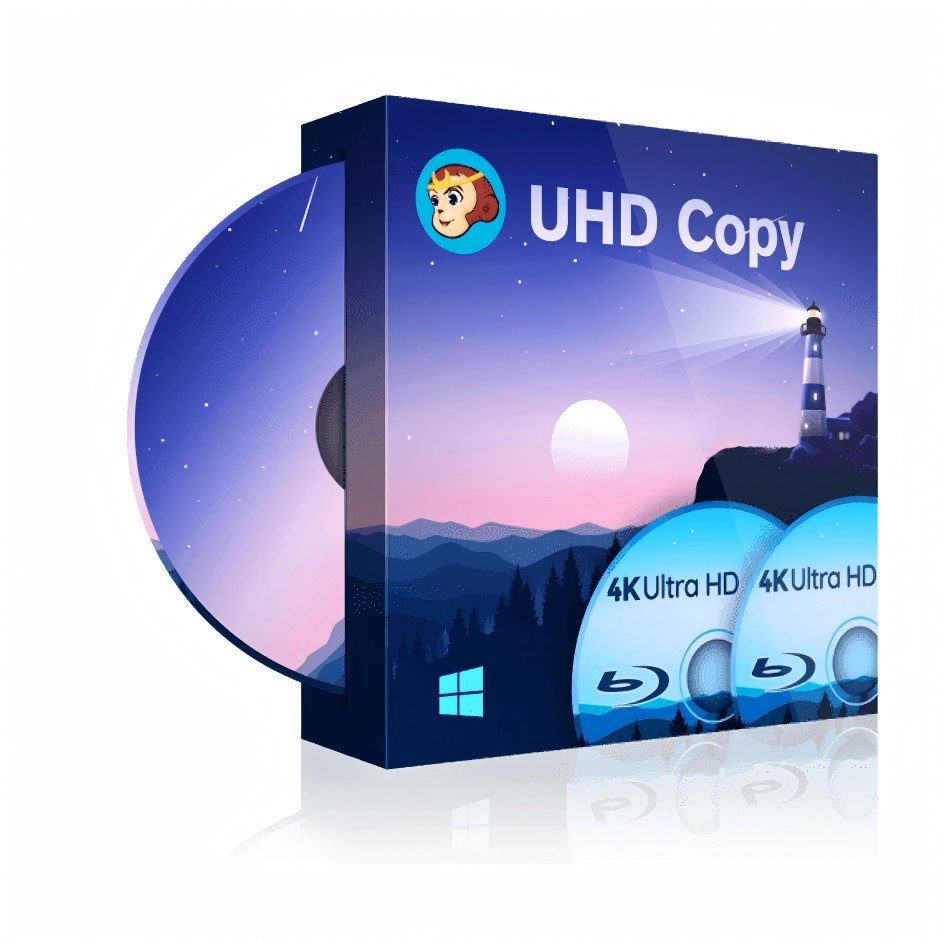
Users note that copy modes are easy to follow, video and audio match the original, and performance holds up on long titles. Many also value batch queueing for box sets, stable handling of UHD100, and smooth playback of ISO or folder outputs. If you want to learn more about the software's features and users' feedbacks, please check out official DVDFab UHD Copy Review.
- Creates full-disc ISO, BDMV folder, or blank-disc backups
- Full Disc, Main Movie and Clone-Burn modes for accurate copies or lean movie-only backups
- BD100 to BD50/BD25 compression options that keep 2160p when storage is tight
- Preserves lossless audio tracks DTS-HD MA, Dolby TrueHD, Dolby Atmos, DTS:X
- Removes Cinavia on supported 4K UHD audio tracks
- Cloud decryption for AACS 2.0/2.1 and BD-J protections
- GPU acceleration and a batch queue built for box sets and large libraries
- Not available on Linux
- Dolby Vision and HDR10+ are only retained in lossless copies, not in compressed versions
UHD Ripper Software: Back up UHD Blu-rays as Digital Files
Copying discs keeps the full structure but also requires large amounts of storage. If you'd rather save space and store your movies in a more flexible format, UHD ripping software is the better choice. Below are three of the most reliable tools I've tested for converting 4K Blu-rays into digital files.
DVDFab UHD Ripper
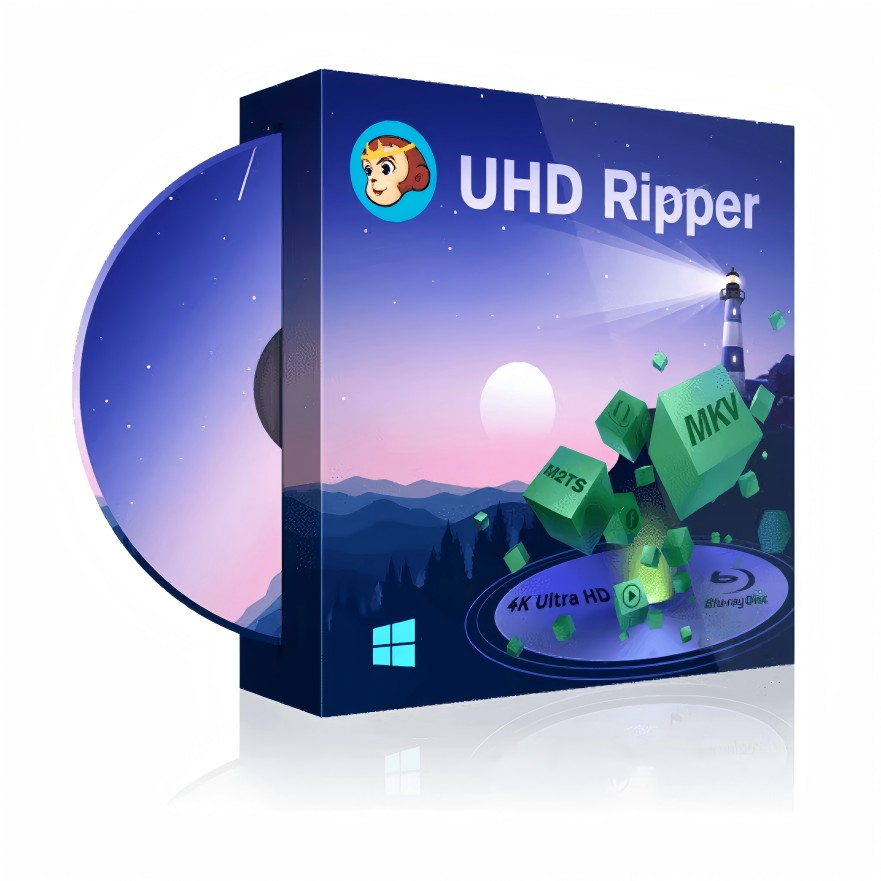
DVDFab UHD Ripper can convert a UHD disc, ISO, or BDMV folder to MKV, MP4, or M2TS, with passthrough profiles for lossless output and encoded profiles for smaller files. This makes it more flexible than a pure remux tool when you need both archive-quality files and device-friendly versions.
DVDFab UHD Ripper is the best UHD backup software that converts Ultra HD Blu-ray to MKV, MP4, or M2TS and preserves HDR10 and Dolby Vision for supported titles. It offers lossless "Passthrough" profiles as well as space-saving encodes, so you can choose between disc-level quality and smaller files for everyday viewing.
The biggest reason to consider it is format control. You can keep high-quality audio, select subtitle behavior, choose a passthrough profile, or compress for playback on a phone, tablet, TV, or media server. HDR10 preservation is usually more straightforward than Dolby Vision preservation. For a full overview of features, performance, and user impressions, see the official DVDFab UHD Ripper Review.
- Converts UHD Blu-ray to MKV, MP4, M2TS
- Lossless passthrough to video formats with original quality intact
- Supports DTS-HD MA, Dolby TrueHD, Dolby Atmos, DTS:X
- Cloud decryption for AACS 2.0/2.1 and BD-J protections
- Supports UHD disc, ISO, or BDMV folder as input
- Batch task queue and GPU acceleration for long titles and box sets
- Built-in video editor for quick trim, crop, and merge, etc.
- Extract audio tracks to AAC, OGG, DTS, WMA, and E-AC3
- Not available on Linux
MakeMKV
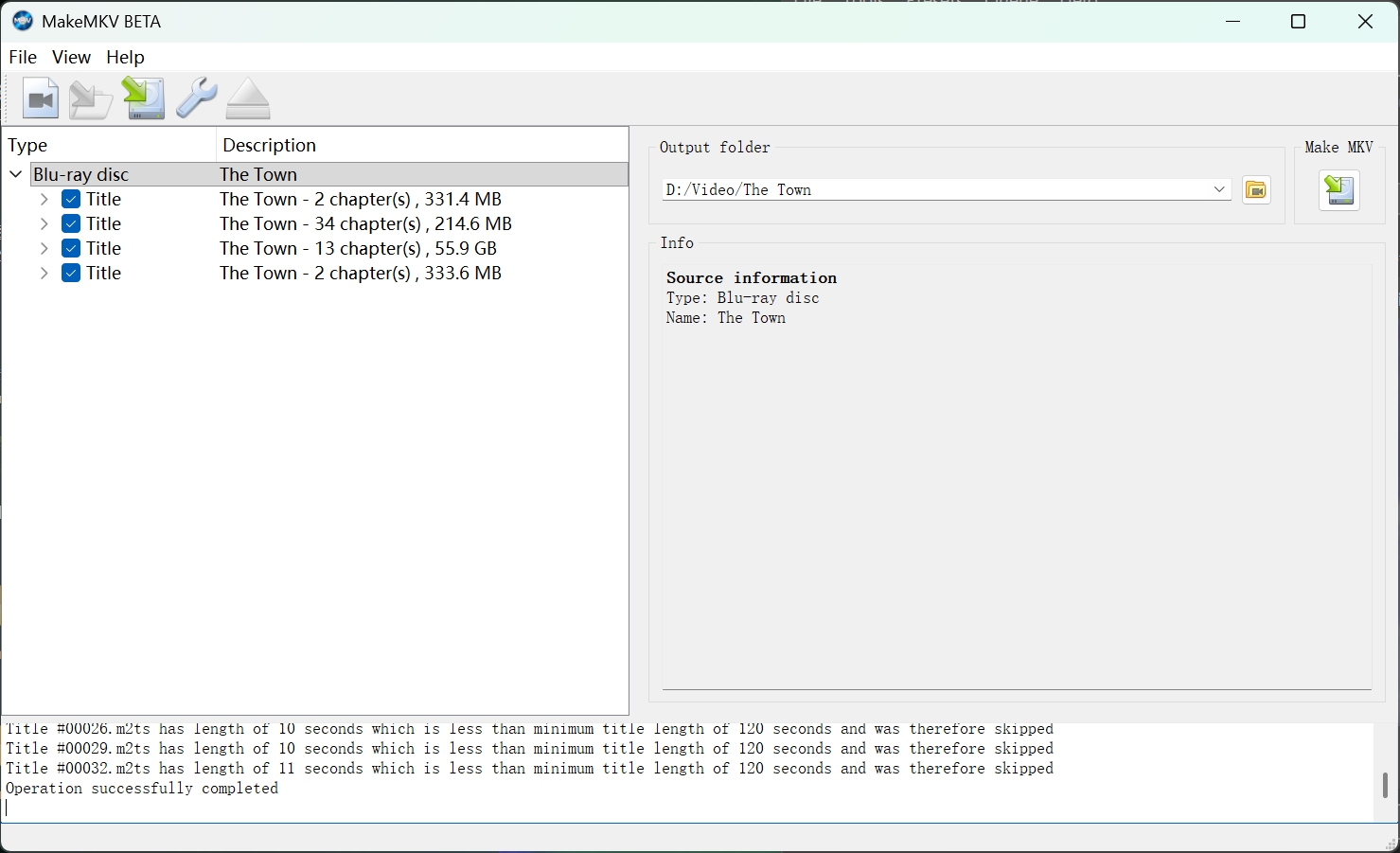
MakeMKV is a common choice for users who want a simple, lossless MKV remux. It does not re-encode the video. Instead, it copies the main video, audio, subtitles, chapters, and track information into an MKV container. That is why it is popular with Plex and Jellyfin users who want original quality without building a full ISO archive.
The limitation is that MakeMKV is intentionally narrow. It outputs MKV only, does not create MP4 files, does not compress by itself, and does not include device presets. If you want smaller files, you usually add HandBrake or another encoder after MakeMKV. The public beta key also changes periodically, so users relying on the free beta should check the official MakeMKV forum before starting a batch.
- Creates lossless MKV files without re-encoding the video
- Keeps chapters, audio tracks, subtitles, and language metadata
- Cross-platform builds for Windows, macOS, and Linux
- Handle basic copy protection such as AACS
- Cannot bypass advanced protections
- MKV-only output; MP4 or other containers require a separate step
- No built-in compression or device presets; files stay disc-size large
- Free beta use depends on periodic beta key availability
HandBrake
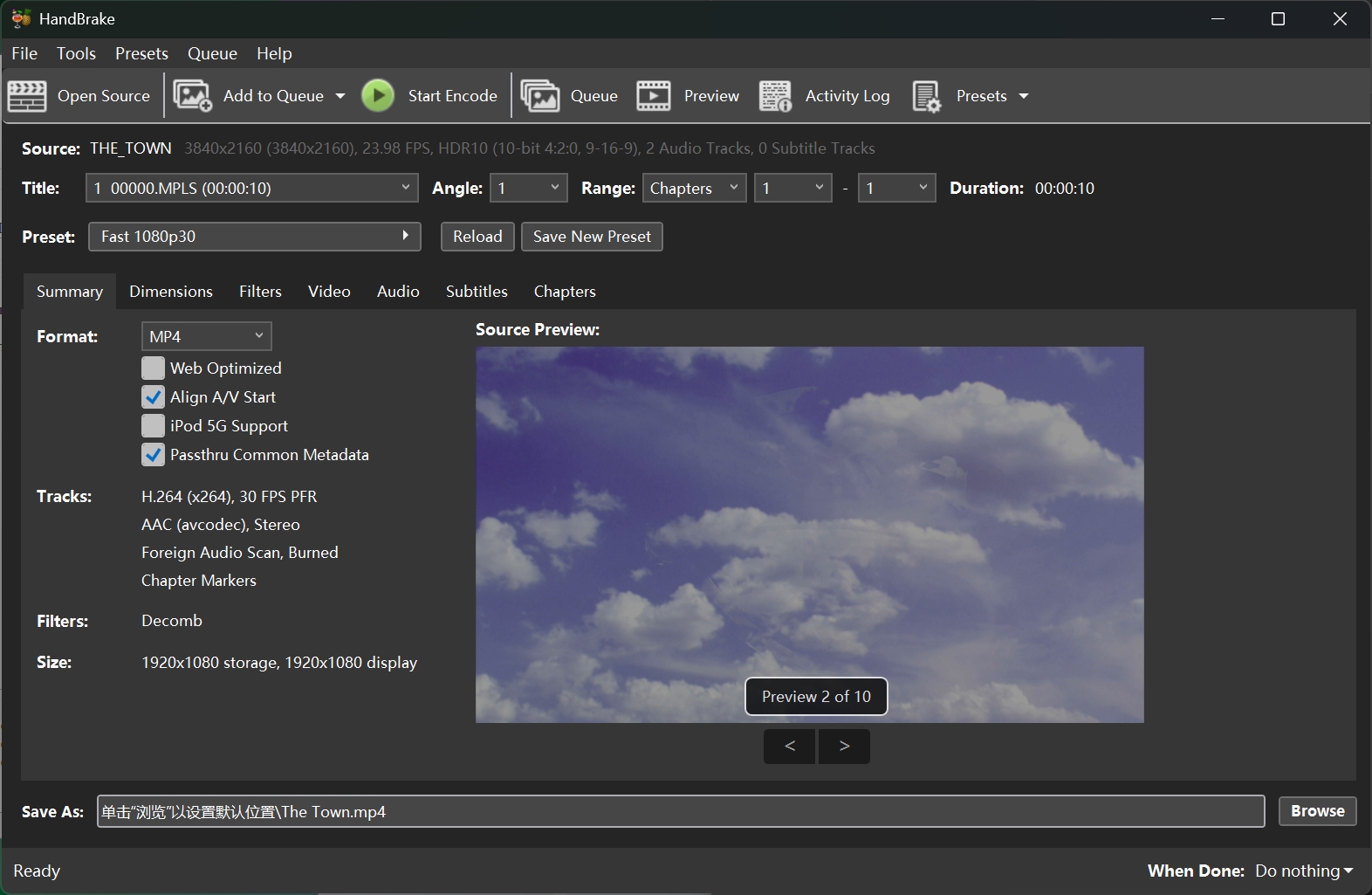
HandBrake is not a standalone UHD Blu-ray decryption tool. It is an open-source video transcoder for converting video sources into MP4, MKV, or WebM. In a UHD backup workflow, HandBrake is most useful after the disc has already been opened or copied by another tool. For example, users often remux with MakeMKV first, then use HandBrake to create a smaller H.265 or AV1 file for everyday playback.
Its strengths are encoding control and platform support. You can choose presets, tune quality, pass through some audio tracks, burn or preserve subtitles, and process a queue. The trade-off is time and complexity. UHD encoding can take a long time at high quality settings, and Dolby Vision results vary by source, encoder path, container, and playback device.
- Free and open-source on Windows, macOS, and Linux
- Device presets and batch queue for predictable, TV-friendly outputs
- Useful filters (deband, denoise, subtitle burn-in, chapter markers) for tricky scenes
- No disc decryption; requires a decrypted source from another tool
- High-quality UHD encodes can be slow on modest hardware
- Dolby Vision support isn't universal; results depend on title, encoder path, and player
Comparison of Four UHD Backup Software
This section compares four tools head-to-head for UHD backup and 4K Blu-ray backup. I focus on what they produce, how they handle UHD Blu-rays, decryption scope, and platforms to pick each one.
| Software | Category | Inputs | Outputs | Decryption | Platforms |
| DVDFab UHD Copy | Copy (1:1 or compressed) | Disc / ISO / Folder | ISO / BDMV Folder / Disc | Cloud Decryption (AACS 2.0/2.1, BD-J) | Windows / macOS |
| DVDFab UHD Ripper | Ripper (lossless or compressed) | Disc / ISO / Folder | MKV / MP4 / M2TS; Passthrough or Encoded (HEVC/AV1) | Cloud Decryption (AACS 2.0/2.1, BD-J) | Windows / macOS |
| MakeMKV | Ripper (lossless) | Disc / ISO / Folder | MKV only (no re-encode) | Basic | Windows / macOS / Linux |
| HandBrake | Ripper (From Decrypted Source) | Non-protected discs/files/folders | MP4 / MKV / WebM | No | Windows / macOS / Linux |
How to Use DVDFab to Back up 4K UHD Blu-ray
If you've decided DVDFab is the right fit for your UHD backups like me, getting started is straightforward. Below is a quick step-by-step walkthrough showing how to use DVDFab UHD Copy and how to rip 4K Blu-ray with UHD Ripper.
Use DVDFab UHD Copy to Back up UHD Blu-rays in 1:1 Quality
Step 1: Launch DVDFab and Load Your UHD Blu-ray
Open DVDFab and switch to the Copy module. Insert your disc into the drive, or drag and drop your files directly onto the main interface. Wait a moment for Cloud Decryption to complete and for the title list to appear.
Step 2: Select a Copy Mode
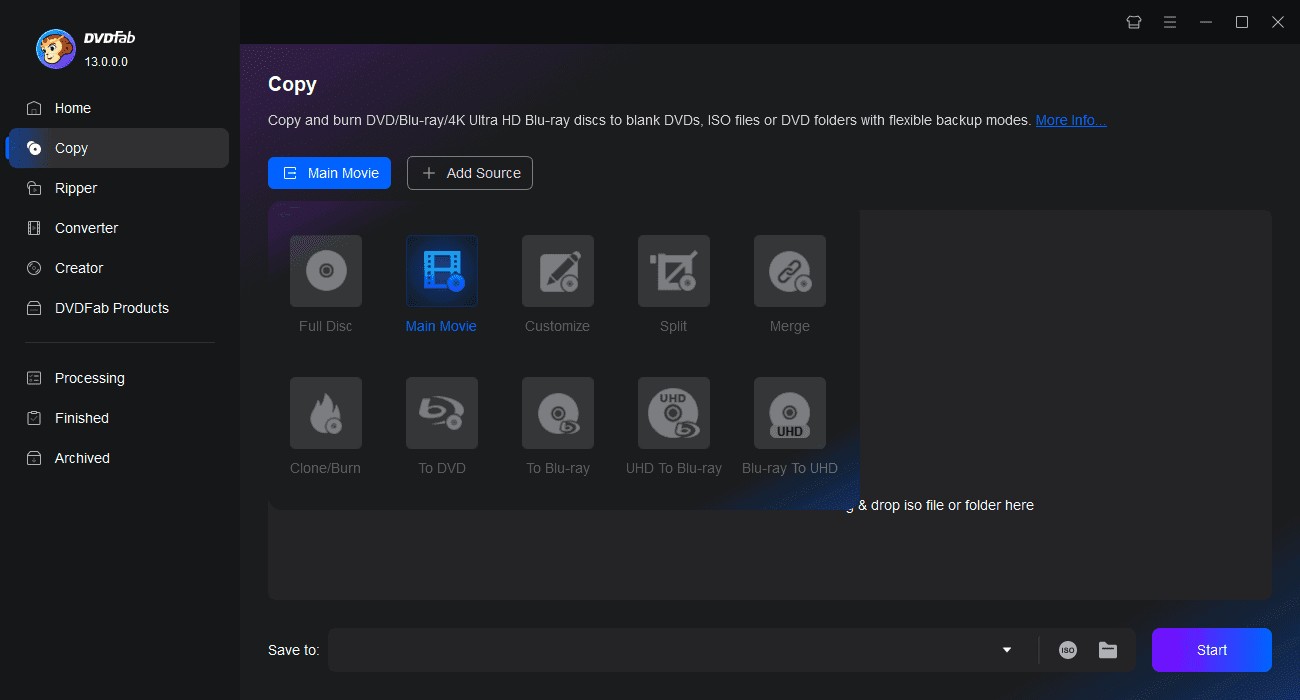
By default, Main Movie is chosen. You can click on it to switch to other modes:
Full Disc – copies all the content of disc/ISO/folder source with or without compression.
Main Movie – copies only the feature film for a slimmer result.
Clone/Burn – makes a sector-by-sector 1:1 duplicate.
Step 3: Adjust Quality and Size and Select Audio and Subtitles
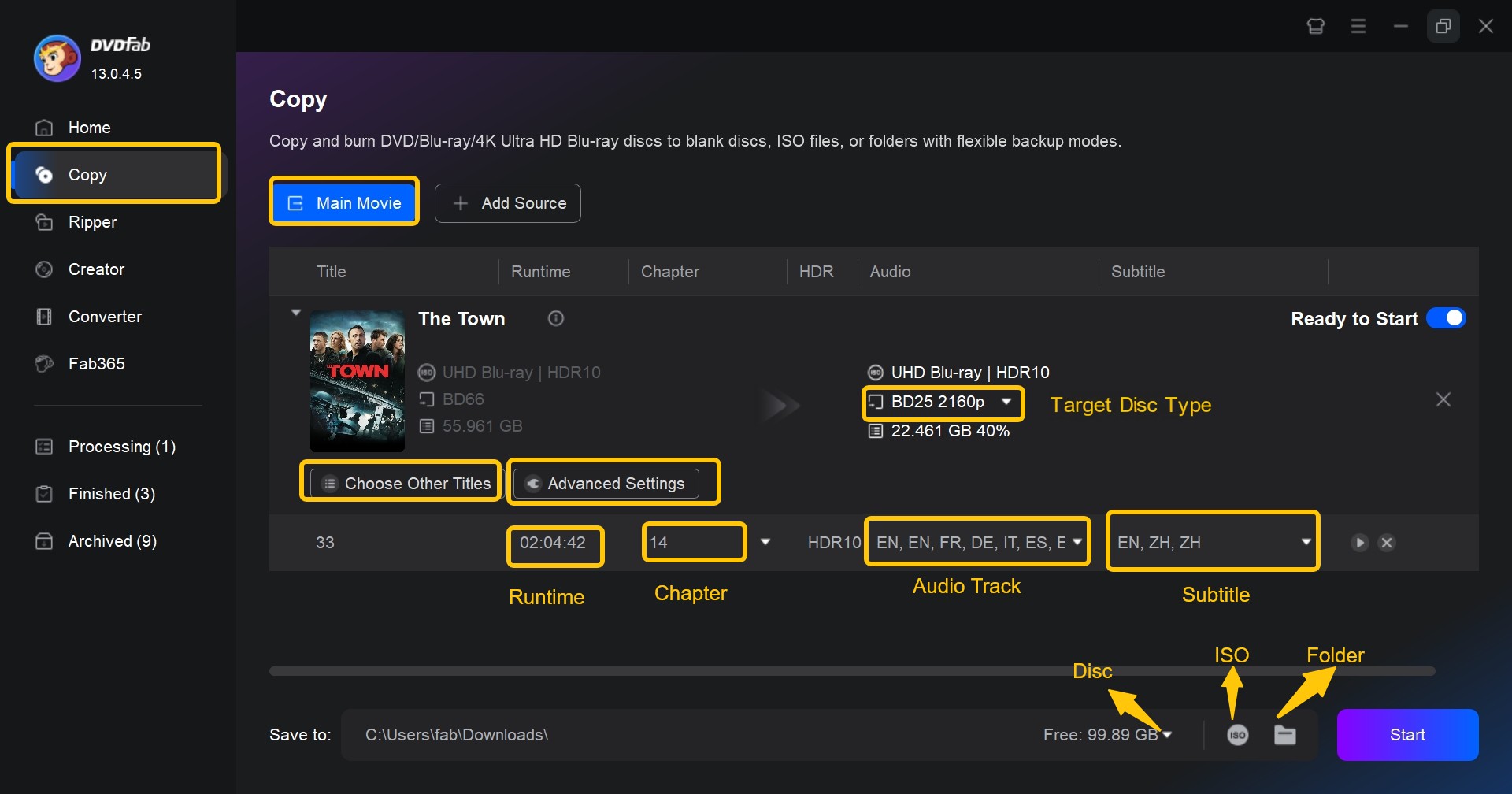
For a lossless 1:1 copy that preserves Dolby Vision and HDR10+, keep the disc at its original size without compression.
If you want to save space, choose a smaller target size such as BD50 or BD25. These options retain HDR10, but advanced HDR formats are only preserved in full 1:1 copies.
Then decide which audio tracks and subtitle streams you want to include in your backup.
Step 4: Choose the Output Type and Start Copying
Decide whether to save your copy as an ISO file, a BDMV folder, or burn it directly to a blank disc. Once everything is set, click Start to begin the UHD Blu-ray copy process.
Use DVDFab UHD Ripper to Back up 4K Blu-rays to Digital Files
Step 1: Open DVDFab and Import Your 4K UHD Blu-ray
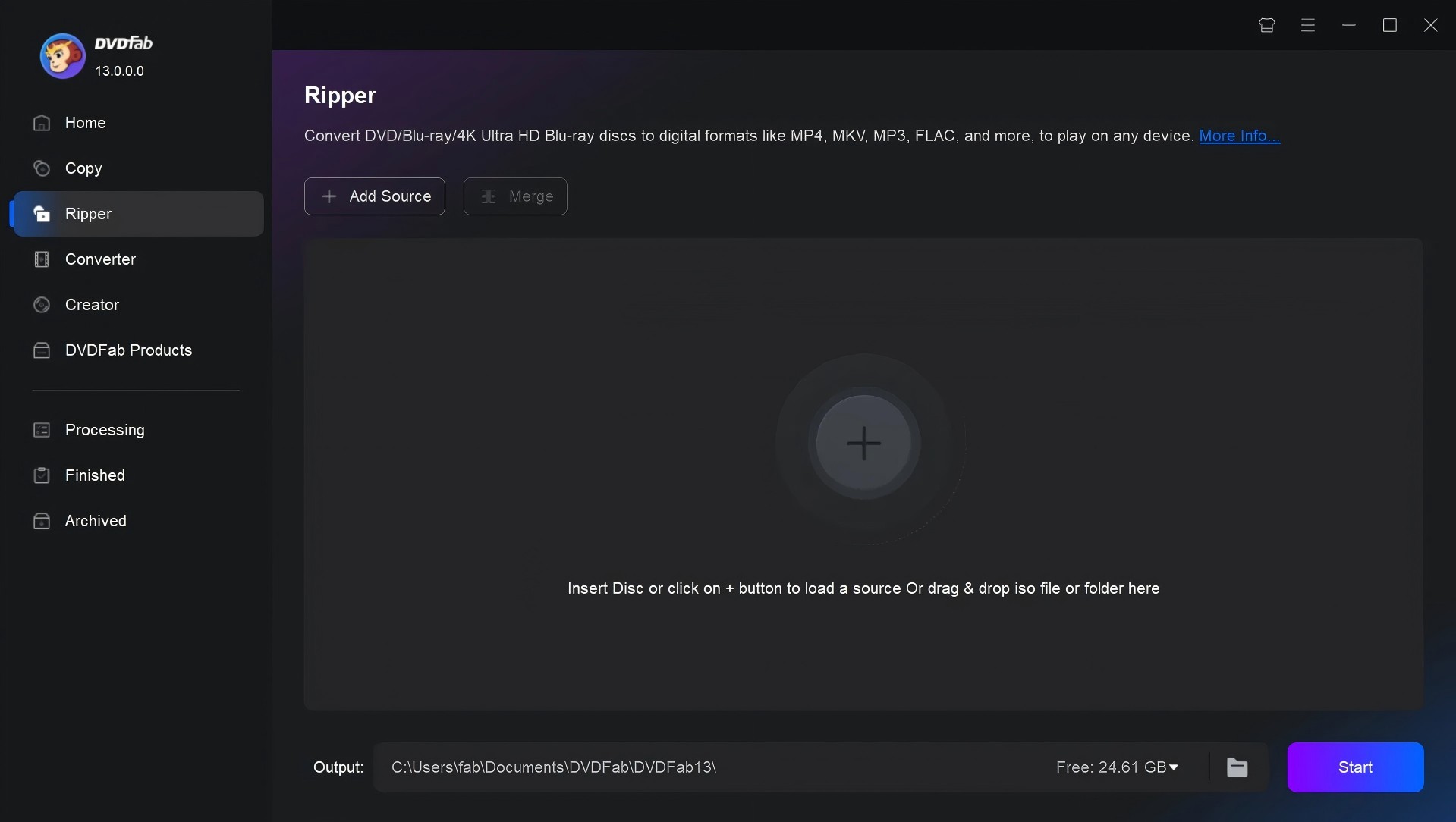
Install DVDFab and launch the program. Go to the Ripper module. Your Ultra HD Blu-ray disc will load automatically when you insert it into the drive. Alternatively, you can use the Add Source button or just drag an ISO or folder into the main window.
Step 2: Pick an Output Profile and Adjust Settings
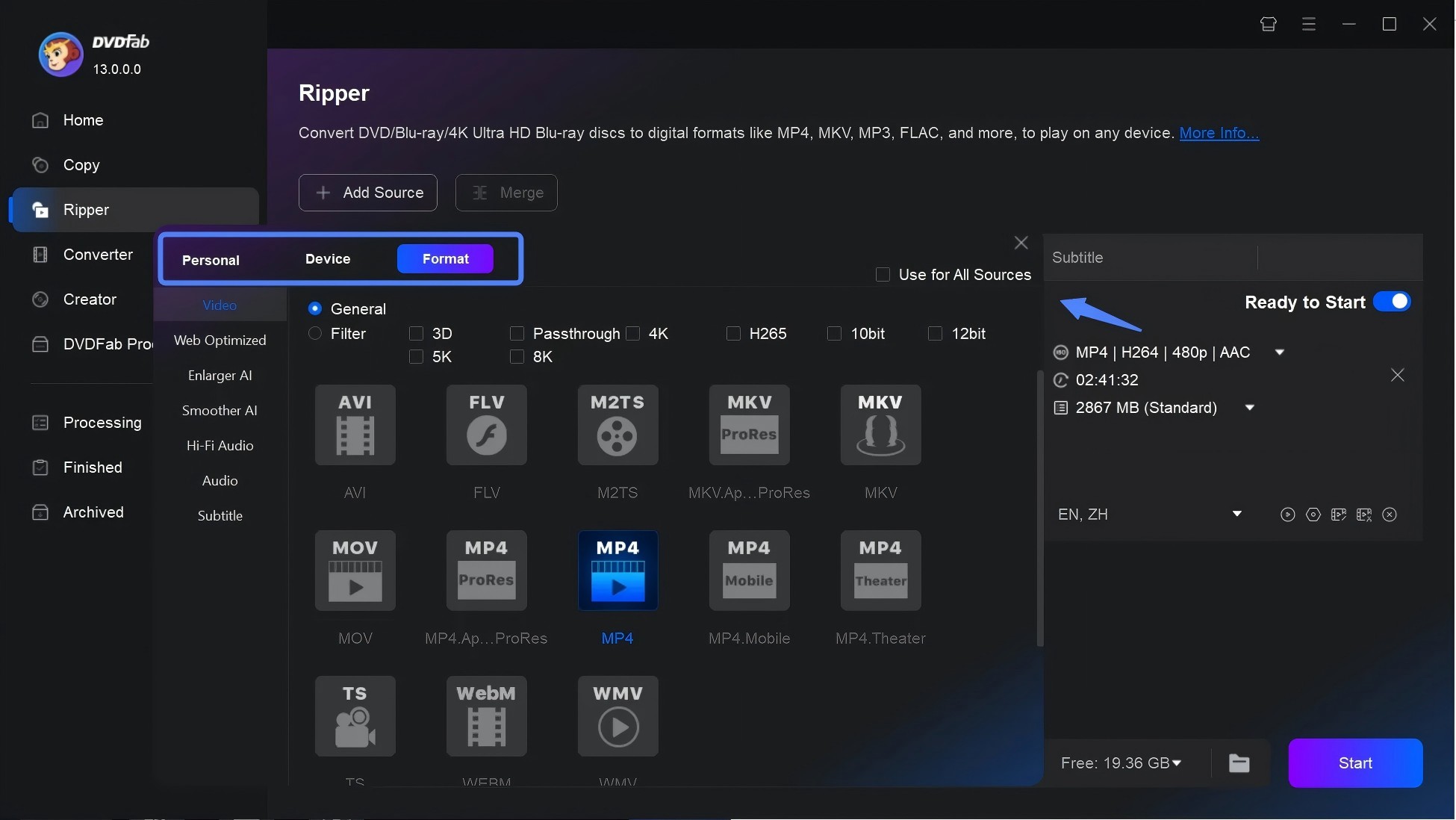
By default, the software selects MKV Passthrough for lossless ripping. If you want another format,
open the profile switcher, click Filter, and you'll see all the available output options.
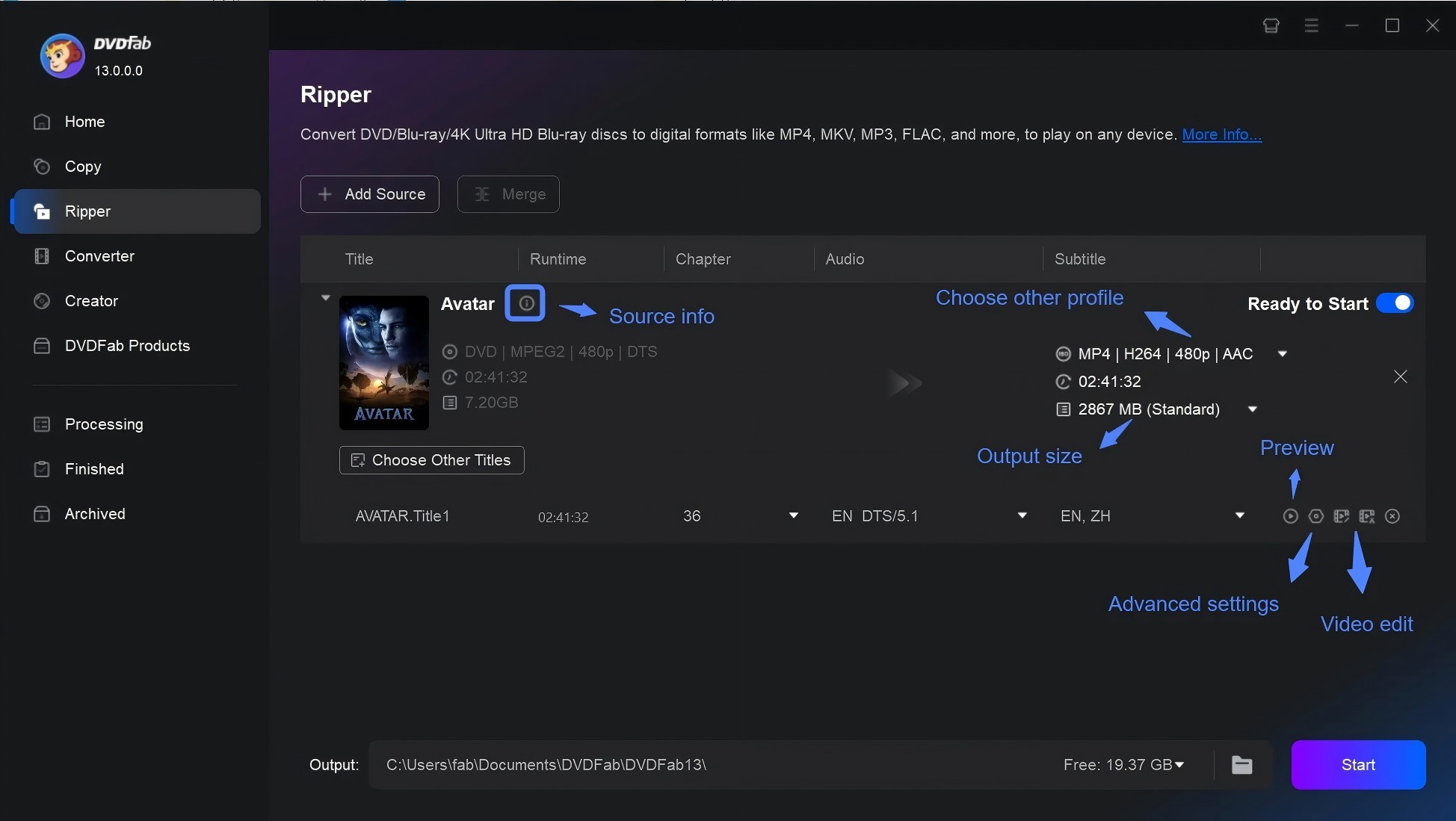
You can further modify your project on the main screen by selecting particular titles, adding or removing audio tracks and subtitles, or using the Video Edit and Trim tools to crop, cut, change resolution, and make other changes. The Advanced Settings panel also lets you fine-tune the aspect ratio and more.
Step 3: Choose Save Path and Click Start to Rip Your UHD Blu-ray
At the bottom of the main window, select your preferred save path in the Output field. Then simply click Start to begin ripping your UHD Blu-ray.
FAQs
Is using UHD backup software legal?v
It depends on where you live and what protections are involved. Some regions allow personal backups under limited conditions, while others restrict bypassing copy protection even when you own the disc. In the US, anti-circumvention rules can be strict, so this guide should not be read as legal advice. Use these tools only for content you own or have the right to copy, and check local law if you are unsure.
How do I back up 4K Blu-ray without losing quality?
Use a lossless workflow. For a full disc archive with menus and structure, choose a 1:1 ISO or BDMV backup in DVDFab UHD Copy. For a file-based library, use a passthrough profile in DVDFab UHD Ripper or a lossless MKV remux in MakeMKV. Avoid compression when the goal is disc-level quality, especially for grain-heavy movies, lossless audio, or advanced HDR formats.
How big will my UHD backups be?
A 1:1 backup can be close to the original disc size, which means a BD66 or BD100 title may require tens of gigabytes or nearly 100GB. Lossless MKV files are often large because the video is not re-encoded. Encoded files vary by bitrate, codec, and quality settings. For a NAS library, calculate storage using your average disc size and include room for redundancy.
Do I need a special UHD Blu-ray drive?
Usually, yes. Reading 4K UHD Blu-rays is more restrictive than reading standard Blu-rays. You need a compatible UHD drive, and many MakeMKV-oriented workflows depend on LibreDrive-compatible models or firmware. Before buying software, confirm your exact drive model and firmware status. This step prevents the most frustrating failure: the software is installed correctly, but the drive cannot access the disc.
Can HandBrake rip protected UHD Blu-rays by itself?
No. HandBrake is a transcoder, not a copy-protection removal tool. It can convert video sources to MP4, MKV, or WebM, but it does not defeat copy protection and often cannot open commercial UHD Blu-rays directly. Use HandBrake after creating a readable source with another tool. This makes it useful for compression, but not as a complete UHD backup solution on its own.
Final Thoughts
Choosing UHD backup software starts with the output format, not the product name. If you want a disc-level archive with menus and structure, a UHD copy workflow fits better than a ripper. If you want a Plex or Jellyfin library, a lossless MKV or carefully encoded MP4/MKV file is usually more practical.
Paid tools reduce the number of separate steps and add official support, while free workflows can be effective when you are comfortable checking drive compatibility, beta keys, and encoding settings. For valuable UHD collections, test one title from each difficult category first: a BD100 disc, a Dolby Vision title, a subtitle-heavy film, and a long movie with lossless audio. That small test set will reveal whether your chosen workflow is stable before you commit hours of processing time.

 DVDFab UHD Copy Review (2026): Features, Steps and TipsBy Diana Smith - May 21, 2026