Convert DVD to Blu-ray in 4 Steps with DVDFab

Summary: Choose the correct DVD-to-Blu-ray output before starting: a physical disc for set-top playback, an ISO or folder for storage and later burning, or a separate MP4/MKV process for portable files. The article covers hardware requirements, realistic quality limits, four DVDFab authoring steps, and a capacity-aware method for combining several DVDs.
Table of Contents
A DVD to Blu-ray converter is useful when you want a Blu-ray disc, ISO, or folder, but it is the wrong category if your real goal is an MP4 or MKV file. Before you convert DVD to Blu-ray, decide where it should play and whether you need physical media, a disc image, or a portable video file.
I treat that output decision as the starting point because it determines the hardware, storage, and authoring steps that follow. This walkthrough explains those requirements, sets realistic DVD upscaling quality expectations, and preserves the familiar four-step DVDFab process for creating Blu-ray media from DVD sources.
Choose the Right Blu-ray Output
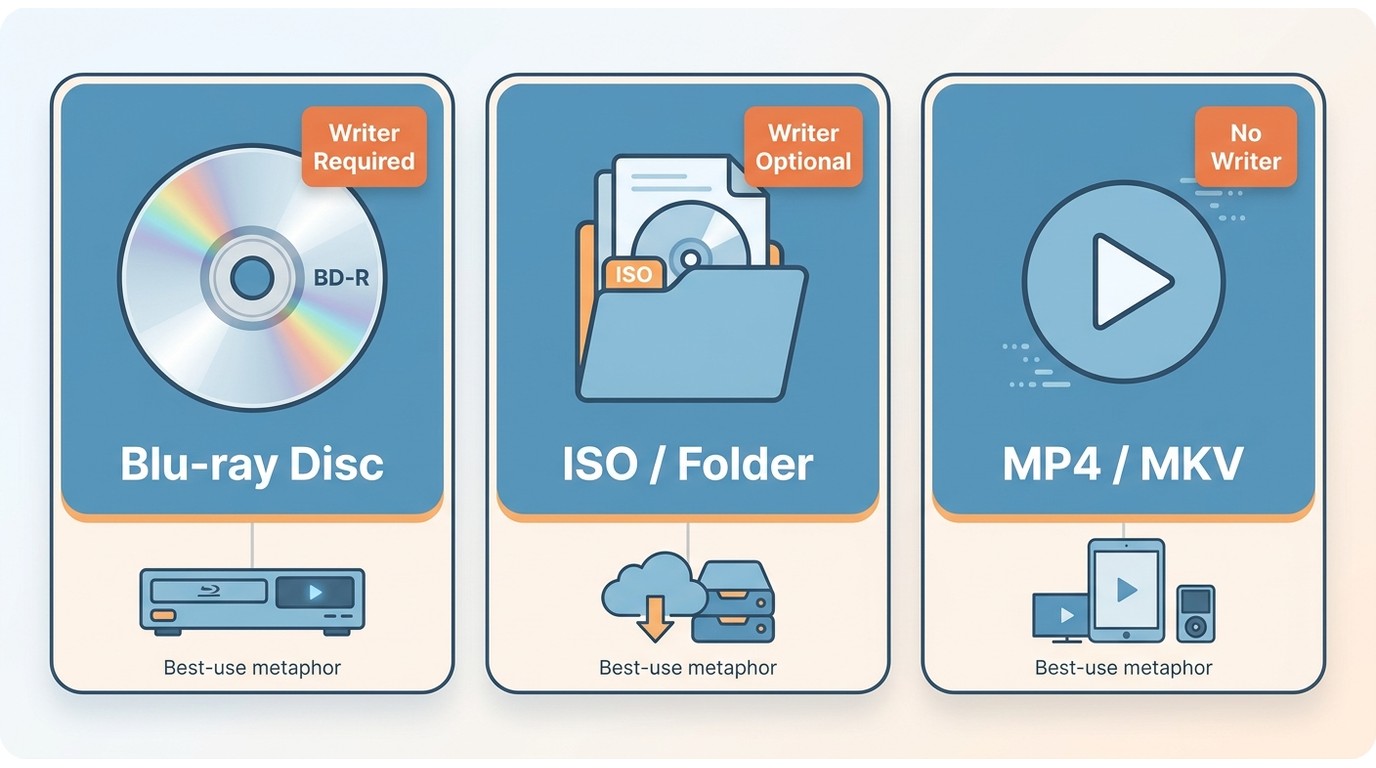
A DVD to Blu-ray converter authors DVD video as a Blu-ray disc, ISO, or folder. A Blu-ray ISO maker creates a disc image for storage or later burning, while MP4 and MKV require a separate ripping or video-conversion task.
| Output | Best use | Output destination | Blu-ray writer required | Typical playback | What happens to DVD quality |
| Blu-ray disc | Set-top playback and a physical collection | Compatible BD-R or BD-RE media | Yes | Blu-ray player | DVD detail remains source-limited; authoring changes the delivery format |
| Blu-ray ISO or folder | Local archival and later burning | Computer or external storage | No, unless you burn it later | Compatible media software or a later-authored disc | DVD detail remains source-limited |
| MP4 or MKV file | Flexible playback across compatible devices | Computer, drive, or media server | No | Apps and devices that support the chosen container and codecs | Quality depends on the source and conversion settings |
Disc, ISO, Folder, or Video File
Blu-ray disc authoring builds the structure used by Blu-ray players, including menus when selected. An ISO preserves that authored structure in one file, while a folder stores it as directories. DVD to Blu-ray online services are not suited to reading optical discs, building full Blu-ray structures, or writing blank media.
My recommendation is straightforward: choose a disc for set-top playback, an ISO or folder for local storage and later burning, and MP4 or MKV when device-flexible file playback matters more than Blu-ray menus. Converting Blu-ray to DVD is the reverse task and uses a different process.
What You Need Before Converting
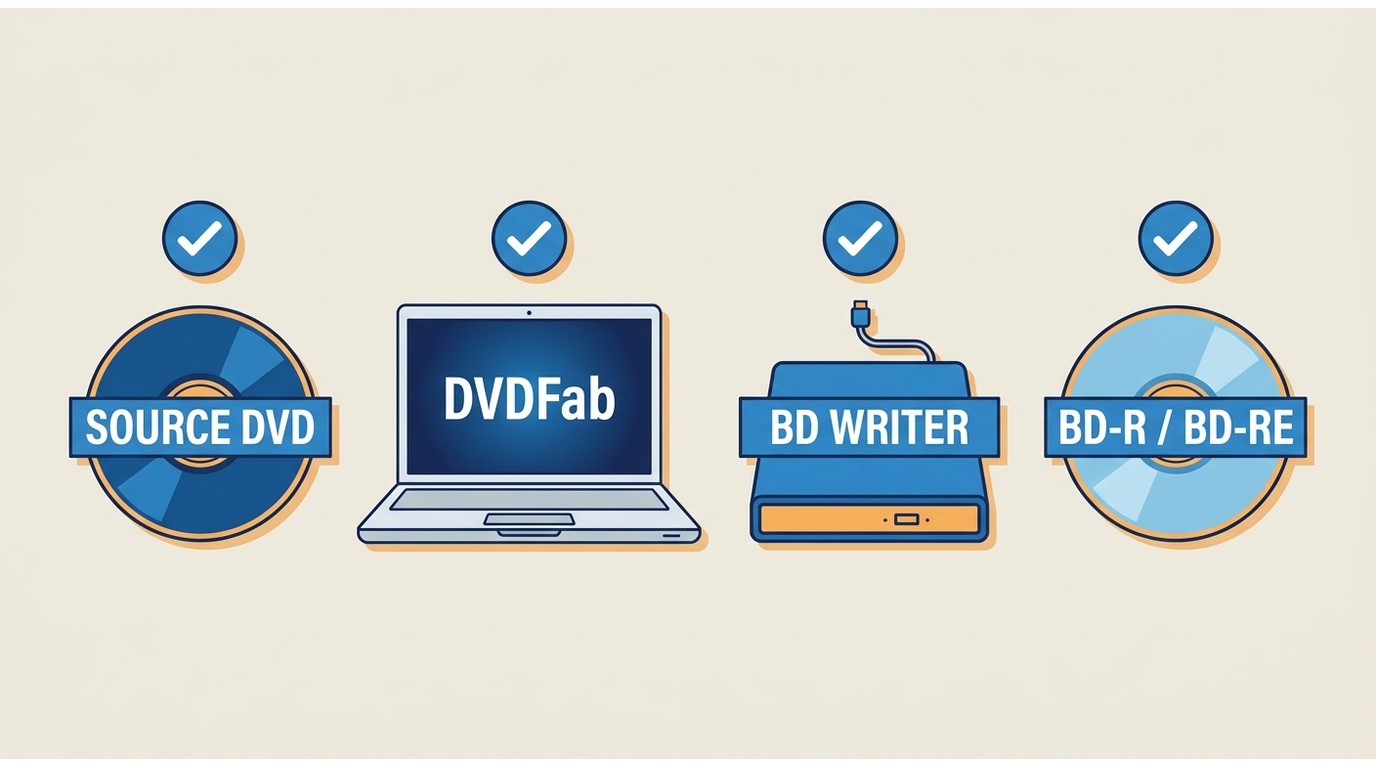
To convert DVD to Blu-ray, match the source, computer, storage, and writer to the destination. A physical disc needs more hardware than an ISO or folder.
- A supported DVD disc, DVD ISO, or DVD folder as the source.
- A compatible Windows or macOS computer with enough temporary and output storage.
- A Blu-ray writer and matching BD-R or BD-RE media when creating a physical disc.
- No blank disc for ISO or folder output, though local storage must accommodate the authored files.
- Permission to copy the disc: use material you own or are authorized to copy for personal, non-commercial use, and follow applicable local law.
Blu-ray writer requirements apply only to physical output. On a Windows 11 desktop with an attached Blu-ray writer, the destination control should show the optical drive; selecting ISO or Folder instead keeps the task on local storage. That visible distinction is the quickest hardware check before authoring begins.
DVD-to-Blu-ray Quality Has Clear Limits
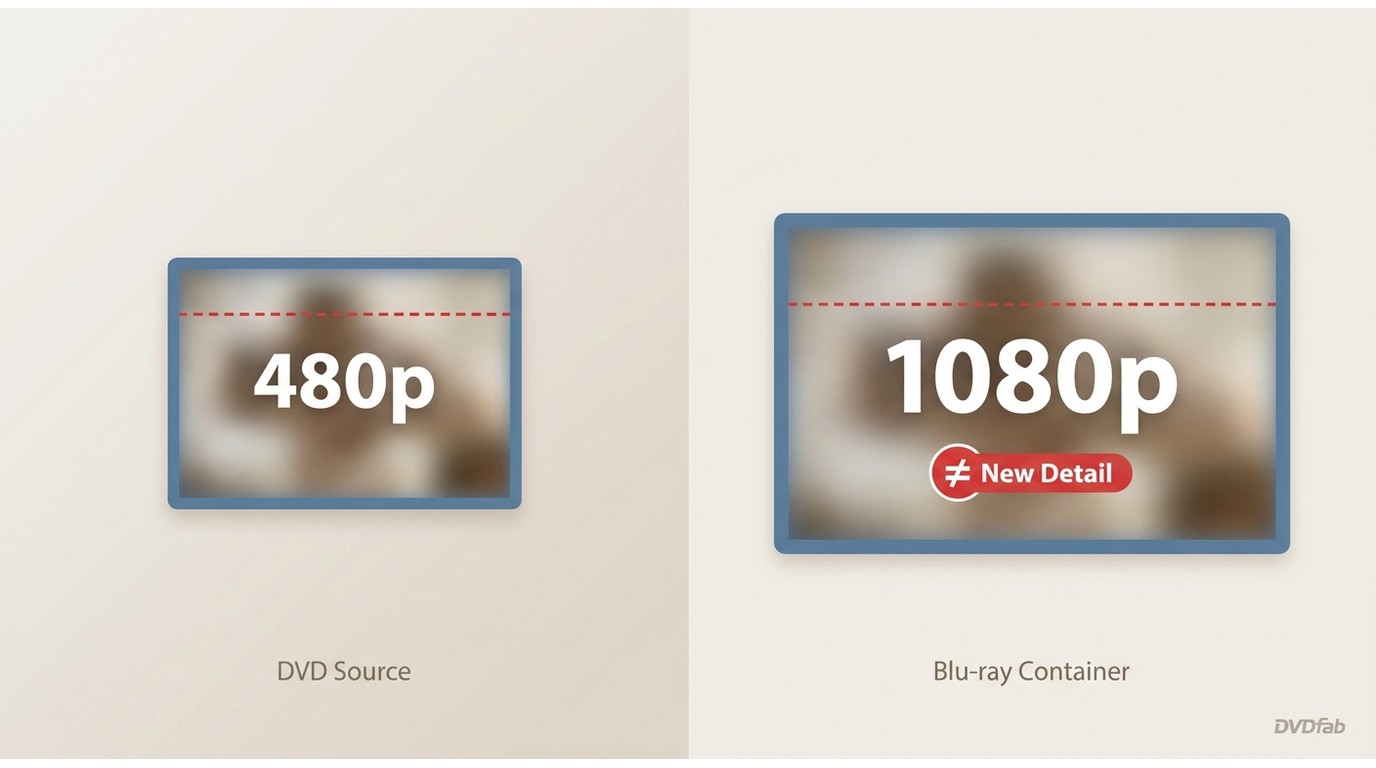
Authoring standard-definition DVD video to Blu-ray does not create native Blu-ray detail. DVD upscaling quality depends on the source, display, and processing method. The picture may look cleaner on some screens, but the Blu-ray container cannot restore detail that the DVD never recorded.
- Source resolution: The DVD remains the detail ceiling.
- Authored format: Blu-ray structure can add menus and consolidate titles for compatible playback.
- Storage effect: A larger target can hold more authored content, but capacity depends on the actual sources and settings.
- Visual result: Scaling can change presentation, while the source and any re-encoding still govern sharpness and artifacts.
For me, the useful gain is consolidation, menu creation, and Blu-ray-compatible output, not a promise of new high-definition detail. In a Windows 11 preview of a DVD source inside DVDFab 13, changing the target structure did not change the source's visible detail; compression choices affected the tradeoff between capacity and image retention.
How to Convert DVD to Blu-ray with DVDFab DVD to Blu-ray Converter?
DVDFab DVD to Blu-ray Converter converts DVDs to Blu-ray discs, ISO images, or folders while maintaining high output quality. The resulting Blu-ray content is compatible with most modern Blu-ray players. Its main functions include:
- Save DVD movies as Blu-ray ISO images or folders.
- Rearrange titles, chapters, audio tracks, and subtitles.
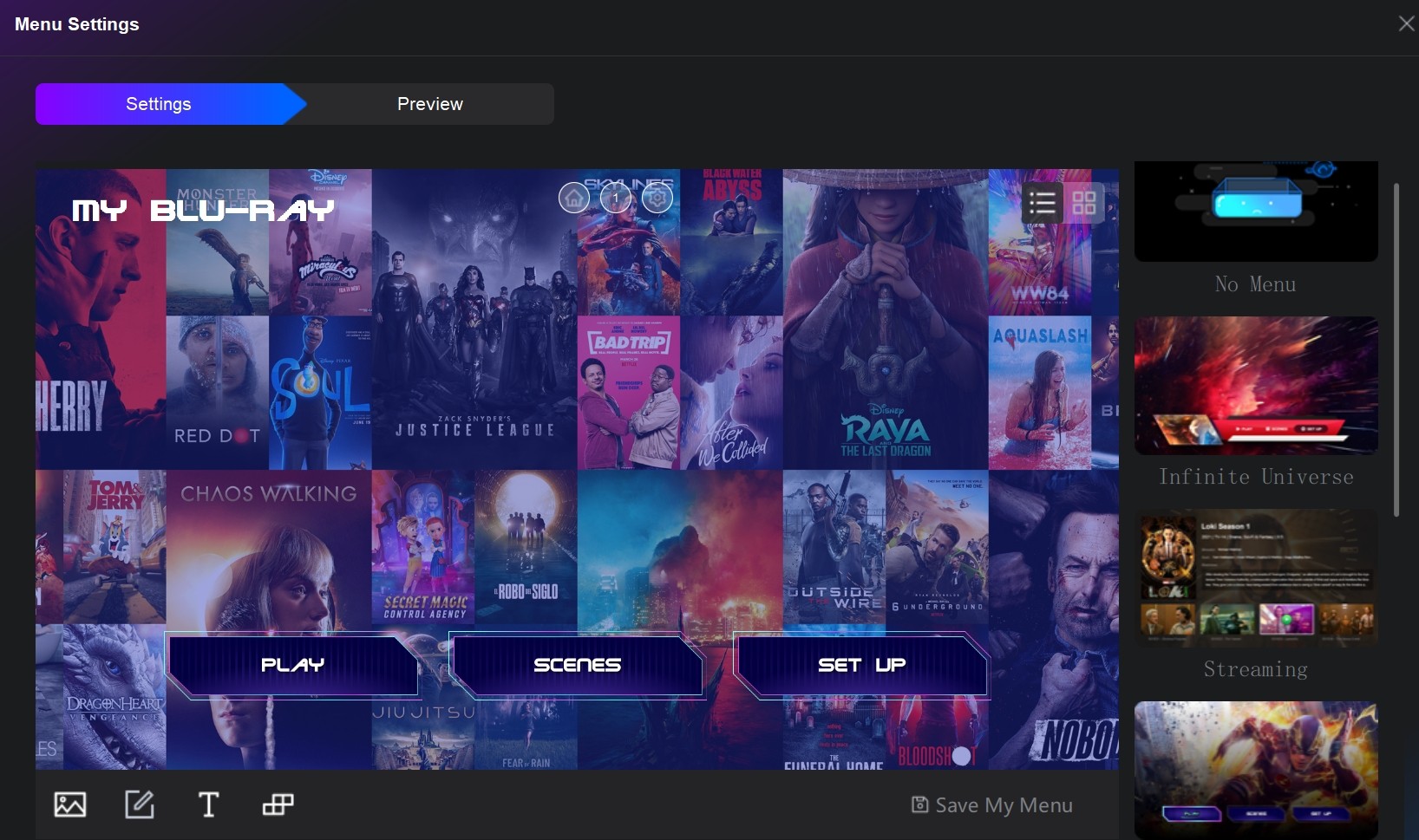
- Customize the playback menu, including its cover, text, and fonts.
- Speed up conversion with GPU hardware acceleration.
Here's how to use DVDFab DVD to Blu-ray Converter:
Step 1: Run DVDFab DVD to Blu-ray Converter
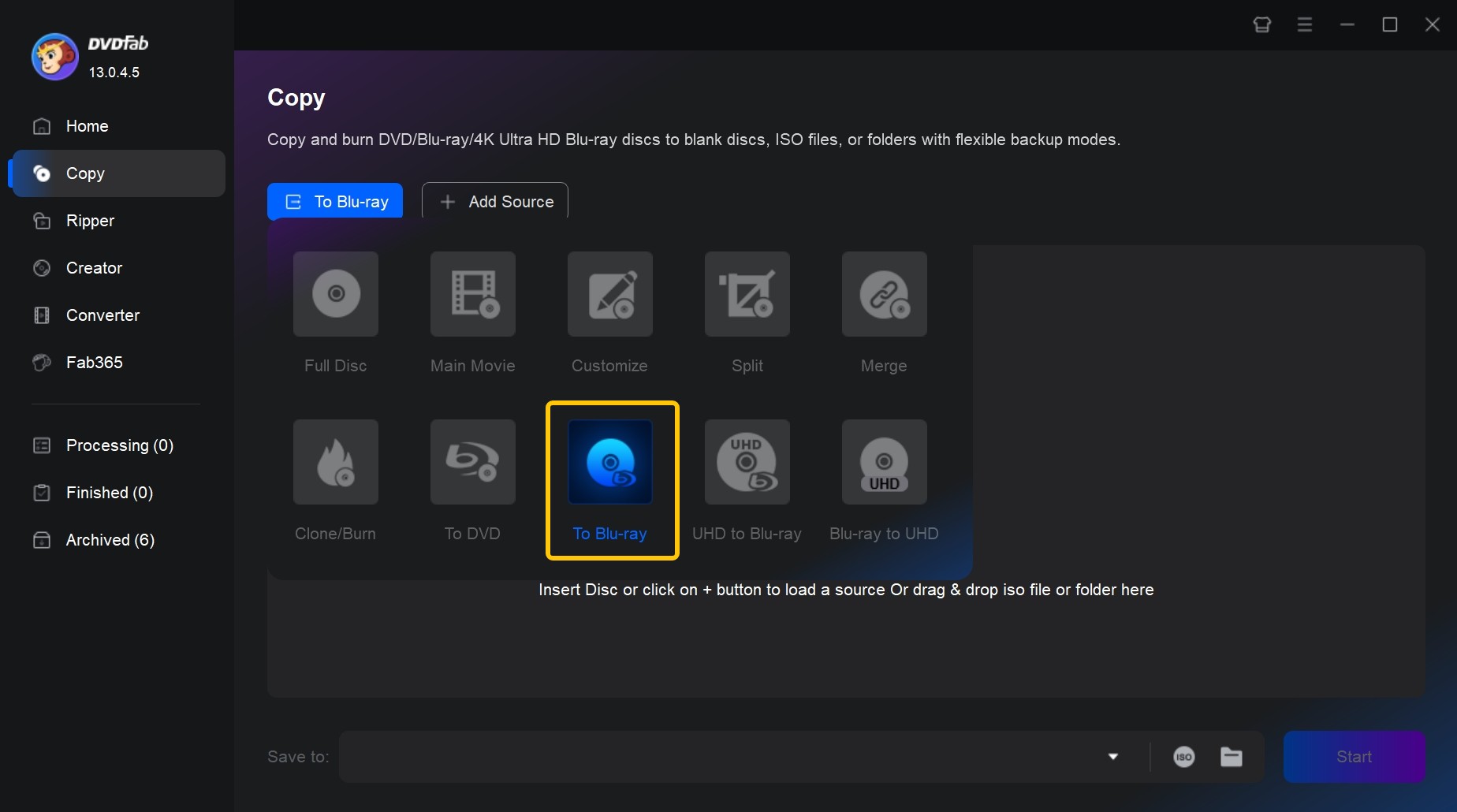
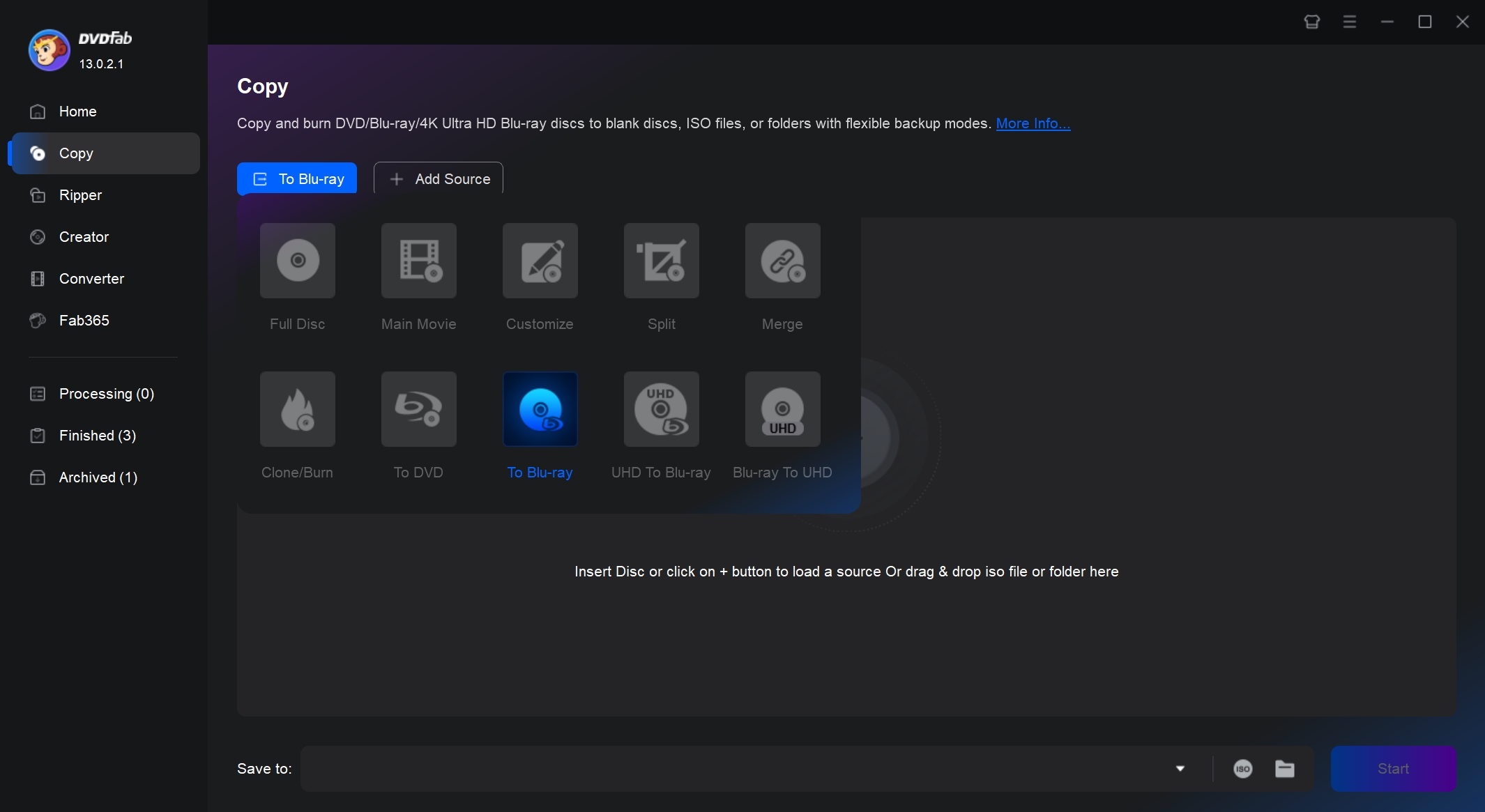
Open DVDFab, select the Copy module, open the copy-mode selector, and choose To Blu-ray.
Free Download Windows 11/10/8.1/8/7
Free Download macOS 10.13 - 15.x
Step 2: Load Your Source DVDs
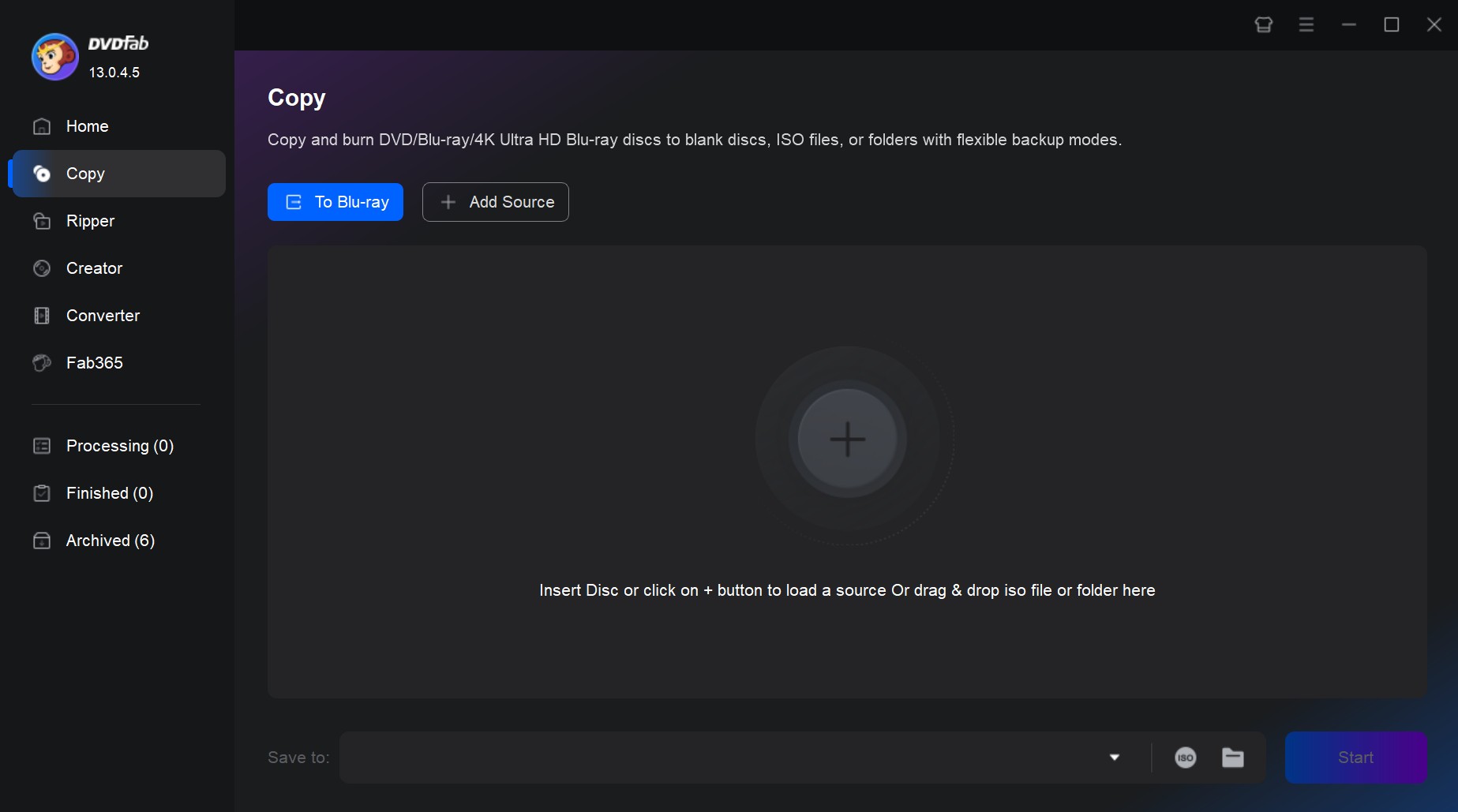
Insert a DVD into the optical drive and let the software scan it. For a DVD ISO or folder, use Add or drag the source into the task area.
- Insert the disc or add the ISO or folder.
- Wait for the title list to load.
- Check that the expected main title, audio tracks, and subtitles appear before continuing.
When a DVD folder was added on a Windows 11 PC running DVDFab 13, the source appeared in the same task list used for a physical disc, with title and track controls available before output settings. If the title list looks abnormal, resolve the source-reading issue before authoring.
Step 3: Customize Your Blu-ray Videos
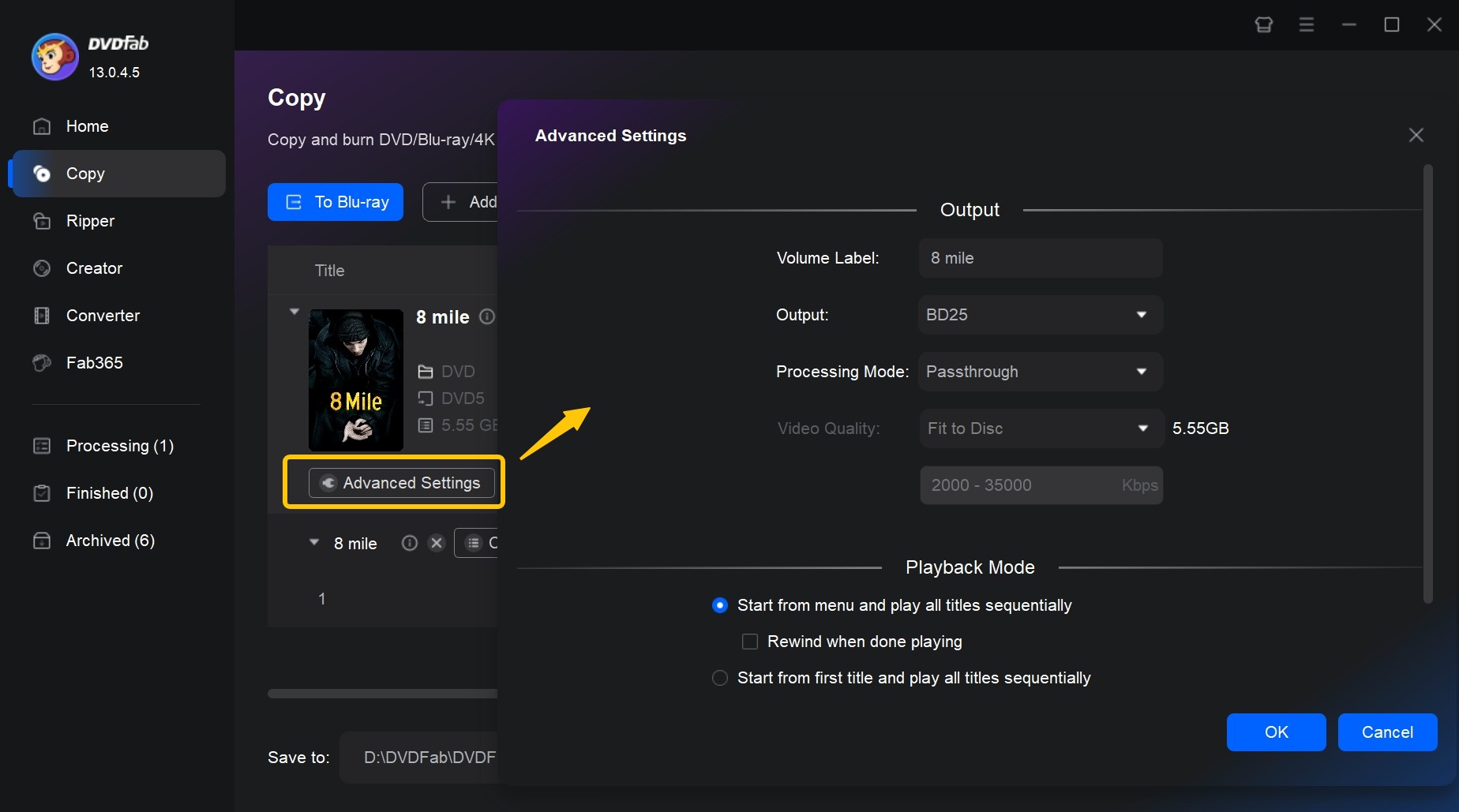
This DVD to Blu-ray software lets you select titles, chapters, audio tracks, subtitles, capacity settings, and a menu before output. Each choice should serve the intended player and available disc or storage capacity.
- Select the titles you want to include.
- Review chapter, audio, and subtitle selections.
- Open Advanced Settings and choose the target size and processing options.
- Open Menu Settings to choose and edit a Blu-ray menu when one is needed.
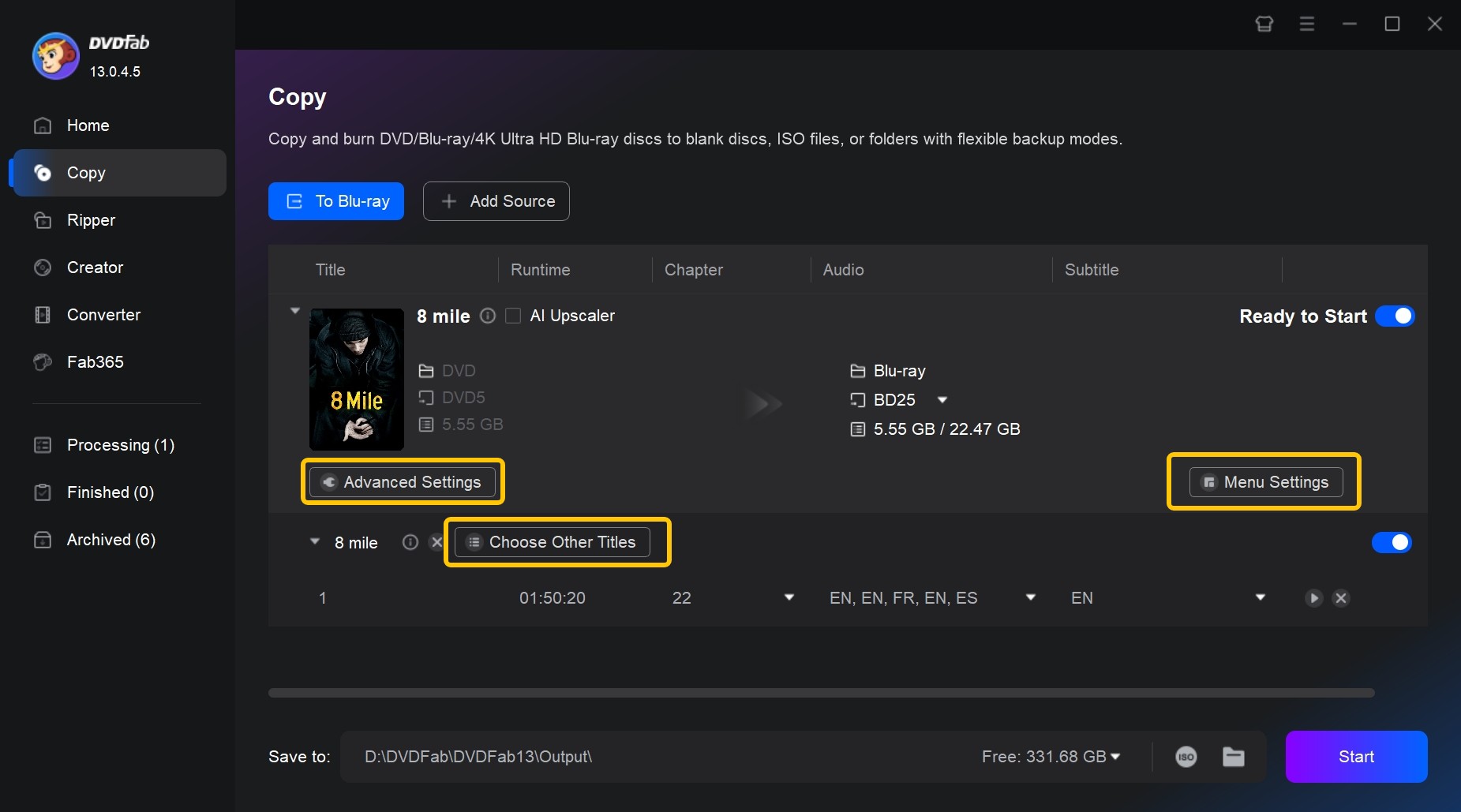
A smaller target may require more compression, so inspect the quality setting instead of assuming the new disc format improves the source. I prioritize the correct titles and tracks first because an attractive menu cannot fix a missing episode, language track, or subtitle stream.
Menu controls can adjust the cover, text, font, and playback buttons. Keep the layout readable on the target television and avoid adding menu pages that do not help navigation.
Step 4: Select a Directory and Start to Convert DVD to Blu-ray
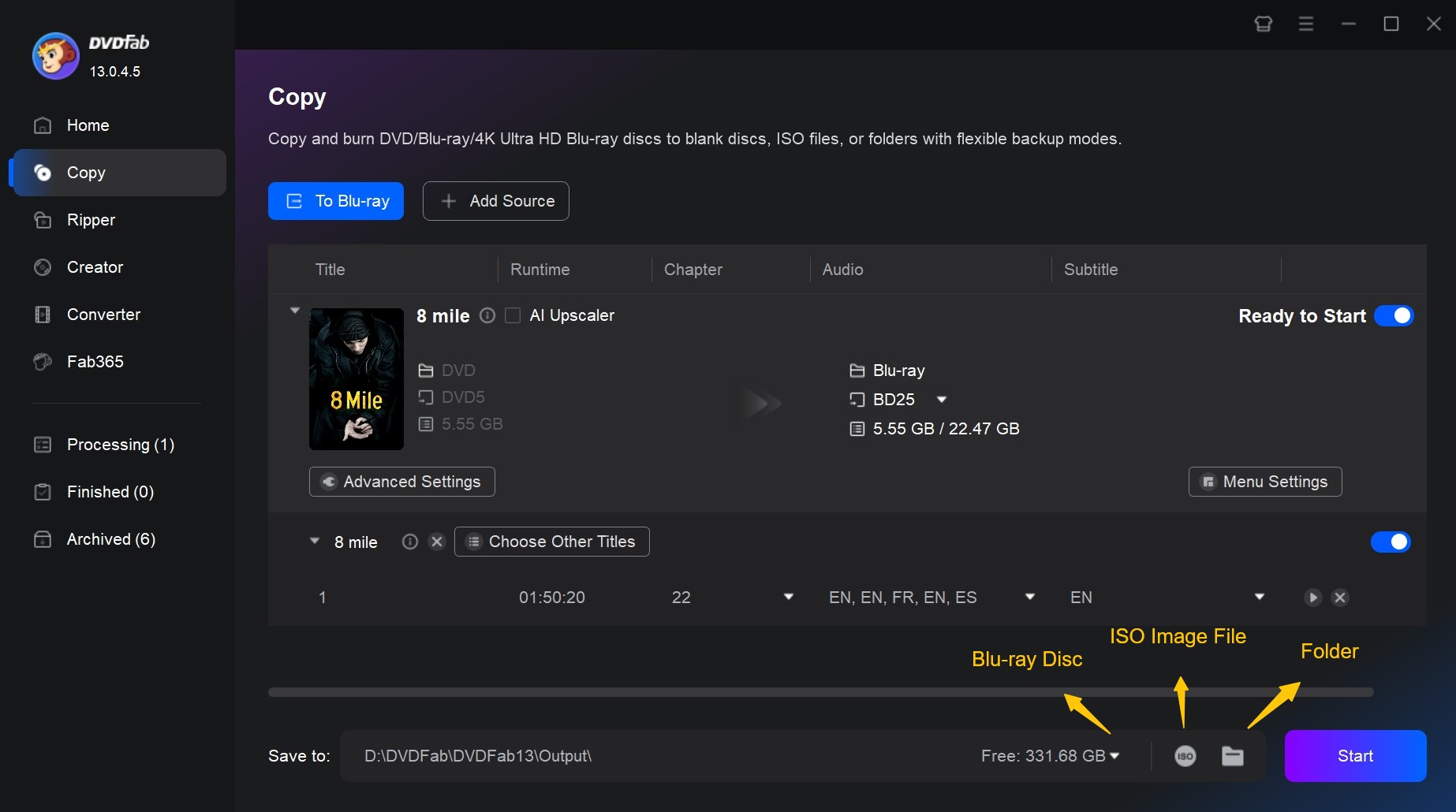
Choose a physical Blu-ray, folder, or ISO destination, then start the DVD to Blu-ray task. The destination determines whether the job uses a Blu-ray writer or local storage.
- Select the optical drive to write compatible blank Blu-ray media.
- Select Folder to save an authored Blu-ray folder.
- Select Image to use the software as a Blu-ray ISO maker.
- Choose the output location and click Start.
DVDFab applies the latest GPU acceleration technology to improve the processing speed, but actual performance depends on the computer, optical drive, source material, and selected settings.
How to Combine Multiple DVDs on One Blu-ray
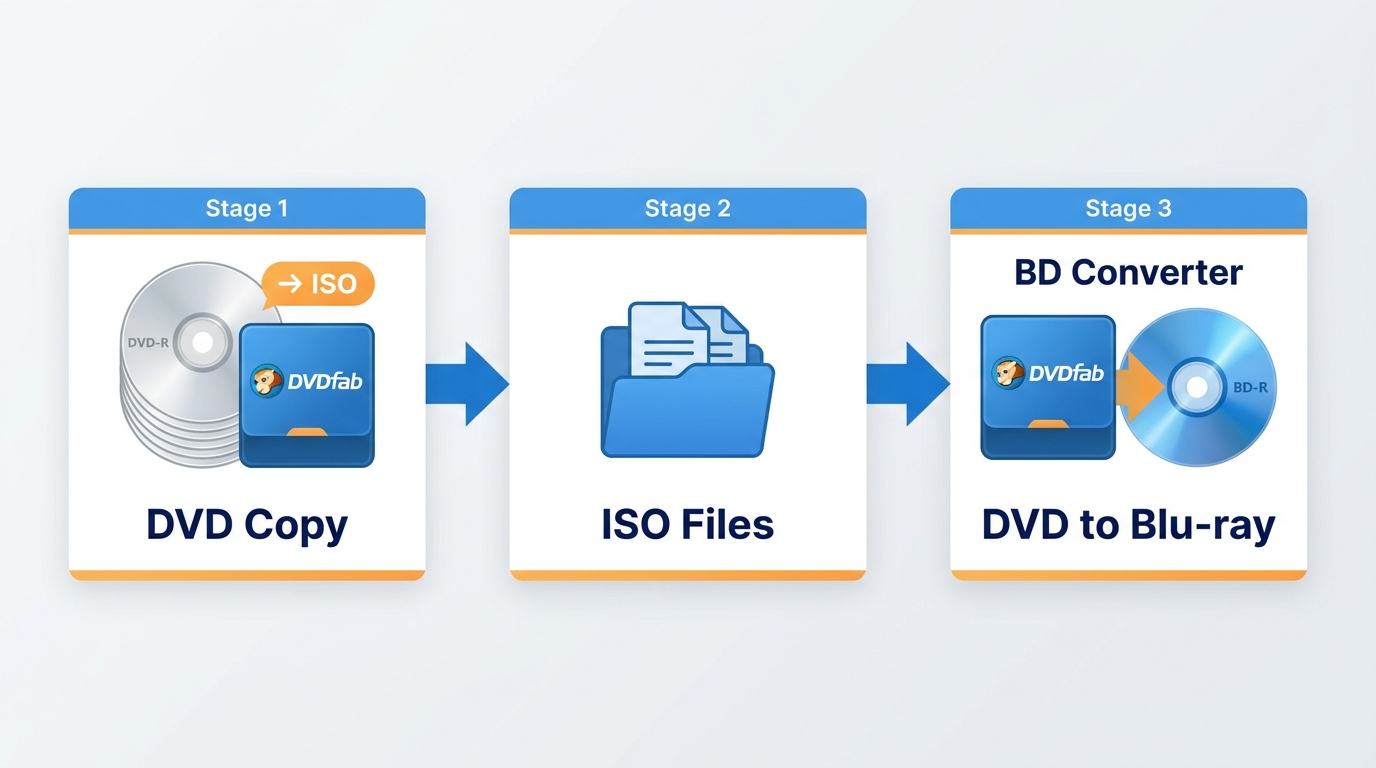
A DVD to Blu-ray converter can combine several prepared DVD sources, but the number that fits depends on actual source size, the selected BD-25 or BD-50 target, menu overhead, and encoding settings. A fixed disc-count promise is not reliable.
Use DVDFab DVD Copy to prepare each source as an ISO, then load those files into DVD to Blu-ray Converter. The two modules perform different parts of the task.

DVDFab DVD Copy and DVDFab DVD to Blu-ray Converter are just two different functional modules of DVDFab 13. Download once, and you can experience both products.
A curated set or television season is a sensible use of this method. For a much larger collection, calculate source size and available storage first, then decide whether additional discs or stronger compression would be required.
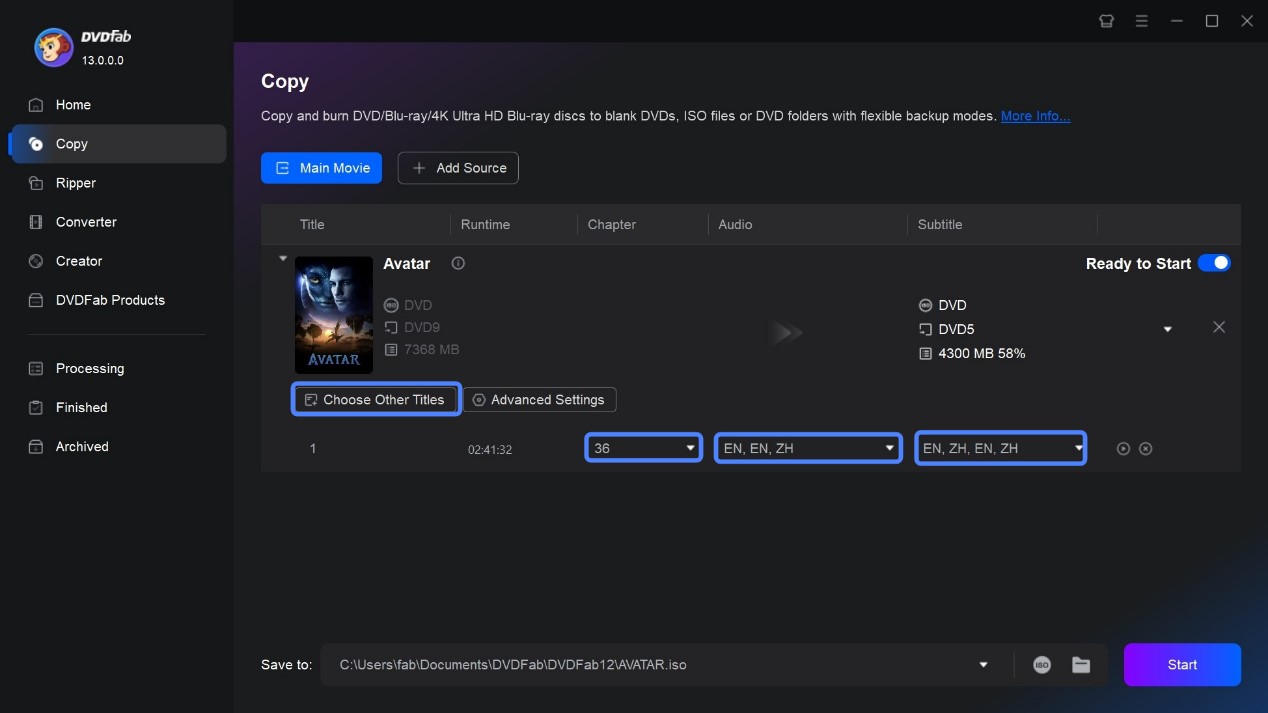
Step 1: Copy Each DVD Source to ISO Files with DVDFab DVD Copy Module
Open the Copy module, select Full Disc or Main Movie, and load the first DVD. A consistent DVD to ISO copy gives each source a file-based form that can be added to the later authoring task.
- Select the DVD source and the needed copy mode.
- Choose the ISO output icon and a storage location.
- Start the copy and repeat for the remaining authorized discs.
Step 2: Load All the ISO files to DVDFab DVD to Blu-ray Converter Module
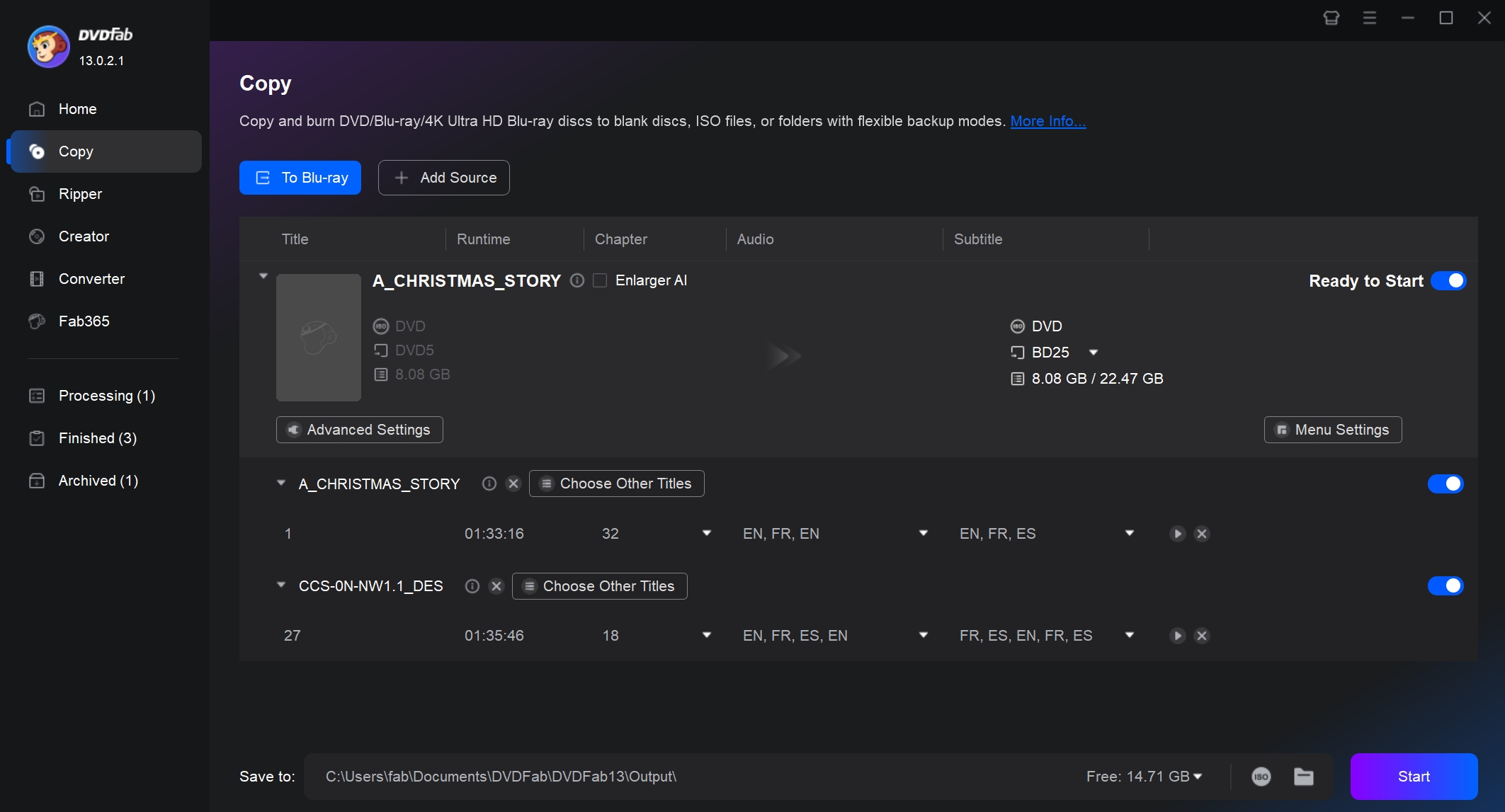
Return to the Copy interface, choose To Blu-ray, and add the prepared ISO files. Confirm that each intended title appears once and that the combined size aligns with the chosen Blu-ray target.
Step 3: Customize the Video and Start to Merge Multiple DVDs to a Single Blu-ray
Select the titles, chapters, audio, subtitles, and menu, then choose a blank disc, ISO, or folder as the destination. The result remains limited by the DVD sources and any compression used to meet the target capacity.
Frequently Asked Questions
Can a regular Blu-ray player play DVDs without conversion?
Most Blu-ray players can play standard DVDs and scale the picture for the connected display. That playback convenience does not turn the DVD into native high-definition video, so conversion is unnecessary if simple disc playback already meets your needs.
Can I convert a DVD to Blu-ray with an online tool?
A browser service cannot directly read an optical disc, create a complete authored Blu-ray structure efficiently, or write BD media. DVD to Blu-ray online tools are therefore a poor match for this task; compatible desktop authoring software is the appropriate category.
Is there a free way to create a Blu-ray from DVDs?
A no-cost setup may combine several separate tools, but it can add extra steps for disc reading, menus, and burning. Commercial DVD to Blu-ray free downloads are commonly trials with limited features, so they should be evaluated as trials rather than unrestricted authoring packages.
Does Windows 11 include Blu-ray authoring software?
Windows 11 does not include a complete DVD-to-Blu-ray authoring tool. You generally need compatible DVD to Blu-ray software, and a Blu-ray writer plus suitable blank media if the destination is a physical disc.
Conclusion
Use Blu-ray disc, ISO, or folder authoring when you want consolidation, menus, or Blu-ray-compatible playback. Choose a separate MP4 or MKV process for portable files. DVDFab provides a guided four-step authoring sequence, while the final quality remains bounded by the DVD source and selected compression settings.
Start with one representative source, confirm the intended titles, audio, subtitles, and destination, then create the full output. That small check is more useful than assuming a larger disc format will improve source detail or work with every playback setup.