9 Audible Converters for AAX to MP3: Free vs. Trial (2026)

Summary: This article offers a hands-on review of the 9 best free Audible converters, complete with step-by-step tutorials on how to convert AAX to MP3. Our top picks range from professional software like BookFab Audible Converter to reliable open-source tools like Libation. Each review includes clear instructions to help you easily convert your Audible library for offline listening.
Finding a free Audible converter often means sorting through late paywalls, stale projects, and unclear upload policies. For AAX to MP3, the useful distinction is not simply free versus paid: it is where the file is processed, which formats survive, and whether the tool is maintained.
This comparison separates active tools from legacy references, explains MP3, M4B, and M4A, and shows which Audible to MP3 converter fits a local, browser-based, or server-uploaded task.
Table of Contents
Five Current Audible Converters: Free vs. Trial
The active choices differ most in cost model, processing location, maintenance, and long-book limits. Status claims below are current as of August 2026; older and unverified projects appear later as legacy references rather than current peers.
| Tool | Free or trial | Processing model | Current status | Best fit |
| BookFab Audible Converter | Limited free trial | Desktop with integrated Audible browser | Current | Formats, chapters, metadata, batch tasks |
| Libation | Free and open source | Local desktop library | Active | Open-source library management |
| Audible Tools | Free | Local browser processing | Active | Smaller AAX files without an install |
| DragDropDo | Free plan with limits | Server upload | Current service | Short files and remote processing |
| Audacity | Free and open source | Real-time playback recording | Active | Manual fallback and editing |
My dividing line is simple: zero cost matters less if a long book hits a late limit, while a local tool may justify extra setup when the audiobook never leaves the computer.
What Free Really Means
“Free” can mean open source, a limited plan, or a trial. A free Audible converter should be judged by whether it completes a full book, retains useful structure, and exposes its limits before processing begins.
BookFab offers a limited trial rather than a fully free plan. The exact allowance follows its current trial policy, so the table does not treat it as a peer to an unrestricted open-source project.
Local or Uploaded Processing?
An AAX to MP3 online tool may process the file locally in the browser or upload it to a remote server. Those models look similar on screen but create different privacy, speed, and file-size tradeoffs.
- Desktop or local browser: the audiobook stays on the computer during processing, but setup or browser memory can become the limiting factor.
- Server upload: installation is unnecessary, but the file leaves the device and the service's retention policy becomes part of the decision.
MP3, M4B, M4A, or MP4?
MP3 offers broad playback compatibility, while M4B is built around audiobook chapters and bookmarks. M4A is a standard audio option; MP4 is mainly a video container and is rarely the useful target for an audio-only book.
For a simple AAX to M4B decision, start with the player: use M4B when chapter navigation and resume behavior matter, and MP3 when transfer compatibility matters more.
BookFab Audible Converter: Features and Fit
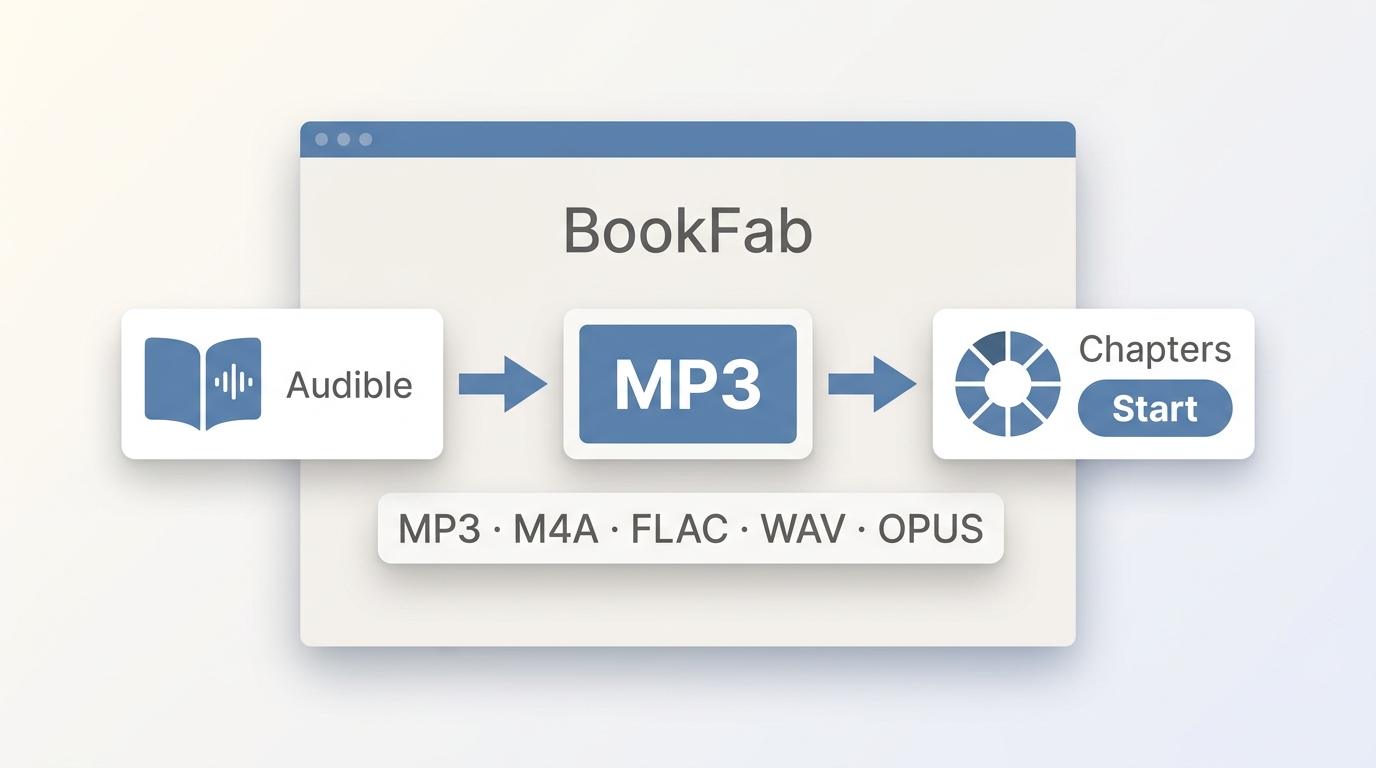
BookFab Audible Converter suits Windows and Mac readers who want integrated Audible browsing, batch task management, multiple audio formats, chapters, and metadata. It is not available for Linux and is not a fully free tool.
BookFab Audible Converter outputs MP3, M4A, FLAC, WAV, or OPUS and can split a book by chapter while retaining major metadata such as the cover and title. That combination is useful when the result must remain easy to navigate after it leaves the Audible app.
For content you're authorized to access, where permitted by platform terms and applicable law, BookFab creates a local copy for personal offline listening. Its integrated browser also reduces the file-hunting involved in downloading Audible books before choosing an output format.
Readers comparing Audible file restrictions should focus on the permitted use of the resulting copy, not on unrestricted ownership. I would use BookFab when chapters, cover art, and a sortable library matter more than getting a tool at no cost.
Before you begin, use a Windows or Mac computer, sign in with the Audible account that has access to the title, and work only with content you are authorized to access.
Step 1: Install BookFab. Use the Windows or Mac installer provided below, then open the Audible Converter module.
Step 2: Sign in to the correct Audible region. The built-in browser displays the account library after login.
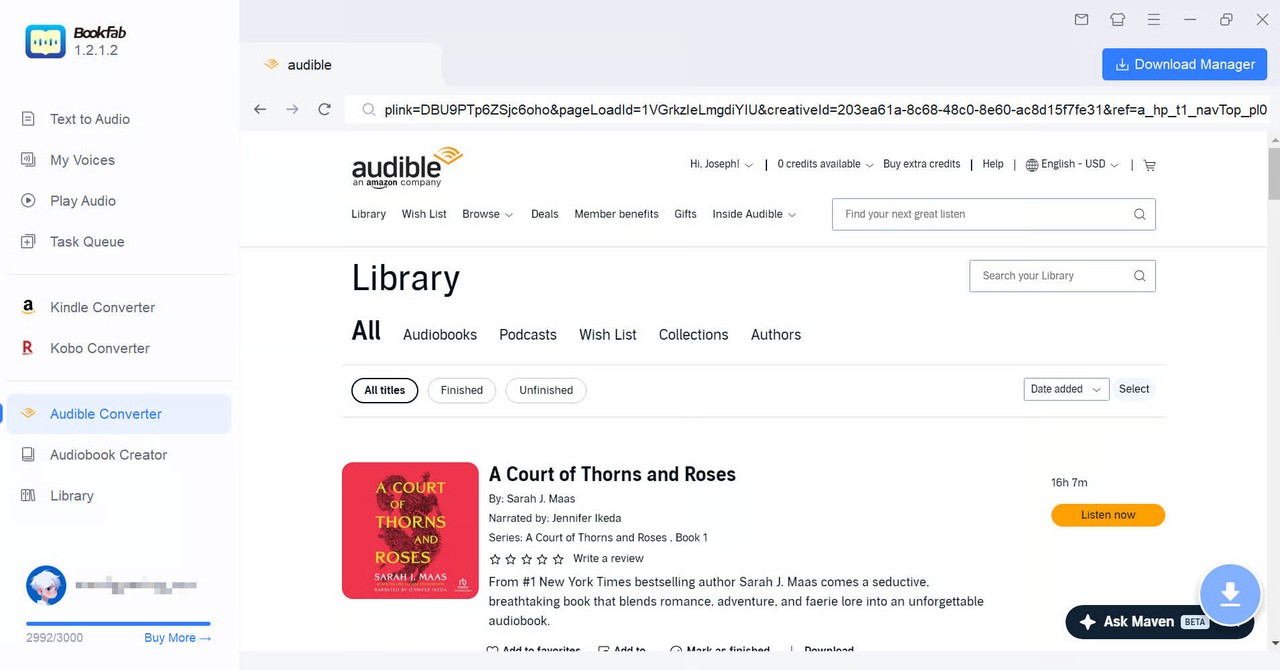
Step 3: Select the audiobook and output. Open the book's detail page, select MP3, M4A, FLAC, WAV, or OPUS, and choose whether the result should be split by chapter.
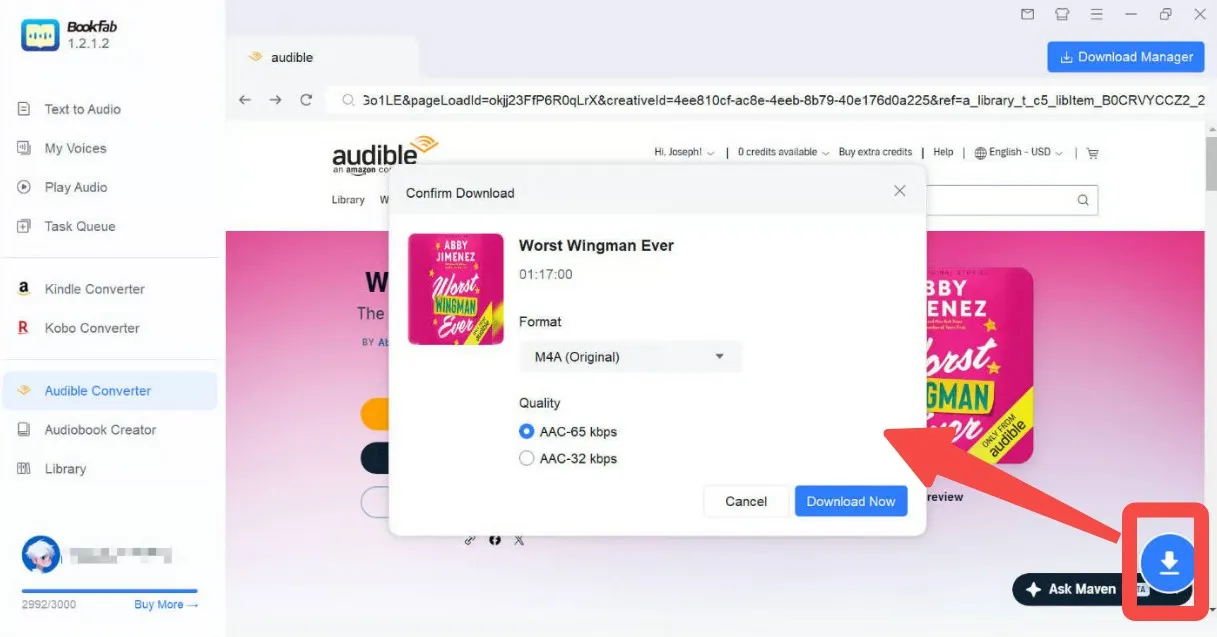
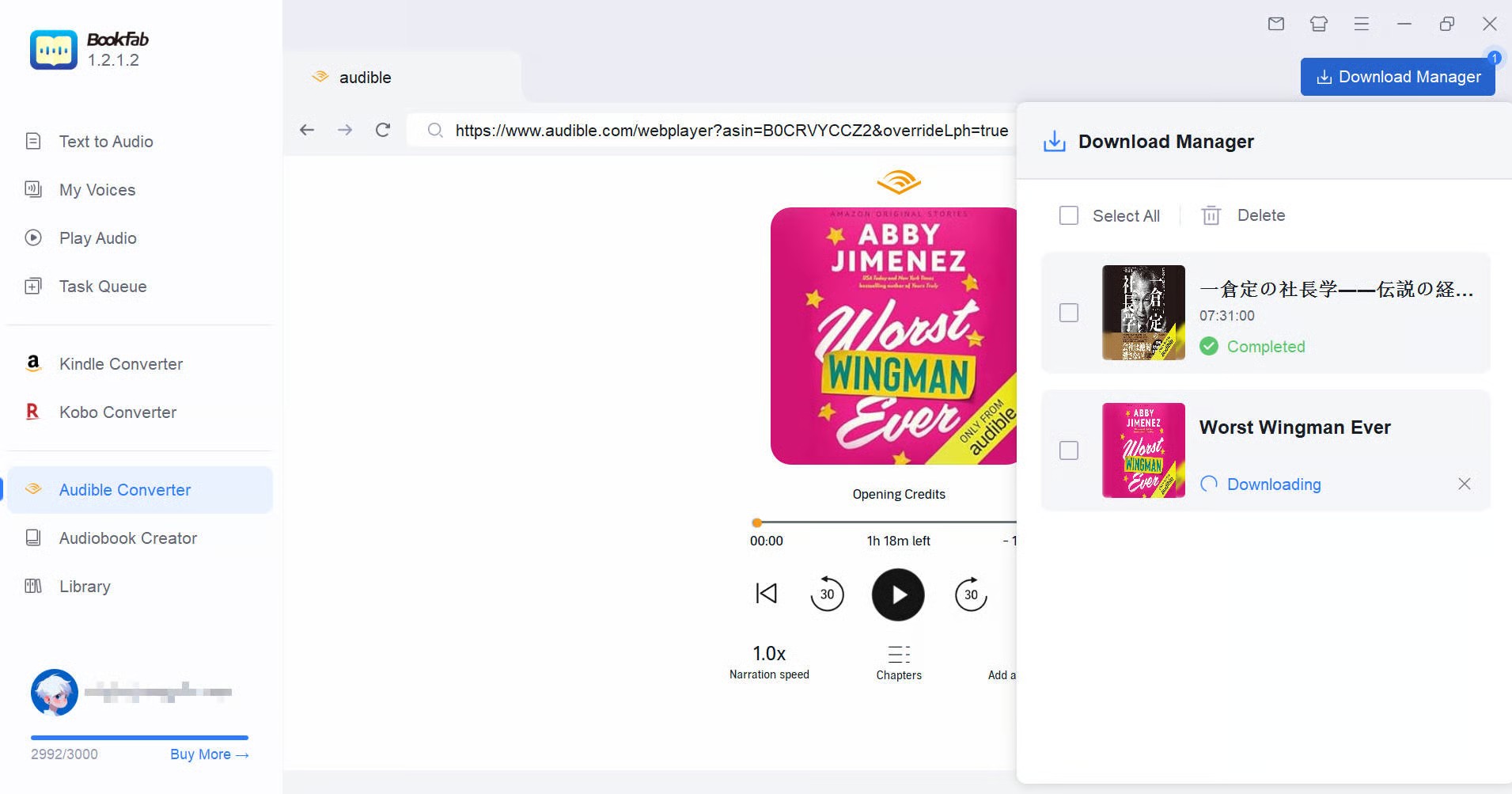
Step 4: Start the task and inspect the result. After processing, open the destination folder and check the cover, title, chapter order, and playback before adding the files to a main audiobook library.
Audible Converter Alternatives and Legacy References
The eight alternatives include active open-source projects, browser tools, server-upload services, and legacy references. A current Audible converter deserves more weight than an older project with attractive controls but uncertain compatibility.
#1 Libation
Libation is a free, open-source Audible library manager for Windows, macOS, and Linux. It can synchronize an account library and export books as MP3 or M4B while retaining library details and chapter structure.
Its breadth is both the benefit and the drawback. Readers managing many titles get catalog tools and cross-platform support, while someone converting one book may find the settings dense. Its Mac support also makes it relevant when getting Audible files on a Mac is part of the task.
- Add the Audible account and select the correct region.
- Scan the library and confirm that the intended titles appear.
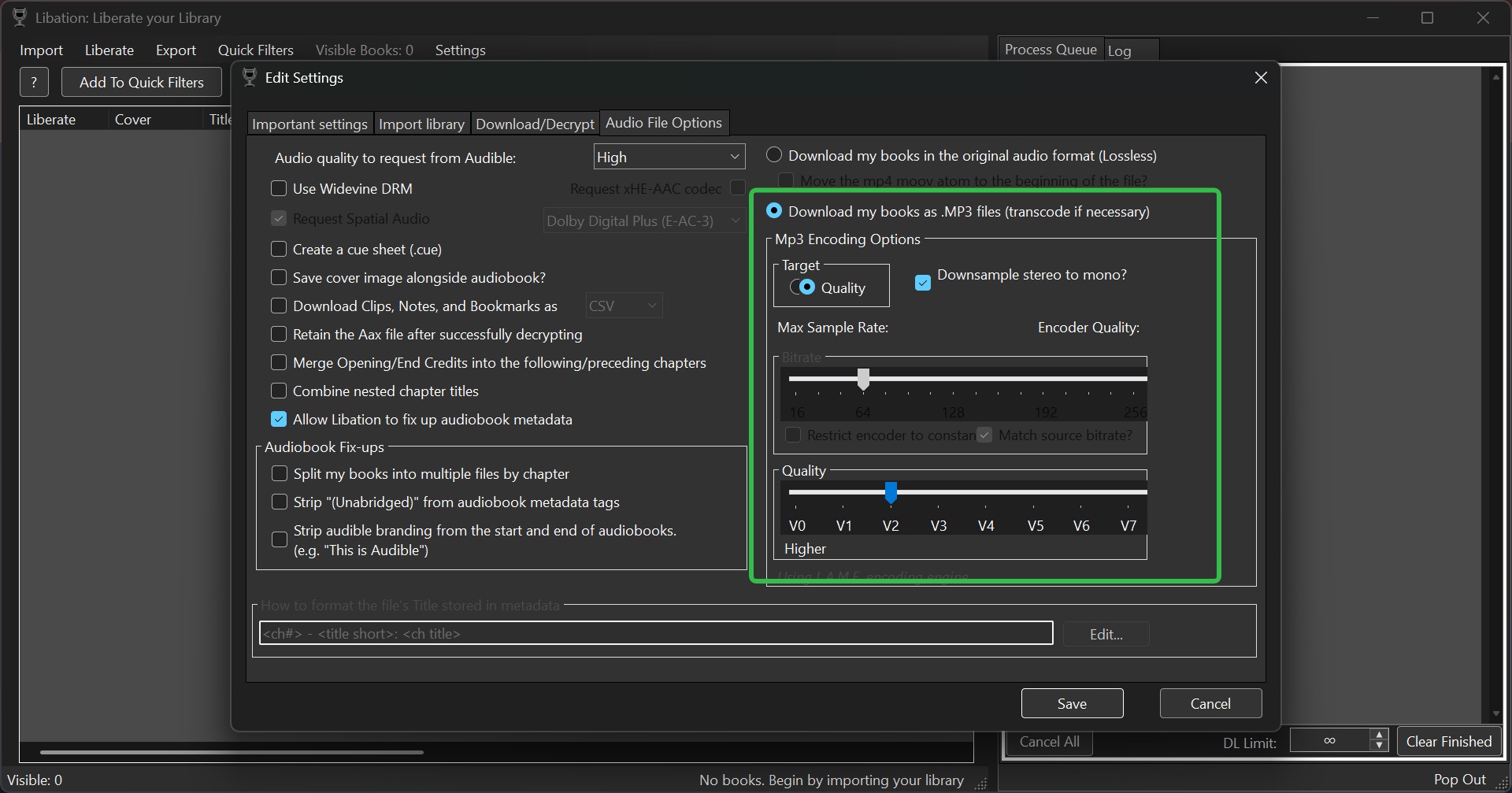
- Choose MP3 or M4B in the audio options, process the selected book, and inspect its chapters and metadata.


Legacy Reference: AAX Audio Converter
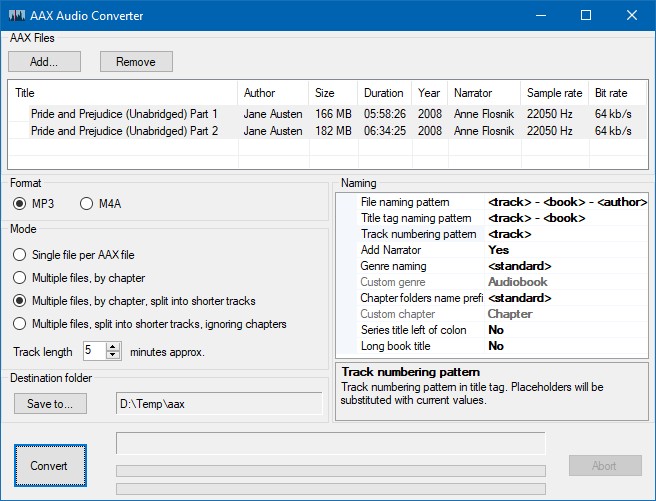
AAX Audio Converter remains a Windows reference for local AAX files, but its last code push was June 3, 2024. It is better treated as older software than as the default recommendation for a newly built library.
I noticed that a key difference between this Audible downloader and most web-based tools is its track-splitting capability.
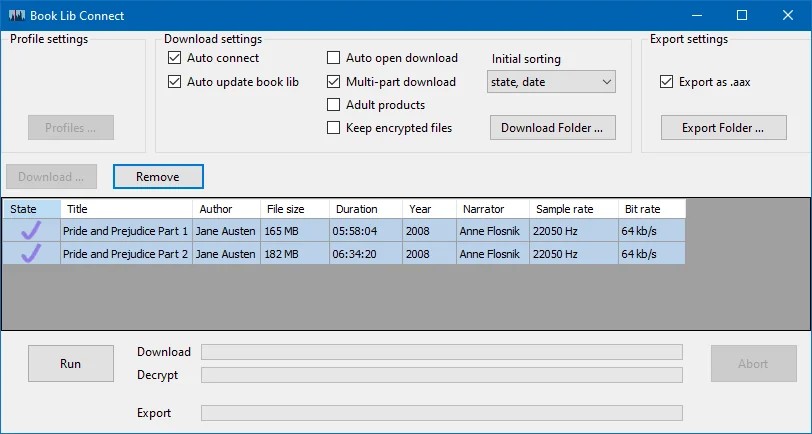
The program can create one file per book, split by original chapter, or divide long sections into fixed intervals. It also works with the developer's Book Lib Connect project for readers who already understand that local Windows setup.
It may suit an experienced Windows user with existing AAX files, but readers prioritizing current maintenance should start with an active project. Add the files, choose MP3 or M4B, select the split mode, and inspect the chapter order after conversion.
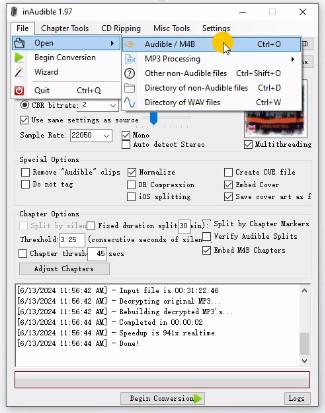
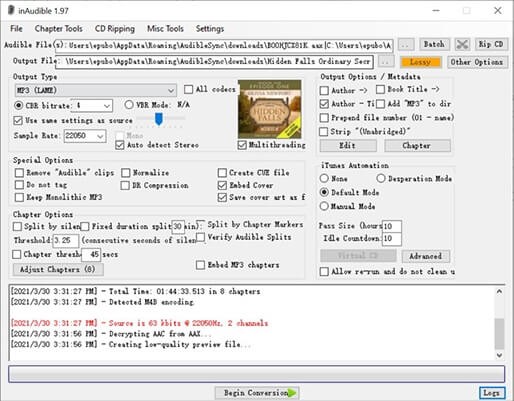
inAudible is an older Windows and macOS project whose last recorded code push was August 16, 2023. Recent operating-system compatibility is uncertain, and the absence of a current official download channel adds another reason for caution.
The Windows edition offers MP3, M4B, WAV, and AAC controls, including bitrate and chapter splitting. The older macOS build should not be described as broadly compatible with current Macs.
Technically experienced readers may still recognize its local-file controls, but an actively maintained tool is a sounder starting point.

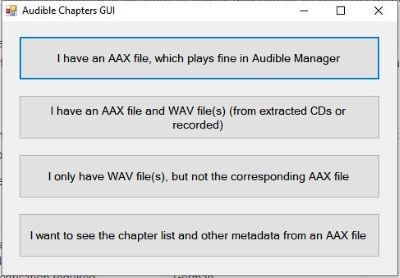
AudibleChapters is a historical Windows utility associated with extracting chapter information and splitting a book into chapter-based MP3 or WAV tracks.
The concept remains useful: a long audiobook is easier to navigate when its chapter order survives. Most readers should use a maintained tool that documents both current compatibility and chapter handling.
Audible Tools (Local Browser Processing)
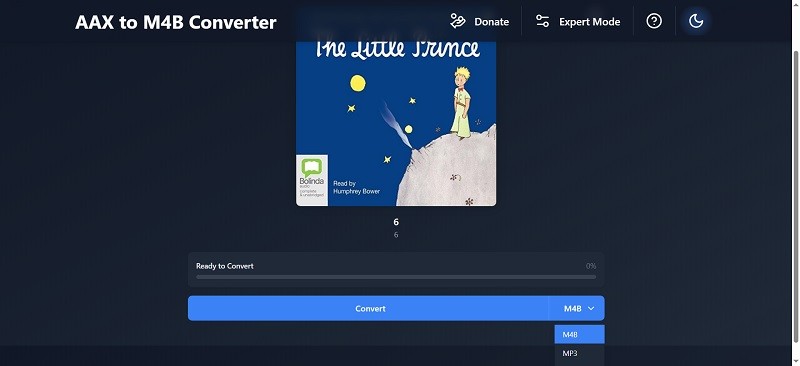
Audible Tools is an AAX to MP3 online interface that processes the audiobook locally in the browser rather than uploading the full file to a conversion server. Its documented 900 MB limit should be checked before starting a long title.
I once waited 20 minutes for a Brandon Sanderson audiobook to process, only for it to fail at the very last second because the file was too large.
The tool can export MP3, M4B, or FLAC and includes an expert mode. It suits readers who value local browser processing and have files within the browser and size limits; a large audiobook is better handled by a desktop tool with clear long-file support.
- Open the page and select the local AAX file.
- Choose MP3, M4B, or FLAC, leaving expert controls alone unless a specific output setting is needed.
- Start processing, then inspect the downloaded file's duration and chapter behavior.

DragDropDo (Server Upload)
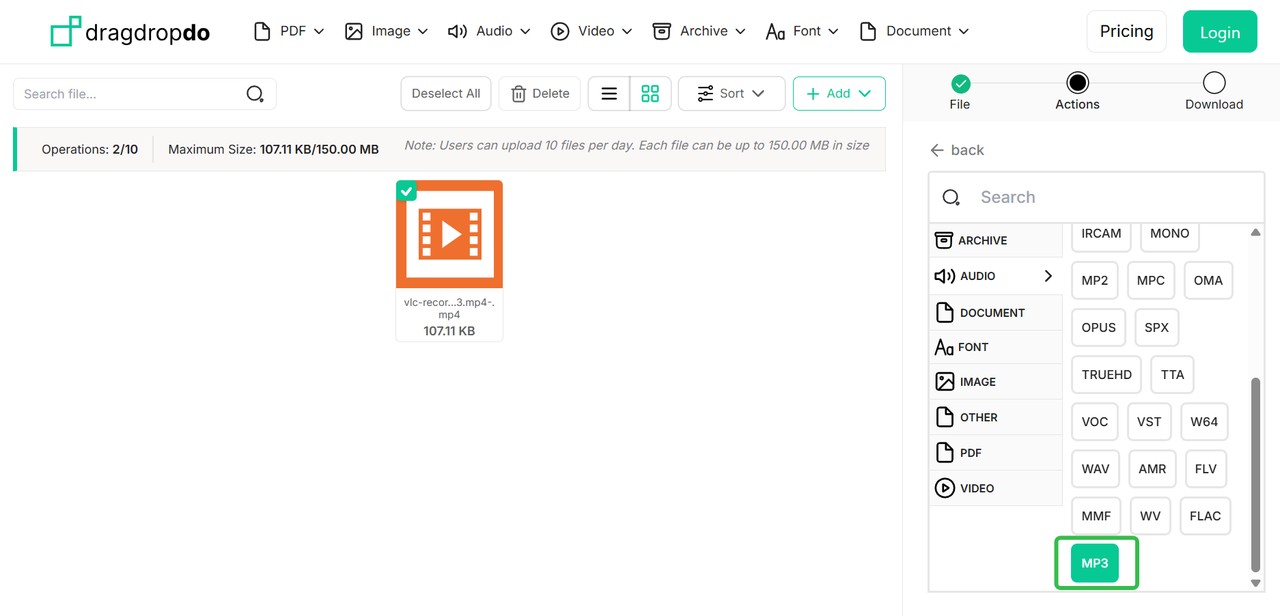
DragDropDo sends the AAX file to backend servers. Its registered free plan lists a 300 MB per-file limit and 20 conversions per day, which makes it more relevant to short files than full-length audiobooks.
In my tests, what I liked most is that you don't need to worry too much about privacy: this Audible to MP3 converter promises that your uploaded files are automatically deleted after 24 hours.
That deletion window is the service's own statement, so review its current privacy policy before uploading a title. This server model differs materially from local browser processing because the audiobook leaves the device during conversion.
- Select the AAX file or folder and confirm that each file is within the free-plan limit.
- Choose the audio conversion action and set MP3 as the output.
- Start the remote task, download the result, and delete an unneeded server copy through the controls the service provides.


Legacy Reference: AAXtoMP3
AAXtoMP3 is an archived command-line project whose last code push was March 27, 2023. It can create MP3, M4B, M4A, FLAC, or OGG output, but it is no longer a current peer recommendation.
The legacy setup requires a command-line environment, FFmpeg, an account-linked authorization value, and a local AAX file. That combination is appropriate only for technical readers who deliberately accept an archived workflow and can troubleshoot dependencies without relying on current support.
#8 Audacity (Audible Playback Recording)
Audacity is an audio recorder and editor, not a native AAX audio converter. It can capture authorized Audible playback in real time and export MP3 or WAV, making it a slow fallback when direct conversion is unsuitable.
Recording takes as long as playback, chapter splitting is manual, and notification sounds can enter the track. Turn off alerts, record one manageable section at a time, and check the waveform before export.
- Select the computer's playback source in Audacity and pause Audible at the desired starting point.
- Start recording, play the chapter at normal speed, and stop both programs at the end.
- Trim unwanted silence, add chapter labels if needed, and export MP3.

I usually delete the blank section at the beginning and any extra audio at the end, then add fade in and fade out effects.
FAQs
Q
Can I Convert Existing AAX Files Without Downloading Again?
Sometimes. Local-file converters can accept an AAX file already stored on the computer, while library-sync tools may expect to retrieve the title through the linked Audible account. Check the input method before choosing a converter; existing-file import is not universal.
A
Q
Can I Download an Audible Book to an MP3 Player?
Yes, when the player supports MP3 and the personal copy is permitted. Convert the authorized title to MP3 on a computer, connect the player by USB or insert its storage card, copy the file, and confirm that long tracks and chapter order are usable on that device.
A
Q
Can I Convert AAX Files on Android?
Android-only conversion is less dependable than the desktop and browser options in this comparison. Large local files, browser memory, storage permissions, and output compatibility can interrupt the task, so a Windows, Mac, or Linux computer is usually the clearer option for a full audiobook.
A
Q
Can a Free Converter Handle a Full Audiobook?
It can, but “free” does not guarantee enough capacity. Check the file-size or duration cap, whether processing is local or uploaded, how chapters are handled, and whether a paywall appears before completion. A short sample is useful for checking output structure before committing a long book.
A
Conclusion
The right AAX to MP3 converter depends on processing location, maintenance, and the library result you need. A free label alone says little about long-book capacity, chapter retention, or privacy.
- BookFab is for Windows and Mac readers who value integrated browsing, batch tasks, five supported formats, chapters, and metadata, while accepting a limited trial and paid access beyond it.
- Libation is the stronger open-source library option for readers willing to learn its broader interface.
- Audible Tools makes sense for smaller files processed locally in a browser.
- Audacity remains a real-time recording fallback, not a direct conversion replacement.
Legacy projects may still interest experienced users, but their controls do not outweigh uncertain maintenance for most new setups. For my own library, I choose by where the file is processed and whether the project is maintained, then check chapters and metadata before adding the result.

 4 Easy Ways to Remove Audible DRM in 2026: Tool Reviews and TutorialBy Amber Collins - Aug 26, 2026
 How to Listen to Audible on Mac: 4 Practical MethodsBy Amber Collins - Aug 24, 2026
 How to Download Audible Books: Phone, PC, MP3, and M4BBy Amber Collins - Aug 19, 2026
 Download Audible Books on Mac: Choose the Right MethodBy Amber Collins - Aug 19, 2026