Download Audible Books on Mac: Choose the Right Method

Summary: Audible downloads on a Mac can mean an AAX file for Apple Books, app-managed offline playback, browser streaming, or a Finder-visible MP3/M4B library. This guide compares the routes, explains missing download buttons and storage limits, and gives a file-goal-based recommendation.
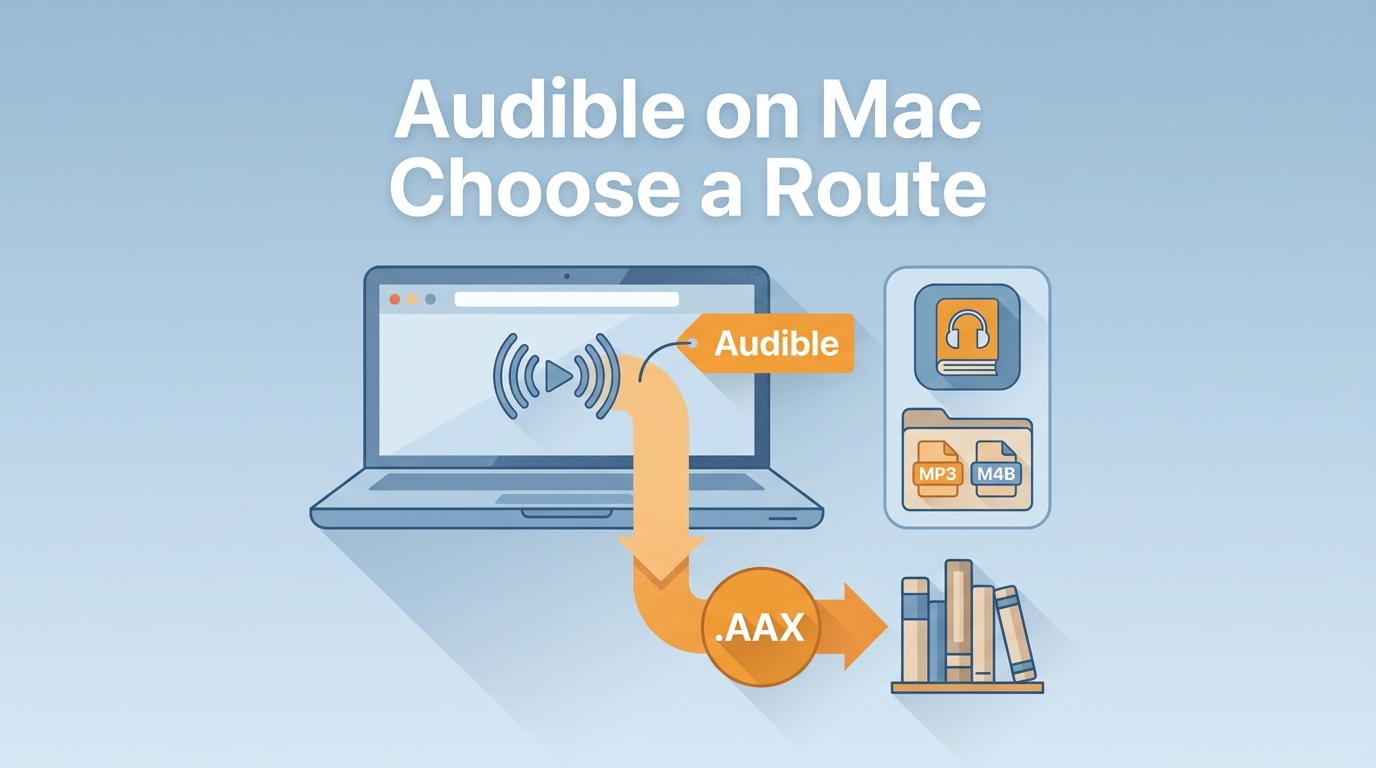
An Audible download Mac users expect to find in Finder is not always a file. It may be browser playback, an eligible AAX file for Apple Books, app-only offline storage, or an accessible MP3/M4B file. Choose by the result you need.
The methods that download Audible books Mac owners have purchased do not produce the same output. Start with your preferred player and storage goal, then use the route below that matches both.
Table of Contents
Choose the Right Audible Route for Your Mac
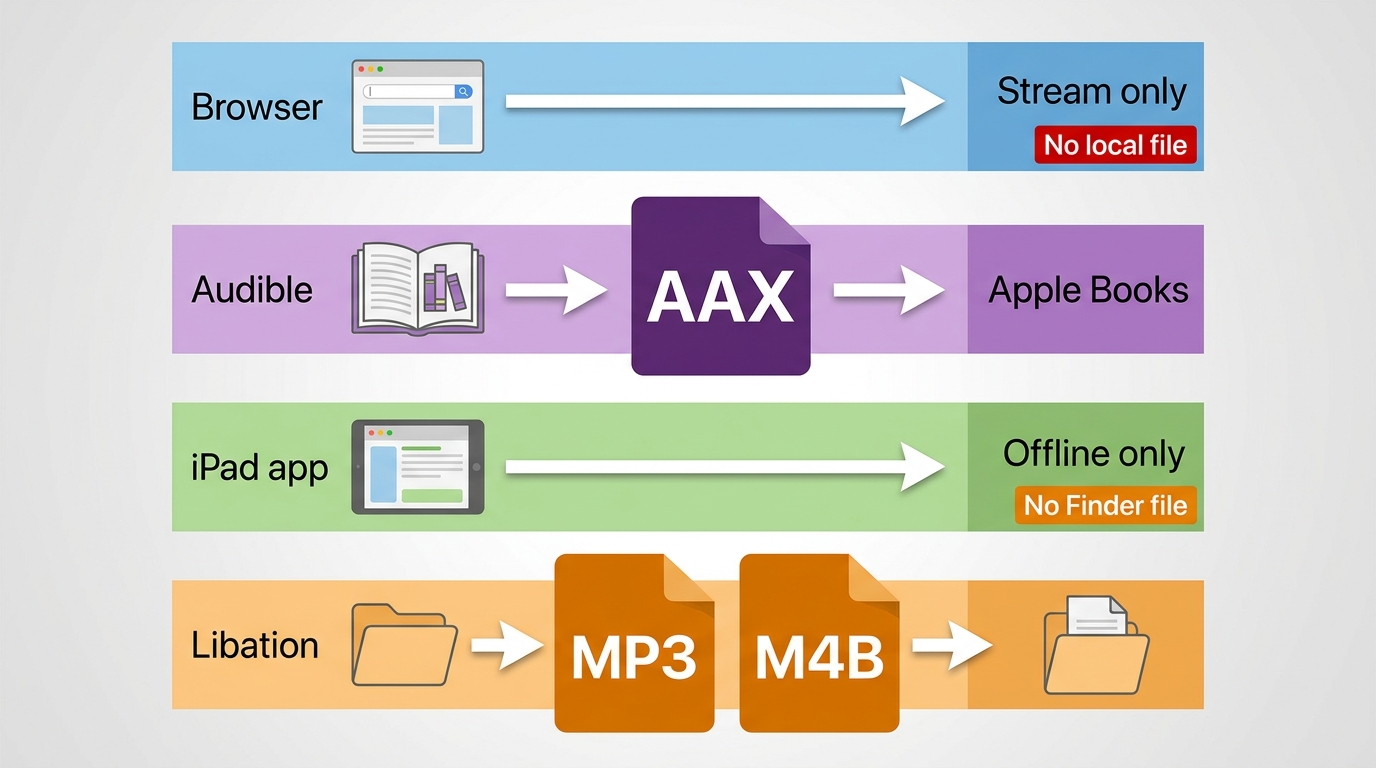
The right route depends on what you want to keep: browser access, an AAX title in Apple Books, app-managed offline playback, or a Finder-visible MP3/M4B library.
Four Routes at a Glance
| Route | Mac requirement | Saved result | Finder visibility | Best fit |
|---|---|---|---|---|
| Audible web player | Current browser | Streaming session | No audiobook file | Online listening |
| Website AAX download | Eligible purchase | AAX file | Yes, before import | Apple Books playback |
| App Store app | M1+, macOS 15.1+ | App-managed download | No | Simple offline listening |
| Libation | Compatible Mac build | MP3 or M4B | Yes | Organized local library |
For a purchased title used mainly on Apple devices, I would start with AAX and Apple Books. When folder names, external storage, or wider player support matter, a local MP3/M4B library gives you more control over organization.
Official Downloads Create AAX Files for Apple Books
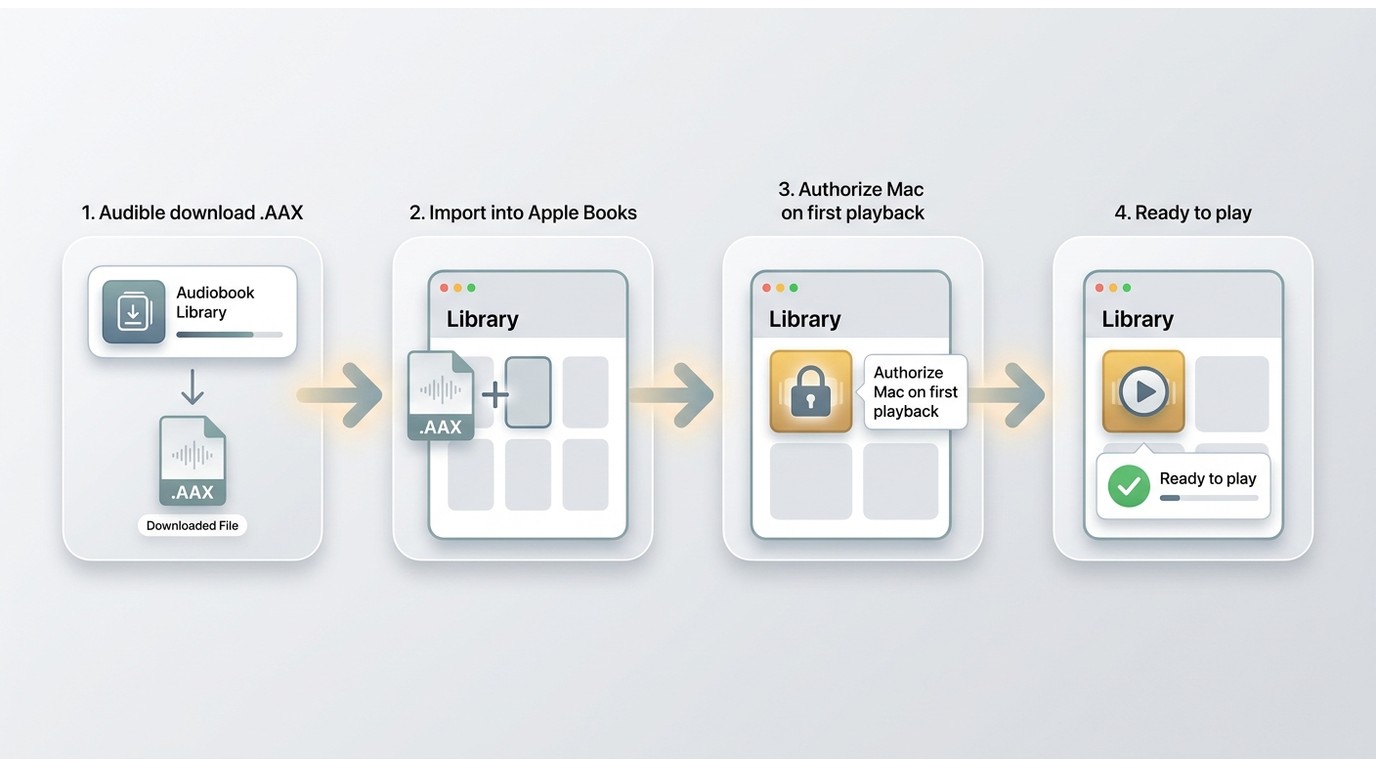
Eligible purchases can expose a Download control on Audible's website and save an AAX file for Apple Books. The website can download Audible books Mac users purchased, but Plus Catalog access and some marketplace conditions do not provide the same computer-file option.
Check Whether the Title Is Eligible
Check eligibility before looking for a software problem. A title that plays in your library does not necessarily include a computer download.
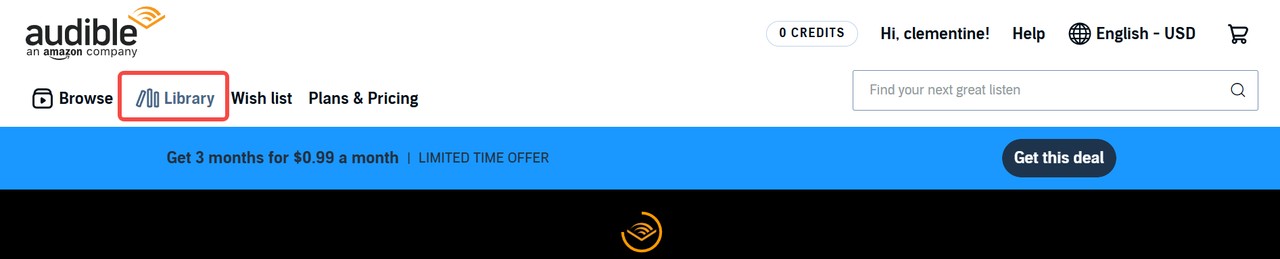
- Open the Audible website, sign in, and open Library.
- Confirm that the title is a purchase associated with the account and marketplace currently signed in.
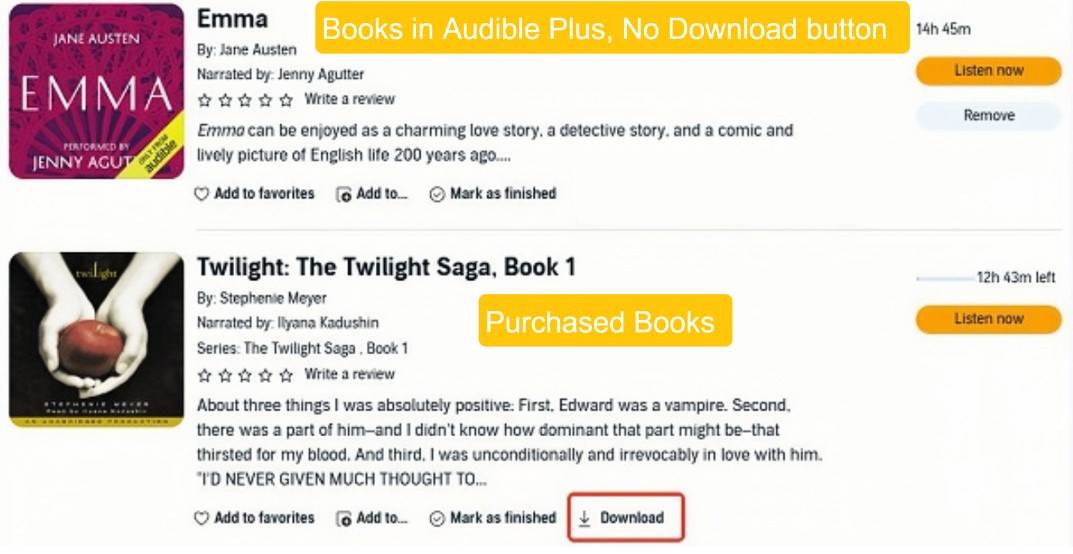
- Look for the Download control beside the title. Plus Catalog access and some regional libraries may not expose it.
Download the AAX File
An eligible title downloads as AAX, a format intended for authorized Audible playback rather than arbitrary audio players.
- Select Download beside the eligible title.
- Allow the browser to finish saving the file.
- Check the browser's configured Audible download location, usually the Downloads folder unless you chose another destination.
Import and Authorize in Apple Books
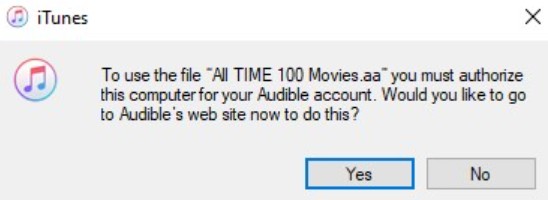
Apple Books can import an eligible AAX purchase and request Audible authorization at first playback.
- Open Apple Books and select File > Import.
- Choose the downloaded AAX file, or drag it into the Apple Books window.
- Start playback and sign in if macOS asks you to authorize the Mac for Audible.
When I assess an imported audiobook, successful playback is only the first check. The title, cover, chapter navigation, and resume position determine whether the book is ready to join a managed library.
The Audible App Requires a Newer Apple Silicon Mac
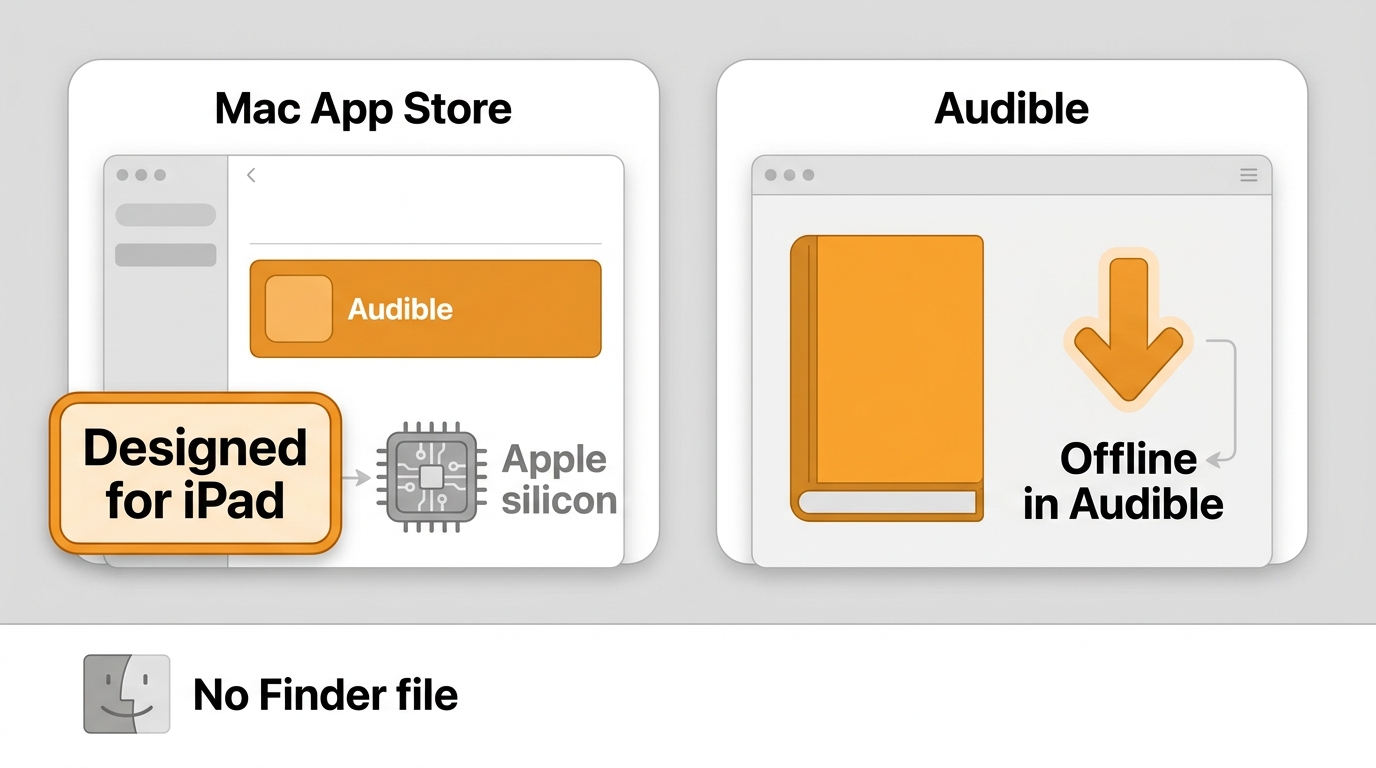
The current Audible app for Mac route requires an Apple M1 chip or later and macOS 15.1 or later. It stores titles inside the app for Audible offline listening rather than exporting a standalone file to Finder.
Confirm Mac and macOS Compatibility
Check both the processor and system version before searching the App Store.
- Open the Apple menu and select About This Mac.
- Confirm that the Mac has an Apple M1 chip or later.
- Confirm that it runs macOS 15.1 or later, then open the US App Store listing.
This route suits supported Apple silicon Macs when listening inside Audible matters more than managing an exportable file. It does not serve Intel Macs or readers who need a Finder-visible audiobook.
Download for App-Only Offline Listening
The app download remains managed by Audible, so it supports offline playback without creating a user-managed AAX, MP3, or M4B file.
- Install Audible: Audiobooks & Podcasts from the Mac App Store.
- Sign in and open Library.
- Select a title and use its Download control.
- Open the downloaded title inside the app when the Mac is offline.
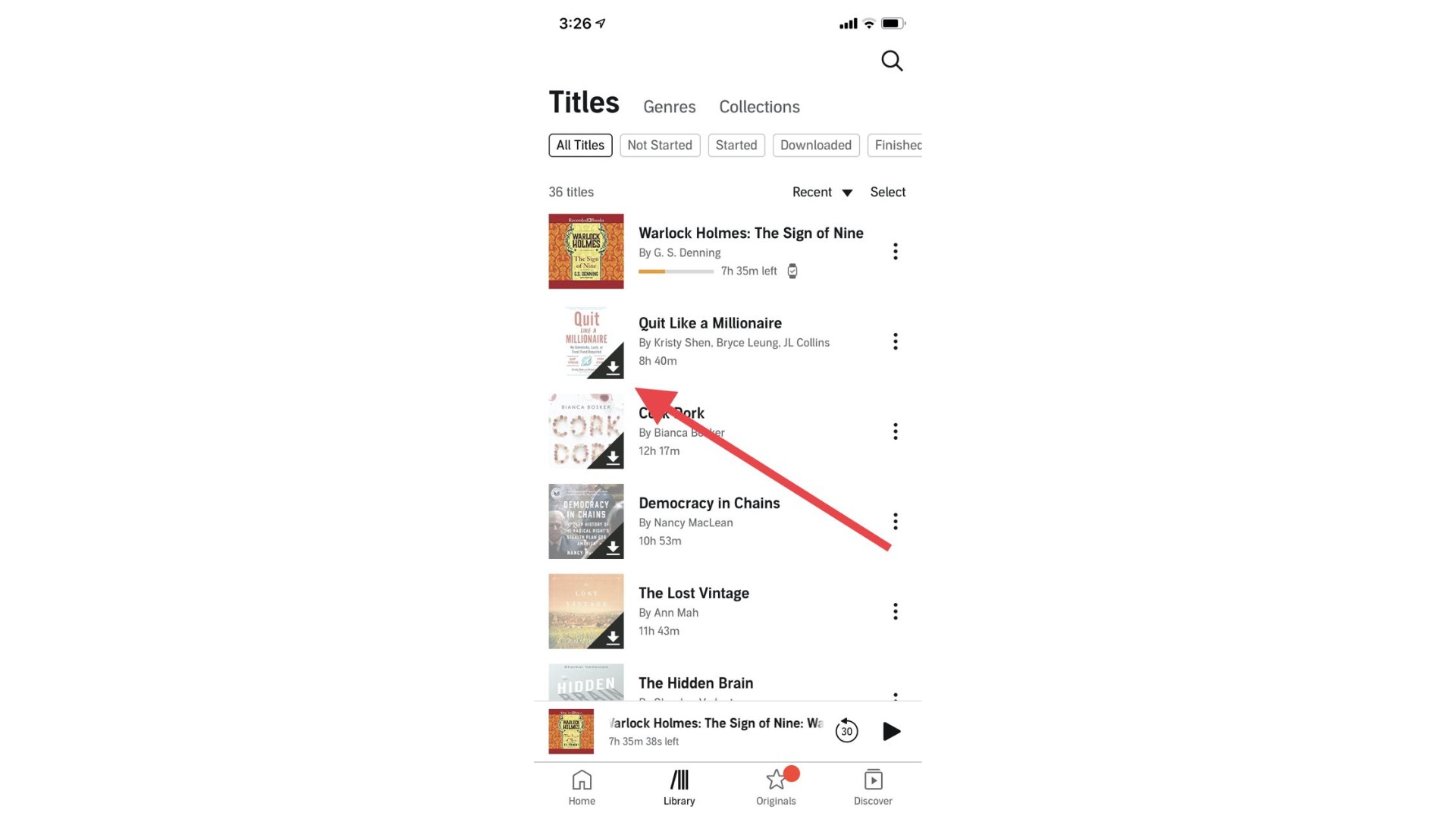
Missing Download Buttons Usually Have a Clear Cause
An Audible Download button missing from Library usually signals a title, account, or marketplace issue, not a Mac hardware problem. Check eligibility before reinstalling an app or setting up another tool.
Check Purchase, Account, and Region
Work through the account details in this order so each check rules out a distinct cause.
- Confirm the title was purchased rather than borrowed through Plus Catalog access.
- Sign out and return with the Amazon or Audible account that owns the purchase.
- Make sure the selected Audible marketplace matches the region where the title was bought.
- Check whether the title is still available in that marketplace's library.
Separate Streaming from Downloading
A play control in a browser starts a stream; it does not prove that Audible offers a downloadable computer file for that title. If the goal is Audible offline listening, use an eligible AAX download, the supported App Store app, or an authorized local-file route.
Checking the title's access type first avoids unnecessary app reinstalls and prevents a streaming limitation from being mistaken for a Mac fault.
Local Files Change Storage and Transfer Options
The Audible download location depends on the route: the browser exposes AAX, the app keeps managed data inside its sandbox, and Libation saves accessible MP3/M4B files to a chosen folder. Finder-visible files can be copied directly to external storage.
AAX and App Downloads Have Different Limits
An Audible AAX Mac setup ends in Apple Books, not in a universal audio file. An eligible purchase added to Apple Books can play on an authorized Mac, iPhone, iPad, or iPod touch, while an Audible app download remains inside the app's managed storage.
- AAX: visible after the browser download, then imported and authorized in Apple Books.
- App download: available for offline playback inside Audible, not exposed as a Finder file.
- MP3/M4B: accessible to compatible players and ordinary file-management tools.
External Drives Work with Accessible Local Files
MP3 and M4B files visible in Finder can be copied to an external drive and organized by author, series, or title. Keep the working library on a drive format that macOS can write to, then test the intended player before moving a larger collection.
For an audiobook library, I check the cover, title, chapter order, and resume behavior before treating a copied file as ready. A file that opens but loses chapter structure can still be inconvenient during long-form listening.
Libation Adds MP3 and M4B Library Control
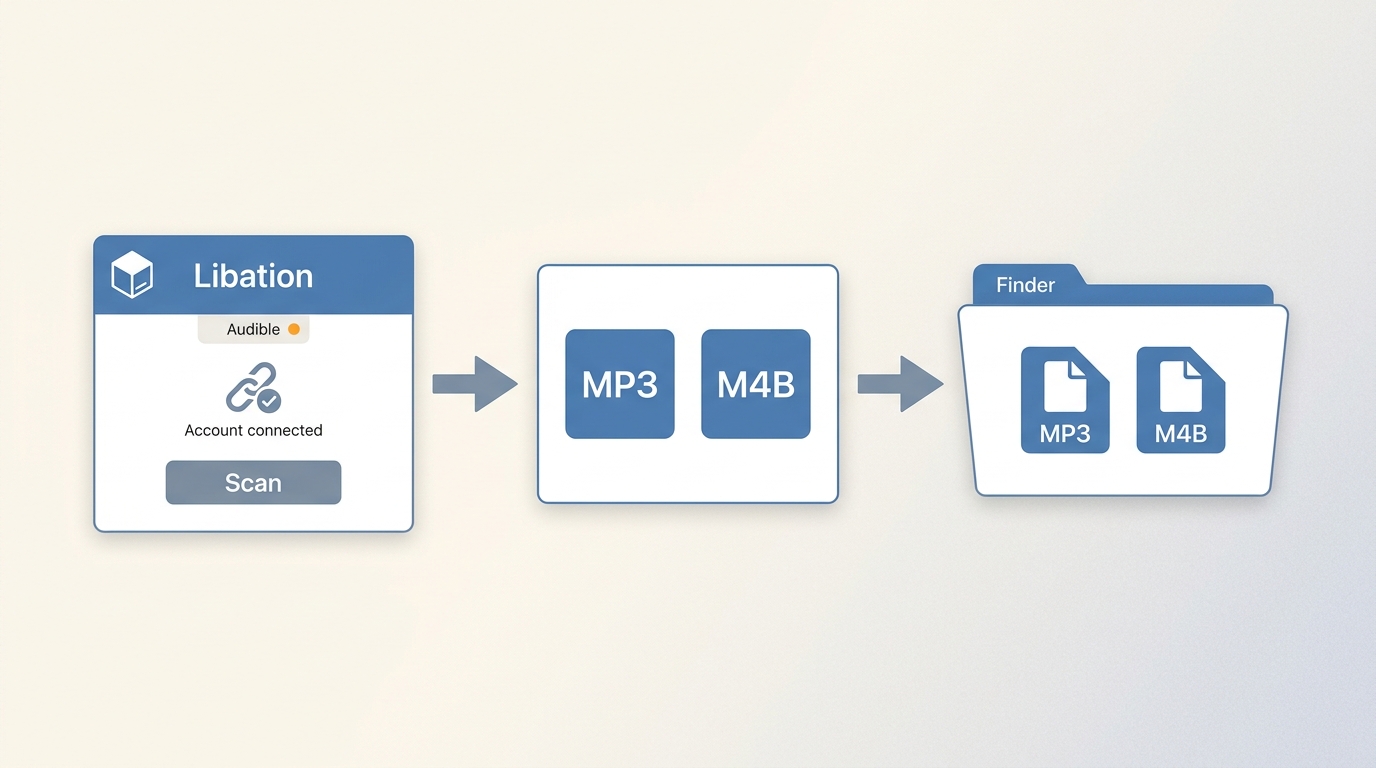
For content you're authorized to access, where permitted by platform terms and applicable law, Libation can create a local-file setup for personal offline listening in MP3 or M4B. It serves Mac users who need Finder-visible files and organized folders.
Who Libation Suits and Who It Does Not
For an Audible MP3 Mac library, Libation suits readers who need batch organization, consistent folder naming, and output that works beyond Apple Books. Its place in a free Audible converter comparison is strongest when file management matters as much as playback.
Libation is less appropriate when the simplest official playback route is enough. Website AAX or the supported Audible app requires fewer decisions about formats, folders, and library naming.
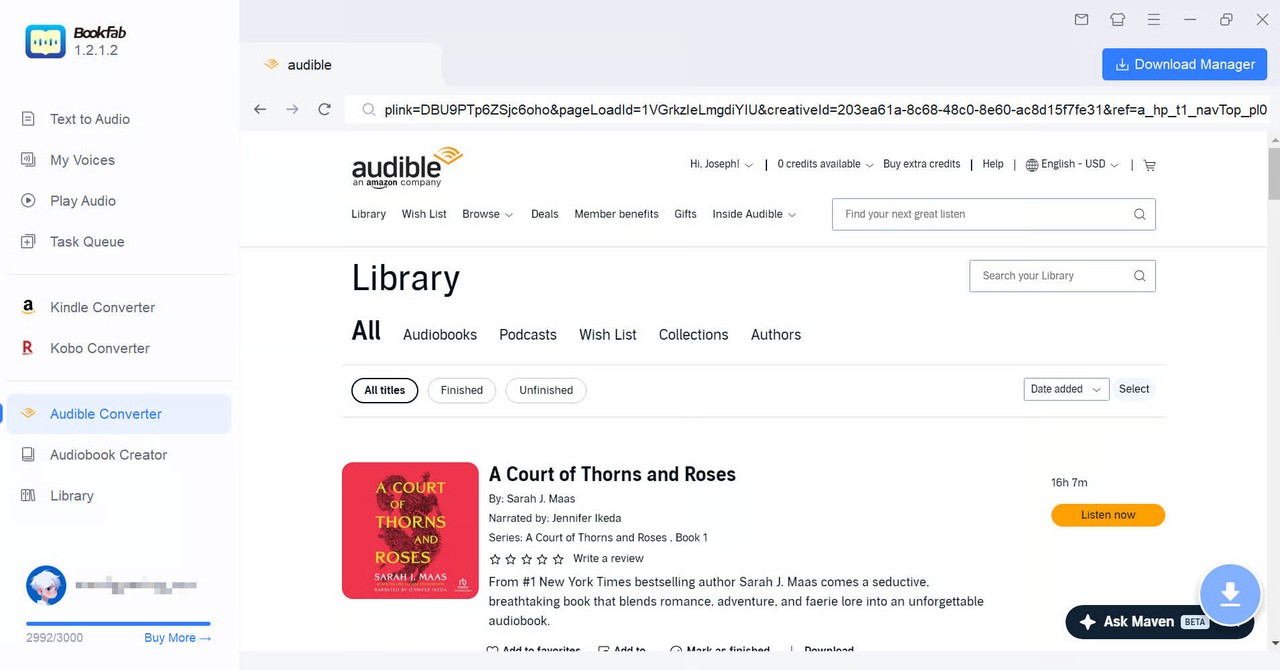
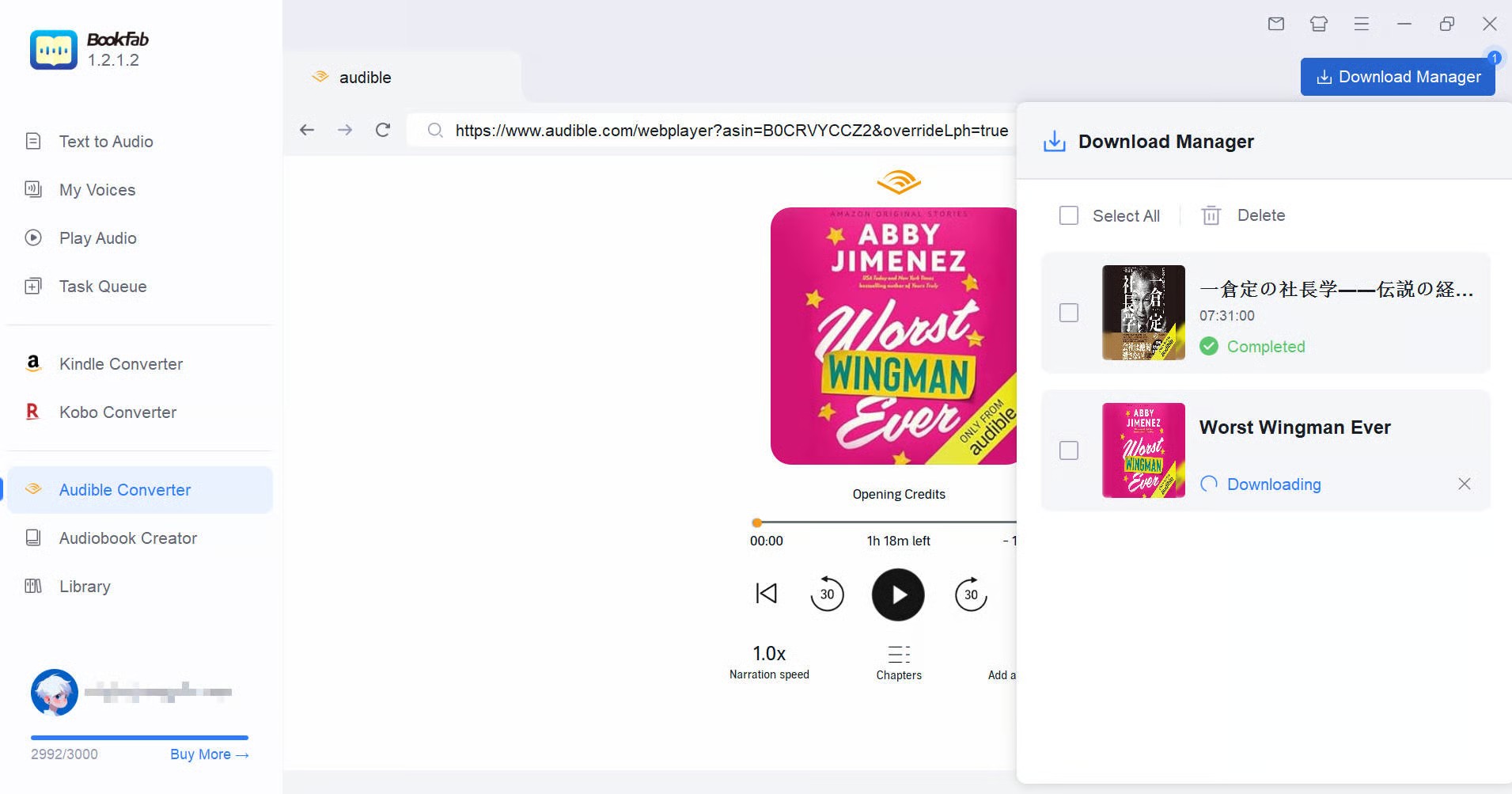
BookFab Audible Converter supports Windows and macOS, outputs M4A, MP3, FLAC, WAV, or OPUS, and retains chapters and core metadata; its current pricing is listed on the product page as of August 2026.
Install the Current Mac Build
Libation 13.7.7 was released on August 9, 2026, with current Mac builds for Apple silicon and Intel processors.
- Open the project's release list and choose the Mac build that matches the processor shown in About This Mac. The earlier Libation release page shows the prior macOS package pattern, but do not copy an old installer filename.
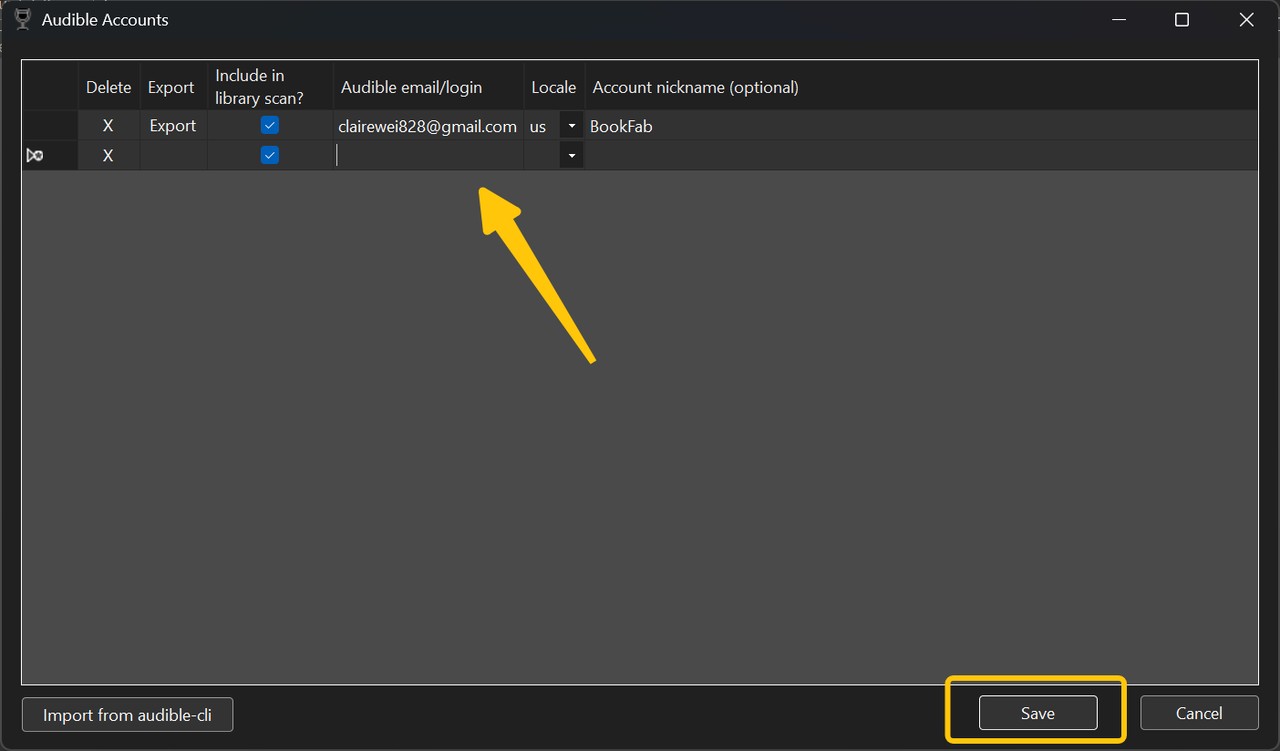
- Install and open Libation, then go to Settings > Accounts.
- Add the Audible account and select the correct marketplace or region.
- Sign in through the Audible page opened by Libation and enable the account for library scanning.

Organize and Export Your Library
Set the output format and destination before starting a large library so book names, chapter structure, and folders remain predictable.
- Use Import > Scan Library to load eligible titles from the selected account.
- Choose M4B for chapter-oriented listening or enable MP3 when broader player compatibility matters.
- Select the destination folder and review the naming rules.
- Add the intended titles to the task list and start the local export.

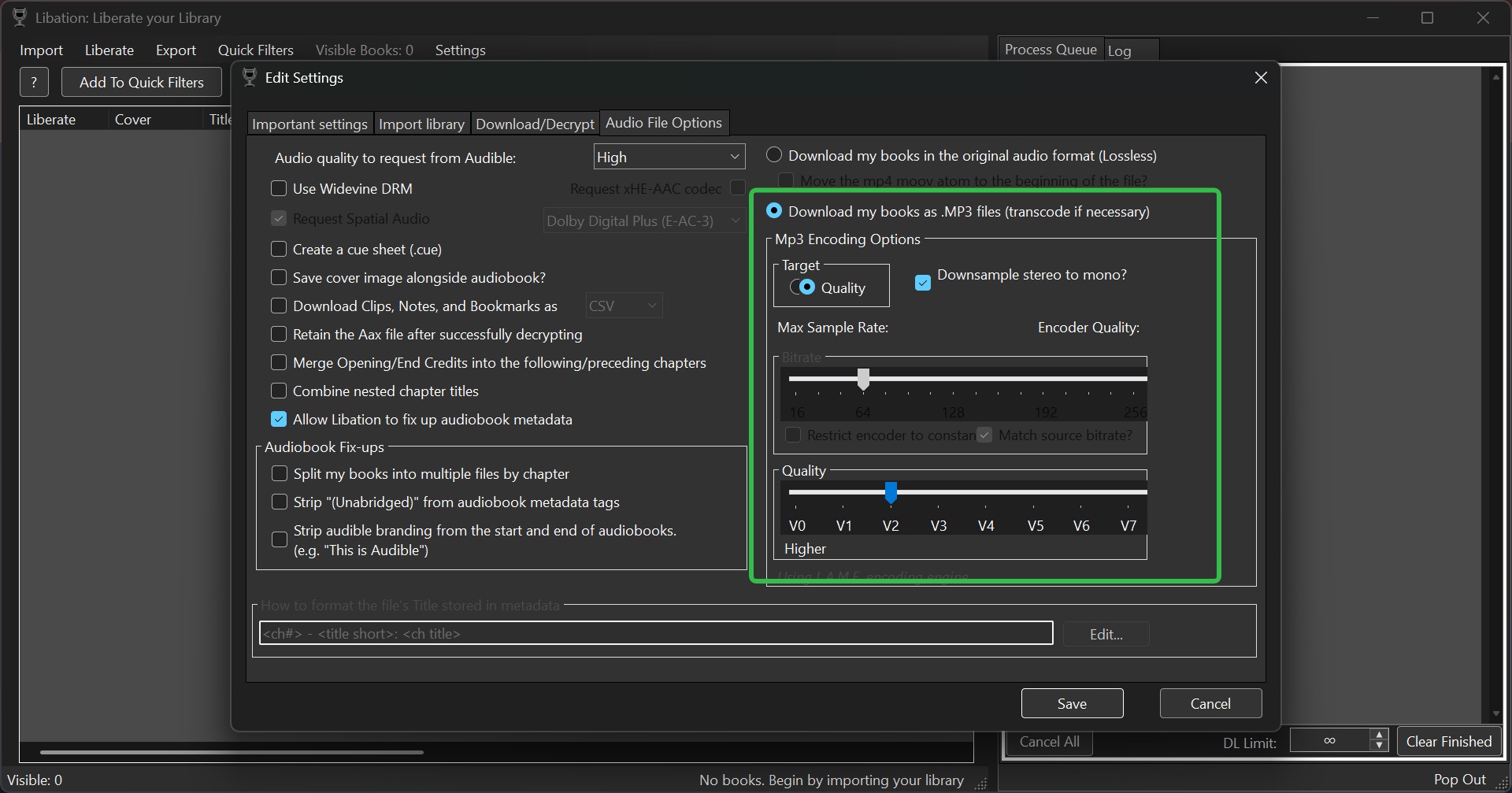
For long audiobooks, I favor M4B when the destination player recognizes chapters. MP3 is easier to place on basic players, but transcoding settings can affect sound quality and chapter handling.
Frequently Asked Questions
Where can I find an Audible audiobook's companion PDF?
If a title includes a companion PDF, look in the title's Library or player details while signed in to the correct marketplace. The PDF is a separate document, not something extracted from the AAX or audio file, and many audiobooks do not include one.
ACan I use Audible Cloud Player without downloading a file?
Yes. Audible Cloud Player streams the title in a supported browser and can be useful on a Mac that does not meet the App Store app requirements. It does not create an offline audiobook file in Finder.
ADoes Audible Download Manager work on current Macs?
Audible Download Manager is a legacy, Windows-oriented term rather than a current Mac route. On a Mac, use browser streaming, an eligible website AAX download with Apple Books, or the App Store app when the hardware and macOS requirements are met.
ADoes converting an Audible book to MP3 reduce audio quality?
It can. Creating MP3 may transcode the source, and the chosen settings affect the result. If the destination player accepts M4B and chapter navigation matters, keeping an M4B setup can avoid an unnecessary format change.
AThe Best Route Depends on Your File Goal
Use website AAX plus Apple Books for eligible purchases on authorized Apple devices, the App Store app for simple offline listening on a supported Apple silicon Mac, or Libation when an organized local MP3/M4B library is the priority.
My recommendation is to decide from the destination backward: name the player, decide whether Finder access matters, and then select the least complicated route that produces that result. Readers planning beyond macOS can use the broader guide to download Audible books across devices without expanding this Mac setup into a second tutorial.

 4 Easy Ways to Remove Audible DRM in 2026: Tool Reviews and TutorialBy Amber Collins - Aug 26, 2026
 How to Listen to Audible on Mac: 4 Practical MethodsBy Amber Collins - Aug 24, 2026
 9 Audible Converters for AAX to MP3: Free vs. Trial (2026)By Amber Collins - Aug 21, 2026
 How to Download Audible Books: Phone, PC, MP3, and M4BBy Amber Collins - Aug 19, 2026