6 calibre Alternatives: What Each Tool Can Replace
Summary: Compare six tools for cataloging, EPUB editing, desktop reading, browser libraries, and supported Kindle conversion. Learn which calibre functions to retain and how to check sample books before moving a collection.
A library can look tidy on your computer and still be awkward to read on your phone. The six calibre alternatives below replace particular jobs: cataloging, editing, reading, browser access, or supported Kindle conversion. A calibre alternative need not replace your entire library.
I would keep a well-organized collection intact if the missing piece were simply a comfortable place to read it. Losing your series order to gain a prettier bookshelf is a poor exchange. Follow a book from its catalog entry to its chapter links and destination screen, and the useful differences become clearer.
Table of Contents
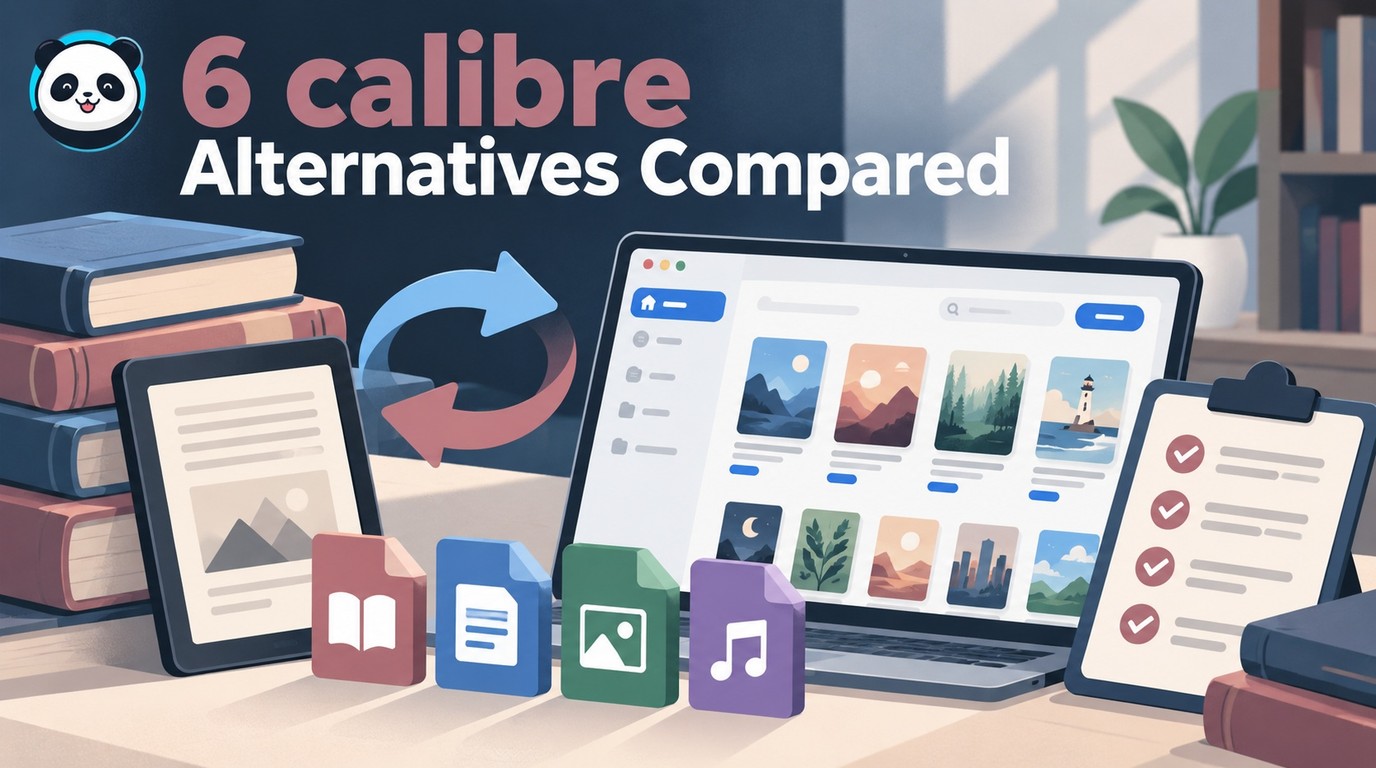
calibre Alternatives for Organizing, Editing, and Reading Books
Use note: Convert only content you are authorized to access and convert, for personal use, without redistribution or resale. Purchase or subscription access alone does not grant conversion permission; follow platform terms and applicable law, since personal use is not automatically lawful.
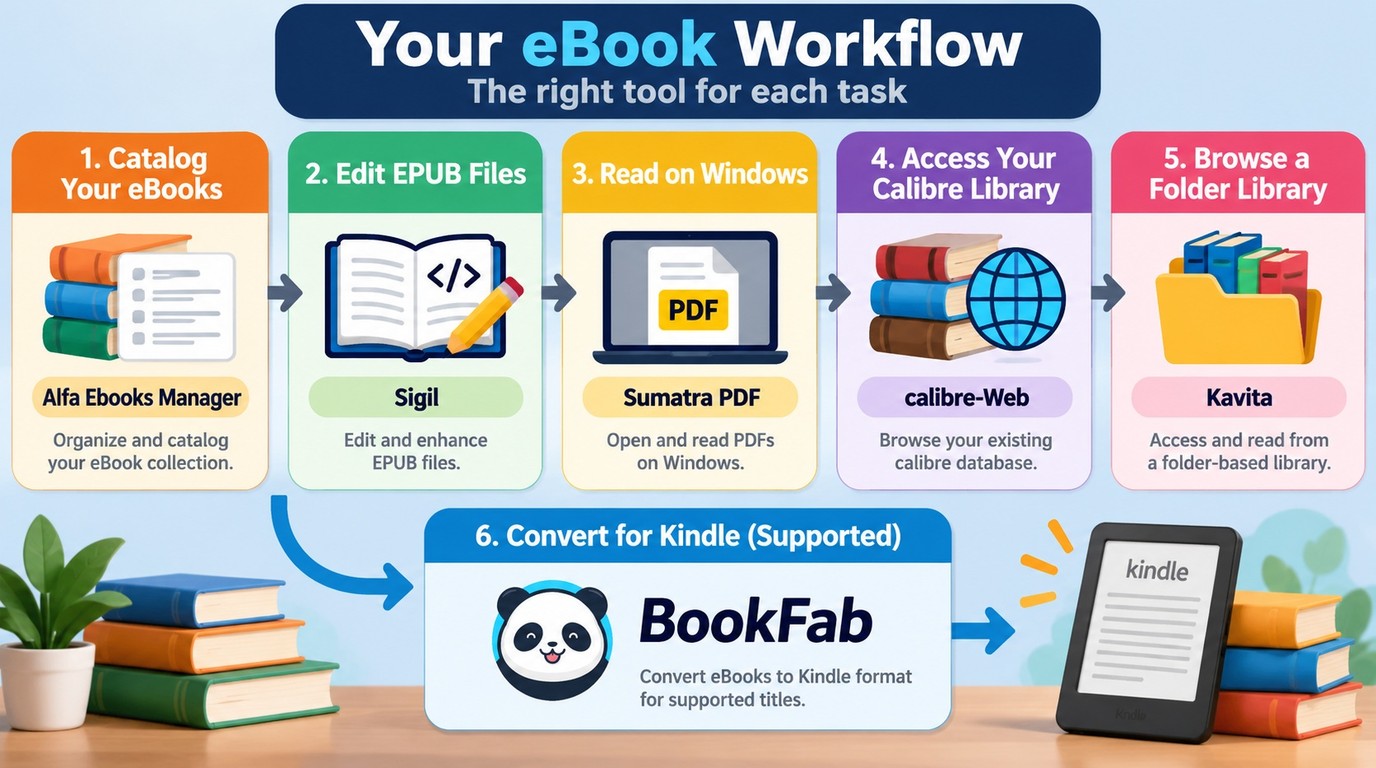
Alfa Ebooks Manager catalogs a collection, Sigil edits EPUB books, and Sumatra PDF opens files for reading on Windows. These tools replace individual functions; calibre still brings library management, conversion, and device transfer together.
The comparison below describes capabilities and cost models as of September 2026. Its six entries are task-level alternatives, including tools that work alongside an existing library.
| Tool | Main function | System or access | Cost model | Scope or limit |
|---|---|---|---|---|
| Alfa Ebooks Manager | Book catalog | Windows PC | Paid; trial | Paper, electronic, and audio books |
| Sigil | EPUB editor | Windows, Mac, Linux | Free, open source | EPUB 2 and EPUB 3 |
| Sumatra PDF | File reader | Windows | Free, open source | PDF, EPUB, MOBI |
| calibre-Web | Existing database access | Self-hosted; browser | Free, open source | Conversion needs calibre binaries |
| Kavita | Folder-based library | Self-hosted; browser | Free core; paid extras | EPUB, PDF, comics |
| BookFab Kindle Converter | Supported Kindle conversion | Windows, Mac | Paid; up to 3-book trial | EPUB, PDF, original; authorized content only; terms apply |
I would keep calibre when sorting, converting, and sending books are already working together. Replacing its reader is a much smaller change than rebuilding that arrangement.
Alfa Ebooks Manager: Cataloging a Mixed Book Collection
Alfa Ebooks Manager puts paper books, ebooks, and audiobooks in a Windows catalog. It supports metadata editing, meaning the title, author, cover, and other details used to identify a book. Its calibre import is relevant when you want to reuse an existing collection's records.
A mixed bookshelf gives this catalog a clear purpose. A printed edition and an ebook can both have entries, even though only one has a file to open. The tradeoff is that importing a catalog does not establish that custom fields, annotations, or reading progress transfer with it. It is paid software with a trial, rather than a free replacement for calibre's complete set of functions.
For the Windows trial, use copies of a novel in a series, an illustrated book, and a book with a detailed contents list. Keep this sample collection for the tools below. In Alfa Ebooks Manager, the question is whether their catalog entries preserve recognizable covers, author names, and series order.
I would judge this move by whether you can find the right edition more easily. A catalog earns its place through reliable book records, not through the number of covers on screen.
Sigil: Editing EPUB Files and Their Contents
Sigil is a free, open-source EPUB editor for Windows, Mac, and Linux. It supports EPUB 2 and EPUB 3, with tools for editing contents, metadata, and styles. That makes it relevant when the book itself needs attention, such as a chapter label or paragraph style.
The distinction matters: editing changes the inside of an EPUB. It does not turn Sigil into a general-purpose converter or a catalog for your whole collection. A reader who simply wants to open a finished novel has little reason to enter an editing environment.
Once you can find the right edition in the catalog, open that same EPUB with the detailed contents list. If a chapter link leads to the wrong place, Sigil gives you a way to edit the book itself. Work on an authorized copy, with the original alongside it for comparison. Judge the saved revision in your reading app, where chapter links and paragraph spacing affect the reading itself.
For a misplaced chapter link, I would work on the EPUB rather than move the entire library. Keep the original until the revised link reaches the intended chapter.
Sumatra PDF: Reading Files on Windows
Sumatra PDF is a free, open-source Windows reader supporting PDF, EPUB, and MOBI, with a portable option. It serves the straightforward task of opening a local file without making you reorganize your collection first.
Its narrower role is the attraction. You can leave cataloging to calibre and read in a separate app, but this does not add conversion, store downloads, or a replacement metadata system. It also does not solve a phone-reading problem merely because a book opens on the PC.
After checking the catalog entry and chapter links, open the same novel and illustrated sample in Sumatra PDF to see whether this reader suits you. Here I would focus on following a chapter link, seeing the whole illustration, and returning to the book after closing it; catalog migration is not part of that reading check.
I would use a separate reader for a reading problem. For moving a book to another device, the transfer method still needs its own check.
calibre-Web and Kavita for Browser-Based Libraries
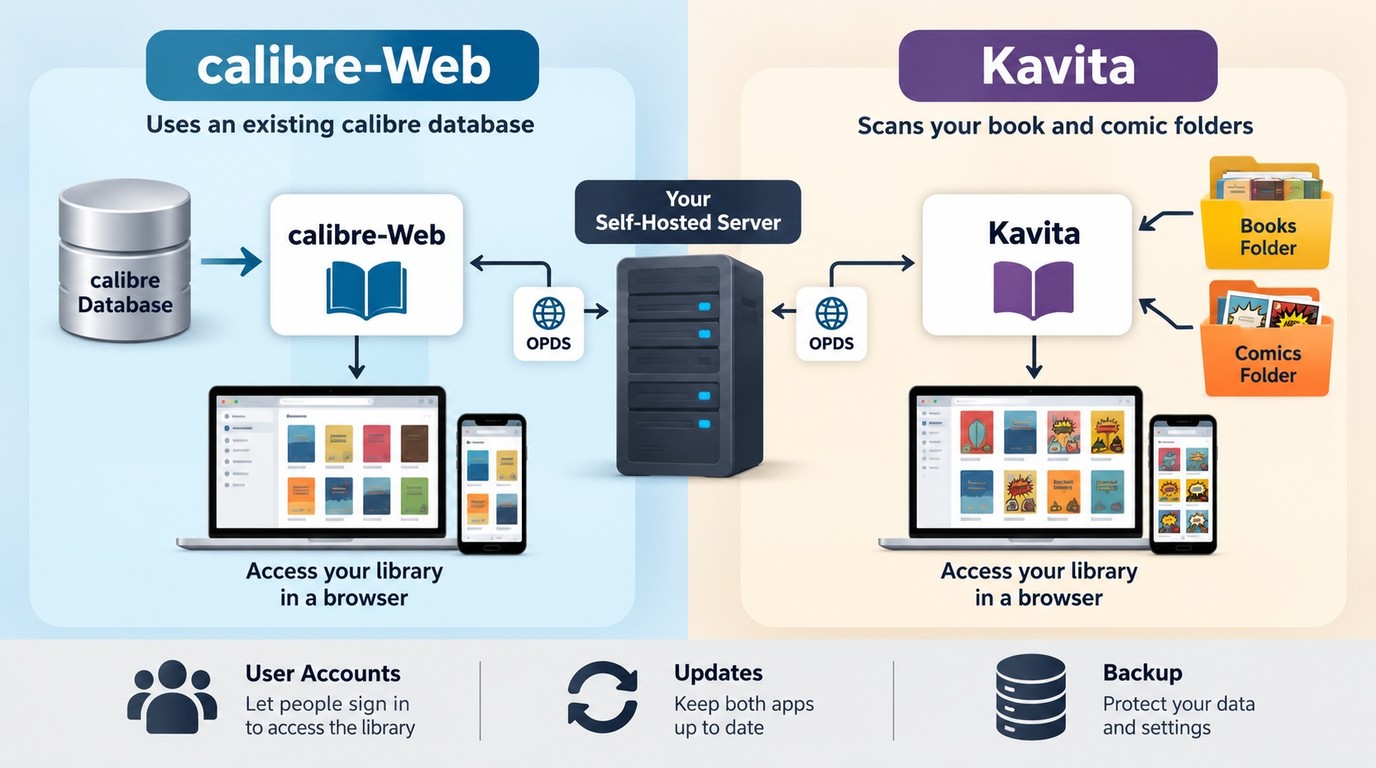
calibre-Web provides browser access to an existing calibre database, while Kavita builds a library around folders and its own reading interface. Both require a running server and ongoing maintenance; a browser interface does not make either an automatically synchronized phone app. If those same samples read comfortably on your PC but you want to open them through a browser on your phone, access is the next question.
That distinction addresses a specific request. One reader on Reddit asked, “I'd like to access my calibre library online without doing anything technical”. The wish is for access without administration. A self-hosted library still leaves someone responsible for the computer serving the books, its updates, and its accounts.
calibre-Web: Keep the calibre Database
calibre-Web suits a collection whose existing organization is worth preserving. It uses a valid calibre database and provides browsing, shelves, browser reading, and OPDS access. OPDS is a catalog feed that compatible reading apps use to browse and obtain books; it is not a universal reading-progress sync service.
Its strength is continuity. You can present the library through a browser while continuing to organize it in calibre. For conversion, calibre-Web still calls calibre binaries, the installed programs that create the new format. Keep those programs available if a sample needs converting for your reader; the browser bookshelf alone cannot do that job.
A trial needs a supported server setup, a backed-up calibre sample database, and configured reader permissions. Use a permitted reader account to browse the same novel, illustrated book, and contents-heavy sample. Their familiar covers and series records give you a reference for judging browser access.
I would favor this arrangement when your title, author, and series records already work. It changes how you reach the bookshelf while keeping its underlying organization.
Before extending access beyond your home network, decide who will maintain authentication, updates, and backups. Reader permissions determine who can see or change books. Docker packages the server software, but your calibre database and book files still need storage that survives replacing the container. For your sample collection, that means keeping the familiar covers, series records, and files available after a server update.
Kavita: Build a Library Around Folders and Browser Reading
Kavita organizes a self-hosted library from folders and includes readers for EPUB, PDF, comics, and manga. Folder scanning, user permissions, and OPDS support give it a different starting point from calibre-Web. The core is free; optional Kavita+ services add paid features, including metadata-related extras.
If you want those same books to form a separate browser library, Kavita starts from their folders rather than your calibre database. Books and comics can be opened through its browser interface. That independence also means you need to check how your existing naming, series information, and custom columns translate into the new library. Copying files does not demonstrate that those records migrated.
For Kavita, put copies of that same sample collection in a folder on a supported host, with a reader account configured. The novel's series placement and the illustrated book's pages make useful checks in the browser. A familiar folder name alone does not tell you whether the shelf order or chapter navigation is right.
I would try Kavita when browser reading is the destination, especially for a collection mixing books and comics. I would keep the original catalog until the new shelves distinguish editions and series correctly.
For a calibre Companion replacement, name the missing action precisely: browsing the catalog, downloading a file, or continuing a chapter. calibre-Web and Kavita address browser access, while calibre's own Content Server is another way to expose an existing library. None of those descriptions alone promises compatibility with a particular mobile app's saved position. Keep using the same sample books as you compare access methods; changing the books would hide whether the new interface improved anything.
BookFab Kindle Converter for Supported Kindle Books
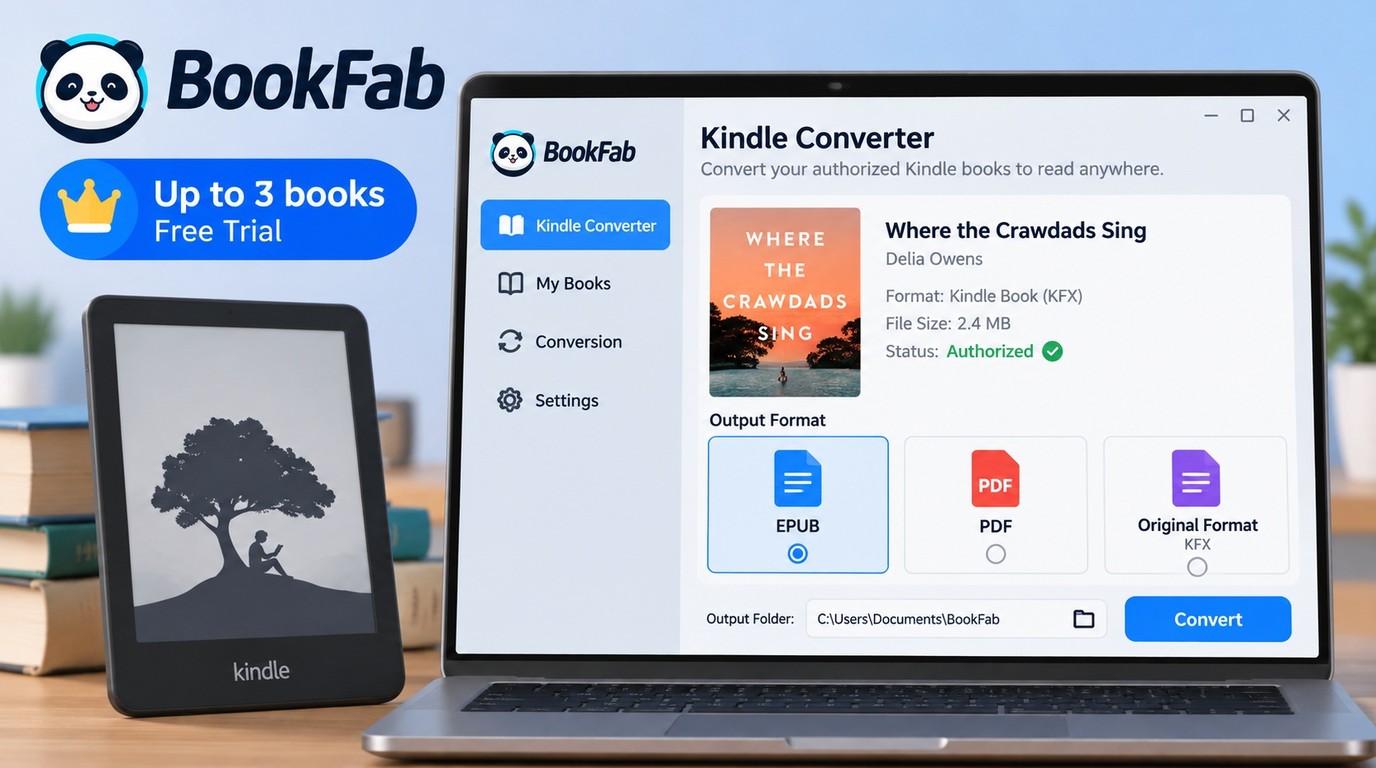
BookFab Kindle Converter complements a calibre library when the missing function is conversion of supported Kindle books. If your catalog and reading app already suit you, but a supported, authorized Kindle sample needs another format, this is the conversion step between them. It does not replace a reader, server, or full library manager; its trial lets you check the conversion component while retaining the rest of your setup.
Windows and Mac Requirements, Trial Limits, and the calibre Plugin
BookFab Kindle Converter runs on Windows and Mac, offers EPUB, PDF, or original-format output, and includes a trial of up to three ebook conversions. Pick an authorized Kindle sample with the reading details you need to preserve. Supported sources include purchased books and Kindle Unlimited books currently accessible through your account; subscription borrowing is not permanent ownership.
Getting that sample into the converter differs by system. Windows requires a currently supported Kindle App and detects local books, so begin with the sample available through that app. On Mac, select the accessible title through the built-in Amazon browser; you do not need a Kindle desktop client to bring it into the converter. Then return to the book itself. Match the output format to your reading app and compare chapter links and illustrated pages with the original. BookFab supports retaining cover, title, and author information; check that the converted sample remains easy to recognize in your catalog.
For larger batches, allow for the 100-item daily limit per content source and the Windows-only calibre plugin included with purchase; spread larger batches across days, and use the standalone converter on Mac.
I would keep a working calibre catalog and add conversion at the point where it is needed. The community-developed DeDRM plugin for calibre is separate from calibre's built-in functions and from the BookFab plugin; neither a plugin name nor successful installation establishes permission to convert a book.
Start the BookFab Kindle Converter trial with a representative, authorized title. Select the output your reading app accepts, then inspect its cover, chapter links, and illustrated pages before adding it to the main library.
How to Try a Replacement Before Moving Your Library
Try a replacement on copies before changing your main collection. A book opening successfully is the beginning of the check, not evidence that its navigation, layout, and library details survived.
I would stop a migration over broken chapter links even if every file imported. Finding your place inside the book matters as much as finding its cover on a shelf.
1. Back Up the Library and Pick Representative Books
Preserve both the books and the catalog. Keep a separate backup of the complete calibre library, including its database, and leave the working collection untouched during the trial. A folder of exported ebooks alone is not a substitute for the library records you use to organize them.
Pick books that expose different problems: a text-heavy novel, an illustrated book, and one with a detailed table of contents. These are suggested samples, not a required quota. Include a series entry if sequence matters to your collection, and a book with footnotes if you regularly read scholarly material.
Before importing anything, establish access and editing rights, the replacement's supported operating system, and the destination reading app. Note which calibre plugins you rely on. A plugin that supplies metadata or device support represents a function you will need to preserve, even if you rarely notice it during ordinary reading.
2. Import or Convert Copies, Then Inspect the Results
Importing and converting are different actions. Import adds a file or record to a library; conversion creates another format. If the destination already accepts your EPUB, importing a copy avoids introducing an unnecessary format change.
For adjustable text, favor a reflowable EPUB: its paragraphs rearrange to suit the display and font size. PDF keeps pages fixed, which helps with printing or preserving a designed page. A calibre EPUB-to-PDF conversion changes the reading experience; a page that looks appropriate on a monitor can require zooming on a smaller screen.
Typography deserves a deliberate check. One Reddit reader wrote, “the fonts become uniform and it ruins the multiple perspective effect.” That describes an individual reading problem, not a result to expect from every conversion.
Inspect the sample beside its original. Check the cover, title, author, series order, chapter links, paragraph spacing, fonts, and pages combining text with images. A missing illustration or flattened font distinction can change how a passage is understood. Keep the output in a separate folder until these checks are complete.
3. Open the Book on Its Destination Device
The destination is the final check. Amazon's Send to Kindle accepts EPUB and PDF, and its web uploader supports files up to 200 MB with an Amazon account sign-in. Getting an accepted file onto the device still needs to be followed by opening it and navigating its chapters.
Kobo's computer-based sideloading instructions cover non-protected EPUB and PDF. Adobe DRM-protected books use the supported Adobe Digital Editions authorization and transfer procedure instead. That is a different requirement from copying an ordinary file.
On your actual reader, enlarge the text, follow a contents link, inspect an image-heavy page, and return to the book after closing it. Confirm the author and series information where you normally browse. Expand the migration when those sample results meet your reading needs, keeping a recoverable original; importing a book does not establish two-way synchronization.
calibre Alternatives FAQ
Can I use the same alternative on Windows, Mac, and Linux?
Answer: Sigil runs on all three for EPUB editing, while Sumatra PDF and Alfa Ebooks Manager are Windows options. calibre itself also spans Windows, Mac, and Linux. calibre-Web and Kavita let you read through a browser, but their server still needs a supported installation. I would distinguish the computer maintaining the collection from the phone opening a book; browser access does not mean the same native app runs everywhere.
ADoes buying a Kindle book give me permission to convert it?
Answer: No. Kindle content is licensed under Amazon's agreement, and buying access does not grant unrestricted rights to change or distribute it. Amazon's Kindle Store Terms of Use restrict interference with content-protection features and limit subscription-content access to active membership. A platform agreement and copyright law are separate considerations. Follow both the applicable terms and law rather than treating a successful conversion as permission.
AWill my reading progress and annotations move with my books?
Answer: Not automatically. The ebook, its catalog metadata, and an app's annotations or saved position are separate kinds of data. An OPDS feed helps an app find books; it does not by itself transfer highlights or chapter progress. I would retain access to the original reading app until its export options and the destination's import support have been checked. Open an annotated sample in the destination before relying on a complete transfer.
AKeep the Functions Your Books Need
Replace the function that prevents you from reading comfortably, while retaining the parts of calibre that already organize and deliver your books. A separate editor or reader can leave the library intact, and browser access can extend it without promising that saved positions travel between apps. I would move the wider collection only after representative books retain usable covers, chapter links, layout, and identifying details on the intended device. For conversion, keep the same discipline: a readable output still needs an authorized use.
 How to Download Kindle Books in 2026: 5 Current OptionsBy Amber Collins - Aug 26, 2026
![How to Convert Kindle Books to EPUB Easily [2026 Verified]](https://r5.dvdfab.cn/upload/bookfab/en/convert-kindle-to-epub-RDlf.jpg) How to Convert Kindle Books to EPUB Easily [2026 Verified]By Amber Collins - Aug 26, 2026
How to Convert Kindle Books to EPUB Easily [2026 Verified]By Amber Collins - Aug 26, 2026 Kindle DRM Compatibility in 2026: What Still WorksBy Amber Collins - Aug 25, 2026
![[Quick Solution] How to Remove Kindle DRM on Mac](https://images.dvdfab.cn/media/未命名的设计__87__crpyru.png/public) [Quick Solution] How to Remove Kindle DRM on MacBy Amber Collins - Aug 24, 2026
[Quick Solution] How to Remove Kindle DRM on MacBy Amber Collins - Aug 24, 2026