Ebook to Audiobook: 3 Routes for Any File or Device
Summary: Discover how to convert eBooks to audiobooks with ease. Learn about top ebook to audiobook converters, including free and AI-powered tools. Whether you're using Android or other devices, this guide covers how to quickly and efficiently transform your eBook to audiobook in multiple languages. Find the best ebook to audiobook apps for a seamless audio experience.
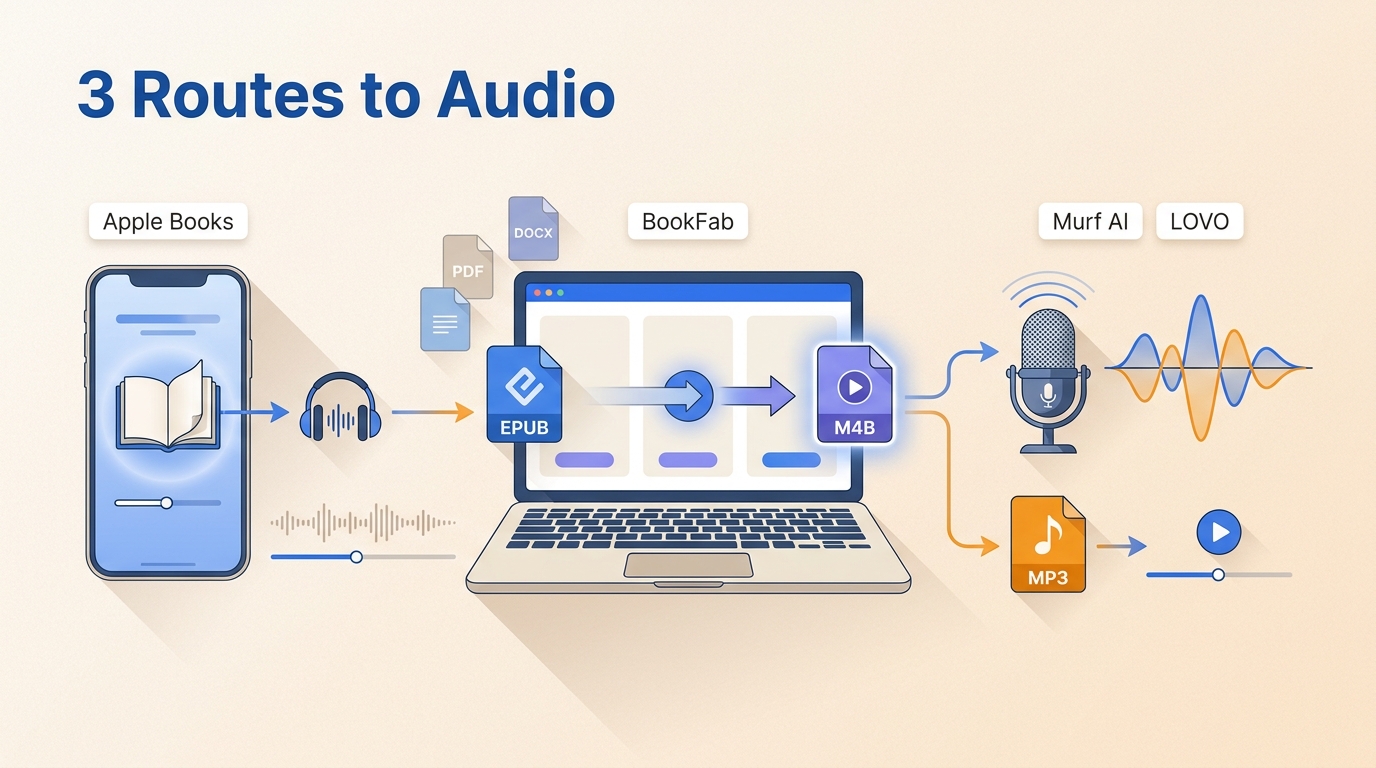
Here's the short answer: turn an ebook into audio with read-aloud for immediate listening, a converter for a downloadable MP3 or M4B, or a production service for publication. The right route follows your goal, because device readers usually create no transferable file.
Table of Contents
Choose the Right Ebook-to-Audiobook Route
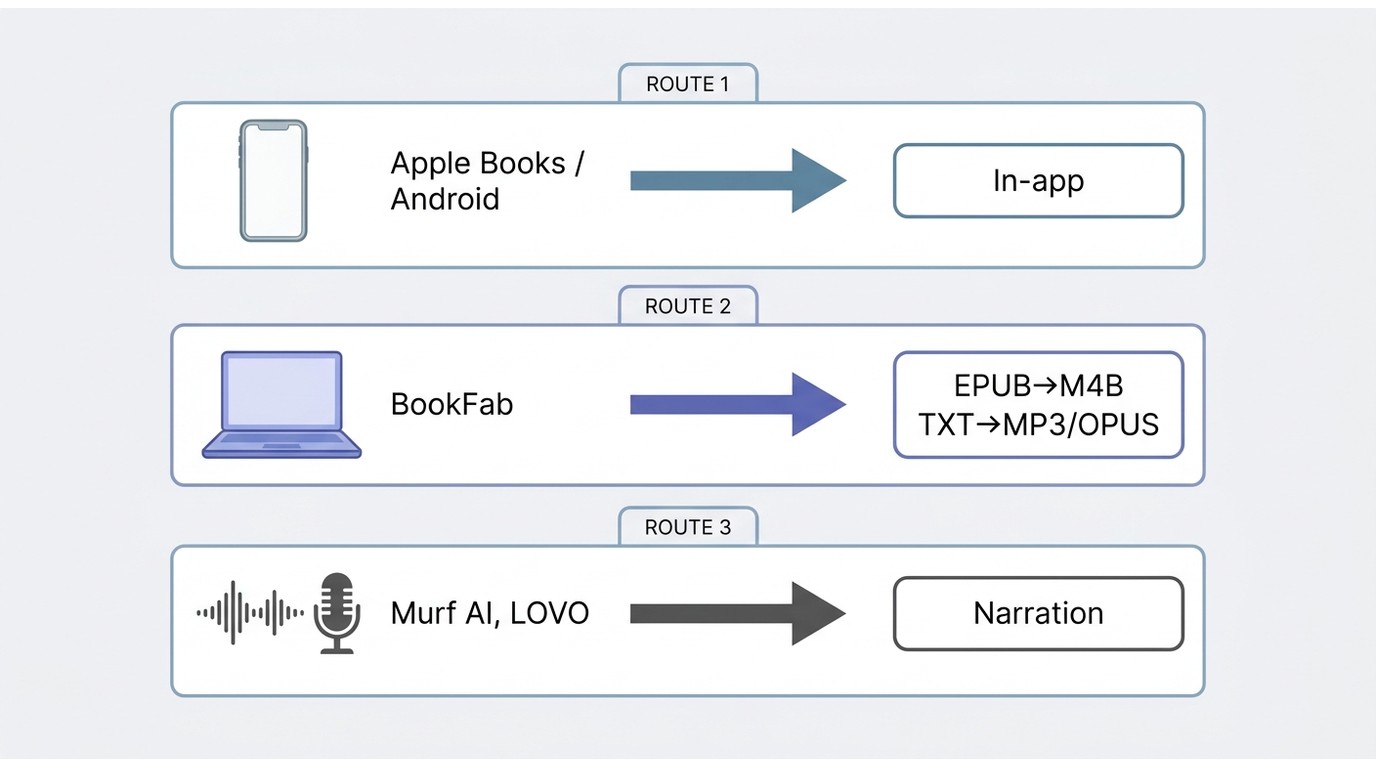
Instant Read-Aloud for Free
Built-in accessibility readers and reading apps can speak eligible books aloud while you cook, commute, or rest. This route is for immediate listening, not for building an audio library: it usually plays the text in the app and does not create a transferable MP3 or M4B file.
Downloadable MP3 or M4B
A converter is the better route when you need a file to transfer to a phone, import into a player, or organize with other audiobooks. Check the output format before starting: MP3 is widely compatible, while M4B can keep a long book together and may support chapter navigation in compatible players.
Publication-Ready Narration
Authors and publishers need a separate production process, including rights clearance, script review, consistent narration, and distribution requirements. A saved personal listening file does not automatically include the rights needed to sell, share, or publish an audiobook.
Free Read-Aloud Options by Device
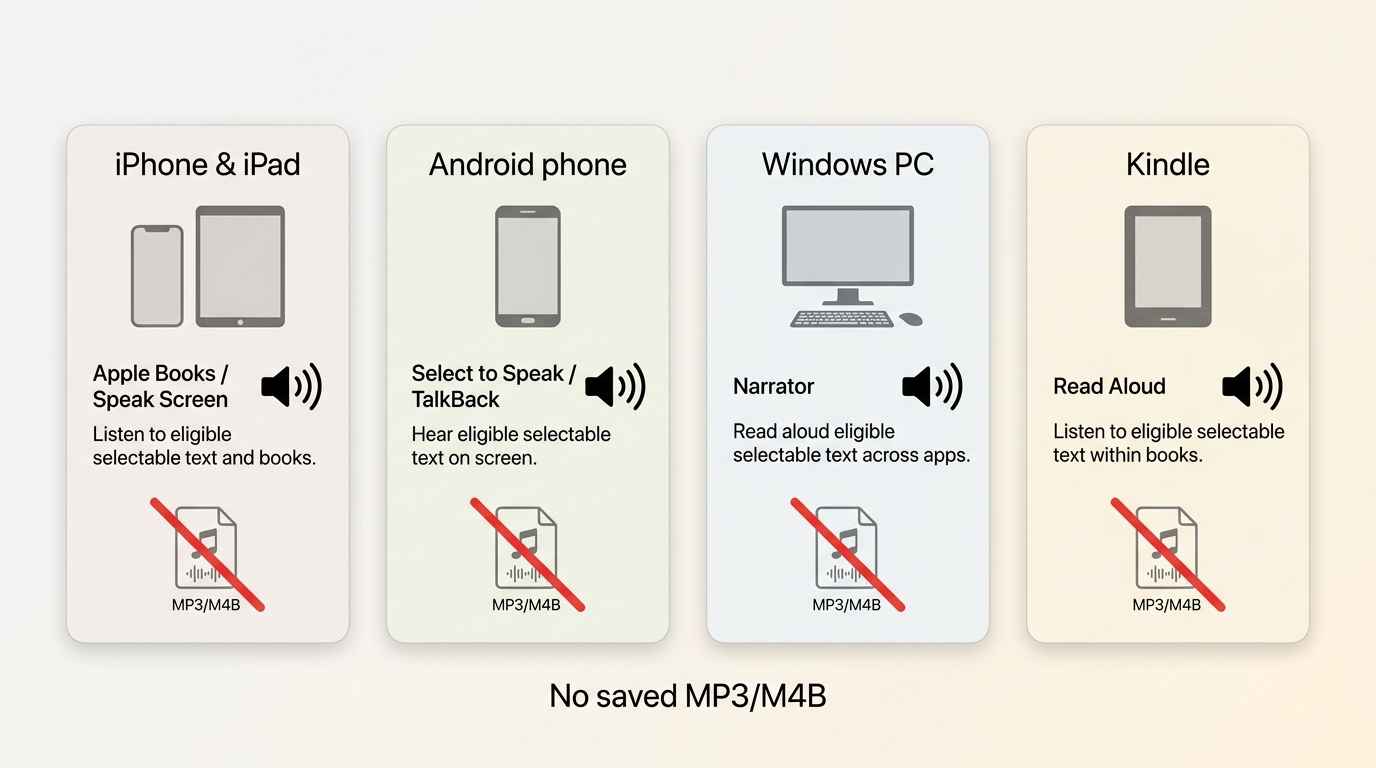
For books you legally obtained and are authorized to use, built-in reading features can provide the quickest listening option when the app, file type, and platform terms allow it. On iPhone and iPad, Speak Screen can read selectable text in Apple Books; Android's Select to Speak or TalkBack works where app text is exposed; and Windows Narrator can read selectable text in desktop reading apps. Kindle support depends on the device, title, and accessibility setting. These options read eligible on-screen text aloud, but they may not generate a saved audiobook.
Built-In Accessibility Readers
Use the read-aloud or screen-reading feature available in your reading environment, then confirm that the book opens as selectable text rather than image-only pages. For EPUB titles, EPUB text-to-speech options can be useful when you want spoken reading without converting the book into a separate audio file.
Free Apps and Local Tools
Free apps and local tools can be worth considering when privacy, offline use, or a saved file matters more than an in-app listening session. Their format support, voice quality, and long-book limits vary, so confirm whether the result is a playable file or simply temporary read-aloud.
Ebook-to-Audiobook Converters Compared
The comparison below separates tools by the result they produce. A tool that reads a book aloud is not necessarily an ebook-to-audiobook converter that saves a file, and a short voice demo does not show whether a full-length book will fit within its limits.
| Option | Best use | Inputs and outputs | Operational limit | Long-book planning |
|---|---|---|---|---|
| BookFab AudioBook Creator | Saved, organized audiobooks | Text/TXT to MP3 or OPUS; EPUB to M4B | Windows; 1 million words included with the perpetual version | Chapter-aware M4B output |
| Murf AI | Voice-led narration projects | Text-to-speech projects | Cloud; 200+ voices across 35+ languages | Assess project capacity first |
| LOVO | Creative voiceover projects | Text-to-speech projects | Browser-based workspace | Assess project capacity first |
| Built-in or local tools | Free read-aloud or local control | Eligible on-screen text; varies by app | Device or local app | Usually no saved MP3 or M4B |
For a book you plan to revisit, I would prioritize a format with usable chapter navigation and clear file naming over a large voice catalog. For a one-time listening session, a built-in reader is usually the lighter option.
BookFab AudioBook Creator

BookFab AudioBook Creator is a Windows desktop app that turns pasted text and TXT files into MP3 or OPUS, and supported EPUB books into M4B. It includes 20 English voices and 20 Japanese voices, pronunciation rules, and controls for prosody, expressiveness, pauses, speed, and volume; the perpetual version includes 1 million words. It is most relevant when you need a saved audiobook with pronunciation adjustments and an organized library, while a one-time read-aloud user may not need a desktop conversion app.
- Saved audio output for supported text, TXT, and EPUB inputs.
- 20 built-in English voices and 20 built-in Japanese voices.
- Adjustable prosody, expressiveness, pauses, speed, and volume.
- Synchronized text highlighting and automatic scrolling during playback.
- Library views can keep titles, covers, and listening progress together.
- It is a Windows desktop workflow, not instant in-app read-aloud.
- EPUB, text, and TXT files use different supported output formats.
BookFab Workflow for Saved Audiobooks
For content you own or are authorized to use, where permitted by platform terms and applicable law, this workflow focuses on the choices that affect the finished audiobook rather than every screen in the app.
Step 1: Launch BookFab on a Windows PC, then paste text or import a supported TXT or EPUB file.
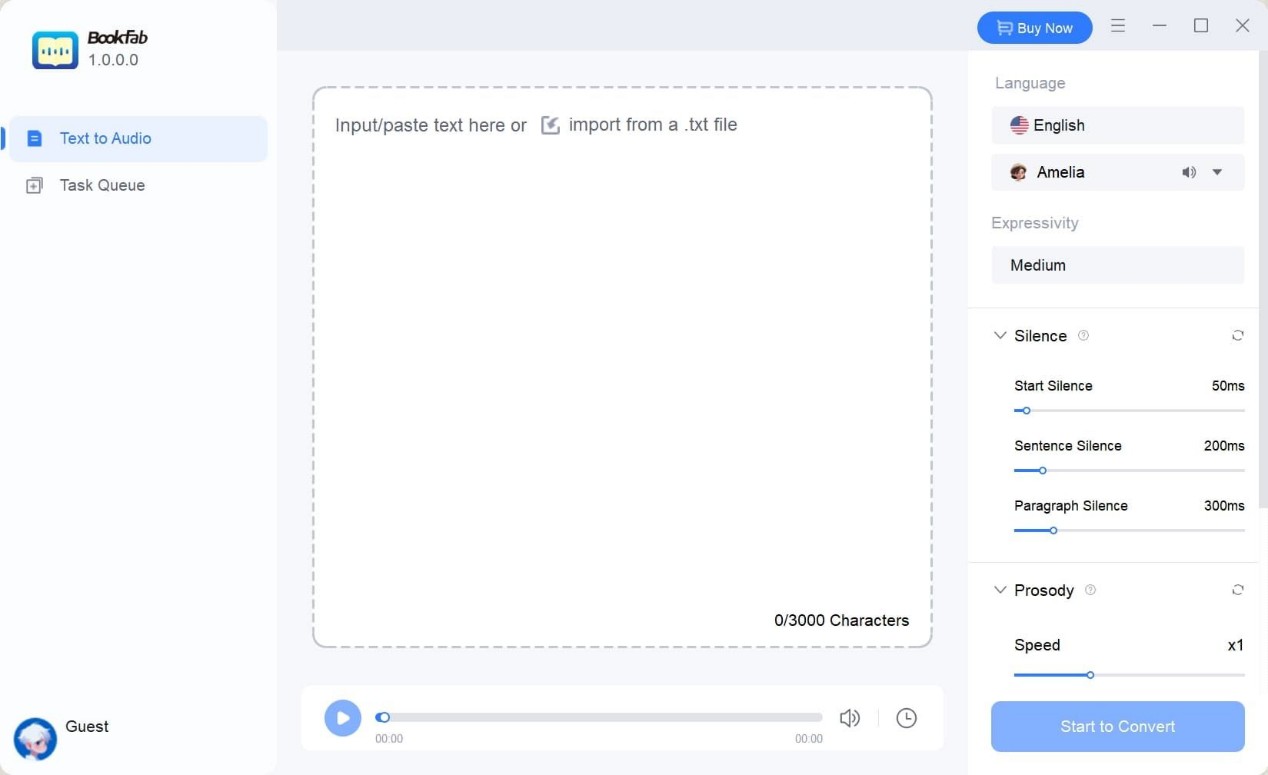
Step 2: Select a language and voice, then adjust prosody, expressiveness, pauses, speed, and volume. Add pronunciation aliases or reading rules for names and terms that need special treatment.
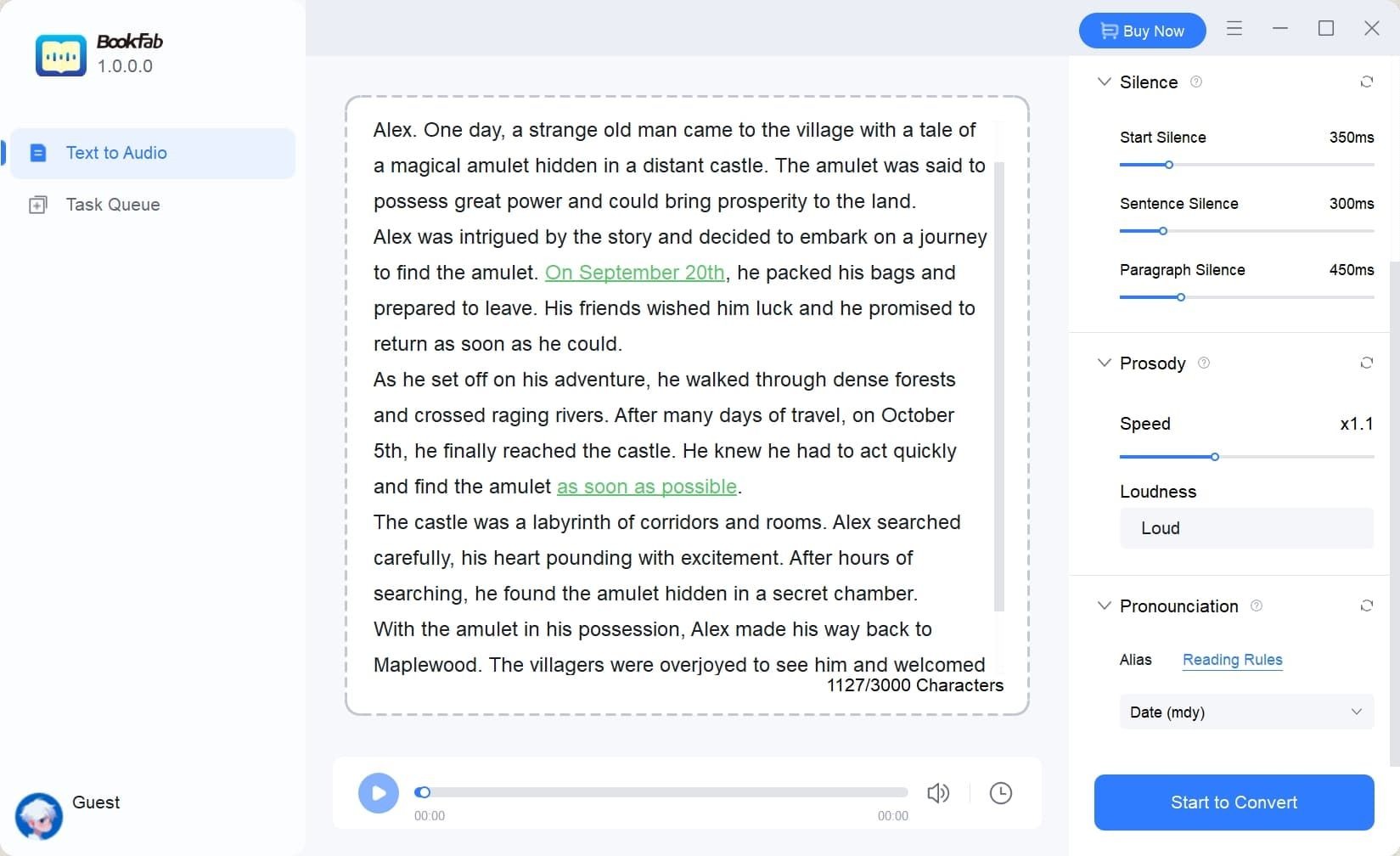
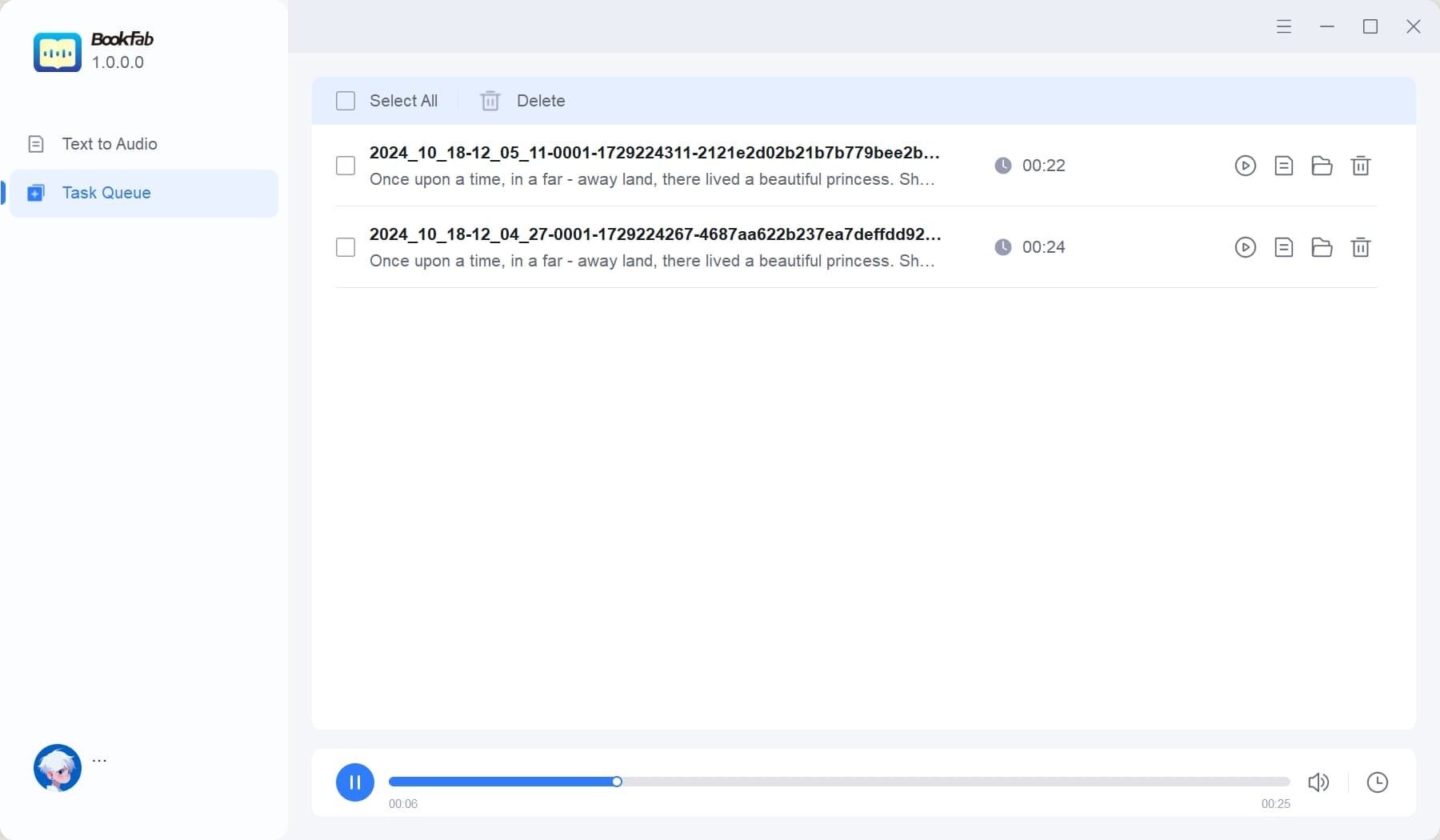
Step 3: Generate the audio, review the spoken text, then save it in the supported format for your input. Before adding it to a main library, check chapter order, title, cover, and playback position in the app you plan to use.
Murf AI
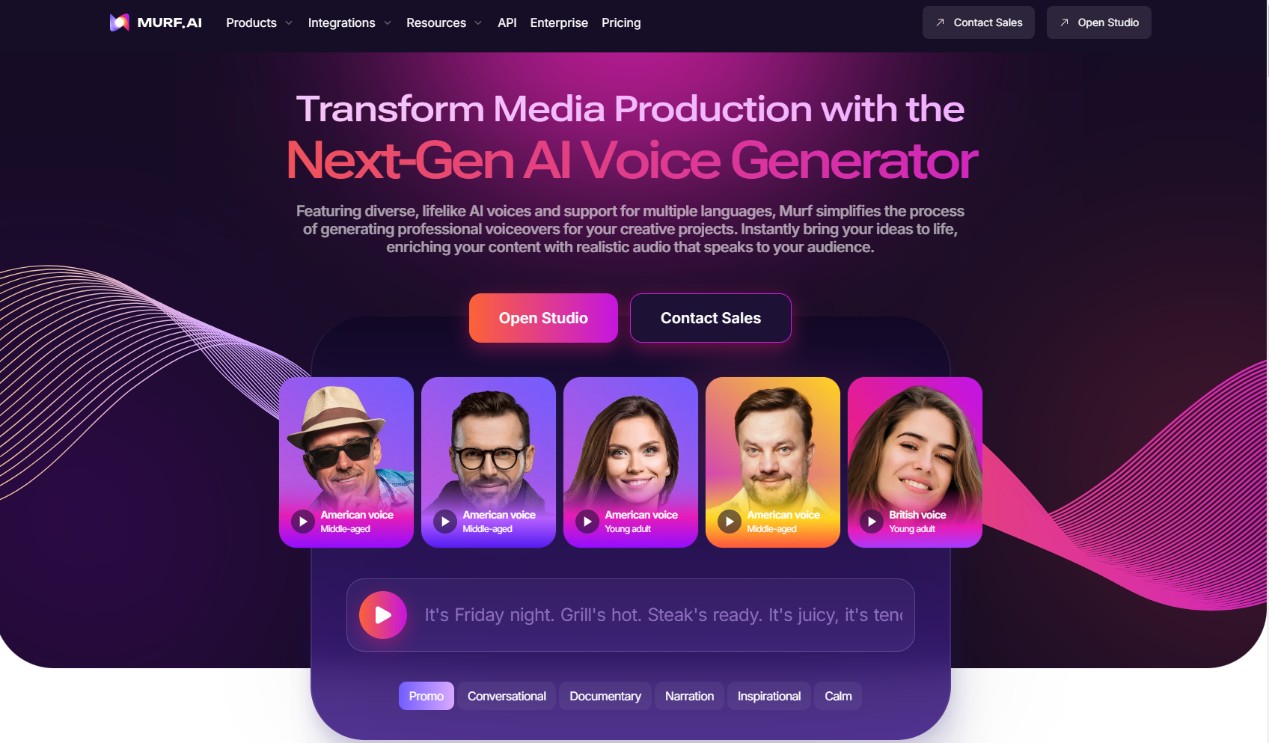
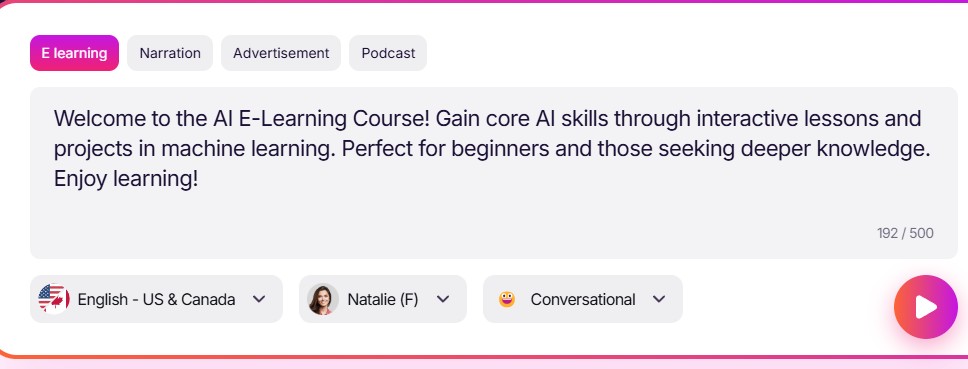
Murf AI is a cloud-based text-to-speech platform aimed at narration and voiceover projects. As of August 2026, Murf advertises 200+ voices across 35+ languages. It is worth considering when voice selection and script editing are central to the project, but review its current project limits before committing a full-length book.
👍Features
- Cloud text-to-speech projects with a large published voice catalog.
- Script and narration controls for voice-led audio projects.
- Useful for creators who need multiple language options.
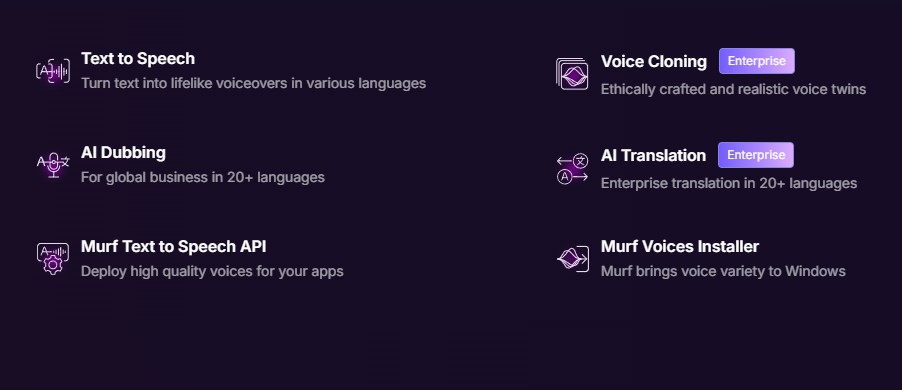
- Murf advertises 200+ voices across 35+ languages.
- Voice selection can support different narration styles and characters.
- Script-oriented editing suits voice-led audio projects.
- Narration controls can help refine emphasis, pauses, volume, and rate.
- A cloud project can be convenient when work needs to remain online.
- Long-book suitability depends on the current plan and project limits.
- Check current export and plan details for the intended project.
- A short demo may not reveal the cost of a full-length book.
Murf project considerations
Prepare and review the narration text before building a full project. A short sample can help evaluate pronunciation and pacing, but it should not be treated as proof that the tool will cover the entire book within the available plan limits.
LOVO
LOVO is a cloud text-to-speech platform for voiceover and narration projects. Its creative controls may appeal when a project needs a shaped performance rather than simple device read-aloud. For a full book, assess the available project capacity, export options, and chapter handling before investing time in final narration.
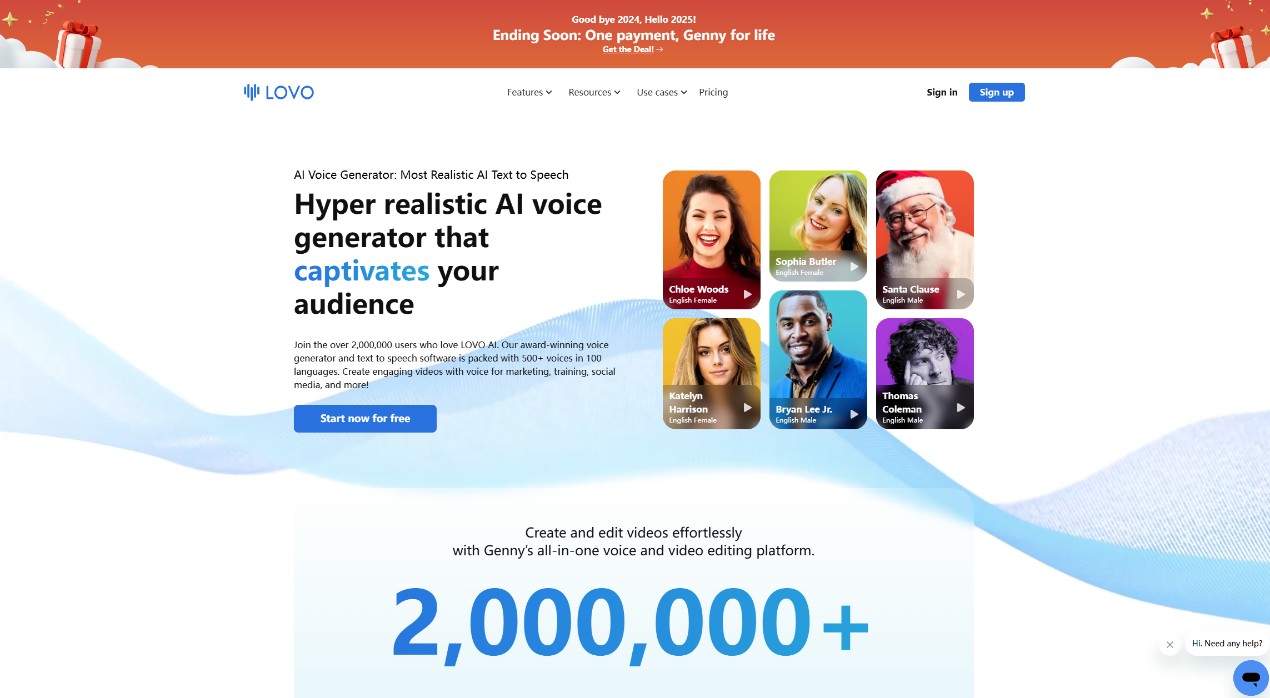
👍Features
- Creates cloud-based text-to-speech and voiceover projects.
- Provides voice and narration controls for creative audio work.
- Keeps projects available through a browser-based workspace.
- Cloud-based text-to-speech projects for narration and voiceover work.
- Voice controls can help shape pacing and delivery.
- Browser access can suit projects managed online.
- Confirm current plan limits and export options before starting a long book.
LOVO project considerations
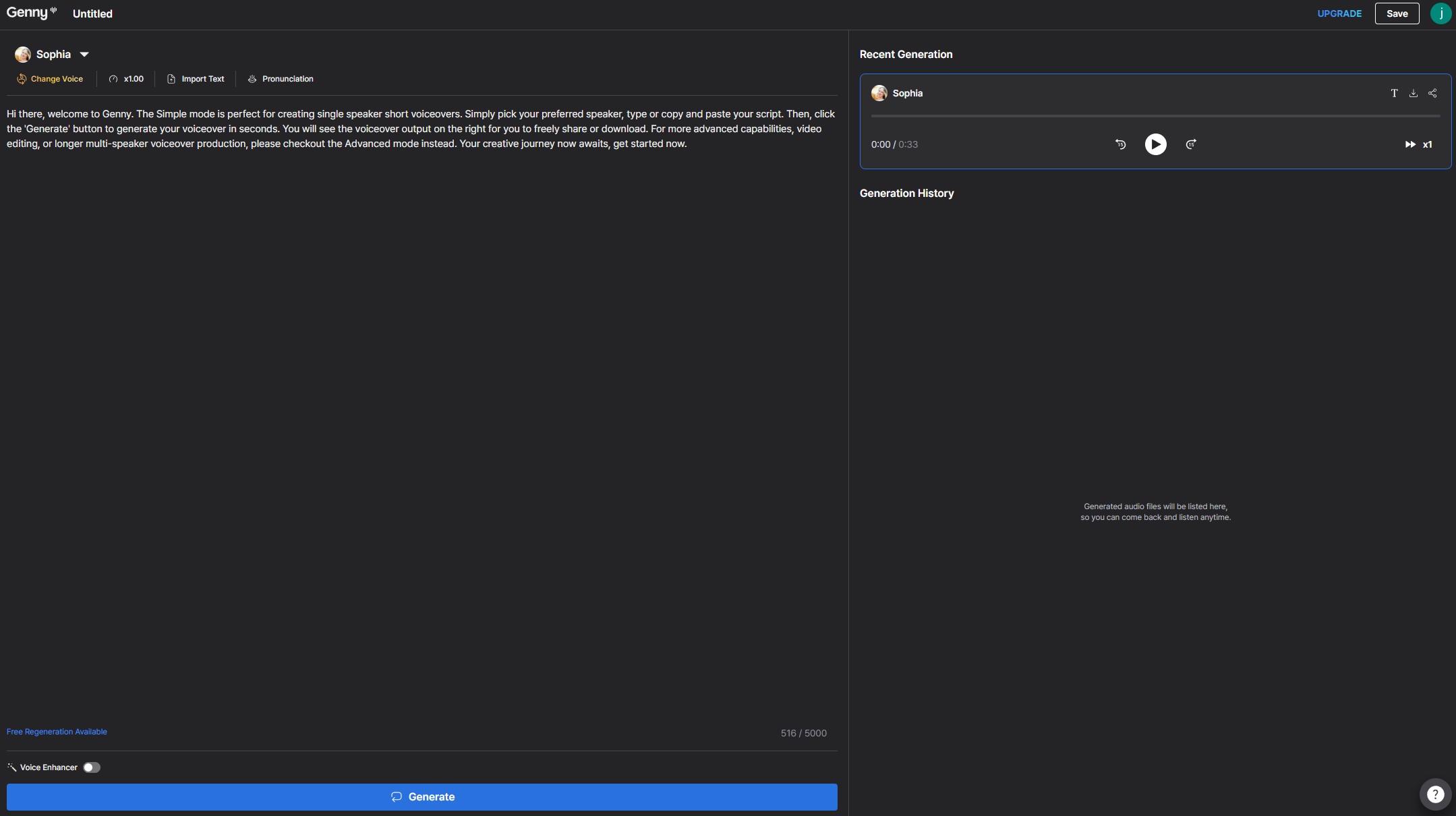
Use a short section of clean text to check how the selected voice handles names, dialogue, pauses, and headings before preparing a full audiobook.
Formats, Chapters, and Long-Book Limits
Input and Output Formats
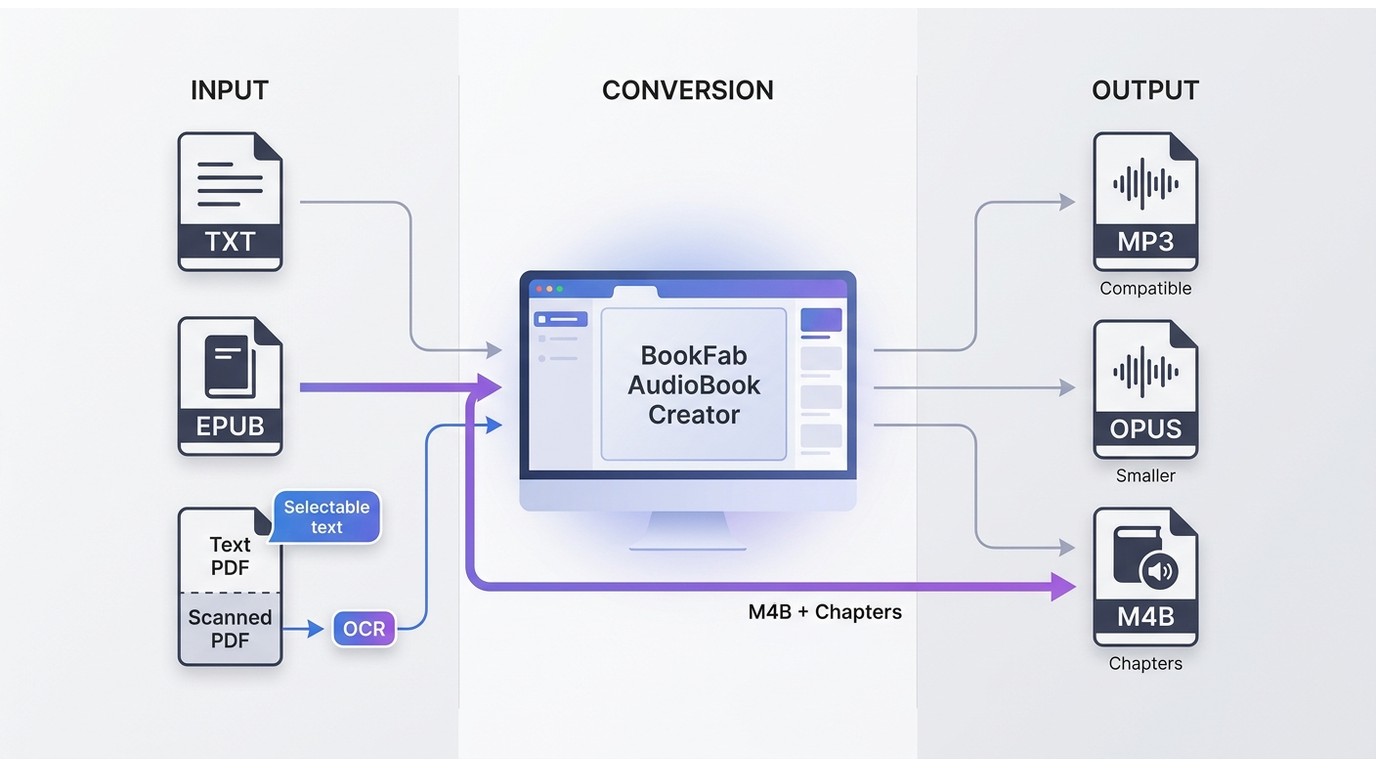
TXT and pasted text are common starting points for narration. A text-based PDF may work with a supported direct-upload converter, while a scanned PDF needs OCR before narration because its pages are images rather than selectable text. EPUB support differs by tool; readers focused on an EPUB-to-audiobook conversion can compare EPUB-specific options separately.
Output determines how the finished book behaves after transfer. MP3 is broadly compatible, OPUS can reduce file size in compatible players, and M4B is designed for audiobook-style playback and can better suit a chaptered book. A read-aloud session may provide none of these files.
Credits, Length, and Resume Support
Before uploading a long book, estimate its total text length against the tool's current word, character, or credit allowance. Also check whether interrupted work can resume, whether chapters retain their order, and whether titles and cover art remain useful after import. A block-based ebook-to-audiobook workflow can make a long project easier to review in sections, but it still needs consistent chapter names and a realistic total-cost estimate.
Rights and Quality Checks Before Conversion
Copyright and Permission Boundaries
Convert content you own or are authorized to use, subject to the source platform's terms and applicable law. Public-domain and DRM-free files may be appropriate for personal projects, while commercial distribution, sharing, or sale requires the necessary rights from the rights holder. If you need a legitimate text source for a personal project, public-domain Google Books titles available as PDF are one possible starting point.
Narration Quality Checklist
Listen beyond the first paragraph. Check character names, abbreviations, quoted dialogue, pauses at punctuation, chapter titles, and the reading of footnotes or image captions. When I review generated audio, I also look for whether chapter labels and cover information will still make sense once the book is imported into a player.
Which Method Fits Your Goal?
For immediate free listening, start with the read-aloud feature already available on your device. For a transferable file, use a converter that clearly supports your input and exports the audio format your player accepts. For commercial release, treat narration as a production project with separate rights and quality requirements. BookFab AudioBook Creator makes sense when a Windows user needs supported EPUB-to-M4B conversion or text-to-MP3/OPUS output with pronunciation and library controls; it is not necessary for a single in-app listening session.
Frequently Asked Questions
Q
Can ChatGPT create a complete audiobook from an ebook?
ChatGPT can help prepare, revise, or clean up narration text, but it does not replace a dedicated text-to-speech or audiobook-production tool for generating and organizing a complete audio file.
A
Q
Can a printed book be converted into an audiobook?
Yes, if you have the necessary rights. Scan the pages, use OCR to create editable text, correct recognition errors, and then evaluate the narration with the same checks used for an ebook. Commercial distribution requires permission from the relevant rights holder.
A
Q
Why does a PDF audiobook skip text on some pages?
Pages that are scans or image-only spreads need OCR before narration because they do not contain selectable text. Text-based pages can use a supported direct-upload route, but mixed PDFs may need cleanup before the spoken version is complete.
A
Q
Why do audiobook chapters appear out of order on my phone?
Chapter order can change when a player relies on file names instead of embedded chapter data. Keep chapter names consistent, confirm the order after import, and use a player that recognizes the format you exported. M4B is often more useful than separate audio files when chapter navigation matters.
A
 EPUB to Audiobook: 5 Tools for MP3, M4B, and Read-AloudBy Amber Collins - Aug 26, 2026
 6 EPUB Text-to-Speech Readers and Audio Tools Compared (2026)By Amber Collins - Aug 24, 2026
 How to Listen to Kindle Books and Convert Them into AudiobooksBy Amber Collins - Aug 10, 2026