EPUB to Audiobook: 5 Tools for MP3, M4B, and Read-Aloud

Summary: This article presents a comprehensive guide to the top tools for converting EPUB into audiobooks. It covers various software options, including BookFab, Speechify, and Balabolka, highlighting their unique features, customization options, and limitations. With step-by-step instructions for each tool, you can easily transform your ePub into engaging audiobooks.
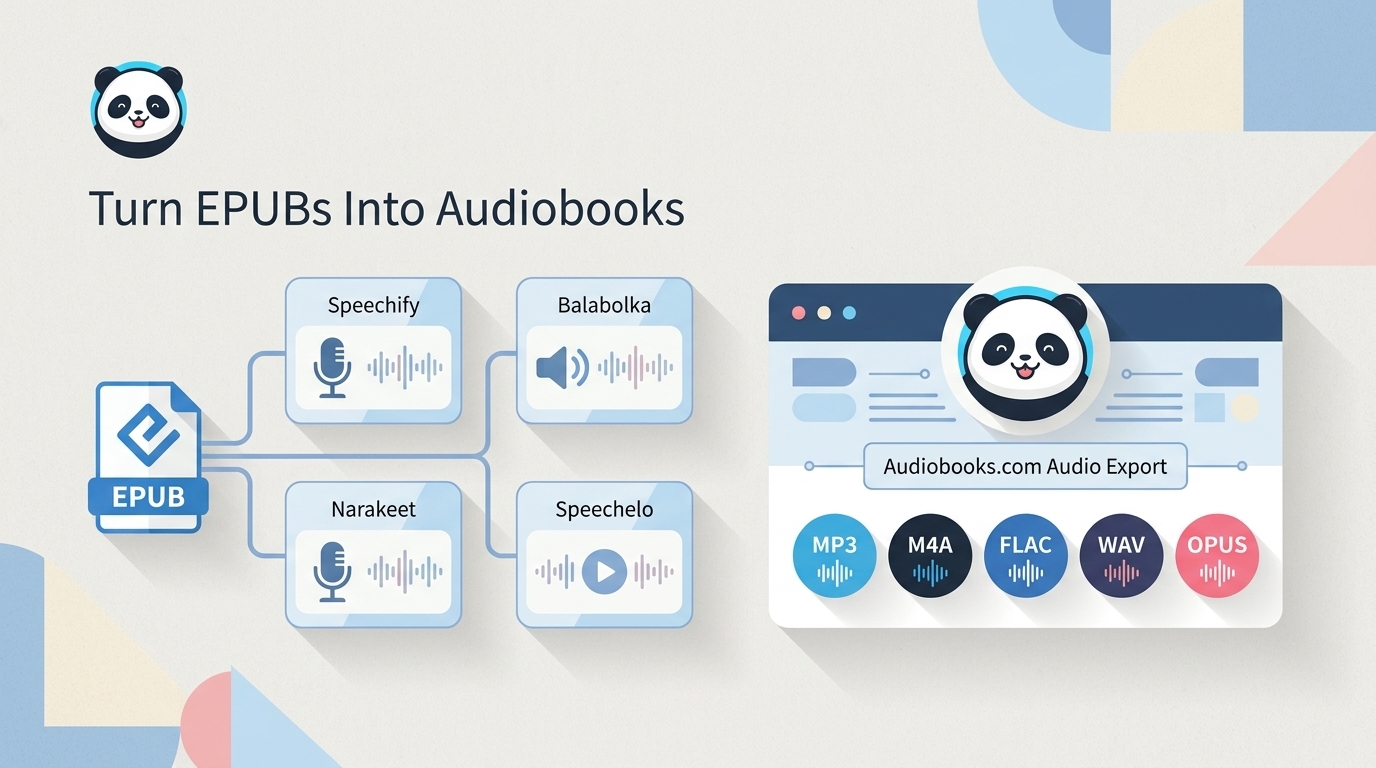
An EPUB-to-audiobook tool can turn an authorized EPUB into a downloadable audio file, read it aloud within an app, or require copied text. The central distinction is export: a saved MP3 or M4B has different chapter, privacy, and cost tradeoffs from app playback.
This comparison covers five ways to convert EPUB to audiobook output or listen through read-aloud playback. It separates downloadable files from listening apps and manual text-to-voice work, then compares MP3, M4B, browser-based, and desktop options.
Choosing an EPUB-to-Audiobook Workflow
An ePub to audiobook converter is software that turns digital ePub files into audio formats such as MP3, M4B, WAV, or OPUS, so users can listen to eBooks instead of reading them. These converters usually rely on text-to-speech, which reads the content aloud with synthetic or more natural-sounding voices.
Downloadable Files vs Read-Aloud Playback
A direct converter imports an EPUB and saves an audio file. A read-aloud app plays the book inside its own app, which can be useful across devices but does not provide the same downloadable audiobook file. A manual text-to-voice tool starts with copied or extracted text, so chapter names, cover art, and reading order need more attention.
For content you are authorized to use, where permitted by platform terms and applicable law, an online EPUB converter reduces setup but uploads the book to a service. A local EPUB converter keeps the file on your computer and can suit a larger library, although it may require more setup. EPUB text-to-speech readers are a separate category when playback matters more than saving an audiobook.
MP3 vs M4B for Audiobooks
For this EPUB-specific task, the MP3 versus M4B decision is the one worth making. MP3 plays almost anywhere, while M4B is designed for audiobook listening and can hold chapters, bookmarks, cover art, and audiobook metadata in one file.
MP3 is the safer choice for broad playback, especially when you may move files between different players. When a book needs clear chapter navigation and a remembered listening position, I would favor M4B and inspect the cover, chapter list, and playback position in the app you plan to use before adding it to your main library.

- For M4B files, confirm that chapter names and resumed playback appear correctly in your usual player.
5 EPUB-to-Audiobook Tools Compared
| Tool | Workflow type | Download format | Platform | Free or paid limit |
| BookFab AudioBook Creator | EPUB-to-M4B conversion | M4B | Windows | 3,000-word trial per account |
| Speechify | Read-aloud playback | No equivalent EPUB export | Web, desktop, mobile | Some features require a paid plan |
| Balabolka | Local EPUB conversion | MP3, M4B, WAV | Windows | Free desktop software |
| Narakeet | Browser EPUB upload | MP3, M4A, WAV | Web | Export access is plan-based |
| Speechelo | Pasted-text voice generation | MP3 | Web | Full features require a paid plan |
As of August 2026, the table shows the key distinction: BookFab AudioBook Creator, Balabolka, and Narakeet can create saved audio from an EPUB, Speechify is focused on playback, and Speechelo begins with pasted text. Browser use is quickest to start, Balabolka offers local Windows control, and BookFab AudioBook Creator provides chapter-aware M4B output when navigation matters.
BookFab AudioBook Creator: Convert EPUB to M4B
BookFab AudioBook Creator is Windows software that imports EPUB files and creates chapter-aware M4B audiobooks. It supports English and Japanese voices, chapter selection, pronunciation rules, synchronized text highlighting, and controls for prosody, expressiveness, pauses, speed, and volume. For eligible Audiobooks.com titles, BookFab Audiobooks Converter is a separate product.
For content you are authorized to use, where permitted by platform terms and applicable law, this suits Windows desktop readers who want guided EPUB-to-M4B creation with chapter navigation and listening-progress management. It is less suitable for readers who need a browser-only tool or a fully local open-source setup. The free trial includes 3,000 words per account.
- Import EPUB files on Windows.
- Select chapters before creating the audiobook.
- Export EPUB projects as chapter-aware M4B files.
- Use synchronized text highlighting during playback.
- Set pronunciation rules and aliases for names or terms.
- It is available for Windows rather than macOS or mobile devices.
- EPUB projects export as M4B, not as a browser-based MP3 workflow.
How to Convert an EPUB to M4B with BookFab
Step 1: Launch BookFab AudioBook Creator on Windows, select EPUB as the input type, and import an EPUB you are authorized to use.
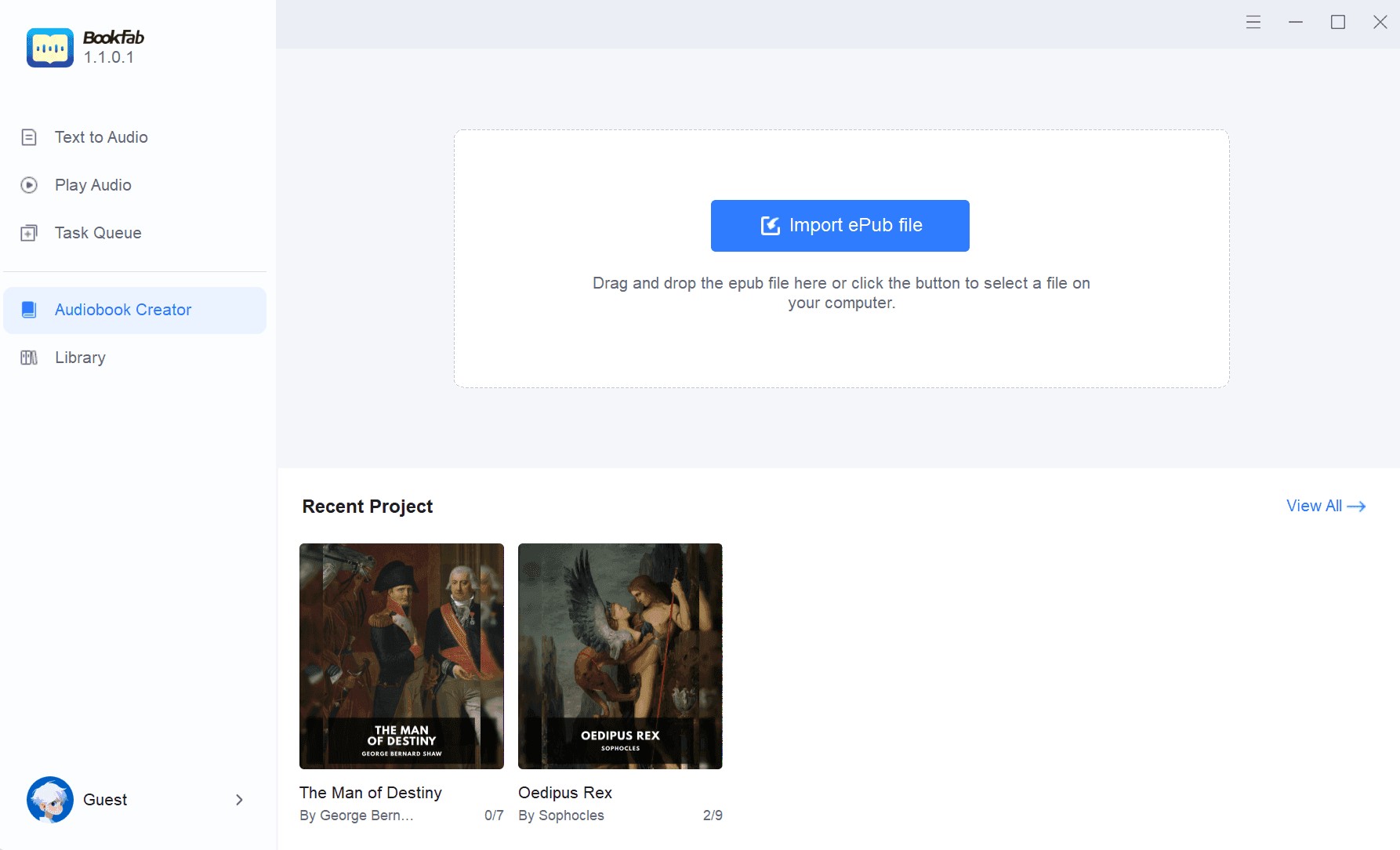
Step 2: Select the chapters, language, and voice, then adjust pronunciation rules, pauses, speed, or volume where needed.
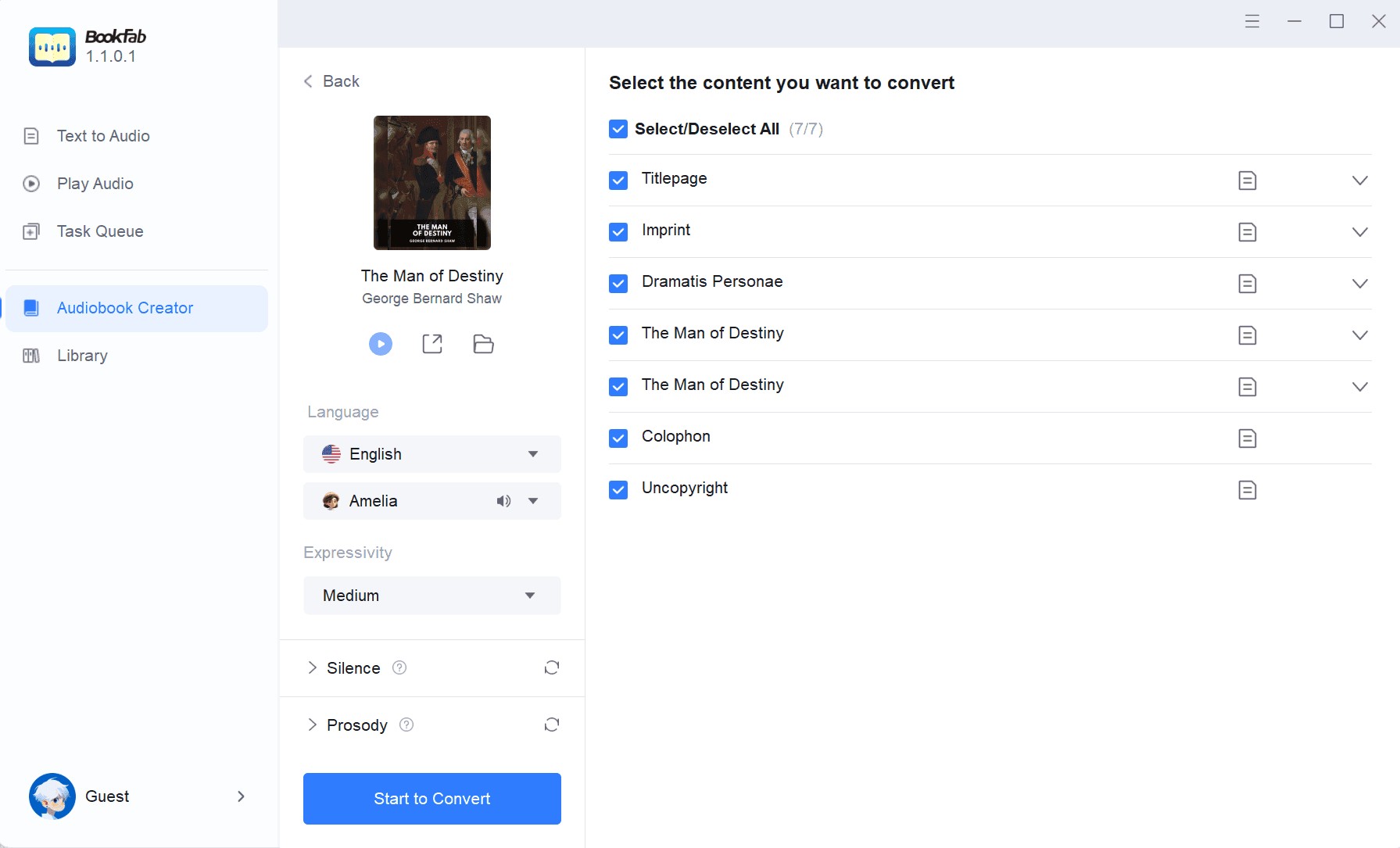
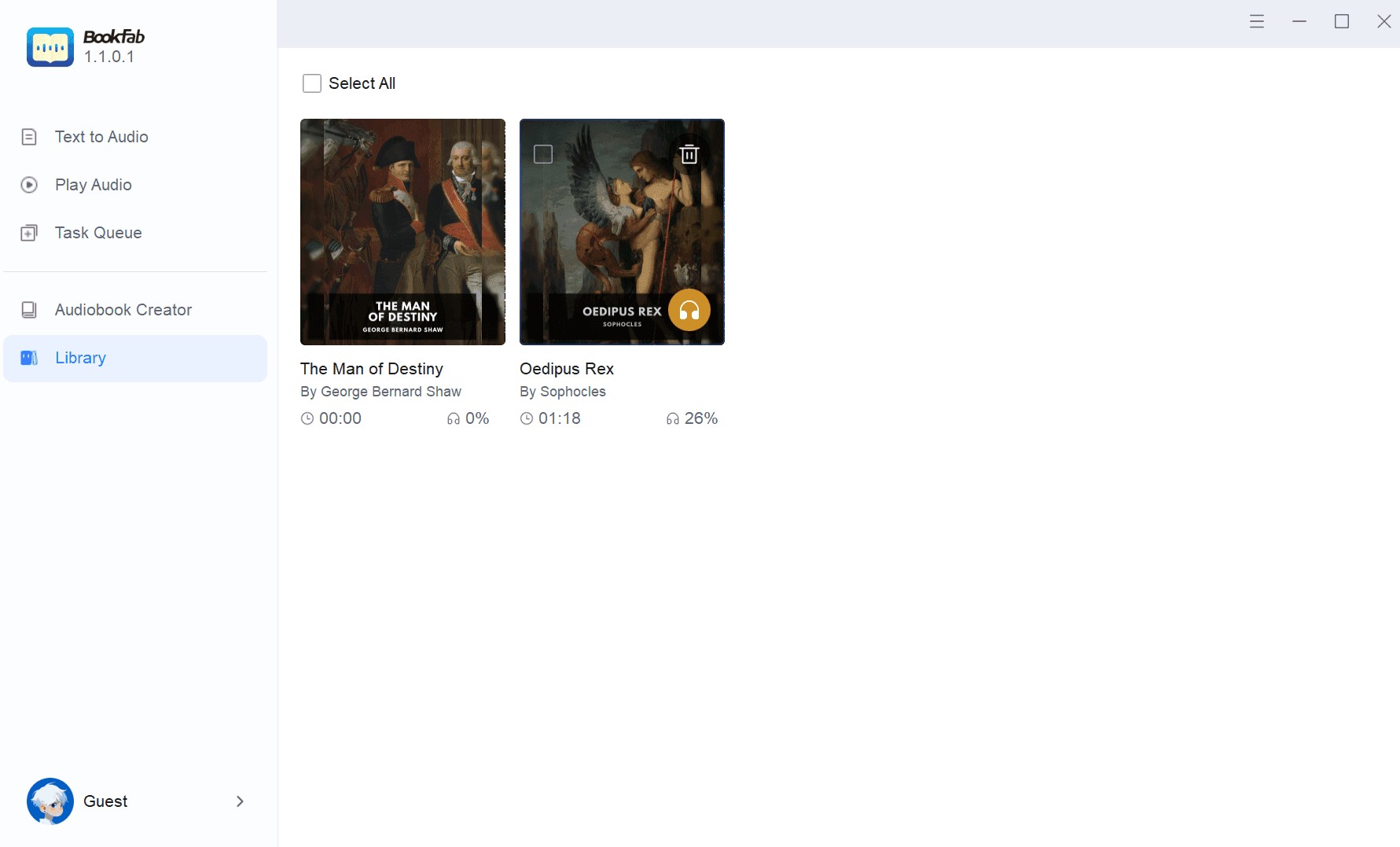
Step 3: Create the M4B file, then review its chapter list, playback order, synchronized highlighting, and resumed position before adding it to your library.

Speechify: EPUB Read-Aloud Playback
Speechify is a text-to-speech reader that can read EPUB content aloud across its supported apps and extensions. It fits readers who want to move between devices and listen while the book remains in the app, but it does not provide the same EPUB-to-MP3 or EPUB-to-M4B file-export workflow as a direct converter.
- Accessible on iOS, Android, Windows, Mac, and as extensions for Chrome and Microsoft Edge.
- Voice availability varies by plan and language.
- Reading controls can support different listening speeds.
- EPUB playback stays within the Speechify reading experience.
- It is intended for read-aloud listening rather than saved audiobook export.
- It does not provide the same downloadable EPUB-to-MP3 or EPUB-to-M4B workflow as a direct converter.
How to Listen to an EPUB with Speechify
Step 1: Download the Speechify app or browser extension and sign in with your preferred account method.
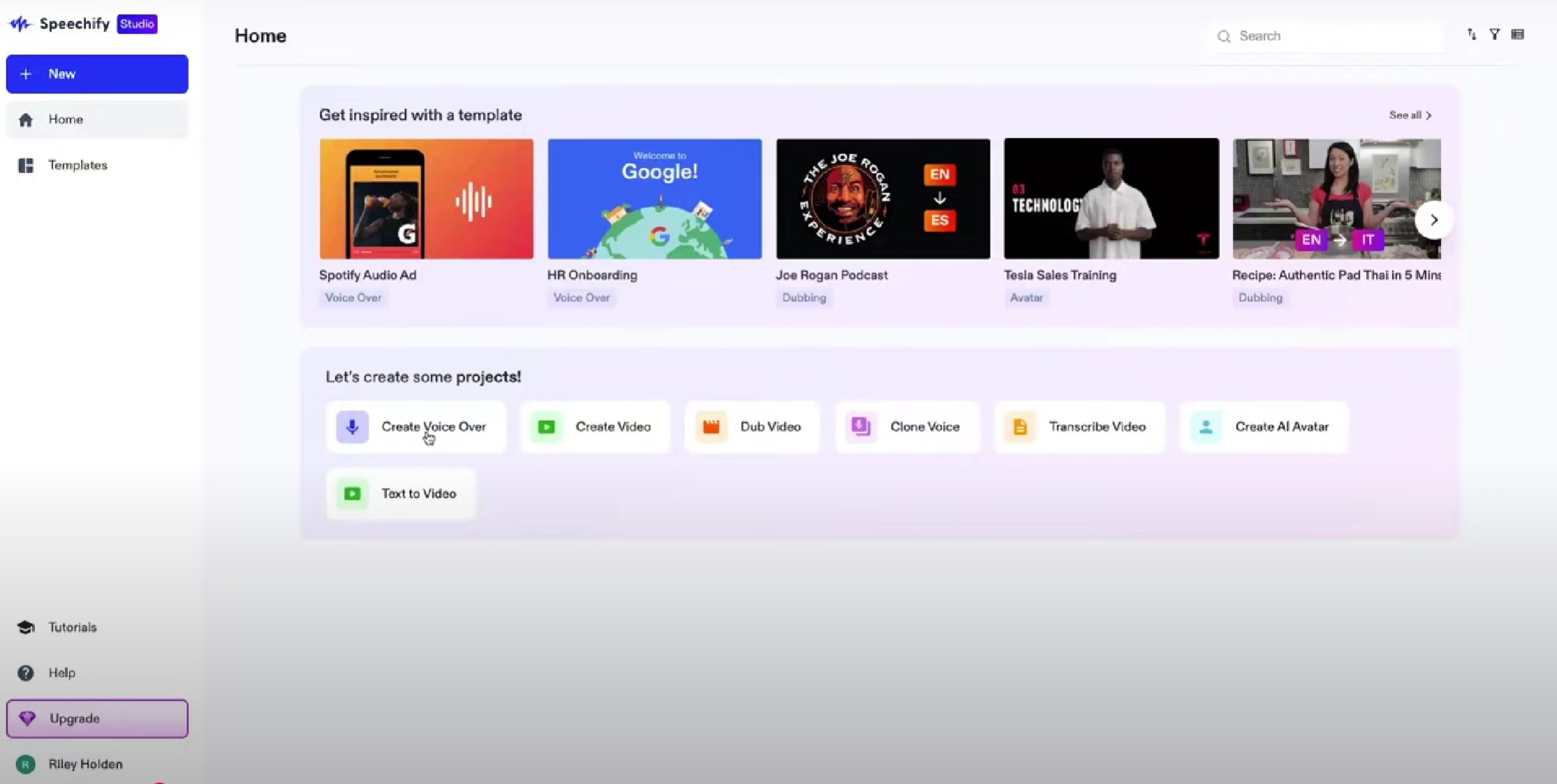
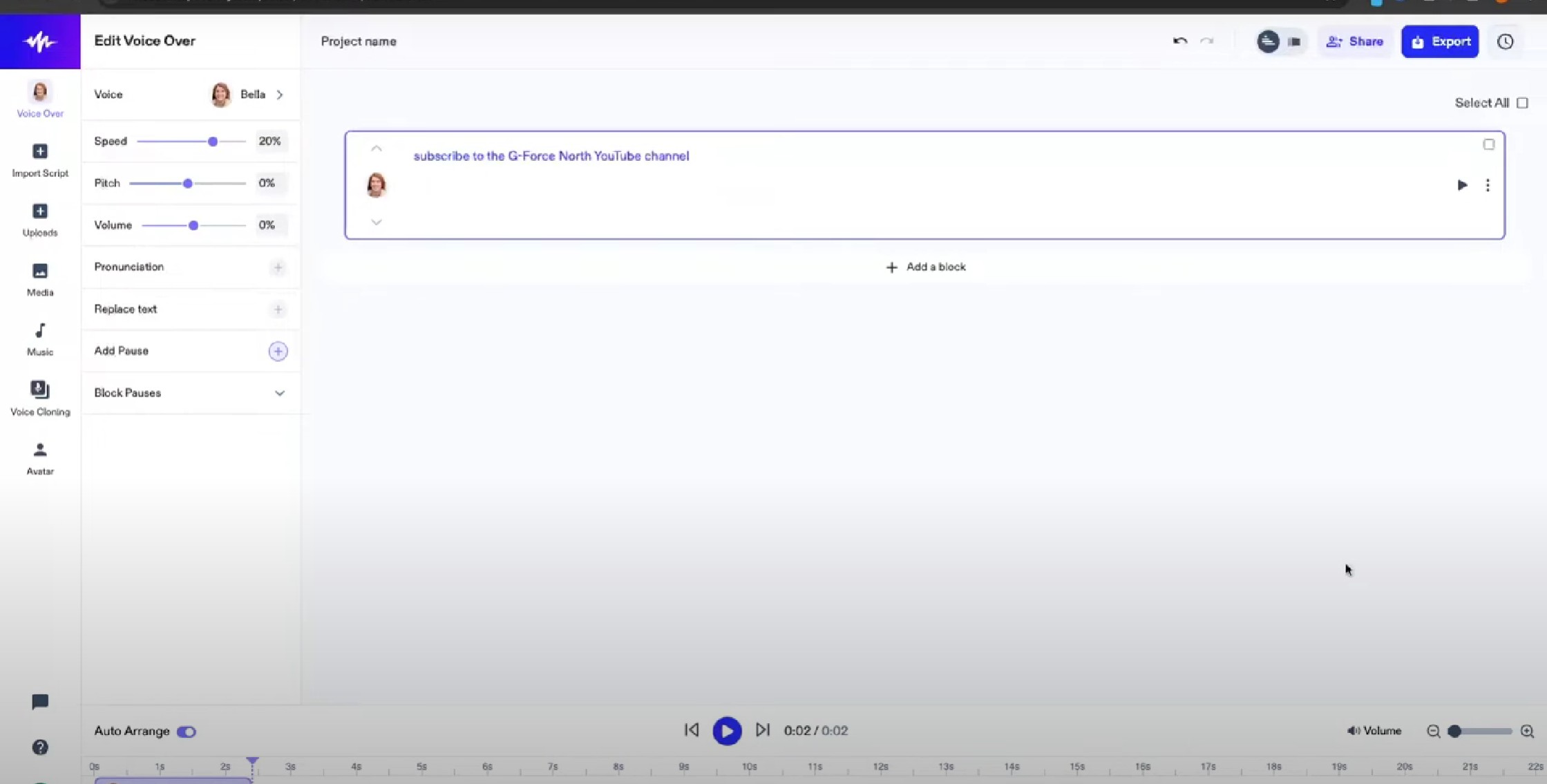
Step 2: Open the EPUB in a supported Speechify reading environment, then use its playback controls to select a voice and listening speed. The book remains part of the Speechify reading experience rather than becoming an equivalent MP3 or M4B export.
Balabolka: Convert EPUB to MP3/M4B/OPUS/WAV/OGG
Balabolka is free Windows text-to-speech software that accepts EPUB input and can save spoken output as formats including MP3 and M4B. The result depends on the voice engine installed on the computer and on how the EPUB's text and chapters are structured.
For a Windows reader who wants a local desktop option without a subscription, Balabolka is a reasonable starting point. It is not a close match for macOS or mobile use, or for someone who wants a polished voice service with minimal setup.
- Opens EPUB files and other supported text documents on Windows.
- Adjust the speech rate, pitch, and volume.
- Save spoken text as an audio file.
- Output quality depends on the installed voice engine and settings.
- The user interface is somewhat dated and may feel less intuitive.
- Not available for macOS or mobile devices.
Step-by-step guide to convert EPUB to MP3 using Balabolka
Step 1: Get Balabolka from the official website and install it on your Windows device.
Step 2: Open a text file or paste text directly into the program.
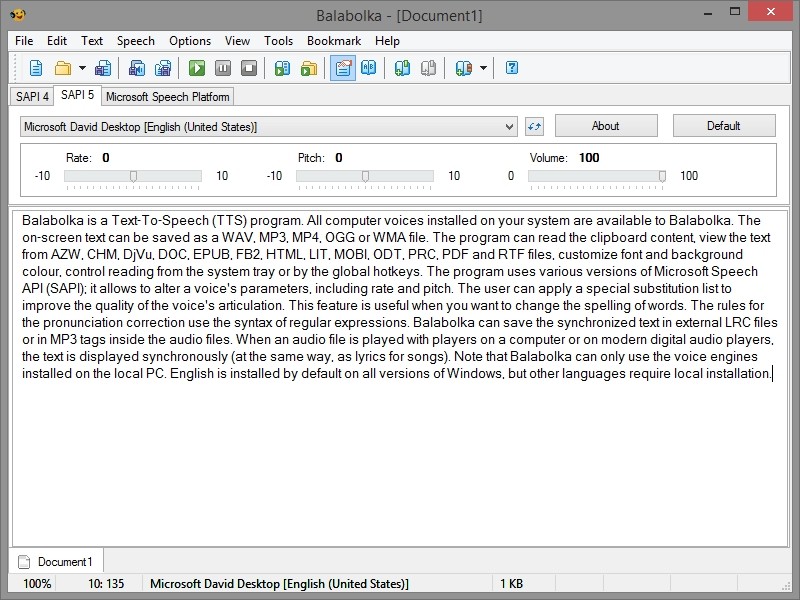
Step 3: Choose a compatible voice engine from your system or install new ones.
Step 4: Set the speech rate, pitch, and volume as desired according to your habits.
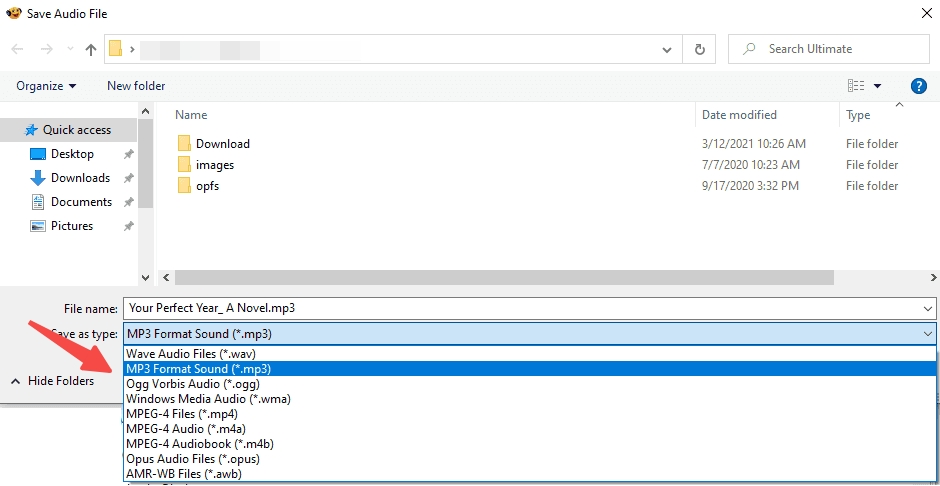
Step 5: Click "Play" to listen immediately or "Save Audio File" to export the text as an audio file.
Narakeet: Browser-Based EPUB Audio Export
Narakeet is a browser-based option that accepts EPUB uploads and provides downloadable MP3, M4A, or WAV audio. It can suit a quick web conversion when local installation is not a priority, but it is less suitable when you need M4B bookmarks, chapter-focused playback, or local-only processing.
- Upload an EPUB through a browser-based conversion page.
- Select an available voice and language for the book text.
- Preview a representative section before creating the full file.
- Update the source text when narration needs revision.
- Download audio as MP3, M4A, or WAV.
- The quality and clarity of voices may vary, with some sounding less natural than others
Step-by-step guide to convert EPUB to Audiobook via Narakeet
Step 1: Prepare your EPUB files and go to Narakeet's official website.
Step 2: Click Upload File and select your EPUB eBook. Narakeet will process the content and extract the converted text.
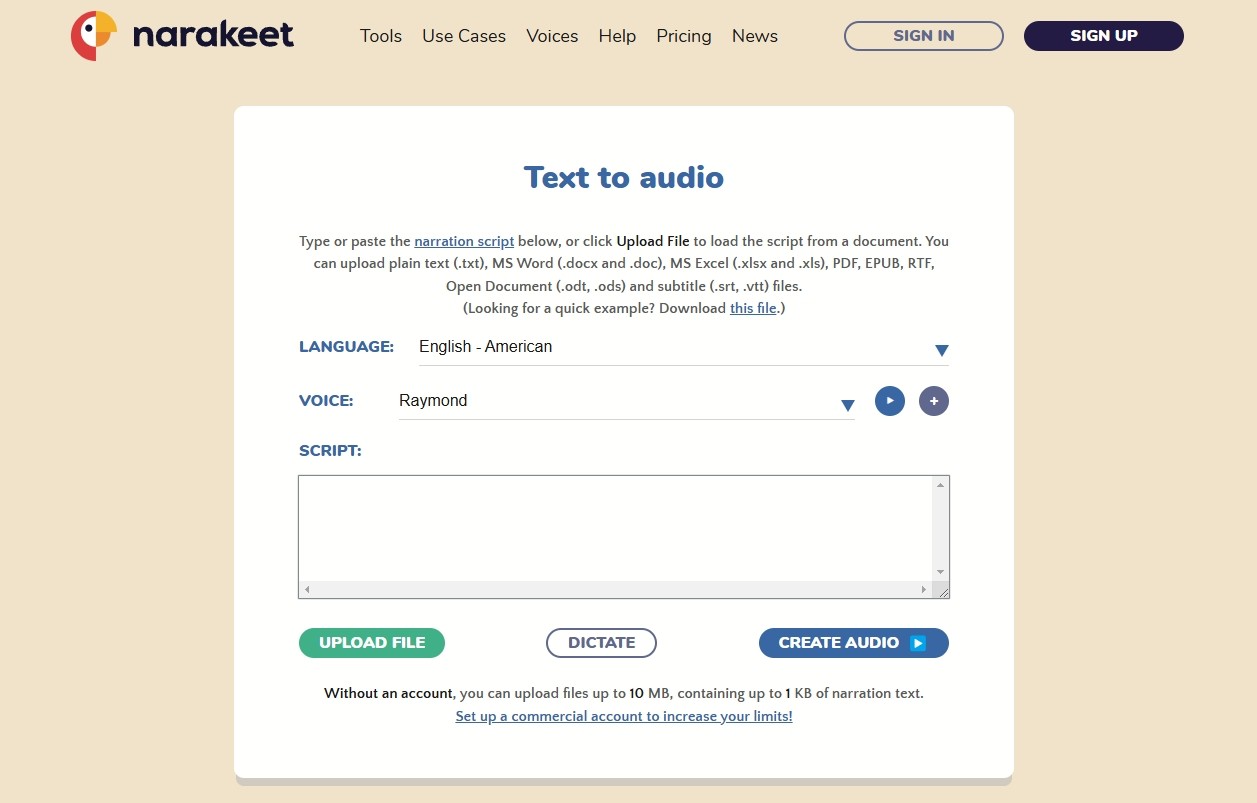
Step 3: First, select the correct language to match your text. Then, select a favorite AI voice (e.g., male or female, different accents) from Narakeet's list. Preview a few before continuing, as some voices sound more natural than others.
Step 4: Narakeet doesn't provide options like adding background music to tones, customizing narration, etc. Finally, simply click on Create Audio.
Speechelo: Manual Text-to-Voice Workflow
Speechelo starts with pasted text rather than a directly imported EPUB and exports MP3 voice output. It may work for a short excerpt or a prepared script, but it is not designed for complete EPUB books that need automatic chapter handling, cover art, or metadata preservation.
- Speechelo supports over 23 languages, allowing users to easily convert text to speech in their desired language.
- It offers a variety of voices with different accents and tones, making the generated speech sound more human-like and natural.
- Users can adjust the pitch, speed, and emphasis of the voice to suit different content needs, giving them full control over the output.
- Choose from male and female voices in various accents and styles, ensuring that you find the perfect voice for your project.
- Compatible with Windows/Mac/Linux/Android
- The free version has limited features and voice options, and the full version requires a purchase.
How to convert EPUB to Audiobooks using Speechelo
Step 1: Because Speechelo does not directly import EPUB files, extract the text from a chapter or short excerpt first:
- Open the EPUB using Calibre or another eBook reader.
- Copy and paste the text into a text editor such as Notepad or Word.
Step 2: Visit Speechelo's official website and login. After that, open the text conversion interface.
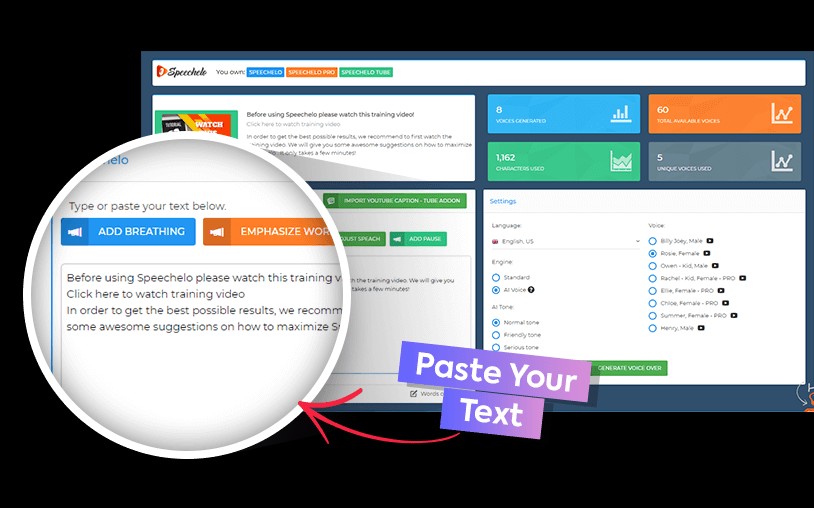
Step 3: Paste the copied content into Speechelo's text box. Select the correct language to match your text. After previewing the different voices, choose a favorite from the library. More voices and tones are available to Pro users.
Step 4: Speechelo allows customizing the narration for a more natural sound:
- Choose normal, upbeat or serious tones
- Slow down or speed up speech for better pacing
- Use punctuation or customizable pauses
Step 5: Finally, click Generate Voiceover to create the audio file.
EPUB-to-Audiobook FAQ
1. Can ChatGPT turn an EPUB into a complete audiobook?
ChatGPT can help prepare text, identify awkward passages, or suggest how to split a book into sections. It is not, by itself, a complete EPUB-import, narration, chapter, metadata, and audio-export tool. For broader ebook-to-audiobook conversion, you still need an app or service that can create and save the audio file.
A2. Can I convert an EPUB on Android or iPhone?
Mobile apps can often read an EPUB aloud, but a mobile read-aloud feature is not necessarily a downloadable audiobook converter. Before uploading a full book, check whether the app accepts EPUB files, permits audio export, and keeps the chapter structure you need.
A3. Are local GitHub EPUB converters more private?
Local processing can keep an EPUB on your own computer instead of sending it to a cloud service. It usually takes more setup, suitable hardware, and careful review of the project's license and output behavior. Test one representative chapter before converting a full library.
A4. Why does converted narration skip or jumble words?
EPUB reading order can be affected by malformed navigation, styling, footnotes, image captions, or chapter markup. Convert a representative chapter first, then listen for skipped text, misread names, and chapter breaks before creating the full audiobook.
AConclusion
The right way to turn an EPUB into an audiobook depends on whether you need read-aloud playback, a broadly compatible MP3, a chapter-aware M4B, browser convenience, or local control. BookFab AudioBook Creator fits Windows readers who want guided EPUB-to-M4B creation; a browser tool may fit quick uploads, while a local open-source option may better suit readers who prioritize local processing. Open the finished file in your intended player and check its cover, chapter list, and reading order before filing it in your library.

 6 EPUB Text-to-Speech Readers and Audio Tools Compared (2026)By Amber Collins - Aug 24, 2026
 Ebook to Audiobook: 3 Routes for Any File or DeviceBy Amber Collins - Aug 21, 2026
 How to Listen to Kindle Books and Convert Them into AudiobooksBy Amber Collins - Aug 10, 2026