How to Listen to Kindle Books and Convert Them into Audiobooks
Summary: In this blog, we’ll show you how to listen to Kindle books with Audible, Kindle’s Text-to-Speech, the Amazon Alexa app, and how to convert them into audiobooks using tools like BookFab AudioBook Creator. Whether you prefer professional narration or automated TTS, we cover the best ways to enjoy Kindle books hands-free.
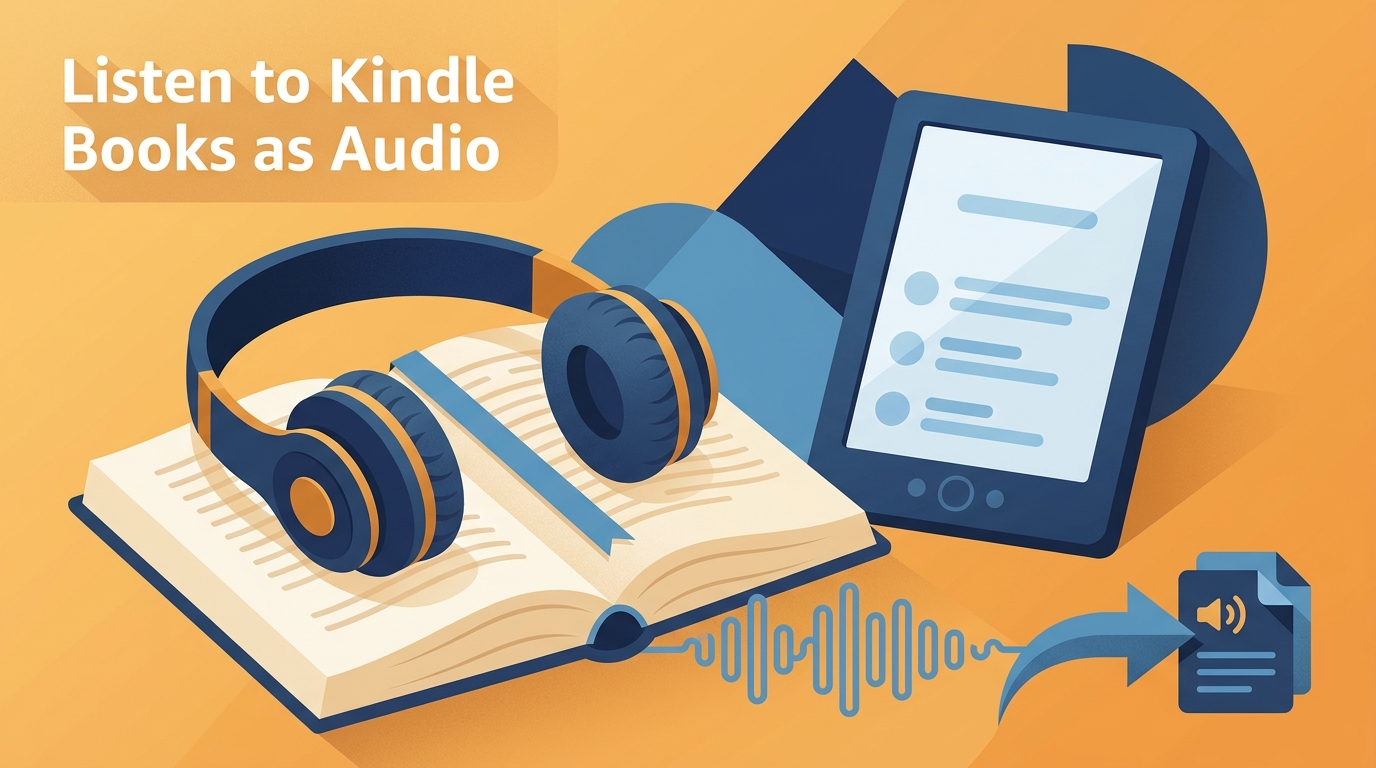
Here's the short answer: four paths cover almost every Kindle listening need. Buy the companion Audible narration when it exists, turn on the Kindle app's Assistive Reader for eligible titles, ask Alexa for hands-free playback, or use a Windows workflow to save a local audio copy from a book you're authorized to access.
Which path fits depends on whether the title has a companion Audible edition, whether a synthetic voice is acceptable, and whether you need a saved audio file for offline playback. The rest of this article walks through each option and what it changes for the book, the device, and your library.
Below is a quick method-selection matrix to help you decide before you commit to setup:
| Method | Compatible device | Extra purchase | Offline playback | Voice quality | Saved audio file | Setup effort | Best fit |
|---|---|---|---|---|---|---|---|
| Audible narration | Audible app on iOS, Android, Kindle devices with Bluetooth | Yes — per title or subscription | Yes (downloaded) | Human narrator | No (app-bound) | Low | Readers who want professional narration and reading-position sync |
| Kindle Assistive Reader | Kindle mobile app (iOS/Android), title-dependent | No | Depends on downloaded book | Synthetic | No | Low | Readers with an eligible title who want built-in read-aloud |
| VoiceView screen reader | Compatible Kindle e-readers | No | Yes | Synthetic | No | Medium | Accessibility use on a supported Kindle device |
| iOS/Android accessibility speech | Phone or tablet at OS level | No | Depends on downloaded book | Synthetic | No | Medium | Fallback when Assistive Reader isn't available |
| Amazon Alexa | Alexa-enabled speaker or app | No, for eligible titles | Requires linked account | Synthetic | No | Low | Hands-free household listening on eligible titles |
| BookFab local-audio workflow | Windows desktop | Yes — one-off software | Yes (local MP3/OPUS) | Synthetic (TTS) | Yes | Higher | Readers who need a managed batch workflow and a saved file |
The tradeoff that matters most, in my experience checking read-aloud output against printed layouts, is whether you actually need a file you can keep and organize — most readers don't, and Audible or Assistive Reader is enough. If you do (long commutes without reception, batch listening across a shelf), a desktop workflow earns its setup cost.
Turn Kindle Books into Audiobooks
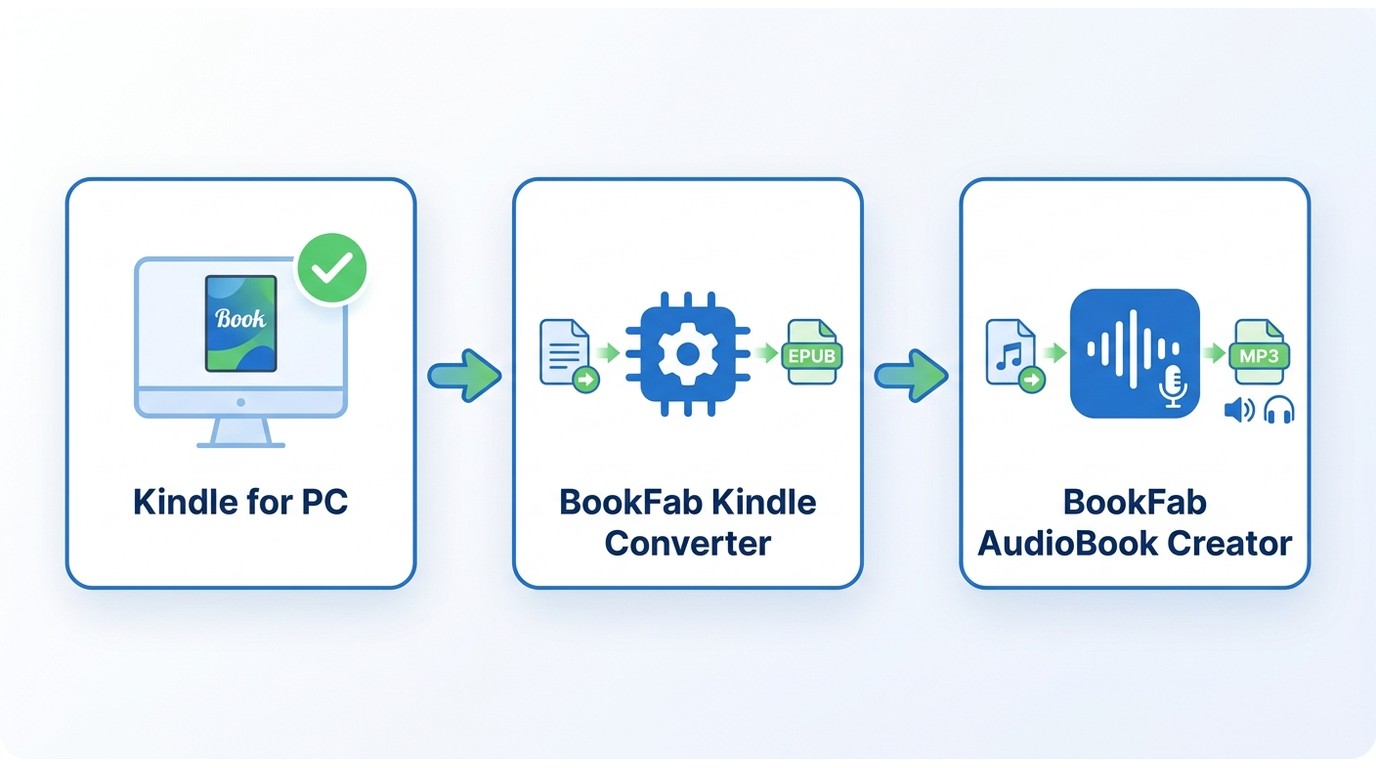
Not every Kindle title has a companion Audible edition, and built-in read-aloud stops as soon as you close the app. When you want a saved audio copy you can organize in your own library — say, an MP3 that resumes cleanly on a Bluetooth speaker while jogging — a desktop conversion workflow becomes the only practical option.
Create Audio Files with BookFab
This section covers only the local-audio output workflow — creating a personal audio copy from a book you're authorized to access. Where permitted by platform terms and applicable law, BookFab provides a Windows desktop workflow that first converts a Kindle title to EPUB with the BookFab Kindle Converter, then reads that EPUB into an audio file through BookFab AudioBook Creator. When I check a converted output, I look at chapter names, cover metadata, and whether the audio picks up where the book's structure changes — a shelf full of unnamed MP3 tracks is harder to live with than one well-tagged file.
Knowing where Kindle books are stored on your PC helps confirm that the source title was downloaded locally before conversion begins.
Step 1. Install BookFab Kindle Converter
Download and install BookFab Kindle Converter from the official product page. Once installed, launch the software to begin the conversion process.
Step 2. Load Your Kindle Books
Inside the program, click the Refresh/Update button so the software can automatically detect the books you previously downloaded via Kindle for PC. Your Kindle titles will then appear in the book list.
If a purchased title never reaches that list, Kindle book download problems are usually caused by an incomplete local download or account sync issue rather than the conversion step.
Step 3. Convert the authorized book to EPUB
Select the Kindle books you want to convert and start the conversion. For content you're authorized to access, and where permitted by platform terms and applicable law, the tool converts the imported files into EPUB, usually within seconds.
Step 4. Access Your Converted EPUB Files
After the conversion finishes, open the output folder to view your new EPUB files. These files can now be read on any eReader app or imported into Calibre for further management.
Disclaimer: Removing DRM protection is intended only for personal, educational, and fair-use purposes. The converted files must not be distributed, shared commercially, or used for any unauthorized commercial activities.
Once you have the EPUB files, open BookFab AudioBook Creator to read them into audio. A few features worth knowing before you set up your first conversion:
- • Delivers realistic, natural-sounding audio with advanced text-to-speech capabilities, supporting both English and Japanese with 20 unique male and female voices per language.
- • Lets you fine-tune speech settings such as speed, volume, prosody, expressivity, and silence to tailor the listening experience.
- • Includes smart pronunciation correction and custom reading rules to ensure the audio output matches your preferences.
- • Features a user-friendly library that organizes imported eBooks with their titles and covers for easy navigation and access.
- • Supports text input via pasting or TXT file import and allows audio export in MP3 or OGG Vorbis (OPUS) formats.
- • Enhances engagement with real-time text highlighting and auto-scrolling as the audio plays.
To convert Kindle books to audiobooks with BookFab AudioBook Creator, you can follow the steps below:
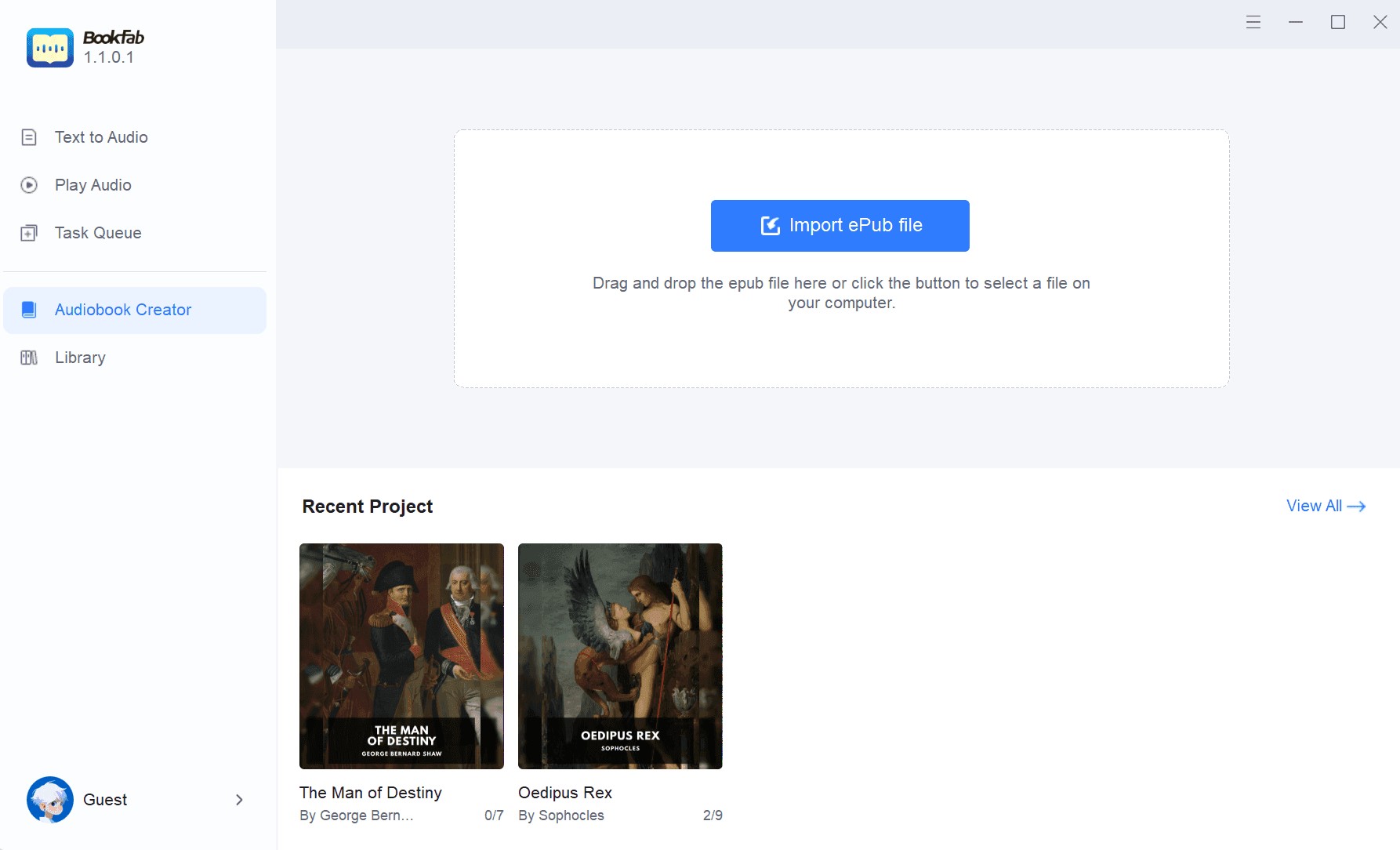
Step 1. Open BookFab and import the .epub file
Launch the BookFab software.
Proceed to the AudioBook Creator interface to import your selected Kindle books that have been converted into EPUB files.
Step 2. Choose chapters to begin the conversion process
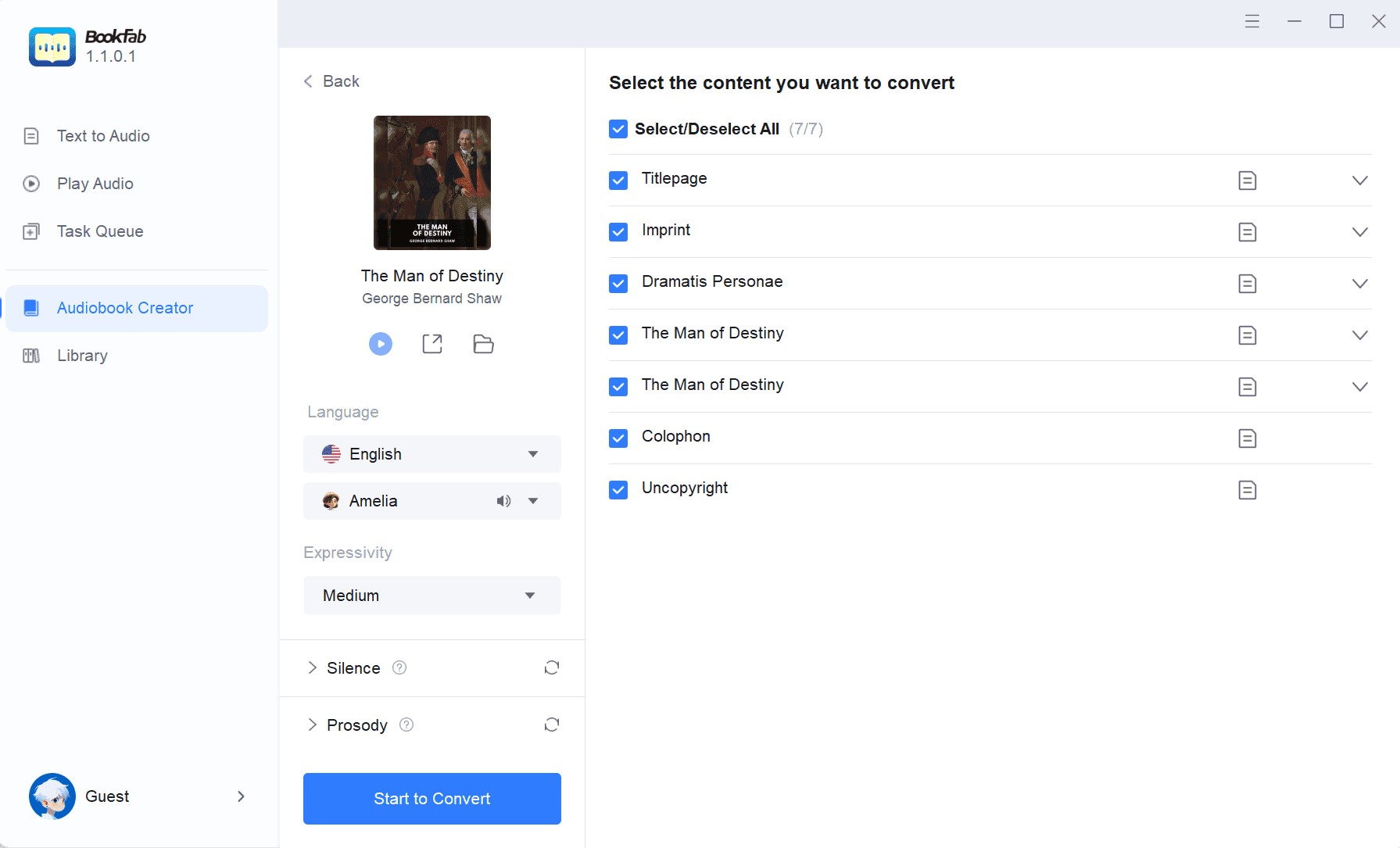
Once the files have been analyzed, choose particular chapters for text-to-speech conversion.
You can adjust the settings such as expressivity, language, prosody, and more.
Next, press the Start to Convert button.
Step 3. Manage your audiobook within the library
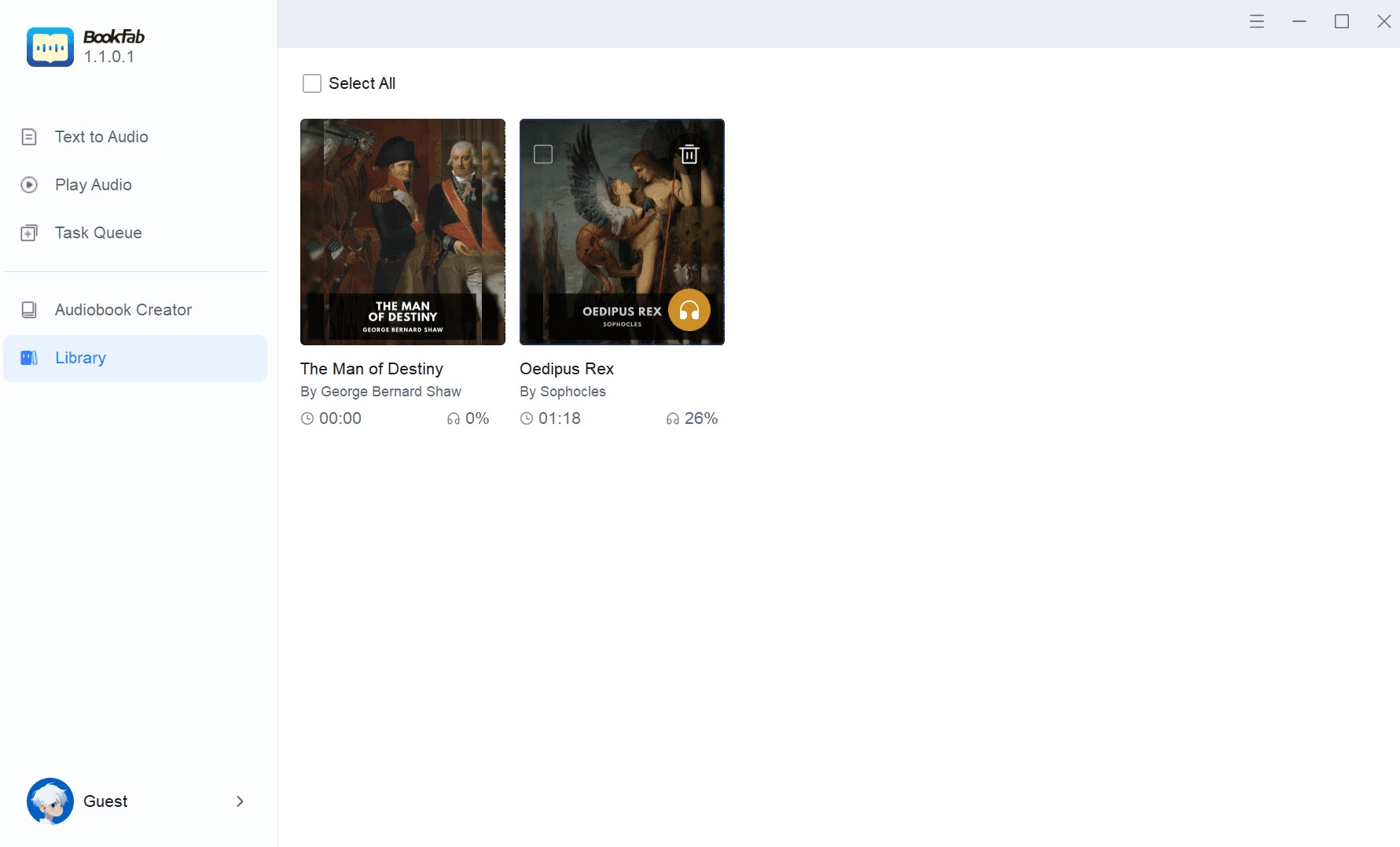
After processing is finished, arrange the audiobook content in the library, allowing you to track your listening progress.
Listen with Audible Narration
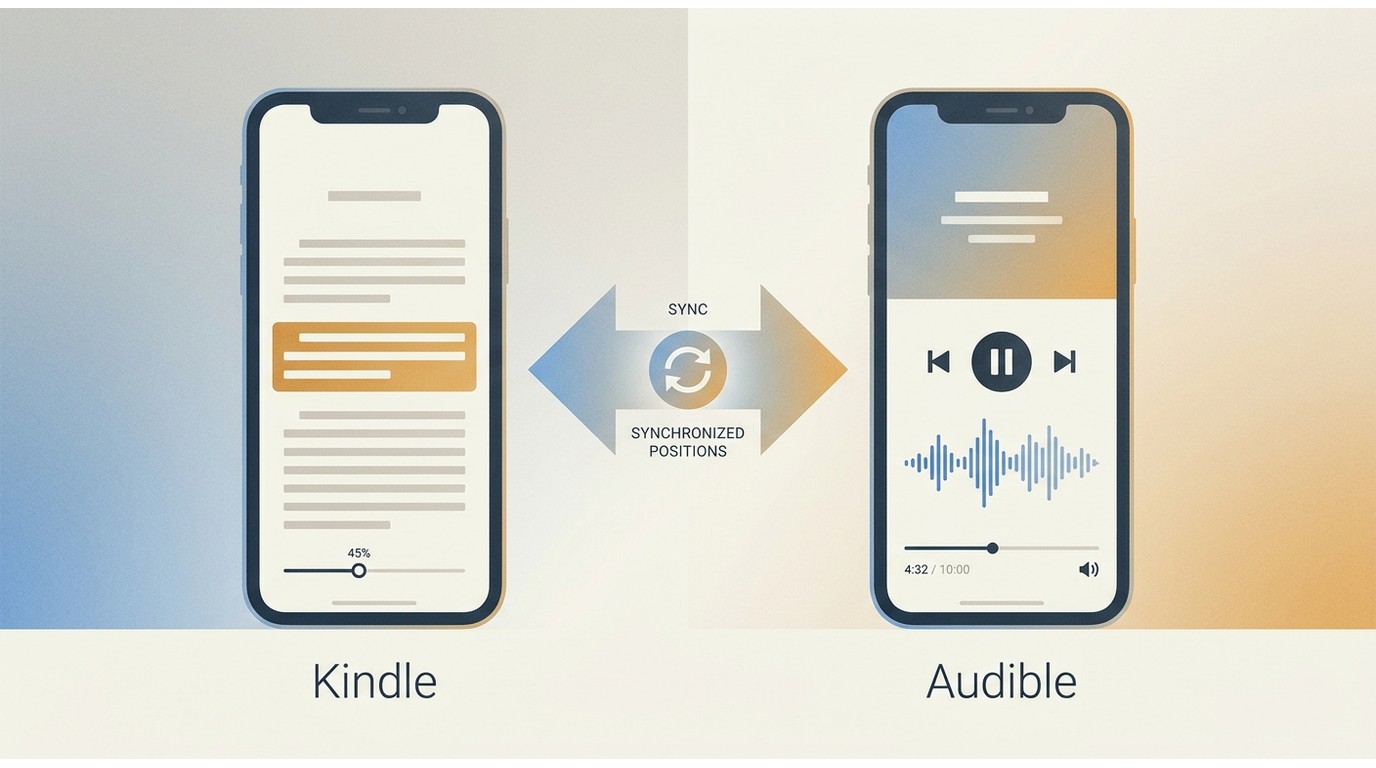
Suited to readers who want a human narrator: Audible narration is a separately produced audio edition, not a synthetic reading of the ebook. When a Kindle title has a companion Audible edition, Whispersync for Voice keeps your reading position and listening position at the same spot across devices, a linking feature between two purchased editions, not text-to-speech. It reads well for kids following along, language learners, and anyone building comprehension with a narrator's cadence.
Audible Benefits and Limits
Audible narration adds another way to fit a book into a commute, a workout, or a wind-down evening. Where it fits best, and where it doesn't:
Refer to the tutorial below to enjoy listening to Kindle books with the Audible app:
Step 1. Find your eBook in the Kindle Store
Visit the Kindle Store and find the eBook you wish to read.
Purchase the Kindle book and verify that it's included in your Kindle library.
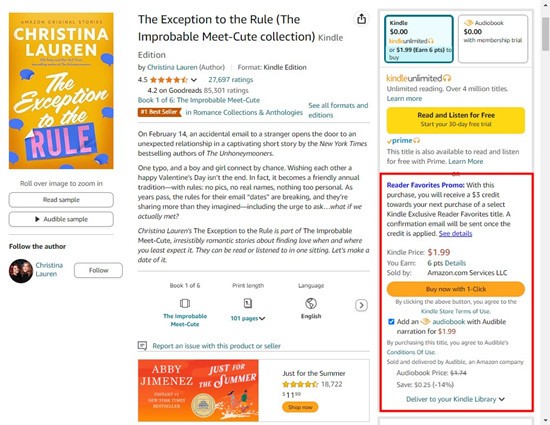
Step 2. Visit the Kindle book's page to see if it includes Audible narration
After purchasing the Kindle book, check for the option to add Audible narration on the book's page.
Consider adding the Audible narration if you value human narration and the add-on price fits your budget, since not every Kindle title offers a matching audio edition.
Step 3. Download and sign in to the Audible application on your mobile device
Obtain the Audible app from the App Store for iOS devices and the Google Play Store for Android devices.
Install and start the application on your device.
Please log in using your Amazon account details.
Upon logging in, your Audible library will update to reflect your purchases. The audiobook edition of your Kindle book is expected to show up in the library.
If it doesn't show up, try refreshing the library or reviewing your purchase history to confirm that the narration was added properly.
Step 4. Locate and select your audiobook in the Audible app library
Locate your audiobook within the Audible app library and select it by tapping on it.
Press the play button to begin listening.
Within the player, you can modify the speed, move forward or backward, and pause when necessary.
Use Kindle Read-Aloud Features
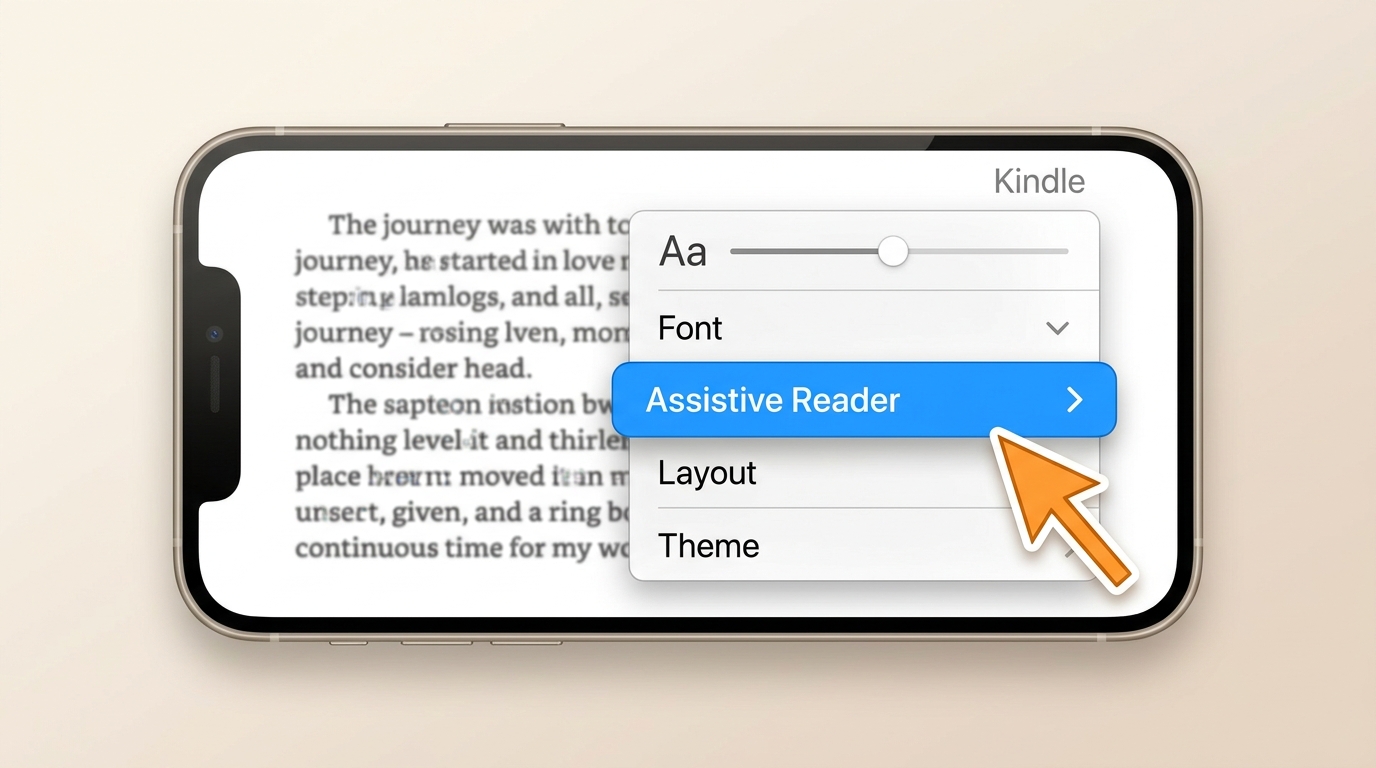
Suited to readers who want a no-purchase, in-app option: the Kindle mobile app includes an Assistive Reader for supported titles, and your phone's operating system offers accessibility speech as a fallback when Assistive Reader isn't available. These are two different features — one is Kindle's own read-aloud, the other is your device reading whatever is on screen — and it helps to know which you're using before you troubleshoot. For a deeper walkthrough of the in-app controls, our guide to Kindle text-to-speech controls covers voice, speed, and title-eligibility details.
Assistive Reader on iPhone and Android
In the Kindle mobile app, open the book, tap the screen to reveal menus, and look under the Aa text menu (or the book's More menu) for an Assistive Reader option. Availability varies by title, app version, and device — check the current in-app label before you go hunting for a missing button. When it's there, it's the lowest-friction way to listen without a companion audiobook.
Accessibility Speech as a Fallback
When Assistive Reader isn't offered for a title, the phone's own speech feature can read the open page — this is a device-level workaround, not a Kindle feature.
On iPhone or iPad:
Open Settings > Accessibility > Spoken Content.
Turn on Speak Screen.
In the Kindle app, swipe down with two fingers from the top of the screen to have the current page read aloud.
On Android:
Open Settings > General Management > Text-to-Speech output.
Select the Google Text-to-Speech engine and adjust speed or pitch.
Open the Kindle app, select a book, and use the system accessibility gesture to trigger read-aloud on the page.
Read-Aloud Benefits and Limits
On an older phone with a book that doesn't offer Assistive Reader, I've watched a colleague spend ten minutes toggling accessibility settings just to hear the first paragraph — and then discover the voice was flat enough to make a novel unlistenable. That's the honest picture of built-in read-aloud. When it works, it's free, in-app, and the fastest way to switch from reading to listening. When it doesn't, it fails in three predictable places: title support (publisher controls whether Assistive Reader appears), device compatibility (older devices and app versions behave inconsistently), and voice quality (synthetic voices can't match a narrator's pacing on fiction). My rule of thumb: use built-in read-aloud when Assistive Reader is present and the book is expository; reach for something else when the voice starts breaking immersion.
Pros & Cons of TTS Feature
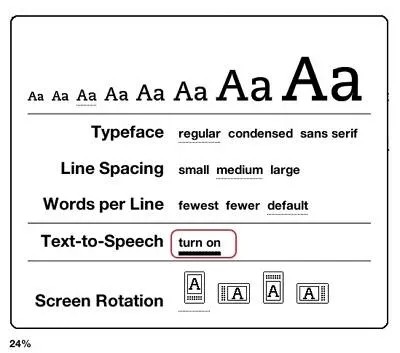
For those looking for a built-in listening option, Kindle’s Text-to-Speech (TTS) feature offers a convenient alternative. Below are some key advantages and limitations to consider:
Listen with Amazon Alexa
Suited to hands-free household listening: on an Alexa-enabled speaker or the Alexa app, you can play eligible Kindle titles by voice. It uses synthetic narration, so treat it as a convenience layer rather than a narration upgrade — good for the kitchen or a folding-laundry evening, less useful when you want precise chapter control or a file you can keep.
Alexa Benefits and Limits
Follow the steps below to listen to Kindle books using the Amazon Alexa app:
Step 1. Get the Amazon Alexa app on your device and then log in to your account
Go to your device's app store (compatible with both iOS and Android). Search "Alexa" next and then install the program.
Open the app and sign in to the Amazon account associated with your Kindle books.
Step 2. Ask Alexa to read the book
Please say, Alexa, play the Kindle book, ‘The Imperfect Disciple'
Step 3. Handy voice commands for play, pause, and control speed
Volume [1-10].
[Pause / Stop / Resume].
Show me my Kindle books.
[Skip ahead / Skip back].
Open my Kindle books.
Step 4. Play a Kindle book manually in the Alexa app
Open Alexa, go to the Play menu at the bottom, and scroll down to find the Kindle Library.
You can explore the selection of books that are available for listening via the Alexa app. Then, tap the device you wish to use and the title you wish to play. If it's your phone, just select this device.
Choose the Right Kindle Audio Method
Two Amazon-branded features come up often in read-aloud questions, and they aren't the same thing. Sorting them clears up most of the confusion in the matrix above.
VoiceView on Compatible Kindle Devices
VoiceView is a screen reader for compatible Kindle e-readers, not a feature of the Kindle mobile app. It reads menus, book text, and system prompts through a paired Bluetooth audio device. Because activation steps differ by e-reader model, confirm the current instructions on the specific device you own before setup. VoiceView is more appropriate than the mobile Assistive Reader when the reader relies on a Kindle e-reader as their main device or needs system-wide navigation, not just page-by-page reading.
Whispersync with Companion Narration
Whispersync for Voice keeps a compatible Kindle ebook and its companion Audible narration at the same reading position. You read a few pages at lunch, close the Kindle app, and the Audible app on the evening walk picks up where you left off. It is a position-sync feature between two paid editions, not a text-to-speech engine, and it doesn't turn a Kindle book into an audiobook by itself. Compared with the synthetic read-aloud alternatives above, Whispersync is the smoother experience but the more expensive one — it depends on both a Kindle title and its matching Audible edition being available.
Conclusion
The best Kindle listening method depends on what you actually value: human narration and sync between reading and listening (Audible with Whispersync), a free in-app read-aloud on eligible titles (Assistive Reader, with the phone's accessibility speech as a fallback), hands-free playback around the house (Alexa on eligible titles), or a saved local audio copy for personal offline use (BookFab AudioBook Creator on Windows, for content you're authorized to access). If Audible or built-in read-aloud already fits your day, you don't need a desktop workflow. If you need a batch-manageable saved file — MP3 or OPUS output, chapter organization, a library that survives an app update — the desktop path pays back its setup time.
FAQs
Q
How can I tell whether a Kindle book includes narration?
On the Kindle book's product page, look for a companion Audible narration option — usually shown as an add-on price near the buy button, or as an audio icon on the title's detail page. In the Kindle app, an eligible title shows a headphone or Audible control alongside the reading view; if it isn't there, the book has no purchased narration attached. That's different from Assistive Reader or system read-aloud, which are synthetic speech, not a professional audio edition.
A
Q
Are Kindle audiobooks included with Amazon Prime?
A Prime membership by itself doesn't unlock every Audible title or make companion narration free. Some limited audio catalogs are bundled with Prime at various times, and the specific catalog varies — check what your current Prime account shows in the Audible app before assuming a book is included.
A
Q
Can a Kindle Paperwhite play audiobooks?
Recent Paperwhite models can play Audible audiobooks over Bluetooth to a paired speaker or headphones — audio playback is model-dependent, so confirm Bluetooth support on your specific generation. This is separate from mobile Assistive Reader, which lives in the Kindle phone app, not on the e-reader.
A
Q
Can I send a converted Kindle book to Audible?
No. Audible's library is stocked by publishers, not by user uploads, so a self-created audio file cannot become an Audible title. If you use a desktop workflow like BookFab AudioBook Creator to produce a personal audio copy for content you're authorized to access, that file plays in your own audio player of choice for personal offline use.<a id="_heading=h.tijipdy9rkxr"></a>
A
 EPUB to Audiobook: 5 Tools for MP3, M4B, and Read-AloudBy Amber Collins - Aug 26, 2026
 6 EPUB Text-to-Speech Readers and Audio Tools Compared (2026)By Amber Collins - Aug 24, 2026
 Ebook to Audiobook: 3 Routes for Any File or DeviceBy Amber Collins - Aug 21, 2026