
Can Kindle Read to You? 4 Current Methods by Device

Summary: Kindle read-aloud support varies by book, device, app, and audio setup. This guide compares Assistive Reader, VoiceView, mobile and desktop accessibility tools, troubleshooting steps, and a limited local-file option for authorized content.
A Kindle book can open normally and still offer no obvious play button. Kindle read aloud availability depends on the book, device, app version, and audio output, so the right Kindle text to speech method matters more than a single universal switch.
The most dependable order is to check Assistive Reader first, use VoiceView or the operating system's accessibility tools when navigation support is needed, and consider a local-file listening copy only for content you are authorized to access.
For an authorized local-file copy, EPUB vs MOBI formats for Kindle can affect how the book is transferred and opened, although format conversion does not guarantee read-aloud support.
Can Kindle Read to You Today?
Yes, Kindle can read supported books aloud, but no single control works across all Kindle devices and apps.
Assistive Reader is the first feature to look for in a supported Kindle app or e-reader. VoiceView is a screen reader designed for accessibility and navigation. iPhone, Android, Windows, and Mac also provide system reading tools when the Kindle app does not expose its own playback control.
I treat these as different reading experiences, not interchangeable names. A simple play control suits continuous listening, while a screen reader is more useful when menus, buttons, and book text all need spoken navigation.
Choose the Right Read-Aloud Method
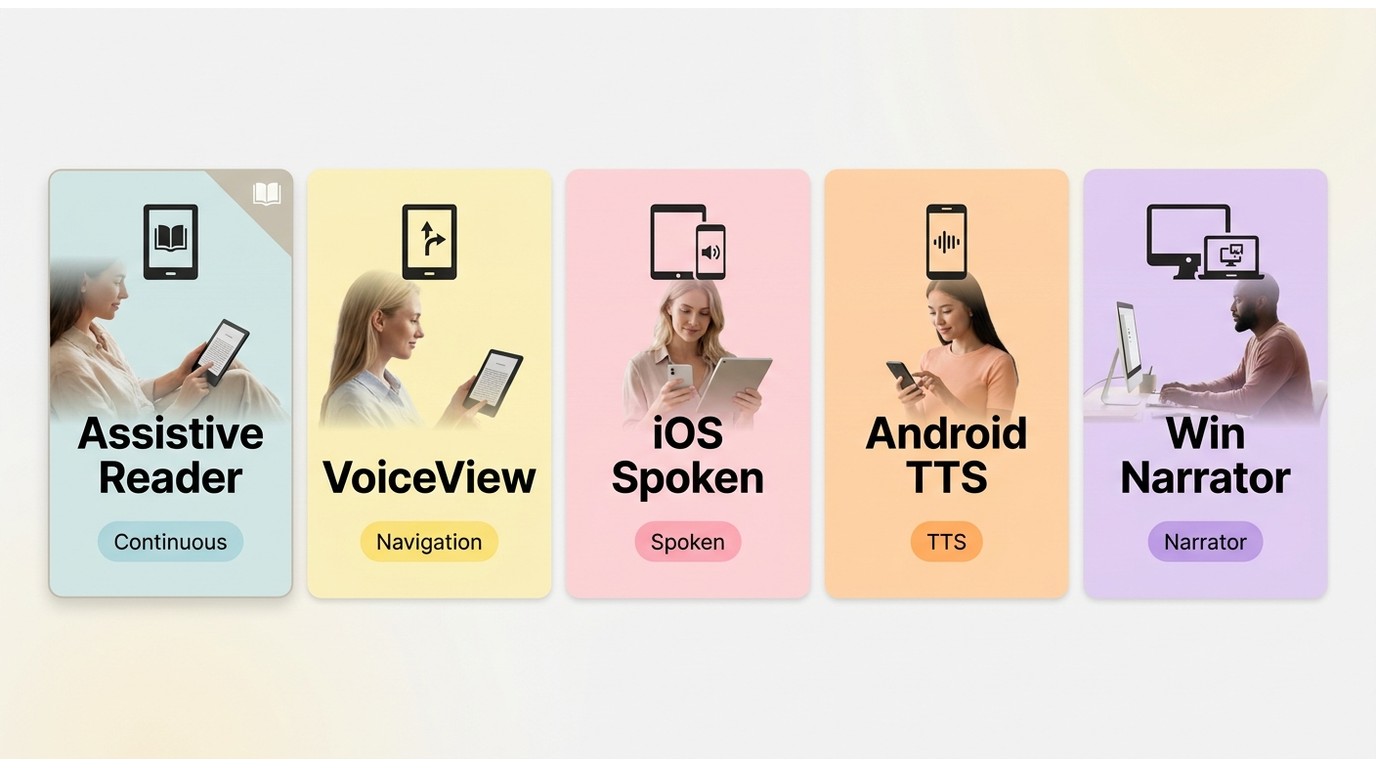
Match the method to the device and the kind of help you need before changing settings. This avoids spending time on a control that the current book or platform does not support.
The compatibility picture below reflects the available paths as of August 2026. Kindle features can differ by device, app, and individual title.
Compatibility at a Glance
| Option | Device or platform | Recommended method | Where to start | Audio requirement | Book-level limitations | Works well for |
|---|---|---|---|---|---|---|
| Assistive Reader | Supported Kindle apps and e-readers; web availability varies | Check this first | Open a supported book and its reading controls | Device speaker or connected audio | The control may not appear for every title or device | Continuous reading with simple playback |
| VoiceView | Supported Kindle e-readers and Fire tablets | Use for screen-reader navigation | Open Accessibility or use the device shortcut | Kindle e-readers without speakers need Bluetooth audio | Gestures and availability vary by model | Spoken menus, controls, and book text |
| iOS Spoken Content or VoiceOver | iPhone and iPad | Use when Assistive Reader is absent | Settings > Accessibility > Spoken Content or VoiceOver | Built-in or connected audio | Reading behavior depends on visible and accessible text | iPhone Kindle read aloud and broader device navigation |
| Android accessibility tools | Android phones and tablets | Use the device reading service | Settings > Accessibility | Built-in or connected audio | Names and controls differ by Android version and maker | Android Kindle text to speech when app playback is unavailable |
| Windows Narrator | Windows | Use for desktop screen reading | Settings > Accessibility > Narrator | Computer or connected audio | Results depend on the Kindle app and exposed text | Occasional desktop listening and navigation |
| macOS Spoken Content | Mac | Use selected-text or screen speech | System Settings > Accessibility > Spoken Content | Computer or connected audio | Selection and keyboard behavior vary by macOS version | Short passages and desktop proofreading |
| BookFab AudioBook Creator | Windows local-file workflow | Use after obtaining a supported file lawfully | Import supported text or eBook content | Audio player for the exported file | Not a native Kindle control; source access and terms still apply | An audiobook-style copy for authorized content |
- Open the book and tap the reading controls before changing device settings.
- Look for Assistive Reader when the app, e-reader, and title support it.
- Use VoiceView when spoken navigation is the main requirement.
- Use the operating system's accessibility tools when the Kindle control is absent.
- Test a second supported title to separate a book restriction from a device issue.
Assistive Reader on Kindle Apps and E-Readers
Kindle Assistive Reader is the simplest starting point when it appears for the current device and supported book.
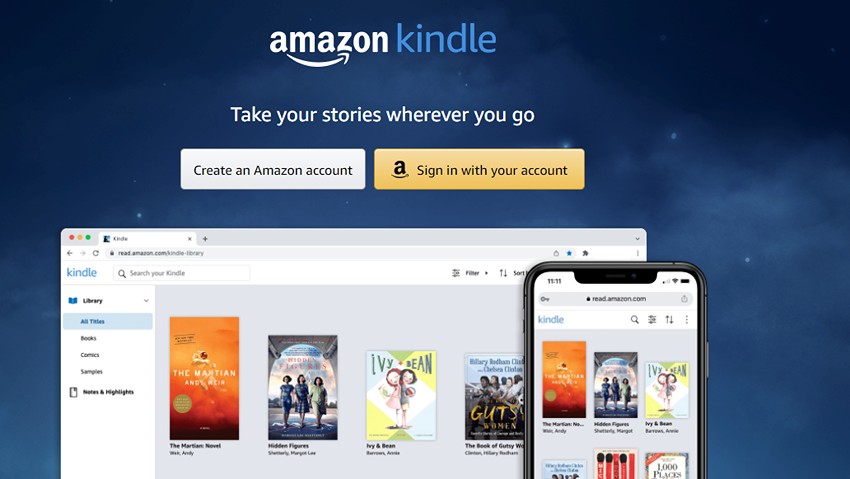
Unlike a screen reader, Assistive Reader focuses on reading the book rather than speaking every interface element. That narrower role usually makes it less intrusive for readers who want to listen while following the page.
Start Assistive Reader
- Open the Kindle app or supported e-reader and select a book marked for read-aloud support.
- Tap the page to reveal the reading controls.
- Open the available reading or accessibility menu and select Assistive Reader.
- Start playback from the control shown for that device.
If a title is not yet on the device, complete the normal Kindle book download first, then open the local entry and check its reading controls.
Use Playback and Voice Controls
Play, pause, and reading speed are the core controls to expect; available voices depend on the device and reading method.
Do not assume a voice setting in iOS, Android, VoiceView, or a desktop screen reader will also change Assistive Reader. Each method draws from its own platform controls. When I compare them, I check whether pauses stay at paragraph boundaries and whether chapter navigation remains easy to follow, not just whether speech starts.
- Starts inside a supported Kindle reading view.
- Provides straightforward play and pause controls.
- Keeps attention on the book instead of speaking the full interface.
- Can make long-form reading easier when the title is eligible.
- Availability differs by device, app version, and individual book.
- Voice choices depend on the platform and may be limited.
- The control can be absent even when the book itself opens normally.
VoiceView and Built-In Accessibility Tools
VoiceView is Amazon's accessibility screen reader, while iOS and Android provide their own spoken-navigation tools. These are better suited to navigation support than to a simple audiobook-style play button.
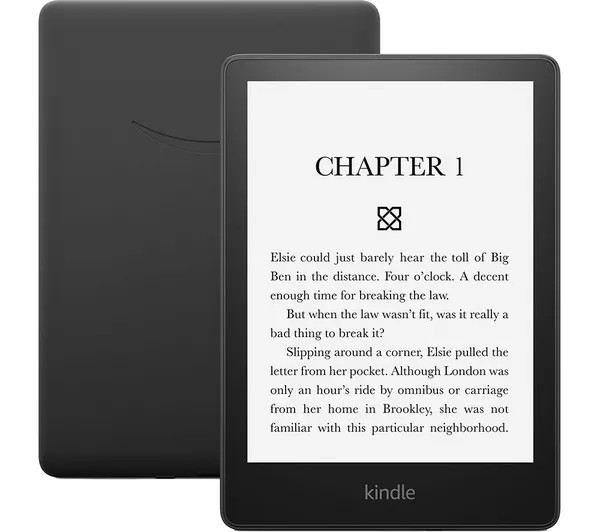
VoiceView on Kindle E-Readers
VoiceView speaks menus, controls, and book text on supported Kindle devices. On Kindle e-readers without speakers, Kindle Bluetooth audio must be paired before spoken output can be heard.
- Put compatible Bluetooth headphones or a speaker in pairing mode.
- Open the Kindle accessibility settings or use the VoiceView shortcut documented for the device model.
- Complete pairing, then use VoiceView gestures to navigate to the book and reading controls.
VoiceView makes sense when spoken navigation is necessary. If Assistive Reader already offers uncomplicated book playback, its smaller set of controls is easier to manage.
iPhone and Android Screen Readers
On mobile, use Assistive Reader when it is available; otherwise, the operating system can read accessible on-screen text.
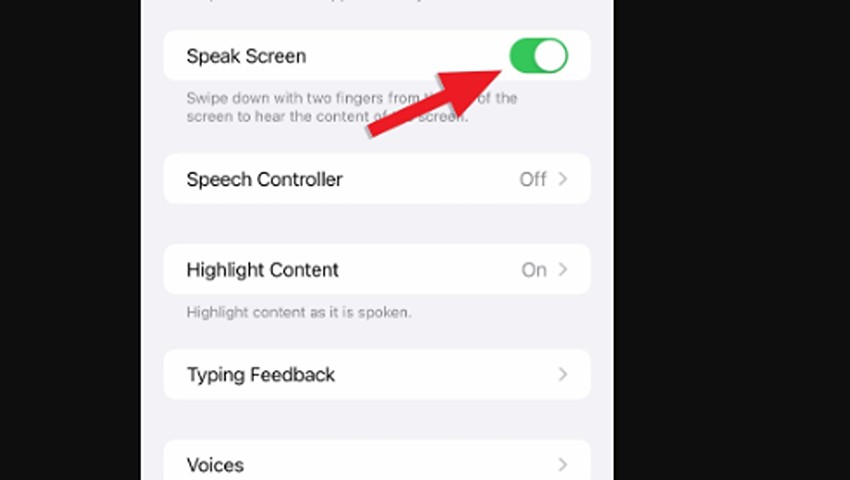
For iPhone Kindle read aloud, open Settings > Accessibility, then choose Spoken Content for screen speech or VoiceOver for full navigation. The two-finger Speak Screen gesture can begin reading visible content when the app exposes it properly.
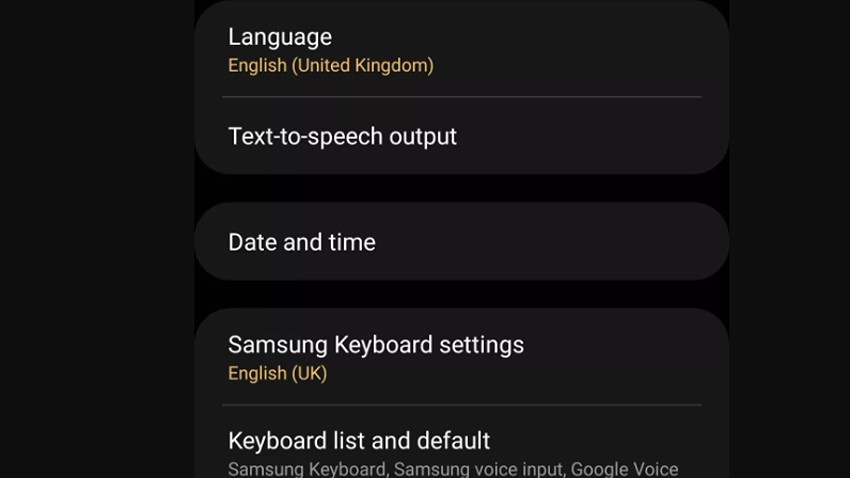
For Android Kindle text to speech, open Settings > Accessibility and select the reading or text-to-speech service available on the phone. Menu names differ among Android versions and manufacturers.
I prefer Assistive Reader for uninterrupted book playback and reserve mobile screen readers for cases where spoken navigation matters too. System tools offer wider device control, but they can also announce interface elements that are irrelevant to the sentence being read.
- Read book text, menus, buttons, and settings aloud on supported devices.
- Support navigation through touch gestures and spoken feedback.
- Describe the currently focused control before it is activated.
- Let the user adjust speech settings available on that device.
- Provide accessibility support rather than a universal Kindle audiobook mode.
Windows and Mac Read-Aloud Options
Kindle on Windows and Kindle on Mac do not share one guaranteed read-aloud menu. Desktop listening depends on the Kindle app version, the book, and operating-system accessibility features.
For a downloaded title, Kindle book storage on PC and Mac depends on the app and platform, so locating the file is a separate task from enabling system speech.
Windows Narrator
Windows Narrator is a system screen reader, not a Kindle-specific text-to-speech feature.
- Open Settings > Accessibility > Narrator.
- Turn on Narrator and select the preferred Windows voice and speed.
- Open the Kindle book and move focus to the reading area.
- Use Narrator commands to read the accessible text and navigate controls.
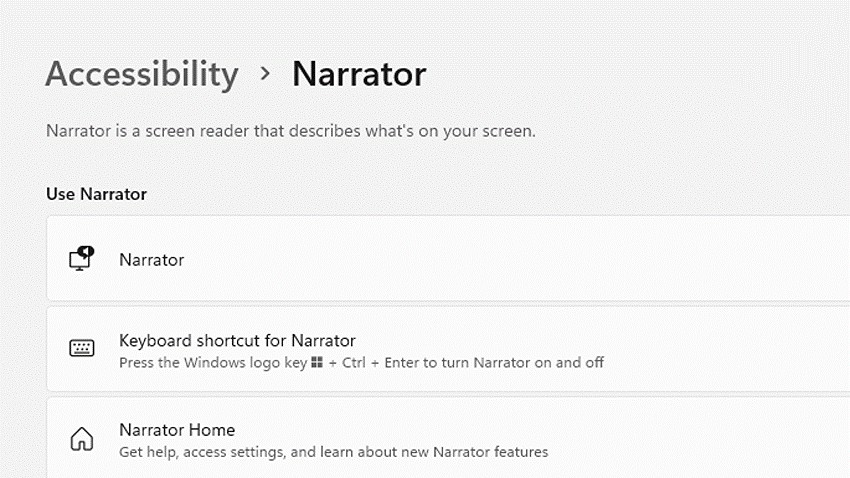
For occasional listening at a desk, Narrator may be enough. Readers who need continuous book playback should check Assistive Reader first because a full screen reader also announces app navigation.
macOS Spoken Content
macOS Spoken Content reads selected or accessible text through a system voice; it is separate from the Kindle app.
- Open System Settings > Accessibility > Spoken Content.
- Set the system voice, speaking rate, and keyboard shortcut.
- Open the book in the Kindle app and select accessible text when selection is available.
- Use the configured shortcut to start or stop speech.
On a Mac, Spoken Content is most useful for a passage, proofreading, or short listening session. It is less convenient when the goal is hands-off chapter playback.
Why Kindle Read-Aloud May Be Unavailable
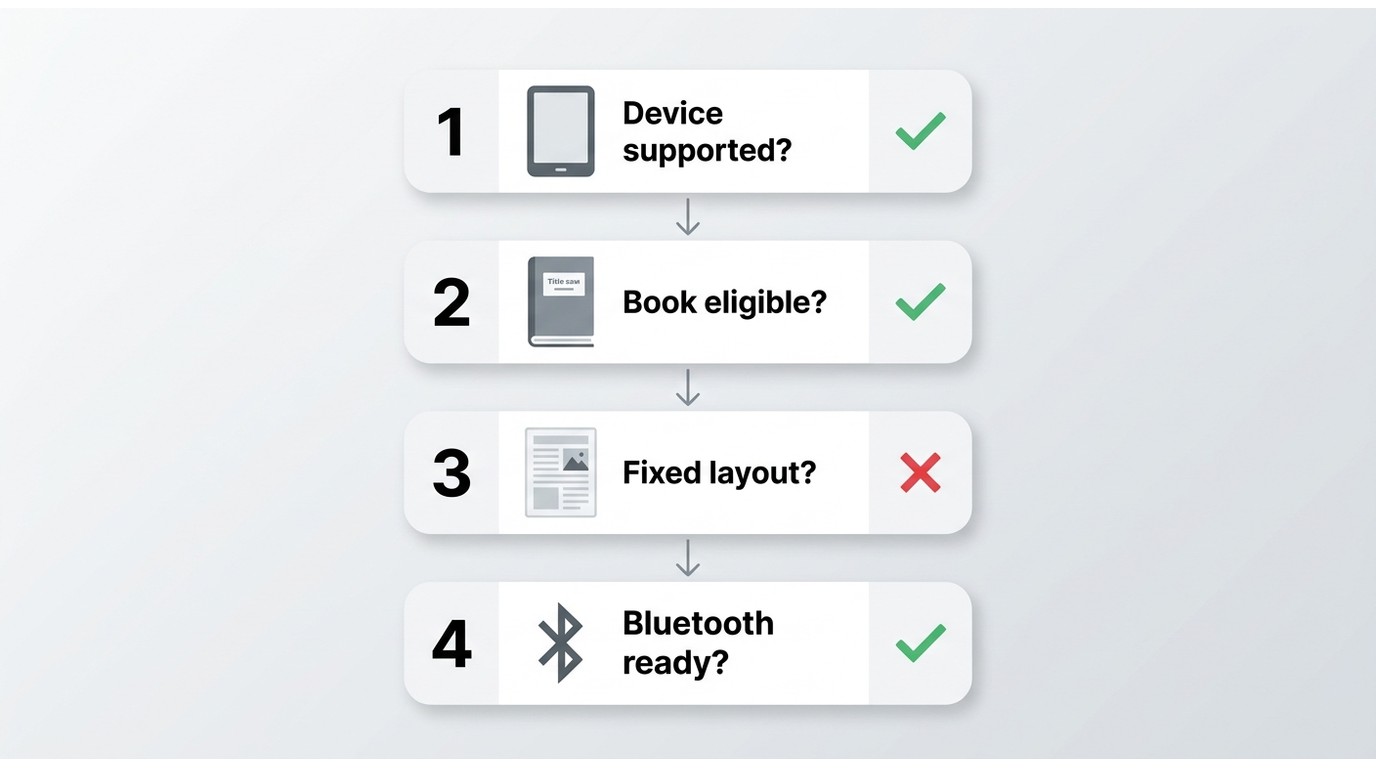
A missing Kindle app read aloud control usually points to device support, app support, book formatting, or title-level permission rather than a hidden universal setting.
- Device or app: The selected Kindle feature may not exist in that model or app release.
- Book eligibility: Supported Kindle books can expose read-aloud controls, while another title in the same library may not.
- Formatting: Image-heavy, fixed-layout, or unusually structured pages may not present text in a form the reading tool can follow.
- Audio setup: VoiceView on a speakerless e-reader needs a working Bluetooth output.
The fastest diagnostic is to open another title already known to support read-aloud. If the control appears there, the first book is the likely boundary; if it remains absent, focus on the device, app, and accessibility settings.
Fix Missing Audio and Playback Problems
Troubleshoot Kindle Bluetooth audio and playback in a fixed order: confirm eligibility, update the app and operating system, check the active audio output, restart, and test another supported book.
Missing Assistive Reader Toggle
- Confirm that the current device or Kindle app supports Assistive Reader.
- Update the Kindle app and the device operating system.
- Close and reopen the book, then reveal the reading controls again.
- Test a second supported title.
- Restart the device if the control remains missing.
When I see the same book behave differently across devices, I separate book eligibility from app support before changing multiple accessibility settings. That keeps the diagnosis tied to one variable at a time.
Silence, Pauses, and Skipped Sentences
- Confirm that the reading method is still active and not paused.
- Open the audio controls and select the intended speaker or Bluetooth device.
- Disconnect and pair the Bluetooth device again if audio goes elsewhere.
- Restart the Kindle, phone, tablet, or desktop app.
- Try a plain-text chapter in another supported book to check whether complex formatting is interrupting speech.
Skipped sentences often deserve a page-level check. Tables, image captions, footnotes, and fixed-layout pages can expose text differently from an ordinary chapter.
Robotic or Unexpected Voices
To change Kindle voice output, adjust the settings for the method that is actually speaking.
- Use Assistive Reader controls for its available voice and speed choices.
- Use VoiceView speech settings when VoiceView is active.
- Use iOS, Android, Windows, or macOS accessibility settings for system speech.
A synthetic voice will not sound like a professionally narrated audiobook. Slower speech can make punctuation and chapter transitions clearer, while a different system voice may improve pronunciation for a particular book.
- Lets supported Kindle books be heard while the screen remains available for following the text.
- Offers accessibility paths for spoken navigation as well as book playback.
- Provides adjustable speech controls when the selected method supports them.
- Works across several device categories through different native or system tools.
- Can support listening without creating a separate audiobook file.
- Not every Kindle book exposes the same reading controls.
- Menus and gestures differ across Kindle, iOS, Android, Windows, and macOS.
- Synthetic speech lacks the performance and production of an Audible narration.
Create an Audiobook-Style Local File
For content you are authorized to access, where permitted by platform terms and applicable law, a local-file workflow can create an audiobook-style listening copy when native Kindle reading controls do not match the task.
When BookFab Fits
BookFab AudioBook Creator fits readers who already have supported input and want a separate listening file with adjustable speech and organized chapters. It is not a Kindle accessibility feature, and it is less suitable when Assistive Reader already provides the needed playback or when the source cannot be used under the applicable terms.
For readers comparing native narration with local listening copies, the broader distinction is covered in this guide to listening to Kindle books. My main check is whether the resulting book remains navigable: chapter order, title information, and a sensible file name matter as much as hearing the text.
- Supported local input: Import supported text or eBook content that you are authorized to access.
- Listening controls: Adjust available voice and pacing settings for the selected content.
- Book structure: Keep chapters and identifying information organized where the input supports them.
- Pronunciation review: Check names, abbreviations, and unusual terms before exporting the full book.
- Follow-along reading: Use highlighting when available to compare spoken text with the page.
- Output use: Save the supported audio output for personal listening in a compatible player.

A Short Local-File Workflow
- Obtain the supported source file through an authorized route.
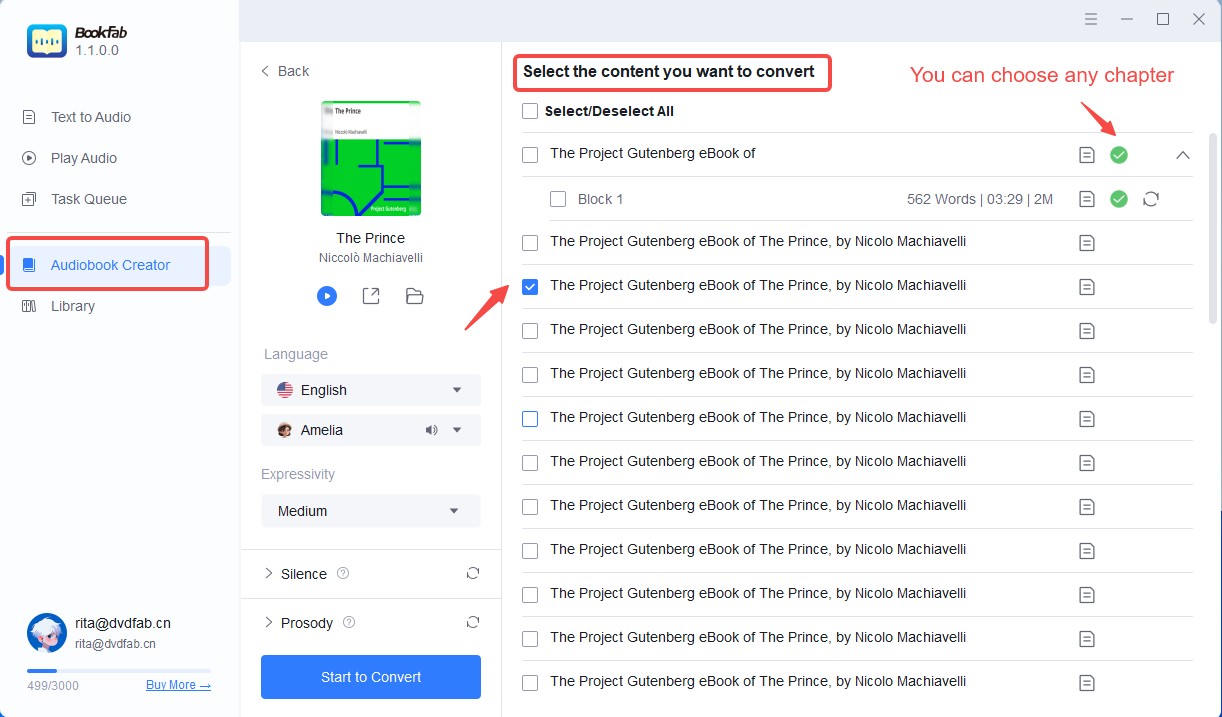
- Open BookFab and import the supported content into AudioBook Creator.
- Select the needed chapters, voice, and available speech settings.
- Review a short section for pronunciation and chapter order before processing the rest.
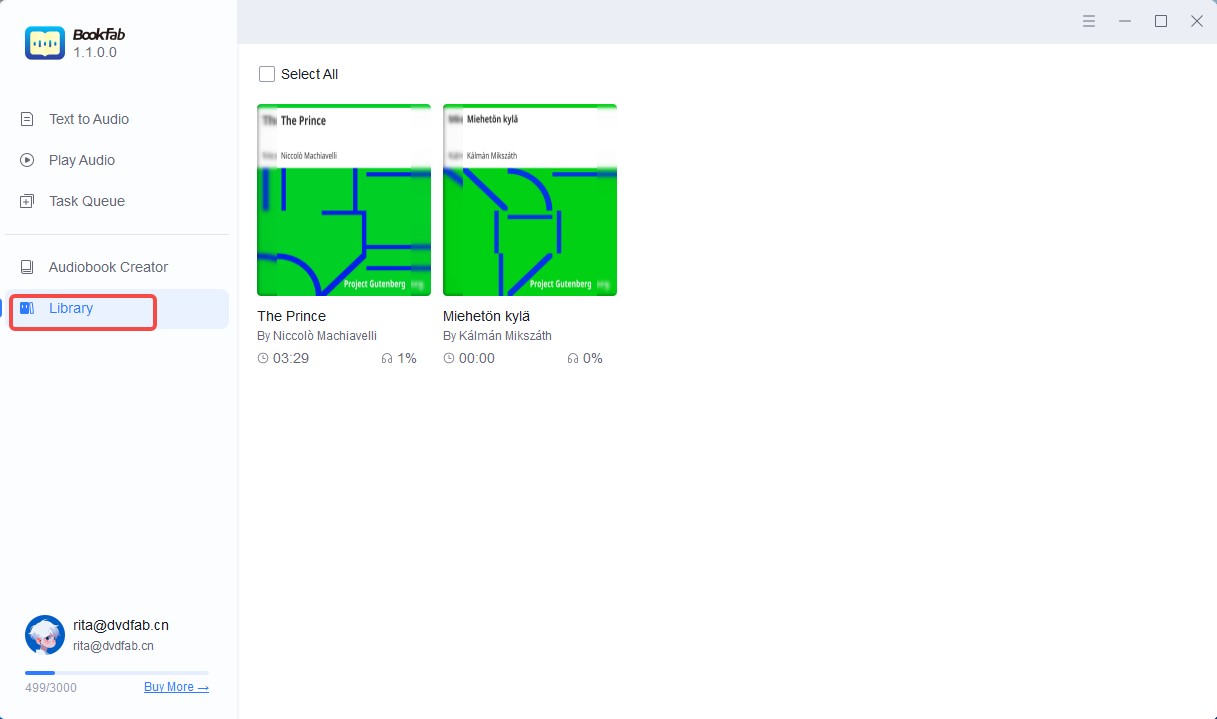
- Export the supported audio format and add clear title and chapter names in the listening library.
Download BookFab AudioBook Creator when this local-file method matches the source and intended personal use.
Frequently Asked Questions
Q
Does Speechify still work with Kindle books?
Speechify's public website remains available, but its specific Kindle integration steps need direct confirmation for the current app and account setup. Start with Assistive Reader or the device's accessibility tools rather than relying on an older import or browser-extension tutorial.
A
Q
Can I change the voice Kindle uses for reading?
Sometimes. The available voice depends on what is speaking: Assistive Reader, VoiceView, iOS, Android, Windows, or macOS. Open that method's speech settings rather than looking for one account-wide Kindle voice control.
A
Q
Why do my Bluetooth headphones connect but play no Kindle audio?
Confirm that VoiceView or Assistive Reader is active, select the headphones as the current audio output, reconnect them, restart the reader or app, and test a supported book. A successful Bluetooth connection does not guarantee that Kindle audio is routed to it.
A
Q
Is Kindle read-aloud the same as an Audible audiobook?
No. Kindle read-aloud uses synthesized speech or a screen reader, while an Audible audiobook is a separately produced narration. Immersive Reading on Kindle can coordinate text and compatible Audible narration for eligible titles, but it is distinct from ordinary text-to-speech.
A
The Best Method Depends on Your Device
Start with Assistive Reader when the device and book support it. Use VoiceView for spoken navigation, choose the operating system's accessibility tools for occasional mobile or desktop reading, and use a local-file method only when authorized content and the desired output make it appropriate.
My recommendation is to test one known-supported book before changing several settings. Once speech starts, check a full paragraph, a chapter boundary, and any image-heavy page so the result works as a readable book rather than merely producing sound.
Kindle for Web remains useful for reading in a browser, but it should not be treated as the universal starting point for Kindle text to speech.

 EPUB to Audiobook: 5 Tools for MP3, M4B, and Read-AloudBy Amber Collins - Aug 26, 2026
 6 EPUB Text-to-Speech Readers and Audio Tools Compared (2026)By Amber Collins - Aug 24, 2026
 Ebook to Audiobook: 3 Routes for Any File or DeviceBy Amber Collins - Aug 21, 2026
 How to Listen to Kindle Books and Convert Them into AudiobooksBy Amber Collins - Aug 10, 2026