
Epubor Ultimate Review 2026: Setup, Pricing, and 10-Book Test.

Summary: Epubor Ultimate is an ebook DRM removal tool that supports Kindle, Kobo, and Adobe DRM. For Kindle books, it still works reasonably well with older AZW and AZW3 titles. However, it has become less stable with newer books, with common issues including KFX decryption failures, poor compatibility across Kindle for PC versions, and weak macOS support. If you need a more stable solution for handling newer Kindle books, you may want to explore some alternatives to Epubor.
Here’s the short answer: Epubor Ultimate can still work for some locally available Kindle, Kobo, and Adobe/ADE books, but its results are tied closely to the app version, file type, and operating system. This Epubor Ultimate review addresses “Epubor Ultimate Review: Is It Worth Your Time and Money in 2026?” by covering setup, pricing, output quality, and whether Epubor works for the books you actually read.
The key conclusion is that broad format support matters less than whether the current desktop and book-file combination can produce a readable export before you commit to a license.

Epubor Ultimate at a Glance

Epubor Ultimate is a Windows and macOS desktop converter for Kindle, Kobo, and Adobe/ADE ebook workflows. It accepts common ebook files, including Kindle-related formats such as AZW3 and MOBI, and offers EPUB, PDF, MOBI, DOCX, TXT, and AZW3 output options. Actual results depend on the store, file type, desktop-app version, and protection variant. Epubor also sells separate audiobook products, including its Epubor Audible Converter; they are not included with Epubor Ultimate.
- Output options include PDF, MOBI, EPUB, DOCX, TXT, and AZW3
- Remove Kindle DRMKindle, Kobo, and Adobe/ADE workflows vary by file and version
- Desktop conversion workspace
- Local-book detection can depend on the source app
- Available for Windows and macOS
Trial, Pricing, and User Feedback
Epubor Ultimate’s trial converts the first 20% of a book to TXT, so it does not let you fully inspect EPUB or PDF layout before paying. Its public feedback is mixed: readers often mention the simple drag-and-drop interface, while version-sensitive Kindle compatibility and limited trial output remain recurring concerns.
| Item | Current detail |
| Trial | First 20% of a book, TXT output |
| One-year license | $29.99 |
| Five-year license | $59.99 |
| Lifetime license | $109.99, one machine |
| Trustpilot | 4.6/5 from about 1,361 reviews |
| Note | Pricing and rating snapshot as of August 2026. Pricing source: Epubor’s official pricing page. |
- Multiple output formats
- Kindle, Kobo, and Adobe/ADE desktop workflows
- Straightforward drag-and-drop layout
- Local-book import can be easy to follow
- Trial output is limited to 20% of a book in TXT
- Kindle results can vary by app version and KFX variant
- Mac setup may require additional security changes
- Support experiences vary
- License terms and update access need careful reading
Epubor Ultimate Setup and Use
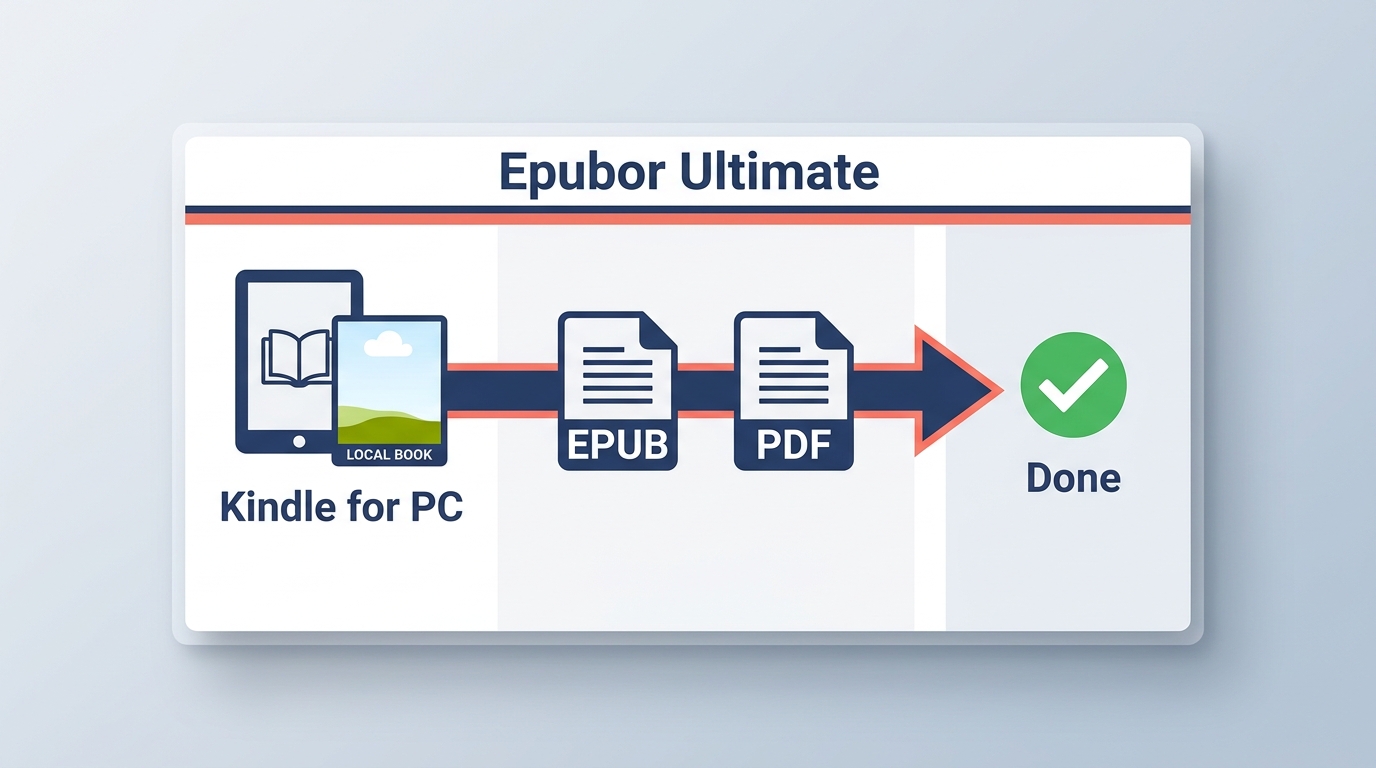
Before starting, install Epubor Ultimate from its official website and make books you are authorized to access available locally through the relevant desktop reading app. The converter can then scan or import those local files, let you select an output format, and save the export to a chosen folder.
Download and Install Epubor Ultimate
- Download the Windows or macOS installer from Epubor’s official website.
- Install the desktop app and open it before importing any local books.
- Confirm that the relevant Kindle, Kobo, or Adobe/ADE desktop app has made the eligible book available on the computer.
Import, Convert, and Export a Book
- Use the library panel to scan for local books or add a file manually.
- Select the title and choose an output format such as EPUB or PDF.
- Start the conversion, then open the exported file in the reading app you plan to use.
The interface is simplest when the book is already visible in a supported local library. The dependency chain becomes more fragile when a store changes its desktop app, file structure, or supported format.
Epubor Ultimate Compatibility Test Results
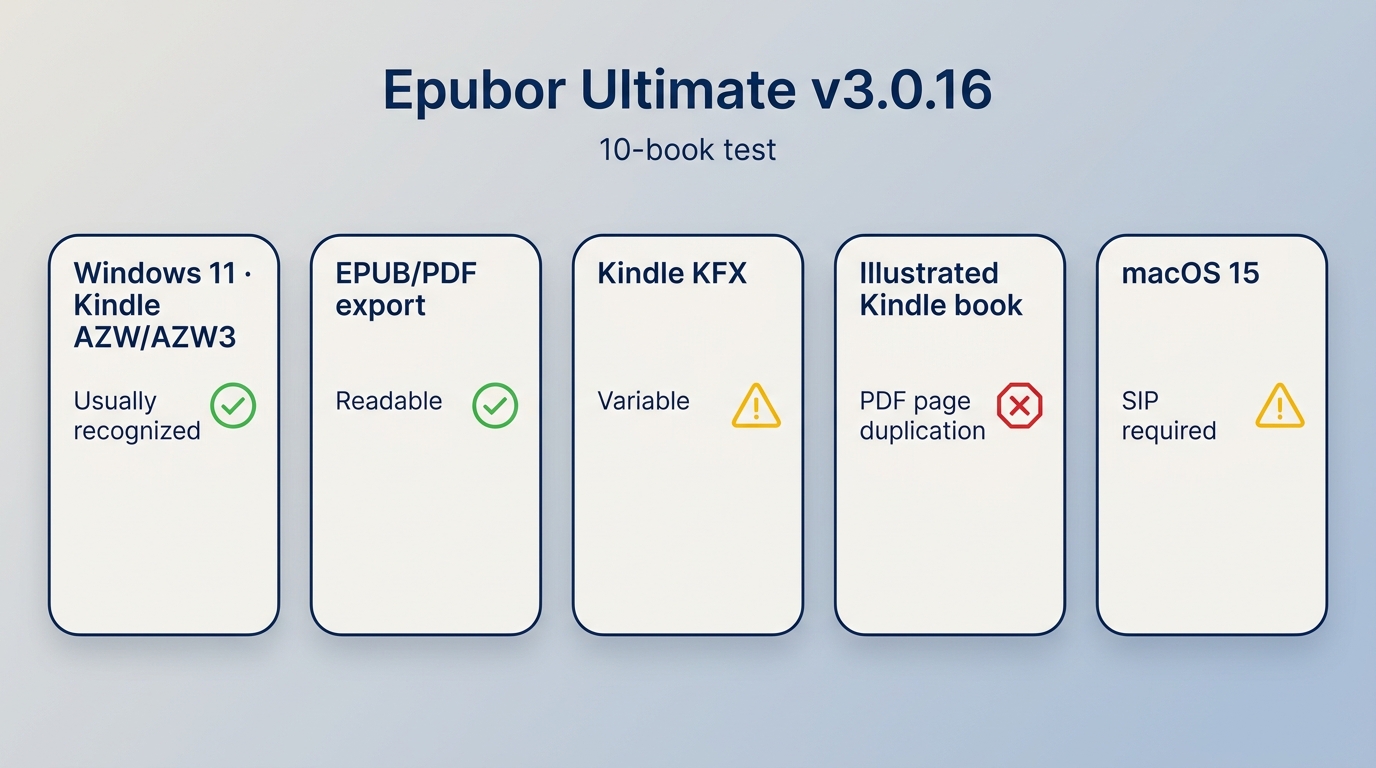
- Newer KFX titles can be more variable than older Kindle files
- Kindle detection depends on the installed app and local-file availability
- Image-heavy PDF exports can show duplicated partial-page artifacts
- macOS setup may require SIP changes, which adds a security concern
I tested Epubor Ultimate v3.0.16 on Windows 11 and macOS 15 with 10 locally available Kindle books. I checked installation, Kindle app detection, file recognition, and the exported EPUB and PDF files rather than treating a successful import as proof that a book was ready to read.
Compatibility snapshot as of August 2026: after the June 30 Kindle for PC transition, results can depend on the exact Kindle app or device firmware, operating system, file type, and KFX variant. A title that appears in one local library may not produce the same result in another.
How I Tested Epubor Ultimate
I first installed Epubor Ultimate v3.0.16 on two separate computers. On Windows, the installer triggered a security warning, but I was still able to proceed by clicking Run anyway. On macOS, the process was more concerning. Epubor Ultimate effectively required SIP to be disabled, which means bypassing macOS's built-in system protection, in order to perform Kindle DRM removal.
After installation, I started with the free trial. However, the trial turned out to be too limited for any serious evaluation. It only processes the first 20% of a book and exports the result in TXT format only. In other words, you cannot actually judge the real output quality for PDF or EPUB unless you buy the full version. To continue the test properly, I purchased the paid version.
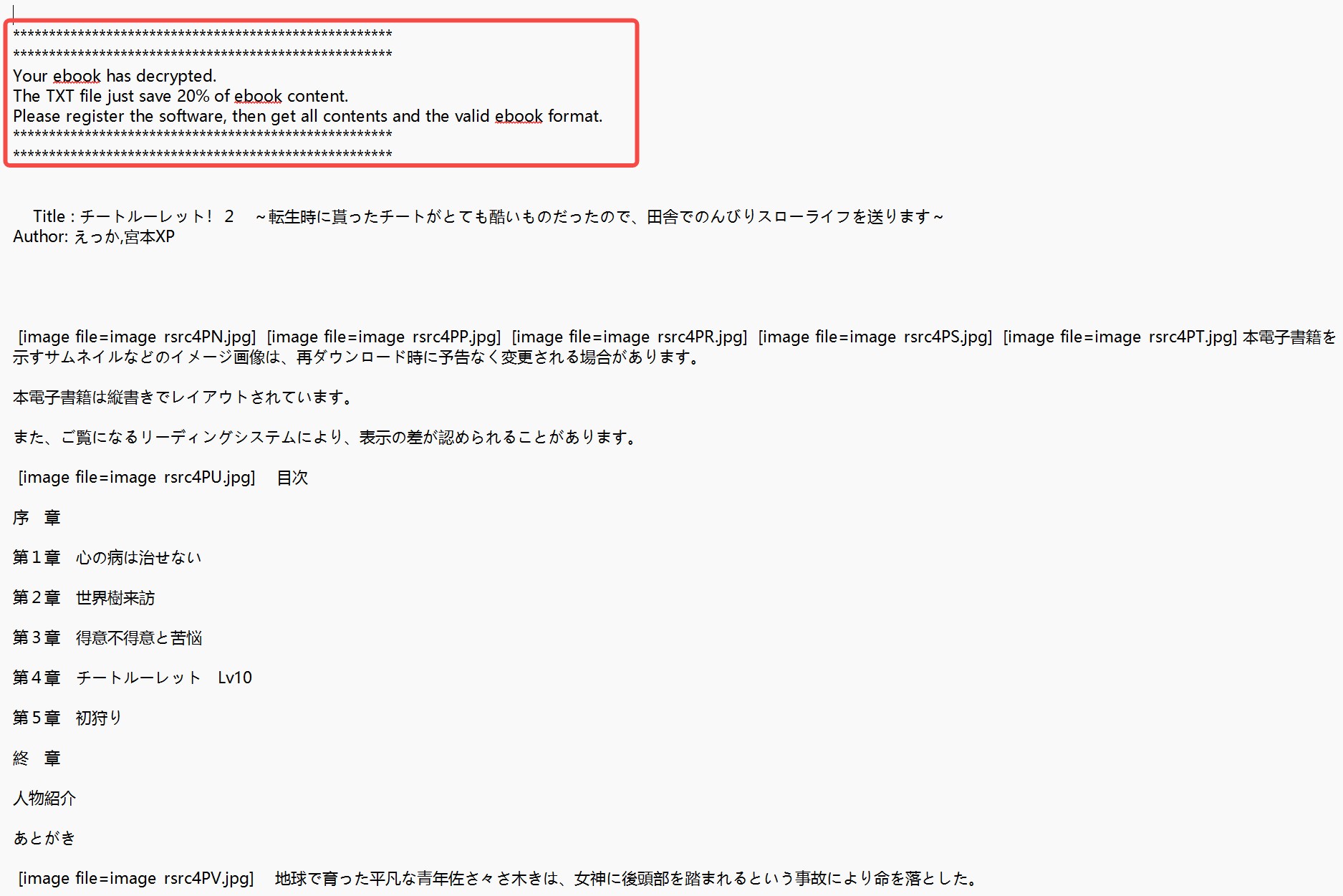
I then downloaded my Kindle books locally through Kindle for PC. My computer was originally running Kindle for PC 2.8.0, but Epubor could not detect any of the books I had downloaded. I followed the official recommendation and downgraded Kindle for PC to version 2.4.0, but that still did not fix the issue. In the end, I updated Kindle for PC to version 2.9.0 and reinstalled Epubor. Only then was the software finally able to recognize my downloaded books.
Results by Format and Platform
Once books were detected, the basic import and export screens were easy to follow. In my 10-book sample, older AZW and AZW3 titles were more consistently recognized than newer KFX files. Text-heavy books produced readable EPUB and PDF files, with a clear enough structure for casual reading.
| Context | File or device | Observed result | Reader impact |
|---|---|---|---|
| Windows 11 | Older AZW/AZW3 | Usually recognized | Readable text exports |
| Windows 11 | Newer KFX variants | Variable detection | May block conversion |
| Kindle device | Recent firmware | Another compatibility variable | Test the exact title |
| macOS 15 | Kindle workflow | Extra setup required | Security tradeoff |
| Illustrated books | Partial-page duplication | Can interrupt reading |
Output Quality and Failure Cases
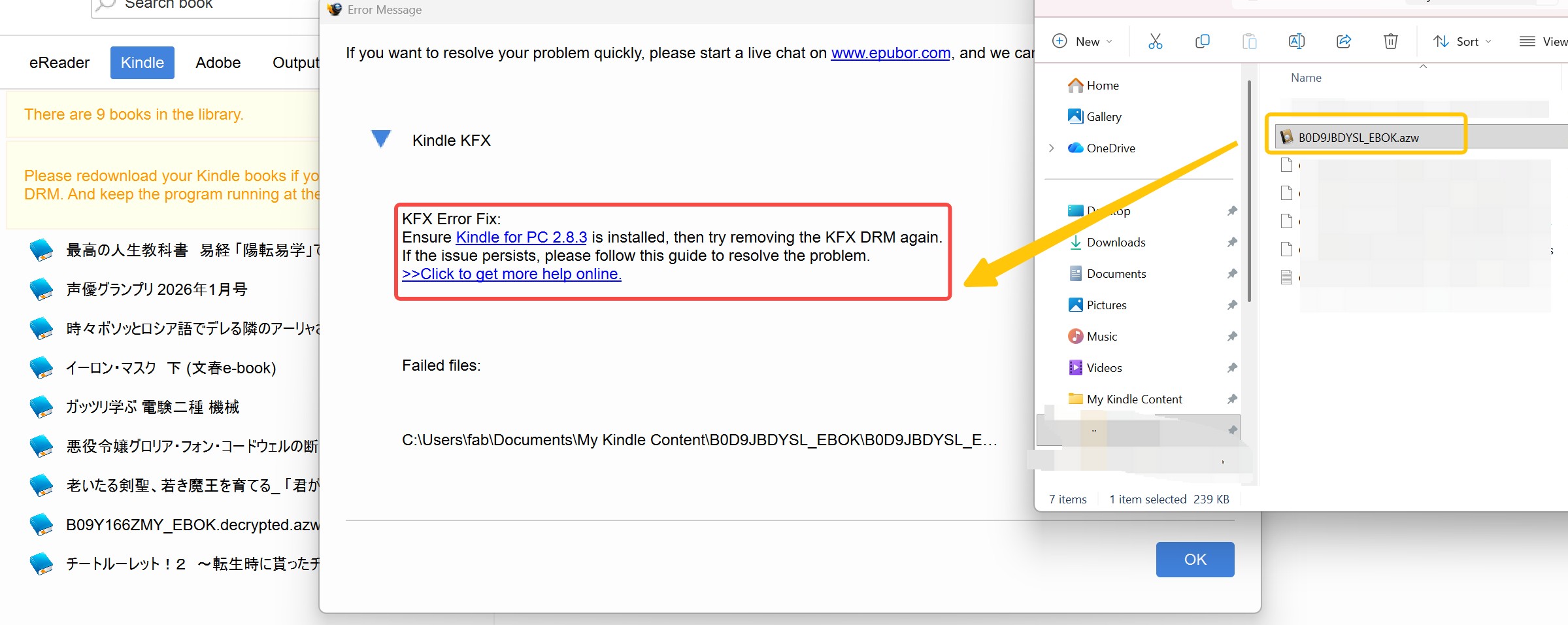
I also encountered a format-recognition error: an AZW Kindle book was identified as KFX, and the app presented a version-specific message instead of a usable export path. That kind of mismatch makes compatibility difficult to judge from a product feature list alone. It is a reason to test the exact book, app, and output format before treating a license term as proof of future compatibility.
Another issue appeared during PDF conversion for illustrated books. While plain text books looked fine, image-heavy titles, especially comics, showed obvious bugs. Parts of the illustrations were duplicated on every other page, which noticeably hurt the reading experience.
On Apple-silicon Macs, the reported need to disable System Integrity Protection is a meaningful drawback. Lowering a core macOS security setting is a separate decision from converting a book file, and it makes this desktop workflow less appealing for readers who need a predictable native Mac setup.
Who Epubor Ultimate Suits
Epubor Ultimate may suit readers with smaller, text-heavy libraries who are comfortable checking desktop-app compatibility and inspecting each finished export. In my review, the useful evidence came from opening the EPUB or PDF and checking its text flow, cover, chapter navigation, and illustrated pages, not from the conversion screen alone. Buyers who need predictable results with recent KFX titles, image-heavy PDFs, or a native Mac workflow should validate their own books before purchasing.
BookFab as a Kindle-Focused Alternative
For content you’re authorized to access, where permitted by platform terms and applicable law, BookFab Kindle Converter is a Windows-focused option for Kindle books already downloaded through Kindle for PC. It can detect local titles, export eligible books as EPUB or PDF, and batch tasks for readers organizing a personal Kindle library. It also aims to retain useful book details such as the cover, title, author, and chapter structure.
Its Calibre plugin is available after purchase at no extra charge. That can be useful when Calibre is already where you organize covers, author names, series data, and reading files. BookFab is not a native Mac option, and it is not intended as broad Kobo or Adobe/ADE coverage.
- Exports eligible local Kindle books as PDF or EPUB
- Includes a desktop app and a Calibre plugin after purchase
- Supports KFX, AZW3, and MOBI source files
- Verified for Windows with Kindle for PC
- Includes task management for local conversion jobs
- Support is updated as supported platforms change
- Preserves main metadata, including covers, titles, and authors
Epubor, Calibre, and BookFab Compared
| Option | Best for | Kindle/KFX and OS | Trial or price | Batch and metadata |
| Epubor Ultimate | Local Kindle, Kobo, ADE books | Windows/macOS; KFX varies | 20% TXT trial; $29.99/$59.99/$109.99 | Local import; results vary |
| Calibre with DeDRM | Free library management | Windows/macOS/Linux; plugin-dependent | Free, open source | Strong library tools; plugin upkeep |
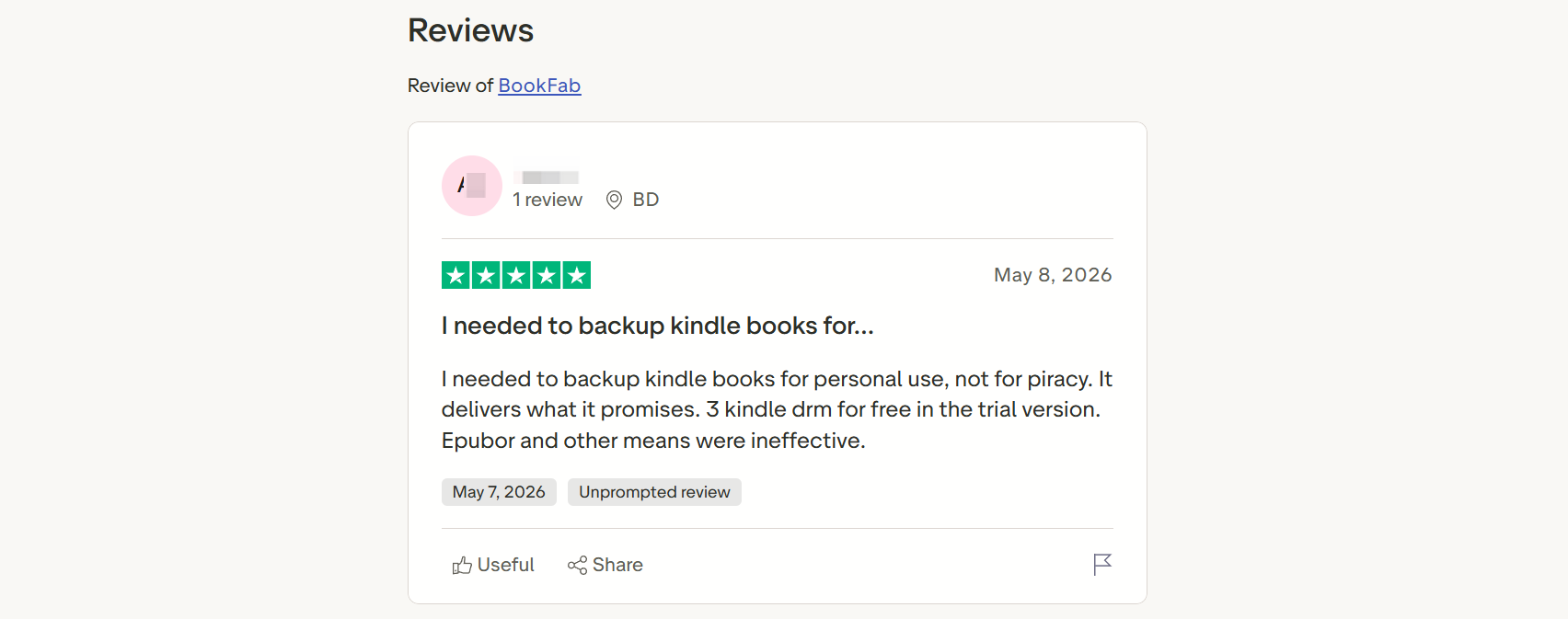
| BookFab Kindle Converter | Windows Kindle libraries | Windows + Kindle for PC | Up to 3 books | Batch tasks; metadata and chapters |
Using BookFab With Kindle for PC
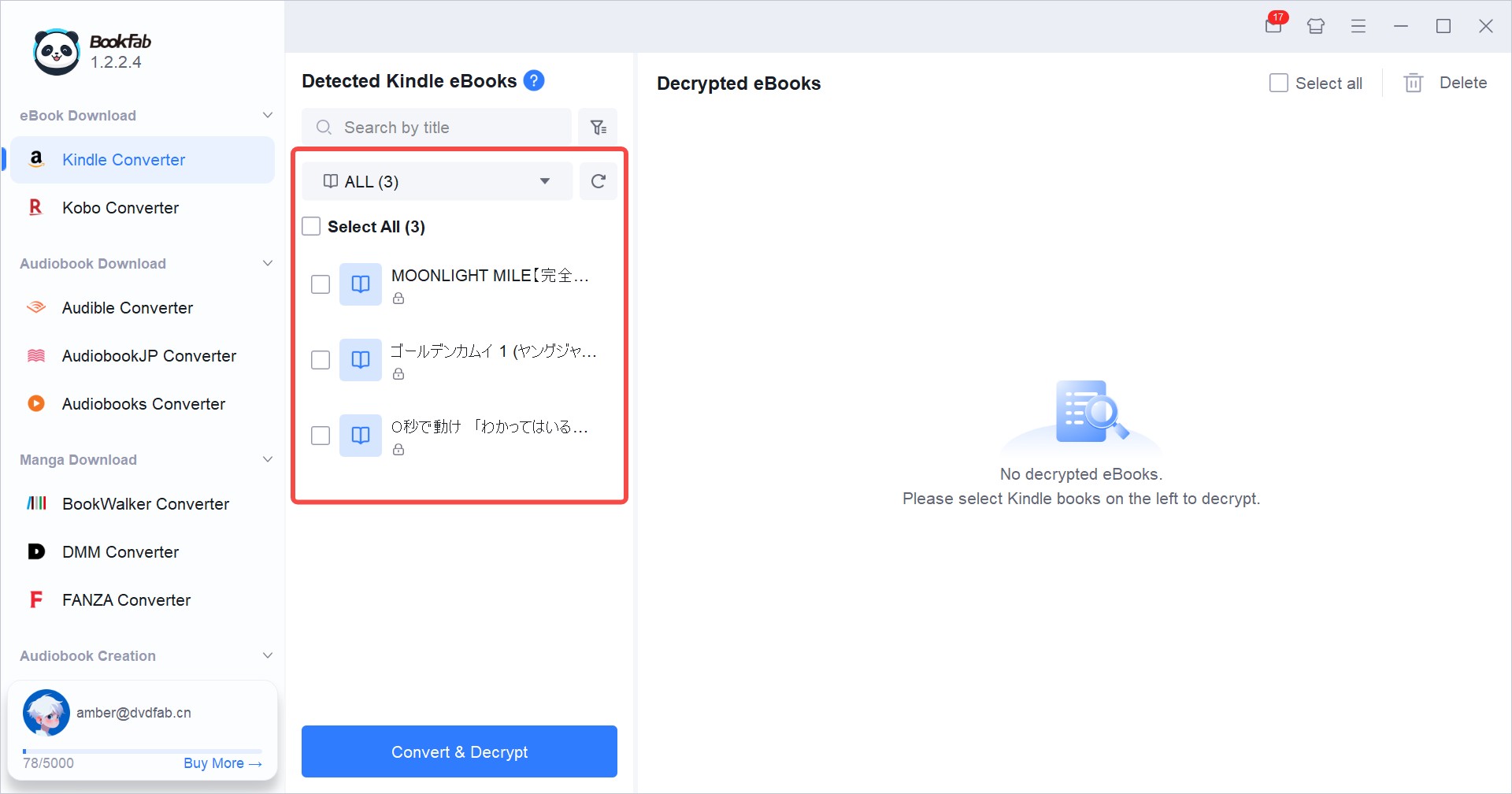
Before you begin, use Windows and download the Kindle books you are authorized to access through Kindle for PC. Confirm that the books appear in the local Kindle library before opening BookFab.
Option 1: Using the BookFab Desktop App
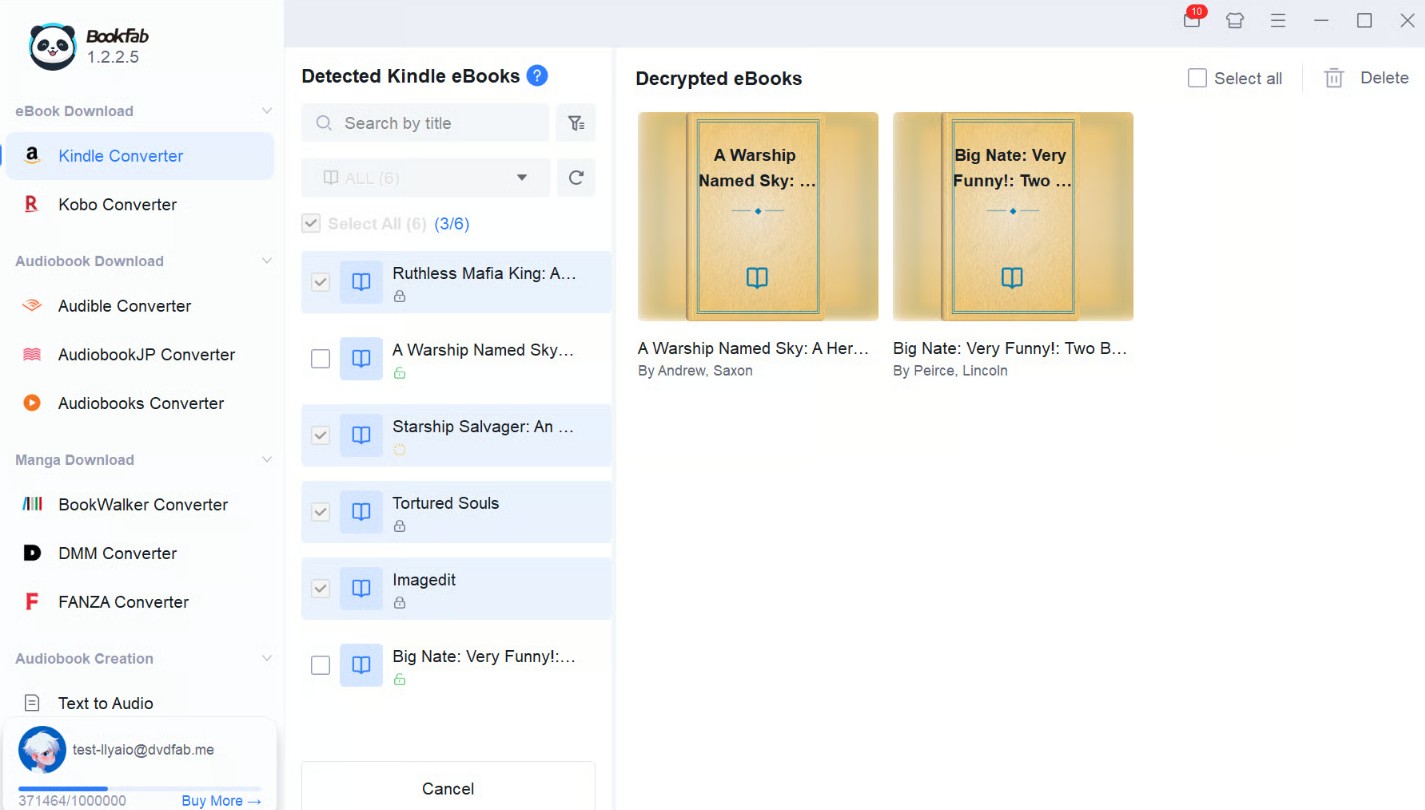
Note: It is not a native Mac workflow.
Option 2: Using the BookFab Plugin in Calibre
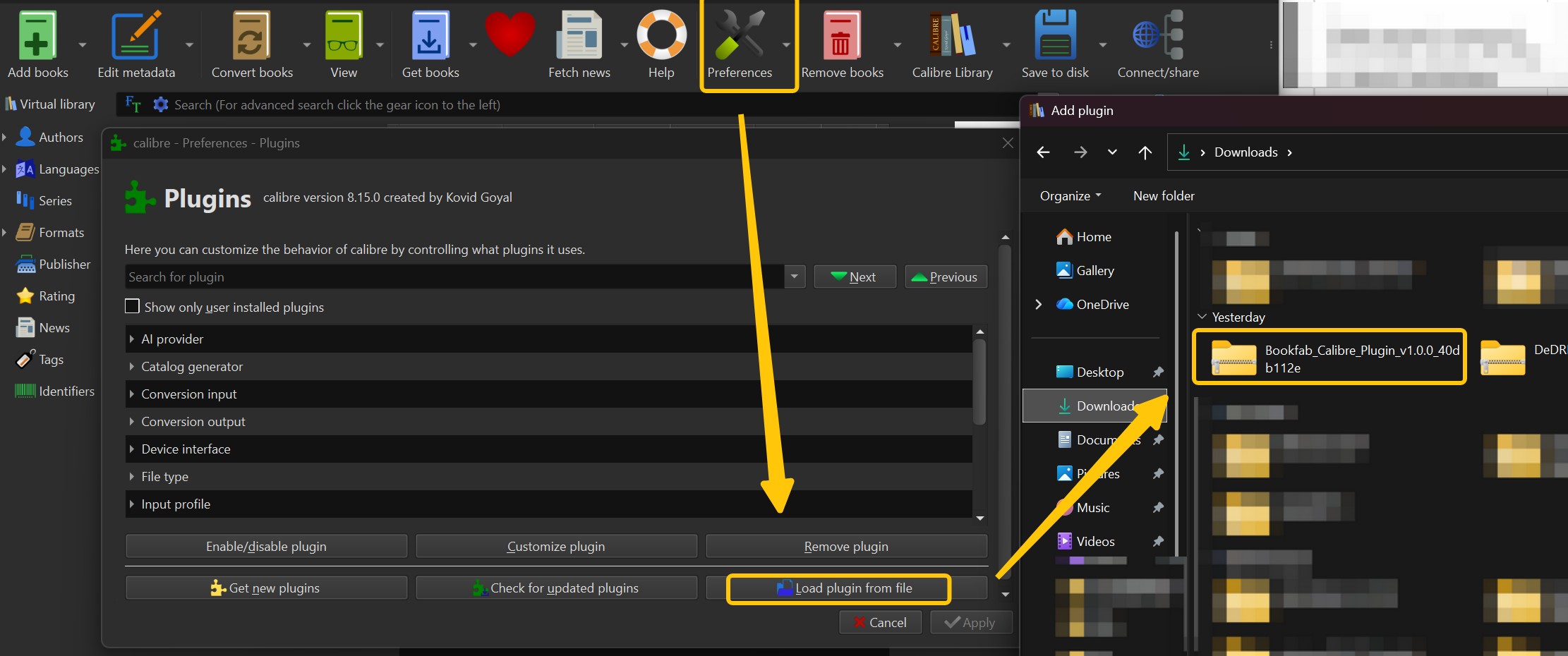
Epubor Ultimate FAQs
Is Epubor Ultimate safe to install?
Epubor Ultimate is an active commercial desktop product, but safety is not a single yes-or-no question. Some Windows installations have prompted security warnings, and the reported macOS requirement to disable System Integrity Protection deserves separate consideration. Downloading from the official publisher is different from using unauthorized installers, and readers should use conversion tools only for content they are authorized to access where permitted by platform terms and applicable law.
ACan an Epubor license move between computers?
License duration, machine limits, transfer eligibility, and update access are separate terms. Epubor lists one-year, five-year, and lifetime options, but the lifetime offer is presented for one machine. Do not assume that moving a license to another computer or receiving future compatibility updates is included unless the applicable license terms say so.
AWhat risks come with unofficial Epubor downloads?
Unauthorized modified installers can expose a computer to malware, missing updates, and unavailable product support. They may also create legal uncertainty. Use the official installer and keep personal ebook conversion within the permissions that apply to the source and your account.
AWhy might Epubor stop detecting Kindle books?
Detection can change when the Kindle desktop app, device firmware, local-file availability, operating system, or KFX variant changes. Confirm that the title is available locally, then compare the app and file conditions with the converter’s stated support before making a purchase decision.
ADoes Epubor Ultimate have an Android app?
Epubor Ultimate is presented as desktop software for Windows and macOS. Converting a file on a computer is different from having a native Android app, so readers who need a phone-first setup should not assume that the desktop converter will run directly on Android.
AWho Epubor Ultimate Suits in 2026
Epubor Ultimate remains a reasonable option for Windows or Mac readers with simple, locally available ebook libraries who can validate output before paying. Calibre may make more sense for readers who want a free, cross-platform library manager and accept plugin maintenance. BookFab Kindle Converter is more relevant for Windows users organizing eligible Kindle books in batches through Kindle for PC. The deciding details are your operating system, book source, file type, tolerance for version-specific setup, and whether the finished EPUB or PDF keeps the cover, chapter navigation, and page layout you need.

 How to Download Kindle Books in 2026: 5 Current OptionsBy Amber Collins - Aug 26, 2026
![How to Convert Kindle Books to EPUB Easily [2026 Verified]](https://r5.dvdfab.cn/upload/bookfab/en/convert-kindle-to-epub-RDlf.jpg) How to Convert Kindle Books to EPUB Easily [2026 Verified]By Amber Collins - Aug 26, 2026
How to Convert Kindle Books to EPUB Easily [2026 Verified]By Amber Collins - Aug 26, 2026 Kindle DRM Compatibility in 2026: What Still WorksBy Amber Collins - Aug 25, 2026
![[Quick Solution] How to Remove Kindle DRM on Mac](https://images.dvdfab.cn/media/未命名的设计__87__crpyru.png/public) [Quick Solution] How to Remove Kindle DRM on MacBy Amber Collins - Aug 24, 2026
[Quick Solution] How to Remove Kindle DRM on MacBy Amber Collins - Aug 24, 2026