
How to Add EPUB to Apple Books on iPhone, iPad, and Mac

Summary: Add compatible EPUB files to Apple Books with native iPhone, iPad, and Mac tools. This guide separates import, iCloud sync, and offline downloads, explains common opening problems, and covers supported-source conversion and M4B transfer boundaries.
An EPUB saved on your device still needs to enter your reading library. To add an EPUB to Apple Books, open the file from Files on iPhone or iPad, or use File > Import in Books on Mac. A compatible EPUB needs no conversion.
I would separate getting the file onto the device from getting a readable book into the library. A cover on the shelf is not enough: the chapter links and text still need checking. That distinction matters when a saved EPUB does nothing after a tap. I’ll work through the import, then the checks for reading on another device and opening the book offline.
Table of Contents
Which Files Can Apple Books Open?
Apple Books can read compatible EPUB files, including books obtained outside its store. You can also add PDFs to the library, while audiobooks belong to a separate category. Some files supplied by a store or library require their associated app instead.
Start with a complete file and the Books app installed. This is personal-library import, not submitting a book for sale in the Apple Books Store; you do not need an author publishing account.
| File | Reading type | Next action | Important limit |
|---|---|---|---|
| EPUB | eBook | Open in Books | Complete, compatible file required |
| Fixed pages | Import to library | Page layout stays fixed | |
| ACSM, AZW, ODM | Source-dependent | Use associated app | Not an ordinary EPUB |
| M4B | Audiobook | Import on Mac | Phone transfer differs |
Source: Apple’s Books User Guide and Pages support, as of October 2026.
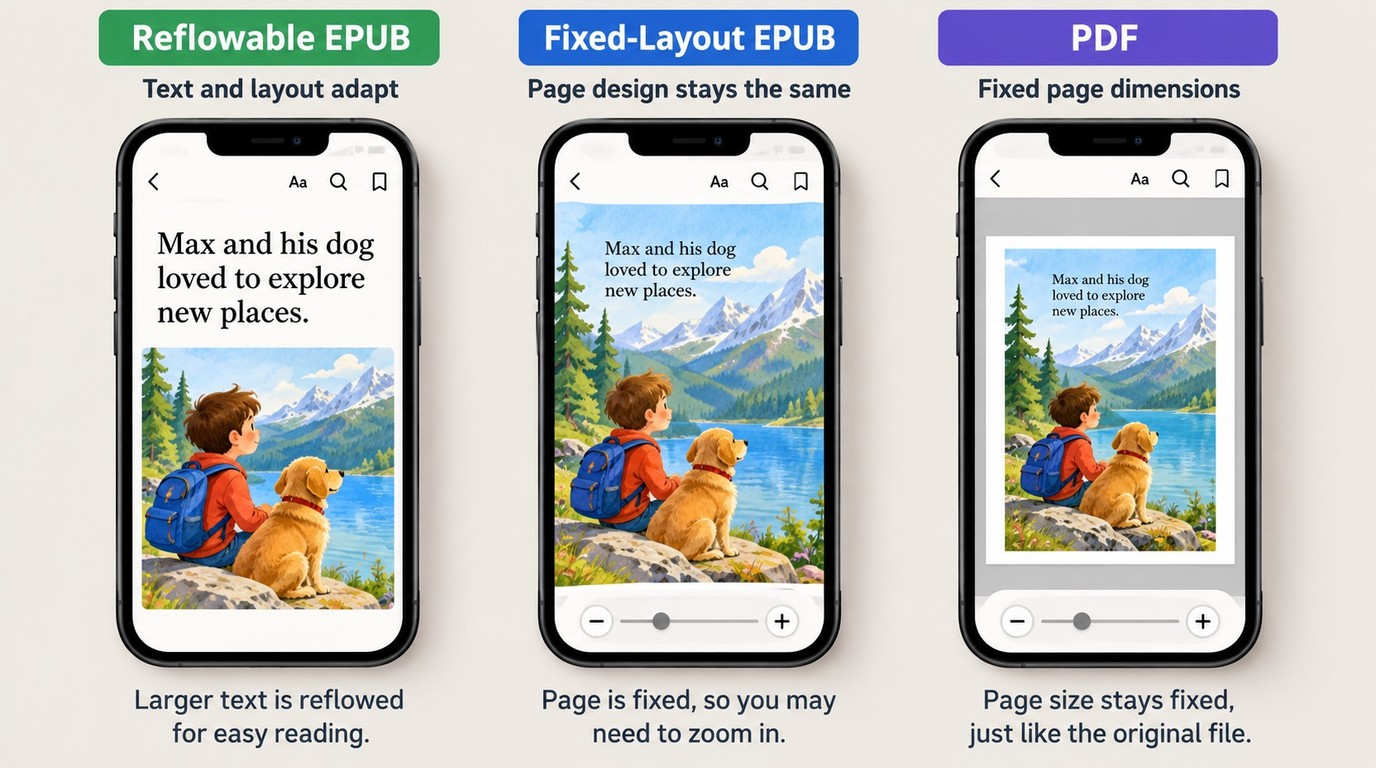
For an ordinary EPUB, I would keep the file in that format. Reflowable EPUB text adjusts to your chosen font size and screen, so lines and page breaks change as you read. A fixed-layout EPUB keeps text and pictures in their designed positions; enlarging the page does not rearrange its contents. That matters for illustrated books on a phone.
PDF preserves page dimensions rather than reflowing the text. On Mac, an imported PDF opens in Preview or your default PDF reader. Renaming an AZW or ACSM file with an .epub extension does not convert it, and importing a file does not remove its source-app restrictions.
Add Your EPUB in Apple Books on iPhone, iPad, or Mac
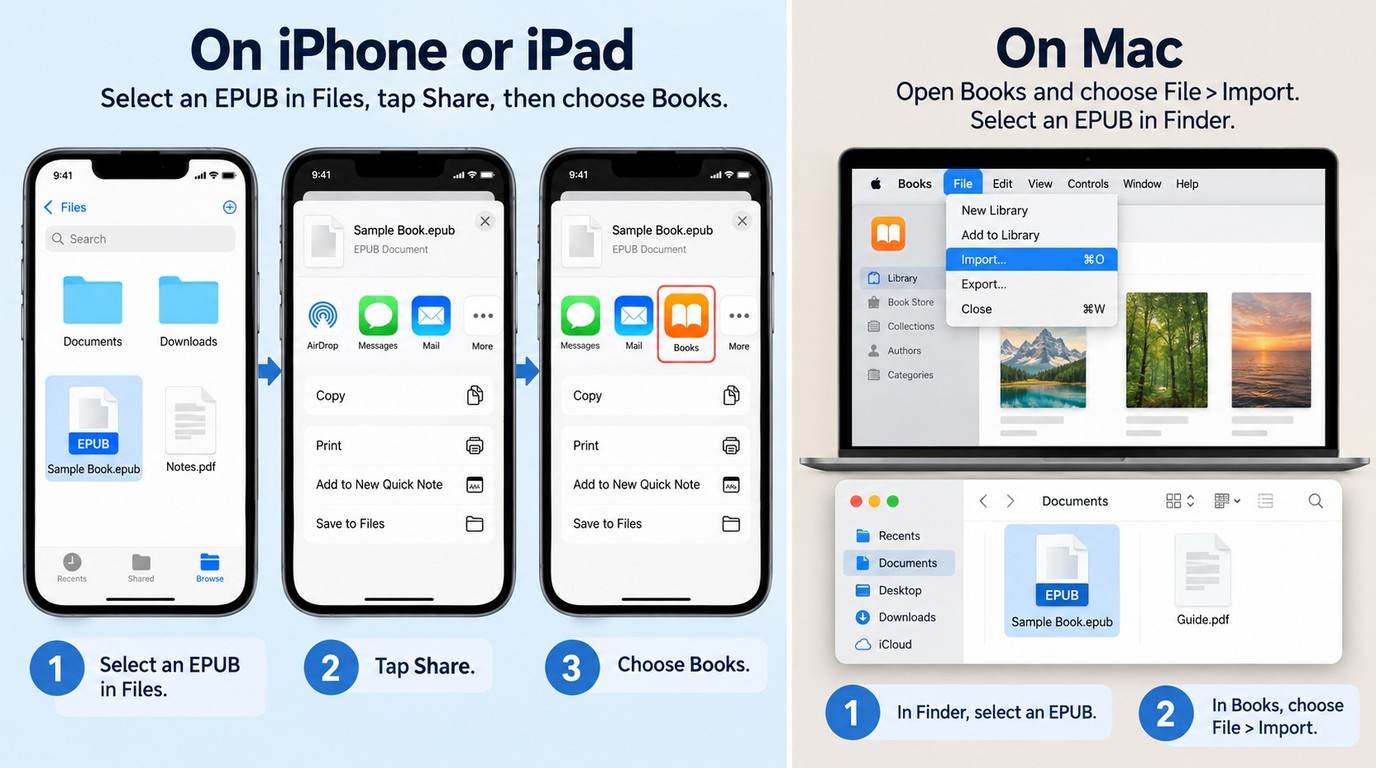
On iPhone or iPad, locate the EPUB in Files and open it in Books, using the share options if needed. On Mac, select it through File > Import in Books or drag it into the library. Then open the book itself to confirm that the import produced something you can read.
On iPhone or iPad: Open the EPUB from Files or an Attachment
Have the complete EPUB available and Apple Books installed. A download link in an email is not the file itself; finish downloading the attachment before trying to import it.
- Find the EPUB in Files. Open its saved folder, such as Downloads in iCloud Drive or On My iPhone/On My iPad. For an email or message attachment, use its sharing options to save it to Files first. If the file is still stored online, let it download.
- Tap the EPUB. A supported file can open in Books. If you see a preview or a Copy to Books option instead, use the offered Books action to complete the handoff.
- Use Share if the tap does not open Books. Open the file’s share menu and select Books. If the app row includes More, look there too; the available actions depend on the file and the app presenting it.
- Check the Books library. Find the imported title and open it. Search by the book’s title or author if the cover is not immediately visible.
The same sequence applies to iPhone and iPad. You do not need a separate transfer utility for a compatible EPUB already available in Files. If Books is missing from the offered actions, use the troubleshooting section below rather than repeatedly sending the attachment to yourself.
An imported title can differ from its filename. The book’s embedded title and author information, called metadata, help determine how it appears in your library. Search for the printed title as well as the name you saw in Downloads before assuming the import failed.
On Mac: Use File > Import or Drag the EPUB into Books
Have the EPUB downloaded to your Mac and ready in Finder. Import the book file, rather than a browser shortcut or a link to a cloud folder.
- Open Apple Books. Bring Books to the front so its menus appear in the menu bar.
- Choose File > Import. Select the EPUB in the file picker, then click Import.
- Find and open the title. Look in the library, then open the book to check that its text displays.
Dragging the EPUB from Finder into the Books library is an equivalent shortcut. There is no need to perform both actions. For a folder of books, start with a title whose cover and contents you recognize; it gives you a clear way to check the result before adding the rest.
Open the Book and Check Its Cover, Contents, and Pages
I would call the import complete after checking the book, not after seeing its thumbnail. These checks separate a successful transfer from a comfortable reading copy:
- Title, author, and cover: Confirm that the library entry identifies the right book and edition.
- Table of contents: Follow a chapter link and confirm that it reaches the intended chapter.
- Text size and spacing: Change the font size in a reflowable book and look for clipped lines or unusual paragraph gaps.
- Illustrated pages: Check that pictures, captions, tables, and nearby text remain readable together.
- Footnotes and symbols: Open a note link, if present, and inspect any passages with special characters.
For a picture book, I would pay particular attention to the relationship between the image and the words. A fixed layout can preserve that relationship while still requiring zoom on a smaller screen. These are checks for your copy, not a promise that importing repairs missing pages or chapter links.
Sync Apple Books EPUBs with iCloud and Check Offline Access
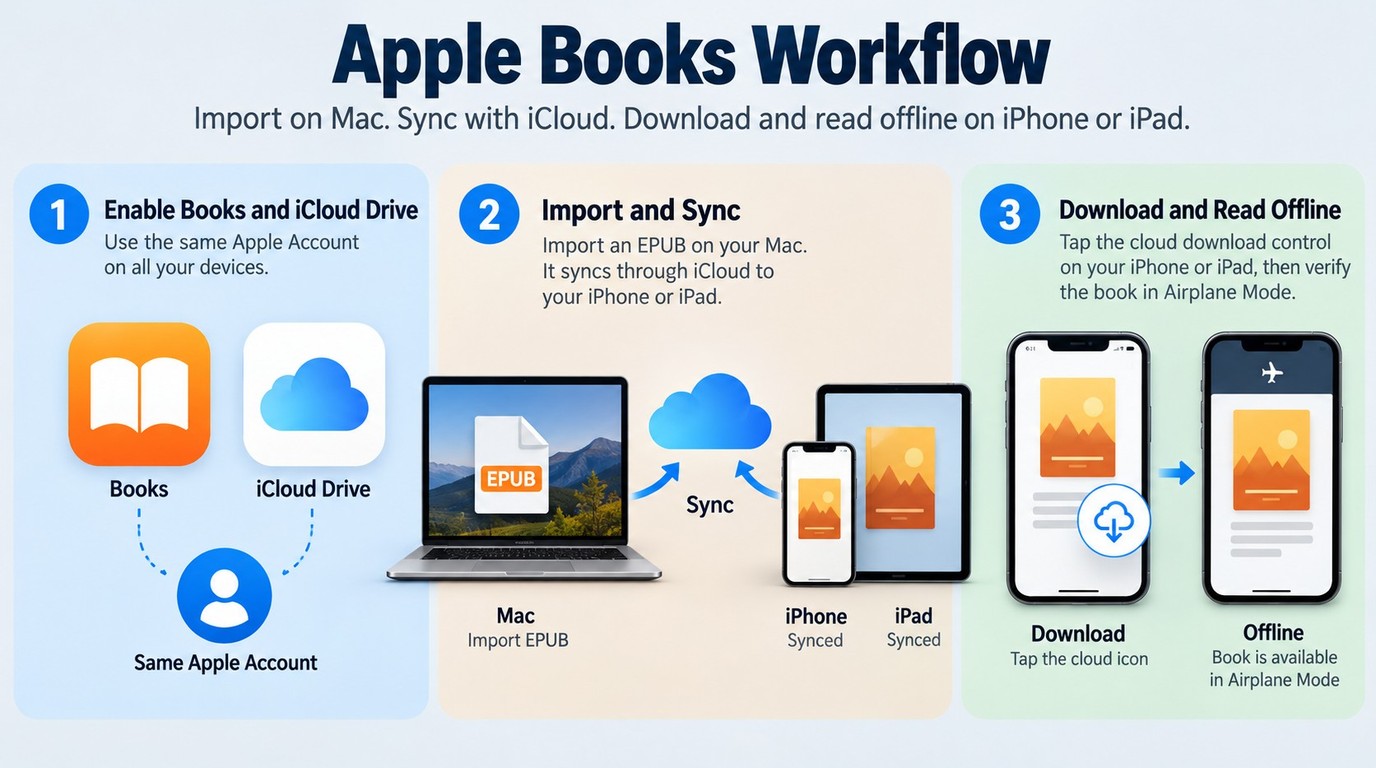
To see an imported EPUB on another Apple device, use the same Apple Account and enable the relevant Books and iCloud Drive settings. To read offline, download the book on the device you will use and open it without a connection. A visible library entry does not establish that the file is stored locally.
Enable Books and iCloud Drive on the Same Apple Account
Check the settings on both devices, including the one where you imported the EPUB:
- Confirm the Apple Account. Open Settings on iPhone or iPad, or System Settings on Mac, and check the account shown under your name. Use the same account on the devices whose Books libraries you want to sync.
- Enable cloud storage for Books. On iPhone or iPad, go to Settings > your name > iCloud. Open the full list of apps using iCloud, labeled See All or Show All on different versions, and enable Books; also make sure iCloud Drive is on. On Mac, open System Settings > your name > iCloud > Drive or iCloud Drive, then enable Books under Apps Syncing to iCloud Drive.
- Check Books’ own syncing options. On iPhone or iPad, open Settings > Apps > Books and enable iCloud Drive under Syncing; Home controls the Home view. On Mac, Books > Settings > General includes Home and Collections, bookmarks, and highlights options.
- Look for the title on the other device. Keep both devices connected while the library updates, then search for the book in Books on the destination device.
Library content and reading information serve different purposes. The Books option in iCloud also supports reading position, bookmarks, notes, and highlights; it is not interchangeable with downloading the EPUB. Likewise, Purchases from Other Devices concerns store purchases, so it is not the setting to rely on for an EPUB you imported yourself.
I would check these settings before importing another copy. A second import does not explain whether the original book reached the other device, and it can make the library harder to sort through.
Download the EPUB on the Reading Device and Open It Offline
Verify the reading copy on the device you plan to carry:
- Open the book while connected. If its menu offers Download or a cloud download control, use it and allow the download to finish.
- Disconnect from the network. Turn off Wi-Fi and cellular data, or use Airplane Mode with Wi-Fi off.
- Reopen the book in Books. Open another chapter and an illustrated page, if present, rather than checking just the cover.
The offline check is worth doing before you need it. One Reddit reader in r/ebooks wrote, “I want an app on ios to read epubs on other than apple books because for some reason my books sometimes can’t be read without wifi even though they’re still downloded on my phone.” That describes the reader’s symptom, not its cause. Reopening your own EPUB offline gives you a direct check of the copy you intend to read.
Why Your EPUB Will Not Open or Appear in Apple Books
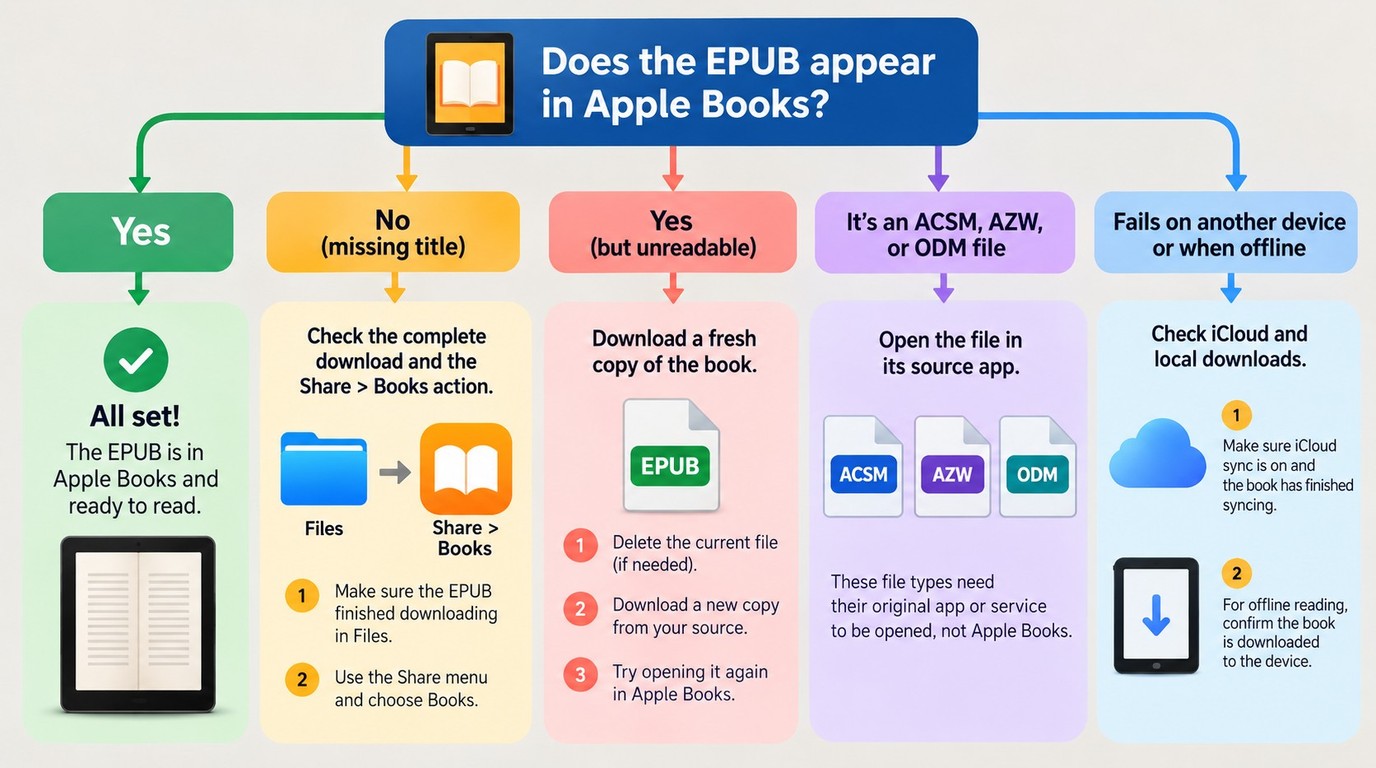
Start by distinguishing a file that never reaches Books from a book that appears but will not read correctly. Check the complete download and the source format before changing apps or converting anything. If the problem is limited to another device or offline reading, return to the sync and download checks above.
Books Is Missing from the File or Share Options
A missing Books action is a handoff problem to investigate, not proof that EPUB is unsupported. Confirm that Books is still installed, and open it independently. Then try the saved, fully downloaded EPUB in Files rather than an attachment preview or a link inside another app.
A default-app setting is not a dependable substitute for that handoff. One reader in r/ipad put it plainly: “However, Books is not listed as an option to pick as a default.” The comment describes that reader’s menu; it does not establish a setting that exists on every device.
If the share menu offers More, inspect its app list for Books. If it does not, do not keep looking for a button that is absent from your screen. Return to the file’s source and confirm that you downloaded the actual EPUB, rather than a web page or a different file type.
I would resolve the file and app handoff before reinstalling Books. Buying a converter at this point also skips the diagnosis: a complete, supported EPUB already has a native import path.
The File Appears in the Library but Will Not Read Correctly
A failed opening calls for a fresh look at the source file. Download the original again from the provider, keeping your existing copy until the replacement opens. An interrupted or damaged file will not become complete merely because you repeat the import.
Source-app requirements need a different response. An ACSM, AZW, or ODM file is not an ordinary EPUB that Books can treat the same way. Return to the library or store’s associated app for that file; changing the extension is not a repair. A supported-source conversion scenario is covered in the next section.
Missing chapter links and awkward page layout are reading problems even when the file opens. If a contents entry does not jump correctly, compare it with the original edition or request a replacement file from the provider. If larger text does not rearrange the page, check whether you are reading a fixed-layout book before treating it as damaged.
A title that seems absent also deserves a library check. Search its embedded title and author, and leave any collection or category view that could exclude it. I would avoid deleting a readable copy while looking for a differently named one; identify the book first, then decide which entry to keep.
When BookFab Can Prepare a Kindle or Kobo Book for Import
BookFab addresses the preparation stage when a supported Kindle or Kobo source has not provided a usable EPUB. On Windows and macOS, BookFab’s corresponding Kindle Converter and Kobo Converter modules export supported AZW3/KFX and KePub books as EPUB for import into Apple Books. An ordinary compatible EPUB can go straight to Books.
Check the Source, Module, and Exported EPUB Before Importing
I would keep conversion tied to the book’s starting format. For Kindle, use the Kindle Converter module; for Kobo, use Kobo Converter. These names identify supported book sources, not an Apple, Amazon, or Kobo partnership.
- Prepare the source in its matching BookFab module. Use the BookFab desktop client and the module’s supported source environment. Windows Kindle conversion also requires the currently supported Kindle App.
- Export the selected book as EPUB. The eBook modules support retaining main book information, styling, and images, helping you keep a recognizable reading copy. Batch conversion lets you prepare several supported titles in the client rather than starting each task separately.
- Inspect the exported book in Apple Books. Follow the native import steps above, then check its title, cover, contents, and illustrated pages. BookFab prepares the file; the Books import remains a separate action.
Compatibility is tied to the selected module and its supported source environment; the included converters’ individual free-trial rules apply, so use the relevant trial to check your title’s EPUB output. I would inspect a book before expanding to a batch, especially when illustrations share a page with text.
You can get the desktop installer from the official BookFab page.
FAQ: EPUB Files and M4B Audiobooks in Apple Books
How Do I Add an M4B Audiobook to Apple Books?
A: Import a compatible M4B audiobook into Books on Mac using the import method above, then look in Audiobooks and check playback and any chapter navigation. M4B contains audio; an EPUB contains the readable book. For an iPhone or iPad, use the corresponding manual device-sync instructions through Finder on Mac rather than assuming an imported audiobook will upload through iCloud like an EPUB. Check its title, cover, chapter order, and playback on the destination device before treating the transfer as complete.
AShould I Keep the Original EPUB Outside Apple Books?
A: Yes. Keep a separate original in a folder you back up; the Books library and Files are different views. A reader in r/ios explained the cost of losing the source: “This is the only copy I have of some of these and I can't replace them so I would really like the actual epub file if it is at all possible.” I would retain the original filename and edition information alongside that copy. A readable library entry is not a dependable substitute for a file you can locate and reimport.
ACan I Share an EPUB After Adding It to My Library?
A: Adding a book to your personal library or syncing it across your own devices does not grant permission to distribute it; share the file only when its license or rights holder permits that use. Third-party conversion can be restricted by platform terms: use only content you are authorized to access, follow applicable terms and local law, and keep converted copies for personal reading without unauthorized redistribution or resale.
ACan I Add an EPUB from a Windows PC?
A: Yes. Send the EPUB as an email attachment or put it in a cloud folder accessible on your iPhone or iPad, then follow the Files import steps above. You are transferring a file, not running Apple Books on Windows, and this does not require an Apple Books installer for the PC. On the reading device, open the imported title and check a chapter link and an illustrated page; successful delivery of the attachment is not the final reading check.
A
 how to download book in kobo: Official vs Local FilesBy Amber Collins - Sep 30, 2026
 6 calibre Alternatives: What Each Tool Can ReplaceBy Amber Collins - Sep 30, 2026
 How to Download Libby on Kindle: Books, Not the AppBy Amber Collins - Sep 30, 2026
 Google Books Downloader: 3 PDF Routes and Their Limits (2026)By Amber Collins - Sep 17, 2026