Leawo Blu-ray Creator Review: Features, Test, and Alternatives

Summary: Leawo Blu-ray Creator supports standard Blu-ray and DVD burning across Windows and Mac, with 180+ input formats and 40+ menu templates. This review covers the hands-on test results, documented limitations, and alternatives at different prices. The core trade-off is menu flexibility and moderate pricing versus variable output quality. If audio sync accuracy matters for your project, the free trial is worth running on your content before subscribing.
Table of Contents
Video formats make streaming and digital storage easy, but some users still prefer keeping important content on physical discs for long-term use. Leawo Blu-ray Creator helps burn videos to Blu-ray so the content can be preserved and played on larger screens when needed. This article offers a detailed look at Leawo Blu-ray Creator, including its main features and how it works. Read on for the step-by-step process and a few alternatives.
Overview of Leawo Blu-ray Creator
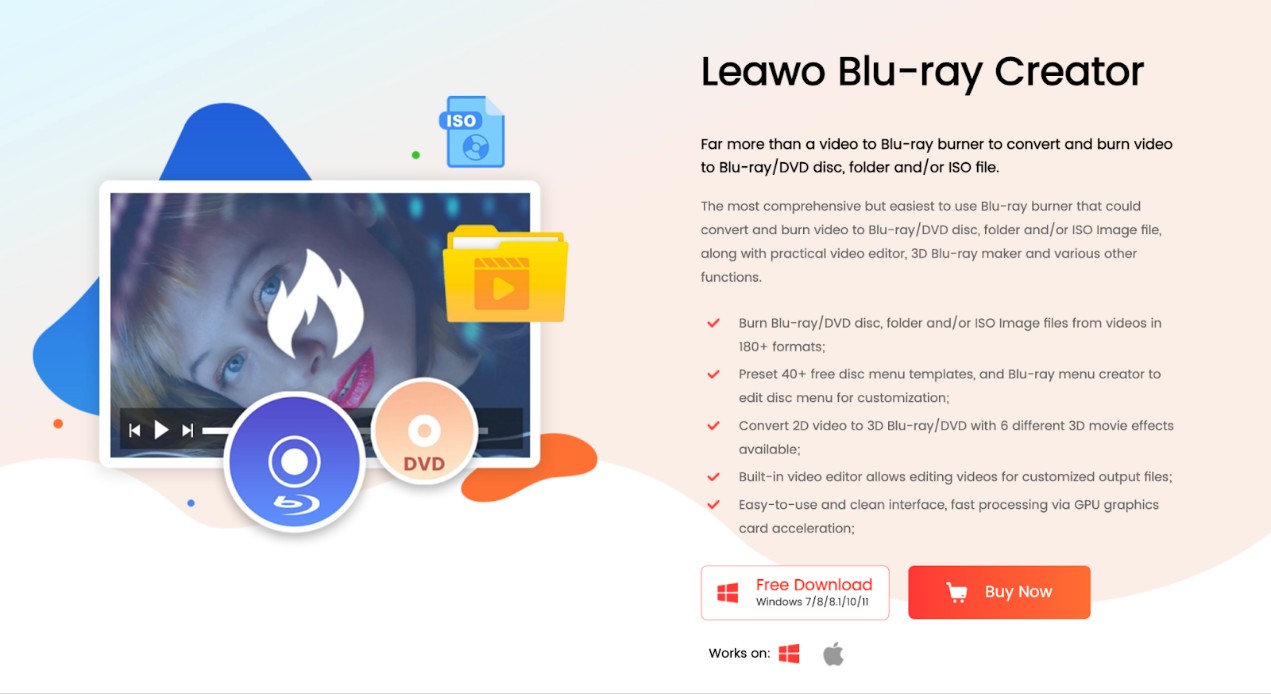
Leawo Blu-ray Creator is a comprehensive and easy-to-use Blu-ray burner that lets you convert and burn your digital media from over 180 formats to Blu-ray and DVD discs, ISO image files, or folders. It is software beyond disc-burning capabilities. For instance, it lets you add subtitles in different formats or pick the existing ones from loaded videos. In addition, it can auto-detect the CPU core to ensure smooth device functioning.
What Can Leawo Blu-ray Creator Do
Leawo Blu-ray Creator is a renowned program for its comprehensive features and Blu-ray burning capabilities. It helps you store and enjoy your favorite videos in physical format, making it a great tool for creating personalized Blu-ray collections and preserving memories. Here are some more features to enhance your burning experience.
1. Burn all Kinds of Video Formats and Other Videos
Burn popular video formats, such as MP4, MPG/MPEG, MOV, FLV, etc., on your device to Blu-ray/DVDs, folders, or ISO image files and enjoy them on disc players. Besides, it helps burn QuickTime movies, HDDV/SDDV short memories, YouTube videos, and more to enjoy on Blu-ray and DVD players. It also offers 40+ preset free disc menu templates.
2. Burn Videos to Blu-ray/DVD Discs or ISO Image Files/Folders
Besides converting videos to Blu-ray (BD-25 and BD-50), it can also convert your cherished videos to DVD (DVD-5 and DVD-9) discs ISO and folders.
3. Designs Disc Menu and Templates
It offers over 40 menu template themes, such as Standard, Education, Business, Holiday, etc. You can select any based on your output DVD/Blu-ray disc menu. You can also tailor the menu with self-defined Themes, Captions or Backgrounds.
4. Offers Professional 2D to 3D Conversion
It supports burning videos to 3D discs with its built-in 3D setting modes. These modes include adjustable ones such as Red/Cyan, Red/Green, Interleaved, and Side by Side. The 3D depth ranges between -50 and +50 for a more vivid 3D effect.
5. Personalized Videos with Built-in Video Editor
It allows you to modify the output video to a more customized style using internal editing features such as cropping video size, trimming video length, adjusting video effects, adding watermarks, creating chapters, etc., for video conversion.
6. Burns Photos to Blu-ray and DVD Slideshow with Menu
Burn photos to Blu-ray and DVD slideshow in disc or folder/ISO image file. It lets you load images in many formats, such as JPG/JPEG, TIF/TIFF, GIF, JIFF, PNG, etc., and automatically generate photos into a slideshow.
Price Plans
Leawo Blu-ray Creator offers an unlimited free trial version to convert and burn the first 5 minutes of content from source videos. For complete functionality, it offers various subscription plans for 1 Windows/Mac license with unlimited free upgrades. You can cancel any of the pricing plans anytime, as they offer a money-back guarantee.
Let's look at all the available price plans and their duration.
| Subscription Plans | Pricing | Money Back Guarantee |
| Basic Plan (One Year) | US$39.95 | 5 days |
| Professional Plan (Lifetime) | US$59.95 | 14 days |
| Blu-ray Creator + Video Converter (Lifetime) | US$69.92 | 14 days |
Specs & Compatibility
If you're thinking about using Leawo Blu-ray Creator for your Blu-ray authoring needs, here's a quick rundown of what you need to know for both Windows and Mac setups:
Leawo Blu-ray Creator for Windows
- Requirements: Runs on Windows 7/8/8.1/10/11 with a minimum of 1 GHz Intel/AMD CPU, 512 MB RAM (1 GB recommended), and 5 GB+ storage for DVDs or 25 GB+ for Blu-rays. A recordable Blu-ray drive and internet are needed.
- File System: Ensure UDF 2.50 support, especially on Windows 7, by installing the necessary drivers to prevent unreadable discs.
- Hardware Tips: Go for USB 3.x external Blu-ray writers or internal SATA. Models like Pioneer support USB 3.1 Gen 1 and BDXL/M-DISC, useful for long-term archiving.
- Limitations: Does not support 4K UHD Blu-ray (use Leawo UHD Creator for that). Trial version only burns the first 5 minutes.
Leawo Blu-ray Creator for Mac
- Compatibility: Supports macOS 10.13–15 on both Intel and Apple silicon (M1/M2). Features are on par with Windows.
- External Drives: Use USB 3.x external BD writers with explicit macOS compatibility. Direct USB-C/USB-A connections are recommended.
- Playback: macOS lacks native Blu-ray playback. So a third-party software/hardware is required for playback verification.
- Limitations: Similar to Windows; no UHD/4K support with Blu-ray Creator, and trial limits burning to the first 5 minutes.
Overall, when using Leawo Blu-ray Creator for Windows or Mac, ensure your system meets the necessary requirements and that you're using the right external drives for a smooth experience. For longevity and reliability, consider using M-DISC media and modern drive technology.
Leawo Blu-ray Creator Test and Review
To provide an in-depth review, we evaluated the Mac version of the software, which has similar features to the PC version. Below is a step-by-step breakdown of the software's performance.

Download and Registration
Installing Leawo Blu-ray Creator is simple. The program is available on the Leawo Prof. Media website, and after setup, the Activation Center can be opened by clicking the Key icon in the top-right corner. Users can enter a license code after buying a subscription.
For this test, we used the basic annual plan ($39.95) to access the full set of features, since the free version includes only limited functions.
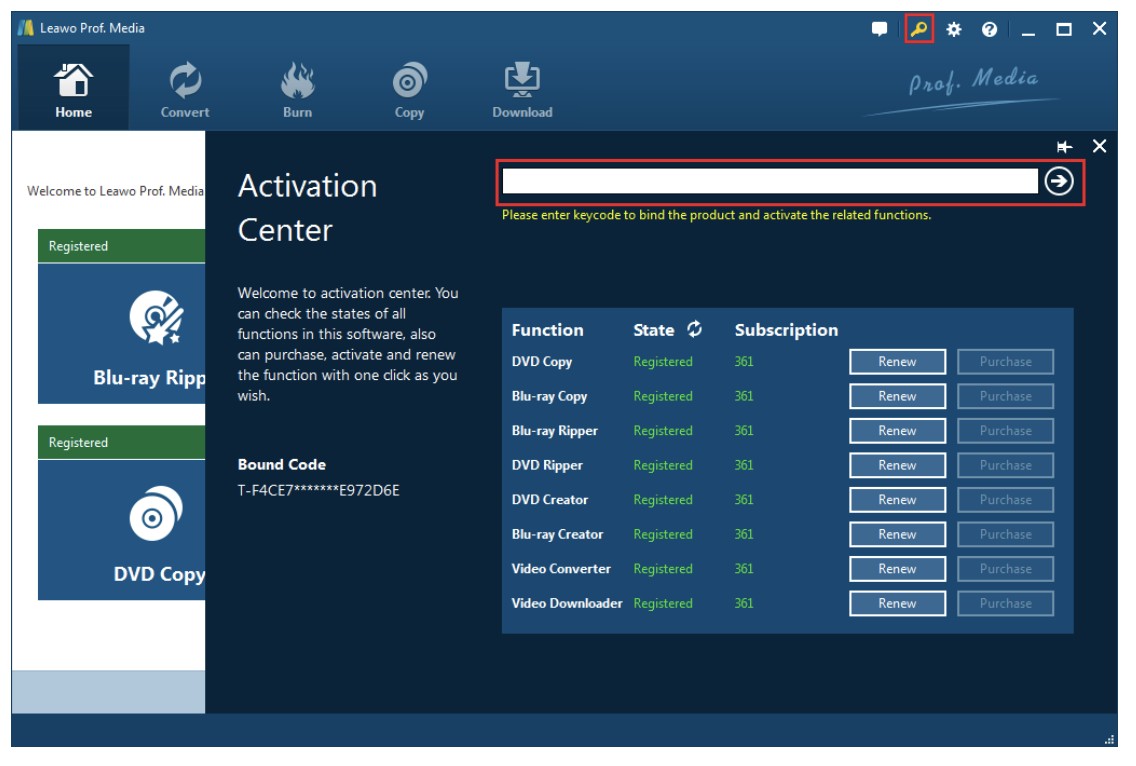
Once you have successfully registered for the program, follow the steps below for the quick burning process.
Step 1: Load Your Video Content
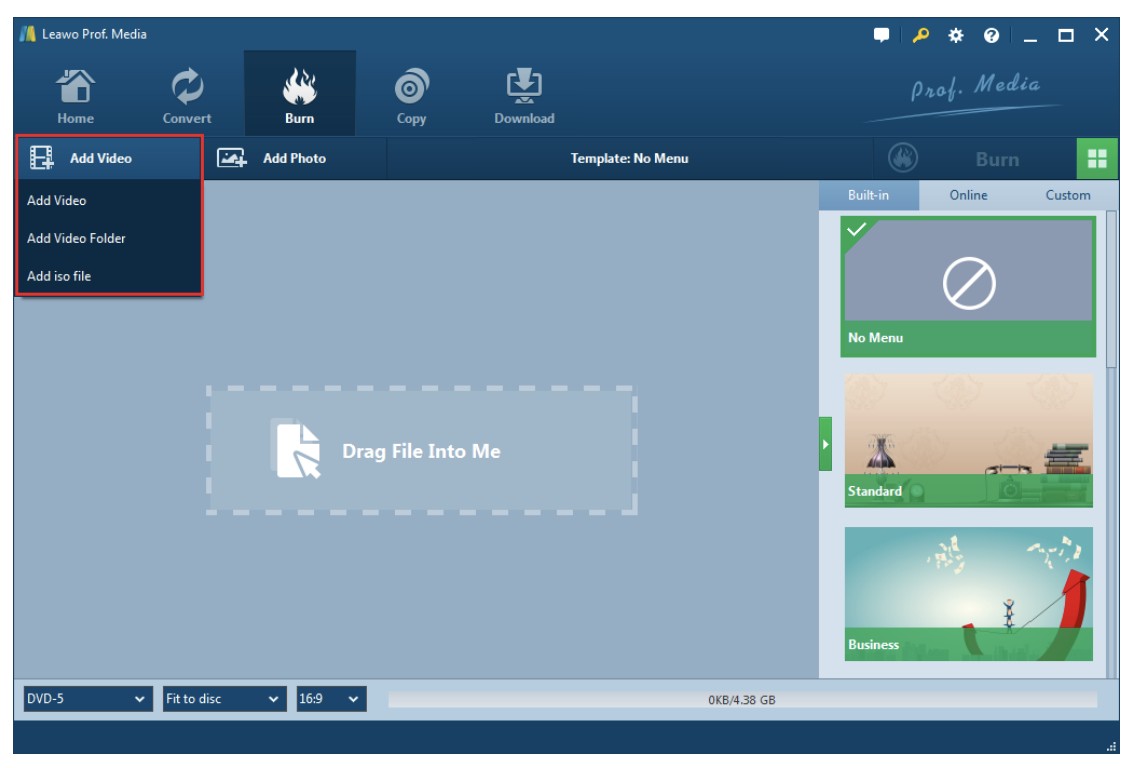
After launching it, click the Burn tab on the main page. A pop-up window provides options to import source video files through Add Video, Add Video Folder, or Add ISO File. The drag-and-drop functionality further simplifies this process, enabling quick video uploads.
Step 2: Set the Detailed Output Parameters
Leawo allows you to configure the output disc type (BD-25, BD-50, DVD-5, or DVD-9), quality (HD or SD), and aspect ratio (16:9 or 4:3).
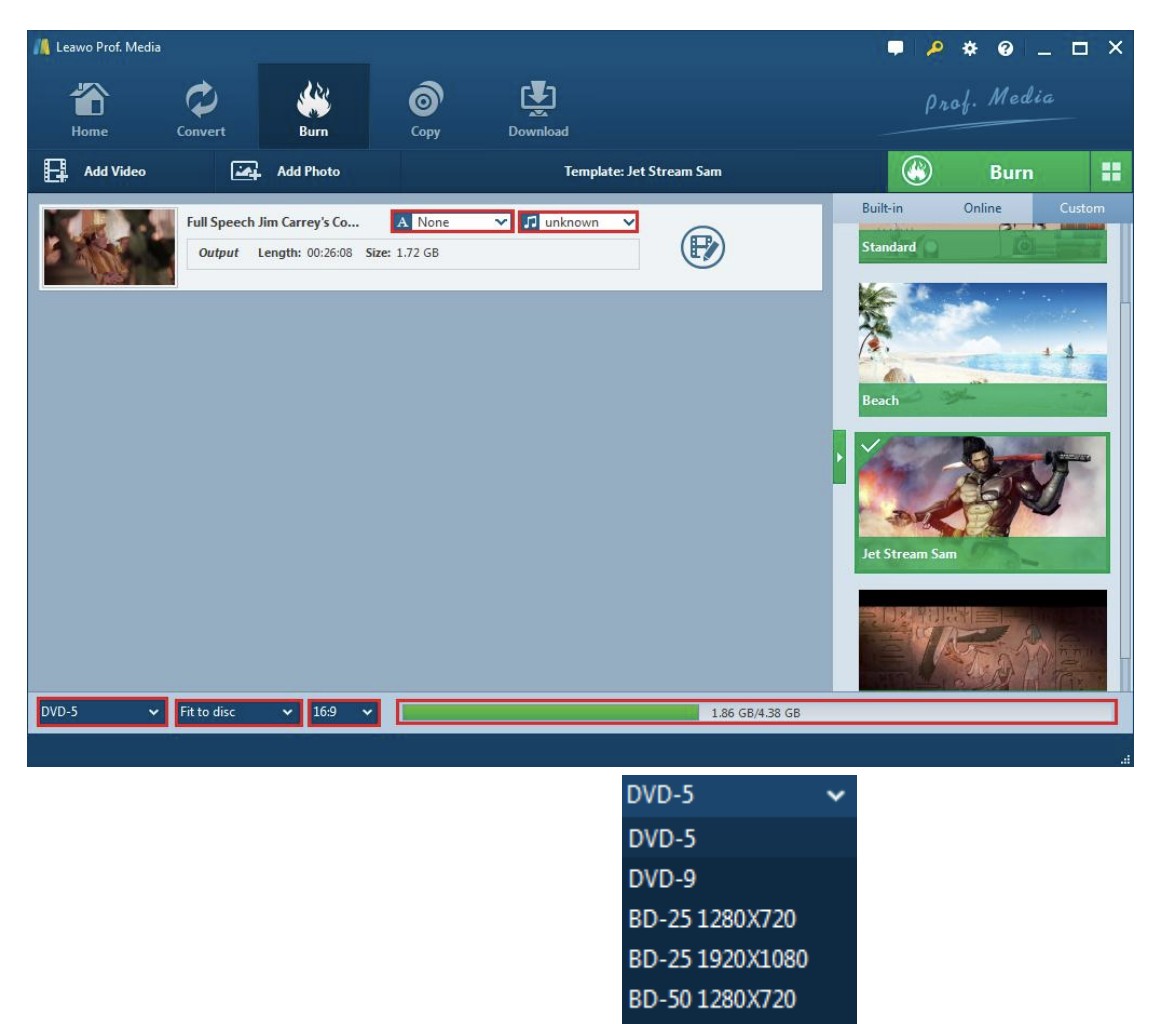
The same window allows you to choose menu templates for Blu-ray from a variety of preset themes. However, the lack of quality templates may deter advanced users.
Step 3: Edit the Output
The built-in editor offers options to personalize video settings, which allows you to crop videos, adjust saturation, and more. While these features are useful, the interface is slightly dated.
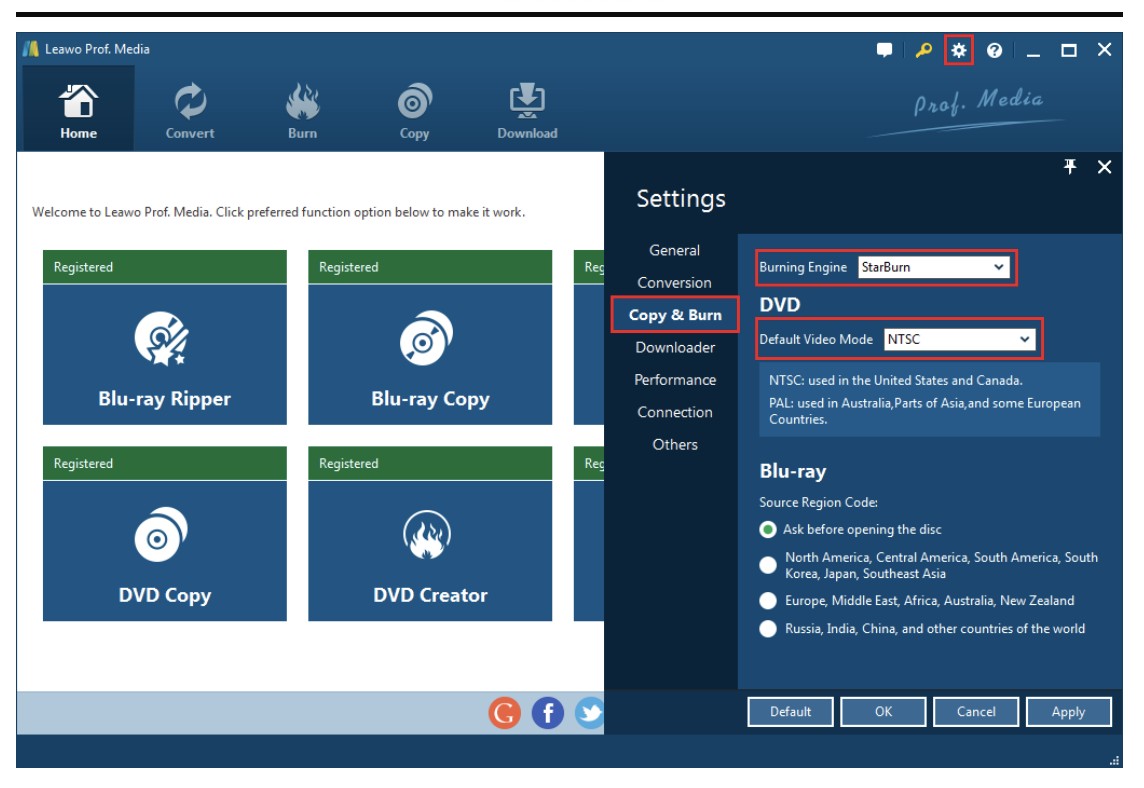
Also, remember to select the preferred burning engine and video mode under the settings menu before finalizing your changes.
Step 4: Burn the Video
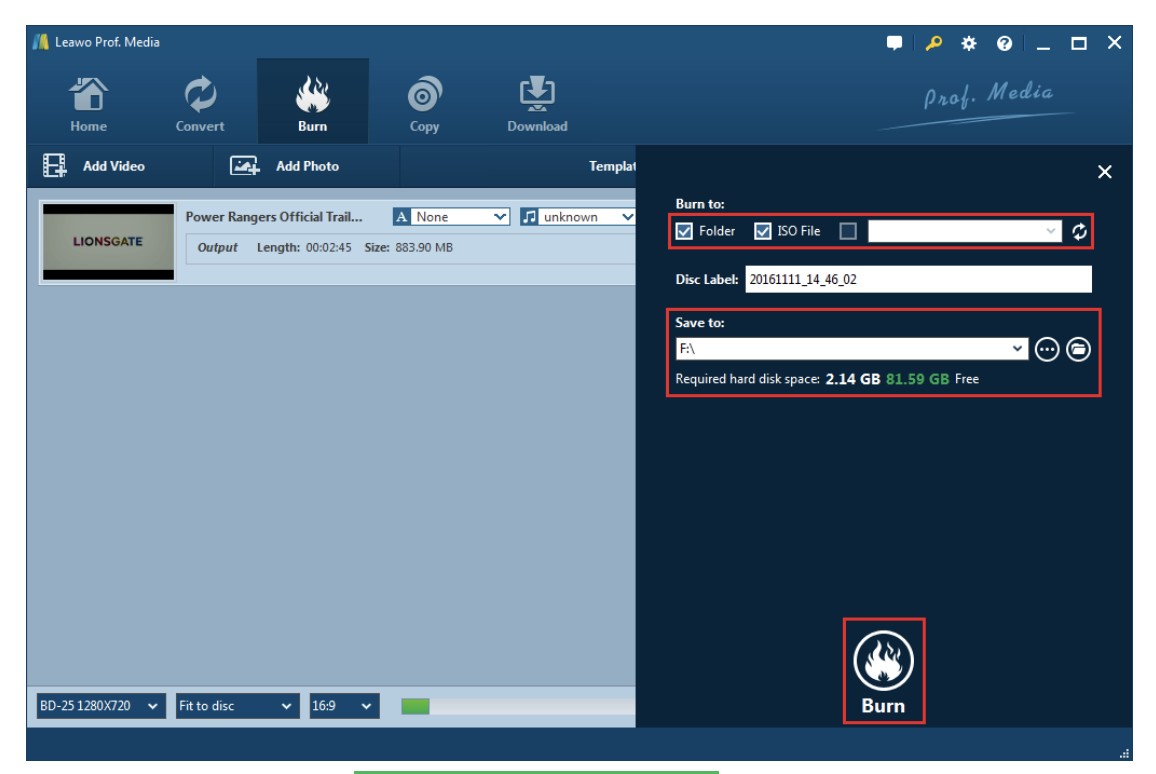
Choose to save the video as a folder, an ISO image, or burn it directly to a disc, after which click the “Burn” button.
Pros and Cons of Leawo Blu-ray Creator
While following the video-burning procedure, here are a few positive points (pros) that deserve a thumbs up, while some limitations (or cons) have scope for improvement. Let's look at each side.
What We Like
- Clear interface with options easy to locate on the main page.
- Imports videos, images for watermarks or slideshows, and ISO files.
- Includes basic editing tools such as menu templates and selectable burning engines.
- Allows adjustments to video quality, aspect ratio, and menu design.
What We Don't Like
- Output may show blur and pixelation.
- Audio can fall out of sync with video.
- Burn speed is slow, even with GPU acceleration enabled.
While Leawo Blu-ray Creator is more than a Blu-ray burner for converting and burning videos to discs, ISO files, and folders, a few limitations can hamper the video-burning experience. A slow burn speed or lossy and mismatched output can ruin your DVD viewing enjoyment in a fast-paced era where every second counts. But these 3 alternatives can enhance the way you watch DVDs on screen. Let's explore them.
Top 3 Alternatives of Leawo Blu-ray Creator
Alternative 1: DVDFab Blu-ray Creator
✅Reason for Listing: Frequent updates and a comprehensive ecosystem make it a suitable equivalent or advanced alternative to Leawo.
DVDFab Blu-ray Creator supports 200+ input formats and produces Blu-ray discs, ISO files, and folders at up to 1080p. A separate UHD Creator module handles 4K Blu-ray, mirroring how Leawo splits standard and UHD authoring into distinct tools. The current Windows release is version 13.0.6.0, released May 12, 2026.
How to Burn Videos with DVDFab Blu-ray Creator
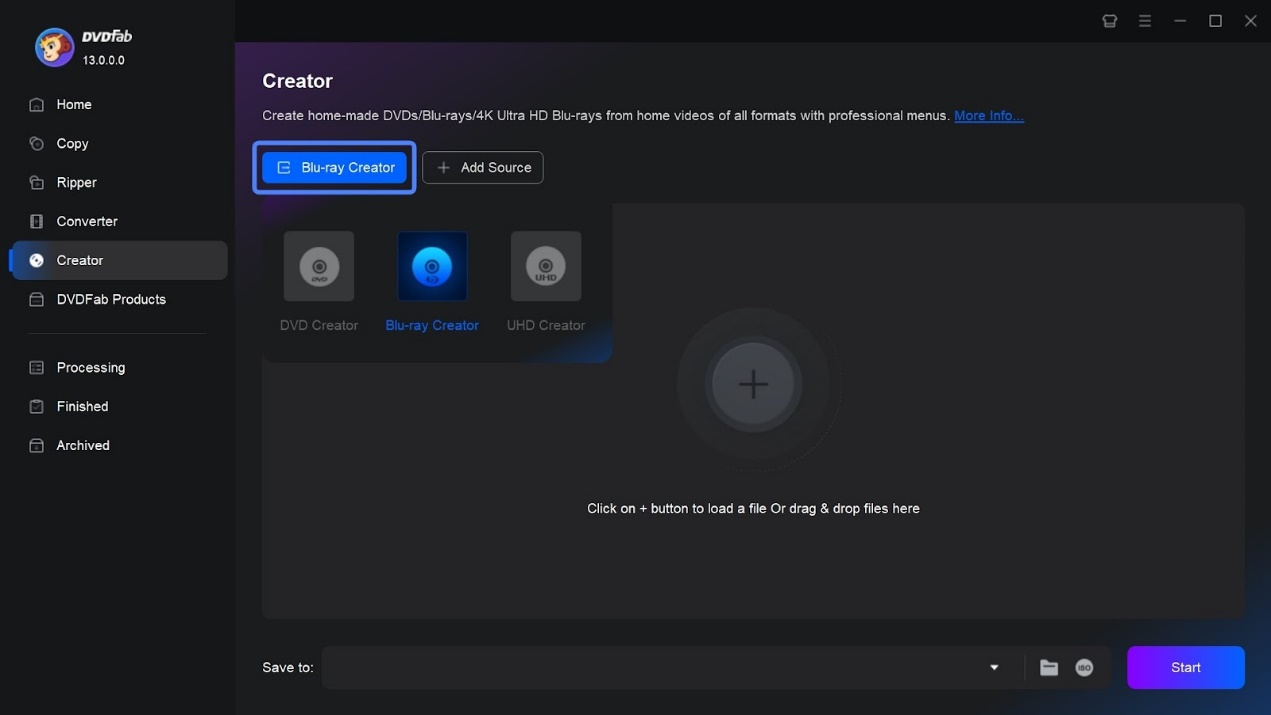
Step 1: Open DVDFab 13 and choose the Creator module. Switch to Blu-ray Creator, then click +Add Source or drag your video files into the main window.
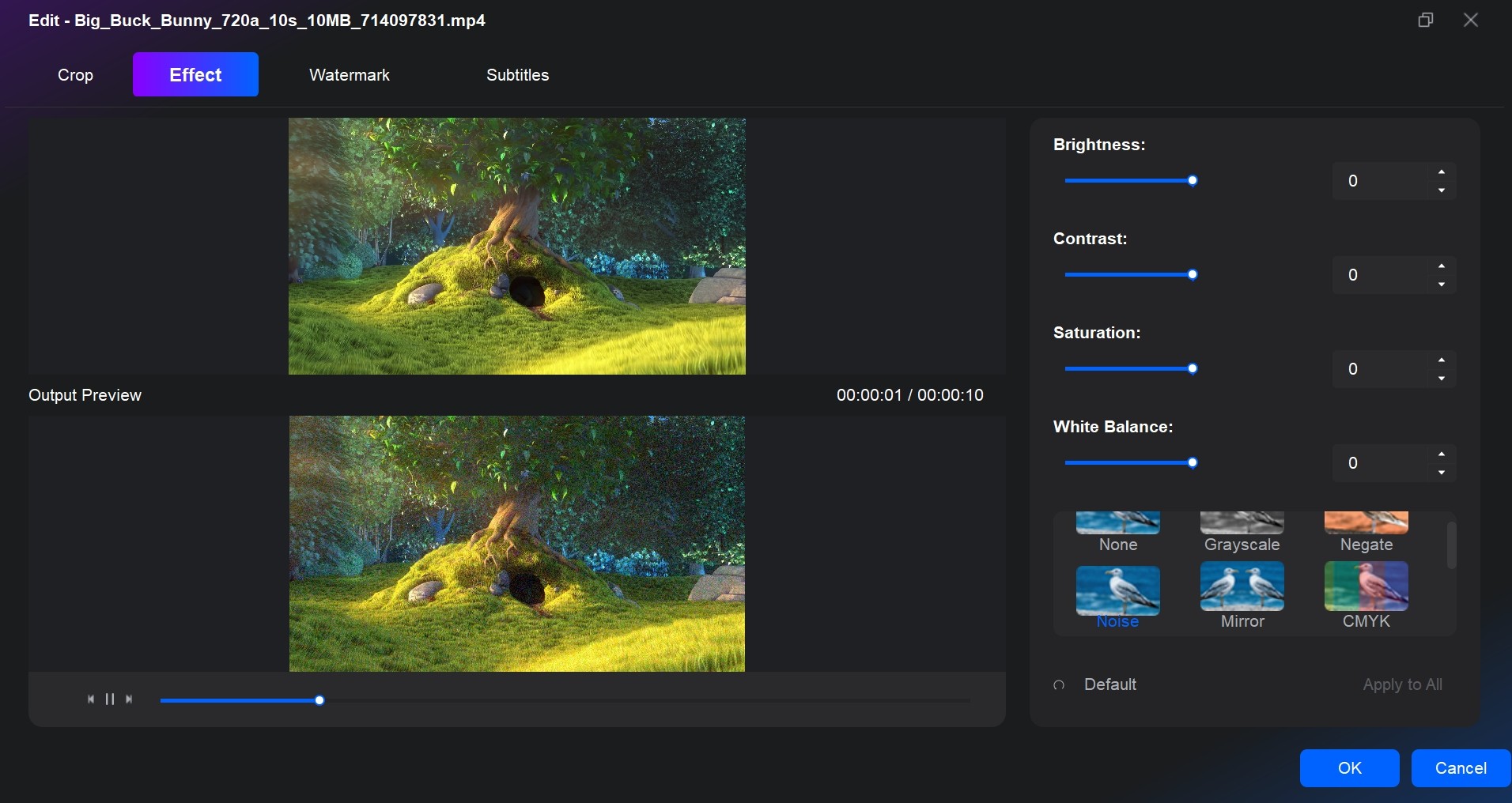
Step 2: After the videos load, click the Video Edit icon to open the editor. You can crop the video, add subtitles or watermarks, and apply basic filters.
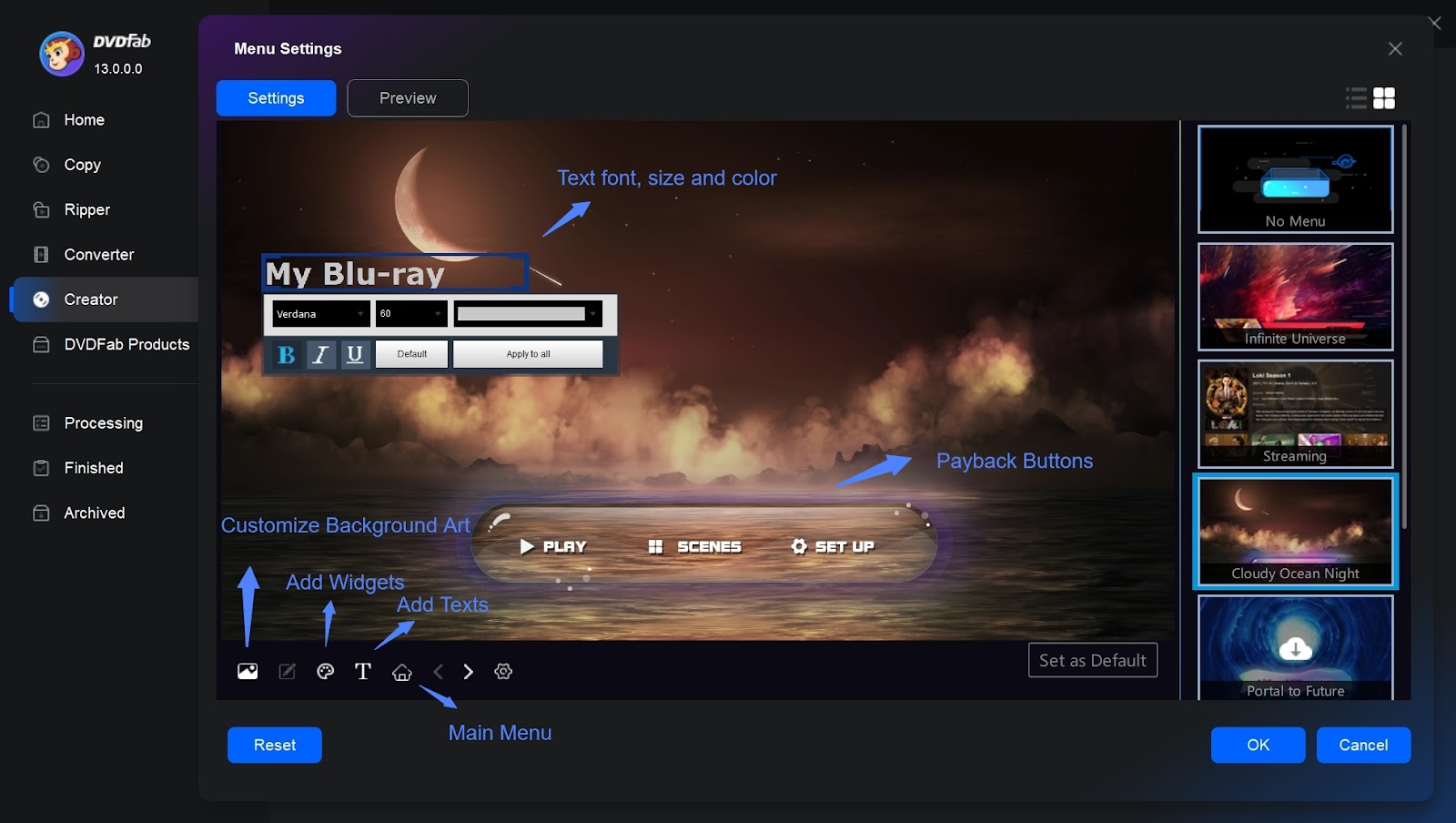
Step 3: Enter the menu settings and pick a template from the built-in options. You can adjust the background, text, layout, and button style.
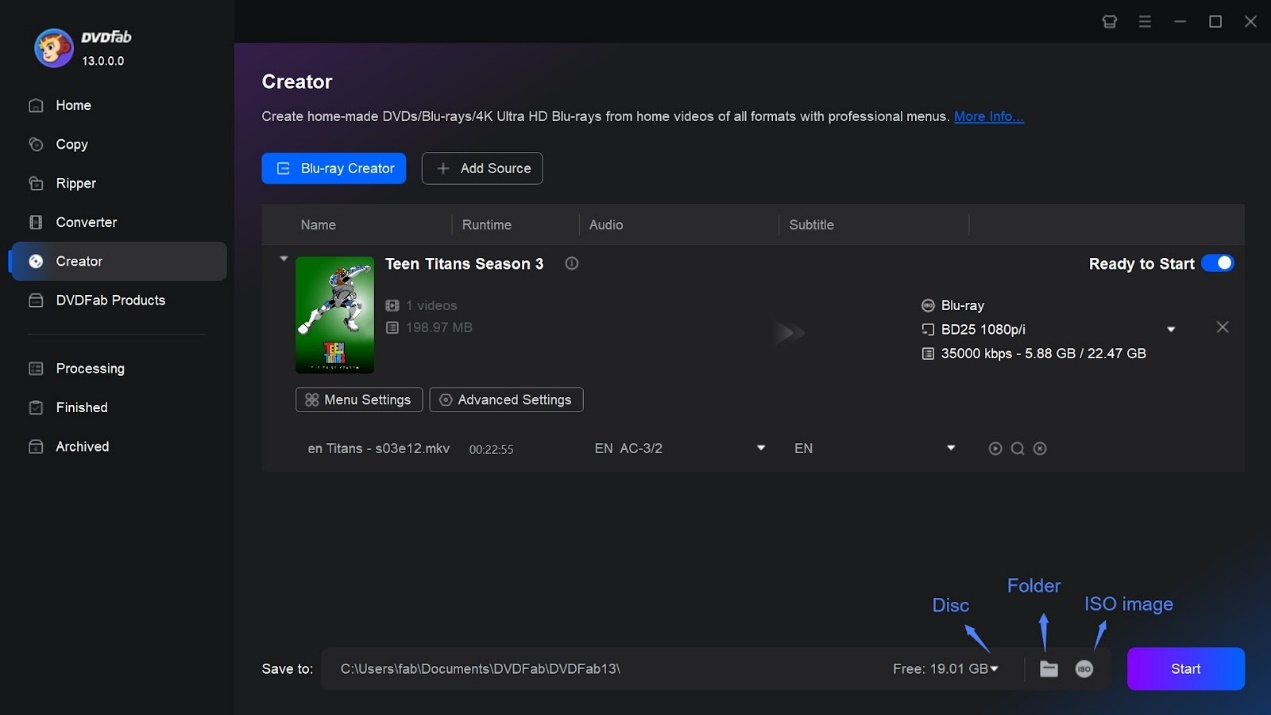
Step 4: Click Start to begin burning. Progress details appear in real time.
Alternative 2: Aiseesoft Blu-ray Creator
Aiseesoft Blu-ray Creator is another powerful Leawo Blu-ray Creator alternative for burning several video formats, such as Blu-ray discs, ISO files, and folders. It offers high-quality (up to 4K UHD) for a seamless visual experience. In addition, it lets you edit videos and audio tracks or subtitles for customized output effects.
✅Reason for Listing: Suitable for standard Blu-ray, with recent updates but lacks transparent change logs.
Aiseesoft Blu-ray Creator focuses on creating standard BD-25/BD-50 Blu-rays and folder/ISO outputs suitable for 1080p authoring. However, it does not officially support 4K UHD and the official site provides limited change logs. While it is a strong option for lightweight, standard Blu-ray needs.
- It enables the creation of Blu-ray discs from one's own videos in popular formats
- Assists burning videos to Blu-ray folders and ISO files at a fast speed
- Offers multiple editing options for editing videos and customization of output effects
- Allows adding audio tracks and subtitles in SSA, SRT, or ASS format
- Provides menus of different themes with editable buttons, texts, and more
Alternative 3: Xilisoft Blu-ray Creator
Xilisoft Blu-ray Creator is also a reliable Leawo Blu-ray Creator alternative to burn your local videos in 720p HD or 1080p full HD to not only Blu-ray video discs but also AVCHD DVDs. Besides supporting many video formats, it can burn videos on AVCHD camcorders or DVs such as Canon, Panasonic, Hitachi, etc.
✅Reason for Listing: Basic BD functionality, but outdated with no substantial updates, not recommended for new projects.
Xilisoft Blu-ray Creator has not been updated since version 2.0.4.x in 2017, making it lag behind in modern codec and system support. It is focused on BD-25/BD-50 and BDMV/AVCHD ISO outputs. So it might serve as a temporary tool.
- Create and burn videos to Blu-ray discs, AVCHD DVDs, and BDMV ISO or AVCHD ISO image files
- Convert video clips to HD BDMV and AVCHD with preferred resolutions
- Offers personalization of Blu-ray movies by applying various effects, subtitles, and audio tracks
- Optimize the burning process with multi-core CPU support to provide high speed for encoding videos in high-definition
- Preview videos or take snapshots and save them in popular image (JPG, PNG, BMP) formats
Comparison of Leawo Blu-ray Creator and its Alternatives
While you are well-versed in the functioning of Leawo Blu-ray Creator, here's an in-depth comparison of all 4 Blu-ray creators (including the alternatives) to help you understand how these differ on common factors. Hope this table guides you in the decision-making process.
| Factors | Leawo Blu-ray Creator |
DVDFab Blu-ray Creator | Aiseesoft Blu-ray Creator | Xilisoft Blu-ray Creator |
| Supported Platforms | Windows 7 and higher, macOS 10.13 and above | Windows 7-11, macOS 10.13 - 15.x | Windows Vista through 11 | Windows Vista through 11 |
| Input Format | 180+ | 200+ | 100+ | 23 |
| Output Formats | Blu-ray/DVD disc, ISO and folder | Blu-ray disc/ISO/folder | Blu-ray disc/ISO/folder | Blu-ray discs, AVCHD DVDs, BDMV ISO and AVCHD ISO images |
| Menu Templates | Yes | Yes | Yes | Yes |
| Burning Speed | Medium | Super fast | Decent | Decent |
| GPU Acceleration | Yes | Yes | No | No |
FAQs
Does Leawo Blu-ray Creator offer free trial?
Yes. The free version has no expiration date and gives full access to the interface, settings, and menu tools. The only restriction is output length: only the first 5 minutes of each source video will be included in the burn. That limit is enough to verify whether your source file burns without audio sync problems, which is the most practical use of the trial before subscribing.
Can Leawo Blu-ray Creator burn to DVD or 4K UHD?
It supports both Blu-ray (BD-25, BD-50) and DVD (DVD-5, DVD-9) burning. It does not support 4K UHD Blu-ray output. For 4K disc authoring, you need Leawo UHD Creator, which is a separate product. If your needs are standard HD Blu-ray up to 1080p, the standard Creator handles it. For 4K output, evaluate DVDFab's UHD Creator module or Leawo's separate UHD product.
Is Leawo Blu-ray Creator safe to download?
The software is distributed through the official Leawo site (leawo.org and leawo.com) and is part of the Prof. Media suite, which has been commercially available for several years. As with any third-party software, scanning the installer with your antivirus tool before running it is a reasonable precaution. The software does not require administrator mode for standard installation, though certain operations may prompt for it.
Conclusion
After reading the complete Leawo Blu-ray Creator review, you'll know its features, process, and drawbacks. Many users complain about the loss of quality, audio sync issues, and unresponsive customer support. While upgrading to the premium Leawo Blu-ray Creator is your call, you can also check the available alternatives to burn videos to Blu-ray. Many people use DVDFab Blu-ray Creator for its ease of use, GPU-accelerated ripping speed, and personalized menu templates.

![How to Burn a Blu-ray Disc on Windows and Mac [2026]](https://r3.dvdfab.cn/upload/resource/how-to-burn-a-blu-ray-xgMv.jpeg) How to Burn a Blu-ray Disc on Windows and Mac [2026]By Diana Smith - Aug 25, 2026
How to Burn a Blu-ray Disc on Windows and Mac [2026]By Diana Smith - Aug 25, 2026![Top Tested Tools to Burn MKV to Blu-ray on Mac and Windows [2026]](https://test-c.dvdfab.cn/how_to_burn_MKV_to_Blu_ray_07afc70766.png) Top Tested Tools to Burn MKV to Blu-ray on Mac and Windows [2026]By Diana Smith - Jul 1, 2026
Top Tested Tools to Burn MKV to Blu-ray on Mac and Windows [2026]By Diana Smith - Jul 1, 2026 11 Best Blu-ray Burning Software for Windows & Mac in 2026: Tested PicksBy Wenny Yan - Jun 17, 2026
 6 Best Blu-ray Authoring Software for Windows & Mac (2026 Review)By Diana Smith - Apr 30, 2026