How to Rip Blu-ray with HandBrake on Windows & Mac [2026 Tutorial]

Summary: HandBrake can rip Blu-ray discs, but only those without copy protection. This guide covers the unprotected disc workflow, how to extend HandBrake's reach using MakeMKV for encrypted discs, and when a dedicated ripper makes more practical sense. For most users, the decision comes down to whether the MakeMKV two-step workflow is worth the storage overhead compared to a single-step paid alternative.
Table of Contents
When I set out to digitize my Blu-ray collection for travel, HandBrake seemed like the obvious free option. What I found was more layered: HandBrake rips unprotected discs reliably, but most commercial Blu-rays use encryption it cannot handle without a separate tool. After working through the main workflows, this guide covers what HandBrake can and cannot do on its own, how to pair it with MakeMKV for copy-protected discs, and when switching to a dedicated ripper makes more practical sense.

Does HandBrake Rip Blu-ray?
HandBrake (version 1.11.1, updated March 2026) can rip Blu-ray discs, but only those that are unprotected or home-recorded. Commercial Blu-rays use AACS, BD+, or other encryption that HandBrake cannot bypass. There is no Blu-ray equivalent of libdvdcss, the library that lets HandBrake handle CSS-encrypted DVDs, which explains why this limitation has not changed across versions.
For unprotected discs, HandBrake reads the M2TS video streams and re-encodes them into MP4, MKV, or WebM. It supports hardware-accelerated encoding on systems with Intel Quick Sync, Nvidia NVENC, AMD VCE, or Apple VideoToolbox, which cuts encoding time considerably compared to software-only processing.
For encrypted commercial discs, the standard workaround is to use MakeMKV to create an unencrypted MKV file first, then bring that file into HandBrake for compression and format conversion. HandBrake also handles CSS-encrypted DVDs through libdvdcss — see our guide to ripping DVDs with HandBrake for that workflow.
How to Rip Blu-ray with HandBrake (Unprotected Blu-rays)
HandBrake can help you rip Blu-ray discs, but most of the built-in drives work only for DVDs and may not support Blu-ray discs. So before starting the ripping procedure, ensure you have a capable Blu-ray drive. For instance, to rip 4K Blu-ray discs, your drive must support 4K playback. To do so, you can either install an internal drive or connect a compatible external Blu-ray drive using a USB.
Then let's see how to rip unprotected Blu-ray content with HandBrake.

Step 1: Load Your Blu-ray Disc and Open Handbrake
To begin, insert your unprotected or home-recorded Blu-ray. Remember that HandBrake works only with Blu-rays structured in a playable format and with standard video content in M2TS or similar format.
Next, move to the Source Selection menu and select your preferred Blu-ray drive as the input source. HandBrake will scan the contents, and depending on the number of titles (up to 95 or more), the process may take a few extra minutes.
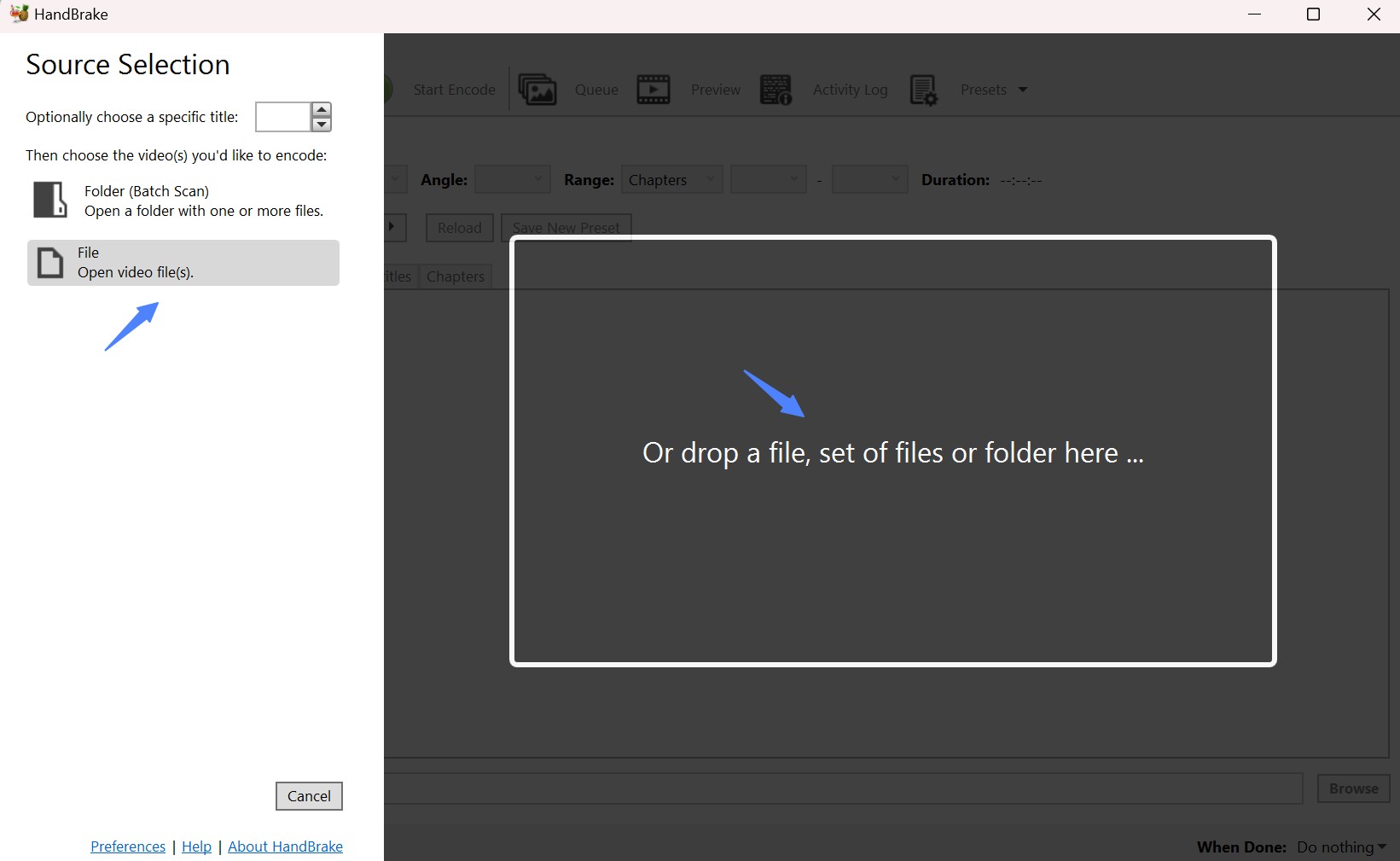
Step 2: Select the Blu-ray Titles to Convert
After scanning, HandBrake lists all detected titles. The main movie is usually the longest title with the largest file size.
💡Use "Preview" to play a few seconds if you're unsure. Some studios, Disney being the most common example, include dozens of decoy titles to confuse ripping software. On these discs, compare each title's listed runtime against the film's known length. Titles significantly shorter or longer than the actual film runtime are decoys and can be ignored.
Step 3: Select an Output Format and Preset
Now, pick your preferred output format and preset. HandBrake supports MKV, MP4, and WebM formats, each offering distinct benefits. Then click the Presets dropdown menu to choose from a variety of options, whether standard quality or HD settings.
- MP4 – Widest compatibility across phones, TVs, gaming consoles, and media players
- MKV – Better for archiving, multiple audio tracks, and subtitles (e.g., Plex, HTPC).
- WebM – Mainly for web use; not ideal for offline playback.
💡Don't pick 4K unless your device supports it, and stick to H.264 for widest compatibility. Presets are your friend—customize only if you're comfortable.
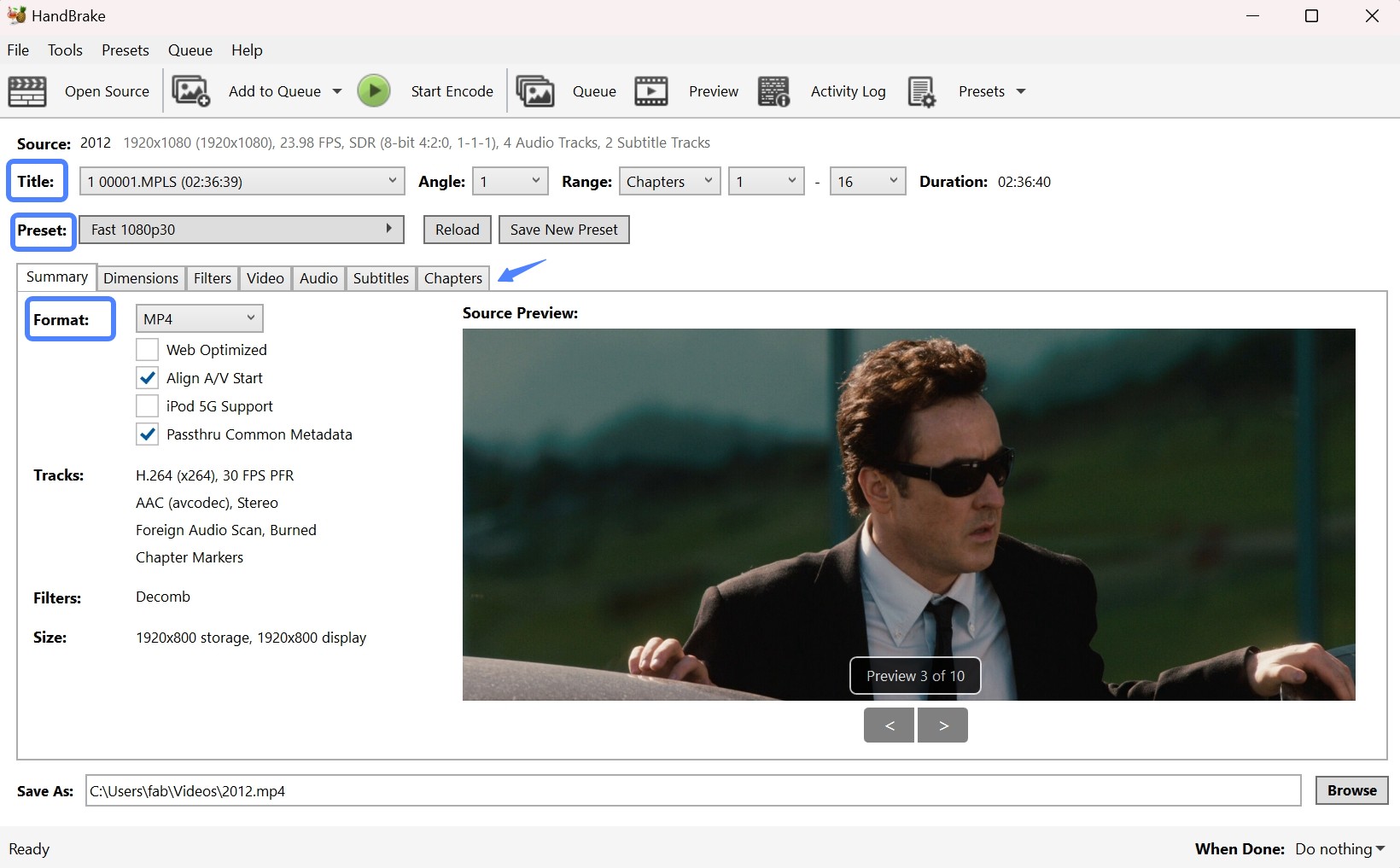
Select a format and then pick a Preset for quality and resolution:
- Default Fast 1080p30 is a good speed/quality balance.
- Higher presets (e.g., Super HQ 1080p30) look better but encode slower and create larger files.
- 720p presets reduce size but also reduce detail.
You'll see Fast 1080p30 as the default for a good balance between speed and quality. For higher quality output (better than Fast 720p30), choose Super HD 1080p30 Surround. However, it can result in slow encoding with a bigger size output. Then, you can select 720p 30 profiles if file size concerns you. It can significantly compress the Blu-ray file size, saving you storage, but you may compromise the video quality.
For 4K Blu-rays, you can use 2160p presets such as MKV + H.265/HEVC to keep more detail with smaller size.
On macOS with compatible hardware, VideoToolbox encoders appear in the Video tab's Encoder menu and apply hardware acceleration automatically
Step 4: Adjust the Video and Audio Settings
In the Video tab, configure the codec (H.264 for compatibility, H.265 for smaller files), resolution, bitrate, and frame rate. Higher quality settings increase both file size and encoding time.
In the Audio tab, select which tracks to include. For archiving surround sound, Passthrough retains the original audio without re-encoding.
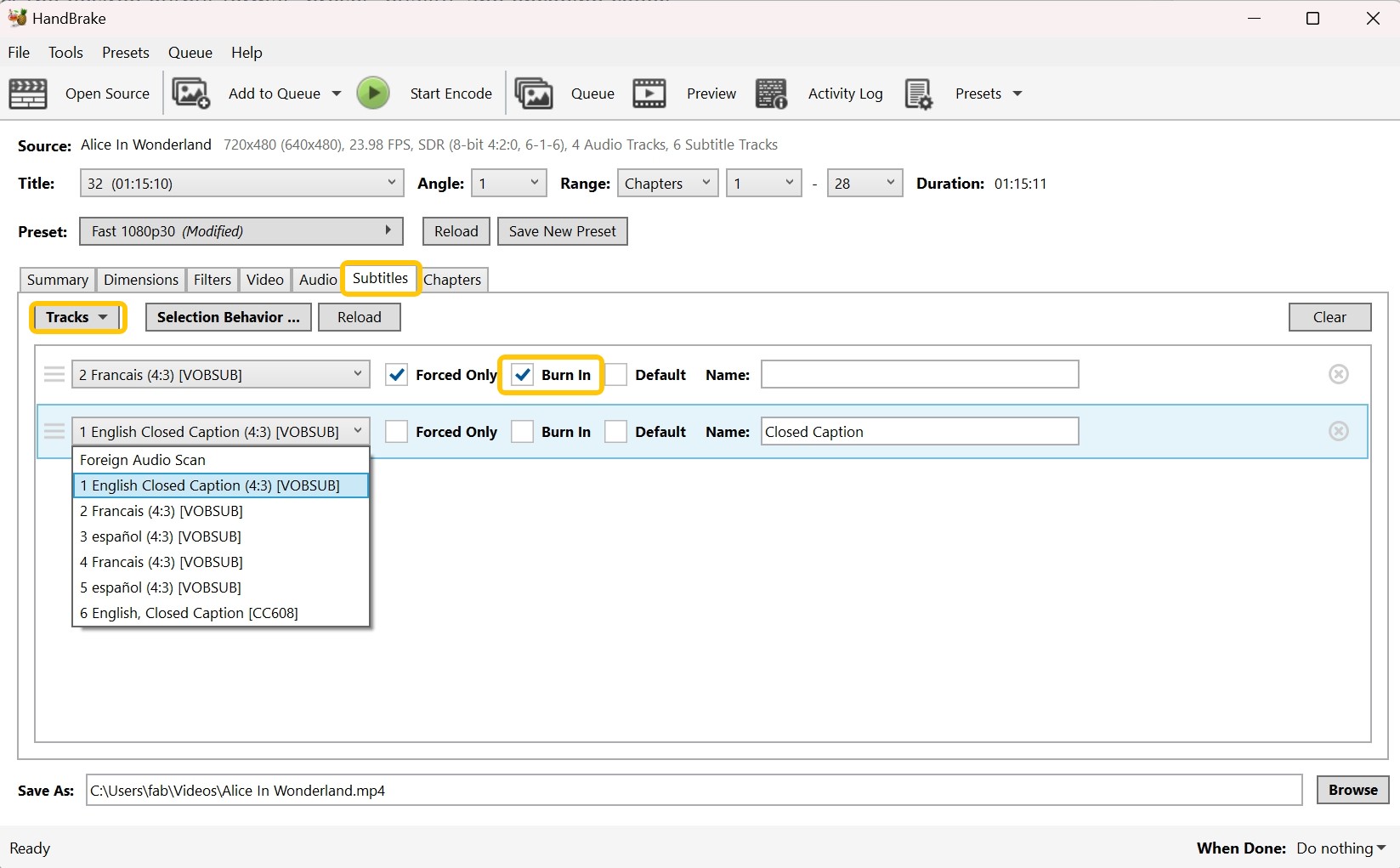
HandBrake also enables you to choose subtitle tracks and adjust the necessary settings, such as burn-in (for hardcoded subtitles) or include them as separate files.
Step 5: Set a Destination and Start Encoding
Choose where to save the output file in the Save As field (click Browse to change folder) and make sure you have enough free space.
With suitable settings, a 50 GB Blu-ray can often be compressed to around 10 GB while still keeping 1080p quality, but the exact size depends on your bitrate/quality choices. You may need a bit of trial and error to find your ideal balance.
Click Start Encode to begin. HandBrake will:
- Decode the Blu-ray's M2TS streams
- Re-encode them with your chosen settings
- Save them into the selected container
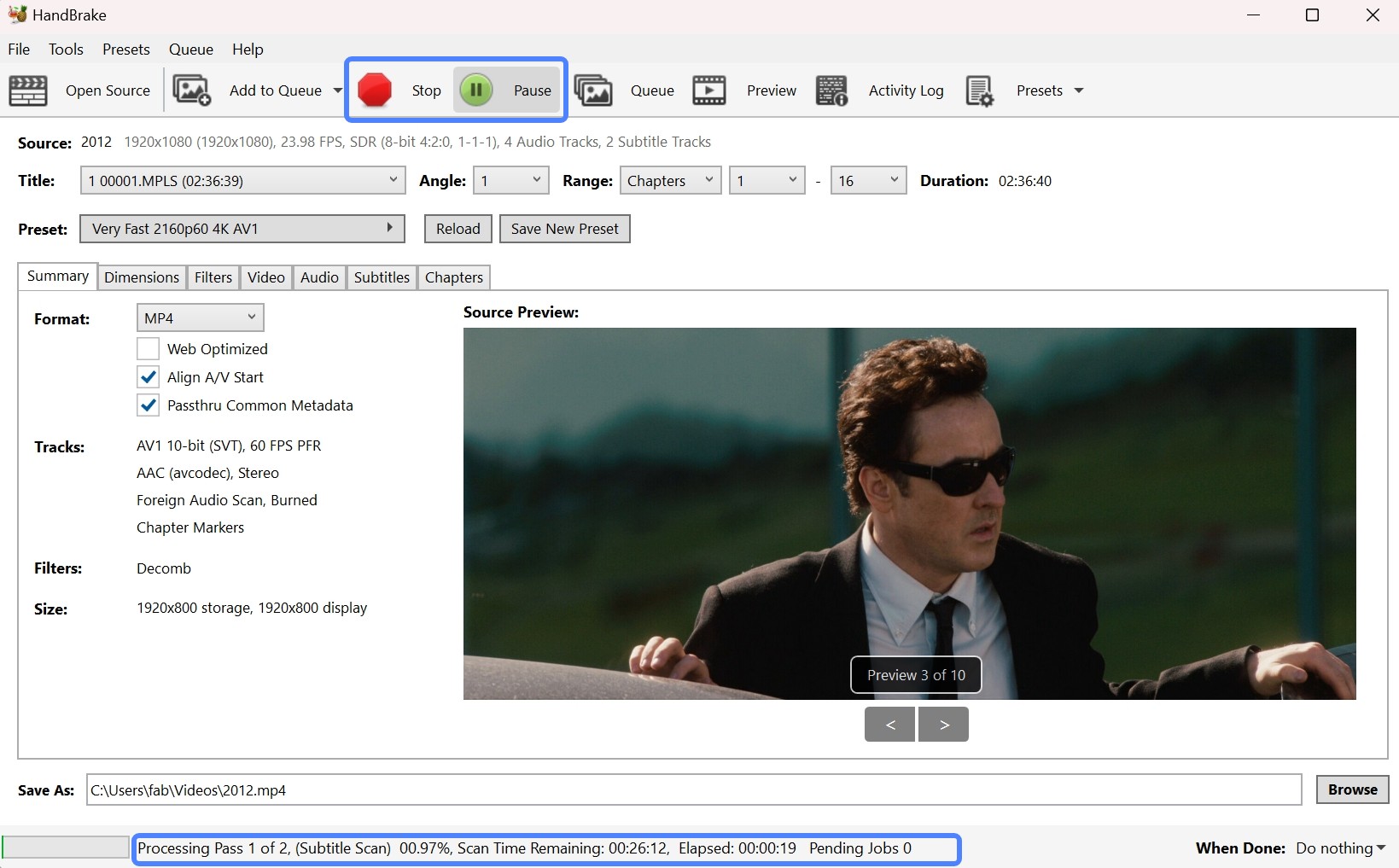
Encoding can take a long time for full-length movies, especially at high quality, so it's normal for the process to run for hours on slower hardware.
How to Rip Blu-ray with HandBrake + MakeMKV (Some Protected Blu-rays)
HandBrake alone can't handle many encrypted Blu-rays that use protections like AACS or BD+. A common workaround is to use MakeMKV first to create an unencrypted MKV file from a disc you own, then let HandBrake compress that file into a smaller format for easier storage or streaming.
Always make sure your usage complies with local laws before copying commercial discs.
Step 1: Install MakeMKV and Scan the Disc
- Download and install MakeMKV, then insert the Blu-ray you want to rip into your Blu-ray drive.
- Launch MakeMKV and click the Blu-ray drive icon on the main screen to scan the disc.
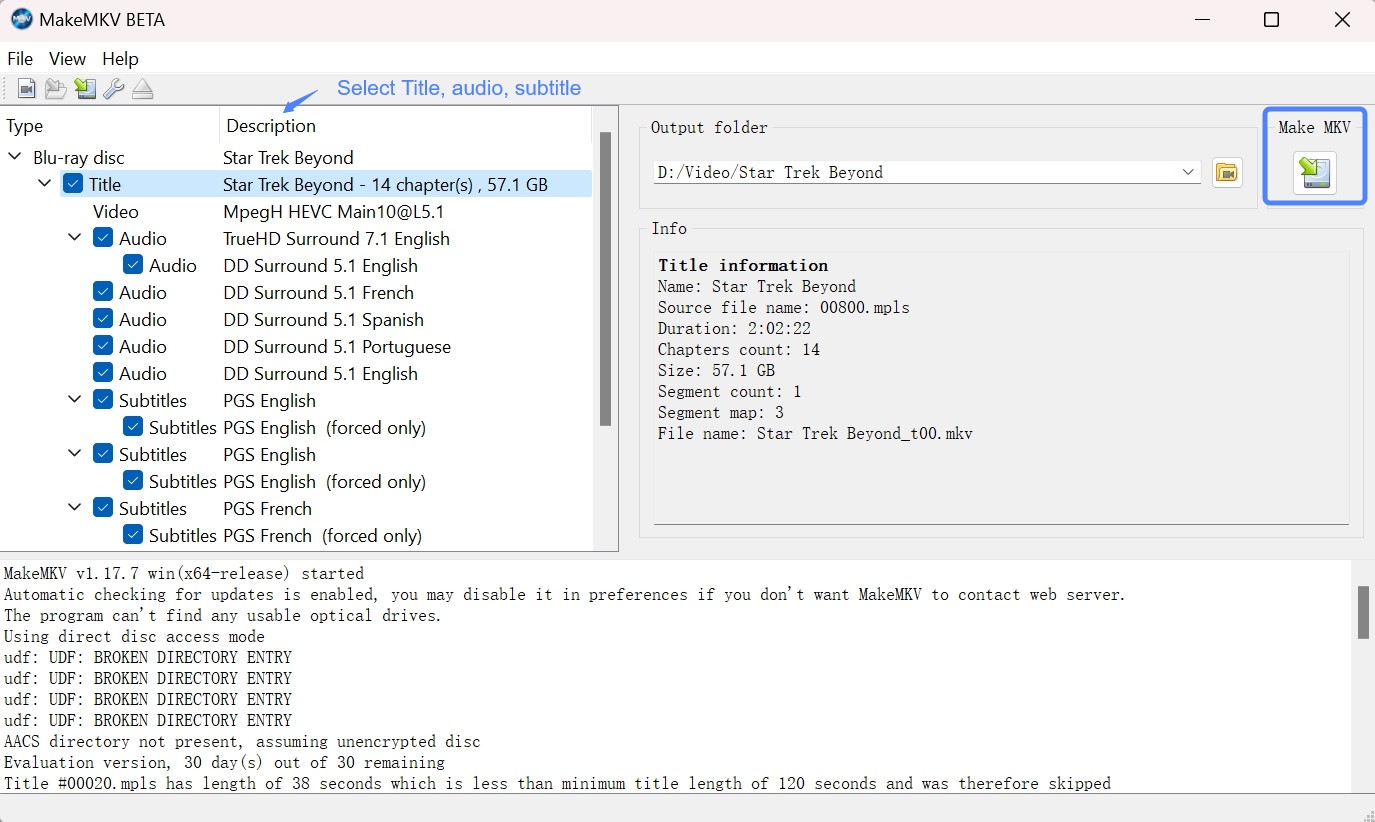
- When the title list appears, select the one you need—usually the main movie with the longest runtime / largest size.
💡MakeMKV files are huge (20–40GB per movie). Make sure your drive has enough space!
Step 2: Ripping the Disc with MakeMKV
Choose an output folder for the ripped file and check that you have enough free space (one movie can take 30 GB or more). Then click the green "Make MKV" button to start. MakeMKV will convert the selected title to an MKV file, which typically takes about 20–30 minutes, depending on your drive and disc.
Step 3: Load the Ripped File into HandBrake
Open HandBrake, click File → Open Source (or drag the ripped MKV into the window), and let it scan the file. Then click Browse to choose where to save the new, compressed output.
Step 4: Configure Settings and Encode
Select a preset from the sidebar. In the Video tab, set the frame rate to Same as Source. For the Rate Factor (RF), values between 18 and 22 balance quality and file size for most rips; lower values produce better quality at the cost of larger files.
In the Audio tab, set the codec to Passthrough to preserve the original audio without re-encoding. Once all settings are configured, click on 'Start Encode'. HandBrake will then convert the MKV file into your chosen format (such as MP4 or WebM) while also reducing its size.
For maximum MP4 compatibility, this configuration works as a consistent baseline:
- Preset: General → Fast 1080p30 (as a base), then tweak below
- Video encoder: H.264 (x264)
- Quality: Constant Quality (RF) 20 (try 18–22; lower = higher quality/larger size)
- Frame rate: Same as source + CFR (Constant Frame Rate) for widest device support
- Tune/preset: x264 Preset = Medium (move to Slow for smaller files/slower encodes)
- Profile/Level: High / 4.1 (1080p)
- Filters: Decomb only if the source is interlaced; otherwise Off
- Audio: Track 1 AAC 2.0 160–192 kbps (universal).
- Optional Track 2 AC-3 5.1 Passthrough (many players OK; DTS/TrueHD in MP4 has limited support).
- Subtitles: Burn In for PGS in MP4; soft subtitles in MKV
Best HandBrake Alternative for Ripping Any Protected Blu-rays
While HandBrake plus MakeMKV can handle some encrypted Blu-rays (such as discs using AACS or BD+), this setup still struggles with newer or more complex protection schemes. It also requires switching between two separate programs, which adds extra steps and time.
If you want a streamlined, all-in-one tool that can deal with a wider range of protections and handle ripping in a single workflow, DVDFab is a more convenient alternative.
DVDFab Blu-ray Ripper serves as the best HandBrake alternative that can rip copy-protected commercial Blu-ray discs into more than 1000 digital formats for playback on any device, whether mobile phones, computers, or home theatres. Its advanced decryption technology can decrypt even the latest released Blu-rays at super-fast speed.
💻Supported OS:
💡Key Features:
- Rips 2D/3D Blu-ray discs to 1000+ digital (video and audio) formats
- Supports an exclusive Cloud Decryption Service to remove protection
- Lossless (1:1) quality for a seamless visual experience
- GPU-accelerated encoding via Intel Quick Sync, Nvidia NVENC, and AMD VCE
- Batch ripping for processing multiple discs in sequence
- Provides a built-in video editor for users' customization
Comparison of DVDFab and HandBrake Blu-ray Ripper
This exhaustive comparison table explores the critical differences between the two popular ripping software programs: DVDFab Blu-ray Ripper and HandBrake. We have covered the necessary parameters to help you compare the two on common grounds and settle on the right tool with a smooth user experience for your needs.
| Various Parameters | DVDFab Blu-ray Ripper | HandBrake |
| Platform Availability | Windows and macOS | Windows, macOS, and Linux |
| Input | Newest Commercial Blu-ray discs, ISO files and folders | Unprotected or home-recorded DVDs and Blu-ray discs |
| Output | Over 1000 digital formats (audio and video) | Only 3 formats (i.e., MP4, MKV, and WebM) |
| Decryption Services | Yes, including the latest released Blu-ray discs | No, it requires third-party tools for encrypted DVDs and Blu-rays |
| Editing Features | Built-in video editor (trim, crop, merge, add watermark, adjust video appearance) | Basic editing features (crop and resize) |
| Video Quality | Lossless (1:1) copy available | Re-encoded output |
| Device Optimization | Pre-configured profiles for 260+ devices | General format presets (MP4, MKV) |
| GPU Hardware Acceleration Technology | Yes | Yes |
To ensure the objectivity of the comparison, both software programs were tested under the same testing environment. The table below presents the actual test data. It can be seen that, with comparable output file sizes, DVDFab Blu-ray Ripper's ripping speed is 24 times faster than HandBrake's, while also providing higher resolution and default audio quality.
| HandBrake vs DVDFab Blu-ray Ripper (Blu-ray to MP4 Test) | ||||||
| Tool | Codec | Preset Bit Rate | Ripping Time | Output Size | Resolution | Audio |
| DVDFab | H.265/AAC | 3000 kpbs | 13m 49s (Very fast) | 3.74 GB | 1920x1080 | AAC 5.1 |
| HandBrake | H.265/AAC | N/A | 5h 34m (Very slow) | 3.46 GB | 1920x800 | AAC 2.0 |
| Test Environment: Windows 10 X64 system equipped with 16GB of RAM, RTX 4060 Ti 8GB GPU, and Intel i7-6700 CPU. The test source was the movie 2012 (2h36m, 33.43GB source). | ||||||
How to Rip Protected Blu-rays with DVDFab Blu-ray Ripper
Step 1: Download DVDFab 13 on your PC or Mac, and rip your Blu-ray content by tapping the Ripper module. Click Add or drag your source file into the main window.
Step 2: Select your output profile from the Choose Other Profile menu.
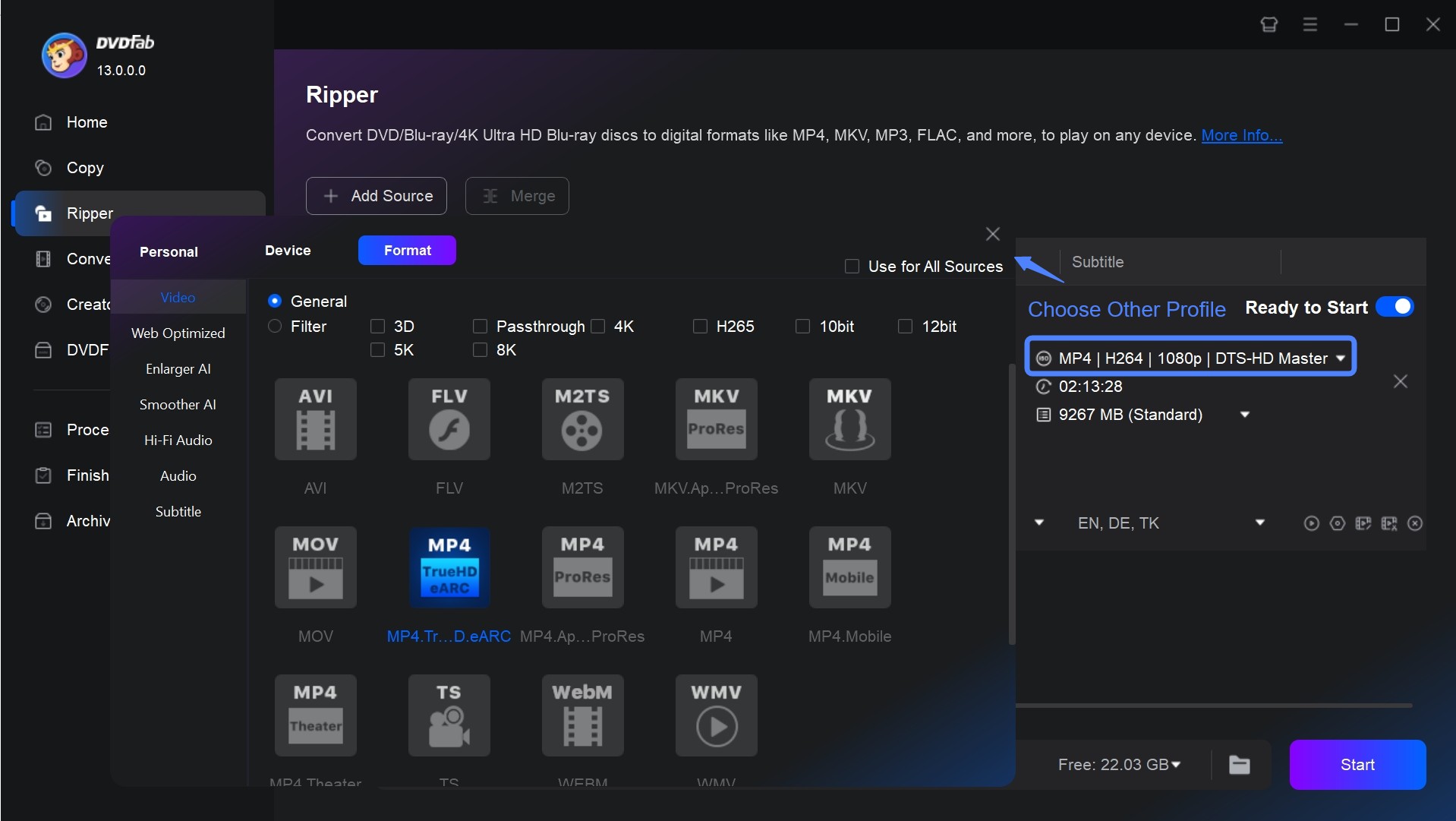
Step 3: Choose the titles, audio tracks, and subtitles to include.
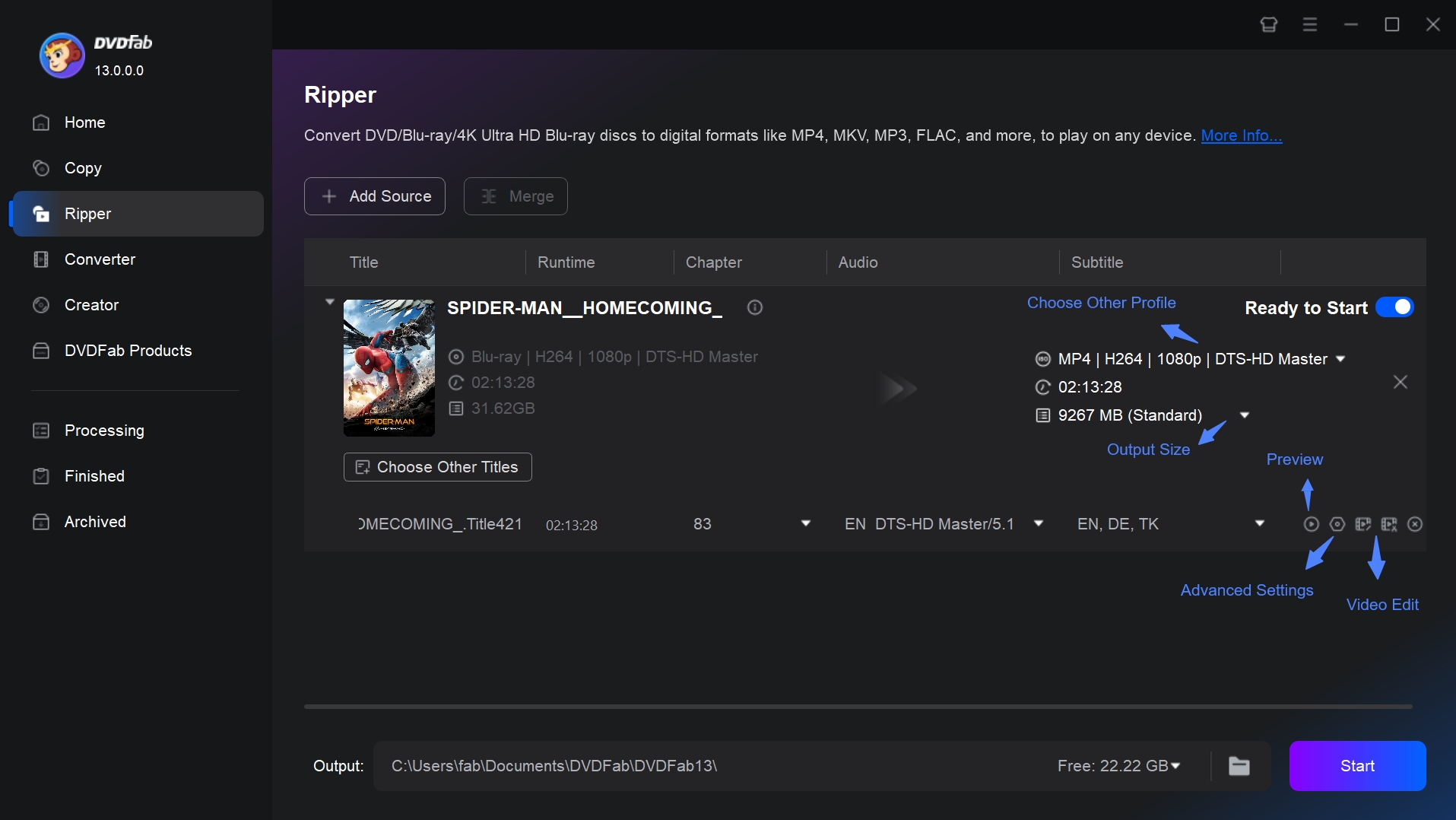
Step 4: Configure video and audio output in Advanced Settings. The built-in video editor handles crop, trim, merge, watermark, and color adjustments.
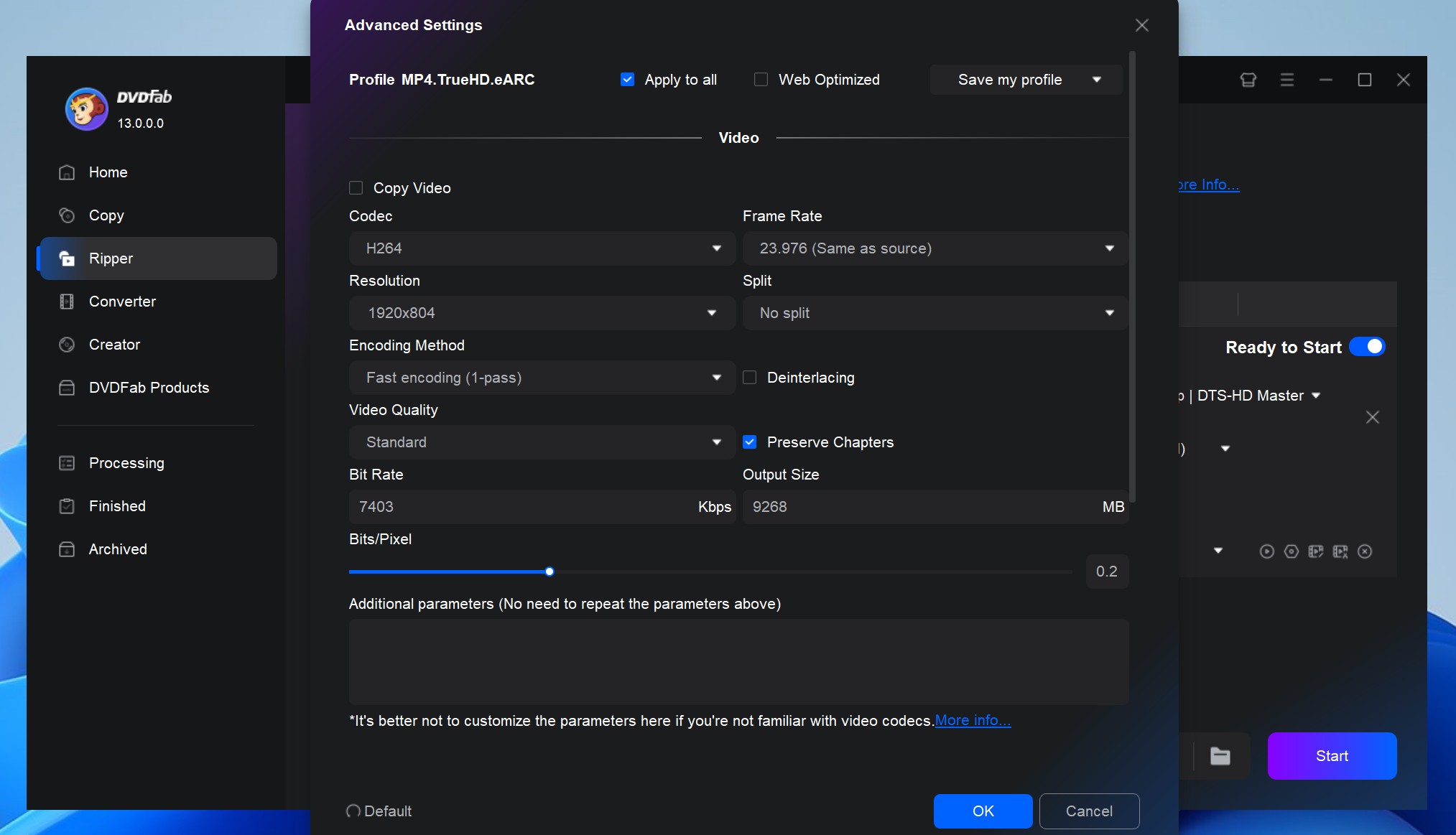
Step 5: Click Start to begin ripping with GPU acceleration.
FAQs
Can HandBrake Rip Protected Blu-rays?
HandBrake cannot directly rip protected Blu-rays. It does not support decryption for Blu-rays protected by AACS, BD+, or other encryption technologies. To rip protected Blu-rays, you'll need to first use a third-party tool like MakeMKV to remove the protection and create an unprotected copy. After that, you can use HandBrake to convert the unprotected file into your desired format.
Yes. HandBrake supports hardware-accelerated encoding via Intel Quick Sync Video, Nvidia NVENC, AMD VCE, and Apple VideoToolbox on supported systems. GPU encoding options appear in the Video tab under the Encoder dropdown. Enabling hardware acceleration significantly reduces encode time compared to software-only processing, though the exact speedup varies by GPU model and settings. Note that GPU acceleration applies to the encoding stage; disc scanning and decoding remain CPU-based.
HandBrake can process 4K content, but with two limitations. First, it only handles unprotected UHD discs; commercial 4K Blu-rays require a separate decryption tool. Second, HandBrake has known parsing issues with certain modern UHD disc structures, including some unprotected 4K formats. For reliable 4K ripping with protection removal, DVDFab UHD Ripper handles AACS 2.0 and preserves HDR10 and Dolby Vision metadata during conversion.
Conclusion
HandBrake is a capable free tool for unprotected Blu-rays. Pairing it with MakeMKV extends that to many encrypted commercial discs, with the trade-offs of a two-step workflow, large intermediate files, and gaps with newer protection schemes.
Choose the HandBrake plus MakeMKV combination if you primarily work with unprotected discs or have a small collection of encrypted titles and don't mind managing intermediate storage. Choose DVDFab Blu-ray Ripper if you rip commercial Blu-rays regularly, need 4K HDR support with protection removal, or want a single-step process without intermediate files.

 How to Rip Blu-ray to MKV on Windows & Mac: 4 Best Converters TestedBy Diana Smith - May 25, 2026
![How to Rip and Extract Hi-Fi Audio from Blu-rays Easily? [2026 Update]](https://r4.dvdfab.cn/upload/resource/en/how-to-convert-blu-rays-to-hi-fi-audio-files-AGcW.jpg) How to Rip and Extract Hi-Fi Audio from Blu-rays Easily? [2026 Update]By Diana Smith - May 19, 2026
How to Rip and Extract Hi-Fi Audio from Blu-rays Easily? [2026 Update]By Diana Smith - May 19, 2026 How to Convert 3D Blu-ray to SBS 3D MKV/MP4: Detailed Guide in 2026By Diana Smith - May 15, 2026
 How to Convert Blu-ray to MP4 on Windows & Mac: Top 6 ConvertersBy Wenny Yan - May 11, 2026