How to Rip DVD with HandBrake on Windows & Mac [Protected DVDs]

Summary: HandBrake 1.11.2 can rip DVDs that it can read and convert them to MP4, MKV, or WebM, but it does not include built-in DVD decryption. For CSS-protected discs, some users add the third-party libdvdcss library; if HandBrake still cannot scan the correct title, prepare a readable source first or use DVD ripping software that supports that disc. On readable DVDs, the basic process is to load the disc, select the title, choose a preset and output format, set the destination, and start encoding.
Table of Contents
HandBrake is free and capable, but one limitation trips up most users early: it cannot bypass the copy protection on commercially pressed DVDs without help. I tested it on Windows 11 and macOS Sonoma across both unprotected home recordings and commercial titles to map out the full picture. For discs with basic CSS protection, adding the libdvdcss library resolves the issue in most cases. Discs using more aggressive schemes such as Sony ARccOS or Disney X-Project DRM require a dedicated decryption tool, and this guide covers those scenarios as well. Below are complete step-by-step instructions for both Windows and Mac, along with fixes for the most common failures. For a broader comparison, the best free DVD rippers guide covers HandBrake alongside other options.
Before Ripping DVDs with HandBrake: What Should You Do?
HandBrake can rip a DVD when it can read the disc and identify its titles correctly. Homemade and unprotected DVDs normally need no additional DVD-reading library. Commercial DVDs are less predictable because HandBrake itself does not include support for DVD copy protection.
For discs using basic CSS, some users install the third-party libdvdcss library. It can give compatible applications access to CSS-protected DVD sectors, but it does not make HandBrake a general commercial-DVD decrypter or guarantee that every protected disc will scan correctly.
If HandBrake still cannot identify a complete title, changing H.264/H.265, RF, MP4/MKV, or another encoding setting will not fix the source-reading problem. If you already have an authorized ISO, VIDEO_TS folder, or MKV copy that HandBrake can open, you can use that as the input and let HandBrake perform the video encoding.
Download HandBrake DVD Ripper
The current stable release is HandBrake 1.11.2. The official download page provides builds for Windows 10 and later, macOS 10.13 and later, and Linux. HandBrake is free and does not require an account.

Install Libdvdcss for HandBrake on Windows
libdvdcss is not part of HandBrake. VideoLAN's current libdvdcss release is 1.6.0, but its current release directory provides source packages rather than a ready-to-use Windows DLL. If you choose to try libdvdcss on Windows, use a compatible build from a source you trust and follow the detailed installation checks in my dedicated tutorial.
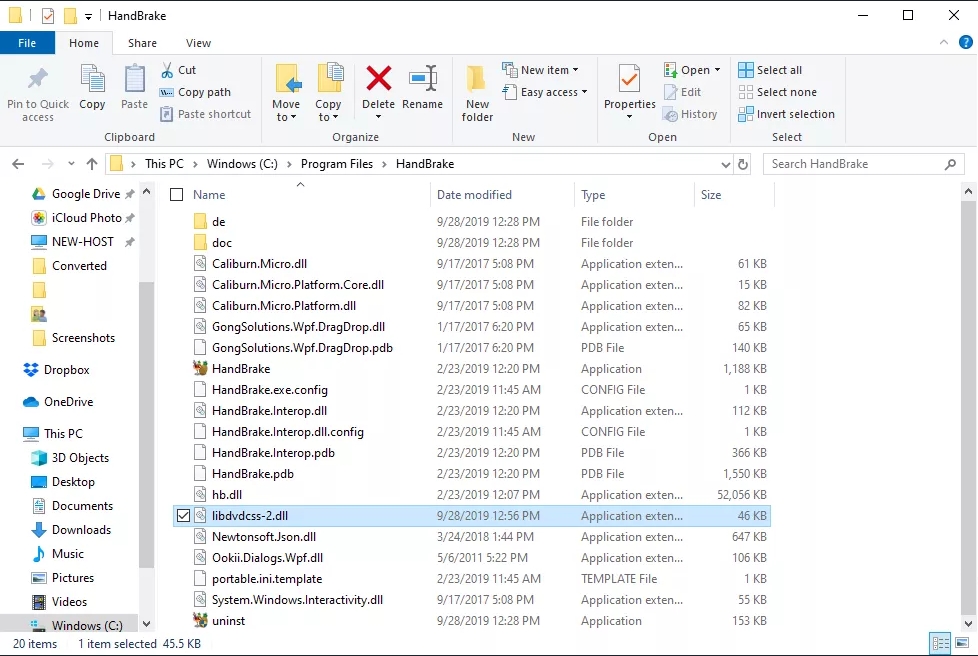
- Step 1: Obtain a compatible Windows build of libdvdcss for your system. On a modern 64-bit Windows installation, use the matching 64-bit library.
- Step 2: Keep the library filename supplied by the build, commonly libdvdcss-2.dll. Do not automatically rename it to libdvdcss.dll.
- Step 3: Place the compatible DLL in HandBrake's installation directory, normally C:\Program Files\HandBrake\.
- Step 4: Close and reopen HandBrake, then scan the DVD again with Open Source.
💡Detailed Tutorial on How to Download Libdvdcss HandBrake
Install Libdvdcss to HandBrake on Mac
Homebrew currently provides libdvdcss 1.6.0 for supported macOS systems. If Homebrew is already installed, open Terminal and run:
brew install libdvdcss
If you do not yet have Homebrew, install it from the official Homebrew project first, then run the command above. Reopen HandBrake after the installation and scan the DVD again.
Installing libdvdcss only addresses CSS-related disc reading. If HandBrake still does not show a complete, correct title, continue to the troubleshooting section instead of repeatedly reinstalling the library.
How to Rip DVD with HandBrake on Windows
In this section, I will use Windows 11 to demonstrate how to rip a DVD using HandBrake.
Step 1: Load the DVD you want to rip
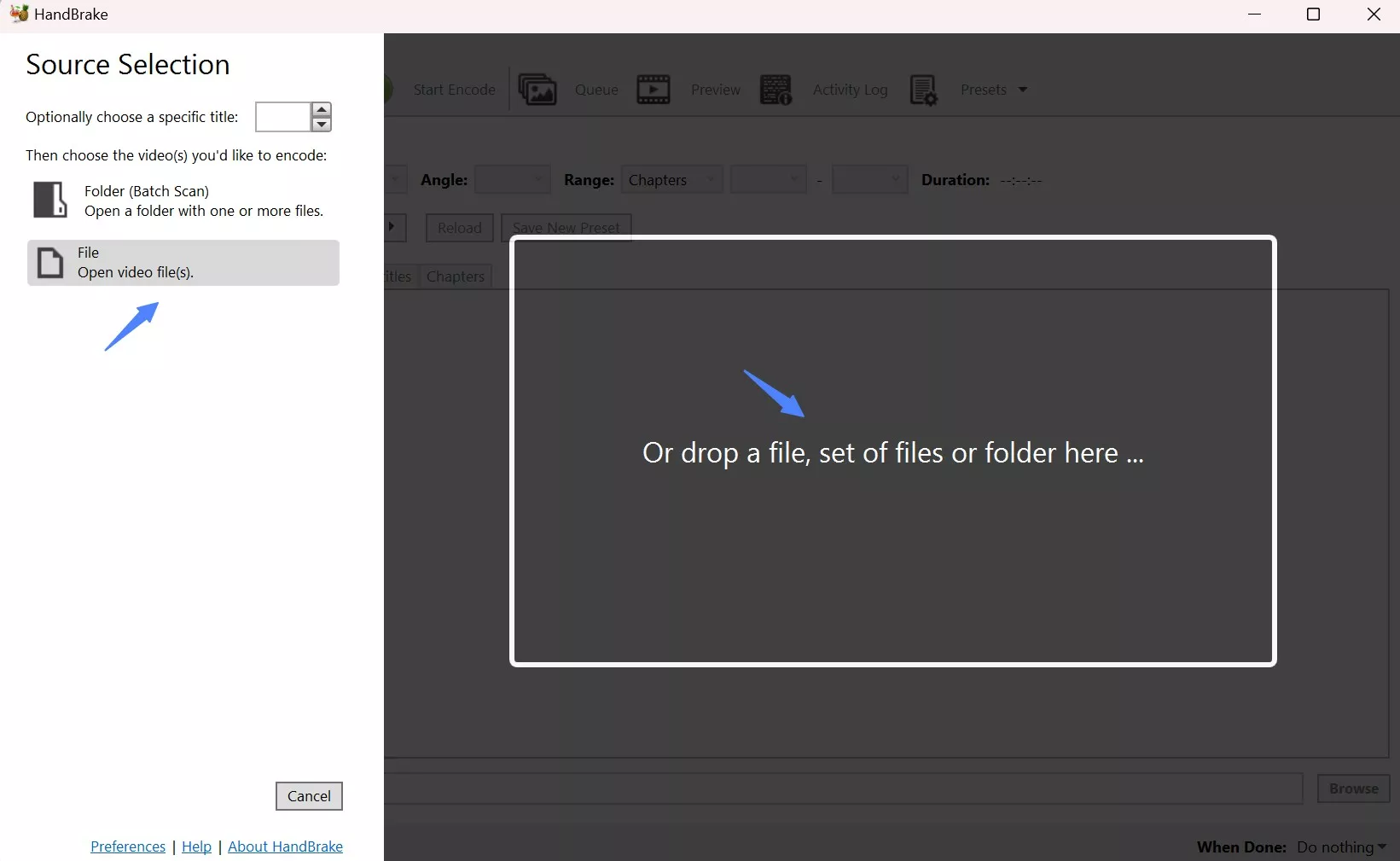
Insert the DVD into your computer's DVD drive and launch HandBrake. Click Open Source in the top left corner and select the DVD drive. HandBrake will scan the disc contents, which can take several minutes depending on the disc.
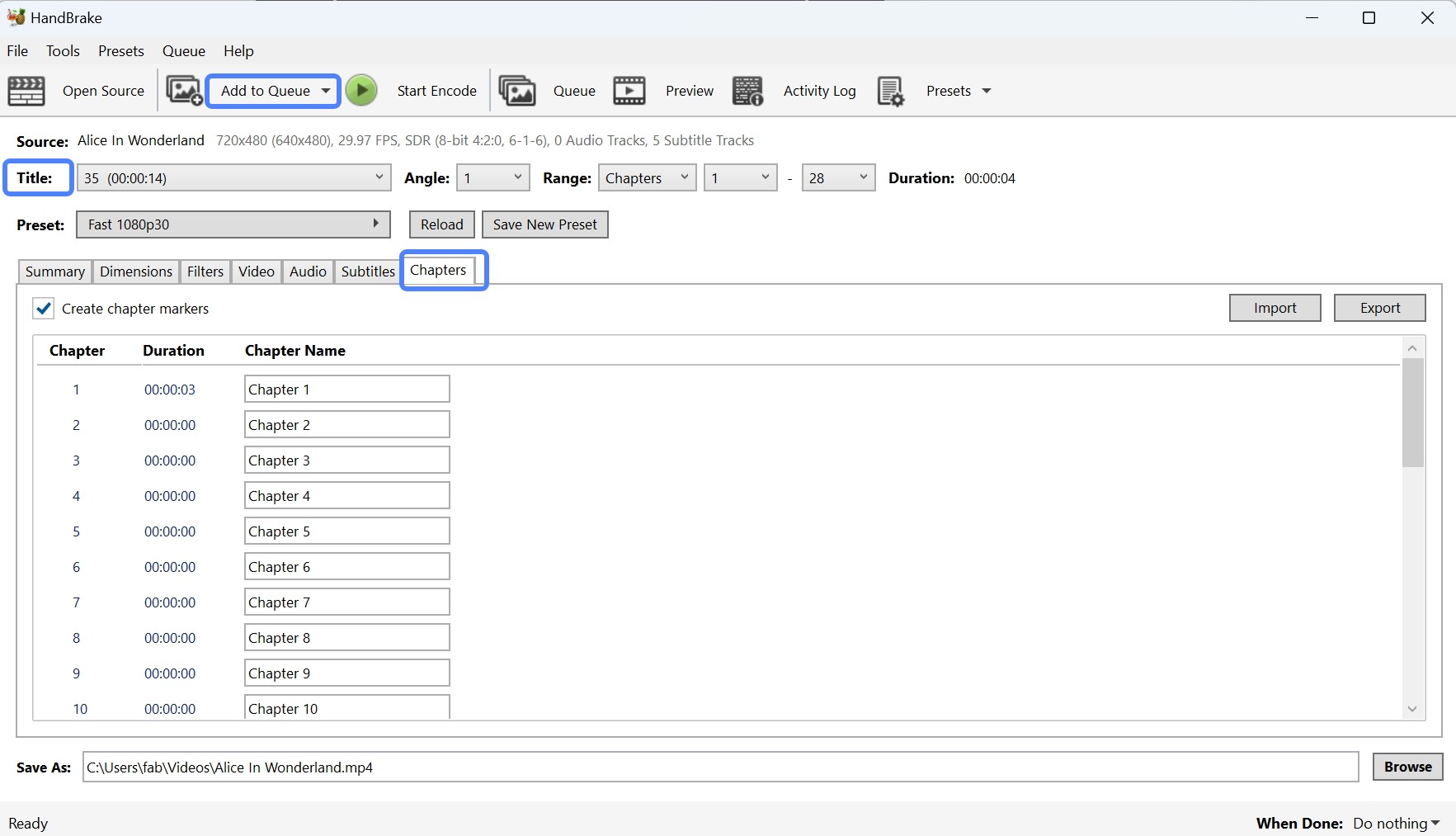
Step 2: Select the DVD title and chapter
HandBrake generally auto-selects the main movie, which is typically the longest title on the disc. You can verify this by checking the duration listed for each title. If you need to rip a specific title separately, select it from the Title menu and click Add to Queue. To rip only a portion of a title, enter the chapter range in the Chapters field.
Step 3: Choose an output format
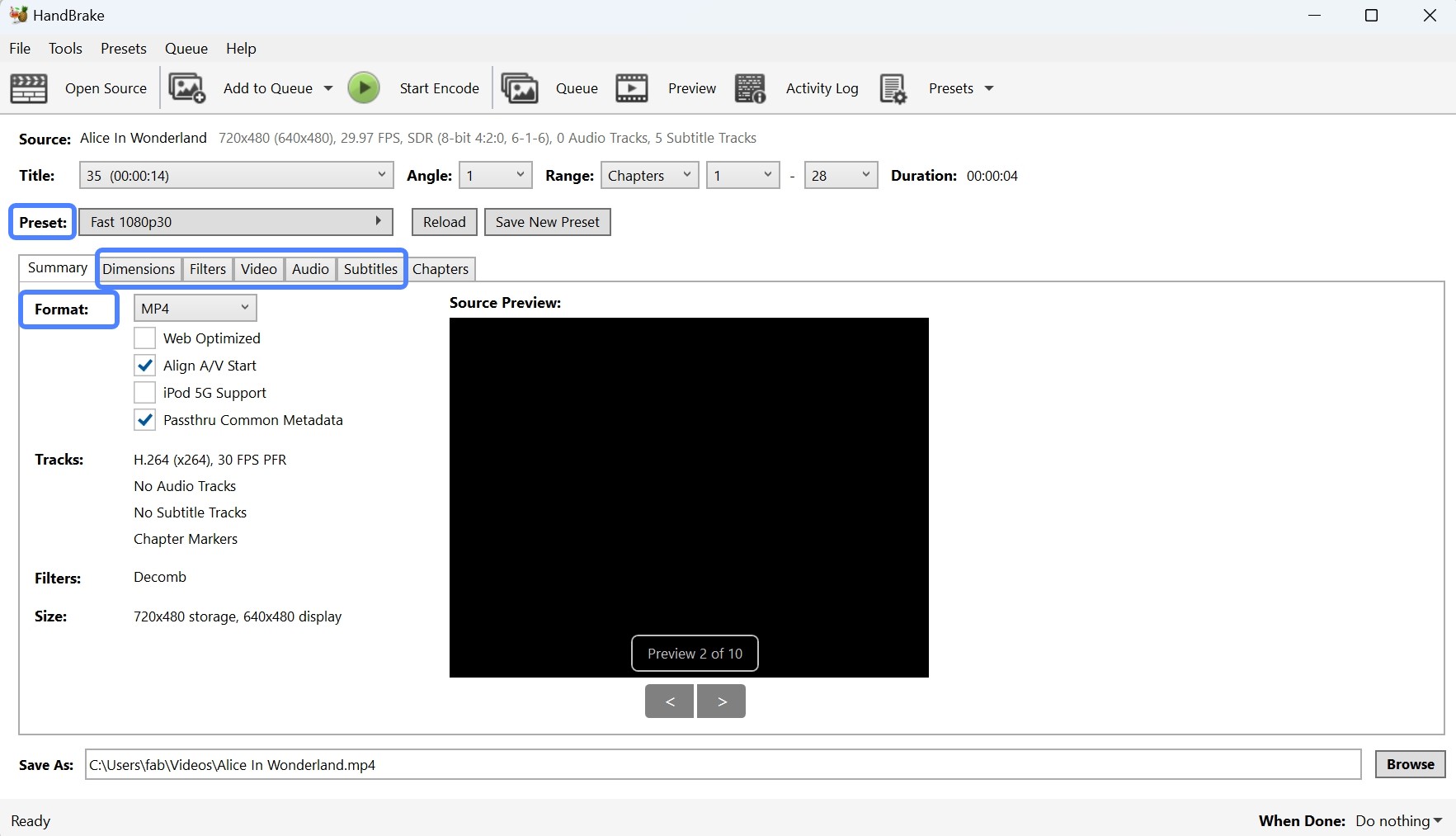
Choose a preset encoding option and your desired output format. HandBrake converts DVDs to MP4, MKV, and WebM, with a range of output presets available for common use cases.
You can also select subtitles and audio tracks, adjust video settings such as codec, frame rate, and quality, and apply additional editing options.
- OS: Windows 11
- CPU: AMD Ryzen 7 5700G with Radeon Graphics
- GPU: AMD Radeon 7900XT
| Preset | Video Codec | Audio Codec | Avg. Speed | Output Size | Time Taken |
| Very Fast 480p30 | H.265 | AAC | 305 FPS | 0.99 GB | 13 mins |
| Fast 480p30 | H.265 | AAC | 113 FPS | 790 MB | 30 mins |
| HQ 480p30 Surround | H.265 | AAC | 106 FPS | 1.67 GB | 46 mins |
Analysis:
- The Very Fast preset offers the highest speed and produces acceptable quality for quick rips. In testing, it finished about three times faster than Fast and nearly four times faster than HQ, though the output file is somewhat larger than the Fast preset.
- The Fast preset provides a practical balance between file size and encoding speed and works well for most situations.
- The HQ preset produces the largest file (more than double the size of Fast) and delivers the best video detail and surround audio. It works well for home theater setups but requires more time and storage space.
Step 4: Set the destination to save the ripped DVD
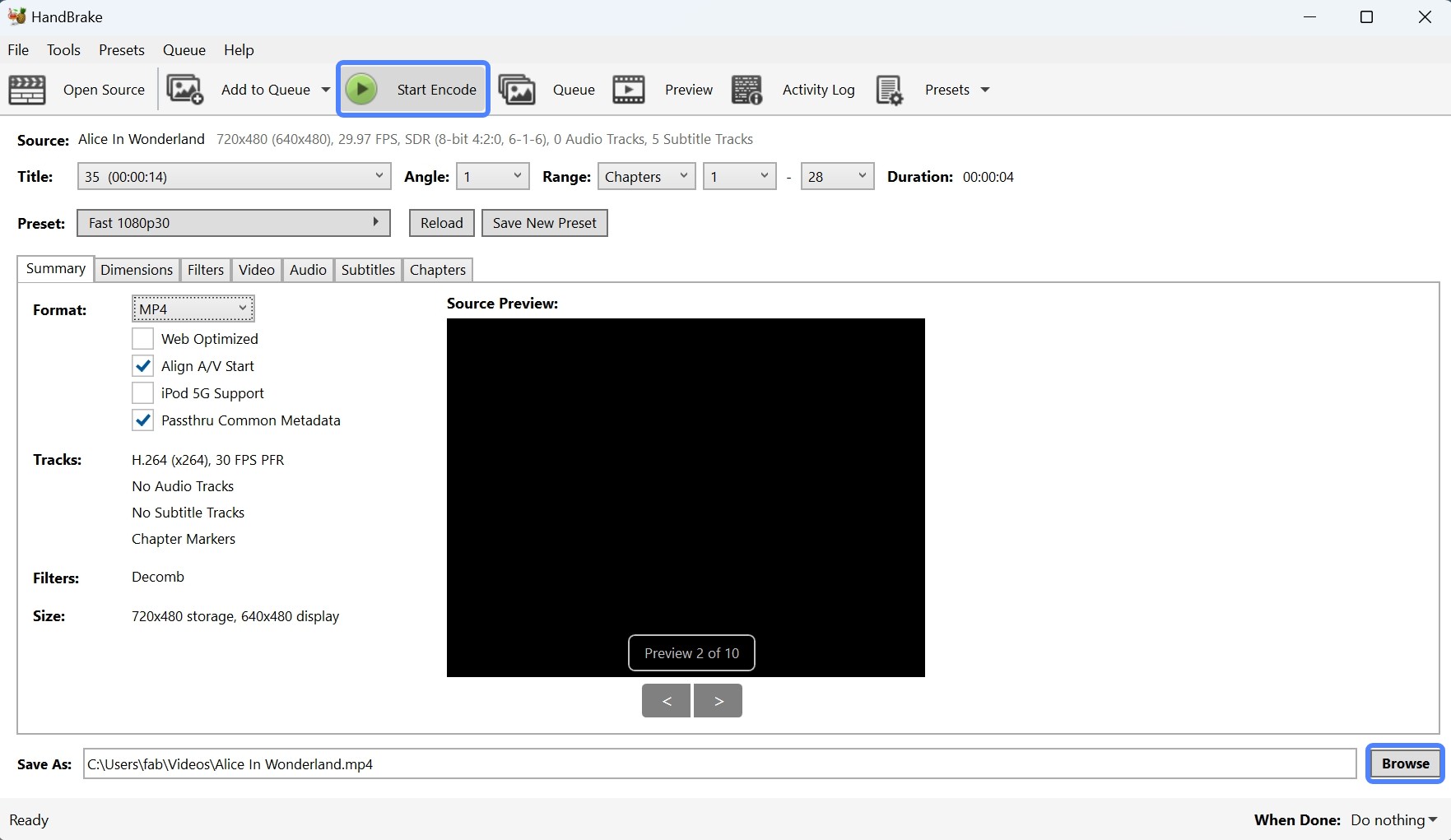
In the Save As section, enter the desired file name and select where to save the output file on your computer or external storage.
Step 5: Start to rip DVD with HandBrake
Click the Start Encode button at the top of the interface to begin ripping. The process time depends on the length of the content and your computer's performance. When it finishes, the ripped video will be saved in the folder you selected.
How to Rip DVD with HandBrake on Mac
Although HandBrake on macOS follows the same overall logic as the Windows version, the UI layout and a few options differ. Below is a Mac-specific walkthrough for ripping DVDs with HandBrake. Before starting, make sure you have already installed libdvdcss via Homebrew as described above, so HandBrake can read CSS-protected discs.
Step 1: Load the DVD source
Insert the DVD into your Mac's built-in drive or an external DVD drive, then launch HandBrake. In many cases, HandBrake will detect the disc automatically. If it does not, click Open Source, select your DVD drive manually, then click Open.
HandBrake will scan the disc and list available Titles. For a movie disc, scanning typically takes a minute or two. For TV box sets, it can take longer.
Step 2: Choose the correct title and chapters
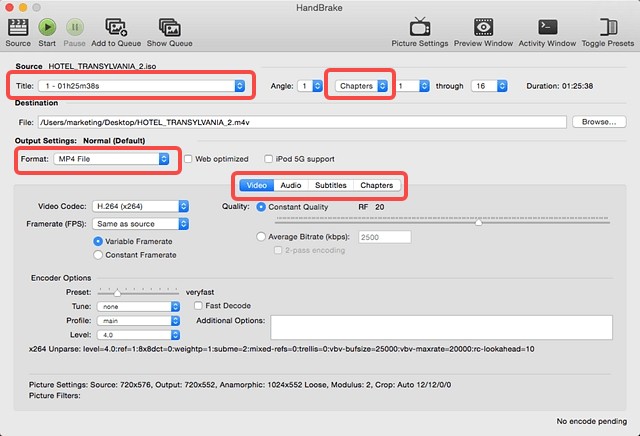
Click the Title drop-down at the top. HandBrake usually auto-selects the longest title, which is often the main movie. For extras such as behind-the-scenes clips, select the specific title manually. For episodic DVDs, you will typically select each episode title one at a time.
To rip only part of a title, adjust the Range settings. You can set a chapter range in Chapters, or switch the range type to Seconds for more precise trimming.
Step 3: Pick an output preset
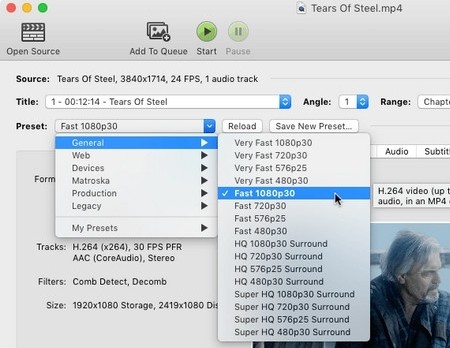
Click Presets on the main window. HandBrake provides built-in presets for common scenarios. For 480p DVD ripping, a typical choice is General > Fast 480p30 or HQ 480p30 Surround. If you plan to watch on Apple TV or iPad, the matching Apple device preset under Devices will automatically optimize compatibility settings for those platforms.
Step 4: Fine-tune settings
In the middle panel tabs, you can customize the following details:
Output Settings: Choose the container format, typically MP4 or MKV.
Video:
- Video Encoder: Choose H.264 or H.265.
- Hardware acceleration: Selecting H.264 (VideoToolbox) or H.265 (VideoToolbox) uses hardware encoding and noticeably speeds up the process. On Apple Silicon Macs (M1, M2, or M3), VideoToolbox is available by default and typically reduces encoding time by more than half compared to software-only encoding.
- Framerate: Set to Same as source for most DVDs.
Audio: Keep the original 5.1 audio track if you want surround sound, or downmix to Stereo to save storage space.
Subtitles:
- Click Tracks > Add New Track.
- Choose Burned In if you want subtitles permanently embedded, or keep them as soft subtitles (a selectable track inside the container) if you want the option to toggle them during playback.
Step 5: Set the save location and start ripping
At the bottom, enter a file name in Save As. Click Browse to choose the destination folder for the output video.
If you are ripping one title, click Start to begin immediately. For multiple titles (common with TV disc sets), click Add to Queue to queue each job, then start the queue to process them in sequence.
Why HandBrake Won't Rip DVD? How to Fix It?
Common HandBrake DVD Ripping Errors and Solutions
HandBrake problems usually occur at one of two stages: it cannot read the DVD source correctly, or it reads the title but the selected encoding settings produce an unwanted output. Check which stage is failing before changing several settings at once.
HandBrake cannot scan a commercial DVD: HandBrake itself does not include DVD copy-protection support. For a CSS-protected disc, libdvdcss may help HandBrake read the source, but it does not cover every commercial DVD structure.
What to check: Confirm that the disc and drive can read the DVD normally. If libdvdcss is relevant, confirm that the correct library is installed. If HandBrake still cannot scan the title, use an authorized source that HandBrake can open or another DVD tool that supports the disc.
No valid source or titles found: This message can appear when HandBrake cannot read the disc, the drive has trouble with the media, or the disc structure is not being recognized correctly.
What to check: Clean the disc, confirm that the optical drive can read it, and reopen it through Open Source. If you already have an authorized VIDEO_TS folder or ISO, try opening that source directly.
HandBrake only encodes part of the DVD or the wrong episode: The selected title or chapter range is often the cause.
What to check: Compare the title durations, inspect the chapter range, and use Preview to confirm the selected content before encoding it again. Do not assume that the longest title is always the correct movie.
The ripped DVD looks combed or distorted: Interlaced DVD video can show visible horizontal combing during movement when the filtering settings do not match the source.
What to check: Preview a motion-heavy section and inspect the Filters tab. Use Comb Detect/Decomb or an appropriate deinterlacing option when the source requires it. For 480p/576p x264 or x265 output, HandBrake's quality documentation recommends starting around RF 18–22 and adjusting from there.
The encode is much slower than expected: Software video encoding, filters, audio conversion, and other processing can increase total encode time.
What to check: Review the selected encoder and active filters. A supported hardware encoder can reduce the time spent on video encoding, while software encoders may be preferable when their quality or compression characteristics matter more for the output.
When HandBrake Still Can't Read the DVD
If HandBrake opens the DVD and encodes the correct title, there is no need to switch software simply because another program offers more profiles. HandBrake remains a free option for converting readable DVDs to MP4, MKV, or WebM.
If HandBrake cannot scan the required title, DVDFab DVD Ripper provides built-in support for commercial DVDs using common protections such as CSS, APS, RC/RCE, Sony ARccOS, UOPs, and RipGuard on supported discs. It can also create compressed MP4/MKV files or use MKV Passthrough when you want the selected source streams without video re-encoding.
Note: Use DVD ripping or conversion functions only for discs you own or are authorized to copy.
Features:
- Removes DVD copy protection including CSS, APS, RC, Sony DADC, ARccOS, and X-Project DRM
- Updated regularly to support newly released DVDs
- Rips DVDs to MP4, MP3, MKV, and 1,000+ other audio and video formats
- Supports both CPU and GPU acceleration for faster processing
- Includes a video editor and advanced settings for output customization
- Converts DVD video to 4K HDR10 content with NVIDIA AI Enhancer
How to Use DVDFab DVD Ripper When HandBrake Cannot Read the Disc
Step 1: Download the latest version of DVDFab and install it on your macOS or Windows system.
Free Download Windows 11/10/8.1/8/7
Free Download macOS 12 or newer
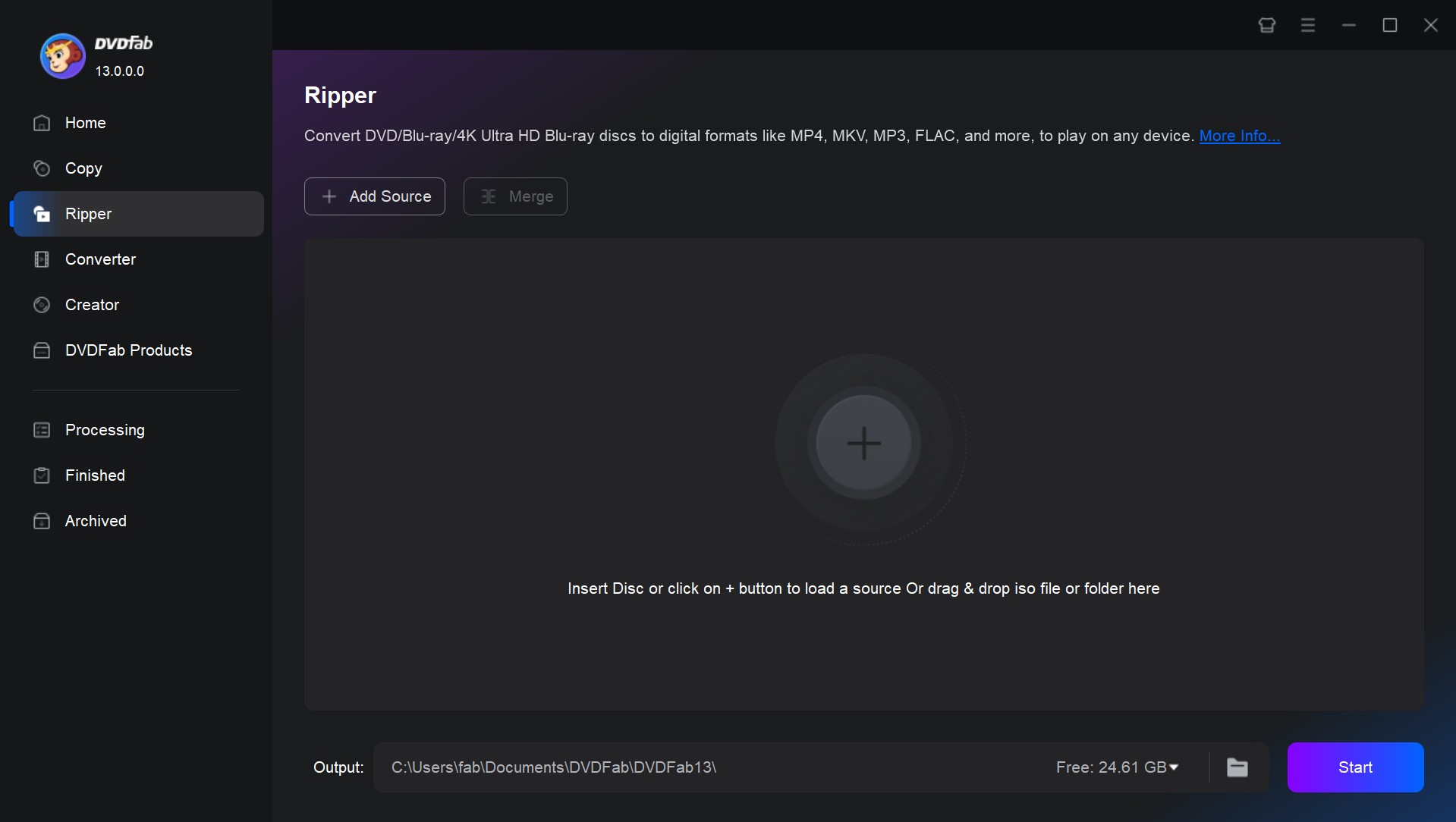
Step 2: Run the software and choose the Ripper option. Insert the DVD into the drive or use the Add button if it is already inserted. ISO files and folders can be dragged and dropped directly onto the main interface.
Step 3: Click Choose Other Profile to select the output video format. Available options include DVD to MP4, MKV, AVI, and others.
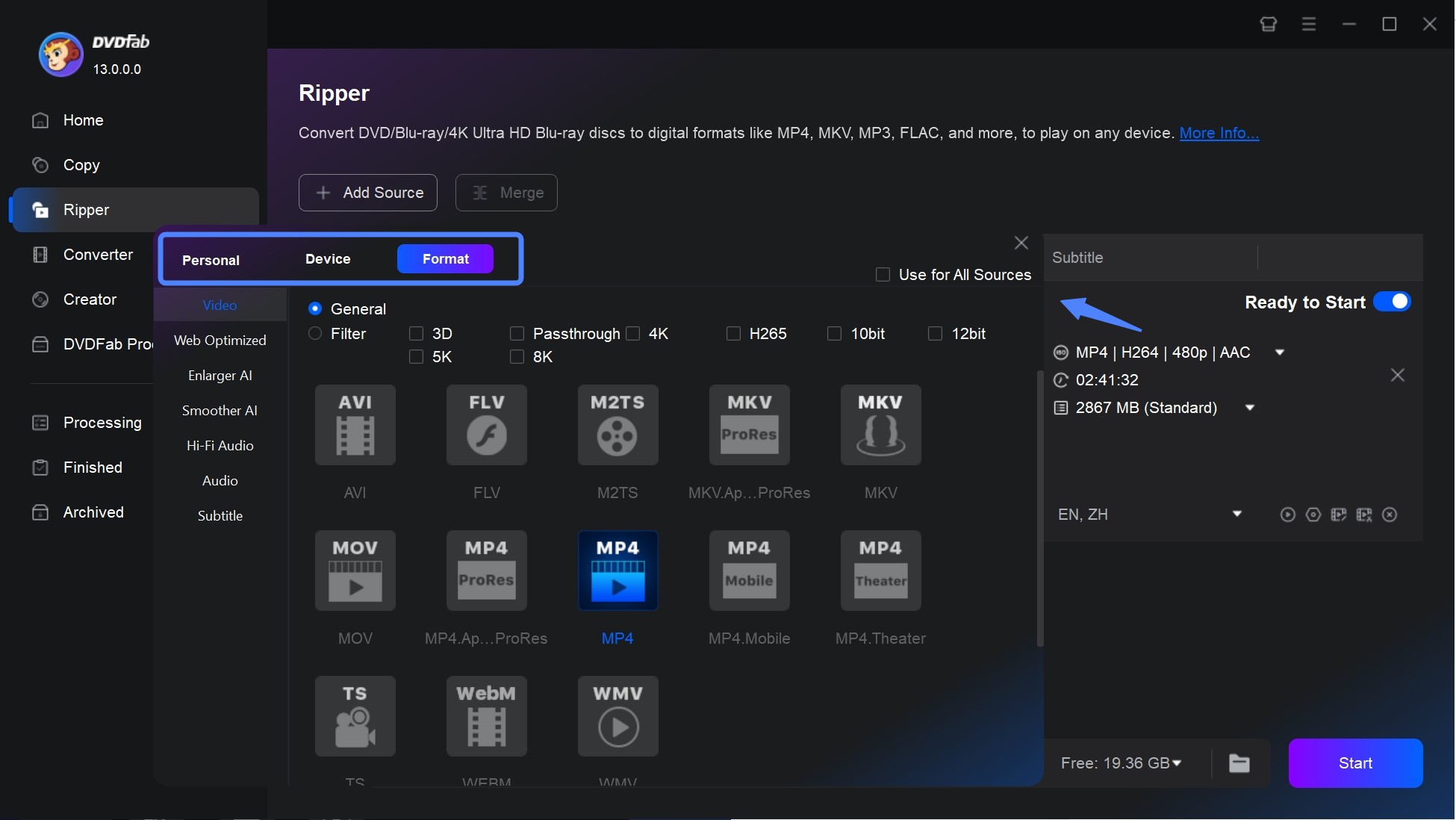
Additional options are available to select audio tracks and language, extract subtitles from DVD to SRT format, or add external subtitles. You can also adjust video and audio parameters using Advanced Settings and Video Edit.
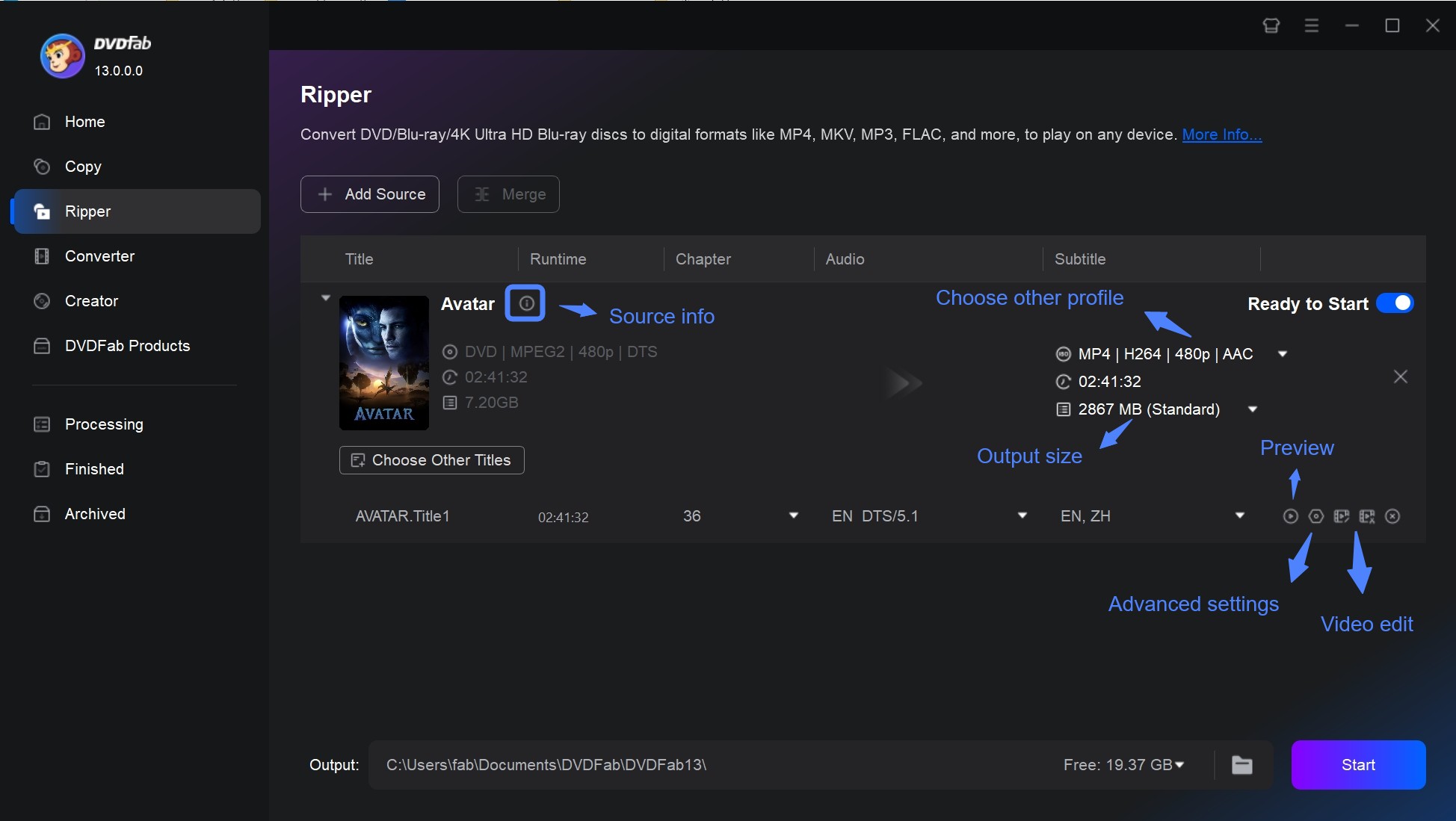
Step 4: Select the output folder and click Start to begin the conversion.
How to Choose a DVD Ripper for Your Situation
HandBrake and DVDFab overlap on readable DVD-to-video conversion, but several differences can change which program is appropriate for a particular disc or output.
| Comparison | HandBrake | DVDFab DVD Ripper |
|---|---|---|
| Free status | Free and open source | 30-day full evaluation; paid registration afterward |
| Homemade or unprotected DVD | Yes | Yes |
| Built-in commercial DVD support | No built-in copy-protection support | Supports common commercial DVD protections on supported discs |
| Separate libdvdcss setup | May be used for some CSS-protected DVDs | Not required |
| Main video containers and profiles | MP4, MKV, WebM | MP4, MKV, AVI, MP3, and many additional video/audio profiles |
| Video passthrough without re-encoding | No; HandBrake encodes the video | MKV Passthrough available |
| Audio and subtitle selection | Yes, subject to container/track limitations | Yes |
| Hardware video encoding | Available on supported hardware | Available on supported hardware |
| Platforms | Windows, macOS, Linux | Windows, macOS |
| Use it when | The DVD is readable and you want free video transcoding | HandBrake cannot read the required commercial DVD, or you need passthrough or a broader output profile selection |
FAQs
Does HandBrake preserve DVD menus?
No. HandBrake creates encoded video files rather than a complete DVD backup, so it does not preserve the original interactive DVD menu or full disc structure.
Can HandBrake rip a DVD without re-encoding the video?
No. HandBrake converts the video stream during encoding. If you need the selected source video without another video encode, use a passthrough or remux method instead.
Can I keep selectable DVD subtitles in an MP4 file?
Not for DVD VOBSUB tracks. HandBrake can burn one VOBSUB track into MP4, while MKV can retain multiple VOBSUB tracks as selectable subtitles. DVD closed captions can be passed through to MP4 or MKV.
Can HandBrake keep DVD chapter markers?
Yes. HandBrake can copy detected chapter markers to MP4, MKV, or WebM output. It cannot create chapter markers when the source contains none.
Can I use HandBrake to rip DVDs for Plex or Jellyfin?
Yes. H.264 is a broad compatibility choice, while MKV is useful when you need selectable DVD VOBSUB subtitles or additional audio tracks. Whether Plex or Jellyfin direct-plays the file still depends on the specific client device, container, video codec, audio format, and subtitle type.
Conclusion
HandBrake works well for unprotected DVDs and for CSS-protected commercial discs when libdvdcss is installed. It is free, cross-platform, and produces reliable output with the right preset settings, as the test data in this guide demonstrates.
The limitation becomes clear with discs that use newer protection schemes. A dedicated decryption tool like DVDFab DVD Ripper provides broader protection coverage without requiring additional manual setup.
The comparison table above maps out which tool fits which scenario. If your collection is a mix, starting with HandBrake for simpler discs and using a dedicated tool for the ones that fail is a practical approach that keeps costs low while still handling the full range.

 Free DVD Decoder for Windows XP and Windows 11: 3 Ways to Play DVDsBy Diana Smith - Sep 23, 2026
 How to Compress ISO Files: 4 Methods for Storage, Playback, and ArchivesBy Diana Smith - Sep 16, 2026
 How to Rip DVD to Facebook and Upload the Video in 2026By Diana Smith - Sep 15, 2026
![How to Rip DVDs for Plex: Guide to Formats, Tools, and Library Setup [2026]](https://images.dvdfab.cn/media/Screenshot_2026-09-08_at_18.53.34_j36v3l.png/public) How to Rip DVDs for Plex: Guide to Formats, Tools, and Library Setup [2026]By Diana Smith - Sep 8, 2026
How to Rip DVDs for Plex: Guide to Formats, Tools, and Library Setup [2026]By Diana Smith - Sep 8, 2026