How to Install libdvdcss for HandBrake on Windows, Mac, and Linux?

Summary: libdvdcss is an open-source VideoLAN library that can provide access to DVDs protected with CSS. The current VideoLAN source release is libdvdcss 1.6.0. It is separate from HandBrake and is not officially supported by the HandBrake project. Windows users normally add a compatible libdvdcss-2.dll, while current Mac users can install libdvdcss through Homebrew. A successful installation does not guarantee that HandBrake will read every DVD, especially when the disc uses structures or protections beyond CSS.
Table of Contents
"I'm trying to back up or convert my DVD movies using HandBrake, but my HandBrake cannot read the disc content."
This is a common dilemma that frustrates many HandBrake users. HandBrake can transcode nearly any video file, but it cannot decrypt copy-protected DVDs on its own. Many commercial DVDs use CSS, sometimes together with additional disc protections or structures. HandBrake 0.9.3 removed its internal DVD decryption in 2008 and switched to relying on an external libdvdcss library when available. Today, a separately installed libdvdcss may help HandBrake read some CSS-protected DVDs, although this setup is not officially supported by the HandBrake project and does not work with every disc.
I tested the setup on Windows 11, macOS Sonoma, and Ubuntu 22.04 to document where the process breaks down. The installation steps differ significantly across operating systems, and the most common failures — a missing DLL on Windows, a broken PATH after Homebrew on Mac, or an unconfigured package on Linux — are easy to run into without clear guidance. This guide covers the full setup for all three platforms, including specific steps for Apple Silicon Macs and current notes for macOS Sequoia and Tahoe, plus what to do when libdvdcss is installed but HandBrake still cannot read the disc.

What Is libdvdcss and How It Works
libdvdcss is a GPL-licensed library from the VideoLAN project for accessing DVDs that use CSS. It is separate from HandBrake and is not a plug-in distributed with HandBrake.
This distinction matters because the HandBrake development team does not officially support libdvdcss as a DVD-reading solution. HandBrake may load an installed library in some configurations, but there is no built-in libdvdcss setting, installation-status indicator, or guarantee that a CSS-protected DVD will scan correctly.
The current official source release is libdvdcss 1.6.0. VideoLAN's 1.6.0 release directory provides source packages rather than ready-made Windows DLL files. Windows binaries therefore come from separately compiled builds, while Homebrew currently packages libdvdcss 1.6.0 for supported macOS and Linux systems.
💡Worth noting upfront: libdvdcss only handles CSS. Discs using AACS, Sony ArccOS, Disney X-project DRM, or 99-title schemes require a different tool. The "When libdvdcss Is Not Enough" section at the bottom covers that scenario.
How to Download Libdvdcss for HandBrake
If you want to know how to rip copy-protected DVD with HandBrake, use the section for your operating system. Do not copy a DLL or command intended for another platform.
Download and Install Libdvdcss for HandBrake on Windows 11/10
Windows does not currently have an official precompiled libdvdcss-2.dll in VideoLAN's libdvdcss 1.6.0 release directory. The DLL commonly used with HandBrake comes from a separately compiled Windows build.
Step 1: Download the correct libdvdcss-2.dll. Most Windows 10/11 systems are 64-bit. To confirm yours, go to Settings > System > About > System type.
- 💻32-bit: https://github.com/allienx/libdvdcss-dll/blob/main/1.4.3/32-bit/libdvdcss-2.dll
- 💻64-bit: https://github.com/allienx/libdvdcss-dll/blob/main/1.4.3/64-bit/libdvdcss-2.dll
These specific links point to third-party/community-compiled DLLs in the repository's 1.4.3 directory. They are not the official VideoLAN 1.6.0 source release, so check the repository version and system architecture before downloading a binary.
Keep the filename as libdvdcss-2.dll. Do not automatically rename it to libdvdcss.dll.
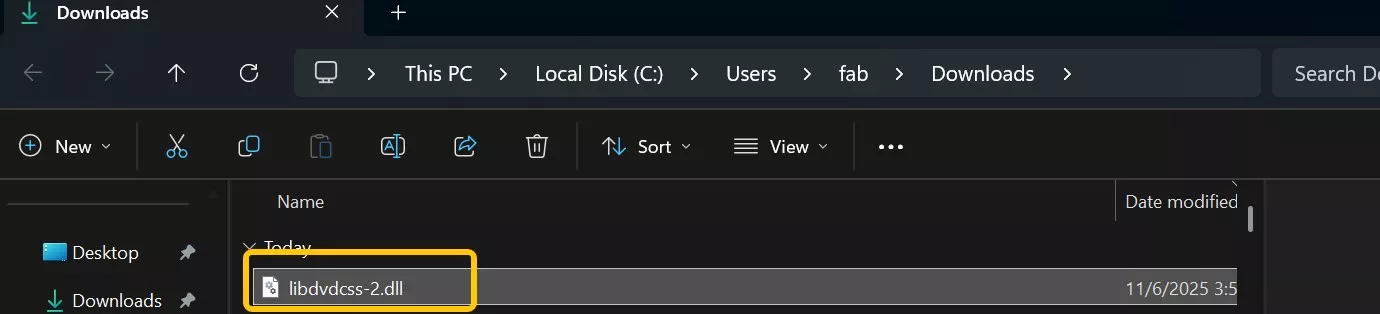
Step 2: Locate the HandBrake installation folder. A standard installation normally uses C:\Program Files\HandBrake. If HandBrake was installed somewhere else, right-click its desktop shortcut and select Properties > Open File Location.

Step 3: Copy libdvdcss-2.dll into the HandBrake installation directory. Windows may ask for administrator permission; click Continue if you trust the file and want to complete the copy.
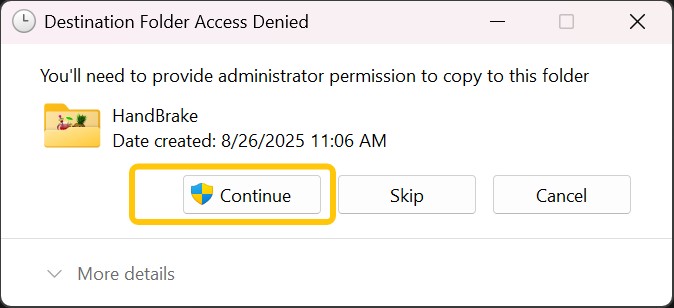
Close HandBrake completely if it is already open, restart it, and scan the DVD through Open Source. HandBrake does not display a separate message confirming that libdvdcss has been loaded.
Download and Install Libdvdcss for HandBrake on Mac
For a current Mac, Homebrew is the primary installation method. Homebrew currently packages libdvdcss 1.6.0 and provides binary packages for Apple Silicon Macs running macOS Tahoe, Sequoia, and Sonoma, as well as Intel Macs running Sonoma.
Option 1: Install libdvdcss on Mac Using Homebrew
If Homebrew is already installed, open Terminal and run:
- brew install libdvdcss
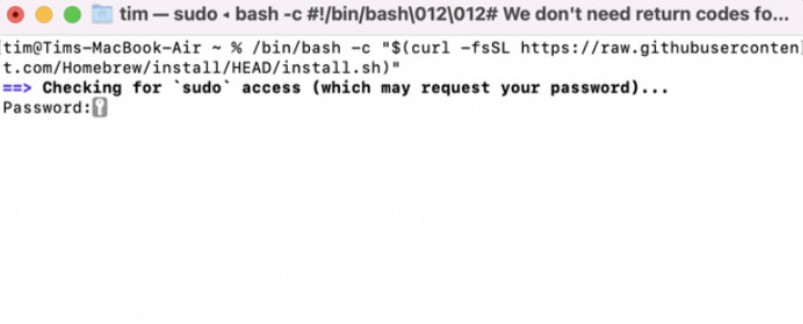
If Homebrew is not installed yet, use the official Homebrew installer first:
- /bin/bash -c "$(curl -fsSL https://raw.githubusercontent.com/Homebrew/install/HEAD/install.sh)"
On Apple Silicon Macs, Homebrew normally installs under /opt/homebrew. If a new Terminal window shows command not found: brew after installation, add Homebrew to your shell environment:
- echo 'eval "$(/opt/homebrew/bin/brew shellenv)"' >> ~/.zshrc
- eval "$(/opt/homebrew/bin/brew shellenv)"
Run brew install libdvdcss after Homebrew is available, then close and reopen HandBrake before scanning the DVD again.
A successful Homebrew installation confirms that libdvdcss is installed on the Mac, but it does not guarantee that HandBrake will read every protected DVD. The HandBrake development team does not officially support this integration, and disc-reading results can still vary by disc structure.
Option 2: Install libdvdcss Manually on an Older Mac
VideoLAN previously distributed a prebuilt macOS package for libdvdcss 1.4.2. It is mainly relevant to older Mac setups:
- 💻 https://download.videolan.org/pub/libdvdcss/1.4.2/macosx/libdvdcss-1.4.2.pkg
For a current Mac, use Homebrew instead. Do not disable System Integrity Protection simply to follow an old libdvdcss installation method. If a legacy package no longer installs correctly, keep the older setup separate rather than weakening macOS security settings.
Download and Install Libdvdcss for HandBrake on Linux
Linux installation depends on the distribution. Package repositories may provide a different libdvdcss version from VideoLAN's latest 1.6.0 source release.
On Debian or Ubuntu systems where libdvd-pkg is available, the package can download, build, and install the library through the distribution's package system.
On Debian, make sure the contrib repository is enabled. On Ubuntu, libdvd-pkg is distributed through multiverse, which may need to be enabled before the package can be installed.
Step 1: Update the package list:
- sudo apt-get update
Step 2: Install libdvd-pkg:
- sudo apt-get install libdvd-pkg
Step 3: Configure the package and allow it to build the library:
- sudo dpkg-reconfigure libdvd-pkg
Restart HandBrake after installation. If your distribution does not provide libdvd-pkg, follow that distribution's current package documentation rather than assuming the Debian commands apply unchanged.
How to Use HandBrake Libdvdcss to Rip Protected DVDs
After libdvdcss is installed, HandBrake still uses its normal DVD-opening process. There is no separate libdvdcss switch in the interface. You can follow the full HandBrake DVD ripping guide for output settings; the steps below focus on checking whether the disc can be read.
Detailed Steps
Step 1: Launch HandBrake and insert the DVD into the internal or external optical drive.
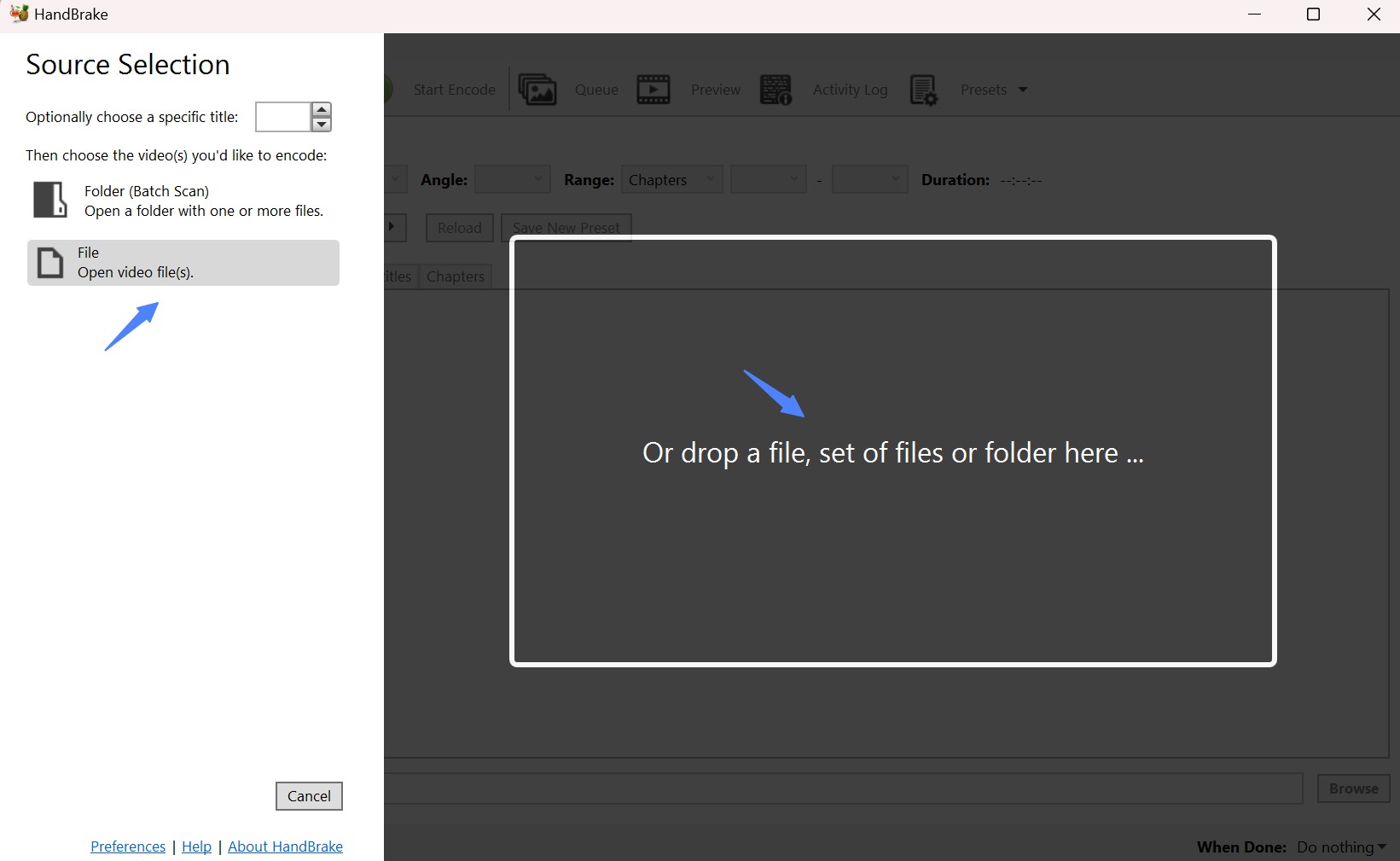
Step 2: Click Open Source and select the DVD drive. HandBrake will scan the disc and list the titles it can read.
HandBrake may load an installed libdvdcss library while opening the DVD, but it does not show a libdvdcss status indicator. If the disc still produces no usable titles, the problem may be the library setup, the disc or drive, or a DVD structure that this combination cannot process reliably.
Step 3: Open the Title dropdown and select the title you want to encode.
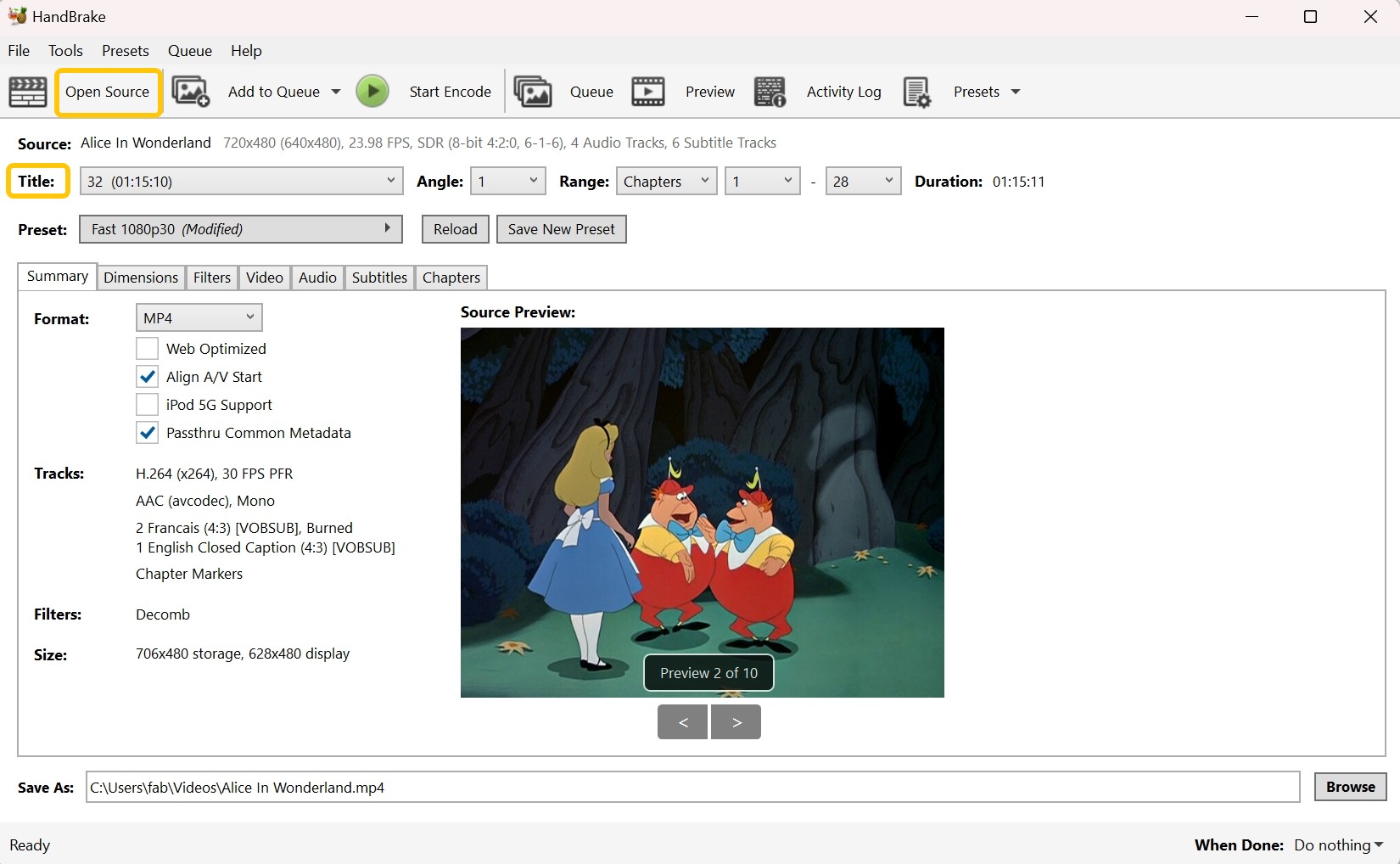
On a simple movie DVD, the longest title is often the main feature, but it is not a reliable rule for every disc. Preview the title when several entries have similar runtimes. On TV-series DVDs, each episode may appear as a separate title.
To encode multiple titles, select a title and add it to the queue. Depending on the HandBrake version and interface, you can add the current title or select several titles before starting the queue.
Step 4: Choose the output format and preset. HandBrake supports MP4, MKV, and WebM.
For an NTSC DVD, a 480p30 preset is a useful starting point. For PAL material, use a corresponding 576p25 preset. Avoid choosing a higher-resolution preset simply to upscale the DVD source, because it does not restore detail that is not present on the disc.
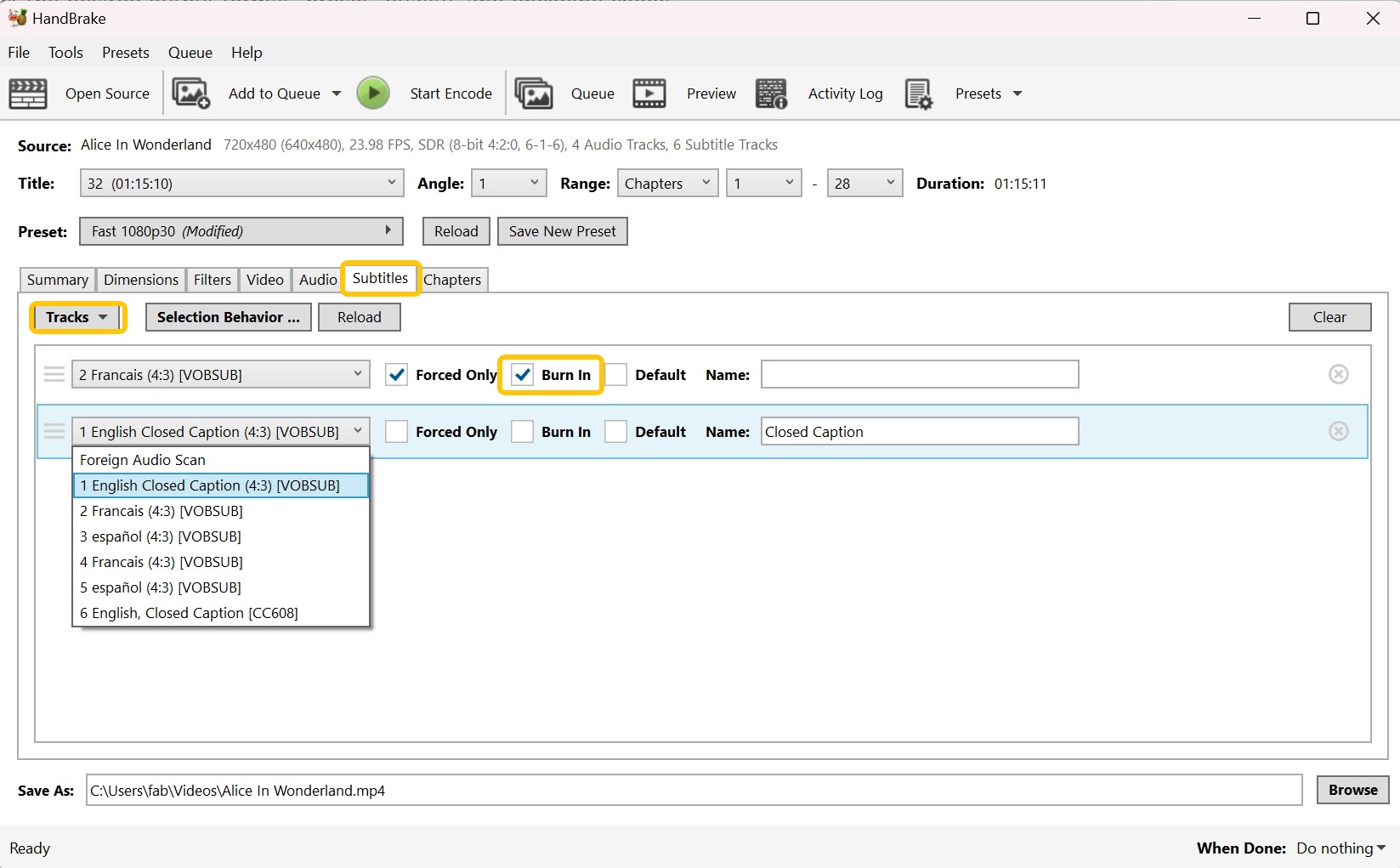
Step 5: Choose the output folder and filename in the Save As area.
Step 6: Click Start Encode. After the encode finishes, check the runtime, picture, audio, subtitles, and beginning and end of the completed file.
How to Check Whether libdvdcss Is Working
HandBrake does not provide a libdvdcss status page, so check the result of the DVD scan instead.
- If a DVD that previously failed now produces usable titles with plausible runtimes and can be previewed, the installed library may be helping HandBrake read the disc.
- If HandBrake still reports No valid source, lists no usable titles, crashes during the scan, or shows incomplete titles, the library may not be loading correctly or the DVD may be outside what this setup can read reliably.
Reinstalling libdvdcss repeatedly will not help if the same disc-reading failure remains. Check the DVD and optical drive first; if they work normally, prepare another authorized source or use DVD software that supports the disc.
How to Rip Protected DVDs without Libdvdcss Installed
libdvdcss is mainly relevant to CSS access. If HandBrake still cannot scan the required DVD after the installation checks above, the problem may be outside what libdvdcss can address.
DVDFab DVD Ripper can read supported homemade and commercial DVDs without a separate libdvdcss installation. Its supported commercial-DVD protections include CSS, APS, RC/RCE, UOPs, Sony ARccOS, and RipGuard on supported discs. It can convert DVD sources to MP4, MKV, MP3, and other output profiles while letting you choose the title, audio, subtitles, and destination before conversion.
Supported OS:
Free Download Windows 11/10/8.1/8/7
Free Download macOS 12 or newer
Key Features:
- Rips DVDs to 1,000+ video and audio formats with 260+ device presets
- Supports newly-released and old copy-protected DVDs
- Converts multiple files simultaneously at 50x faster blazing ripping speed
- Inbuilt video editor to manage the video clips
- Sync metadata info and create a .nfo file compatible with the media server
- Compress video size while preserving quality for any device
How to Rip a Protected DVD with DVDFab DVD Ripper
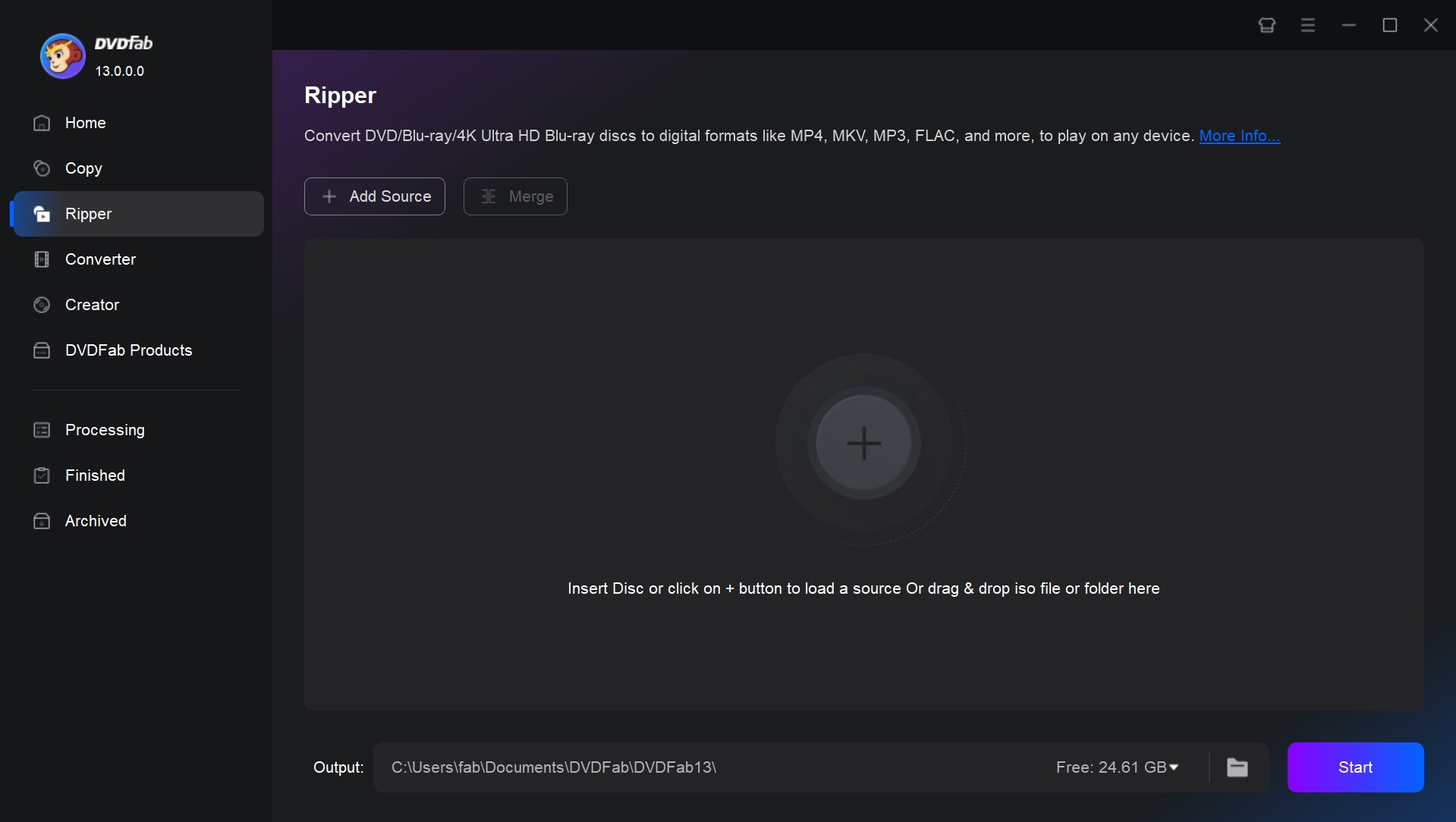
Step 1: Install and launch DVDFab 13. Switch to the Ripper tab and use the Add button to select the encrypted DVD content to rip.
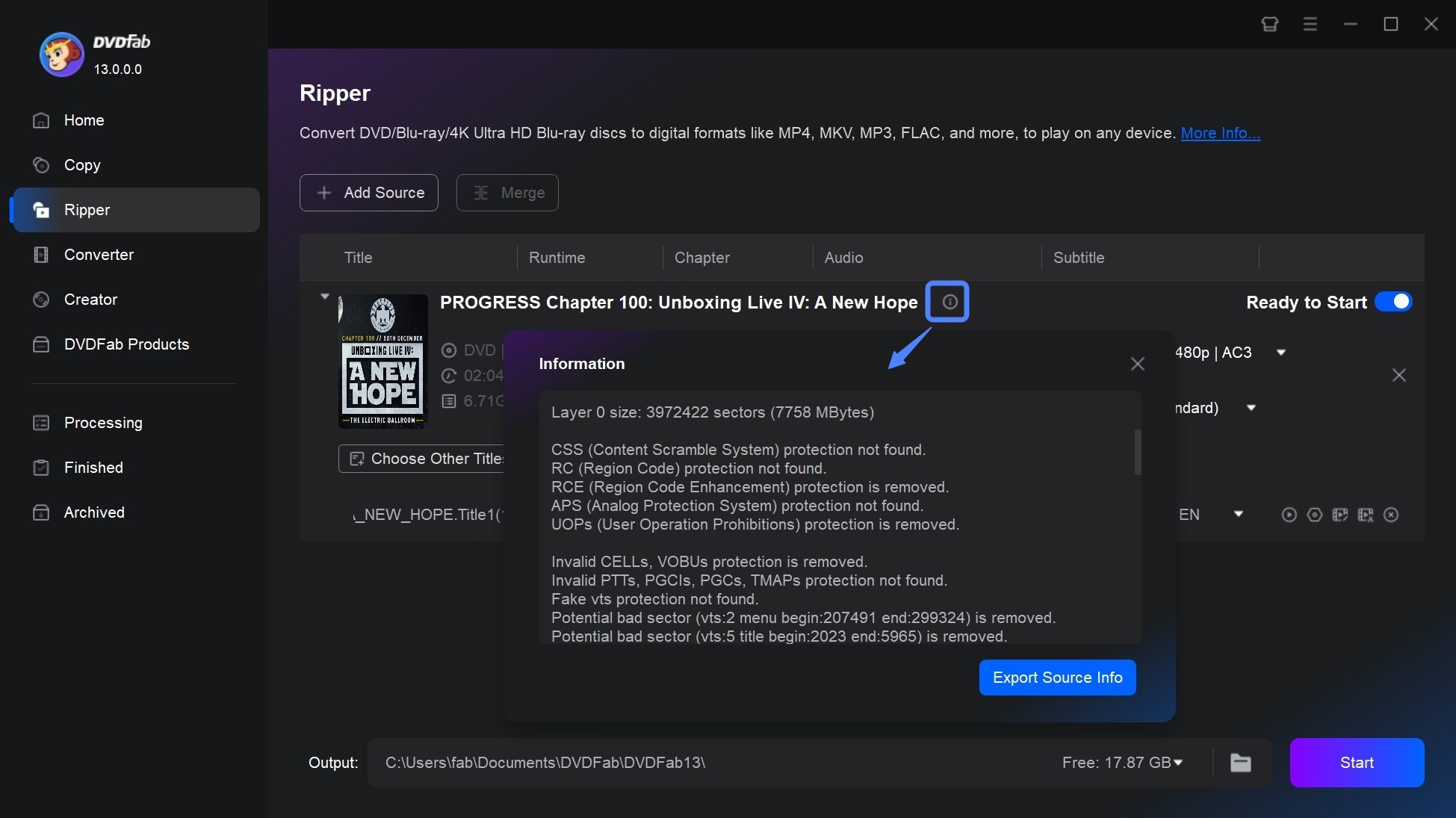
Step 2: Once your source DVD is loaded, DVDFab will auto-recognize and remove all the copy-protection from the DVD. Tap the Info button to learn about all the protections.
Step 3: Customize your profile's default settings. Use several available options to set preferences for output file format, audio track(s), and subtitles (whether to add or extract).
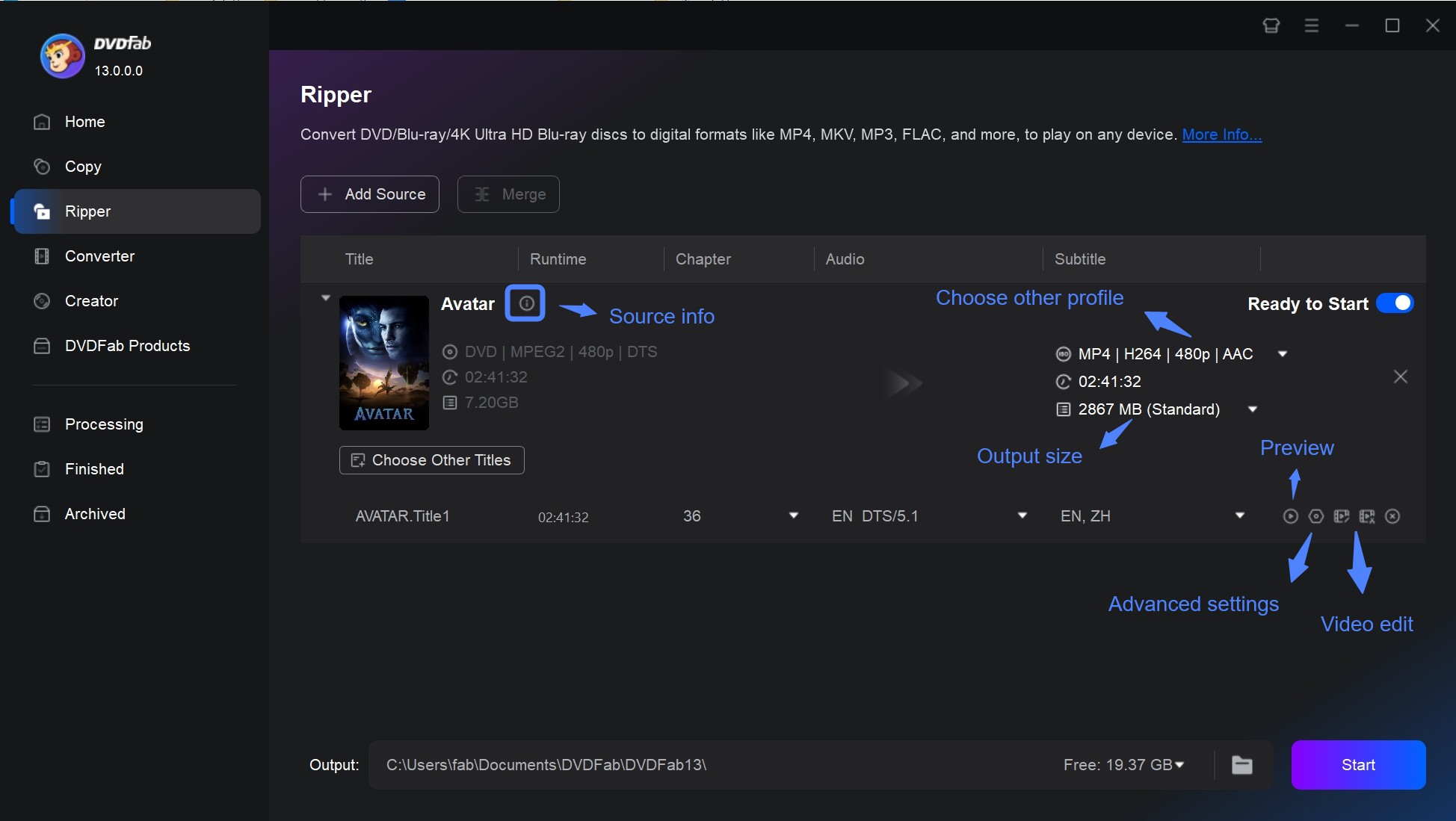
Step 4: Move to Advanced Settings and set advanced audio and video parameters. Likewise, Video Edit lets you adjust the video sections by cropping or trimming and performing other features to match your requirements.
Step 5: After confirming your save location, click Start to rip the DVD. You can see the progress right on the screen. Once the ripping task is complete, you can choose to hibernate, exit the program, shut down the system, or cancel it.
FAQs
Is libdvdcss safe and legal?
libdvdcss itself is open-source software. On macOS or Linux, prefer VideoLAN or a trusted package manager when possible; Windows DLLs are separately compiled binaries, so check the source, version, and system architecture before using one. Laws governing access to CSS-protected DVDs vary by country and purpose, so use libdvdcss only with discs you own or are authorized to access and follow the rules that apply where you live.
What is libdvdcss-2.dll?
libdvdcss-2.dll is a Windows build of the libdvdcss library. VideoLAN's current libdvdcss 1.6.0 release directory provides source packages rather than an official Windows DLL, so commonly downloaded libdvdcss-2.dll files are separately compiled builds and should be checked for their version and architecture.
What should you do if HandBrake and libdvdcss don't work?
Confirm that the DVD and optical drive are readable and that the library is installed in the expected location. If HandBrake still cannot scan usable titles, changing presets will not help because the failure occurs before encoding; use another authorized DVD source or software that can read the disc.
Does libdvdcss work on Apple Silicon Macs or macOS Tahoe/Sequoia?
Homebrew currently provides libdvdcss 1.6.0 packages for Apple Silicon Macs running macOS Tahoe, Sequoia, and Sonoma. This confirms that the library can be installed on those systems, but it does not guarantee that HandBrake will successfully read every CSS DVD because HandBrake does not officially support the libdvdcss integration.
Conclusion
HandBrake with libdvdcss handles some standard commercial DVDs using CSS encryption. The setup is free and open-source; the main variable is installation complexity by platform. Howwever, if you regularly encounter discs HandBrake cannot open, or if you need a tool that handles decryption and format conversion without third-party dependencies, I recommend the best HandBrake alternative, DVDFab DVD Ripper.

 4 Free DVD Rippers for Windows 10/11: Best Tools & Step-by-Step GuideBy Diana Smith - Oct 13, 2026
![How to Convert DVD to AVI Free: 3 Current Options [2026]](https://images.dvdfab.cn/artifact/2026/09/17/2HqH4KgGwIXxwkHdUUZtp0D98DCpL4gS/feature_cover.jpg) How to Convert DVD to AVI Free: 3 Current Options [2026]By Diana Smith - Oct 12, 2026
How to Convert DVD to AVI Free: 3 Current Options [2026]By Diana Smith - Oct 12, 2026 How to Copy DVD to Computer on Windows & Mac: Rip and Direct CopyBy Wenny Yan - Oct 12, 2026
 Free DVD Decoder for Windows XP and Windows 11: 3 Ways to Play DVDsBy Diana Smith - Sep 23, 2026