HandBrake No Valid Source Found: Learn the Causes and Best Fixes

Summary: The HandBrake "no valid source found" error usually means HandBrake cannot read or recognize the selected source. Common causes include disc protection that HandBrake does not support, a damaged or unsupported video file, folder or permission problems, and the Minimum Title Duration setting. Check the Activity Log first to narrow down the cause; libdvdcss is a third-party CSS workaround rather than an officially supported HandBrake feature, while file, duration, permission, and version issues can usually be checked inside HandBrake or the operating system.
HandBrake is a free, open-source video transcoder that can open many video files, DVDs, Blu-rays, and disc backups that it can read. When it reports "no valid source found" or "no valid source or titles found," the problem can come from the source itself, the way HandBrake is scanning it, operating-system access, or disc protection that HandBrake does not support.
I tested each fix below against a mix of encrypted DVDs, homemade discs, and video files to map out which scenario each solution actually addresses. Nine fixes are covered here, from installing libdvdcss to the VLC trick that users on r/handbrake and VideoHelp consistently report as effective. If none of them resolve the issue, the final section explains when HandBrake's built-in limitations mean a different tool is necessary.
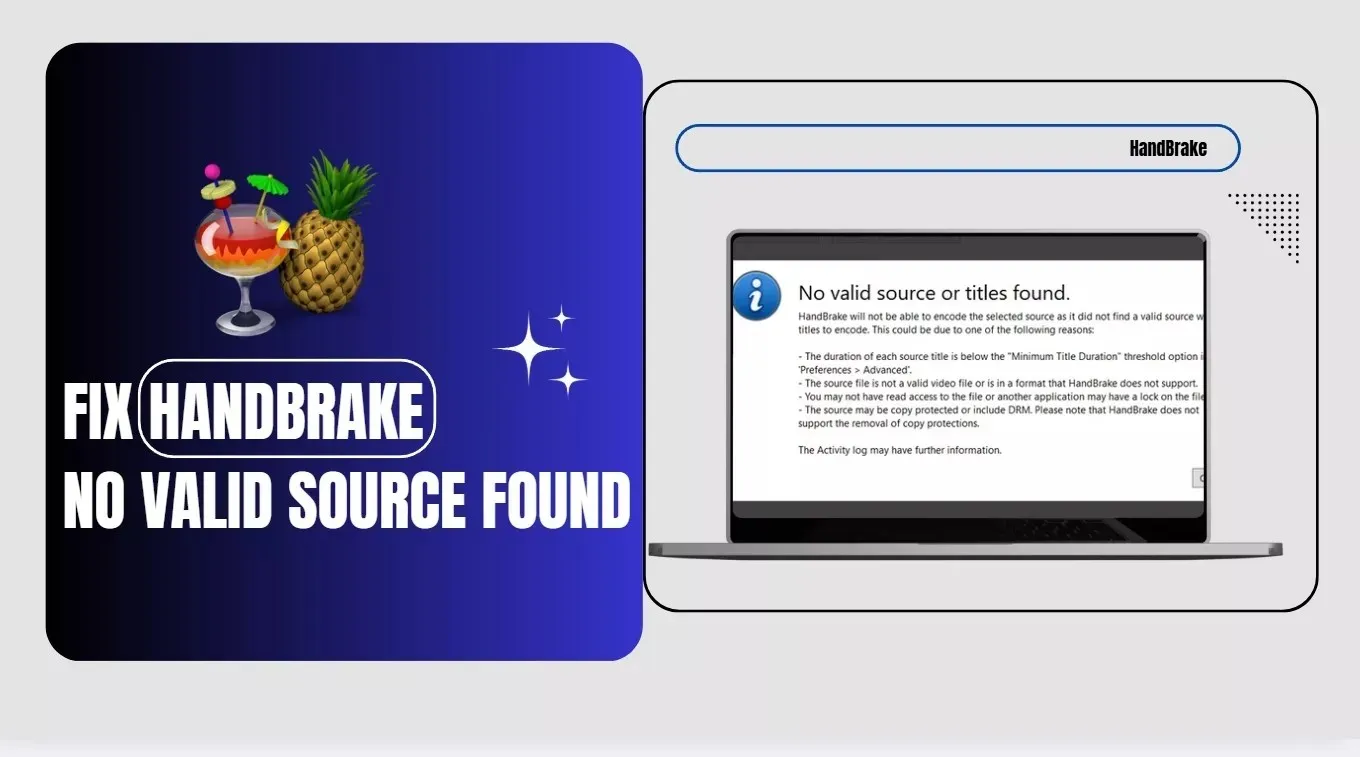
Solutions for HandBrake No Valid Source Found
HandBrake can return "no valid source found" for several different reasons, so the same fix will not work for every source. The Activity Log can help narrow down the cause before you change HandBrake settings or install another component.
| What You Find | Likely Cause | Start With |
| Disc scan fails immediately or the disc cannot be read | Disc readability or unsupported protection | Solution 1 or the dedicated DVD ripper section |
| The short title you need does not appear | Minimum Title Duration is filtering it out | Solution 5 |
| A normal video file cannot be parsed or opened | Damaged or unsupported source file | Solution 3 |
| HandBrake cannot open the drive, folder, or file | File-system or app permission issue | Solution 7 or 9 |
| The DVD structure exists but the disc root does not scan correctly | DVD folder or navigation issue | Solution 8 |
Solution 1: Check libdvdcss for CSS-Protected DVDs
libdvdcss is a free decryption library that allows HandBrake to read protected DVDs. One important limitation to understand before installing: HandBrake libdvdcss only handles CSS encryption. If your disc uses ARccOS (common on Sony titles), Disney's 99-title protection, or other region-based DRM, libdvdcss will not help. In those cases, skip to the final section of this article.
Note: HandBrake does not officially support or recommend libdvdcss as a copy-protection solution. Installing the library successfully therefore does not guarantee that the current HandBrake release will read a particular DVD.
Step 1: Download the libdvdcss 1.6.0 to your computer. It's compatible with both Windows and macOS.
Step 2: Install libdvdcss. There are slight differences in the installation steps on different operating systems.
- On Windows, older HandBrake tutorials often instruct users to copy a file named libdvdcss-2.dll into the HandBrake installation directory. The current official VideoLAN 1.6.0 release directory provides the source package rather than that old Windows DLL installation method, so avoid downloading an unverified DLL from a third-party site and assuming it is the current official release.
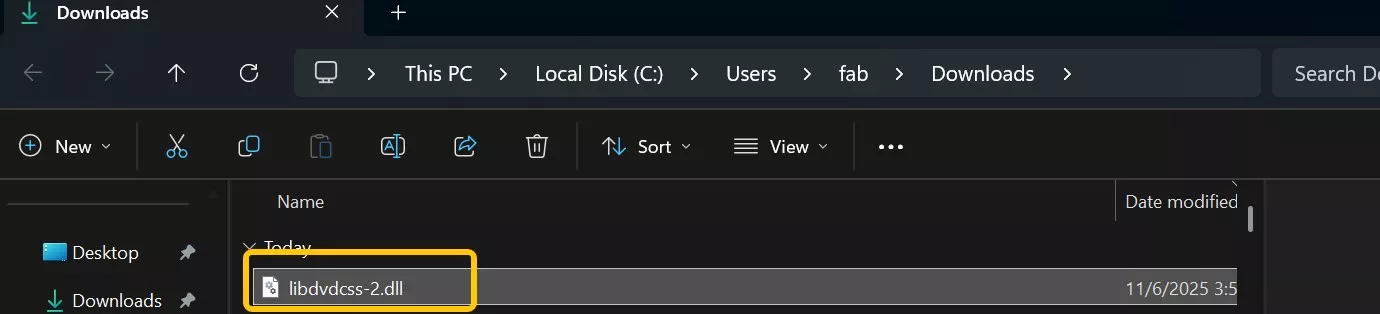
- On Mac, Homebrew currently provides libdvdcss 1.6.0. Open Terminal and run: brew install libdvdcss
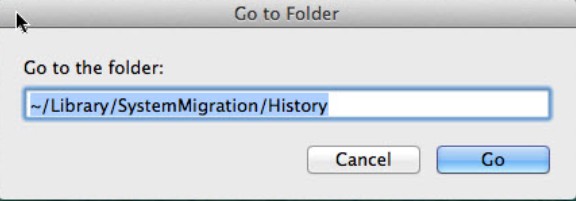
Step 3: When installation is complete, restart HandBrake, import your source again, and check whether the issue is resolved.

Solution 2: Try the VLC Trick
If libdvdcss does not change the result, an unofficial workaround reported by some users is to open the same DVD in VLC before rescanning it in HandBrake. This can work in some software and disc combinations, but it is not a HandBrake-supported method and may make no difference on another system.
Step 1: Open the DVD in VLC through Media > Open Disc on Windows or the equivalent Open Disc command on macOS.
Step 2: Play part of the title briefly, then close VLC.
Step 3: Open HandBrake and scan the same DVD again. Check whether HandBrake now identifies the titles.
If the result is unchanged, move on to the next diagnosis rather than assuming VLC or libdvdcss was installed incorrectly.
Solution 3: Check Whether Your Source File Is Normal
If you are working with video files rather than a physical disc, the error may come from a damaged container, an unsupported stream, or an incomplete file.
1. Check whether HandBrake can read the video source
HandBrake uses FFmpeg and can open many common video sources, including MP4, MKV, MOV, MPEG, and AVI. A damaged container, an unsupported stream, or an incomplete file can still cause the scan to fail even when the filename extension looks normal.
2. Verify whether the video file is corrupt
Play the source in VLC and check whether the complete timeline is readable.
- If you can scrub through the timeline and the file plays normally in VLC, the source is less likely to be corrupted.
- If VLC cannot play it or playback is severely broken, the source file may be damaged.
- If a DVD also fails to play normally in another disc player, inspect the physical disc for dirt or damage before changing more HandBrake settings.
Solution 4: Adjust the Directory Where Your Source Files Are Stored
If HandBrake returns "no valid source or titles found" when you select a parent directory, try opening the folder that directly contains the video files instead. This helps separate a folder-selection problem from a problem with the files themselves.
When you want to batch-convert multiple files, try the following:
- Put the videos you want to convert into one folder.
- Keep folder and file paths reasonably short and avoid unnecessary special characters.
- Select the folder that directly contains the video files instead of the entire drive or a higher-level parent directory.
Solution 5: Adjust HandBrake's Minimum Title Duration
HandBrake ignores titles shorter than its configured Minimum Title Duration. If the clip or disc title you need is shorter than that threshold, HandBrake may leave it out of the scan and report that no valid title was found. Lower the duration and scan the source again.
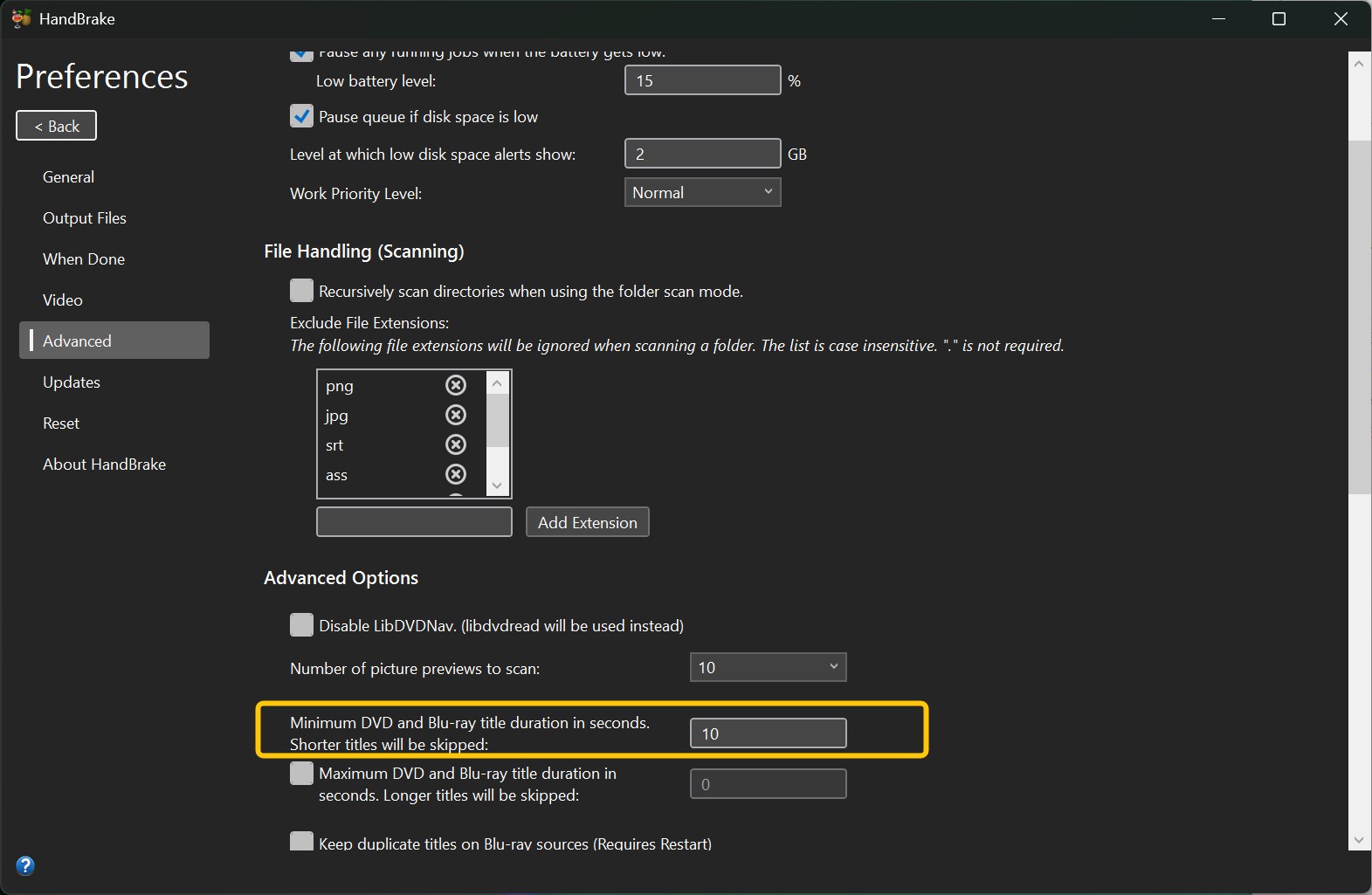
Step 1: On Windows, launch HandBrake and go to Tools > Preferences.
Step 2: Open Advanced and locate Minimum Title Duration.
Step 3: Lower the value below the duration of the title you need, such as 1 second for a very short clip, save the change, and rescan the source.
Solution 6: Use a Different HandBrake Version
A HandBrake update can occasionally change source scanning or compatibility. If your installed version is old, update first. Only try an older release when the same source worked before and the failure clearly began after a HandBrake update.
1. Update to the latest stable release if you're using an older version.
- Download the current official HandBrake 1.11.2 release from handbrake.fr instead of a third-party mirror.
- Install it, then scan the same disc, folder, or file again.
2. Roll back only if the problem clearly began after an update.
- Remove the current HandBrake version if required by your operating system.
- Download the previously working release from HandBrake's official Old Releases archive.
- Test the same source again so you can compare the two versions under the same conditions.
Solution 7 (for macOS): Grant Access Permissions
On macOS, check app permissions when HandBrake cannot open a file, folder, removable volume, or another location that should otherwise be readable.
Step 1: Open Apple menu > System Settings > Privacy & Security > Files & Folders.
Step 2: If HandBrake appears in the list, check whether it has access to the location containing your source.
Step 3: Reopen HandBrake and scan the source again.
If the problem applies only to one specific file or folder, open Finder > Get Info > Sharing & Permissions and confirm that your user account can read it.
Solution 8: Navigate to the VIDEO_TS Folder Directly
If you are opening an unprotected DVD backup or a DVD folder, try selecting the VIDEO_TS directory itself instead of a higher-level parent folder.
In HandBrake, choose Open Source, browse to the DVD backup, and select the VIDEO_TS folder. If HandBrake can read the structure, it should scan the titles stored in that directory.
Solution 9: Run HandBrake as Administrator (Windows)
On Windows, try Run as administrator only when the Activity Log or another check points to a drive, folder, or file-access problem.
Step 1: Close HandBrake.
Step 2: Right-click the HandBrake shortcut or executable and select Run as administrator.
Step 3: Scan the same source again.
If this makes no difference, return to the Activity Log and investigate the source itself. Do not leave HandBrake permanently configured to run as administrator unless you have confirmed that Windows permissions are the cause.
When to Consider a Dedicated DVD Ripping Tool
The issues of HandBrake no valid source found can trouble you with efficient ripping. Even if you bypass the problem with the above-mentioned troubleshooting methods, you still cannot decrypt copy-protected disc content unless you install libdvdcss on the respective device. Moreover, the decryption capability of libdvdcss is limited; it cannot handle newer encryption schemes. So, HandBrake can be a good option for ripping homemade DVDs, but you must seek a reliable option for the speedy ripping of encrypted discs. Here's where DVDFab DVD Ripper can be your best bet.
DVDFab DVD Ripper can help you rip old and newly protected DVDs while offering benefits beyond disc conversion. This program emerges as the perfect solution when you seek a competitive, better, and trusted HandBrake alternative. DVDFab can quickly rip any DVD to over 1000 media formats at 50x faster speed. It effectively removes any kind of encryption modes from discs. Customization of advanced output parameters further helps seamless playback on different devices and players, including home theatre.
- Handle the latest and old copy-protection from DVDs such as Region Codes, APS, Sony DADC, CSS, and more
- Converts DVD to 1000+ popular and widely-compatible digital formats, including audio files in 1:1 quality
- Enables batch conversion using the latest CPU and GPU technologies for speedy process
- Customize the output parameters to meet your preferences for seamless playback on desired devices
- Updates regularly to recognize, and decrypt latest-released DVDs with its exclusive Cloud Decryption Service
- Edit the ripped content to get the desired aspect ratio, trim unwanted clips, or add a watermark/external subtitles (SRT or ASS format)
Steps to Ripping Encrypted DVD Using DVDFab DVD Ripper
Step 1: Install and open DVDFab on your Windows or Mac OS. Opt for the Ripper module from the left pane.
Free Download Windows 11/10/8.1/8/7
Free Download macOS 12 or newer
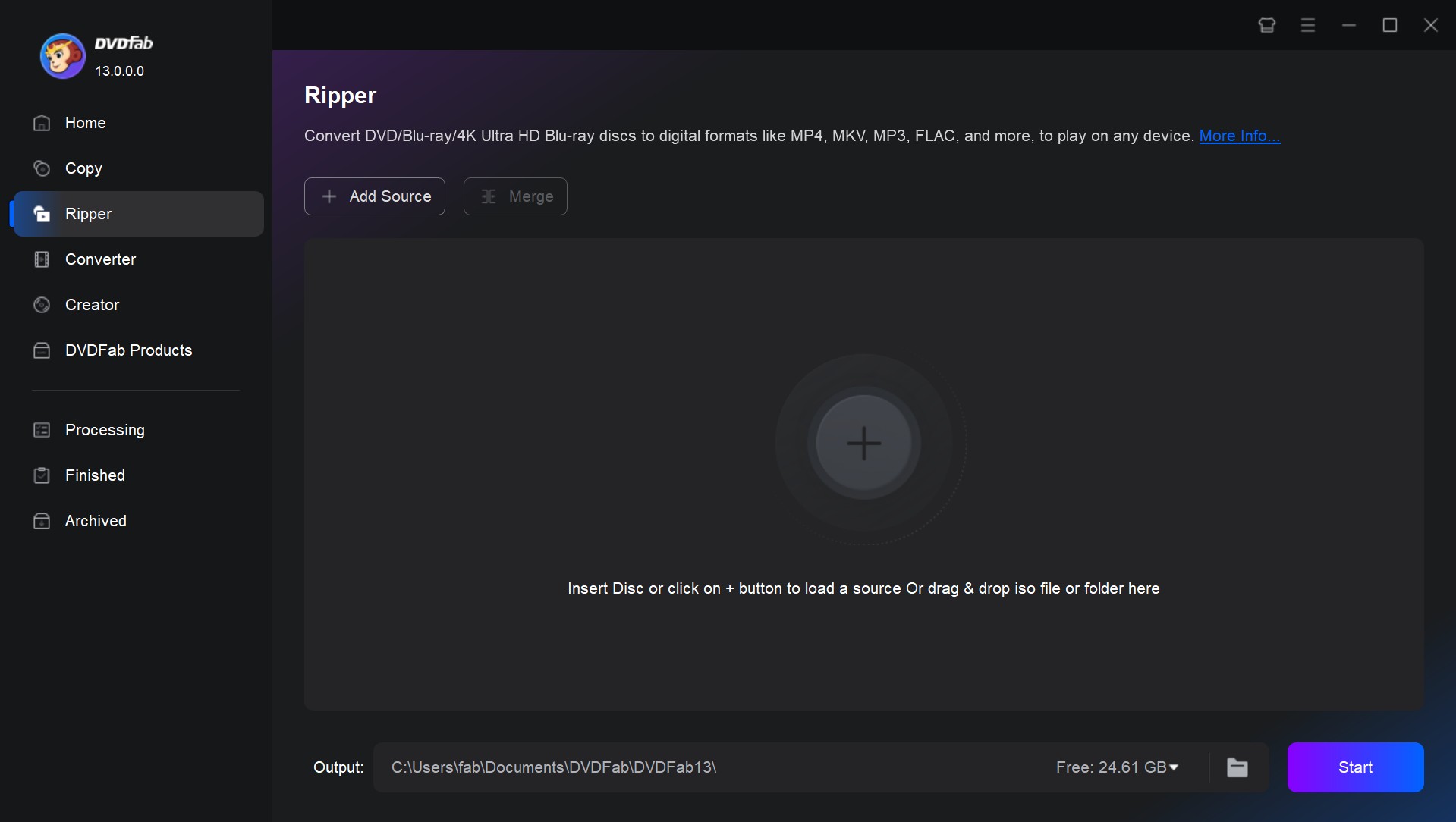
Step 2: Load the desired DVD into the optical drive. Alternatively, use the Add button to navigate the loaded disc content. Drag and drop them onto the primary interface to work with ISO files and folders.
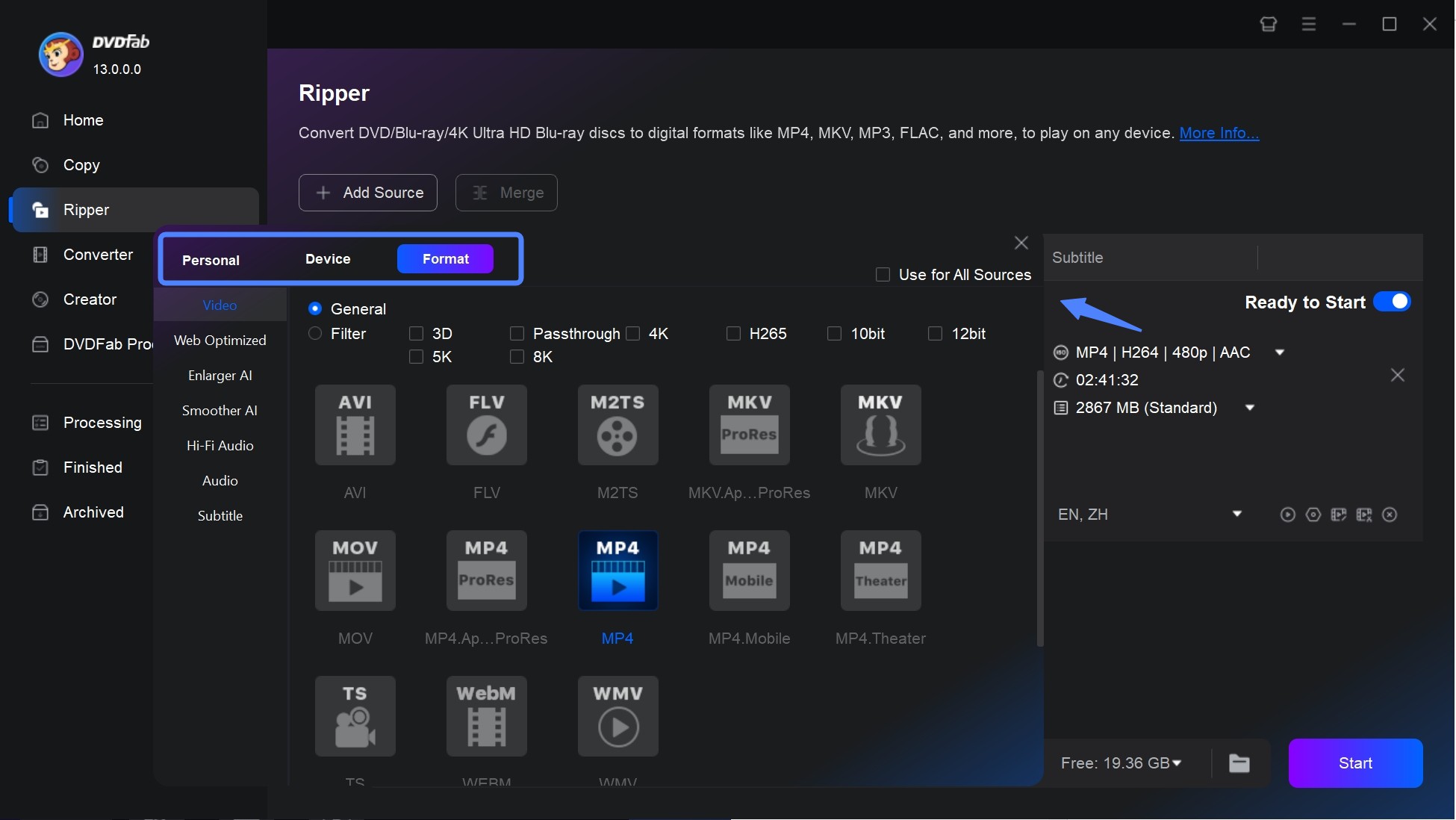
Step 3: Navigate to the Choose Other Profile option to pick your preferred video format in Format module. For example, you can choose AVI, MKV, MOV, MP4, WebM, WMV, etc.
If you are unsure which output format is best suited for your device, you can switch to the Device menu. DVDFab offers 260 presets here, allowing you to select the device on which you want to play the video, so you don't have to worry about configuring the settings yourself.
You can tailor your preferences for audio track(s) and languages. Preferably, you can extract subtitles from your loaded disc content to SRT format or add external subtitles.
Other parameters like Advanced Settings and Video Edit also help tailor other video and audio settings.
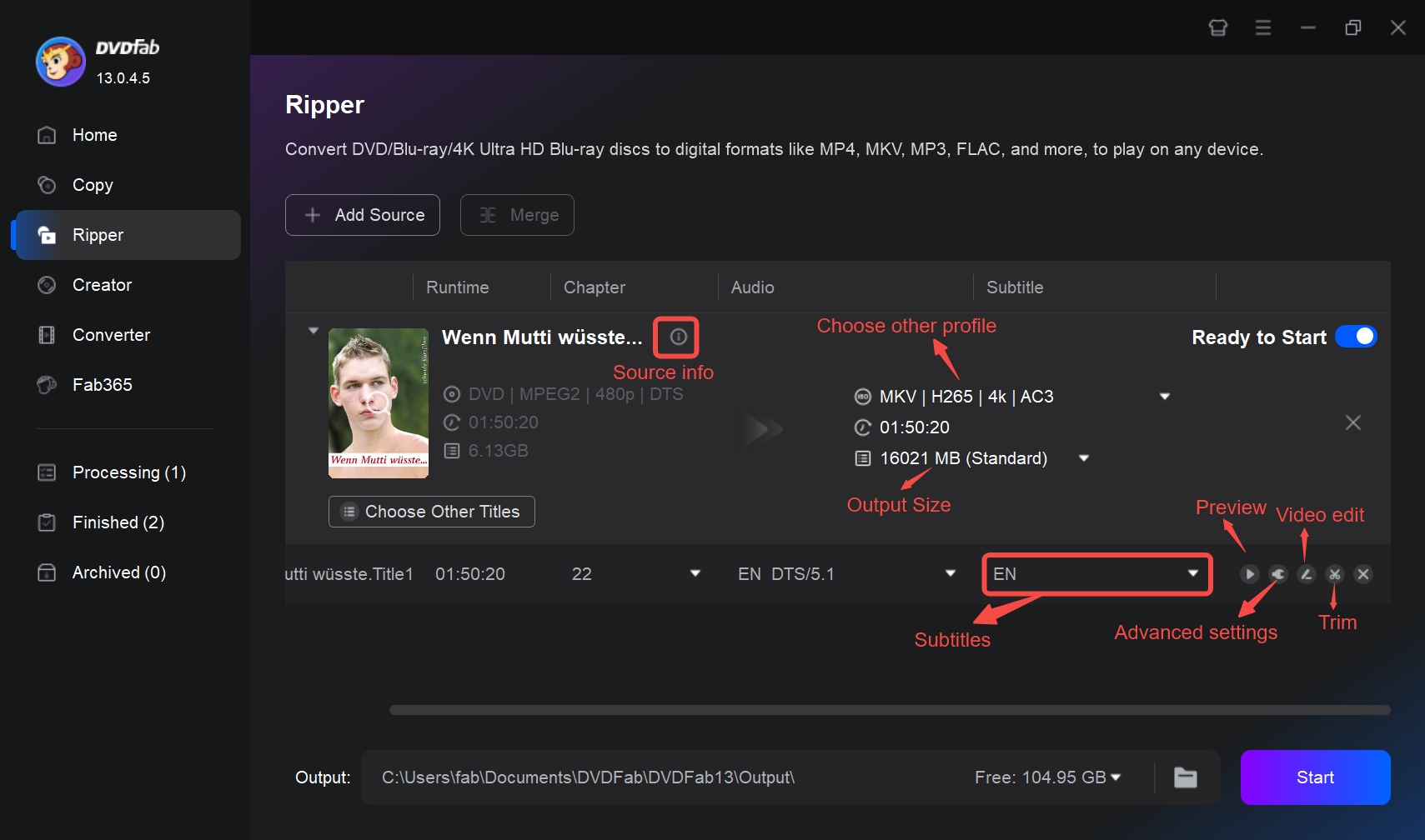
Step 4: Choose your output file's storage location. Press Start to digitize your DVD collection instantly.
FAQs
Does HandBrake no valid source or titles found also affect Blu-ray discs?
Yes. HandBrake can open Blu-ray sources it can read, but it does not defeat AACS or other copy protection. If a Blu-ray scan fails because the disc is protected, first create a readable source with an appropriate permitted tool, then use HandBrake when you need to encode the resulting video or backup.
Can HandBrake handle Disney DVDs or discs with the 99-title protection?
HandBrake may show many titles on discs that use fake-title structures. Playing the DVD in another player can help identify the real movie title by runtime, but finding the correct title number does not remove the disc protection. If HandBrake still cannot read the source after the correct title is selected, title selection alone will not fix the scan failure.
Conclusion
The "HandBrake no valid source found" error does not have one universal fix. Start with the Activity Log and identify whether the failure comes from the video file, Minimum Title Duration, folder or permission access, DVD structure, or a disc that HandBrake cannot read.
For ordinary files and readable discs, fix the source, folder, duration, permission, or HandBrake version first. For CSS DVDs, libdvdcss remains a third-party workaround and is not supported by the HandBrake team, so it may not resolve the scan. If the disc itself remains unreadable because of protection outside HandBrake's scope, use a permitted disc-reading tool to create a source HandBrake can encode instead of repeatedly changing HandBrake settings.

![How to Rip DVDs for Plex: Guide to Formats, Tools, and Library Setup [2026]](https://images.dvdfab.cn/media/Screenshot_2026-09-08_at_18.53.34_j36v3l.png/public) How to Rip DVDs for Plex: Guide to Formats, Tools, and Library Setup [2026]By Diana Smith - Sep 8, 2026
How to Rip DVDs for Plex: Guide to Formats, Tools, and Library Setup [2026]By Diana Smith - Sep 8, 2026![Top 12 DVD to MP4 Converter Software for Win & Mac [2026 Tested]](https://r3.dvdfab.cn/upload/resource/convert-dvd-to-mp4-p2X3.jpeg) Top 12 DVD to MP4 Converter Software for Win & Mac [2026 Tested]By Diana Smith - Sep 4, 2026
Top 12 DVD to MP4 Converter Software for Win & Mac [2026 Tested]By Diana Smith - Sep 4, 2026 10 Best DVD Rippers for Windows & macOS: 2026 TestedBy Diana Smith - Sep 2, 2026
![How to Rip Audio from DVD with 5 Best Free DVD Audio Extractors [2026]](https://images.dvdfab.cn/media/how_to_rip_audio_from_dvd_5r8iyw.png/public) How to Rip Audio from DVD with 5 Best Free DVD Audio Extractors [2026]By Diana Smith - Aug 31, 2026
How to Rip Audio from DVD with 5 Best Free DVD Audio Extractors [2026]By Diana Smith - Aug 31, 2026