What Makes DVDFab Blu-ray to DVD Converter Stand Out
Wide Compatibility
Convert Any Blu-ray to DVD
DVDFab Blu-ray to DVD Converter enables you to effortlessly read any Blu-ray content from a disc drive, ISO image file, or folder, and convert it to a DVD-Video disc (DVD-5, DVD-9), ISO file, or DVD-format folder. The output is highly compatible with virtually all DVD players and DVD playback software, and no third-party software is required.

Fast Performance
Ultra-Fast Blu-ray to DVD Conversion Speed
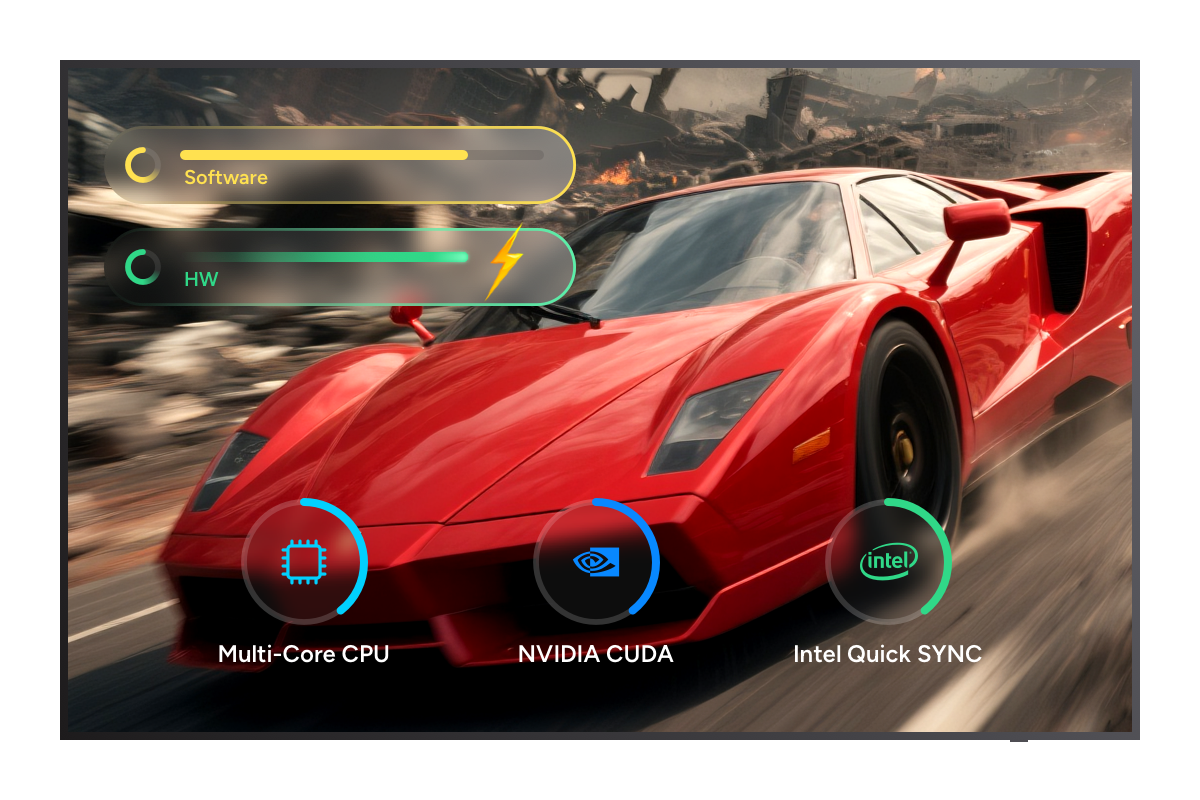
Supporting batch conversion and advanced technologies such as multi-core CPUs, NVIDIA CUDA, and Intel Quick Sync, this Blu-ray to DVD converter processes multiple Blu-ray titles simultaneously at exceptional speed. The output DVDs maintain excellent audio-video synchronization, sharp image quality, and original sound fidelity.

User Control
Flexible Blu-ray-to-DVD Customization
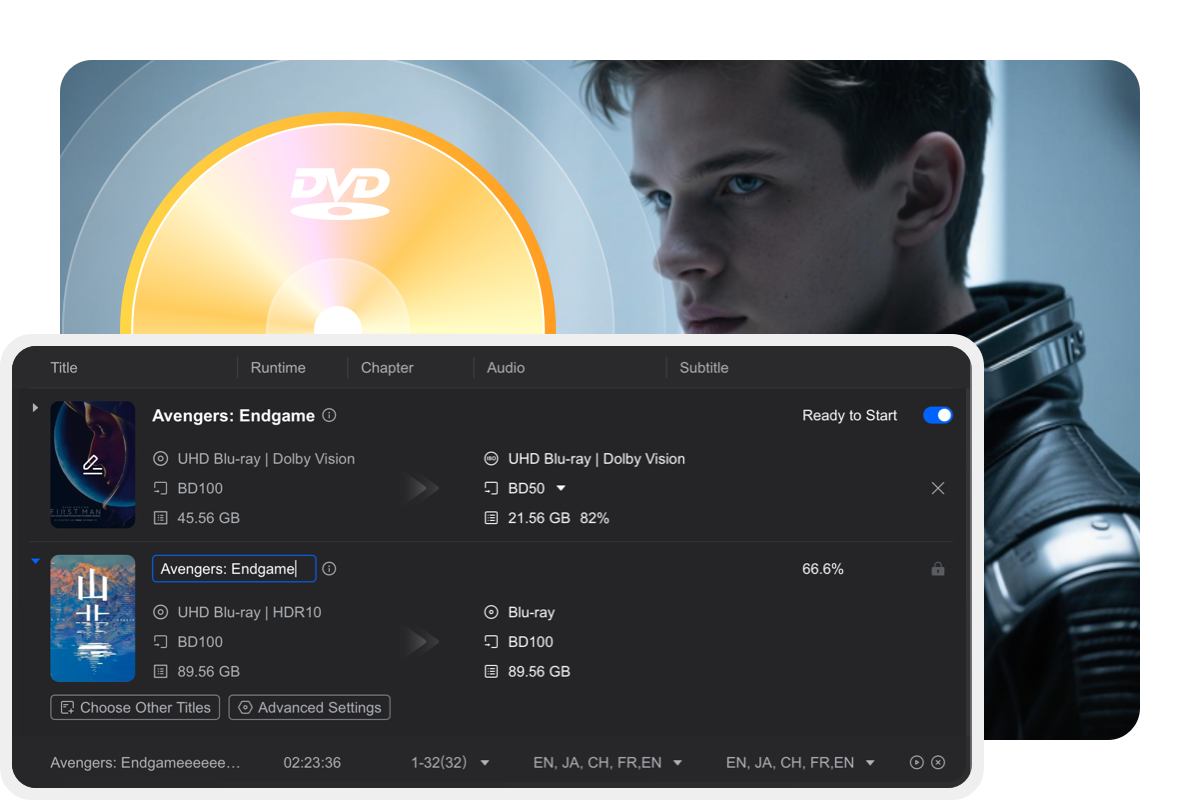
DVDFab Blu-ray to DVD Converter offers comprehensive customization for your Blu-ray to DVD workflow. You can merge multiple Blu-ray titles into a single DVD-5 or DVD-9, preserve original chapter markers, and rearrange the order as needed. Full control over output content allows you to convert entire Blu-rays or just selected sections, and you are free to choose audio tracks and subtitles for conversion to DVD-standard sub-picture streams.

Excellent Quality
Minimal Quality Loss Blu-ray to DVD Conversion
DVDFab Blu-ray to DVD Converter uses advanced technology to ensure Blu-ray movies are converted to DVD format with minimal video and audio quality loss, faithfully preserving detail and clarity from the original source.


Step 1. Launch DVDFab Blu-ray to DVD Converter, and load the source
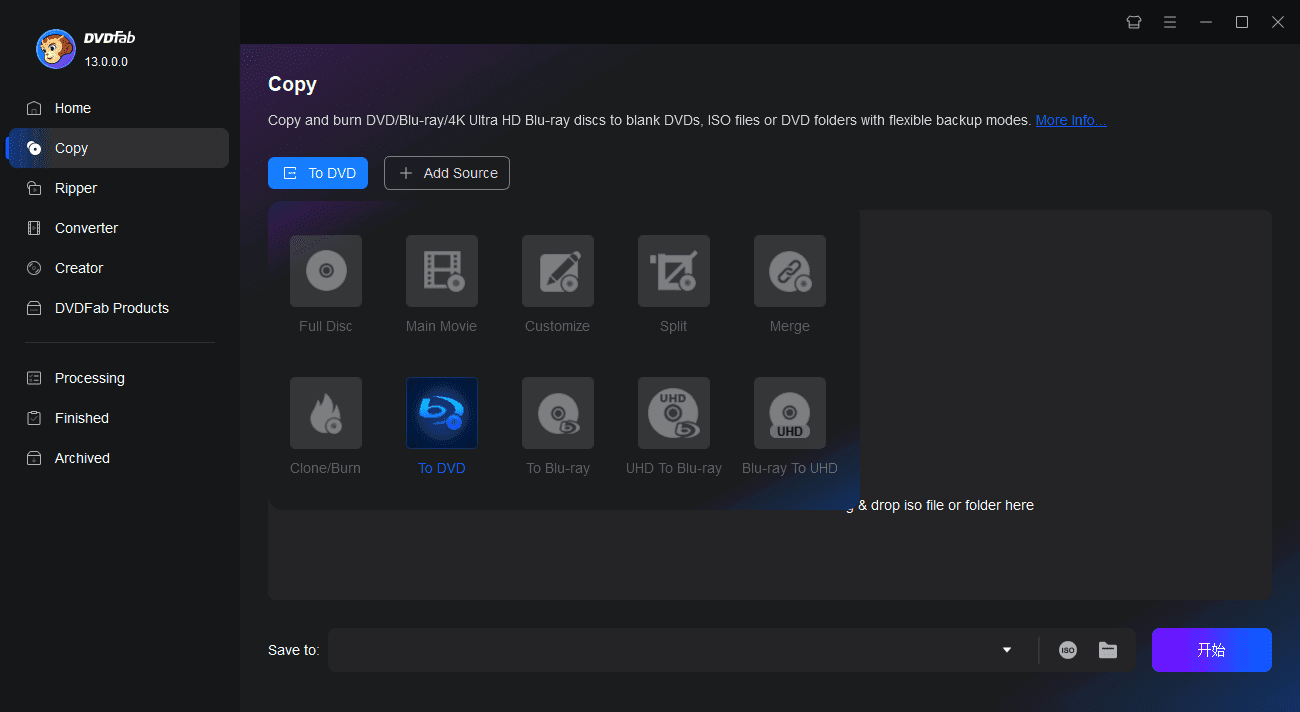
Double-click DVDFab 13 to open the program. Select "Copy" from the option bar, then use the copy mode switcher to choose "To DVD".
If you are converting a Blu-ray disc, insert it into the external Blu-ray drive, or select it via the Add button on the main interface if it is already inserted. For ISO files or folders, simply drag and drop them into the main window to load.
Step 2. Personalize the output DVD
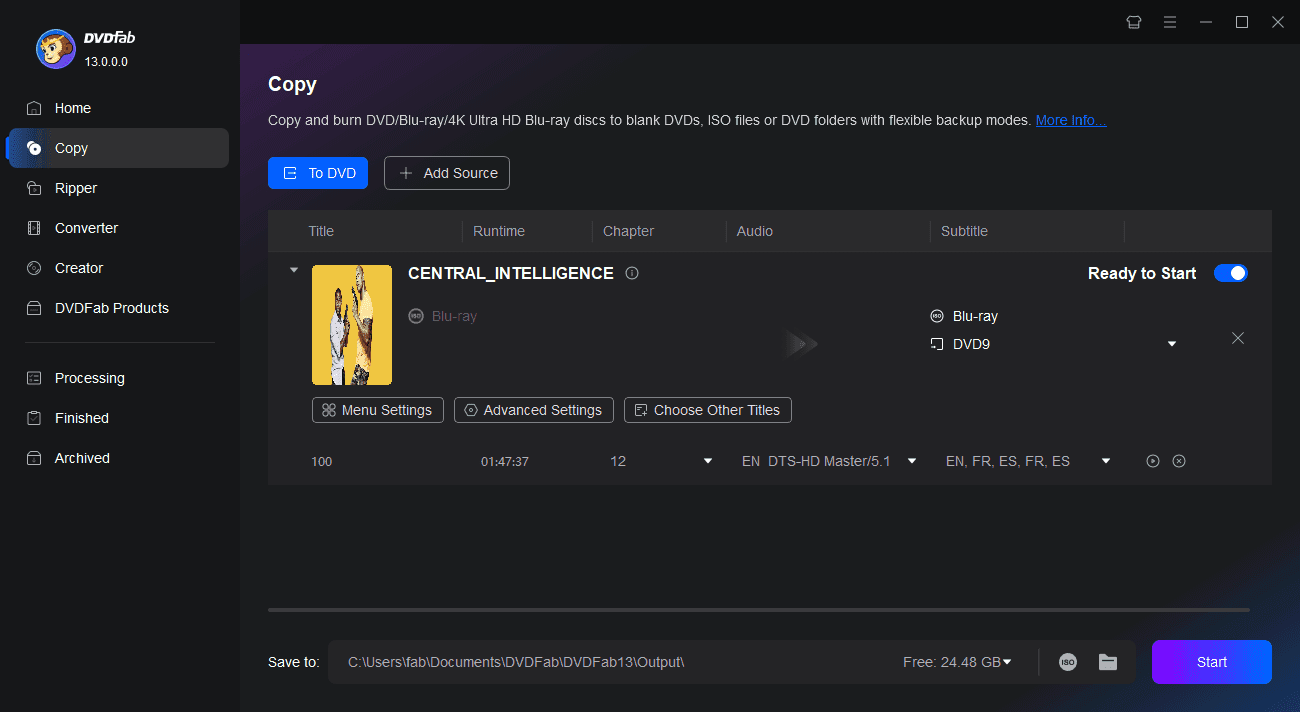
Select the desired titles, chapters, audio tracks, and subtitles. Click the "Menu Settings" to customize the DVD menu and adjust other settings as needed.
Step 3. Start converting Blu-ray to DVD
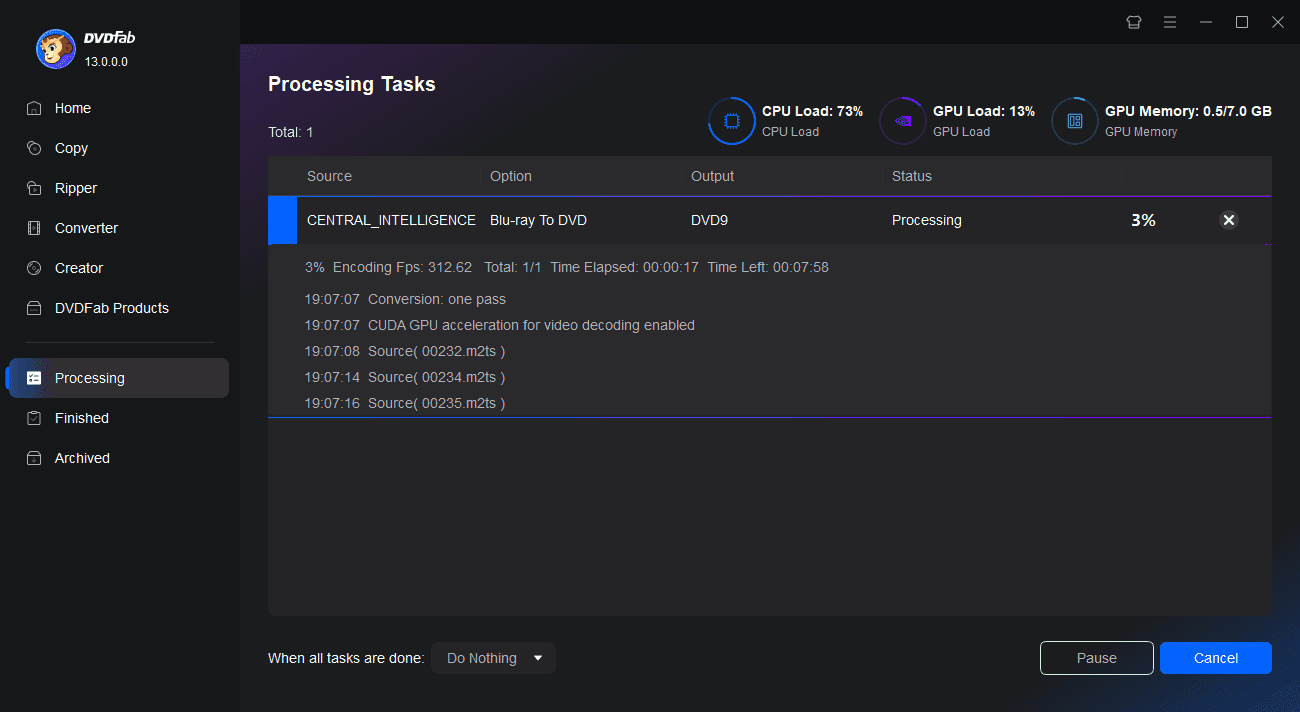
Select the output directory, then click the Start button to begin the conversion. Detailed progress information will be displayed throughout the process.
You May Be Interested in These Items
Convert Blu-rays to popular videos and audio formats for playback on mobile and portable devices.
Convert DVDs to popular videos and audio formats for playback on mobile and portable devices.
Upscale and convert the regular DVDs into standard Blu-ray format for playback on Blu-ray players.
System Requirements

Windows 11/10/8.1/8/7 (32/64 bit)
Core 2 Quad and above
2GB of RAM
100GB of free hard disk space or above
NVIDIA GeForce GTX 260 and above
A Blu-ray drive
Live Internet connection required
Fair Use Policy : DVDFab is intended for personal use only, and sharing copied content with any third party is strictly prohibited.
To ensure a stable user experience and prevent potential restrictions from disc publishers, each DVDFab licensed account has a quota of 100 disc copies per week. This quota will automatically reset at the start of a new weekly cycle.


![Top 7 Best Blu-ray Rippers for Mac in 2025 [Free and Paid]](https://r6.dvdfab.cn/upload/resource/blu-ray-ripper-for-mac-TCIg.jpeg)
![5 Best Software to Burn MKV to Blu-ray on Mac and Windows [2025]](https://r3.dvdfab.cn/upload/resource/en/burn-mkv-to-blu-ray-kptz.jpg)