
How to Send Books from Calibre to Kindle in 2026 (via USB or Email)

Summary: To send books from Calibre to your Kindle, you can either connect your Kindle to your computer via USB and transfer files in Calibre, or set up your Kindle email in Calibre for wireless delivery. This article explains both methods in detail and answers real-world questions and issues you may run into.
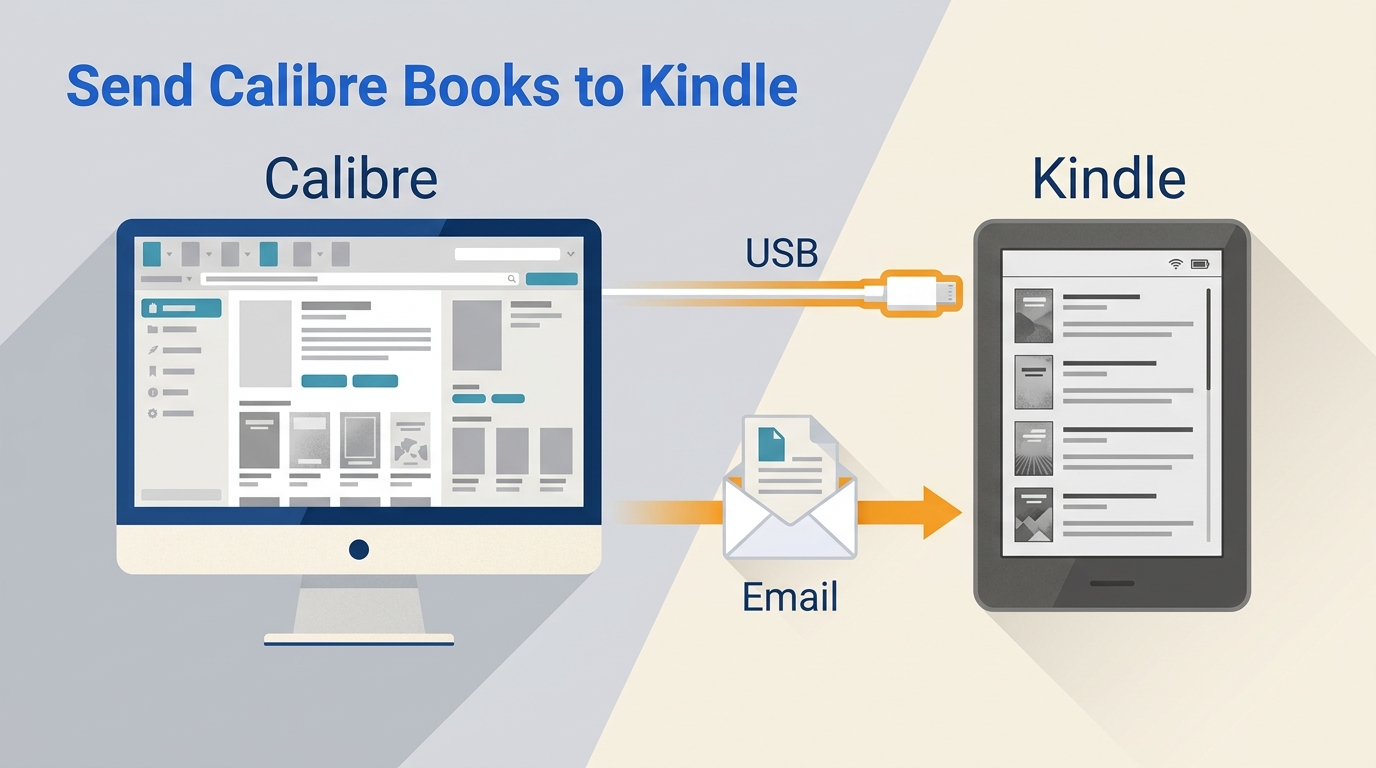
Table of Contents
Calibre can send books to Kindle, but the delivery route and file format determine whether a book arrives, syncs, and displays correctly. This guide covers Calibre to Kindle USB transfer, Calibre email to Kindle, Amazon Send to Kindle, and the common delivery, library, and cover problems that can follow.
The practical rule: start by deciding whether you need a reliable copy on one Kindle or cloud delivery across eligible Kindle devices and apps.
| Method | Best format | Cloud sync | Size limit | Best fit |
|---|---|---|---|---|
| Direct USB | Kindle-compatible device format | No | Not applicable | Reliable one-device transfer |
| Calibre email | EPUB | Yes | Email-provider limits | Library-based cloud delivery |
| Amazon Send to Kindle | EPUB, PDF, and documents | Yes | 200 MB web upload | Low-setup cloud delivery |
As of August 2026, Amazon's web uploader accepts files up to 200 MB.
For a book I need to appear reliably on one reader, USB avoids mail-server settings and cloud processing. Calibre email is useful when cloud delivery matters and SMTP is stable; Amazon Send to Kindle is the simpler fallback when you do not want to maintain sender credentials.
Send Books from Calibre to Kindle via USB
The simplest and most reliable method is to grab your USB cable, connect your Kindle to your computer, and use Calibre's "Send to Device" feature. The books you import can be in either MOBI or EPUB format.
Step 1: Install and Set up Calibre
Download and install the latest version of Calibre for your operating system from the official website. During installation, choose your preferred interface language and select a location for your Calibre library. You will also be asked to select your Kindle model. Simply choose the device manufacturer and the specific model from the menu, then click Next.
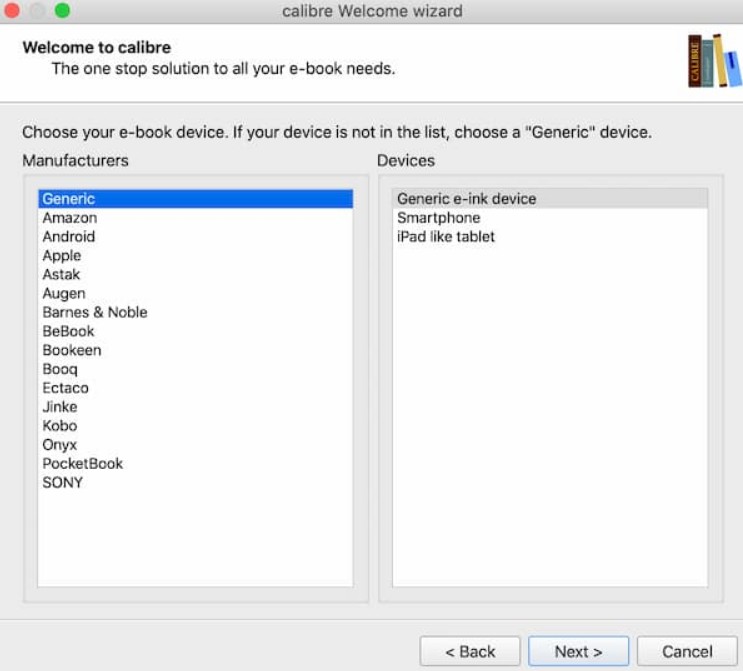
On the next screen, Calibre will ask you to configure wireless email delivery. Since you plan to transfer books via USB, simply click Next to skip this step.
The initial setup is now complete. Click Finish to launch Calibre.
Step 2: Add Books to Calibre
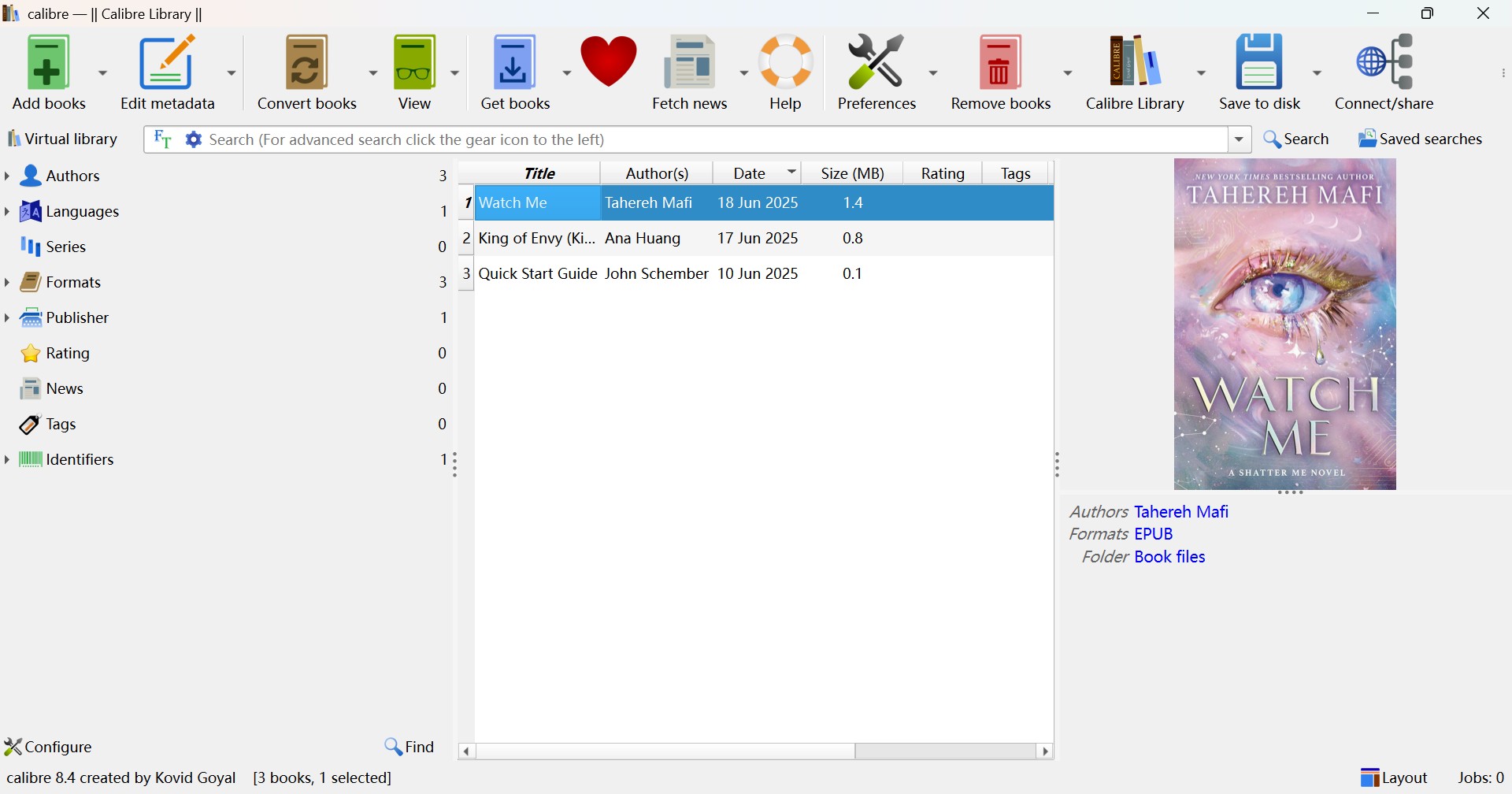
In Calibre, click Add books. In the pop-up window, select the books you want to send to your Kindle. Once the import is complete, Calibre will automatically pull in the book's metadata, cover, and other available details.
Step 3: Send Books to Kindle via USB
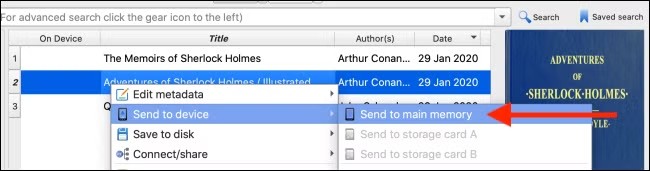
Use a USB cable to connect your Kindle to your computer. Calibre should detect the device automatically. Once connected, an On Device column will appear in the book list.
Select one or more books, right-click, and choose Send to device > Send to main memory.
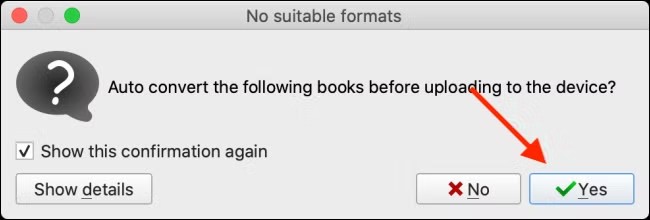
For direct USB transfer, Calibre can convert a source file to a Kindle-compatible device format before sending it when necessary. The format rules for EPUB cloud delivery are separate from USB transfer rules. Click Yes if Calibre asks to convert the selected book, then monitor the task through Jobs in the bottom-right corner of the interface. USB is the reliability-first route for one physical Kindle, but it does not create cloud sync across Kindle devices and apps.
Step 4: Eject Your Kindle Device
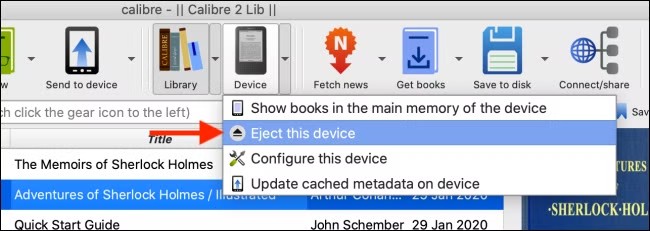
Once the transfer finishes, click the Device > Eject this device from the drop-down menu. After that, you can unplug your Kindle from the computer.
Send Books from Calibre to Kindle via Email
Calibre email to Kindle is a wireless delivery route that requires a sender address and your Kindle email address. EPUB remains the practical format for this Calibre workflow. Amazon Send to Kindle is separate: its official service supports EPUB, PDF, DOC, DOCX, TXT, RTF, HTML, and supported image files through its available delivery surfaces.
- Sender email: the address Calibre will use to send the books (this tutorial uses a Gmail account as an example)
- Kindle email: your Kindle device email address that will receive the eBooks
Once both are configured correctly, Calibre can send EPUB books directly to your Kindle, and they will sync over Wi-Fi. Below is a step-by-step guide to setting up both email addresses and sending books from Calibre to Kindle.
Step 1: Add Your Kindle Email Address in Calibre
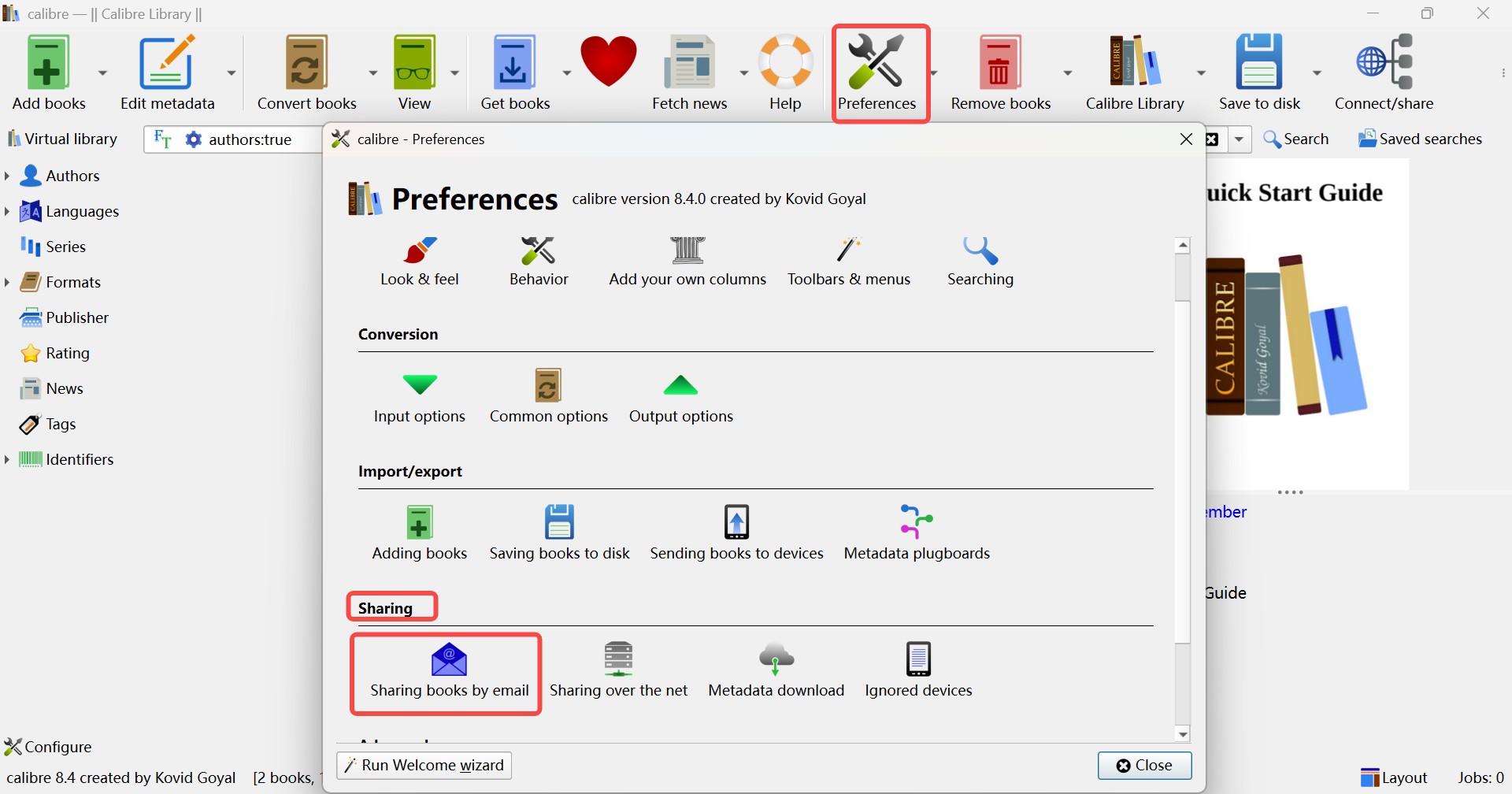
Open Calibre, go to Preferences > Sharing > Share books by email.
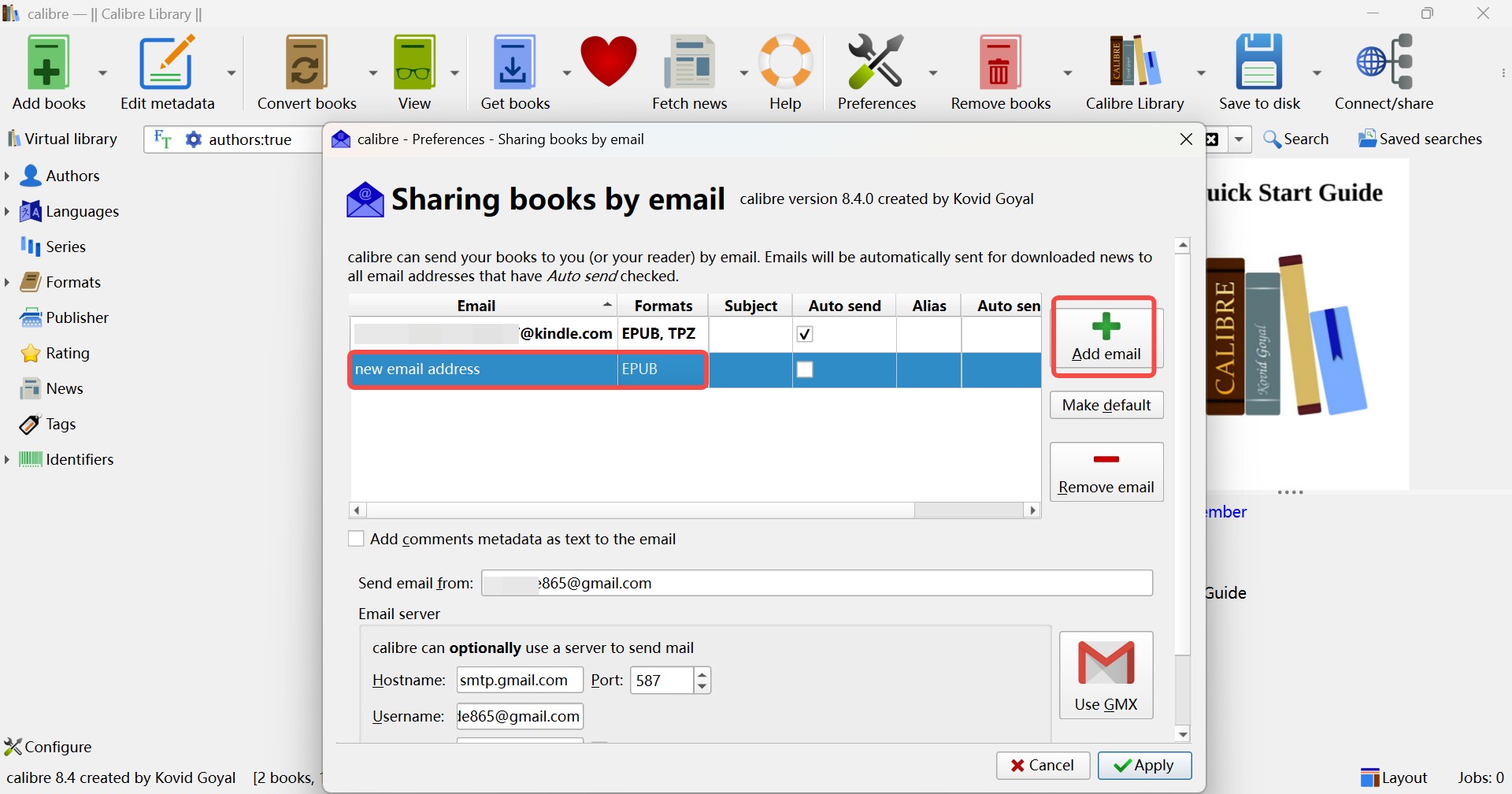
In the window that opens, click Add email and enter your Kindle email address. Set it as the default recipient. Then change Formats to EPUB only, removing MOBI if it appears in the list.
Step 2: Approve Your Sender Address in Amazon
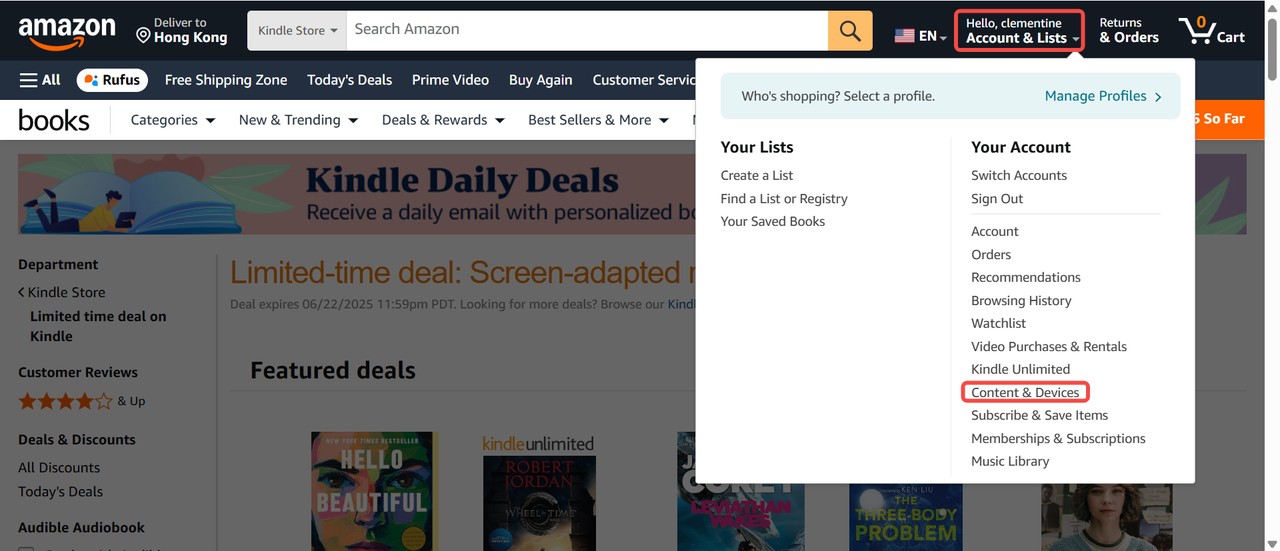
Go to Amazon > Account & Lists > Content & Devices > Preferences > Personal Document Settings.
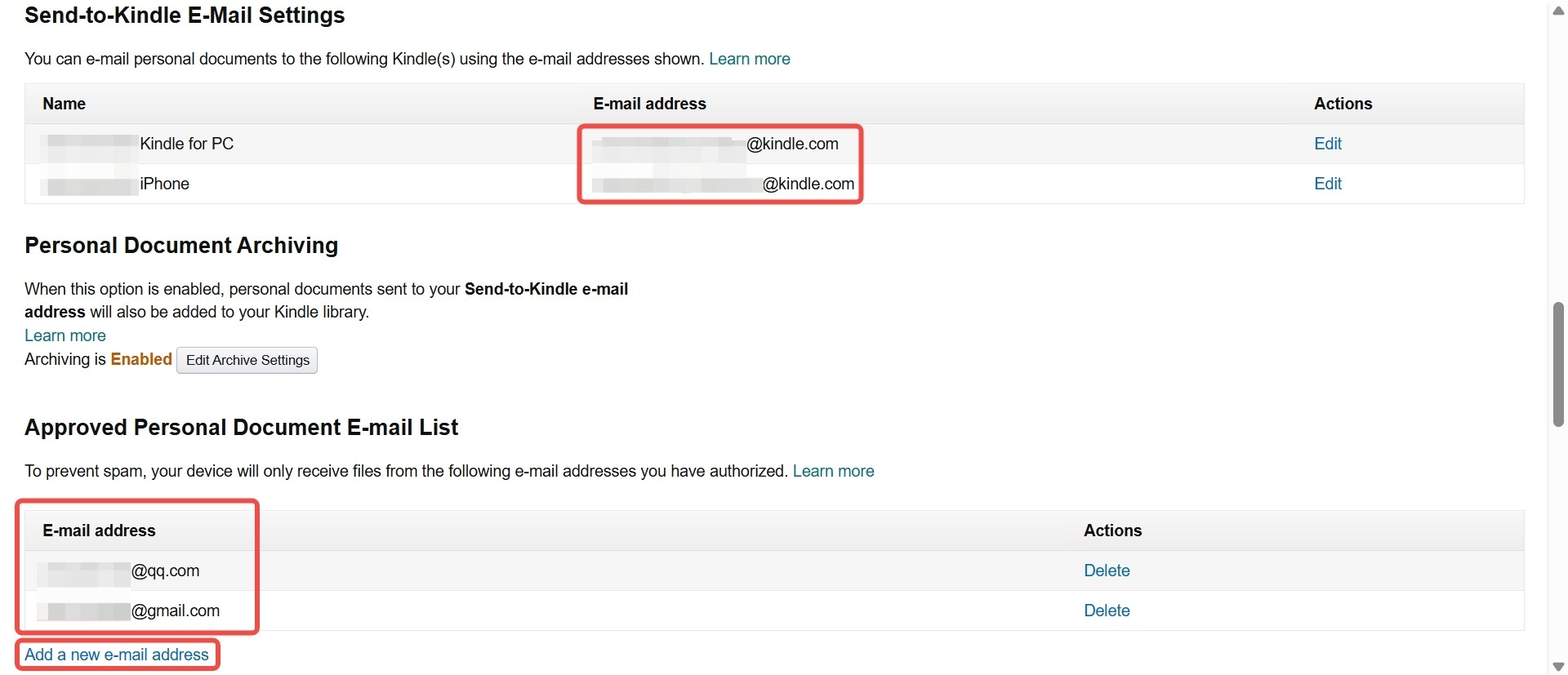
Under Approved Personal Document E-mail List, click Add a new e-mail address and enter your sender email address. This is the Gmail address Calibre will use to send books. Once it appears in the list, the sender email has been approved by Amazon.
Step 3: Configure a Sender Account in Calibre
This step configures the sender account, not your Kindle email. Use the outgoing SMTP details supplied by the email provider you select.
A. Review your sender account's SMTP settings
POP and IMAP control incoming mail and are not required for Calibre's outgoing SMTP delivery. Check your provider's SMTP hostname, port, encryption method, and sign-in requirements instead.
- Use the SMTP details supplied for the sender account.
- Confirm that the account is allowed to send through an email app.
Gmail is one possible sender, but it is not the default route for every account.
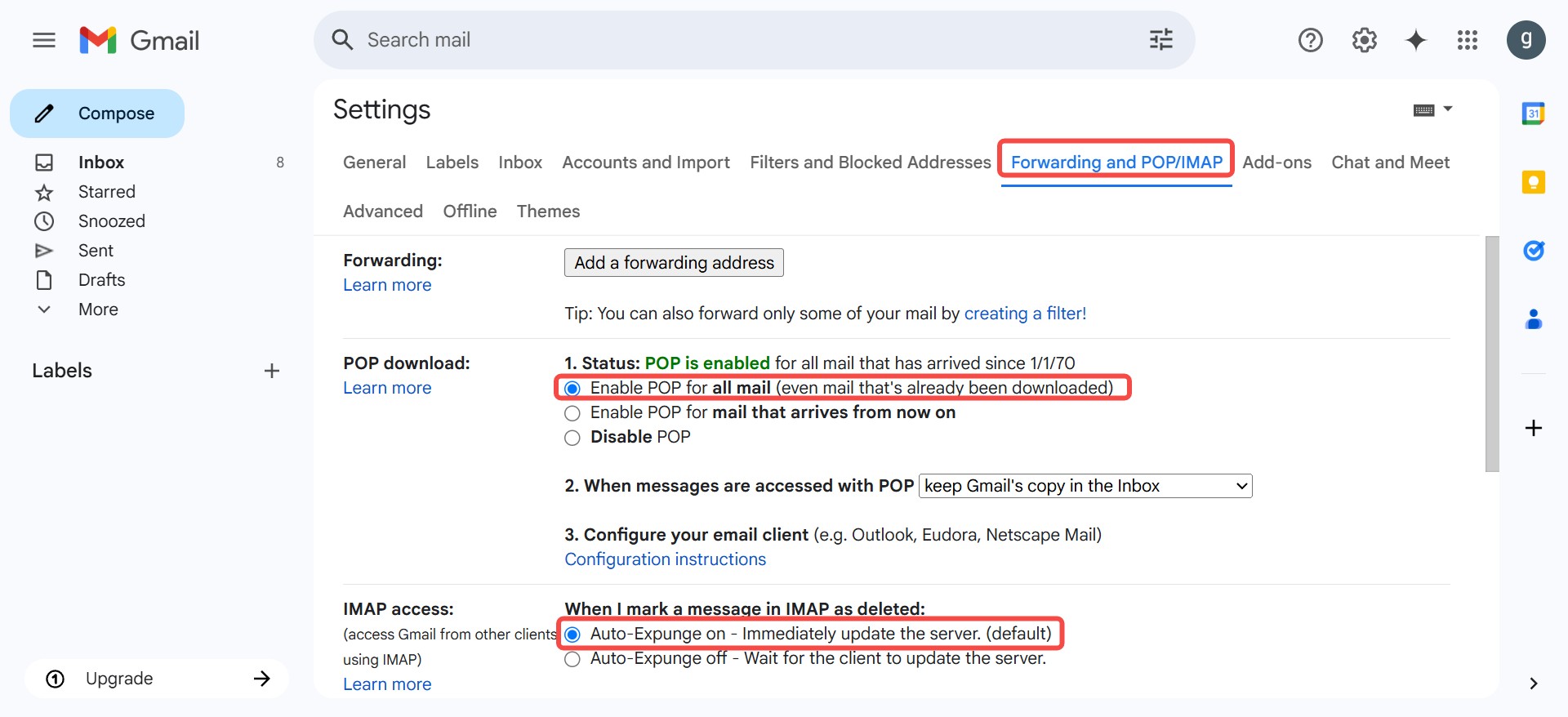
B. If Gmail requires it, turn on Two-Step Verification
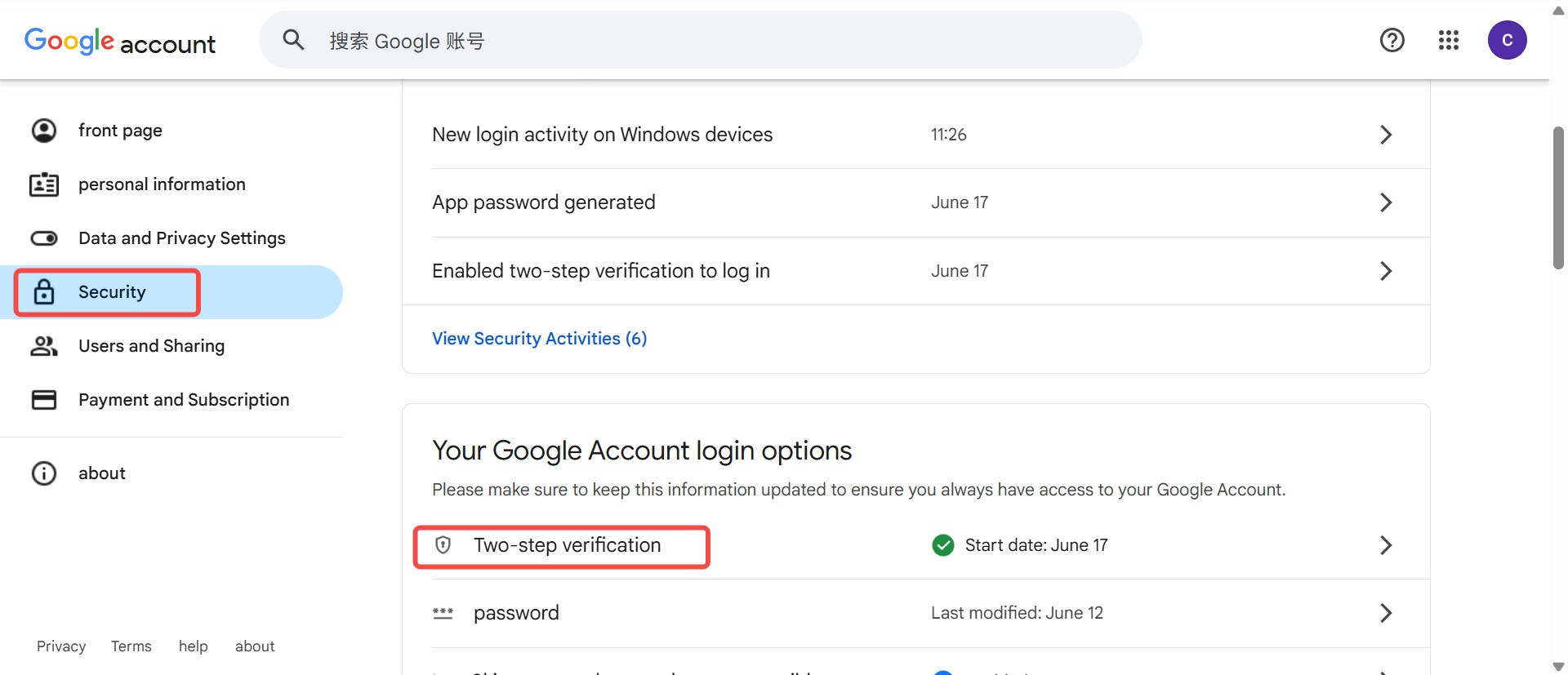
Go to your Google Account Security Center page, open Security > 2-Step Verification, and follow the steps to enable it.
C. Use a Gmail app password only when eligible
Google generally prefers modern sign-in methods for third-party access. If your eligible Gmail account uses Two-Step Verification and offers App passwords, create one for Calibre and use it instead of your regular Gmail password.
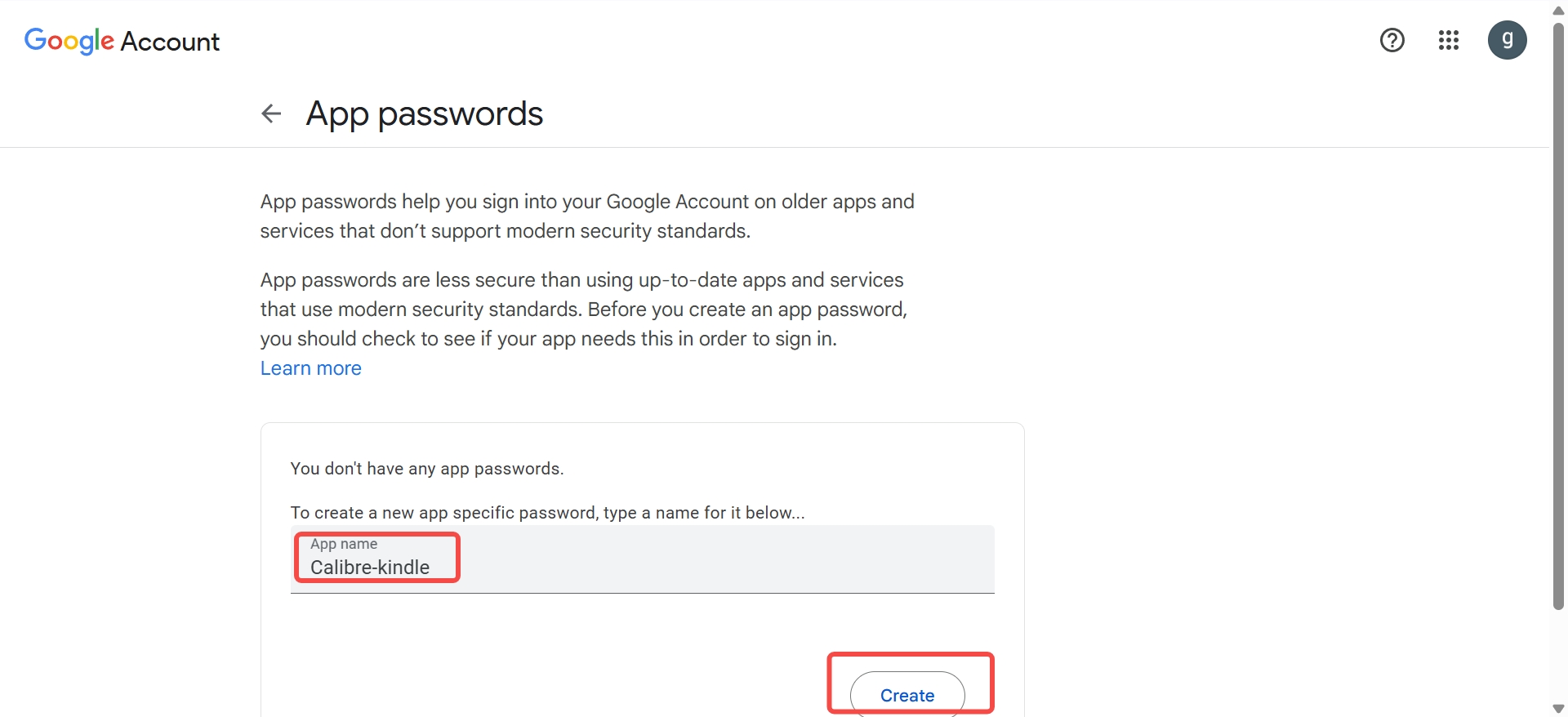
D. Enter the sender email details in Calibre
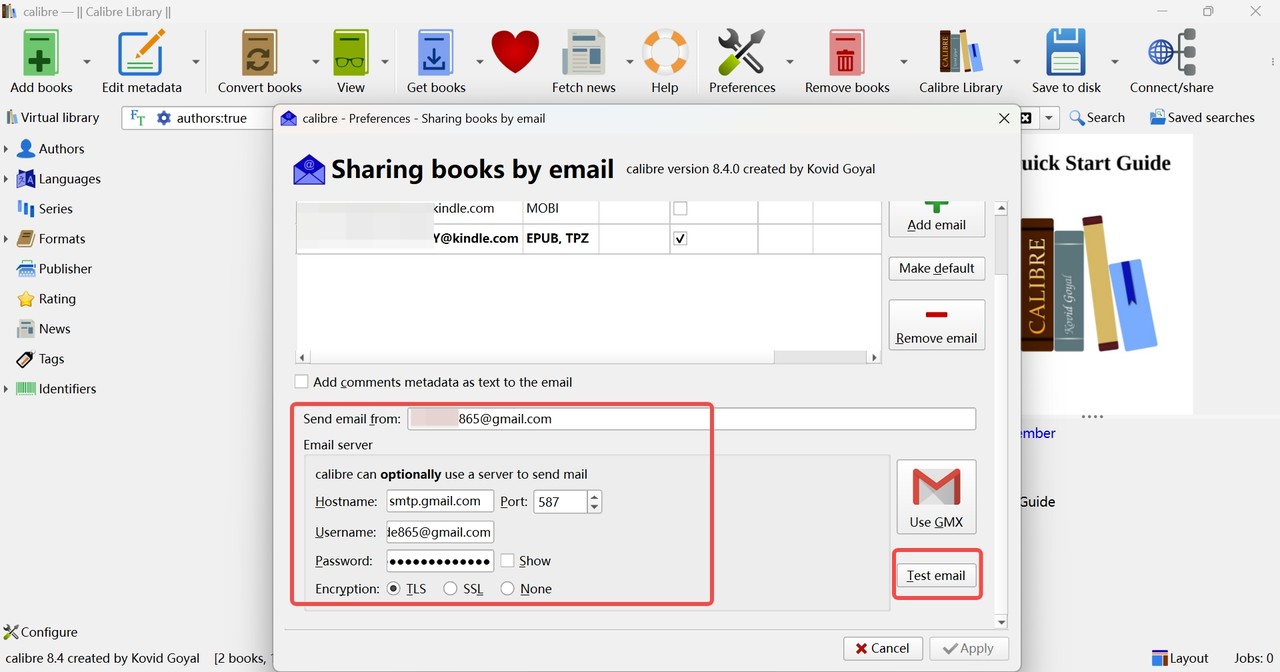
Go back to Calibre's Share books by email settings and fill in the email server fields using your sender Gmail account:
- Hostname: smtp.gmail.com
- Port: 587
- Encryption: TLS
- Username: your sender Gmail address
- Password: the 16-character app password you generated (remove the spaces)
Then click Test email to verify that Calibre can connect to the sender account. A successful test confirms SMTP transport, not that Amazon will accept an ebook attachment. If Gmail authentication remains unreliable, Calibre documents GMX as one alternative sender provider; some providers may also require a delay between messages.
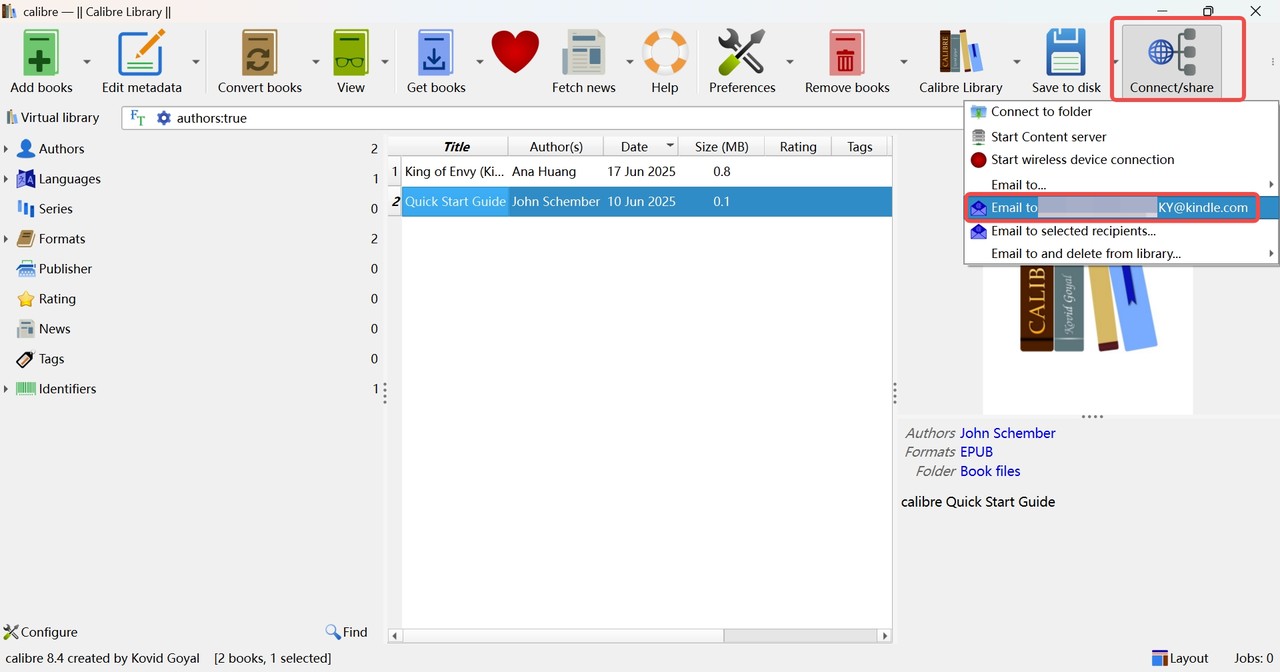
Step 4: Send Wirelessly or Use Amazon Send to Kindle
Go back to the main Calibre interface and click Add books to import the EPUB files you want to send. Select the books, then choose Connect/Share > Email to.... Calibre sends the files from your sender address to your Kindle email. Keep the Kindle connected to Wi-Fi while Amazon processes the delivery.
Amazon Send to Kindle fallback: Readers who want cloud delivery without maintaining SMTP credentials can use Amazon's official Send to Kindle service through its web, app, browser-extension, or email options. Calibre email remains useful when you want to send from an organized Calibre library, while the official service reduces sender-account setup.
- You can use any email as the sender email. Different email providers require different email server settings. Gmail is used in this guide as an example.
- If SMTP setup is not a good match for your library, use the Amazon Send to Kindle fallback described above.
Troubleshoot Calibre-to-Kindle Delivery Problems
A book can be sent successfully and still fail later in the chain: Calibre may connect to the sender account, Amazon may receive the attachment, and the Kindle may still delay indexing or render the cover differently. Identify which stage failed before repeating the same SMTP setup.
Gmail Authentication Fails with SMTP 535
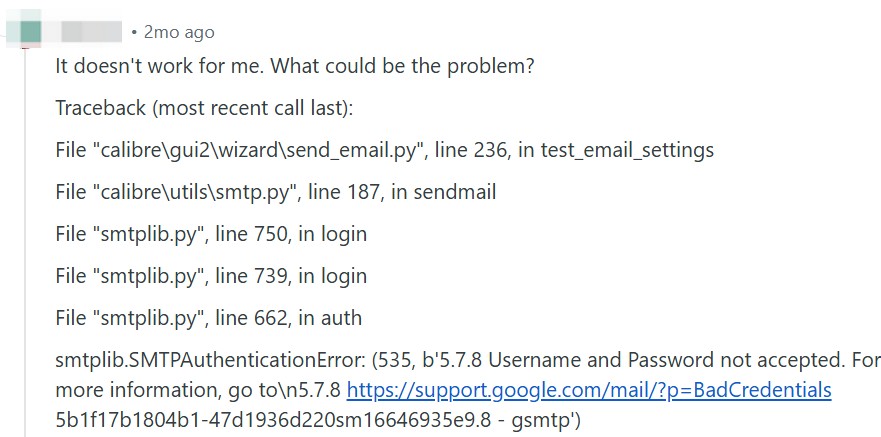
Symptoms: Calibre test email shows SMTPAuthenticationError (535) Username and Password not accepted.
Why it happens: Gmail account settings, two-step verification, and organization policies can prevent Calibre from authenticating through SMTP. A work or school account may also restrict app-password access.
Fixes:
- Use an App Password (requires 2-Step Verification).
- If you are using a Google Workspace account (company/school), App Password/SMTP may be blocked by admin policy.
- If Gmail remains unreliable, try another sender provider. Calibre documents GMX as a possible fallback; enter that provider's SMTP settings in Calibre and test the connection before sending a book.
2. E999 "Send to Kindle Internal Error"

Symptoms: Amazon may send a failure email with a message like "Internal send to kindle error E999" or "E999 - Send to Kindle Internal Error."
Why it happens: E999 is often related to EPUB file structure or metadata issues. In many cases, the file has already been uploaded to Amazon, but it fails during Amazon's server-side parsing/conversion process. That's why E999 is more likely a file-level problem rather than an issue with your account settings or network connection.
Fixes:
- Re-download the EPUB and resend it.
- Check and correct metadata in Calibre.
- Go to Edit metadata and make sure fields like Title / Author / Language are complete and reasonable. Filling in missing metadata can resolve Send to Kindle failures.
- Convert "EPUB to EPUB" in Calibre. Convert the book to EPUB again (output format still EPUB), then send the newly generated file. This often rebuilds the EPUB internals and removes details that Amazon's converter may reject, without changing the book's actual content.
The Book Is Missing or Has No Cover
Symptoms: Calibre reports that a book was sent or is on the device, but the Kindle library does not show it. In other cases, a cloud-delivered document appears without cover art.
What to check: Delivery, library visibility, cloud synchronization, and cover rendering are separate results. First, confirm that the sender address is listed under Approved Personal Document E-mail List in Amazon's Personal Document Settings and that Calibre used that exact address. Then allow the Kindle to connect to Wi-Fi and refresh its library.
Fixes:
- If Calibre marks a book as on-device but the Kindle does not display it, disconnect and reconnect the Kindle, then check its library filters and indexing.
- If the document arrives without a cover, open the EPUB in Calibre and confirm that it has embedded cover metadata before resending it.
- If the SMTP test succeeds but the book never appears, resend a smaller, freshly converted EPUB or use Amazon Send to Kindle to separate an attachment-ingestion issue from a sender-account issue.
When the problem is indexing, cover rendering, or file ingestion, repeating the SMTP setup does not address the failed stage.
Frequently Asked Questions
Q
Why Are AZW3 and MOBI Rejected by Kindle Email?
For the Calibre email workflow, EPUB is the practical choice. AZW3 and MOBI are better kept with the direct USB route, using a Kindle-compatible device format. Amazon Send to Kindle is a separate service with its own supported-file list, so use the comparison table above to match the format to the delivery route.
A
Q
When Is BookFab Useful Alongside Calibre?
For content you're authorized to access, where permitted by platform terms and applicable law, BookFab Kindle Converter can support a local-file workflow for supported Kindle content on Windows. It can detect locally available Kindle books and export EPUB or PDF while retaining available cover, title, author, and other metadata. Readers who only need to send an unprotected EPUB should use Calibre or Amazon Send to Kindle instead. A DeDRM plugin for Calibre review provides related context without changing this article's transfer focus.
A
Q
What Can Calibre Manage for Kindle?
Calibre can organize a Kindle-focused library, edit available metadata, convert compatible files, and send books through USB or email. After a conversion, check the cover, author name, table of contents, and image-heavy pages in the reading environment you plan to use.
A
Q
Does Calibre Sync Books Across Kindle Devices?
USB places a local copy on one physical Kindle and does not create cloud sync. A document accepted through Amazon's cloud delivery can appear on eligible Kindle devices and apps connected to the same account, although library display and cover rendering can vary.
A
Q
Can I Send Calibre Books to the Kindle App?
USB transfer is for a physical Kindle connected to your computer. To make a compatible personal document available in the Kindle app, use a cloud delivery route such as Calibre email or Amazon Send to Kindle.
A
Q
Which Format Should I Use for Each Method?
Use a Kindle-compatible device format for direct USB transfer and EPUB for Calibre email. For Amazon Send to Kindle, select a format from Amazon's supported-file list. USB is the clearer choice for reliable one-device delivery; cloud routes make more sense when you need the book in eligible Kindle apps and devices.
A
Choose the Right Calibre-to-Kindle Method
Use USB when a dependable copy on one physical Kindle matters more than cloud sync. Use Calibre email when you want to send from an organized library and are willing to maintain SMTP settings. Amazon Send to Kindle is the lower-setup cloud option. For authorized local-file needs beyond those transfer tasks, the narrower BookFab option described in the FAQ may be relevant. Before adding any book to your main library, open it on the target device and check the cover, table of contents, and image-heavy pages.

 How to Download Kindle Books in 2026: 5 Current OptionsBy Amber Collins - Aug 26, 2026
![How to Convert Kindle Books to EPUB Easily [2026 Verified]](https://r5.dvdfab.cn/upload/bookfab/en/convert-kindle-to-epub-RDlf.jpg) How to Convert Kindle Books to EPUB Easily [2026 Verified]By Amber Collins - Aug 26, 2026
How to Convert Kindle Books to EPUB Easily [2026 Verified]By Amber Collins - Aug 26, 2026 Kindle DRM Compatibility in 2026: What Still WorksBy Amber Collins - Aug 25, 2026
![[Quick Solution] How to Remove Kindle DRM on Mac](https://images.dvdfab.cn/media/未命名的设计__87__crpyru.png/public) [Quick Solution] How to Remove Kindle DRM on MacBy Amber Collins - Aug 24, 2026
[Quick Solution] How to Remove Kindle DRM on MacBy Amber Collins - Aug 24, 2026