Comprehensive Blu-ray & UHD Decryption
Remove All Limitations
Make Any Blu-ray & 4K UHD Blu-ray Accessible
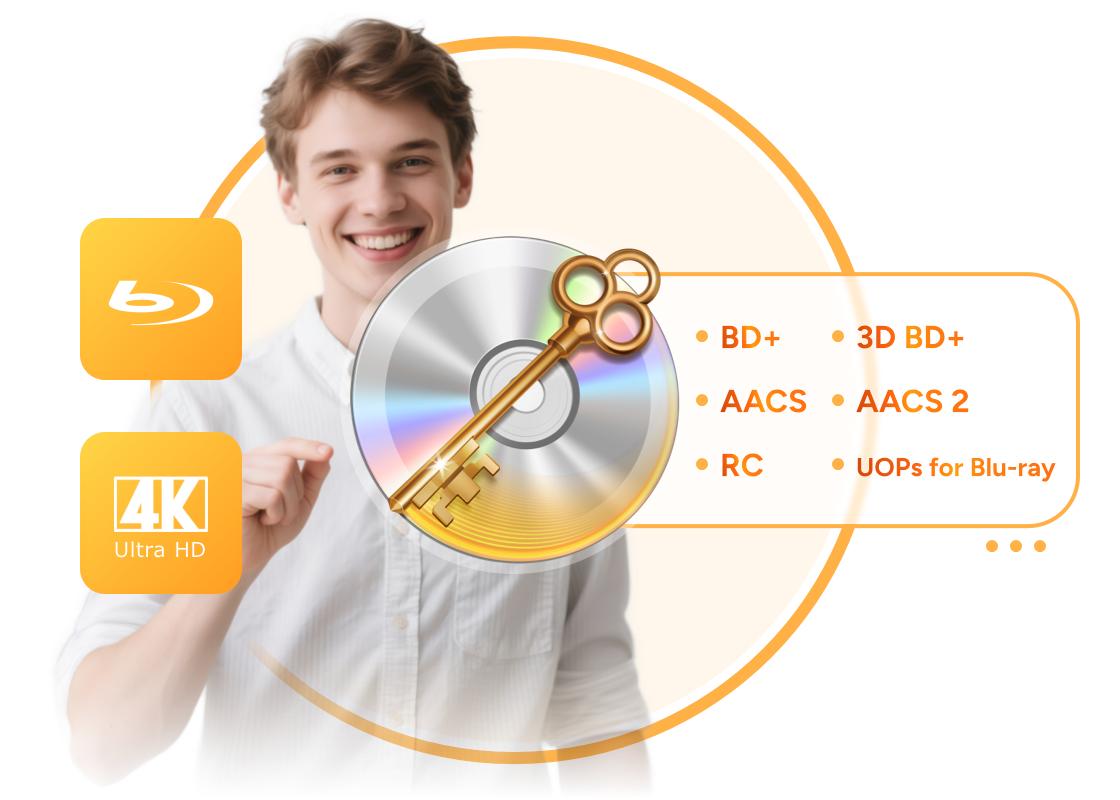
Passkey for Blu-ray & UHD removes nearly all known Blu-ray protections, including the newest 15th generation BD+, 3D BD+, AACS MKB v26, AACS bus encryption, Region Code, BD-Live, UOPs, AACS 2, and BD-J. You can also change the region settings of popular Blu-ray players, effectively turning them into multi-region devices. In addition, it fixes playback issues caused by residual protections such as Screen Pass in some ISO files or folders created by third-party software.

New Disc Support
Constantly Updated to Bypass the Latest Protections
DVDFab Passkey stays ahead of evolving Blu-ray and UHD protection schemes (excluding Cinavia) through continuous updates and optimizations. With its robust compatibility and regular bug fixes, it delivers consistent performance and a seamless decryption experience, outperforming most alternatives in reliability and efficiency.

Flexible Backup Options
Output Unprotected ISO Image Files or Folders
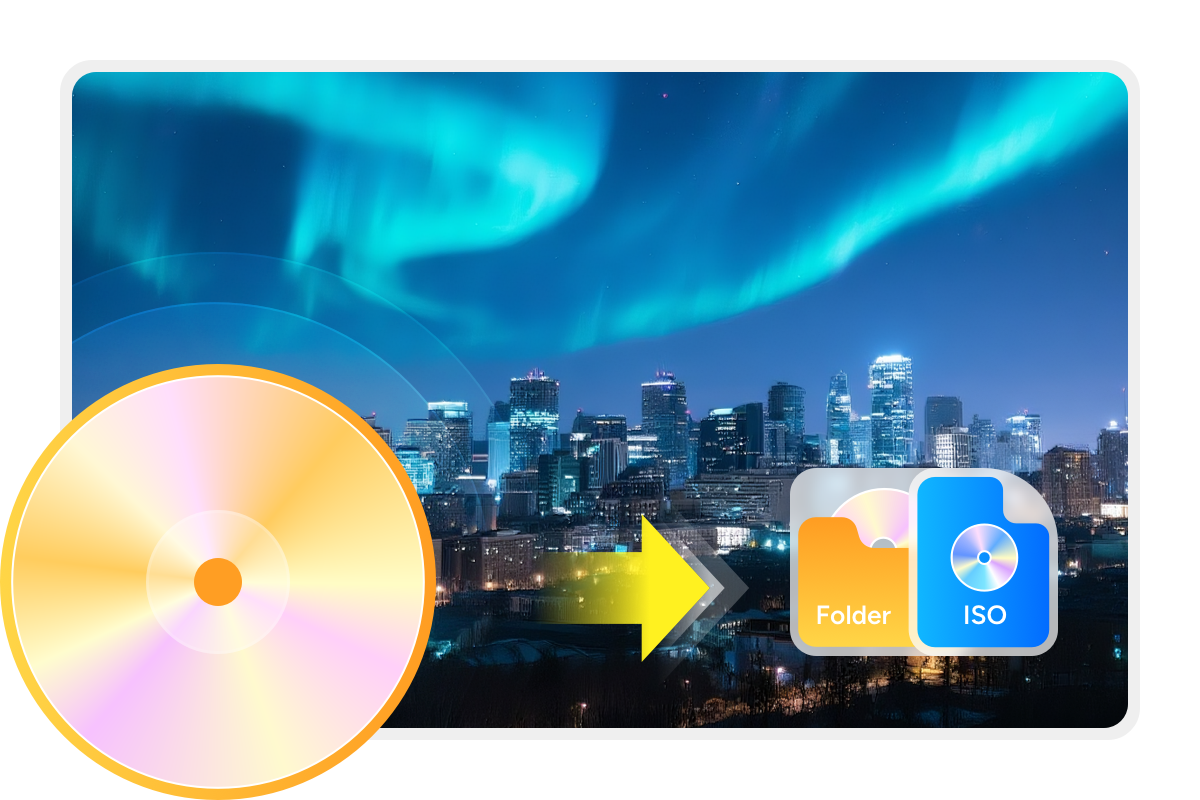
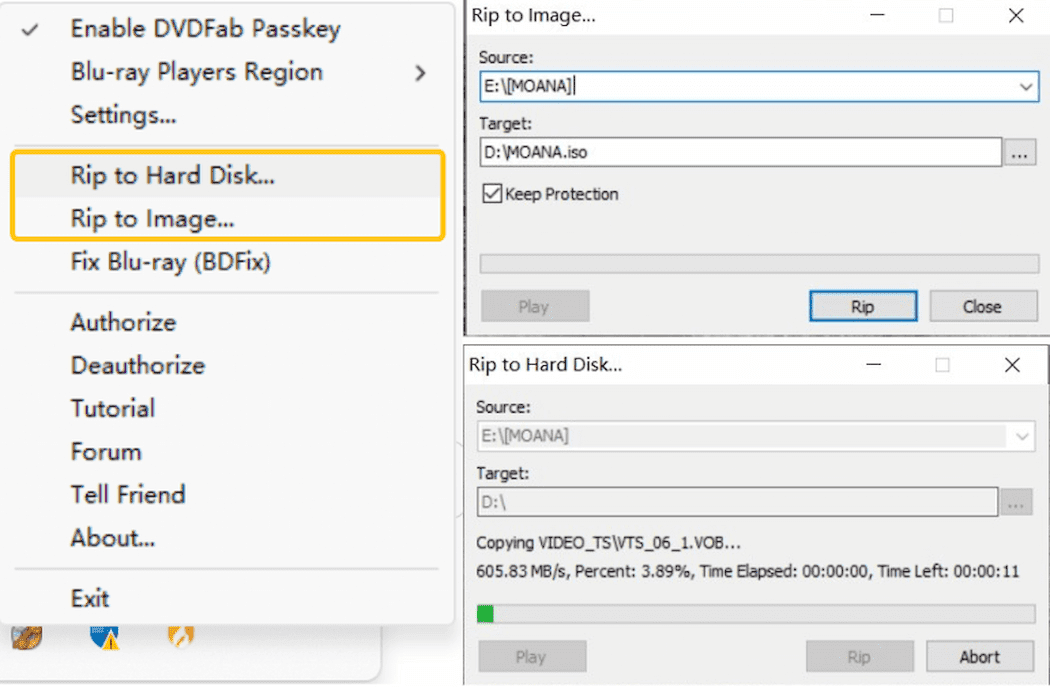
Once the disc is decrypted, you can click the Passkey icon in the system tray and choose "Rip to Hard Disk" or "Rip to Image" to save the unprotected content to your computer. This allows you to create ISO image files or copy the disc as folders, making further playback, editing, or archiving much more convenient and flexible.

Versatile Blu-ray & UHD Decryption with Full Customization


Seamlessly Work with Popular Blu-ray Software
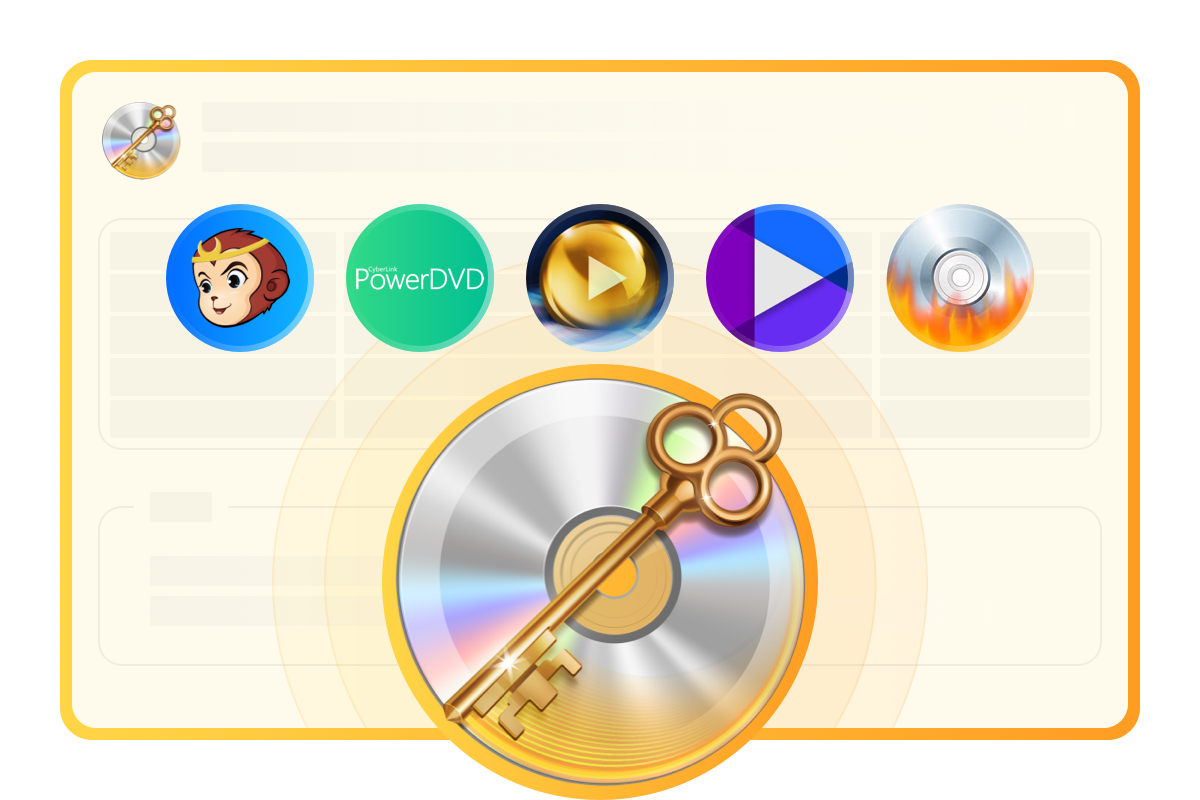
Passkey for Blu-ray & UHD goes beyond basic decryption. Once a disc is unlocked, you can rip its content to your hard drive as folders or ISO files. The decrypted content can then be accessed, copied, burned, ripped, or edited using a variety of mainstream software, including DVDFab Blu-ray Copy, Blu-ray Ripper, and more.
User-Friendly with Customizable Settings
Comparison of Passkey Products
| Passkey for DVD | Passkey for Blu-ray & UHD | Passkey for Blu-ray Recorder | Passkey for 4K Recorder | |
|---|---|---|---|---|
| Supported OS | Windows | Windows | Windows | Windows |
| Supported Discs | Commercial, Rental or Recorded DVD | Commercial or Rental Blu-ray/4k UHD | Recorded Blu-ray (aka BDAV disc) | Recorded 4K Blu-ray (aka 4K BDAV disc) |
| Output Formats | ISO image file / Folder | ISO image file / Folder | ISO image file / Folder | ISO image file / Folder |
| Supported Copy Protection | CSS, RCE, RCA, APS, UOPs, ARccos, RipGuard, Region Code, CPRM, etc. | BD+, 3D BD+, AACS MKB v 26, AACS bus encryption, Region Code, BD-Live, UOPs for Blu-ray, etc. | AACS | AACS, AACS2 |
Differences Between Passkey and DVDFab
Passkey vs. DVDFab
Passkey is a professional software that specializes in disc decryption of commercial and recorded DVD/(4K Ultra HD) Blu-ray discs. DVDFab, on the other hand, is a more feature-rich disc processing software. In addition to decryption, it also supports the following functions:
• Compress DVD-9 to DVD-5 and BD-100/BD-50 to BD-50/BD-25
• Remove cinavia protection and output high-quality audio
• Rip any disc to more than 1000 video & audio formats in lossless quality
• Burn any video to DVD/Blu-ray/UHD discs with free menu templates
• Backup or convert discs between DVD, Blu-ray, and UHD formats
>> Learn more about DVDFab
• Compress DVD-9 to DVD-5 and BD-100/BD-50 to BD-50/BD-25
• Remove cinavia protection and output high-quality audio
• Rip any disc to more than 1000 video & audio formats in lossless quality
• Burn any video to DVD/Blu-ray/UHD discs with free menu templates
• Backup or convert discs between DVD, Blu-ray, and UHD formats
>> Learn more about DVDFab


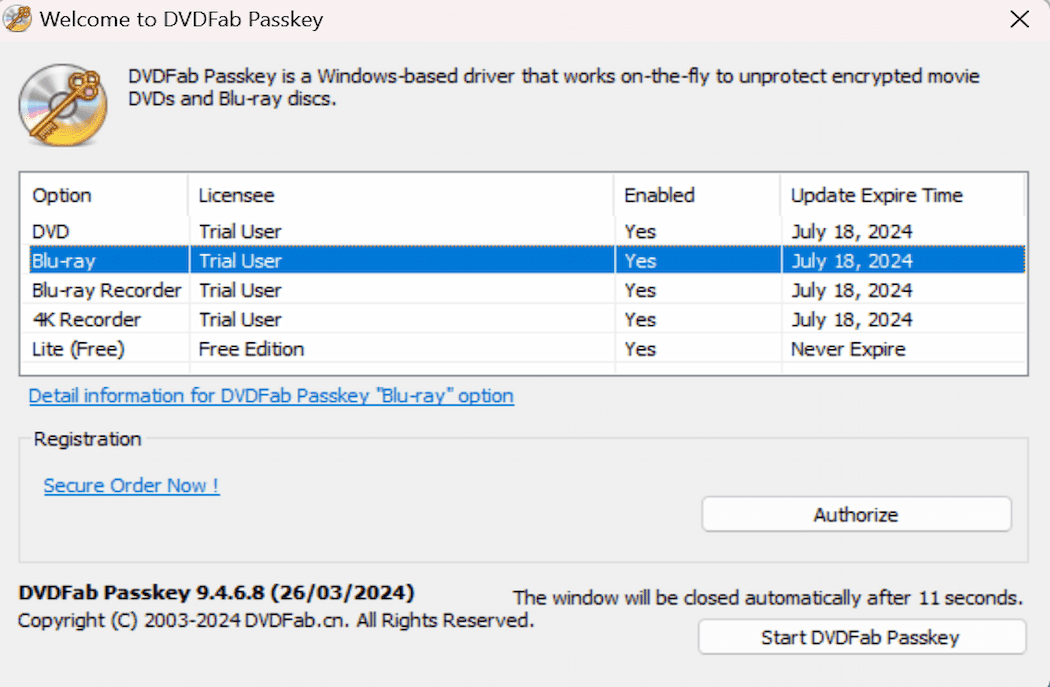
Step 1. Launch Passkey for Blu-ray & UHD
Double-click to open Passkey software, select "Blu-ray" from the startup window, and click "Start Passkey". The program will then minimize to the system tray and automatically detect any Blu-ray media inserted into your drive.
Step 2. Load the source and start the decryption
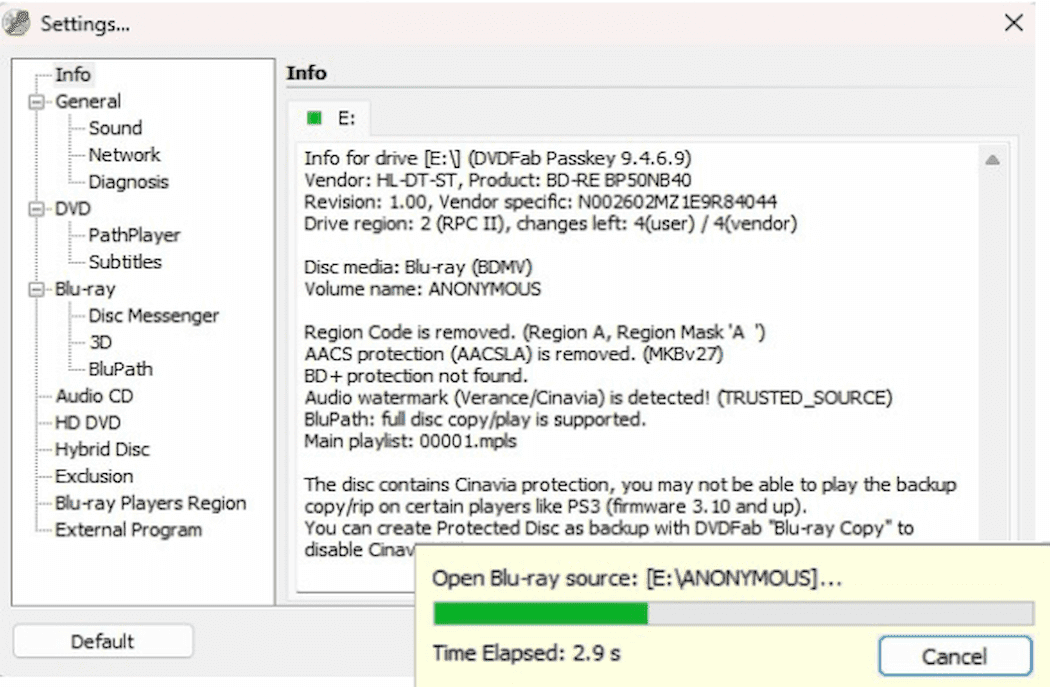
Insert your Blu-ray or 4K UHD disc into the drive. Passkey will automatically begin the decryption process. A progress window will appear in the system tray. Once the green bar reaches 100%, the disc is fully decrypted.
You can also view detailed information about the disc and removed protections in the main interface.
Step 3. Post-decryption operation
Once decryption is complete, you can play the Blu-ray with your preferred media player. To create a backup, right-click the Passkey icon in the system tray and select "Rip to Hard Disk" or "Rip to Image". Then, choose the output target in the following pop-up window.
Note that if you check the textbox "Keep Protection" when you rip the decrypted Blu-ray to Image, you will get a copy-protected ISO image file finally.
You May Be Interested in These Items
Back up Blu-rays to blank BD50/BD25/BD9/BD5 discs, ISO files or folders with up to 5 backup modes.
Convert Blu-rays to popular videos and audio formats for playback on mobile and portable devices.
Back up DVDs to blank DVD9/DVD5 discs, ISO files, or folders with up to 6 backup modes.
System Requirements

Windows 11/10/8.1/8/7 (32/64 bit)
Pentinum II 500 MHz
1GB of RAM
A Blu-ray drive
Live Internet connection required
Frequently Asked Questions
- How do I decrypt a Blu-ray with Passkey for Blu-ray & UHD?
- Can Passkey for Blu-ray & UHD rip Blu-rays to digital formats?
- Is Passkey for Blu-ray & UHD a free tool?
- Is it legal to use DVDFab Passkey software?
- Does Passkey for Blu-ray & UHD work automatically?


![Top 5 Free Blu-ray Decrypters for Legal Use [2025]](https://r1.dvdfab.cn/upload/resource/how-to-decrypt-blu-ray-Row0.jpeg)
![6 Best Free AnyDVD Alternatives for Decrypting DVDs [2025 Latest]](https://r4.dvdfab.cn/upload/resource/best-anydvd-alternative-PA6j.jpeg)