Does Xbox One Play Blu-ray? Xbox One, One S and One X

Summary: Yes, all Xbox One consoles can play standard Blu-ray and DVD discs after you install the free Blu-ray Player app. The original Xbox One supports standard 1080p Blu-ray/DVD playback, while Xbox One S and Xbox One X also support 4K Ultra HD Blu-ray with a compatible 4K TV and HDCP 2.2 setup.
Table of Contents
Quick Answer: Does Xbox One Play Blu-ray?
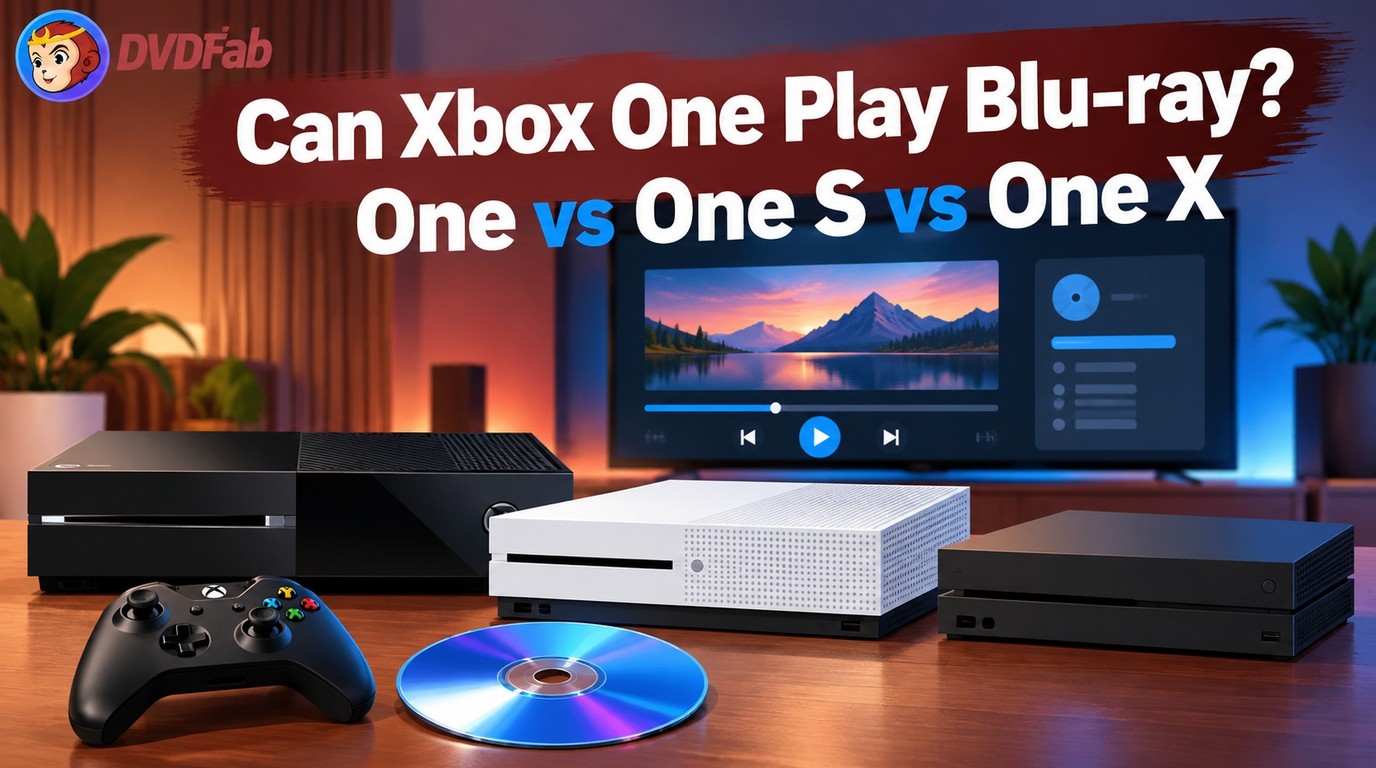
Yes. Xbox One Blu-ray playback works on the original model and disc-equipped Xbox One S and Xbox One X consoles, but 4K Ultra HD Blu-ray requires a disc-equipped One S or One X. Install Microsoft’s free Blu-ray Player app before playing movie discs.
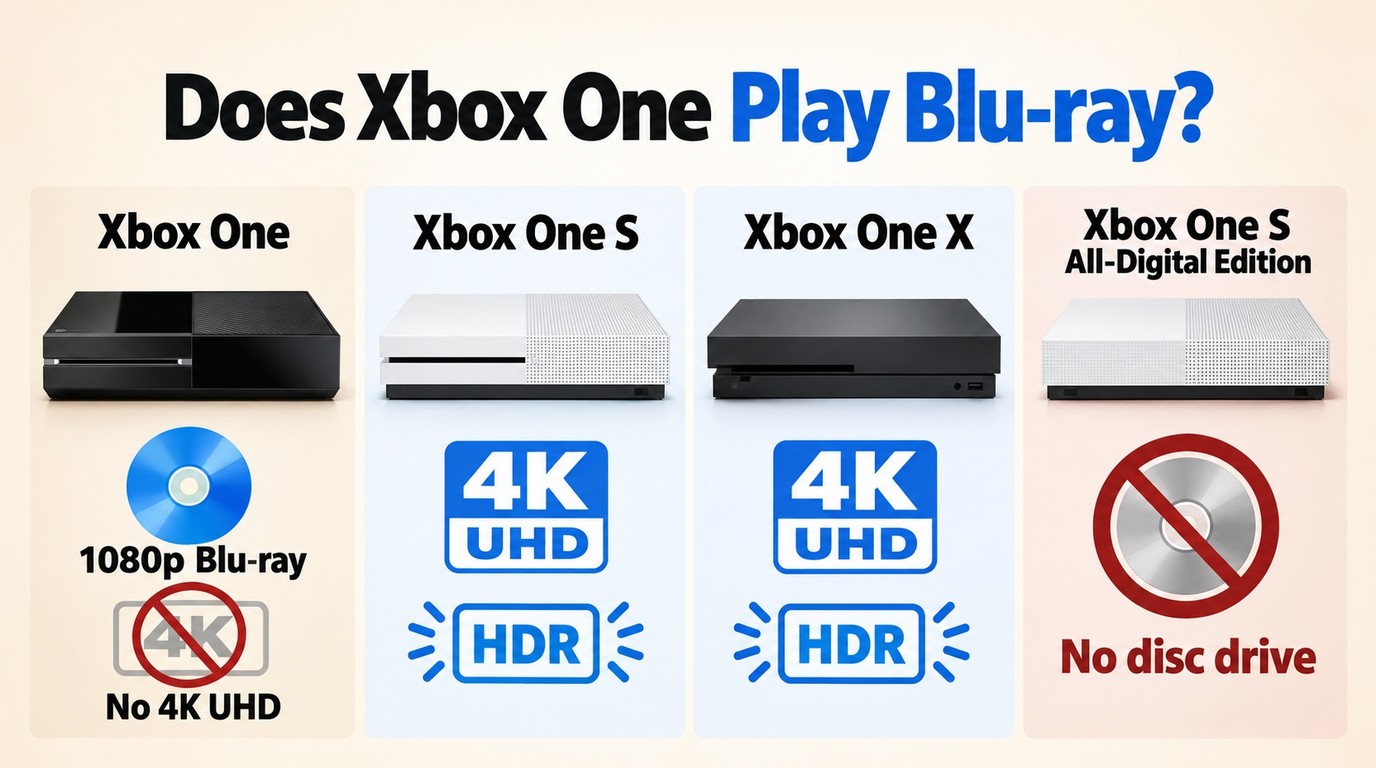
- Original Xbox One: plays standard Blu-ray and DVD movies up to 1080p; it does not play 4K Ultra HD Blu-ray discs.
- Disc-equipped Xbox One S / Xbox One X: plays standard Blu-ray, DVD, and 4K Ultra HD Blu-ray discs.
- Xbox One S All-Digital Edition: does not play Blu-ray or DVD discs because it has no optical drive.
Whether you call it Xbox One or Xbox 1, physical Blu-ray/DVD movie playback on a disc-equipped model requires Microsoft’s Blu-ray Player app. 4K Blu-ray support depends on the model, so the original Xbox One and the Xbox One S/X should not be treated as the same for movie playback.
In other words, a disc-equipped Xbox One can serve as both a gaming device and a Blu-ray player. The sections below explain region rules, common playback issues, and an authorized local-file option when the source disc remains readable.
Xbox One Blu-ray support: regions, formats & More
Disc region codes on Xbox One
Although disc-equipped Xbox One models include a Blu-ray drive, Blu-ray and DVD movie discs can be region-locked. The disc region must match the console’s Blu-ray/DVD region for normal playback.
Blu-ray regions:
- Region A — North America, South America, Japan, Korea
- Region B — Europe, Middle East, Africa, Australia, New Zealand
- Region C — Asia, except Japan, Korea, Taiwan, and Hong Kong
DVDs use numerical region codes from 1 to 6. Blu-ray and DVD movie discs must match the console's supported movie-disc region. This movie-disc rule is separate from Xbox One game discs, which are not controlled by Blu-ray movie region codes.
Formats & video features supported
Disc-equipped Xbox One models can play standard Blu-ray movie discs and DVD-Video discs through Microsoft’s Blu-ray Player app. Supported 3D Blu-ray titles can also play when the console is connected to a compatible 3D display.
Blu-ray movie discs commonly use video codecs such as MPEG-2, H.264/AVC, and VC-1, with audio tracks and subtitle streams stored on the disc. Some newer movie releases may require a console system update for proper compatibility. If a movie’s aspect ratio differs from the TV screen, black bars keep the original picture shape unchanged. Upscaling changes image resolution, not the original aspect ratio, so stretching the picture would distort it.
Model differences in Blu-ray playback
Not all Xbox One models offer the same Blu-ray features:
| Xbox Model | Blu-ray and DVD | 3D Blu-ray | 4K UHD Blu-ray |
| Xbox One (2013) | Yes | Yes | No |
| Xbox One S (disc-equipped) | Yes | Yes | Yes |
| Xbox One X | Yes | Yes | Yes |
| Xbox One S All-Digital Edition | No | No | No |
Disc-equipped models require the Blu-ray Player app, and 3D playback requires a compatible 3D display. Disc-equipped Xbox One S and Xbox One X consoles play 4K Ultra HD Blu-ray discs; the original Xbox One does not. To see 4K output, you also need a compatible 4K TV, a suitable HDMI setup, compatible disc content, and the correct console display settings. An original Xbox One suits a standard Blu-ray collection, while a disc-equipped One S or One X suits UHD movie discs.
The Blu-ray vs 4K comparison explains how standard Blu-ray and 4K UHD Blu-ray differ in resolution, disc requirements, and playback equipment.
Play a Blu-ray on Xbox One (Official Way)
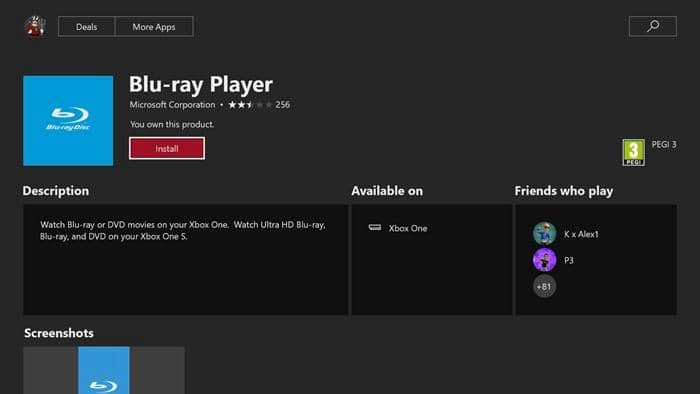
Before you can watch movie discs, a disc-equipped Xbox One requires the Blu-ray Player app. This is a free application provided by Microsoft, and it must be installed before the console can recognize and play Blu-ray or DVD movies. An internet connection is required to download and install the app. There are two simple ways to get the app:
Method 1: Install from the Microsoft Store
- Turn on your Xbox One and press the Xbox button on your controller to open the guide.
- Select Home, scroll to the right, and choose Store.
- In the search bar, type "Blu-ray Player" and select the app from the results.
- On the store page, select Install.
- After the installation finishes, insert your Blu-ray disc and choose Play disc from the dashboard.
Method 2: Install by inserting a disc
- Insert a Blu-ray or DVD movie into your Xbox One’s disc drive.
- The console will prompt you to install the Blu-ray Player app if it is not already installed.
- Select Install to download and add the app to your system.
- After installation, return to the dashboard and select Play disc to start the movie.
Play Without a Disc: Rip your Blu-ray for Xbox playback
For straightforward disc viewing, use Microsoft’s Blu-ray Player app first. For content you are legally authorized to access and copy, where permitted by platform terms and applicable law, DVDFab Blu-ray Ripper can save a local video file for personal, noncommercial offline viewing through a USB drive or home media server. Do not redistribute the resulting file or use this process with content you do not own or have permission to copy.
Recommended tool: DVDFab Blu-ray Ripper
If you need an authorized personal video file instead of direct disc playback, DVDFab Blu-ray Ripper can convert a protected Blu-ray source to formats such as MP4, MKV, or WMV for a USB drive or home media server. You can select the output container, audio tracks, subtitles, and editing options needed for the Xbox media app you plan to use.
- • Automatically handle Region Code, AACS, BD+, BD-J, RC, Cinavia Removal and more
- • Regularly updated to handle the latest Blu-ray protections and new discs and devices
- • Convert Blu-rays to 1,000+ video and audio formats, MP4, MKV, AVI, FLAC, etc
- • Queue multiple standard Blu-ray conversion tasks for batch processing
- • Adjust codec, resolution, or frame rate when the chosen Xbox media app needs them
- • Built-in video editor to crop, add watermark, embed subtitle, and support settings for codec, resolution, frame rate, etc
How to Convert Blu-ray to Xbox-compatible digital formats?
Step 1: Download and install DVDFab
Install and launch DVDFab Blu-ray Ripper on a compatible computer with a Blu-ray drive. Insert a readable Blu-ray disc that you legally own or have the right to copy, select the Ripper module, and load the disc by clicking Add and choosing the source.
Step 2: Choose a profile and customize the output video
Click on "Choose Other Profile" to select an MP4 profile with video and audio codecs supported by your Xbox media app, or choose Xbox One from the device profiles.
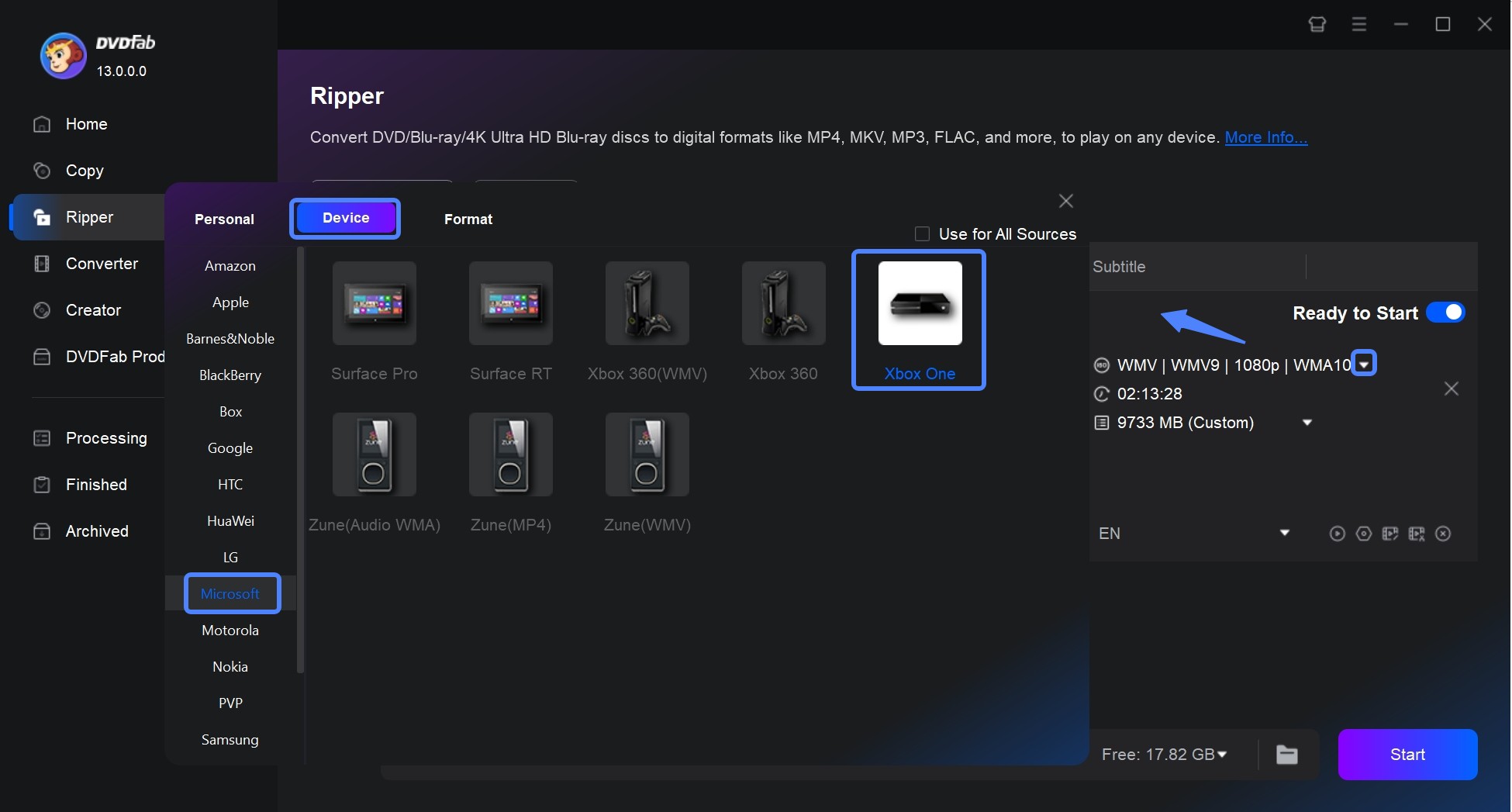
Then, you can choose the titles, audio tracks, and subtitles you would like to include. Explore the Advanced Settings and use the built-in Video Editor to personalize the final video.
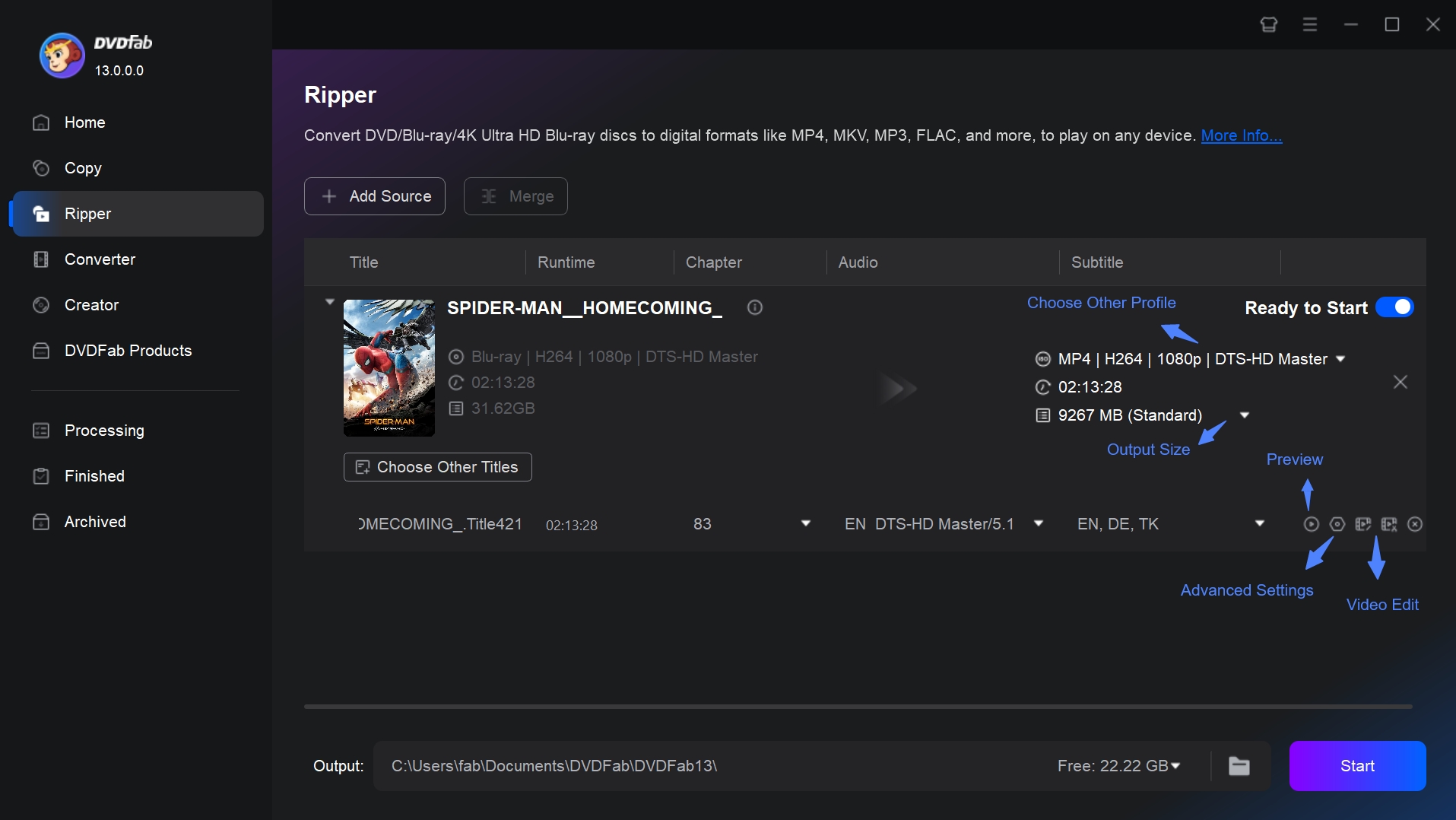
Step 3: Start the Blu-ray conversion process
Click Start to create the digital file. When the task is complete, copy the file to a USB drive or add it to your home media server, then play it on Xbox One with a compatible media app. The app must support the file’s container, video codec, and audio codec.
Extra note for 4K discs: If you own an Xbox One S or Xbox One X and want 4K content, you can back up UHD Blu-rays with DVDFab UHD Ripper and save them as 4K-compatible files for playback on your console.
FAQs
Why won't my Xbox One play a Blu-ray disc?
- Possible Cause: Blu-ray Player app is not installed
How to Fix It: Connect the console to the internet, install the official Blu-ray Player app from the Microsoft Store, and try the disc again.
- Possible Cause: Region code mismatch
How to Fix It: Blu-ray and DVD movie discs must match the console's supported movie-disc region. Use a compatible disc from the correct region for optical-disc playback.
- Possible Cause: Scratched or dirty disc
How to Fix It: Gently wipe the disc with a soft, clean cloth, or try another copy of the movie. Deep scratches may stop the disc from playing at all.
- Possible Cause: Unsupported disc type
How to Fix It: Disc-equipped Xbox One S and Xbox One X consoles can play 4K Ultra HD Blu-ray discs. The original Xbox One can only play standard 1080p Blu-ray and DVD discs, while the Xbox One S All-Digital Edition cannot play movie discs.
- Possible Cause: Drive or hardware issue
How to Fix It: Restart your console, eject and reinsert the disc, and try a different Blu-ray or DVD. Test a known-good DVD and a known-good Blu-ray separately to see whether one disc type still works. If the problem persists or you see error 0x91d70000, contact Xbox Support for further troubleshooting without assuming a single hardware or software cause.
Can Xbox One play 4K Ultra HD Blu-ray?
The original Xbox One plays standard Blu-ray and DVD discs but not 4K Ultra HD Blu-ray; disc-equipped Xbox One S and Xbox One X consoles play 4K Ultra HD Blu-ray, while the Xbox One S All-Digital Edition cannot play discs, and 4K output requires a compatible display and HDMI setup. Our guide to whether Xbox 360 can play Blu-ray explains how its optical-disc capabilities differ from the Xbox One family.
Does the original Xbox One have a Blu-ray player?
Yes. The original Xbox One has a built-in optical drive that can play standard 1080p Blu-ray discs and DVDs after you install the Blu-ray Player app. It does not support 4K Ultra HD Blu-ray discs.
Do I need an app to play Blu-ray on Xbox One?
Yes. Disc-equipped Xbox One consoles require the official Blu-ray Player app for physical Blu-ray and DVD playback. Downloading and installing the app from the Microsoft Store requires an internet connection, so install it before you expect to use the console offline and test the intended disc in advance. Digital video files use a compatible media app and are separate from optical-disc playback.
Conclusion
The original Xbox One, disc-equipped Xbox One S and Xbox One X play standard Blu-ray discs and DVDs with the Blu-ray Player app. The Xbox One S All-Digital Edition cannot play movie discs. For 4K Ultra HD Blu-ray, use a disc-equipped Xbox One S or Xbox One X with compatible 4K equipment; the original Xbox One is limited to standard Blu-ray and DVD playback up to 1080p. If a disc does not play, start with official checks: app installation, console update, region match, disc condition, and drive health. For Blu-rays you legally own or are authorized to copy, DVDFab Blu-ray Ripper can save content and copy as a local MP4, MKV, or WMV file for personal use on compatible devices.

 How to Rip Blu-ray for Plex: 3 Workflows for Your LibraryBy Wenny Yan - Oct 19, 2026
![5 Tested Tools to Convert Blu-ray to MP4 on Windows & Mac [2026]](https://images.dvdfab.cn/artifact/2026/10/08/VlnEzAK16xQgSfU_MVii_l11G2zYv56o/feature_cover.jpg) 5 Tested Tools to Convert Blu-ray to MP4 on Windows & Mac [2026]By Wenny Yan - Oct 10, 2026
5 Tested Tools to Convert Blu-ray to MP4 on Windows & Mac [2026]By Wenny Yan - Oct 10, 2026 How to Convert Blu-ray to Digital on Windows, Mac & MobileBy Wenny Yan - Oct 10, 2026
 How to Rip Blu-ray to MKV on Windows & Mac: 4 Tested ConvertersBy Diana Smith - Sep 28, 2026