Does Xbox One Play Blu-ray? 2026 Guide for Xbox One/One S/One X

Summary: Yes, all Xbox One consoles can play standard Blu-ray and DVD discs after you install the free Blu-ray Player app. The original Xbox One supports standard 1080p Blu-ray/DVD playback, while Xbox One S and Xbox One X also support 4K Ultra HD Blu-ray with a compatible 4K TV and HDCP 2.2 setup.
Table of Contents
Quick Answer: Does Xbox One Play Blu-ray?
Yes. In 2026, Xbox One consoles can play Blu-ray and DVD movies after you install Microsoft‘s free Blu-ray Player app.
- Original Xbox One: plays standard Blu-ray and DVD movies up to 1080p; it does not play 4K Ultra HD Blu-ray discs.
- Xbox One S / Xbox One X: plays standard Blu-ray, DVD, and 4K Ultra HD Blu-ray discs.
Whether you call it Xbox One or Xbox 1, physical Blu-ray/DVD movie playback requires Microsoft’s Blu-ray Player app. 4K Blu-ray support depends on the model, so the original Xbox One and the Xbox One S/X should not be treated as the same for movie playback.
In other words, Xbox is not only a gaming device but also a capable Blu-ray player. In this guide, we'll also explain region rules, common playback issues, and safe ways to enjoy your Blu-ray collection on Xbox if discs don't work.
Xbox One Blu-ray support: regions, formats & More
Disc region codes on Xbox One
Although Xbox One consoles include a Blu-ray drive, Blu-ray and DVD movie discs can be region-locked. The disc region must match the console’s Blu-ray/DVD region for normal playback.
Blu-ray regions:
- Region A — North America, South America, Japan, Korea
- Region B — Europe, Middle East, Africa, Australia, New Zealand
- Region C — Asia, except Japan, Korea, Taiwan, and Hong Kong
DVDs use numerical region codes from 1 to 6. For example, a Region A Blu-ray movie bought in the United States may not play on an Xbox One configured for Region B. This movie-disc rule is separate from Xbox One game discs, which are not controlled by Blu-ray movie region codes.
Formats & video features supported
Xbox One consoles can play standard Blu-ray movie discs and DVD-Video discs through Microsoft’s Blu-ray Player app. Supported 3D Blu-ray titles can also play when the console is connected to a compatible 3D display.
Blu-ray movie discs commonly use video codecs such as MPEG-2, H.264/AVC, and VC-1, with audio tracks and subtitle streams stored on the disc. Some newer movie releases may require a console system update for proper compatibility.
Model differences in Blu-ray playback
Not all Xbox One models offer the same Blu-ray features:
| Xbox Model | Blu-ray/DVD | 3D Blu-ray | 4K UHD Blu-ray | HDR Support | Blu-ray App Required |
| Xbox One (2013) | ✅ (1080p only) | ✅ | ❌ | ❌ | ✅ |
| Xbox One S | ✅ | ✅ | ✅ | ✅ | ✅ |
| Xbox One X | ✅ | ✅ | ✅ | ✅ | ✅ |
Only the Xbox One S and Xbox One X support 4K Ultra HD Blu-ray discs. The original Xbox One is limited to standard Blu-ray/DVD playback up to 1080p. To see 4K or HDR output, you also need a compatible 4K/HDR TV, a suitable HDMI setup, compatible disc content, and the correct console display settings.
For a deeper comparison between Blu-ray vs 4K formats, check out our detailed guide.
How to play a Blu-ray on Xbox One (Official Way)
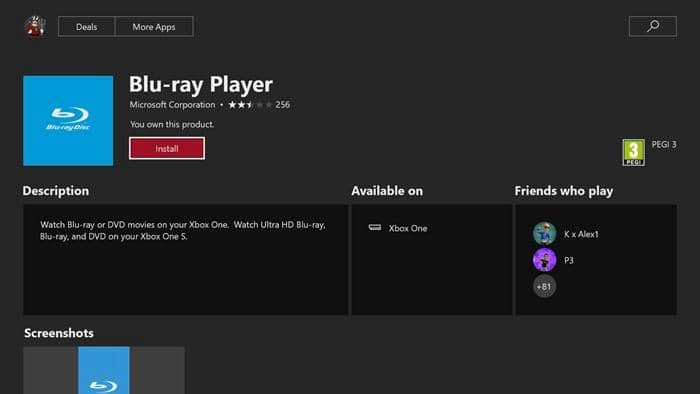
Before you can watch movies, Xbox One requires the Blu-ray Player app. This is a free application provided by Microsoft, and it must be installed before the console can recognize and play Blu-ray or DVD movies. There are two simple ways to get the app:
Method 1: Install from the Microsoft Store
- Turn on your Xbox One and press the Xbox button on your controller to open the guide.
- Select Home, scroll to the right, and choose Store.
- In the search bar, type "Blu-ray Player" and select the app from the results.
- On the store page, select Install.
- After the installation finishes, insert your Blu-ray disc and choose Play disc from the dashboard.
Method 2: Install by inserting a disc
- Insert a Blu-ray or DVD movie into your Xbox One’s disc drive.
- The console will prompt you to install the Blu-ray Player app if it is not already installed.
- Select Install to download and add the app to your system.
- After installation, return to the dashboard and select Play disc to start the movie.
Play Without a Disc: Rip your Blu-ray for Xbox playback
Although Xbox One can play Blu-ray discs, playback failures may still occur in certain situations. For example, when the disc is scratched, the movie originates from another region, or the drive encounters reading difficulties. In such cases, many users prefer to create digital copies of their Blu-ray discs and watch them directly on Xbox One through a USB drive or a home media server.
Recommended tool: DVDFab Blu-ray Ripper
When discs fail to play on Xbox One, a practical solution is to make a digital copy of your movies. DVDFab Blu-ray Ripper helps you convert Blu-rays into Xbox-friendly formats such as MP4, MKV, or WMV, so you can store them on a USB drive or stream them through your home server.
- • Automatically handle Region Code, AACS, BD+, BD-J, RC, Cinavia Removal and more
- • Convert Blu-rays to 1,000+ video and audio formats, MP4, MKV, AVI, FLAC, etc
- • 50x faster ripping speed with GPU acceleration, and rip standard Blu-ray in batch mode
- • Regularly updated to handle the latest Blu-ray protections and new discs and devices
- • Built-in video editor to crop, add watermark, embed subtitle, and support settings for codec, resolution, frame rate, etc
How to Convert Blu-ray to Xbox-compatible digital formats?
Step 1: Download and install DVDFab
Install and launch DVDFab Blu-ray Ripper on your computer. Insert a Blu-ray disc that you legally own or have the right to copy, select the Ripper module, and load the disc by clicking Add and choosing the source.
Step 2: Choose a profile and customize the output video
Click on "Choose Other Profile" to pick an Xbox-supported format like MP4 or choose Xbox One from the device profiles.
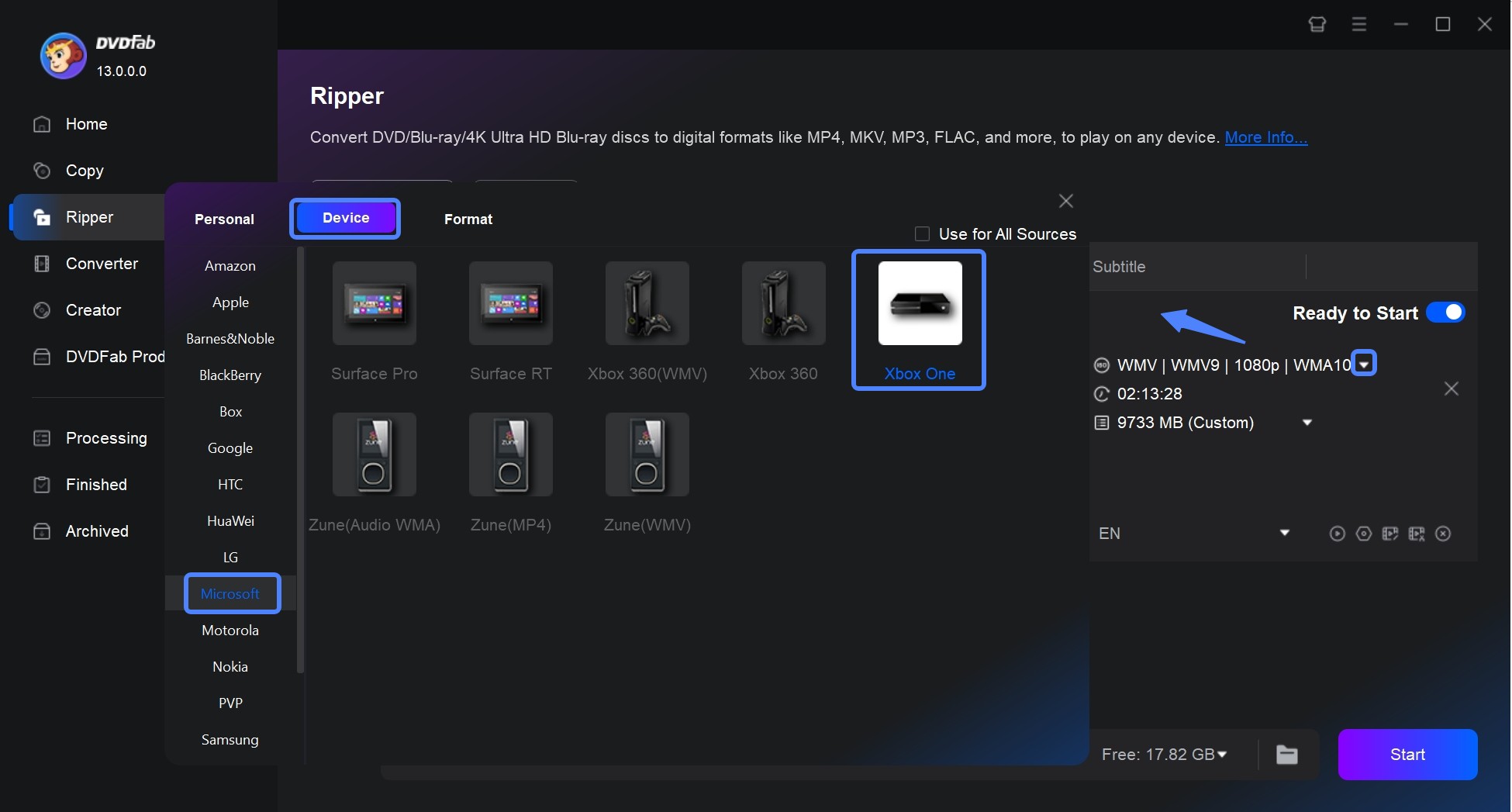
Then, you can choose the titles, audio tracks, and subtitles you would like to include. Explore the Advanced Settings and use the built-in Video Editor to personalize the final video.
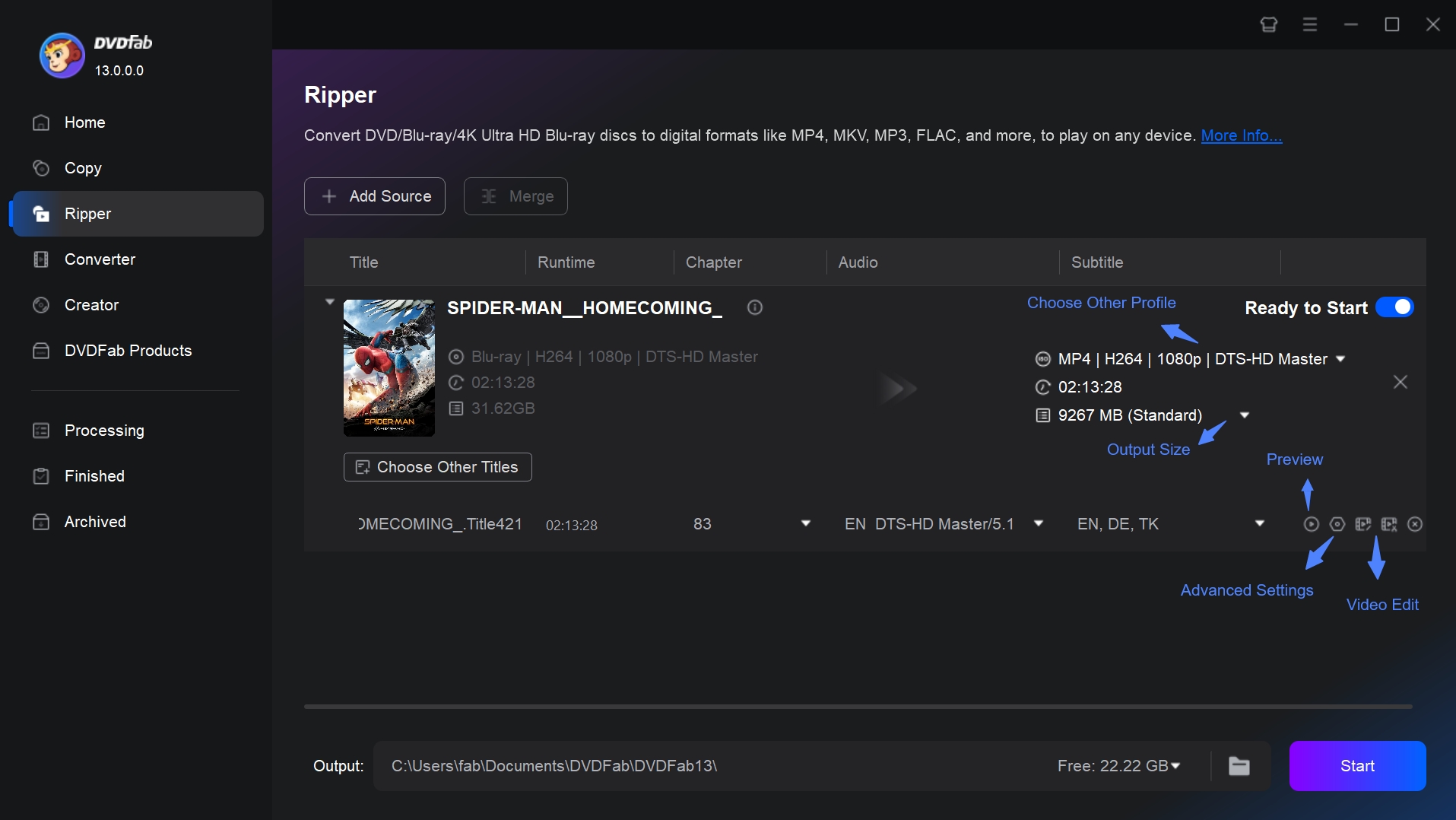
Step 3: Start the Blu-ray conversion process
Click Start to create the digital file. When the task is complete, copy the file to a USB drive or add it to your home media server, then play it on Xbox One with a compatible media app.
Extra note for 4K discs: If you own an Xbox One S or Xbox One X and want 4K content, you can back up UHD Blu-rays with DVDFab UHD Ripper and save them as 4K-compatible files for playback on your console.
FAQs
Why won't my Xbox One play a Blu-ray disc?
- Possible Cause: Region code mismatch
- How to Fix It: Use a tool like DVDFab to make a digital copy of your legally owned discs. This avoids region code limits and lets you play the video files directly on your Xbox.
- Possible Cause: Scratched or dirty disc
- How to Fix It: Gently wipe the disc with a soft, clean cloth, or try another copy of the movie. Deep scratches may stop the disc from playing at all.
- Possible Cause: Unsupported disc type
- How to Fix It: Xbox One S and Xbox One X can play 4K Ultra HD Blu-ray discs. The original Xbox One can only play standard 1080p Blu-ray and DVD discs.
- Possible Cause: Drive or hardware issue
- How to Fix It: Restart your console, eject and reinsert the disc, and try a different Blu-ray or DVD. If nothing works, contact Xbox Support to check for a possible hardware fault.
Can Xbox One play 4K Ultra HD Blu-ray?
The original Xbox One (2013) only supports standard 1080p Blu-ray/DVD playback, not Ultra HD. The Xbox One S and Xbox One X fully support 4K Ultra HD Blu-ray and HDR when paired with a 4K TV. If you want a cinematic 4K movie experience at home, the S and X models are the ideal choice.
Curious about earlier consoles? Here's a dedicated guide on does Xbox 360 play Blu-ray to see how Microsoft handled disc playback before the Xbox One era.
Does the original Xbox One have a Blu-ray player?
Yes. The original Xbox One has a built-in optical drive that can play standard 1080p Blu-ray discs and DVDs after you install the Blu-ray Player app. It does not support 4K Ultra HD Blu-ray discs.
Do I need an app to play Blu-ray on Xbox One?
Yes, to play physical discs on any Xbox One console, you need to install the official Blu-ray Player app from Microsoft Store. Other video player apps, such as VLC for Xbox or Movies & TV, only play digital video files stored on your USB drive or on a network server. They cannot directly read Blu-ray or DVD discs from the console’s drive.
Can Xbox One play non-Blu-ray DVDs?
Yes. Xbox One, Xbox One S, and Xbox One X can play standard DVDs as well as standard Blu-ray discs through the Blu-ray Player app. DVD movie discs may still follow region-code rules, so a DVD from another region may not play on your console.
Conclusion
Xbox One can play Blu-ray and DVD movies after Microsoft’s Blu-ray Player app is installed. The original Xbox One handles standard Blu-ray/DVD playback up to 1080p, while Xbox One S and Xbox One X support 4K Ultra HD Blu-ray with compatible equipment. If a disc does not play, start with official checks: app installation, console update, region match, disc condition, and drive health. You may also use DVDFab Blu-ray Ripper to make a personal backup of Blu-rays you legally own and play the resulting MP4, MKV, or WMV files on compatible devices.

 How to Convert 2D Blu-ray to 3D Video with DVDFab Blu-ray RipperBy Diana Smith - Jul 7, 2026
 How to Rip Blu-ray for Plex: 3 Best Ways with Guide & ComparisonBy Wenny Yan - Jul 6, 2026
![Top 5 Free Blu-ray Decrypters for Legal Use [2026 Test]](https://r1.dvdfab.cn/upload/resource/how-to-decrypt-blu-ray-Row0.jpeg) Top 5 Free Blu-ray Decrypters for Legal Use [2026 Test]By Wenny Yan - Jun 26, 2026
Top 5 Free Blu-ray Decrypters for Legal Use [2026 Test]By Wenny Yan - Jun 26, 2026 Best Free Blu-ray Rippers in 2026: Tested Tools and Guide to Rip Blu-raysBy Wenny Yan - Jun 12, 2026