How to Convert WMV to DVD: 3 Methods for Windows and Mac

Summary: Copying a WMV file to a blank disc does not create DVD-Video. This guide compares complete DVD authoring, browser-based conversion, and the discontinued Windows DVD Maker, then explains the settings and checks that help a burned disc play correctly.
Table of Contents
Getting WMV files onto a DVD disc is a three-step process: convert the video to DVD-compatible format, author the disc structure, then burn it. Most tools handle all three steps in one workflow, but they differ significantly in platform support, output quality, and whether they work on current versions of Windows and macOS.
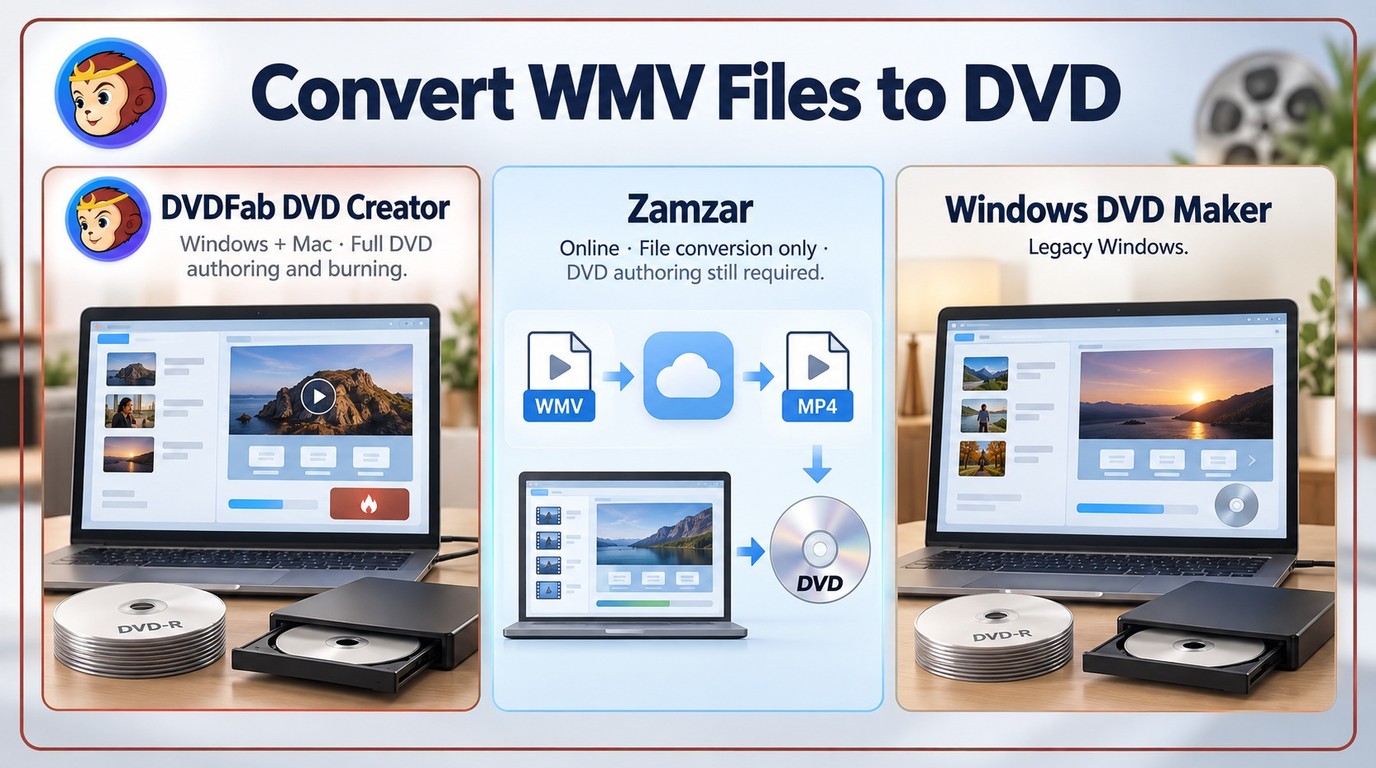
I tested three approaches to map out which one fits which situation: DVDFab DVD Creator for full control on Windows and Mac, Zamzar for a quick online format conversion, and Windows DVD Maker as a legacy option for older Windows systems. Here is what each one actually delivers.
DVD-Video, Not a Data Disc
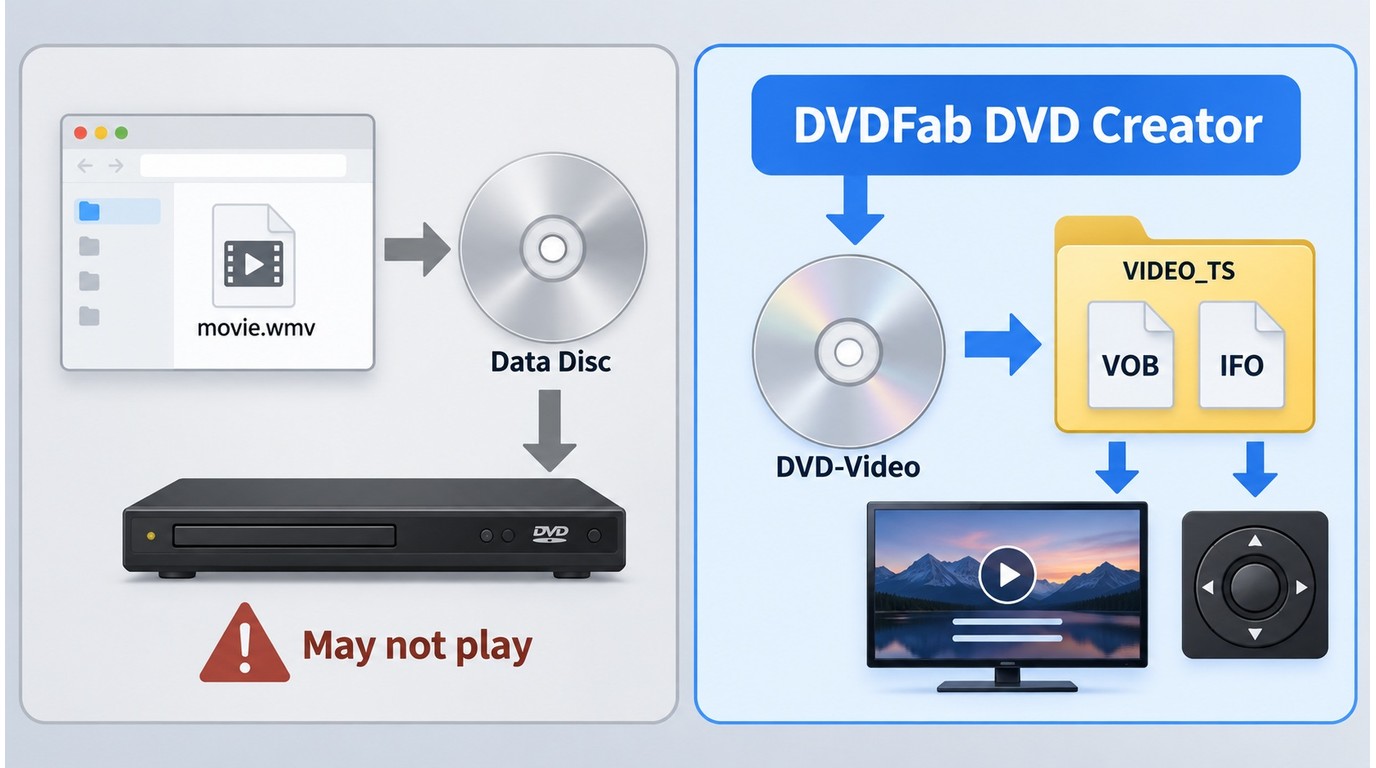
A playable DVD-Video disc is more than a WMV or MPEG-2 file written to optical media. DVD-Video authoring builds the structure a standalone player expects, including VOB media files, IFO navigation information, and a VIDEO_TS folder.
File conversion changes the video format. Authoring also creates titles, chapters, menus, navigation, and playback instructions before the project is written to disc. That distinction explains why a computer may open a data DVD while a living-room player reports a disc error.
I would choose the authoring software first and let it prepare the required files. Repeatedly converting the same WMV into different formats does not fix a missing DVD-Video structure.
How to Convert WMV to DVD on Windows and Mac: Professional Methods
- Suitable for: Windows 11/10/8.1/8/7 and macOS 12 and later
DVDFab DVD Creator is a dedicated DVD authoring tool that handles the full workflow from import to disc burn. It accepts WMV along with 200+ other video formats and outputs to physical DVD discs, ISO image files, or DVD folders. The built-in menu editor includes a library of templates and lets you adjust background images, text, and playback behavior before burning. Both Windows and Mac versions are available, with hardware acceleration enabled by default to reduce encoding time.
Key features:
- Accepts WMV, MP4, MKV, M2TS, TS, and 200+ additional input formats
- Outputs to DVD-5/9, DVD+R/RW, DVD-R/RW, DVD-R DL, DVD+R DL, ISO files, or DVD folders
- Customizable DVD menu templates with adjustable background, subtitles, and audio tracks
- Hardware-accelerated encoding for faster processing on supported GPUs
- Lets you preview the disc layout at any point before committing to the burn
- Syncs source video metadata (title, cast, and cover) automatically
Worth noting:
- The free trial adds a watermark to output; a paid license is required for clean burns
- Mac users need to download the separate macOS installer, as the Windows and Mac builds are packaged independently
Download and install DVDFab DVD Creator. Make sure to select the correct installer for your operating system. Windows and Mac builds are packaged separately.
Free Download Windows 11/10/8.1/8/7
Free Download macOS 12 or newer
The broader process of burning video to DVD follows the same pattern: choose the disc standard, match the media capacity, preview, and write the finished project.
Step 1: Open DVDFab and Import Your WMV File
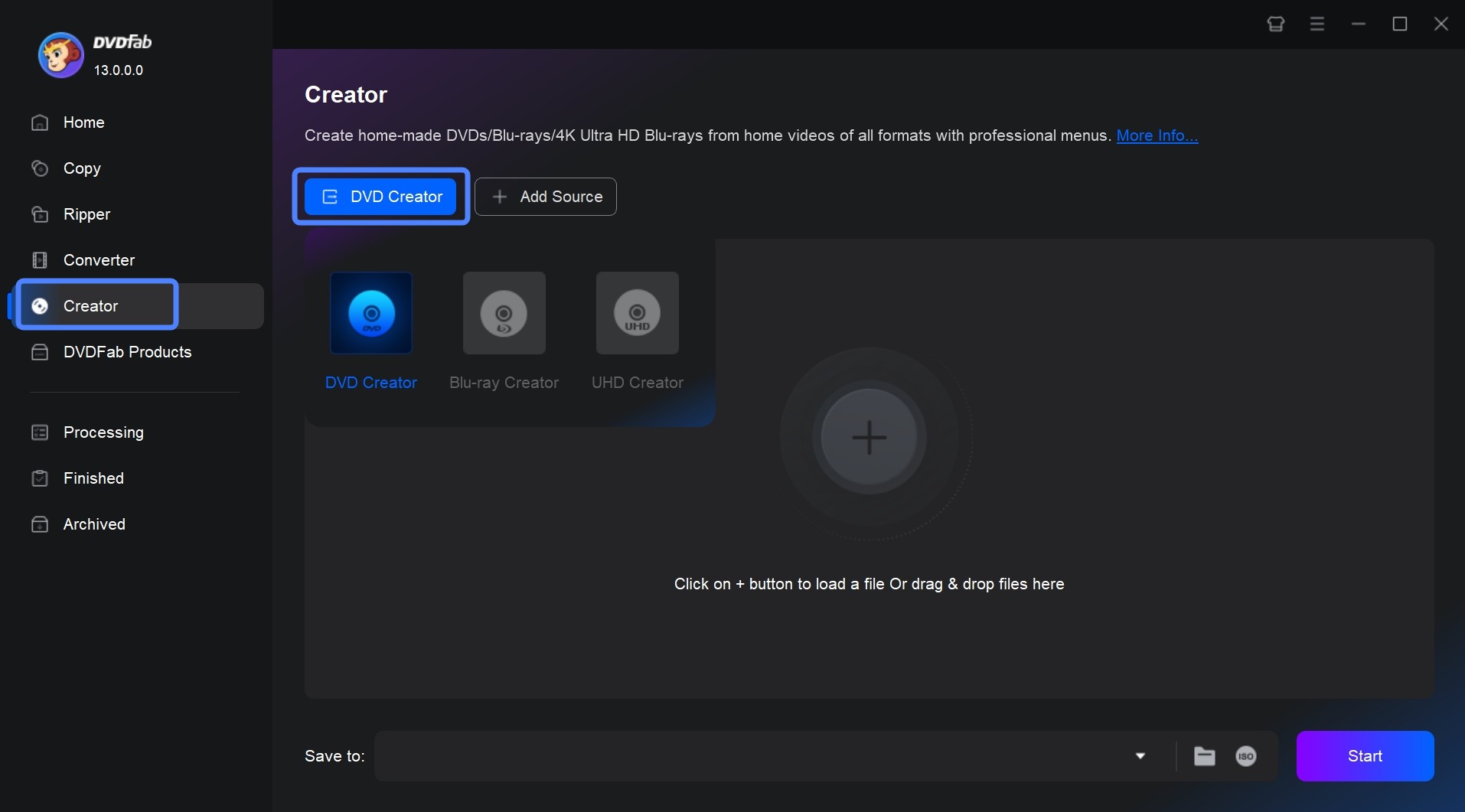
Launch DVDFab and select the Creator module, then choose DVD Creator. Click Add Source to browse for your WMV file, or drag it directly onto the main interface. Multiple files can be added if you want to burn more than one clip to the same disc.
Step 2: Adjust Output Settings and Configure the DVD Menu
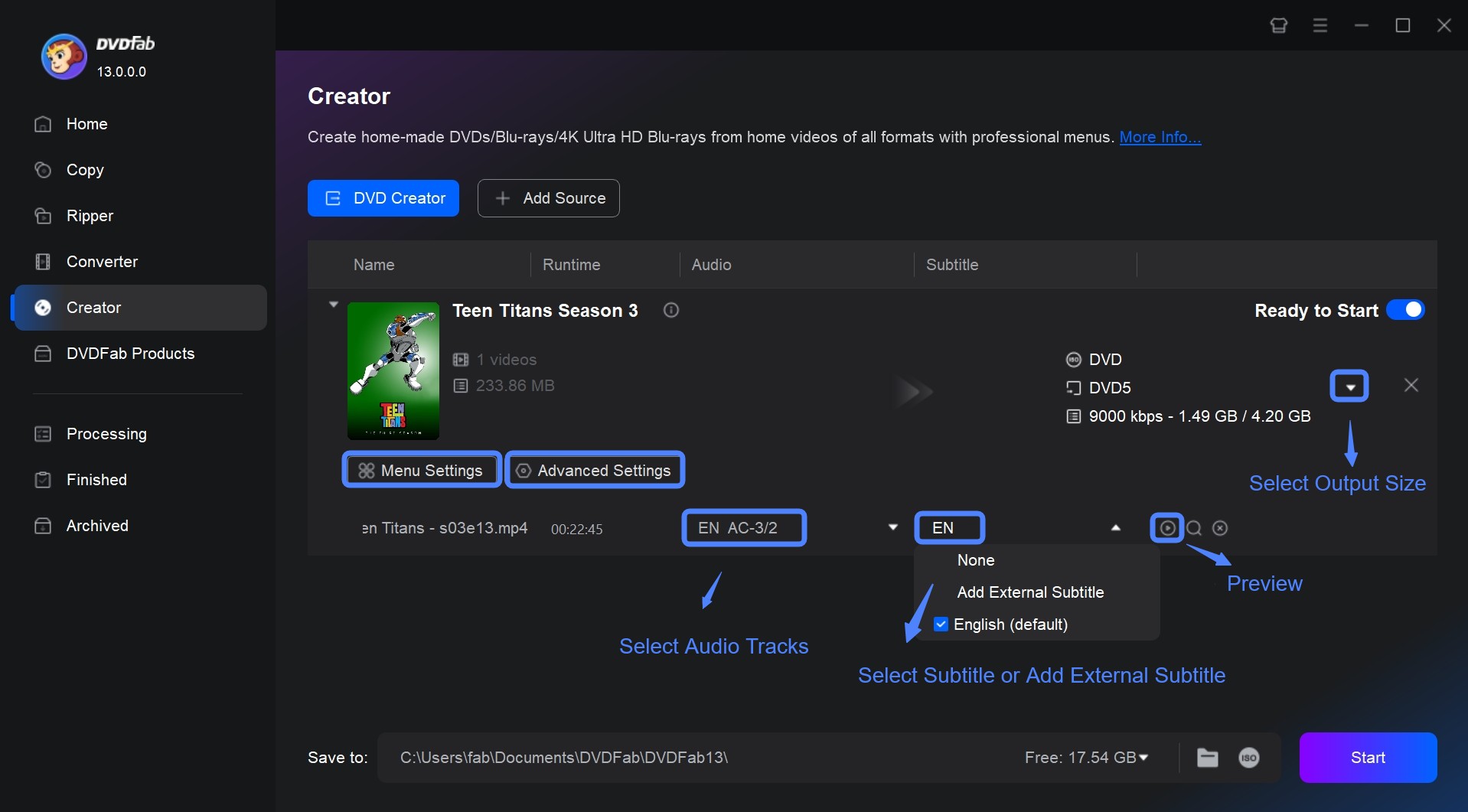
Once the file loads, the main interface shows the video details alongside the output options. From here you can select audio tracks and subtitles, or click Add external subtitles to attach a separate subtitle file.
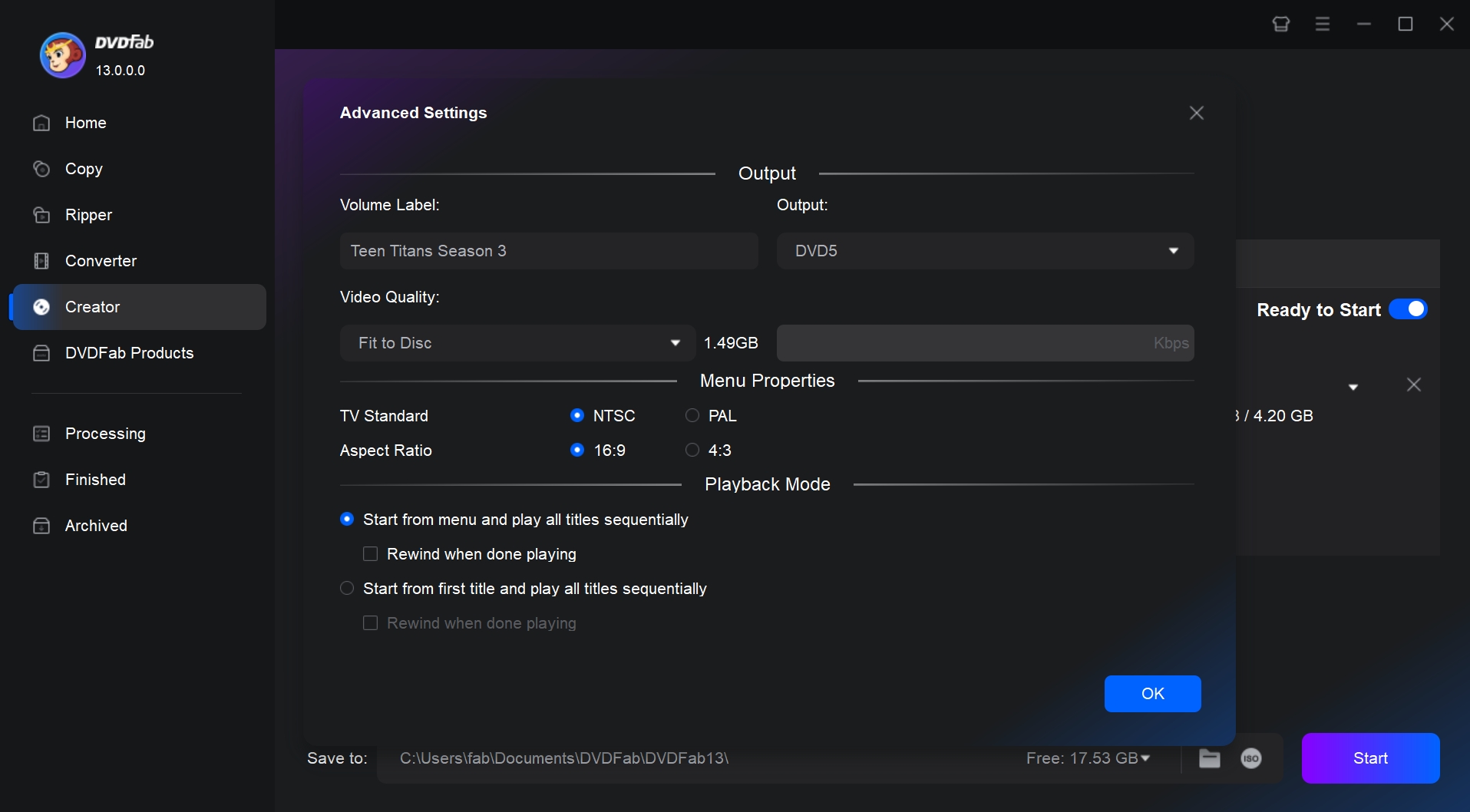
Click Advanced Setting to access the full output configuration:
- Volume Label: sets the disc name visible on your computer or player
- Output type: choose DVD5 (4.7 GB) or DVD9 (8.5 GB) depending on your disc
- Video Quality: use Fit to Disc to let the encoder set the bitrate automatically, or enter a custom value
- Menu Properties: set NTSC or PAL to match your region, and select 16:9 or 4:3 aspect ratio
- Playback Mode: choose whether the disc starts from the menu or plays the first title directly
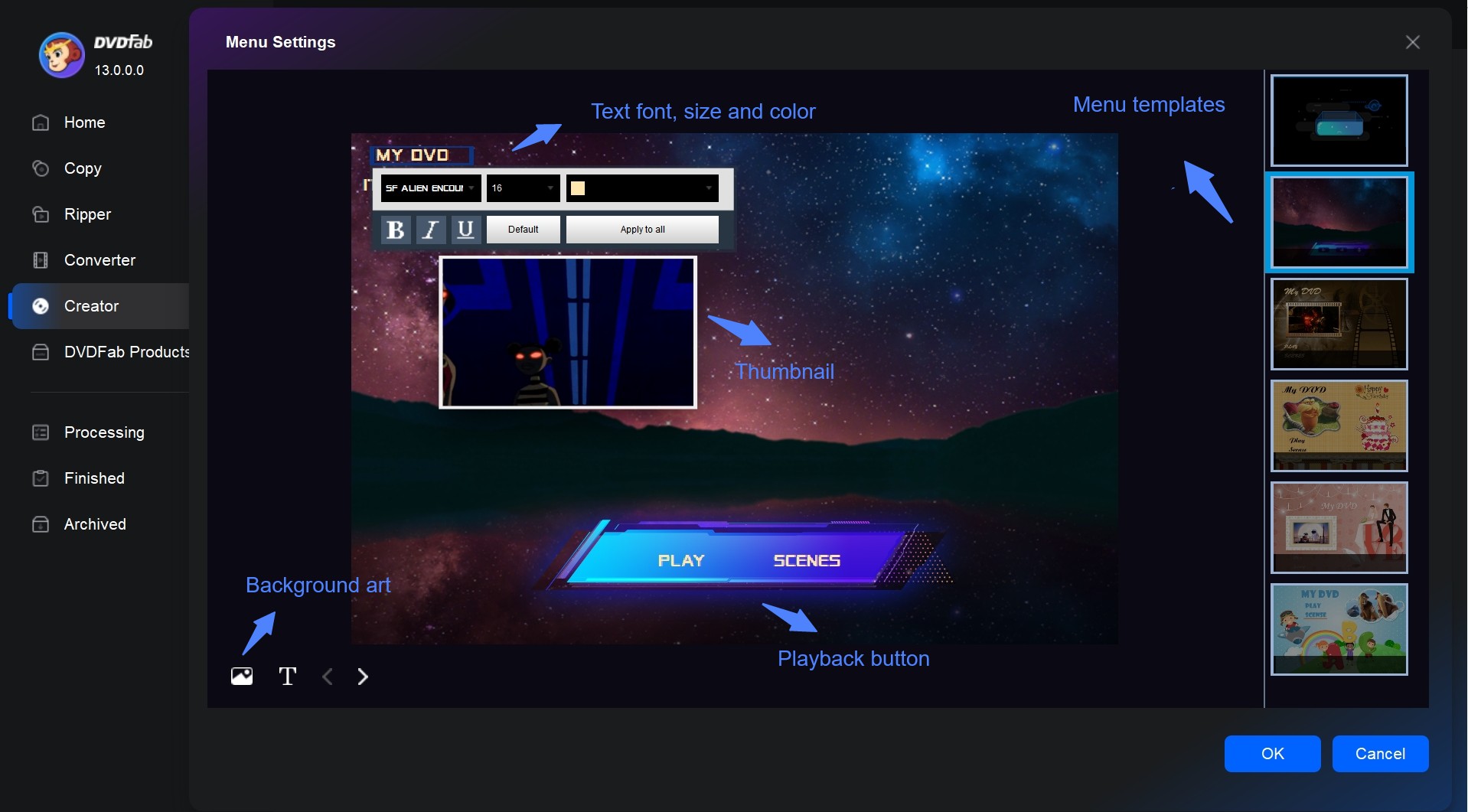
To build a custom menu, click Menu Settings. From there you can select a template, change fonts and colors, reposition elements, and replace the background image.
Step 3: Select Output Destination and Start Burning
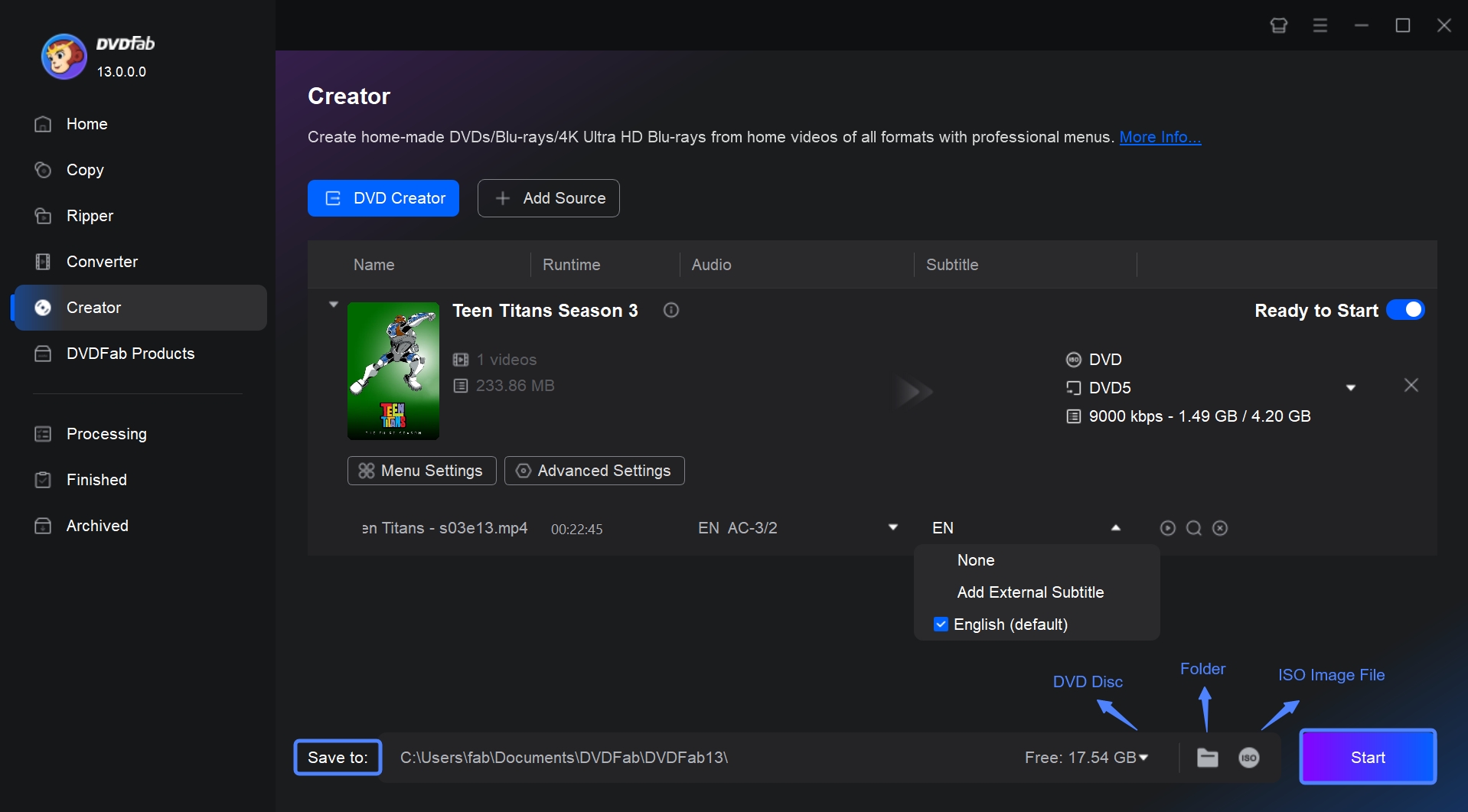
At the bottom of the interface, choose where to send the output. Select your optical drive from the drop-down list to burn directly to a blank disc. Click the folder icon to save as a DVD folder on your hard drive, or the image icon to create an ISO file. Once the destination is set, click Start to begin the burn.
How to Convert WMV to DVD Format Online: Limits and Trade-Offs
- Suitable for: basic WMV-to-VOB format conversion on any platform with a browser
An online WMV converter changes the file, but it does not create or burn DVD-Video. Zamzar works for a short clip when you already have separate authoring software; it adds an upload, a download, and another production step.
As of September 2026, Zamzar's free tier limits each file to 50 MB. That makes it poorly suited to a full-length WMV project. Uploading personal footage also places the file on a remote service, so I would reserve this method for non-sensitive material.
The useful distinction is simple: WMV to VOB conversion prepares media, while authoring builds the playable disc. Zamzar supplies the converted file without menus, chapters, VIDEO_TS navigation, or physical burning.
Key features:
- Runs entirely in a browser, no software download or installation needed
- Supports over 1,200 conversions across video, audio, image, and document formats
- Sends an email notification when the converted file is ready to download
- File uploads and converted files are automatically deleted after 24 hours on the free plan
Limitations:
- Free plan file size cap is 50 MB per file, which limits usable video length to a few minutes
- Does not burn to disc — a second tool is required to complete the DVD creation process
- No menu templates, chapter marks, or any other DVD authoring features
- Conversion speed depends on server load and your upload bandwidth
Steps to Convert WMV to DVD-Compatible Format with Zamzar
Step 1: Open Zamzar's website in your browser and click Add Files to upload your WMV file. You can also drag and drop the file onto the upload area.
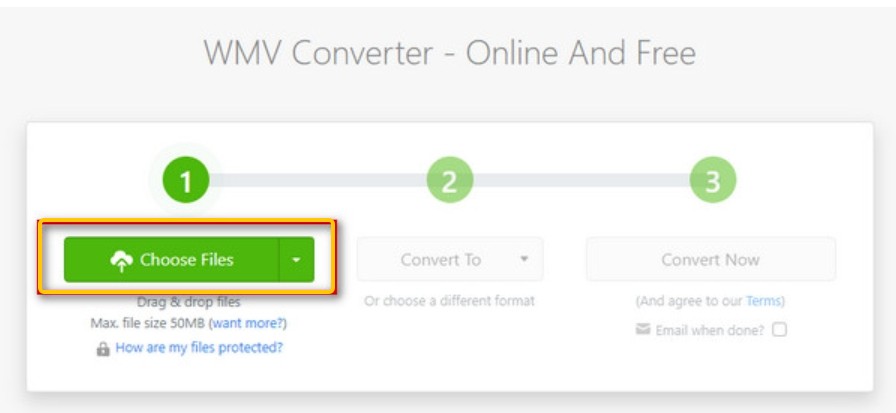
Step 2: Open the format dropdown and select DVD (VOB) as the target format.
Step 3: Click Convert Now. Processing time varies based on file size and current server load.
Step 4: When conversion is complete, click Download to save the VOB file. To burn it to a physical disc, open a DVD authoring tool such as DVDFab DVD Creator, import the VOB file, and follow the burn steps outlined in the first section of this guide.
How to Free Burn WMV to DVD with Windows DVD Maker: Legacy Method
- Suitable for: Windows Vista and Windows 7 only
If you are on Windows 10, Windows 11, or macOS, skip this section: Windows DVD Maker is not included in those systems. For users still running Windows Vista or Windows 7, it remains a built-in option that handles basic WMV-to-DVD burning without any additional downloads. The tool covers menu creation, background music, and a handful of style options, but lacks the encoding controls and format flexibility found in dedicated software.
Key features:
- Pre-installed on eligible Windows Vista and Windows 7 editions, no download required
- Simple interface with menu style selection, button text editing, and background music support
- Compatible with common video formats including WMV, MP4, and MPG
Limitations:
- Not available on Windows 8, Windows 10, Windows 11, or any version of macOS
- Limited menu themes and no option to use custom background images
- No troubleshooting or error recovery when a burn fails
- Lacks advanced encoding controls such as bitrate adjustment or aspect ratio override
The remaining steps apply to PCs that already run Windows Vista or Windows 7 with Windows DVD Maker installed. I would not download an unofficial copy for a newer PC because the app was designed for an older Windows environment.
Legacy Step 1: Add WMV Files
Open Windows DVD Maker from the Start menu, select Add items, and add the WMV files to the project.
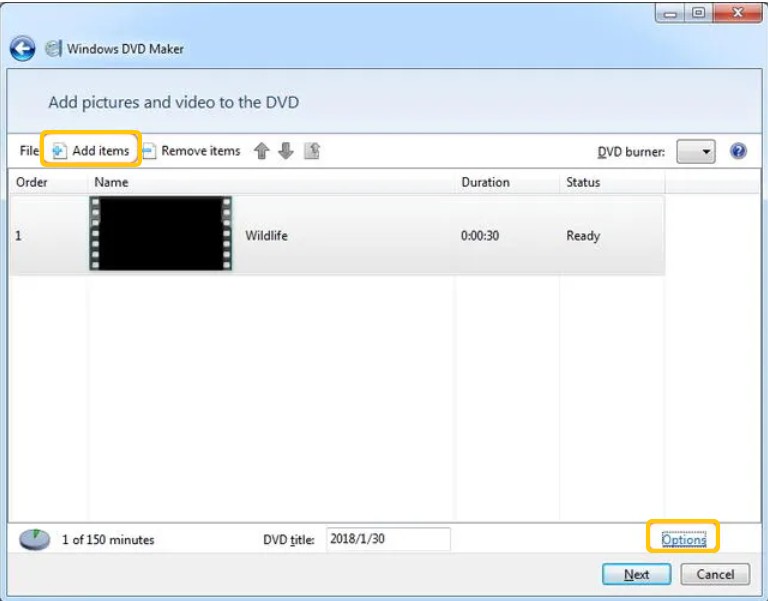
Legacy Step 2: Customize the Menu
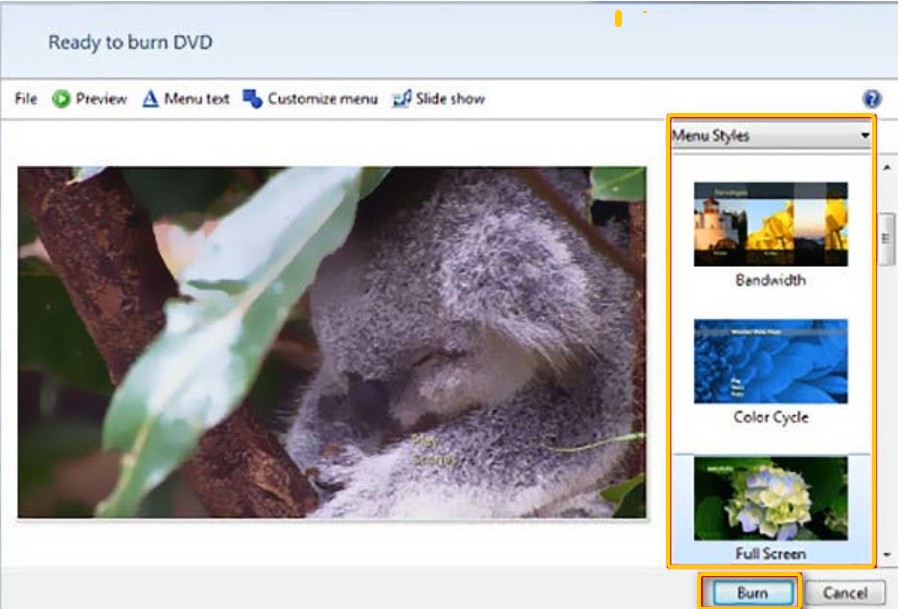
Select Next, choose a menu style, edit the disc title and button text, and set the available playback options.
Legacy Step 3: Burn the Disc
Insert a compatible blank DVD, select Burn, and leave the disc in the drive until the app reports completion.
WMV-to-DVD Playback Troubleshooting
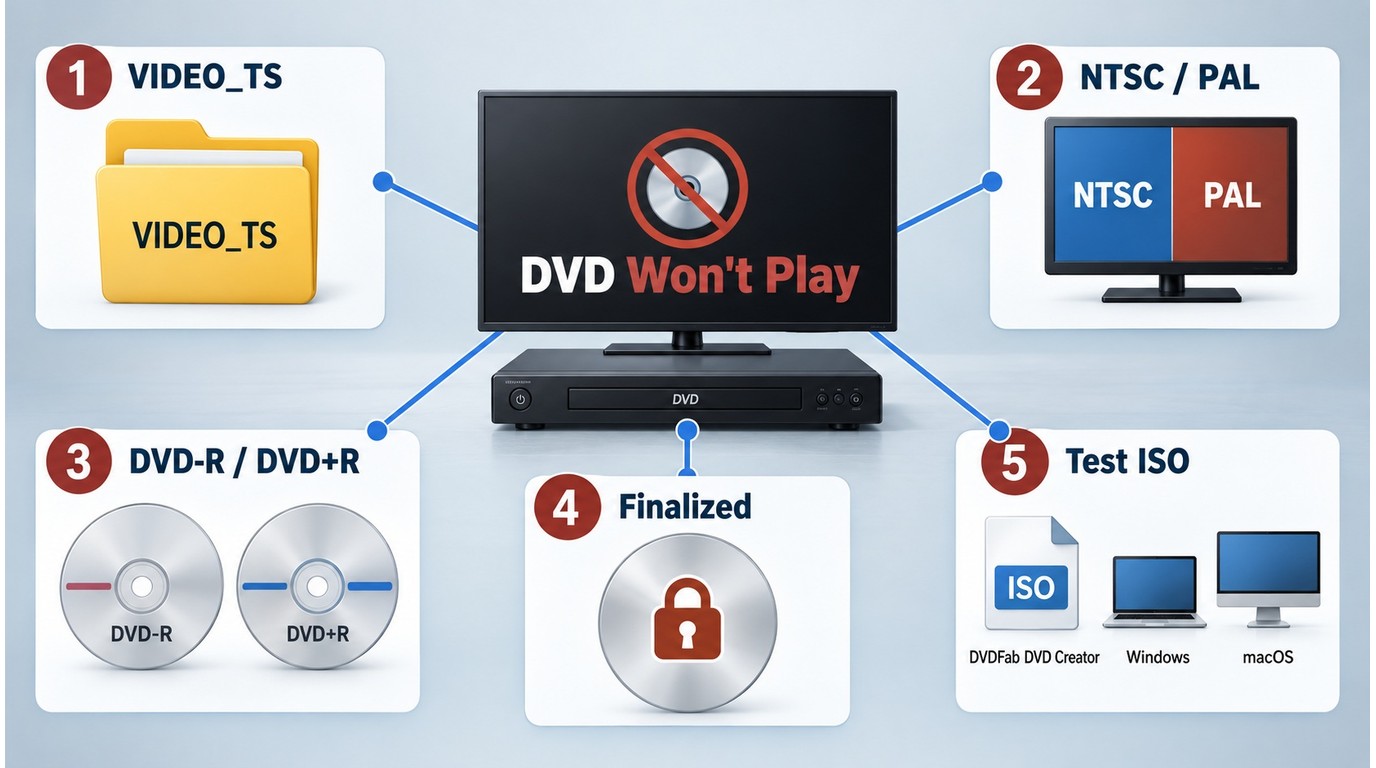
WMV DVD player compatibility depends on the authored structure, TV standard, blank media, finalization, and the player itself. Check these points before converting the source again.
- Confirm DVD-Video: the disc should contain a VIDEO_TS structure, not a copied WMV file.
- Use the US standard: choose NTSC for typical players sold in the United States.
- Match the media: confirm that the player reads the DVD-R or DVD+R type you selected.
- Finalize the disc: an open recording session may not load in a standalone player.
- Check the hardware: use a compatible blank disc and a drive that supports writing that media.
- Test an ISO: mount or preview the ISO before writing another blank disc.
I test the ISO first because it separates authoring errors from problems with the blank media, burner, or player. If the ISO has working titles and navigation but the disc fails, focus on media compatibility, finalization, and the optical drive.
Frequently Asked Questions
Can I burn WMV to DVD for free on Windows 11?
Yes, but Windows 11 has no built-in DVD-Video authoring app. Use a free authoring program that explicitly creates DVD-Video, or use DVDFab DVD Creator's 30-day trial, which has no video-length cap.
Will converting an HD WMV file reduce its quality?
Yes. US DVD-Video uses 720×480 output, so 720p or 1080p WMV footage is downscaled. Bitrate and DVD-5 versus DVD-9 capacity affect the result. Keep the original WMV as the HD master.
Can VLC create a DVD that plays in a DVD player?
VLC can play and convert video, but it does not provide a complete DVD-Video authoring and disc-burning process with VIDEO_TS navigation, menus, and final writing.
Is it legal to burn personal WMV videos to DVD?
Authoring video you created or are authorized to use is generally legitimate. Do not copy or distribute material without permission, and follow the laws that apply where you live.
Conclusion
The best WMV to DVD method is the one that produces the result you actually need. Use an end-to-end desktop authoring app for a playable disc with menus, chapters, and ISO or folder output. Use online conversion for a small, non-sensitive file when another authoring tool is already available.
DVDFab DVD Creator covers the complete Windows and Mac job, but it is unnecessary for someone who only wants a tiny file converted in a browser. Treat Windows DVD Maker as a legacy option for an older PC, not as a current Windows 11 solution.

 How to Convert MP4 to DVD Format for Free on Windows, Mac & OnlineBy Diana Smith - Sep 8, 2026
 How to Burn DVD with Subtitles: Add SRT/ASS or Hardcode CaptionsBy Diana Smith - Sep 3, 2026
![18 Best Free DVD Burner Software for Windows [2026 Review]](https://images.dvdfab.cn/media/Best_Free_DVD_Burner_Software_for_Windows_16sgci.png/public) 18 Best Free DVD Burner Software for Windows [2026 Review]By Diana Smith - Sep 3, 2026
18 Best Free DVD Burner Software for Windows [2026 Review]By Diana Smith - Sep 3, 2026![How to Convert MTS/M2TS Files to DVD: Tested 2 Methods [2026]](https://images.dvdfab.cn/media/How_to_Convert_MTS_and_M2TS_Files_to_DVD_phce29.png/public) How to Convert MTS/M2TS Files to DVD: Tested 2 Methods [2026]By Wenny Yan - Aug 31, 2026
How to Convert MTS/M2TS Files to DVD: Tested 2 Methods [2026]By Wenny Yan - Aug 31, 2026