How to Convert MTS/M2TS Files to DVD: Tested 2 Methods [2026]

Summary: Converting MTS/M2TS files to DVD involves using burning software to convert the high-definition AVCHD format into standard definition DVD format while creating a playable disc menu. Popular tools include DVDFab DVD Creator for high-speed, customized burning and Convertio for quick, browser-based VOB transcoding.
Table of Contents
Raw MTS and M2TS files from an AVCHD camcorder are not standard DVD-Video. To play them on a conventional DVD player, the video needs to be converted to DVD-compatible MPEG-2 and authored into a VIDEO_TS structure with VOB, IFO, and BUP files.
Using AVCHD footage from a Sony Handycam, I tested two ways to convert MTS and M2TS to DVD: DVDFab DVD Creator to burn a playable DVD directly, and Convertio to convert the source files to VOB. The following sections show the steps and the differences between the two methods.
What MTS and M2TS Files Contain
MTS and M2TS are high-definition video container formats based on the AVCHD (Advanced Video Coding High Definition) standard.
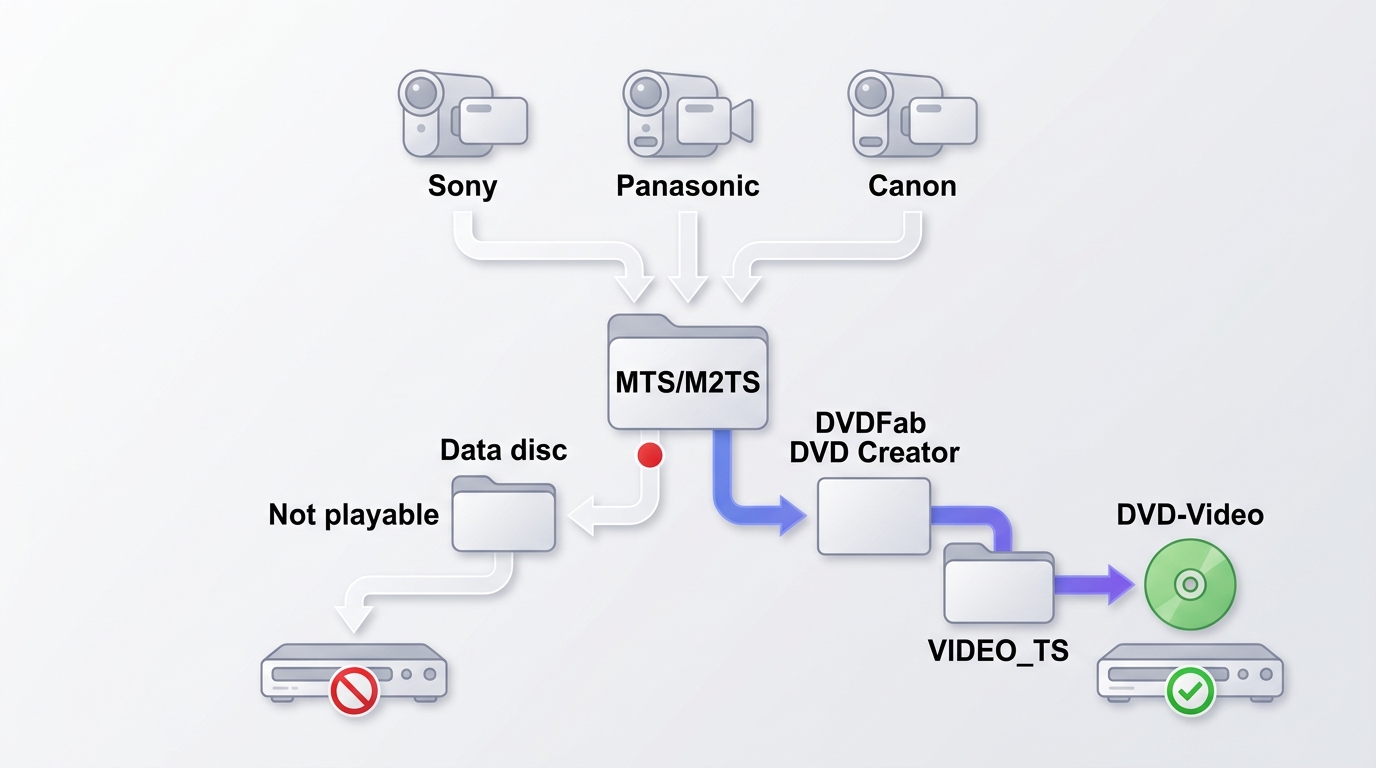
- MTS: This is the file extension used on the raw storage of AVCHD camcorders (like Sony, Panasonic, and Canon). It is the format used when the video is still on the camera's memory card.
- M2TS: This is the extension used for the same video once it is transferred to a computer or stored on Blu-ray discs.
Both formats use the BDAV (Blu-ray Disc Audio-Video) container and encode video in H.264/MPEG-4 AVC with audio in Dolby Digital (AC-3). Playing these files on a home DVD player requires two steps: transcoding the H.264 video to MPEG-2, then authoring the result into a DVD-Video structure. That structure is a VIDEO_TS folder containing VOB, IFO, and BUP files. Without both steps completed, the player cannot navigate or play the disc.
Convert MTS/M2TS Files to DVD with DVDFab DVD Creator
DVDFab DVD Creator converts MTS and M2TS files to standard DVD-5 or DVD-9 discs, ISO images, or VIDEO_TS folders. It supports over 200 input formats and outputs MPEG-2 streams at a bitrate you can configure, which is the primary way to manage quality after the mandatory resolution downscale from HD source material. The resulting disc plays on any standard standalone DVD player.
The menu system includes templates across several visual themes. Each template lets you customize background art, chapter thumbnails, text fonts, and navigation buttons. A built-in video editor handles trimming, cropping, rotation, color adjustment, subtitles, and watermarks before the burn. For batch projects, you can import an entire folder of MTS or M2TS clips and either assign them to separate titles or merge them into one continuous program on the disc.
Encoding speed scales with available GPU hardware. Supported acceleration APIs include NVIDIA CUDA and Intel Quick Sync. The software selects the appropriate method automatically based on your system configuration.
Supported OS:
Free Download Windows 11/10/8.1/8/7
Free Download macOS 12 and newer
Key Features:
- Convert MTS and M2TS files into standard DVD-Video structures playable on standalone DVD players.
- Accept MP4, MKV, AVI, and over 200 other video formats alongside AVCHD source files.
- Offer customizable menu templates with background art, chapter thumbnails, and navigation button settings.
- Support NVIDIA CUDA and Intel Quick Sync for faster transcoding on compatible hardware.
- Include a built-in video editor for trimming, subtitles, color correction, and watermarks.
- Allow batch import of multiple MTS or M2TS clips into a single disc project with separate titles.
Step 1: Launch DVDFab and load your MTS/M2TS videos
Open DVDFab and select the DVD Creator module. Import your AVCHD footage by clicking the Add button, or drag multiple MTS/M2TS clips directly into the project area. To burn several clips in one session, select all source files during import. DVDFab adds each clip as a separate title within the same disc project, which you can reorder before burning.
Step 2: Customize and edit your disc
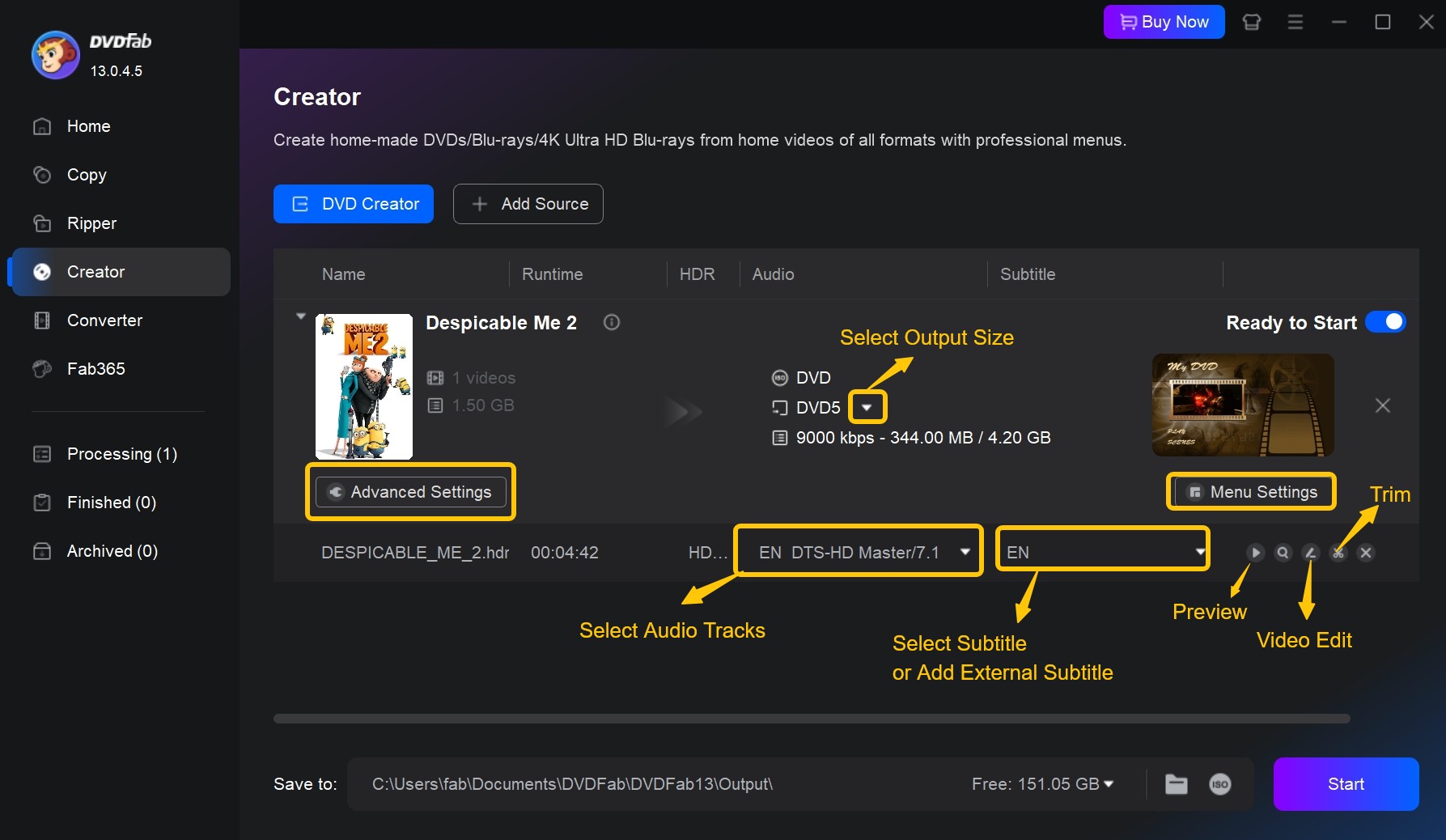
Click Menu Settings to select a template and adjust elements including background art, chapter thumbnails, text font, color, size, and navigation buttons such as Play, Pause, Previous, and Next.

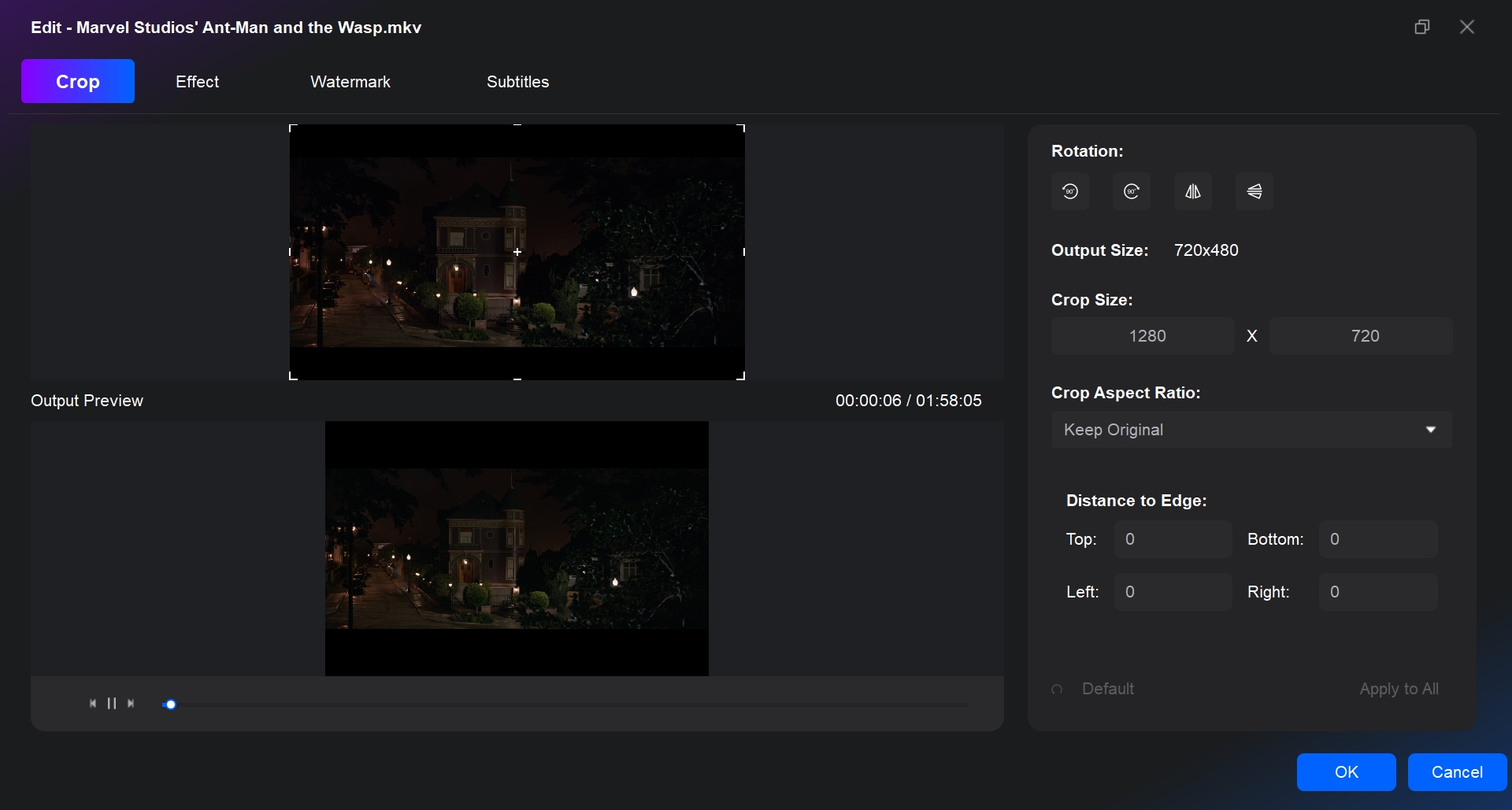
Then use the built-in video editor to trim unwanted footage, add watermarks or subtitles, apply video effects, and edit chapter markers.
Step 3: Adjust the output settings
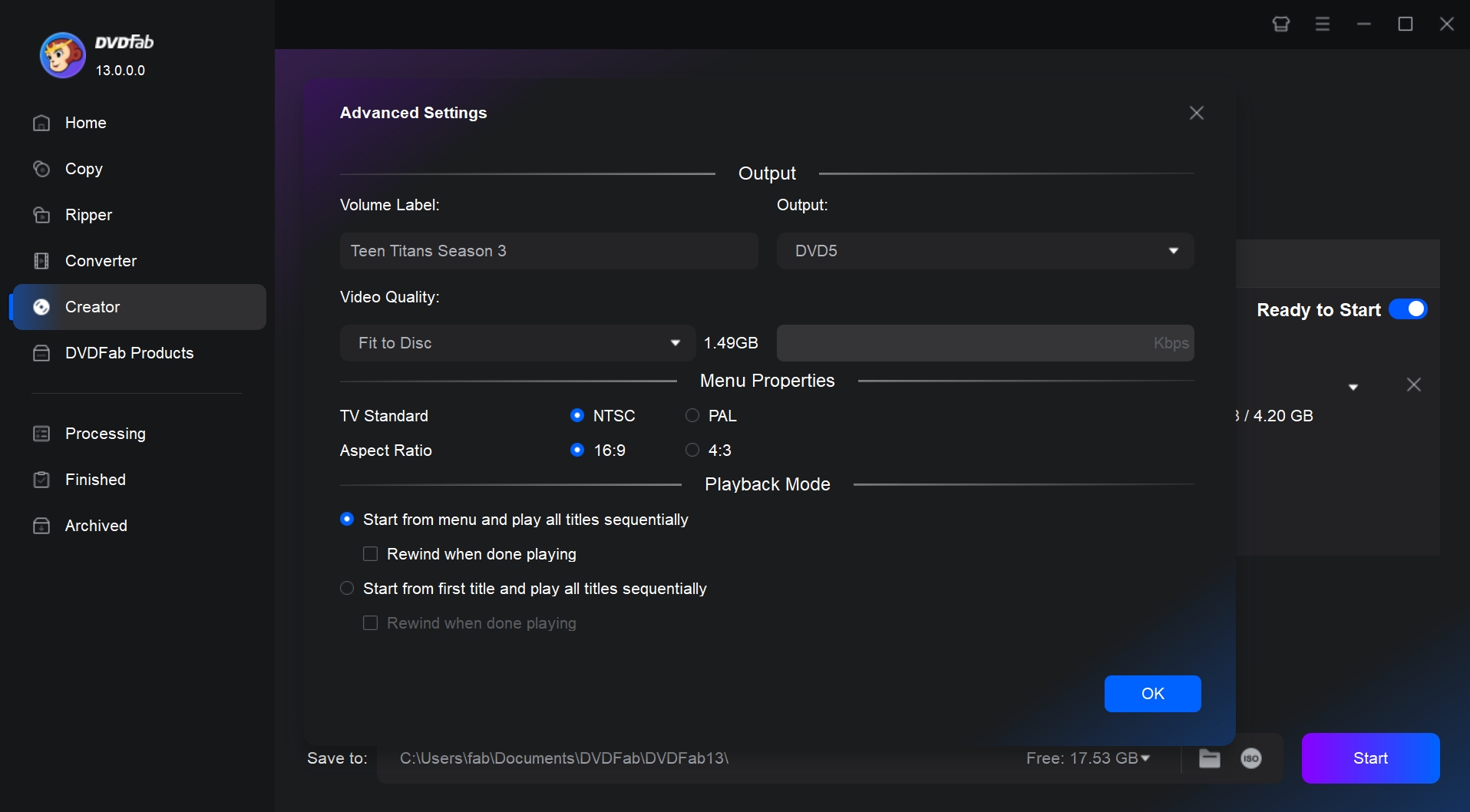
Click Advanced Settings to configure the technical parameters. Set the aspect ratio to 16:9 for widescreen or 4:3 for standard, and select the television standard: NTSC for the US and Japan, PAL for Europe and most other regions. You can also set the output disc size (DVD-5 or DVD-9) and adjust the target video bitrate.
Step 4: Insert a blank DVD and start burning
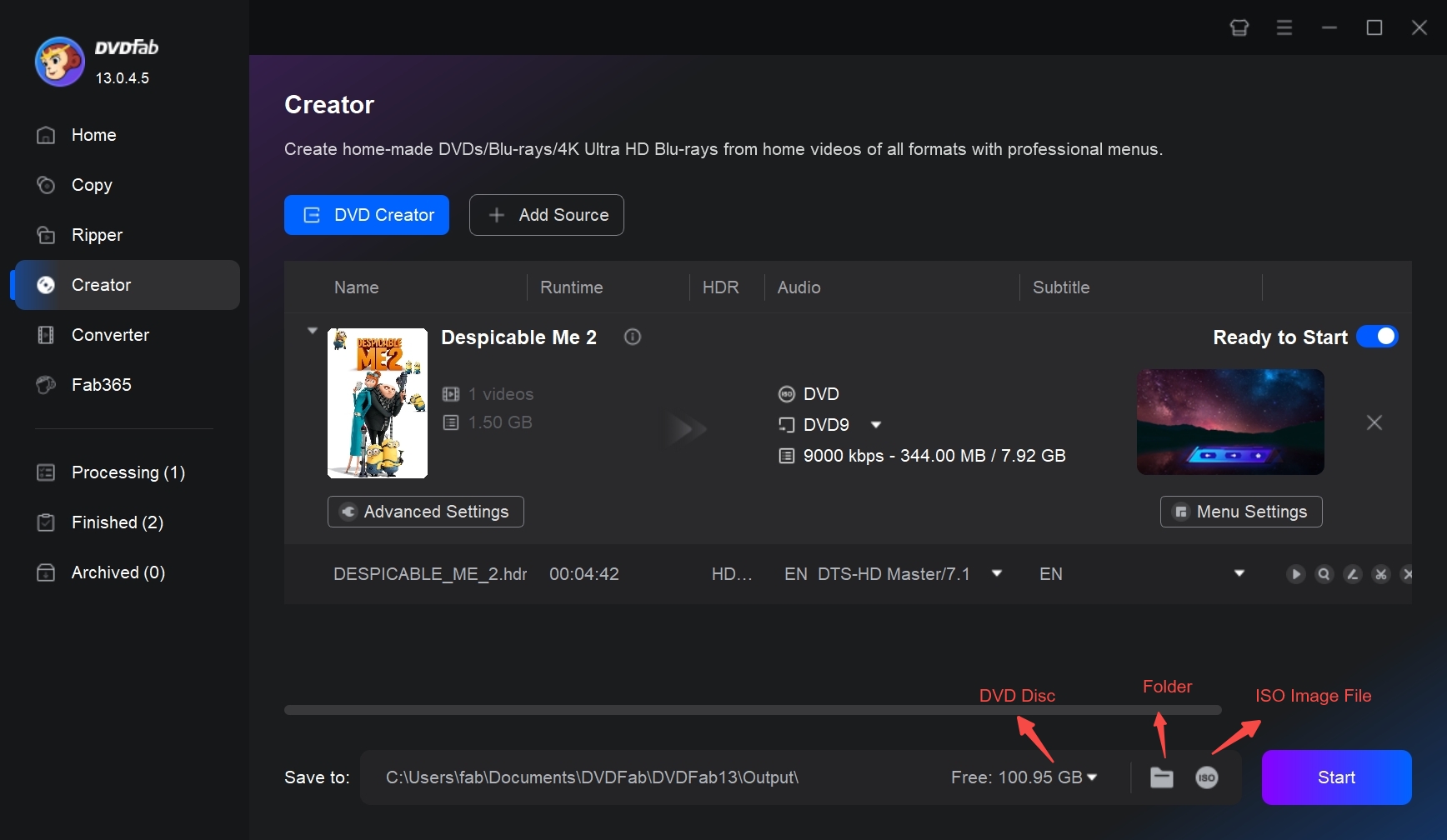
Insert a blank DVD disc and click Start to begin. DVDFab displays real-time progress through the transcoding and disc-writing stages. When complete, the disc is ready for playback on any standard DVD player.
Convert MTS/M2TS Files to DVD (VOB) Online with Convertio
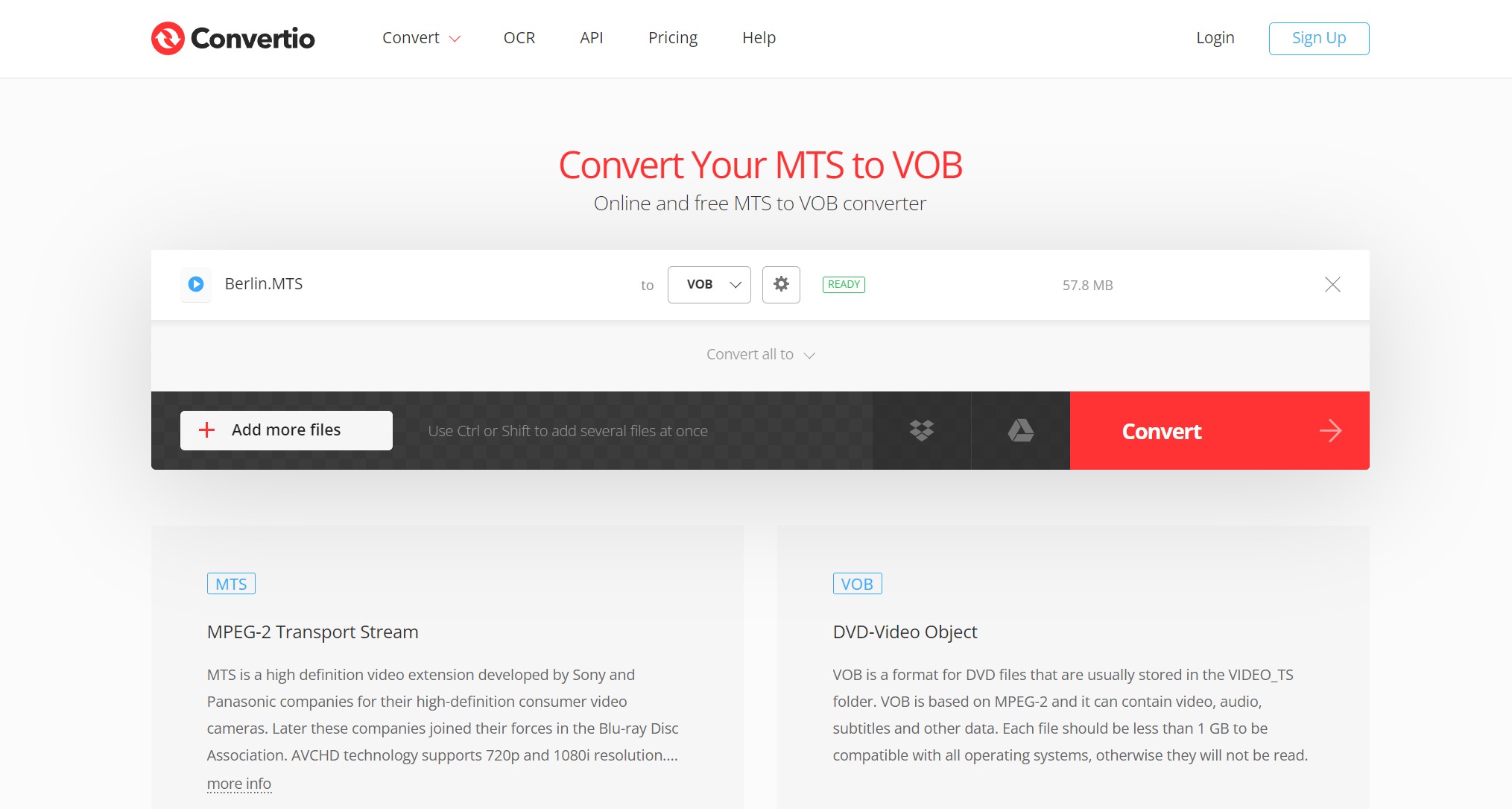
Convertio is a browser-based converter that can transform MTS or M2TS files into VOB without requiring any installed software. Source files can be uploaded from a local drive, Google Drive, or Dropbox, and the conversion is processed on Convertio’s servers. With the free tier limited to 100 MB per file, I would mainly use it for one-off conversions of short clips when desktop software is not available.
One detail to understand before using it is that Convertio creates a VOB file rather than a complete DVD-Video structure. A standalone VOB file is not the same as an authored DVD-Video disc and cannot be assumed to play normally on every DVD player. To create a standard playable DVD, you still need DVD authoring software to build the VIDEO_TS structure and write it to disc. Convertio covers the video conversion step only.
In my testing, the free tier processed short MTS clips without problems, but several high-bitrate AVCHD files from a modern camcorder exceeded the 100 MB per-file limit and required a paid plan for larger uploads. Convertio states that input and temporary files are deleted after conversion, while converted output files remain available for up to 24 hours. This server-based processing is still worth considering when the source contains personal or family recordings.
Key Features:
- Convert MTS and M2TS files to VOB format directly in a web browser, with no local installation needed.
- Accept source files from local storage, Google Drive, or Dropbox for cloud-based processing.
Worth noting:
- The free plan limits uploads to 100 MB per file; high-bitrate AVCHD footage often exceeds this and requires a paid plan.
- Output is a standalone VOB file, not a complete VIDEO_TS disc structure; additional authoring software is required to produce a disc that plays in a DVD player.
- Uploaded files are stored on Convertio's servers for up to 24 hours before deletion, which is a consideration for private or family recordings.
How to Convert MTS/M2TS to VOB with Convertio
Step 1: Go to the Convertio website and click Choose Files to upload your MTS or M2TS source file.
Step 2: Open the format selector and choose VOB under the video category.
Step 3: Click the Settings icon to configure the codec, aspect ratio, and frame rate before converting.
Step 4: Click Convert. Once the status shows Finished, click Download to save the VOB file to your local storage.
DVDFab vs Convertio: Which Should You Use?
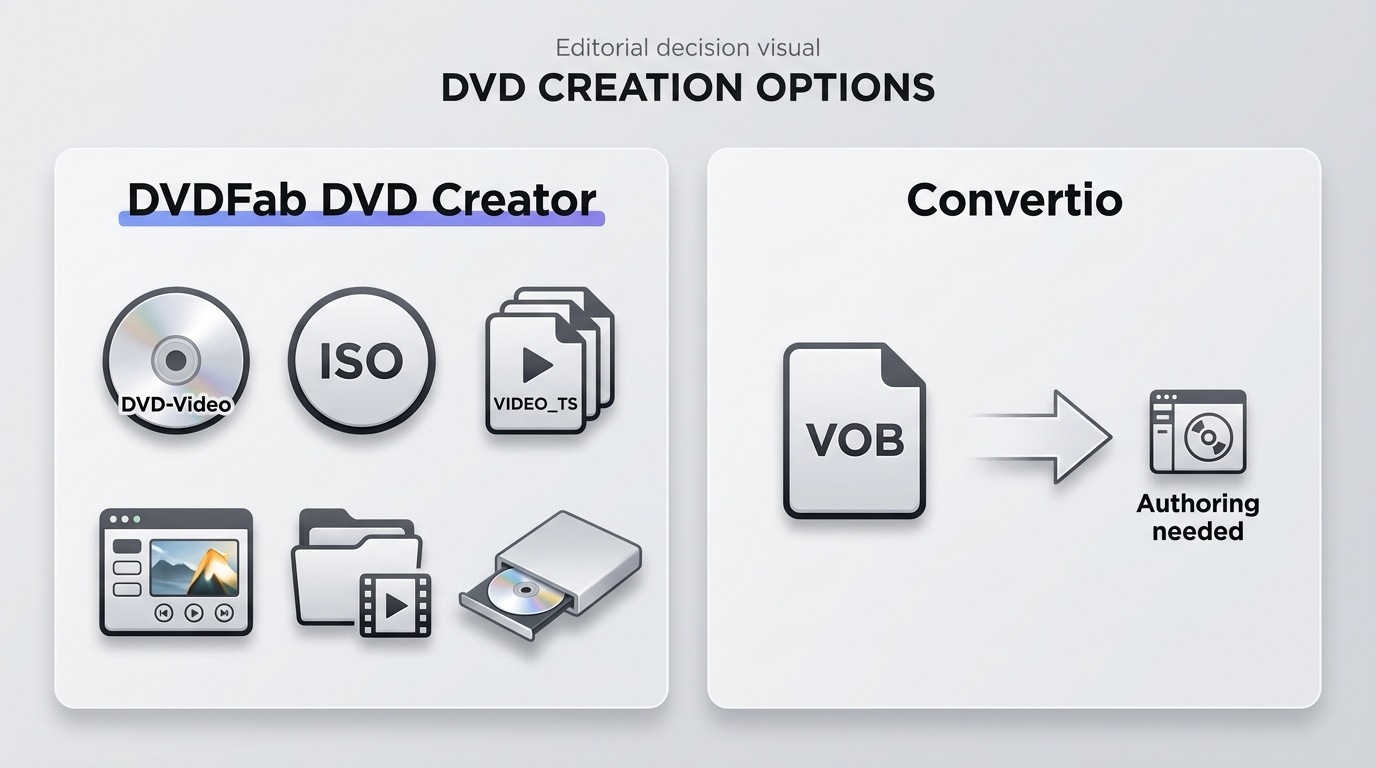
Both tools can help prepare MTS or M2TS footage for DVD use, but they do different jobs. DVDFab DVD Creator converts the source video, creates the DVD-Video structure, and can burn the finished project to disc or save it as an ISO or folder. Convertio only converts MTS or M2TS to a VOB file, so you still need separate DVD authoring software to create a playable DVD.
| Tool | Output and playback | Menus and editing | Upload and privacy | Best fit |
| DVDFab DVD Creator | DVD, ISO, or VIDEO_TS; playable after authoring and burning | Menu templates and basic video editing | Local files; no upload required | Multi-clip projects and finished discs |
| Convertio | Intermediate VOB file; not a complete DVD-Video disc | No DVD authoring | Upload required; 100 MB per-file limit | Short, one-off VOB conversions |
FAQs
Can I play raw MTS or M2TS files directly on a standalone DVD player?
No. Standard DVD players read a UDF 2.00 file system containing a VIDEO_TS folder with VOB, IFO, and BUP files. Raw MTS/M2TS files are MPEG-4/H.264 transport streams without the navigation metadata that DVD players require. They must be transcoded to MPEG-2 and authored into a compliant disc structure before any standard DVD player can recognize and play them.
Does converting MTS to DVD result in a loss of video quality?
Yes. MTS/M2TS files typically use 1080i or 1080p resolution, but the DVD-Video specification is limited to 480i (NTSC) or 576i (PAL). The conversion always involves a resolution downscale. To reduce visible artifacts, set the target bitrate as high as the disc type allows (up to about 9.8 Mbps for DVD-5), and set the aspect ratio to 16:9 to avoid letterboxing on widescreen displays.
How do I burn MTS/M2TS files to a Blu-ray disc to keep the original resolution?
DVD does not support high-definition video. If maintaining the original 1080p resolution is a requirement, you need Blu-ray authoring software. DVDFab Blu-ray Creator burns MTS and M2TS files directly to BD-25, BD-50, or BDXL discs without downscaling the source, preserving the full HD quality of your AVCHD recordings.
How do I convert multiple MTS files to a single DVD at once?
DVDFab DVD Creator supports batch import. Select all your MTS or M2TS files during the initial import step and the software adds them as separate titles within one disc project. You can reorder the clips, trim individual segments, and arrange chapter markers before burning. Convertio processes one file per conversion and does not support disc authoring or batch title creation.
Conclusion
Converting MTS or M2TS files to a playable DVD requires both format transcoding and disc authoring in sequence. Use DVDFab DVD Creator when you want a finished disc, ISO, or VIDEO_TS folder with menus. Use Convertio only when an intermediate VOB file and separate authoring software meet your needs.
My rule for camcorder projects is simple: choose DVD for standard-player compatibility, but choose Blu-ray when keeping HD resolution matters more. Before burning, match the disc size, TV format, and aspect ratio to the player and display you plan to use.

 How to Convert WMV to DVD: 3 Methods for Windows and MacBy Wenny Yan - Sep 16, 2026
 How to Convert MP4 to DVD Format for Free on Windows, Mac & OnlineBy Diana Smith - Sep 8, 2026
 How to Burn DVD with Subtitles: Add SRT/ASS or Hardcode CaptionsBy Diana Smith - Sep 3, 2026
![18 Best Free DVD Burner Software for Windows [2026 Review]](https://images.dvdfab.cn/media/Best_Free_DVD_Burner_Software_for_Windows_16sgci.png/public) 18 Best Free DVD Burner Software for Windows [2026 Review]By Diana Smith - Sep 3, 2026
18 Best Free DVD Burner Software for Windows [2026 Review]By Diana Smith - Sep 3, 2026