Convert Video to DVD: 5 Free & Paid Video to DVD Converters [2026]

Summary: Converting video to DVD involves a platform decision, an input format fit, and for some users an installation safety check. This article tests five DVD creation tools across Windows and macOS, covering free and paid options. For most Windows users with standard files, Free Video to DVD Converter handles the task at no cost. DVDFab DVD Creator covers the full range for cross-platform and GPU-accelerated needs. A separate section addresses three professional tape-to-DVD services.
Table of Contents
![Convert Video to DVD: 5 Free & Paid Video to DVD Converters [2026]](https://images.dvdfab.cn/media/convert_vidoe_to_dvd_dza0f3.png/public)
To get a home video onto a disc that plays in a TV DVD player, use DVD-authoring software rather than a basic file burner. Local video files can be authored directly; analog tapes need capture first, while an existing DVD requires a separate copying or ripping tool.
This comparison covers five current desktop applications, including free and commercial options, along with the existing authoring steps and transfer services for physical media. Standard DVD-Video is limited to standard definition, so 1080p and 4K sources are downscaled during authoring.
Best Video to DVD Converter Software
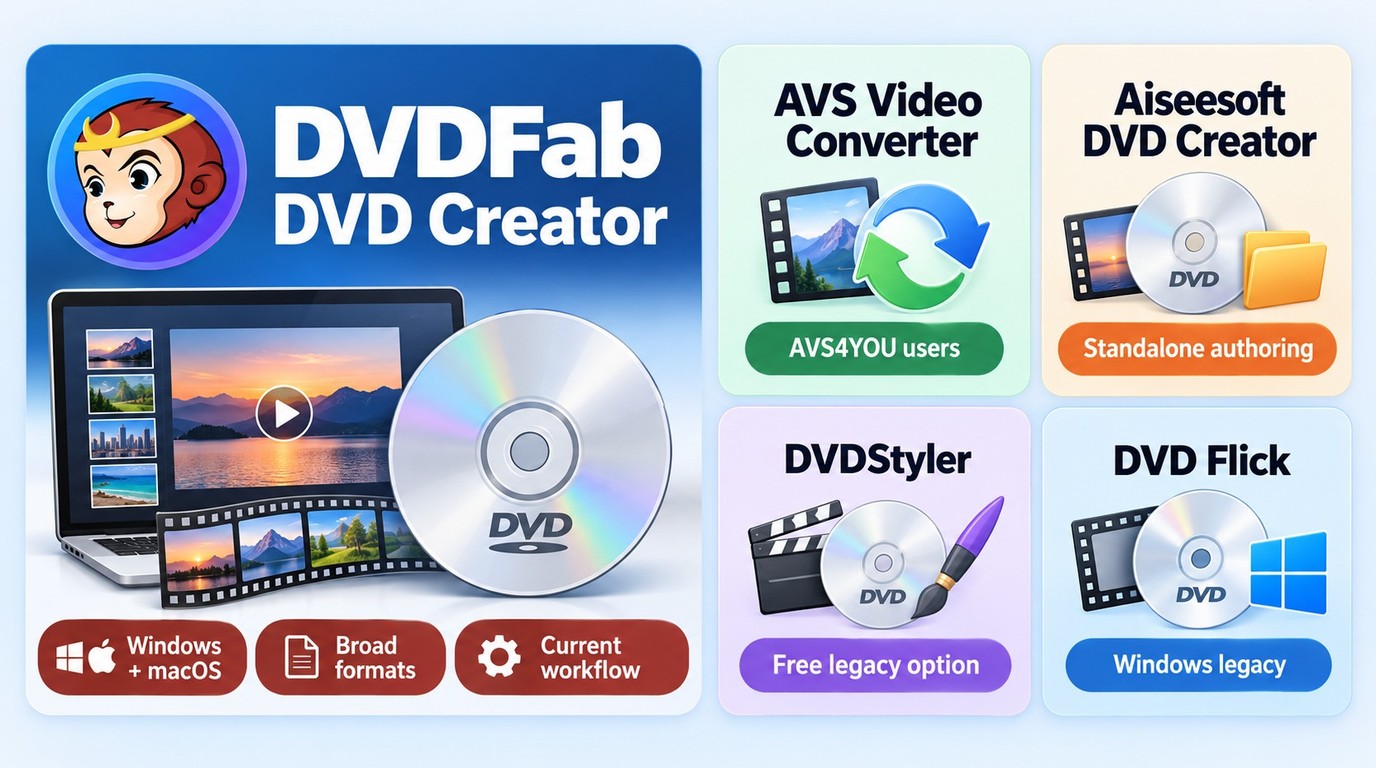
To create a DVD that plays in a standalone DVD player, the software must author a DVD-Video structure rather than simply copy the source MP4, MOV, or MKV file to a blank disc. The options below include current free, open-source, trial, and paid DVD-authoring software.
| Software | Free Status | Platform | Video Input | DVD Menu | Video Editing | Output | Main Limitation |
|---|---|---|---|---|---|---|---|
| DVDFab DVD Creator | 30-day evaluation; paid license | Windows 11/10 64-bit; macOS 12+ | 200+ video formats | Yes | Trim, crop, rotate, watermark, filters, subtitle editing, brightness/contrast | DVD disc, ISO, VIDEO_TS | Full features require a paid license after the trial |
| DVDStyler | Free, open source | Windows, macOS 10.15+, Linux | Common video formats | Yes | Limited; mainly DVD authoring, chapters, subtitles, and menu design | DVD-Video | Stable release 3.2.1 is older than the commercial tools here |
| AVS Video Converter | Paid AVS4YOU suite | Windows, including Windows 11 | 150+ formats | Yes | Trim/delete scenes, video/audio effects, transformations | DVD authoring and disc burning | No macOS version |
| Freemake Video Converter | Free; branding on free output | Windows | 500+ formats | Yes | Basic; cut, rotate, and join clips | DVD disc, ISO, DVD folder | Free output includes the Freemake logo |
| Aiseesoft DVD Creator | Trial; paid license | Windows; macOS 10.12+ | Common video formats | Yes | Trim, crop, watermark, brightness/saturation/contrast | DVD disc, ISO, VIDEO_TS folder | Paid product |
- Windows PC, broad format needs: DVDFab DVD Creator handles the widest range of input containers (200+) with GPU acceleration and runs on both Windows and macOS. For users who regularly work with MKV, FLV, or less common containers, it removes the need to pre-convert files before burning.
- Windows PC, simple files only: Free Video to DVD Converter from DVDVideoSoft covers AVI, MP4, WMV, MOV, and MPG without cost and without bundled software history. For standard files, it gets the job done in five steps.
- Mac users: DVDFab or Aiseesoft are the two options in this article that support macOS. Aiseesoft also handles direct import from connected iOS devices and camcorders.
1. DVDFab DVD Creator
DVDFab DVD Creator authors locally stored video files as DVD discs, ISO images, or VIDEO_TS folders. The built-in editor handles pre-burn adjustments without requiring a separate application for trimming or color correction before import. Its menu editor supports customizable templates, backgrounds, text, buttons, and chapters. Metadata synchronization and .nfo output can also help organize ISO and folder archives in PlayerFab or Kodi.
Key features
- Converts 200+ video formats to DVD disc, ISO, or VIDEO_TS folder on Windows and macOS
- GPU-accelerated encoding reduces conversion time significantly on compatible NVIDIA, AMD, and Intel hardware
- DVD menu creation with customizable templates, background images, text styling, and chapter configuration
- Audio track and subtitle selection per title, with external subtitle file import before burning
- Built-in editor handles trim, crop, color adjustment, rotate, and watermark addition in one workflow
- Supports all DVD disc types including DVD+R/RW, DVD-R/RW, DVD+R DL, and DVD-R DL
Worth noting
- A 30-day evaluation is available with feature limits
How to Convert Video to DVD with DVDFab DVD Creator
Step 1: Download and launch DVDFab 13, then load your video source
Free Download Windows 11/10/8.1/8/7
Free Download macOS 12 or newer
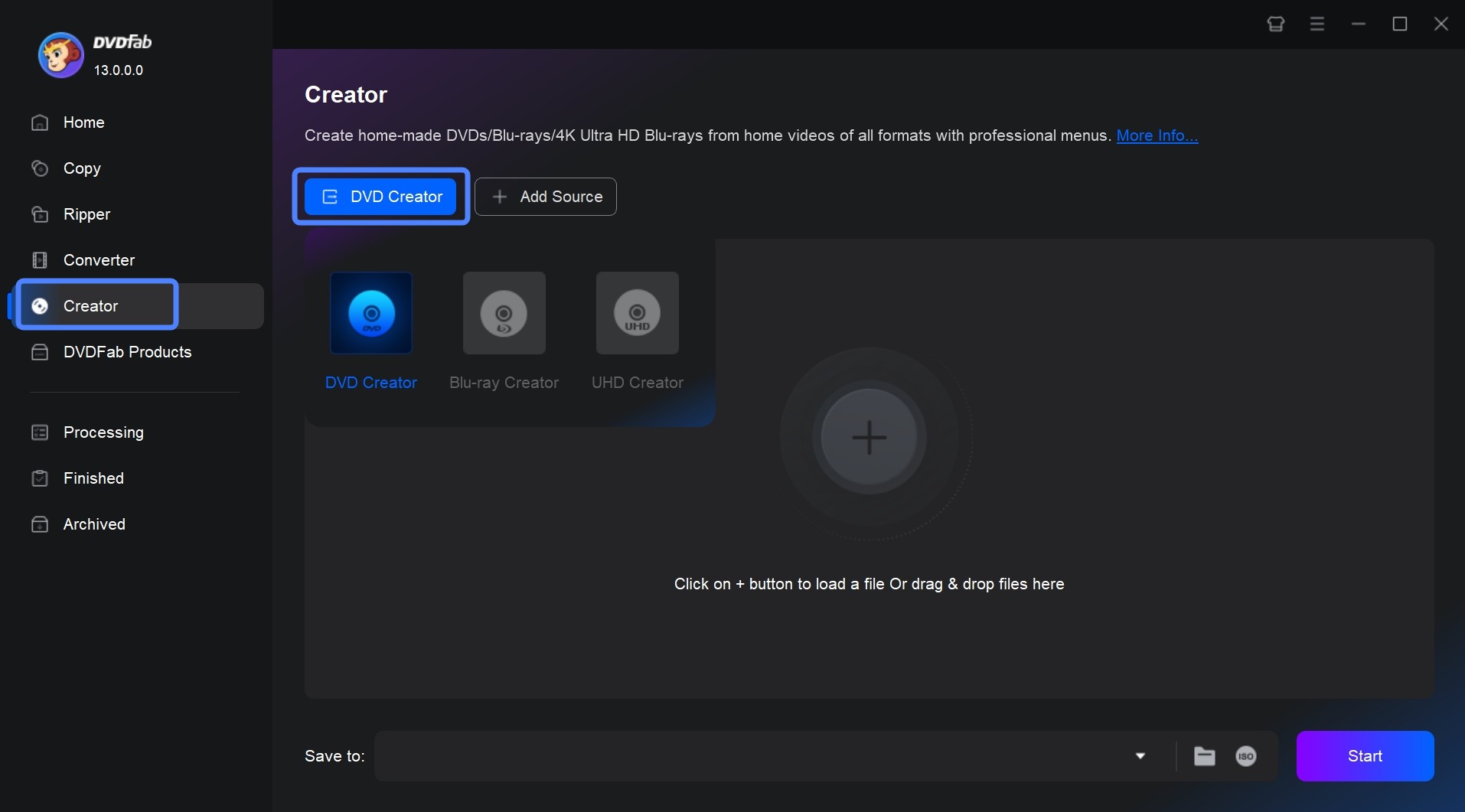
After installation, open DVDFab 13 and select "Creator - DVD Creator" from the module selection screen. Load a locally stored source file by dragging it onto the main interface or using the file browser; the same authoring process can prepare an M4V video for DVD.
Step 2: Configure disc settings, menu, and optional video edits
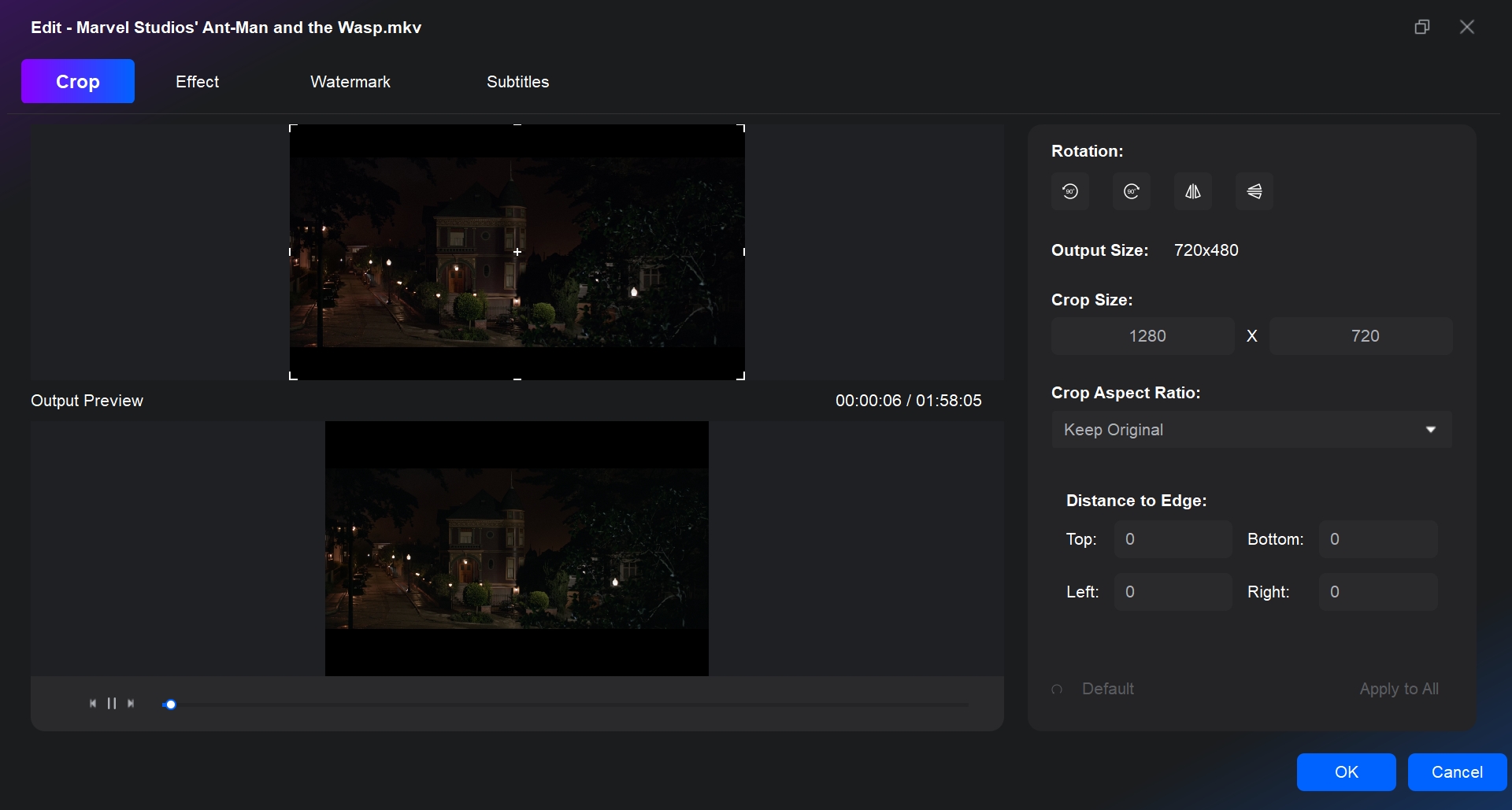
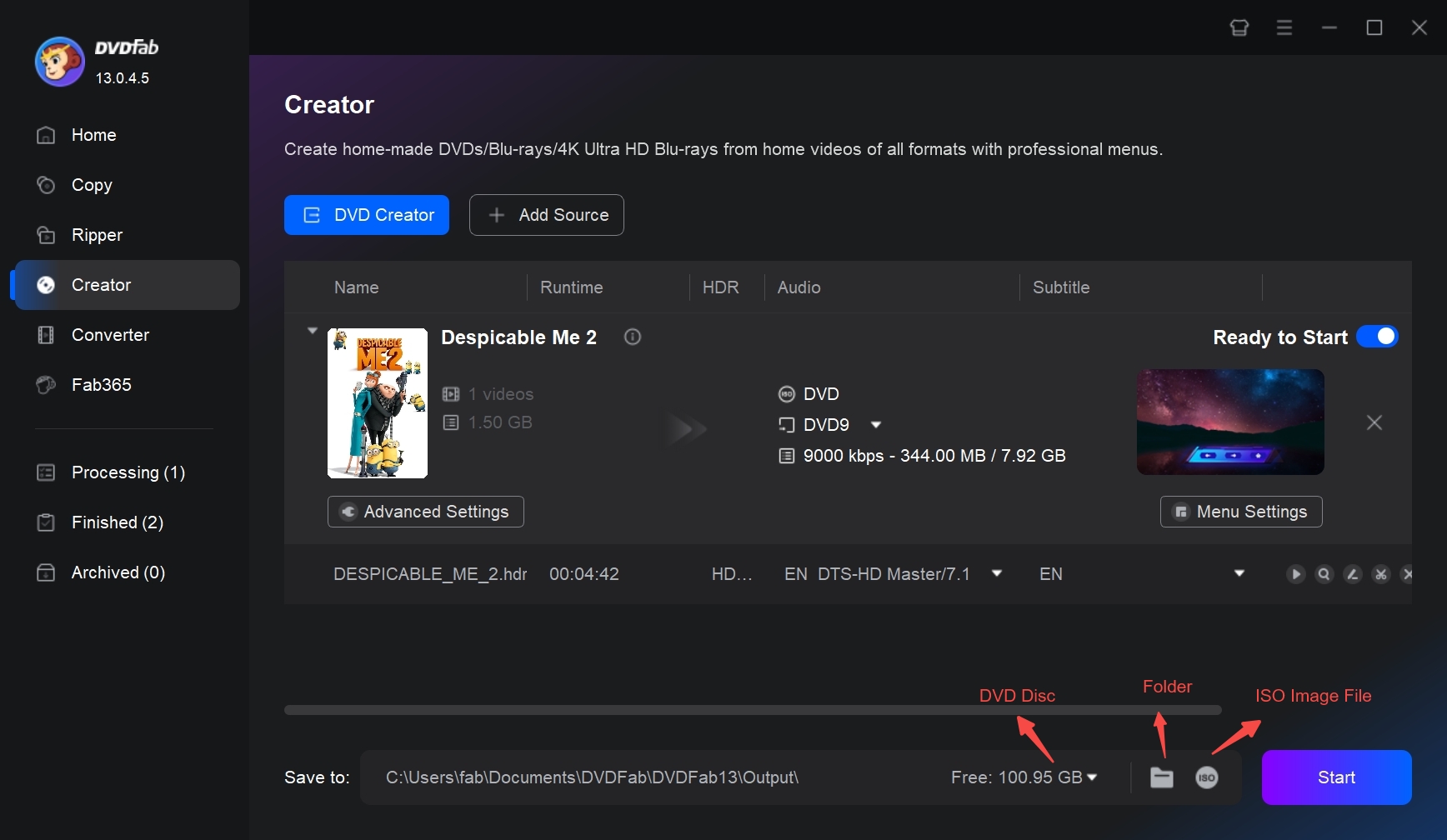
With the source file loaded, select audio tracks and subtitles in the main panel; add external subtitle files if needed. Open "Advanced Settings" to choose disc size (DVD-5 at 4.7 GB or DVD-9 at 8.5 GB), TV standard (NTSC for US playback, PAL for Europe), aspect ratio, and playback mode. Use "Menu Setting" to create DVD menu, customize the template, background, and button layout. Preview the menu navigation and subtitle tracks before starting the output task.
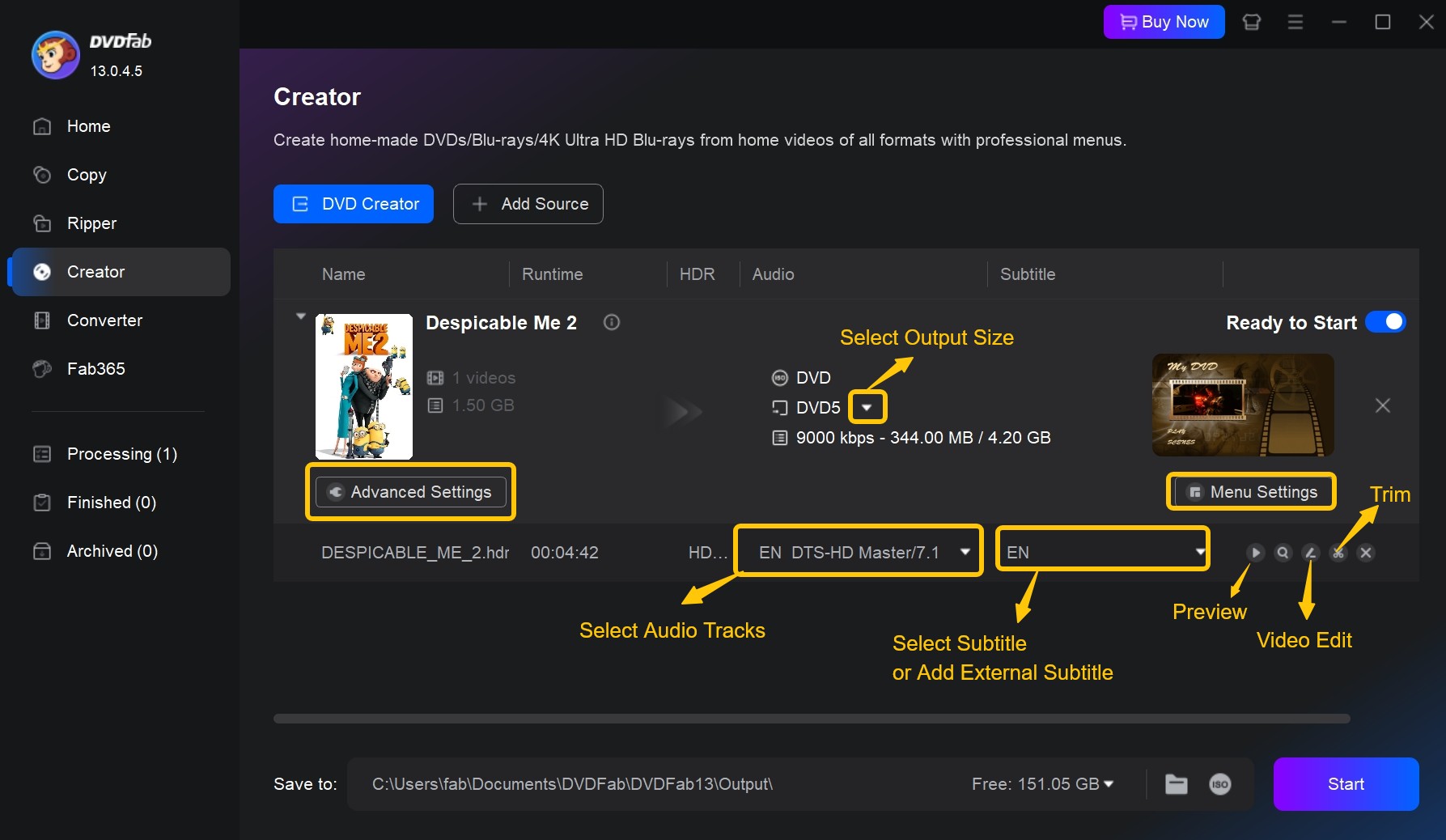
The built-in "Video Edit" and "Trim" modules let you cut segments, adjust colors, rotate, crop, or add watermarks before the final burn.
Step 3: Choose the output and start authoring
Insert a compatible blank DVD if you want a physical disc. Otherwise, select ISO or VIDEO_TS output for storage or later burning. Click "Start," confirm that recording or file creation completes, and play the result on the DVD player or software you intend to use.
Create DVDs only from home videos or other content you own or are authorized to use. Follow applicable law and platform terms, and do not redistribute copyrighted material without permission.
2. DVDStyler – Free Open-Source Video to DVD Converter
DVDStyler is a free, open-source DVD authoring program for Windows, macOS, and Linux. It can turn common video files into a playable DVD-Video project with interactive menus, chapters, subtitles, multiple audio tracks, and custom backgrounds. The current stable release is version 3.2.1, and the Mac installer requires macOS 10.15 or later.
DVDStyler creates the DVD structure required by standalone DVD players, so it is a useful free option when you need menu-based DVD authoring rather than a simple data disc. Preview the menu and test the finished disc on the player where it will be used.
Key features
- Creates and burns DVD-Video with interactive menus
- Supports custom menu layouts, background images, buttons, text, and chapter navigation
- Adds multiple subtitle and audio tracks to a DVD project
- Imports common formats including AVI, MOV, MP4, MPEG, OGG, WMV, and VOB
- Supports DVD-5/DVD-9 projects, NTSC/PAL settings, photo slideshows, and multiple titlesets
- Can use compatible MPEG and VOB files without re-encoding
Worth noting
- DVDStyler focuses on DVD authoring and menu design; advanced pre-burn video editing may require a separate editor
- Stable version 3.2.1 was released in November 2021, although downloads remain available for Windows, macOS, and Linux
How to Convert Video to DVD with DVDStyler
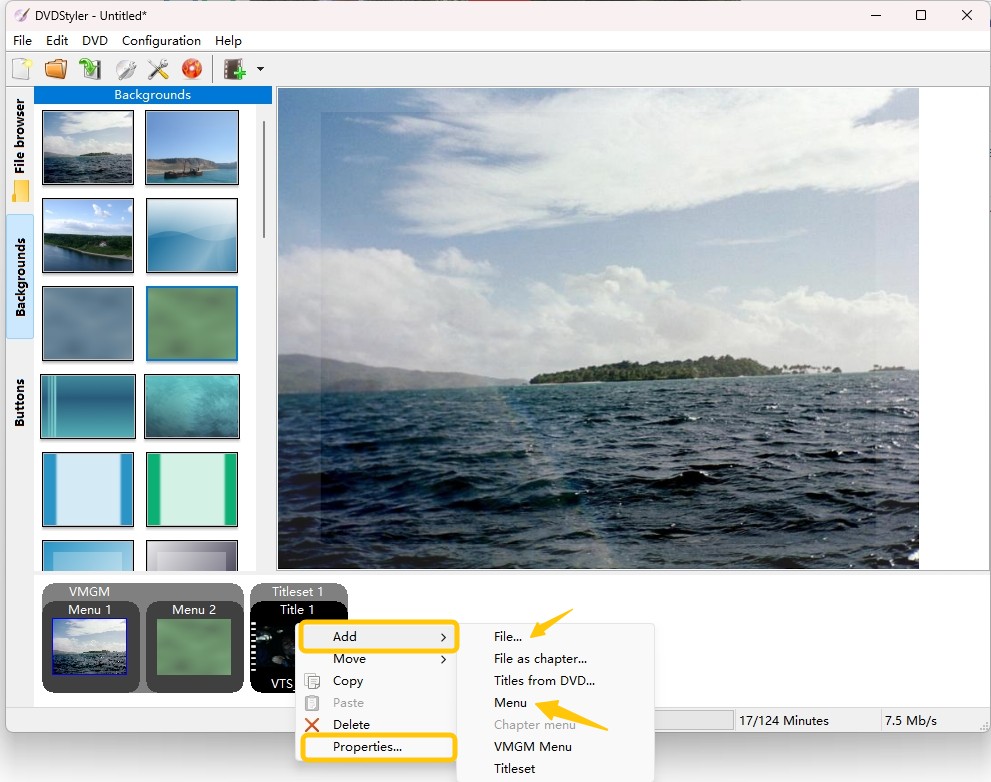
Step 1: Start a new DVD project, choose NTSC or PAL, select the disc capacity and aspect ratio, and add your video files.
Step 2: Choose a menu template or create a custom menu with titles, buttons, background images, and chapter links. Add the required audio and subtitle tracks before authoring.
Step 3: Preview the project, then create the DVD output or burn it to compatible blank media. Test the finished disc on the DVD player where it will be used.
3. AVS Video Converter
AVS4YOU offers one-year and unlimited suite plans. AVS Video Converter supports DVD authoring on Windows, including Windows 11. For readers who already use other AVS4YOU utilities, it keeps video conversion, menu authoring, and disc writing within the same suite.
Key features
- Converts from 150+ input formats to DVD disc or Blu-ray with integrated menu template selection
- GPU-based hardware acceleration available for compatible graphics cards on Windows
- Batch conversion processes multiple files simultaneously without pausing between jobs
- Direct upload option sends completed conversions to YouTube, Facebook, or Vimeo after export
Worth noting
- No macOS version is available
- Free version adds a watermark to output; watermark removal requires an active AVS4YOU subscription
- Technical forum users have reported inconsistent performance on large files
How to Convert Video to DVD with AVS Video Converter
Step 1: Download and install AVS Video Converter. Launch the software and click "Browse" to select the source video file.
Step 2: Click the "To DVD" button and choose a conversion profile. Set the output file path using the field next to "Output File Name."
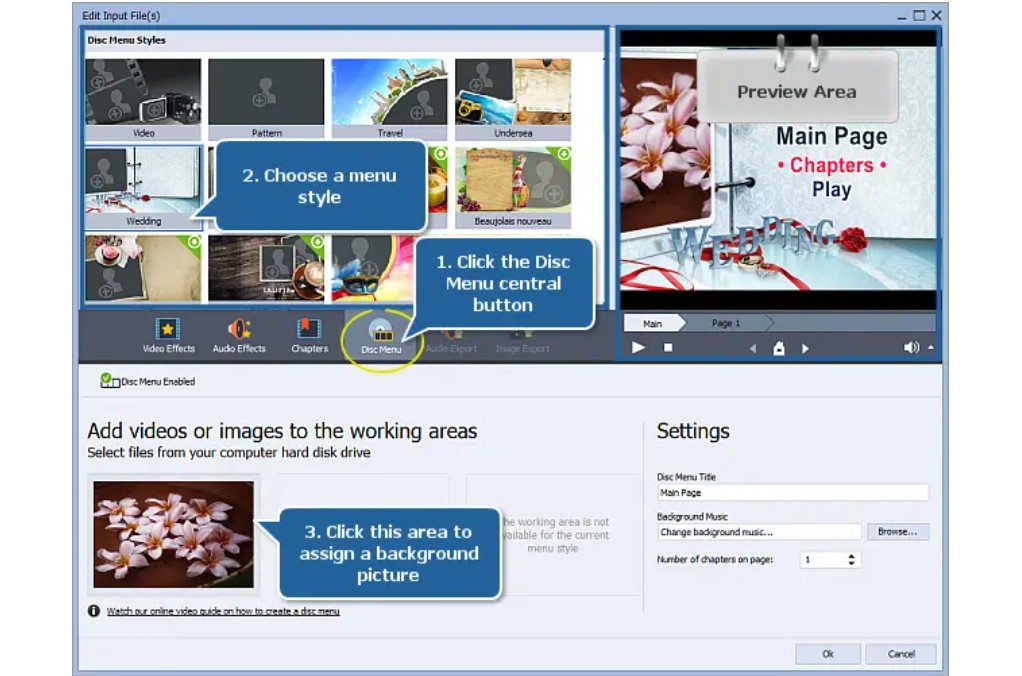
Step 3: Use the disc menu builder to select a menu style from the built-in library. Add chapters, set a background image, and configure background music under the Settings panel.
Step 4: Click "Convert Now!" to begin encoding. The progress window shows estimated time remaining.
Step 5: After conversion completes, click "Convert to Disc," insert a blank DVD, and click "Start converting!" to begin burning. If "Verify disc" is checked, the software confirms the disc recorded correctly after writing.
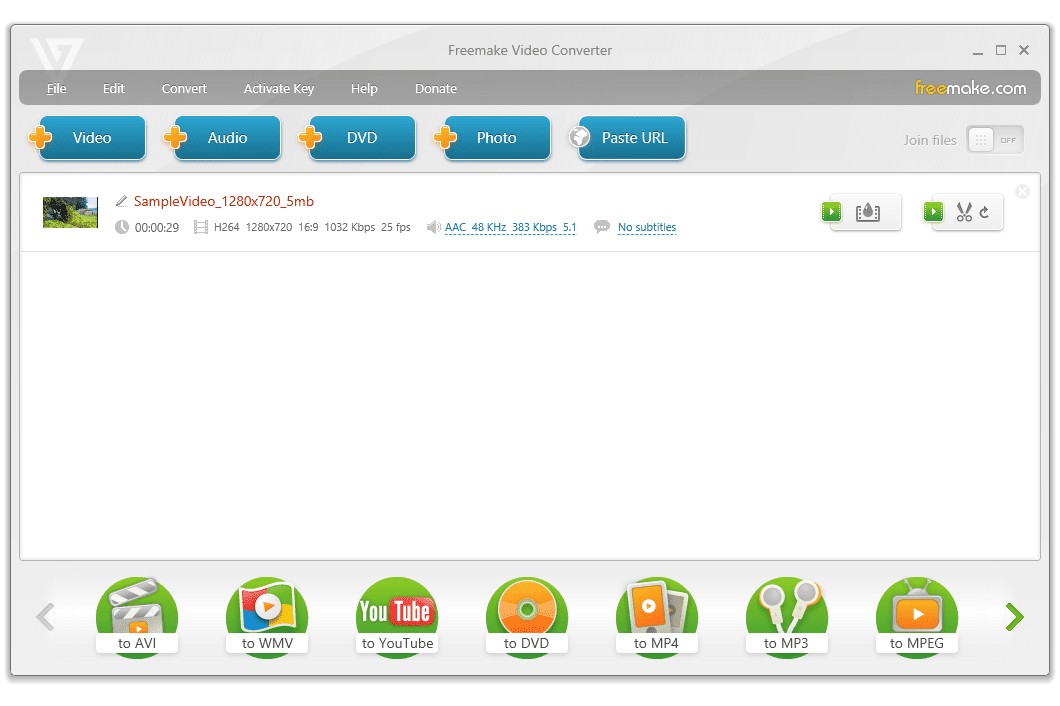
4. Freemake Video Converter
Freemake Video Converter provides a Windows video-to-DVD function for converting common video files to DVD-Video, an ISO image, or a DVD folder. It accepts a broad range of video formats and lets you choose DVD-5 or DVD-9, NTSC or PAL, and a DVD menu before burning.
The free version adds Freemake branding to the output. It is available for Windows only, while DVDStyler provides a free option across Windows, macOS, and Linux.
Key features
- Imports video from 500+ supported formats
- Creates DVD discs, ISO images, or DVD folders
- Provides DVD menu options; some custom-background and premium menu features require Freemake Mega Pack
- Supports DVD-5/DVD-9 and NTSC/PAL project settings
Worth noting
- Free tier adds a visible watermark to all converted output
- No GPU acceleration; encoding runs on CPU only
- Installer has a documented history of bundling PUP software
How to Convert Video to DVD with Freemake Video Converter
Step 1: Add the video files and click "to DVD."
Step 2: Select DVD-5 or DVD-9, choose NTSC or PAL, and select a DVD menu if needed.
Step 3: Choose the DVD writer, ISO image, or DVD folder as the destination and start the conversion.
5. Aiseesoft DVD Creator
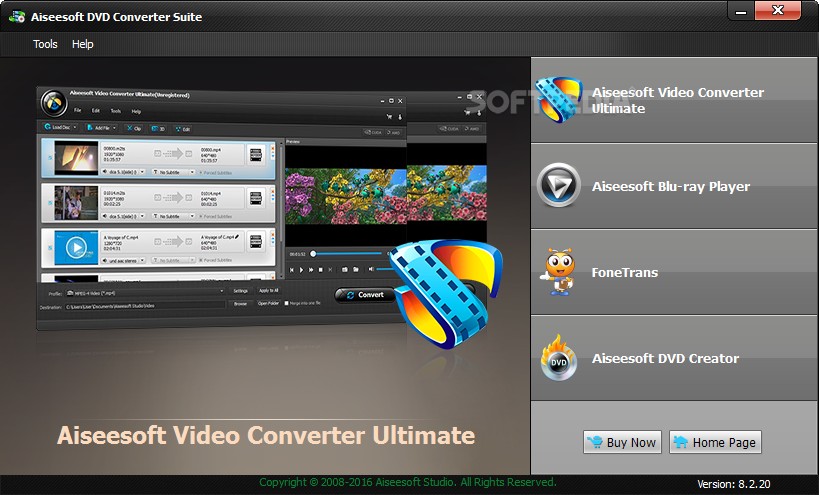
Aiseesoft DVD Creator is a standalone paid DVD-authoring product available for Windows and Mac. It is relevant to users who want to import locally stored video, build a configurable DVD menu, add subtitles, and create a disc, ISO image, or VIDEO_TS folder.
Key features
- Imports locally stored video files for DVD authoring
- DVD menu templates with configurable audio tracks and external subtitle file support before burning
- Exports to DVD disc, ISO image, or VIDEO_TS folder for flexible archiving options
Worth noting
- Purchase options include one-month and lifetime licenses
- The published Mac minimum is Mac OS X 10.12
How to Convert Video to DVD with Aiseesoft DVD Creator
Step 1: Open Aiseesoft DVD Creator, click "Add Video," and select a source file from local storage.
Step 2: Choose a menu template from the preset library, or select "No Menu" to skip that step, then set the output destination to disc, ISO file, or VIDEO_TS folder.
Step 3: Click "Burn" and monitor the progress window; insert a blank disc when the software prompts for media.
Free Video to DVD Converter by DVDVideoSoft – Legacy Product
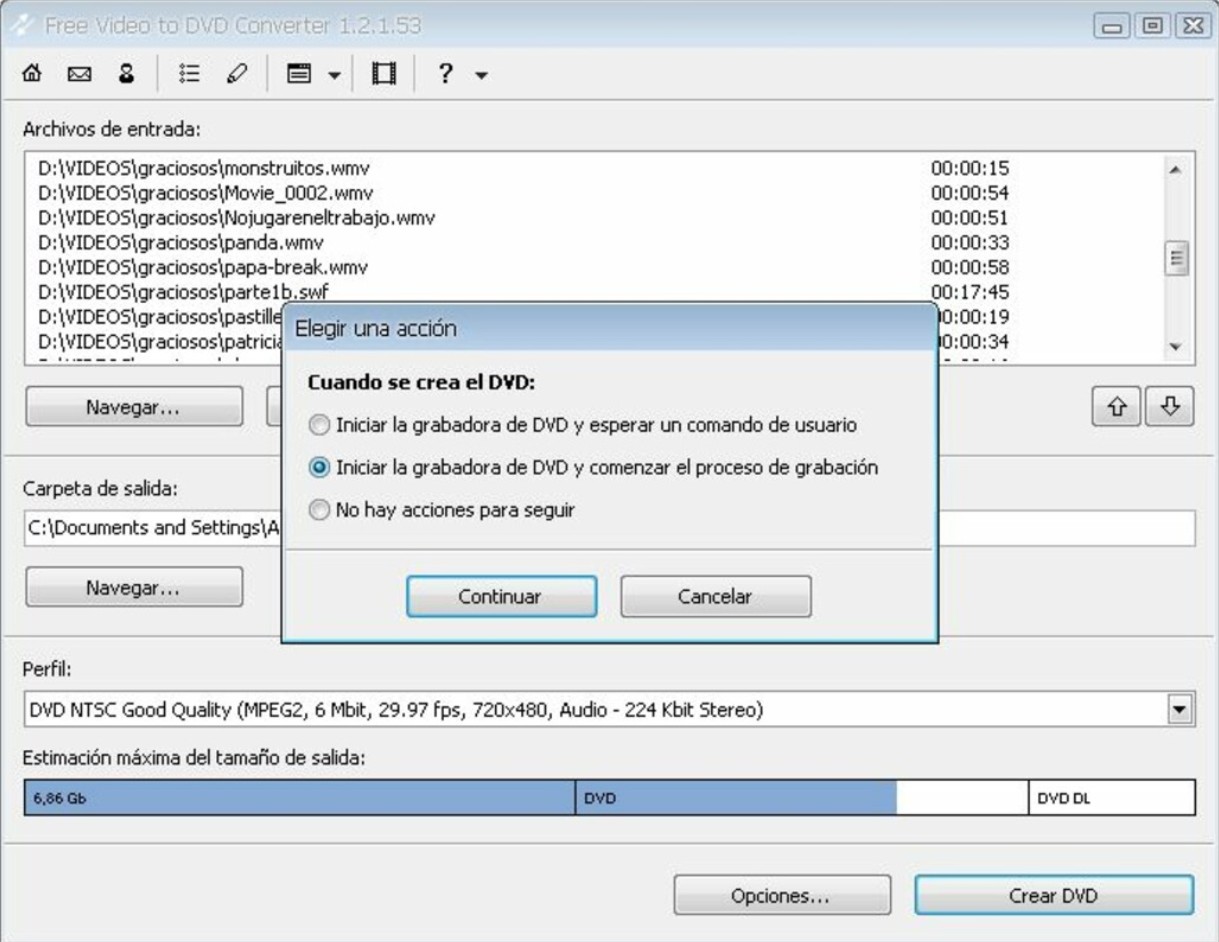
Free Video to DVD Converter was a Windows DVD-authoring product from DVDVideoSoft. Its historical version accepted common video formats and provided DVD authoring settings for creating discs that could play in standard DVD players.
DVDVideoSoft's current application catalog no longer lists this standalone product, so it is retained here as a legacy reference rather than a current free recommendation.
DVD-5 or DVD-9: Which Blank Disc Should You Buy?
Most blank DVDs sold at retail fall into two categories. DVD-5 holds 4.7 GB and DVD-9 holds 8.5 GB nominally. Authored video capacity is determined by running time and encoded bitrate, rather than the source file’s size alone.
For most shorter home video projects, DVD-5 is the practical default. More video or a higher output bitrate uses more capacity, so DVD-9 is useful when the project needs additional space and both the writer and target player support matching dual-layer media. One practical caveat: not all optical drives write dual-layer discs reliably. Check that your drive specifically lists DVD+R DL or DVD-R DL write support before purchasing DVD-9 media.
Before burning, select NTSC for a US DVD player, match the blank media to the writer, preview the menu and subtitles, confirm that recording completes, and test the disc on the player you intend to use.
Professional Video-to-DVD Conversion Services
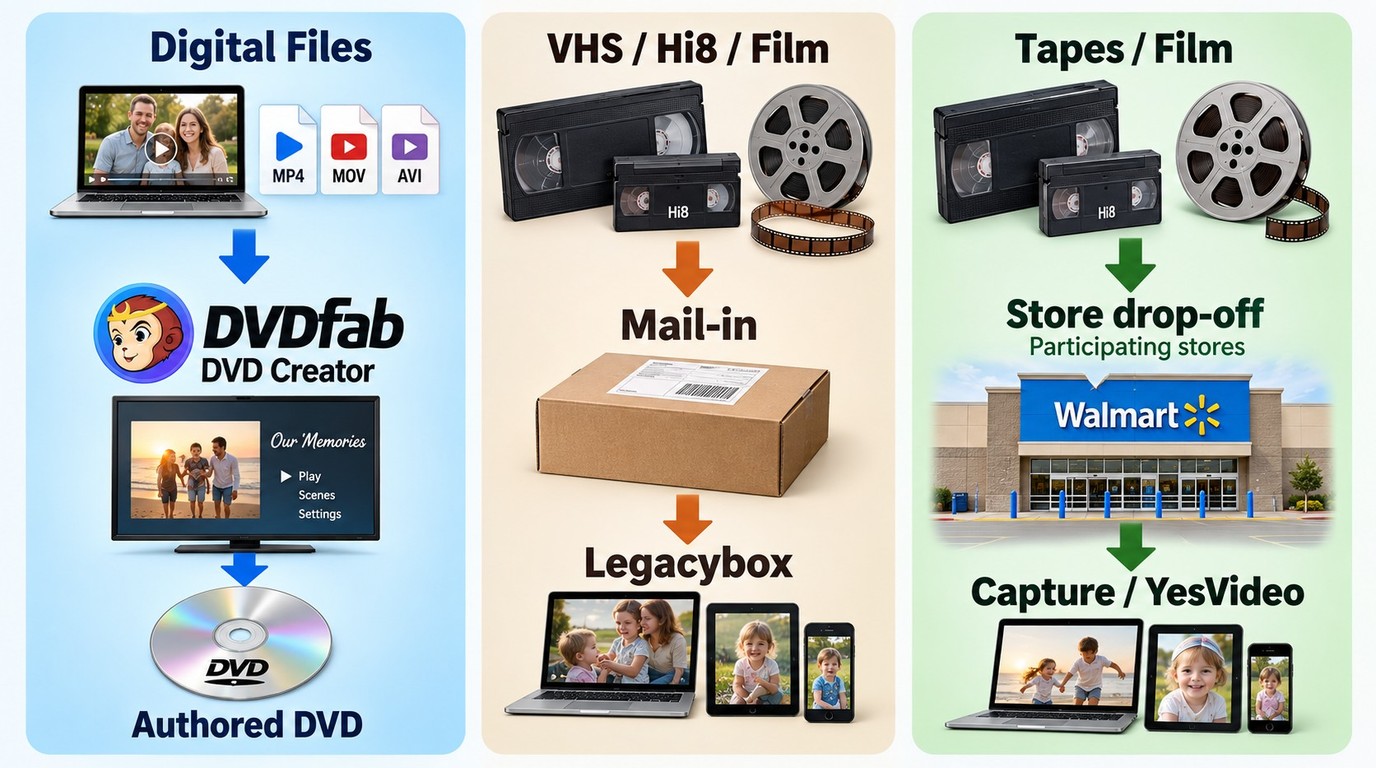
A VHS to DVD transfer, or a transfer from Hi8 or Betamax tape, requires compatible playback equipment and capture before DVD authoring. Super 8 and 8mm film require different scanning equipment. Professional digitization services provide the capture hardware and can supply optional DVD output, while an existing digital video file can go directly into DVD-authoring software. The sections below cover Legacybox, Capture/YesVideo, and Walmart’s related transfer route. The service prices below reflect October 2026 rates.
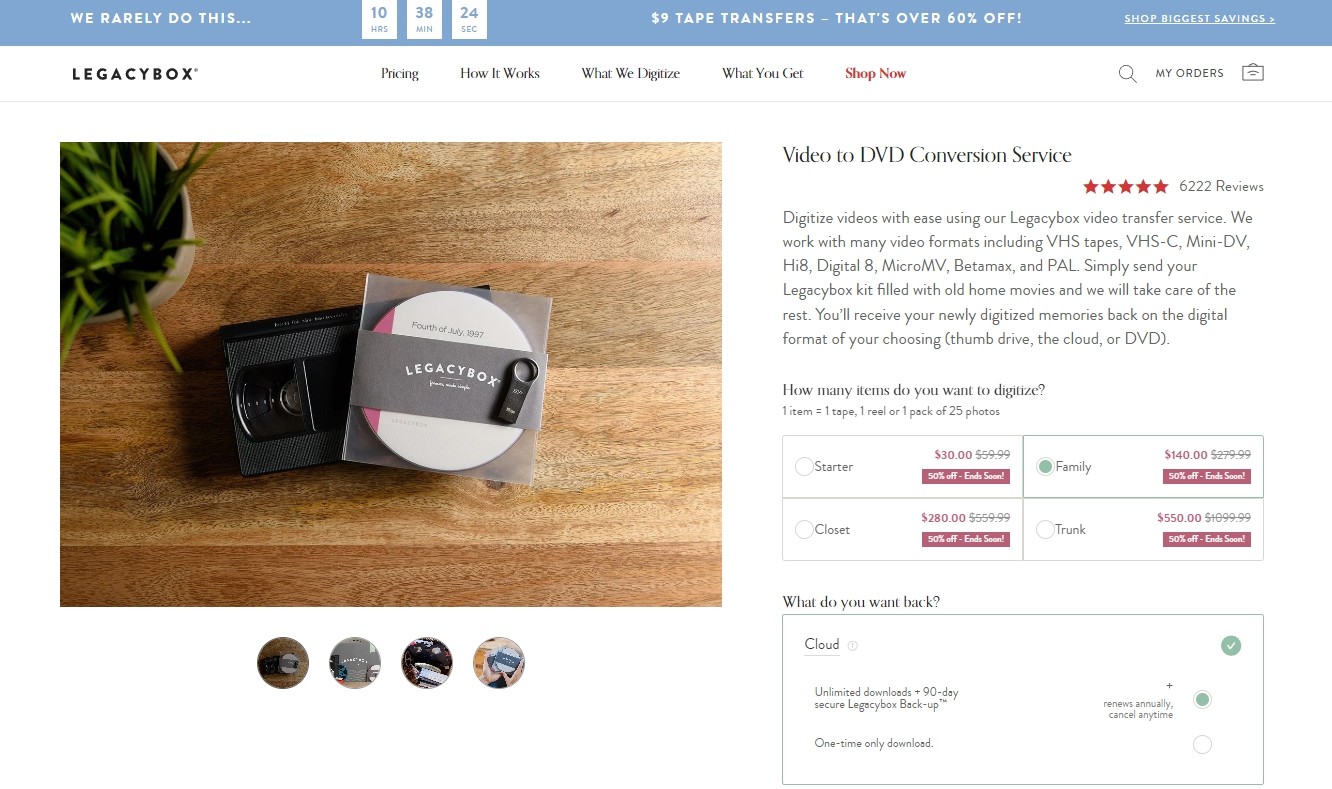
Legacybox
Legacybox is a mail-in digitization service that handles VHS, Video8, and Hi8 tapes, Super 8 and 8mm film, slides, and photos. You pack your originals in a provided transfer kit, ship it, and receive the originals back after processing; available output choices are selected separately from the base package. Standard processing takes four to six weeks, while paid expedited processing takes two to three weeks.
Base package pricing:
| Package | Price | Items Included |
|---|---|---|
| Starter | $69.98 | Up to 2 items |
| Family | $319.98 | Up to 10 items |
| Closet | $639.98 | Up to 20 items |
| Trunk | $1,249.98 | Up to 40 items |
| Vault | $2,499.98 | Up to 80 items |
One item equals one tape, one reel, or one pack of 25 photographs.
YesVideo, Now Capture
YesVideo launched the Capture brand in 2021. Capture is now the consumer-facing brand, while the legal entity remains YesVideo, Inc. Capture processes digitization orders directly and also fulfills home-movie transfer services for retail partners including Walmart.
Walmart Photo Center
Walmart’s home-movie and photo transfer service is fulfilled by Capture, formerly YesVideo. Customers can use participating-store drop-off or mail-in options, and completed orders can include digital delivery with optional physical media.
How to Choose a Conversion Service
Compare services by the number of tapes or film reels, the recorded duration, the output you want, and whether you prefer shipping or a participating-store drop-off. VHS and Hi8 tapes require tape playback equipment, while Super 8 and 8mm film use different capture equipment. Walmart provides a retail route for Capture rather than operating its own digitization facility.
For a digital-file DIY project, the main costs are authoring software, compatible blank media, and a DVD writer. If you create an authored folder first, you can later burn VIDEO_TS to DVD. Tape and film services charge for capture separately from optional DVD output, so compare the transfer charge and selected delivery format together.
Frequently Asked Questions
What video formats can I convert to DVD?
DVD authoring software commonly accepts source containers such as MP4, MKV, AVI, MOV, WMV, and MPEG. A VOB file contains DVD video and audio data, while IFO files store navigation and playback instructions; a playable DVD needs the complete authored VIDEO_TS structure, not a renamed video file. If an unusual source container cannot be imported, HandBrake can transcode it to a commonly supported format such as MP4, but HandBrake does not author a playable DVD-Video disc.
Will converting HD video to DVD reduce quality?
Yes, when the video is authored as standard DVD-Video. Higher-resolution sources, including 1080p and 4K files, are downscaled to 720 × 480 for NTSC or 720 × 576 for PAL, so the authored disc will look softer than the original. A data DVD can store an HD video file, but playback requires a device that supports that file and codec. If preserving high resolution matters, keep the original HD file as a separate long-term preservation copy or consider Blu-ray output.
Do I need a DVD burner to create DVD files?
No. If your goal is a digital DVD archive rather than a physical disc, you can output an ISO image or a VIDEO_TS folder to your hard drive without a burner attached. DVDFab DVD Creator supports ISO and VIDEO_TS as standalone output modes. An ISO file or VIDEO_TS folder can be played back on a PC using software like VLC, stored as a long-term archive, or burned to a physical disc later when you have access to a drive.
Can an online video converter make a playable DVD?
A browser-based file converter cannot write a physical DVD without local authoring software, a compatible DVD writer, and blank media. A disc-fulfillment service can mail an authored DVD-Video disc, but tape digitization is a separate service that captures analog footage before DVD authoring.
Conclusion
For a playable DVD from local video files, use DVD-authoring software rather than copying an MP4, MOV, or MKV file directly to a blank disc. DVDStyler is the free, open-source option in this comparison, while Freemake provides another free Windows choice with branding on free output.
DVDFab DVD Creator, AVS Video Converter, and Aiseesoft DVD Creator provide current commercial alternatives with different platform, menu, editing, and output options. Before burning the full project, choose DVD-5 or DVD-9 according to the authored size, match NTSC or PAL to the target player, and preview the menu and subtitles.
If the source is VHS or another analog format rather than a digital video file, capture it first or use a transfer service before DVD authoring.

 How to Make Your Own DVDs on Mac and WindowsBy Wenny Yan - Oct 14, 2026
 How to Convert MKV to DVD: 4 Tested Tools for Playable Discs (2026)By Wenny Yan - Oct 12, 2026
 How to Transfer and Burn iPhone Videos to DVD on Windows & MacBy Diana Smith - Oct 10, 2026
 How to Burn a DVD on Mac in 2026: Video, Data, Photos & ISOBy Diana Smith - Sep 28, 2026