5 Best DVD Lens Cleaners: Compatibility, Safety, and Results
Summary: DVD lens cleaners can remove light dust that causes skipping, freezing, or read errors, but only when the disc matches the player. CleanDr is the strongest Blu-ray-compatible option in this guide, Maxell suits tray-loading DVD players, while Endust covers a wider mix of optical devices. Check the manual and exclusions before use, run one cleaning cycle, and seek repair if problems persist—cleaners cannot fix scratches or worn hardware.
DVDs remain a popular medium for watching movies, but dirt and scratches can lead to playback issues and reduced picture quality over time. In this article, I'll explore the top five DVD cleaners available to keep your DVDs looking and performing like new.
Which DVD Cleaner Solves Your Problem?
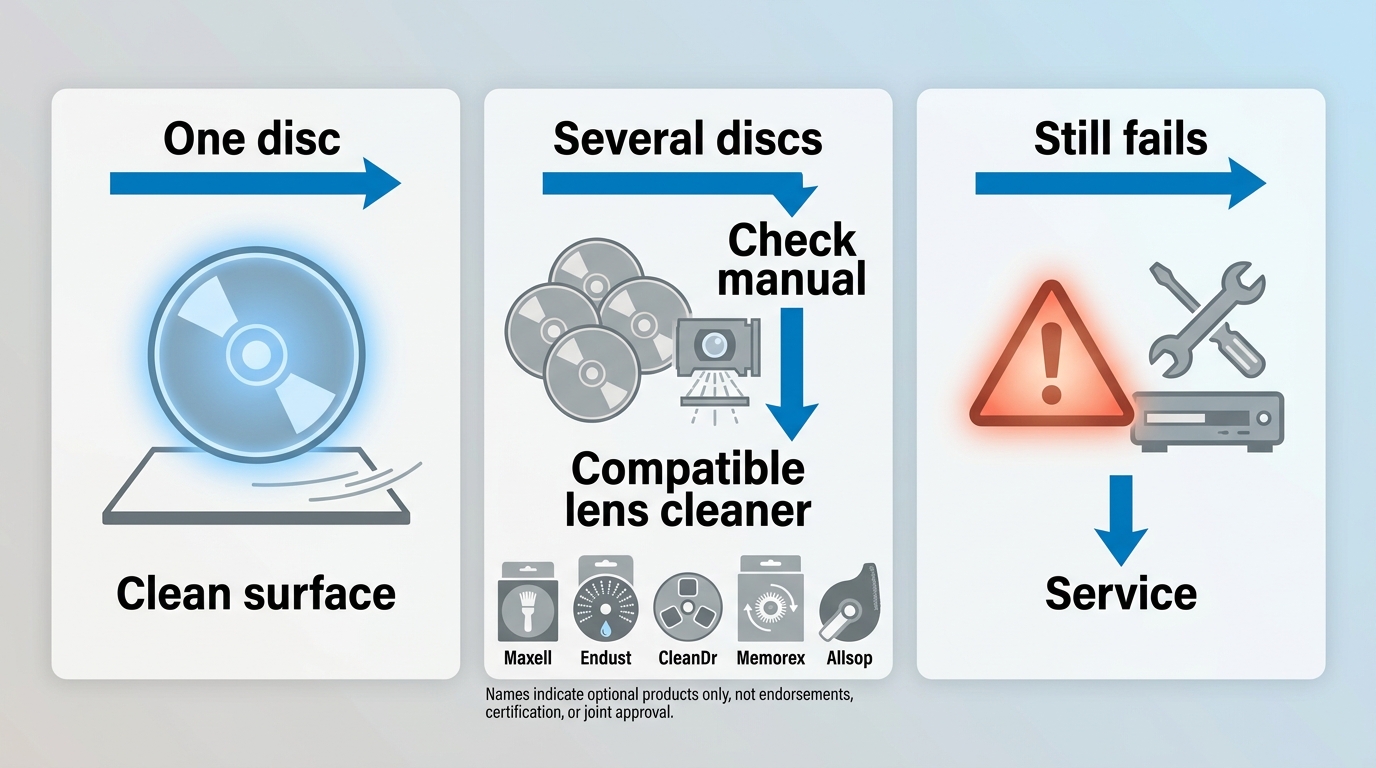
Choosing the best DVD cleaner starts with locating the contamination. Surface dirt belongs on the disc, light dust may be on the player lens, and repeat failures can signal a drive fault.
Disc Surface Dirt vs. Lens Dust
A fingerprint, film, or loose dust on the readable side of a DVD calls for disc-surface cleaning, not a lens-cleaning disc. Use a soft, nonabrasive cloth intended for optical media and wipe from the center toward the edge. A CD disc cleaner machine or resurfacing device addresses the media itself, not the player’s internal lens.
The same distinction applies to anyone searching for the best Blu-ray disc cleaner: a surface product treats the disc, while a brush-equipped DVD player cleaner disc targets light dust inside a compatible drive. A lens cleaner cannot repair a scratched DVD, because the scratch is on the media rather than the optical pickup.
I would identify the dirty part before comparing brands. That single check is more dependable than buying the highest-rated best disc cleaner and hoping it covers every cause.
- Try a clean, known-good disc in the same player.
- If one disc fails, inspect and clean that disc's surface.
- If several compatible discs fail, check the player manual for an approved lens-cleaning method.
- If failures persist or affect one format only, stop cleaning and consider service or replacement.
When Cleaning Is Not Enough
The best DVD player cleaner may help with light lens dust, but it cannot repair an aging laser, spindle motor, sled, alignment issue, or damaged drive.
- Repeated "No Disc" errors: Several clean discs fail after a supported cleaning cycle.
- Format-specific failure: CDs play but DVDs do not, or DVDs play but Blu-ray discs do not.
- The cleaner will not boot: The drive cannot recognize the cleaning disc format.
- Brief improvement: Playback returns for a short time, then the same fault reappears.
These symptoms are a reason to stop repeating cleaning cycles. Repeated cleaning is not a substitute for diagnosis, and unnecessary brush contact adds no value when playback is already normal.
5 Best DVD Lens Cleaners Compared
Compatibility decides whether a cleaning disc can run at all. The best DVD lens cleaner, best Blu-ray lens cleaner, and best CD lens cleaner may be different products because optical drives do not read the same formats.

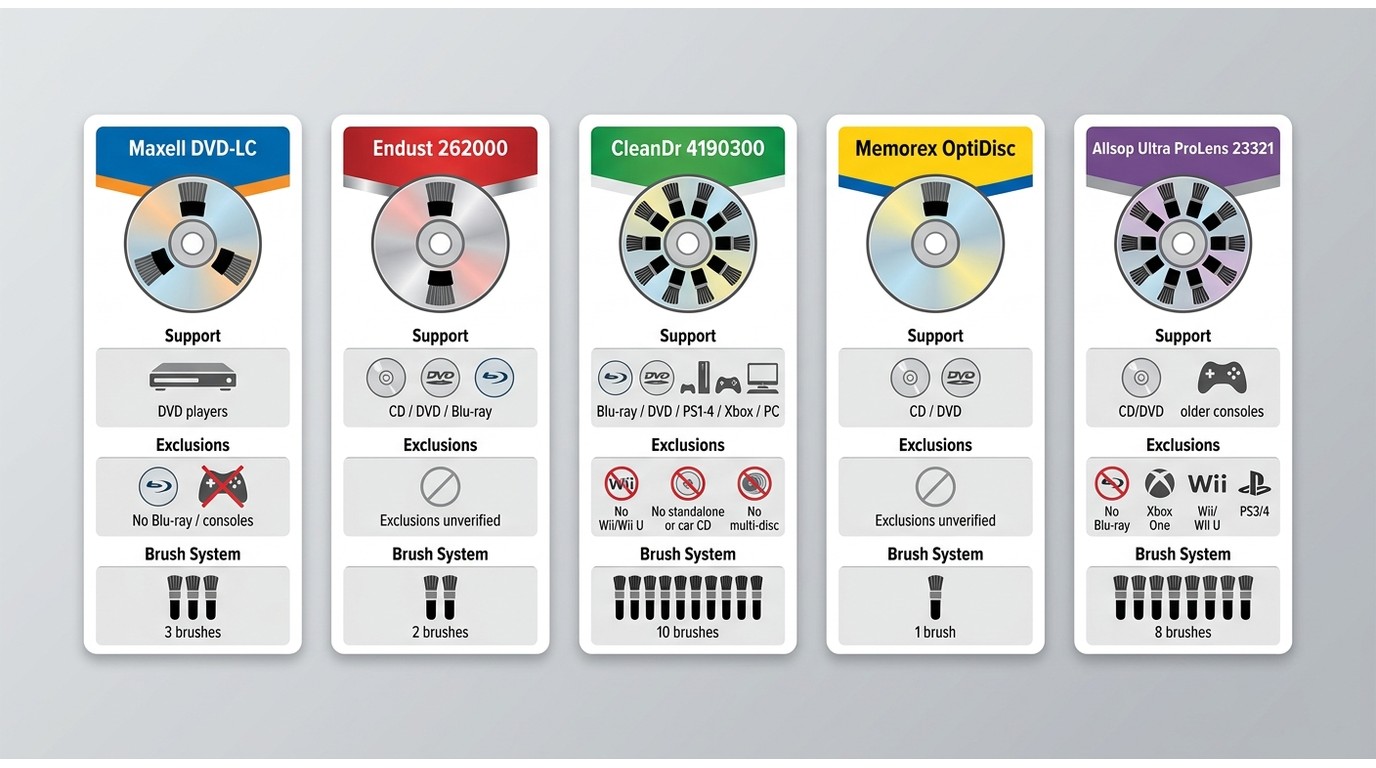
Compatibility matters more than brush count. Compare the supported device types and explicit exclusions first, then choose the cleaning method that matches the player you actually use.
| Cleaner | Compatible With | Not For | Cleaning Method | Best For |
| Maxell DVD-LC DVD Lens Cleaner | DVD players | Blu-ray players or consoles unless separately confirmed | Three fine microfiber brushes | Light lens dust in a compatible DVD player |
| Endust for Electronics CD/DVD/Blu-ray Lens Cleaner 262000 | CD, DVD, and Blu-ray players; PlayStation 2/3; Xbox and Xbox 360; laptop and desktop optical drives | Devices that cannot read the cleaning disc | Micro-brush with static reduction | Mixed CD, DVD, and Blu-ray equipment on its support list |
| Digital Innovations CleanDr Blu-ray Laser Lens Cleaner 4190300 | Blu-ray and DVD players; PlayStation 1–4; Xbox, Xbox 360, and Xbox One; computer optical drives | Standalone or car CD players, Wii/Wii U, and multi-disc players | Ten-brush Cyclone Clean process | Supported Blu-ray drives, consoles, and computers |
| Memorex OptiDisc CD/DVD Laser Lens Cleaner | CD and DVD lens cleaning; retailer listing describes a kit for lens and disc-surface care | Devices not confirmed by the available product listing | Cleaning disc, solution, cloth, and brush | A complete kit when compatibility and availability are verified |
| Allsop Ultra ProLens Cleaner 23321 | CD-ROM, DVD-ROM, CD-RW, car CD players, CD/DVD players, Xbox/Xbox 360, and PlayStation 1/2 | Blu-ray, newer consoles, and car multi-disc systems | Eight brushes with static control | Supported older CD/DVD players and consoles |
Availability and compatibility checked in July 2026.
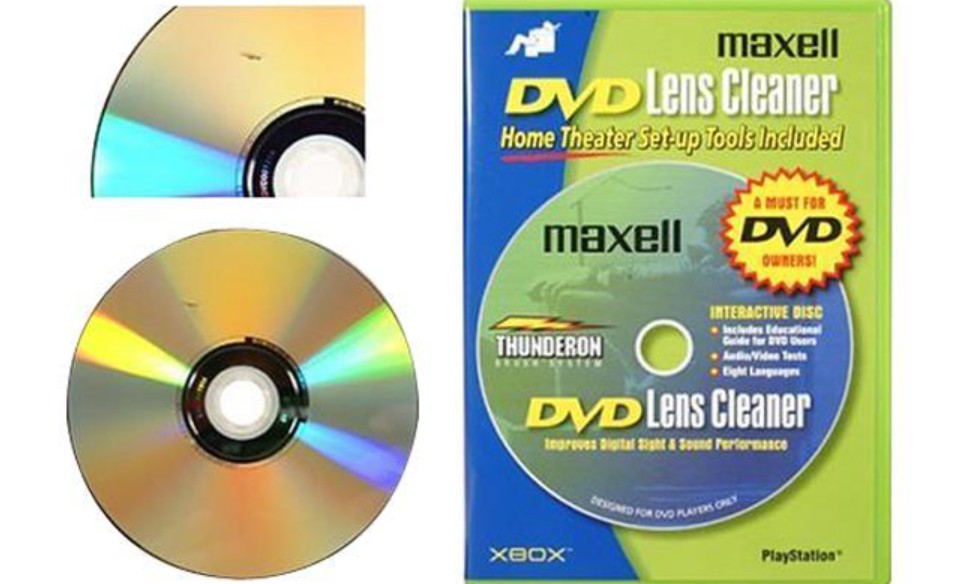
Maxell DVD-LC DVD Lens Cleaner
Maxell is a focused best DVD lens cleaner disc candidate for a conventional DVD player. Its three microfiber brushes sweep the internal lens while the disc spins, and the product page does not extend that claim to Blu-ray players or game consoles.
How to use (quick):
- Insert the cleaning disc into the DVD player.
- Start playback and follow the prompts (if any).
- Eject when done; repeat periodically as preventive maintenance.
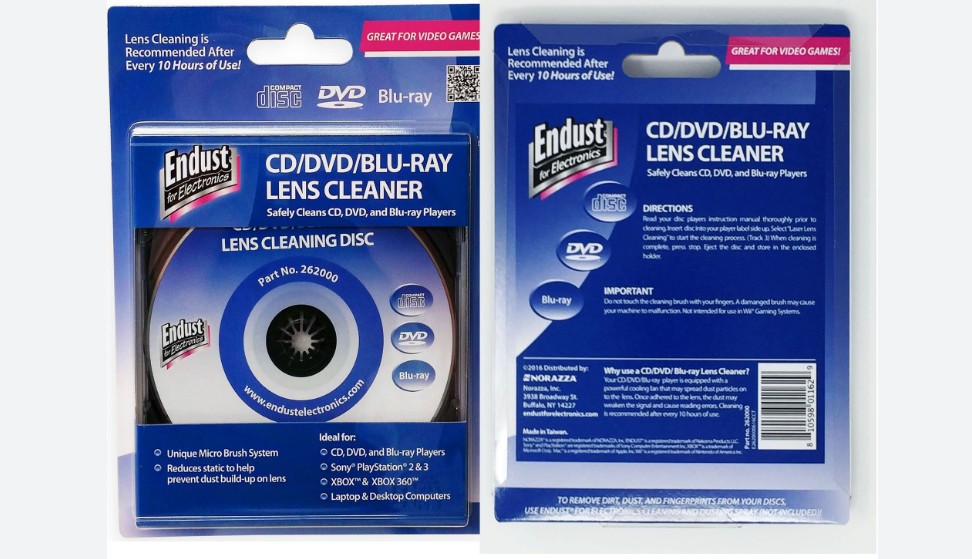
Endust CD/DVD/Blu-ray Lens Cleaner
Endust covers the broadest named device list in this comparison, including CD, DVD, and Blu-ray players plus selected older consoles and computer drives. That makes it relevant to searches for the best Blu-ray cleaner or best CD cleaner, but the target drive still needs to read the disc.
How to use (quick):
- Insert the Endust cleaning disc.
- Follow any on-screen or insert instructions.
- Eject when complete; repeat periodically.
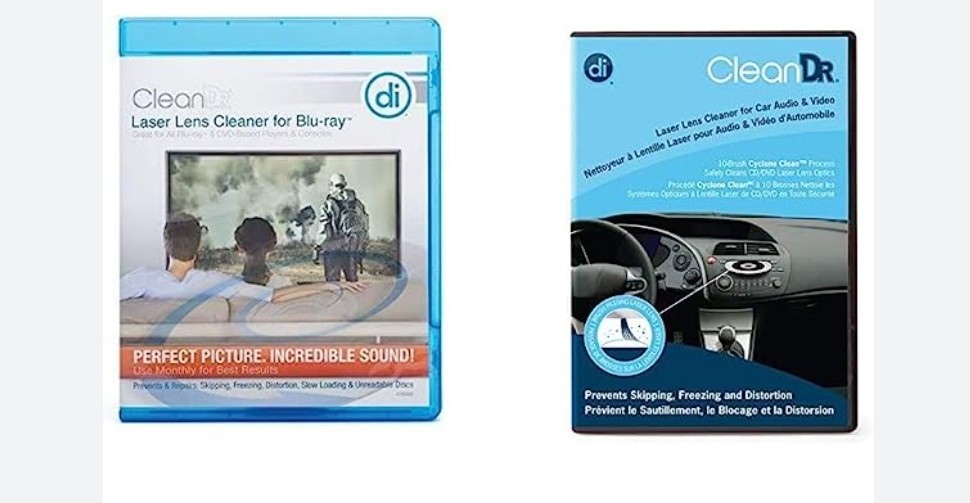
Digital Innovations CleanDr Lens Cleaner
CleanDr 4190300 is the clearest best Blu-ray lens cleaner candidate here because it specifically names Blu-ray and DVD players, computer drives, and several PlayStation and Xbox generations. It is not a standalone-CD, automotive-CD, Wii, or multi-disc cleaner.
How to use (quick):
- Insert the CleanDr disc.
- Follow the prompts.
- Eject when finished.
- Repeat periodically as preventive maintenance.
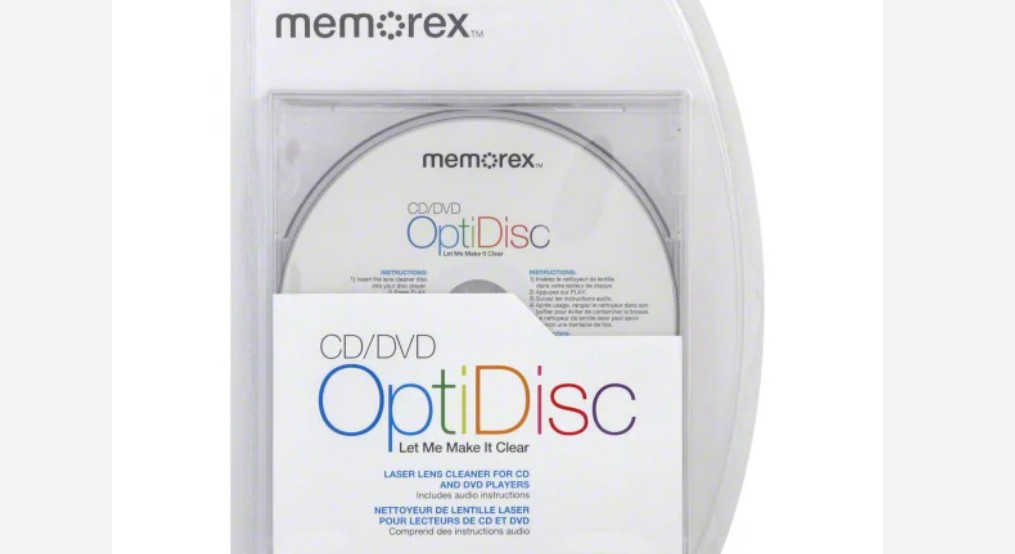
Memorex OptiDisc Lens Cleaning Kit
Memorex OptiDisc combines a best CD cleaning disc use case with materials for disc-surface care, but its current official product continuity could not be established. The available retailer description supports a CD/DVD kit with solution, cloth, and brush, not broad claims for newer Blu-ray or console hardware.
How to use (quick):
- Run the lens-cleaning disc in the player and follow any prompts.
- For disc cleanup, apply a small amount of solution to the microfiber cloth and wipe from center to edge (not in circles).
- Use the brush/cloth to remove dust from the player’s exterior and vents.
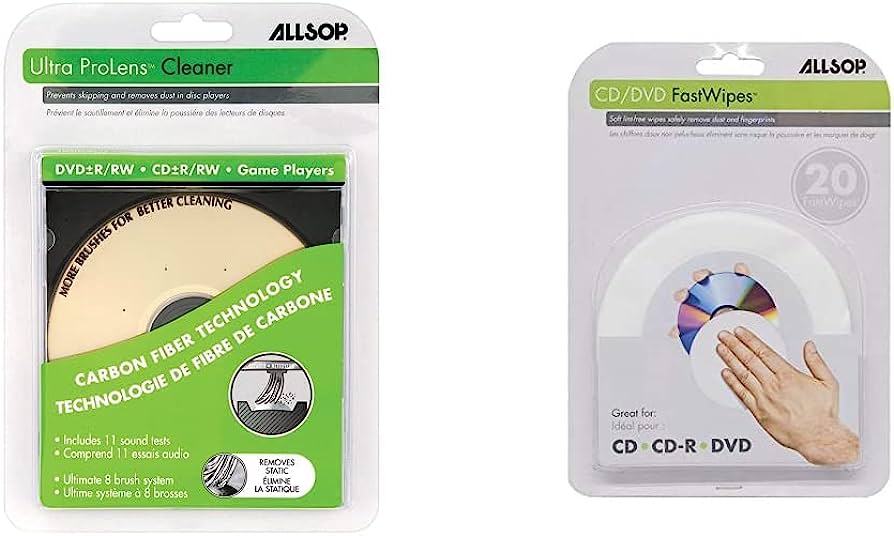
Allsop Ultra ProLens Cleaner 23321
Allsop is aimed at older CD/DVD equipment, not modern consoles in general. It supports Xbox/Xbox 360 and PlayStation 1/2, while explicitly excluding Blu-ray, Xbox One, Wii/Wii U, PlayStation 3/4, and automotive multi-disc systems. This can be a best CD player cleaner or DVD option for a device on the supported list.
How to use (quick):
- Insert the Allsop disc.
- Start playback.
- Let the routine complete and eject.
- Repeat periodically for preventive maintenance.
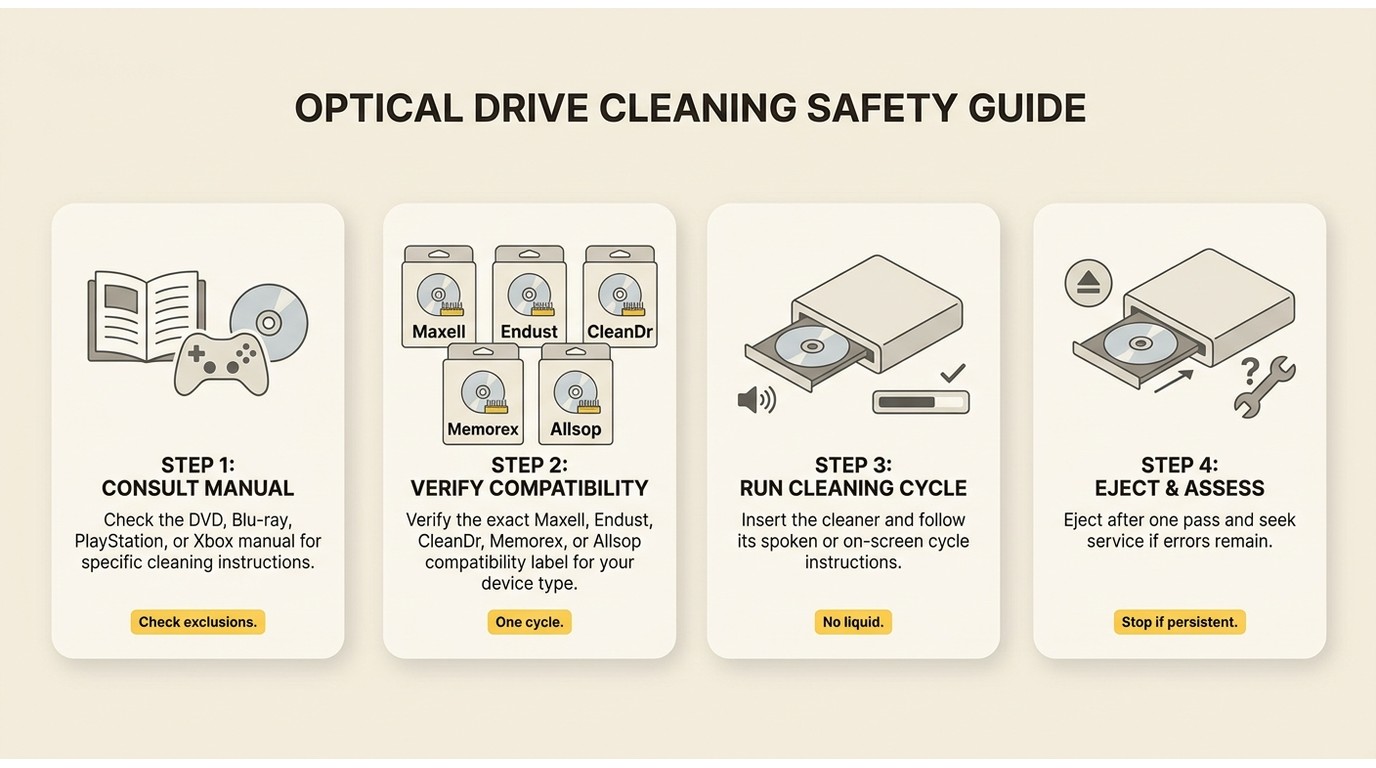
Using a Lens-Cleaning Disc Safely
Use a DVD player cleaner disc only when both the player manual and cleaner instructions allow it. The best laser lens cleaner cannot help if the device cannot boot the disc or the failure is mechanical.
Follow the Manufacturer's Instructions
Start with the player maker's guidance, then check the cleaner’s compatibility list. Broad words such as "console" or "Blu-ray" should not override a named exclusion.
- Confirm that the cleaner's disc format is readable by the target device.
- Check the device manual for approval or warnings about brush-equipped cleaners.
- Insert the disc label-side up and follow its on-screen or spoken instructions.
- Eject it when the cycle ends; do not run repeated cycles when the player works normally.
My selection rule is simple: an explicit model or device-family match carries more weight than a broad package claim.
Avoid Risky Manual Cleaning
Do not open a player or apply liquid to its internal lens unless the manufacturer provides that procedure. Alcohol strength, swab pressure, access method, and lens suspension vary by device, so a generic manual-cleaning tip can create a second problem.
If an approved cleaning disc does not produce lasting improvement, stop. Service or replacement is the better next step for persistent read errors, mechanical noise, failed disc spin-up, or format-specific faults.
Preserve Your Readable DVD After Cleaning
Once the disc can be read consistently, you may consider saving its content as a local video file before further wear makes access more difficult.
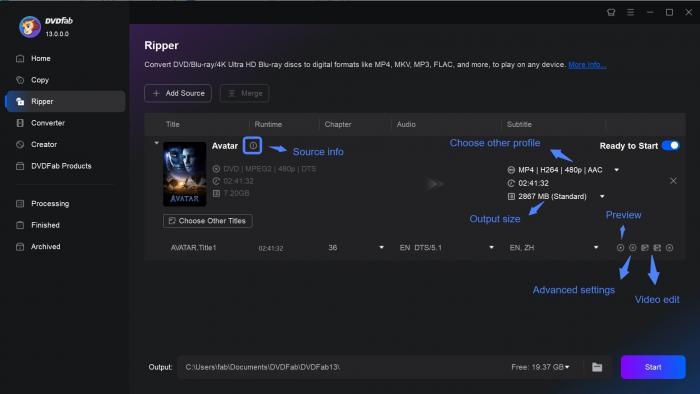
DVDFab DVD Ripper can load a DVD, ISO image, or disc folder and convert it to formats such as MP4 or MKV. You can keep the main movie or selected titles, choose the required audio tracks and subtitles, and use either a compressed profile for smaller files or MKV Passthrough to retain the original streams. You can also edit the video with its built-in video editor based on your customization needs.
Keep in mind that ripping software cannot repair severe physical damage. If the optical drive still reports read errors after cleaning, the disc may need professional resurfacing or another compatible drive before a reliable backup can be created.
Supported OS:
Free Download Windows 11/10/8.1/8/7
Free Download macOS 10.13 - 15.x
How to Use:
- Install DVDFab, open the Ripper module, and load your DVD.
- Choose an output profile such as MP4 or MKV.
- Select the title, chapters, audio, and subtitles you want to keep; use the editor only if you need cropping, trimming, or picture adjustments.
- Choose an output folder and start the conversion.
FAQ
Can a cleaning disc cause problems if my player already works?
Routine cleaning is not automatically beneficial. If playback is normal, follow the player manual rather than running repeated preventive cycles, especially when the cleaner uses physical brushes.
Can one lens cleaner work in both a car player and a game console?
Only when the cleaner explicitly supports both devices and each drive can read its format. The label “best CD player cleaner” does not override exclusions for automotive multi-disc units or newer consoles.
Are eyeglass or lens wipes safe for a DVD?
Use only a nonabrasive material intended for optical-media surfaces, and wipe from the center outward. Do not use a surface wipe on the player’s internal lens.
Does a DVD lens cleaner repair a scratched disc?
No. A lens-cleaning disc targets light dust inside the player. A scratch is damage to the media surface and may require separate cleaning, resurfacing, replacement, or recovery while the disc remains readable.
Conclusion
The best DVD lens cleaner is a compatible disc matched to light lens dust, not a cure for scratches or a failing drive. I would buy one only after a clean known-good disc shows similar read trouble and the player manual permits a cleaner.
- Clean the disc surface when one dirty disc fails.
- Use one supported lens-cleaning cycle when several clean discs fail and the manual allows it.
- Seek service or replace the drive when errors persist, affect one format, or return quickly.
Maxell suits a conventional DVD player, Endust covers a broad named range, CleanDr is the strongest documented Blu-ray option in this list, Memorex needs extra availability scrutiny, and Allsop belongs with its explicitly supported older devices. Anyone facing a scratched disc or mechanical fault should not buy a lens-cleaning disc for that problem.
![How to Remove DVD Copy Protection: 6 Software Options [2026]](https://images.dvdfab.cn/media/How_to_Remove_Copy_Protection_from_DVD_upluh5.png/public) How to Remove DVD Copy Protection: 6 Software Options [2026]By Diana Smith - Sep 10, 2026
How to Remove DVD Copy Protection: 6 Software Options [2026]By Diana Smith - Sep 10, 2026![How to Copy a DVD to Another DVD or Computer [2026]](https://images.dvdfab.cn/media/how-to-copy-dvd-HblP_v1600r.jpg/public) How to Copy a DVD to Another DVD or Computer [2026]By Diana Smith - Aug 25, 2026
How to Copy a DVD to Another DVD or Computer [2026]By Diana Smith - Aug 25, 2026![How to Burn ISO to DVD on Windows 11 and Mac [2026]](https://images.dvdfab.cn/media/Screenshot_2026-08-07_at_10.57.26_d3iqro.png/public) How to Burn ISO to DVD on Windows 11 and Mac [2026]By Diana Smith - Aug 7, 2026
How to Burn ISO to DVD on Windows 11 and Mac [2026]By Diana Smith - Aug 7, 2026![How to Rip DVD to ISO on Windows 11/10/8/7 and Mac? [2026 Update]](https://r3.dvdfab.cn/upload/resource/dvd-to-iso-ei38.jpeg) How to Rip DVD to ISO on Windows 11/10/8/7 and Mac? [2026 Update]By Wenny Yan - Jun 17, 2026
How to Rip DVD to ISO on Windows 11/10/8/7 and Mac? [2026 Update]By Wenny Yan - Jun 17, 2026