Does HandBrake Use the GPU? Setup and Encoder Fixes

Summary: HandBrake supports GPU acceleration through NVIDIA NVENC, AMD VCE/VCN, and Intel Quick Sync. To enable it, load a video, open the Video tab, and select a compatible hardware encoder before starting or queueing the job. GPU encoding is faster and reduces CPU usage, but it may produce slightly larger files or lower quality than slower CPU encoding. Supported systems can also use hardware decoding to speed up input processing.
Table of Contents
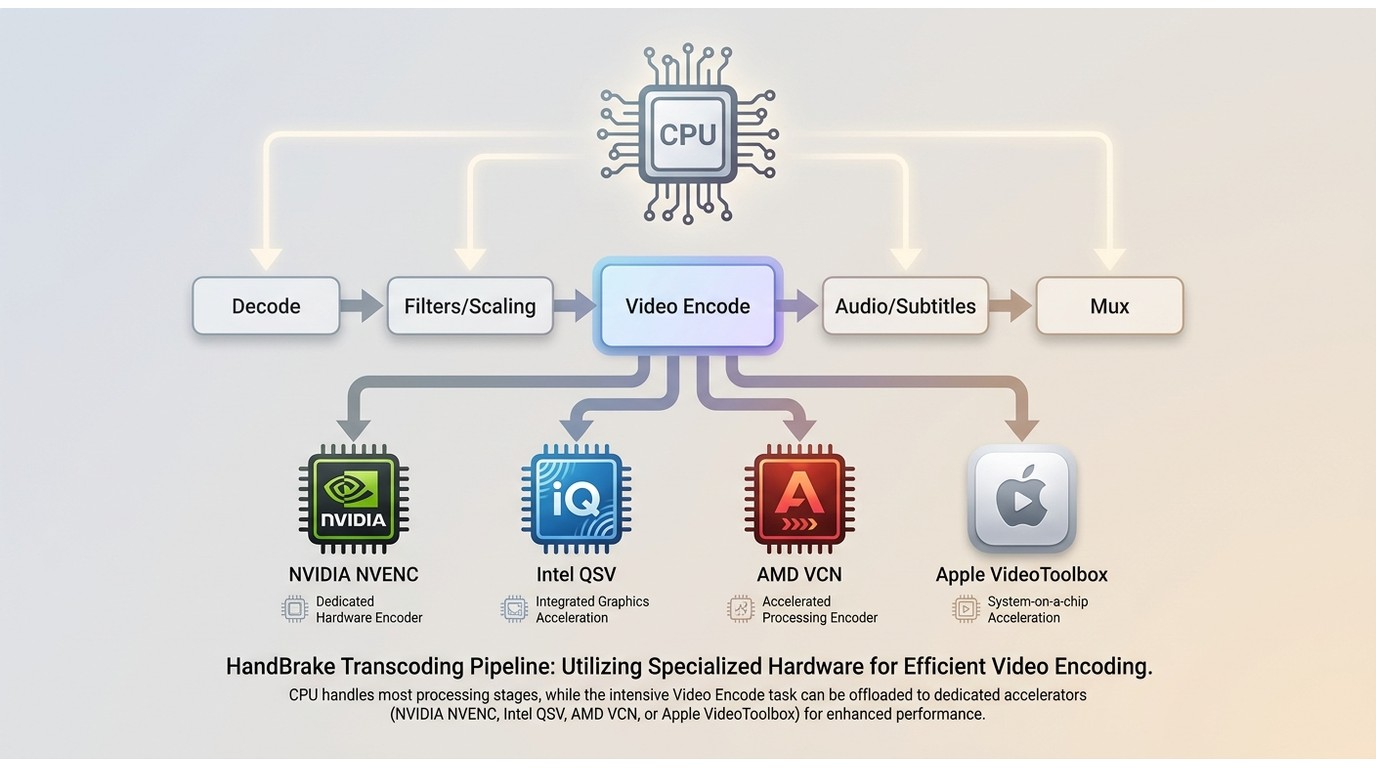
You select a hardware encoder in HandBrake, yet the CPU stays busy. That is normal: HandBrake GPU acceleration uses a supported GPU media engine for video encoding, while the CPU may still process decoding, filters, audio, subtitles, and muxing. In other words, HandBrake uses both the CPU and GPU.
Start by confirming which hardware path your platform exposes, then select it for the job and verify it in the Activity Log before reading utilization graphs. From there, compare turnaround time, file size, and output quality so the encoder choice matches the playback target.
Does HandBrake Use the GPU?
Yes. HandBrake uses GPU resources when you select a supported hardware video encoder, while the CPU continues to run the rest of the job; for broader feature context, see our guide to HandBrake. The practical question is not whether HandBrake uses the CPU or GPU, but which stage handles each part of the transcode.
What the GPU Actually Handles
HandBrake GPU encoding primarily accelerates the video-encode stage. Hardware decoding is available only through supported vendor paths and still depends on the source codec, operating system, driver, and hardware.
| Pipeline Stage | Typical Processor | What to Check |
| Video decoding | Supported hardware decoder when active; otherwise CPU | Source codec and decoder entry in the activity log |
| Scaling and filters | Usually CPU; selected VideoToolbox paths support GPU filters | Crop, deinterlace, denoise, subtitle burn-in, and scaling settings |
| Video encoding | GPU or fixed-function media engine with NVENC, QSV, AMD VCN, or VideoToolbox | Selected Video Encoder and activity log |
| Audio and subtitles | Usually CPU | Audio conversion, subtitle handling, and burn-in |
| Synchronization and muxing | CPU | Container assembly and final write speed |
- Queue multiple encode jobs and save settings per item
- Select titles, chapters, and source ranges
- Preserve chapter markers and supported subtitle tracks
- Choose variable or constant frame rate when the source requires it
- Encode with software or supported NVIDIA, Intel, AMD, and Apple hardware paths
- Convert audio with common codecs or use pass-through when compatible
- Write MP4, MKV, or WebM output
- Preview the selected crop, scale, filters, and subtitle treatment
- Apply deinterlace, decomb, denoise, deblock, and detelecine filters when needed
- Adjust color, grayscale, crop, and scale settings before encoding
Why the CPU Remains Active
HandBrake high CPU usage is normal when decoding, filters, audio, subtitles, synchronization, or muxing need substantial work. A hardware encoder accelerates one stage, not the complete job.
The useful test is whether the log names the intended hardware encoder. Check the Activity Log before judging the GPU graphs, and keep any deinterlacing or subtitle step required by the source; a faster encode is not useful if the result no longer meets the playback goal.
HandBrake GPU Compatibility by Platform
HandBrake hardware acceleration depends on the installed build, operating system, driver, GPU generation, and selected codec. As of October 2026, the current families are NVIDIA NVENC/NVDEC, Intel QSV, AMD VCN, and Apple VideoToolbox.
| Hardware Path | Encoding | Decoding | Platform Notes | Verification |
| NVIDIA NVENC / NVDEC | NVENC appears for supported codecs and hardware | NVDEC availability depends on source codec and configuration | Requires a supported NVIDIA GPU and current driver | Check the Video Encoder menu and activity log |
| Intel Quick Sync Video | QSV appears when the Intel media engine is exposed | Hardware decoding depends on platform and codec support | Documented for Windows, some modern Linux distributions, and FreeBSD when requirements are met | Check the QSV encoder name in each job log |
| AMD VCN | Enable availability in Preferences, then select VCN per job | Encoding only; AMD VCN decoding is not supported | VCN is current; VCE is historical terminology | Confirm each job's VCN encoder in Activity Log |
| Apple VideoToolbox | VideoToolbox encoders appear on supported Macs | Enable hardware decoding in Advanced preferences on macOS 13+ | Supported GPU filters require hardware decoding and encoding | Confirm the VideoToolbox encoder in the activity log |
NVIDIA NVENC and NVDEC
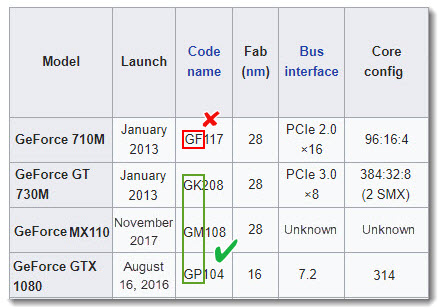
HandBrake NVENC handles supported video encoding, while NVDEC may handle supported decoding. Do not use an old GPU code-name prefix as the compatibility test. Update the NVIDIA driver, then confirm that the intended NVENC encoder appears in HandBrake.
The general NVIDIA GPU list may help identify a model, but NVENC is the relevant hardware encoder in HandBrake; there is no generic CUDA switch for selecting video encoding. Confirm current support through HandBrake, the installed driver, and the activity log.
Intel Quick Sync Video
HandBrake Intel QSV uses the media engine built into supported Intel processors. It can be available on Windows, some modern Linux distributions, and FreeBSD when the hardware and software requirements are met. A disabled integrated GPU or unsuitable driver can hide the encoder. On Linux, if QSV is missing, also check graphics-device access, firmware, and whether the native or Flatpak build can see the required media libraries.
AMD VCN Hardware Encoding
HandBrake AMD VCN is the current AMD hardware-encoding path; AMD VCE is historical terminology rather than a separate current path. HandBrake 1.11.0 supports AMD VCN encoding, not AMD VCN hardware decoding. Enabling AMD VCN in Preferences makes the encoder available, but each job still requires an AMD VCN encoder selected on the Video tab and confirmed in the Activity Log. Availability depends on supported hardware, the operating system, the driver, and the HandBrake build; on Linux, native and Flatpak builds can differ in media-library visibility.
Apple VideoToolbox on macOS
HandBrake VideoToolbox provides hardware encoding on supported Macs. The codecs shown in the Video Encoder menu depend on the Mac hardware and operating system. On macOS 13 or later, VideoToolbox hardware decoding is enabled in HandBrake’s Advanced preferences. Supported GPU filters are available when VideoToolbox hardware decoding and encoding are both active. If the expected option is absent, update HandBrake and macOS before checking the menu again.
Enable GPU Acceleration in HandBrake
HandBrake hardware encoding requires a compatible GPU, operating system, driver, build, and output codec. Enabling an encoder preference does not add unsupported hardware capabilities. The HandBrake 1.11.0 documentation lists H.265 NVENC 1080p and H.265 VCN 1080p hardware presets. Update HandBrake before you proceed. Here's how to configure HandBrake to use GPU acceleration.
Step 1: Check Hardware Support and Enable the Encoder
Update your graphics driver, then open HandBrake. On Windows, go to Tools > Preferences > Video and enable an available hardware encoder supported by your GPU, operating system, driver, and HandBrake build. This preference makes the encoder available; you still need to select it for each job on the Video tab. HandBrake may display one or more of the following options:
- NVIDIA NVENC
- Intel Quick Sync Video (QSV)
- AMD VCN
On supported Macs, HandBrake automatically adds options such as H.264 (VideoToolbox), H.265 (VideoToolbox), and H.265 10-bit (VideoToolbox) to the Video Encoder menu. If an encoder or hardware preset is unavailable, HandBrake may not have detected compatible hardware or a supported driver.
Step 2: Load the Video and Select a Hardware Preset
Click Open Source and select the video you want to convert. After HandBrake scans the source, open the Presets menu and expand the Hardware category.
Choose a preset that matches your graphics hardware and target resolution, such as:
- H.265 NVENC 1080p or H.265 NVENC 2160p 4K
- A corresponding installed Intel QSV Hardware preset
- H.265 VCN 1080p or H.265 VCN 2160p 4K
- A corresponding installed Apple VideoToolbox Hardware preset
Hardware presets provide a useful starting point because they automatically apply compatible video, audio, resolution, and frame-rate settings.
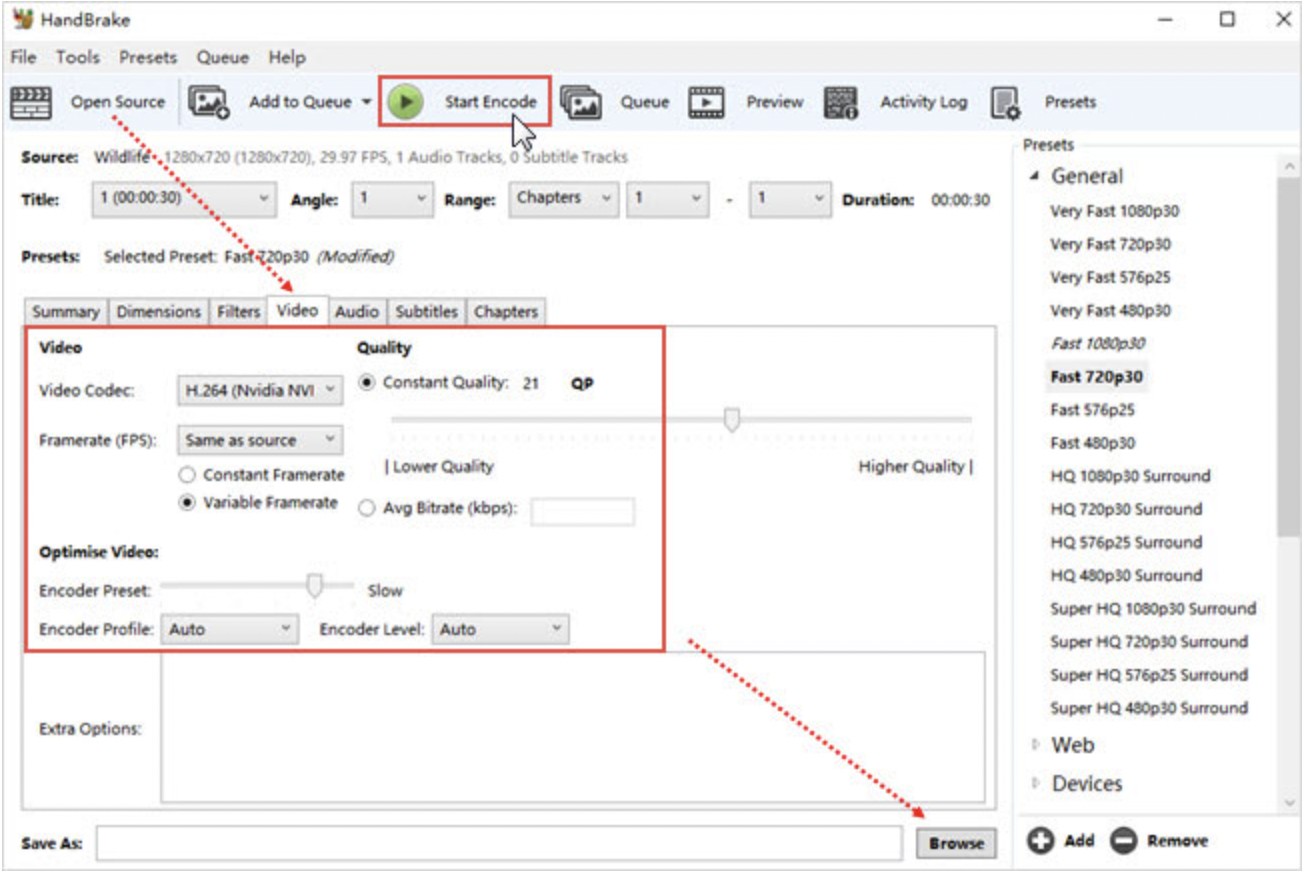
Step 3: Adjust the GPU Encoder and Quality Settings
Open the Video tab and confirm that the Video Encoder field shows a hardware option rather than a software encoder such as x264 or x265. Available choices depend on your system and may include:
- H.264 (NVEnc), H.265 (NVEnc), or a 10-bit NVENC option
- H.264 (Intel QSV), H.265 (Intel QSV), or AV1 (Intel QSV)
- H.264 (AMD VCN) or H.265 (AMD VCN)
- H.264 (VideoToolbox), H.265 (VideoToolbox), or H.265 10-bit (VideoToolbox)
MP4 or MKV selects the output container, not the hardware encoder; MPEG-4 Part 2 is also a different video codec from H.264. Choose H.264 for wider device compatibility or H.265 for more efficient compression on newer devices. For HDR or other 10-bit sources, select a compatible 10-bit encoder. Start with the preset's default quality setting and use HandBrake's Preview feature to test a short section before encoding the entire video.
Disable filters you do not need, but keep deinterlacing, cropping, scaling, or subtitle processing when the source or playback target requires it. Cropping, scaling, denoising, subtitle rendering, and other processing stages may still rely on the CPU and can reduce the overall speed advantage of GPU encoding.
Step 4: Choose the Output and Start Encoding
Select the output container, audio tracks, subtitles, and destination folder. Enter the output filename under Save As, then click Start Encode. For HandBrake batch conversion, configure each job and click Add to Queue before starting the queue. Confirm the saved job's Video Encoder, inspect the Activity Log for the encoder, decoder, and active filters, and then check the system's Video Encode or Video Decode graphs.
Fix HandBrake Not Using the GPU
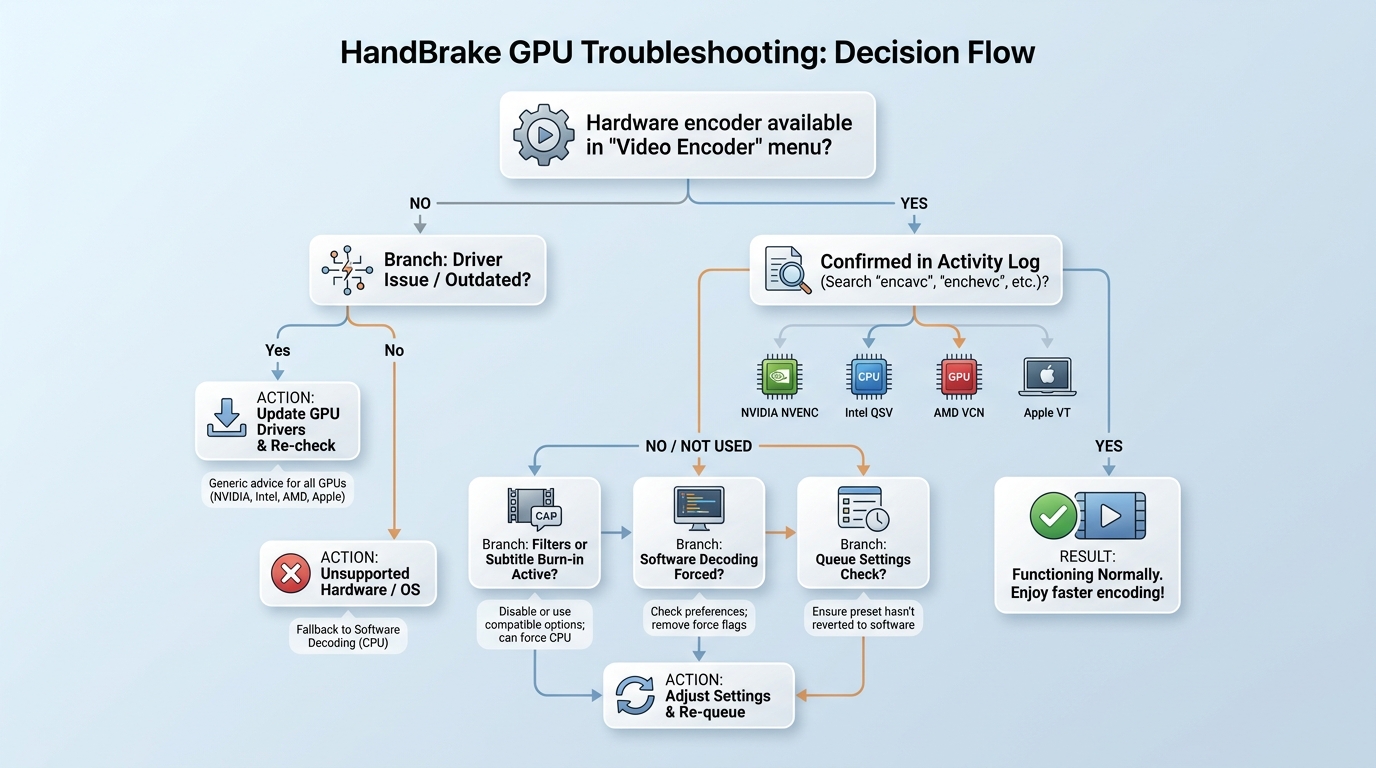
If HandBrake appears not to be using the GPU, first confirm the saved job's encoder and inspect the activity log. Then check the driver, supported codec, filters, decoder, and saved queue settings. Low generic GPU use or high CPU use is not conclusive by itself.
The Hardware Encoder Is Missing
A hardware encoder missing from the menu usually points to an unsupported GPU generation, operating system, driver, codec, or HandBrake build. Update HandBrake and the vendor driver, restart the application, and confirm that the relevant graphics device is enabled.
- Check that the system detects the intended GPU or integrated graphics device.
- Use the vendor's current driver rather than an obsolete compatibility lookup.
- Try a codec known to be exposed by that hardware path.
- Confirm that a remote session or virtual environment is not hiding the media engine.
- On Linux with Intel QSV, check graphics-device access, required firmware, and whether the native or Flatpak build can see the required media libraries.
CPU Usage Still Reaches 100%
HandBrake high CPU usage can coexist with active hardware encoding. Software decoding, scaling, denoise, deinterlace, audio conversion, subtitle burn-in, synchronization, and muxing can keep CPU cores busy.
The next check is the Activity Log, followed by one controlled change at a time. If the log confirms the hardware encoder, a busy CPU identifies another bottleneck rather than proving the GPU path failed.
Filters or Decoding Limit Throughput
HandBrake not using GPU efficiently may actually be waiting on a CPU-bound stage. Filters, scaling, software decoding, audio encoding, subtitles, synchronization, and muxing can cap the rate at which frames reach the hardware encoder. With NVIDIA NVDEC, enabling any video filter, including crop or scale, can return decoding to software even while NVENC remains selected for encoding.
- Test with unnecessary filters disabled, but keep any filter required by the source.
- Check whether hardware decoding is available for the input codec.
- Compare a subtitle pass-through job with a subtitle burn-in job.
- Write to a local drive if the source or destination storage is unusually slow.
A clean diagnostic preserves the intended output. Disabling a required filter can make the job faster while making the result less useful, so speed should never be the sole success measure.
Queued Jobs Fall Back to Software
In a HandBrake batch conversion, each queued item stores its own encoder and quality settings. If one item uses a hardware encoder and another uses software, inspect both job configurations and verify hardware encoding separately in each HandBrake activity log. Queue retention and simultaneous throughput are separate: one valid hardware encode may not saturate the GPU.
Persistent fallback across all jobs suggests a system or compatibility issue. A single unexpected queue item is more likely to have been added with different saved settings.
CPU vs GPU Encoding Tradeoffs
The HandBrake CPU or GPU choice depends on the target. Hardware encoding favors fast turnaround and lower CPU demand; software x264 or x265 generally offers stronger compression efficiency when file size and archival quality targets matter more. This tradeoff applies to general file transcoding; authorized personal DVD backups are a separate task because loading the disc source and encoding the video are different stages.
Speed, Quality, and File Size
GPU encoding quality is not a fixed ranking. At the same bitrate, a well-tuned software encoder can preserve more detail or produce a smaller file at comparable quality, while a current hardware encoder can finish much sooner and reduce CPU work.
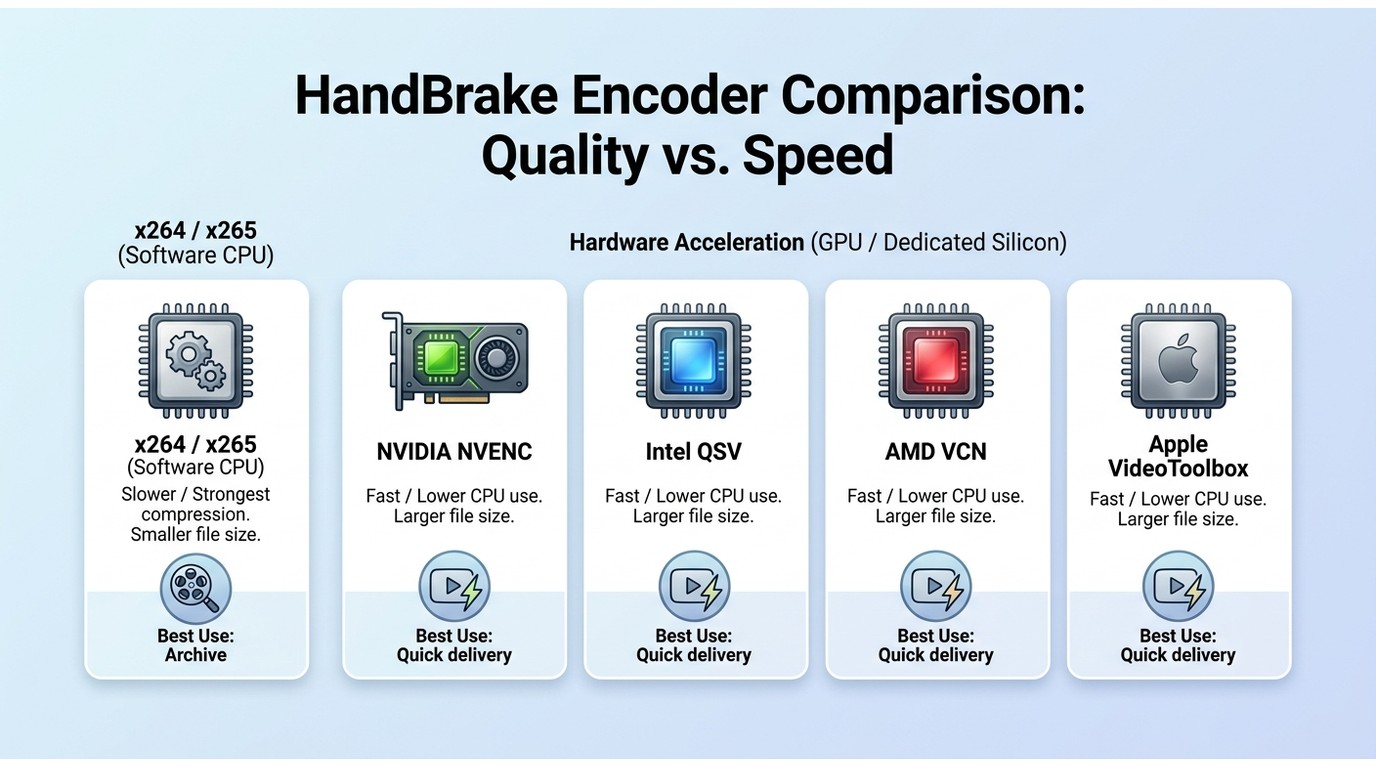
Best Uses for Each Encoder Type
Choose hardware encoding for previews, frequent conversions, streaming transcodes, or jobs where completion time and lower CPU demand matter. Choose software encoding when the smallest practical file at a demanding quality target matters more than turnaround time.
Compare a short representative segment before committing to the full job. Keeping the source, resolution, audio, filters, and playback check consistent reveals whether the speed gain is worth the file-size or detail tradeoff.
When to Choose a DVD Ripper with Efficient GPU Acceleration
HandBrake does not handle copy protection. If it cannot open a DVD, enabling GPU acceleration will not solve the problem because hardware acceleration only speeds up encoding after the source has been successfully loaded. In this case, you need a dedicated DVD ripper that can remove copy protections and use GPU acceleration for faster disc encoding.
DVDFab DVD Ripper combines disc decryption with GPU-accelerated encoding, which makes it better suited to protected DVD workflows than a standard video transcoder. Its Cloud Decryption Service can identify supported protections and load many discs within seconds, while NVIDIA CUDA/NVENC, AMD AMF, Intel Quick Sync Video, and Apple VideoToolbox accelerate the conversion stage on compatible hardware. In practice, the main benefit is shorter encoding time and lower CPU usage, especially when converting full-length DVDs to H.264, H.265, or other compressed formats.
Remember to use a DVD ripper only for discs you lawfully own and are authorized to access, solely for personal backup.
Supported OS:
How to Enable GPU Hardware Acceleration in DVDFab DVD Ripper:
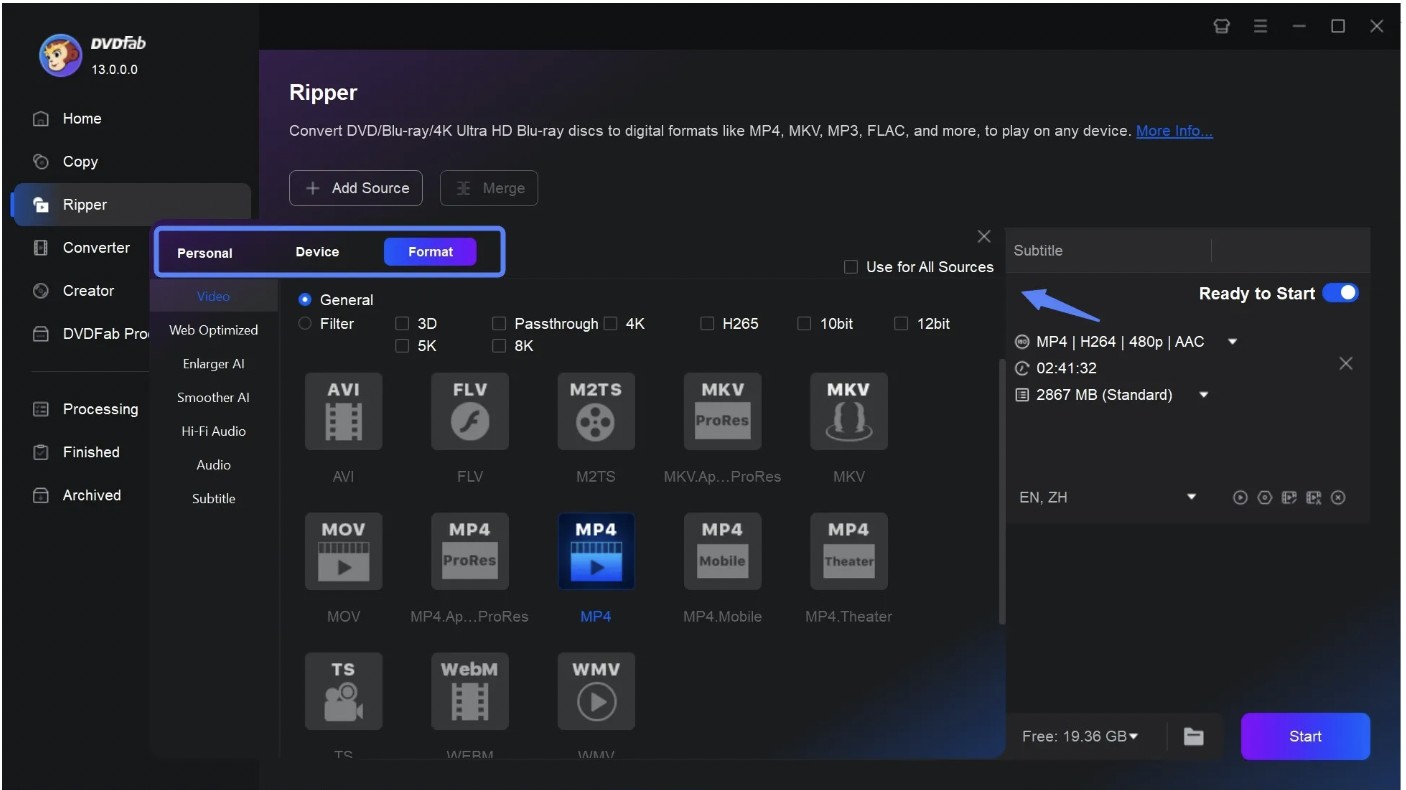
- Step 1: Open DVDFab DVD Ripper, load your DVD, and select a re-encoding profile such as MP4 H.264 or H.265 when you need compressed output.
- Step 2: Go to Common Settings > General > A/V Codec and choose a detected hardware engine for supported video processing, such as NVIDIA CUDA/NVENC, AMD, Intel Quick Sync, or Apple VideoToolbox.
- Step 3: Return to the Ripper module and adjust the resolution, codec, quality, audio, and subtitle settings as needed.
- Step 4: Select the output folder and click Start; DVDFab will use a compatible hardware path for supported video processing.
FAQs
Can HandBrake Use the CPU and GPU Together?
Yes. A selected hardware encoder can process video encoding while the CPU handles decoding fallbacks, filters, audio, subtitles, synchronization, and muxing. This is why HandBrake high CPU usage can appear during a valid hardware encode.
Why Does Task Manager Show Low GPU Use?
A generic GPU percentage may not represent the dedicated video-encode engine. Confirm the selected encoder in the HandBrake Activity Log first, then check the relevant Video Encode graph when available before assuming HandBrake is not using GPU resources.
Do Queued Jobs Keep the Hardware Encoder?
Each queue item keeps its own saved settings. Inspect the Video Encoder field for every job and verify each active or completed item in the activity log if you suspect a fallback to software encoding.
Is GPU Encoding Suitable for Archival Video?
It can be useful when turnaround time is the priority, but software x264 or x265 is generally the stronger fit when compression efficiency, file-size control, and an archival quality target matter most. Compare a representative segment before committing a large collection.
Does HandBrake support GPU hardware decoding, and how do I enable it?
Yes. On Windows, open Tools > Preferences > Video to manage available Intel Quick Sync or NVIDIA hardware-decoding options; on Linux, availability depends on the installed build and exposed hardware path, so confirm the active decoder in the Activity Log. On macOS 13 or later, enable VideoToolbox hardware decoding in HandBrake’s Advanced preferences; supported GPU filters are available when VideoToolbox hardware decoding and encoding are both active. With NVDEC, any enabled video filter, including crop or scale, can trigger software decoding while NVENC still handles video encoding. AMD VCN in HandBrake 1.11.0 supports hardware encoding, not hardware decoding.
Conclusion
HandBrake can use the GPU when a supported hardware encoder is selected, but GPU acceleration does not move the entire transcode away from the CPU. Decoding, filters, audio, subtitles, synchronization, and muxing may still keep CPU usage high, so the activity log is the best place to confirm whether NVENC, QSV, AMD VCN, or VideoToolbox is actually active.
Choose GPU encoding when speed and lower CPU usage matter more, and choose software encoding when compression efficiency, smaller file sizes, or archival quality is the priority. Confirm the hardware path in the activity log, then compare the same source, dimensions, filters, audio, and playback target before deciding. If a DVD source does not load, treat source access as a separate issue from encoder selection because a GPU setting cannot make an unreadable source readable.

 Top 6 ISO to MP4 Converters in 2026: Tested & GuideBy Diana Smith - Oct 28, 2026
 How to Copy DVDs to Hard Drive: Tested Tools for Windows 10/11, Mac and LinuxBy Wenny Yan - Oct 20, 2026
 How to Rip and Transfer DVD to iPad/iPhone: Free and Paid Options in 2026By Wenny Yan - Oct 15, 2026
 How to Convert DVD to Digital in 2026: 7 Software, Service & Hardware MethodsBy Diana Smith - Oct 14, 2026