Master HandBrake Batch Convert in 2026 to Speed Up Video Conversion

Summary: HandBrake's batch convert queue works well until a library grows large enough that encoder choice, nested folders, and per-file audio settings start causing slowdowns or failed jobs. This guide walks through queuing files, picking the right encoder for large batches, and the two workflow gaps that catch most users off guard. For copy-protected DVDs, which HandBrake cannot decrypt on its own, DVDFab DVD Ripper covers the gap.
Table of Contents
A folder of screen recordings, camera clips, or capture card footage rarely needs just one file converted. It needs all of them converted the same way, without you sitting there clicking through each one. I ran HandBrake through queues of 20 to 100 files on both Windows and macOS to map out where the batch convert workflow saves real time and where it still needs a manual nudge.
This guide covers how HandBrake batch convert works, the exact steps to queue and convert videos on Windows and macOS, and the parts of the workflow (hardware encoding, nested folders, subtitle tracks) that community reports flag most often.
How HandBrake Batch Convert Works
HandBrake's batch convert feature adds every file in a folder to a single queue, then applies the same preset to each one in turn. That matters most once a library grows past a handful of clips: instead of opening each file, picking settings, and hitting start, you configure once and let the queue run unattended, including overnight for large jobs.
The queue reads and writes common formats such as MP4, MKV, and WebM, and each file in the batch can still get its own resolution, codec, or bitrate override if needed. In one case shared on Reddit's r/handbrake, switching from CPU-only encoding to a GPU-based encoder (NVENC, Quick Sync, or VideoToolbox) cut the time for the same file from about 12 minutes to roughly 1 minute, though real-world gains vary by hardware and source resolution.
Key Batch Conversion Features
- Format coverage: reads and writes MP4, MKV, and WebM, plus most standard multimedia containers, and can open homemade DVD or Blu-ray folders that carry no encryption.
- Per-file customization: resolution, codec, bitrate, and other advanced parameters can be adjusted individually before a file joins the queue.
- Queue management: files can be reordered, paused, or removed from the queue without restarting the whole batch.
- Hardware encoding support: NVENC, Quick Sync, and VideoToolbox are available depending on your hardware; see the encoder comparison further down for how much this affects batch speed.
- Free and open-source: every batch conversion feature, including queue management and hardware encoding, ships in the free build with no paid tier.
- Cross-platform availability: the same queue workflow runs on Windows, macOS, and Linux.
How to Batch Convert Videos in HandBrake
The steps below assume you already have HandBrake installed. If you are setting it up for the first time, budget a few extra minutes for the initial preferences step, since skipping it is the most common reason batch jobs fail to start.
Step 1: Download and Open the HandBrake Program
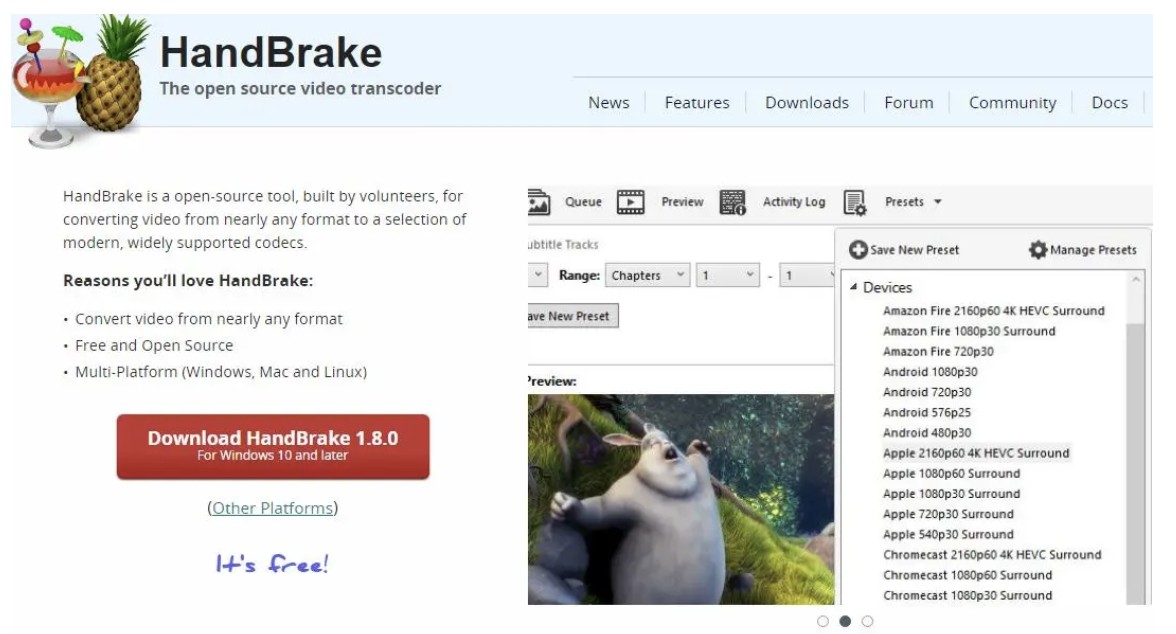
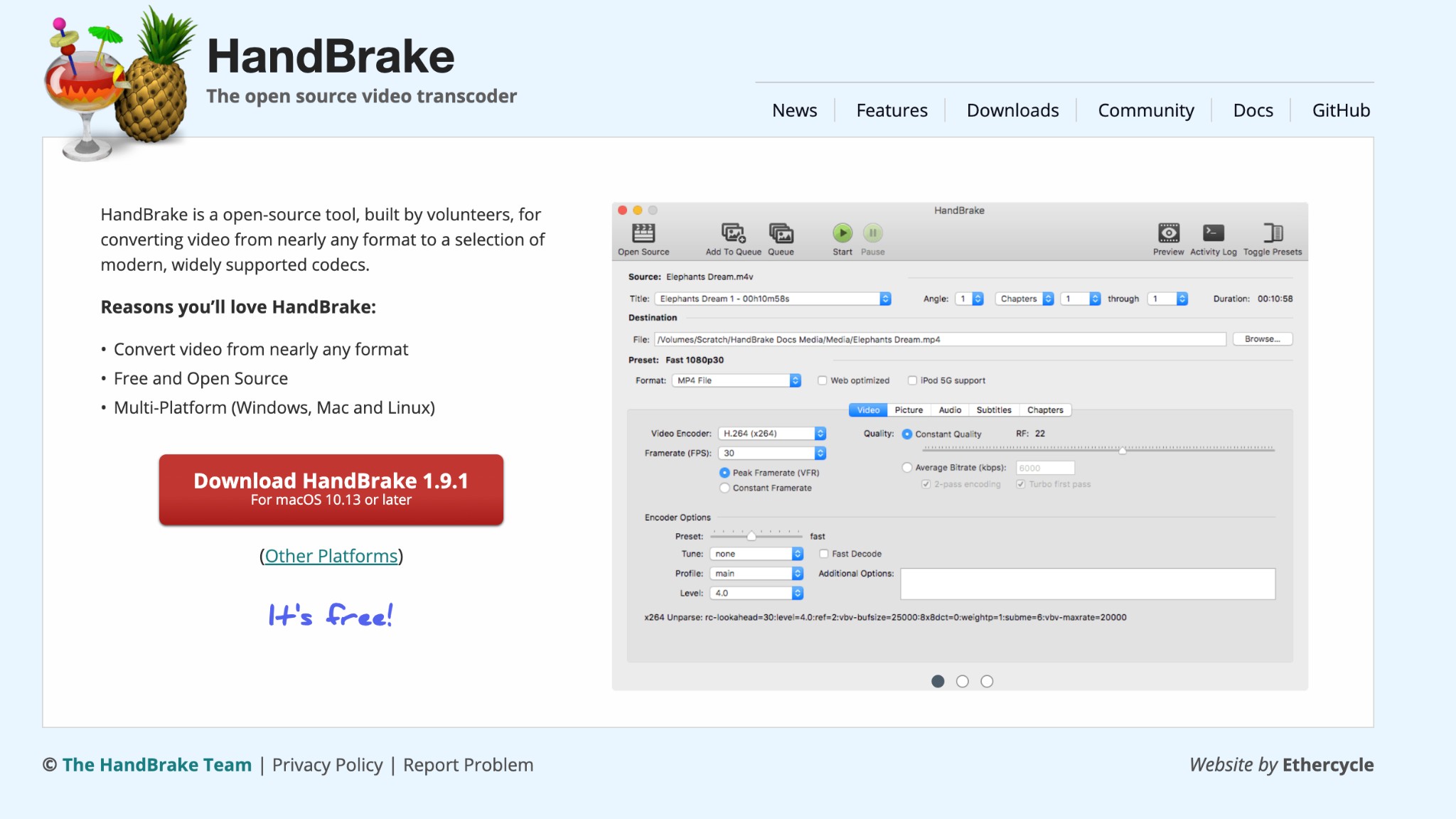
Visit the official HandBrake website and download the current version for your operating system. Click Download HandBrake to pick the build for your OS, then complete the setup by following the installer prompts.
Step 2: Adjust the Settings of the Software
Once HandBrake is installed, open Preferences before queuing anything. This step is required for batch conversion, not optional: HandBrake blocks queued jobs until automatic file naming is turned on.
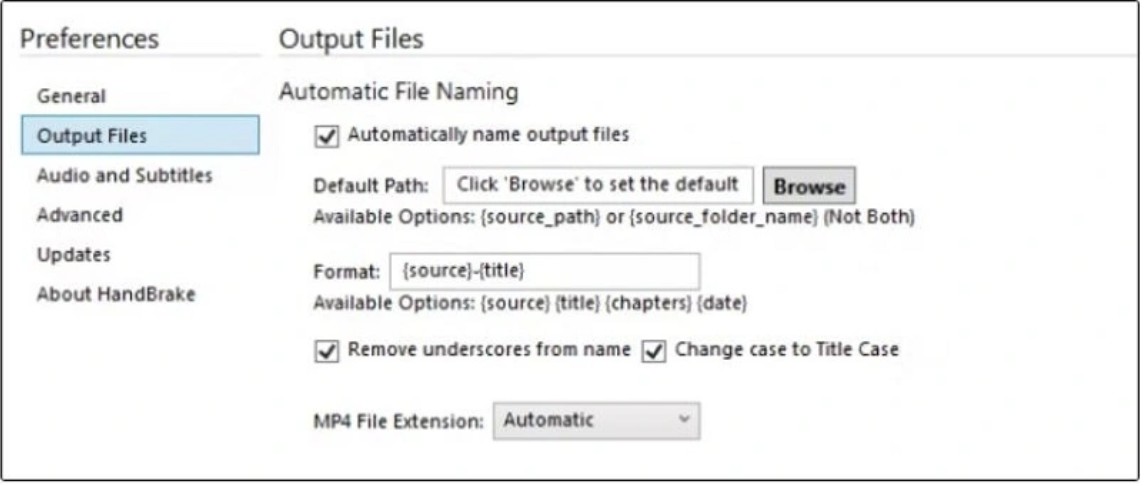
Open the Tools menu and go to Preferences, then Output Files. Click Browse next to Default Path to set a storage location for the converted files, then click < Back to return to the main window.
Step 3: Import All the Necessary Video Files
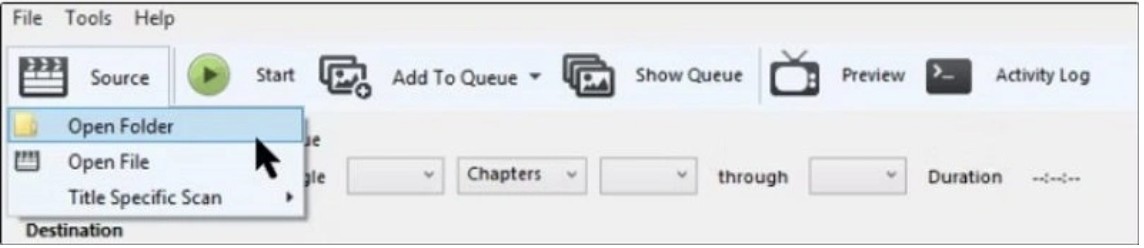
From the main interface, click Source and choose Open Folder to select the videos and folders you want to convert. HandBrake loads the matching files into the queue automatically.
Open Folder scans one level deep. It does not walk into subfolders on its own, which is a frequent complaint on Reddit's r/handbrake from users with TV seasons or project archives split across nested directories. For that kind of library, the common workaround is HandBrakeCLI, HandBrake's command-line counterpart, driven by a short script that loops through subfolders and queues each file individually.
Step 4: Configure the Output Settings
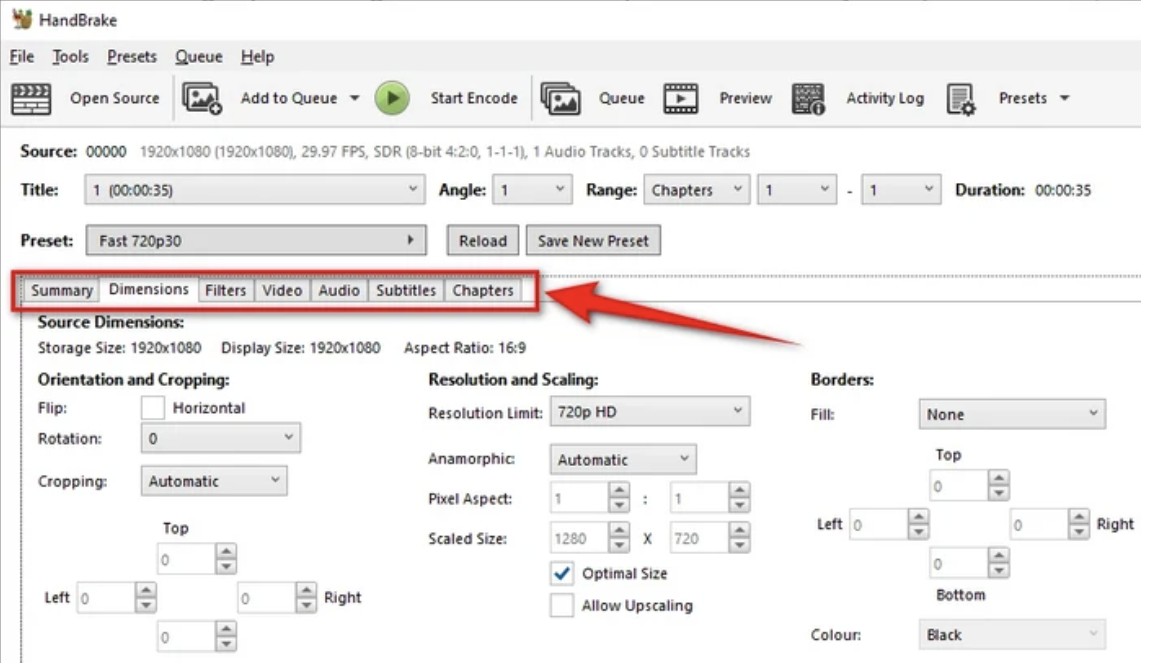
Once HandBrake finishes scanning the file, choose an output preset from the panel on the right. Presets cover common devices such as phones, tablets, and game consoles, or you can set every option manually for more control.
Beyond the preset, the Dimensions, Filters, Video, Audio, Subtitles, and Chapters tabs let you adjust codec, frame rate, resolution, audio tracks, and subtitle behavior for the current file. The Video tab is where you pick an encoder; for batch jobs, that choice has an outsized effect on total queue time, covered in more detail further down.
Step 5: Add Videos to the Queue
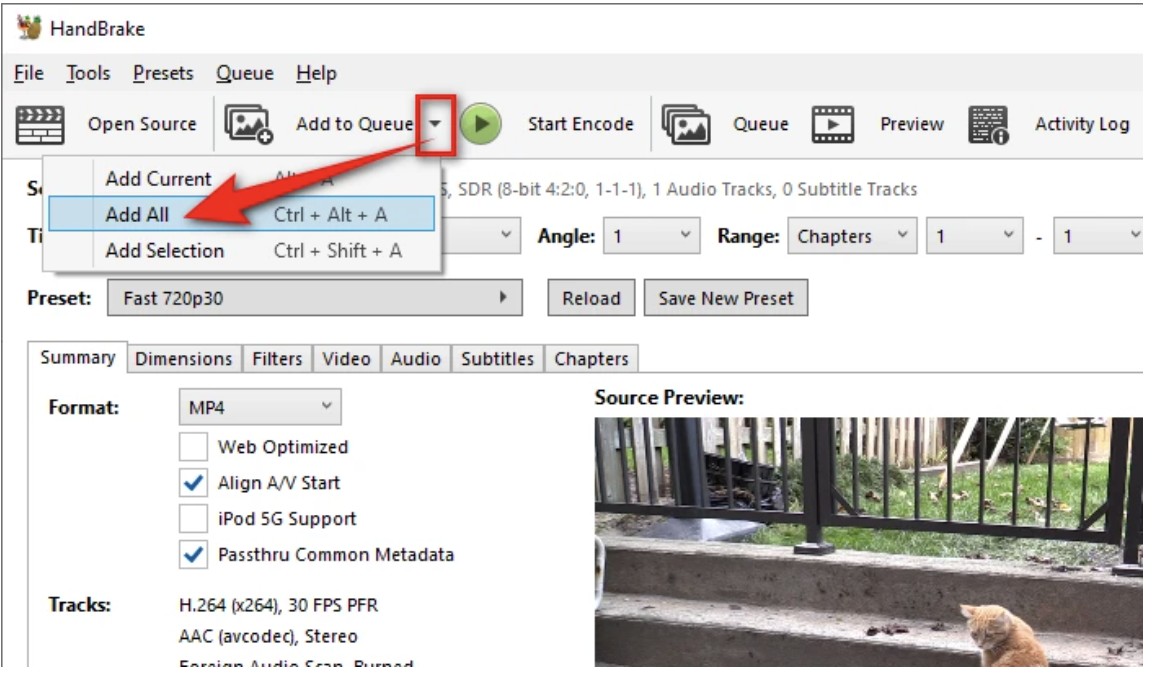
After configuring the settings, click Add to Queue in the main menu, then Add All (or Ctrl+Alt+A) from the dropdown to send your files to the queue for batch conversion.
Before starting the conversion, the Queue menu lets you preview and adjust any file's settings.
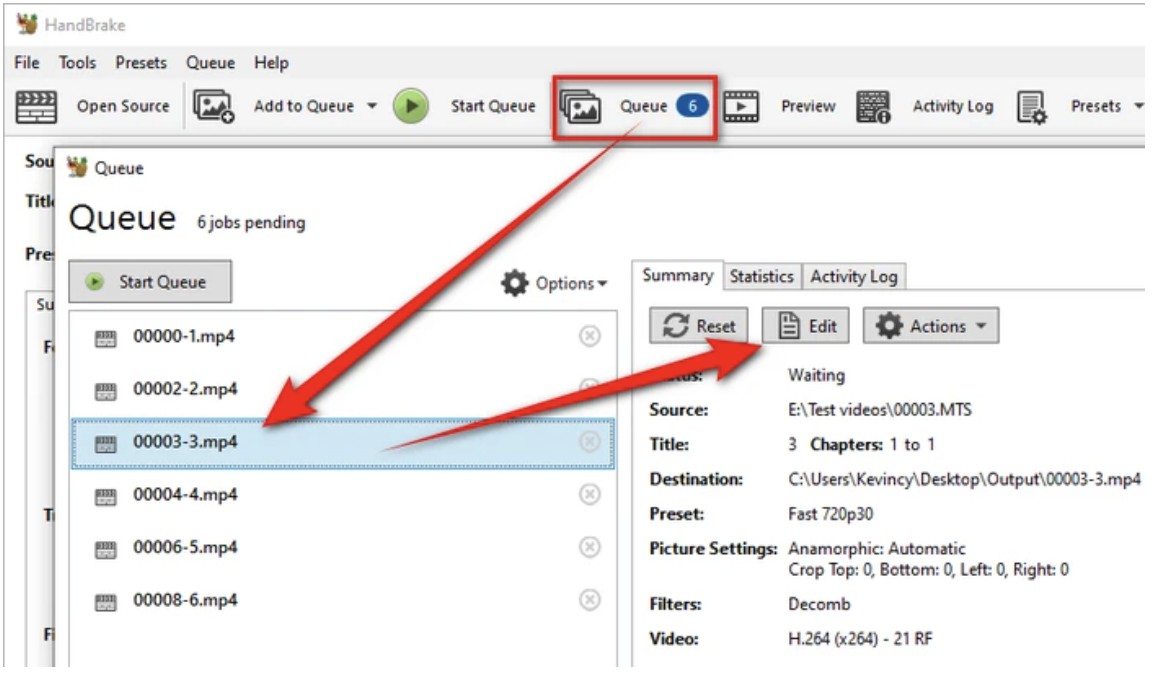
Here you can set the When Done action to do nothing, edit a specific job, or remove a file once it finishes converting.
Step 6: Start the Bulk Video Conversion
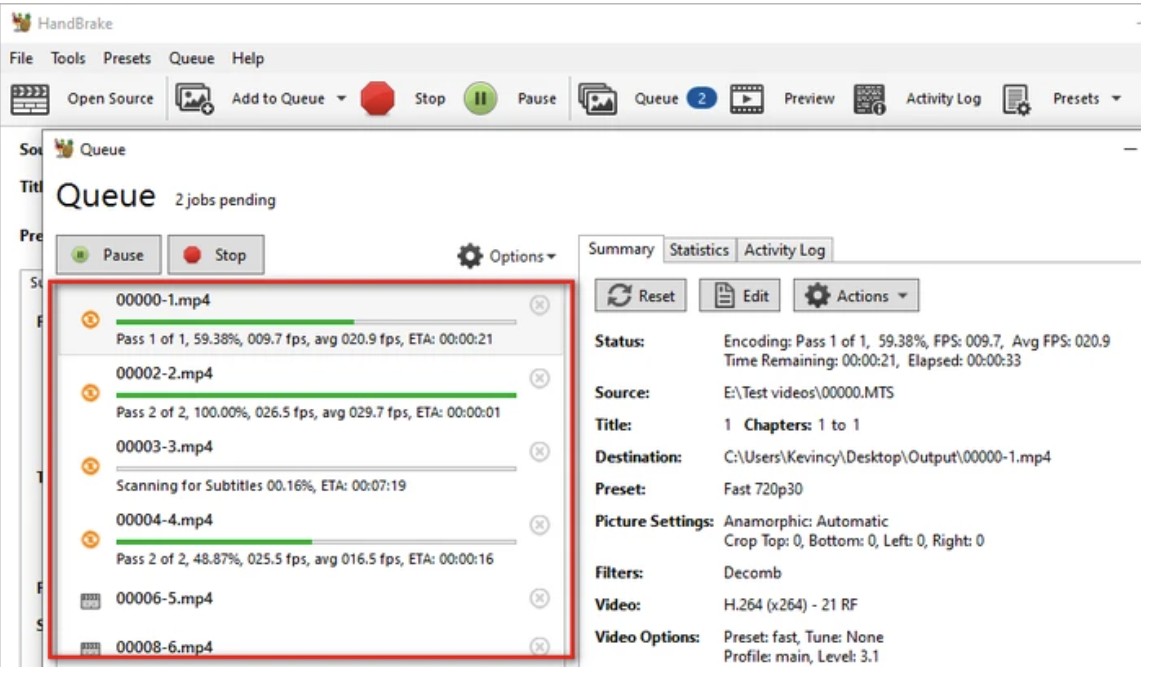
When the queue looks right, click Start Queue to begin the batch conversion. HandBrake processes the files one by one, and you can follow progress for each job in the Queue panel.
Batch Conversion Tips for Larger Libraries
The default settings work fine for a handful of files. Once a queue grows into the dozens or hundreds, encoder choice starts to matter more than almost any other setting, and it is worth comparing options before committing a large batch to one.
| Encoder | Type | Relative Batch Speed | Trade-off |
| x264 / x265 | Software (CPU) | Slowest | Smaller files at a given quality; ties up the CPU for the whole queue |
| NVENC | Hardware (Nvidia GPU) | Fast | Lower CPU load; larger files than x264/x265 at similar visual quality |
| Quick Sync | Hardware (Intel GPU) | Fast | Built into most modern Intel CPUs; output quality varies by generation |
| VideoToolbox | Hardware (Apple/AMD on Mac) | Fast | Best fit for macOS batch jobs; not available on Windows or Linux |
For an overnight queue where file size matters more than turnaround time, x264 or x265 still makes sense, since the smaller output offsets the extra encoding time. For a same-day batch, a hardware encoder is the more practical default even though the output files run larger. On a queue of dozens of files, that per-file speed difference compounds into real hours saved, which is why encoder choice shows up as the top complaint in slow-batch discussions. The right pick ultimately depends on whether your priority is finishing fast or keeping files small, not on which encoder is objectively best.
Two habits reduce the odds of a large batch going wrong partway through:
- Run a small test batch of 2-3 files with any new preset before committing dozens of files to the queue. A bad setting or a damaged source file is far easier to catch early than to unwind after an overnight run stalls partway through.
- For folders nested more than one level deep, repeat Open Folder for each subfolder if there are only a handful. Once the number of subfolders makes that tedious, HandBrakeCLI through a short script is the more practical option.
User Feedback on HandBrake Batch Convert
HandBrake's batch conversion tool sees heavy use from people who need to process multiple videos without paying for software. It holds up well for most workflows, though the experience still depends on the user's technical comfort and how demanding the video library is. Below is a concise look at the feedback that comes up most.
- It is free software available to anyone who needs to convert and process content across platforms.
- Batch conversion processes large groups of files in one session, cutting down manual work.
- Supports many input and output formats and preserves good quality when using recommended settings.
- Offers granular control over codecs, resolution, bitrate, and subtitles for users who want detailed adjustment.
- The interface and terminology can feel overwhelming to newcomers, especially when adjusting advanced settings.
- Batch tasks may occasionally fail or stop if a source file is damaged or unusually large.
HandBrake Batch Convert Errors Encountered by Users
Beyond day-to-day feedback, users also run into specific errors while queuing or converting bulk files, including:
- Sudden crashes during batch convert sessions on Mac, Windows, or Linux
- Extremely slow conversion, especially for large batch jobs and lengthy files
- Files that will not open after conversion
- The Queue function refusing to run, or getting stuck in a paused state
- The queue finishing with an error or "2 errors" message
- Windows builds failing to launch after an update, tied to the .NET Desktop Runtime change introduced in HandBrake 1.11.0
High-end hardware makes bulk tasks noticeably smoother; on modest machines, minor issues like the ones above show up more often. HandBrake also cannot digitize an encrypted DVD without separately installing libdvdcss, which puts ripping commercial discs outside what the program can do on its own.
That gap is where a dedicated disc-ripping tool comes in. DVDFab DVD Ripper is built specifically to read copy-protected DVDs and convert them into standard video files. A closer look at how it works follows below.
Alternative to HandBrake Batch Convert: DVDFab DVD Ripper
DVDFab DVD Ripper is a DVD conversion tool that supports more than 1,000 output formats and ships with preset profiles for 260+ devices. GPU acceleration keeps conversion speeds fast while aiming to preserve the quality of the original disc.
👍Pros
- Rips both older and newly released copy-protected discs
- Converts DVD content into 1,000+ formats while preserving 1:1 quality
- Compresses file size for smoother playback across devices
- Batch-converts DVDs with GPU-accelerated speed
- Includes video editing tools to crop, trim, and merge clips
- Adds watermarks and subtitles, and adjusts brightness, contrast, and saturation
👎Cons
- The free version only rips to MKV and MP4 formats
Converting Disc Content with DVDFab DVD Ripper
DVDFab DVD Ripper removes the need to carry physical discs or a DVD drive once your library is converted. Here is how to back up a DVD to a video file you can play on a phone, tablet, or laptop.
Step 1: Download DVDFab DVD Ripper
Go to the official DVDFab website and download the program for Windows 11/10/8.1/8/7 or macOS 10.13 through 15.x. A free trial is available before you commit to a license.
Once installed, open the software and select the Ripper module from the main interface.
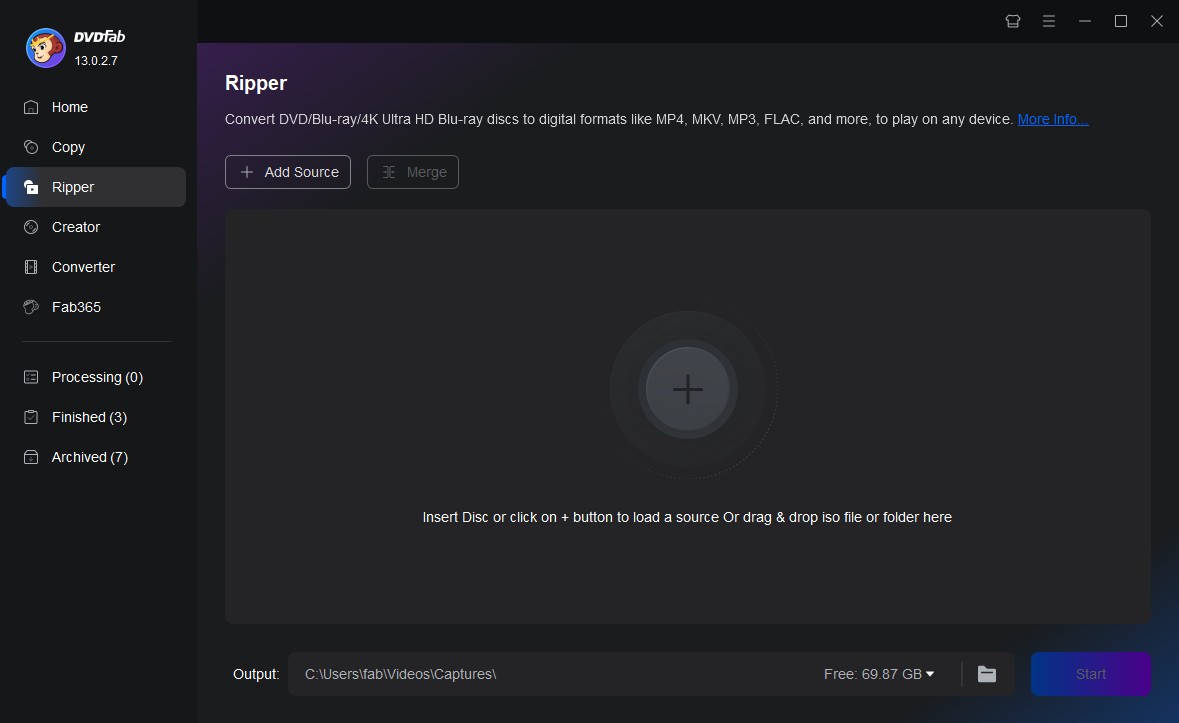
Step 2: Insert the Desired DVD
Insert the copy-protected DVD into the drive. DVDFab detects the content automatically and handles any required decryption.
Step 3: Choose the Disc Title and Customize the Output
Once the disc loads, pick the title you want to rip under Choose Other Titles, then select an output format under Choose Other Profile.
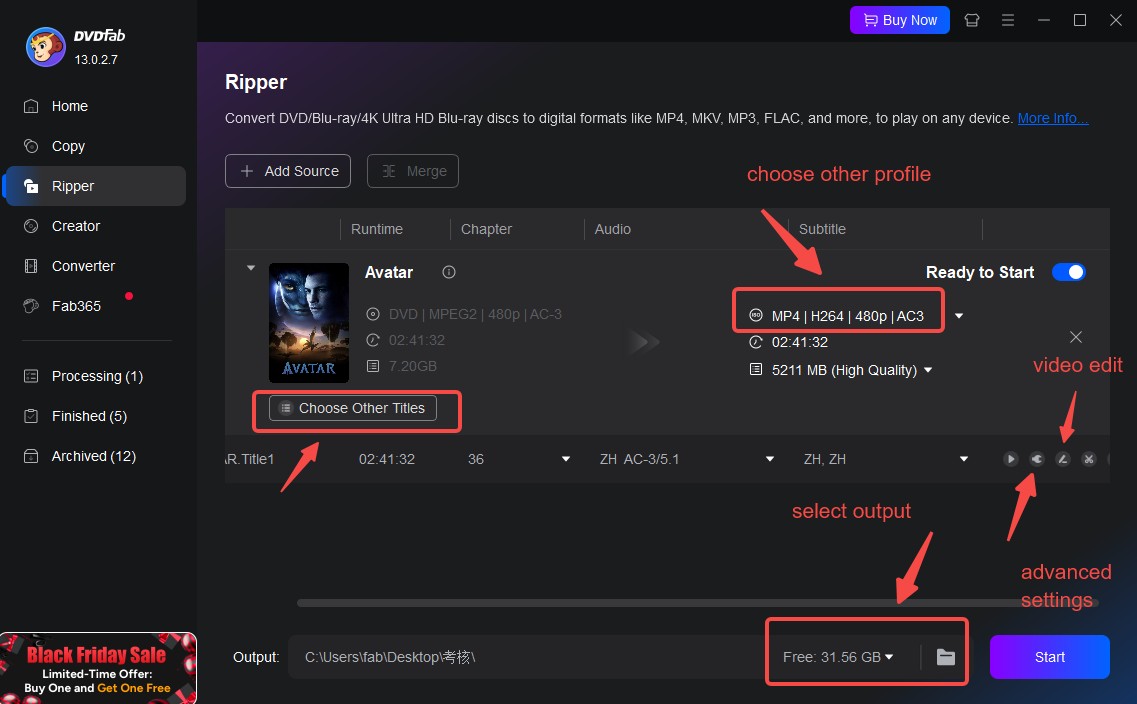
Adjust video settings and advanced options to decide which audio tracks, subtitles, and chapters to keep in the output file. The built-in Video Edit tool is also available if you want to trim or merge clips before conversion.
Step 4: Digitize and Save the Converted Video
Once you're happy with the settings, scroll to the bottom of the screen, choose a folder in the Output section, and select a directory to store the converted video.
Click Start to rip the disc and save it as a standard video file you can play on any supported device.
FAQs
How can I make HandBrake convert faster?
The preset panel ranges from Ultrafast to Placebo, and picking a faster preset trims encoding time at the cost of some output quality and a larger file. For batch jobs specifically, encoder choice matters more: switching from a software encoder like x265 to a hardware option such as NVENC or Quick Sync, where your hardware supports it, tends to cut total queue time more than any preset change alone.
Are there alternatives to HandBrake with more disc-focused features?
HandBrake converts regular video files well, but it does not read copy-protected DVDs or Blu-rays without extra components. For encrypted discs, or when you want more control over disc-specific output, DVDFab DVD Ripper is a commonly used alternative that scans protected discs and converts them into a range of video formats on Windows and macOS.
Can HandBrake batch convert files inside subfolders automatically?
Not through Open Folder, which only scans one level deep and skips nested subfolders. For a handful of subfolders, repeating Open Folder for each one is the simplest fix. For a large or deeply nested library, HandBrakeCLI run through a short loop script is the more practical option, since it can walk an entire folder tree without manual repetition.
Why doesn't HandBrake keep my audio and subtitle track choices when I use Add All?
Add All copies encoder, resolution, and bitrate settings to every file in the queue, but it does not carry over per-file audio or subtitle track selections. This is a known limitation raised repeatedly on Reddit's r/handbrake. The practical fix is to spot-check a few files in the queue after adding them and reset any track selections before starting the batch.
Conclusion
HandBrake's batch convert feature handles everyday video libraries well: queue a folder, apply a preset, and let it run, with a hardware encoder as the main lever if speed becomes the bottleneck. Choose HandBrake if your files are unencrypted video, since it is free, cross-platform, and actively maintained. Choose DVDFab DVD Ripper if any part of your batch is a copy-protected DVD, since HandBrake cannot decrypt those discs on its own.

 Free DVD Decoder for Windows XP and Windows 11: 3 Ways to Play DVDsBy Diana Smith - Sep 23, 2026
 How to Compress ISO Files: 4 Methods for Storage, Playback, and ArchivesBy Diana Smith - Sep 16, 2026
 How to Rip DVD to Facebook and Upload the Video in 2026By Diana Smith - Sep 15, 2026
![How to Rip DVDs for Plex: Guide to Formats, Tools, and Library Setup [2026]](https://images.dvdfab.cn/media/Screenshot_2026-09-08_at_18.53.34_j36v3l.png/public) How to Rip DVDs for Plex: Guide to Formats, Tools, and Library Setup [2026]By Diana Smith - Sep 8, 2026
How to Rip DVDs for Plex: Guide to Formats, Tools, and Library Setup [2026]By Diana Smith - Sep 8, 2026