Is HandBrake Safe? What to Know Before Downloading or Ripping DVDs

Summary: HandBrake is safe, legitimate, and free open-source video transcoder when downloaded from trusted sources such as handbrake.fr, the official GitHub project, or Flathub. The official software is not a virus and does not normally contain malware, spyware, or adware, but you should avoid unofficial mirrors, fake download buttons, and bundled installers.
HandBrake is generally safe when you download it from an official source and use it for videos or discs you have the right to convert. Most safety concerns come from fake download pages, modified installers, outdated mirrors, or DVD decryption methods that may be treated differently under local copyright rules.
This guide explains whether HandBrake for DVD ripping is safe, what the "HandBrake virus" concern means, how to use HandBrake and libdvdcss in a reasonable way, and when HandBrake’s limits may make a dedicated DVD ripper more practical.
Is HandBrake Safe to Download?
HandBrake is safe to download when the installer comes from an official source. The main risk is not the official app itself, but fake download pages, modified installers, old mirror files, or download buttons that lead to bundled software.
Where to Download HandBrake Safely
The safest places to download HandBrake are the official HandBrake website, the official HandBrake GitHub project, and Flathub for Linux users. After downloading, check that the file name, platform, and version match the official release page. Advanced users can also compare the checksum or verify the OpenPGP signature.
- Official HandBrake Website: The primary place to download HandBrake is https://handbrake.fr/ .
- GitHub Releases Page: HandBrake's official source code and releases are also available through the official GitHub project.
- Flathub for Linux: Linux users can use Flathub when it matches their system setup.
Unofficial HandBrake downloads can create real security risks:
- Malware and spyware: Modified installers may include malicious code that can affect your system or files.
- Unwanted bundled apps: Some download portals add extra programs, browser extensions, or system cleaners.
- Fake update prompts: A counterfeit installer may imitate HandBrake and ask you to install unrelated tools.
- Old or changed files: A mirror site may provide an outdated build or a file that does not match the official release.
What Does the "HandBrake Virus" Mean?
HandBrake virus usually refers to unsafe copies of HandBrake, not the official app. Users may see this phrase because of fake installers, compromised third-party download pages, or antivirus warnings triggered by files from unofficial sources.
There was also a past macOS download incident in May 2017 involving a compromised mirror server. That event is one reason users should avoid old mirrors and third-party download pages. It does not mean the current official HandBrake app is unsafe when downloaded from trusted sources.
A clean official installer should not ask you to install unrelated browser extensions, system cleaners, or extra video tools. If your installer includes these offers, delete it and download HandBrake again from an official source.
Is HandBrake Safe to Use for DVD Ripping?
HandBrake is safe to use for DVD ripping when the source is unprotected or when you have the right to convert the content. It can open many video files, DVD folders, Blu-ray folders, and some disc image files, then convert them to common video formats.
The limit is copy protection. HandBrake does not include built-in DVD or Blu-ray decryption. When a disc uses protection, HandBrake may fail to scan it, show incomplete titles, or require an extra library such as libdvdcss before it can read the source.
libdvdcss is commonly used with HandBrake to read DVDs encrypted with CSS. Whether it is appropriate to use depends on where you live and what rights you have to the disc. In some regions, making a personal backup of media you own may be treated differently from bypassing protection on a commercial disc. Staying informed helps you use HandBrake in a legal and responsible way.

- Use HandBrake for allowed sources: Personal videos, unprotected DVDs, and disc folders you are allowed to convert are the clearest use cases.
- Check local rules for protected discs: Copyright and copy-protection rules vary by country, so the same DVD ripping method may not be treated the same everywhere.
How to Use HandBrake to Rip Safely
Always make sure you're getting the latest & authentic version of HandBrake by downloading it only from its official website.
- Install the libdvdcss if needed
To let HandBrake read encrypted DVDs, you may need to install the libdvdcss library. Copyright rules can limit decryption of copy-protected discs, so confirm that using libdvdcss is allowed where you live. Download and use this library only if local law permits.
- Adjust Output Settings
HandBrake offers settings to tune your ripped files. Choose the file format, resolution, bitrate, frame rate, and quality to fit your needs. If you need smaller files, lower the quality settings to reduce size while keeping acceptable picture quality. Test a few presets to find the balance that works on your devices.
- Scan Files with Antivirus Software
Use antivirus software to scan downloads before and after installation. Getting HandBrake from the official source is a good start, and scanning helps catch hidden malware or other security issues.
- Make a backup of your files
Always back up important files before using new software to avoid accidental loss or damage. This matters when handling large video files or changing system settings. Store backups on an external drive or cloud storage in case something goes wrong.
These instructions help you use HandBrake safely and effectively while reducing risk during DVD ripping.
- Use presets like "Fast 1080p30" for quick and high-quality conversions.
- Adjust the Constant Quality slider to balance file size and video quality.
- Enable hardware acceleration if supported by your system to speed up the conversion process.
When HandBrake May Not Be Enough for DVD Ripping
HandBrake is a good choice for free video transcoding, but its limits can create extra work for DVD users. HandBrake cannot natively rip copy-protected DVDs or Blu-rays, offers only basic editing functions, and its format support is limited mainly to MP4 and MKV. Users wanting advanced features, broader format compatibility, or easier workflows may feel restricted by HandBrake.
In these cases, a dedicated DVD ripper like DVDFab is worth considering when you need a clearer ripping process, more output profiles, subtitle and audio controls, and support for DVD sources that HandBrake cannot read on its own.
DVDFab DVD Ripper
- 💻Supported OS: Windows 11/10/8.1/8/7 & macOS 10.13 - 15.x
DVDFab DVD Ripper is designed for users who need more DVD ripping options than HandBrake provides. It can help rip copy-protected DVDs, ISO files, and DVD folders to MP4, MKV, AVI, MP3, and many other video or audio formats without requiring extra DVD decryption software.
It also gives users more control over output settings. You can adjust bitrate, resolution, frame rate, audio channels, subtitles, and audio tracks before conversion. For users who need basic editing, DVDFab also includes tools for trimming unwanted clips, cropping the picture, adding watermarks, and adjusting the final video before exporting.
DVDFab is a reliable alternative when HandBrake cannot scan a DVD source, when you need a ready-made device profile, or when you want to process several DVD titles without preparing the source in a separate program.
- Decrypts and rips copy-protected DVDs natively.
- Converts DVDs to over 1,000 video/audio formats.
- Built-in video editor for cropping, trimming, and watermarking.
- GPU acceleration for faster conversions.
- High compatibility with devices like smartphones, tablets, and gaming consoles.
- Audio and video output without quality loss.
How to Rip a DVD Safely with DVDFab DVD Ripper
Step 1: Load the DVD Source and Launch DVDFab
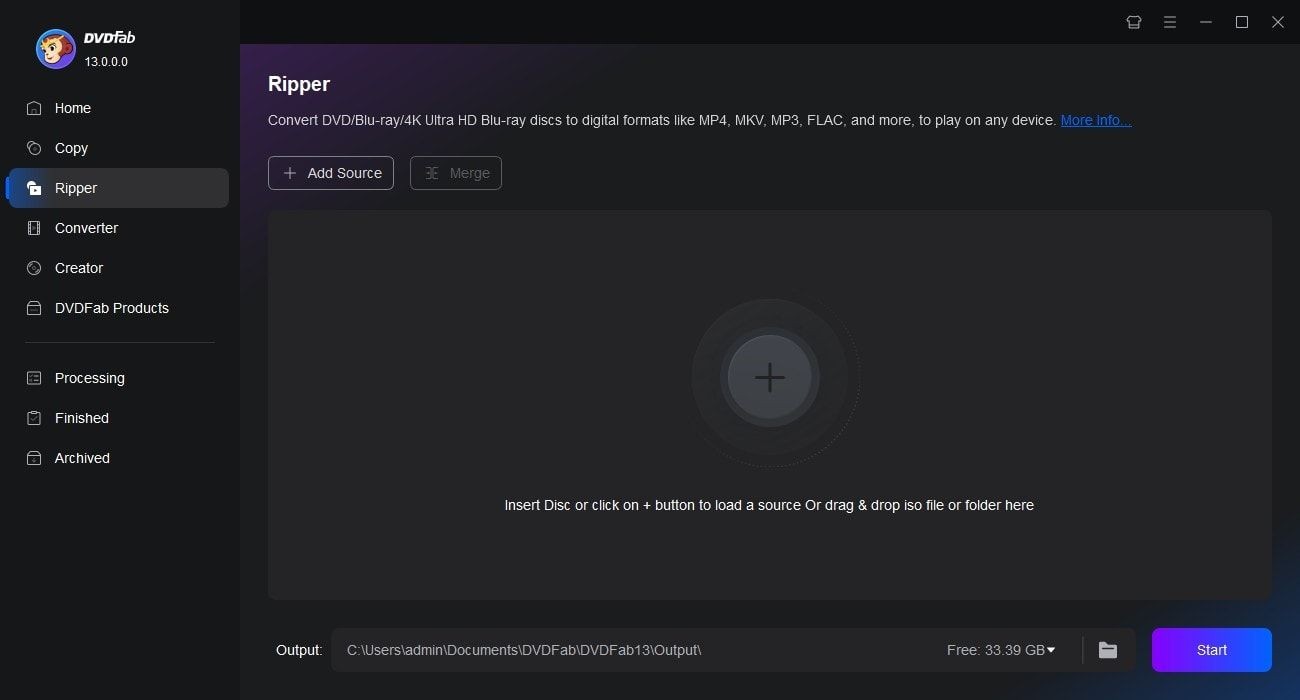
Launch DVDFab 13 and choose Ripper. Use the Add button to load your DVD disc, ISO file, or DVD folder. You can also drag and drop an ISO file or folder into the workspace.
Step 2: Customize the Output DVD Video by Selecting One Profile
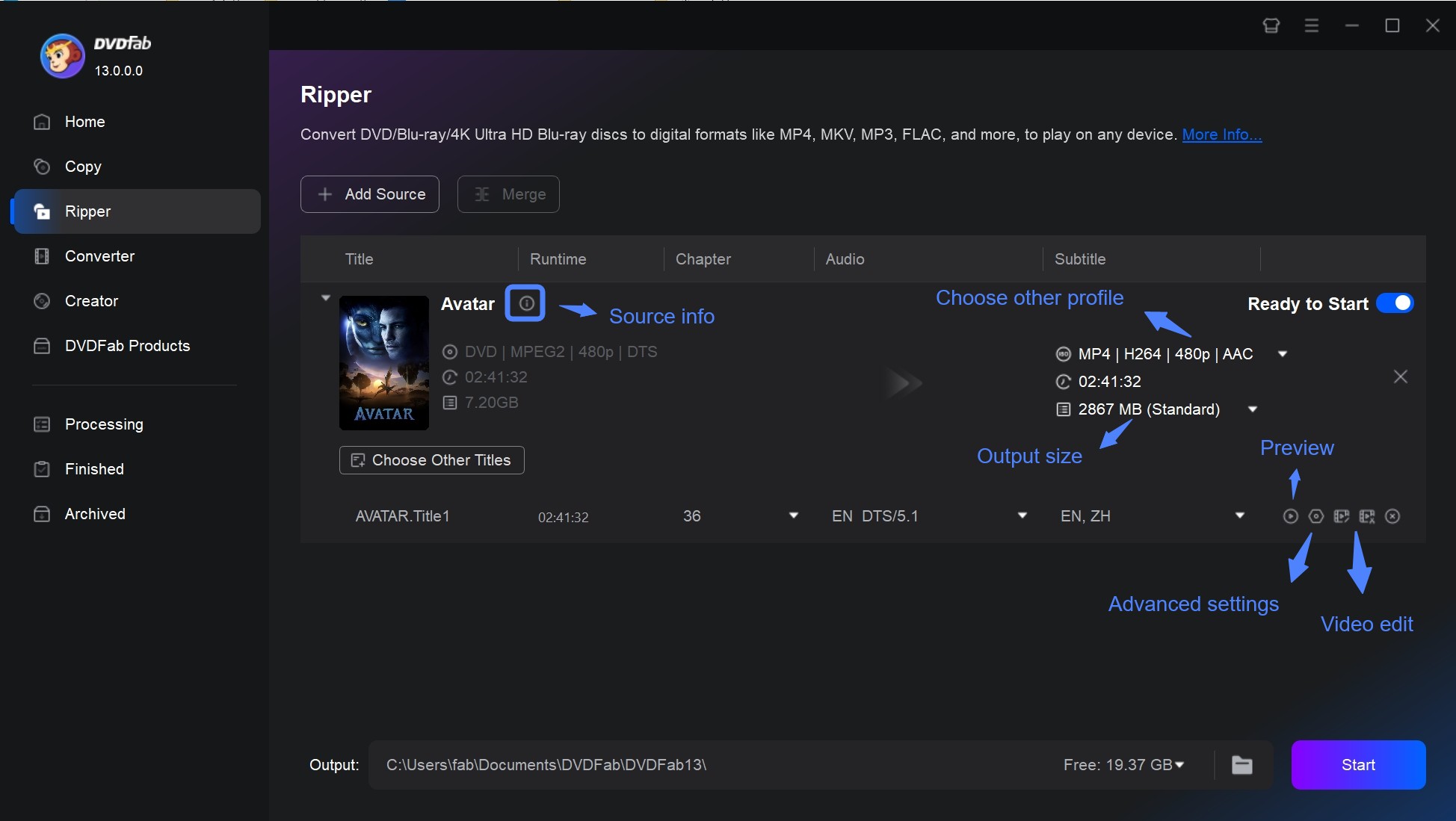
Click "Choose Other Profile" to select an output format. You can then choose audio tracks and subtitles, and adjust video or audio settings when needed.
Step 3: Start Ripping the DVD
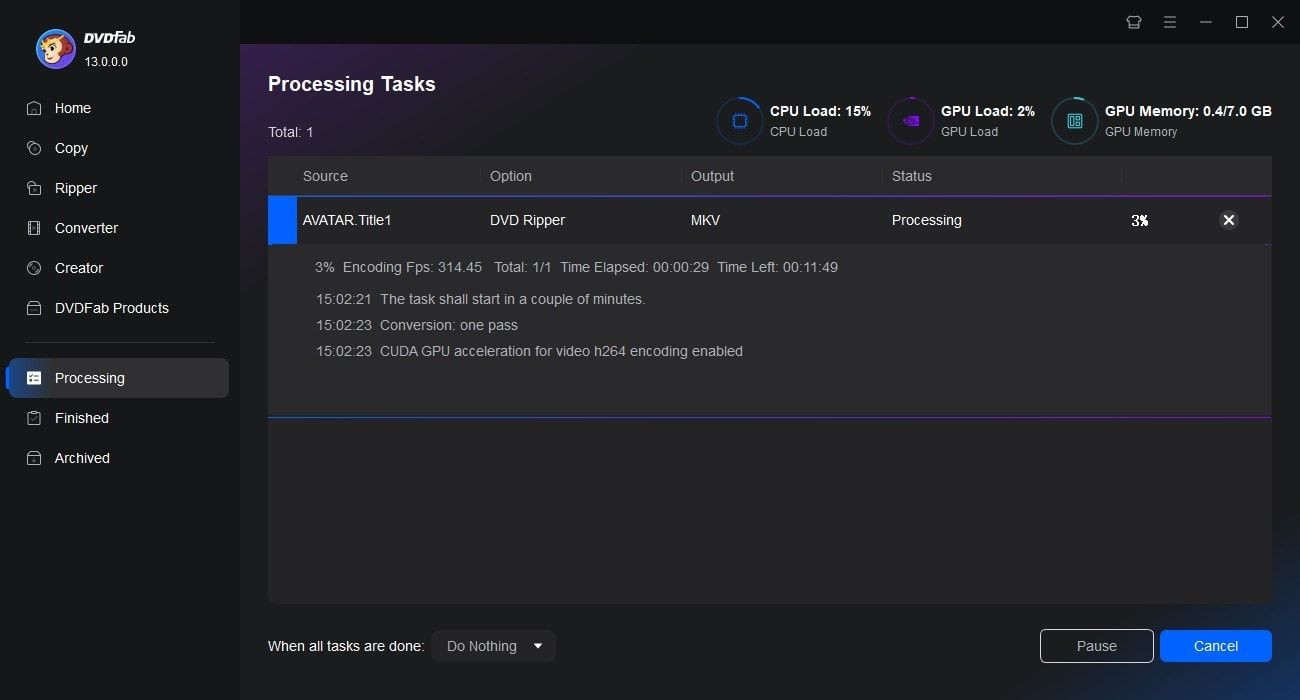
Choose a local folder or connected device as the output location. Click the Start button and wait until the conversion process is finished.
FAQs
Is HandBrake Safe for Windows 11?
Yes. Windows 11 is listed as supported in current HandBrake system requirements. If you use Windows 10 or an older system, check the official requirements page before installing.
Can HandBrake Rip Copy-Protected DVDs?
Not by itself. HandBrake does not include built-in DVD or Blu-ray decryption. It can work with unprotected sources and many disc backups, but protected discs may require other tools and may involve legal limits depending on local rules.
Is libdvdcss Safe to Use with HandBrake?
libdvdcss is commonly used to help HandBrake read DVDs encrypted with CSS. Whether it is appropriate to use depends on local law, the source disc, and whether you have the right to make a copy.
Can HandBrake Improve FPS?
HandBrake can change frame rate settings during conversion, but it cannot create true missing motion detail from the original video. Raising FPS may make a file larger or create duplicated frames depending on settings and source quality.
Conclusion
HandBrake is a safe and reliable program for video conversion and DVD ripping when downloaded from official websites. Its open-source nature and robust feature set make it an excellent solution for consumers looking to manage their video files effectively. However, for those who demand more functionality or support for encrypted DVDs, DVDFab DVD Ripper is a feasible option. Always prioritise safety and legality when using such programs to ensure a smooth experience.

![How to Rip DVDs for Plex: Guide to Formats, Tools, and Library Setup [2026]](https://images.dvdfab.cn/media/Screenshot_2026-09-08_at_18.53.34_j36v3l.png/public) How to Rip DVDs for Plex: Guide to Formats, Tools, and Library Setup [2026]By Diana Smith - Sep 8, 2026
How to Rip DVDs for Plex: Guide to Formats, Tools, and Library Setup [2026]By Diana Smith - Sep 8, 2026![Top 12 DVD to MP4 Converter Software for Win & Mac [2026 Tested]](https://r3.dvdfab.cn/upload/resource/convert-dvd-to-mp4-p2X3.jpeg) Top 12 DVD to MP4 Converter Software for Win & Mac [2026 Tested]By Diana Smith - Sep 4, 2026
Top 12 DVD to MP4 Converter Software for Win & Mac [2026 Tested]By Diana Smith - Sep 4, 2026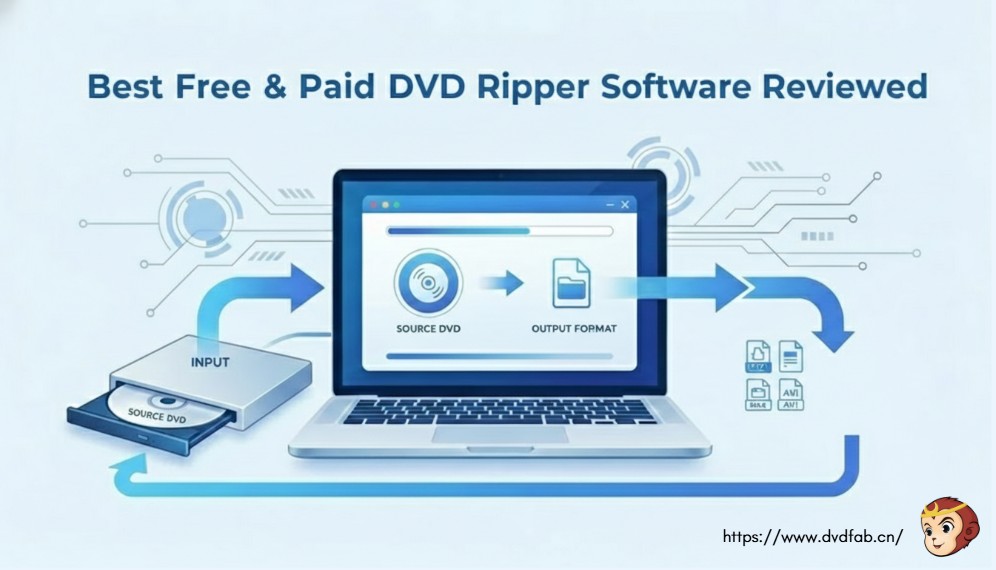 10 Best DVD Rippers for Windows & macOS: 2026 TestedBy Diana Smith - Sep 2, 2026
![How to Rip Audio from DVD with 5 Best Free DVD Audio Extractors [2026]](https://images.dvdfab.cn/media/how_to_rip_audio_from_dvd_5r8iyw.png/public) How to Rip Audio from DVD with 5 Best Free DVD Audio Extractors [2026]By Diana Smith - Aug 31, 2026
How to Rip Audio from DVD with 5 Best Free DVD Audio Extractors [2026]By Diana Smith - Aug 31, 2026