How to Add, Remove, and Extract Subtitles in HandBrake

Summary: Missing or wrong-language subtitles in HandBrake always trace back to a few overlooked settings rather than a bug in the program. This guide breaks down the add, remove, and extract workflows in HandBrake and explains the format and container quirks behind the most common failures. For most rippers, HandBrake covers the basics fine; DVDFab becomes the more practical option once a disc arrives with no subtitle track at all.
Table of Contents
Add a subtitle track in HandBrake, click Start Encode, and then open the finished file only to find your HandBrake subtitles missing entirely, or the wrong language burned in permanently. That kind of mismatch between what you selected and what HandBrake actually exports is a recurring complaint in threads on HandBrake's own GitHub Discussions and r/DataHoarder. In most cases the cause is not a bug. It comes down to a handful of settings, particularly the difference between Forced, Default, and Burn In, plus how the source disc and the output container handle subtitle formats such as SRT, SSA, VOBSUB, and PGS. This guide walks through how to add, remove, and extract subtitles in HandBrake step by step, explains why subtitles sometimes fail to show up, and covers DVDFab DVD Ripper as a more flexible alternative for subtitle management.
How to Add Subtitles in HandBrake
HandBrake lets you add subtitles to videos on Windows, Mac, and Linux. Knowing how to rip DVD with HandBrake opens up the option to layer subtitles onto your ripped videos afterward, which matters if your audience includes viewers who rely on captions to follow the dialogue.
The tool supports both softcoded and hardcoded subtitles, plus open captions (hardcoded) and closed captions saved as separate .srt files. Softcoded subtitles stay selectable, so viewers can toggle them on or off during playback, while hardcoded subtitles are burned directly into the video frames and cannot be turned off afterward.
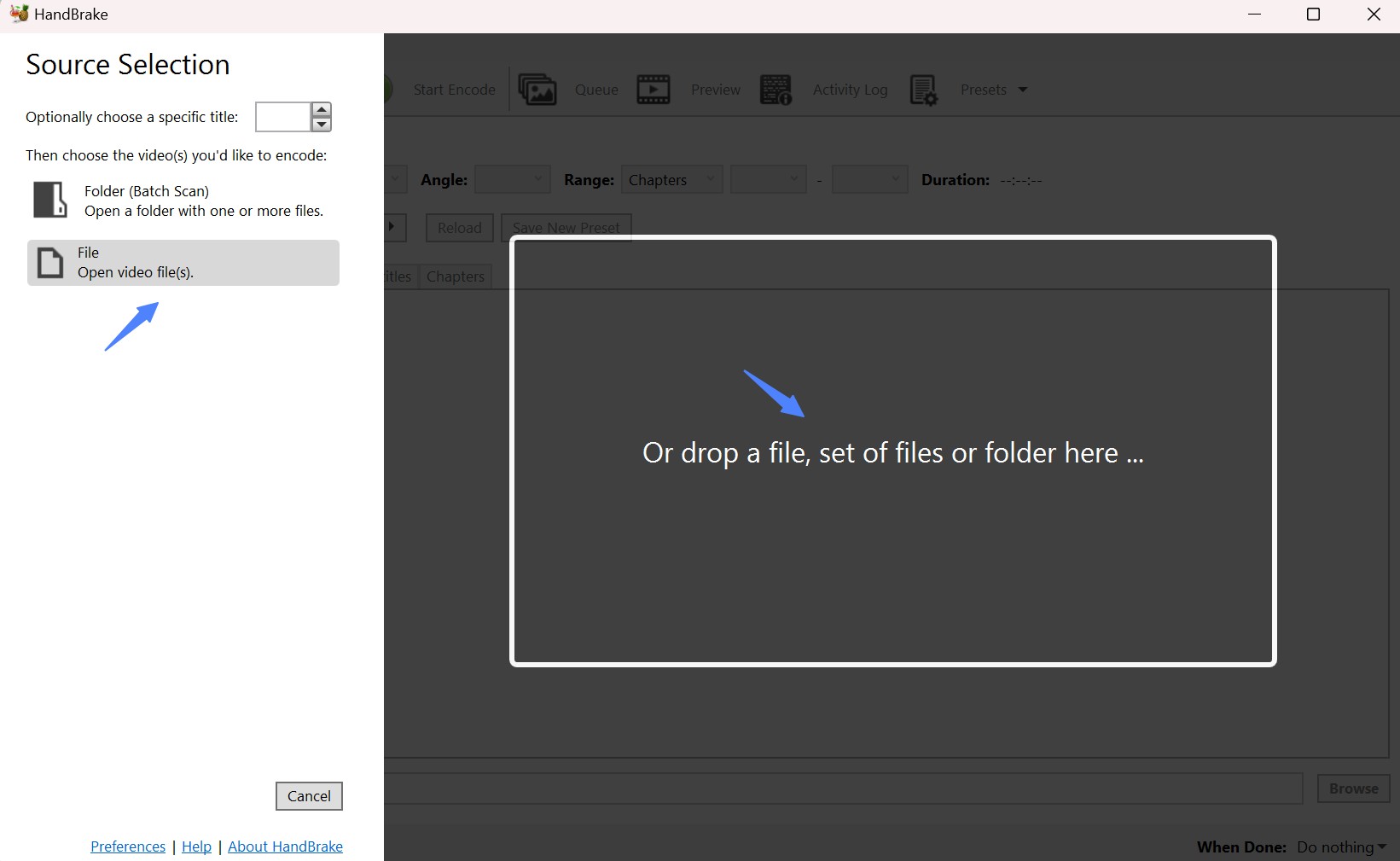
Step 1: Download HandBrake and launch it. Choose the video or disc you want to work with, and HandBrake will scan the source automatically. When importing a DVD or Blu-ray disc, you also need to specify which title and chapters to rip.

Step 2: Select the preset that matches your target device or format.
Step 3: Move to the Subtitles tab. Click Import Subtitle to bring in an external file, or choose from the subtitle tracks HandBrake already detected on the source. HandBrake accepts several subtitle formats, including ASS, SSA, and SRT, so download the subtitle file you need before starting this step.
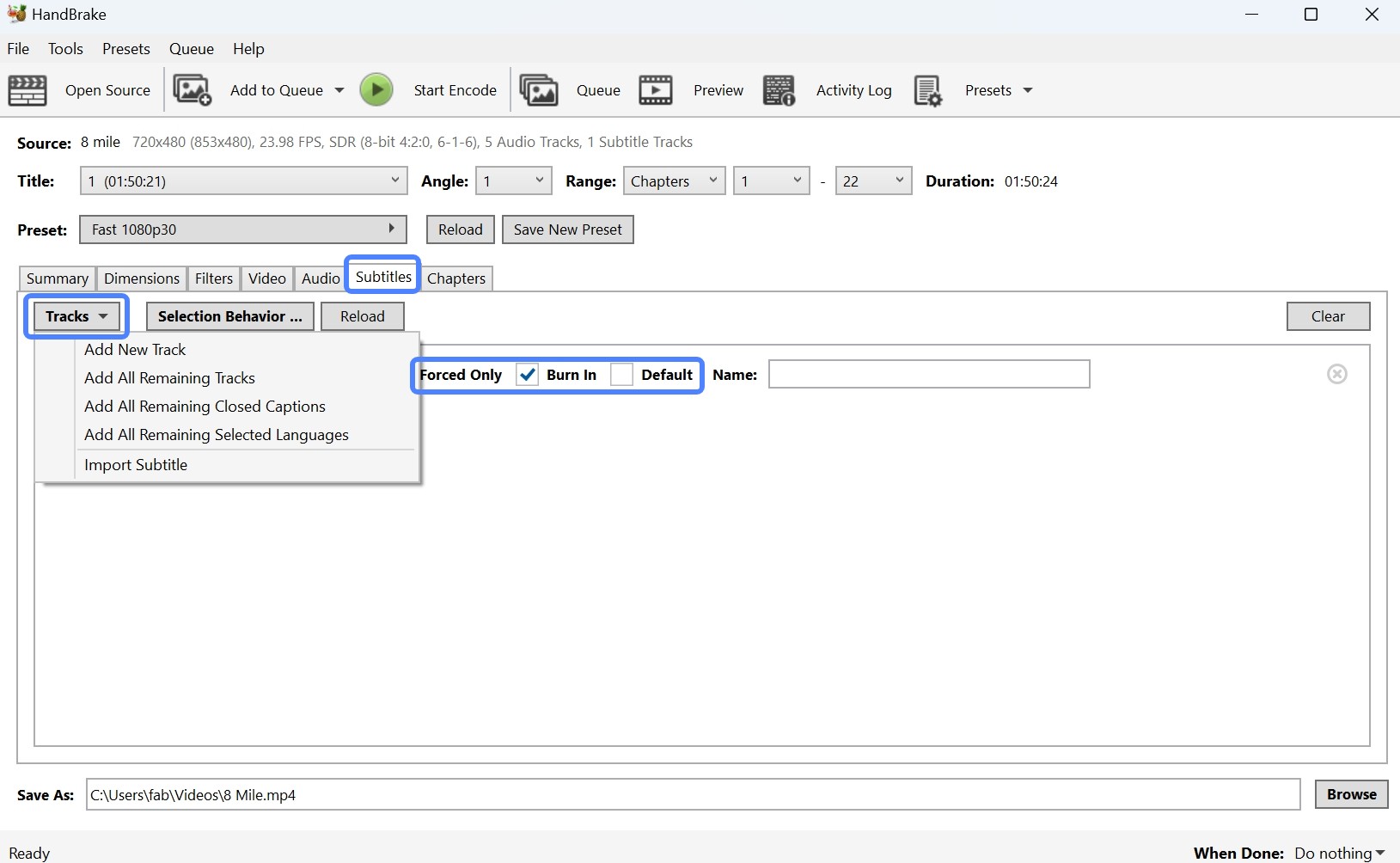
Each subtitle track in HandBrake has three independent options:
- Forced Only: shows the track only when the video switches to a foreign language or when on-screen text needs translation, without covering regular dialogue. Selecting Forced Only for a track that has no forced segments will make that track look like it never got added, since nothing will display.
- Burn In: permanently embeds the subtitle into the video. This is how you create hardcoded subtitles that cannot be turned off. Leave it unchecked to keep the subtitles softcoded and selectable.
- Default: turns the subtitle track on automatically when playback starts, though viewers can still switch it off manually.
HandBrake automatically detects and pre-selects a subtitle track when you open the Subtitles tab. Click Selection Behavior to open the Subtitle Defaults window, where you can set which tracks get selected automatically in future conversions.
Step 4: Click Browse to name the output file and choose where to save it.
Step 5: Click Start Encode. HandBrake will process the video and produce a new file with the soft or hard subtitles you configured.
How to Remove Subtitles Using HandBrake
Sometimes you just want to watch a movie without subtitles. HandBrake's Clear option removes soft subtitle tracks from MP4 and other output formats in a few clicks. It cannot remove hardcoded subtitles, though, since those are burned directly into the video frames rather than stored as a separate track. Soft subtitles live in their own track and can be deleted; hardcoded subtitles are part of the image itself and stay there no matter what you do in the Subtitles tab.
Step 1: Import your video into HandBrake.
Step 2: Pick an output format that fits your needs, such as MKV, AVI, or MP4.
Step 3: Go to the Subtitles tab and click Clear in the center of the panel. All subtitle tracks will be removed immediately.
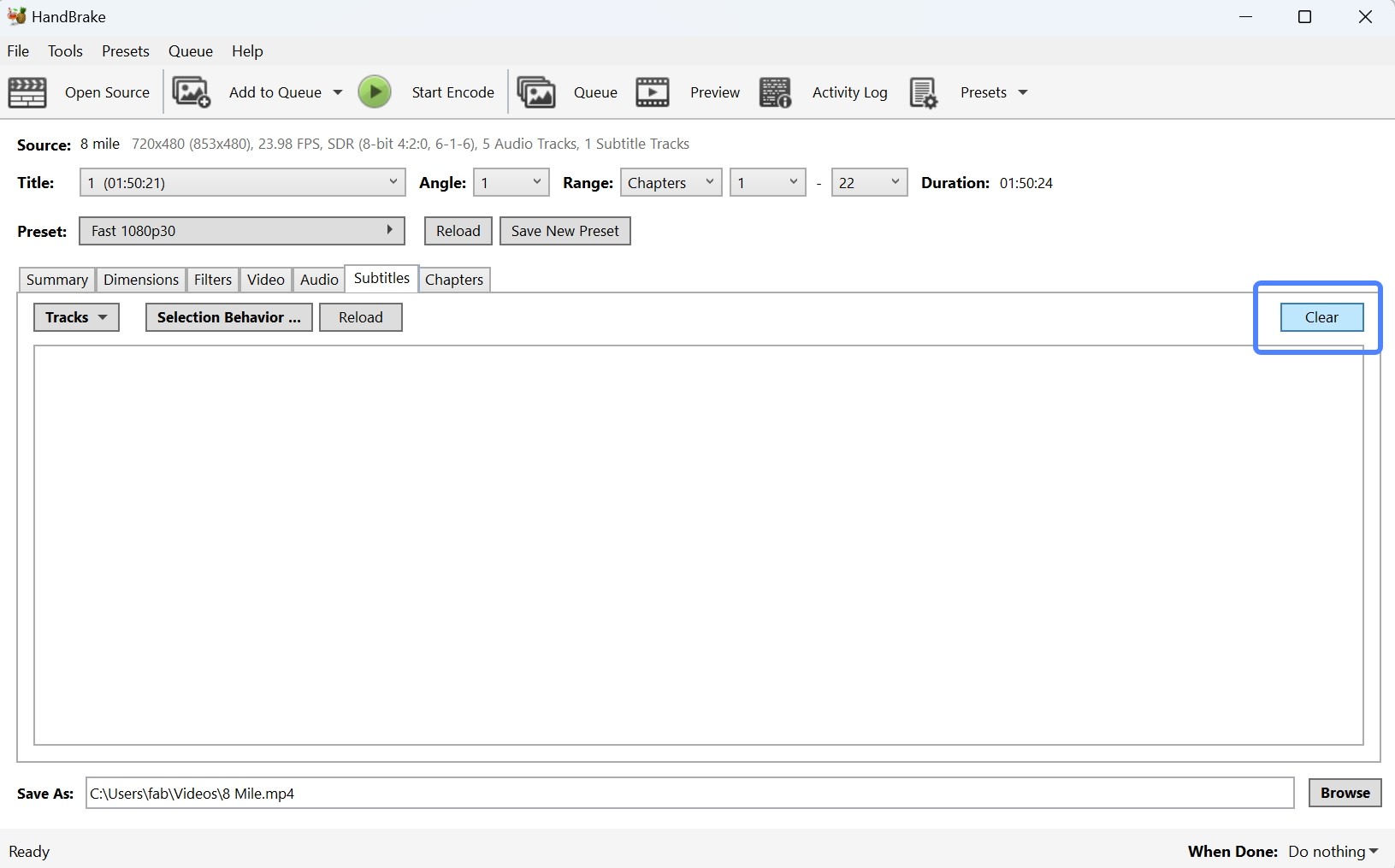
Step 4: Name your output file and choose a destination folder.
Step 5: Switch to the Start Encode tab and click it. HandBrake will export your video without any subtitle tracks.
How to Extract Subtitles from DVD Using HandBrake
Ripping the same disc across different devices and operating systems often means you also need the subtitles as a standalone file. Using HandBrake to extract subtitles from DVD looks straightforward thanks to its simple interface, but HandBrake treats DVD subtitle tracks as VOBSUB, a bitmap-based format it can only burn into the video or pass through inside the output container. It has no built-in option to export that track as a standalone .srt or .idx/.sub file.
That gap is why the workflow below pairs HandBrake with ByteCopy, a dedicated subtitle extractor, to pull an editable SRT file out of the video HandBrake produces.
Converting the DVD to a Video File with HandBrake
Step 1: Download and launch HandBrake, then load the unprotected DVD into the drive. Open the Open Source menu to import the disc content, and wait for HandBrake to finish scanning.
Step 2: HandBrake selects the longest title by default, which is usually the main feature; confirm it in the Title dropdown. Choose your output format from the Format dropdown as well.
Step 3: On the main page, open the Subtitles menu and pick the track you want from the dropdown list. Check Burn In if you want the subtitles embedded permanently in this pass.
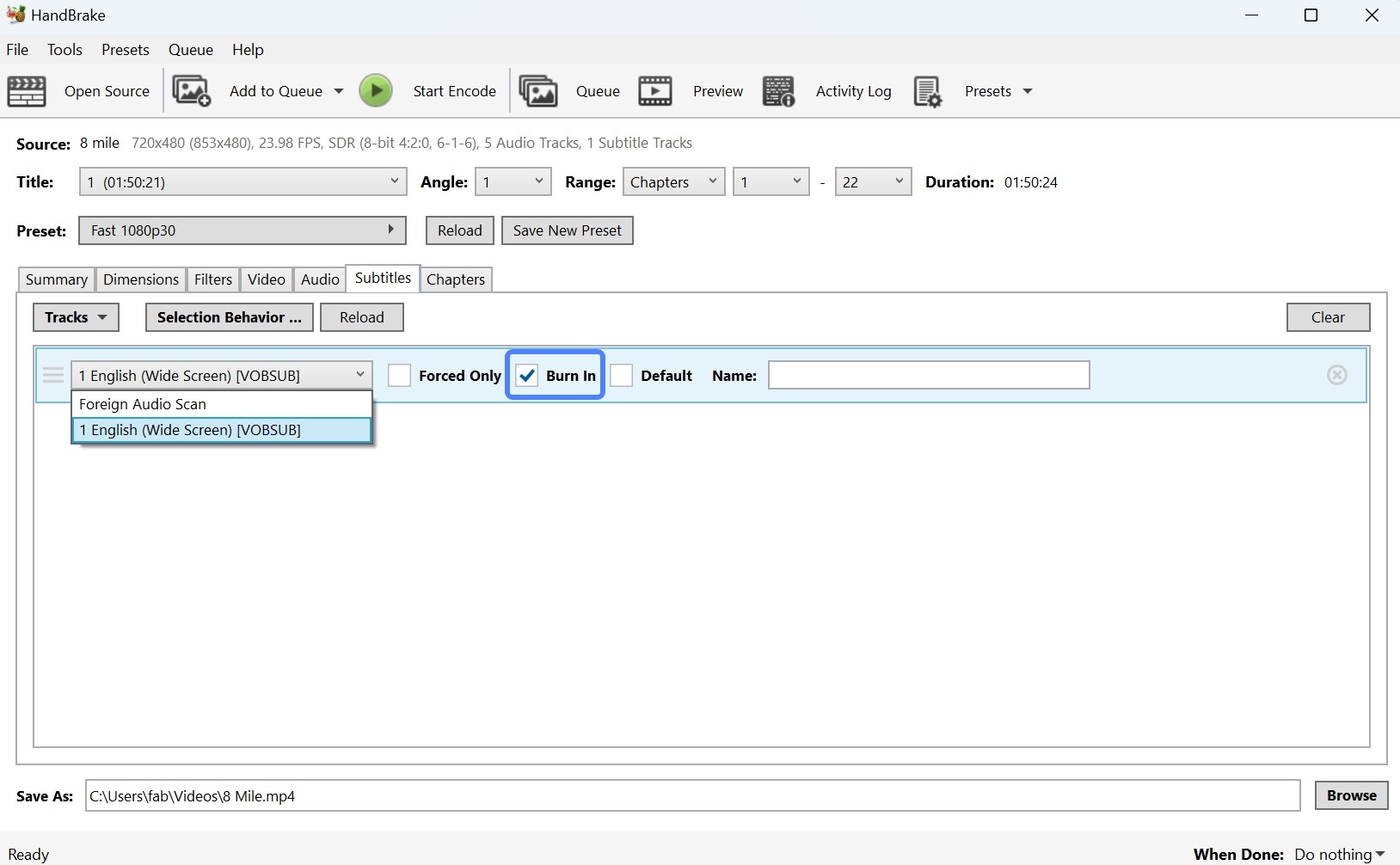
Click Save As to name the file, set the output path with Browse, and click Start to begin the conversion.
Extracting the Subtitle Track with ByteCopy
Step 1: Once the DVD content finishes converting to a video file, download and open ByteCopy. Click the File icon, then choose Load from Folder to bring the newly converted file into the program.
Step 2: Click the Format dropdown and select Subtitle File, then choose SRT Subtitles (.srt) as the output format. You can change the subtitle language under the Settings icon. Click the red Convert button to finish.
Best HandBrake Alternative to Manage Subtitles
The steps above show that adding subtitles in HandBrake is manageable once you understand the Forced, Burn In, and Default options, but the interface can still confuse first-time users. Its subtitle handling, including the Clear function for removing tracks, only really applies to its MKV and MP4 outputs, since HandBrake's third container, WebM, does not carry subtitle tracks at all.
DVDFab DVD Ripper is worth considering as an alternative if you want more control over adding, removing, or extracting subtitles in one tool. It can extract subtitles from DVDs, preserve them while ripping, or add external subtitles with adjustable style, font, and color.
Supported OS:
Free Download Windows 11/10/8.1/8/7
Free Download macOS 10.13 - 15.x
Key Benefits:
- Supports removing DVD copy protection and handling newly released discs.
- Rips and converts DVDs, ISO files, or folders to 1,000+ digital video and audio formats.
- Extracts all or part of the subtitles from a DVD and saves them as SRT files for later use or editing.
- Imports external subtitle files in SRT or ASS format and adds them to your DVD video.
- Rips DVDs with subtitles in multiple modes: rendering directly to video, remuxing into a file, or extracting to IDX/Sub or SRT files.
- Includes an option to rip only forced subtitles.
- Customizes subtitle settings, including track selection, encoding, and timing.
- Added a Subtitle Generator AI in 2026 that transcribes spoken audio into multilingual SRT files automatically, useful when a disc has no subtitle track to begin with.
How to Extract Subtitles from DVD with DVDFab DVD Ripper
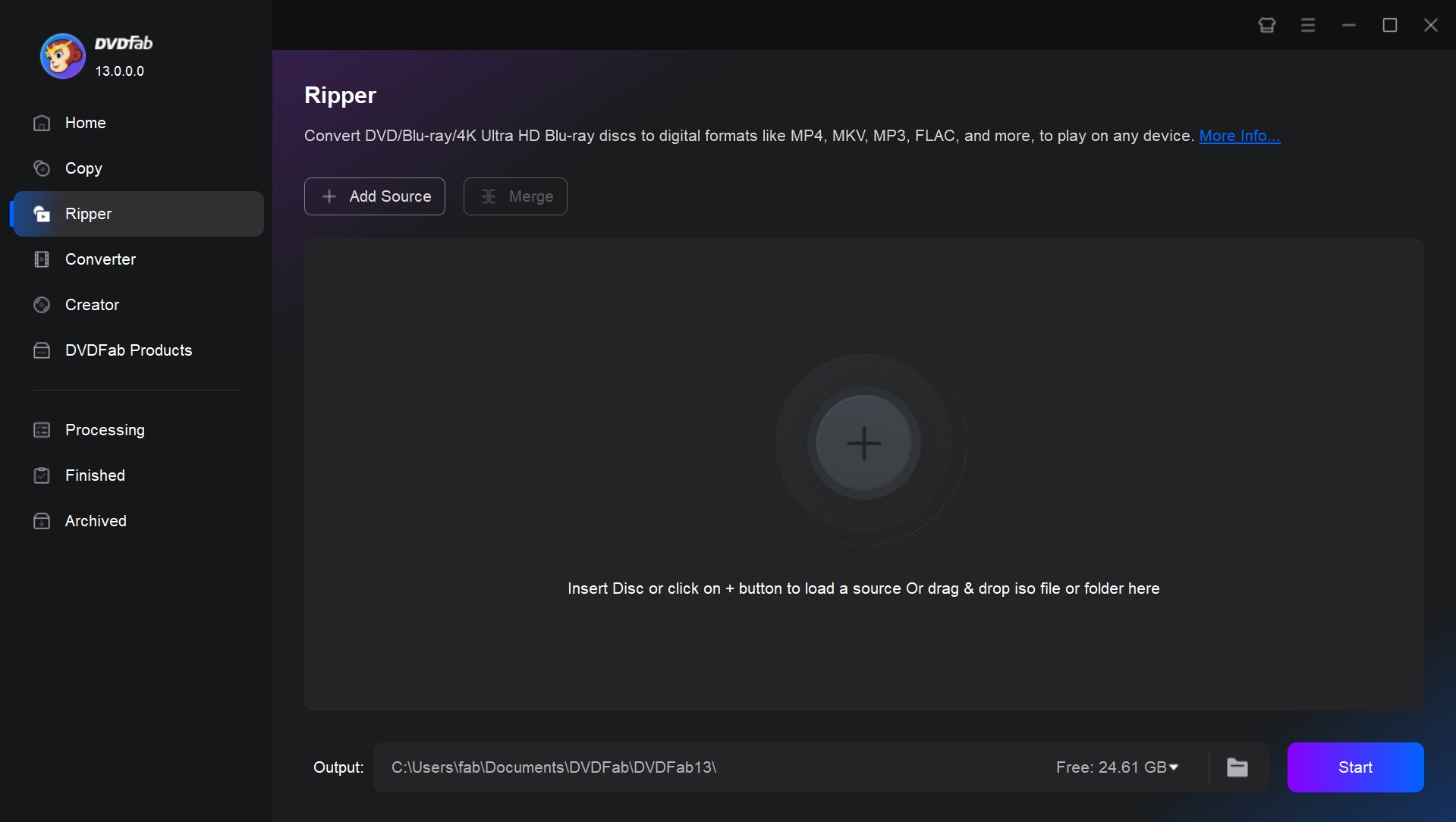
Step 1: Open DVDFab 13 and go to the Ripper module on the main page. Load your encrypted DVD into the optical drive, and the program will detect and import the disc content automatically.
Step 2: Click Choose Other Profile to convert the disc to your preferred digital format. If you only want the subtitles, click Subtitle and select SRT.
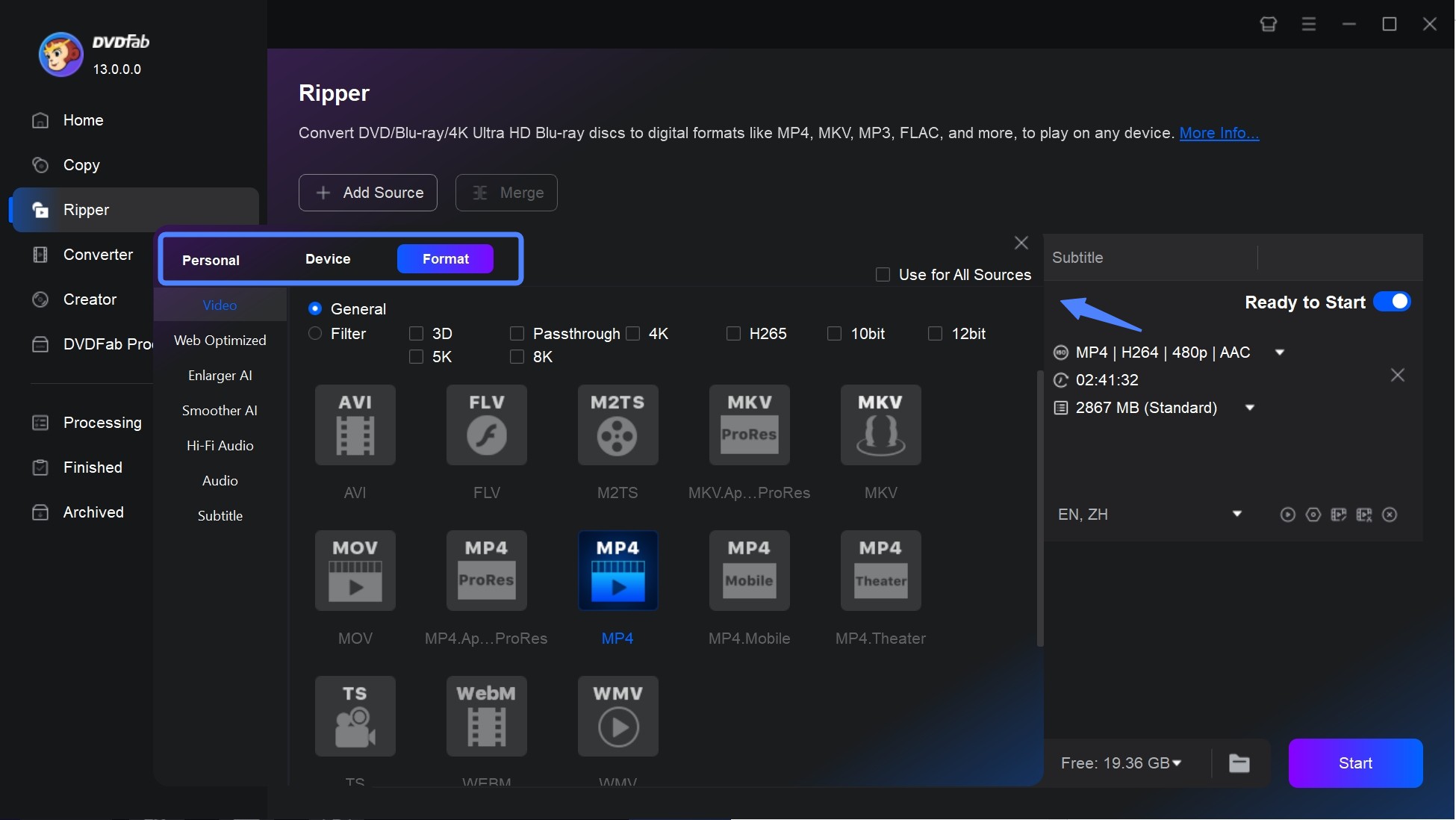
Step 3: Return to the main interface and pick the movie title, audio track, chapter, and subtitle you want to rip.
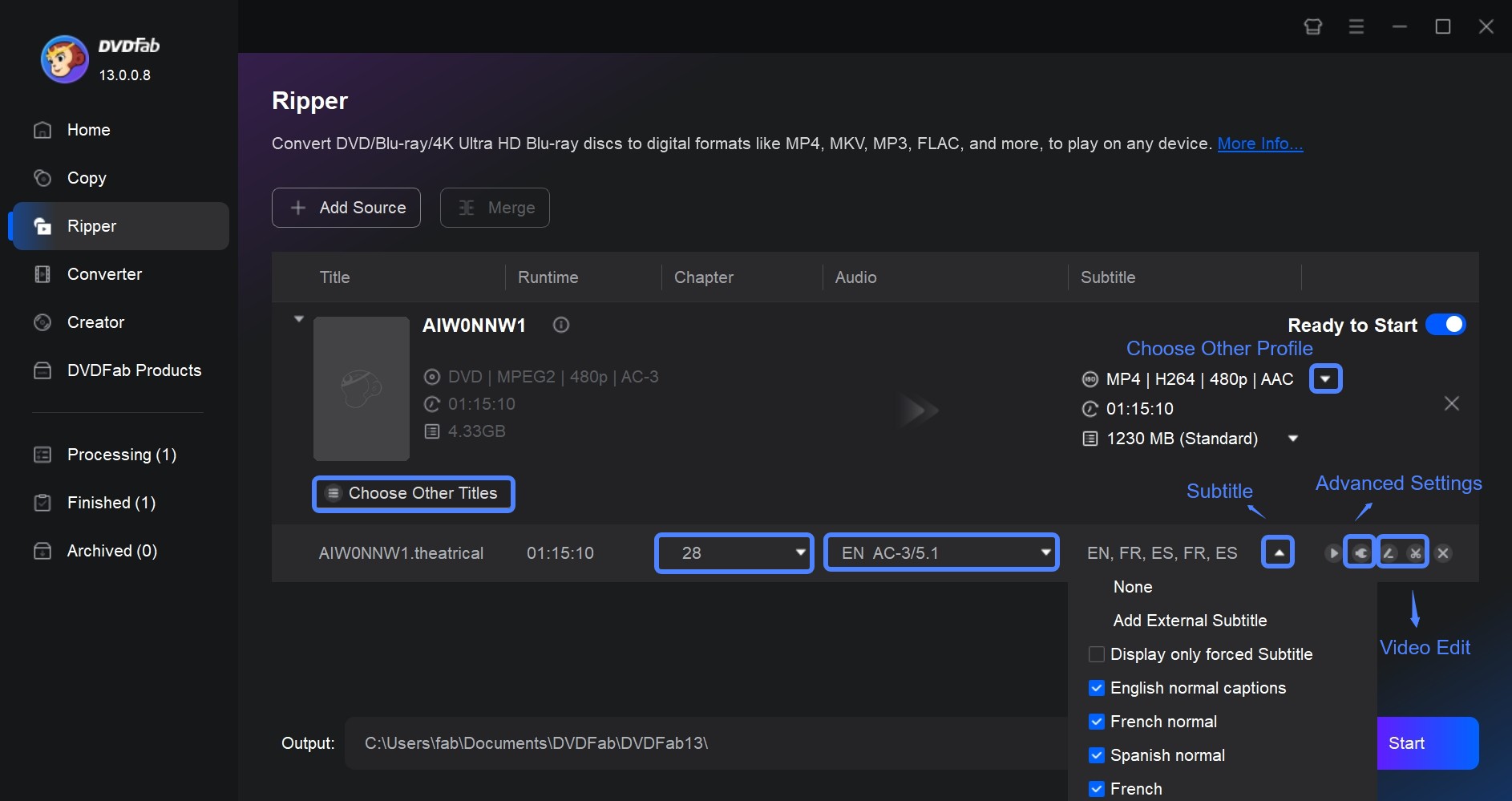
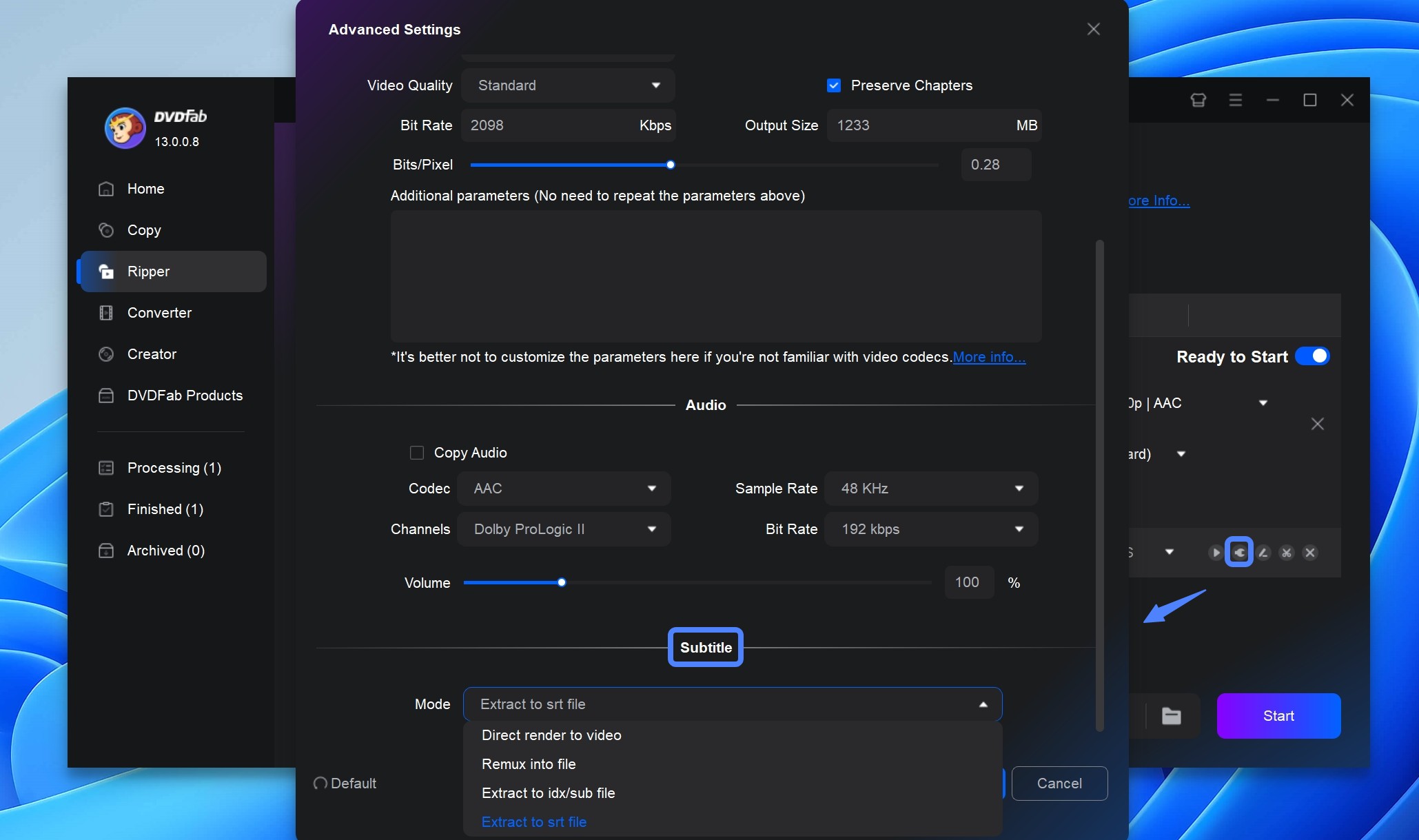
Step 4: Open Advanced Settings to adjust video, audio, and subtitle options. Choose Extract to idx/sub file or Extract to srt file, and DVDFab will generate a separate subtitle file.
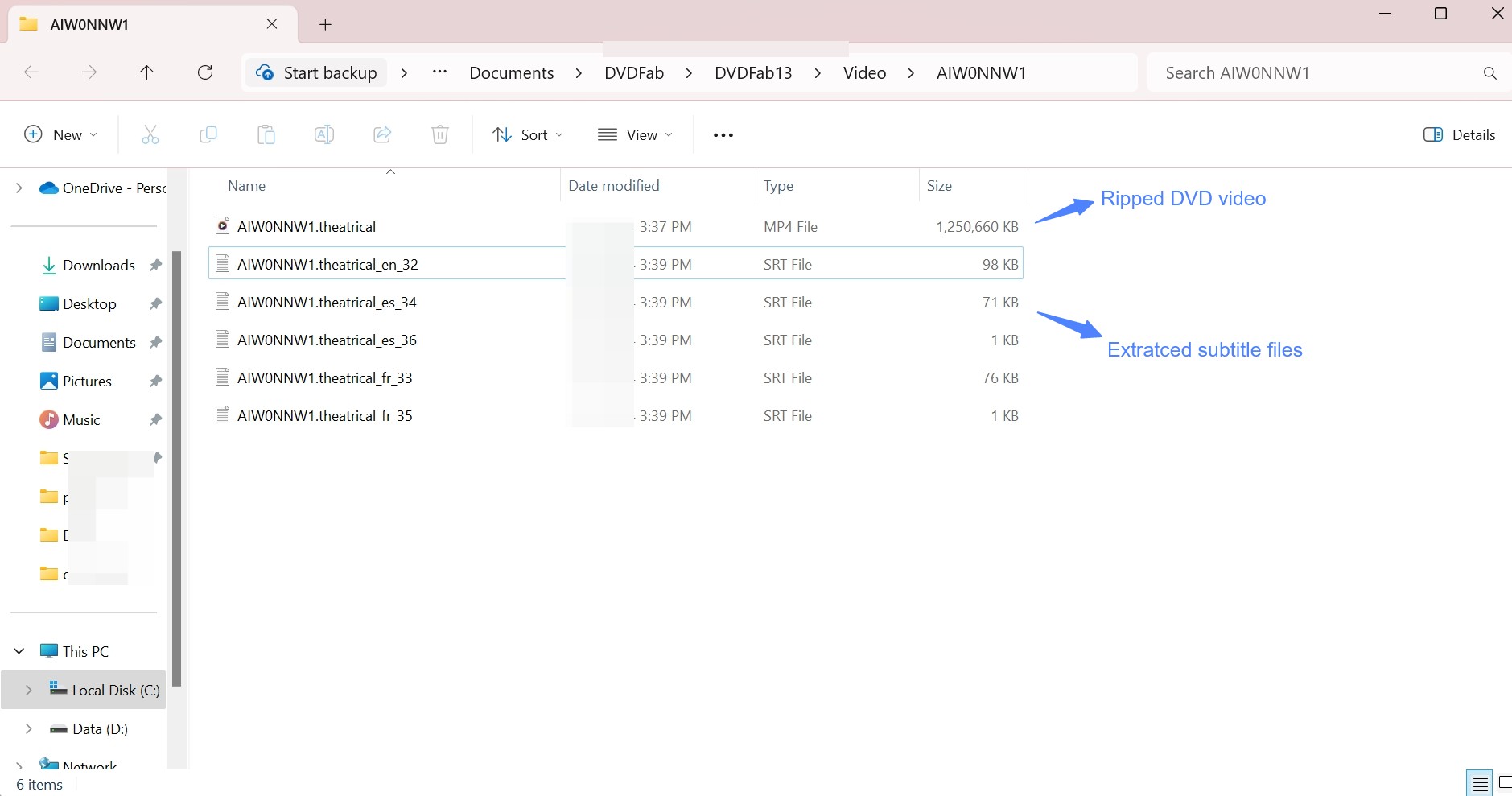
Step 5: Go to the Save To section, choose an output path such as a hard drive or mobile device, and click Start. DVDFab will rip the copy-protected DVD and save the extracted subtitles in SRT or IDX/SUB format in the same folder as the video.
How to Add External Subtitles to DVD with DVDFab DVD Ripper
Step 1: Open DVDFab 13, select the Ripper module, and load your disc.
Step 2: Click Choose Other Profile to set the media format for ripping your DVD.
Step 3: Go to Subtitle and choose Add External Subtitle from the dropdown menu to attach your preferred subtitle file to the ripped video.
Step 4: Locate and upload the subtitle file from your system. In the video editing window that opens, adjust the font, size, character set, color, and style for a cleaner presentation.
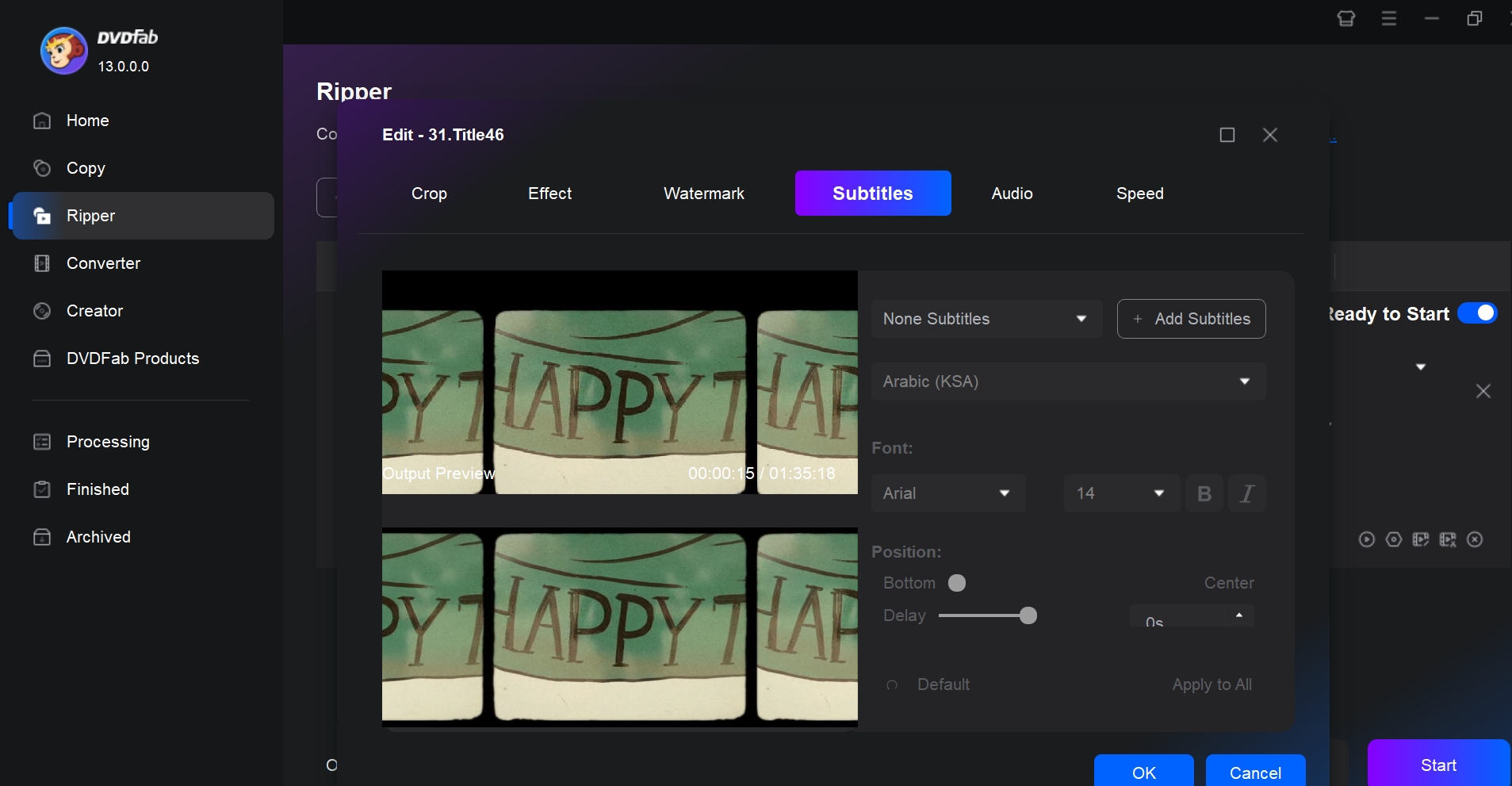
Step 5: Adjust your video settings, choose the output destination, and click Start to add the external subtitles to your ripped DVD video.
FAQs
What is the difference between Burn In and Default subtitles in HandBrake?
Burn In permanently embeds the subtitle into the video frames, so it cannot be removed or turned off afterward. Default subtitles are enabled automatically when playback starts, but viewers can still switch them off manually since they remain a separate, selectable track rather than part of the image itself.
Why did my selected subtitles seem to disappear in HandBrake?
This is usually a Forced Only setting, not a lost file. Forced Only tells HandBrake to display a track only during foreign-language segments or on-screen text, so a track with no forced lines will show nothing at all during regular dialogue. Uncheck Forced Only, or pick Default instead, if you want the full subtitle track to display throughout playback.
How to fix HandBrake subtitles not showing up?
Subtitles often fail to appear because of the output container. Switching the output format to MKV instead of M4V usually resolves it, since MKV supports a wider range of subtitle pass-through than M4V. If your source is a Blu-ray disc, the subtitles may be in PGS format, which HandBrake cannot pass through into MP4 at all; in that case, either burn them in or output to MKV instead. You can also uncheck Burn In so HandBrake exports readable, text-based subtitles for better compatibility with image-based tracks that some players cannot decode.
What subtitle formats does HandBrake support?
HandBrake can import text-based SSA and SRT files for external subtitles, and it can read VOBSUB and PGS tracks that already exist on DVD and Blu-ray sources, along with CEA-608 closed captions from some broadcast sources. Text-based formats such as SRT are lighter and easier to edit, while VOBSUB and PGS are bitmap images that HandBrake can only burn in or pass through rather than convert into an editable text file.
Can HandBrake generate subtitles automatically?
No. HandBrake can only add, remove, or pass through subtitle tracks that already exist; it has no speech-to-text feature of its own. If a disc has no subtitle track at all, a tool with built-in transcription, such as DVDFab DVD Ripper's Subtitle Generator AI, can create an SRT file directly from the audio instead of requiring an external subtitle download.
Conclusion
Most HandBrake subtitle problems come down to a handful of settings, not missing features: Forced versus Default versus Burn In, and how your chosen output container handles VOBSUB or PGS tracks. Stick with HandBrake if you mainly need to add, remove, or pass through subtitles that already exist on your source and you are comfortable working through its Subtitles tab. Reach for DVDFab DVD Ripper if you want subtitle extraction, external subtitle styling, and automatic transcription in one interface, especially for discs that arrive with no usable subtitle track at all. Whichever tool you use, check the output container against your player's subtitle support before you commit to a batch conversion.

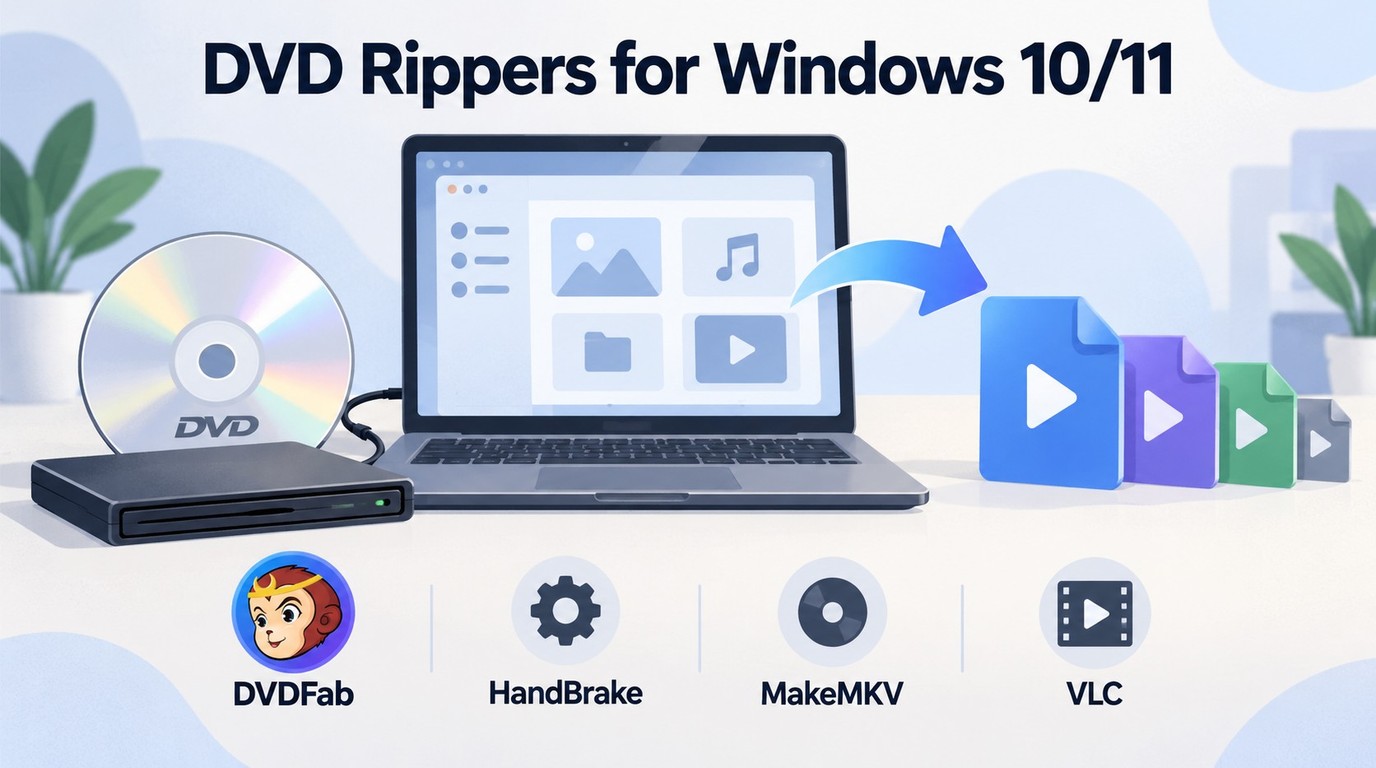 4 Free DVD Rippers for Windows 10/11: Best Tools & Step-by-Step GuideBy Diana Smith - Oct 13, 2026
![How to Convert DVD to AVI Free: 3 Current Options [2026]](https://images.dvdfab.cn/artifact/2026/09/17/2HqH4KgGwIXxwkHdUUZtp0D98DCpL4gS/feature_cover.jpg) How to Convert DVD to AVI Free: 3 Current Options [2026]By Diana Smith - Oct 12, 2026
How to Convert DVD to AVI Free: 3 Current Options [2026]By Diana Smith - Oct 12, 2026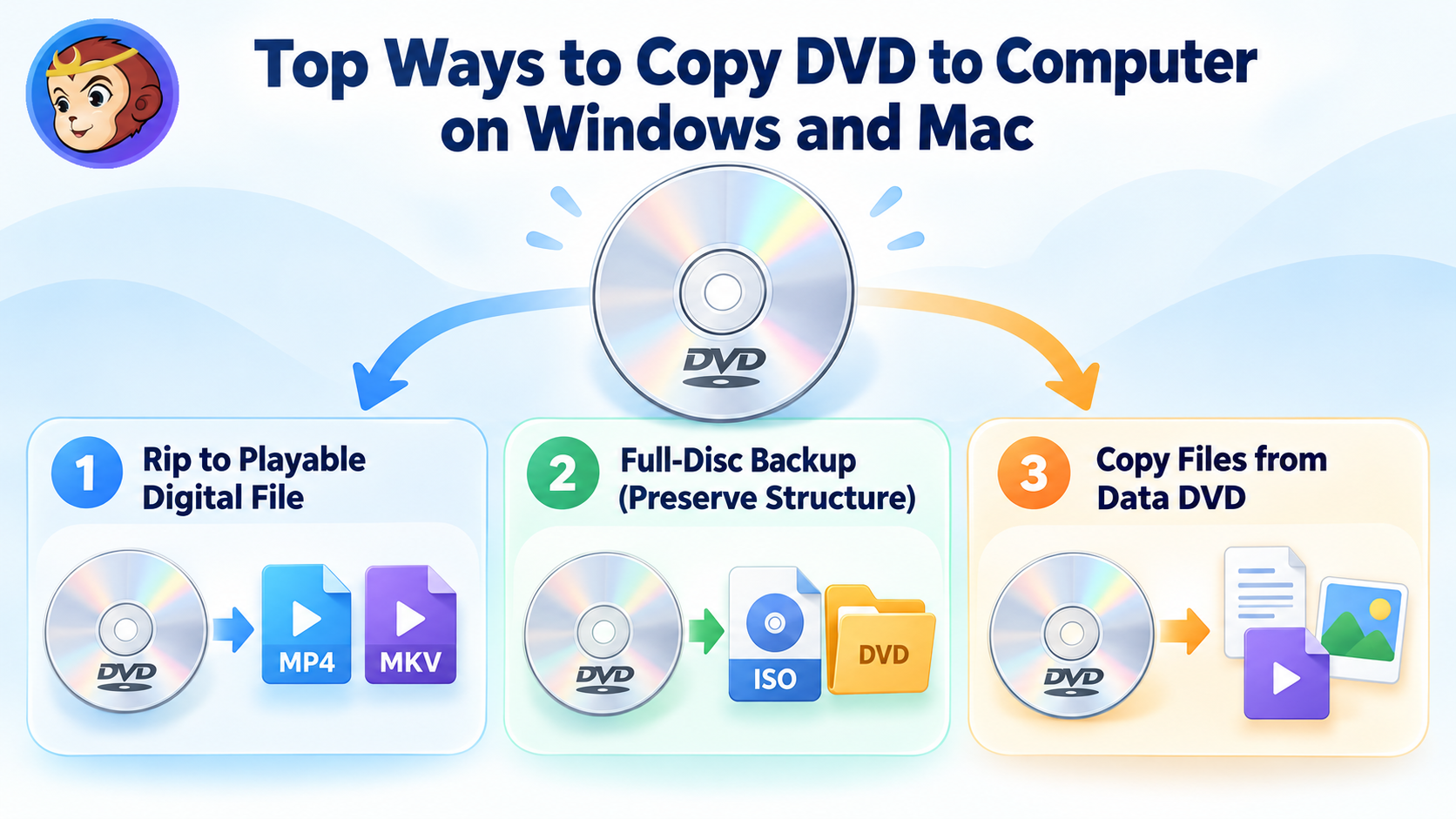 How to Copy DVD to Computer on Windows & Mac: Rip and Direct CopyBy Wenny Yan - Oct 12, 2026
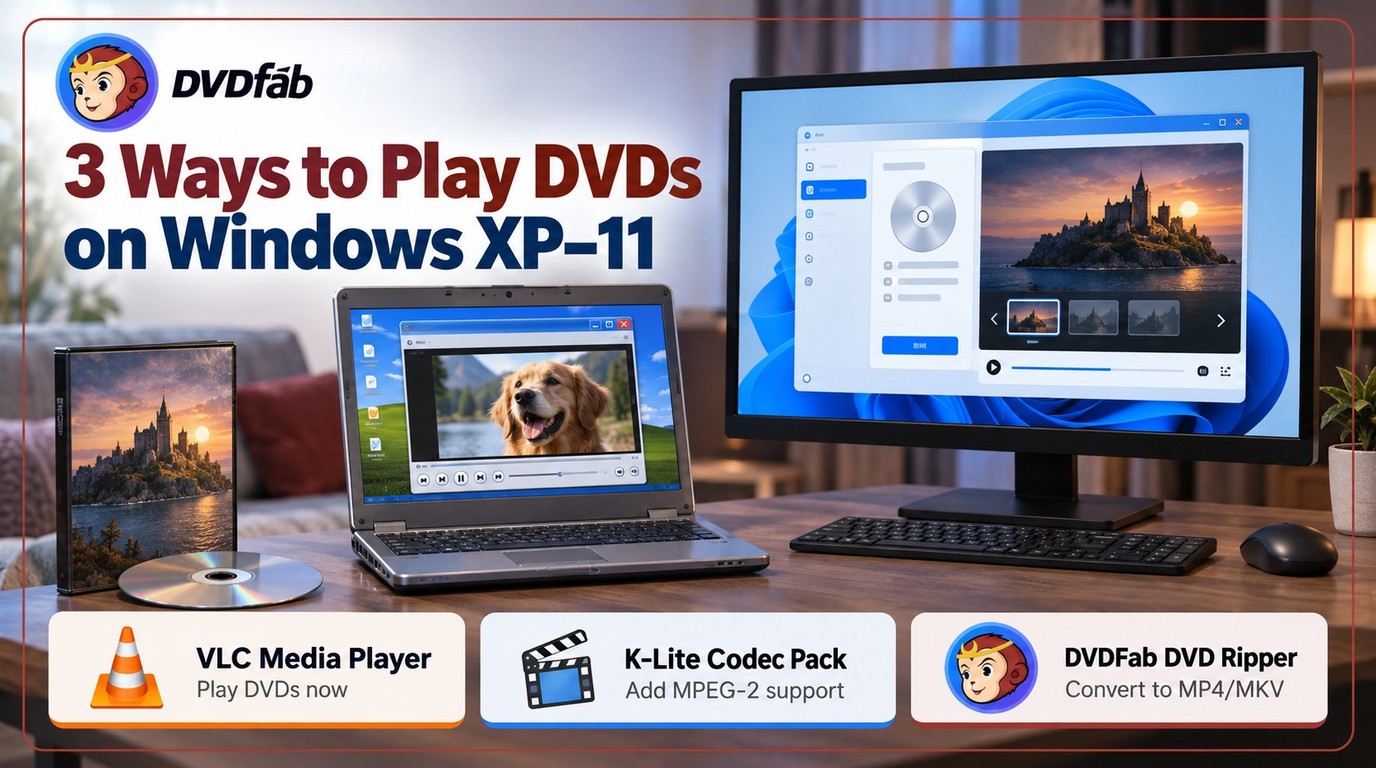 Free DVD Decoder for Windows XP and Windows 11: 3 Ways to Play DVDsBy Diana Smith - Sep 23, 2026