How to Use MakeMKV to Rip DVD and Blu-ray Discs [June 2026 Updated]

Summary: MakeMKV can rip DVDs and Blu-rays to MKV files by reading the disc, letting you choose the main title, and saving the selected video, audio, subtitles, and chapter data without re-encoding. It is a direct way to make a digital copy for personal backup or local playback, but it only exports MKV, does not compress files, and needs the right optical drive for DVD, Blu-ray, or UHD Blu-ray discs.
Table of Contents
MakeMKV is commonly used to rip DVDs and Blu-rays as MKV files. It can keep the original video, audio, subtitles, and chapter data without re-encoding, but users may still run into practical limits such as read errors, large MKV files, MKV-only output, beta key updates, and temporary purchase-page issues.
In this guide, I'll show you how to use MakeMKV to rip DVD and Blu-ray discs from start to finish. I’ll also explain what to check before ripping, where MakeMKV may fall short, and when tools such as DVDFab may be a better fit for compression, MP4 output, or device profiles.

MakeMKV: DVD & Blu-ray Ripper Overview
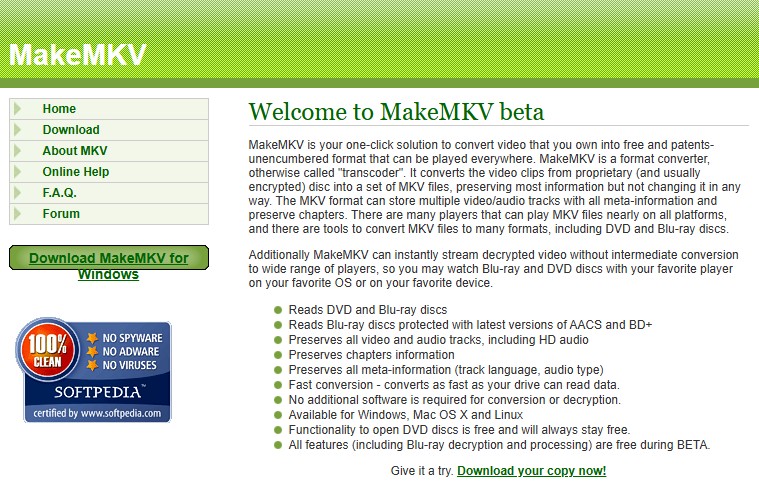
MakeMKV is a disc-backup tool used to convert DVD and Blu-ray content into MKV files without re-encoding. It works on both Windows and macOS and is widely used because it can open some commercial discs, including those protected with AACS or BD+.
Key Points about MakeMKV:

- Platform support: MakeMKV is available for Windows and macOS from the official download page. Linux users can find build information through the MakeMKV forum.
- DVD and Blu-ray support: MakeMKV can read DVD and Blu-ray discs with AACS and BD+ protection, and save them as MKV files.
- Original stream preservation: MakeMKV keeps the selected video, audio, subtitle, and chapter streams instead of re-encoding them.
- Fast and Efficient Conversion: MakeMKV can rip DVD and Blu-ray files quickly based on the data reading speed of your disc drive.
- MKV-only output: MakeMKV does not export MP4, MOV, AVI, or device-specific profiles.
- Large output files: MakeMKV does not compress video, so DVD and Blu-ray rips can take a large amount of storage space.
How to Use MakeMKV to Rip DVDs & Blu-rays
Before ripping a disc with MakeMKV, I recommend checking a few things first. Use the right drive for your disc: a DVD drive can read DVDs, but a Blu-ray disc needs a Blu-ray drive. UHD Blu-ray discs may require compatible hardware and firmware. You should also make sure the output folder has enough free space, since MakeMKV does not compress the video. If MakeMKV asks for registration, check the current beta key on the official forum before you start.
Follow these steps to rip a DVD or Blu-ray with MakeMKV.
Step 1: Download & Install MakeMKV
Be sure to download MakeMKV from the official site to avoid unnecessary problems. The latest official versions are MakeMKV 1.18.3 for Windows (XP or later, x86 or x64) and MakeMKV 1.18.3 for Mac OS X (x64 or ARM64, Mac OS X 10.7 or later). If your system is older, the official site also provides previous versions. If you're on Linux, check the download resources in the MakeMKV official forum.
Install the program and open it after setup. On Windows, the beta version may require administrator privileges. On macOS, you may need to allow the app in Gatekeeper settings because MakeMKV is not signed by Apple.
Step 2: Open MakeMKV and Load Your DVD/Blu-ray
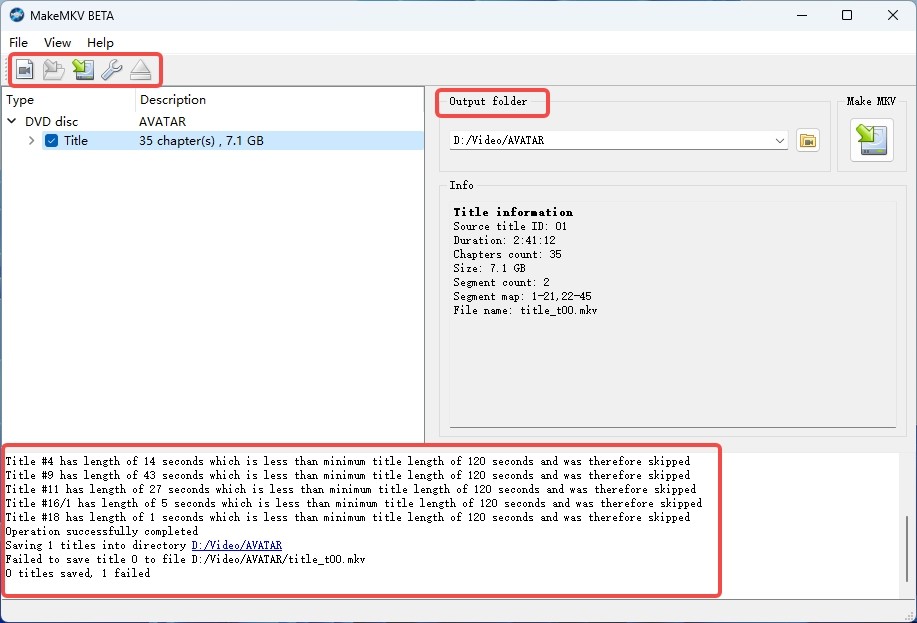
Start MakeMKV and insert the DVD or Blu-ray you want to rip. The main interface will show the available disc drive. You can also choose "Open files" or "Open disc" from the "File" menu if you are loading a supported disc source or folder.
Before inserting the disc, please clean DVD discs at first if you see dust, fingerprints, or smudges. Avoid using heavily scratched discs, because they are more likely to cause read errors.
Step 3: Select the Titles You Want to Rip
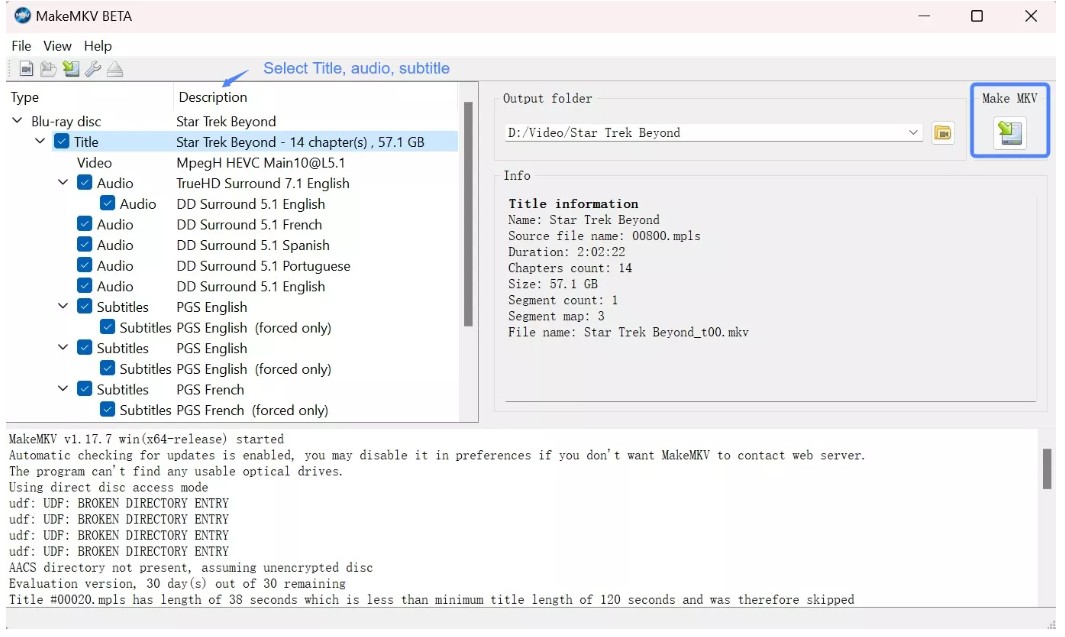
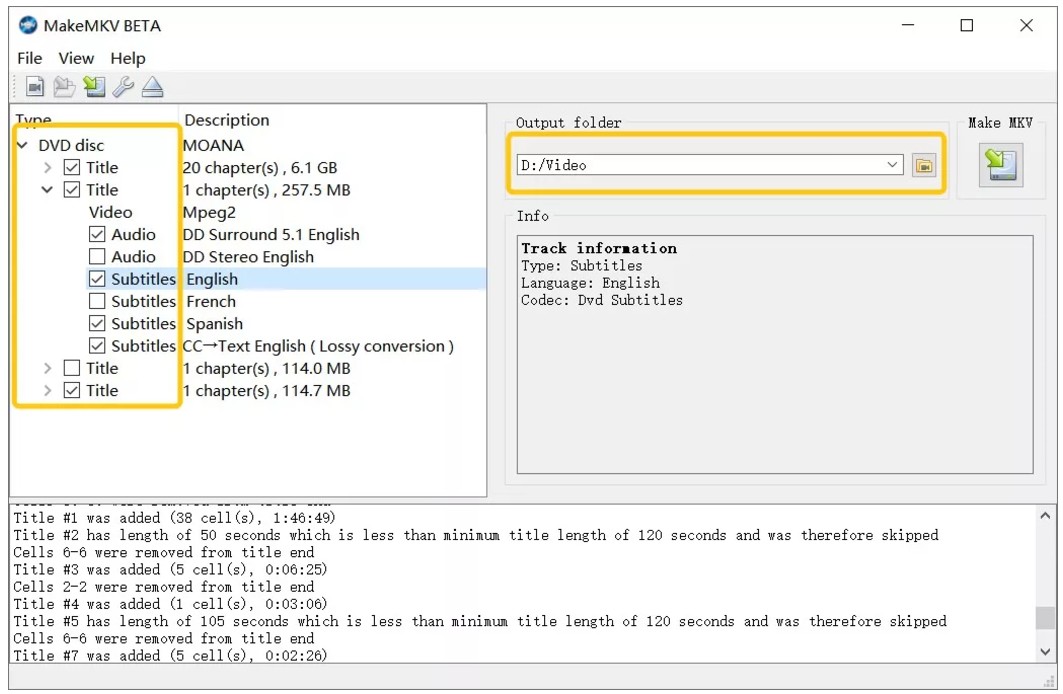
After MakeMKV scans the disc, it will list the available titles, audio tracks, subtitles, and chapters. Select the items you want to rip. For most movie discs, the main feature is usually the longest title or the title with the largest file size.
Step 4: Set the Output Folder and Start Ripping
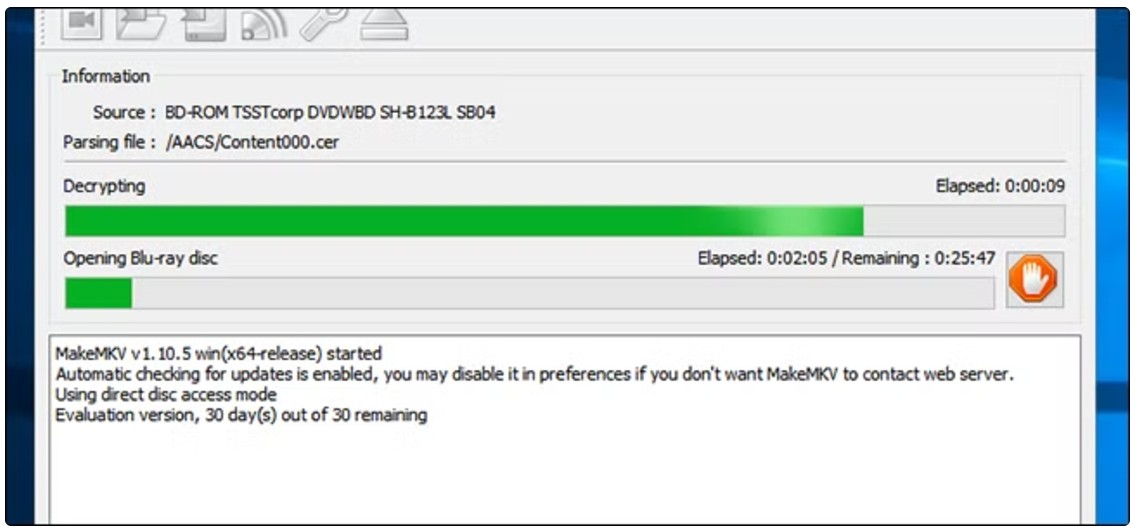
Choose an output folder with enough free space, then click the "Make MKV" button to start ripping. MakeMKV will show a progress bar during the process, and it may also show the output file size and available disk space.
You can stop the current rip with the orange Stop button, but MakeMKV does not pause and resume an active ripping task. Ripping time depends on the source size, disc condition, optical drive speed, USB or SATA connection, and storage speed. In my test, a 6.13 GB source produced a 6.01 GB MKV file, which shows why MakeMKV output can be large.
Step 5: Check the Ripped MKV Files
Open the output folder and play the MKV file after MakeMKV finishes. Check the video, audio track, subtitles, and chapters to make sure you selected the right title.
The output resolution depends on the source disc. DVDs usually remain standard definition, Blu-rays usually remain 1080p, and supported UHD Blu-ray sources can remain 4K. You can keep the MKV file for local playback, NAS storage, or later conversion.
MakeMKV DVD & Blu-ray Ripper: Real User Experience
MakeMKV is often valued for a simple disc-to-MKV process. Users choose it because it avoids many format settings and keeps the original streams in one MKV container. This makes it practical for movie collectors who want to keep audio tracks, subtitles, and chapters from DVD or Blu-ray sources.
The same design also creates common limits. MakeMKV only outputs MKV, so users who need MP4 for phones, tablets, TVs, or editing software usually need another tool afterward. It also does not compress video, which means DVD and Blu-ray rips can take a large amount of storage. For Blu-ray and UHD Blu-ray discs, hardware compatibility is another common factor, because the optical drive must read the disc type before MakeMKV can process it.
- Beginner-Friendly Workflow: "So easy, in fact, that an elementary school child could figure out how to rip a dvd/bluray to a harddrive if given the opportunity." — From Videohelp
- Completely Free with Beta key: "Fantastic converter that freely lets me digitalise my physical media." — From Trustpilot
- Excellent Output Quality: "I was worried ripping would ruin the original video quality, but this software totally surprised me." — From Reddit
- Supports Both DVD and Blu-ray Ripping in One Software: "I have a mixed collection of old DVDs and new Blu-rays, and this one software covers them all." — From MakeMKV Forum
- Lightweight and clean: "No random extra modules or useless features cluttering the interface, just a clean tool that does what it says." — From Quora
- Lack of Frequent Updates on Beta Keys: "The developer doesn't keep the software decryption keys updated frequently which means you can't convert your newer videofiles quickly." — From Trustpilot
- Delayed Paid Registration Keys: "I have an entire DVD and Blu-ray collection to transfer to NAS, so I bought MakeMKV. That was a WEEK AGO and I still don't have a reg key." — From Twitter
- Limited Decryption Ability: "I'm not the hugest fan of MakeMKV because it cannot copy and remove some of the protections from some discs and the features aren't very robust because it is free." — From YouTube
- Slow Ripping Speed: "It isn't perfect, as it can only output to the MKV format and is very slow." — From Lifewire
- Limited Output Formats: "l use both, but use DVDFab mostly. The biggest benefit is one click rip/convert. Whereas MakeMKV/handbreak is a 2 step process." — From Reddit
- Oversized Output Files: "The quality is good, but the file sizes are insane. I have to delete old files or buy extra drives just to keep using it." — From Videohelp
Common MakeMKV Errors When Ripping DVD/Blu-ray
In addition to users' real feedback, I have also collected some sudden error reports encountered by users when using MakeMKV to rip DVD and Blu-ray.
- Read Error Issue: Many users claim that MakeMKV frequently encounters read errors. This means that MakeMKV is unable to read the data that is encrypted on the physical disc. The most common reason is a broken disc or optical drive.
- MakeMKV SCIS Errors: SCIS errors are caused by hardware issues with Blu-ray discs or dust buildup on the optical drivers that process the discs. Blu-ray discs can be tricky for MakeMKV, so if you make a small mistake with the hardware, it will lead to SCIS errors.
- Stopped Ripping DVDs in the Middle: Several things can cause this problem, such as bad sectors, overheating drivers, or software that hasn't been updated in a while.
- 116736 MakeMKV Error: This error number 116736 means that the processed disc can't be ripped to the hard drive of your device.
- Doesn't Work on Brand-New Discs: This is because MakeMKV is unable to handle the new copy-protection technology.
- Beta Key or Version Warning Appears:This is because the beta key or program version may be outdated. Please check the current MakeMKV download page and beta key page.
- Purchase Page is Unavailable: The PayPro order page may be temporarily unavailable.
- UHD Blu-ray Fails to Open: This is because the optical drive or firmware may not support the disc. Check MakeMKV drive compatibility information before changing firmware or buying another drive
MakeMKV is great when it works, but its limitations often stop the process entirely. If you keep running into these errors and MakeMKV can't complete the rip, it's a sign that you need a more reliable tool, especially for newer discs or large Blu-ray titles.
Best MakeMKV Alternatives for DVD & Blu-ray Ripping
To help you continue your ripping project without interruptions, here are some solid alternatives that handle discs more consistently.
DVDFab Blu-ray Ripper
As one of the strongest alternatives to MakeMKV, DVDFab can process Blu-ray discs (including 2D/3D), ISO image files, and DVD folders with full decryption support. While MakeMKV only outputs MKV, DVDFab can rip new Blu-ray releases into MP4, MKV, AVI, MP3, FLAC, and many other video and audio formats
With over 20 years in the DVD, Blu-ray, and UHD software industry, DVDFab has built a reputation for long-term reliability. Its frequent updates, active knowledge base, and responsive support team make it a dependable option for users who need something more stable than MakeMKV.
- Recognize and rip any copy-protected Blu-rays, including AACS, BD+, BD-J, Region Code, Country Code, etc.
- Use hardware acceleration (NVIDIA, AMD, Intel) to shorten Blu-ray ripping and encoding times
- Create lossless MKV files or generate high-quality compressed versions for smaller sizes
- Convert Blu-rays to 1000+ video/audio formats with full control over codec, bitrate, frame rate, and output size
- Queue multiple discs or tasks, and DVDFab will run each job automatically
- Come with a built-in video editor
How to Use DVDFab Blu-ray Ripper to Rip DVD/Blu-ray Discs
Step 1: Install the DVDFab on your device.
Free Download Windows 11/10/8.1/8/7
Free Download macOS 10.13 - 15.x
Step 2: Launch the app, load your DVD or Blu-ray disc, and pick the "Ripper" module from the main interface. To rip more than one file, you can drag and drop the files and rip them in batches.
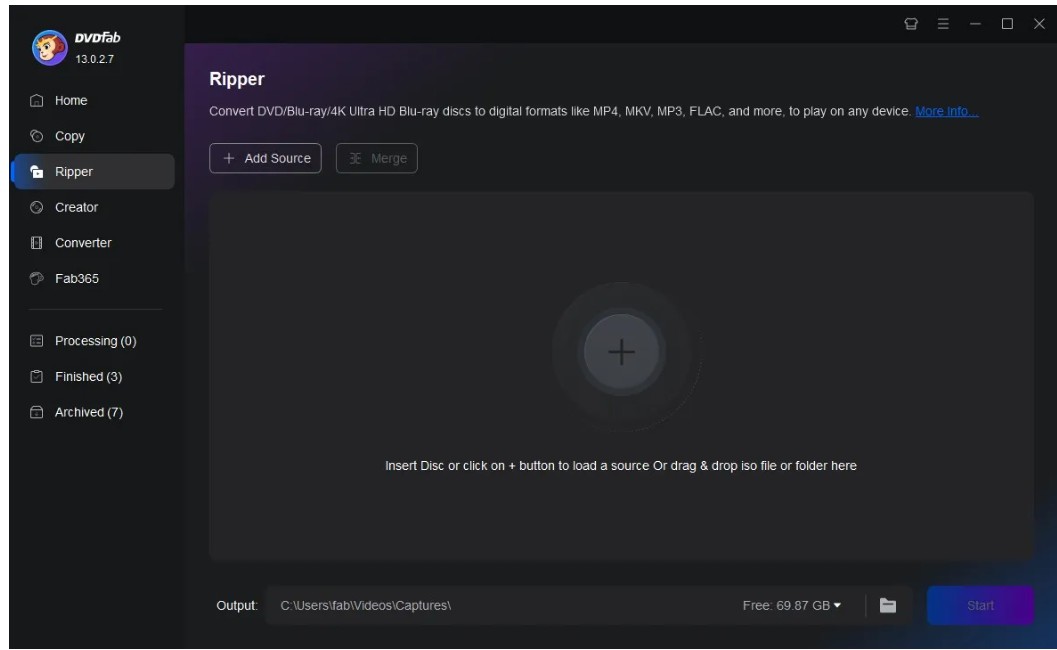
Step 3: After the source is loaded, click "Choose Other Profile" and select MKV or other format you prefer.
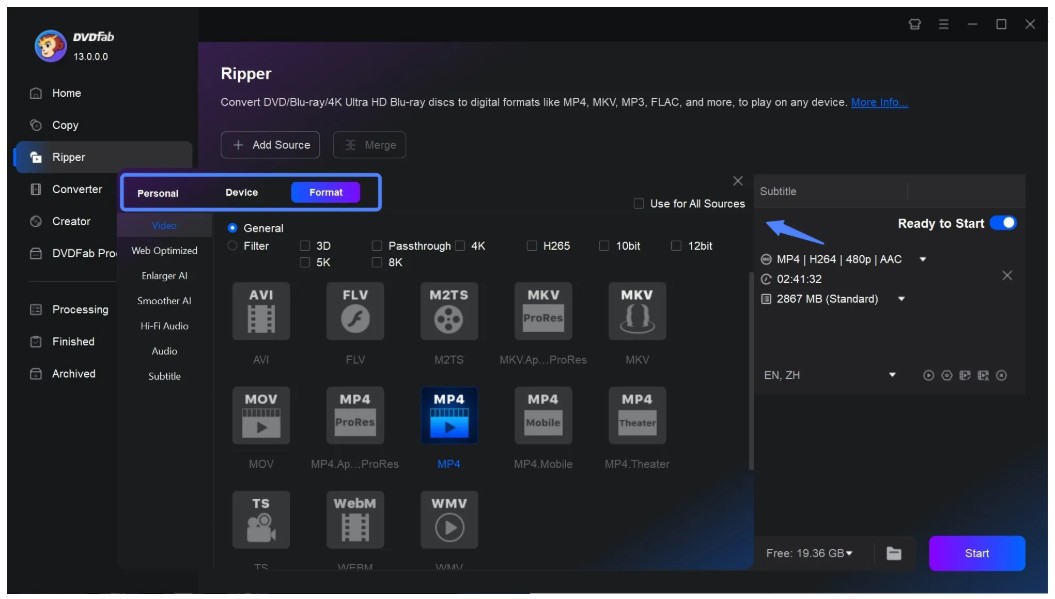
Then, you can choose the audio track and subtitle you want to keep in the output video. If you wish to make additional changes, go to "Advanced Settings" and edit the video with the built-in video editor.
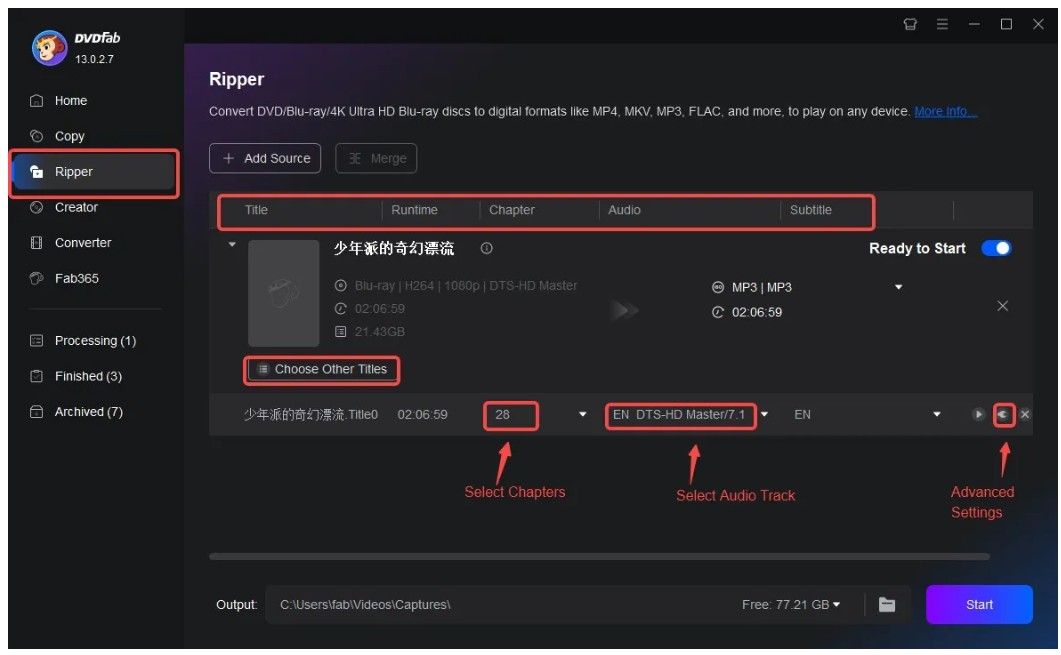
Step 4: If you've made the adjustments, click the "Save to" button to choose a location for the output file. Then press the "Start" button to begin the Blu-ray ripping process.
Comparison Table: MakeMKV vs. Alternatives
To help you decide which tool best suits your needs, here's a detailed comparison of MakeMKV and its alternatives. Let's see their differences and similarities.
| Feature | MakeMKV | DVDFab Blu-ray Ripper | DVDFab DVD Ripper |
| Platform | Windows, Mac, and Linux | Windows and Mac | Windows and Mac |
| Input Formats | DVD and Blu-ray | Blu-ray ISO image file, Blu-ray disc, & Blu-ray folder | DVD ISO image file, DVD disc, & DVD folder |
| Output Formats | MKV | 1000+ formats | 1000+ formats |
| Compression Options | No | Yes | Yes |
| Decryption Support | Yes | Yes | Yes |
| Customization | No | Yes | Yes |
| Speed | Fast | Very Fast | Very Fast |
| Free Version Availablity | Yes (Beta version) | Yes (30-day free trial) | Yes (30-day free trial) |
FAQs
Is MakeMKV still in beta?
Yes. MakeMKV is still distributed as a beta version, and the official beta key may be updated over time. If the purchase page is temporarily unavailable, check the current beta key post on the MakeMKV forum before assuming MakeMKV has stopped working. Users who want a permanent key can try the official purchase page again later.
What is the MakeMKV beta key, and how do I use it?
The MakeMKV beta key is a registration key used for the beta version while the software remains in beta. The key can expire or be replaced, so use the current key from the official MakeMKV forum page instead of copying old keys from outdated articles or forum posts.
Does MakeMKV support batch file processing?
MakeMKV lets you select more than one title from a scanned source, but it is not designed as a full batch disc conversion tool. If you need to queue several DVD or Blu-ray conversion tasks with output profiles and compression settings, use a tool like DVDFab Blu-ray Ripper that includes a task queue.
Can I pause the ripping process in MakeMKV?
No. MakeMKV does not pause and resume an active ripping task. You can stop the current rip with the orange Stop button, but stopping cancels the process and you may need to start again.
Does MakeMKV compress the video files?
No. MakeMKV does not compress or re-encode the video. It extracts the original video, audio, and subtitle streams and places them directly into an MKV container. Since the data remains unchanged, the resulting file size is usually large and reflects the disc's original bitrate and quality.
Conclusion
MakeMKV is a practical choice when you want to rip DVD or Blu-ray discs to MKV while keeping the original video, audio, subtitles, and chapters. It is suitable for local playback, NAS storage, or later conversion.
Still, MakeMKV is not the right tool for every task. It does not export MP4, compress video, or work without the proper optical drive. Temporary purchase-page issues occur frequently, and the beta key often expires. If you want more advanced DVD and Blu-ray ripping functions and more stable service, you can try DVDFab DVD Ripper or DVDFab Blu-ray Ripper.

 How to Rip Blu-ray to MKV on Windows & Mac: 4 Tested ConvertersBy Diana Smith - Sep 28, 2026
 How to Convert 3D Blu-ray to 2D Video: DVDFab 3D Converter GuideBy Diana Smith - Sep 16, 2026
![How to Rip and Extract Hi-Fi Audio from Blu-rays? [2026 Update]](https://r4.dvdfab.cn/upload/resource/en/how-to-convert-blu-rays-to-hi-fi-audio-files-AGcW.jpg) How to Rip and Extract Hi-Fi Audio from Blu-rays? [2026 Update]By Diana Smith - Sep 1, 2026
How to Rip and Extract Hi-Fi Audio from Blu-rays? [2026 Update]By Diana Smith - Sep 1, 2026 How to Convert BDMV to MKV/MP4 on Windows or macOS: 6 Tested ToolsBy Diana Smith - Aug 31, 2026