Best Free ISO Burner Software for Windows and Mac (2026): 8 Tools Tested

Summary: This guide brings together the best free ISO burners for Windows and Mac, covering simple tools for quick ISO burning as well as feature-rich options. Based on hands-on comparisons, DVDFab DVD Copy stands out as the most capable overall choice, while Free ISO Burner and ImgBurn remain reliable free alternatives for straightforward burning tasks.
When You Need an ISO Burning Software
Burning an ISO file to disc sounds simple until you discover that half the tools appearing in search results haven't been updated since 2013, one popular option bundles adware in its installer, and another's company was legally dissolved in 2025. I tested eight ISO burners to map out which ones still work on Windows 10 and 11, which are genuinely free with no restrictions, and where the paid options justify the cost.

You need an ISO burner when an image file has to become a working physical disc: a bootable operating system installer, a DVD for a player that doesn't accept USB or streaming input, or a backup copy meant to outlast your hard drive. Most operating systems can mount ISO files as virtual drives, so if you only need access to the files, mounting is faster and simpler. The burner becomes necessary when the target is a physical device that only accepts real media.
My Top Picks: Best ISO Burners
Best overall: DVDFab DVD Copy
DVDFab stood out during testing because it handles tasks that the free tools simply can't, such as dealing with encrypted discs and offering multiple copy modes on Windows and macOS.
Best lightweight free option: Free ISO Burner
A small, focused Windows utility that concentrates on writing ISO images to disc, so you can choose the drive, set the speed, and burn quickly without dealing with complex settings.
Most configurable free option: ImgBurn
For users who need control over file system settings, layer breaks, or byte-for-byte burn verification, ImgBurn provides all of that. The interface is dated, but the engine runs correctly on Windows 11. Download from MajorGeeks to avoid the bundled software in the original installer.
8 Best & Free ISO Burners for Windows and Mac
DVDFab DVD Copy
DVDFab DVD Copy software is the best ISO burner that allows you to lossless backup or compress any ISO file, DVD disc, or folder to a blank disc directly or save it as an image file or folder on your hard drive.
- Removes copy protection from encrypted DVD discs and ISO images during the copy process.
- Burns large dual-layer ISO files to blank DVD-9 discs, or compresses them to fit a DVD-5.
- Offer 6 different ISO burning mode: Clone, Full Disc, Main Movie, Customize, Split, Merge.
- Allows selective burning by choosing specific titles, chapters, audio tracks, and subtitles.
- Uses hardware acceleration to speed up encoding while preserving original video quality.
How to Burn an ISO to DVD with DVDFab DVD Copy
Step 1: Download and launch DVDFab software, then choose the "Copy" module and select a copy mode. Click the "Add" button to load your source ISO file, or drag it directly to the main interface. Insert a blank DVD into your computer's disc drive before starting.
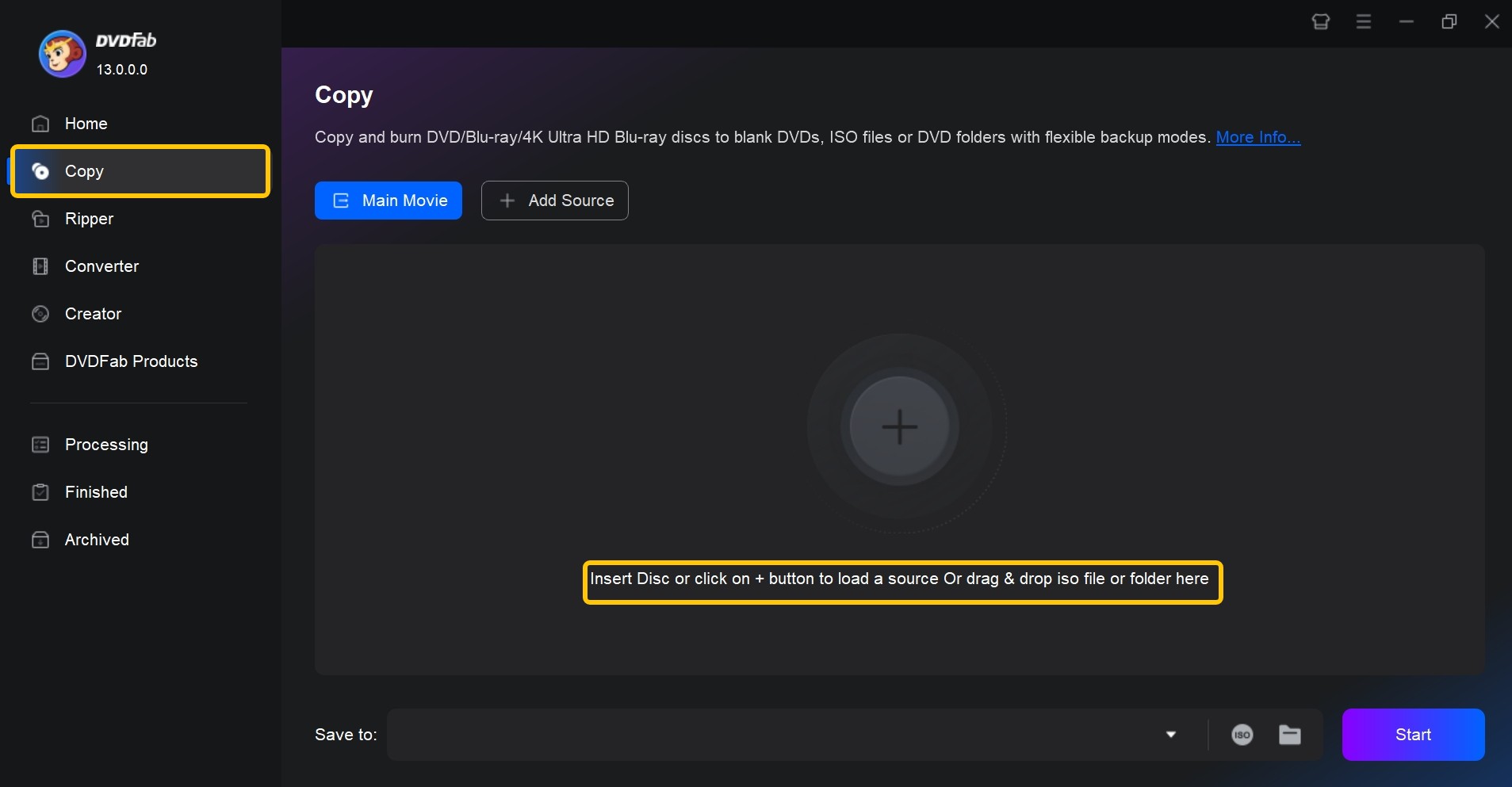
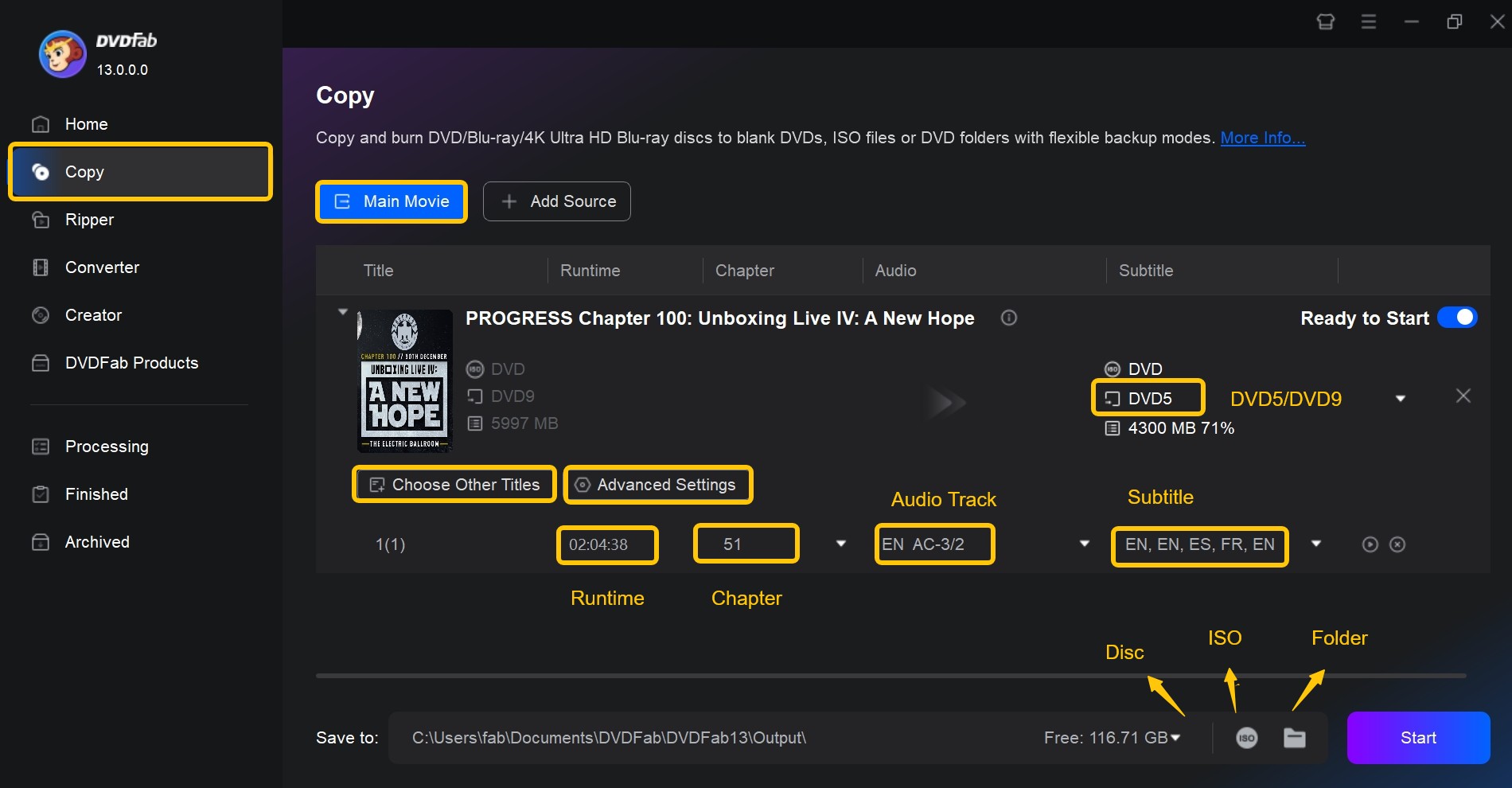
Step 2: Now set a volume label and modify other duplication settings. This includes selecting particular chapters, audio tracks, and subtitles that you want to burn. Finally, choose the output directory as the "Disc" at the bottom of the window.
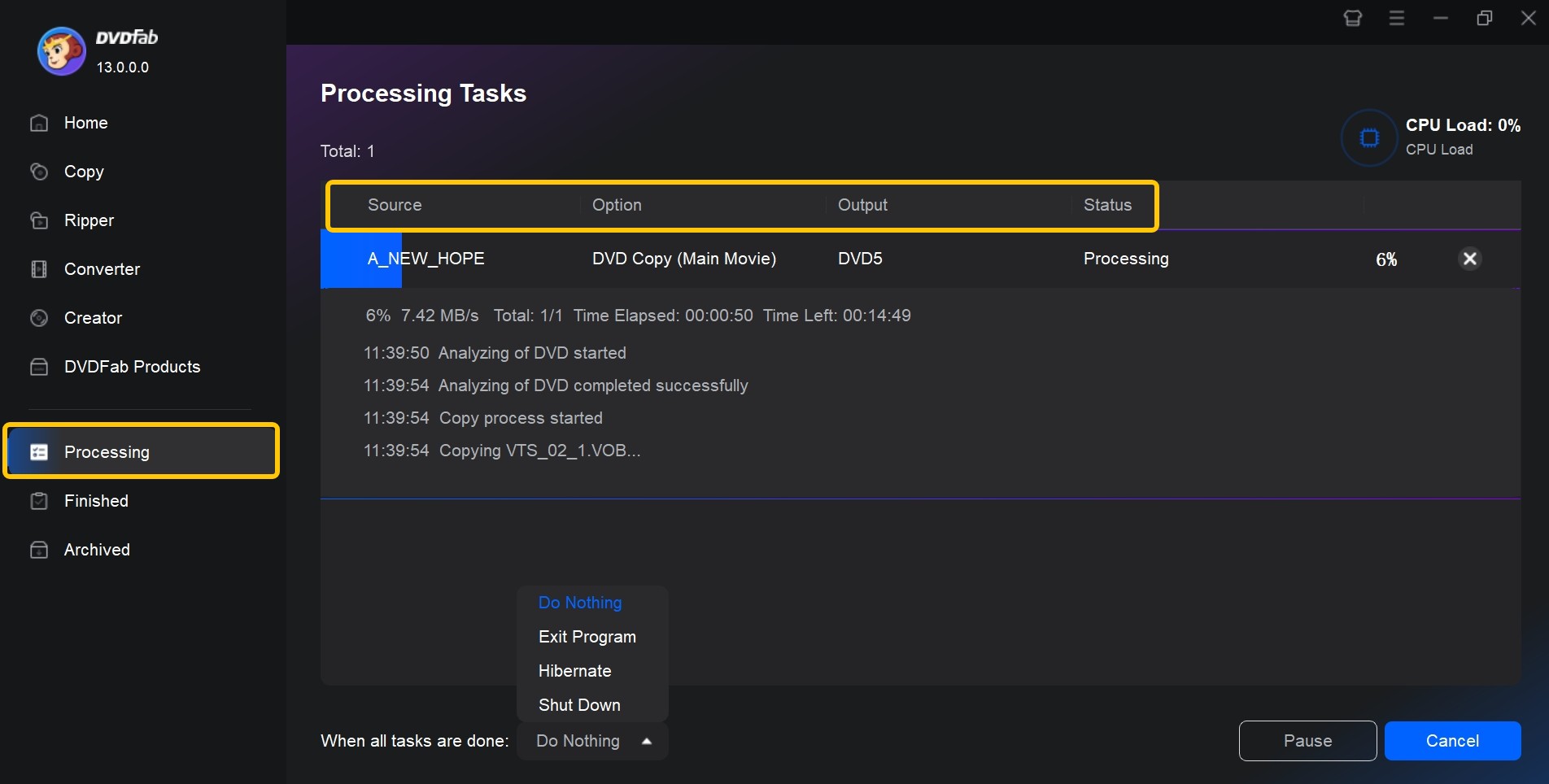
Step 3: Last, click the "Start" button to begin the burning process. You can also convert DVD to ISO using this DVD copy software.
Free ISO Burner
Free ISO Burner is a lightweight Windows tool designed for writing ISO image files to CD, DVD, HD DVD, or Blu-ray discs. It focuses on single-purpose burning rather than full authoring features, making it a simple choice for users who only need to transfer an existing ISO to a physical disc. The program includes a few basic options, such as write speed, cache size, and volume label, and also provides a portable version that can be run directly from a USB drive without installation.
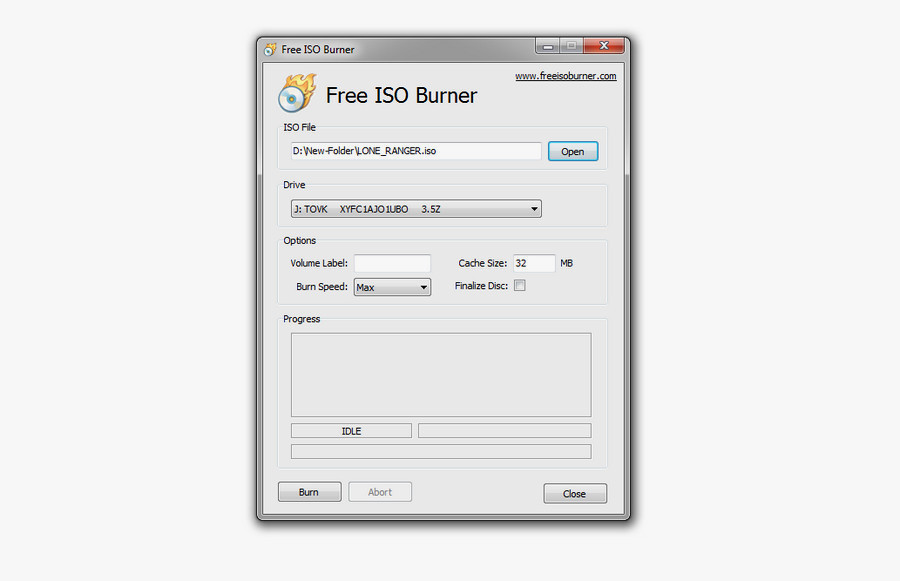
- Burns an ISO directly without extra menus or wizards
- Portable version runs from a USB stick without any installation
- Lightweight and compatible with older Windows PCs with limited resources
- Cannot queue multiple burns or batch process several ISO files
- No built-in disc verification after burning completes
- Supports ISO format only; does not handle BIN, NRG, or other image formats
How to Burn an ISO to DVD with Free ISO Burner
Step 1: Download Free ISO Burner and run the executable. No installation is required when using the portable version. Insert a blank DVD into your disc drive before starting.
Step 2: Click the folder icon next to the ISO file field and select the ISO file you want to burn. Choose your disc drive from the dropdown list and set the write speed. Using 4x or 8x instead of maximum speed reduces error risk, particularly with lower-quality blank media.
Step 3: Click Burn. A progress bar tracks the write status. When the process finishes, the disc ejects automatically. Free ISO Burner does not run a verification step by default, so re-insert the disc and browse its contents if you want to confirm the burn completed correctly.
Active@ ISO Burner
Active@ ISO Burner is also a free Windows-based software that lets you burn ISO files to various disc types, such as CD, DVD, HD DVD, and Blu-ray. The workflow is straightforward: drag an ISO image to the main window and click "Burn." A status panel on the right shows disc information along with write and read speeds, and additional options let you adjust burning mode, write speed, and number of copies. The software works on Windows 10 and earlier; Windows 11 compatibility has not been formally confirmed by the developer, though it installs and runs without reported issues on current systems.
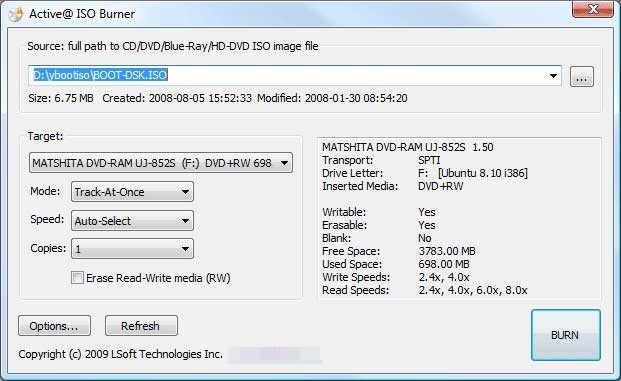
- Simple and intuitive interface
- Free to download and use with no trial limitations or feature locks
- Supports a wide range of disc formats
- Can burn the same ISO image to multiple discs in sequence
- Limited advanced features compared to paid burning software
- Only supports burning ISO images
- Fewer configuration options compared to more advanced tools
ImgBurn
ImgBurn is a Windows disc burning tool known for handling a wide range of image formats and providing detailed technical control over the burn process. It writes ISO, BIN, CUE, MDS, NRG, IMG, and other formats to CD, DVD, HD DVD, and Blu-ray. The software also builds ISO images from files, folders, or existing discs. Development stopped at version 2.5.8.0 in 2013, but the burn engine continues to work correctly on Windows 10 and Windows 11.
Before downloading, note that the official ImgBurn installer includes bundled third-party software (OpenCandy adware). For a clean installer without any added programs, download from MajorGeeks, which distributes a verified clean version with the developer's permission. This is the download source consistently recommended on BleepingComputer and optical disc forums.
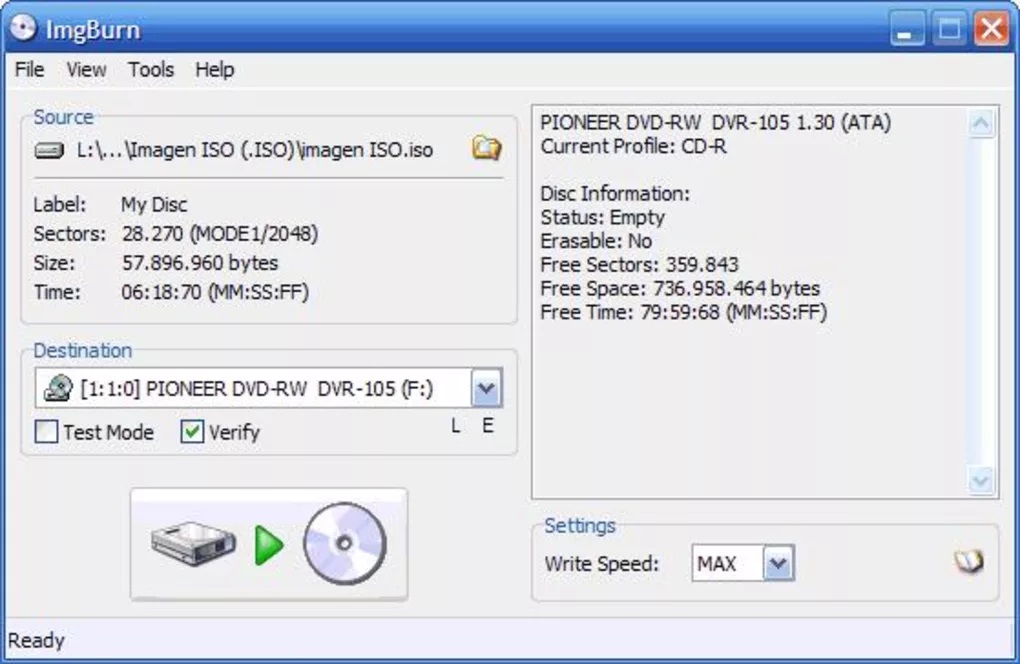
- Provides file system options, layer break adjustments and verification
- Able to create audio CDs using CUE sheets
- Can build ISO images from files or discs, not just burn existing ones
- No longer actively updated, and the interface shows its age
- Lacks one-click disc copying or ripping features
- Overwhelming for beginners due to the number of technical settings
WinISO
WinISO is a free ISO burning software that can be used for editing, making, converting, and burning ISO images on Windows systems. Like ImgBurn, it supports different types of discs, including CD, DVD, and Blu-ray, and can create bootable image files from CDs, DVDs, or files on your hard drive.
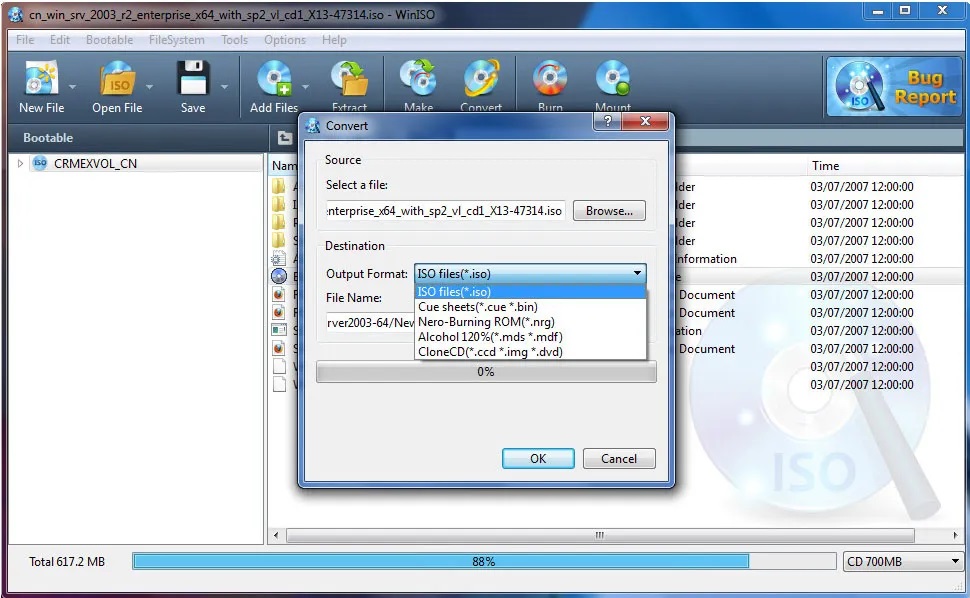
- Combines ISO creation, editing, format conversion, and disc burning in one application
- Compatible with various disk image formats
- Actively maintained with developer support available
- The free version restricts access to several features
- Some users report the interface takes time to navigate
- Advanced features overlap with tools like PowerISO
ISOburn
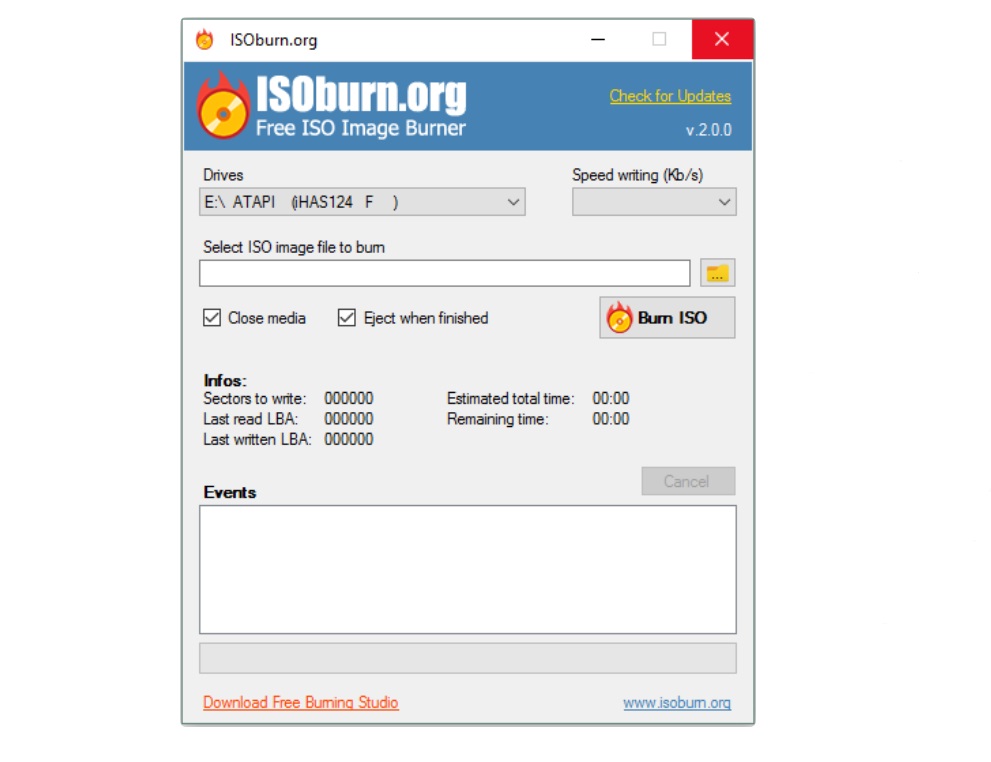
ISOburn is a portable Windows utility for burning ISO image files to CD, DVD, HD DVD, and Blu-ray discs. It supports bootable image files and any standard data disc. The interface is minimal: select the ISO file, choose the target disc drive, and start the burn. A progress panel in the Events section shows step-by-step status during the process. ISOburn has not received updates in recent years and has no visible active development, but it covers the core task without complications on current Windows versions.
- Supports bootable ISO images, including operating system installers
- Burns to CD, DVD, HD DVD, and Blu-ray without any extra configuration
- Portable version requires no installation and runs directly from a USB drive
- No recent updates and no active developer support or bug fixes
- No disc verification step after burning completes
- It may not support all types of ISO images
CDBurnerXP
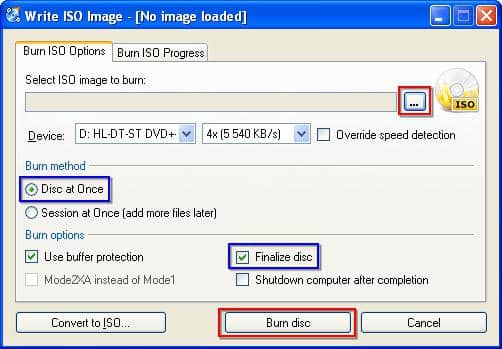
CDBurnerXP is a long-standing free disc burning tool for Windows that supports CD, DVD, Blu-ray, and HD-DVD media. Beyond basic ISO burning, it can create ISO files from existing discs or folders, convert BIN and NRG images to ISO format, and burn data or audio projects with customizable options. It also includes a simple way to copy DVD to Hard Drive by turning a disc into an ISO image for easier backup or archiving.
💡The original official website (cdburnerxp.se) went offline in April 2026. A separate domain (cdburnerxp.com) currently hosts downloads, but its relationship to the original developer is unverified.
- Completely free to download and use
- Works with a wide range of disc formats
- Can burn data, audio, and ISO projects, plus convert BIN/NRG to ISO
- Limited compatibility with newer operating systems
- Older interface and occasional minor bugs
- No active customer support or regular feature updates
PowerISO
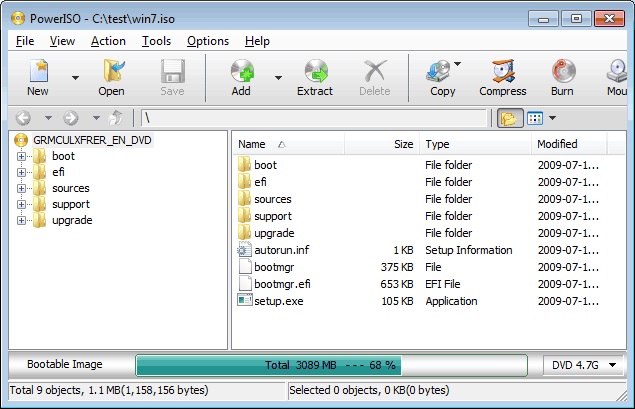
PowerISO is a full-featured image management tool for Windows that goes far beyond basic ISO burning. It can create ISO files, open and modify existing ones, convert between image formats, and compress or encrypt images for storage. Its burning engine writes ISO and other image formats to CD, DVD, and Blu-ray, and the software also includes a built-in virtual drive for mounting images without physical media.
- All-in-one image tool that can build, modify, convert, and burn ISO files
- Supports many file types beyond ISO
- Includes an integrated virtual drive for mounting images instantly
- Interface may feel overwhelming to users who only need basic burning
- The unregistered version limits certain operations and file sizes
- Some users have reported occasional bugs
The ISO burners mentioned above are the commonly used options for burning ISO files on Windows and Mac. Some of them are completely free, while others offer a limited free version or trial before you decide whether to upgrade.
How to Choose the Best ISO Burner Software
The eight tools in this guide split into three groups based on use case. The table below maps each option across platform support, Windows 11 compatibility, portable availability, license type, and maintenance status. Use the maintenance status column in particular: three of these tools have no active developer support, which matters if you are setting up a workflow that needs to stay reliable over time.
| ISO Burner | Supported OS | License | Update Status | Notable Features |
|---|---|---|---|---|
| DVDFab DVD Copy | Windows 11/10/8.1/8/7 & macOS 10.13 - 15.x |
Paid, 30-day trial | Active, frequent updates | Compress DVD; fast engine |
| Free ISO Burner | Windows 11/10/8/7 (and older versions) | Freeware | Active, but updated infrequently | Burn verification |
| Active@ ISO Burner | Windows XP, Vista, 7, 8, and 10 | Freeware | Mature product, few recent changes | Create bootable CDs, DVDs from ISO images |
| ImgBurn | Windows 2000/XP/Vista/7/8/10 | Freeware | No new releases since 2013 | Create image files from various sources |
| WinISO | Windows 10/11 (64-bit) | Commercial, trial | Active, latest major v7.1.1 | Includes a bootable ISO creator |
| ISOburn | Windows XP/7/8/10 | Free for personal use | Legacy tool, no visible recent updates | Supports bootable images and multiple disc types |
| CDBurnerXP | Windows 2000 and later | Freeware | Active | Burning audio CDs from various file; Erasing rewritable discs |
| PowerISO | Windows 11/10/8/7/Vista/XP | Commercial, trial | Actively maintained, v9.2 in 2025 | Compress and encrypt image files |
FAQs
What is the best free ISO burning software available?
A few names come up often. ImgBurn and CDBurnerXP are long-standing free options for Windows, and Free ISO Burner is a very lightweight choice when you just need to burn an ISO to disc. If you want extra functions such as different copy modes, handling copy-protected DVDs, or built-in compression, DVDFab DVD Copy is a more complete ISO burner and offers a free trial on both Windows and macOS.
Is there a limit to the file size that free ISO burner can handle?
In most cases, the main limit is the capacity of the disc you're burning to (for example, about 8.5 GB for a dual-layer disc), rather than the ISO burner itself. Some free editions of commercial tools may add their own size or feature restrictions, but many freeware ISO burners will write any ISO that fits on the disc. DVDFab DVD Copy can burn large ISO images and, when needed, compress a full movie disc so it fits onto a smaller blank DVD.
Do these ISO burners work on Windows 11?
Several tools in this list have confirmed Windows 11 compatibility: DVDFab DVD Copy, Free ISO Burner, ImgBurn, WinISO, and PowerISO all run on Windows 11 without reported issues. Active@ ISO Burner's developer has not formally confirmed Windows 11 support, though it functions on current systems in practice. ISOburn is a legacy tool with no recent updates, and Windows 11 compatibility has not been verified.
Final Thought
The right ISO burner comes down to two decisions: whether you need it to be free, and whether you need it to handle copy-protected or complex discs.
For straightforward free burning on Windows 11, Free ISO Burner covers most cases with no installation required. ImgBurn handles more image formats and gives finer control over the burn process; download it from MajorGeeks for a clean installer. If portability matters, both tools offer versions that run from a USB drive.
If you regularly work with encrypted DVDs, need to compress a full-disc image to a smaller blank, or want a tool that runs on both Windows and macOS, DVDFab DVD Copy adds those capabilities. The 30-day trial lets you test the full feature set before committing. For the next step, see the detailed guide on how to burn ISO to DVD on Windows and Mac.

![How to Burn ISO to DVD on Windows 11 and Mac [2026]](https://images.dvdfab.cn/media/Screenshot_2026-08-07_at_10.57.26_d3iqro.png/public) How to Burn ISO to DVD on Windows 11 and Mac [2026]By Diana Smith - Aug 7, 2026
How to Burn ISO to DVD on Windows 11 and Mac [2026]By Diana Smith - Aug 7, 2026![How to Rip DVD to ISO on Windows 11/10/8/7 and Mac? [2026 Update]](https://r3.dvdfab.cn/upload/resource/dvd-to-iso-ei38.jpeg) How to Rip DVD to ISO on Windows 11/10/8/7 and Mac? [2026 Update]By Wenny Yan - Jun 17, 2026
How to Rip DVD to ISO on Windows 11/10/8/7 and Mac? [2026 Update]By Wenny Yan - Jun 17, 2026![Top 11 ISO Creators to Create ISO File on Windows & Mac [2026 Updated]](https://r3.dvdfab.cn/upload/resource/create-iso-file-ytTu.jpeg) Top 11 ISO Creators to Create ISO File on Windows & Mac [2026 Updated]By Wenny Yan - Jun 16, 2026
Top 11 ISO Creators to Create ISO File on Windows & Mac [2026 Updated]By Wenny Yan - Jun 16, 2026![How to Copy DVD to DVD or Computer on Windows 10/11/8/7 [Tested Ways]](https://r1.dvdfab.cn/upload/resource/how-to-copy-dvd-windows-10-hO78.jpeg) How to Copy DVD to DVD or Computer on Windows 10/11/8/7 [Tested Ways]By Wenny Yan - Jun 16, 2026
How to Copy DVD to DVD or Computer on Windows 10/11/8/7 [Tested Ways]By Wenny Yan - Jun 16, 2026